

Page 1
Add: Room301,Building 1,No.168 Jixin Road
Minhang District, Shanghai, China.
Tel: +86 21 54389062
Email: [email protected]
Website: www.eques.com.cn
Eques Technology Co., Limited
②
Press main key to see real time
video under home screen.
③
Press“< BACK”to exit.
①
Sleeping mode, press the main key to show the home screen.
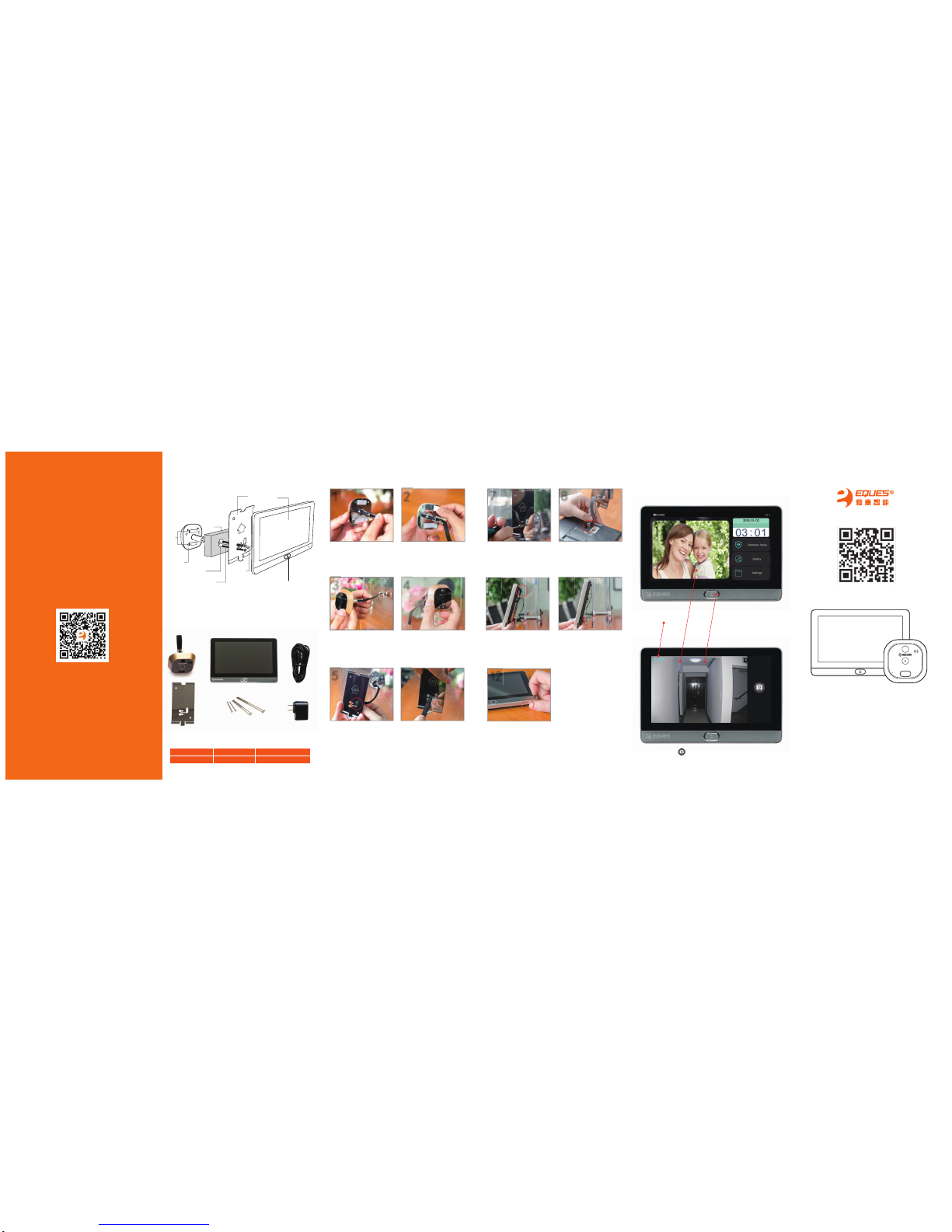
Installation
1
Attach two bolts to the camera
loosely.
2
Peel off the protective film from the
adhesive strips.
5
Hold the bracket upright(see the UP
arrow on the bracket),slide the ribbon
cable through the middle slot on the
bracket.
6
Align the round end of the top and
bottom slots on the bracket with the
two bolts on the camera, then slide the
bracket toward the camera.
4
Fasten the camera by pressing it
firmly onto the door.
Pass the ribbon cable through the
door hole.
3
Swing the lower screen toward the
lower bracket.The strong magnet will
hold two parts together firmly.
10
Press and hold the Power key for 3
seconds to turn the power on.
11
Plug the ribbon cable into the port
on the back of the screen.
8
Hang the screen with the concave on its
back aligning with the top of the bracket.
9
Slide the bracket to the left and
tighten the bolts.
7
APP Download
Wi-Fi Video Doorbell R22
User Manual
Installation Diagram
Package Contents
Camera 1 piece
Screen 1 piece
Charger 1 piece
Bracket 1 piece
Bolts 3 pairs
USB cable 1 piece
Screen
Camera
Bracket Charger
USB cable
Bolts
Press this icon to snapshot, press“< BACK”to exit.
Camera
Self
Adhesive
Str
ips
Door hole
Bolts
Door
Bracket
Ribbon cable
UP
Main key
Screen
Page 2
②
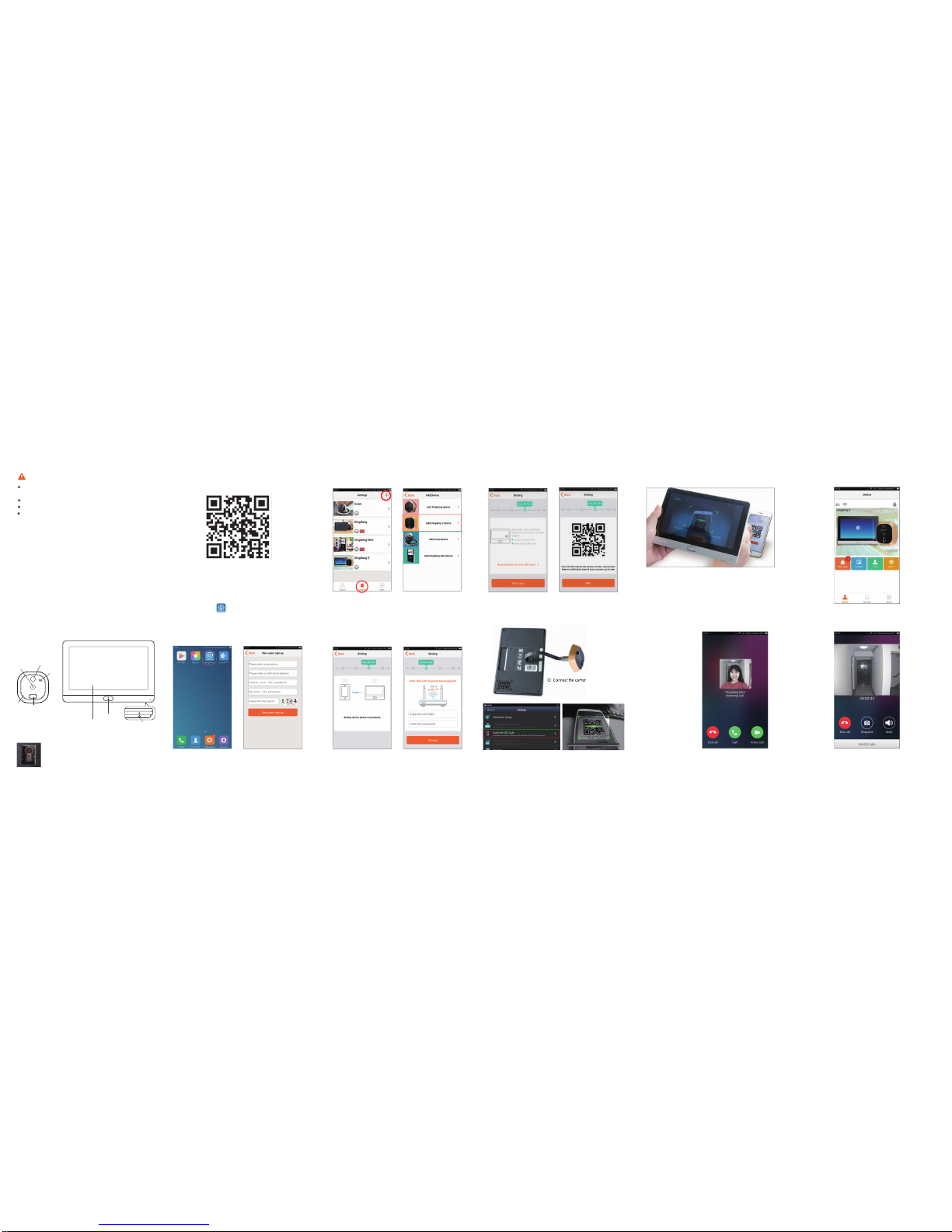
Click“Settings”→ choose“Scan QR code”
①
Connect the camera with the screen.
③
Scan the QR code, it will show “Binding Success”or “Binding
failure”.
Do not leave the product on uneven or unstable surfaces to prevent damage caused
by falling.
Handle the ribbon cable with care to avoid damage.
Don not press on the camera lens or detector lens on the camera.
Try to avoid placing the device in high-temperature surfaces, high humidity, dusty or
other harsh environments as this may reduce the lifespan.
Notes
Technical Specifications
Indoor part Dimension: 180x122x18mm
Outdoor part Dimension: 60x60x50mm
Door hole range: 14mm-50mm
Door thickness range: 35mm-110mm
Battery: 8000 mAh li-polyer battery (Built-in)
Battery Standby time: 1 month
Notes:
1. For door thickness range of 35-60mm,choose 35 mm bolts;
2. For door thickness range of 60-90mm,choose 60mm bolts;
3. For door thickness range of 90-110mm, choose 80mm bolts.
Parts Description
App Download
How to add device
Make sure the App already
installed in your phone.
Login and click the“ + ”on
the top right to add device
in settings.
Choose “Add Dingdong R22”
Open it and register with you
own account and password.
Click the “Start Binding”
Click “Start scan”to generate
QR code.
Use R22 camera scan the QR
code, then click “Next”
Input Wi-Fi router Account and
password, the click “Connect”
If bound successfully, the device
will communicate with your cell
phone via WiFi.It intercepts a
door bell press and activates the
DingDong app on your
phone.The app in turn displays
an interface as shown. You may
perform the following operations.
App Instruction
Install App, click the icon to run it.
Click the R22 icon to view real
time video directly.
Hang up, Snapshot, Mute.
“Reset ”key in the FPC connector slot on the back of screen,
please press it with sharp tools when the device crashed.
Scan the QR code to download APP
②
③
Hang up, Answer or Video Talk.
①
①
Connect the camera with the screen.
Scan QR code
Camera Screen
Main Key
Power
Screen
Doorbell
Camera lens
PIR motion detector
Speaker
Mic
 Loading...