

Page 1
IMPORTANT SAFETY INSTRUCTIONS
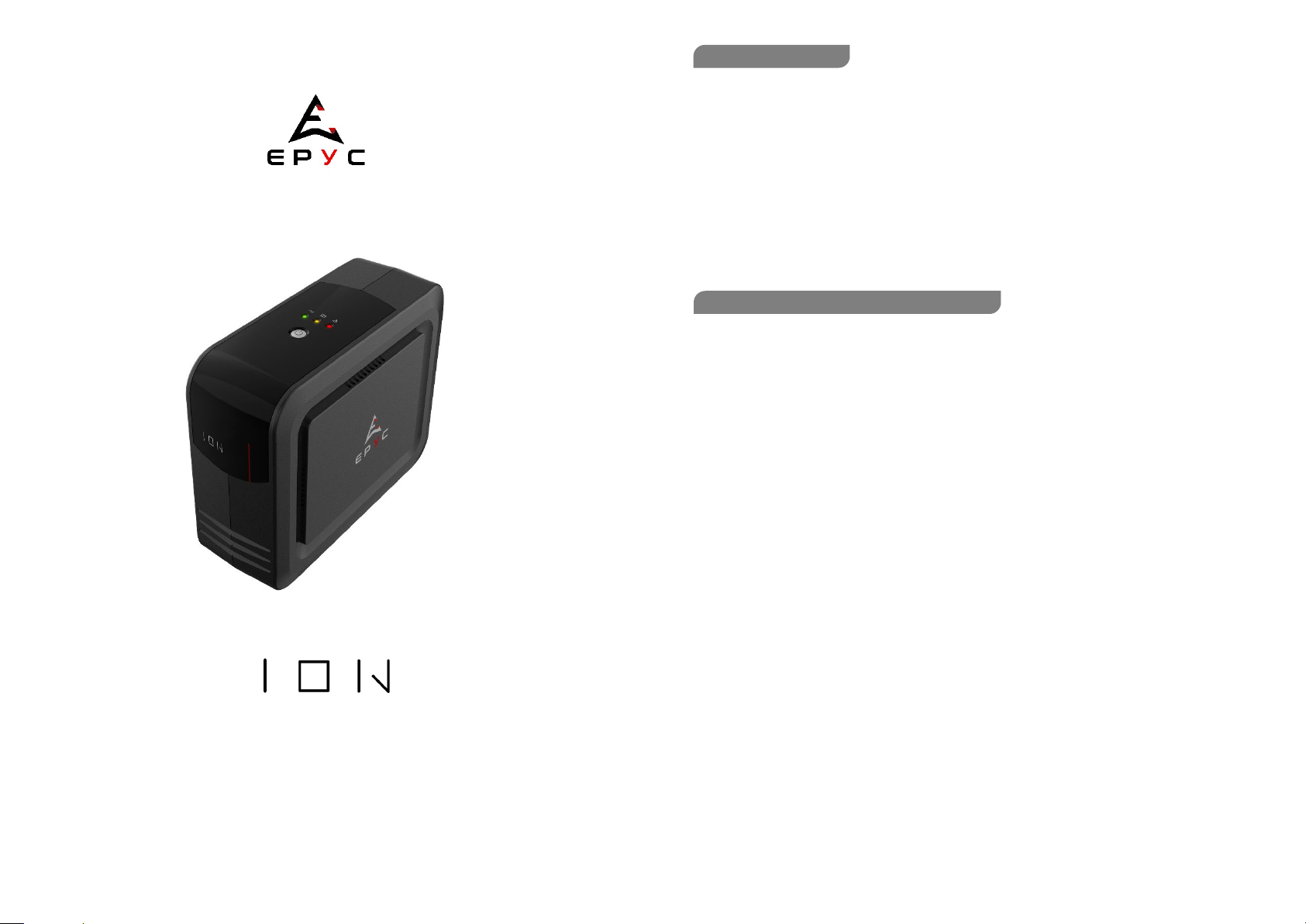
INTRODUCTION
Standby UPS with APFC support
User Manual
600/800
Before to start using the UPS please read carefully this manual, so to ensure the best usage and the maximum life
duration of the machine.
The main features of this Uninterruptible Power Supply (UPS) are listed below:
Microprocessor control that guarantees high reliability
APFC (Active Power Factor Correction) loads support
DC start function
Auto restart during AC recovery
Modem and phoneline surge protection
Built-in USB communication port
This manual contains important safety instructions. Please read and follow all instructions carefully during installation
and operation of the unit. Read this manual thoroughly before attempting to unpack, install, or operate your UPS.
CAUTION! To prevent the risk of fire or electric shock, install in a tem perature and humidity controlled indoor area free
of conductive contaminants. (See the specifications for the acceptable temperature and humidity range.)
CAUTION! To reduce the risk of overheating the UPS, do not cover the UPS cooling vents and avoid exposing the unit
to direct sunlight or installing the unit near heat emitting appliances such as space heaters or furnaces.
CAUTION! Do not attach non-computer-related items, such as medical equipment, life-support equipment, microwave
ovens, or vacuum cleaners to UPS.
CAUTION! Do not plug laser printers, scanners or aquariums into the UPS outlets because of their high start-up current.
CAUTION! The UPS must be connected to a grounded AC power outlet with fuse or circuit braker protection. DO NOT
plug the UPS into an outlet that is not grounded.
CAUTION! Do not allow liquids or any foreign object to enter the UPS. Do not place beverages or any other liquid-
containing vessels on or near the unit.
CAUTION! Do not plug the UPS input into its own output.
CAUTION! Do not attach a power strip or surge suppressor with >1,5m wire to the UPS.
CAUTION! With the installation of the UPS, it should be prevented that the sum of (UPS and) the connected (load)
leakage current exceeds 3.5mA
CAUTION! In the event of an emergency, press the OFF button and disconnect the power cord from the AC power
supply to properly disable the UPS.
CAUTION! The socket-outlet shall be installed near the equipment and easily accessible.
CAUTION! Internal battery voltage is 12V DC. Sealed, lead-acid, 6 cells battery
CAUTION! A battery can present a risk of electrical shock and high short circuit current. The following precautions
should be observed when working on batteries:
1) Remove watches, rings, or other metal objects from the hands.
2) Use tools with insulated handles.
3) Wear rubber gloves and boots.
4) Do not lay tools or metal parts on top of batteries.
5) Disconnect charging source prior to connecting or disconnecting battery terminal.
CAUTION! Servicing of batteries should be performed by personnel knowledgeable of batteries and the required
precautions. Keep unauthorized personnel away from batteries.
Page 2
CAUTION! When replacing batteries, replace with the same number of the sealed lead-acid batteries.
POSITIONING
INSTALLING YOUR UPS SYSTEM
BASIC FUNCTIONALITIES
CAUTION! Unplug the UPS prior to cleaning and do not use liquid or spray detergent.
CAUTION! This UPS utilizes voltages that may be hazardous. Do not attempt to disassemble the unit. The unit contains
no user replaceable parts. Only authorized service personnel may perform repairs.
CAUTION! Do not stick fingers into sockets.
Please follow the instructions to correctly position your UPS:
1. The UPS must be placed on a horizontal surface.
2. This UPS is projected for indoor use.
3. The UPS must not be exposed to direct sunlight or any heat source.
4. The air temperature must be between 0°C and 40° C (25°C is the ideal temperature).
5. Ambient humidity must be less than 90%.
6. The UPS must not be placed on dusty environments.
7. The UPS must be placed at least 15 cm. far from walls to ensure enough ventilation.
8. Do not obstruct or pour any liquid on ventilation holes.
9. Do not cover the UPS with any object.
10. Keep away liquids, flammable gases or corrosive substances.
INSTALLING YOUR UPS SYSTEM
UNPACKING
The box should contain the following: UPS Unit x1, USB cable x1.
HARDWARE INSTALLATION GUIDE
1. The UPS may be used immediately upon receipt. However, recharging battery for at least 8 hours is recommended
to ensure that the battery's max charge capacity is achieved. Charge loss may occur during shipping or storage. To
recharge the battery, simply leave the unit plugged into an AC outl et: it will charge in both the on and off position.
2. With the UPS unit off and unplugged, connect the computer, monitor, and any externally powered data storage
device (Zip drive, Jazz drive, Tape drive, etc.) into the battery power supplied outlets. DO NOT plug a laser printer,
copier, space heater, vacuum, paper shredder or other large electrical device into the battery power supplied outlets.
The power demands of these devices will overload and possibly damage the unit.
3. Plug the UPS into a 2 pole, 3 wire grounded receptacl e (wall outlet). Make sure the wall branch outlet is protected
by a fuse or circuit breaker and does not service equipment with large electrical demands (e.g. air conditioner,
refrigerator, copier, etc). Avoid using extension cords.
4. Press the power switch to turn the unit on. The power on indicator light will illuminate and the unit will "beep".
5. If an overload is detected, an audible alarm will sound and the unit will emit one long beep. To correct this, turn the
UPS off and unplug at least one piece of equipment from the battery power supplied outlets. Wait 10 seconds. Make
sure the circuit breaker is depressed and then turn the UPS on.
6. To maintain optimal battery charge, leave the UPS plugged into an AC outlet at all times.
7. To store your UPS for an extended period, cover it and store with the battery fully charged. Recharge the battery
every three months to ensure battery life.
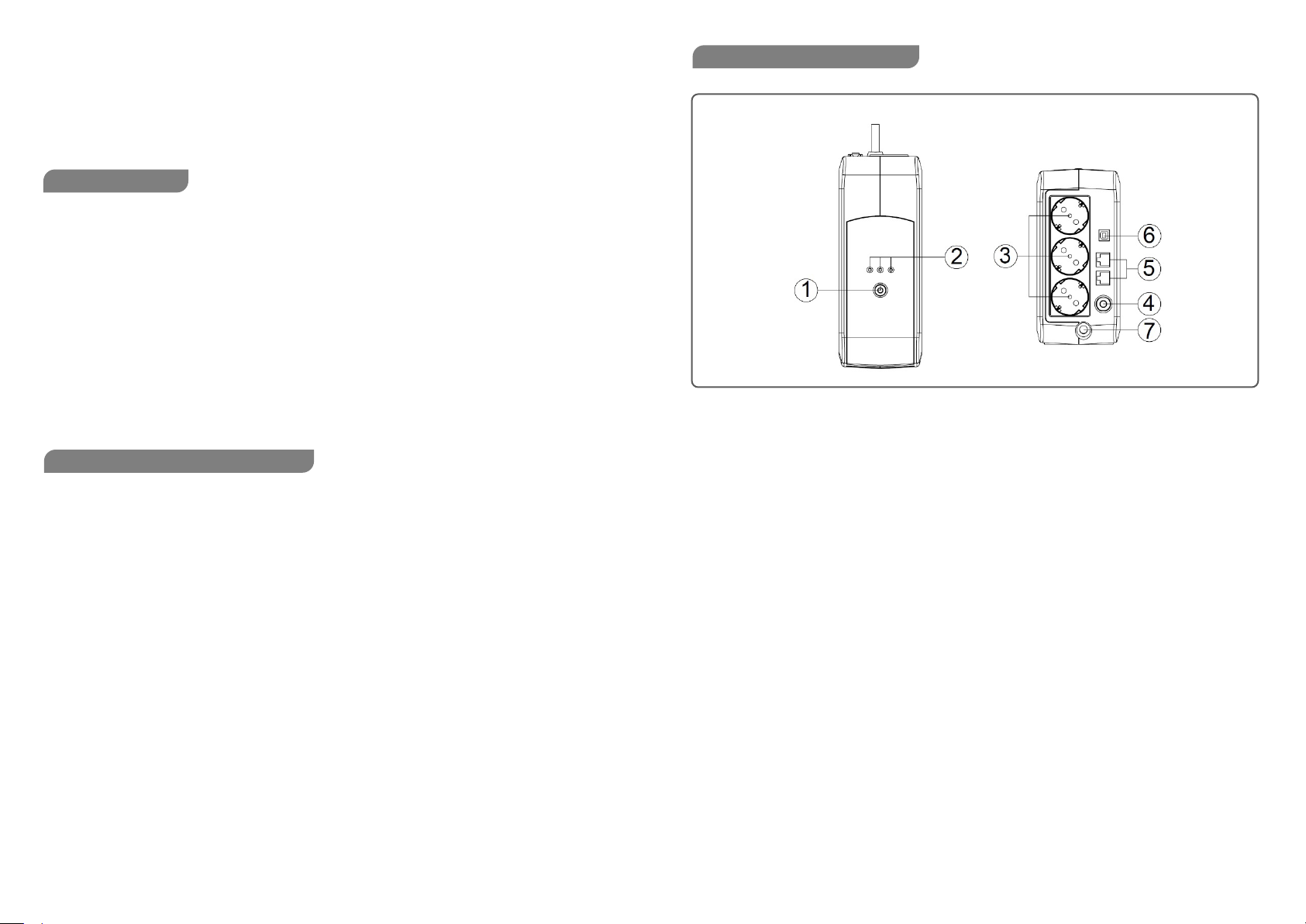
600/800 VA
1. Power Switch
Press the switch to turn the UPS ON or OFF.
2. Led Indicators
Three LED indicators include Using AC, Using Battery, and Fault. Refer to “Definitions for Illuminated LED Indicators”
section for details.
3. AC Outlet
The UPS provides 3 outlets for connected equipment to insure tem porary uninterrupted operation during a power
failure and against surges and spikes.
4. Input Circuit Breaker
The Circuit Breaker provides overload protection.
5. RJ45/11 Communication Protection Ports
Provide surge protection for any standard modem, fax, telephone line, or network cable
6. USB COMM. Port
This port allows connection to the USB port on the computer, so to get access to remote monitoring and shutdown
operations through the UPS management software
7. Input Power Cord
Connect to utility power.
Page 3
Model
600VA
800VA
Output
On Battery Output Voltage
220-240VAC
Overload Protection
Breaker
Physical
Battery
Audible Alarms
On Battery, Low Battery, Overload, Fault
Management
RJ45/11Communication
The unit is not connected to an
AC outlet.
Circuit breaker has tripped due to
Connect the USB/serial cable to the UPS unit and an open USB/serial port on
Shutdown your computer and turn the UPS off. Wait 10 seconds and turn the
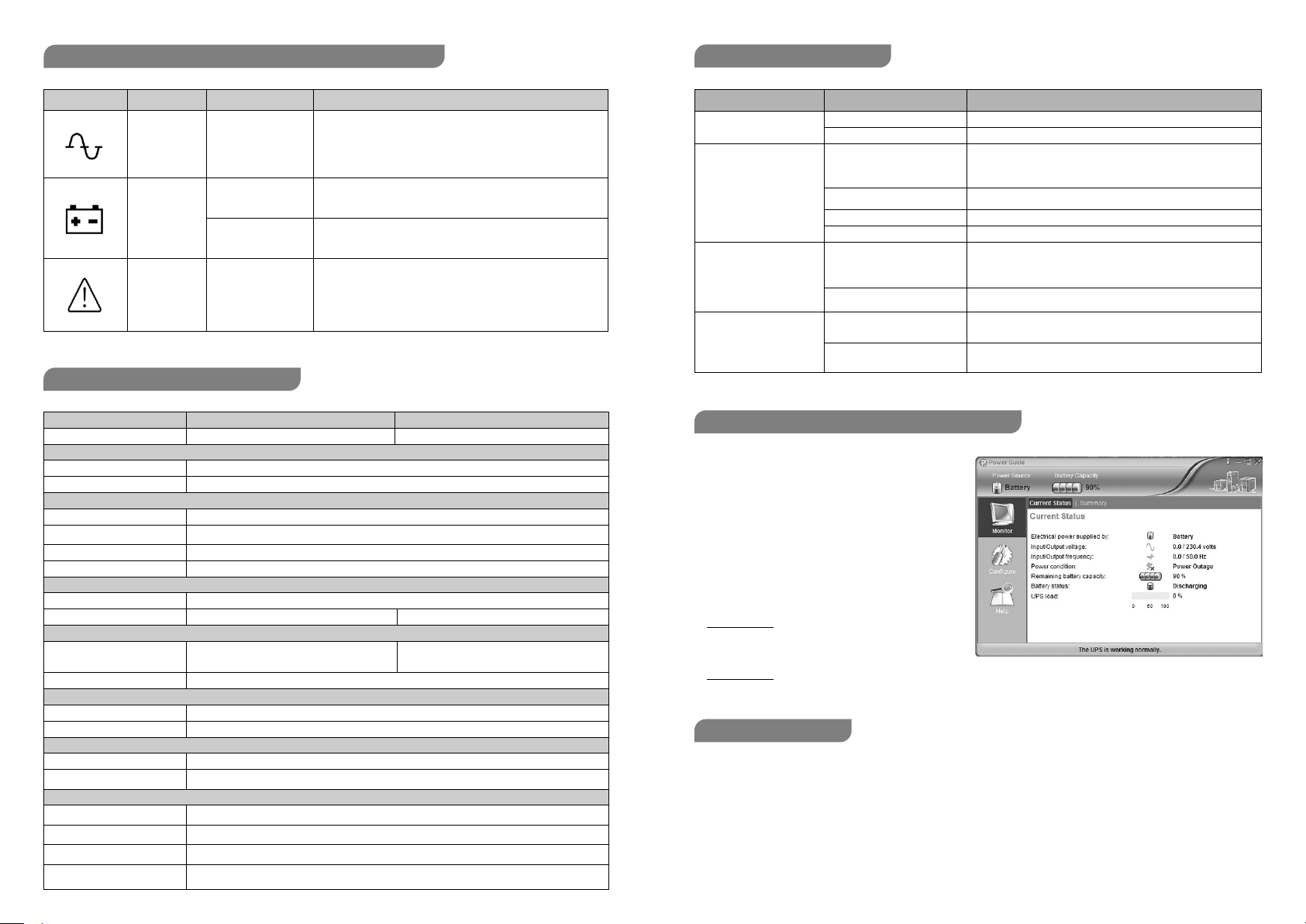
TECHNICAL SPECIFICATIONS
DEFINITIONS FOR ILLUMINATED LED INDICATORS
MANAGEMENT SOFTWARE DOWNLOAD
MAINTENANCE
TROUBLE SHOOTING
Icon Name Alarm Condition
Using AC OFF Normal
Beep once every
Using Battery
Fault Constant Tone
30 seconds
Rapid beeping
every 0.5 second
Utility Failure – The UPS is providing power to
the outlets from its battery.
Utility Failure – The UPS is providing battery power. Rapid
beeping indicates the unit will run out of power shortly.
Battery Overload – Occurs when connected
Equipment exceeds the li sted capacity of the UPS. Turn
the UPS off, unplug at least one piece of equipme nt from
the outlets, reset the circuit breaker and turn the unit on.
Capacity (VA/W) 600/360 800/480
Input
Nominal Voltage range 180-270VAC
NominalFrequency range 50/60Hz
On Battery Output Frequency 50/60 Hz +/-1%
Advanced function Suitable for APFC loads (up to 70% of nominal load)
Dimensions WxHxD (mm) 90x190x235
Weight 2.7kg
Sealed Maintenance Free
Lead Acid Battery
Typical Recharge Time 8 Hours
Warning Diagnostics
Indicators Power On
Environmental
Operating Temperature 0°C to 40°C
Operating Relative Humidity 0 to 90%
Auto-Charger Yes
Auto-Restart Yes
USB COMM.Port Yes
Protection Ports
1x 12V/5Ah 1x 12V/7.5Ah
Yes
3.5kg
Problem Possible Cause Solution
The UPS does not perform
expected runtime.
The UPS will not turn on.
The outlets stop providing
power to equipment.
Circuit breaker button is
projecting from the side
of the unit.
Power Guide Management
Software is inactive
Batteries are not fully charged. Recharge the battery by leaving the UPS plugged in.
Battery is slightly worn out. Contact Technical Support for battery replacing.
The on/off switch is designed to
prevent damage by rapidly
turning it off and on
The battery is worn out. Contact Technical Support for battery replacing.
Mechanical problem. Contact Technical Support.
an overload
Batteries are discharged Allow the unit to recharge for at least 4 hours.
The USB/serial cable is not
connected
The UPS is not providing battery
power
the back of the computer. You must use the cable that came with the unit.
Wait 10 seconds and then turn the UPS on
The unit must be connected to a 220-240V outlet.
Turn the UPS off and unplug at least one piece of equipment.
Reset the circuit breaker by depressing the button,
Turn the UPS off.
and then turn the UPS on.
UPS back on. This should reset the unit
The management software provides a user-friendly
interface for your power systems. The graphic interface
is intuitive and displays essential power informations at
a glance.
Installation procedure:
1. Download Power Guide software (for Windows or
Linux) or Power Master software (for MacOS) from
the website: www.justepyc.com
2. Double-click the file and follow the installation steps.
3. Power Guide: when your computer restarts, the
Power Guide software will appear as a blue icon
located in the system tray.
Power Master: to access Power Master enter http://localhost:3052 adress on your web browser.
Before starting any cleaning oper ation, be sure that:
1. The AC Input Voltage for the UPS has been removed.
2. The UPS is OFF.
Use a cloth moisteened only with water to externally clean the UPS. Before restarting the UPS be sure it is completely
dry.
If the UPS works in an environmental unusually dusty or dirty, remove the dirty from the ventilati on holes
If any liquid gets inside the UPS, do not start the unit and contact Technical Service immediatel y.
Page 4
All rights reserved. Reproduction without permission is prohibited.
ENVIRONMENTAL PROTECTION
WARRANTY
SUPPORT
If the UPS has been damaged during delivery, please report it to the transporter.
If the UPS requires repairs check the trouble shooting table.
If the problem persists contact our technical support at www.justepyc.com
Opening, repairing, or replacing parts i nside the UPS must al ways be carried out by specialized technical personnel
only, otherwise warranty has to be considered forfeited.
The standard warranty for Epyc UPS’s is two (2) years from the date of purchase.
Epyc’s standard procedure is to repair the UPS, or to replace the original unit with a factory reconditioned unit.
Please visit www.justepyc.com for further details about warranty conditions.
Epyc's packagings are made by recyclable materials, in compliance with company environmental policy.
For proper disposal please separate the different packaging materials as listed on the table below.
Then dispose all materials according to your Country specific regulations.
Component Material
Box Cardboard
Angular packaging Expandend polystyrene
Protective bags Polyethylene
Disposal
The UPS contains circuit boards and batteries, that are considered toxic waste and dangerous.
At the end of its life the UPS must be disposed in compliance to WEEE current regolations (Waste of Electric and
Electronic Equipment). Check www.justepyc.com for more details.
Proper disposal hel ps to protect the environment.
K01-C000528-00 ON01
www.justepyc.com
 Loading...