

Page 1
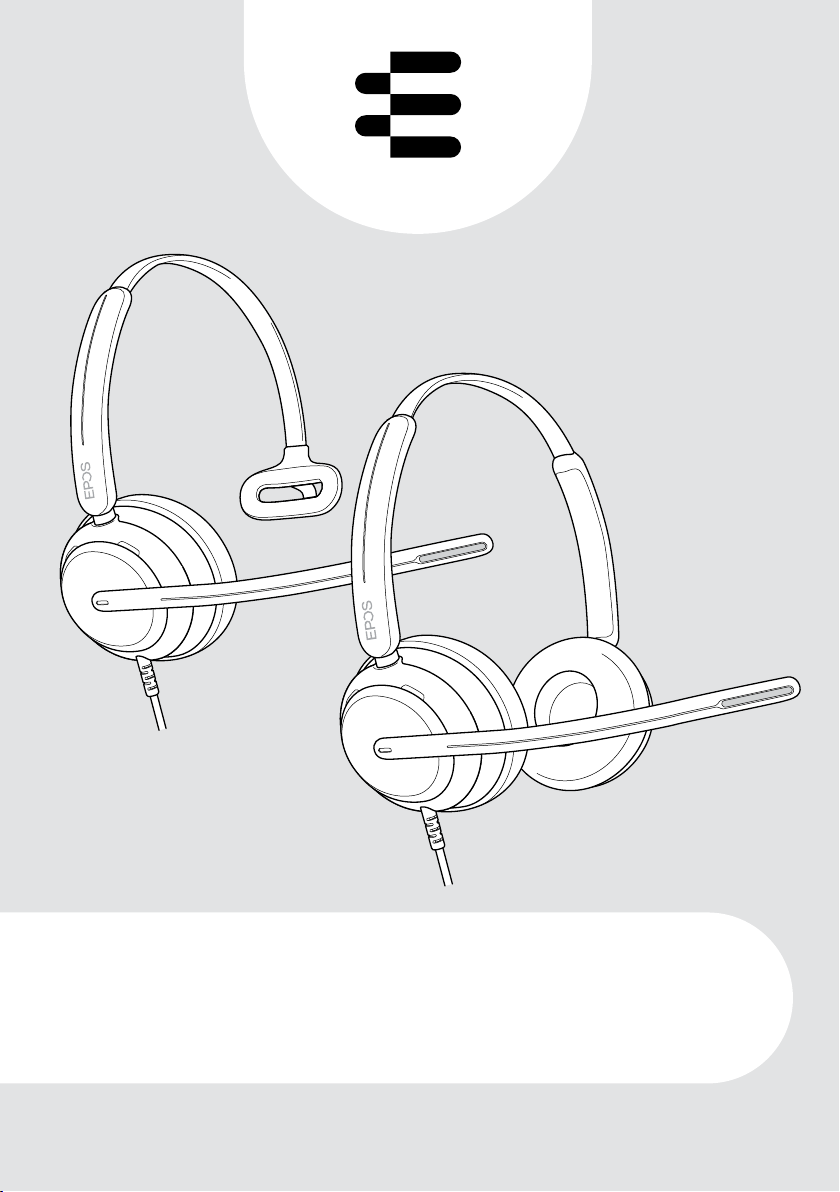
IMPACT 700 series
On-ear wired USB headset
User Guide
Page 2

Contents
Welcome �����������������������������������������������������������������������������������������������������������������������������������3
Package contents �������������������������������������������������������������������������������������������������������������4
IMPACT 700 at a glance ���������������������������������������������������������������������������������������������5
Icons at a glance �������������������������������������������������������������������������������������������������������������������������������������������������������� 5
Headset at a glance ������������������������������������������������������������������������������������������������������������������������������������������������� 5
Inline controller at a glance ��������������������������������������������������������������������������������������������������������������������������������7
How to wear the headset ����������������������������������������������������������������������������������������� 10
Adjusting and wearing the headset ����������������������������������������������������������������������������������������������������������10
Positioning the microphone ����������������������������������������������������������������������������������������������������������������������������10
How to connect ����������������������������������������������������������������������������������������������������������������� 11
A Connecting directly to your computer �����������������������������������������������������������������������������������������������11
B Connecting to your mobile device ��������������������������������������������������������������������������������������������������������12
Installing the EPOS Connect desktop app �����������������������������������������������������������������������������������������13
Changing audio settings – Microsoft
®
Windows ����������������������������������������������������������������������������13
1
How to use – basic functions ��������������������������������������������������������������������������������14
Changing the volume ���������������������������������������������������������������������������������������������������������������������������������������������14
Muting the headset’s microphone ������������������������������������������������������������������������������������������������������������� 16
Making calls using the headset ��������������������������������������������������������������������������� 17
Making a call ������������������������������������������������������������������������������������������������������������������������������������������������������������������17
Accepting / rejecting a call ������������������������������������������������������������������������������������������������������������������������������18
Putting a call on hold (pause) ����������������������������������������������������������������������������������������������������������������������20
Ending a call ������������������������������������������������������������������������������������������������������������������������������������������������������������������21
Managing multiple calls �������������������������������������������������������������������������������������������������������������������������������������� 22
Using Microsoft® Teams – IMPACT 7x0T only ����������������������������������������� 24
Invoking Microsoft® Teams ������������������������������������������������������������������������������������������������������������������������������ 25
Raising hand in a Teams meeting��������������������������������������������������������������������������������������������������������������� 25
Checking Teams Notications ���������������������������������������������������������������������������������������������������������������������� 26
Listening to media ���������������������������������������������������������������������������������������������������������27
Controlling via the wear detection sensor ���������������������������������������������������������������������������������������� 27
Controlling via the button �������������������������������������������������������������������������������������������������������������������������������� 28
Page 3

Good to know ��������������������������������������������������������������������������������������������������������������������29
Activating / deactivating sensor functions ���������������������������������������������������������������������������������������� 29
Adjusting the Sidetone �������������������������������������������������������������������������������������������������������������������������������������� 30
Changing the voice prompts’ language ���������������������������������������������������������������������������������������������� 30
Adjusting sounds and notications ������������������������������������������������������������������������������������������������������������31
Enabling / disabling an Audio Limiter ���������������������������������������������������������������������������������������������������� 32
Maintaining & updating products ��������������������������������������������������������������������� 33
Cleaning the products ���������������������������������������������������������������������������������������������������������������������������������������� 33
Transporting and storing the products ������������������������������������������������������������������������������������������������� 34
Replacing the ear pad(s) ���������������������������������������������������������������������������������������������������������������������������������� 35
Updating the rmware ����������������������������������������������������������������������������������������������������������������������������������������� 36
If a problem occurs��� ���������������������������������������������������������������������������������������������������� 37
2
Trademarks
USB Type-C® and USB-C® are trademarks of USB Implementers Forum�
All other trademarks are the property of their respective owners�
Page 4

Welcome
§
Ensure customer satisfaction on
every call with a headset that
delivers rich, natural sound no
matter the level of background
noise� Three digital microphones
built on EPOS BrainAdapt™ provide
industry-leading voice pickup to let
your agents be heard�
Carefully crafted to provide an
unprecedented level of comfort
and agent well-being, with a
lightweight design and soft memory
foam earpads engineered for
all-day wear� Help your agents stay
productive and avoid fatigue�
The ergonomic call controller is
conveniently placed just below the
headset� Smart features that mute
and unmute calls through intuitive
gestures, help agents handle
more calls with greater eciency�
Compatible with leading contact
center platforms and UC providers,
the IMPACT 700 is an easy
plug-and-play solution�
3Welcome
Key benets & features
Industry-leading voice pickup
for natural-sounding calls
Enjoy exceptional call clarity with three
beamforming mics powered by EPOS AI™
that suppress noise and transmit natural
voice�
Stay Comfortable Throughout the day
Lightweight headset for next level comfort
with soft, leatherette earpads crafted for
all-day wear to ensure agent well-being�
Ergonomic inline controller
for frictionless calls
Eortlessly answer calls, mute the mic,
and change volume with an intuitive inline
controller that’s always where you need it�
Built for laser-sharp focus in
busy work environments
Stay focused on the customer with passive
noise dampening, incoming speech
clarity, and ActiveGard™ acoustic shock
protection�
Backed by exclusive 3-year
extended warranty
Get peace of mind with a product that is
engineered to withstand prolonged heavy
use and truly built to last for years�
For safety instructions, consult the Safety Guide�
For specifications, consult the Fact sheet available at
eposaudio�com
A list of accessories can be found on the product page at
eposaudio�com
Page 5
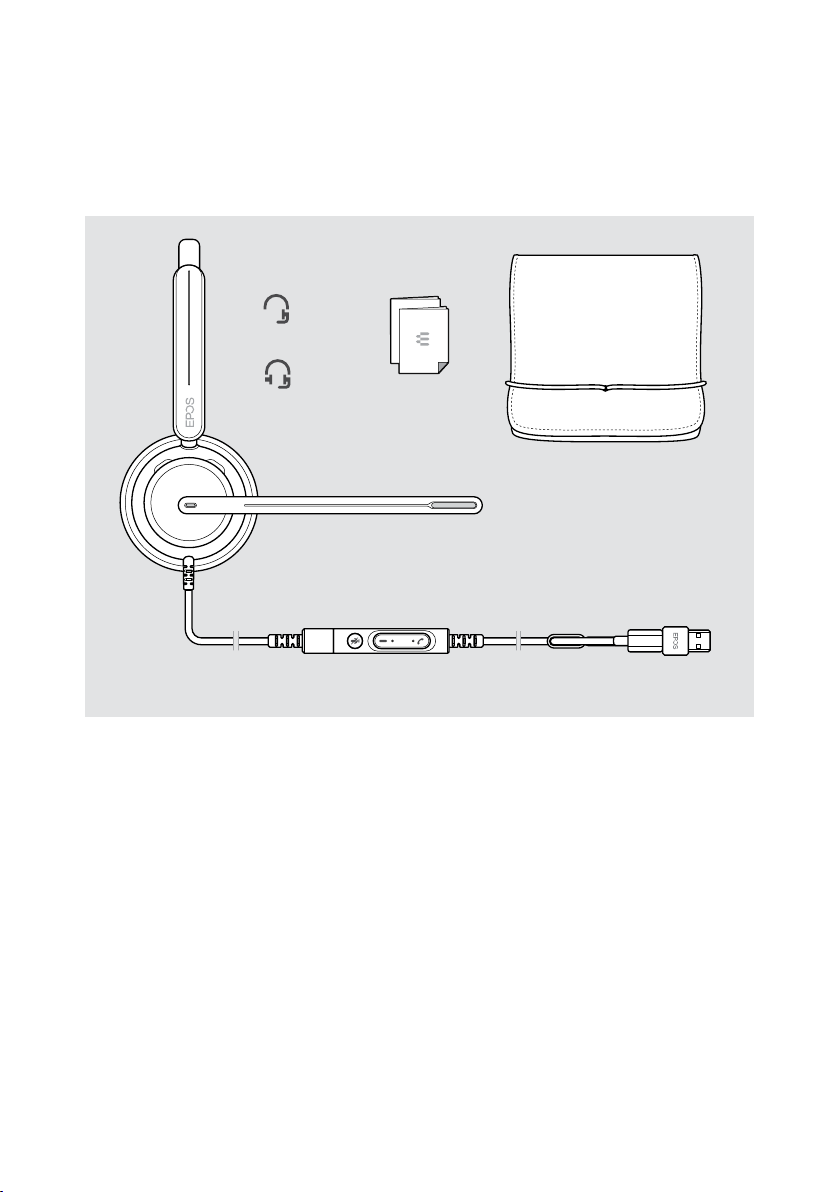
Package contents
IMPACT 730 | IMPACT 760
IMPACT 730T | IMPACT 760T: Microsoft Teams version
IMPACT 730
IMPACT 760
4Package contents
Page 6
IMPACT 700 at a glance
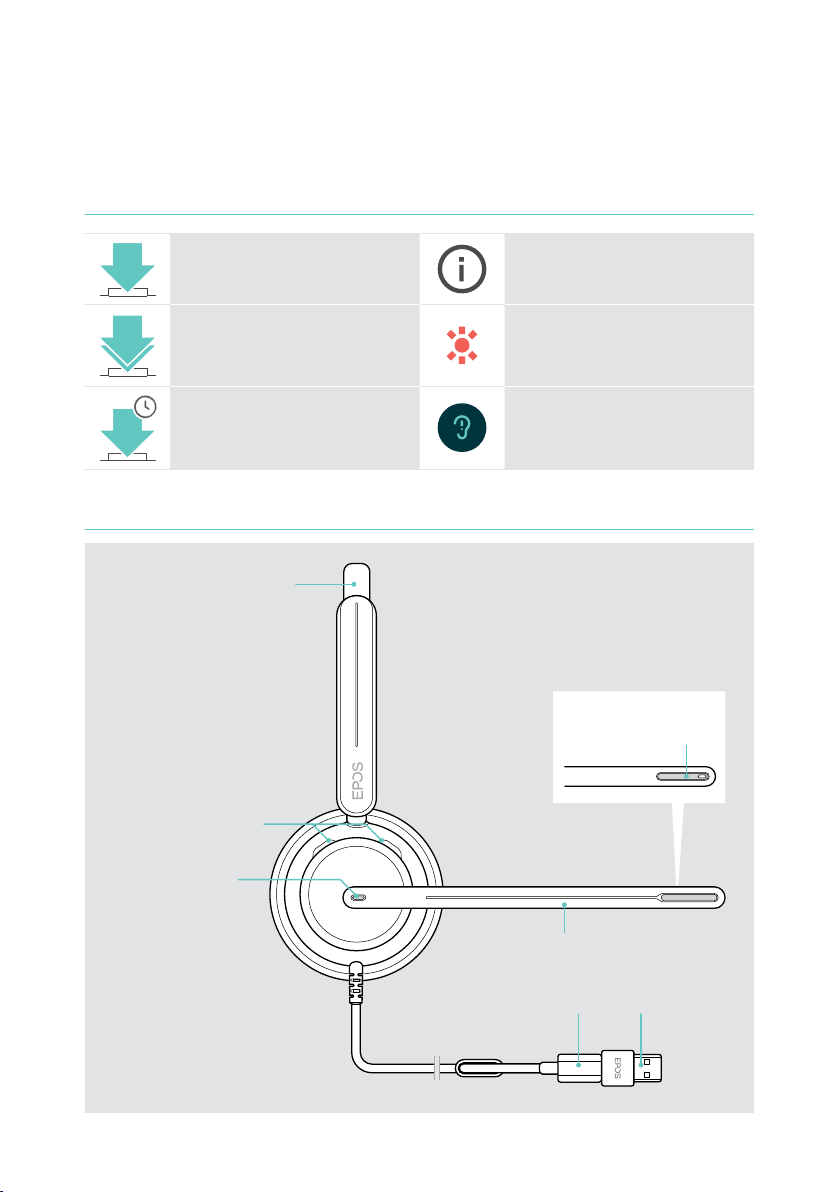
Icons at a glance
Tap the button Notes: Good to know
5IMPACT 700 at a glance
2x
3s
Double tap the button LED indications
Press and hold the button
Headset at a glance
Headband
Busylight LED
Microphone
You hear a voice prompt or
tone
Microphone &
Mute LED
Boom arm
USB-C & USB-A plug
Page 7
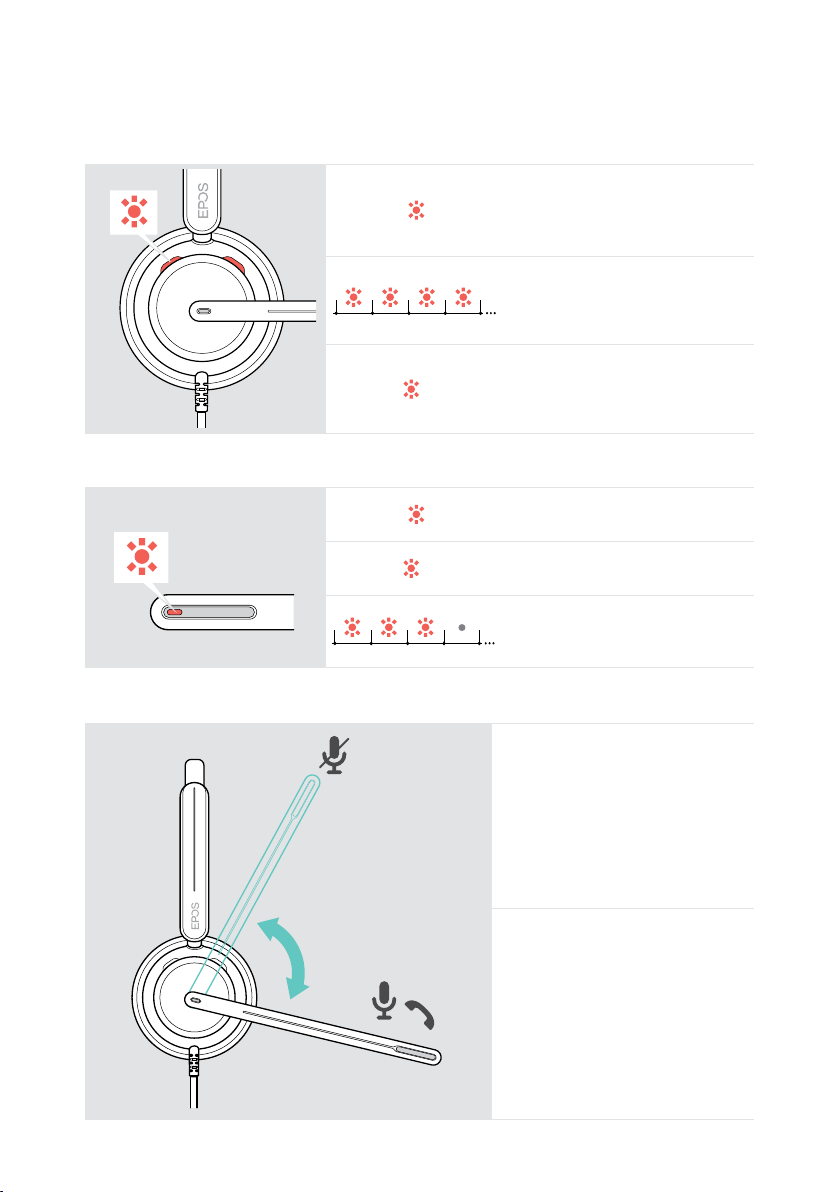
Headset LEDs at a glance
3x
3x
2s2s
0.2s 0.2s
3x
3x
3s 3s
3x
3x
3x
3x
3x
3x
3x
Busylight LED Meaning
6IMPACT 700 at a glance
1x
Mute LED at boom arm Meaning
1x
Boom arm functions at a glance
*
Headset switches on
Incoming call
Active call
Headset switches on
Microphone muted
Talking while microphone is
muted
Lift boom arm:
• Mutes the microphone
Lower boom arm:
• Unmutes the microphone
• Accepts an incoming call
*This function can be activated/deactivated
via EPOS Connect�
Page 8
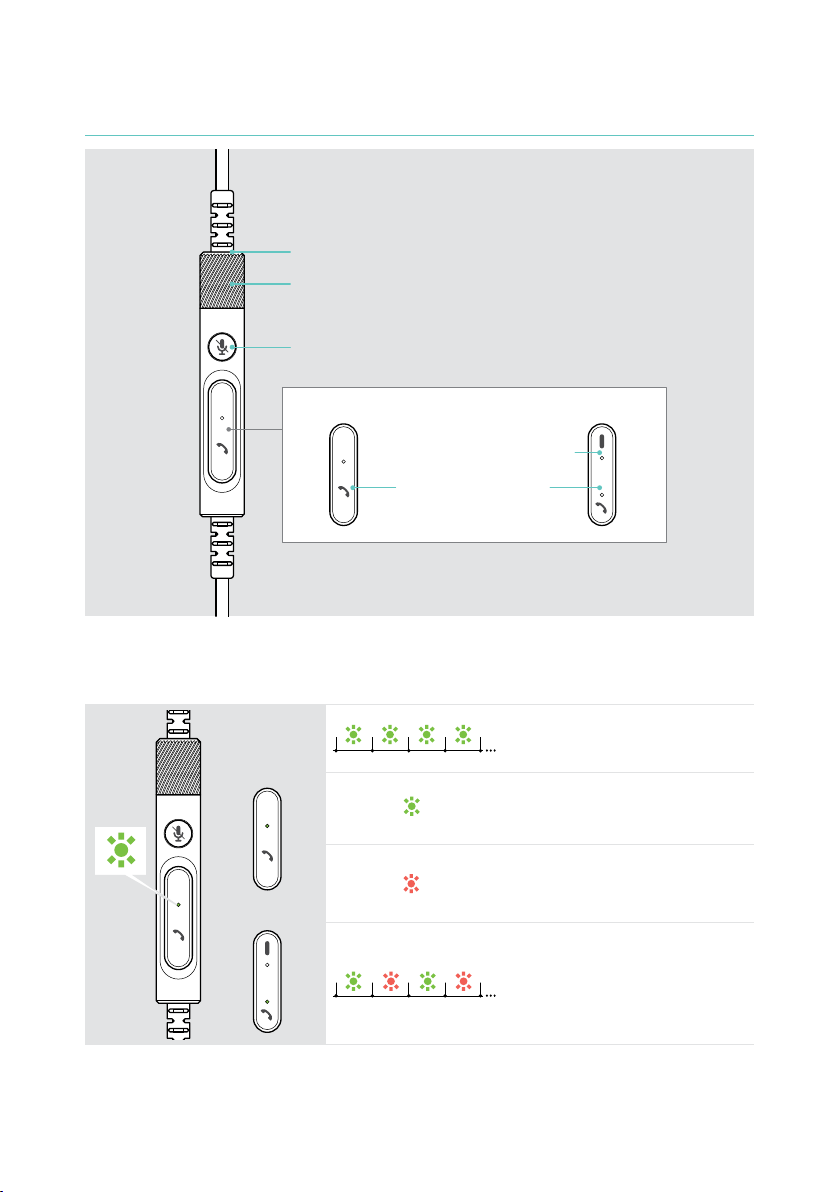
Inline controller at a glance
1x
1x
3x
3x
1x
Mute LED
Volume wheel
Mute button
IMPACT 7x0 IMPACT 7x0T
7IMPACT 700 at a glance
Teams button & LED
Hook button & LED
Inline controller LEDs at a glance
Hook LED Meaning
Incoming call
IMPACT 7x0
Active call
Call on hold
IMPACT 7x0T
Multiple calls:
• Incoming call
• Active call
• Call on hold
Page 9
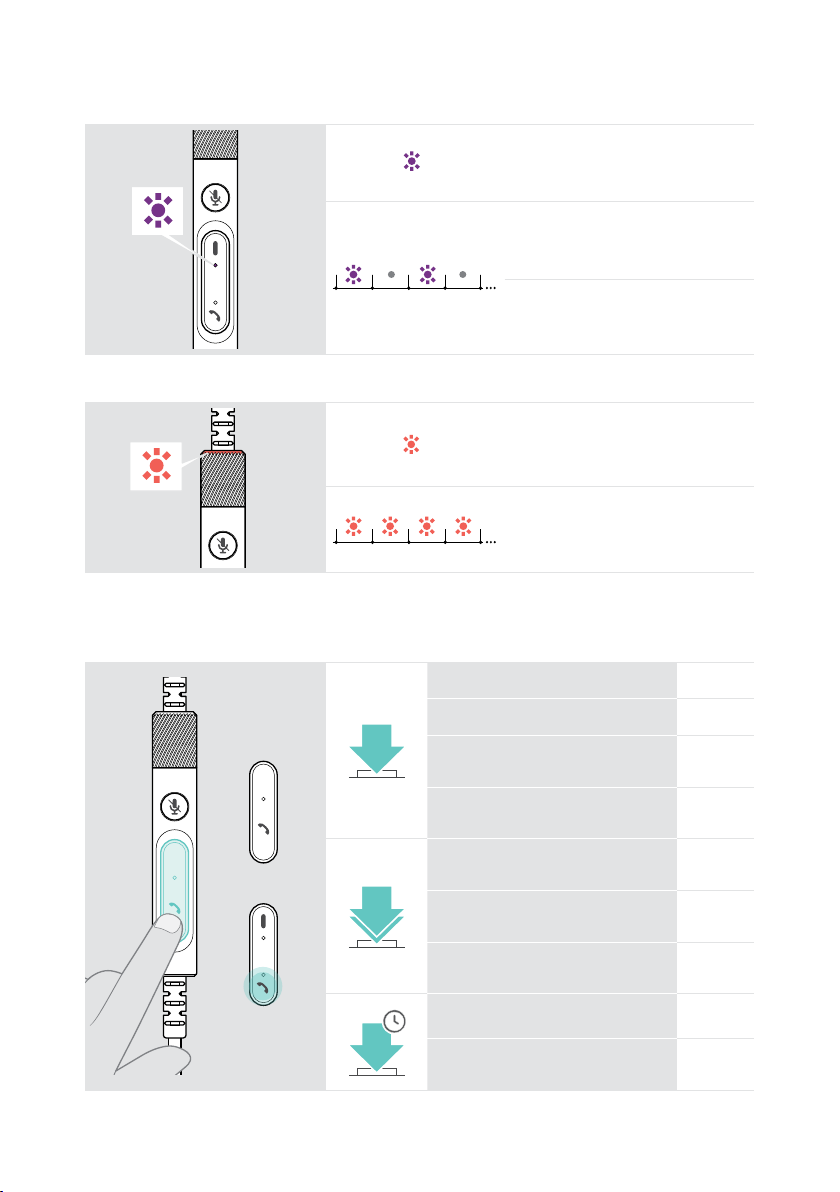
Teams LED (IMPACT 7x0T) Meaning
1x
1x
1x
1x
3x
3x
2s2s
0.2s 0.2s
3x
3x
3s 3s
3x
Connected to Teams
Teams notication
Connecting to Teams
Mute LED Meaning
Microphone muted
Talking while microphone is
muted
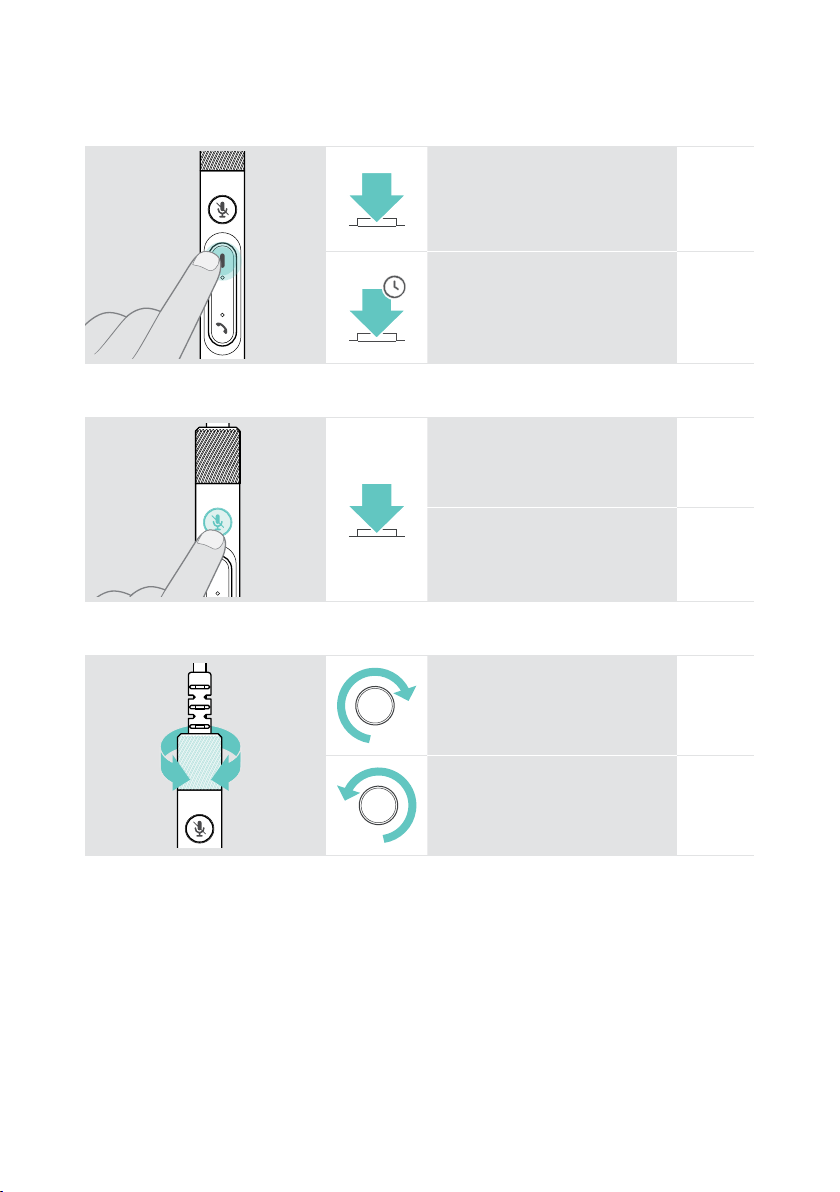
Inline controller buttons at a glance
Hook button Press Function Page
Accepts a call 18
8IMPACT 700 at a glance
Ends a call 21
IMPACT 7x0
IMPACT 7x0T
2x
2 calls: Answers incoming &
ends active call
2 calls: Ends active and
keeps 2nd call on hold
Puts an active call on hold
(pause) / unholds call
2 calls: Answers incoming &
puts active call on hold
2 calls: Toggles between two
calls
22
23
20
22
23
Rejects a call 20
2s
2 calls: Rejects incoming and
keeps active call
23
Page 10
9IMPACT 700 at a glance
Teams button
(IMPACT 7x0T)
Mute button Press Function Page
Volume wheel Turn Function Page
Press Function
Invokes Microsoft Teams 24
1s
Raises/lowers hand in a
Teams meeting upon release
Mutes / unmutes the
microphone
Starts / pauses
audio playback
Page
25
16
27
Increases the volume 14
Decreases the volume 14
Page 11
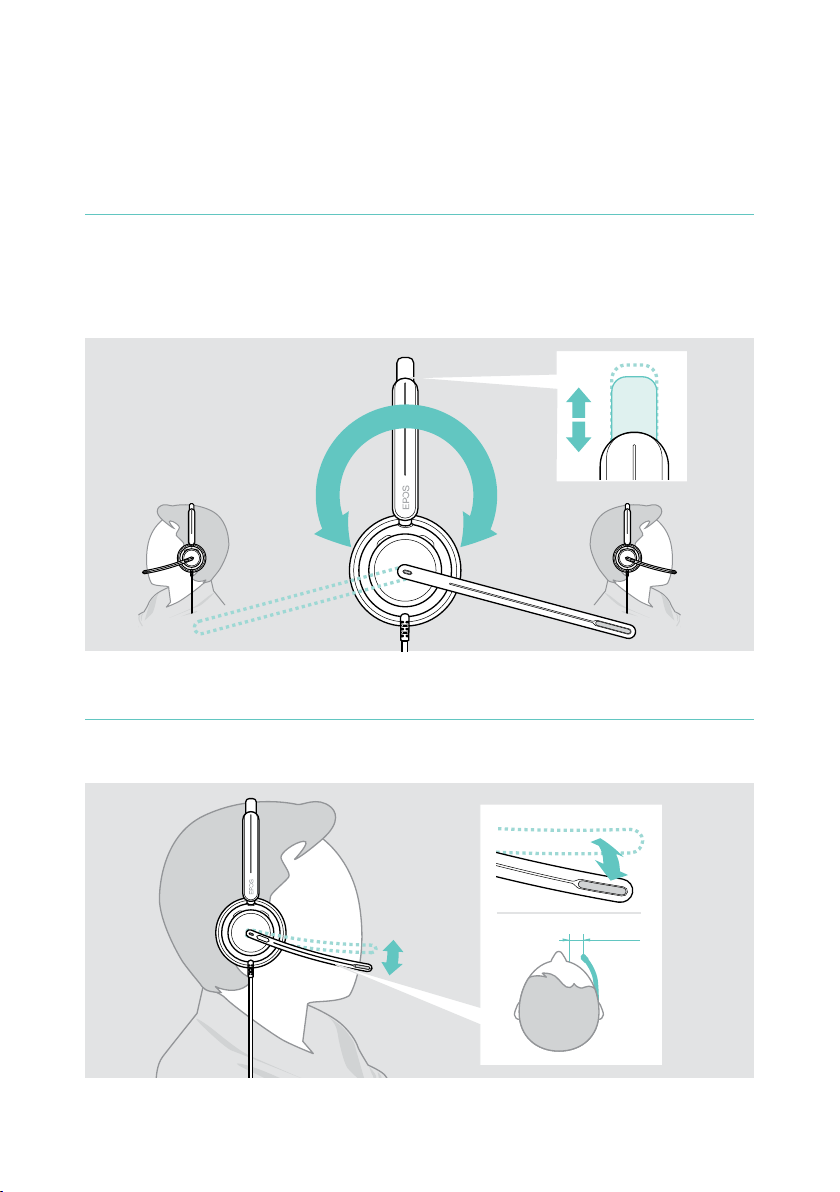
How to wear the headset
Adjusting and wearing the headset
For good sound quality and best possible wearing comfort:
EPOS Connect�
10How to wear the headset
Positioning the microphone
the corner of your mouth for best call quality�
2-3 cm
Page 12
How to connect
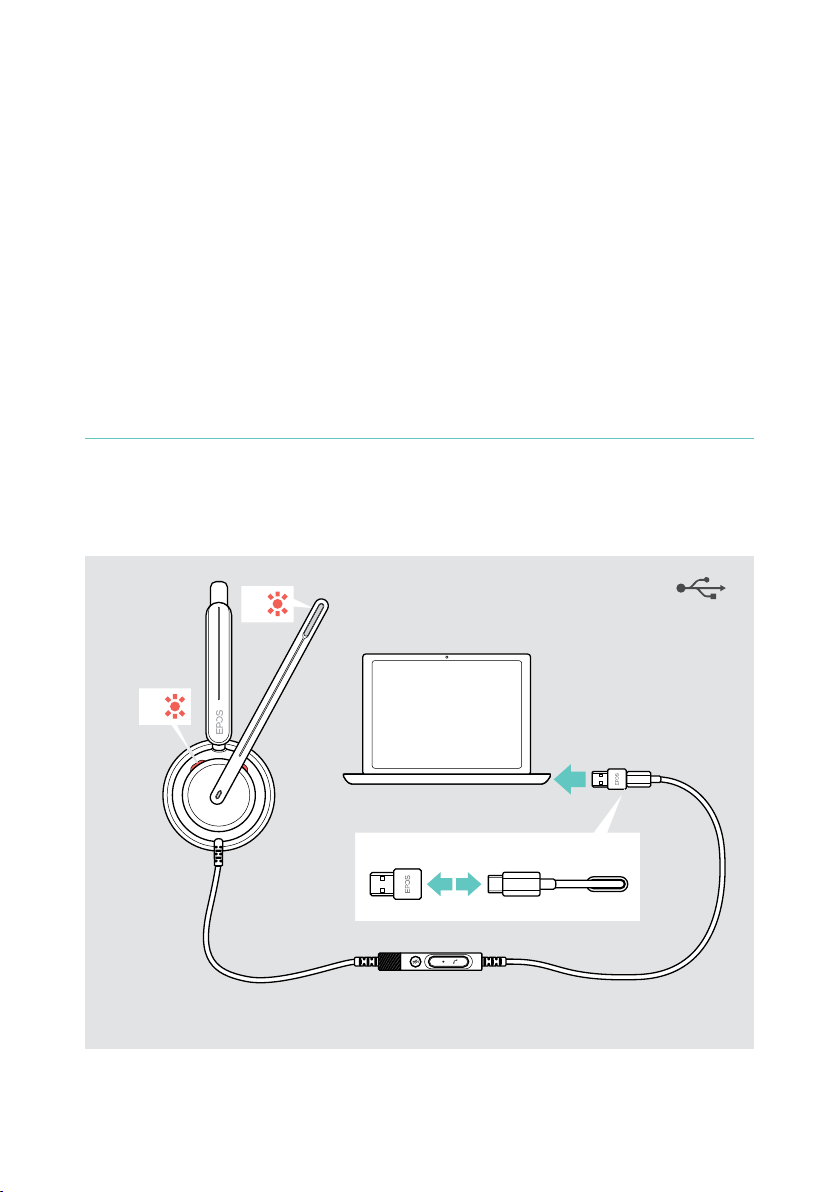
You can connect the headset either:
• A directly to your computer or
• B to your mobile device
You can completely remove and reattach the USB-A adapter from the USB cable�
To remove the USB-A adapter:
A Connecting directly to your computer
The Busy light LED and the mute LED at the boom arm tip light up shortly when
powered�
11How to connect
A
1x
1x
To disconnect the headset:
USB-A
USB-C
®
Page 13
12How to connect
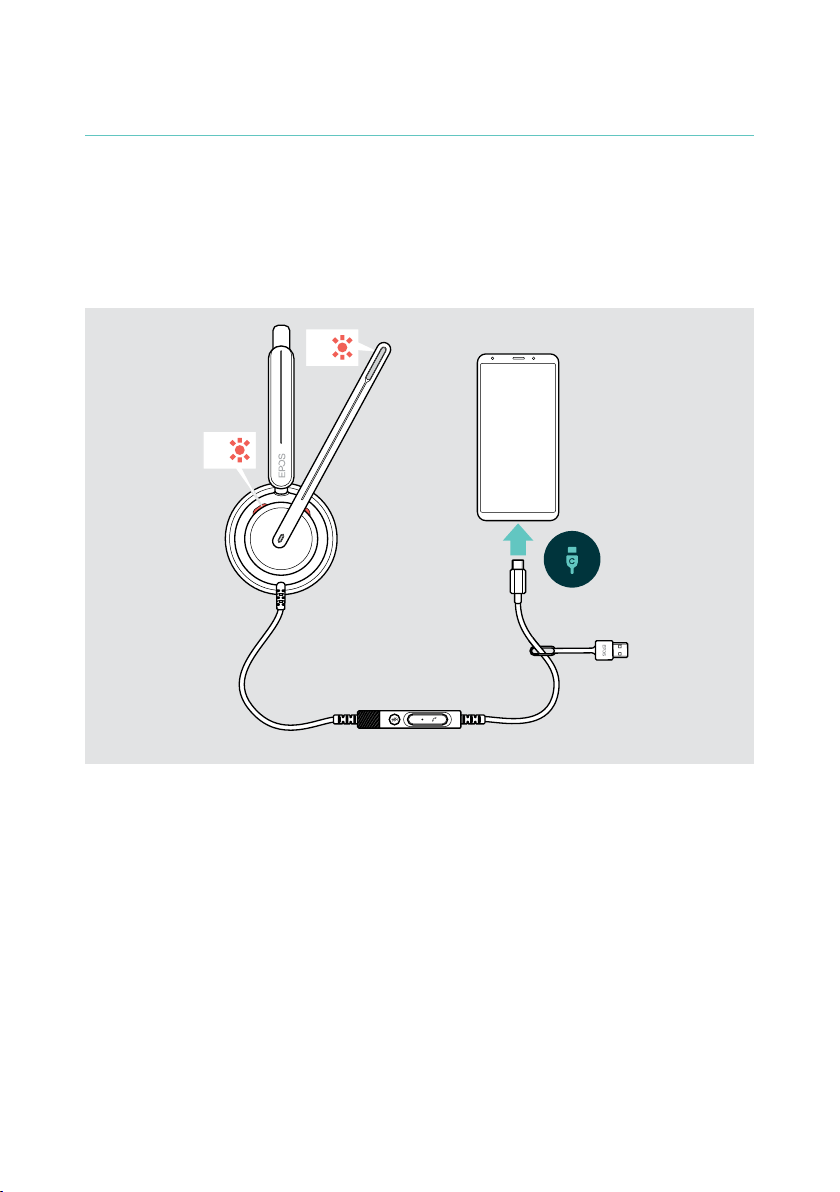
B Connecting to your mobile device
The following functions depend on the connected mobile device and apps and may
not work for all of them�
The Busy light LED and the mute LED at the boom arm tip light up shortly when
powered�
B
1x
To disconnect the headset:
1x
Page 14
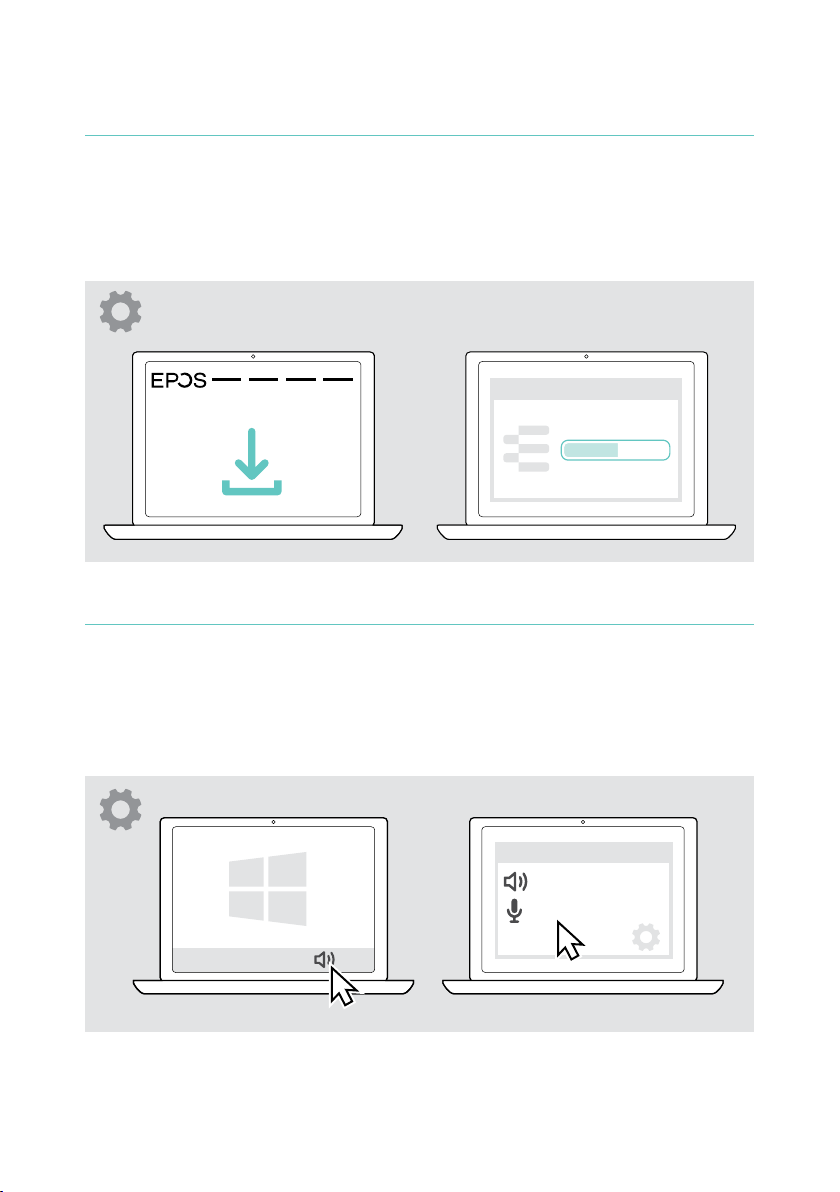
Installing the EPOS Connect desktop app
The free EPOS Connect software allows you to configure and update your headset
and offers additional settings�
necessary, contact your IT department�
eposaudio.com/connect
13How to connect
EPOS Connect
EPOS Connect
x
Changing audio settings – Microsoft® Windows
Windows usually changes the Audio settings automatically if you connect a new
headset� If the headset is connected but you hear no sound:
Audio settings
IMPACT 7x0
IMPACT 7x0
x
Page 15
How to use – basic functions
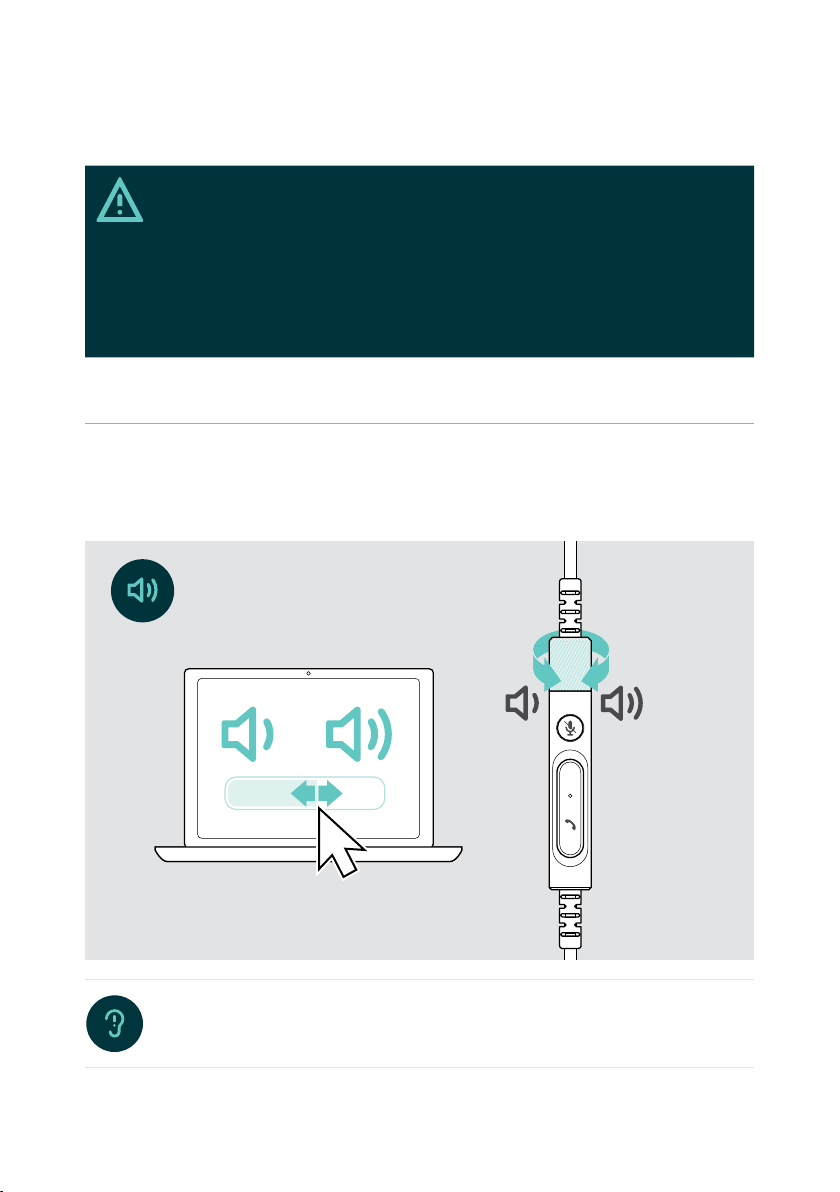
CAUTION
Risk of hearing damage!
Listening at high volume levels for long periods can lead to permanent
hearing defects�
putting on the headset�
Changing the volume
the volume�
You hear a double beep for maximum or minimum volume�
14How to use – basic functions
Changing the voice prompts volume
When headset is in idle mode (not during a call or media streaming):
Page 16
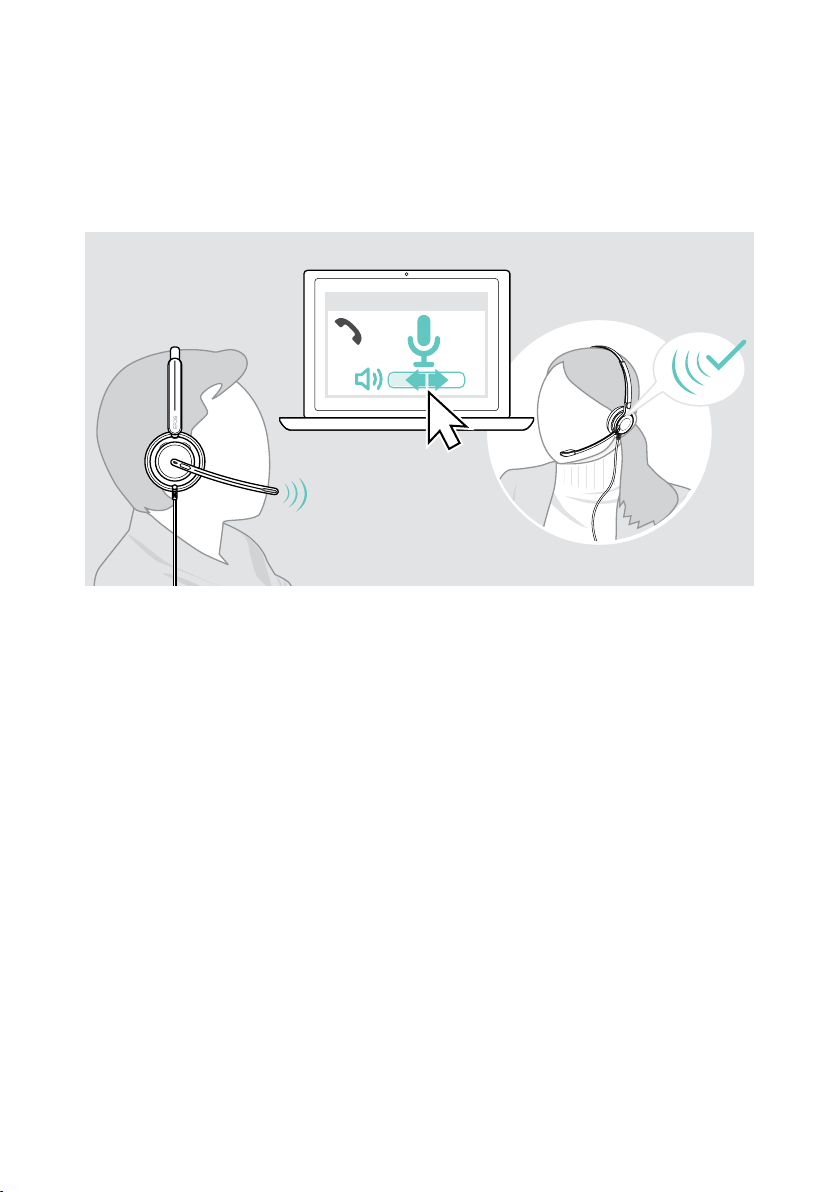
Adjusting the headset’s microphone volume for softphones
correct volume setting for your microphone�
computer’s audio application�
x
15How to use – basic functions
Page 17
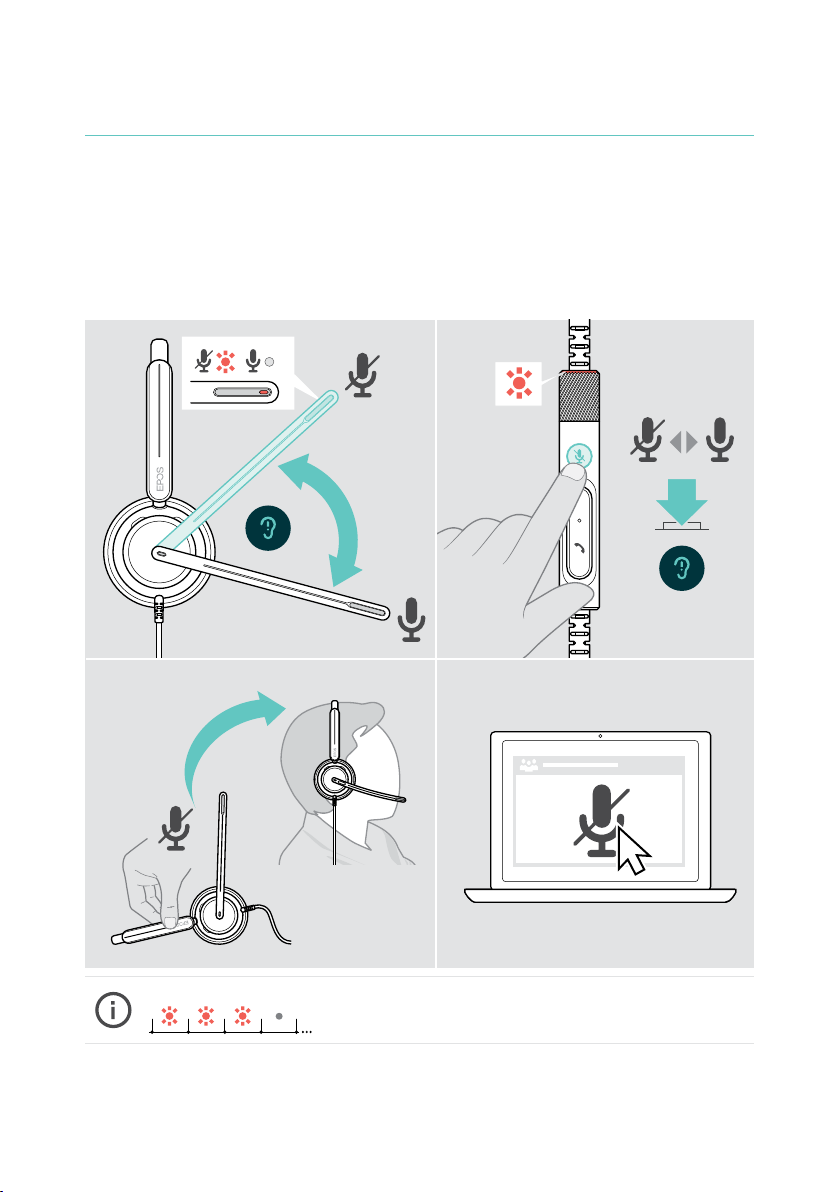
Muting the headset’s microphone
To mute or unmute the microphone:
The Mute LED lights up red while muted�
A B
16How to use – basic functions
C D
The mute LED ashes red, if you are talking while the microphone is muted*�
*This function can be activated/deactivated via EPOS Connect�
x
Page 18
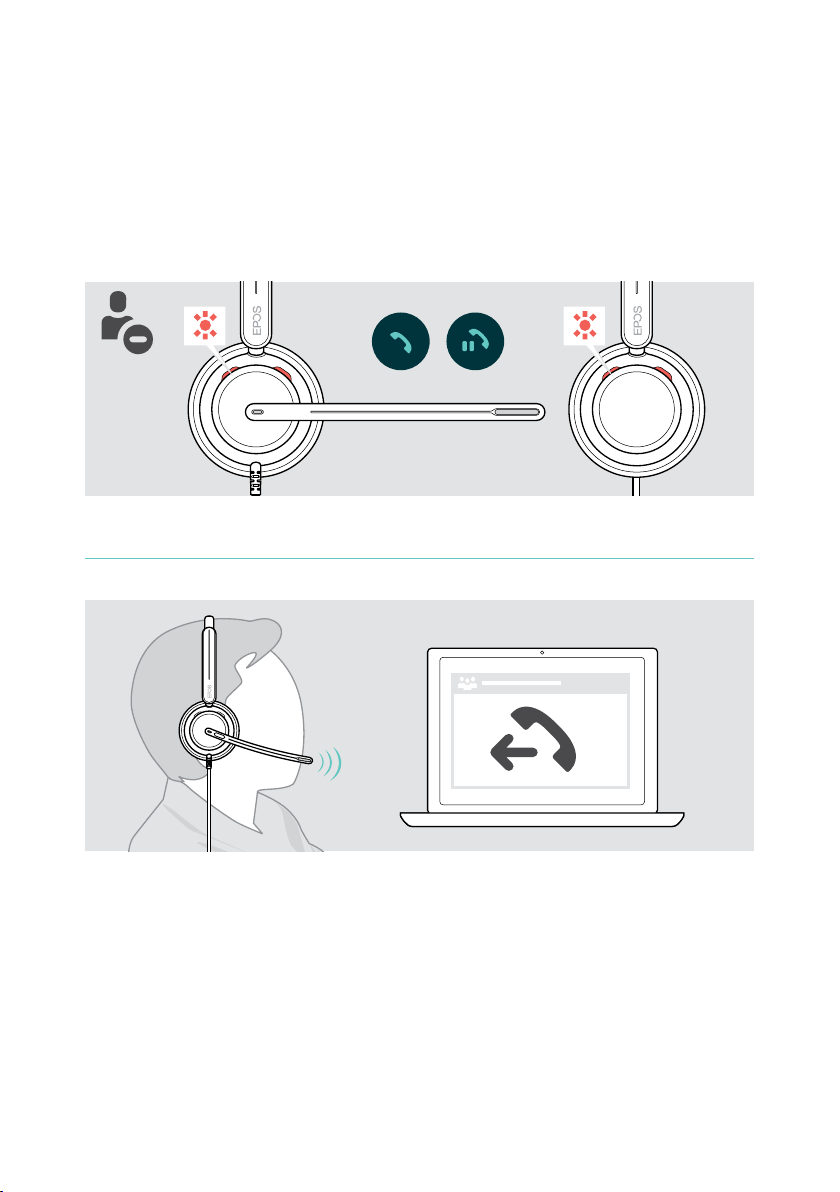
Making calls using the headset
The following functions depend on the connected device�
To make calls via the computer:
The Busylight LED lights up red as long as you are in a call or there is a call on hold�
Making a call
17Making calls using the headset
If your call is not automatically transferred to the headset:
x
Page 19
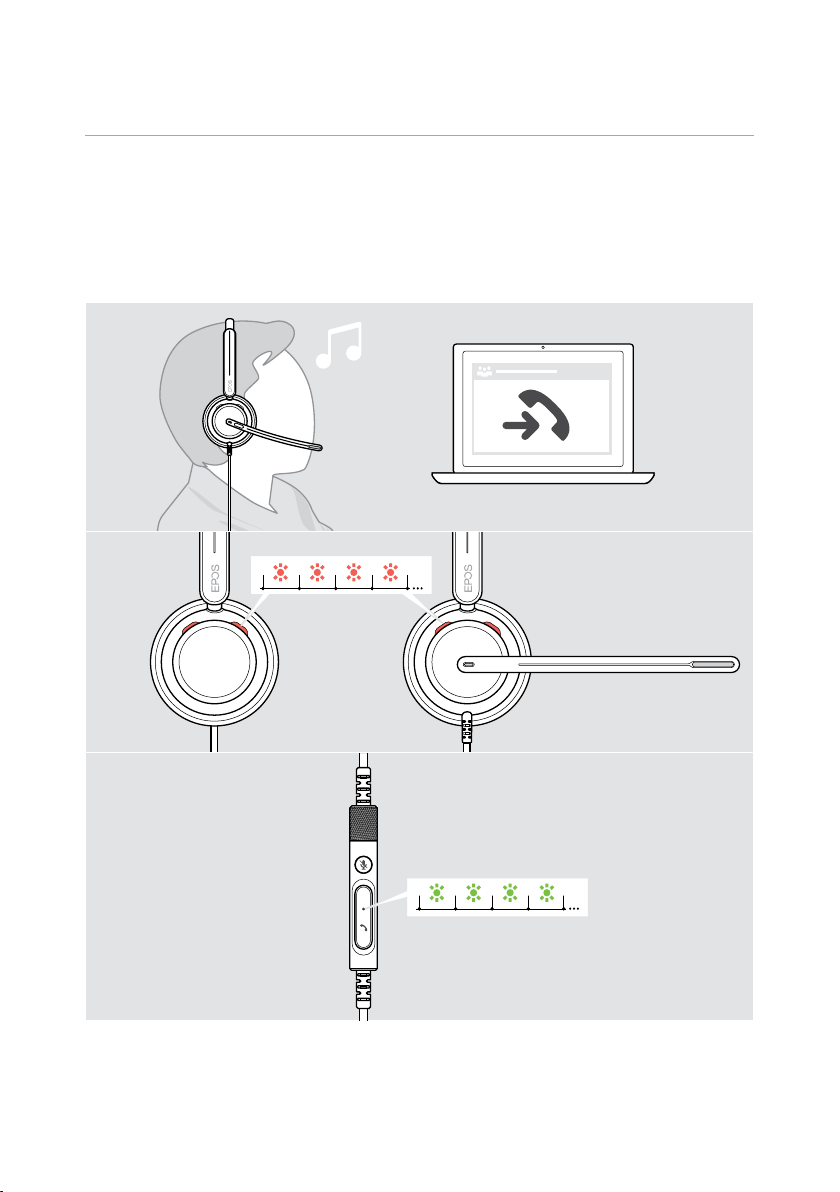
Accepting / rejecting a call
There are several ways to accept an incoming call� You can also accept a call via
your connected device�
Indications of an incoming call
When you receive a call, you hear a ring tone� The Busylight LED on the headset
and the hook LED on the controller starts ashing�
x
18Making calls using the headset
Page 20
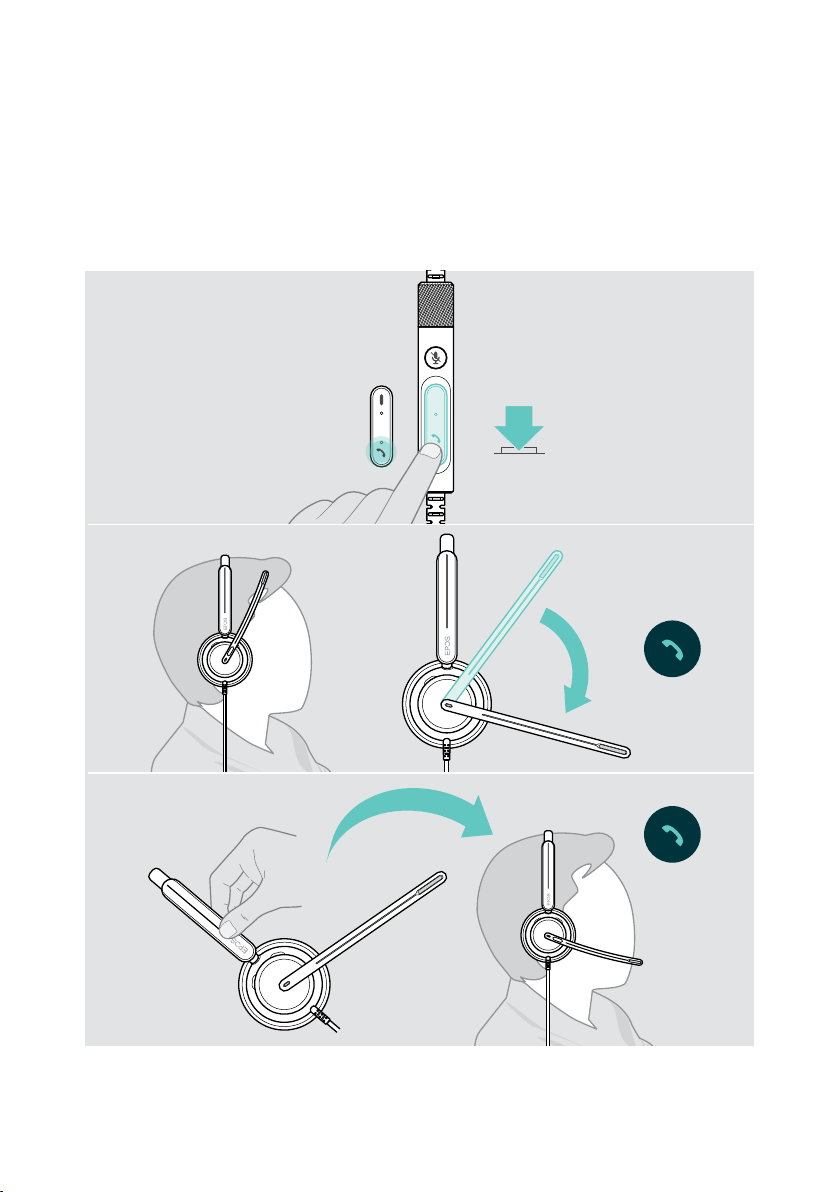
Accepting a call
You can accept a call in three dierent ways:
detection sensor that registers when the headset is worn�
A
B
19Making calls using the headset
C
* B + C: This function can be activated/deactivated via EPOS Connect�
Page 21
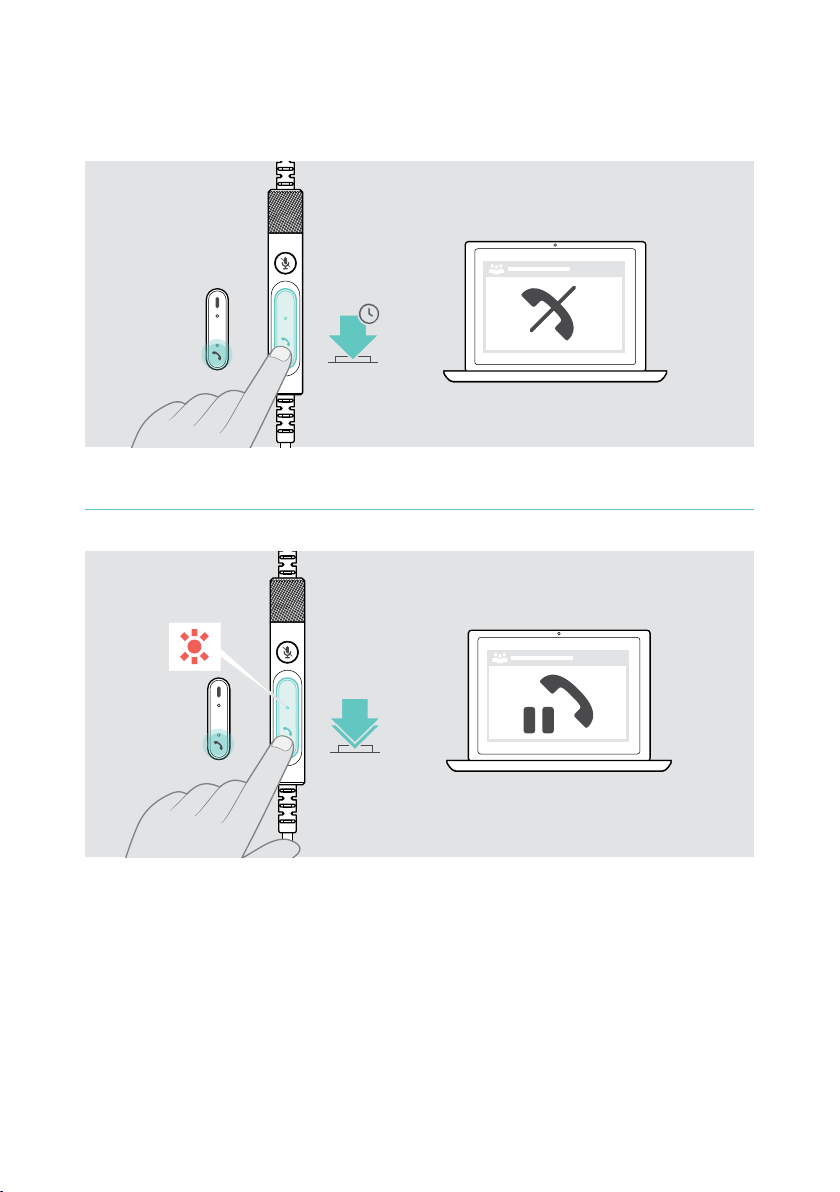
Rejecting a call
2s
Putting a call on hold (pause)
20Making calls using the headset
x
2x
x
Page 22
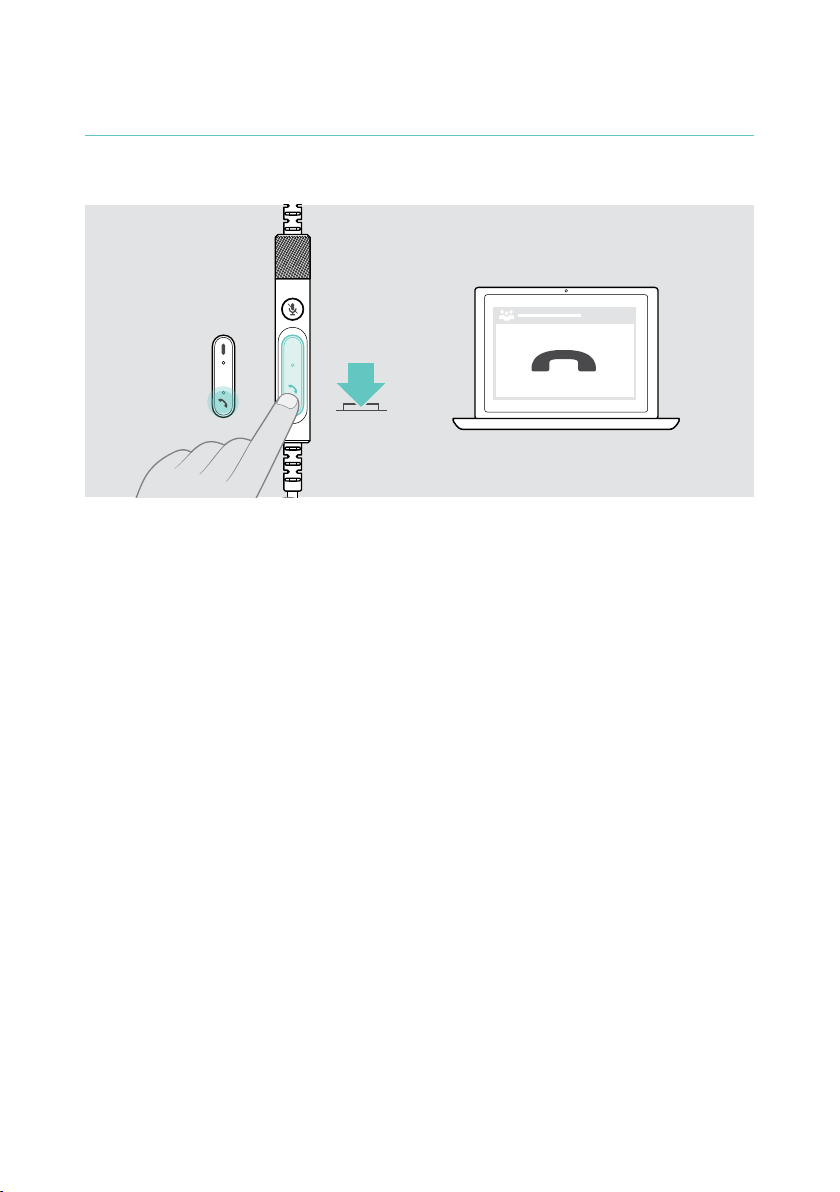
Ending a call
21Making calls using the headset
x
Page 23
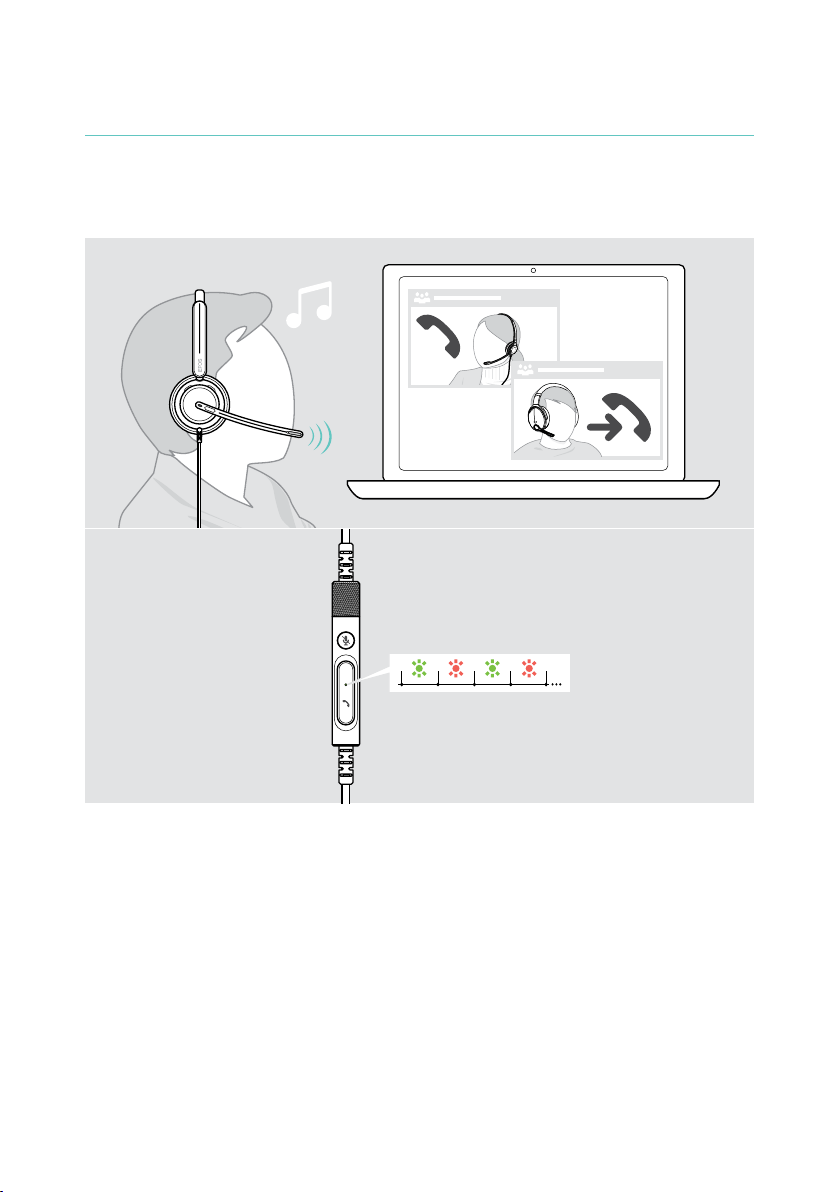
Managing multiple calls
Two calls can be managed simultaneously�
When you receive a call during an active call, a knock-on tone will be played� The
controller’s hook LED ashes red and green as long as a second call is handled�
x
x
22Making calls using the headset
Page 24
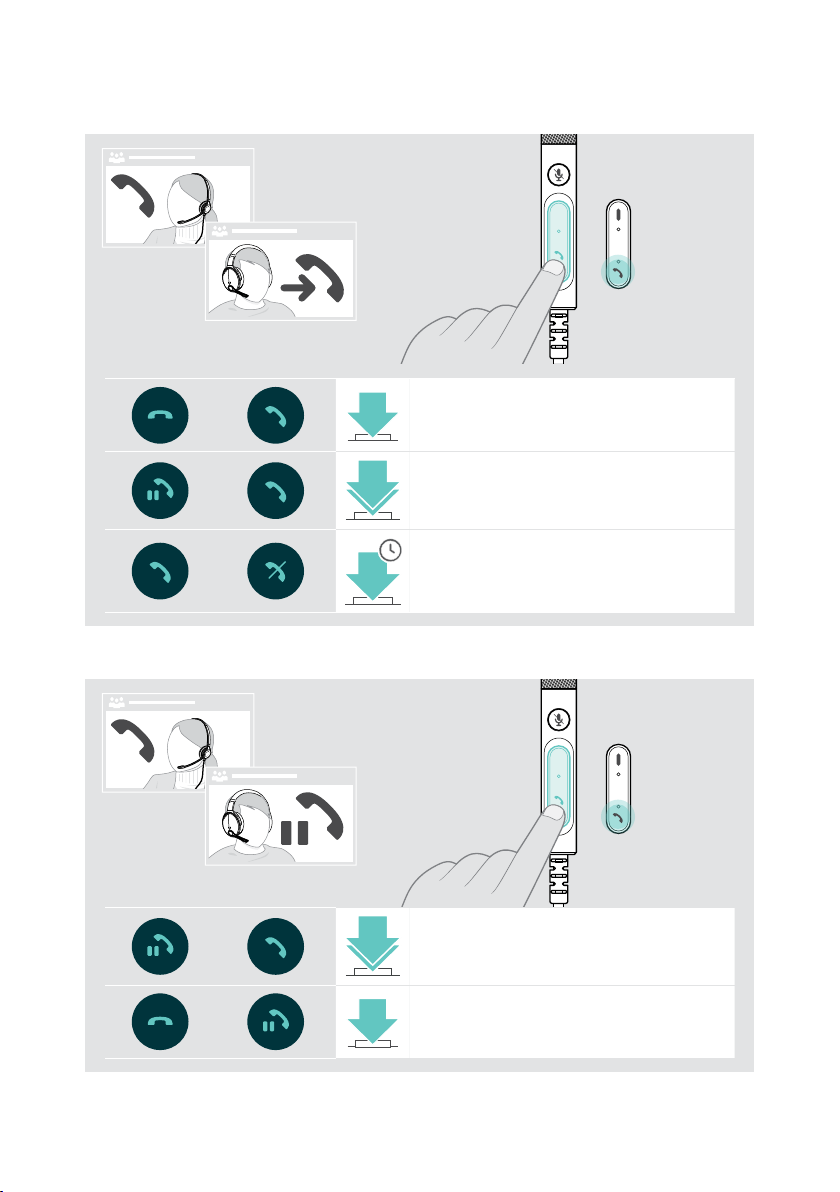
Accept / reject second call
x
23Making calls using the headset
x
Active call
2nd
incoming call
Accepts the incoming call and
ends the active call
Accepts the incoming call and
2x
puts the active call on hold
Rejects the incoming call and
2s
continues the active call
Toggle between calls / end active call
x
x
Active call 2nd held call
Toggles between the
2x
active and held call
Ends the active call and
keeps the 2nd call on hold
Page 25
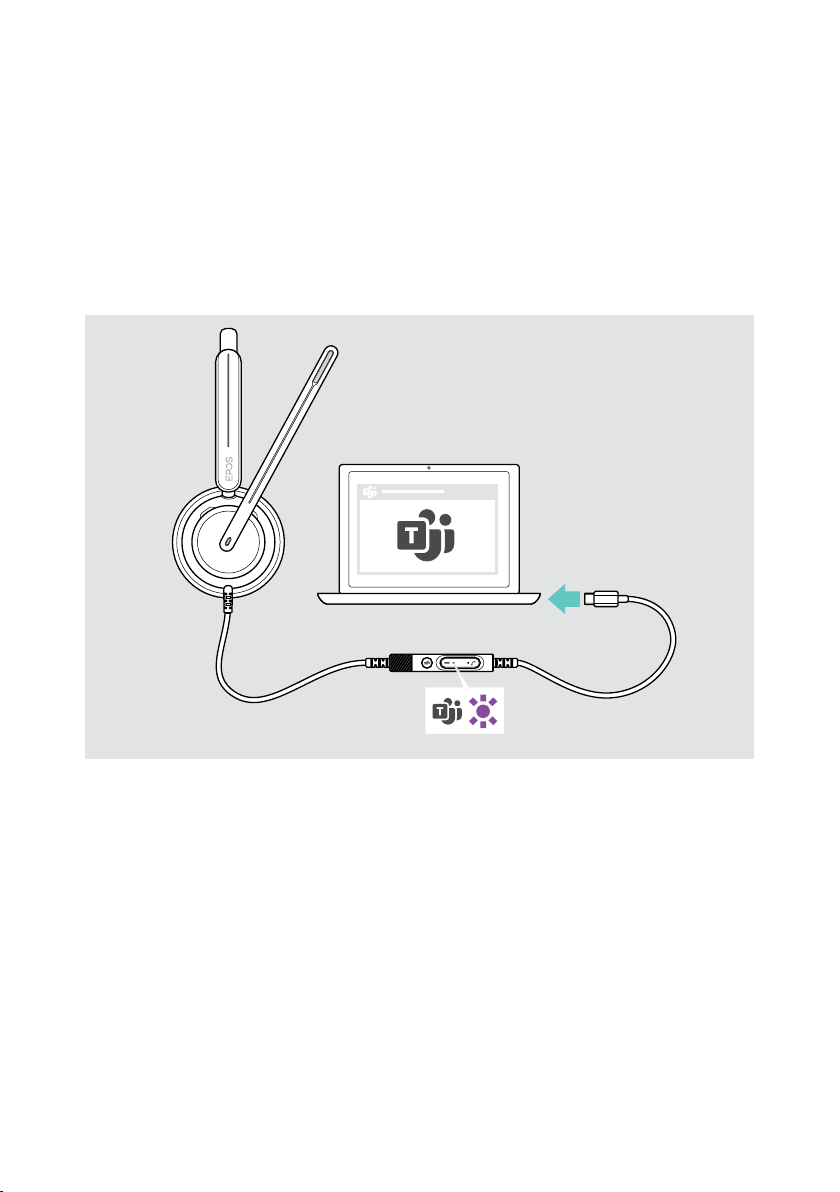
Using Microsoft® Teams –
IMPACT 7x0T only
To use Microsoft Teams with the headset:
If Microsoft Teams is already running on your computer, the controller’s
Teams LED lights up purple� Otherwise install and run Microsoft Teams�
x
24Using Microsoft® Teams – IMPACT 7x0T only
Page 26
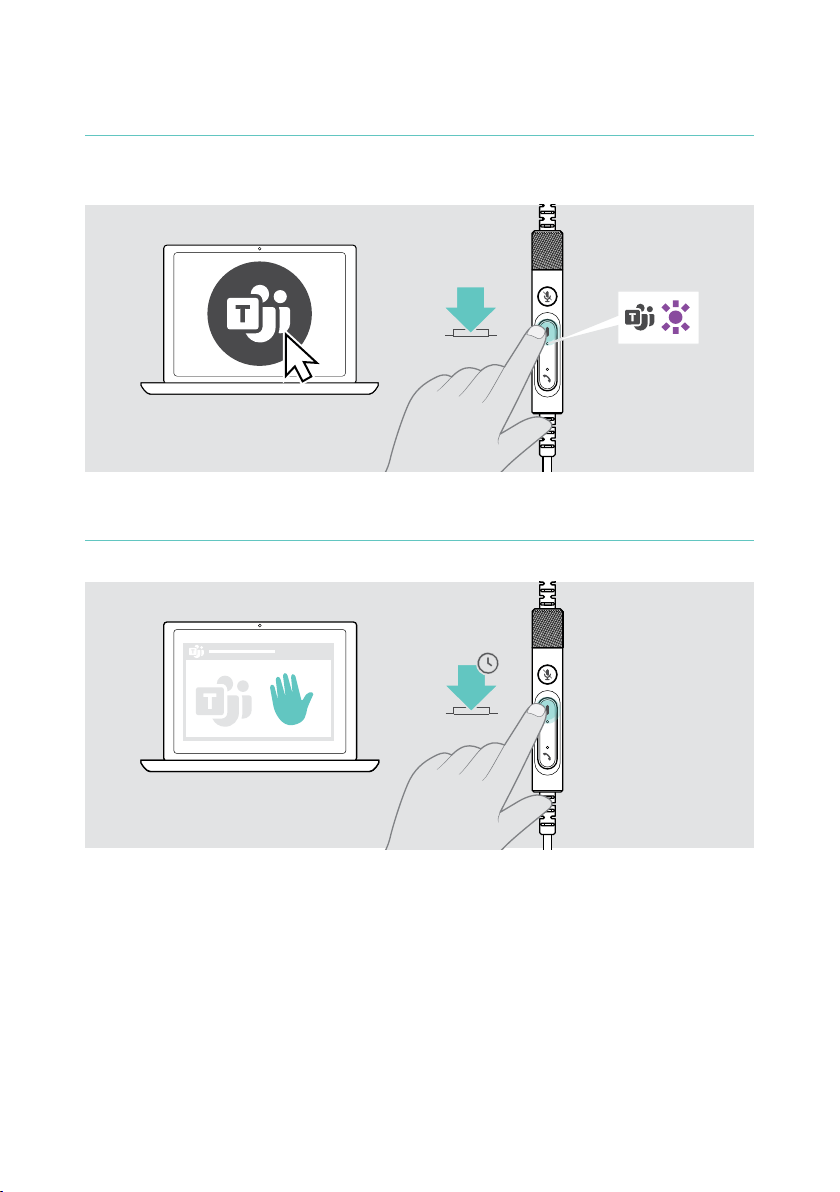
Invoking Microsoft® Teams
Raising hand in a Teams meeting
25Using Microsoft® Teams – IMPACT 7x0T only
x
1s
Page 27
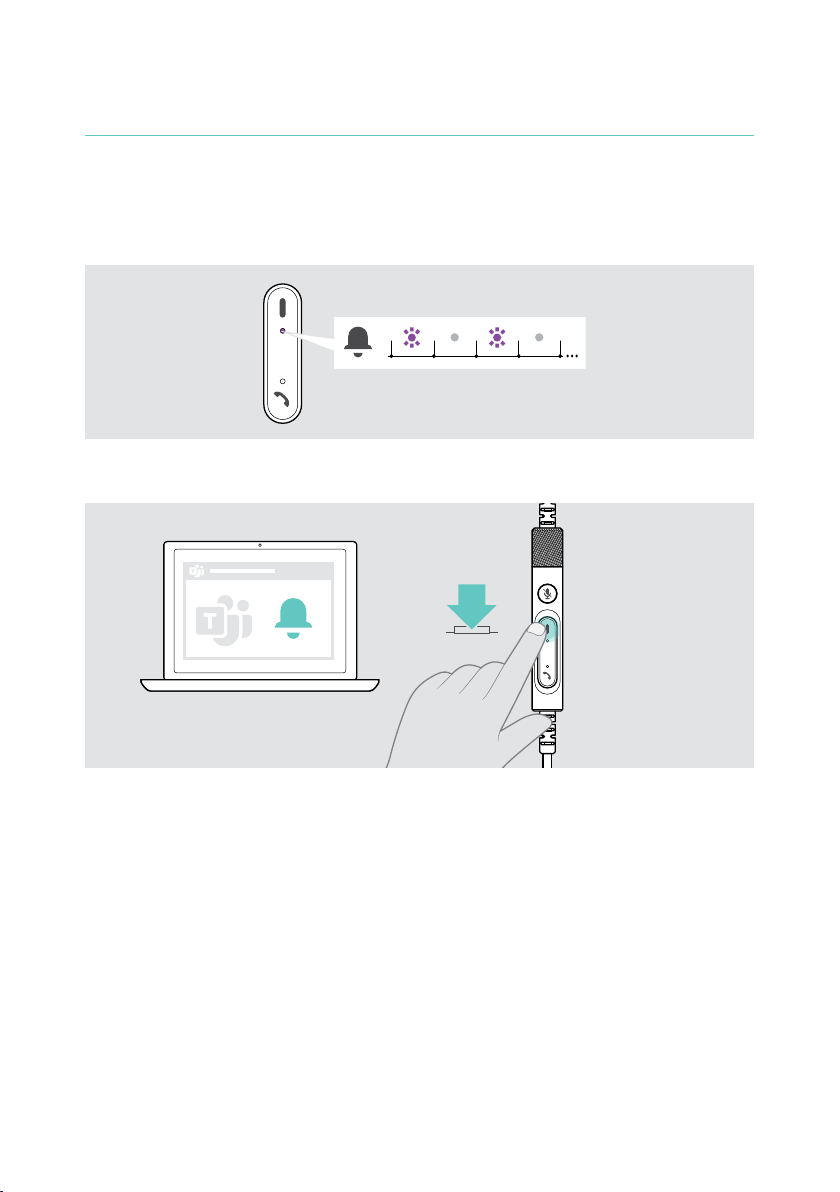
Checking Teams Notications
The Teams LED pulses purple to indicate:
• Meeting Join Notication
• Voice Mail Notication
• Missed Call Notication
To check these Notications on your screen:
x
26Using Microsoft® Teams – IMPACT 7x0T only
Page 28
27Listening to media
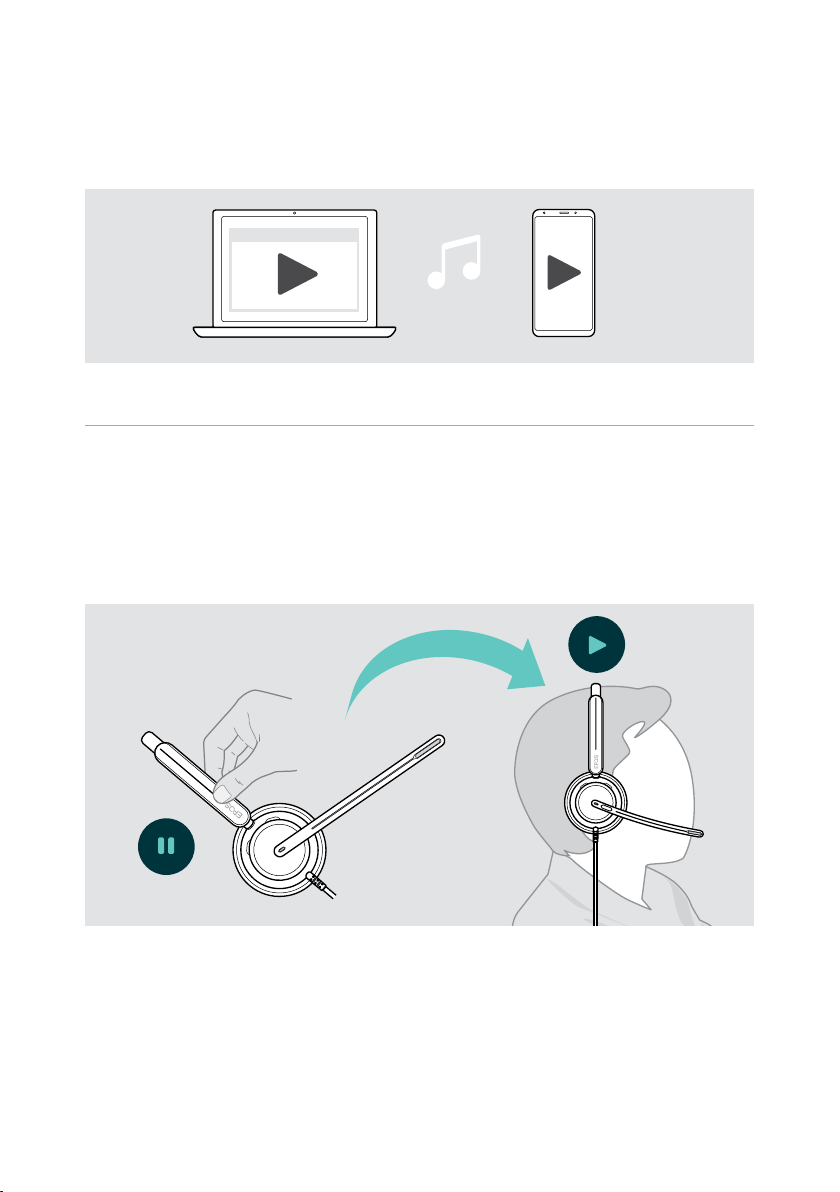
Listening to media
x
Controlling via the wear detection sensor
The headset is equipped with a wear detection sensor that registers whether it is on
the head or not�
Media reproduction is paused�
Media reproduction resumes, if media was paused via the wear detection sensor�
This function can be activated/deactivated via EPOS Connect�
Page 29
Controlling via the button
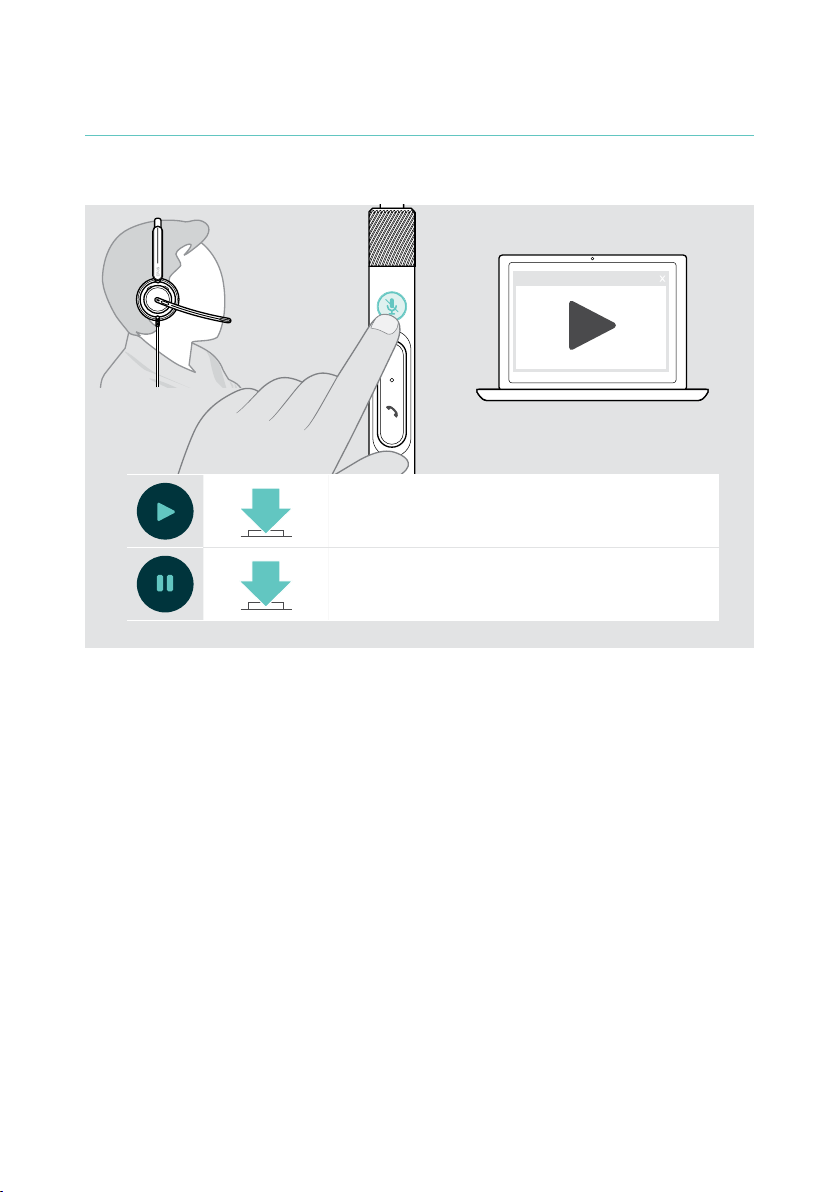
If supported by the connected device and media application these functions are
available:
Plays audio
Pauses audio
28Listening to media
Page 30
29Good to know
Good to know
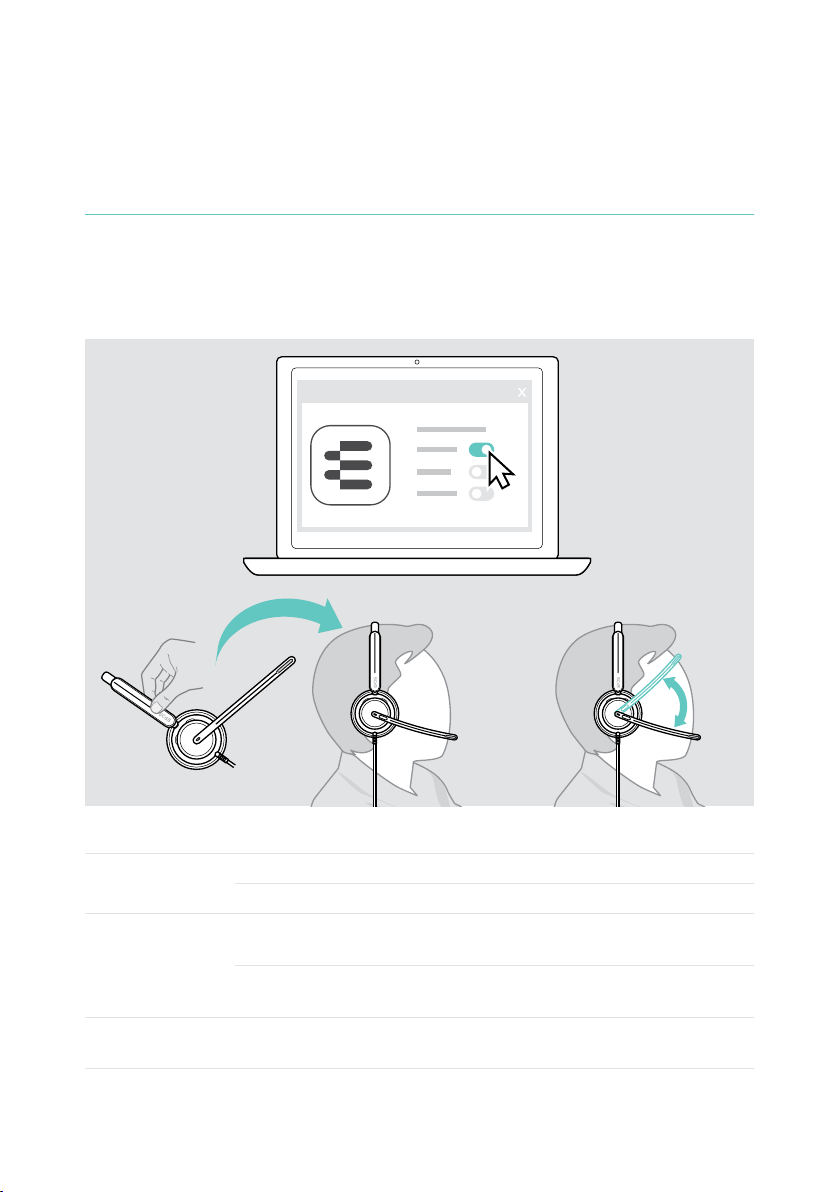
Activating / deactivating sensor functions
The headset is equipped with a wear detection sensor that registers whether it is on
the head or not� A second sensor registers the boom arm position�
Via EPOS Connect you can:
EPOS Connect
Available settings:
Answer Call
Mute
Play/pause
Accepts a call when you put on the headset
Accepts a call if you move the boom arm down
Mutes the microphone when headset is removed during a call
and unmutes when put on again
Mutes the microphone if you move the boom arm up and
unmutes when you move it back down
Pauses Media playback when you remove the headset and
continues when you put it on again
Page 31
Adjusting the Sidetone
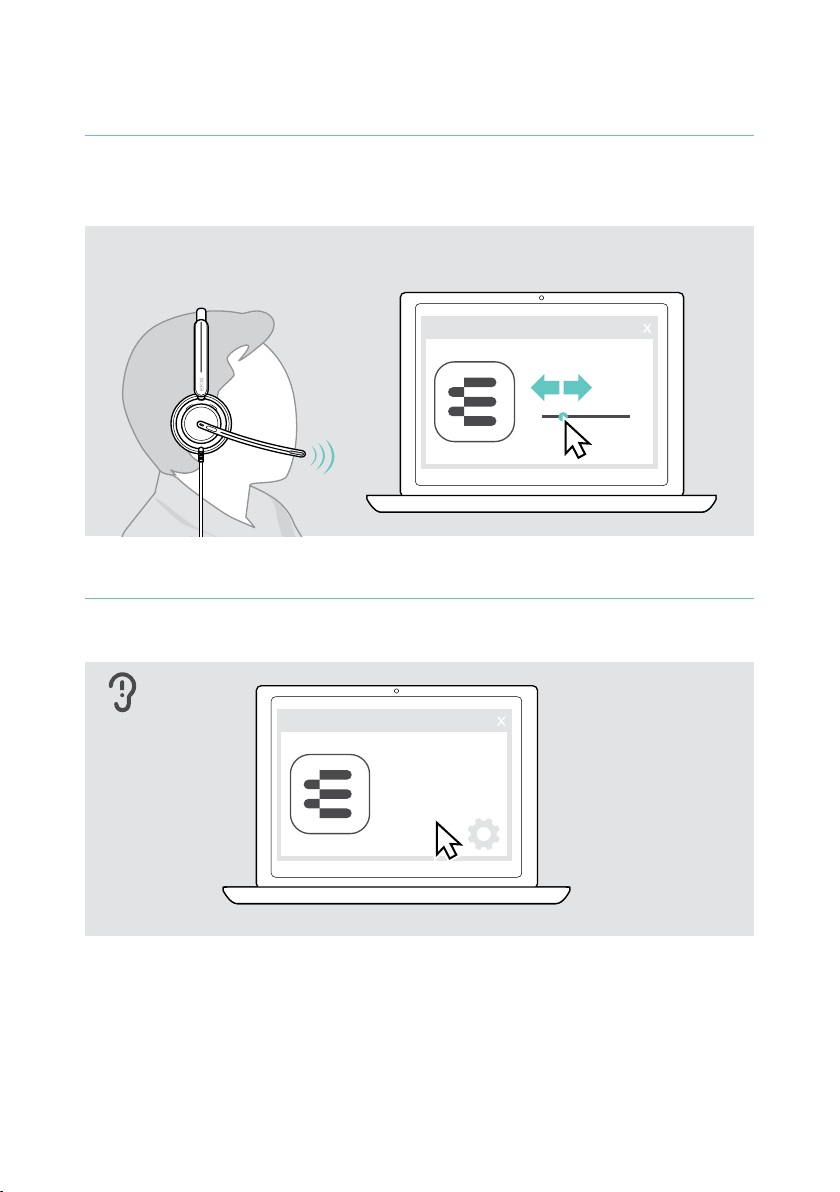
Sidetone is the audible feedback of your own voice during a phone call� Sidetone
helps you to lower your voice and speak at a natural and comfortable level�
EPOS Connect
Sidetone
Changing the voice prompts’ language
30Good to know
EPOS Connect (English by default)�
EPOS Connect
Sounds &
Notications
Voice prompt
lang ua ge
English
Page 32
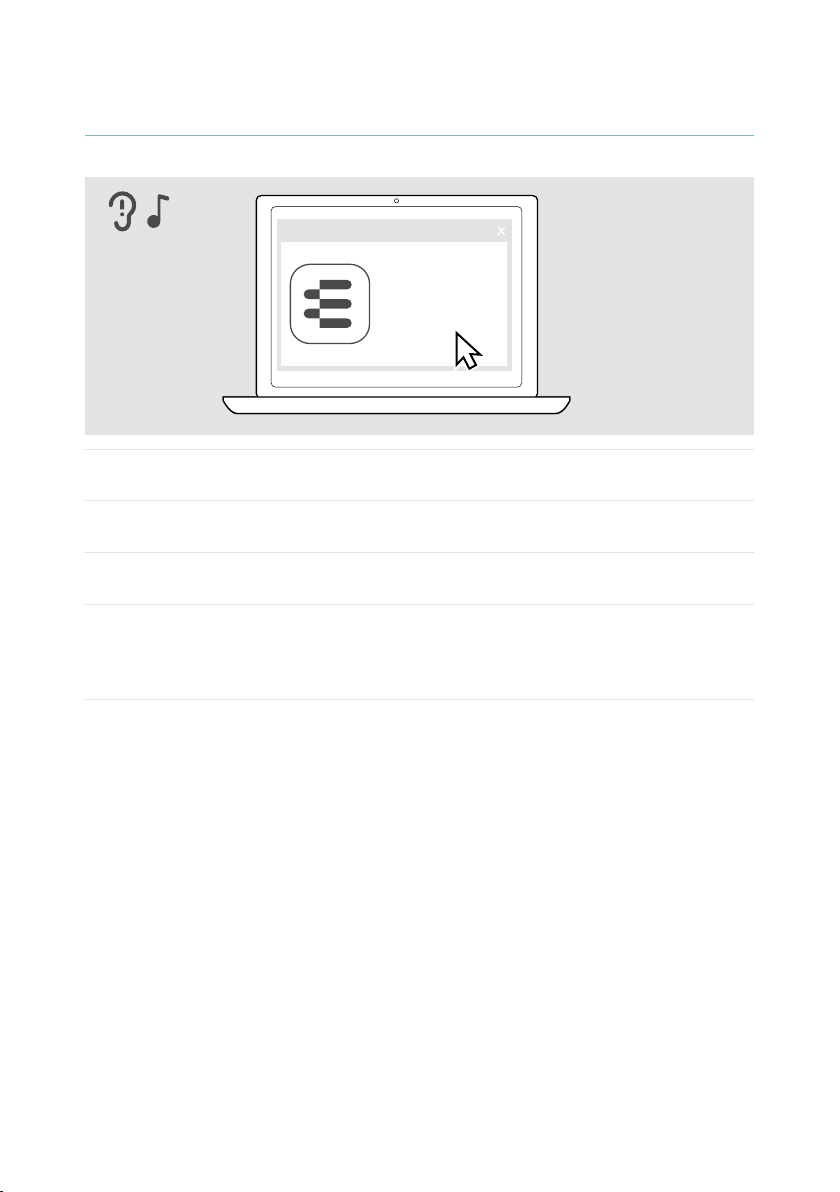
Adjusting sounds and notications
EPOS Connect
Sounds &
Notications
Tone & voice prompts
Voice prompt language
No voice prompts during call
Talk whi le m uted
31Good to know
Tone & voice
prompts
Voice prompt
language
No voice prompts
during call
Talk while muted
Turns on/o prompts in the headset
Changes language of voice prompts in the headset
Turns on/o non-essential voice prompts during a call
Turns on/o the additional ashing of the boom arm LED:
The LED generally lights up red while muted� If you activate
this function, the LED ashes as soon as you start speaking
as an additional reminder�
Page 33
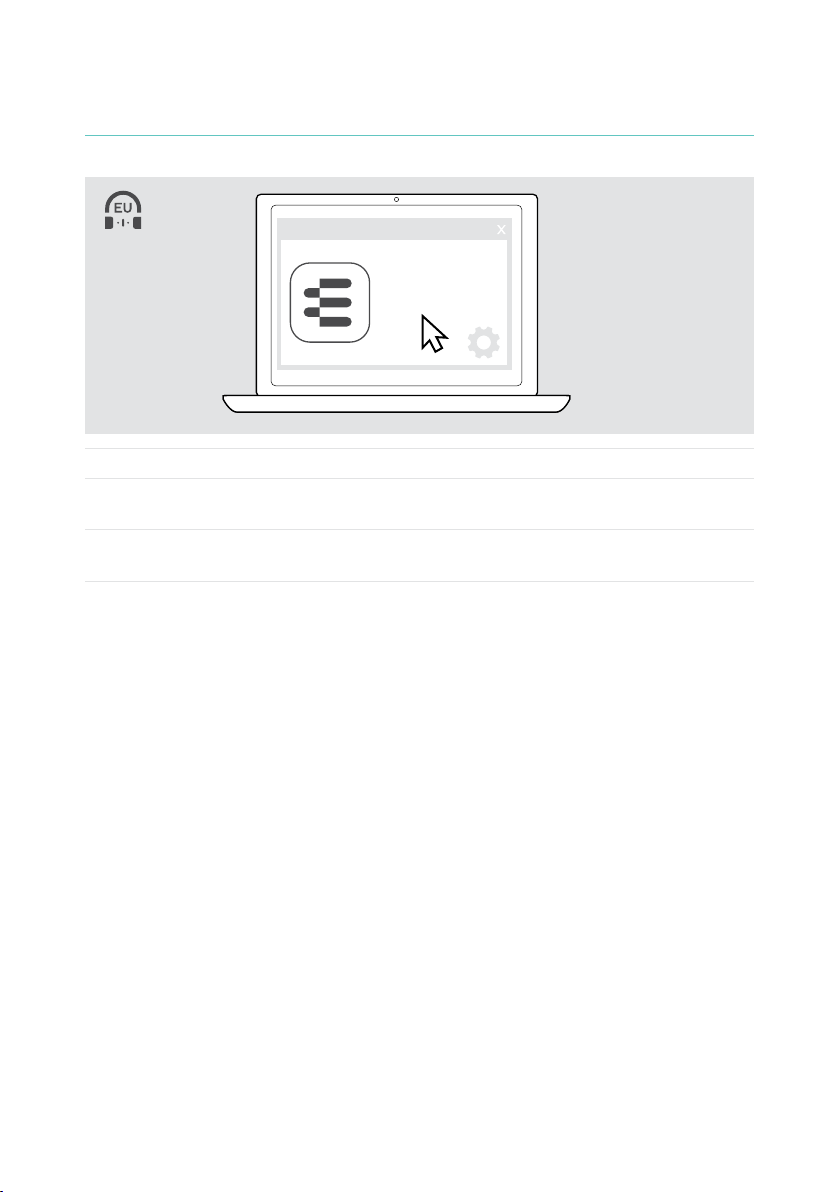
Enabling / disabling an Audio Limiter
EPOS Connect
Audio limiter
O
EU/US limiter
AU limiter
O Deactivates limiter (default setting)
EU/US limiter
AU limiter
Activates limiter: max� 90 dB;
compliant with Directive 2003/10/EC
Activates limiter: max� 85 dB;
compliant with Directive AS/ACIF G616:2006
32Good to know
Page 34
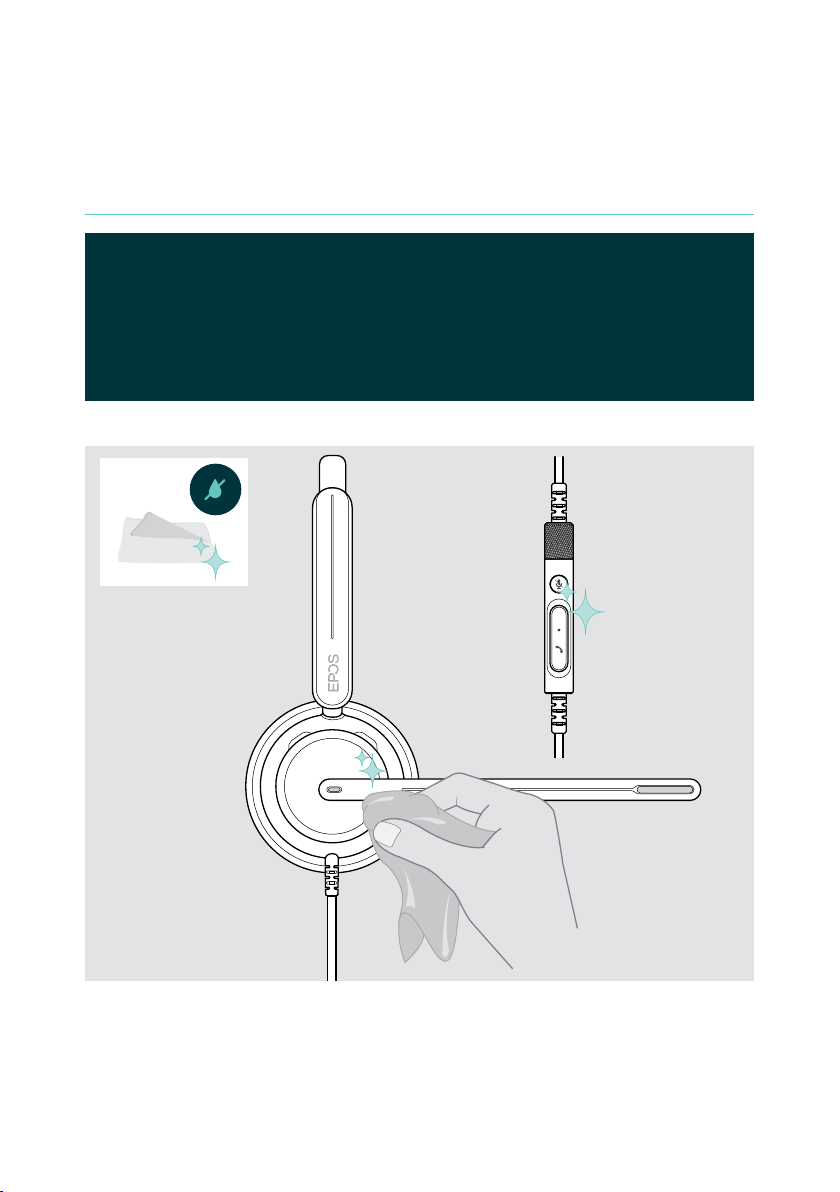
Maintaining & updating products
Cleaning the products
WARNING
Liquids can damage the electronics of the product!
Liquids entering the housing of the device can cause a short circuit and
damage the electronics�
33Maintaining & updating products
Page 35
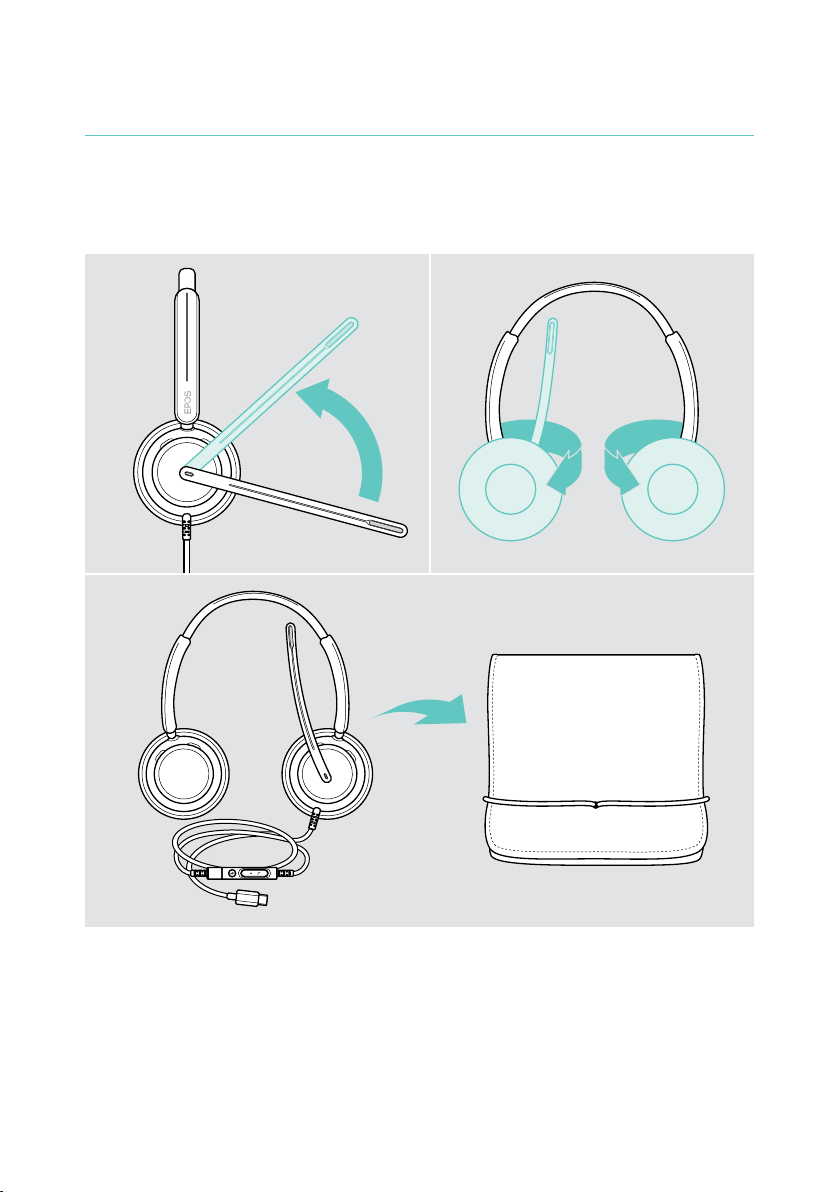
Transporting and storing the products
To avoid nicks or scratches on the headset:
the boom arm and twist the earcups inwards�
34Maintaining & updating products
Page 36
35Maintaining & updating products
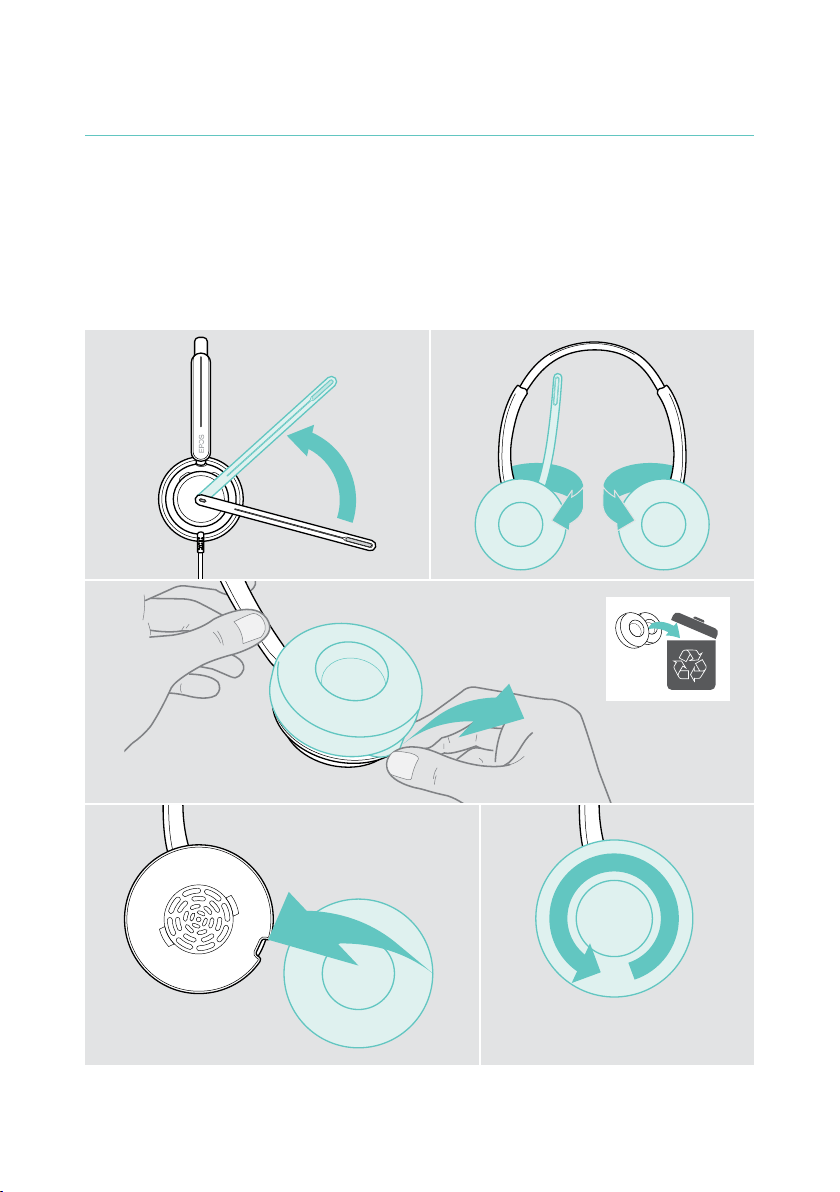
Replacing the ear pad(s)
For hygienic reasons, replace the ear pad(s)� Spare ear pads are available from your
EPOS partner�
1 Lift the boom arm and twist the earcups inwards�
2 Grasp the edge of the ear pad behind the ear cup and peel it up and away from
the ear cup�
3 Slide the edge of the new ear pad into the small recess� Carefully rotate the ear
pad until it is fully attached�
1
2
3
Page 37
36Maintaining & updating products
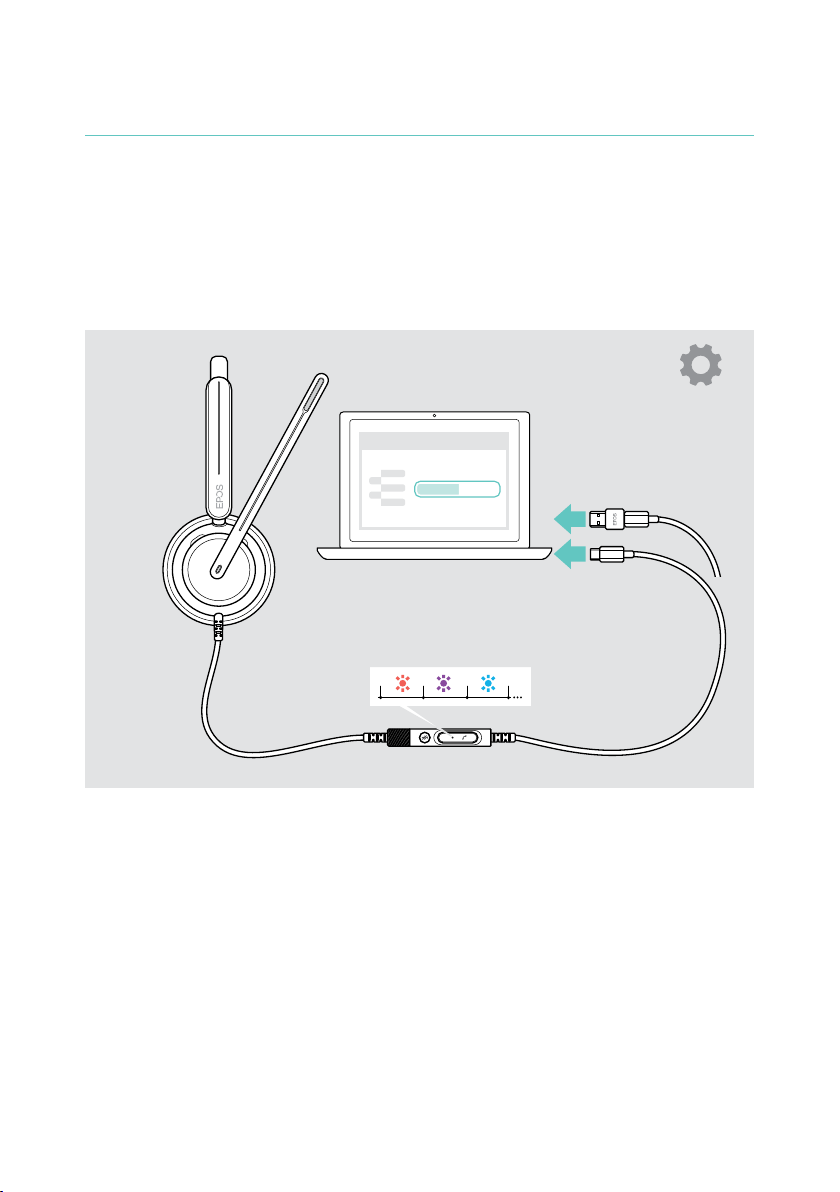
Updating the rmware
Keep your headset up-to-date with latest rmware to ensure awless operation and
maximum productivity� You can update the rmware of your headset by using the
free EPOS Connect software (see page 13)�
If there is a new rmware available, the software will guide you through the
update process�
EPOS Connect
x
Page 38
If a problem occurs���
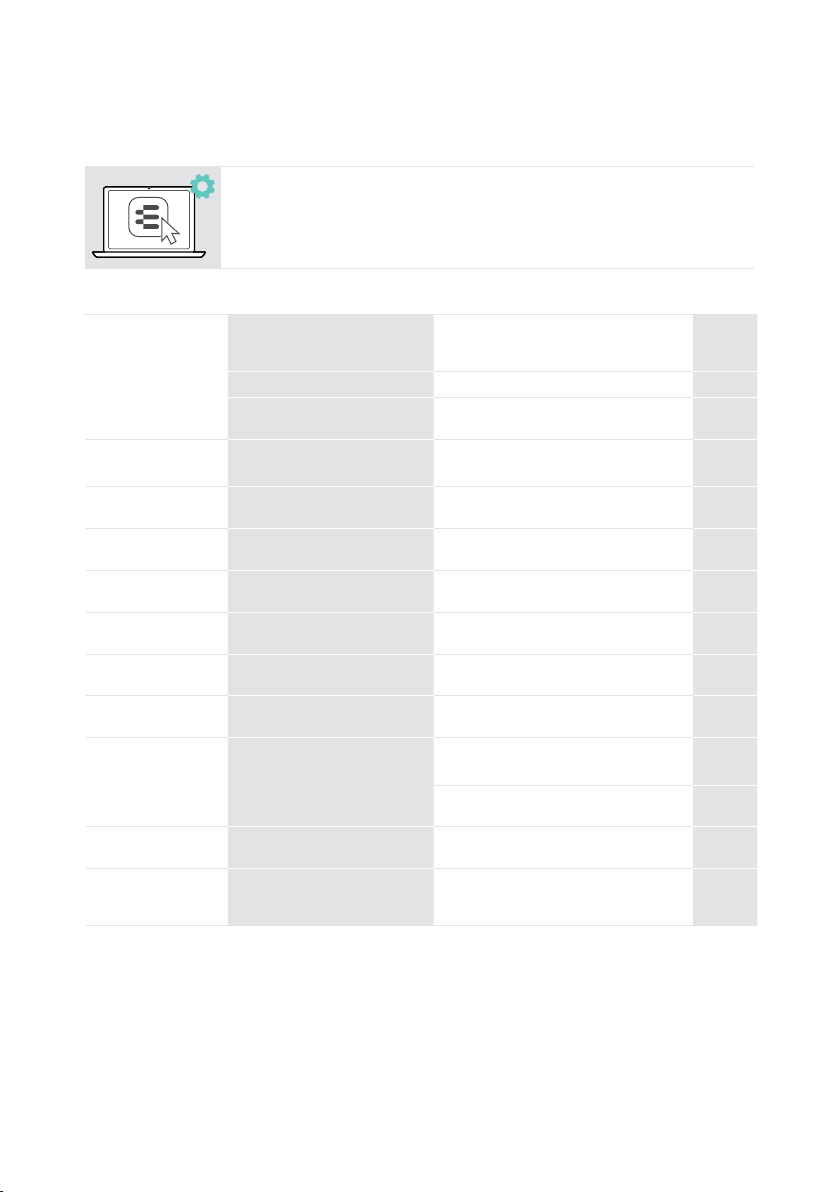
Many functions can be activated/deactivated or adjusted in
EPOS Connect:
Problem Possible cause Solution Page
No audio signal Volume adjusted too low > Increase the volume via the
USB plug not fully inserted
Other audio source selected
Inline controller does
not work
Microsoft Teams
button does not work
Beeps instead of voice
prompts
Sound alerts during
calls disturbing
Voice prompts too
loud or quiet
Stereo sound mirrored Headset wearing side swapped
You hear your own
voice too loud
Headset does not
respond to wear
detection sensor
gestures
Microsoft Teams does
not work
Headset does not
react to any button
press
USB plug not fully inserted
Microsoft Teams not running on
your computer
Voice prompts disabled
Voice prompts or tones during
calls enabled
Volume for voice prompts
adjusted too high or low
Sidetone adjusted too high
Wear detection sensor
deactivated
Microsoft Teams or connection
to the app disturbed
Software or hardware problems
controller’s volume wheel or your
connected device�
Audio settings�
computer�
Connect�
calls in EPOS Connect�
volume when in idle mode�
EPOS Connect�
EPOS Connect�
EPOS Connect�
to re-start headset�
computer�
headset�
30
29
37If a problem occurs���
14
13
–
31
31
14
10
–
–
–
If a problem occurs that is not listed here or if the problem cannot be solved with the proposed solutions,
please contact your local EPOS partner for assistance�
To nd an EPOS partner in your country, search at eposaudio�com
Page 39
eposaudio.com/impact700
38If a problem occurs���
DSEA A/S
Kongebakken 9, DK-2765 Smørum, Denmark
eposaudio.com
01/24, A01
 Loading...