

Page 1
ADAPT 360 | ADAPT 360 White
Over-ear Bluetooth® headset with ANC
User Guide
Page 2

Contents1
Contents
The ADAPT 360 | ADAPT 360 White headset .......................................................................................................................................2
Package contents .......................................................................................................................................................................................................3
Product overview ........................................................................................................................................................................................................4
Overview of the headset........................................................................................................................................................................................................................................4
Overview of the headset LED indications ...............................................................................................................................................................................................4
Overview of the headset buttons ..................................................................................................................................................................................................................5
Overview of the dongle ......................................................................................................................................................................................................................................... 6
Overview of the dongle LED indications ................................................................................................................................................................................................. 6
Overview of the dongle button ....................................................................................................................................................................................................................... 6
Overview of the icons .............................................................................................................................................................................................................................................. 6
Getting started .............................................................................................................................................................................................................7
Pairing the headset with Bluetooth® devices .......................................................................................................................................................................................7
Installing the EPOS Connect software ......................................................................................................................................................................................................9
Changing Audio settings for the headset – Microsoft
Using the headset ................................................................................................................................................................................................... 10
Turning the headset on and connecting it ..........................................................................................................................................................................................10
Turning the headset o ........................................................................................................................................................................................................................................10
Adjusting and wearing the headset .............................................................................................................................................................................................................11
Adjusting the volume ...............................................................................................................................................................................................................................................11
Adjusting the headset’s microphone volume for softphones ................................................................................................................................................11
Muting the microphone ........................................................................................................................................................................................................................................12
Using Active Noise Cancellation (ANC) ...................................................................................................................................................................................................12
Turning TalkThrough on / o .............................................................................................................................................................................................................................13
®
Windows ..................................................................................................................................... 9
Making calls using the headset ..................................................................................................................................................................... 14
Making a call ...................................................................................................................................................................................................................................................................14
Accepting / rejecting / ending a call ........................................................................................................................................................................................................14
Redialing .......................................................................................................................................................................................................................................................................... 15
Using the voice assistant / voice dial .......................................................................................................................................................................................................15
Managing multiple calls ........................................................................................................................................................................................................................................16
Using headset and dongle with Microsoft® Teams / Cortana .................................................................................................. 17
Invoking Microsoft® Teams and check notications .....................................................................................................................................................................17
Activating and using Microsoft
®
Cortana ...............................................................................................................................................................................................17
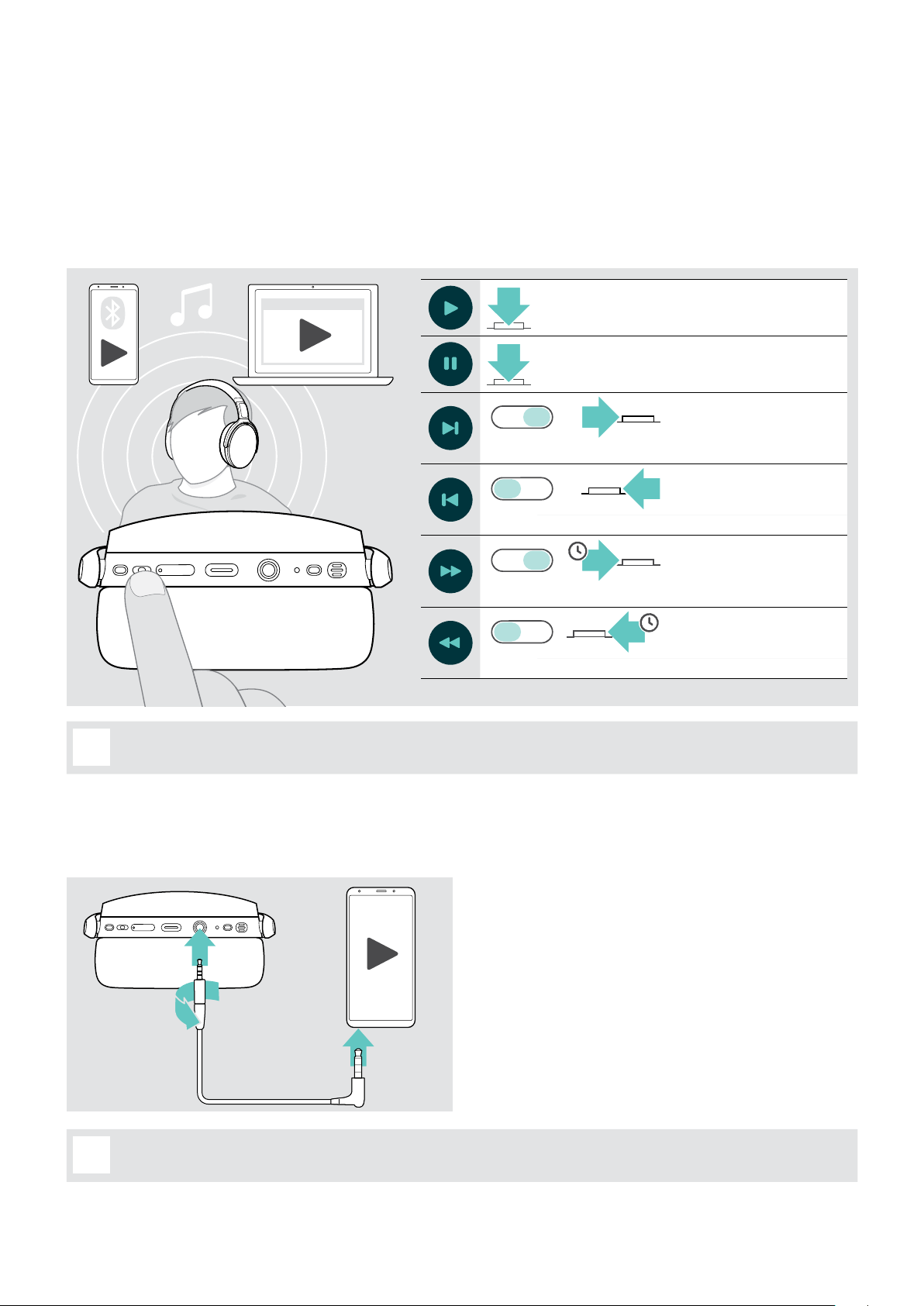
Listening to audio using the headset .........................................................................................................................................................18
Controlling media playback ...............................................................................................................................................................................................................................18
Using the audio cable ............................................................................................................................................................................................................................................18
Additional functions ................................................................................................................................................................................................19
Charging the headset battery ........................................................................................................................................................................................................................19
Verifying remaining battery power .............................................................................................................................................................................................................. 19
Storing and transporting the headset ....................................................................................................................................................................................................20
If you leave the Bluetooth range .................................................................................................................................................................................................................20
Reconnecting / disconnecting Bluetooth .............................................................................................................................................................................................21
Enabling / disabling voice prompts ............................................................................................................................................................................................................21
Maintaining the products and updating the rmware ...................................................................................................................22
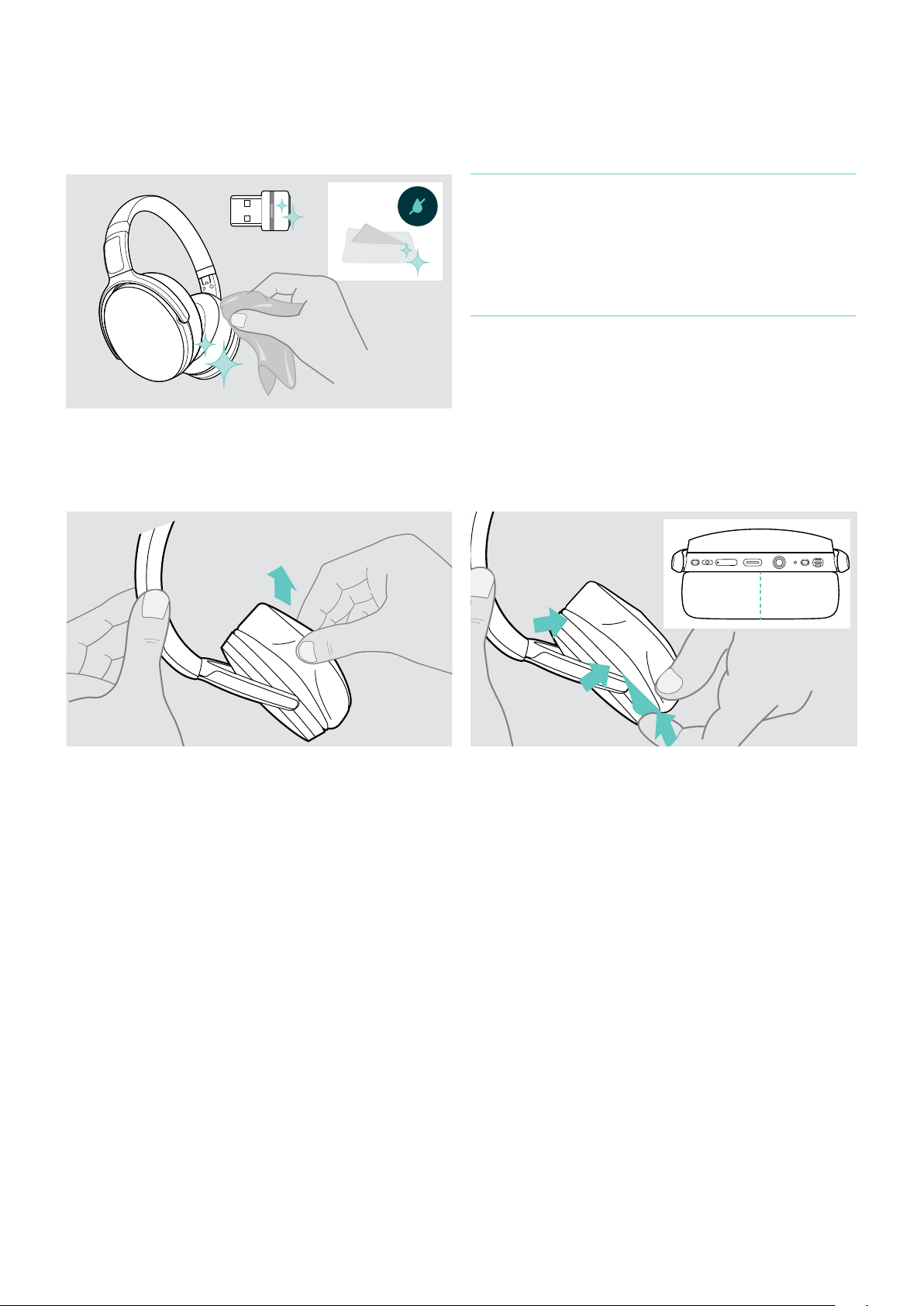
Cleaning the products ......................................................................................................................................................................................................................................... 22
Replacing the ear pads ....................................................................................................................................................................................................................................... 22
Updating the rmware of the products ................................................................................................................................................................................................. 23
If a problem occurs ... ............................................................................................................................................................................................ 24
Clearing the pairing list of the headset (Reset) ............................................................................................................................................................................. 25
Clearing the pairing list of the dongle (Reset) ................................................................................................................................................................................ 25
Specications ............................................................................................................................................................................................................. 26
ADAPT 360 | ADAPT 360 White Bluetooth® headset
Page 3

The ADAPT 360 | ADAPT 360 White headset2
§
i
The ADAPT 360 | ADAPT 360 White headset
Stay focused with ANC that reduces background noise, helps you concentrate in busy open offices and boosts
productivity on-the-go. Ensure clear business calls with a solution optimized for UC and switch easily between devices as
you multitask.
Enjoy over-the-ear design and ergonomic ear pads that add noise dampening and long-lasting comfort. Wherever your
work schedule takes you, performance and convenience are on hand with up to 46 hours of battery life and foldable
design that is easy to store and pack. Empower your performance with professional quality and sleek, comfortable design
in black or white to suite your style.
With the option of EPOS Manager and EPOS Connect software, you can ensure optimal functionality. Insist on a headset
with great audio that’s built to last and will help you excel in today’s workplace.
Key benets & features
Concentrate in noisy environments
Thanks to Active Noise Cancellation that
reduces background noise to increase your
work focus
Ensure clear calls with certified solutions
Certified for Microsoft Teams and optimized
for UC
Switch effortlessly between your favorite
devices
With multi-point connectivity to any two
Bluetooth
Enjoy stylish, comfortable design
On and off work with a contemporary look in
black or white and soft, ergonomic ear pads for
lasting comfort
High-quality stereo sound and reliable
performance
Stream stereo music at work or on your
commute and benefit from up to 46 hours of
battery life
®
devices simultaneously
Additional benets & features
Launch Microsoft Teams instantly
Dedicated button for Microsoft Teams via
BTD 800 USB dongle
Clearer office and mobile calls
From 2 advanced microphones optimize voice pick
up wherever you are
Reduce distracting noise
Excellent noise dampening from large ear cups
Convenient and extremely portable
Due to a robust, foldable headset design
Protect your headset
With a convenient storage pouch
Benefit from easy charging
Via USB cable with USB-C connector
Firmware updates when it suits you
Via EPOS Manager and EPOS Connect software
For safety instructions, consult the Safety Guide.
A list of accessories can be found on the product page at www.eposaudio.com.
Trademarks
The Bluetooth® word mark and logos are registered trademarks owned by Bluetooth SIG, Inc. and any use of such marks by DSEA A/S is under license.
USB Type-C
Qualcomm aptX is a product of Qualcomm Technologies International, Ltd. Qualcomm is a trademark of Qualcomm Incorporated, registered in the United States and
other countries, used with permission. aptX is a trademark of Qualcomm Technologies International, Ltd., registered in the United States and other countries, used
with permission.
All other trademarks are the property of their respective owners.
ADAPT 360 | ADAPT 360 White Bluetooth® headset
®
and USB-C® are trademarks of USB Implementers Forum.
Page 4
Package contents3
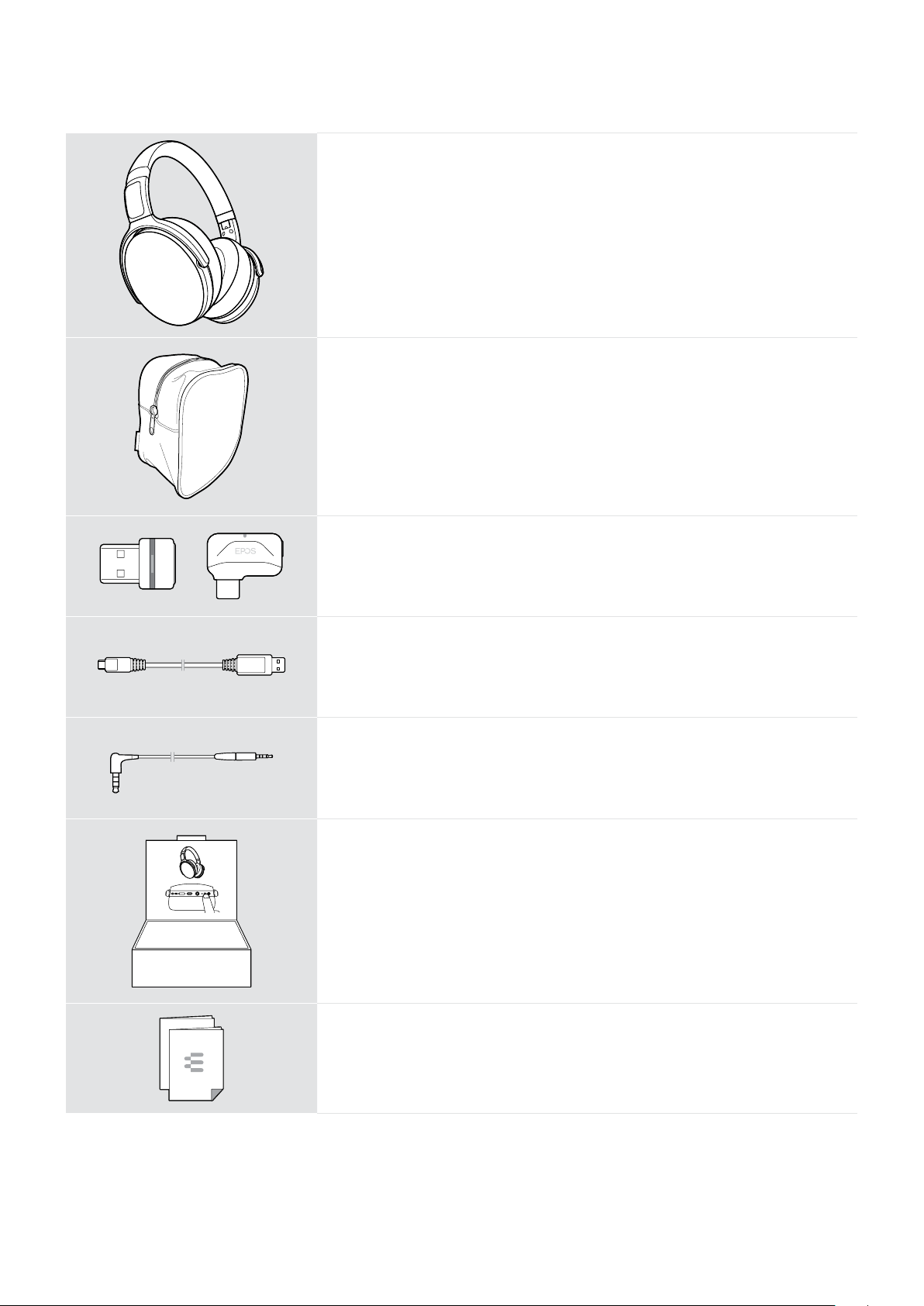
Package contents
ADAPT 360 or ADAPT 360 White
Bluetooth headset
Case
BTD 800 USB or BTD 800 USB-C
Bluetooth dongle
USB cable
with USB-C
Audio cable
with 2.5 mm and 3.5 mm jack plug
Quick Guide on the box
®
to USB-A connector
Safety Guide
Compliance sheet
ADAPT 360 | ADAPT 360 White Bluetooth® headset
Page 5
Product overview4
2s2s
0.2s 0.2s
3x
3x
2x
3x
2x
2s2s
0.2s 0.2s
3x
3x
3s 3s
3x
Product overview
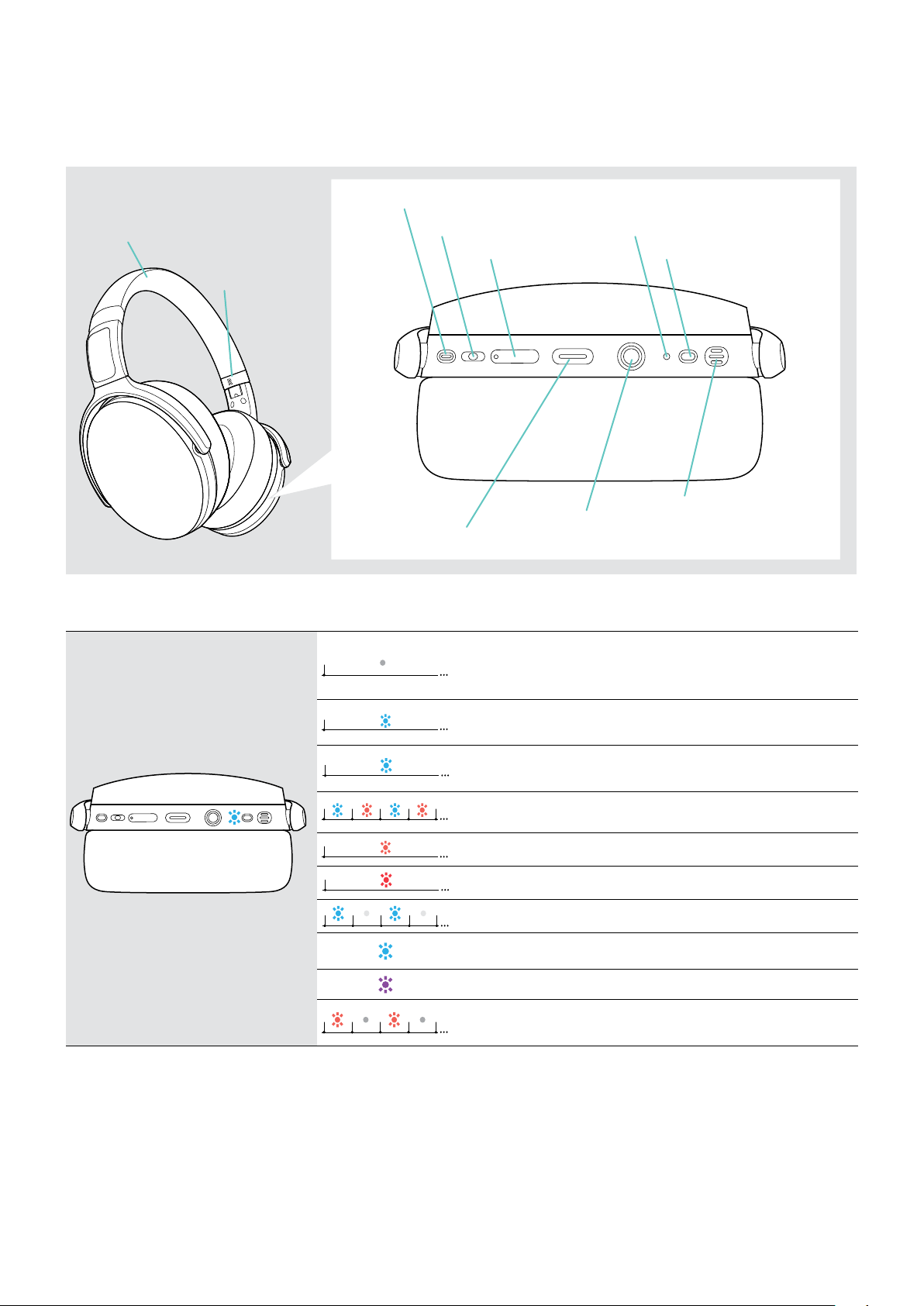
Overview of the headset
Headband
Marking
right side
Hook button
Media control button
Volume button
LED
Power & Mute button
Overview of the headset LED indications
3x
3x
Audio socket
Microphone
USB-C socket
• Headset connected
• Headset turned o
• Headset fully charged
• Headset turns on
• Pairing list cleared
• Bluetooth device found
• Bluetooth reconnects
Headset in pairing mode:
searching for mobile device/dongle
Headset turns off
Headset disconnected from mobile device/dongle
Incoming call
Battery power between 60 and 99%
Battery power between 20 and 59%
*Once the headset is successfully connected, the LED goes o.
ADAPT 360 | ADAPT 360 White Bluetooth® headset
• No Bluetooth device found
• Rechargeable battery is weak
Page 6
Product overview5
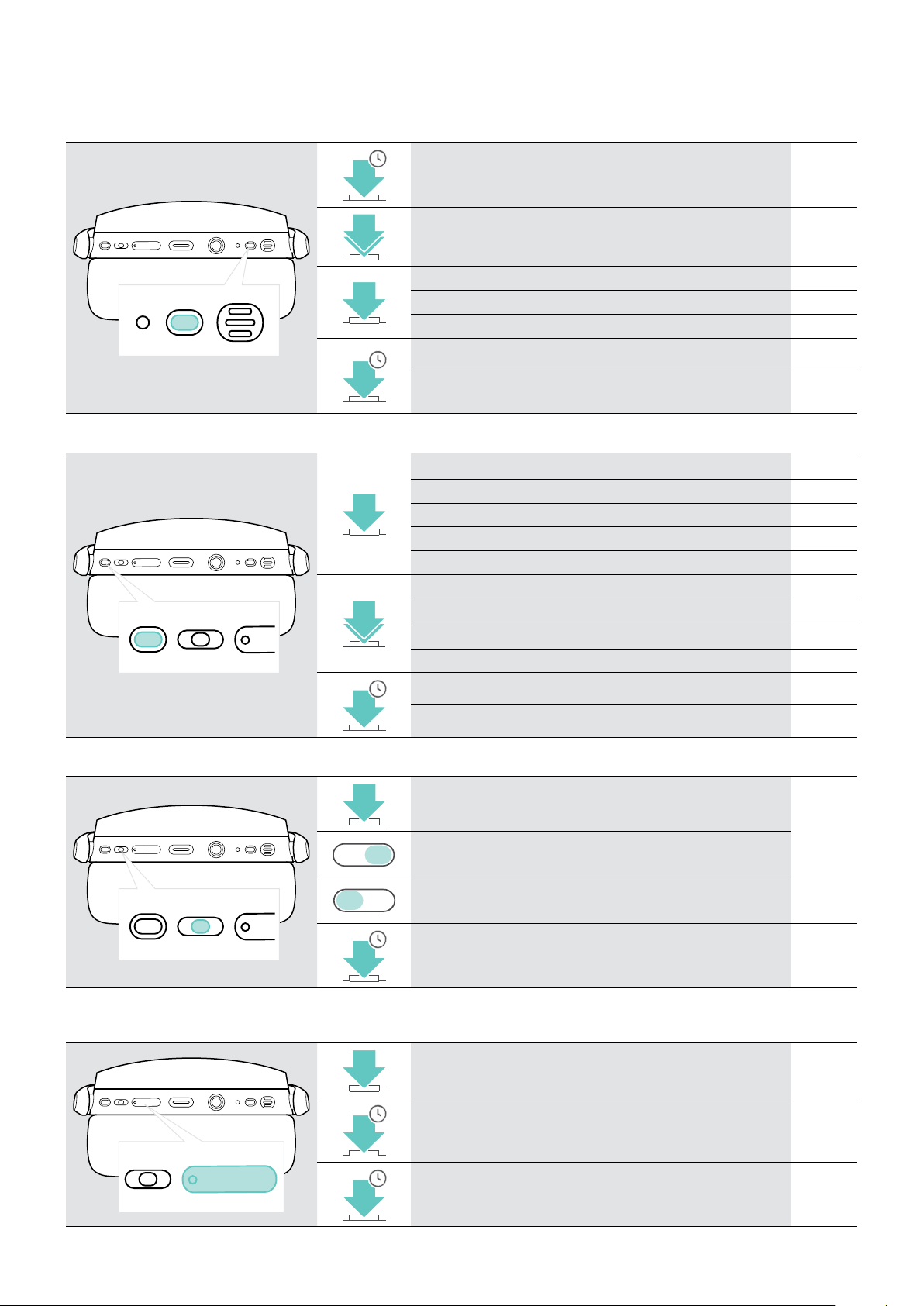
Overview of the headset buttons
Power & Mute button Press Function Page
2s
2x
4s
Hook button Press Function Page
2x
Turns the headset on / off 10
Turns ANC on / off 12
Mutes / unmutes the microphone 12
Turns TalkThrough on/off (ANC turned on) 13
Cancels pairing (Pairing mode) 7
Pairs the headset with a Bluetooth device 7
Clears pairing list (Pairing mode):
Initiates a call 14
Accepts / ends a call 14
2 calls: Answers incoming & ends active call 16
2 calls: Ends active & unholds paused call 16
Invokes Microsoft Teams 17
Puts an active call on hold (pause) / unholds call 14
Redials the last number 15
2 calls: Answers incoming & puts active on hold 16
2 calls: Toggles between two calls 16
25
Activates voice assistant / Cortana 15
1s
Rejects a call 14
Media control button Press Function Page
Starts / pauses audio playback
• Skips to the next track
• Press and hold: Fast-forwards the track*
• Skips to the previous track
• Press and hold: Rewinds the track*
4s
* These functions are not supported by all connected Bluetooth devices.
Volume button Press Function Page
1s
Clears pairing list (Pairing mode):
Increases/decreases the volume
(press or press and hold)
Requests remaining battery power
(press both buttons)
18
25
11
19
ADAPT 360 | ADAPT 360 White Bluetooth® headset
4s
Enables/disables voice prompts
(press both buttons)
21
Page 7
Product overview6
3x
3x
3x
3x
3x
3x
3x
3x
3x
3x
3x
3x
3x
3x
3x
3x
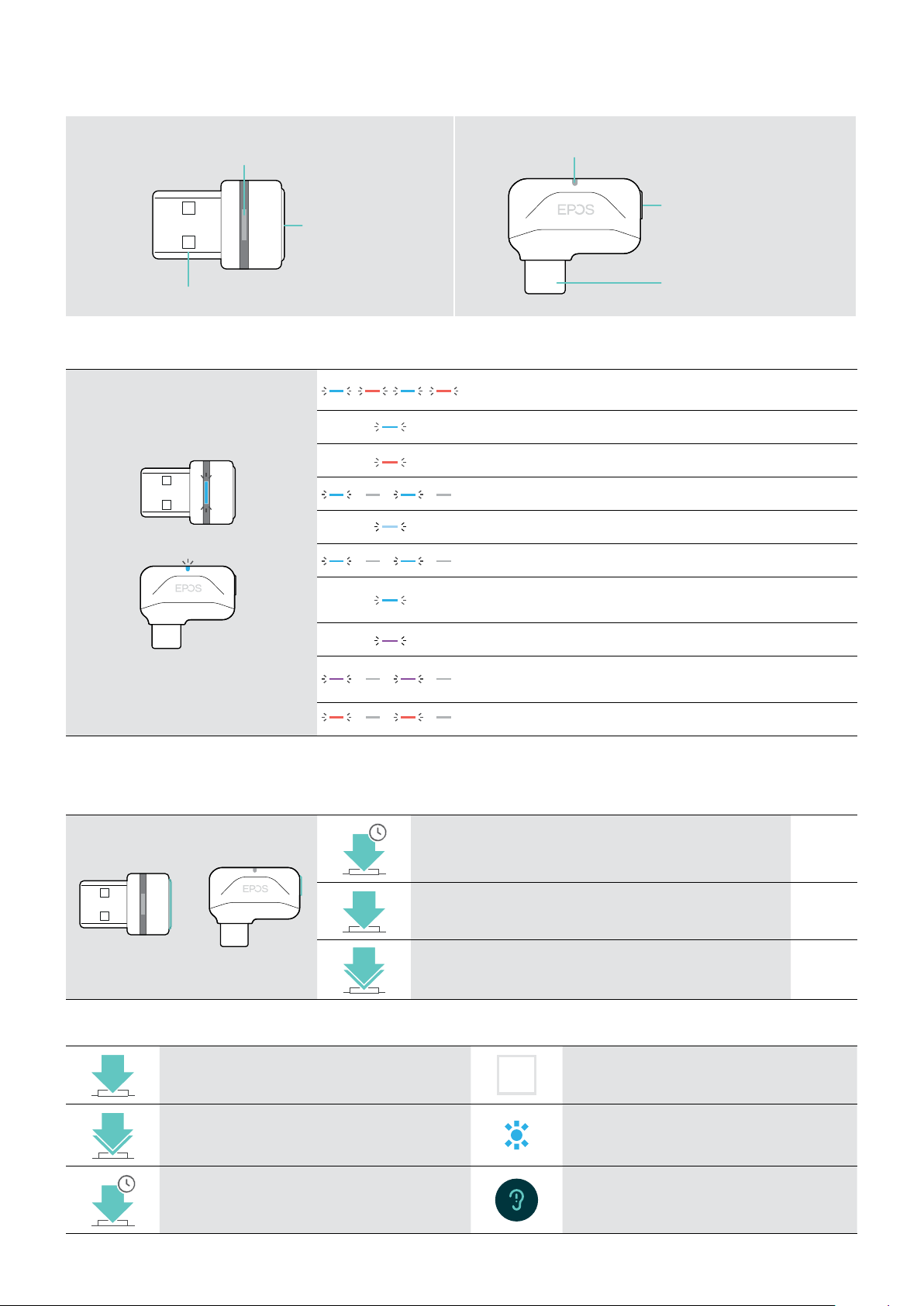
Overview of the dongle
BTD 800 USB BTD 800 USB-C
Link LED
Link button
USB-A plug
Link LED
Link button
USB-C plug
Overview of the dongle LED indications
Dongle in pairing mode:
searching for headset
3x
Pairing successful
Pairing failed
Dongle tries to connect to a Bluetooth device
Dongle and Bluetooth device connected
Incoming call
• Outgoing/active call
• Audio playback
Connected to Teams
• Teams notication
• Connecting to Teams or Invoking Cortana
Microphone of the connected Bluetooth device is muted
Overview of the dongle button
Link button Press Function Page
3s
2x
Pairs the dongle with the headset 7
Reconnects the headset 21
Disconnects the headset 21
Overview of the icons
Tap the button
2x
3s
ADAPT 360 | ADAPT 360 White Bluetooth® headset
Press the button twice LED indications
Press and hold the button Voice prompt is announced
i
Notes: Good to know
Page 8
Getting started7
Getting started
Pairing the headset with Bluetooth® devices
CAUTION
Danger of malfunction!
The transmitted radio waves of mobile devices can impair the operation of sensitive and unprotected devices.
The headset complies with the Bluetooth 5.0 standard. Bluetooth devices need to support the “Hands-Free Prole”
(HFP), the “Headset Prole” (HSP), “Audio Video Remote Control Prole” (AVRCP) or the “Advanced Audio Distribution
Prole” (A2DP).
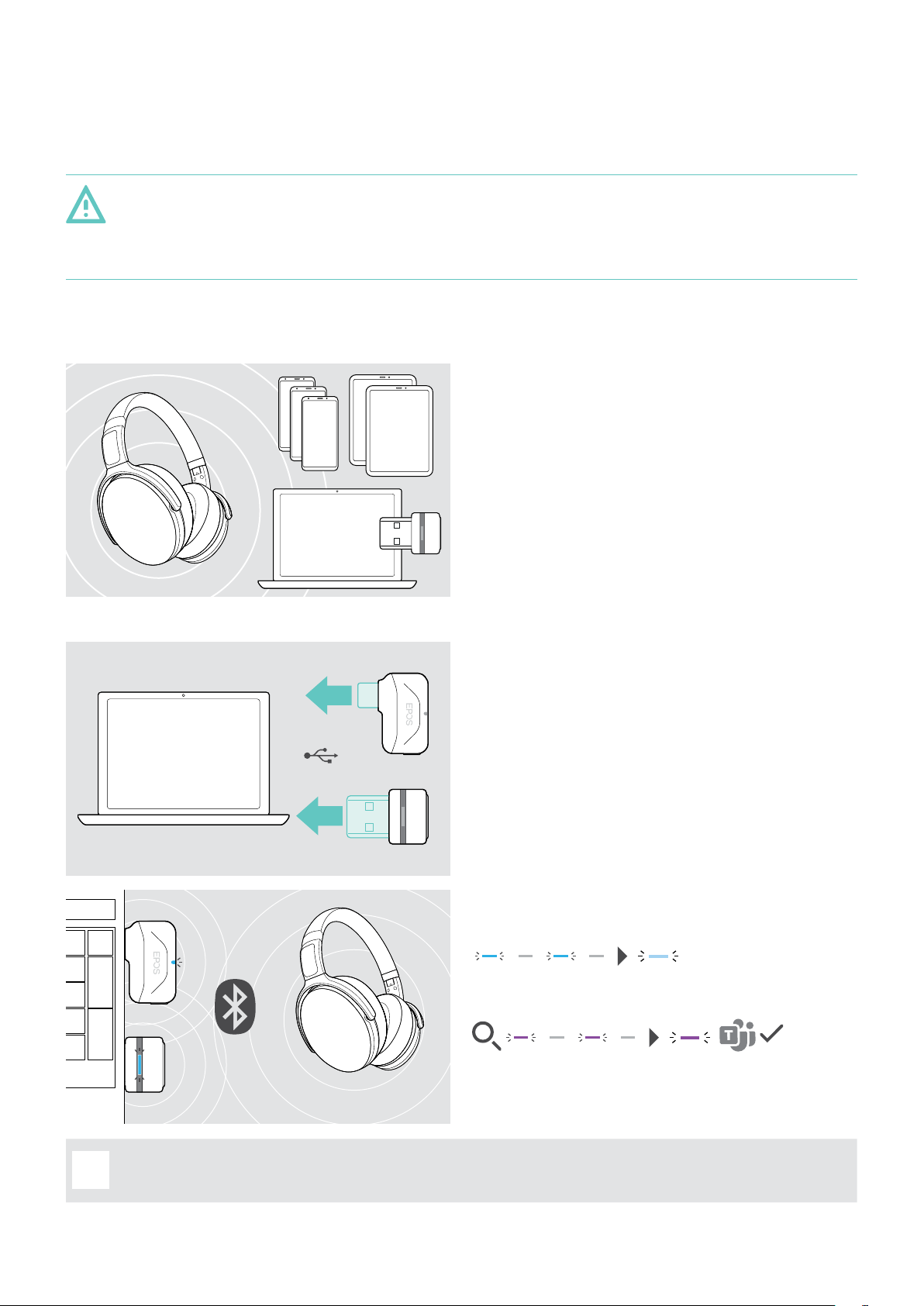
To transmit data via Bluetooth, you rst have to pair your
headset to a wireless device. The delivered dongle is
already paired with the headset.
The headset can save up to eight paired devices. If you
pair the headset with a ninth device, the device with the
oldest activity in the pairing list will be overwritten. If you
want to re-establish a connection with this device, you
have to pair it again.
Connecting the headset via the dongle
USB-C
USB-A
The headset can be connected to two of the paired
devices at the same time. You can only connect another
device by disconnecting one of the already connected
devices.
To connect the headset wirelessly with a computer, use the
BTD 800 USB or BTD 800 USB-C dongle.
The dongle and the headset in the bundles are already
paired.
The dongle LED flashes blue while searching and switches
to dimmed blue when connected successfully to the
headset.
To manually pair the headset and the dongle, activate the pairing mode for both:
i
and red. Once the dongle and the headset are connected, the dongle lights up dimmed blue.
ADAPT 360 | ADAPT 360 White Bluetooth® headset
If Microsoft Teams is invoked: The dongle connects to
Teams and lights up purple instead of blue.
The dongle shows Teams notifications (see page 17).
Page 9
Getting started8
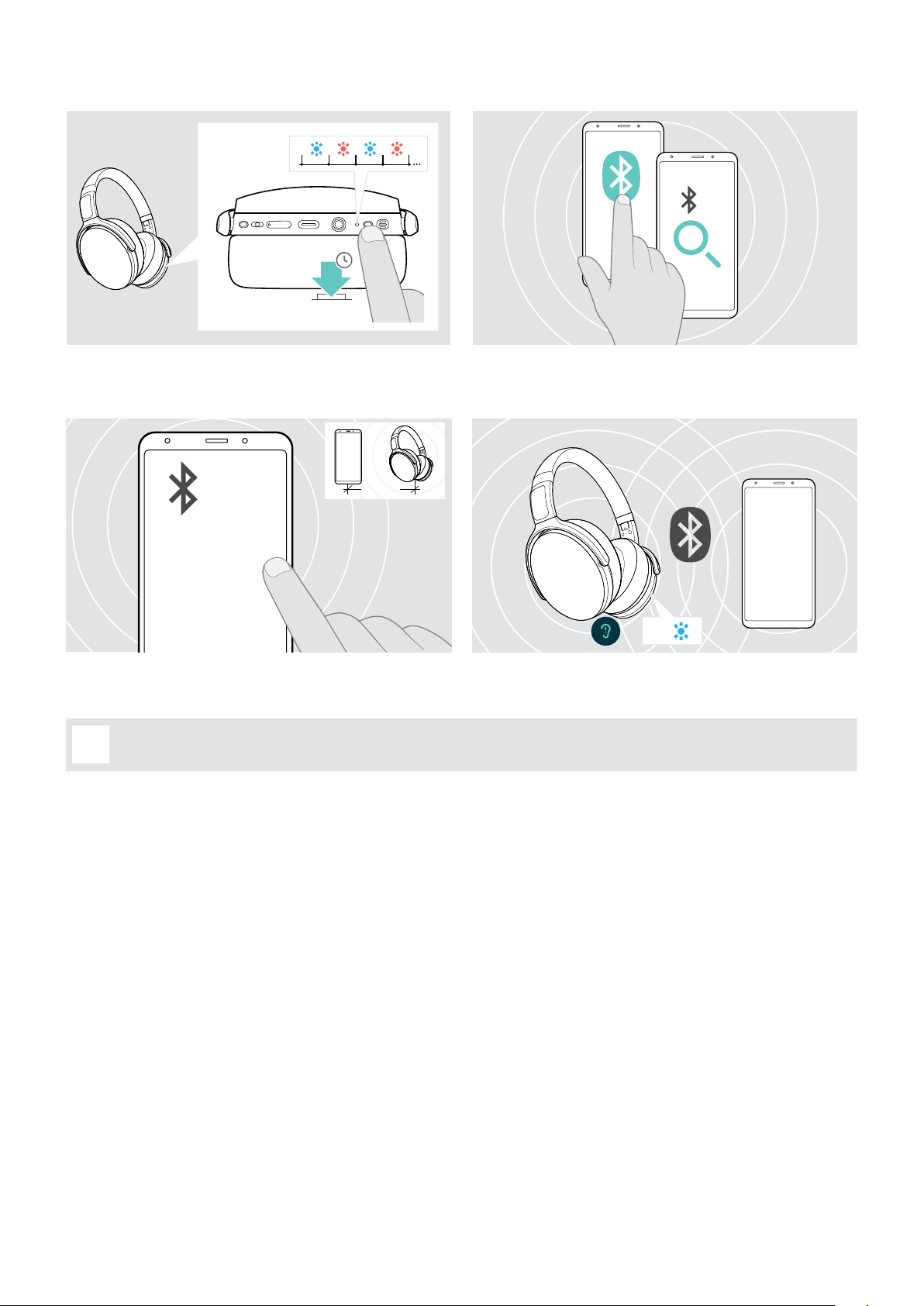
Pairing the headset via Bluetooth with a mobile device
1 2
4s
blue and red.
The headset is in pairing mode.
3
...
...
EPOS ADAPT 360
...
connection to the headset.
To cancel pairing:
i
search for Bluetooth devices – see instruction manual of
your mobile device.
4
< 20 cm
2x
The LED flashes 2 times blue as soon as the headset finds
a device to connect to. The LED turns off.
ADAPT 360 | ADAPT 360 White Bluetooth® headset
Page 10
Getting started9
Installing the EPOS Connect software
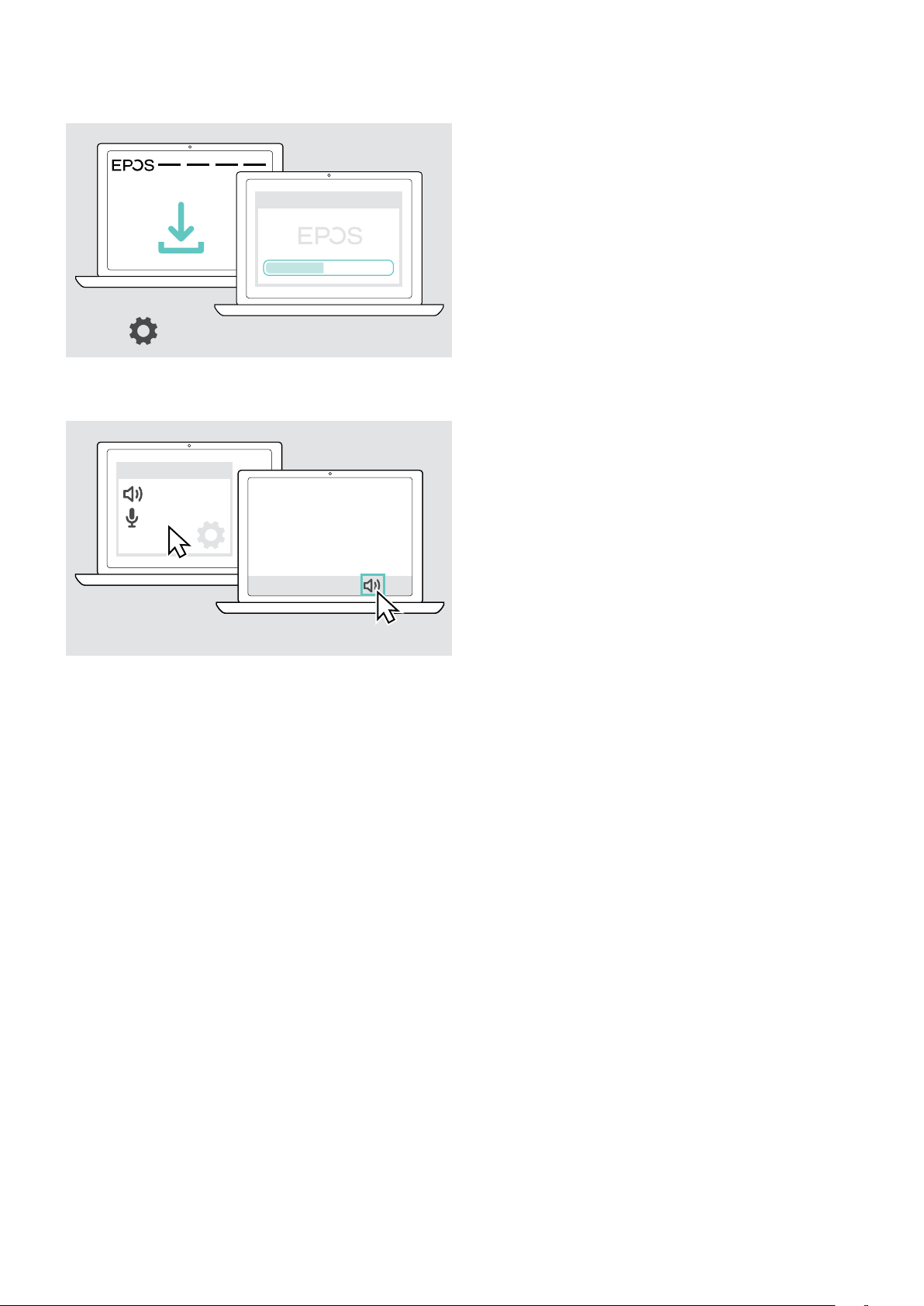
The free EPOS Connect software allows you to configure
and update your headset and offers additional settings.
EPOS Connect
EPOS Connect
x
www.eposaudio.com/connect.
You need administrator rights on your computer – if
necessary, contact your IT department.
To make calls via the computer:
support.
www.eposaudio.com/connect
Changing Audio settings for the headset – Microsoft® Windows
Windows usually changes the Audio settings automatically
if you connect a new headset.
Audio settings
ADAPT
ADAPT
x
If the headset is connected but you hear no sound:
ADAPT 360 | ADAPT 360 White Bluetooth® headset
Page 11
Using the headset10
Using the headset
CAUTION
Hearing damage due to high volumes!
Listening at high volume levels for long periods can lead to permanent hearing defects.
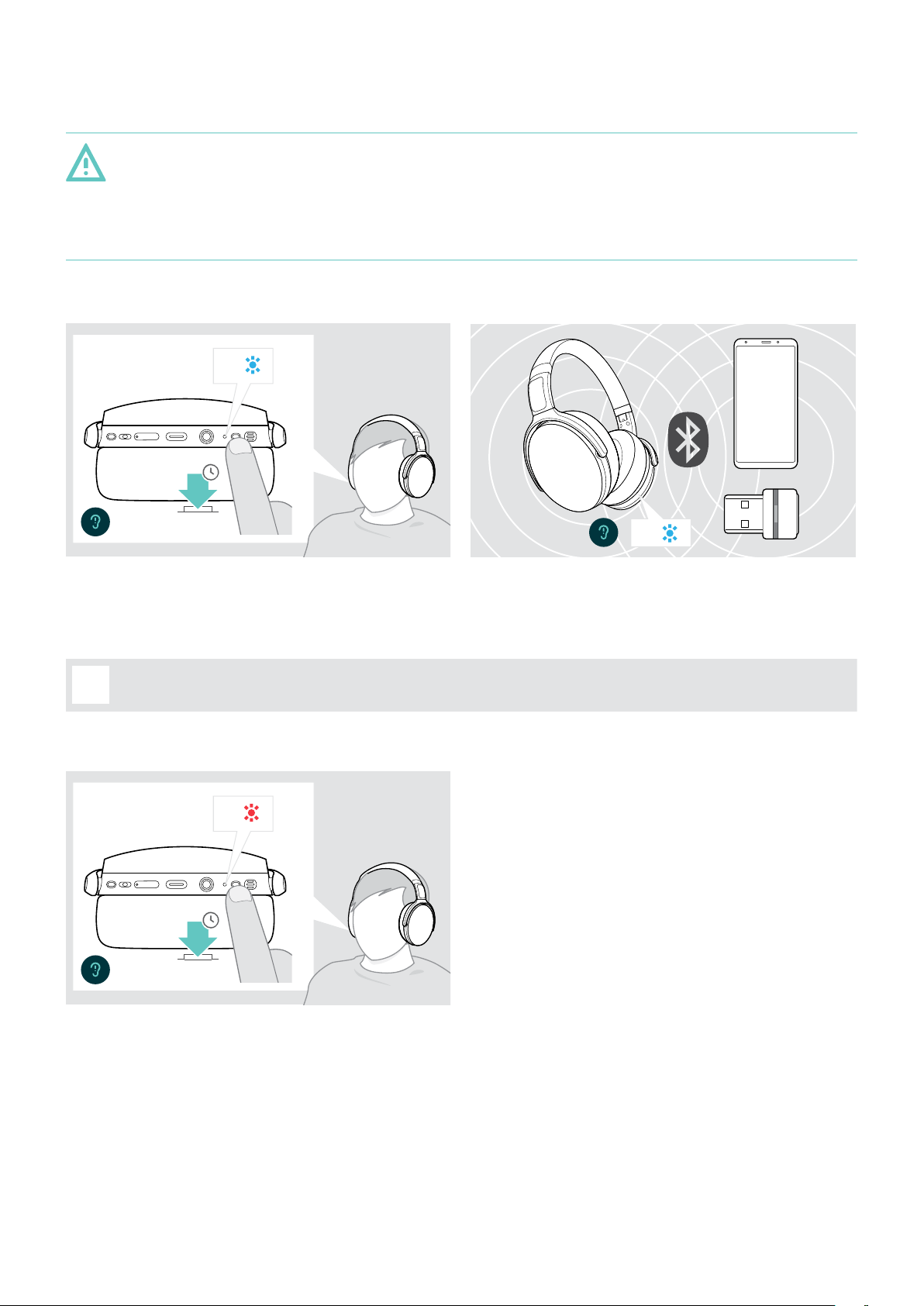
Turning the headset on and connecting it
3x
2s
The headset turns on. The LED ashes blue shortly.
The headset automatically tries to connect to available
paired Bluetooth devices.
The search function is deactivated while the audio cable is connected.
i
Turning the headset o
3x
2s
2x
The LED ashes 2 times blue as soon as the headset nds
a device to connect to. The LED turns off.
If the LED ashes red, no paired device has been found.
The LED ashes red 3 times and turns o.
All volume settings are saved automatically when the
headset is turned o.
OR
ADAPT 360 | ADAPT 360 White Bluetooth® headset
Page 12
Using the headset11
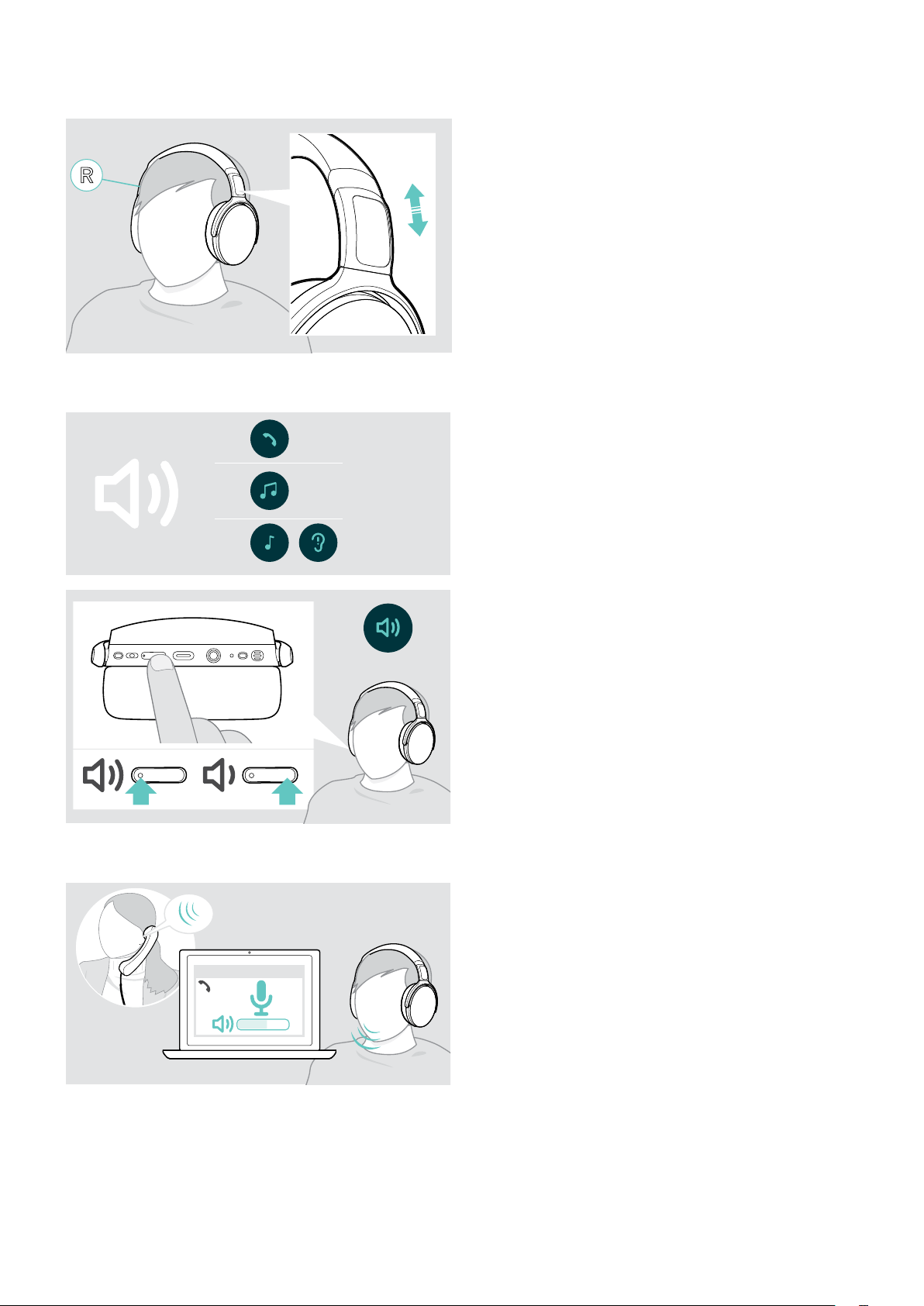
Adjusting and wearing the headset
Adjusting the volume
1
2
For good sound quality and best possible wearing comfort,
adjust the headset.
top of your head and the side with the R marking rests
on your right ear.
• your ears are comfortably covered by the ear pads,
• you feel even, gentle pressure around your ears,
• a snug t of the headband on the head is ensured.
You can adjust three independent volume settings for the
headset:
1. Call volume: during an active call
2. Audio volume: during audio streaming
3. Volume for ring tone, tones and voice prompts:
in idle mode – no active call or audio streaming
3
volume.
You hear a beep or double beep for maximum or
minimum volume.
Alternatively you can adjust the volume on your connected
device.
Adjusting the headset’s microphone volume for softphones
who will help you nd the correct volume setting for
your microphone.
Softphone
Softphone
x
x
application and/or in your PC audio application.
ADAPT 360 | ADAPT 360 White Bluetooth® headset
Page 13
Using the headset12
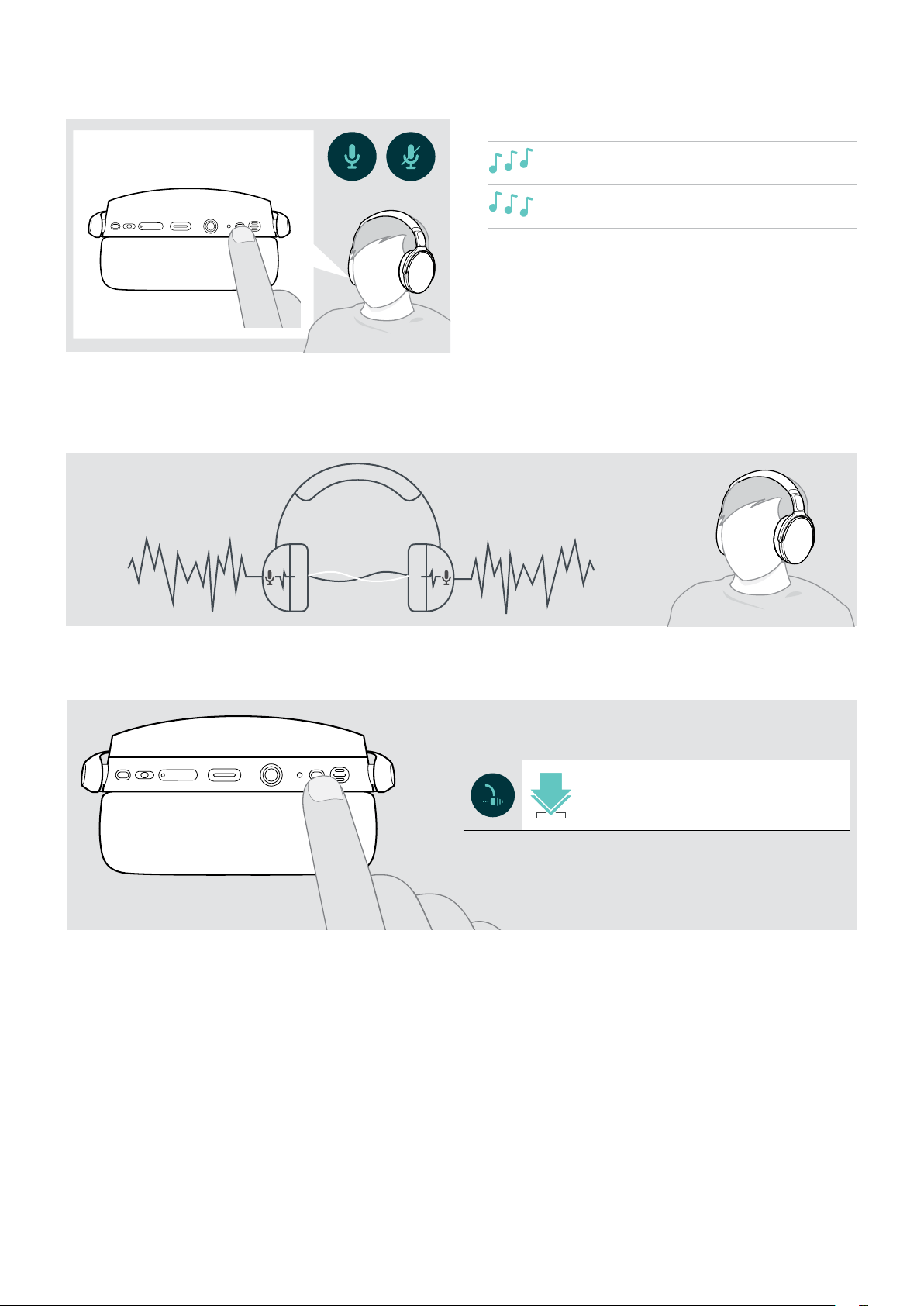
Muting the microphone
mute or
unmute the microphone.
Using Active Noise Cancellation (ANC)
This headset provides attenuation of ambient noise using Active Noise Cancellation (ANC) technology. Special
microphones optimize speech and reduce background noise.
If you are in a noisy environment but would like to have your own quiet space, you can use the headset itself,
disconnected from any device, and simply benet from ANC. You can activate ANC if the battery is suciently charged
and if the headset is turned on.
2x
Activates / deactivates ANC
ADAPT 360 | ADAPT 360 White Bluetooth® headset
Page 14
Using the headset13
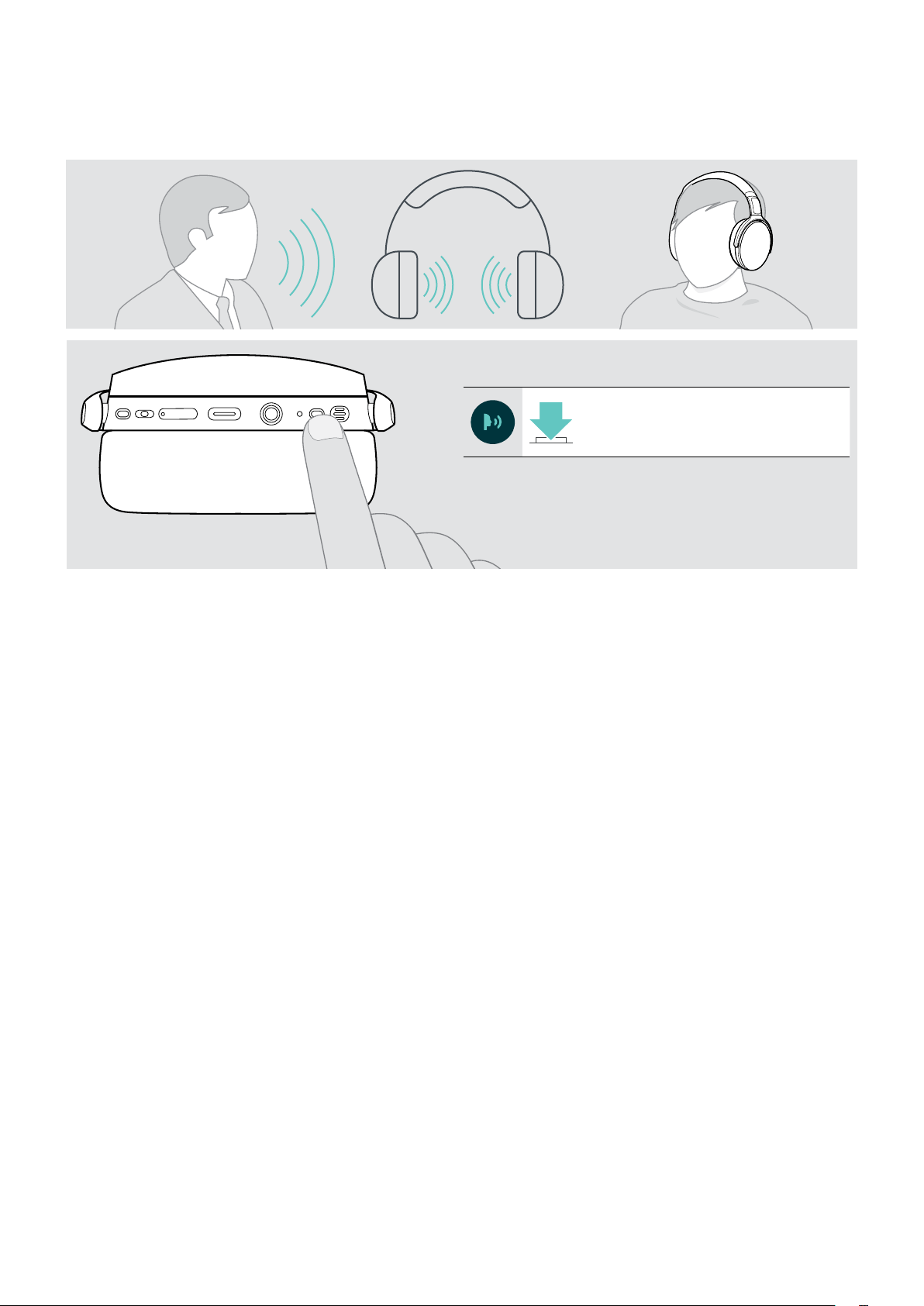
Turning TalkThrough on / o
TalkThrough allows you to communicate with your colleagues without having to remove the headset, even when ANC is
turned on. Audio playback will be paused or muted.
Activates / deactivates TalkThrough
ADAPT 360 | ADAPT 360 White Bluetooth® headset
Page 15
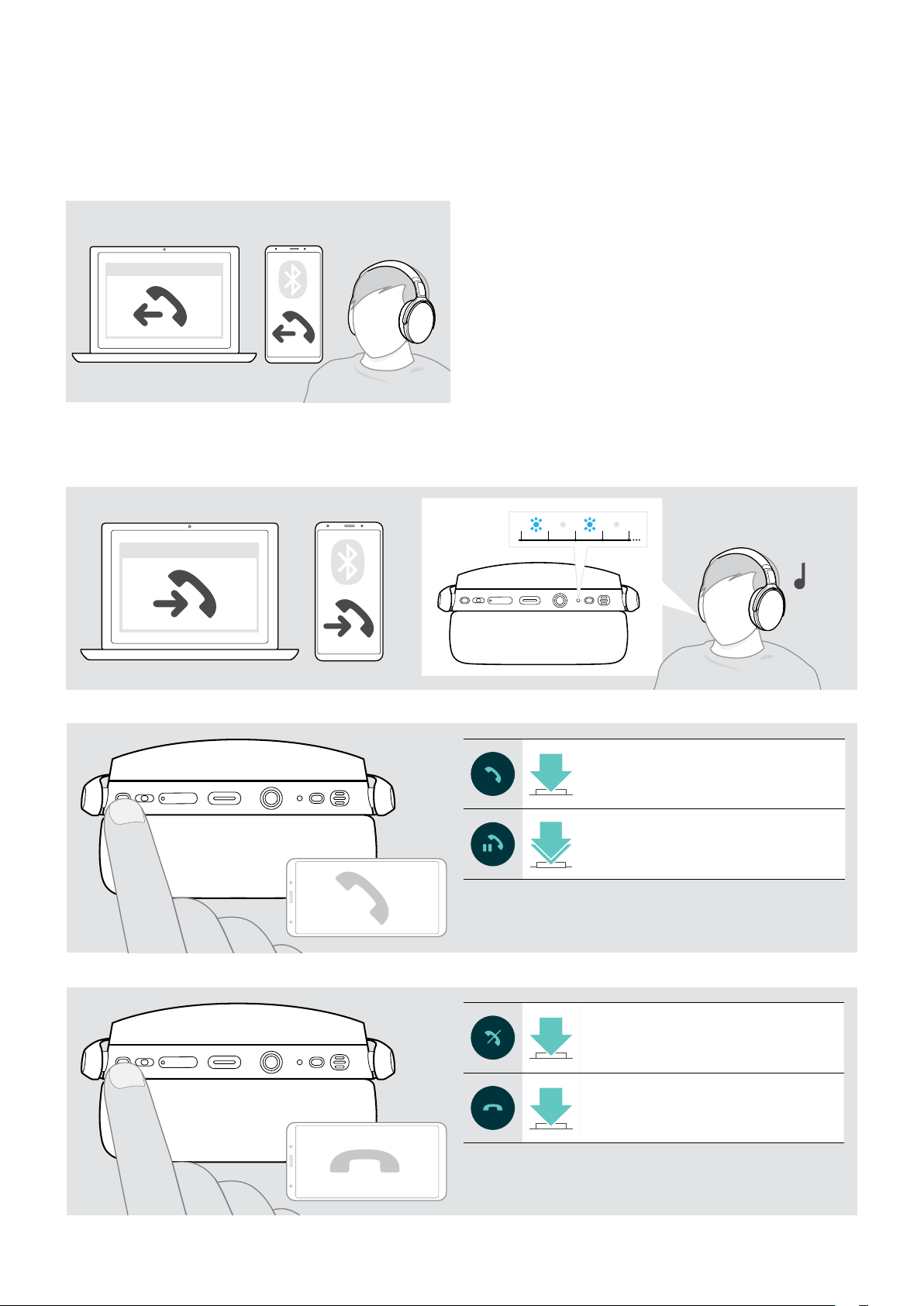
Making calls using the headset 14
Making calls using the headset
The following functions depend on the connected device.
Making a call
OR
Softphone
x
softphone.
If your call is not automatically transferred to the headset:
connected device.
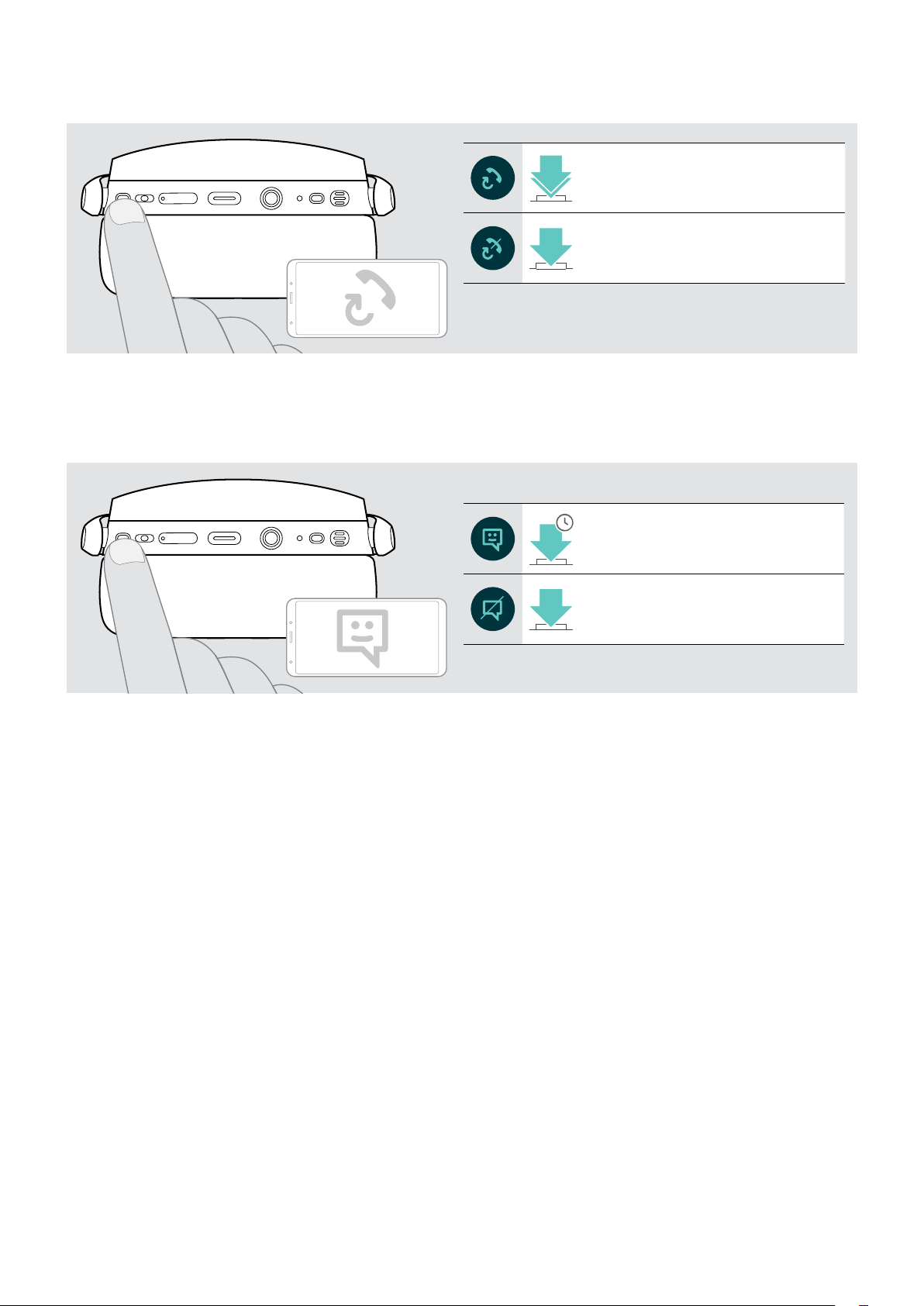
Accepting / rejecting / ending a call
When you receive a call, you hear a ring tone and the LED ashes blue.
Softphone
Accept / hold a call
x
Reject / end a call
Accepts a call
2x
Puts an active call on hold (pause)
Rejects a call
Ends a call
ADAPT 360 | ADAPT 360 White Bluetooth® headset
Page 16
Making calls using the headset 15
Redialing
2x
Redials the last number
Cancels redialing
Using the voice assistant / voice dial
The last connected Bluetooth device will be used for voice assistant or voice dial.
For Microsoft Cortana: see page 17.
Activates voice assistant / voice dial
1s
Cancels voice assistant / voice dial
ADAPT 360 | ADAPT 360 White Bluetooth® headset
Page 17
Making calls using the headset 16
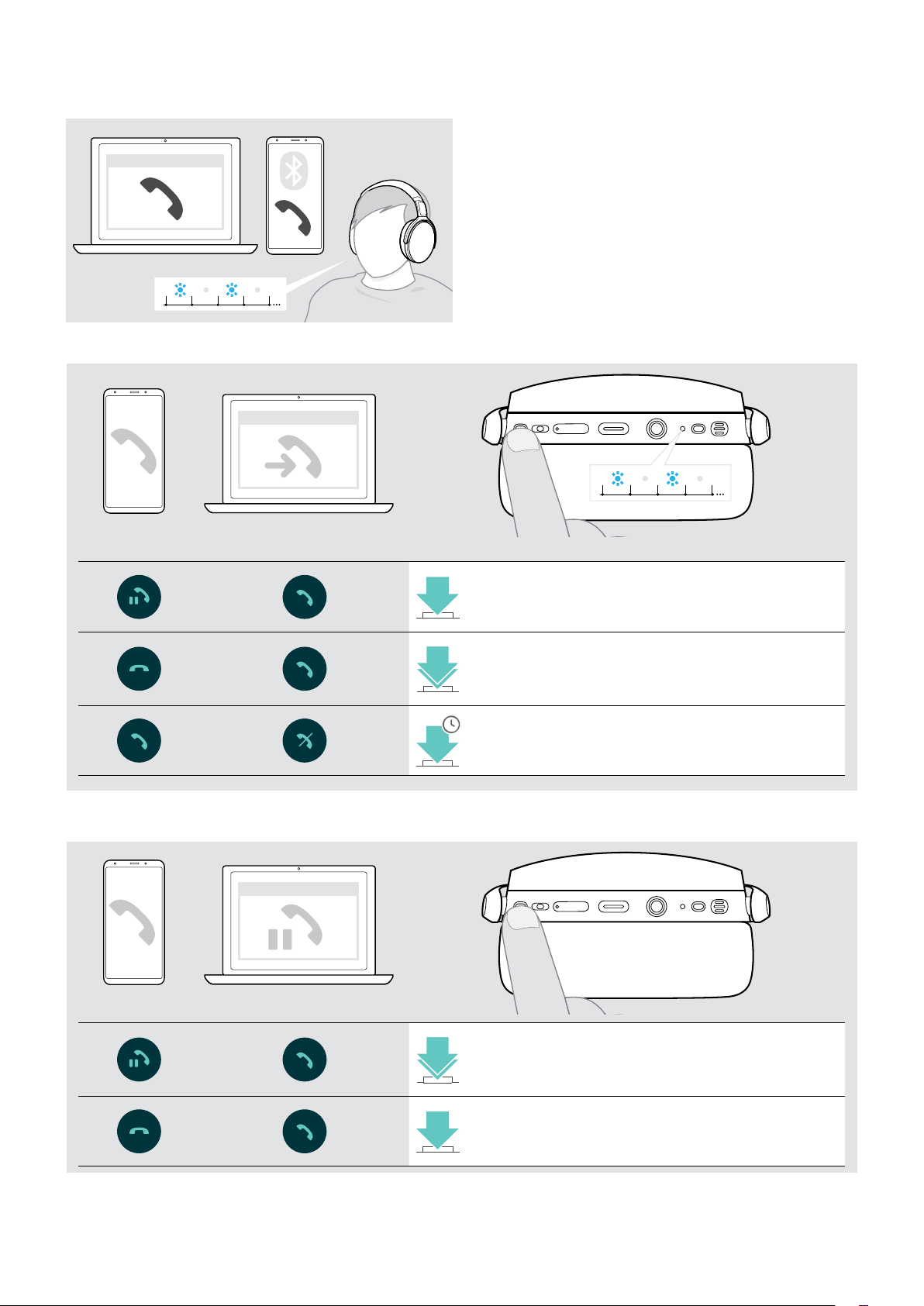
Managing multiple calls
Softphone
Accept / reject second call
x
You can use the Headset with up to two connected
Bluetooth devices.
Two calls can be managed simultaneously.
If you receive a call during an active call, a knock on tone
will be played.
Softphone
Active call 2nd incoming call
Toggle between calls / end active call
x
Accepts the incoming call and
puts the active call on hold
Accepts the incoming call and
2x
ends the active call
Rejects the incoming call and
1s
continues the active call
Softphone
Active call 2nd held call
ADAPT 360 | ADAPT 360 White Bluetooth® headset
x
2x
Toggles between the active and held call
Ends the active call and makes the held call active
Page 18
Using headset and dongle with Microsoft® Teams / Cortana17
3x
3x
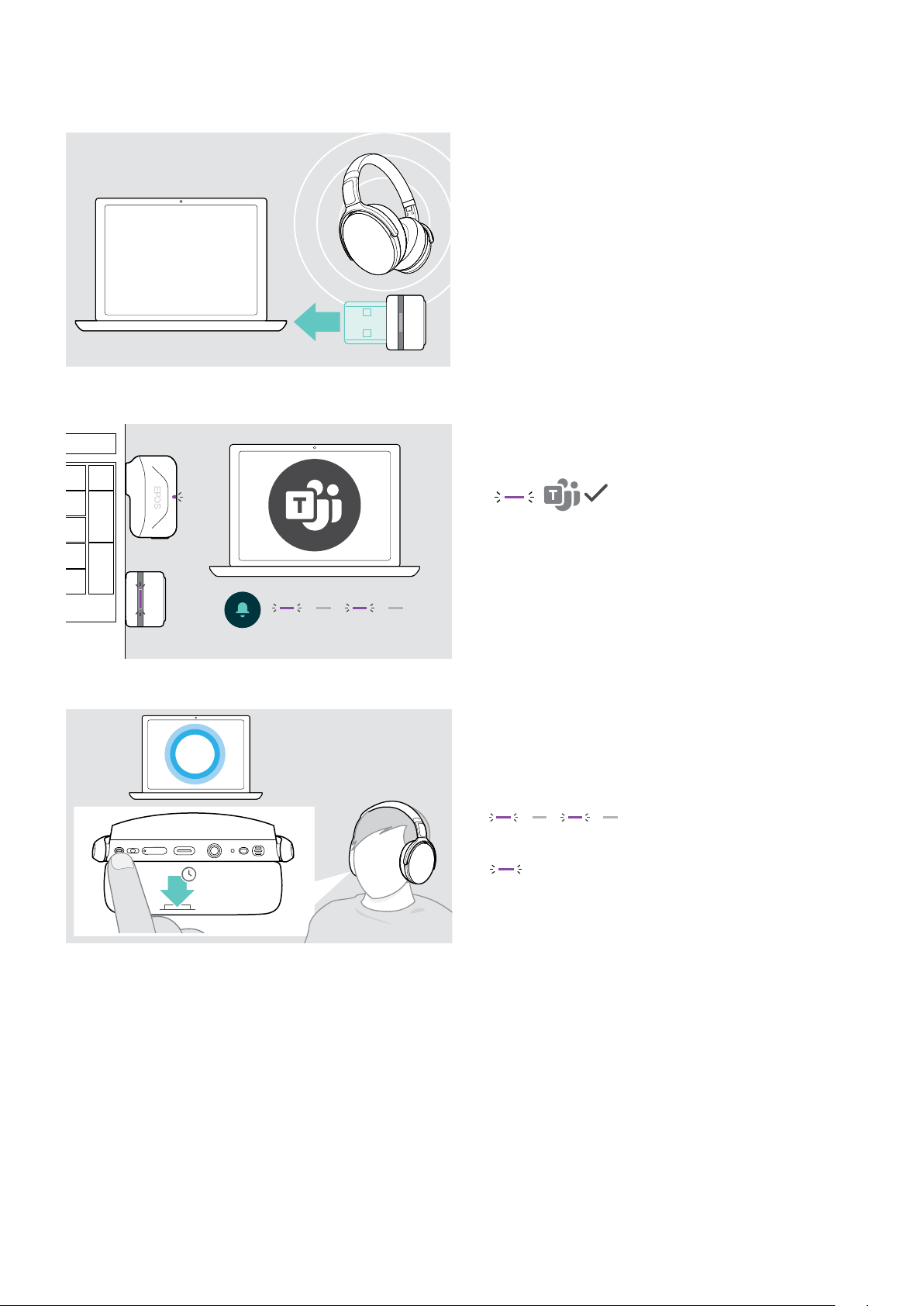
Using headset and dongle with Microsoft® Teams / Cortana
To use Microsoft Teams and Cortana with the headset:
see page 7.
If Microsoft Teams is already running, the blue LED
changes to purple automatically.
Invoking Microsoft® Teams and check notications
The dongle connects to Microsoft Teams and the LED
blue LED changes to purple.
Activating and using Microsoft® Cortana
1s
The LED pulses purple to indicate:
• Meeting Join Notication
• Voice Mail Notication
• Missed Call Notication
To check these Notications on your screen:
You can activate and use Cortana – Microsoft’s Personal
Digital Assistant using Voice command technology – with
the headset.
The Dongle LED ashes purple while activating Cortana.
The LED lights up purple and Cortana is ready to use.
ADAPT 360 | ADAPT 360 White Bluetooth® headset
Page 19
Listening to audio using the headset18
Listening to audio using the headset
You can listen to audio via a connected device.
Controlling media playback
The following functions depend on the connected device.
The LED on the dongle lights up blue.
x
Plays the next track in the playlist
Plays the previous track in the playlist
Fast-forwards the track: Press and hold the button
Rewinds the track: Press and hold the button
If you receive and accept a call, audio playback is paused and restarts after the call – if supported by the
i
connected device.
Plays audio
Pauses audio
Using the audio cable
Use the audio cable for audio playback when the battery is low or when Bluetooth transmission is restricted or not
allowed. Bluetooth immediately turns o once the audio cable is connected to the headset.
headset.
Bluetooth is deactivated.
your mobile device.
To disconnect the audio cable:
out of the headset.
The headset automatically tries to connect to available
paired Bluetooth devices.
You can use the Active Noise Cancellation (ANC) as usual (see page 12).
i
ADAPT 360 | ADAPT 360 White Bluetooth® headset
Page 20
Additional functions19
Additional functions
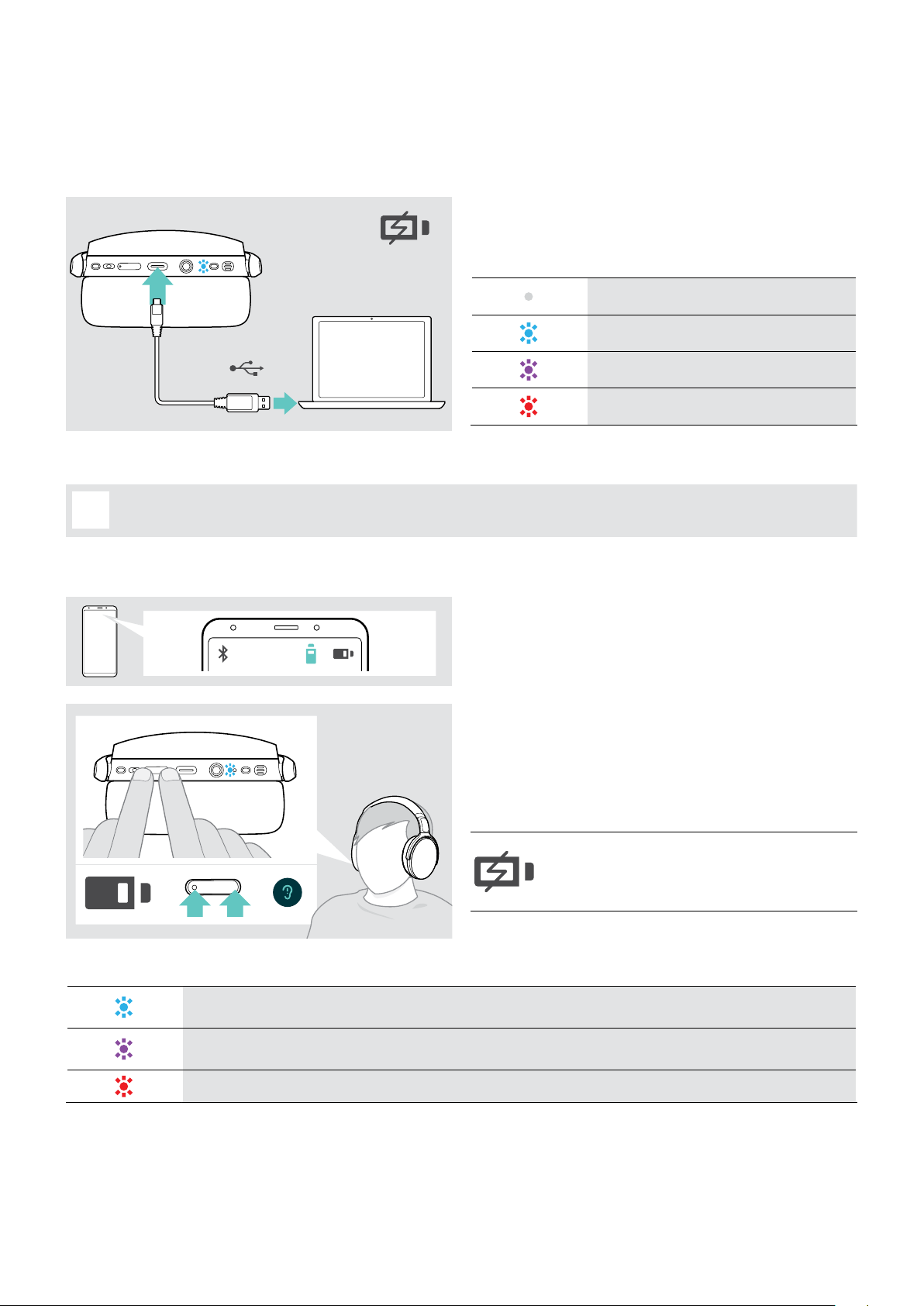
Charging the headset battery
The battery is being charged. The LED lights up depending
on the battery status of the headset and turns off when
the battery is fully charged.
LED Battery status
100% – Battery fully charged
more than 60%
USB-A
To end charging:
When the battery is flat, the headset turns off automatically.
i
Verifying remaining battery power
more than 20%
less than 20%
Some mobile devices indicate the battery status of the
headset.
You can retrieve information on the remaining battery
power at any time – except while you are in a call:
The LED ashes shortly and a voice prompt is
announced.
?
LED Remaining battery power
more than 60%
more than 20%
less than 20% – automatic voice prompt
ADAPT 360 | ADAPT 360 White Bluetooth® headset
When the battery power drops below 20%,
the LED flashes red and “Recharge headset”
is announced several times.
Page 21
Additional functions20
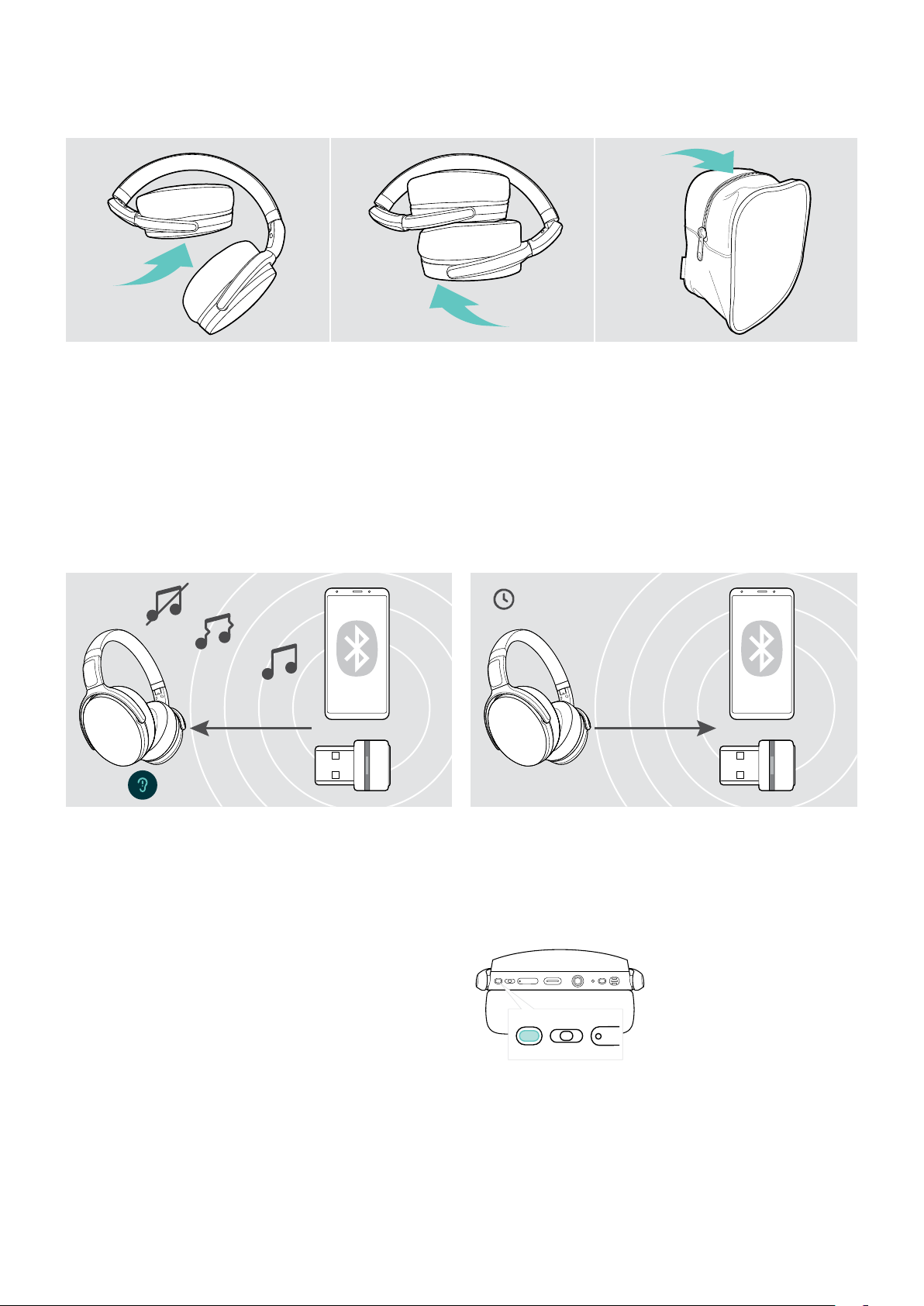
Storing and transporting the headset
To avoid nicks or scratches on the headset:
1 2 3
If you do not use the headset for extended periods of time:
If you leave the Bluetooth range
The range between headset and Bluetooth device is device dependent. The transmission range largely depends on
environmental conditions such as wall thickness, wall composition etc. With a free line of sight, the transmission range of
most Bluetooth devices is up to 25 meters.
5 min
~25 m
If the audio quality deteriorates e. g. during a call or the link
breaks down completely:
If you re-enter the Bluetooth transmission range within
5 minutes, the connection is re-established.
After more than 5 minutes the connection breaks down
completely and you have to manually re-establish the
connection:
ADAPT 360 | ADAPT 360 White Bluetooth® headset
Page 22
Additional functions21
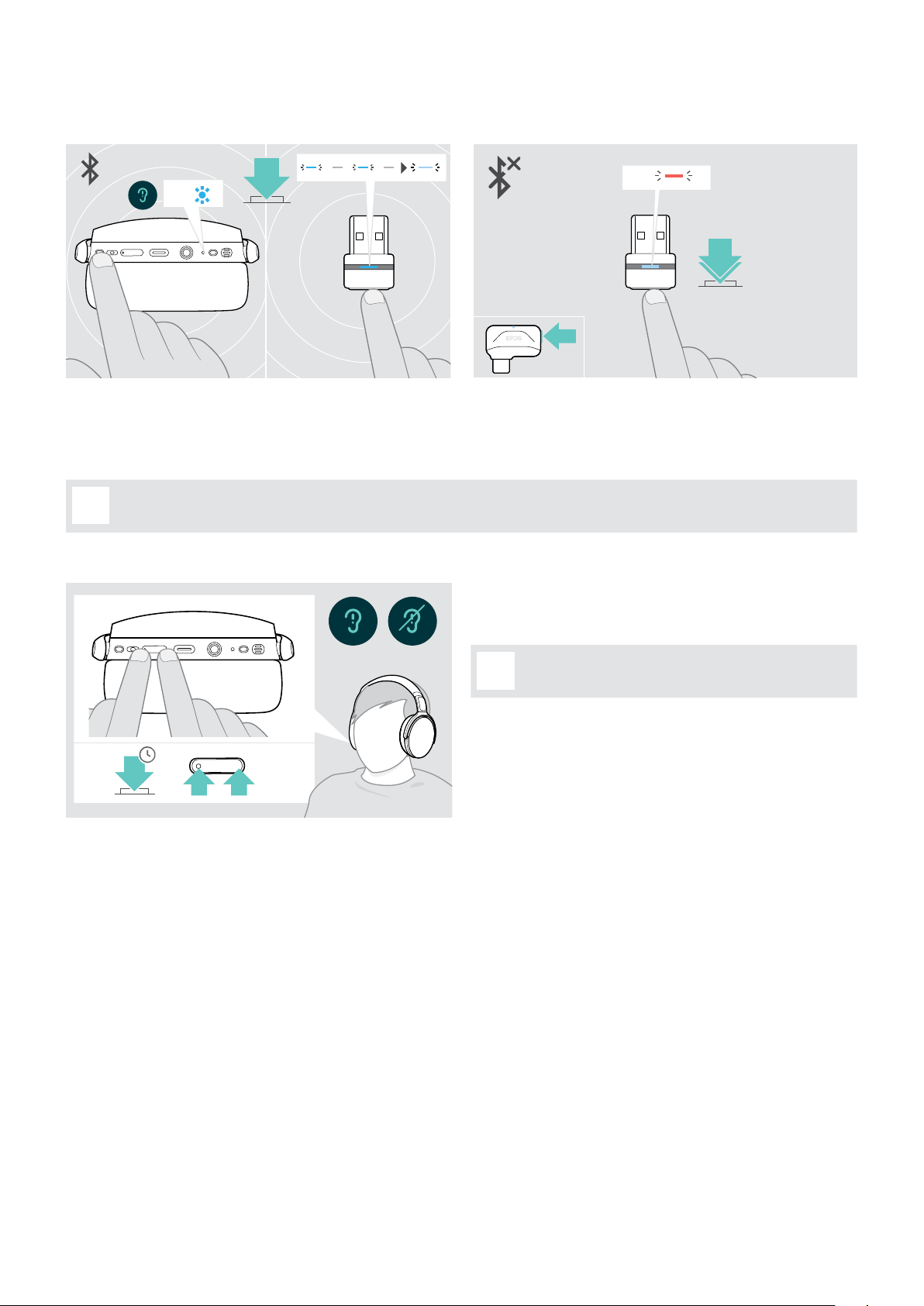
Reconnecting / disconnecting Bluetooth
Reconnecting Bluetooth Disconnecting Bluetooth
2x
3x
2x
The headset ashes 2 times blue as soon as the
headset nds a device to connect to. The dongle
ashes blue and lights up dimmed blue.
If you connect the audio cable to the headset, Bluetooth gets automatically deactivated.
i
Enabling / disabling voice prompts
4s
Bluetooth will be disconnected. The LED ashes 3 times
red.
In idle mode (no active call or audio playback):
announces a voice prompt for on or o.
If the voice prompts are deactivated you hear
i
tones instead.
ADAPT 360 | ADAPT 360 White Bluetooth® headset
Page 23
Maintaining the products and updating the rmware22
Maintaining the products and updating the rmware
Cleaning the products
CAUTION
Liquids can damage the electronics of the product!
Liquids entering the housing of the device can cause a
short circuit and damage the electronics.
Replacing the ear pads
For hygienic reasons, you should replace the ear pads from time to time. Spare ear pads are available from your EPOS
partner.
1
2
!
– in the space on the ear cup.
ADAPT 360 | ADAPT 360 White Bluetooth® headset
Page 24
Maintaining the products and updating the rmware23
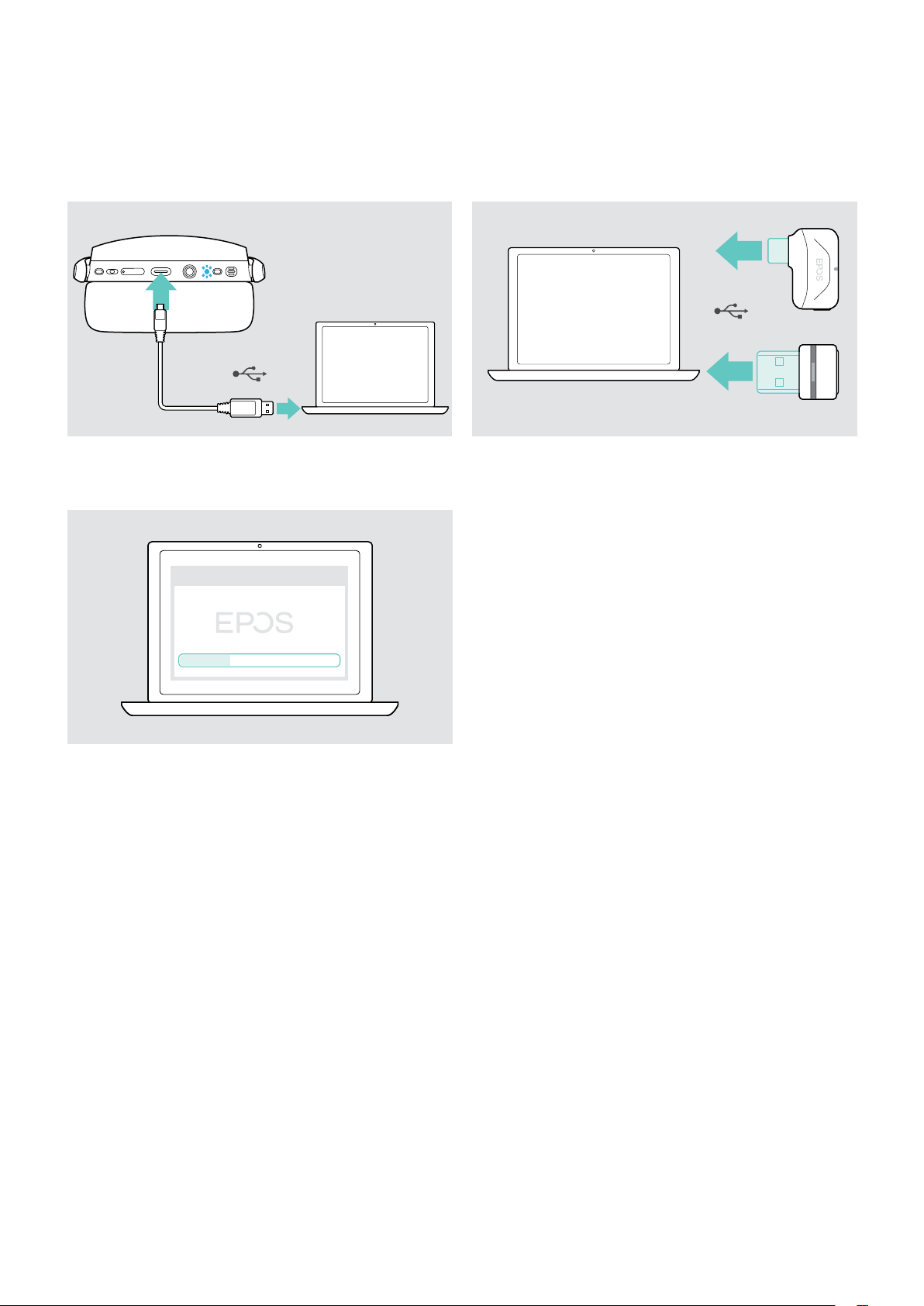
Updating the rmware of the products
To update the installed rmware:
Updating the rmware of the headset Updating the rmware of the dongle
1
computer.
The LED lights up.
2
EPOS Connect
1
USB-C
USB-A
USB-A
The LED lights up.
If there is a new rmware available the software will
guide you through the update process.
x
ADAPT 360 | ADAPT 360 White Bluetooth® headset
Page 25

If a problem occurs ...24
If a problem occurs ...
Problem Possible cause Solution Page
Headset cannot be
turned on
Active Noise Cancellation
(ANC) cannot be turned
on
Rechargeable battery empty
Rechargeable battery empty
Headset turned off
10
No audio signal or drop
outs
Headset cannot be
connected via Bluetooth
Microsoft Teams does not
work: LED blue instead of
purple
Beeps instead of
voice prompts
Headset or dongle does
not react to any button
press
Headset not paired with a Bluetooth
device
Volume adjusted too low
Headset turned off
Audio cable’s jack plug not twisted
in
Computer: Headset not selected as
audio device
Audio cable connected
(deactivates Bluetooth)
Headset not paired
Bluetooth at mobile device turned
off
Dongle not plugged in
Dongle or Microsoft Teams
disturbed
Voice prompts disabled X Enable the voice prompts. 21
Software or hardware problems
it locks into place.
computer.
(max. 20 cm distance while pairing
between devices).
the HF or HS prole.
your Computer.
18
9
7
–
7
If a problem occurs that is not listed in the above table or if the problem cannot be solved with the proposed
solutions, please contact your local EPOS partner for assistance. To nd the EPOS partner in your country, search at
www.eposaudio.com.
ADAPT 360 | ADAPT 360 White Bluetooth® headset
Page 26
If a problem occurs ...25
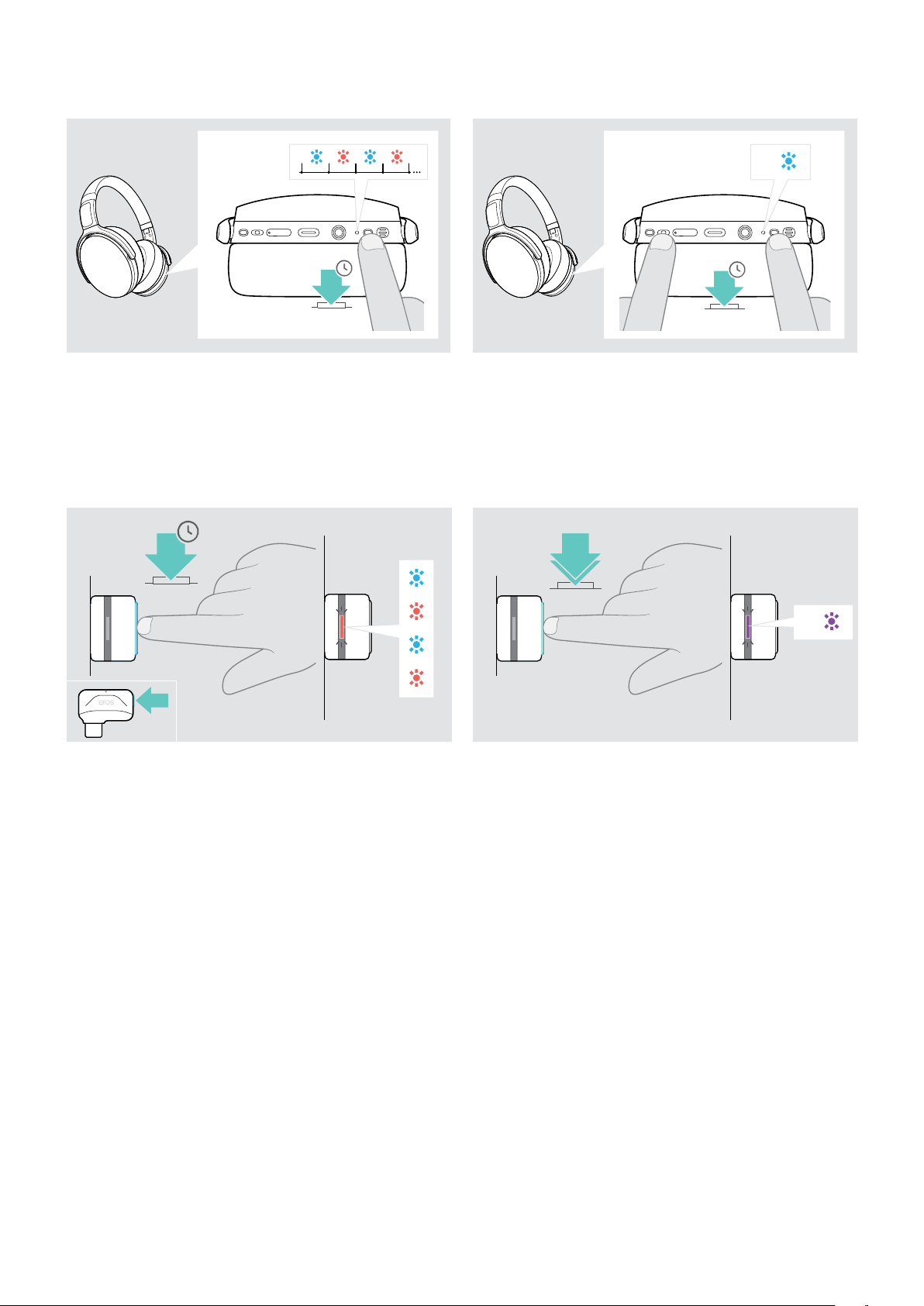
Clearing the pairing list of the headset (Reset)
1 2
3x
4s
blue and red.
Clearing the pairing list of the dongle (Reset)
1
3s
4s
Power button.
The LED ashes blue 3 times. The pairing list is cleared.
The headset searches for Bluetooth devices to pair with
– see page7.
2
2x
3x
and red.
The LED ashes purple 3 times. The pairing list is
cleared. The dongle searches for Bluetooth devices to
pair with – see page7.
ADAPT 360 | ADAPT 360 White Bluetooth® headset
Page 27

Specications26
Publ. 12/20, A02
DSEA A/S
Kongebakken 9, DK-2765 Smørum, Denmark
www.eposaudio.com
Specications
Headset - General
Wearing style
Color
Dimensions (W x H x D)
Weight
Transducer principle
Connectivity
Connector
Supported Bluetooth profiles
Supported codecs
Rechargeable battery (built-in)
Charging time
Standby time
Battery time
Range
Headset - Audio
Speaker frequency response
Sound pressure level (SPL)
Total harmonic distortion (THD)
Noise cancellation
Microphone type
Microphone frequency response
Over-ear, double-sided headband
Black and white version
168 x 188 x 88 mm / 6.61 x 7.40 x 3.47 in
238 g / 8.39 oz
Dynamic, closed
Bluetooth 5.0
Audio cable (2.5 mm twist lock and 3.5 mm jack plugs)
®
USB-C
Hands-Free Profile (HFP), Headset Profile (HSP), Audio Video Remote Control
Profile (AVRCP), Advanced Audio Distribution Profile (A2DP)
SBC, AAC, AptX™, AptX™ low latency
Lithium Polymer / 3.7 V DC / 600 mAh
2 hours 30 minutes
Up to 62 days
Listening time: up to 46 hours (ANC o)
Talking time: up to 39 hours (ANC o)
Up to 25 m / 82 feet (device dependent)
18 Hz to 22,000 Hz (-10 dB)
Limited by EPOS ActiveGard
< 0.3%
Active Noise Cancellation (ANC)
2 beamforming MEMS microphones
80 Hz to 8,000 Hz
plug
®
: 108 dB (1 kHz/0 dBFS)
Dongle BTD 800 USB
Dimensions (W x H x D)
Weight
Connector
Connectivity
Output power
22 x 16 x 6 mm / 0.87 x 0.63 x 0.24 in
2 g / 0.07 oz / 0.004 lbs
USB-A plug
Bluetooth 4.2
max. 8 dBm (EIRP)
Dongle BTD 800 USB-C
Dimensions (W x H x D)
Weight
Connector
Connectivity
Output power
27.5 x 23.5 x 7.5 mm / 1.05 x 0.93 x 0.30 in
2.8 g / 1.0 oz / 0.006 lbs
USB-C plug
Bluetooth 4.2
max. 11 dBm (EIRP)
ADAPT 360 | ADAPT 360 White Bluetooth® headset
Page 28
Specications27
DSEA A/S
Kongebakken 9, DK-2765 Smørum, Denmark
www.eposaudio.com
ADAPT 360 | ADAPT 360 White Bluetooth® headset
Publ. 12/20, A02
 Loading...