

Page 1
EPL Solutions, Inc.
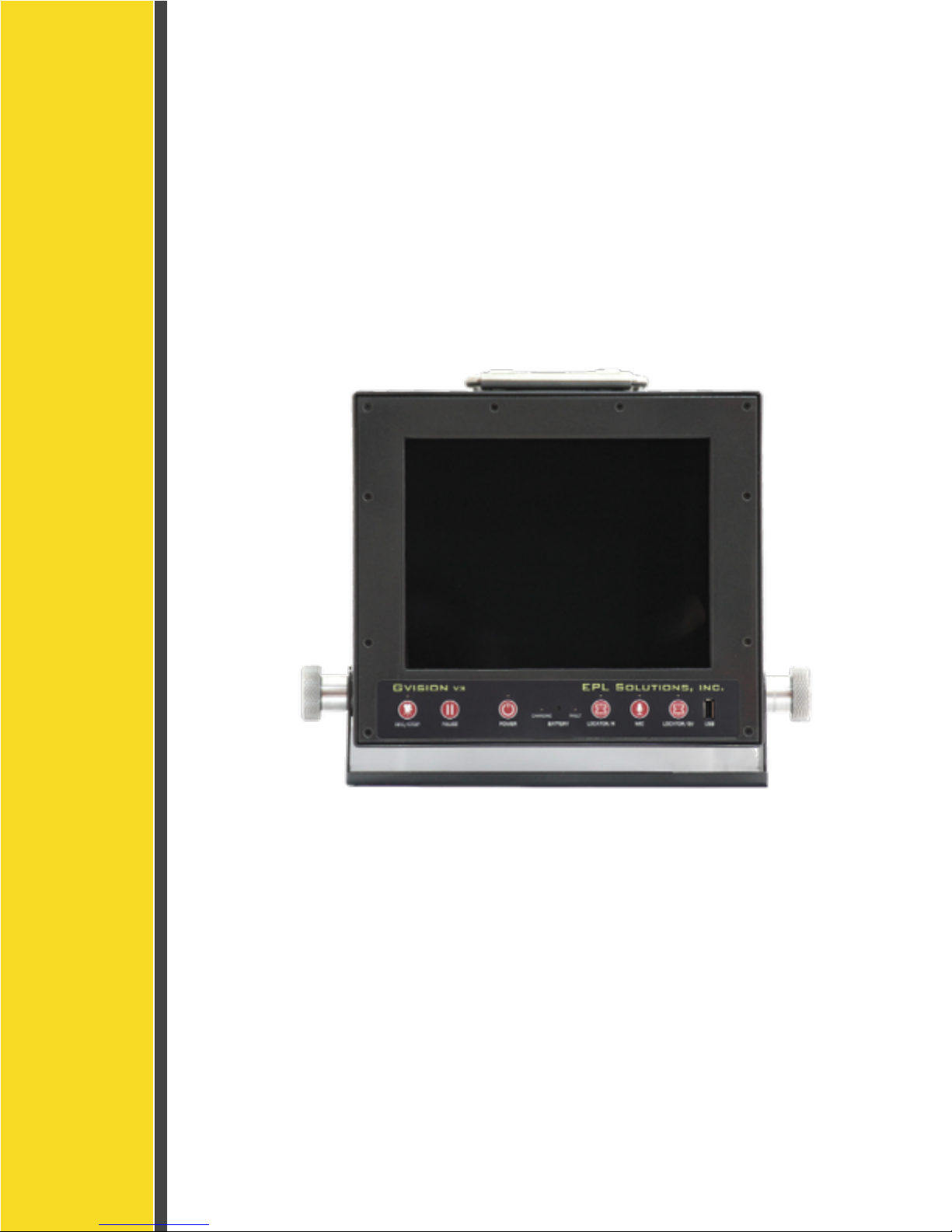
GVISION v3 Smart Technology
Operator’s Manual
Page 2

GVISION v3
Table of Contents
EPL Solutions, Inc.
Orange, CA 714-453-9760 www.EPLSolutions.net email: [email protected]
READ BEFORE USING
Gvision Specifications
1-3
• Push/Pull connectors
• Push Button controls
• LED controls
Charging The Internal Battery
4
Important Recording Information
5
Recording onto iOS device and USB drive
6
Using Gplink
7-10
•
Downloading
•
Recording
•
Renaming
•
Sharing
Using YouTube from iOS device
11
Sharing through Gallery (Photo App)
12
How to Send Media using Dropbox
13
• Sign in DropBox Account
• Sharing Videos and Photos
Installation of Monitor Mount
14
WINDOWS XP® and APPLE® Burning Video onto an Optical Disc
15-16
Trouble Shooting
17
WARRANTY
18
NOTES
Page 3
Introduction !
Congratulations on the purchase of your new Gvision V3 Monitor. The V3 is specially designed to provide
an All-in-One, Plug and Play industrial quality monitor/recording system that is portable, simple to use,
durable and can be used with multiple camera systems.!
!
DISCLAIMER OF LIABILITY!
EPL SOLUTIONS, INC SHALL NOT BE LIABLE TO DISTRIBUTOR, RESELLER, OR ANY OTHER
PERSON FOR ANY INCIDENTAL, INDIRECT, SPE- CIAL, EXEMPLARY OR CONSEQUENTIAL
DAMAGES, OR INJURY OF ANY TYPE WHATSOEVER, AND CAUSED DIRECTLY OR INDIRECTLY BY
PRODUCTS SOLD OR SUPPLIED BY EPL SOLUTIONS, INC !
!
!
Prepare for Use!
Unpack your new Gvision V3 Monitor. Make sure there is no shipping damage and all the parts are
included.!
!
Locate power supply and plug into AC outlet. Plug the DC end into Gvision.!
!
Locate the camera connector on the right side of the monitor and connect to camera using interconnect
cord included with purchase.
GVISION v3
Electric shock hazard:!
•
Follow appropriate safety procedure and your companies
policies.
•
Do not expose tool to rain or moisture.
•
Use tool only for intended purpose as described in this manual.
Failure to observe these warnings could result
in severe injury or death
WARNING
EPL Solutions, Inc.
Orange, CA 714-453-9760 www.EPLSolutions.net email: [email protected]
Page 4

GVISION v3
READ BEFORE USING.!
!
The use of electrical equipment in a wet environment can cause fatal shock if equipment is not
properly grounded or adequately maintained, and if care is not used by the operator. !
Wear personal protective equipment such as safety goggles or face shield and protective clothing
such as gloves, coveralls and rubber boots.!
Sewer and waste lines can carry bacteria and other infectious micro-organisms or chemicals
which can cause death or severe illness. Avoid exposing eyes, nose, mouth, ears, hands and
cuts and abrasions to waste water or other potentially infectious materials during sewer and
waste video inspections. To further help protect against exposure to infectious materials, wash
hands, arms and other areas of the body, as needed, with hot, soapy water and, if necessary,
flush mucous membranes with water. Also, disinfect potentially contaminated equipment by
washing such surfaces with a hot soapy wash using a strong detergent.!
“California Prop. 65: This product may contain an extremely small amount of lead internally. Lead is a material known
to the State of California to cause cancer or reproductive toxicity.” !
For any questions contact the company at the address shown below.
EPL Solutions, Inc.
Orange, CA 714-453-9760 www.EPLSolutions.net email: [email protected]
Page 5

GVISION v3
Gvision v3 Specifications!
THE WORLDS FIRST SMART TECHNOLOGY VIDEO INSPECTION SYSTEM!
!
Monitor Specifications:!
•
10.4” LCD Screen!
•
1200nit for Sunlight Viewable !
•
98% Anti-Glare Coating for 170º Sunlight Viewable!
!
Case Specifications:!
• Heavy Duty Aluminum Construction!
• Ruggedized Design!
• Multi-Purpose Cover/Stand for Positioning on Ground or Pitched Roof!
• Solid Aluminum Reel Mount Locking Knobs!
• Dimensions 11.25” x 9.75” x 4”!
•
Weight 8.5lbs!
!
Power Specifications:!
• 90v-264v AC Switching Power Supply for 12v DC In!
• 12v DC Automobile Aux. Cord for charging optional battery!
!
Battery Specifications:!
• Up to 4 Hours Operation On A Fully Charged Battery!
• Battery can be charged in 4hrs or less from the 100v-240v AC Switching Power Supply!
• Battery can be charged in 4hrs or less from the 12v DC Automobile Aux. Cord!
!
Recording Specifications:!
• USB Thumb Drive H264 720 x 480 resolution .mp4 movie file!
• USB Hard Drive H264 720 x 480 resolution .mp4 movie file!
• iPhone® H264 320 x 240 resolution .mov movie file!
• iPod Touch®. H264 320 x 240 resolution .mov movie file!
• iPad® H264 320 x 240 resolution .mov movie file!
!
Sending Video Specifications:!
• SMS 1:50 minute video!
• EMAIL 1 minute video (5meg limit)!
• You Tube 10 minute video!
• Dropbox and others are limited to storage space
EPL Solutions, Inc.
Orange, CA 714-453-9760 www.EPLSolutions.net email: [email protected]
1
Page 6
GVISION v3
Thank you for purchasing the All-in-One Gvision v3
THE WORLD’S FIRST SMART TECHNOLOGY VIDEO INSPECTION SYSTEM
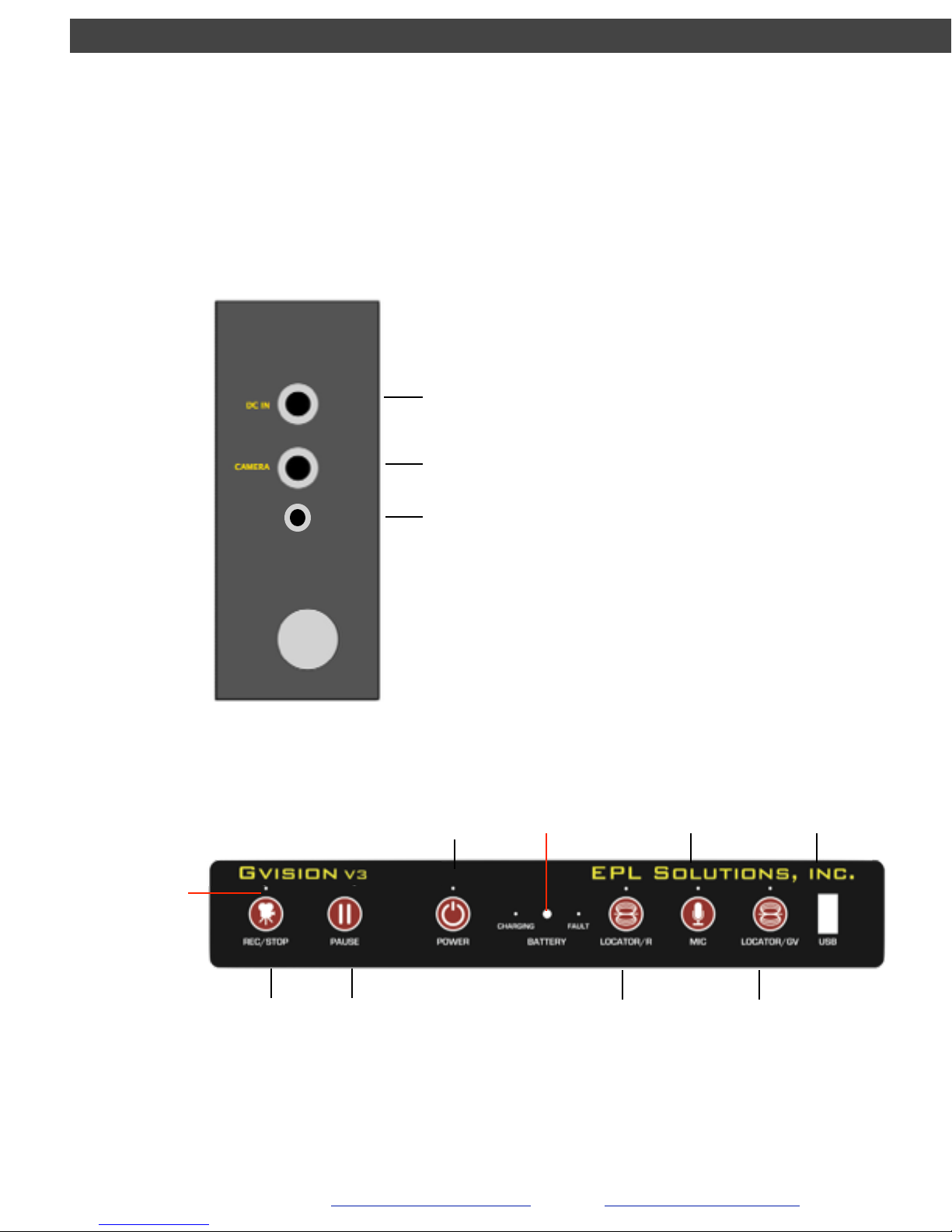
RECORD !
/ !
STOP
POWER!
ON/ OFF
SONDE ON/OFF!
&!
LIGHT CONTROL!
RIDGID SeeSnake®
MIC!
ON/OFF
FUTURE !
Gvision!
EQUIPMENT
USB
LED LIGHT!
INDICATOR
MIC
PUSH/PULL CONNECTIONS
PUSH BUTTON CONTROLS
12V DC IN (AC Power Supply)!
12V AUTOMOBILE AUX. IN FOR
BATTERY CHARGER ONLY.
UNIVERSAL CAMERA CORD
side view
EPL Solutions, Inc.
Orange, CA 714-453-9760 www.EPLSolutions.net email: [email protected]
PAUSE!
RECORD
Video In /Out
AUDIO & VIDEO IN/OUT PORT
2
Page 7
GVISION v3
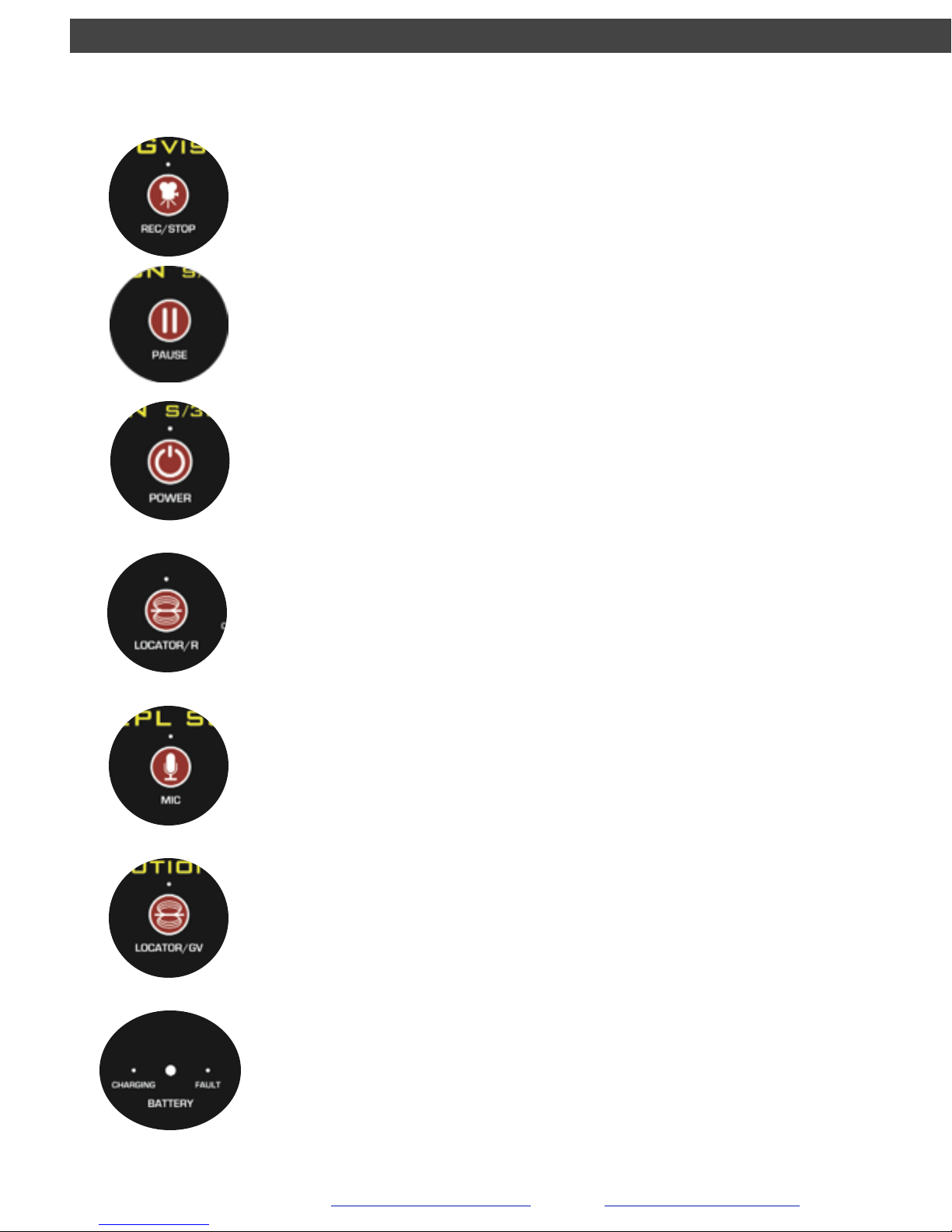
LED CONTROLS
EPL Solutions, Inc.
Orange, CA 714-453-9760 www.EPLSolutions.net email: [email protected]
• Solid GREEN indicates power is on.
• Flashing GREEN indicates low battery level. Gvision will self power-off in a few minutes. Plug
in AC to continue use.
• Press once to activate transmitter (green LED above the button is on)
• Press again to turn transmitter off (green LED above the button is off)
• Press and hold for 3 seconds to change light levels
• LED ash 3x light level High
• LED ash 2x lights level Medium
• LED ash 1x lights level Low
• Solid GREEN indicates sonde is on.
• Solid YELLOW indicates Mic is on.
• Solid BLUE indicates battery is charging.!
• Solid RED indicates battery charge fault. See next page.
• Solid AMBER indicates recorder power is on.
• Solid GREEN indicates USB device or iOS device is ready to record or can be safely
removed.
• Flashing RED indicates recording in progress.
• Flashing RED / GREEN indicates recording is paused.
3
Page 8
GVISION v3
CHARGING THE INTERNAL BATTERY
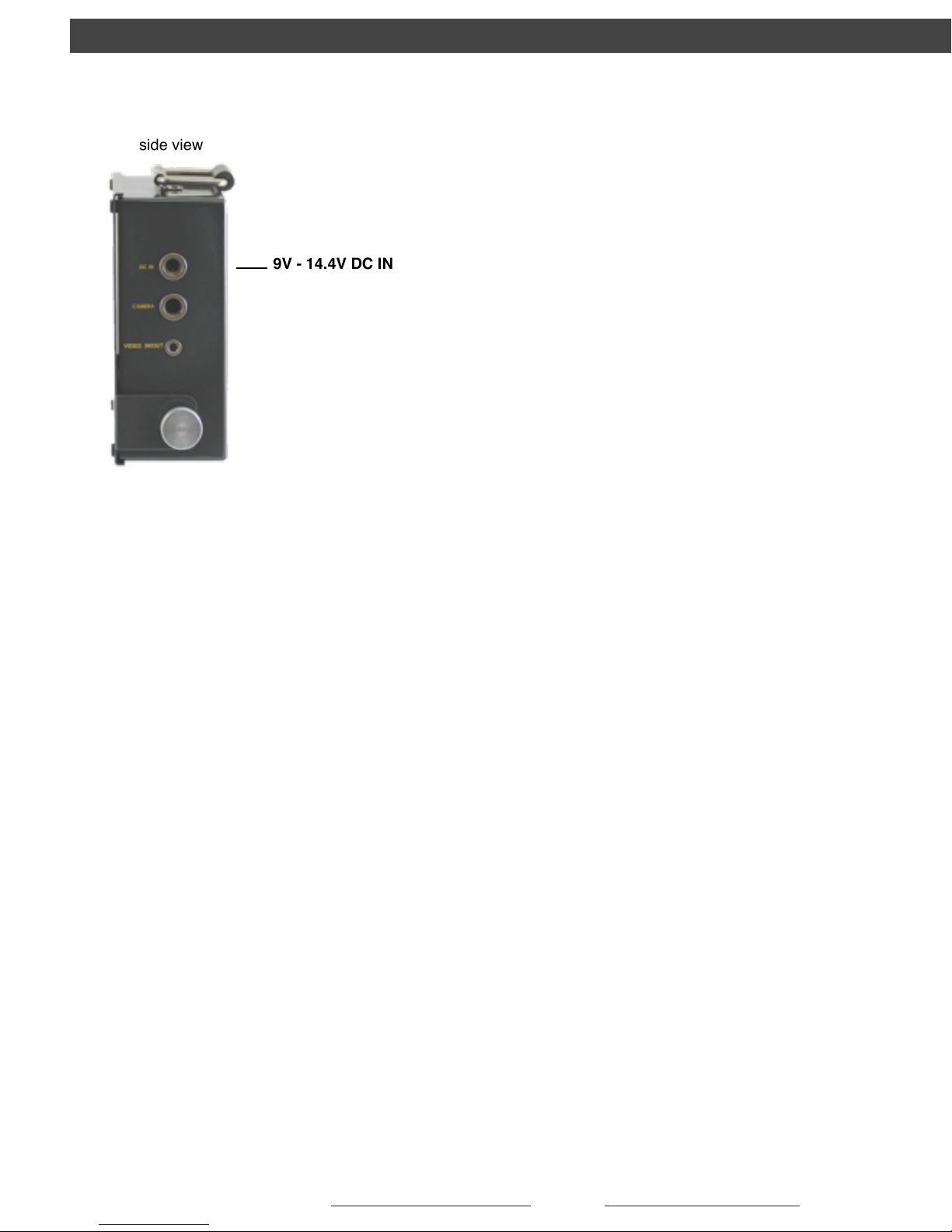
9V - 14.4V DC IN
side view
The Gvision battery can be charged with the AC switching power supply or the DC
automobile auxiliary cord. A full recharge may take up to 4hrs. Gvision MUST BE OFF TO
CHARGE.!
!
Using the AC power supply:!
• Plug in the AC power supply cord into a wall outlet.!
• Plug in the DC connector into the Gvision v3.!
• The blue charging light will turn on.!
!
Using the DC automobile auxiliary cord:!
• Plug in the automobile auxiliary cord into your car or truck.!
• Plug in the DC connector into the Gvision v3.!
• The blue charging light will turn on.!
!
Fault light indicator. What to do:!
• Unplug the DC power from the DC IN connector.!
• Call EPL Solutions, Inc. (714) 453-9760!
!
Fault light indicator. Why is it on?!
• Battery temperature is above 60ºC/140ºF.!
• Smart charger ambient temperature is below 0ºC/32ºF or above 85ºC/185ºF.!
• The battery could be over charged or too low to be recharged.
EPL Solutions, Inc.
Orange, CA 714-453-9760 www.EPLSolutions.net email: [email protected]
NOTE: S/3000 power supplies will not work with the V3.
4
Page 9
GVISION v3
IMPORTANT !
RECORDING INFORMATION!
!
!
!
!
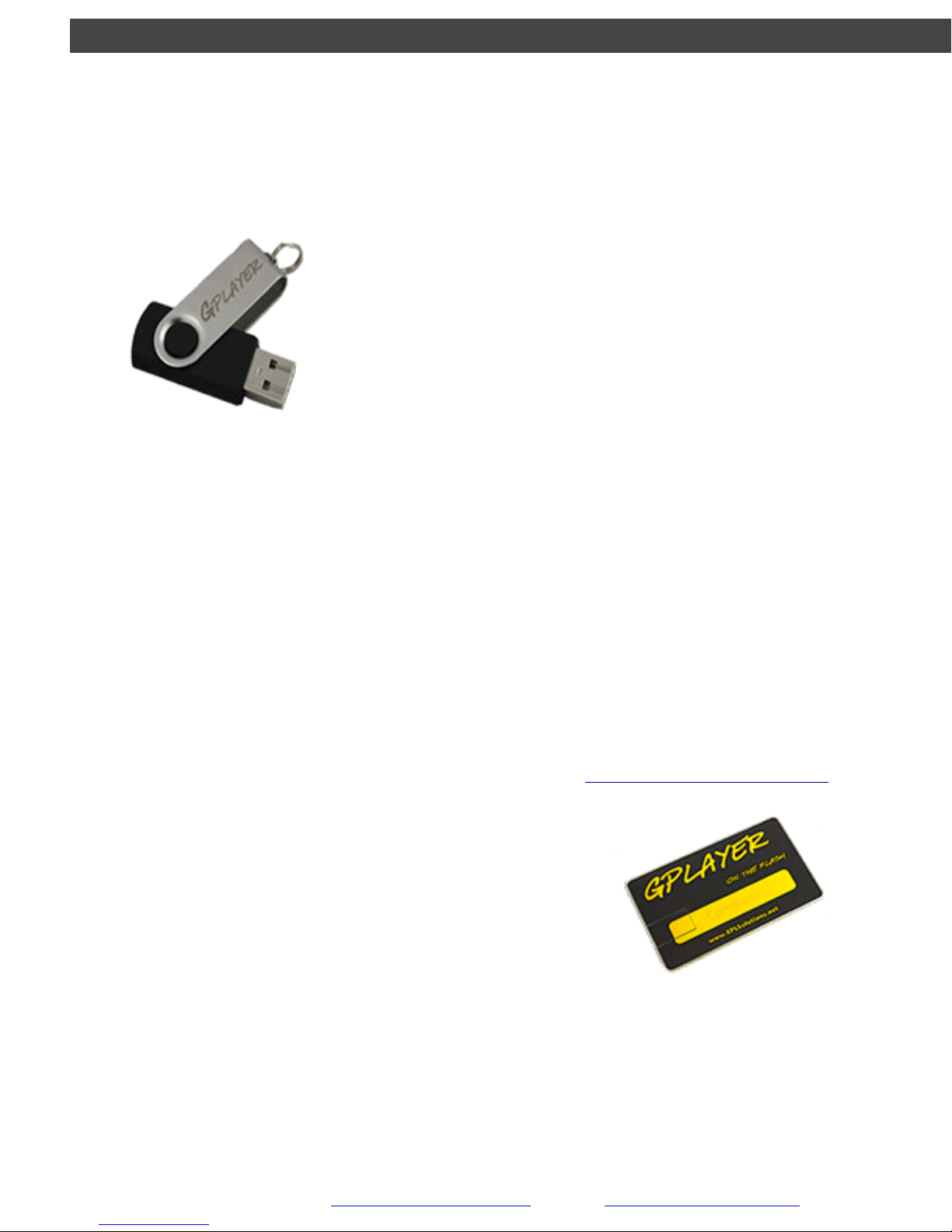
!When recording onto a USB drive, we recommend
using the GPlayer Flash for the best results. !
!A thumb drive’s performance depends on its controller
chip and NAND flash media quality. !
Gplayers are Grade “A” NAND flash drives are guaranteed for 3 years• to function
properly, and for this reason we suggest using the GPlayer for the finest results.
Other thumb drives may not work properly. !
EPL Solutions will not be held responsible if videos are lost due to !
1) User error !
2) Storage media failure.!
(I) Cell blocks go bad over time leading to data loss. It is a good practice to occasionally
format flash media when using one flash media as as storage device for long periods of
time. For more information see trouble shooting or visit http://eplsolutions.net/support.
EPL Solutions, Inc.
Orange, CA 714-453-9760 www.EPLSolutions.net email: [email protected]
• The warranty does not cover the repair or exchange of products resulting from misuse, accident, modification,
unsuitable physical or operating environment, incorrect maintenance by yourself, or failure caused by a product for
which EPL Solutions, Inc. is not responsible. Damage caused by fair wear and tear is also excluded.
5
Page 10
GVISION v3
Recording to an iPhone®, iPad®, iPod Touch®!
USB Thumb Drive / Hard Disc
Note: !
• When using an iPhone® or similar device, with iOS7 and Gplink downloaded, all recordings
are in the App Gplink.!
• When using an iPhone® or similar device, you can SMS or EMAIL a 1 minute video. Your iOS
device will tell you if your recording is too long but will allow you to select a 1 min. selection
from the recorded video.!
•
When using an iPhone
®
or similar device, you can send a 10 minute video to your private
YouTube account and email your customer a web link.!
•
When using an iPhone
®
or similar device, you can send video files to a DropBox account with
a private e-mail DropBox link.!
• We recommend using our CUSTOMIZED USB GPlayer to advertise your company with a builtin media player for best professional results when not using your iPhone® or similar device.
EPL Solutions, Inc.
Orange, CA 714-453-9760 www.EPLSolutions.net email: [email protected]
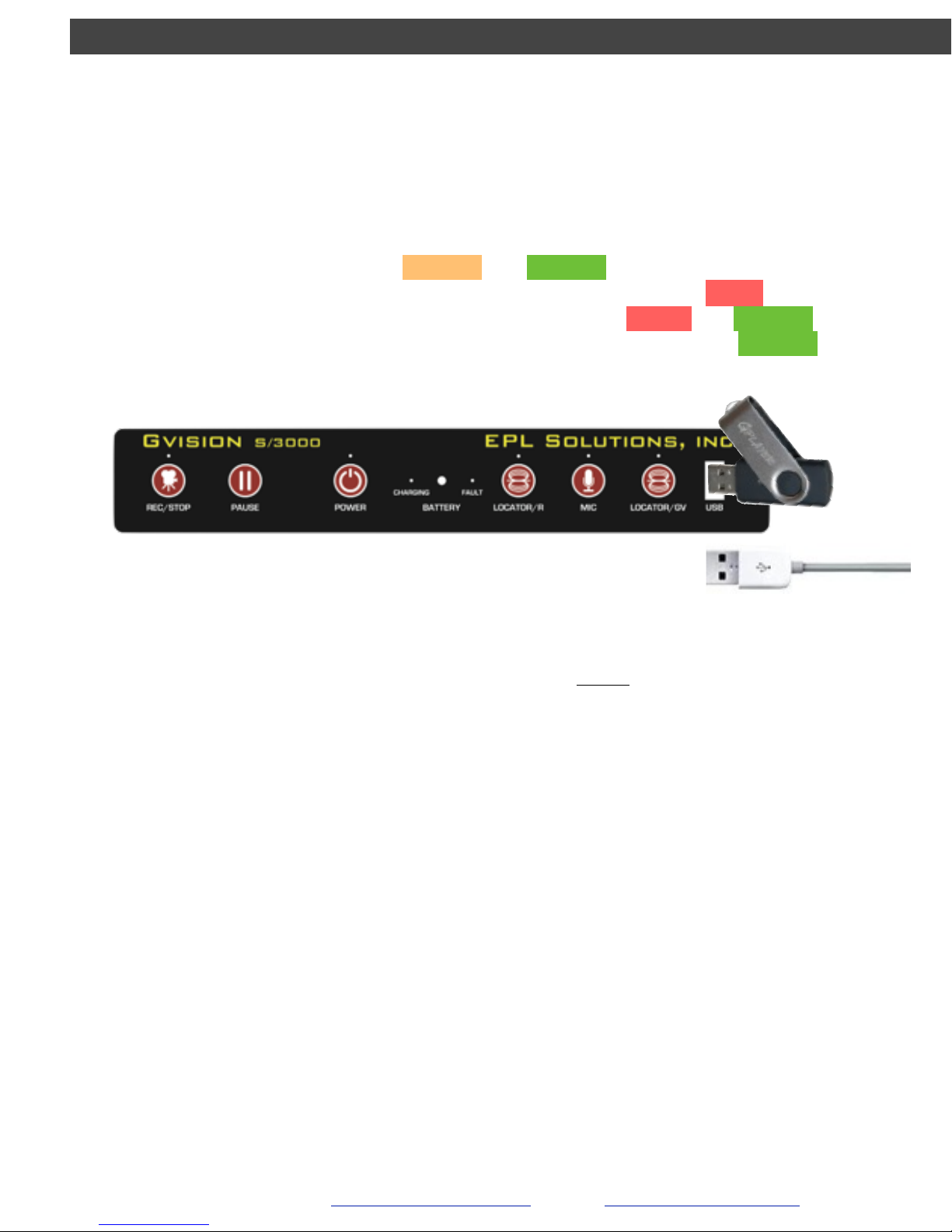
1. Insert your device into the USB port.!
2. When using a flash drive, the GPlayer Flash is highly recommended. See pg.4!
3. The
REC/STOP
light will change from AMBER to GREEN.!
4. Push the
REC/STOP
button to begin recording. The light will start blinking RED.!
5. Push the pause button to pause recording. The light will blink RED to GREEN!
6. To stop recording, push the
REC/STOP
button
. The light will change to a solid GREEN.
6
Page 11
GVISION v3
EPL Solutions, Inc.
Orange, CA 714-453-9760 www.EPLSolutions.net email: [email protected]
Using Gplink
Downloading
Renaming
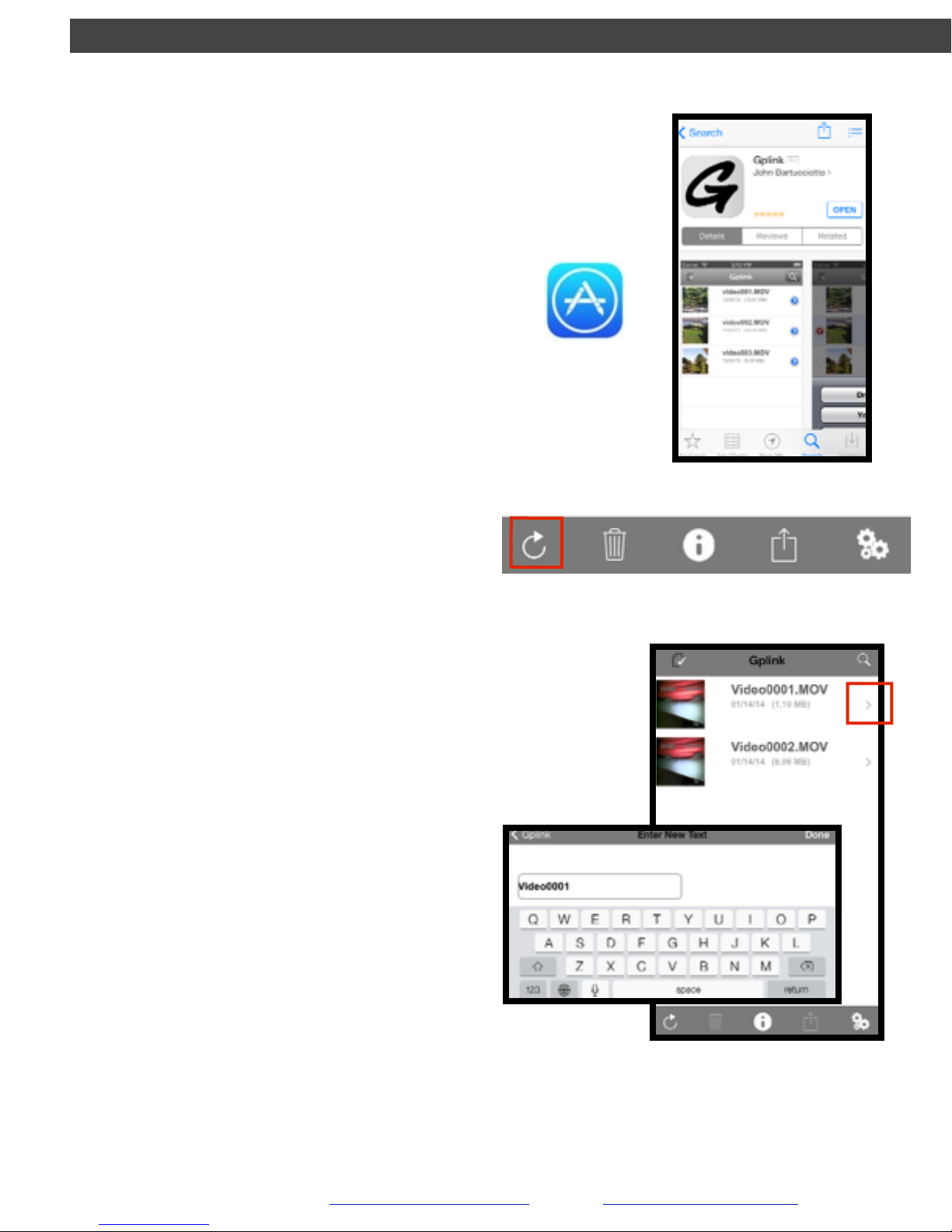
1. You can download the Gplink App
from your mobile phone’s App Store or
the iTune’s App Store.
1. Tap the arrow (shown in red square).
2. Delete the video’s current name, and
input your new name for the video.
Recording
1. See Recording on Page 6
2. After recording with your iOS device,
open Gplink and tap the refresh button
on the bottom lefthand corner of your
screen.
7
Page 12
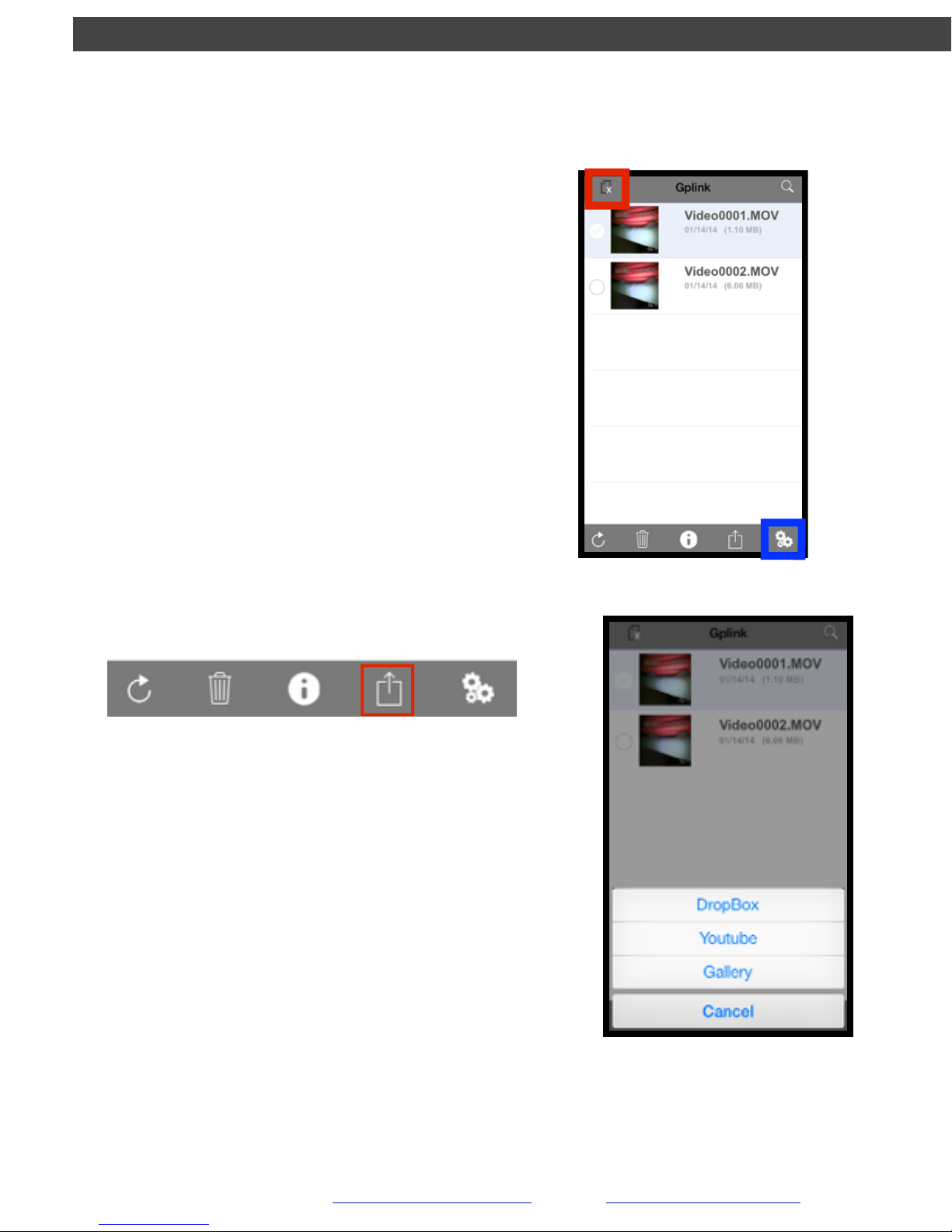
Sharing
1. Tap the document icon located on the
top lefthand corner of your screen (hilighted in red) and select the videos
you wish to share
2. Now tap the Share icon. A selection of
different share options will appear:
•
DropBox This will share your video(s)
into the DropBox App. (See Page 11)!
!
•
YouTub e This will post your video(s)
on YouTube through your account!
!
•
Gallery This will save your video(s)
into the Photo App, where you can
email or text message your video(s)
GVISION v3
EPL Solutions, Inc.
Orange, CA 714-453-9760 www.EPLSolutions.net email: [email protected]
Using Gplink!
Continued
Before you can
share videos with
YouTube or
DropBox, you’ll need
Note: From this view you may also
delete videos. Choose the “Trash”
instead of the “Share” icon.
8
Page 13
GVISION v3
EPL Solutions, Inc.
Orange, CA 714-453-9760 www.EPLSolutions.net email: [email protected]
Using Gplink!
Continued
9
Uploading Videos
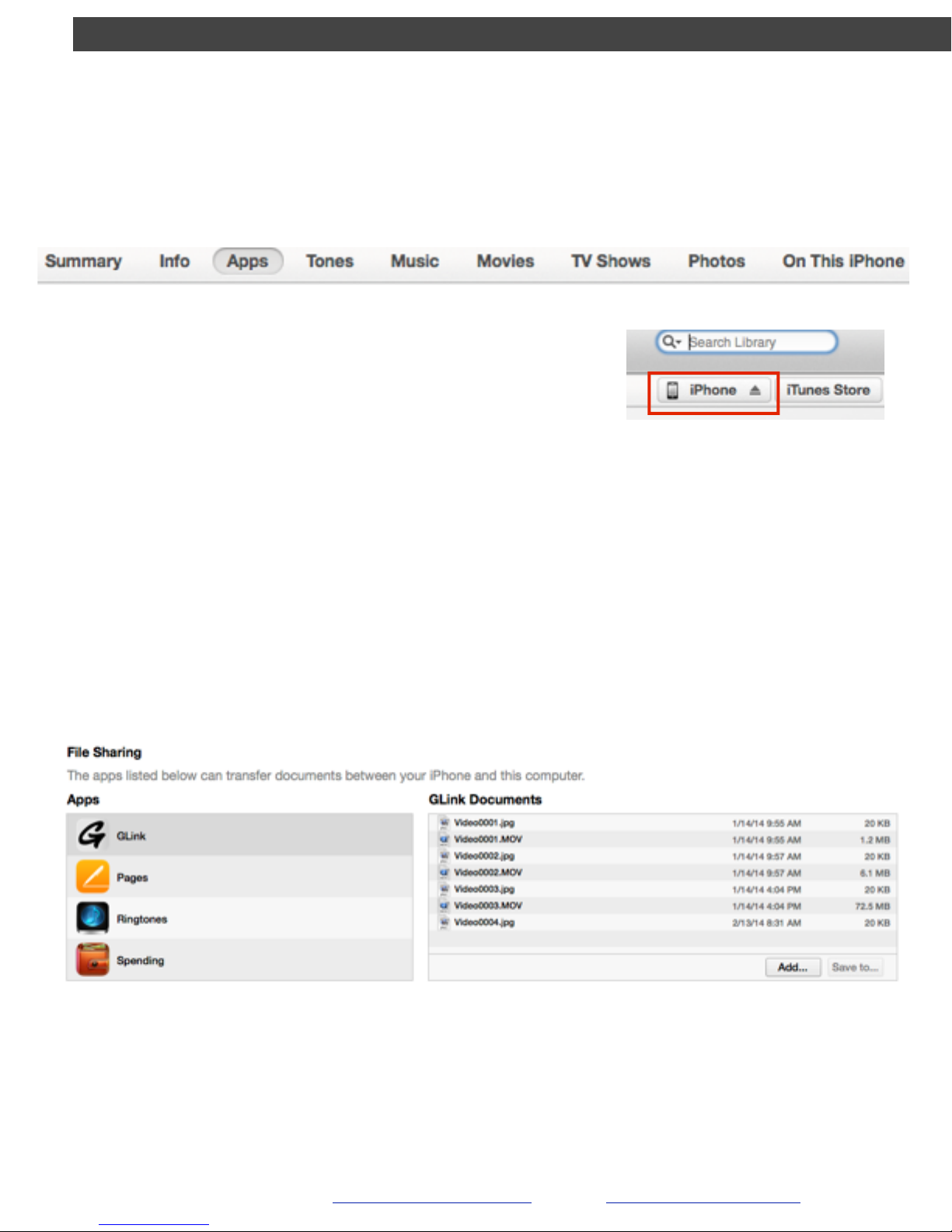
To load videos on your computer into the app, connect
your iOS device to your computer through an open USB
port.!
!
1. Launch the iTunes app on your computer.!
2. Select your device.!
3. Go to “Apps” from your device’s menu bar and scroll
to the bottom of the window.
4. See under File Sharing and select Gplink App (titled GLink)
5. Click the button “Add...”
Page 14
GVISION v3
EPL Solutions, Inc.
Orange, CA 714-453-9760 www.EPLSolutions.net email: [email protected]
Using Gplink!
Continued
10
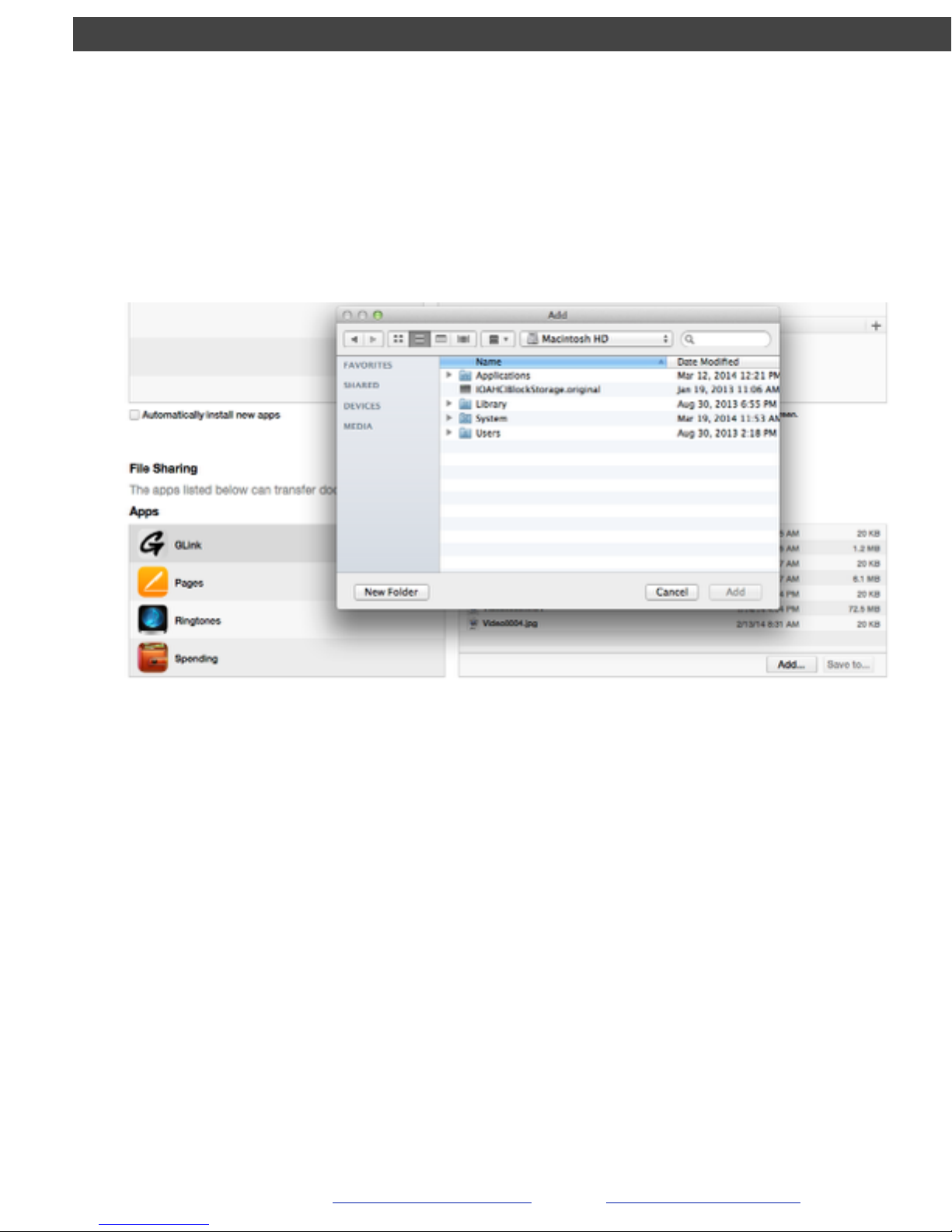
6. Select a video from you finder and press “Add” when done.
Your video is now saved to the app.
Page 15
GVISION v3
EPL Solutions, Inc.
Orange, CA 714-453-9760 www.EPLSolutions.net email: [email protected]
Using YouTube from iOS Device
Create YouTube Account
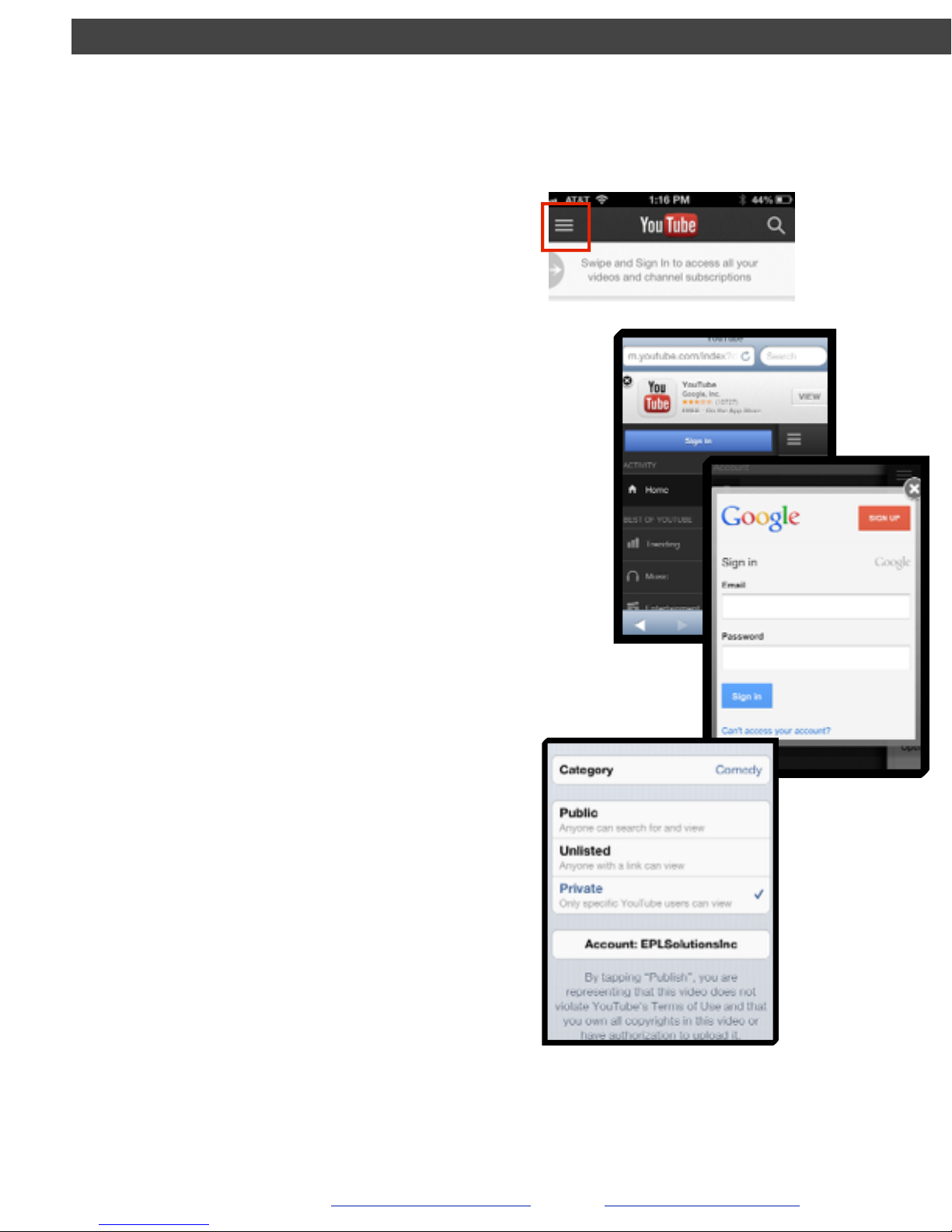
1. Open YouTube on Web Browser, i.e.
Safari, etc.
1. Download YouTube App from the App
Store
If Safari fails:
2. Tap options button on top left corner
and select sign in. Choose Sign Up tab
on right corner
Through Web Browser:
2. Tap options button at top left corner
and select sign in. Choose Sign Up tab
on right corner.
Sharing Video
1. You can share a video to Youtube
using Gallery (Photo App) or
Gplink.
2. Fill in the fields: !
• title your video!
• add description!
• choose a quality (HD/SD) !
• category !
• and viewing options.
3. Publish !
!
(note: YouTube will post
videos up to 10 min. long)
11
Page 16
GVISION v3
EPL Solutions, Inc.
Orange, CA 714-453-9760 www.EPLSolutions.net email: [email protected]
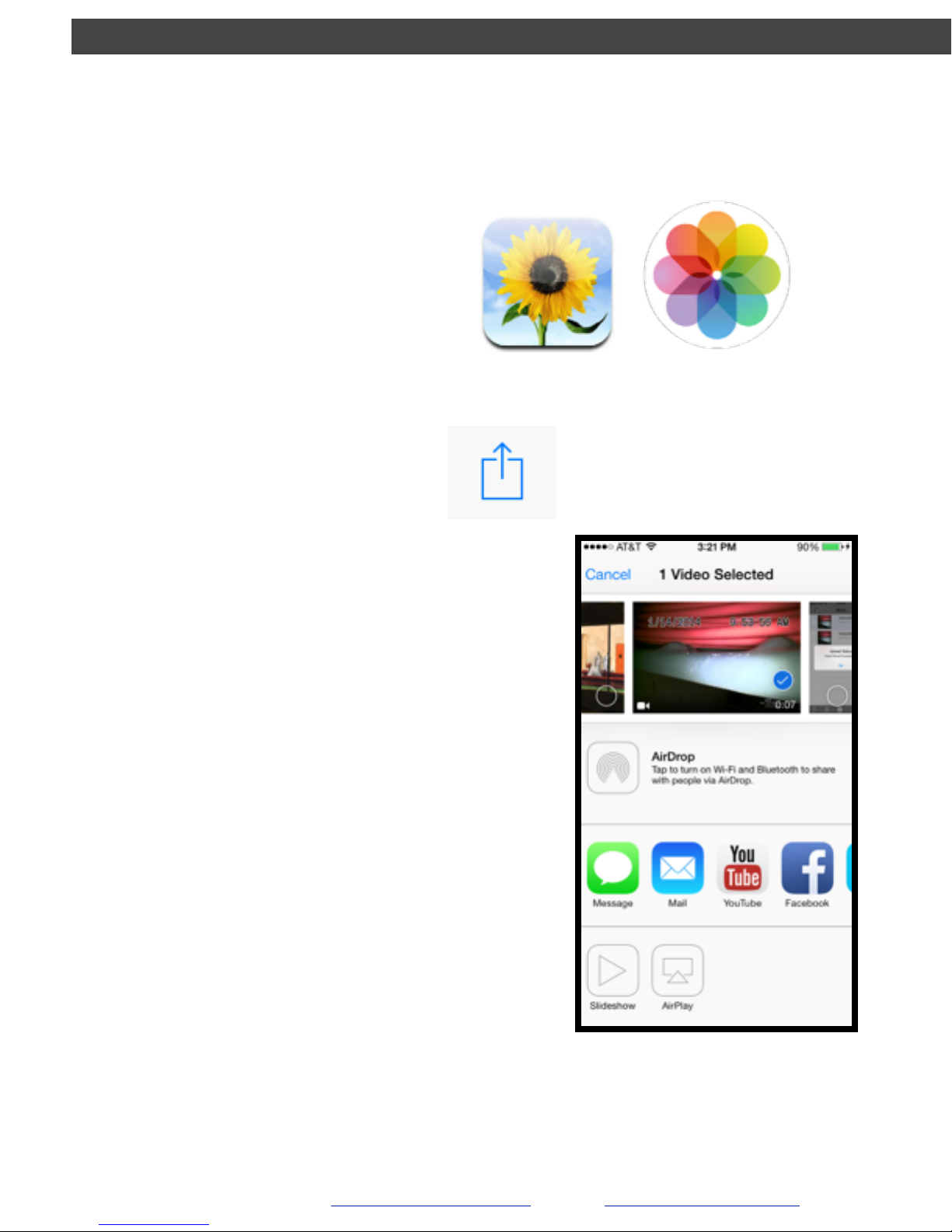
Sharing through Gallery (Photo App)
1. After successfully sharing your
video(s) from Gplink to Gallery, open
the Photo App from your iOS home
screen.
iOS 6
iOS 7
2. Select the video you wish to share.
Tap the share icon on the bottom
lefthand corner of the screen.
3. From this view, you may select more
videos/photos to share before
choosing your method of sharing.
iOS 7 “share” iPhone screen
You can share via:!
!
•
SMS!
•
Email!
•
You Tub e!
•
Facebook!
•
Vimeo!
•
AirDrop (see Apple Help)!
•
AirPlay your video over an Apple TV
12
Page 17
GVISION v3
EPL Solutions, Inc.
Orange, CA 714-453-9760 www.EPLSolutions.net email: [email protected]
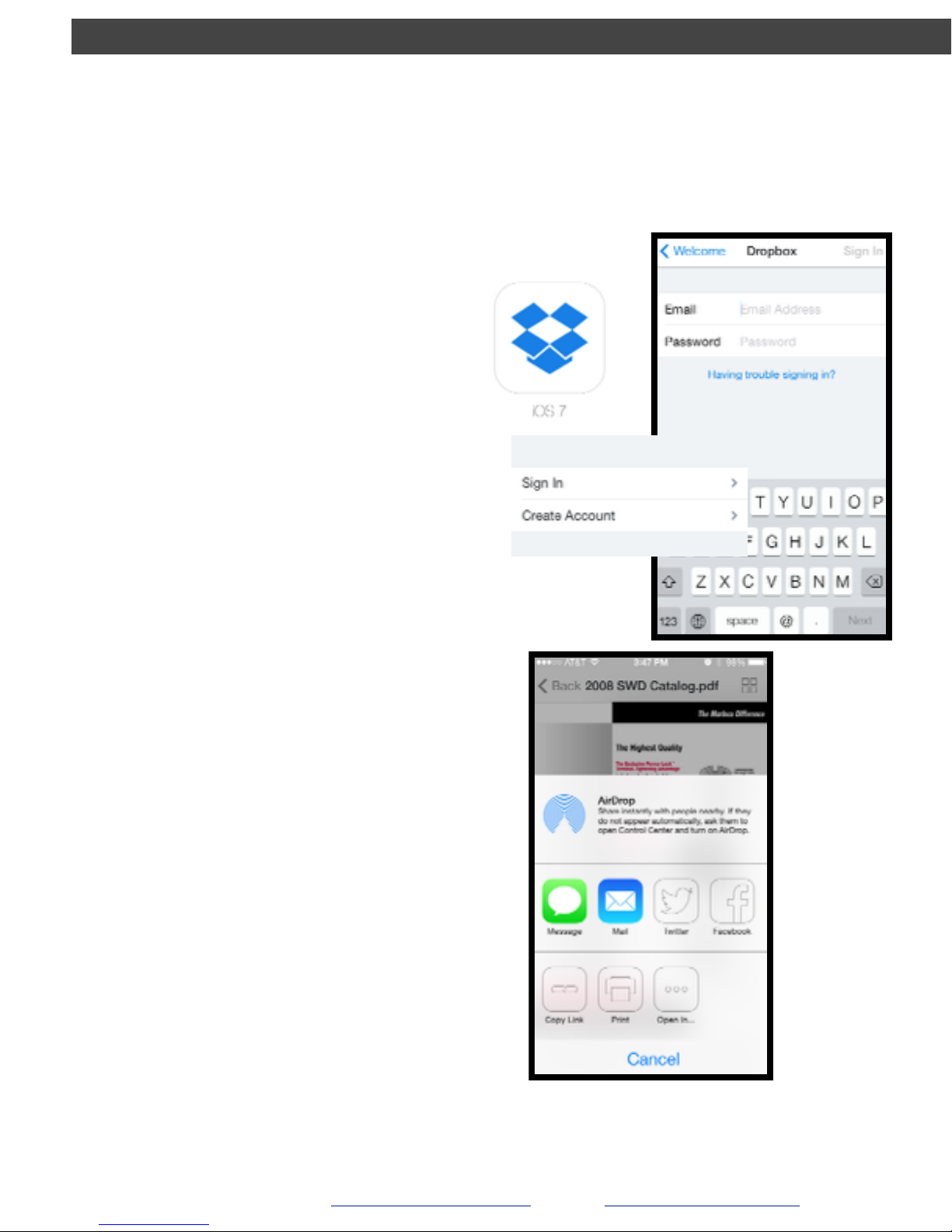
How To Send Media From DropBox Using!
iPhone®, iPad®, iPod Touch
®
1. Download DropBox from the
App Store and open
2. Sign in to your account as
prompted, or create an account
1. View the file you wish to share
Sign in DropBox Account
Sharing Videos and Photos
2. Tap the share icon at the bottom
lefthand corner of the screen
3. Select your method of sharing,
such as email, text message, or
Facebook post.
For more info, view Dropbox Help
in DropBox App’s Settings
13
Page 18
GVISION v3
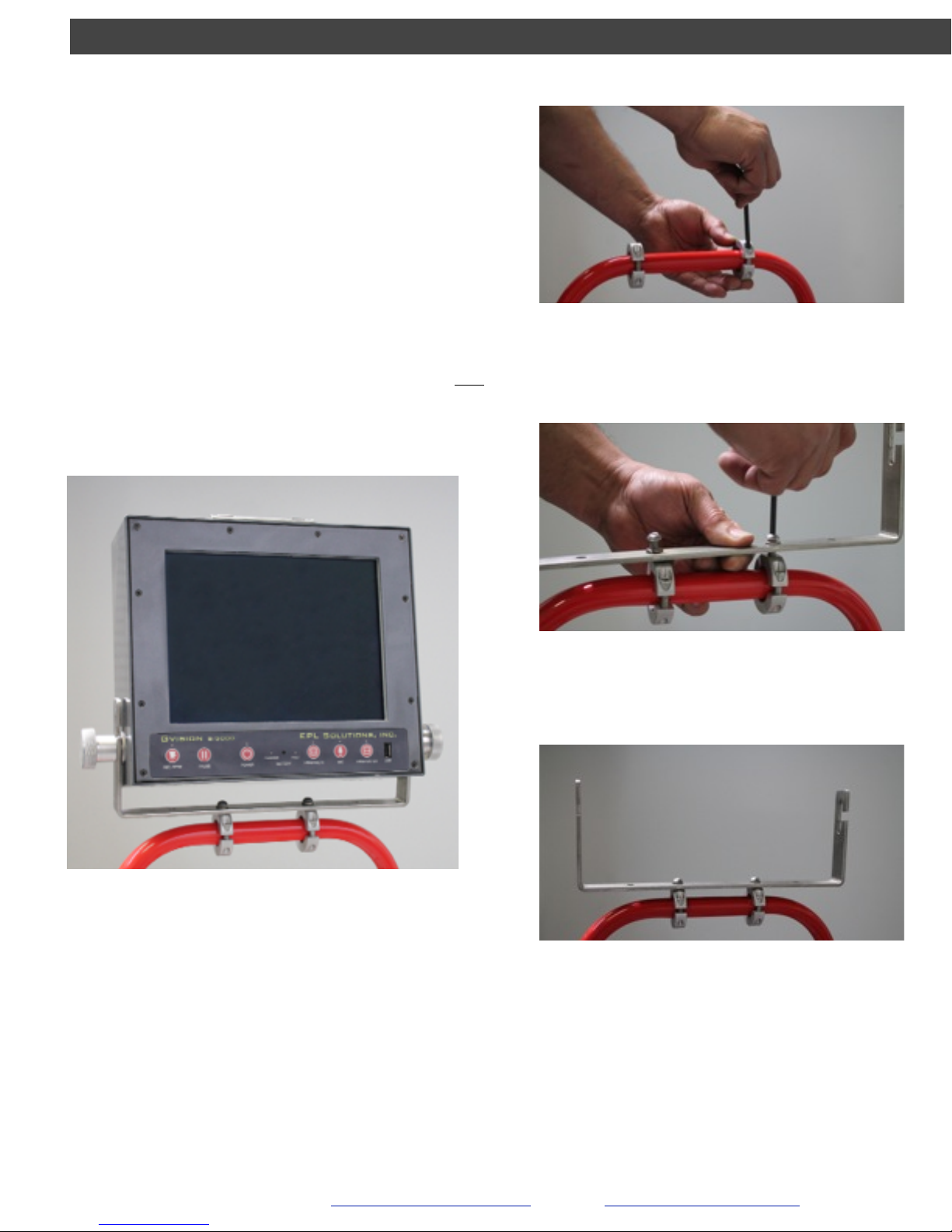
Installation of Monitor Mount!
!
!
The GVISION S/3000 can be adapted to many
different camera reels but is not required to be mounted
on the handle in order to operate. The multi-purpose
protective face plate is a monitor stand.!
!
!
1. Install the bracket directly onto the handle of the
camera (Images 10-12).!
2. Install the monitor onto the bracket (Image 13).!
!
!
NOTE: We recommend that the notch face toward the rear of
the camera system (refer to Image 12).!
EPL Solutions, Inc.
Orange, CA 714-453-9760 www.EPLSolutions.net email: [email protected]
Image 10
Image 12
Image 11
Image 13
14
Page 19
GVISION v3
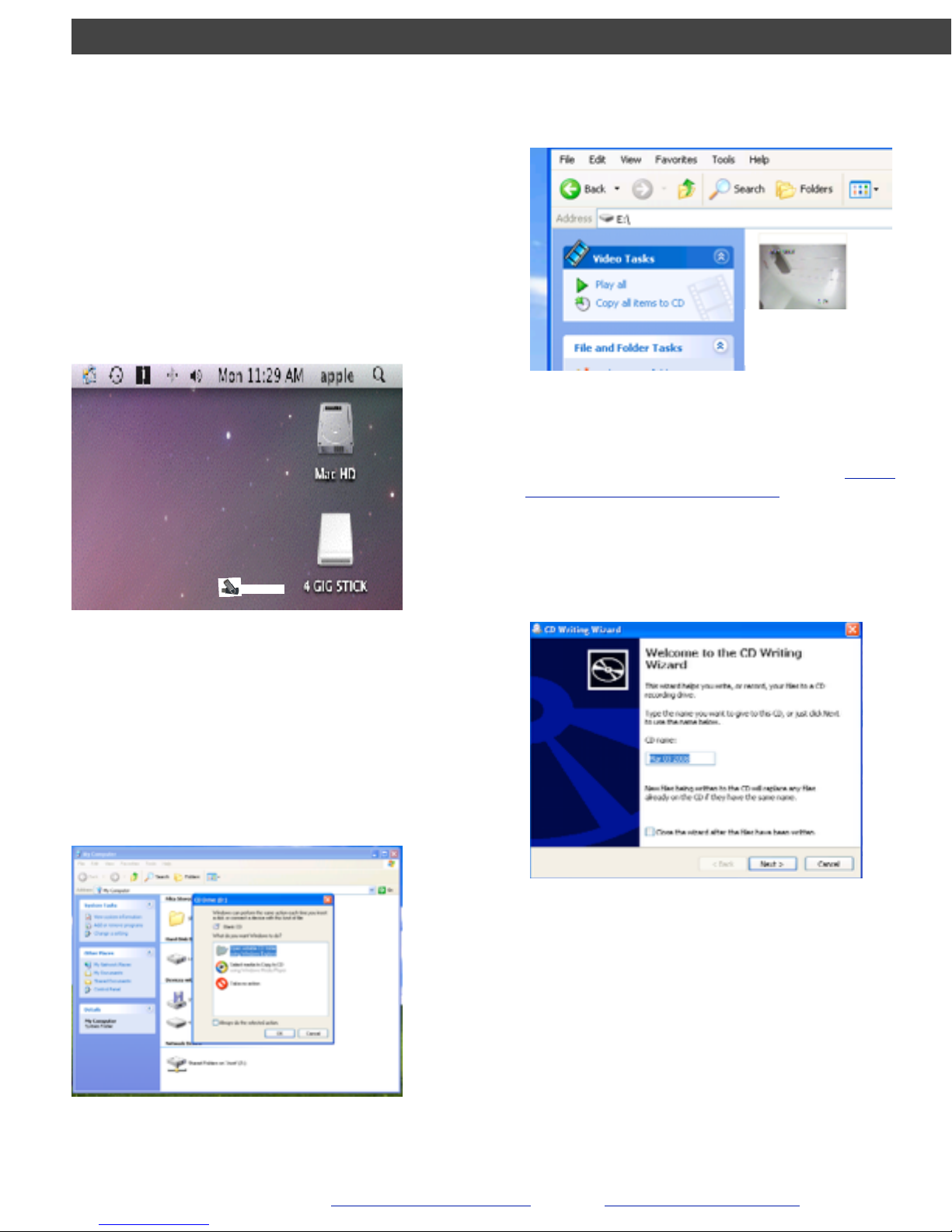
3. Insert your CD into an Optical Drive. !
4. Select Open writable CD folder using
Windows Explorer and press OK
5. Select Copy all items to CD.
Note: You should include a media player i.e. the VLC
installer supplied on the free GPlayer USB Thumb
D r i v e o r Q u i c k T i m e i n s t a l l e r f r o m http://
www.apple.com/quicktime/download/ at this time so
the client can view the file on their Windows® XP
client PC. Apple® and Windows® 7
Windows® XP!
Burn Video onto an Optical
Disc (CD)!
!
1. Insert the Flash Drive into an open USB port
on your computer.!
2. Click on the Flash Drive under Devices with
Removable Storage.
EPL Solutions, Inc.
Orange, CA 714-453-9760 www.EPLSolutions.net email: [email protected]
!
Video0001.MP4!
GPlayer (E:)
15
Page 20
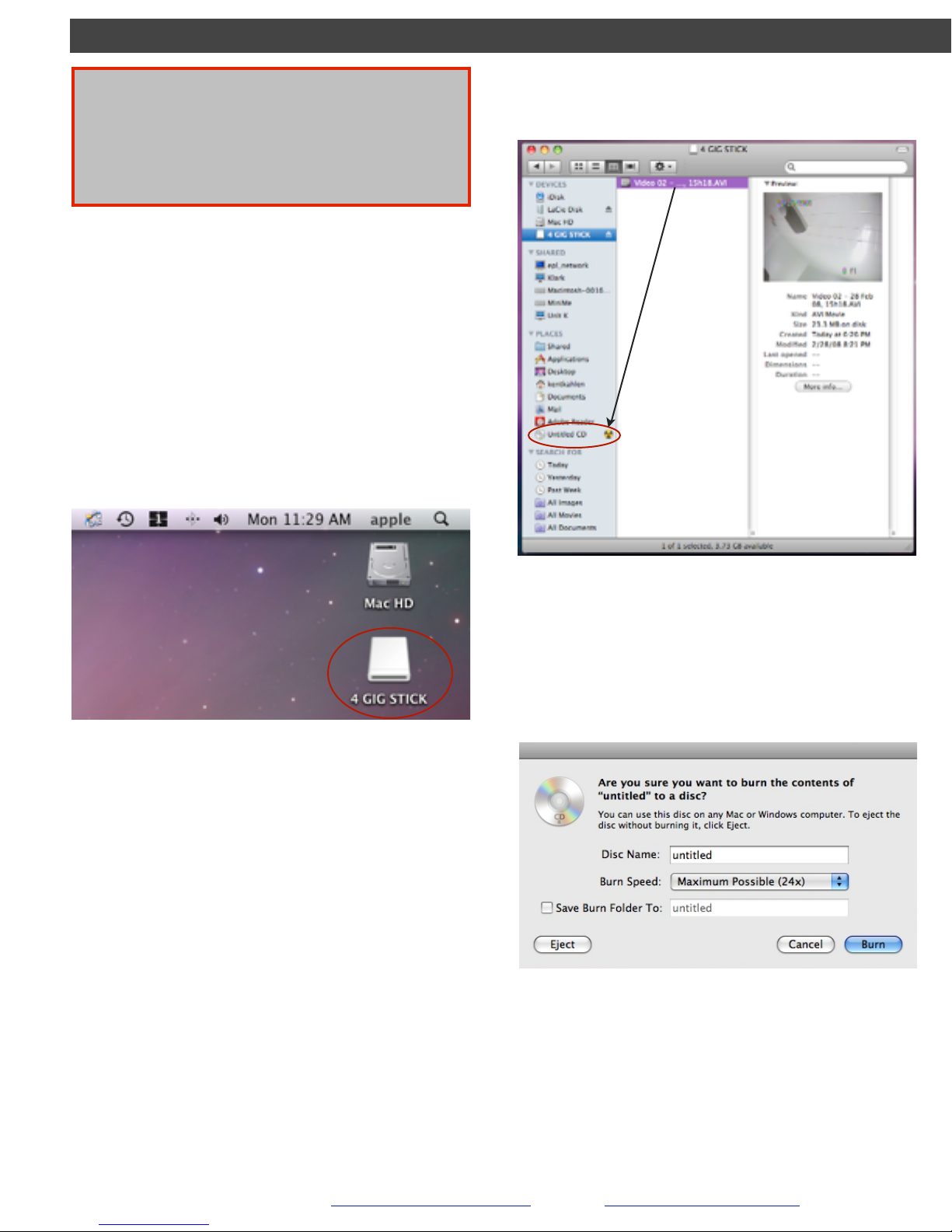
APPLE®!
Burn Video onto an Optical
Disc (CD)!
!
!
1. Insert the Flash Drive into an open USB port
on your computer.!
2. Click on the Flash Drive from your desktop
or a Finder window.
3. Insert a blank CD into the Optical Drive.
4. Hold down the alt/option key on the
keyboard and drag the file to the untitled
CD to be burned. Note: You should include
the Divx Codec installer (supplied) at this
time so the client can view the file on their
computer.!
5. Name the disk and click Burn.
PLEASE NOTE
The following section is not supported by EPL Solutions,
Inc. These are only recommendations as to how to make a
copy of your video onto an Optical Disk (CD).
GVISION v3
EPL Solutions, Inc.
Orange, CA 714-453-9760 www.EPLSolutions.net email: [email protected]
arp -i en0 -a
16
Page 21
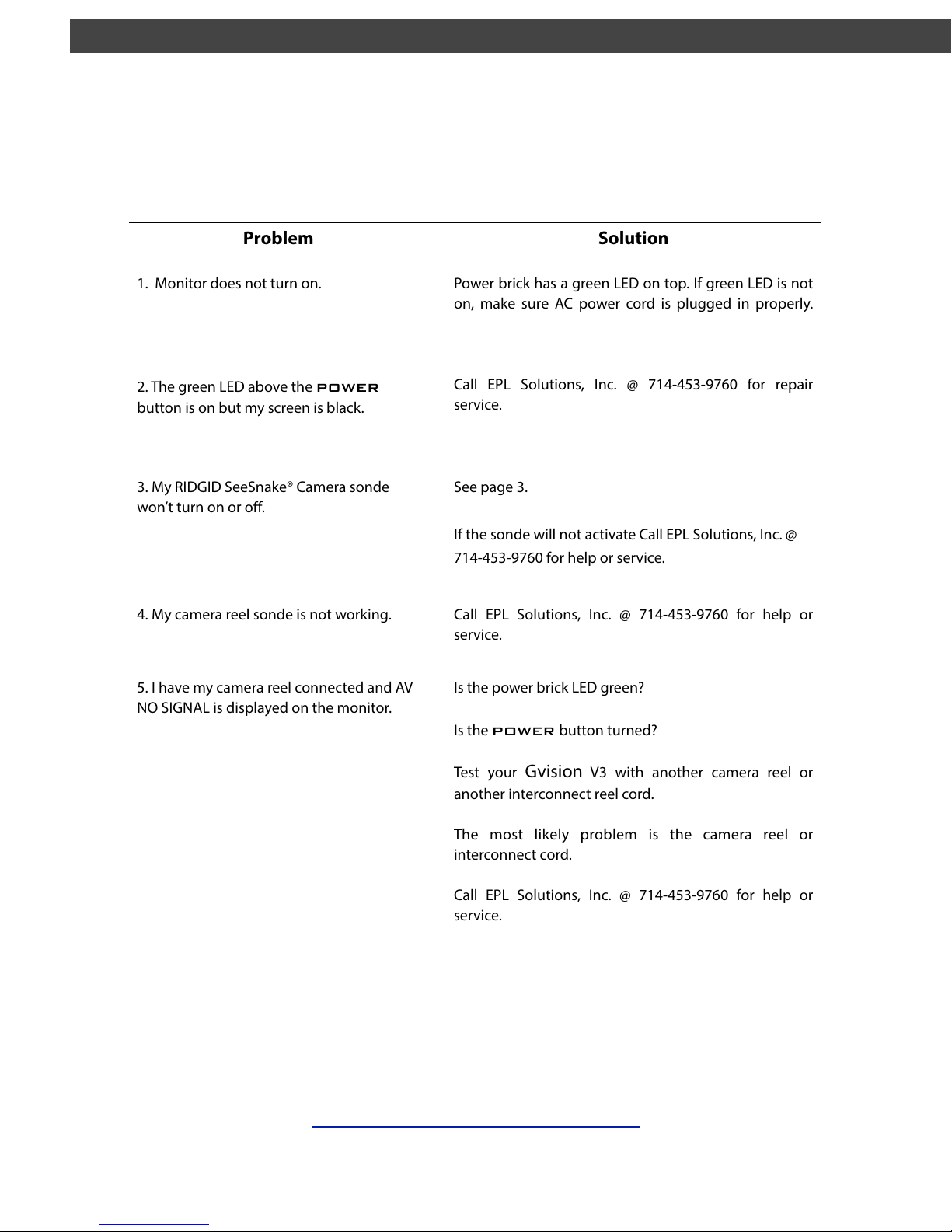
Problem
Solution
1. Monitor does not turn on.
Power brick has a green LED on top. If green LED is not
on, make sure AC power cord is plugged in properly.
2. The green LED above the power
button is on but my screen is black.
Call EPL Solutions, Inc. @ 714-453-9760 for repair
service.
3. My RIDGID SeeSnake® Camera sonde
won’t turn on or off.
See page 3.
!
If the sonde will not activate Call EPL Solutions, Inc. @
714-453-9760 for help or service.
4. My camera reel sonde is not working.
Call EPL Solutions, Inc. @ 714-453-9760 for help or
service.
5. I have my camera reel connected and AV
NO SIGNAL is displayed on the monitor.
Is the power brick LED green?
!
Is the power button turned?
!
Test your Gvision V3 with another camera reel or
another interconnect reel cord.
!
The most likely problem is the camera reel or
interconnect cord.
!
Call EPL Solutions, Inc. @ 714-453-9760 for help or
service.
Trouble Shooting
If Further Assistance is Required
Call your local distributor or support at
714-453-9760
or visit our website at
www.eplsolutions.net/support/index.html
GVISION v3
EPL Solutions, Inc.
Orange, CA 714-453-9760 www.EPLSolutions.net email: [email protected]
17
Page 22

Our warranty to you:!
EPL Solutions, Inc. warrants your product to be free from physical defects in material and workmanship for a period of 1(one)
year from the date of the original retail purchase. If you discover a defect covered by this warranty, we will repair or replace
the product at our option using new or refurbished components.
!
Product failures not covered by this warranty:
This warranty covers defects in manufacturing that arise from the correct use of this device. It is limited to defects in
materials or workmanship and does not cover damage caused by abuse, misuse, unauthorized modication, lighting or
power surge damage, extreme heat or cold, and corrosive environments. The warranty also does not cover the normal wear
and tear on covers, cases, housing, connectors and accessories. The warranty does not apply to any product with a missing,
altered or defaced serial number.
!
Limits of liability:
If these products fail or do not perform as warranted, your sole recourse shall be to repair the product as described above.
We will not be liable to you or anyone else for any damages that result from the failure of this product. These damages
include, but are not limited to, the following: lost prots, lost savings, lost data, damage to other equipment, and incidental
or consequential damages arising from the use of or inability to use this product. Express or implied warranties are
disclaimed. IN NO EVENT WILL EPL SOLUTIONS, INC. BE LIABLE FOR MORE THAN THE AMOUNT OF YOUR PURCHASE PRICE,
NOT TO EXCEED THE CURRENT LIST PRICE OF THE PRODUCT.
!
EPL Solutions, Inc. specically disclaims all other warranties, expressed or implied, and the user shall deem the installation or
use of this product an acceptance of these terms.
!
How to obtain service under this warranty:
Return Merchandise Authorization (RMA) Numbers are required for all product returns by doing one of the following:
!
Complete a request on our web site at http://www.eplsolutions.net/support
!
By sending an email to [email protected]
!
By calling 714-453-9760 and speaking to a Technical Support Engineer
!
Once an EPL Solutions, Inc. Technical Support Engineer veries you have a hardware problem that requires you to return the
product, you will be provided with an RMA number. You must acquire an RMA number and deliver the defective unit to EPL
Solutions in order to obtain service under this warranty. A sales receipt may be required to verify the original retail purchase.
All returned units must have the RMA number visible on the outside of the shipping package. You must either use the
original packing or pack the unit securely to avoid damage during shipping. Return Authorizations are valid for 30 days after
the RMA number is issued. Ship your product pre-paid to EPL Solutions, inc. at the following address:
!
EPL Solutions, Inc.
RMA#:XXXXXX
1330 W Collins Avenue
Orange, CA 92867 USA
!
EPL Solutions, Inc. will pay the return shipping costs for products under warranty. EPL Solutions, Inc. is not responsible for
the cost of shipping to EPL Solutions, Inc. or the payment of any customs clearance fees or duties.
GVISION v3
EPL Solutions, Inc.
Orange, CA 714-453-9760 www.EPLSolutions.net email: [email protected]
18
Page 23

Notes
GVISION v3
EPL Solutions, Inc.
Orange, CA 714-453-9760 www.EPLSolutions.net email: [email protected]
Page 24

EPL Solutions, Inc.
Our purpose is to provide an All-in-One, Plug and Play industrial quality monitor/recording
system that is portable and simple to use. Designed for most camera reels on the market.
GVISION v3
 Loading...