

Page 1
EPIPHAN VIDEO
Pearl Plays
Page 2
x
x
x
Contents
Pearl-2 is a dynamic all-in-one live video system that
x
lets you sit back and relax with auto-setup or lets you
customize every aspect of your production. As a result,
there are as many dierent potential Pearl-2
O
O
congurations as there are Pearl-2 users!
We’ve outlined some of the most common and most interesting things
our customers do with Pearl-2, we call them Pearl plays. Each play outlines
specically what live streams, recordings, and video outputs you’ll get
plus gives you step-by-step instructions for how to set it up.
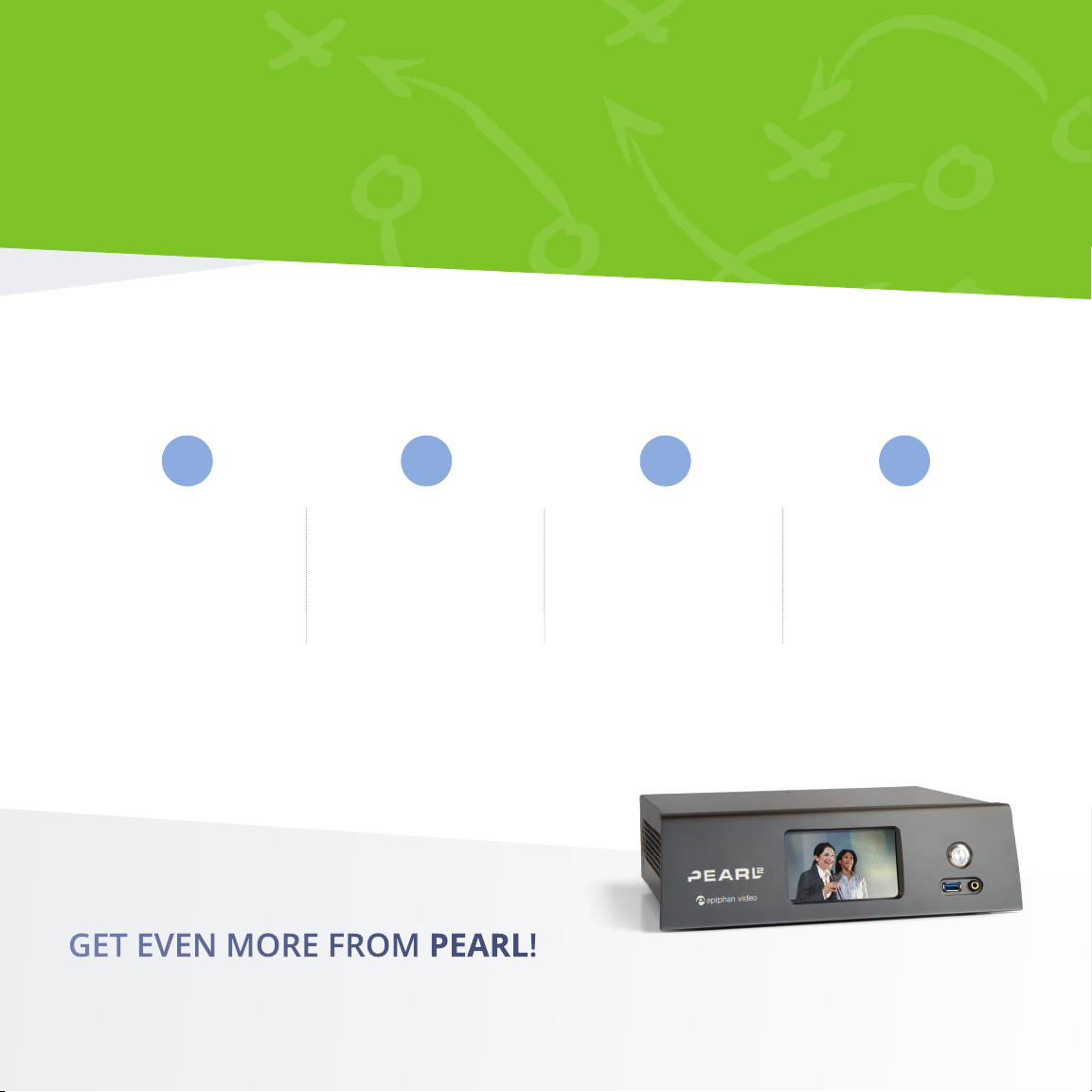
Based on what you might be doing with Pearl-2, here are some
suggestions for plays to check out rst.
For live event
production see:
For recording
and streaming for
• Dynamic live event
• No fail live streaming
• Outside the box
• Lower thirds
• Simplicity
education see:
• Simplicity
• Dynamic live event
• Outside the box
• Multi-source recorder
Page 3
x
x
x
Contents
For worship see:
x
• Simplicity
• Outside the box
• Dynamic live event
• No fail live streaming
• Multi-source recorder
For UX labs see:
• Eortless observation
• Simplicity
• Multi-source recorder
• Outside the box
• 4K 4-up multiview
For corporate
events see:
• Simplicity
• Dynamic live event
• No fail live streaming
• Outside the box
For courtrooms see:
• Simplicity
• Dynamic live event
• Outside the box
O
For sporting
events see:
• Dynamic live event
• Simplicity
• No fail live streaming
• Lower thirds
• Multi-source recorder
O
For performance
rehearsals see:
• Multi-source recorder
• 4K 4-up multiview
• Simplicity
• Outside the box
• Dynamic live event
For security and
video wall operator
monitoring see:
• Multi-source recorder
• 4K 4-up multiview
• No fail live streaming
• Outside the box
Page 4
LUMiO 12x Audio mixerLaptop
O
O
x
x
x
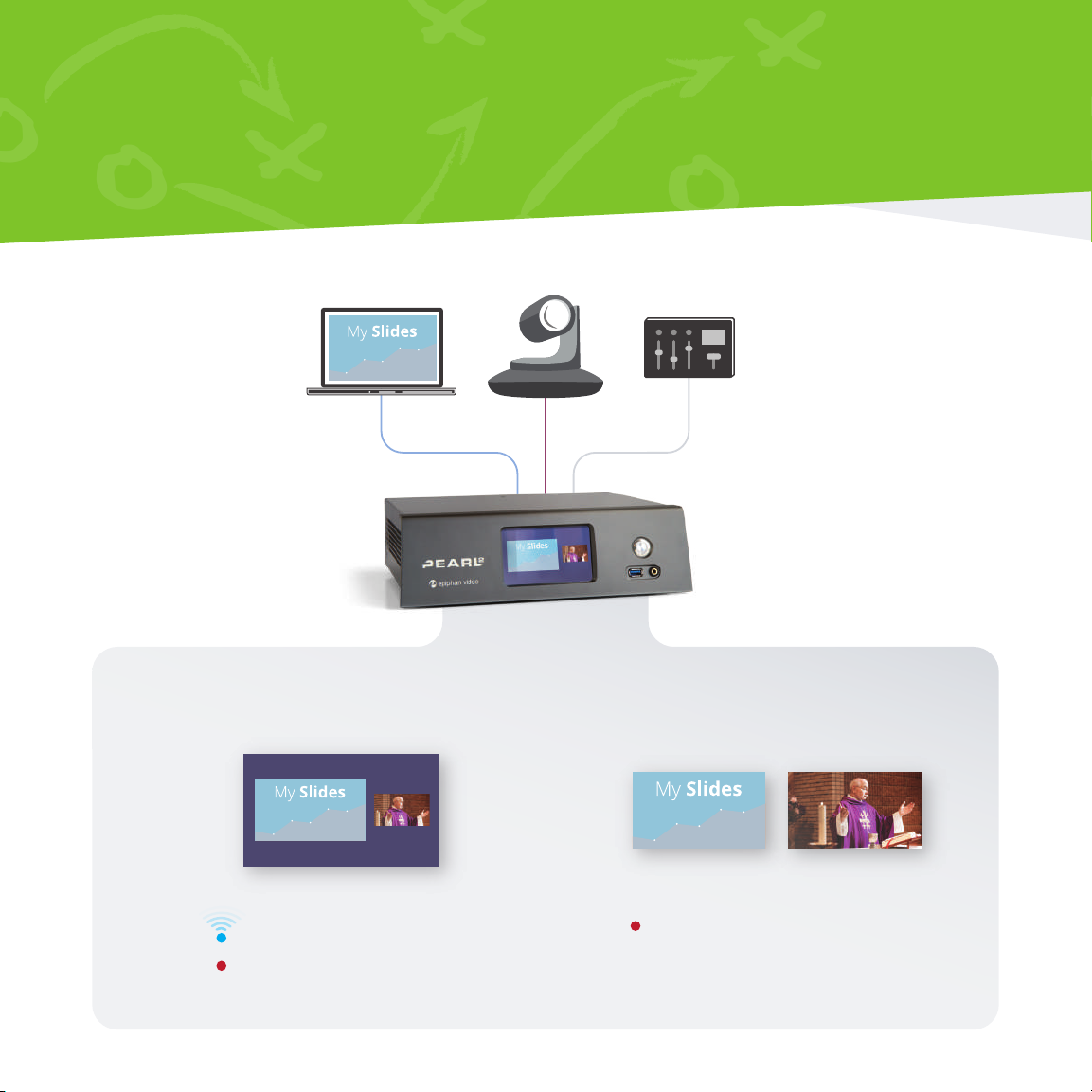
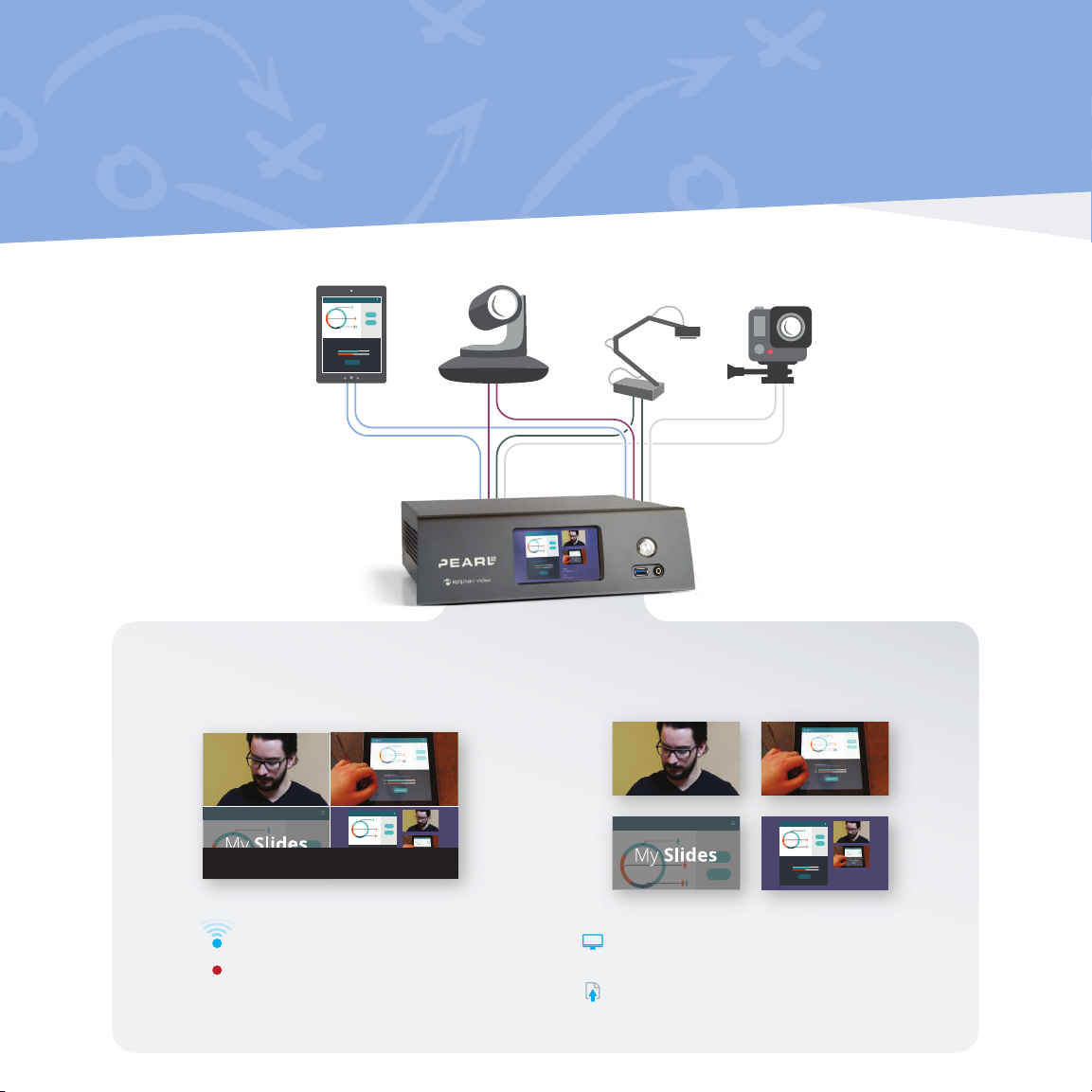
SIMPLICITY
Perfect for when you have one or two sources such as a presenter with slides,
a teacher and a whiteboard, or two cameras at a small live event.
Picture in picture program
Streaming - 1080p 30 fps, 4 Mbps
Recording - 1080p 30 fps, 4 Mbps
ISOs
Recording both connected sources
1080p 30 fps, 8 Mbps
Page 5

O
O
O
O
x
x
x
SIMPLICITY
A live streaming conguration that is so easy to use, it needs no operator interaction
beyond the touch of a nger to start streaming and recording. Whether your main
goal is live streaming, recording or both, you’ll get exactly what you need.
Run the play
Get everything you need for streaming, recording and post-production.
1
Connect your laptop
to an HDMI A port on
Pearl-2 and Lumio 12x to
an HDMI B or SDI B port.
Connect audio from your
mixer to any XLR port.
Use Pearl’s two auto
channels (add your
analog audio) for your
2
program ISOs.
3 4
Create a third channel
with a layout that
includes your two video
sources arranged overtop
of a background image.
Congure streaming to
YouTube or the CDN of
your choice.
When it’s time to start
streaming and recording,
touch the streaming and
recording controls on
Pearl’s touchscreen and
you’re live!
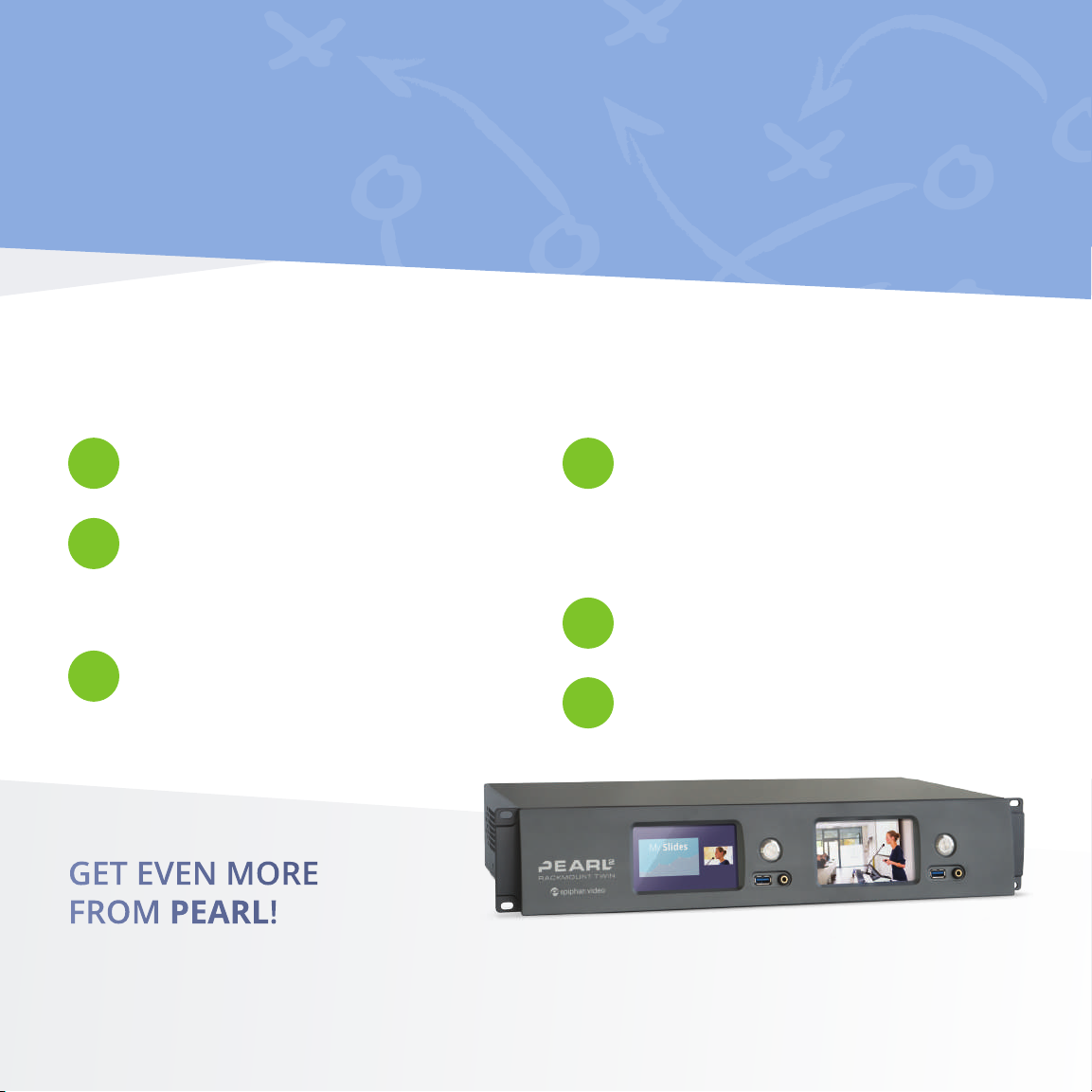
GET EVEN MORE FROM PEARL!
• Congure automatic le upload to copy your recordings from Pearl-2 to your content management server.
• Adjust your video sources by cropping to get the most of the layout space.
• Stream using modern protocols like SRT, HLS, or MPEG-DASH for better reliability and eciency.
Page 6
LUMiO 12x Audio mixerLaptop
O
O
x
x
x
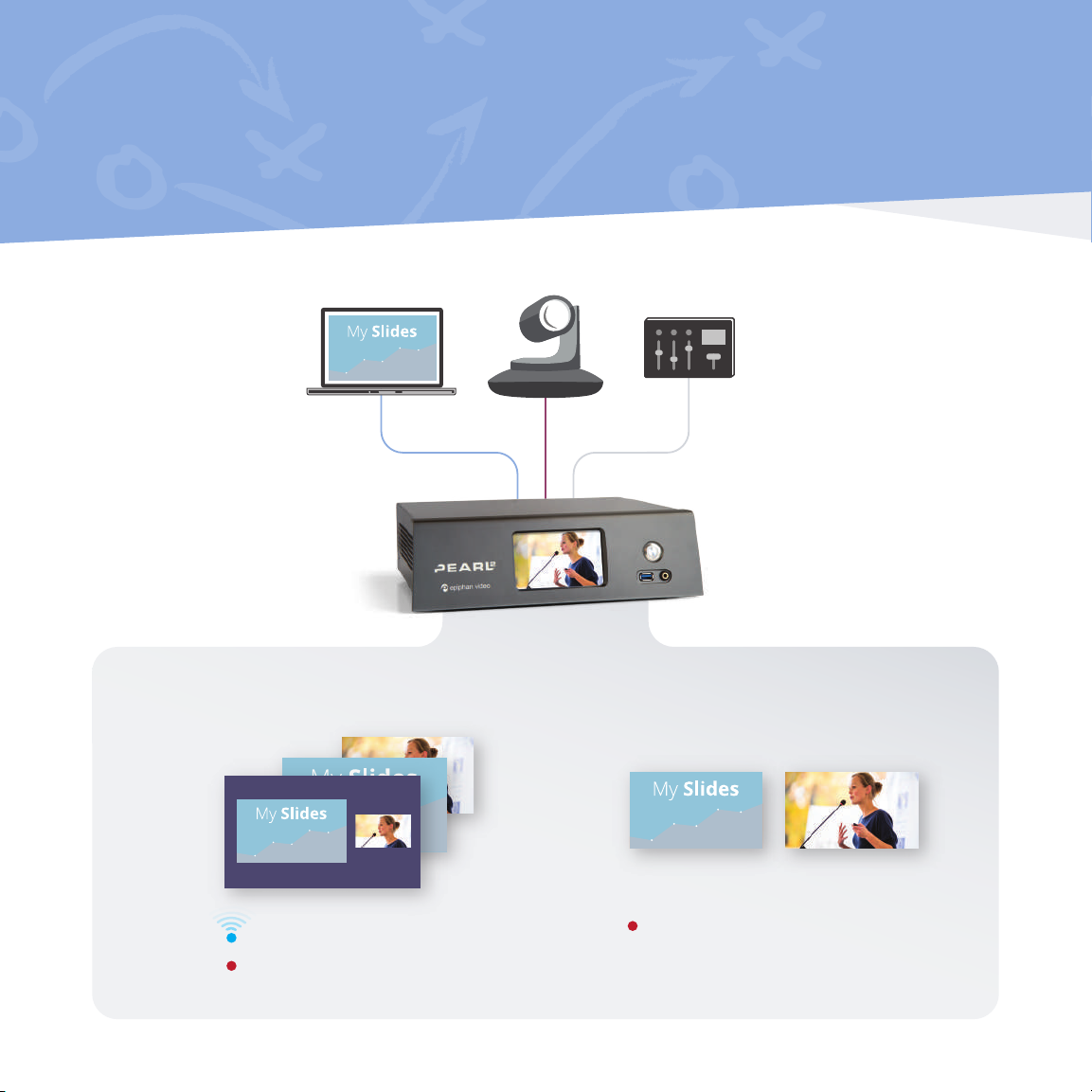
DYNAMIC LIVE EVENT
The best solution when you need to stream and record a dynamic presentation that
includes live switching between multiple sources and fully-customized layouts.
Program with live switching
Streaming - 1080p 30 fps, 4 Mbps
Recording - 1080p 30 fps, 4 Mbps
ISOs
Recording both connected sources
1080p 30 fps, 8 Mbps
Page 7

O
O
O
O
x
x
x
DYNAMIC LIVE EVENT
Deliver a visually dynamic live production using two dierent video sources and custom
layouts to keep your viewers glued to the screen. Get high quality recordings of both
video inputs so you can create a variety of related products in post-production.
Run the play
Everything you need for an engaging live stream and easy post-production.
1
Connect your laptop
to an HDMI A port on
Pearl-2 and Lumio 12x to
an HDMI B or SDI B port.
Connect audio from your
mixer to any XLR port.
Throughout the event, keep your presentation interesting. Use the touch screen or Epiphan
Live to control live switching between your layouts on channel 3.
Use Pearl’s two auto
channels (add your
analog audio) for your
2
program ISOs.
3 4
Add a third channel.
Develop engaging and
creative layouts containing
any combination of
your video sources,
background images and
logos. Congure streaming
to YouTube or the CDN
of your choice.
When it’s time to
start the event, use
Pearl’s touch screen or
Epiphan Live to start
recording on all three
channels, start streaming
on channel three.
GET EVEN MORE FROM PEARL!
• Show one of your sources or your live produced channel through a projector at your venue!
• Don’t need ISOs? Create your dynamic program from up to 4 HD video sources instead of two!
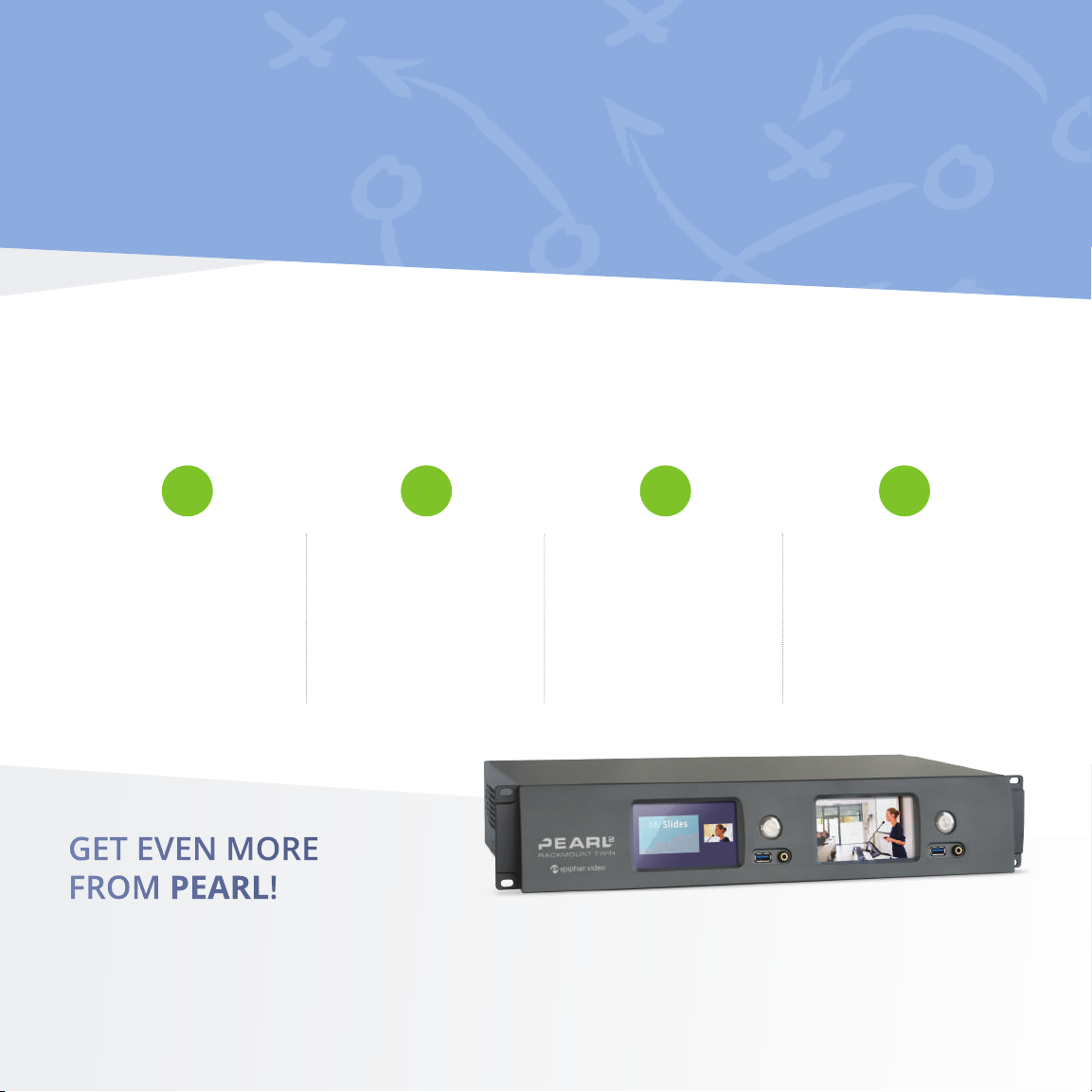
• Upgrade to Pearl-2 Rackmount Twin to do even more.
Page 8
LUMiO 12xLUMiO 12x Audio mixerLaptop
O
O
x
x
x
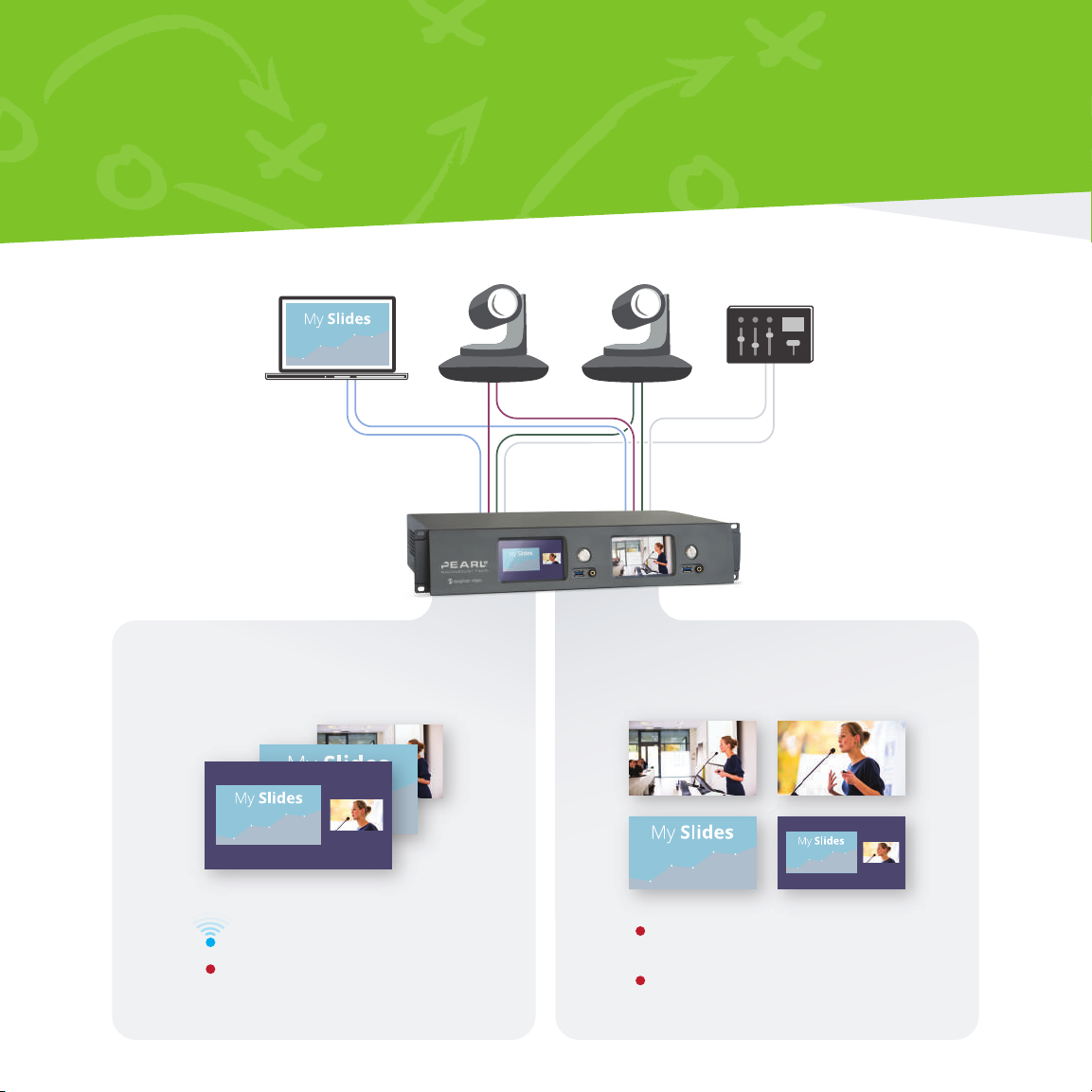
NO FAIL LIVE STREAMING
When you absolutely need to make sure you capture the moment! Create the ultimate
dynamic live switched streaming program with ISOs for post-production.
System 1 System 2
Program with live switching
Streaming - 1080p 30 fps, 4 Mbps
Recording - 1080p 30 fps, 8 Mbps
ISOs
Recording all connected sources
1080p 30 fps, 8 Mbps
Recording a static PIP layout
1080p 30 fps, 8 Mbps
Page 9
O
O
O
O
x
x
x
NO FAIL LIVE STREAMING
With two independent Pearl-2 systems, everything's under control, even in the face of human
error. Includes three HD video sources, a live PIP backup, and ISO recordings of each source.
Run the play
Use high-quality splitters with locking cables to split your signals (video and audio)
so each independent Pearl-2 system gets the full set of audio-visual inputs.
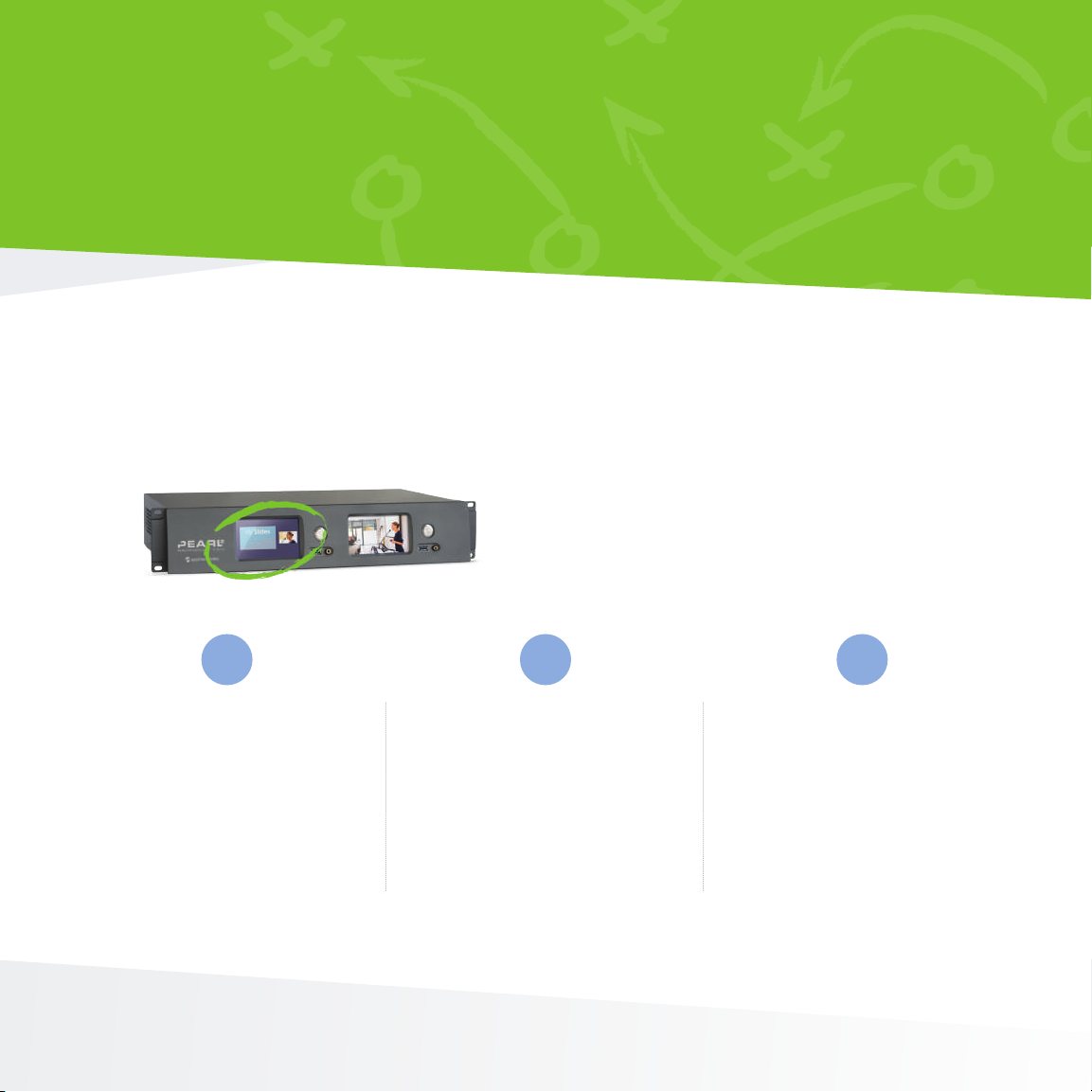
System 1: Live switching
1
Connect your sources and
create your live program
channel. Develop a set of
engaging and creative
PIP layouts containing
your sources, images, and
branding content.
2
Create a new RTSP source from
program output (channel 1).
Create a channel with audio
and video from your new source
and congure encoding at a lower
bitrate. Congure streaming.
3
During the event, use Pearl’s
touch screen or Epiphan Live to
control live switching and
recording for channel 1, and to
start and stop streaming the same
program data (at lower bitrate)
via channel 2.
Page 10
NO FAIL LIVE STREAMING
x
x
x
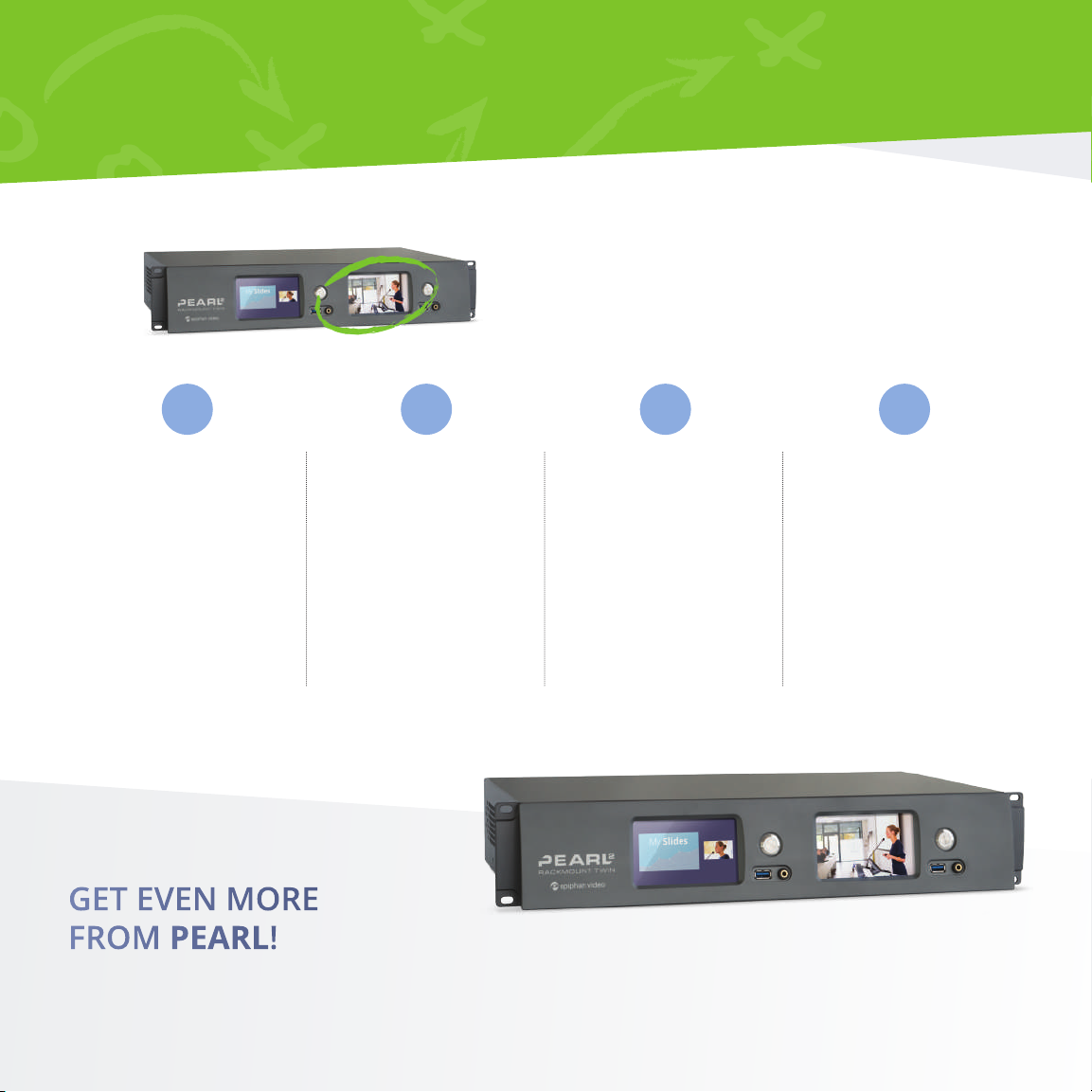
System 2: ISOs
1
Connect your sources
and make a channel for
each source. Remember
to select your desired
recording format
(MP4, AVI, MOV,
or MPEG-TS).
Create a fourth channel
featuring a static PiP
layout containing your
preferred video sources.
streaming settings for
backup purposes.
2
Congure your
3 4
When your event
begins, start recording
for each of the
4 channels.
If there’s an error
during the live switched
stream, you’ll always
have this backup
PiP layout! Just start
streaming it in place
of channel 2 from the
other Pearl-2 system.
GET EVEN MORE
FROM PEARL!
• Don’t need the backup layout on the second Pearl-2 system? Switch it out for a condence monitoring
channel that includes all your sources and display it on a big screen.
• Stream using Secure Reliable Transport (SRT) for added reliability and peace of mind.
Page 11
Document
LUMiO 12x HDMI camera
Tablet / device
O
O
x
x
x
EFFORTLESS OBSERVATION
Optimize usability and user experience testing labs with this simple, powerful setup that
captures every detail, from every angle.
GENDER PURCHASING BIAS
2014
2016
4-up layout with timestamp
camera
with mic
Local monitor
GENDER PURCHASING BIAS
2014
2016
PROJECT
YYYY-MM-DD HH:mm:ss
Streaming - 720p 30 fps, 2 Mbps
Recording - 1080p 30 fps, 8 Mbps
APP NDIVO 3.12.0
USER
Eric Claussen
GENDER PURCHASING BIAS
2014
2016
PROJECT
APP NDIVO 3.12.0
USER
Eric Claussen
Live monitoring
Displays live feed of test subject
Automatic uploads
Files automatically uploaded to backup server
Page 12
O
O
O
O
x
x
x
EFFORTLESS OBSERVATION
Use Pearl’s HDMI output ports for real-time observation to discretely watch from another
room without missing a moment in your observations. Simultanously stream to osite
researchers via YouTube, a CDN, or direct streaming connection.
Run the play
See four displays or video sources concurrently.
Connect your video and audio
1
sources to Pearl-2.
Create the 4-up local monitoring and
2
high-res recording channel by arranging
your sources in a matrix format with a small
timestamp overlay.
Congure an HDMI output port to display this
3
channel on your observation monitor.
Create a second channel with the same layout
4
but use a smaller frame size for streaming.
Congure your streaming settings or copy the
streaming url and forward it to viewers who
will connect directly.
Congure AFU to automatically upload and
5
videos to your servers.
When it’s time to record your subjects, use
6
Epiphan Live to start recording and streaming
without disturbing your test subject.
GET EVEN MORE
FROM PEARL!
• Create extra layouts on channel one, permitting the observer to switch between dierent video sources as needed.
• Bookmark points of interest in the video by switching to a layout with a reference point indicator (e.g. an overlay image).
• Upgrade to Pearl-2 Rackmount Twin to also record full-sized ISOs of each input.
Page 13
LUMiO 12x Audio mixerLaptop
O
O
x
x
x
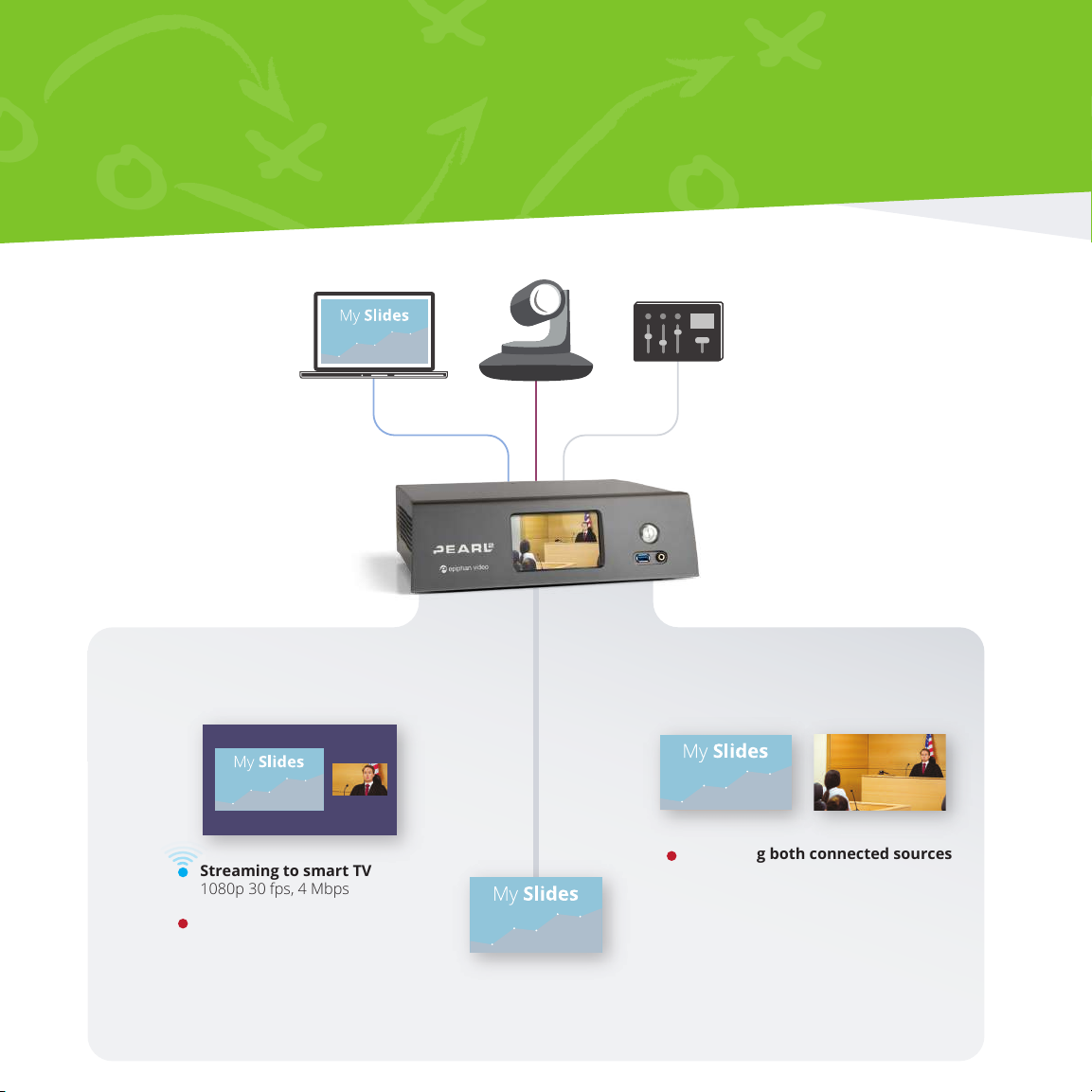
OUTSIDE THE BOX
Deliver your live presentation to audience members in dierent locations by
taking advantage of overow rooms.
Picture in picture program
Streaming to smart TV
1080p 30 fps, 4 Mbps
Recording - 1080p 30 fps, 4 Mbps
Output to projector
ISOs
Recording both connected sources
1080p 30 fps, 8 Mbps
Page 14

O
O
O
O
x
x
x
OUTSIDE THE BOX
When room size limitations prevents all audience members from attending in the same room,
use smart TVs to display the video stream in other locations. Take advantage of Pearl’s HDMI
output ports to also show your slides on a local monitor or projector.
Run the play
Share your picture in picture view via Smart TV while simultaneously
creating high quality ISO recordings.
Connect your laptop to an HDMI A port on
1
Pearl-2 and Lumio 12x to an HDMI B or
SDI B port. Connect audio from your mixer
to any XLR port.
Use Pearl’s two auto channels (add your
2
analog audio) for your program ISOs.
Congure one of the HDMI output ports on
3
Pearl-2 to display the laptop slides. Connect
your in-room slide projector to this port.
When it’s time to start your event, begin recording your presentation and accompanying
ISOs with the touch of your nger on Pearl’s touch screen.
Create a third channel with a layout that
4
includes both your video sources arranged
overtop of a background image. Turn on
UPnP sharing for this channel.
Congure your Smart TV(s) to show
5
this live stream.
Congure Pearl-2’s single touch recording to
6
include all three of your channels.
GET EVEN MORE FROM PEARL!
• Don’t need ISOs of every video feed? Add up to 4 video sources to your PIP layout.
• Also need to stream to a CDN? No problem! Simply congure and start streaming.
• Gain capacity to display your program on a large local display for monitoring by choosing a lower encoding frame rate.
Page 15
LUMiO 12xAudio mixerEffects
LUMiO 12x LUMiO 12xLaptop
O
O
x
x
x
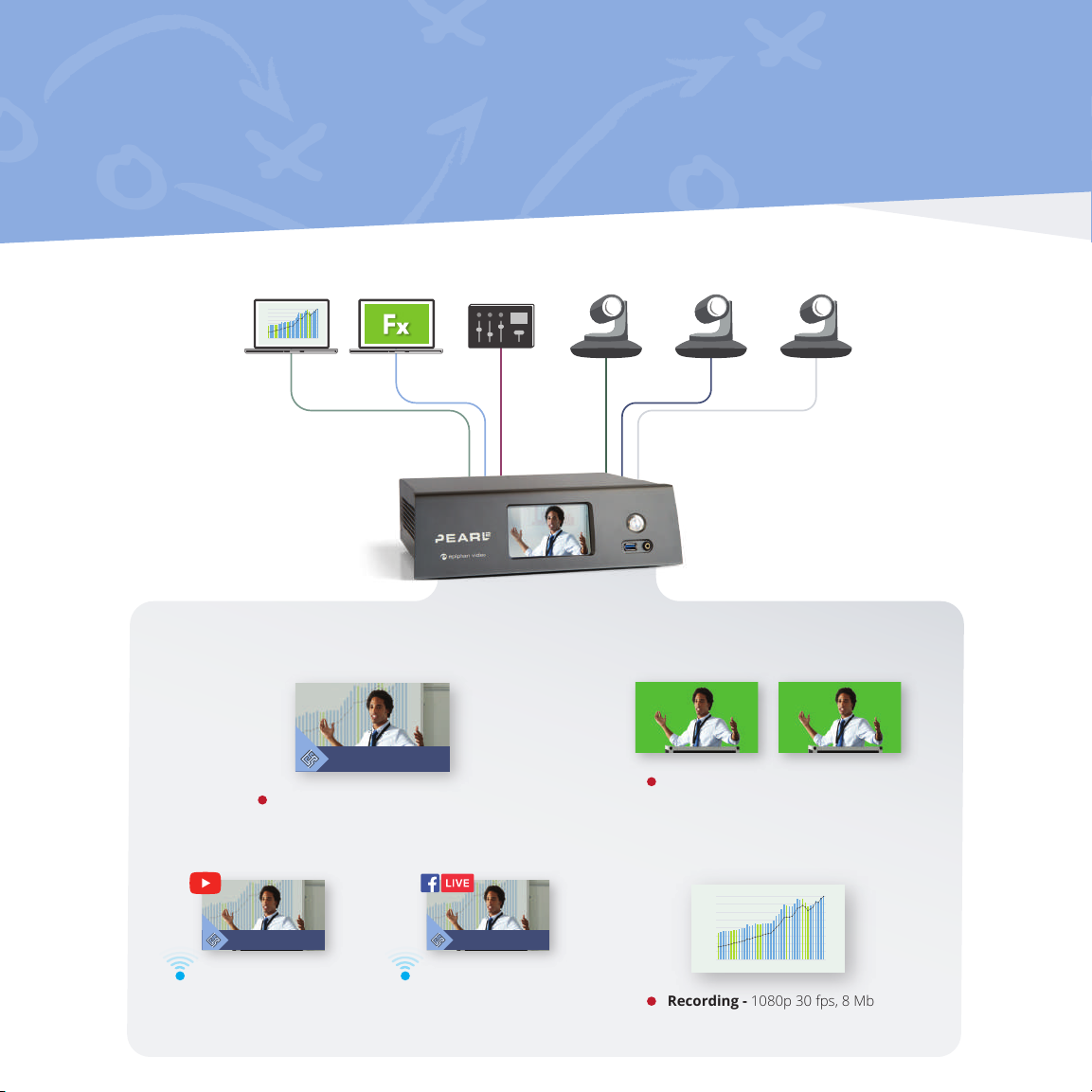
LOWER THIRDS
Keep your audience informed and direct their attention to the screen with this
dynamic setup using lower thirds and chroma keying on Pearl-2.
400
350
300
250
200
150
100
50
0
1975 1980 1985 1990 1995 2000 2005 2010 2015
computer
Program with lower thirds
Larry Parsons
Vice President, Business Development
Recording - 1080p 30 fps, 8 Mbps
Camera-only ISOs
Recording - 1080p 30 fps, 8 Mbps
Larry Parsons
Vice President, Business Development
Streaming to YouTube
1080p 30 fps, 4 Mbps
Larry Parsons
Vice President, Business Development
Streaming to Facebook
720p 30 fps, 2 Mbps
Slides-only ISO
400
350
300
250
200
150
100
50
0
1975 1980 1985 1990 1995 2000 2005 2010 2015
Recording - 1080p 30 fps, 8 Mbps
Page 16

O
O
O
O
x
x
x
LOWER THIRDS
Brand your content and provide informational lower thirds using titler software and Pearl’s
chroma key feature. Add a custom background matte using green screen for more punch.
Run the play
Create a 1080p switched program with lower thirds, slides, and three cameras where the main
camera is setup to use Pearl’s chroma key feature to replace a green screen background.
Connect your cameras, laptop, and eects
computer to Pearl-2.
1
Create channels for camera A, camera B,
2
and the laptop to record ISOs.
Create your program channel with a
variety of layouts.
3
Include the green screen in layouts by using
the laptop source with the slides as your
4
background matte and make it full frame.
Add your camera source with the green
screen to the layout, enable chroma
keying and choose a keying color.
Create more layouts for picture in picture and
include lower thirds by adding your eects computer
5
source over top of your slides or camera video.
Crop it to remove any unused chroma key areas,
enable chroma keying and choose a keying color.
Create two more channels. Use one to stream
your program channel to YouTube and the other to
6
stream your program channel to Facebook using
the program channel’s RTSP stream.
Be sure to test your stream! When it’s time to
start your event, use the front touch screen or
7
Epiphan Live to start streaming and recording
your channels.
GET EVEN MORE FROM PEARL!
• Add a camera-only layout to your live program channel. Switch to this layout when the lower thirds has been up long
enough to read or while you are changing the content of the lower thirds feed from your eects computer.
Page 17
LUMiO 12x HDMI
LUMiO 12x
HDMI
O
O
x
x
x
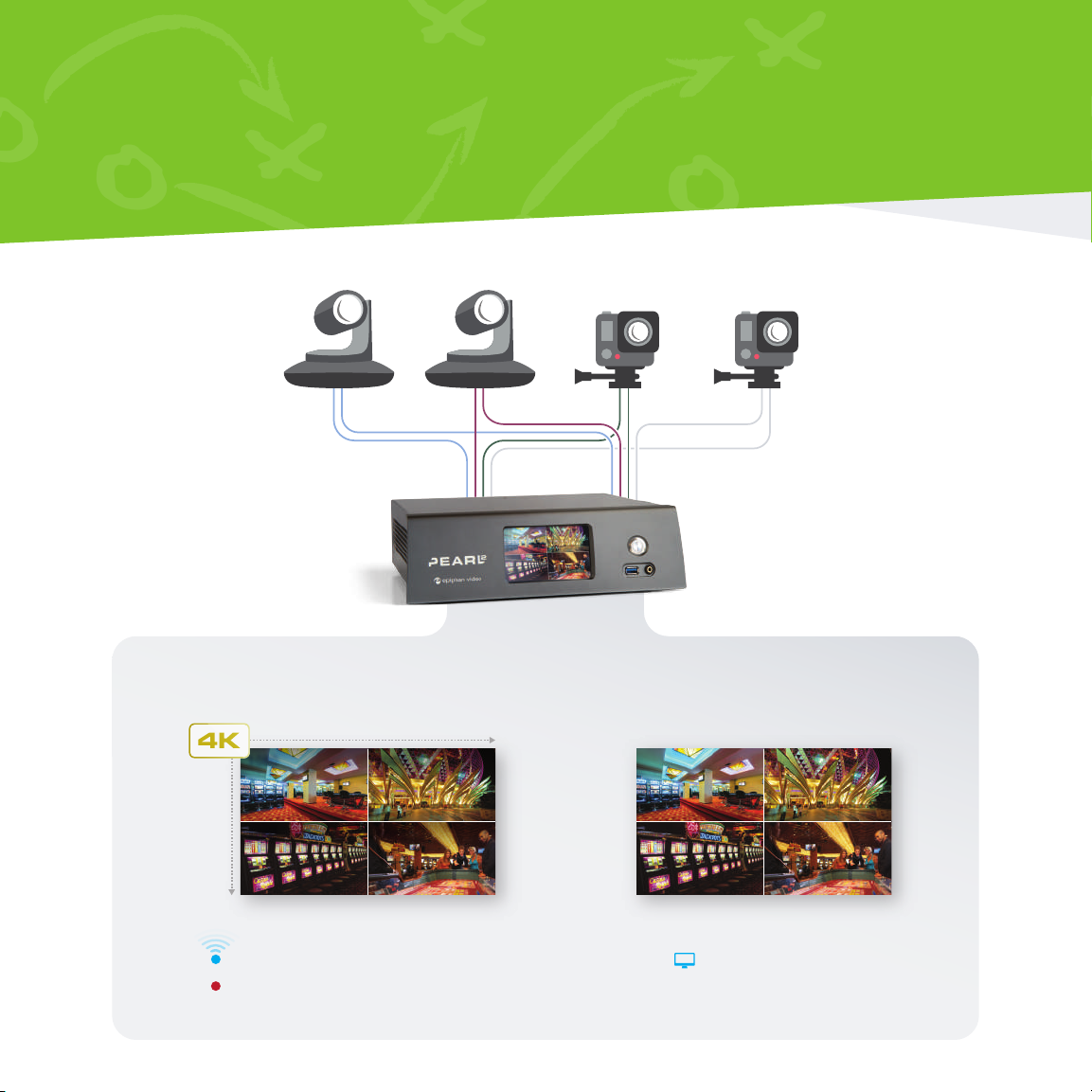
4K 4-UP MULTIVIEW
Preserve every detail of four 1080p sources by combining them into a single
4-up, 4K recording.
1080
1080
Program
1080
1080
camera
camera
Local monitor
Streaming - 2160p 30 fps, 12 Mbps
Recording - 2160p 30 fps, 12 Mbps
Live monitoring - 4K
Page 18
O
O
O
O
x
x
x
4K 4-UP MULTIVIEW
When you need to monitor four 1080p sources on a single 4K screen, Pearl-2 has
you covered. The 4K feature add-on is required for this Pearl play.
Run the play
Record, watch on a connected monitor and even stream your 4K compilation.
1
Connect your sources
to the ports on the back
of Pearl-2.
When it’s time to start streaming and recording, use Epiphan Live
Create a 4K channel
and add each of the four
sources to the channel,
one in each quadrant
of the 4K screen.
or Pearl’s touch screen to get things started!
2
3 4
Optionally congure
streaming.
output port to show your
GET EVEN MORE FROM PEARL!
• Use Pearl’s hardware scaling ability to reduce your inputs to 720p for lower bandwidth streaming.
• Add a timestamp overlay using the Admin panel.
Congure the HDMI
channel and connect
your 4K monitor.
Page 19
HDMI
HDMI
HDMI
HDMI
HDMI
HDMI
O
O
x
x
x
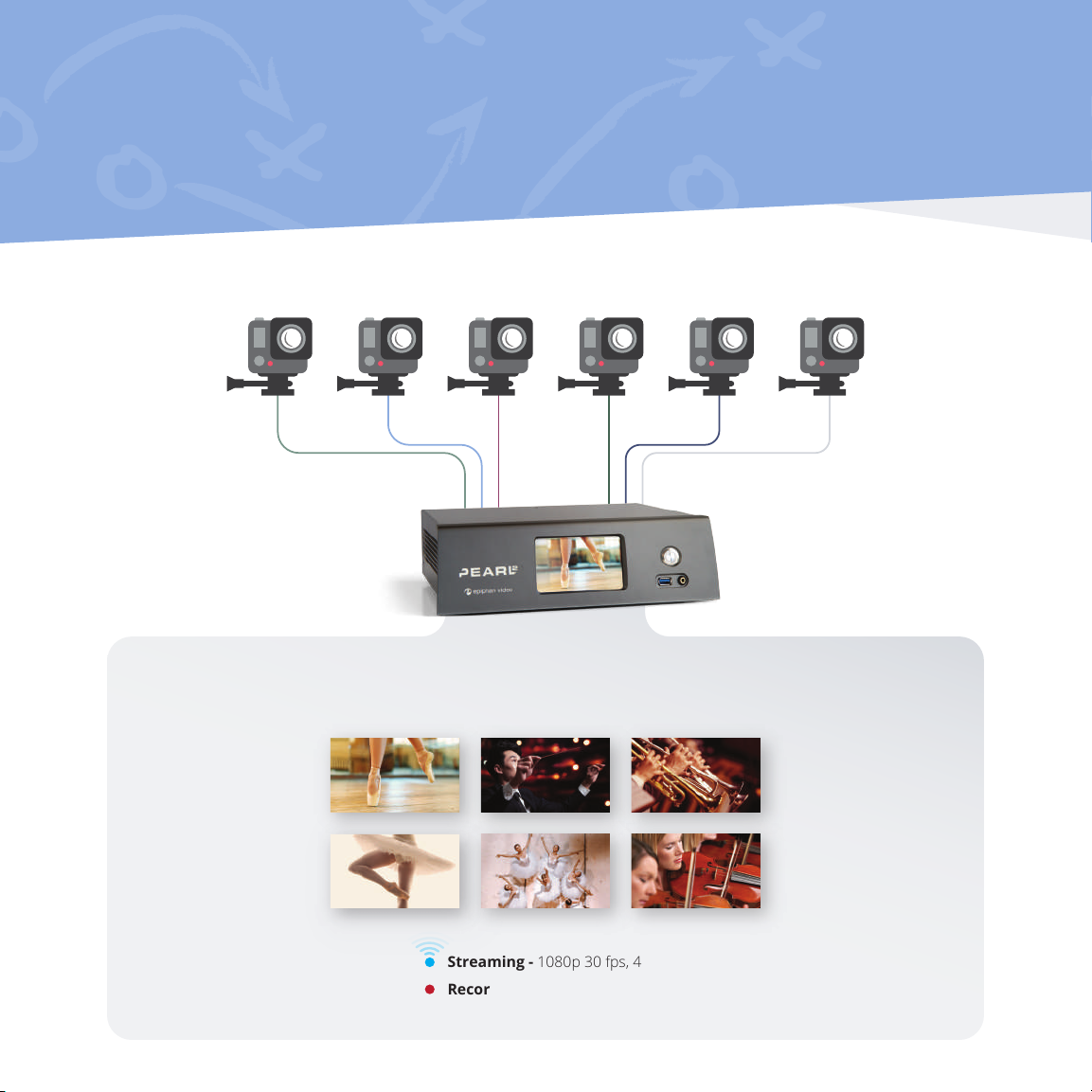
MULTI-SOURCE RECORDER
When you have multiple sources that you need to record in high denition
and perfect synchronicity.
camera
camera
Program and ISOs
camera
camera
camera
camera
Streaming - 1080p 30 fps, 4 Mbps
Recording - 1080p 30 fps, 4 Mbps
Page 20
O
O
O
O
x
x
x
MULTI-SOURCE RECORDER
Whether you’re capturing a performance rehearsal or a video wall operator, get perfectly
crisp, completely synchronized video at 1080p30 from up to six sources.
Run the play
Each source is captured perfectly in its original resolution. Recording and streaming
are controlled for all sources with a simple touch!
1
Connect up to 6
sources to the ports on
the back of Pearl-2.
Create a channel per
source and congure the
layout to show the source
full screen. Set encoding
and streaming for each
2
channel.
3 4
Congure all channels to
be part of Pearl’s single
touch streaming and
recording control.
When it’s time to start
streaming and recording,
use Pearl's one touch
streaming and recording
controls to go live!
GET EVEN MORE
FROM PEARL!
• For even more sources, try Pearl-2 Rackmount Twin.
• Reduce system load by encoding your channels at 25 fps and add the capacity to show one of your sources on a large
display for condence monitoring!
• Try Pearl’s multi-track recorder to create a single multi-track le with all the recordings.
Page 21
www.epiphan.com
Email: [email protected]
North America +1-877-599-6581
International +1-613-599-6581
™ and © 2020 Epiphan Systems Inc.
Epiphan, Epiphan Video, Epiphan Systems, its products names and logos are tradenames
or trademarks of Epiphan Systems Inc. All other company, interface and product names
and logos are trademarks or registered trademarks of their respective owners in certain
countries. Product descriptions and specications regarding the products in this document
are subject to change without notice.
BR140-4
 Loading...