

Page 1

Table of Contents
1. Introducing your Device…………………………2
1.1 Key functions..........................................................2
1.2 Battery....................................................................3
1.3 Charge via the charger...........................................3
1.4 SD card...................................................................3
2. Home screen and Application list……………...6
2.1 Notification and connection icons...........................6
2.2 Read notifications...................................................6
2.3 Language................................................................7
2.4 Manage Applications..............................................8
2.5 Music......................................................................8
2. 6 Wi-Fi....................................................................10
3. Browser……………………………………………11
4. Gmail………………………………………………12
5. Google Maps……………………………………..14
6. Google Market™…………………………………16
7. YouTube…………………………………………...17
Page 2
1. Introducing your Device
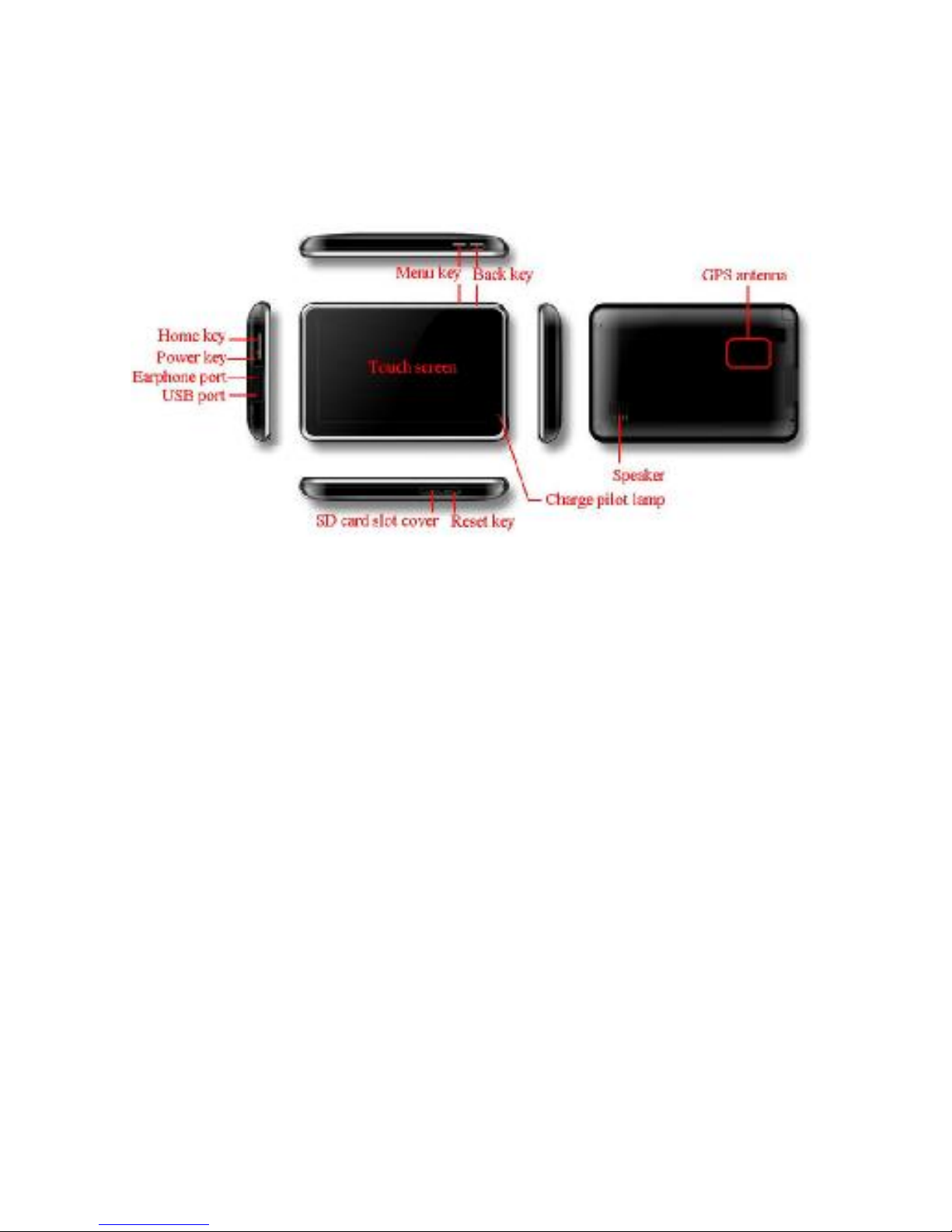
1.1 Key functions
Power key
Press and hold few seconds to power on/off the
device
Short press to put the device into sleep mode. press
any key to awaken.
Home key
Press to return to the Home screen from anywhere.
Press and hold few seconds to rotate the application
window
Menu key
Press to open a list of actions available on the current
screen.
Press and hold to see the menu shortcuts for that
screen.
The shortcuts will blink in place as you hold down the
Menu key.
Back key
Press to go back to the previous screen or to dismiss
Page 3

a dialog box or menu.
Reset key
Press to reset the device
1.2 Battery
You can charge your device via charger or USB cable.
1.3 Charge via the charger
To charge, connect the small end of the charger cable to the
micro-USB port on the bottom side of your device. Plug the other end
of the charge into a wall outlet.
Charge via a USB cable
To charge, connect the small end of the USB cable to the
micro-USB port on the bottom side of your device. Plug the other end
of the USB cable to the USB port of your computer.
1.4 SD card
Your device comes with a removable microSD memory card
where you can store multimedia files, such as video clips, music tracks,
sound files, images, and GPS-map files.
To install the memory card:
1. Open the memory card cover.
2. Insert the memory card
3. To remove the memory card, press the card in and release.
Copy files to the memory card
Page 4

You can transfer files such as music and pictures between your
device and your computer.
To view files on your device, just launch the appropriate
application and navigate to the file within that application.
1. Connect your device to your computer using the USB cable.
2. On the home screen, press the Menu key.
3. Touch Notifications, touch USB connected.
4. Touch Mount.
5. On your computer, go to the Removable Disk folder.
6. Locate the files on the computer that you want to copy to
your device.
7. Copy and paste files to the desired location in the
Removable Disk folder.
Delete files on the memory card
1. Locate the file that you want to delete.
2. Touch and hold the file name.
3. Touch Delete.
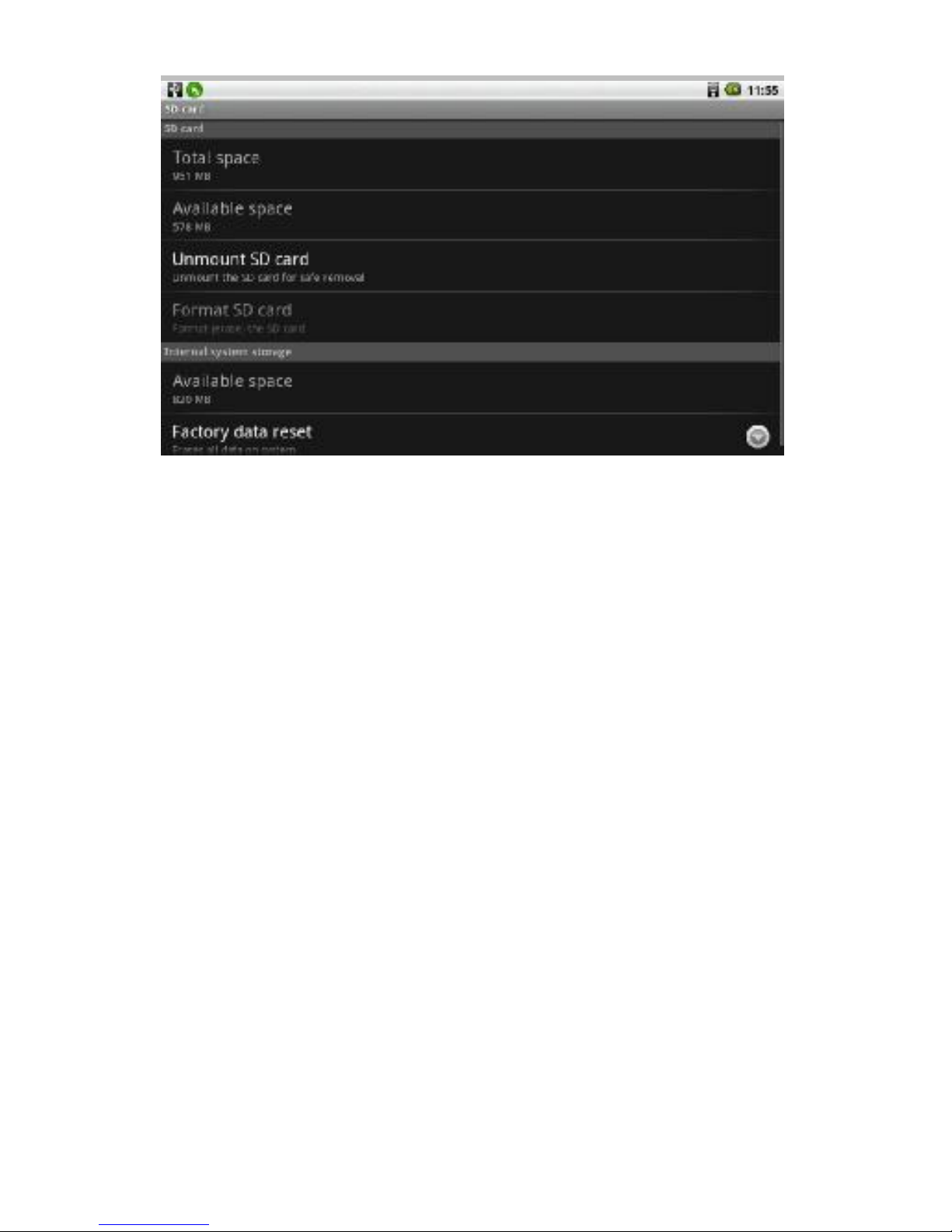
View available memory space
1. On the home screen, press the Menu key .
2. Touch settings, Touch SD card to view available memory
space for your memory card and device.
Page 5
Page 6
2. Home screen and Application list
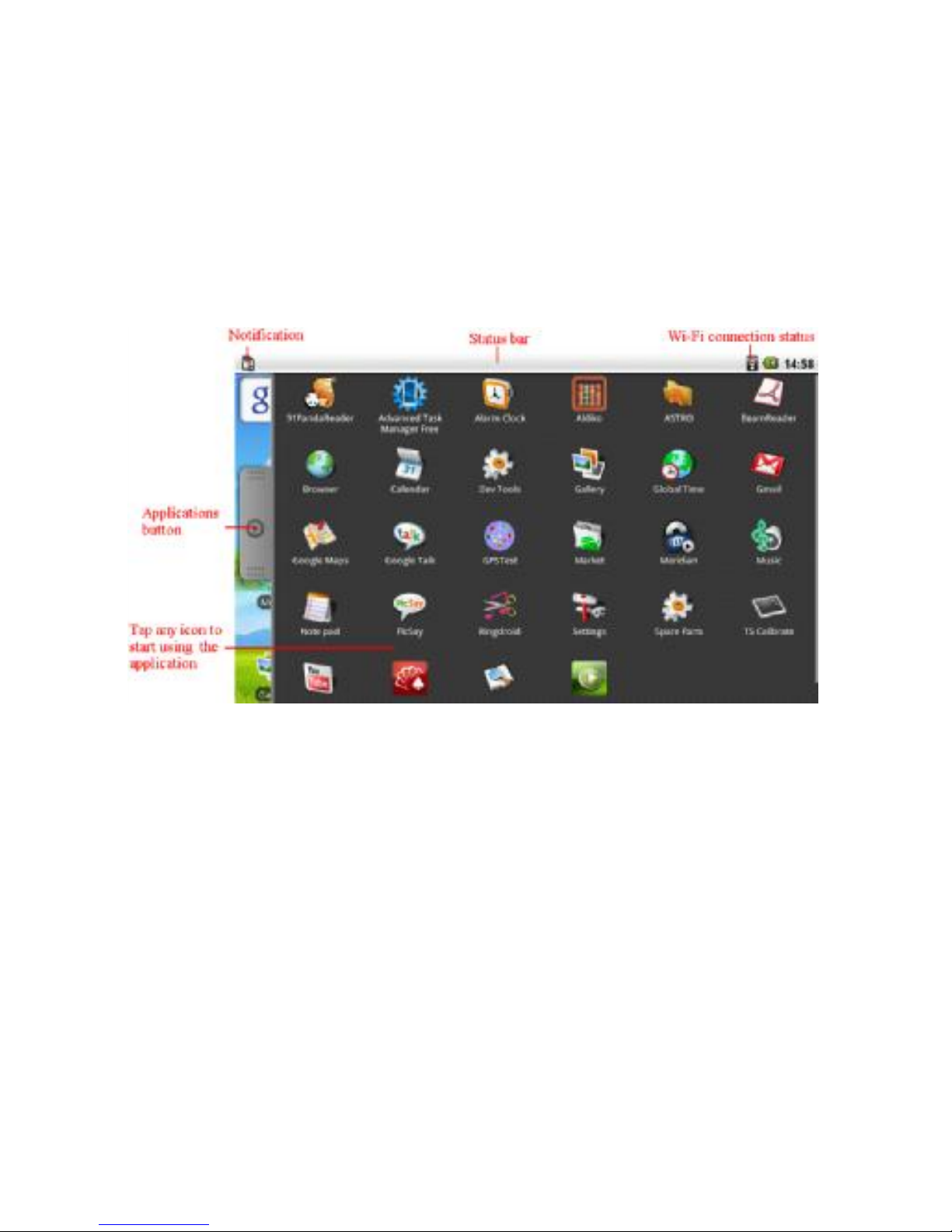
The Home screen is your starting point for using all the
applications on your device .You can customize your Home screen to
display applications ,shortcuts ,and widgets.
To open the application list, tap on the Home screen.
2.1 Notification and connection icons
Along the top of your screen is the status bar. On the left side,
icons will appear, notify you of new messages, upcoming calendar
events, alarms, and more. On the right side of the status bar, you will
see the connection status icons.
2.2 Read notifications
When you see a notification in the status bar, tap the bar and slide
your finger down the screen to open the list of notifications.
To open the notification, tap the item.
Page 7
To clear notifications, tap Clear notifications at the top of the
notification window.
To close the notification window, slide your finger up the screen.
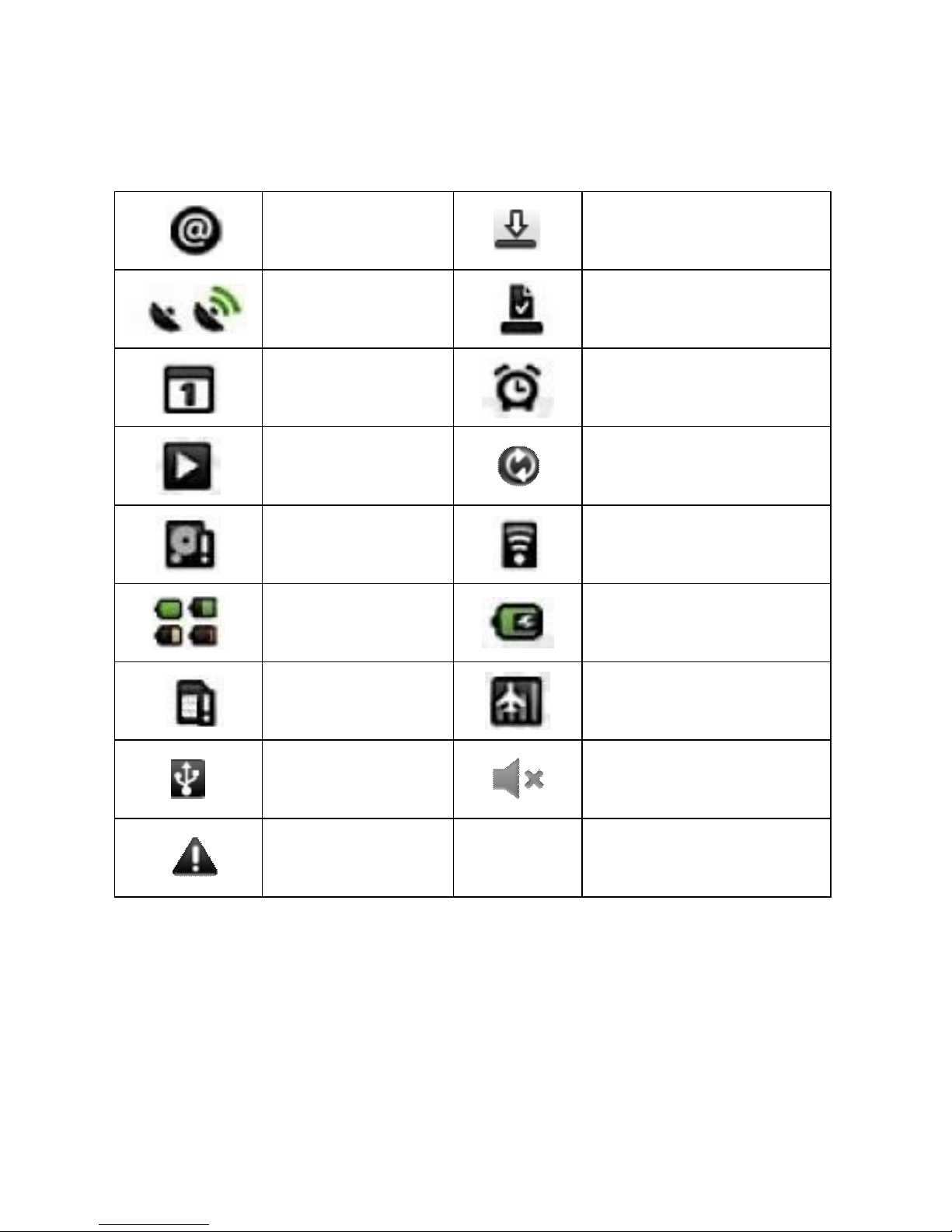
New e-mail
message
Downloading
GPS is on and is
working
Content downloaded
Upcoming event
Alarm is set
Song is playing
Data is syncing
SD card is full
Wi-Fi service
connected
Battery change
indicators
Battery is charging
No SD card
Wireless services are
off
USB connected
Silent mode
warning
2.3 Language
You can setting language for device.To setting
1. On the home screen, press the Menu key.
2. Touch settings, touch Locale & text.
Page 8

3. Touch Select locale.
4. Touch the language that you want to setting.
2.4 Manage Applications
Allow install of non-Market applications
1. On the home screen, press the Menu key.
2. Touch settings.
3. Touch Applications.
4. Touch Unknown sources.
Uninstall Application
1. On the home screen, press the Menu key.
2. Touch settings.
3. Touch Applications.
4. Touch Manage applications.
5. Touch the application that you want to Uninstall.
6. Touch Uninstall.
7. Touch OK, Touch OK.
2.5 Music
Your music is organized into four categories: Artists, Albums,
Songs, and Playlists. Select a category to view the lists within each.
Once in a category, keep selecting until you reach the music you want
to play. For example, if you select the Artists category, you will see a
list of artists in A-Z order, the list opens to display that artist’s albums.
Select an album, and the album’s song list displays.
Your device will play the following music file formats: Mp3, AMR,
OGG, WAV, MIDI.
Page 9
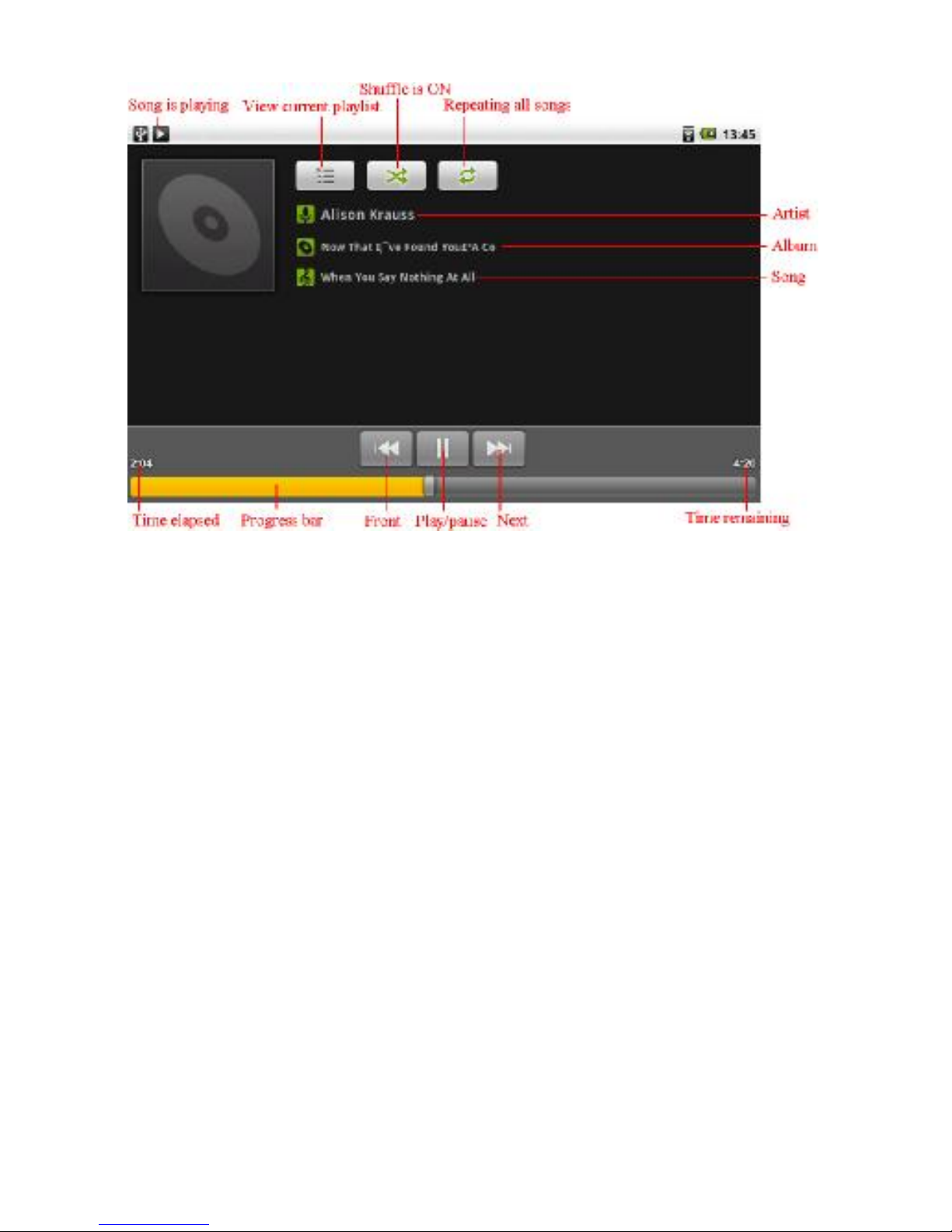
Access and play music
1. On the home screen touch the Application button.
2. Touch Music, Touch Songs. You can also touch Artists,
Albums, or Playlists.
3. Touch the song to play.
Add songs to new play list
1. On the home screen, touch the Application button.
2. Touch Music. Touch Songs.
3. Touch and hold the song that you want to add to the play
list.
4. Touch Add to playlist.
5. Touch New.
6. Type the name for the play list.
7. Touch Save.
Page 10
Delete play lists
1. On the home screen, touch the Application button.
2. Touch Music, touch Playlist.
3. Touch and hold the play list you want to delete.
4. Touch Delete
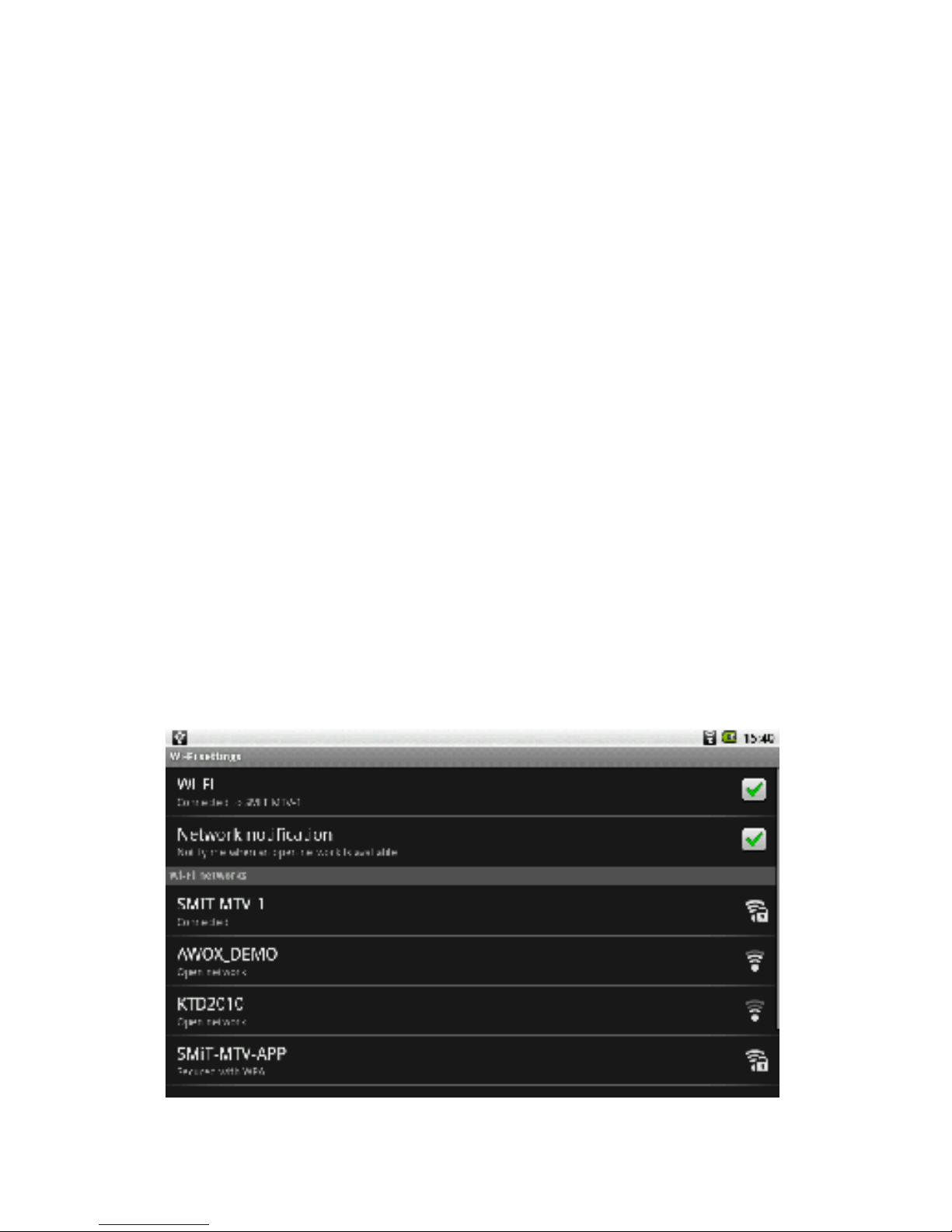
2. 6 Wi-Fi
Your device can connect to Wi-Fi networks. To connect
1. On the home screen, press the Menu key.
2. Touch settings, touch wireless controls.
3. Touch Wi-Fi to turn it on. Touch Wi-Fi settings. Your device
scans for available Wi-Fi networks.
4. Touch the Wi-Fi network that you want to connect to.
5. Touch Connect. Some network may need you input the
password.
On the Wi-Fi settings screen, press the Menu key, touch
Advanced, you will get more settings for Wi-Fi.
Page 11

3. Browser
Go to your home page
The Browser always opens to the last Web page you were
viewing.
The first time you enter the Browser after powering on, your home
page will display.
1. On the Home screen, Touch the Application button.
2. Touch Browser.
Change your home page
1. On the Home screen, touch the Application button.
2. Touch Browser.
3. Press the Menu key.
4. Touch more, touch settings, touch Set home page.
5. Type the site address and touch OK.
Visit Web pages
1. On the Home screen, touch the Application button.
2. Touch Browser.
3. Press the Menu key.
4. Touch Go
5. Type the Web address, touch Go.
Page 12
4. Gmail
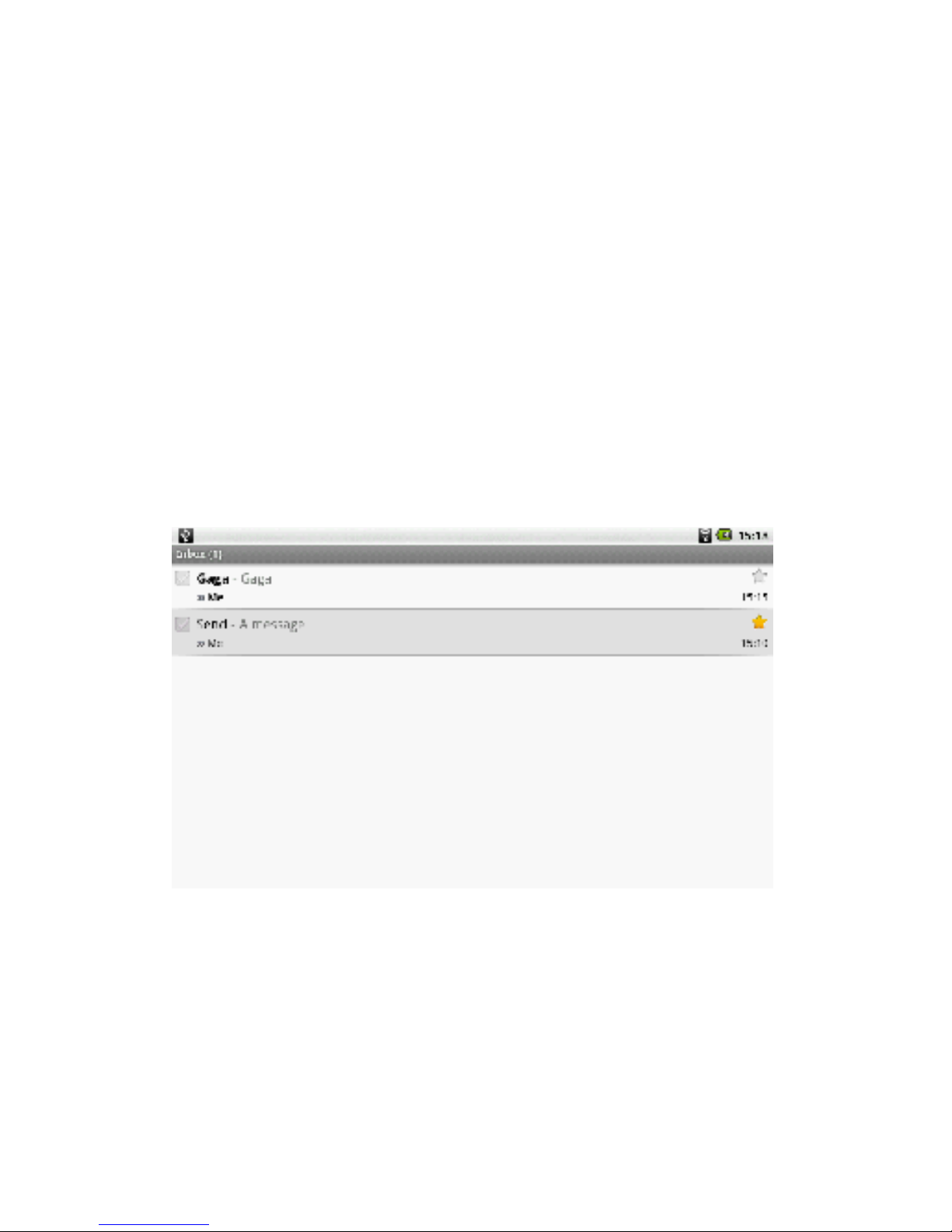
With Gmail, all your messages on the same subject are threaded
together into conversations. To read the messages in a conversation,
open the conversation and scroll through the individual messages.
The most recent message appears at the bottom.
All the Gmail that you fetch to your device is delivered to your
Inbox, and the Inbox is your default Gmail view. The total number of
unread messages displays in the title bar and individual unread
messages display in bold. If you have labeled a message, its label
appears in a colored rectangle to the left of the date.
Read new messages
1. On the home screen, touch Gmail to display your inbox.
2. Touch a message to read.
Write new messages
1. On the Home screen, touch Gmail to display your Inbox.
2. Press the Menu key.
Page 13

3. Touch Compose.
4. Type a name or e-mail address in the To field. Matching
contacts will appear. Select the contact or continue typing.
5. Type the subject and message.
6. To attach pictures, press the Menu key and touch the
picture to attach.
7. Touch Send.
Page 14

5. Google Maps
Find a location
1. On the Home screen, touch the Application button.
2. Touch Google Maps.
3. Press the Menu key.
4. Touch Search.
5. Type an address. Touch Search.
6. Touch Show map to see the result on a map.
Get direction
1. On the Home screen, touch the Application list button.
2. Touch Google Maps.
3. Press the Menu key.
4. Touch Directions.
5. At the From field, type your starting address, at to To field,
type your destination address.
6. Touch Route.
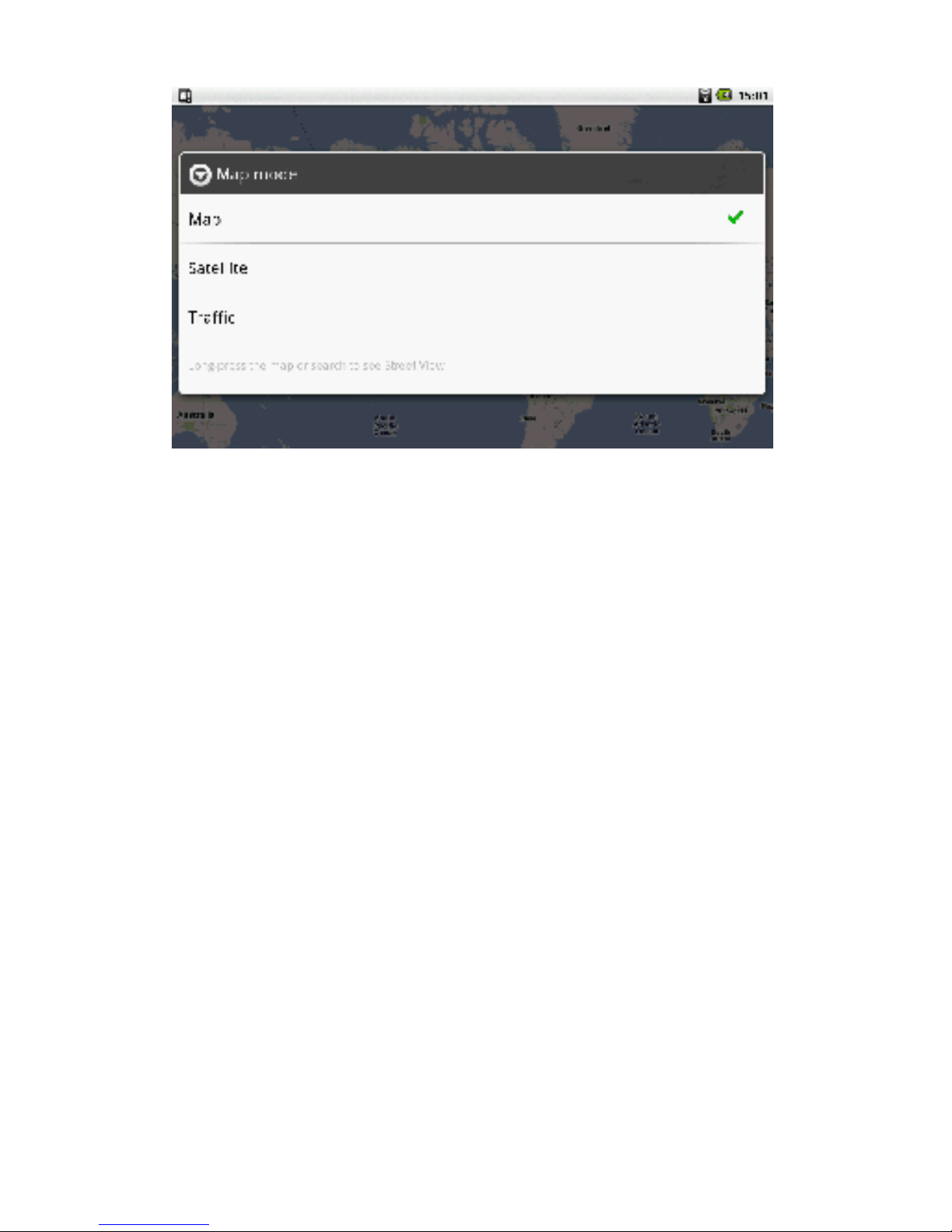
Change map mode
Google Maps gives you both map and satellite of the area you are
viewing. To view satellite, traffic, or street view.
1. On the Home screen, touch the Application button.
2. Touch Google Maps.
3. Press the Menu key.
4. Touch Map mode.
5. Touch satellite, Traffic, or Street View.
Page 15
Page 16

6. Google Market™
Google Market™ provides you with direct access to software
developers throughout the world. It is the place to go find fun games
and cool applications.
Browse contents
When you fist enter Google Market, you will see featured items, a
list of item categories, a link to search, and a link to My downloads.
Scroll through the featured items or select a category to browser
its contents, then select a subcategory. Within each subcategory you
can select to view items sorted By popularity or By date. Note that all
items in s subcategory are listed in each tab, those in the By popularity
tab are sorted most popular to least popular, and those in the By date
tab are sorted newest oldest.
To access:
1. On the Home screen, touch the Application button.
2. Touch Market.
Page 17

7. YouTube
YouTube is a free online video streaming service that allows
anyone to view and share videos that have been uploaded by the
YouTube members. You do not need a YouTube account to browse
and view videos.
Watch YouTube videos
1. On the Home screen, touch the Application button.
2. Touch YouTube. The main YouTube screen appears
showing popular video categories.
3. Touch the category and the video in that category.
Search for YouTube videos
1. On the Home screen, touch the Application button.
2. Touch YouTube. The main YouTube screen appears
showing popular video categories.
3. Press the Menu key.
4. Touch Search. Type your search.
5. Touch Search.
Page 18

changes or modifications not expressly approved by the party responsible for compliance
could void the user's authority to operate the equipment.
NOTE: This equipment has been tested and found to comply with the limits for a
Class B digital device, pursuant to Part 15 of the FCC Rules. These limits are
designed to provide reasonable protection against harmful interference in a
residential installation. This equipment generates, uses and can radiate radio
frequency energy and, if not installed and used in accordance with the
instructions, may cause harmful interference to radio communications. However,
there is no guarantee that interference will not occur in a particular installation.
If this equipment does cause harmful interference to radio or television reception,
which can be determined by turning the equipment off and on, the user is
encouraged to try to correct the interference by one or more of the following
measures:
-- Reorient or relocate the receiving antenna.
-- Increase the separation between the equipment and receiver.
-- Connect the equipment into an outlet on a circuit different
from that to which the receiver is connected.
-- Consult the dealer or an experienced radio/TV technician for help.
This equipment complies with FCC radiation exposure limits set forth for an uncontrolled
environment. End users must follow the specific operating instructions for satisfying RF
exposure compliance. This transmitter must not be co-located or operating in conjunction
with any other antenna or transmitter. This equipment has been SAR-evaluated for use in
hand. SAR measurements are based on a 0cm spacing from the body and that compliance is
achieved at that distance.
SAR Value: 0.722W/Kg.
FCC ID: ZGM-M4-LCD
This device complies with Part 15 of the FCC Rules. Operation
is subject to the following two conditions: (1) this device may
not cause harmful interference, and (2) this device must accept
any interference received, including interference that may cause
undesired operation.
Page 19
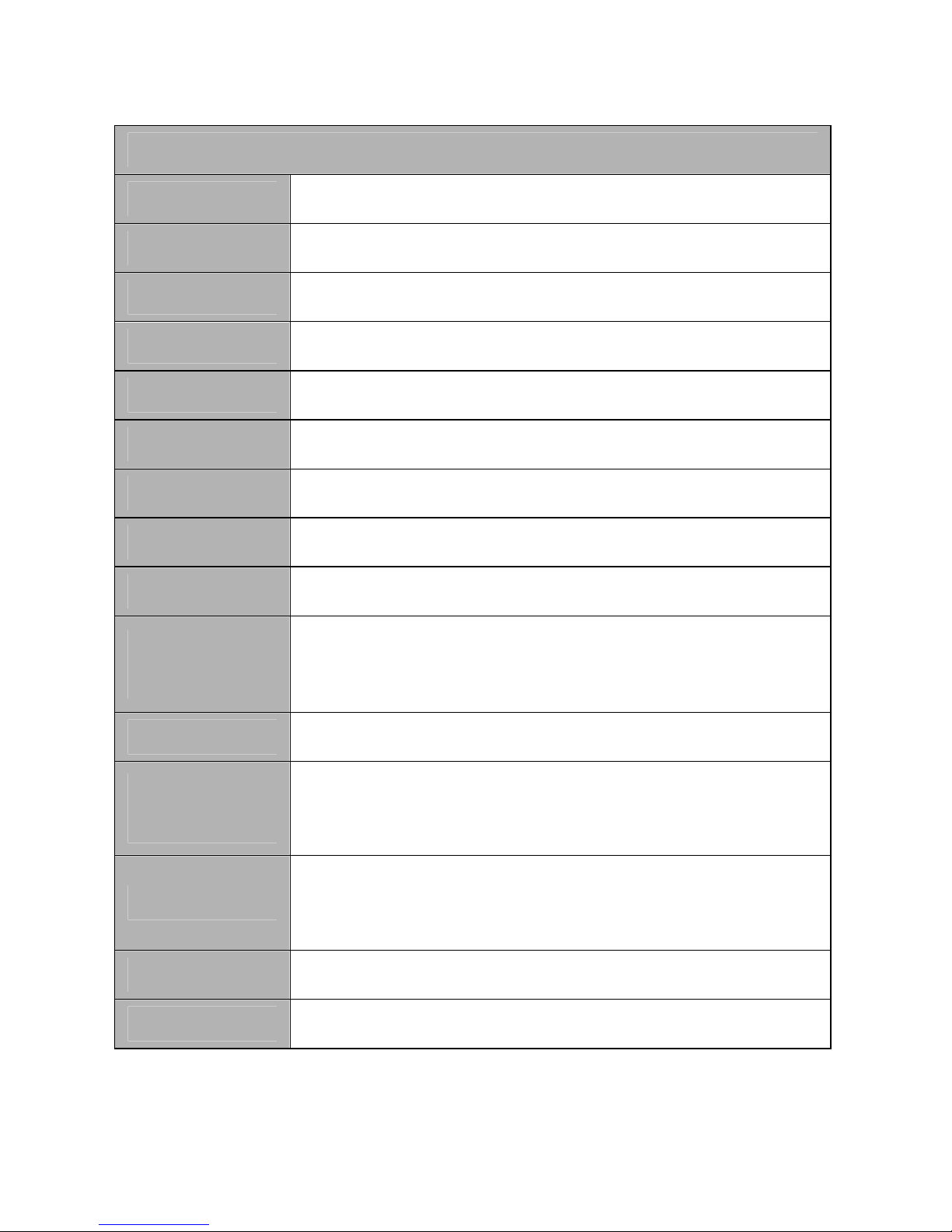
Appendix I: Specification
Spec.
P/ N Android MID
LCD 800*480 WVGA; 5.0 inch TFT touch panel
CPU SAMSUNG 6410, 667MHz
OS Android 1.5
DDR 128MB DDR
NAND 1GB SLC
T-Flash Supported T-Flash card up to 8GB
GPS module
SiRFIII GPS module
Battary Li-on rechargeable battery 2000mAH
Power
adapter
Input:100~240V AC
Output:DC 5V, 0.7A
USB USB2.0 FULL SPEED
Indication
Light
LED
(Red in charging / Green in charged)
Temp.
Operation Temp.:0~40 ℃
Storage Temp.:-10~60 ℃
Dimension 132.2 x 87.6 x 14.8 mm
Weight About 220 g
Page 20
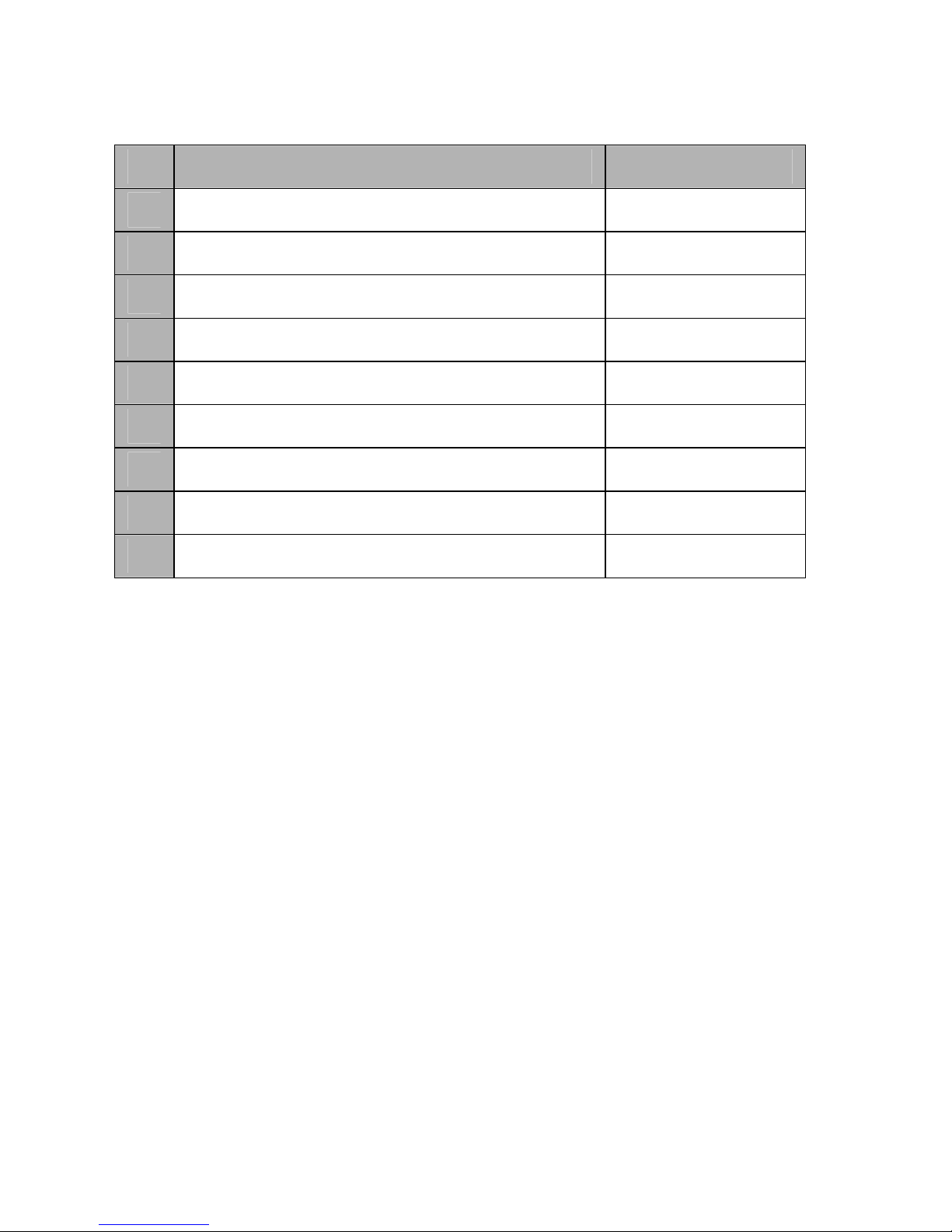
Appendix II: Accessories List
No.
Item Q’ty
1 Product device 1
2 Car kit 1
3 Car holder 1
4 Charger 1
5 Car charger 1
6 USB cable 1
7 Earphone 1
8 User manual 1
9 Guarantee card 1
 Loading...