

Page 1

Safety Precaution ............................................. 4
Product Features ...............................................6
Package Contents..............................................7
In the package................................................7
Name of each part..........................................8
Replacing the battery .....................................9
Connecting To A PC ....................................10
Installing EMX-830 Software........................11
Using USB....................................................15
Removing EMX-830 from a PC....................17
Using Windows Media Player ......................17
Downloading lyrics .......................................22
To search for the downloadable lyrics..........25
Lyric Editor ...................................................26
To format EMX-830 .....................................29
EMX-830 USER’S MANUAL
2
EMX-830 USER’S MANUAL
Using EMX-830 ................................................30
Preparations.................................................30
LCD Window ................................................31
Button Operation ..........................................34
Basic Operation............................................37
To play music ...............................................39
To change to VOICE Mode ..........................42
To change to FM Mode ................................44
To change to Line-In Mode ..........................48
To configure Menu .......................................49
Firmware Upgrade ...........................................61
Product Specification......................................64
Troubleshooting Checklist .............................65
Cautions ...........................................................66
3
Contents
Page 2
EMX-830 USER’S MANUAL
5
EMX-830 USER’S MANUAL
4
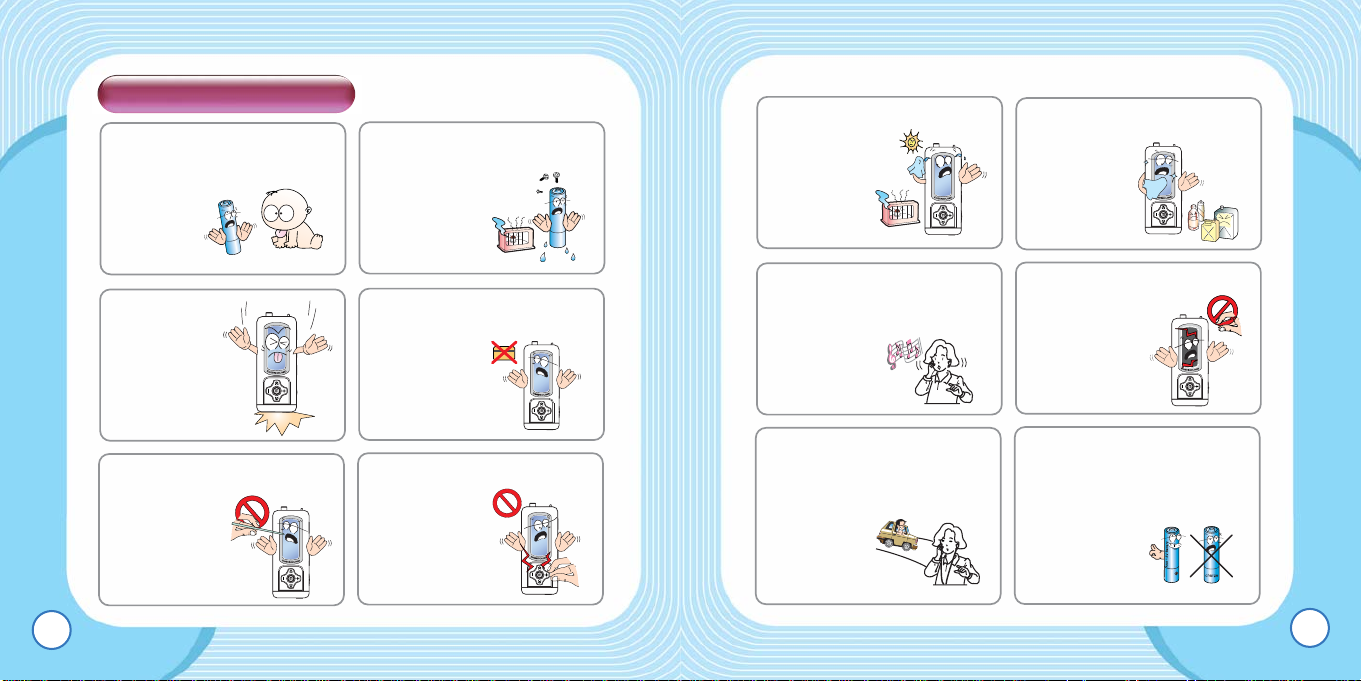
Safety Precaution
●
Keep any unused battery away from
the children’s reach because it may
pose choking hazard. Call for an
immediate medical
assistance
when an
unwanted
incident
happened.
● Do not disassemble, place
pressure to, short-circuit
batteries or set them
on fire.
They may cause
leak, heat,
explosion
or fire
hazard.
● Do not drop or
impact the unit.
It may cause
malfunctions.
● Do not place the unit close to
cash cards and other cards with
magnetic
strips.
The unit
can damage
those cards.
● Do not press too hard on the
transparent plastic cover of the
LCD window.
Pressing too
hard may
break the
covering.
● Do not press too hard on the
keypad.
● Avoid direct exposure to the
sunlight.
Avoid placing
near heat
sources or
very hot
places.
● Use soft fabrics to clean the
unit. Do not use solvent, benzyl,
or paint
thinner.
●
Do not touch the leak from the LCD
window. It may cause skin
irritation. When the
leak gets in your
eyes or you have a
skin contact with
the leak, consult
your doctor
immediately.
● Listening too long at a loud
volume can cause serious
hearing problems. Doctors warn
of the hearing hazard. When
you notice
problem in your
ears, keep the
volume down
or do not use the
product.
● Refrain from using the
earphone when you are biking
or driving or walking (especially
when crossing the street.)
They pose safety
hazards and in
some areas
are illegal.
● Be sure to use an Alkaline
battery (1.5V, LR03, AAA size or
AM4.) If batteries or rechargers
the company recommends are
not used, it may cause the leak,
malfunction or
unusual static
noise that may
cause hearing
problems.
Page 3
EMX-830 USER’S MANUAL
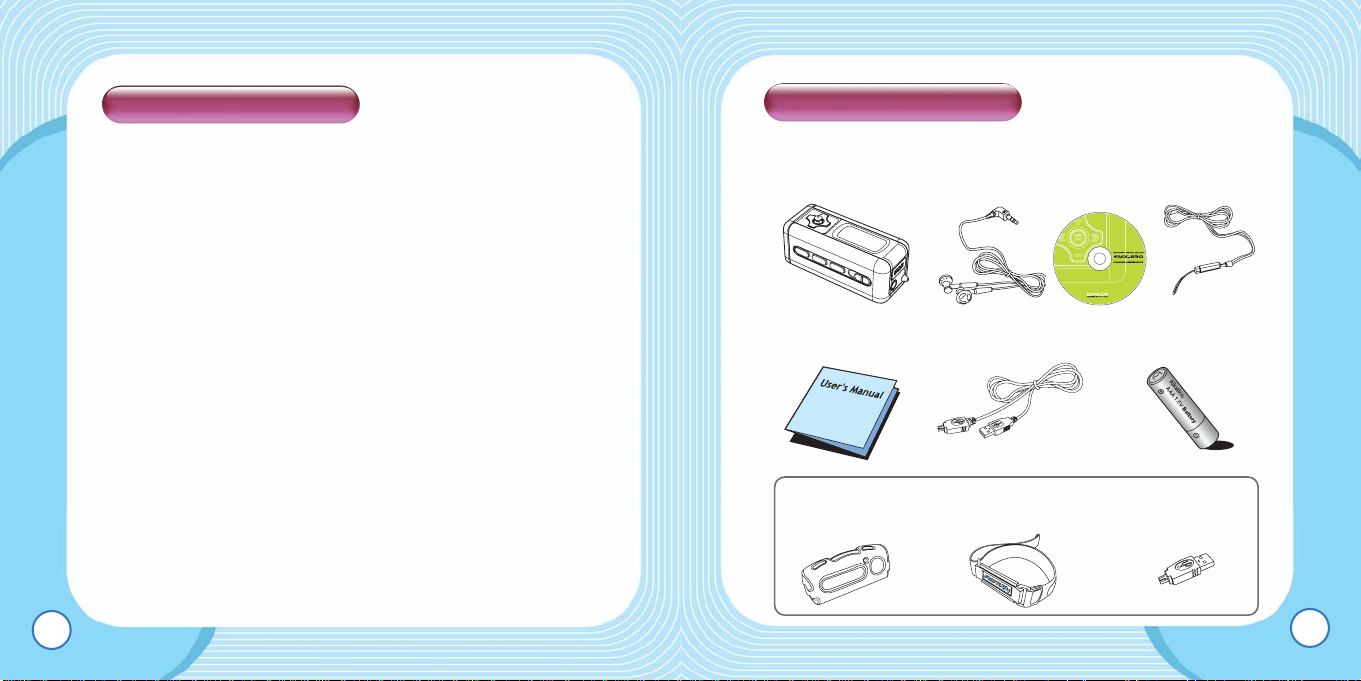
■ In the package
7
1. Lyrics Download(LDB)
2. Lyrics Editing
3. USB2.0
4. SRS WOW
5. Automatic Folder Search
6. Playback Settings
7. FM Auto Scan
8. Seven-color Backlight
9. Lyric Display and ID3 Tag Support
10. Windows Media Player Plugin Support
11. All Frequency Band Support for MP3/WMA
12. Sleep, Repeat Section
13. User EQ
14. Menu in English and other multiple languages
15. Firmware Upgarde
For more product information, visit our website below;
Homepages: http://www.mscmp3.com
EMX-830 USER’S MANUAL
6
Product Features
Package Contents
Manual
USB Cable One Type AAA Battery
EMX-830 Series Body
Necklace-type
Earphone
Installation CD
Necklace-type Strap
Necklace-type Strap
Carrying Case Armband USBConnector
OPTION
Page 4
EMX-830 USER’S MANUAL
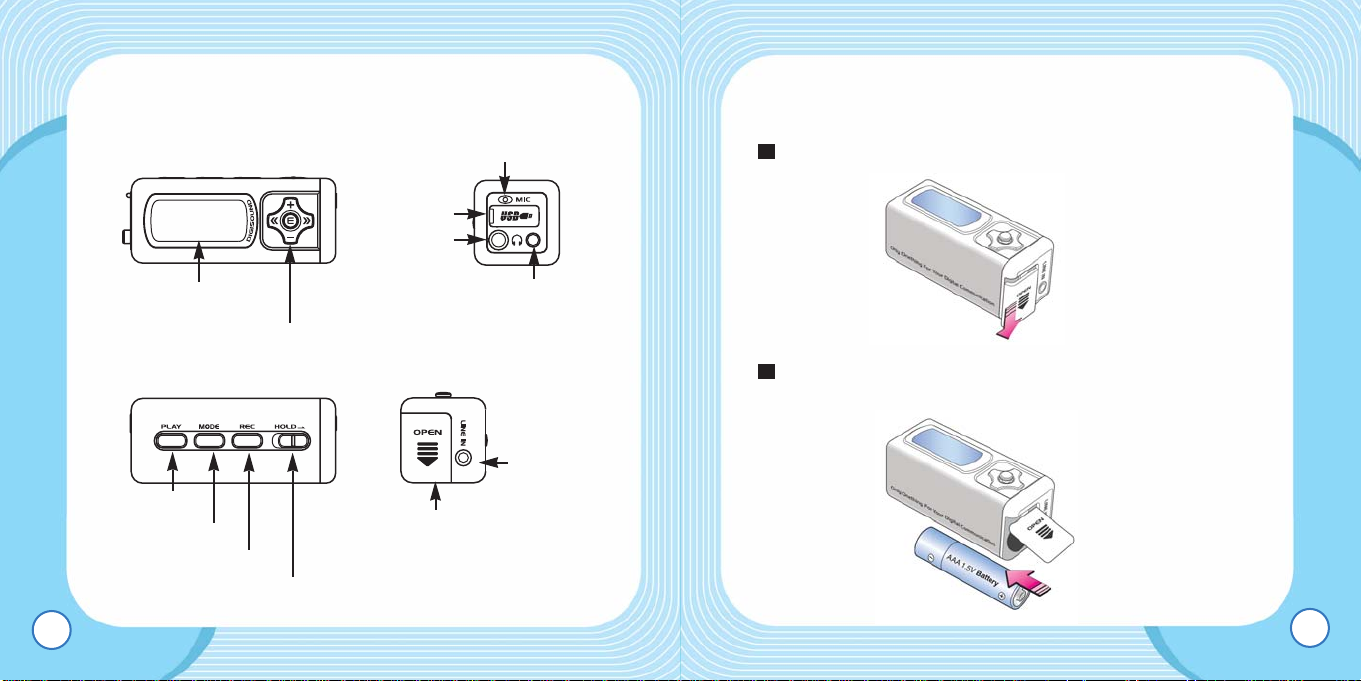
■ Replacing the Battery
Pull open the battery cover of EMX-830
Check if + and – poles of the battery are positioned correctly
when replacing the battery.
2
1
9
■ Name of Each Part
EMX-830 USER’S MANUAL
8
LCD Window
Jog Button
Play Button
Record Button
Hold Button
Line-In
Jack
Battery Cover
Earphone
Jack
Mic
USB Cover
Strap Ring
Mode button
Page 5
EMX-830 USER’S MANUAL
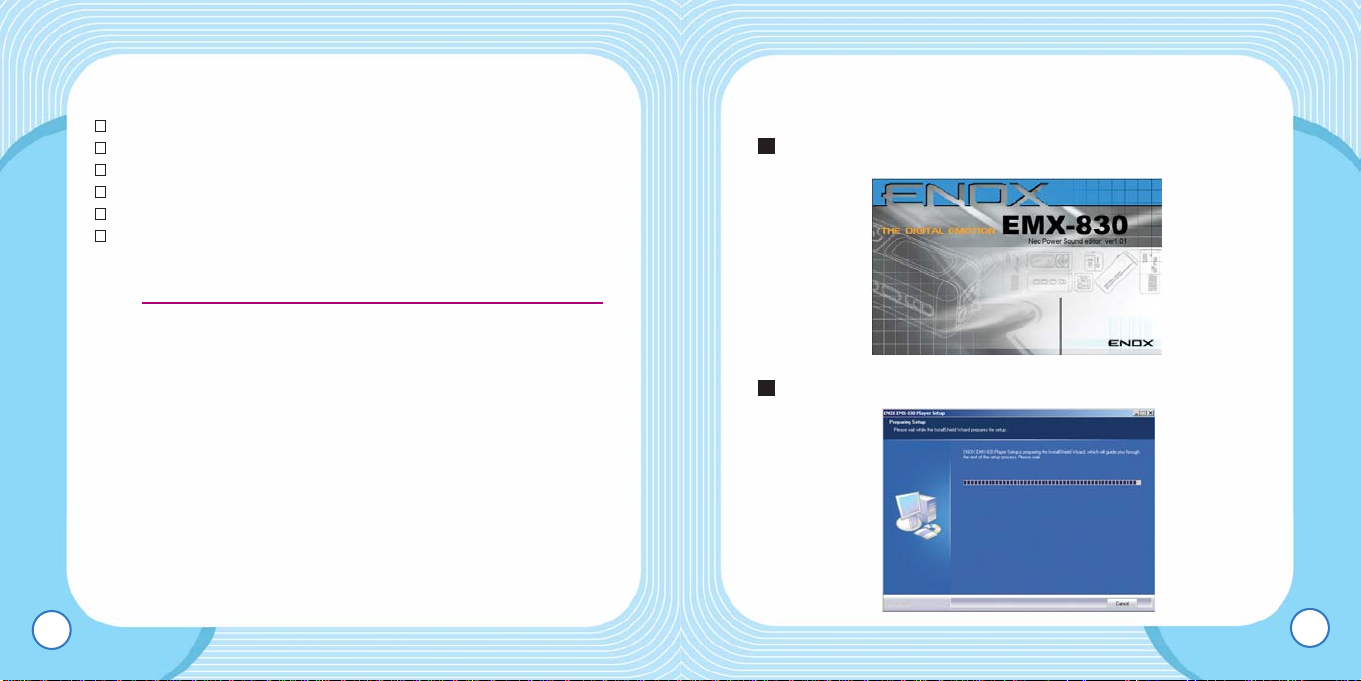
■ Installing EMX-830 software
Insert the installation CD and the following screen appears.
Select “Setup.Program” to begin the installation.
2
1
11
■ Connecting to a PC
Minimum PC requirements
Pentium 133MHz or better
Windows 98SE/ME/2000/XP
20MB or more storage space
A CD-Rom drive
A USB port
● For the Windows 98SE users, install the provided software
for a USB connection.
● When USB is not working for any of Windows
98SE/ME/2000/XP systems, try to fix the problem by
updating your Windows.
● Windows Update: Select [Start] - > [Windows Update]
EMX-830 USER’S MANUAL
10
Tip :
Page 6
EMX-830 USER’S MANUAL
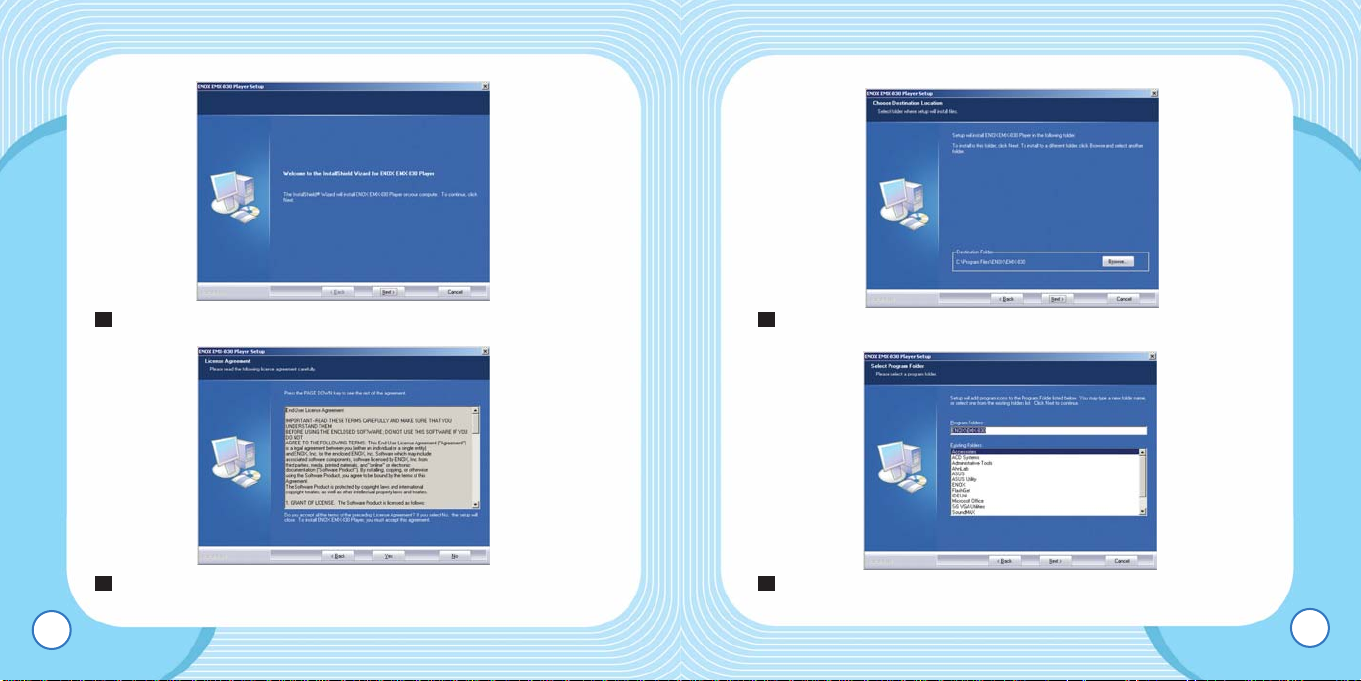
Choose the location of destination folder for the installation,
and click “Next.”
Click “Next” after you type the name for the installed
software.
6
5
13
Press “Next” and the license agreement is displayed.
Choose “Yes” if you agree with the terms of the license.
4
3
EMX-830 USER’S MANUAL
12
Page 7
EMX-830 USER’S MANUAL
■ Using USB
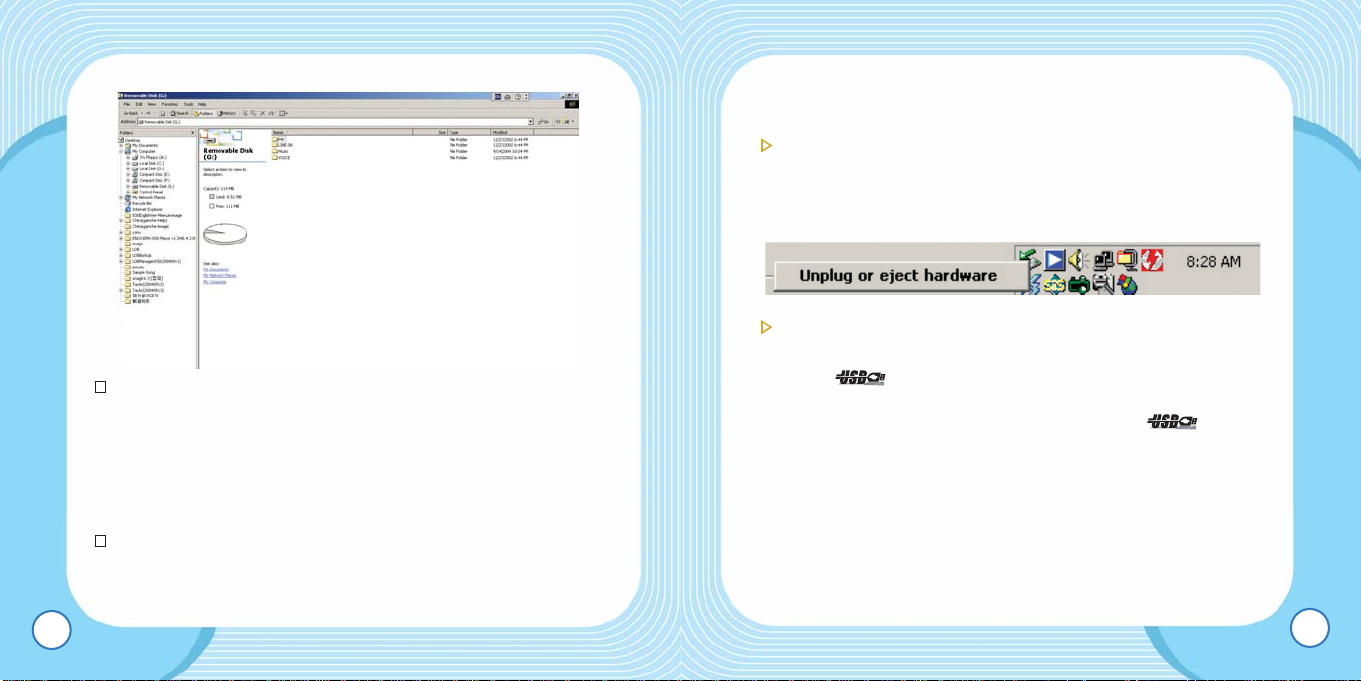
Insert the provided cable end to the USB port after pulling
open the cover of the port.
The product works same as a removable disk when
connected to a PC.
2
1
15
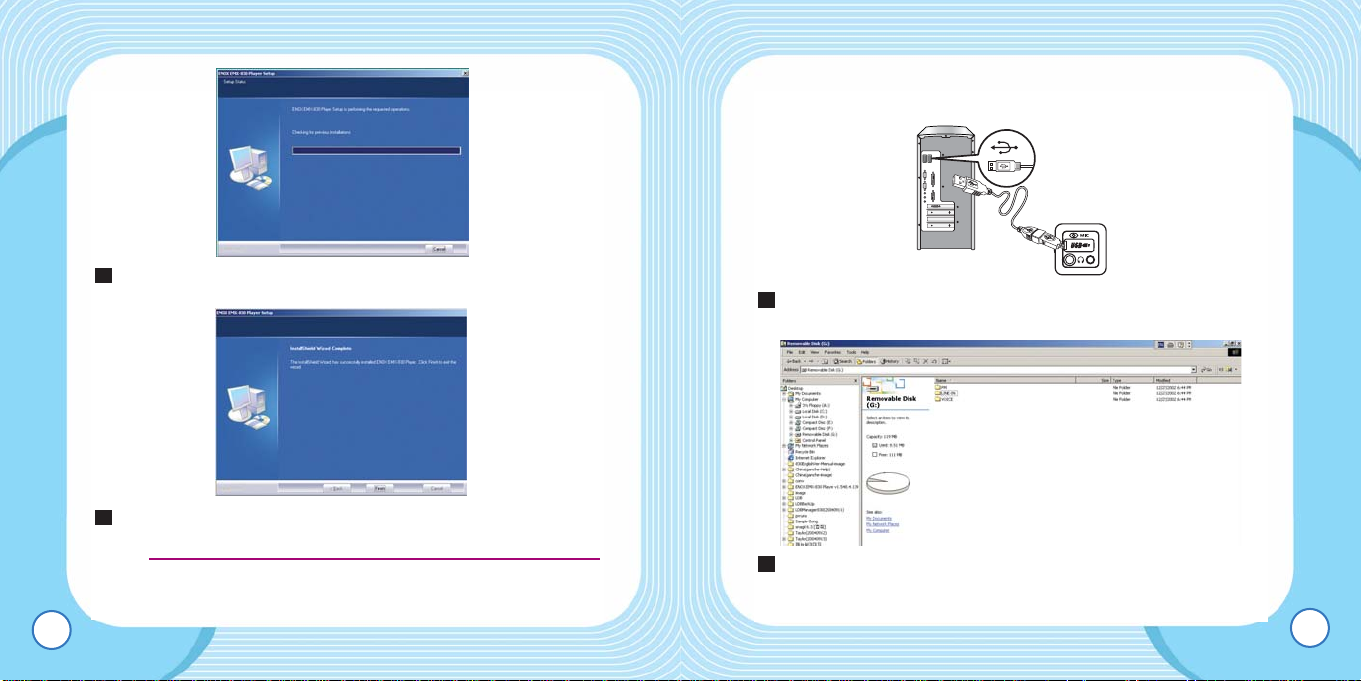
It would take a moment while the installation is progressing.
Click on “Confirm” to finish when the installation is complete.
●Restart your computer when the software installation is for
Windows 98SE/ME.
8
7
EMX-830 USER’S MANUAL
14
Tip :
Page 8
EMX-830 USER’S MANUAL
17
Removable disks operate the same way as floppy drives do.
As demonstrated in the picture above, create as many
folders as you like to carry music in them and enjoy the
product’s folder function. Its booting speed will increase
when you create “Data” folder and store files other than
music files in the data folder.
Recorded files from FM, Line-In, and VOICE folders are
automatically created by the product’s system, and FM,
Line-In, and VOICE are stored in each respective folder.
EMX-830 USER’S MANUAL
16
■ Removing EMX-830 Series from a PC
For users of Windows ME/2000/XP
– To remove the product from a PC, click on “Unplug/eject”
icon on the taskbar and wait until a message confirming your
action appears.
For users of Windows 98SE
– Close all open EMX-830 windows.
– When blinks on the display, data transfer is in
progress.
– Remove the product from your PC after the blinking
stops
■ Using Windows Media Player
The product supports Windows Media Player plugins. You
can download to and change music formats for EMX-830.
(As for the Media Player 9)
Page 9
EMX-830 USER’S MANUAL
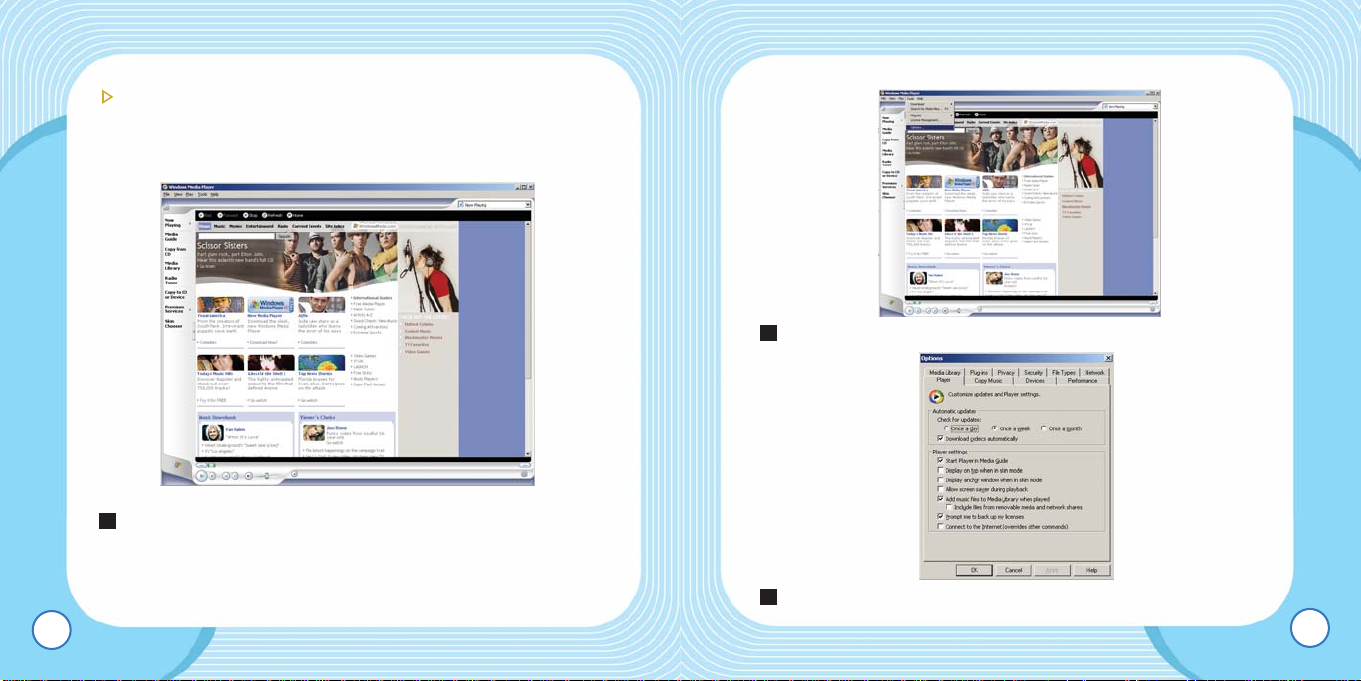
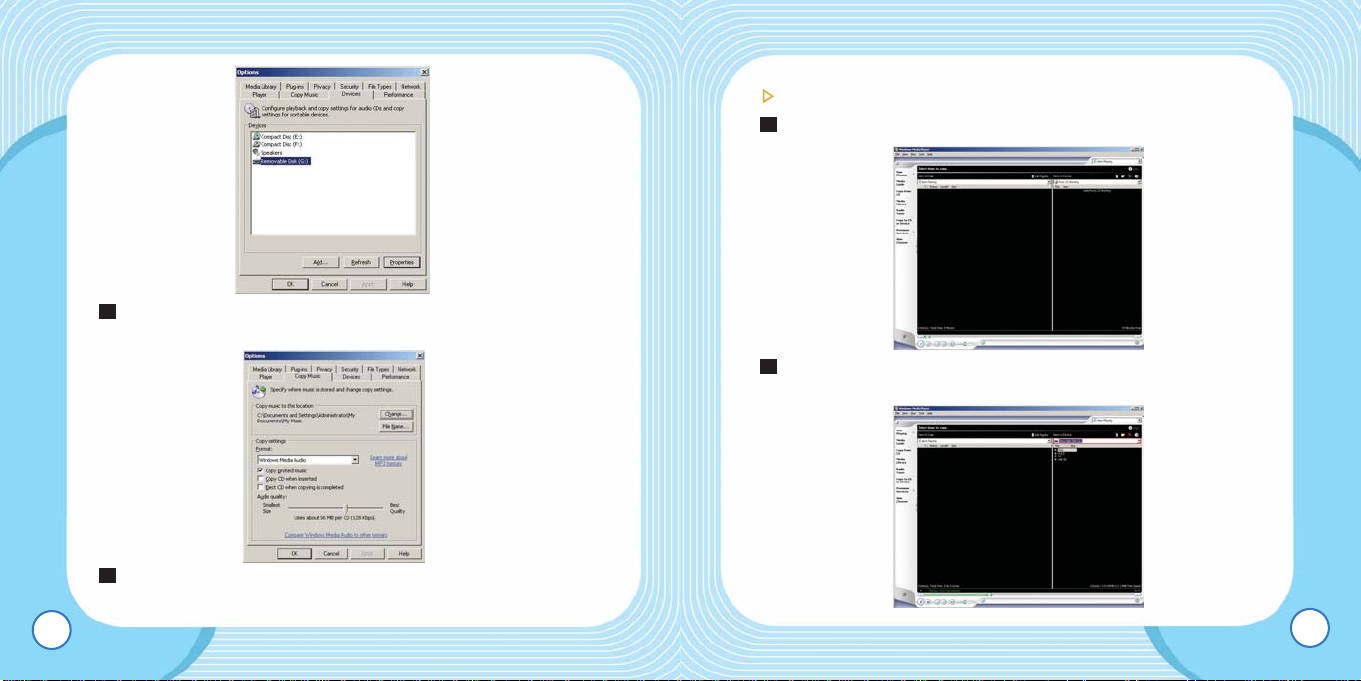
Go to Options of the Tools menu.
Select the Device.
3
2
19
To configure options
– To edit media information for WMA and MP3, set the Options
as described below.
Activate Media Player of Windows after EMX-830 and a PC
link is established.
1
EMX-830 USER’S MANUAL
18
Page 10
EMX-830 USER’S MANUAL
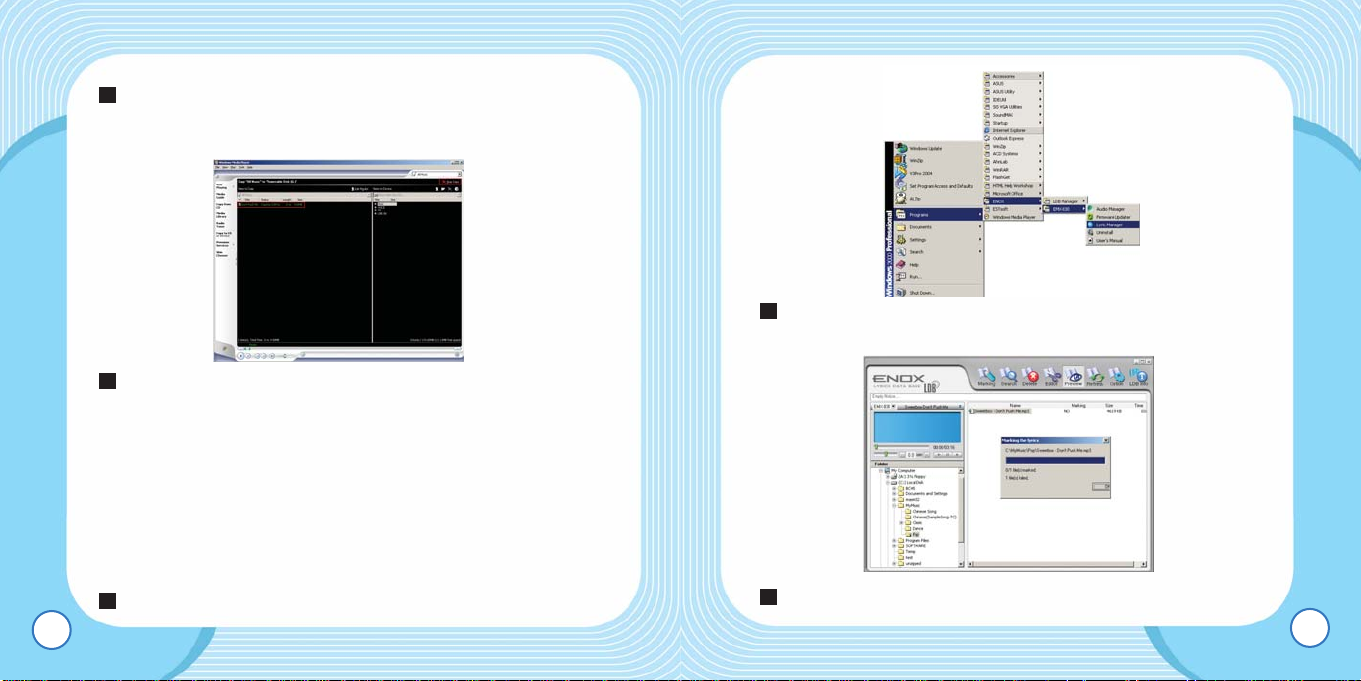
To convert and save music files.
Link EMX-830 to a PC.
Choose Copy To CD or Device, and choose EMX-830
Series from the driver pull-down menu on the right pane.
2
1
21
Select a Removable Disk(EMX-830) and click on the
Property button.
Move the slide to make a choice of appropriate audio
quality, and click on “OK.”
5
4
EMX-830 USER’S MANUAL
20
Page 11
EMX-830 USER’S MANUAL
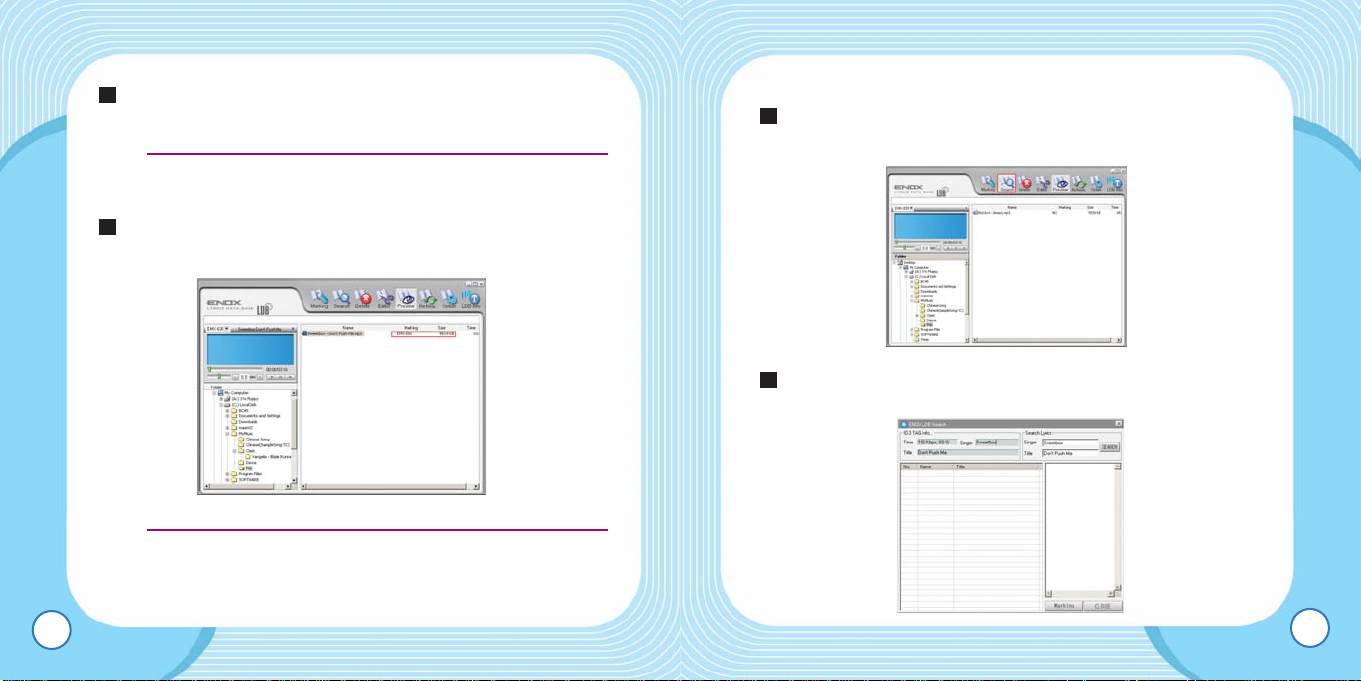
Activate Lyrics Management as described in the picture
above.
Select a file and choose Marking from the top menu bar.
3
2
23
Make the source files available to Items To Copy and then
click on the “Copy” button on the top right to download them
to the product.
Disconnect the product from the PC when copying is
complete.
■ Downloading lyrics.
Downloading Lyrics features of EMX-830 enables users to
add lyrics to source tracks. With the help of Lyrics
Management software to download from lyrics database, no
hassle is needed.
Link EMX-830 to a PC.
1
4
3
EMX-830 USER’S MANUAL
22
Page 12
EMX-830 USER’S MANUAL
■ To search for the downloadable lyrics.
When corresponding lyrics don’t appear, refer to the
download guide as described below.
In case fo no automatic serach result, select the file and
choose Search.
2
1
25
After the successful lyric insertion, click “OK” to complete the
operation
● You can insert lyrics to multiple files by this operation.
After the successful lyric insertion, ‘EMX-830’ is displayed on
the panel.
● Lyrics Management supports lyrics search for MP3 and
WMA.
5
4
EMX-830 USER’S MANUAL
24
Tip :
Tip :
Page 13
EMX-830 USER’S MANUAL
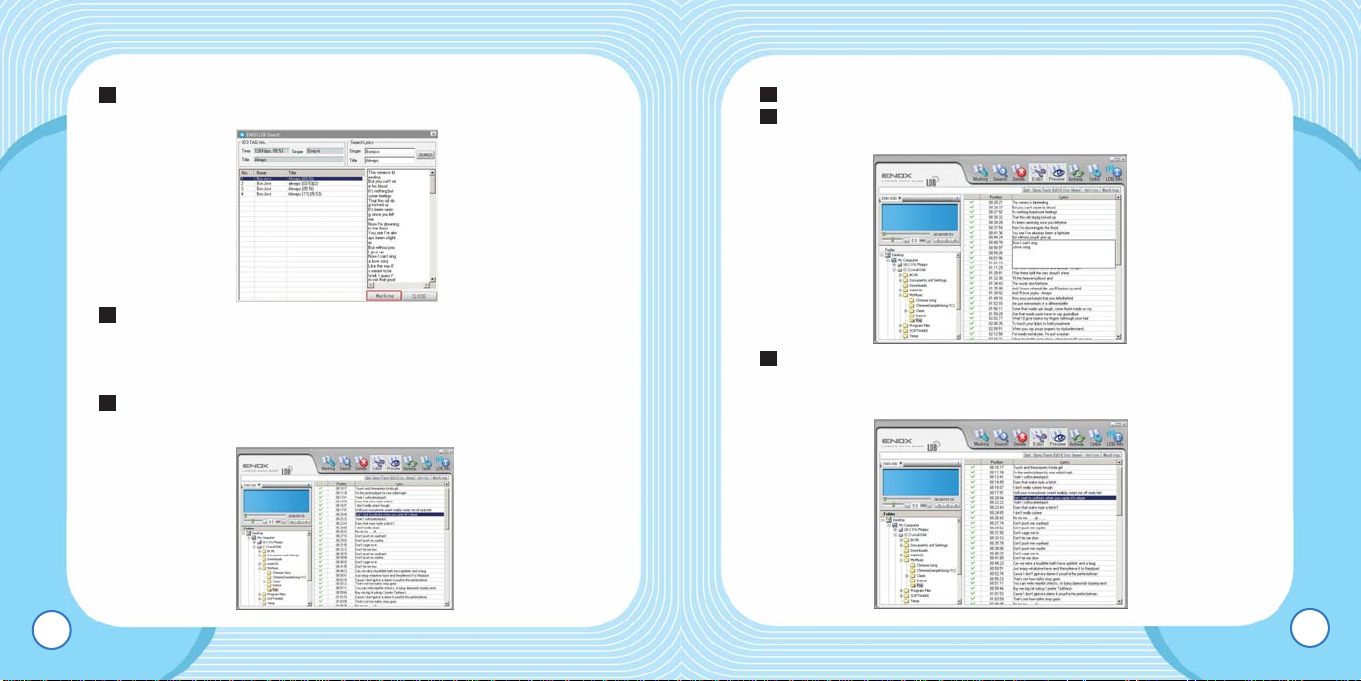
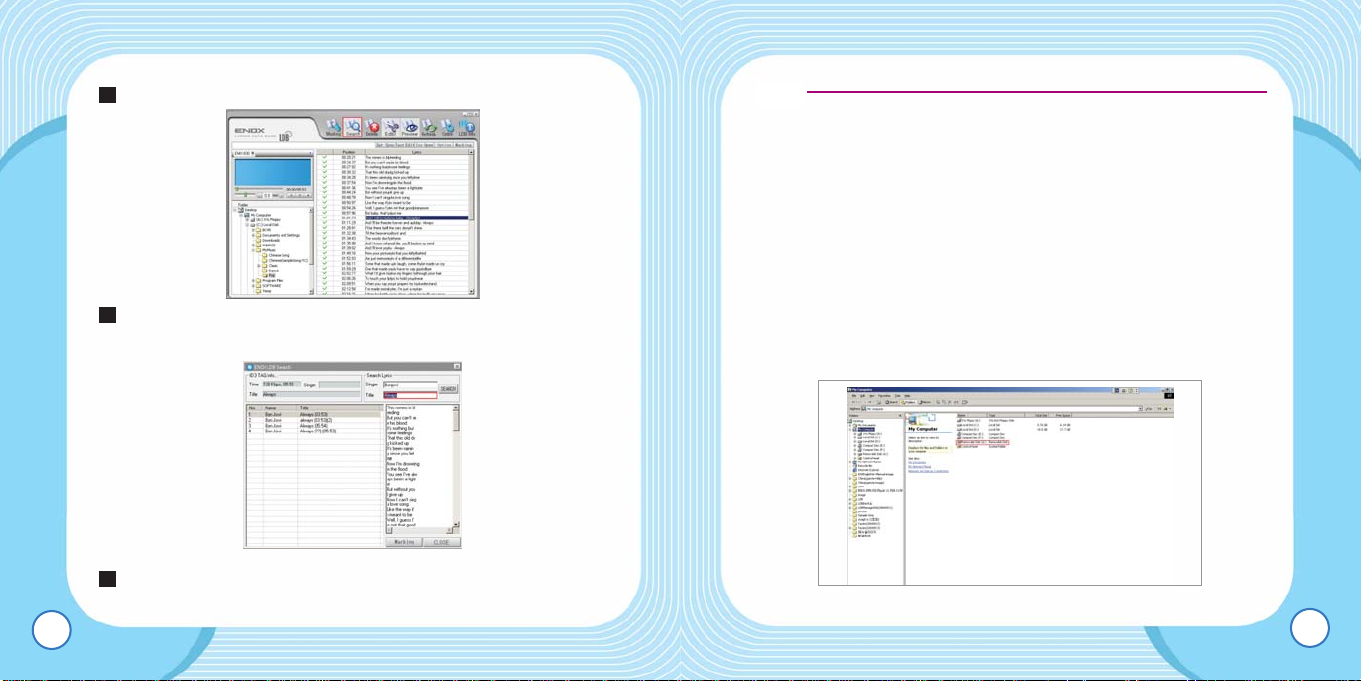
Select a file and choose Editor from the top menu bar.
Select a line from the lyrics window and edit the text. Click
Marking after editing is complete
Enter the whole lyric for the file with no match result and
click on Set Sync to each text line for the time stamp. After
completing the editing, click Marking.
4
3
2
27
Enter the artist’s name and son’s titile in the Search window,
and click on the Search button.
Look for the closest match with time information, artist and
song’s title. Click Marking for the match and insertion.
■ Lyric Editor
Use the editing tool when you want to enter lyrics manually,
or for the match where the result requires further editing.
1
4
3
EMX-830 USER’S MANUAL
26
Page 14
EMX-830 USER’S MANUAL
● Lyrics Management is the registered trademark of Taylor
Technology.
● To edit lyrics, use the lyrics editor available by
www.noontang.com.
● Add the edited texts using “Noontang Lyrics Editor” to Lyrics
Management which will produce an appropriate lyric.
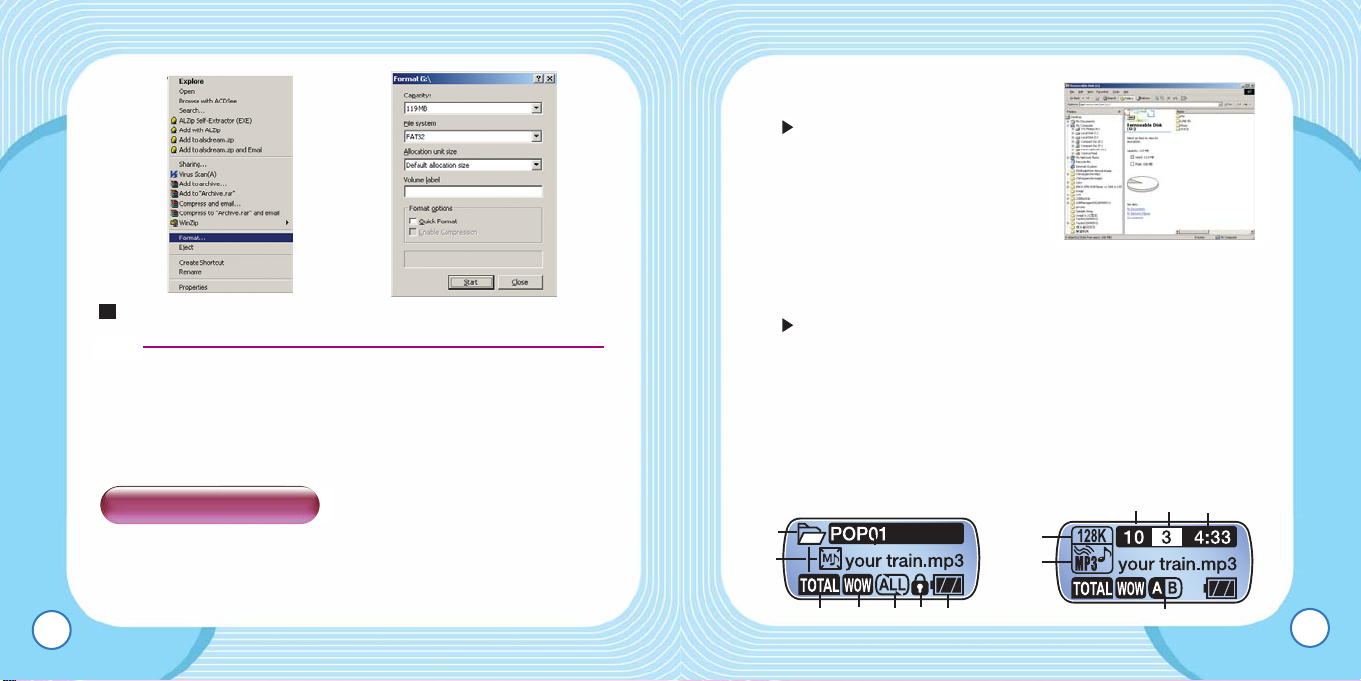
■ To format EMX-830
To delete all the contents in EMX-830, refer to the following
guide.
29
Choose Search and the result will show on the right.
Look for the closest match and click Marking to save in the
product.
Click on “Choose a File” to select the text edited in
“Noontang Lyrics Editor.” Click Marking to add to the track.
7
6
5
EMX-830 USER’S MANUAL
28
Tip :
Page 15
EMX-830 USER’S MANUAL
1. Data other than music files should
be kept in the Data folder.
When EMX-830 is powered on,
every folder other than Data
are searched for file
information. Therefore, larger
the number of files Search is
carried out for, slower the
booting will be.
2. Place a numerical prefix to the file name in the order of
playback is preferred.
Place numerical prefixes to music files in the order of
playback, and managing the lyrics would be easier.
3. To format EMX-830, use only the program included in the
Installation CD. EMX-830 functions will not work properly if
other format software including Windows Explorer is used.
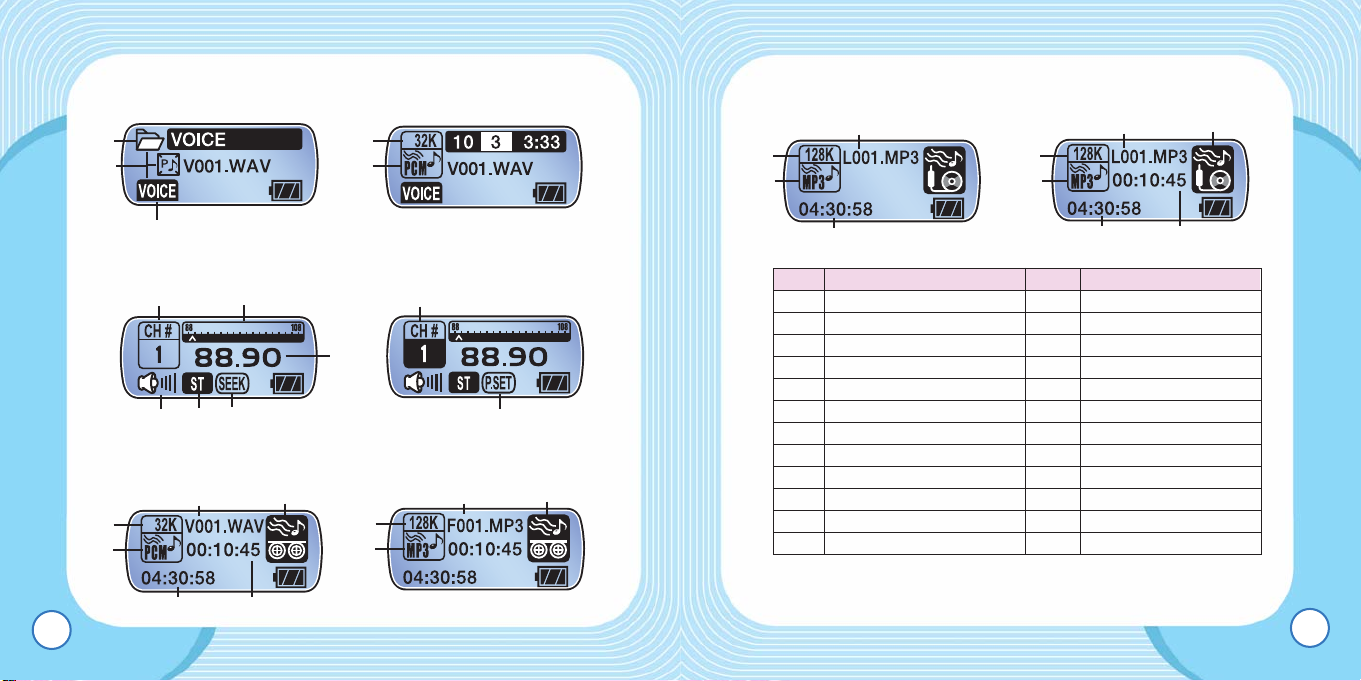
■ LCD Window
MUSIC PAUSE MUSIC PLAYBACK
31
Click on “Start” to begin formatting.
● Please be sure not to use the NTFS format, which may result
in malfunction of the product.
● In Windows 98SE, no particular setting is necessary to format
the product.
■ Preparations
To optimize the performance of the product, following
precautions should be considered.
1
EMX-830 USER’S MANUAL
30
Tip :
Using EMX-830
!
@
3
%^&
1
2
#$
*
(
)
Page 16
EMX-830 USER’S MANUAL
Line-In RECORD READY Line-In RECORDING
33
VOICE PAUSE VOICE PLAYBACK
FM SEEK FM PRESET
VOICE RECORDING FM RECORDING
EMX-830 USER’S MANUAL
32
78
9
+
4
5
6
0
!
@
#
*
(
4
9
*
(
*
(
0
*
(
0
0
+
*
(
No Description No Description
1 Folder 2 File Display
3 Mode/Playback Options 4 EQ/SRSWOW
5 Repeat Options 6 Hold
7 Battery Level 8 Bit Rate
9 Mp3./WMA/WAV 10 Repeat Section
11 Number of Music Files 12 Selected File
13 Elapsed Playback Time 14 Selected Station
15 Channel Gauge 16
Frequency of Selected Station
17 Volume Level 18 MONO/STEREO
19 SEEK/PRESET 20 Recorded File Number
21 FM/MIC/Line-In RECORD 22 Remaining Recording Time
23 Elapsed Recording Time
Page 17
EMX-830 USER’S MANUAL
Voice Pause
Voice Playback
35
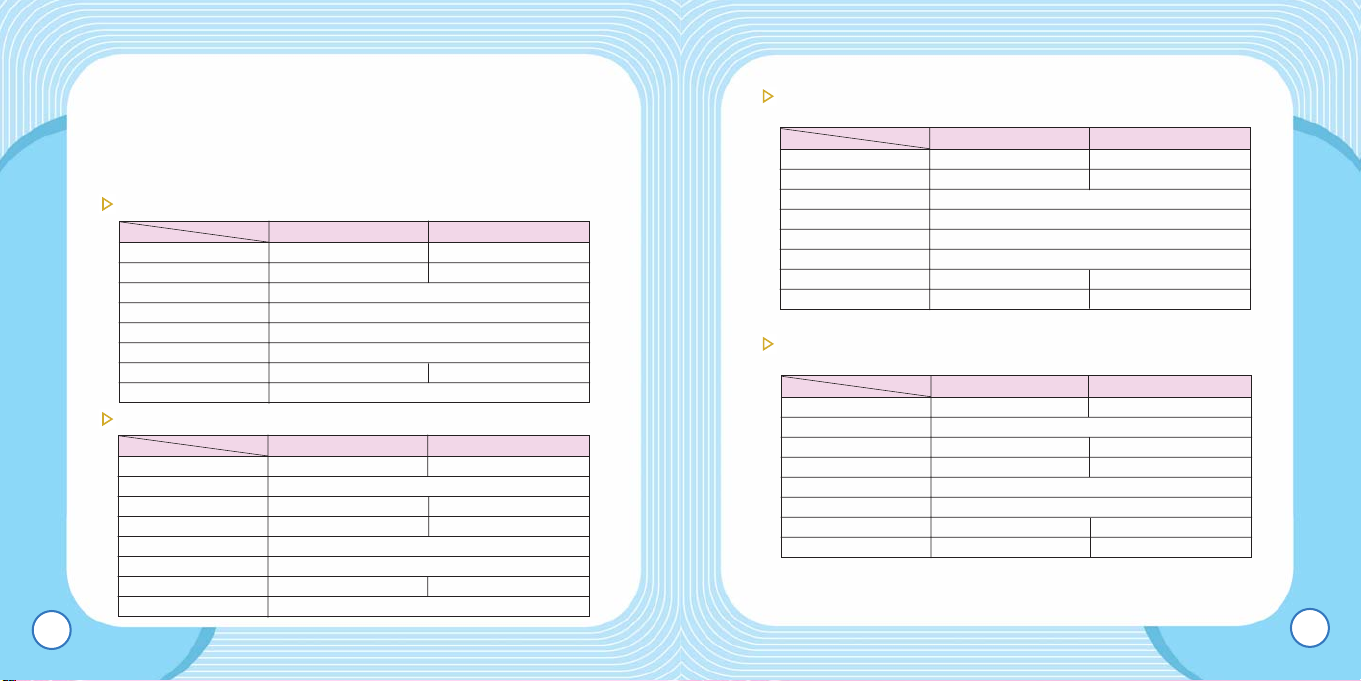
■ Button Operation
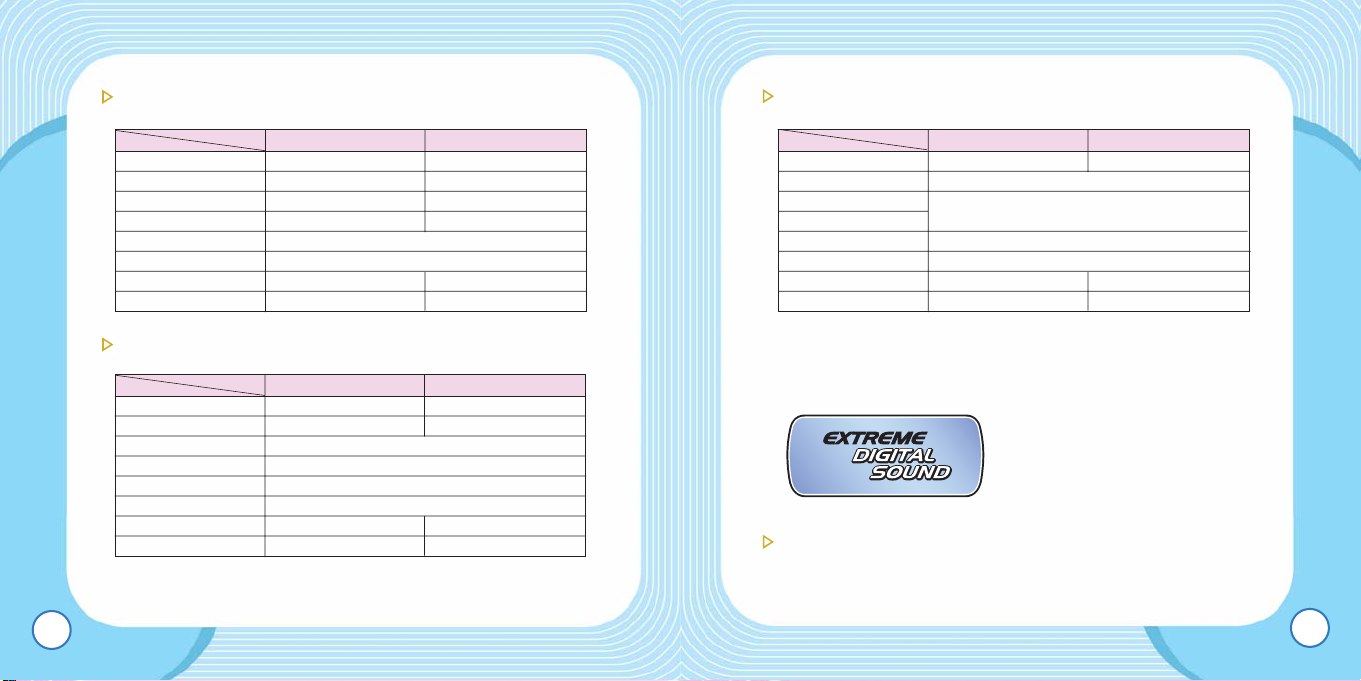
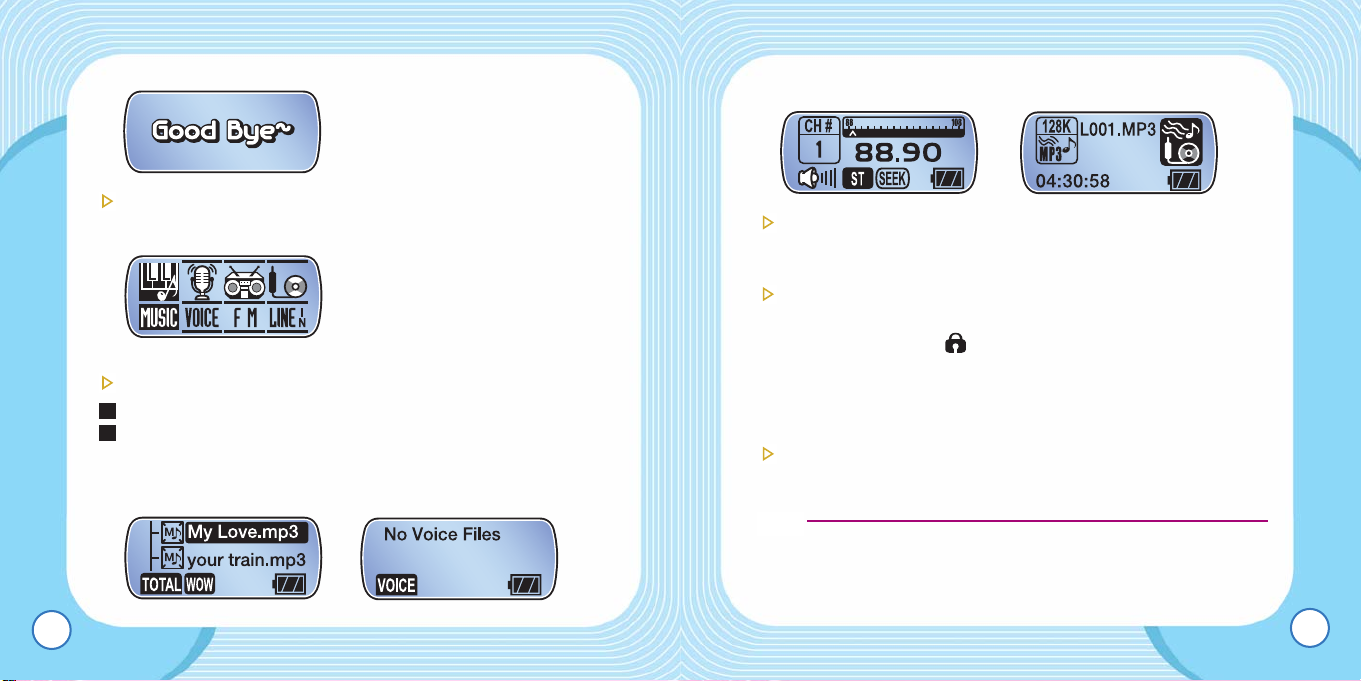
In EMX-830, there are PAUSE, PLAYBACK, RECORD and
FM modes. For each mode, the following table explains how
to operate the buttons.
Music Pause
Music Playback
EMX-830 USER’S MANUAL
34
Voice
Playback
Brief Press Hold Down
PLAYBACK To play To power off
CENTER JOG To open/close folders Menu Options
RIGHT JOG Next File (Where applicable)
LEFT JOG Previous File (Where applicable)
UP JOG Previous File (Where applicable)
DOWN JOG Next File (Where applicable)
MODE BUTTON
Option for 2 or 3 Line LCDWindow
Mode
RECORD To mark a folder/file
Voice
Playback
Brief Press Hold Down
PLAYBACK To pause To power off
CENTER JOG Menu Options
RIGHT JOG Next File Speed Search
LEFT JOG Previous File Speed Search
UPPER JOG To increase volume
LOWER JOG To decrease volume
MODE BUTTON
To set/release Repeat Section
Mode
RECORD EQ / SRS
Voice
Playback
Brief Press Hold Down
PLAYBACK To play To power off
CENTER JOG To open/close folders Menu Options
RIGHT JOG Next File (Where applicable)
LEFT JOG Previous File (Where applicable)
UP JOG Previous File (Where applicable)
DOWN JOG Next File (Where applicable)
MODE BUTTON
Option for 2 or 3 Line LCD
Mode
RECORD To mark a folder/file
Voice
Playback
Brief Press Hold Down
PLAYBACK To pause To power off
CENTER JOG Menu Options
RIGHT JOG Next File Speed Search
LEFT JOG Previous File Speed Search
UP JOG To increase volume
DOWN JOG To decrease volume
MODE BUTTON
To set/release Repeat Section
Mode
RECORD N/A To start/stop recording
Page 18
EMX-830 USER’S MANUAL
Line-In MODE
■ Basic Operation
To turn on the power.
– Press on the playback button.
37
FM Seek Mode (“Seek” is displayed on the LCD window)
FM Preset (“P-set” is displayed on the LCD window)
EMX-830 USER’S MANUAL
36
Voice
Playback
Brief Press Hold Down
PLAYBACK Preset Mode To power off
CENTER JOG Next Preset Menu Options
RIGHT JOG To change frequency
To seek next available frequency
LEFT JOG To change frequency
To seek next available frequency
UPPER JOG To increase volume
LOWER JOG To decrease volume
MODE BUTTON To save on the preset Mode
RECORD N/A To start/stop recording
Voice
Playback
Brief Press Hold Down
PLAYBACK Seek Mode To power off
CENTER JOG N/A Menu Options
RIGHT JOG To move up on the preset channel
LEFT JOG To move down on the preset channel
UP JOG To increase volume
DOWN JOG To decrease volume
MODE BUTTON Automatic scanning Mode
RECORD N/A To start/stop recording
Voice
Playback
Brief Press Hold Down
PLAYBACK N/A To power off
CENTER JOG Menu Options
RIGHT JOG
N/A
LEFT JOG
UPPER JOG To increase volume
LOWER JOG To decrease volume
MODE BUTTON N/A Mode
RECORD N/A To start/stop recording
Page 19
EMX-830 USER’S MANUAL
FM Mode Line-In Mode
To adjust volume
– Press on the Up/Down button.
Hold Function
– To prevent users from mistakenly pressing buttons.
– When Hold is set, icon is displayed and no buttons will
work.
■ To play music
Navigating folders.
– In Search mode, use the volume button to navigate folders.
● When there’s no folders to navigate, the same control will
move up and down on the existing files.
39
To turn off the power
– Hold down on the Playback button 3 seconds or longer.
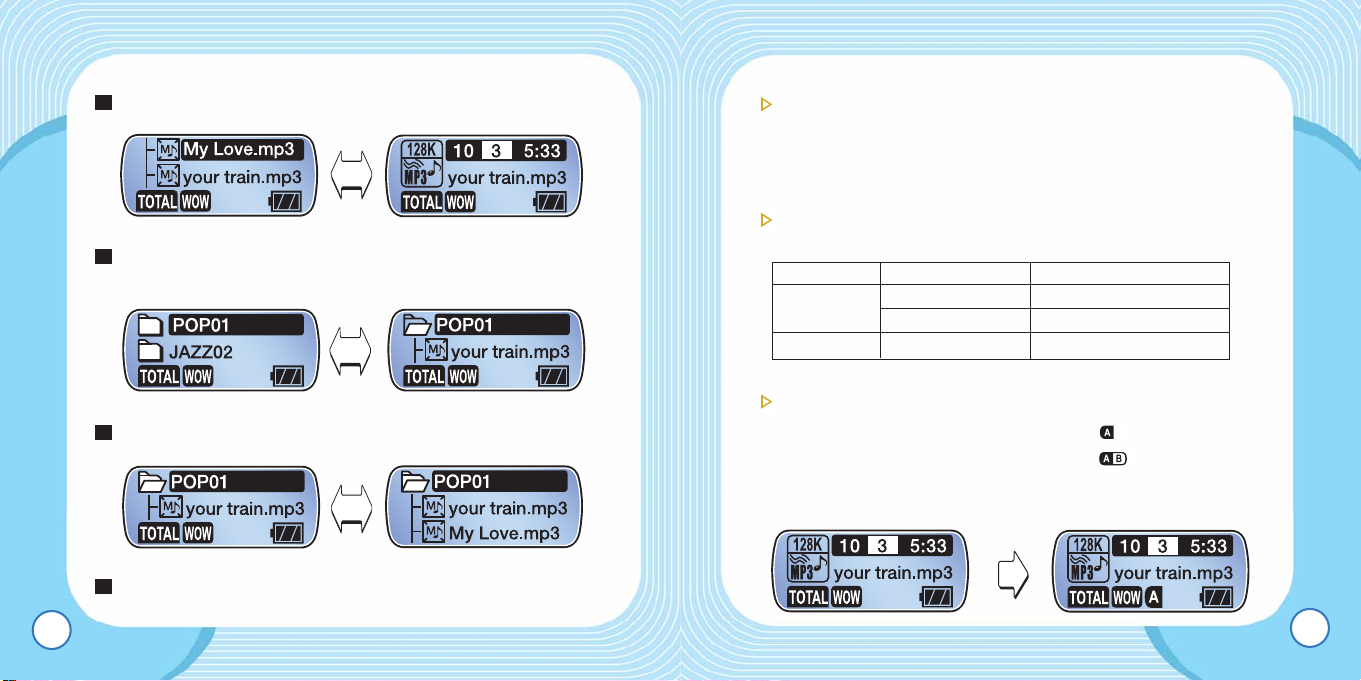
Mode Change (Music/Voice/FM/Line-In)
Hold down on the MODE button.
In Mode options, use the left/right jog to move to your choice
of mode and press on the Menu/Mode button to select.
Music Mode Voice Mode
2
1
EMX-830 USER’S MANUAL
38
Tip :
Page 20
EMX-830 USER’S MANUAL
To navigate within the playing track
– Move and hold the left/right jog to navigate within the track.
– The search speed will increase when the hold on the jog
control maintained.
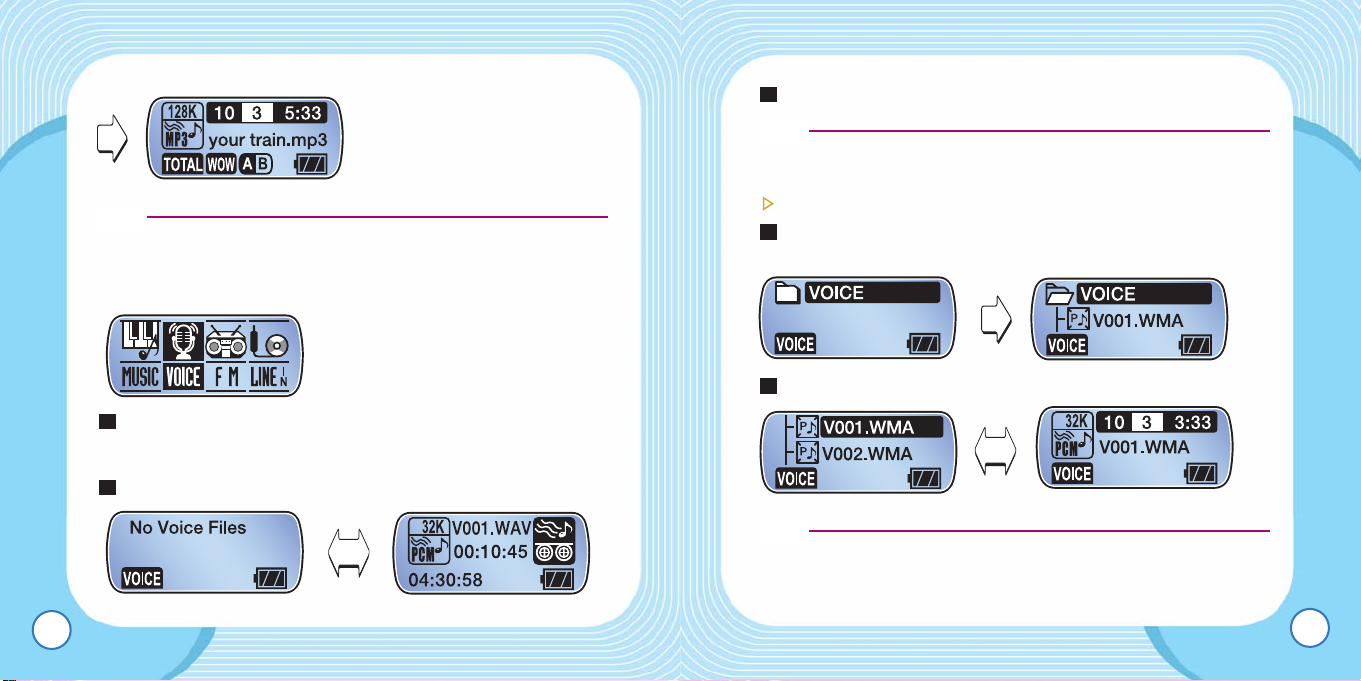
To change the playing tracks
– Press briefly on the left/right jog and the following occurs.
Repeat Section
– Press on the Mode button of EMX-830. ( )
– Press on the Mode button of EMX-830. ( )
– Press again on the Mode button to release the Repeat
Section.
41
To play/pause – press on the Playback button of EMX-830.
To open/close a folder – Press on the JOG button after a
folder is selected.
To select either two or three line display
Press on the Mode button briefly to make the changes.
4
3
2
1
EMX-830 USER’S MANUAL
40
Control Point Function
Left Jog
Within 5 sec. of playing To play the previous file
Over 5 sec. of playing To play the currently selected file
Right Jog Always To play the next file
Page 21
EMX-830 USER’S MANUAL
In VOICE mode, press and hold down on the Record button.
*
To finish recording, press on the Record button again.
To play a recorded file in Voice mode.
In VOICE mode, press on the Repeat Section button to open
the folder.
Select the file to play and press on the Playback button.
● In VOICE mode, SRS function and Playback methods are not
available.
2
1
3
43
*
Repeat Section requires 3 seconds or more of a loop to repeat.
■ To change to VOICE Mode
Press and hold down on the Mode button until the Mode
window appears.
Select VOICE.
2
1
EMX-830 USER’S MANUAL
42
Tip :
Tip :
Tip :
Page 22
EMX-830 USER’S MANUAL
*
Reception in the area will determine MONO/STEREO automatically.
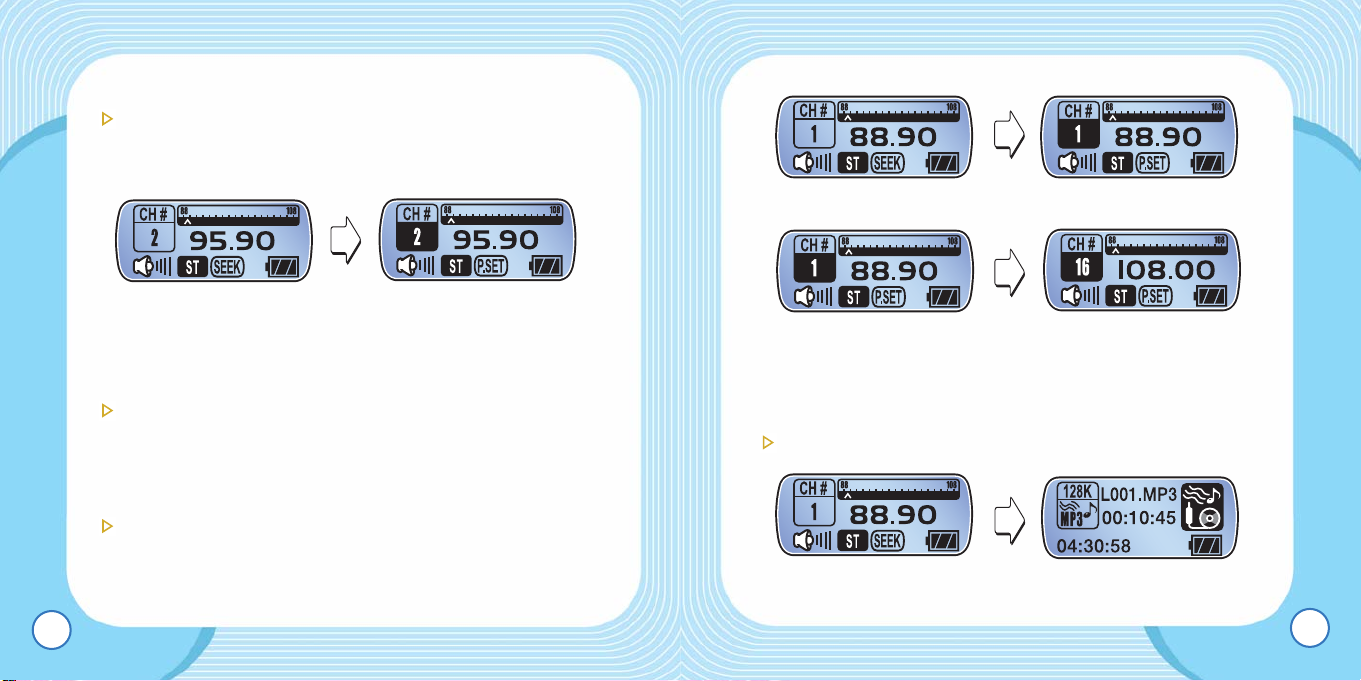
To save the band frequency
– Press briefly on the Central Jog to move up or down on the
preset channels.
– Select the frequency to be saved, and press briefly on the
Mode button.
*
When the channel store is complete, P-SET mode is automatically
selected.
45
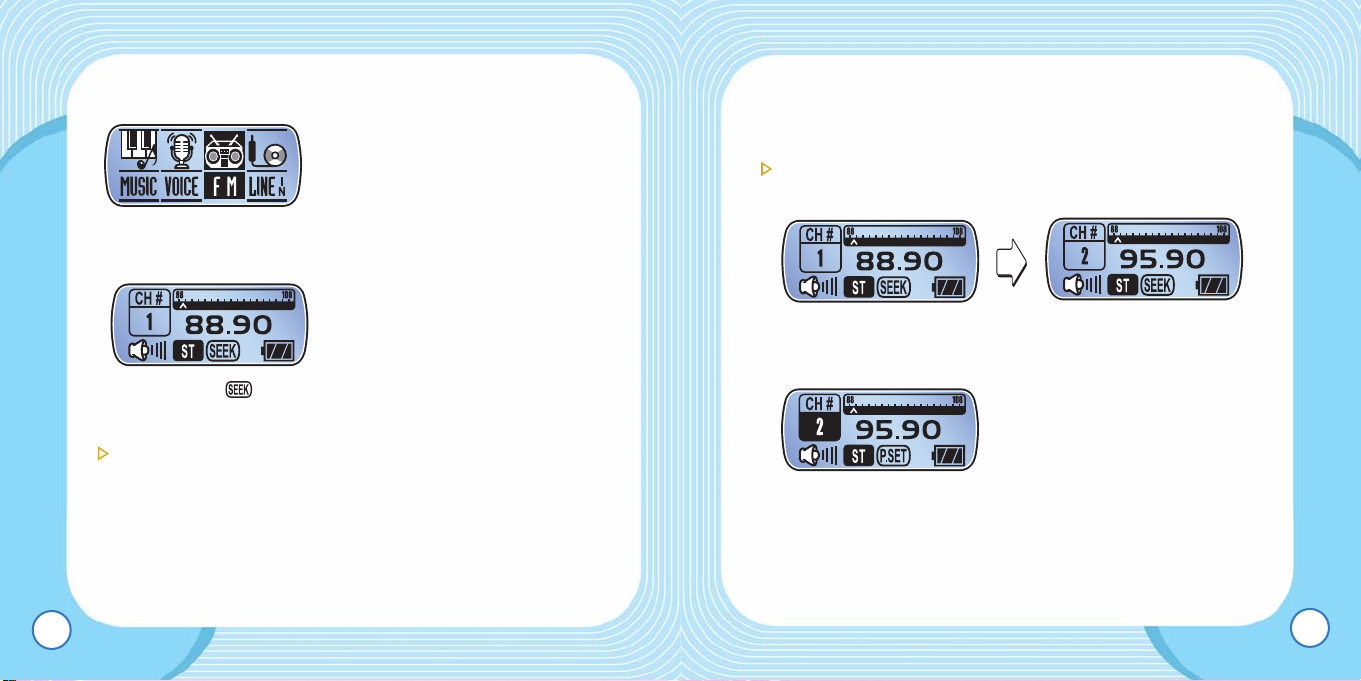
■ To change to FM Mode
To tune in to a station, press on the Mode button and select
FM.
In SEEK mode, Icon appears on the bottom of the LCD
Band Scanning
– Press Left/Right Jog briefly to navigate the band on a preset
increment of 100Hz.
– Hold down and release the Left/Right button, and the next
available channel appear.
EMX-830 USER’S MANUAL
44
Page 23
EMX-830 USER’S MANUAL
– Change to P-SET(icon will be displayed) mode.
– Press on the Mode button and 16 stations that would be
scanned will be saved.
*
Be sure to have the earphone connected to the set.
To record FM stations
– In FM mode, hold down on the Record button.
47
To change to P-SET
– In SEEK mode, press on the Playback button to change to P-
SET Mode.
*
In P-SET mode, you can tune in to one of the preset bands.
To move between the preset channels.
– Press on the Left/Right button to move between the channels.
Auto Scan
– Auto Scan will allow the user to save up to 16 stations.
EMX-830 USER’S MANUAL
46
Page 24
EMX-830 USER’S MANUAL
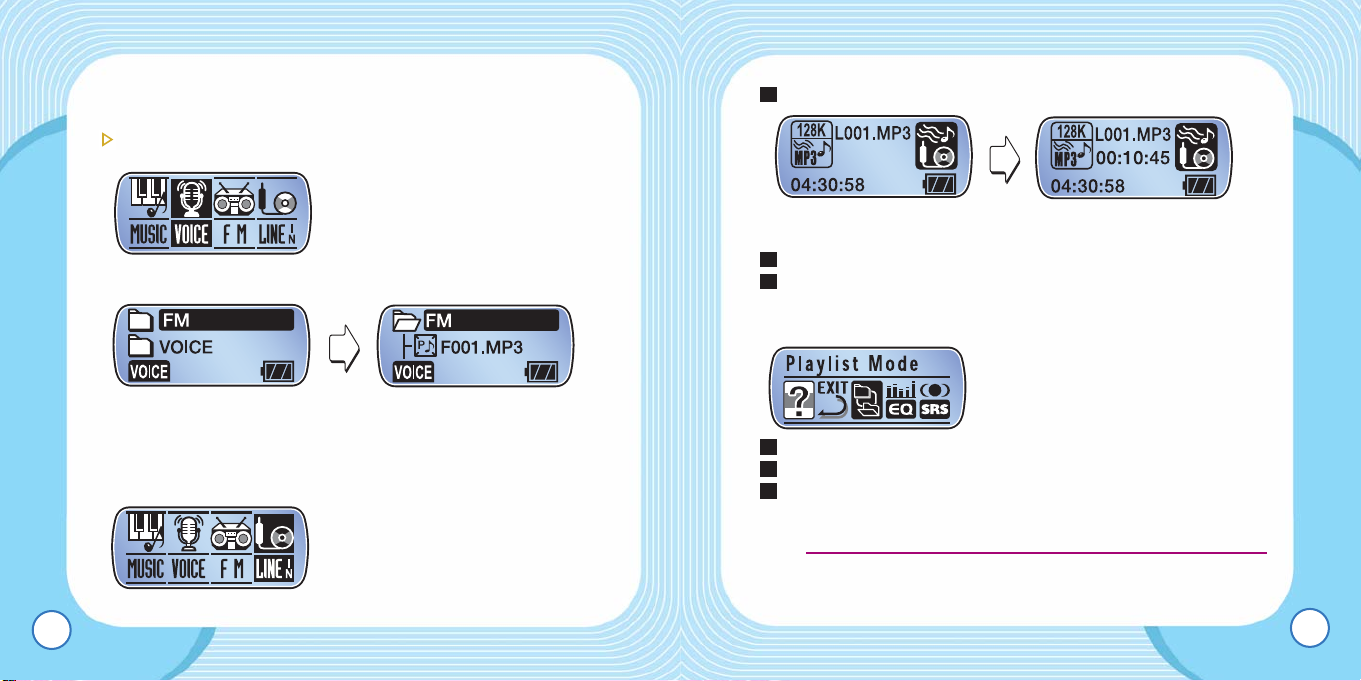
Hold on the Mode button to change to Line-In.
Record Ready Line-In Recording
In Line-In mode, hold down on the Record button.
Files are saved in the Line-In folder of MUSIC.
■ To configure Menu
Press on the Menu button.
Move between the menus to select.
To move up on a directory, press and hold down on the
Menu button or choose EXIT.
● In Menu mode, doing nothing longer than 7 seconds will exit
the menu mode.
3
2
1
3
2
1
49
*
Input volume cannot be adjusted while recording is in progress.
To play a recorded file
– Hold down on the Mode button to change to VOICE.
– Select a file that has been previously saved in the FM folder.
■ To change to Line-In Mode
EMX-830 USER’S MANUAL
48
Tip :
Page 25
EMX-830 USER’S MANUAL
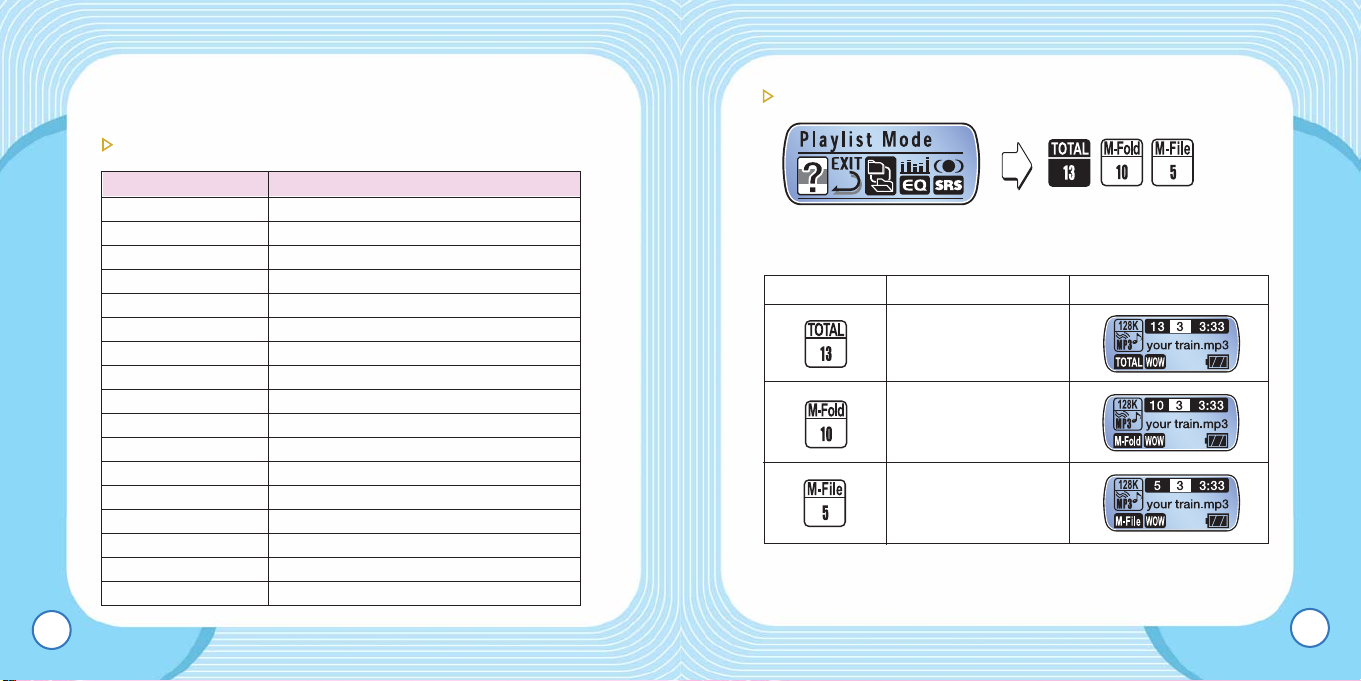
To choose from Play settings
– To play from the play list.
*
The number inside the box indicates the number of files to be played.
51
● MUSIC/VOICE/FM/Line-In modes have different sets of sub-
menus.
Summary of Menu functions
EMX-830 USER’S MANUAL
50
Methods Description Window
To play all tracks
contained in
EMX-830.
To play all
marked folder.
To play all
marked files
Menu Function
Playing Methods
To play music files programmed into a play list
Equalizer To configure the equalizer settings
SRS Labs WOW SRS WOW Configuration
Repeat To set Repeat Section options
Brightness To adjust the brightness of LCD
Light Time
To adjust the duration Backlight is remained on
Backlight Color To select light source of backlight
Record
To adjust Audio Quality/Sensitivity/ASD
Scroll Speed To adjust the scroll speed of LCD
Power Save
To set the time when to activate Power Save
Sleep
To set the time when to activate Sleep Mode
File Delete
To delete a file (to be used in Pause mode)
Lyrics Options Whether to display lyrics
Track Information
Whether to display ID3 tag and Meta data
Language Selection
To select the language of menu and messages
Registration Product Inforamtion
Exit To exit menu
Page 26
EMX-830 USER’S MANUAL
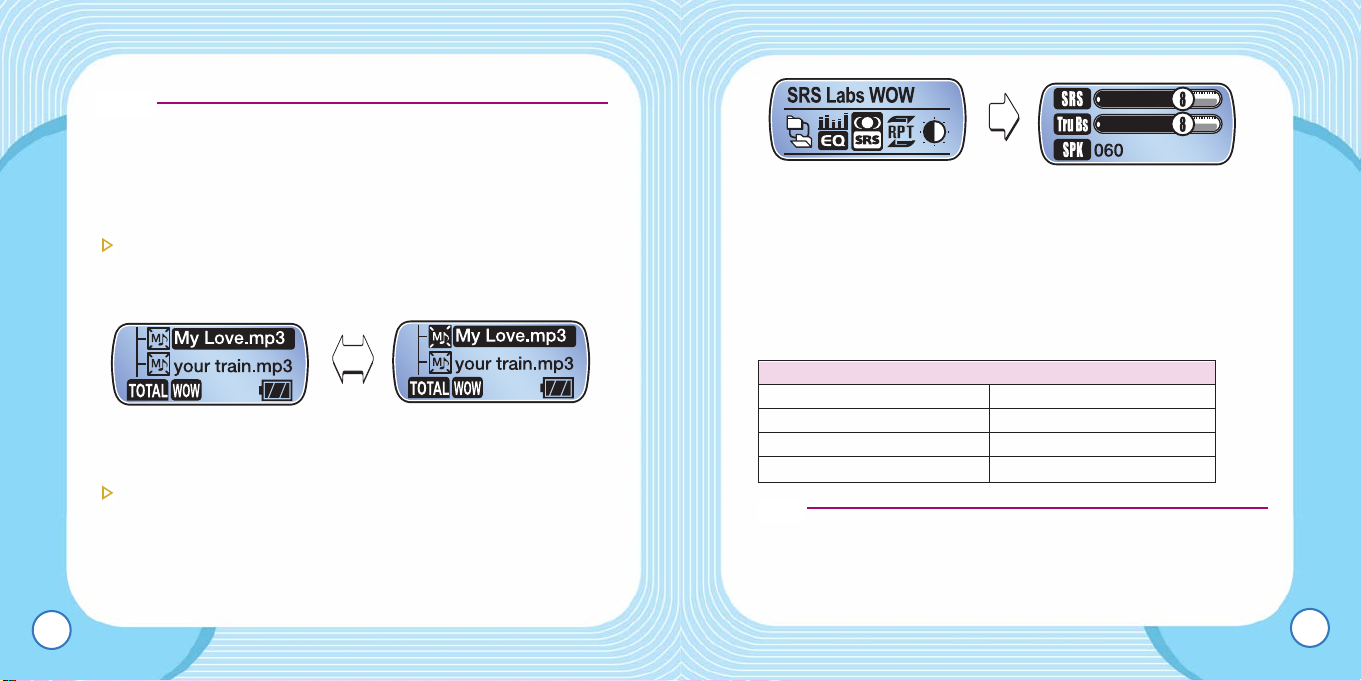
– Make the appropriate settings by adjusting SRS, Tru Bas, and
SPK slides.
• SRS – To create 3D sound effects.
•
Tru Bas
– To enhance the bass for thrilling sound experience.
• WOW – To produce SRS and Tru Bas effects at the same
time for outstanding audio fidelity.
• SPK – To adjust the sound effects for the speakers used.
● SRS is the trade mark of SRS Labs. Inc.
● WOW technology is licensed by SRS Labs. Inc.
● When SRS is activated, EQ doesn’t work and the adjustment
for the setting can’t be made.
53
● When there is no file to play for the M-Fold or M-File, “No
Marked Files/Folder” message is displayed.
● When the marked file or folder is erased or more files are
added, bookmark will be released.
To set Bookmark for files and folders
– To bookmark a file or a folder, press on the Record button
after selecting the file or the folder.
Bookmark released Bookmark activated
WOW SRS Setting (WOW SRS is selected)
– When SRS, Tru Bas, or WOW is displayed on the LCD
window of EMX-830 Series, main menu will appear.
EMX-830 USER’S MANUAL
52
Note :
Tip :
Values for audio output device
40 Small earphone
60 Standard earphone
100 Small speaker
Over 100 Speaker
Page 27
EMX-830 USER’S MANUAL
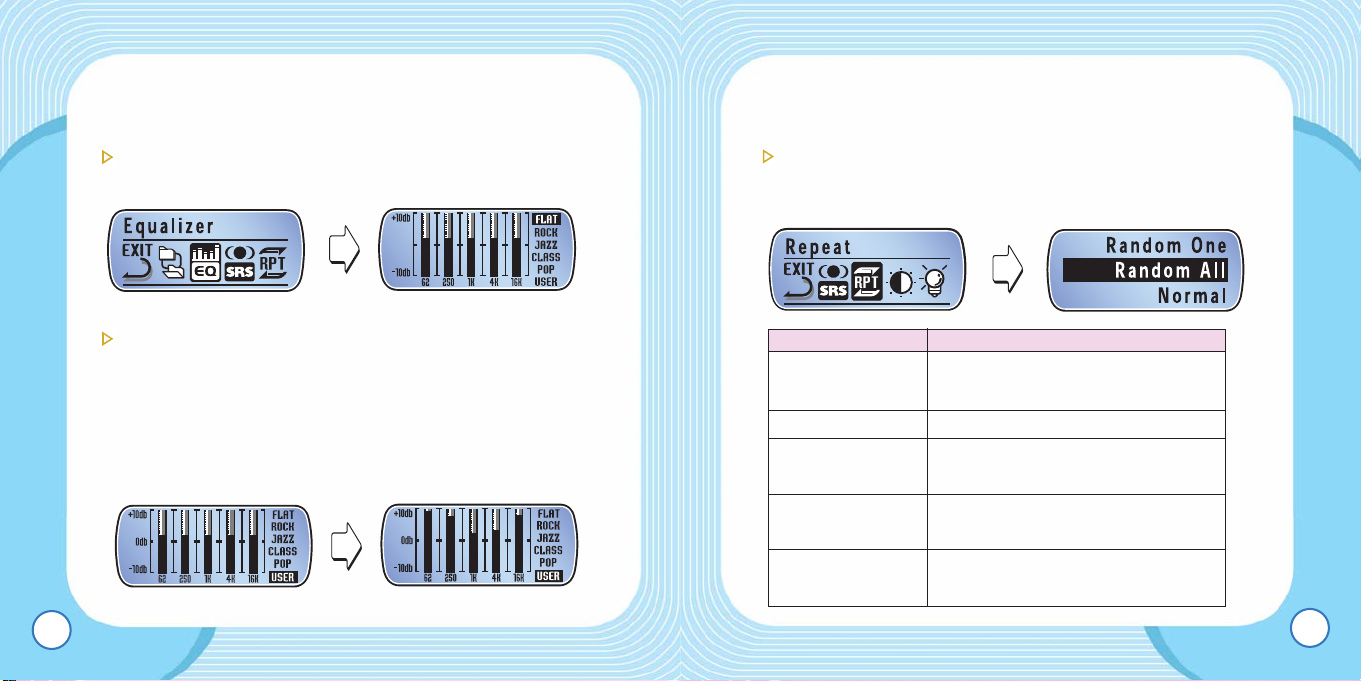
– Use the menu and the left/right button to make the
adjustment.
Repeat Section
– Repeat Section includes Single File Repeat/Repeat
All/Random Playback/Random Repeat All/Repeat Off.
55
● To make SRS settings, SRS should be selected in Music
mode.
EQ settings (WOW SRS is not activated)
– To customize the tone settings by the user.
User EQ settings
– User EQ can be customized and output of a frequency
bandwidth can also be adjusted for the appropriate tone
settings.
– User EQ of EMX-830 includes 5 frequency bands, and each
band can be adjusted between +10dB ~ -10dB.
EMX-830 USER’S MANUAL
54
Description
Single Track Repeat
To repeat the current selected
file
Repeat All To make a sequential repeat
Random Playback To make one random playback
of all tracks
Random Repeat All
To make a random repeat of all
track
Repeat Off To make one sequential repeat
of all tracks
Page 28
EMX-830 USER’S MANUAL
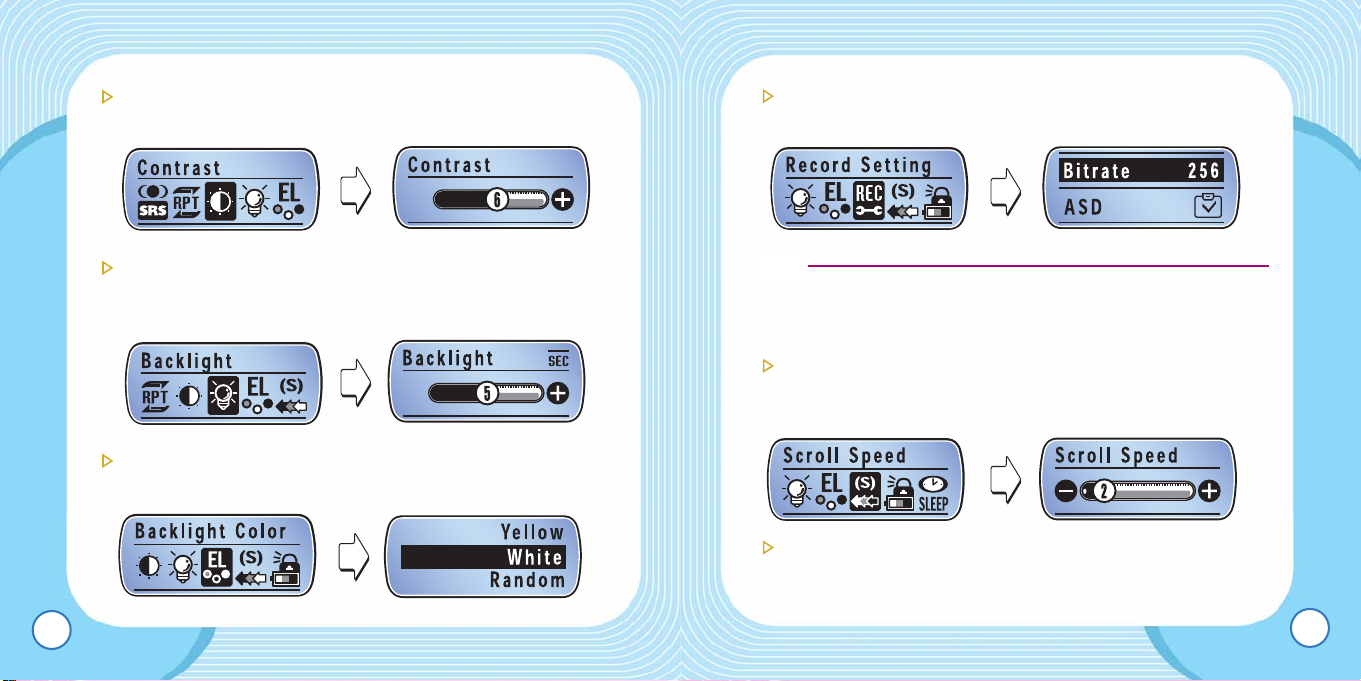
Record Settings
– To select the recording quality.
● The ASD setting applies to Line-In.
Scroll Speed
– Scroll speed sets the speed of text scrolled on the LCD
window.
Power Save
– Power Save is to turn the power off when no input is made.
57
LCD Contrast
– To adjust LCD contrast.
Light Time
– The duration that the backlight is remained turned on can be
adjusted.
To select the source of backlight.
– Select the color of light source. Seven colors are available.
EMX-830 USER’S MANUAL
56
Tip :
Page 29
EMX-830 USER’S MANUAL
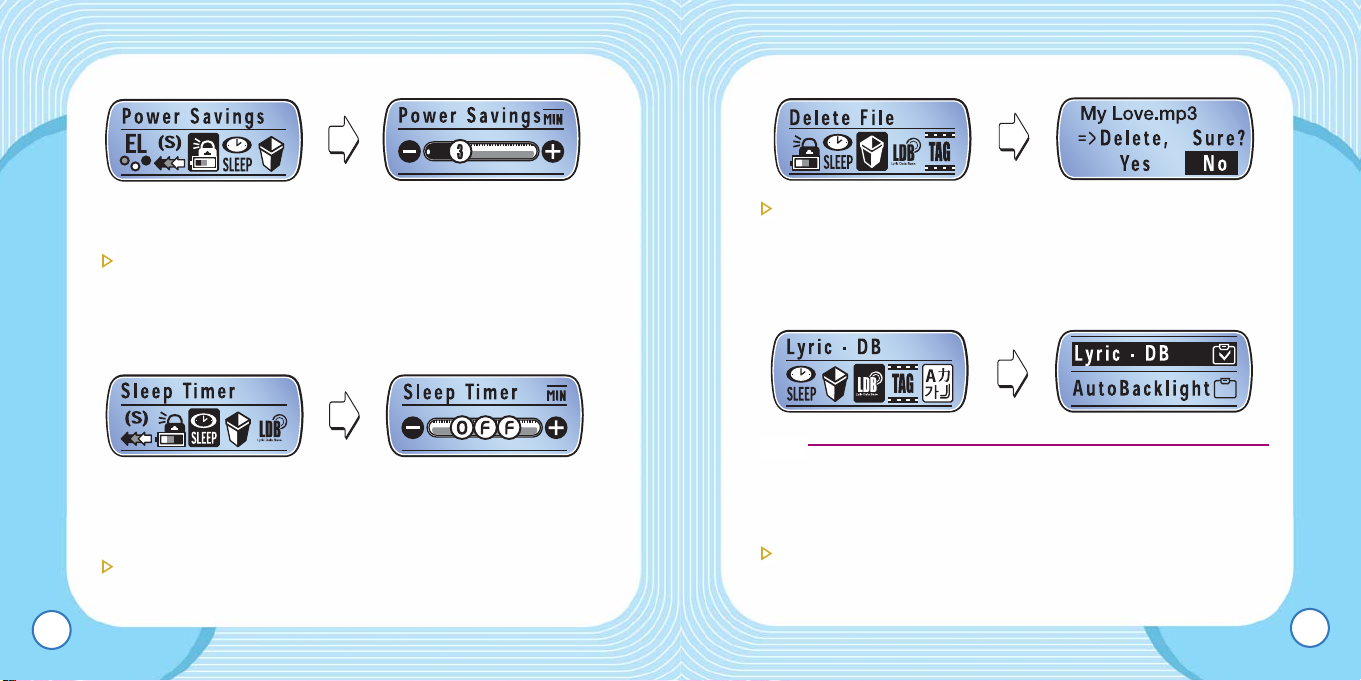
Lyrics Settings
– Use Lyrics Settings if you want to display the lyric that
accompanies a music file.
– Automatic Backlight is to turn on the backlight for the time
when lyrics should be displayed.
● Having the backlight turned on will reduce the playing time
because it will increase the unit’s power consumption.
Track Information
– Setting Track Information will display the information
(including artist and the song title) for the MP3/WMA files.
59
*
Power is automatically turned off when there’s no playback for a
certain time period.
Sleep
– Sleep will turn off the power when the user-set period
elapses. Use this when you are going to listen to radio or
music for an extended period of time.
*
The power goes off after a certain pre-determined period has passed.
To delete a file
– Choose a file and press on the Menu button to delete the file.
EMX-830 USER’S MANUAL
58
Tip :
Page 30
EMX-830 USER’S MANUAL
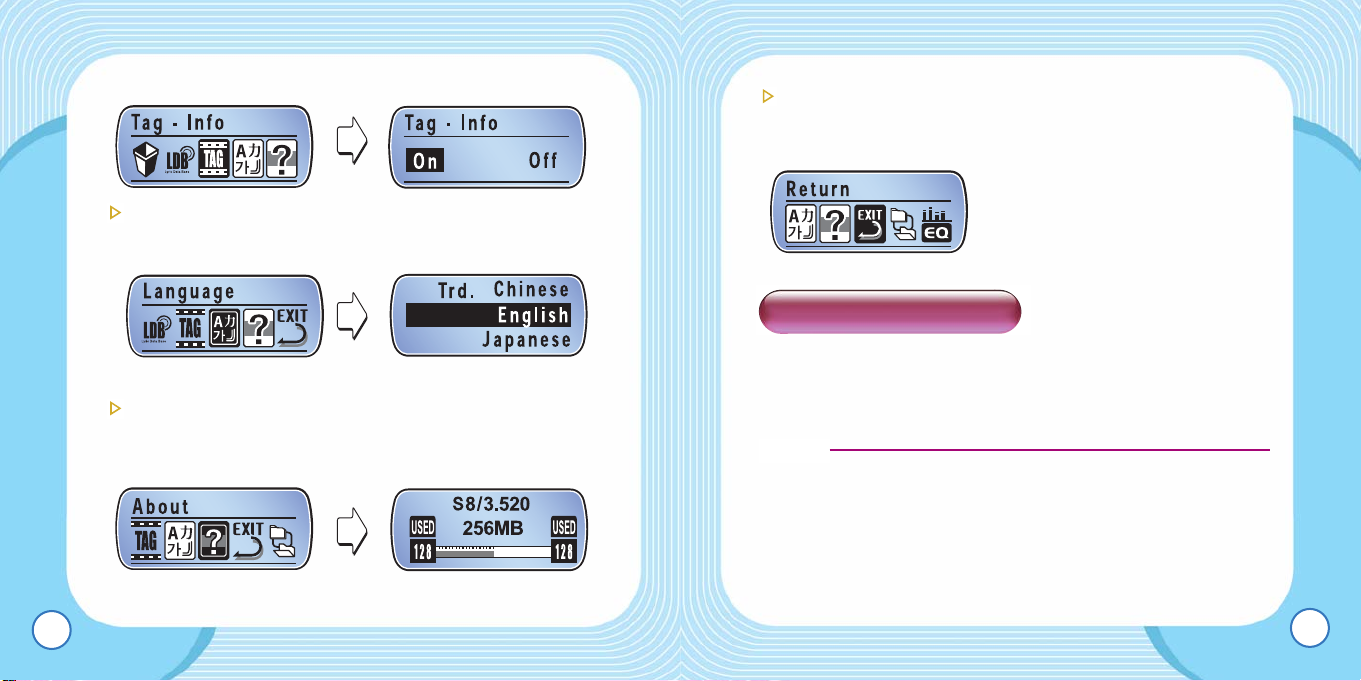
Exit
– To exit the menu, choose the EXIT icon or hold down on the
Menu button.
Choose Firmware Upgrade when there’s a new firmware
upgrade released or EMX-830 doesn’t work properly.
● Disconnecting EMX-830 from a PC may result in a damage
to the set.
*
Check our website for the new release of Firmware Upgarde.
61
Language Setting
– To display the language of Menu and massages.
Registration Information
– Registration Information will display the product’s model
name, firmware ver.
EMX-830 USER’S MANUAL
60
Firmware Upgrade
Notice :
Page 31
EMX-830 USER’S MANUAL
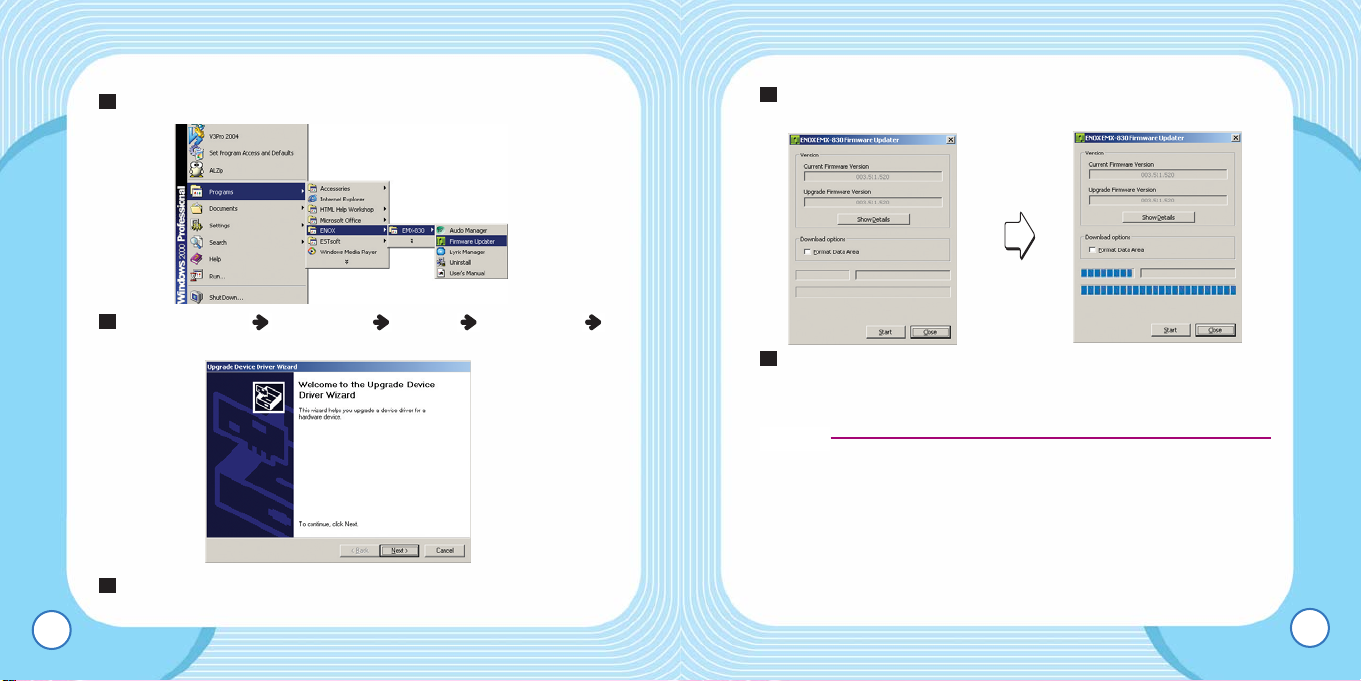
When the driver installation is complete, the following
window will appear.
When the upgrade is complete, disconnect the set from the
PC. Refer to the “EMX-830 Safe Unplug/eject.”
● Do not disconnect the product from the PC while upgrade is
in progress.
● Save all the data on the product before initiating the firmware
upgrade.
● To check the Firmware information, choose Registration
Information on the menu. Also the information is displayed
during the boot process.
5
4
63
Link the product to a PC using the provided USB cable.
Choose [Start] [Programs] [MSC ] [EMX-830 ]
[Firmware Update]
For the users of Windows XP, choose “Automatic Software
Installation” and click on the Next button.
3
2
1
EMX-830 USER’S MANUAL
62
Notice :
Page 32
EMX-830 USER’S MANUAL
● Power cannot be turned on.
– Check if the battery is properly aligned to the correct polarity.
● In case of no sound
– Check if the volume is set to ‘0.’
– Check if the connection of the earphone has failed.
● Buttons don’t work
– Check if the Hold switch is on.
● In case of “No Marked Files” or “No Marked Folder”
– Choose the “Total” mode of [Playing Methods]
– For more details, refer to the Playing Methods of this guide.
● In case of no FM reception
– For a fringe area where reception is poor, some radio signals
are hard to pick up.
– Check if the connection of the earphone has failed. (The
earphone doubles as the antenna for the product.)
● The system seems sluggish
– Booting speed will be slow when there are too many files in
EMX-830 Series.
– Refer to the page 30, “Preparations.”
65
*
Installation software for Mac users is not provided.
EMX-830 USER’S MANUAL
64
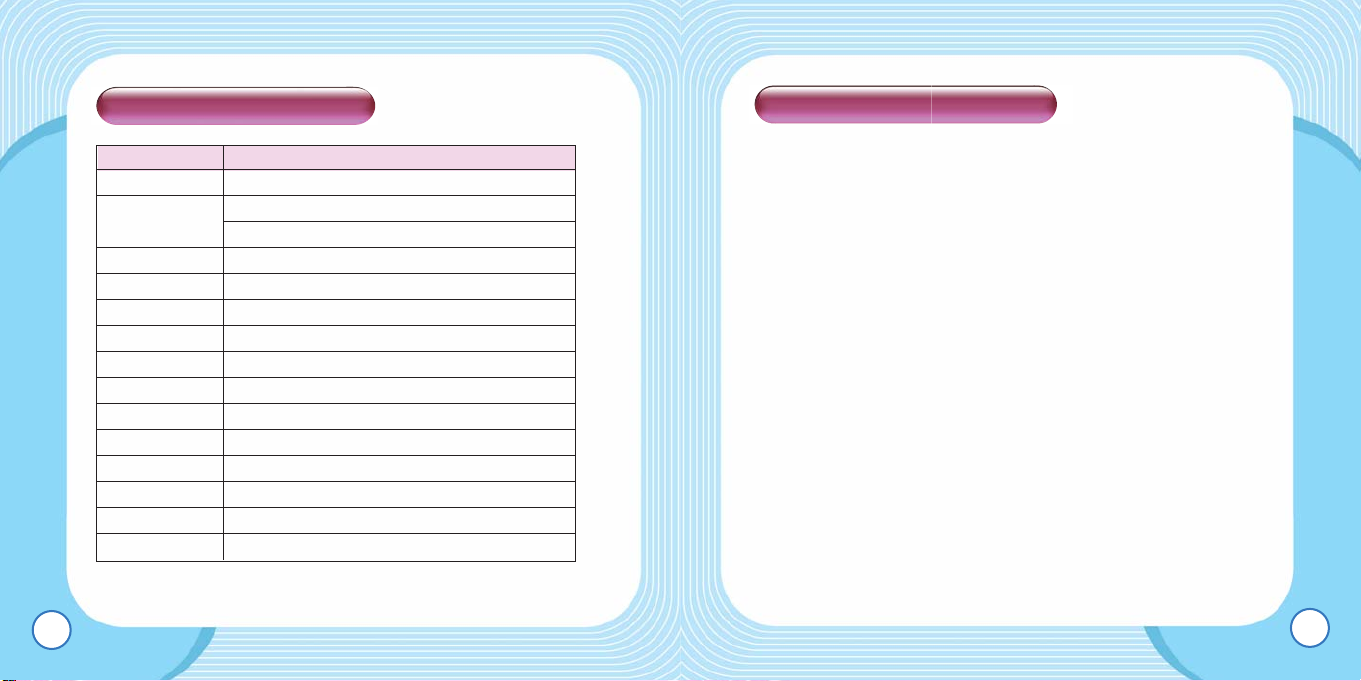
Product Specification
Troubleshooting Checklist
Model EMX-830 Series
Memory 128MB/256MB/512MB/1024MB
File Support
MPEG 1/2/2.5 Layer 3(8~ 320kbps, VBR)
WMA (5~192kbps) support
Battery One AAA (1.5V)
USB USB2.0
Playing Time About 20 hours
LCD Graphic LCD (3Line) / EL Backlight
Size 22 x 53 x 22mm
Weight 22.4g
S/N Ratio 90dB
Earphone Output
10mW + 10mW (16Ω)
FM Frequency 87.5~108MHz
Recording VOICE / FM /Line-In Recording
Language
Multiple language support (Unicode 2.0 Standard)
OS Windows 98SE / ME / 2000 / XP / MAC
Page 33
EMX-830 USER’S MANUAL
67
1. Refrain from using the earphone when you are biking or
driving or walking (especially when crossing the street). Not
doing so can result in a car accident.
2. Listening for too long at a loud volume can cause serious
hearing problems.
3. Using a headphone/earphone while you are on the street can
result in a car accident.
4. Do not drop or impact the unit. It may cause malfunctions.
5. Exposure to water or high humidity can cause malfunctions.
When this happens, do not turn on the power.
Remove the battery as soon as possible and request for a
service repair.
6. Exposure to direct sunlight, heat source for too long can
cause malfunctions.
7. Keep the battery separately from the unit when not in use for
a long time.
Leakage from the battery may damage the product.
EMX-830 USER’S MANUAL
66
Cautions
CCAAUUTTIIOON
N:
Changes or modifications not expressly approved by the
manufacturer responsible for compliance could void the
user's authority to operate the equipment.
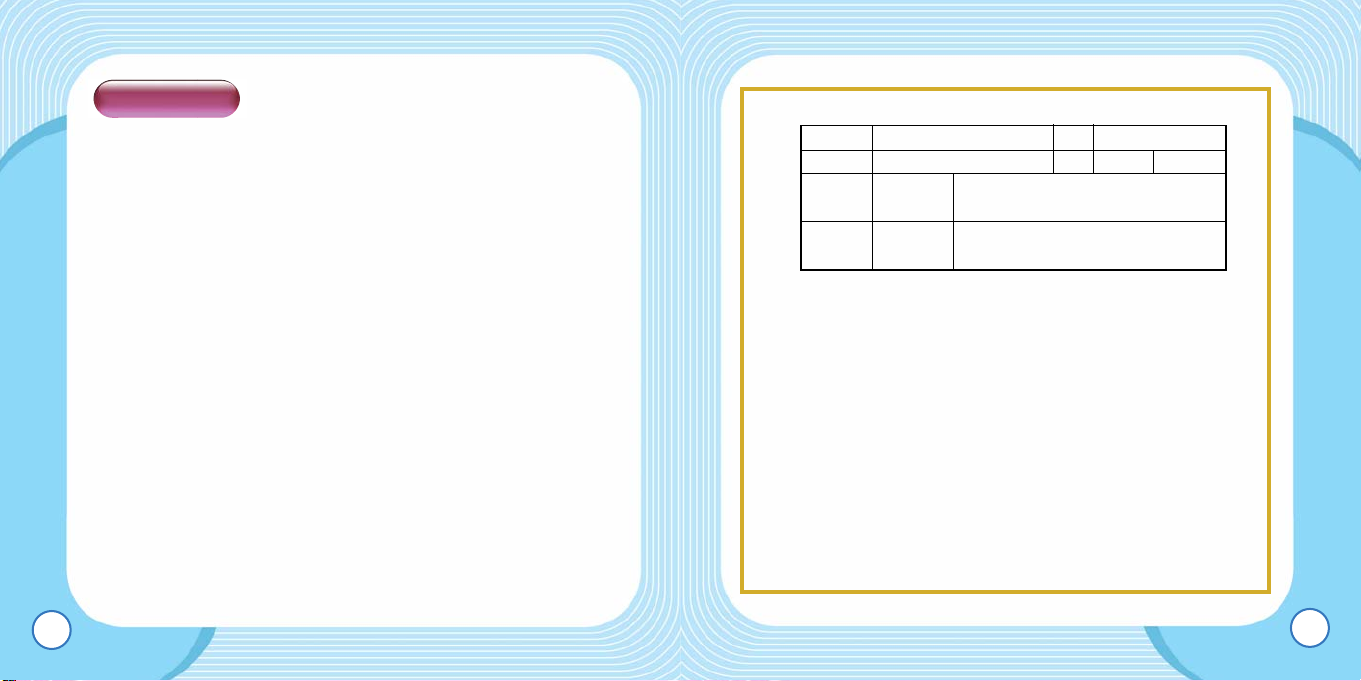
Warranty
Product
VOICE RECORDER & MP3 PLAYER
Model EMX-830
Assurance period
1 YEAR
Item
Sales date yy mm dd
Customer
Sales agency
Address
Name
signature
signature
tel
tel
Address
Agency name
This equipment has been tested and found to comply with the limits for a Class
B digital device,pursuant to part 15 of the FCC Rules.
These limits are designed to provide reasonable protection against harmful
interference in a residential installation.
This equipment generates,uses and can radiate radio frequency energy and,if
not installed and used in accordance with the instructions,may cause harmful
interference to radio communications.
However ,there is no guarantee that interference will not occur in a particular
installation.
If this equipment does cause harmful interference to radio or television
reception,which can be determined by turning the equipment off and on,the
user is encouraged to try to correct the interference by one or more of the
following measures :
– Reorient or relocate the receiving antenna.
– Increase the separation between the equipment and receiver
– Connect the equipment into an outlet on a circuit different from that to which
the receiver is connected.
– Consult the dealer or an experienced radio/TV technician for help.
FCC note:
Page 34

EMX-830 USER’S MANUAL
69
EMX-830 USER’S MANUAL
68
MEMO
MEMO
 Loading...