

Page 1
User Guide:
EDG0200UG001
Enfora® EDG0200
PCMCIA EDGE Card
Revision 1.00
Page 2

Version: 1.0
Date: 12/12/2005
Status: Released
Document Control ID: EDG0200UG001
Copyright Statement
Copyright 2004 by Enfora Inc. All rights reserved. No portion of this document may be copied,
photocopied, reproduced, transmitted, transcribed, stored in a retrieval system or translated into
any language or computer language, in any form or by any means, electronic, mechanical,
magnetic, optical, chemical, manual or otherwise, without the prior written permission of Enfora
Inc.
© 2005 Enfora, Inc. All rights reserved.
Disclaimer
Enfora Inc. makes no representations or warranties, either expressed or implied, with respect to
the contents hereof and specifically disclaims any warranties, merchantability or fitness for any
particular purpose. Further, Enfora Inc. reserves the right to revise this publication, and to make
changes from time to time in the contents hereof without obligation of Enfora Inc. to notify any
person of such revision or changes.
ALL INFORMATION IS PROVIDED BY ENFORA INC. ON AN “AS IS” BASIS ONLY.
THIS COMPANY PROVIDES NO REPRESENTATIONS AND WARRANTIES, EXPRESS
OR IMPLIED, INCLUDING THE IMPLIED WARRANTIES OF FITNESS FOR A
PARTICULAR PORPOSE, MERCHANTABILITY AND NONINFRINGEMENT.
All product names mentioned within this document are the trademark of their respective owners.
Enfora, Inc. Proprietary Information
EDG0200UG001
Adobe® Acrobat Reader, © 1987-1999 Adobe Systems Inc. All rights reserved.
Adobe and Acrobat are trademarks of Adobe Systems Inc.
EDG02000UG001 Page ii
Copyright 2005, Enfora Inc.
Page 3

Safety Information for Wireless Handheld Devices
FCC RF EXPOSURE INFORMATION
WARNING! Read this information before using your wireless device.
In August 1986 the Federal Communications Commission (FCC) of the United States with its
action in Report and Order FCC 96-326 adopted an updated safety standard for human exposure
to radio frequency (RF) electromagnetic energy emitted by FCC regulated transmitters. Those
guidelines are consistent with the safety standard previously set by both U.S. and international
standards bodies. The design of this phone/device complies with the FCC guidelines and these
international standards. Use only the supplied or approved antenna. Unauthorized antenna
modifications, or attachments could impair call quality, damage the phone, or result in violation
of FCC regulations. Do not use the phone with a damaged antenna. Please contact your local
dealer for replacement antenna.
For more information about RF exposure, please visit the FCC website at
The equipment certifications appropriate to your device are marked on the device and product
specific information. The use of the equipment is subject to the following conditions:
FCC COMPLIANCE STATEMENT
This device complies with Part 15b of the FCC Rules. Operation is subject to the following two
conditions: (1) This device may not cause harmful interference, and (2) this device must accept
any interference received, including interference that may cause undesired operation.
CAUTION
Changes or modifications without the express consent of Enfora, Inc. voids the user’s
authority to use the equipment and will avoid any applicable warranty.
This equipment has been tested and found to comply with the limits pursuant to Part 15
Subpart B , Part 22 and Part 24 of the FCC rules. These limits are designed to provide
reasonable protection against harmful interference in an appropriate installation. This
equipment generates, uses, and can radiate radio frequency energy and, if not used in
accordance with instructions, can cause harmful radiation to radio communication.
However, there is no guarantee that interference will not occur in a particular installation.
If the equipment does cause harmful interference in radio and television reception, which
can be determined by turning the equipment on and off, the user is encouraged to try to
correct the interference by one or more of the following measures:
Reorient or relocate the receiving antenna
Increase the separation distance between the equipment and the receiver
Contact Enfora, Inc. Technical Support for assistance.
www.fcc.gov
EDG02000UG001 Page iii
Copyright 2005, Enfora Inc.
Page 4

Safety Instructions
• Use of radio equipment is prohibited in hospitals and may interfere with the use of
medical equipment. Do NOT use the EDG0200 Card in hospitals.
• FCC regulations prohibit using your wireless device during any air flight. Switch OFF
your PCMCIA EDGE Card prior to flight and in accordance with the airline’s acceptable
devices policy.
• DO NOT use the EDG0200 Card in the vicinity of explosive atmospheres. Turn your
EDG0200 Card OFF in a “Blasting Area” or gas station. Obey all signs and instructions
• Local laws may prohibit the use of this device while driving in order to avoid distractions
and prevent accidents. DO NOT use the EDG0200 Card while driving, in order to avoid
distractions and prevent accidents.
• The Health Industry Manufactures Association recommends that a minimum separation
of six (6”) inches be maintained between a handheld wireless device and a pacemaker to
avoid potential interference with the pacemaker.
Operating Instructions
Never violate any of the following Rules and Regulations of the FCC when using your wireless
device. Such violations are punishable by fine, imprisonment, or both.
• Never use obscene, indecent, or profane language.
• Never use our EDG0200 Card to send false distress calls.
• Never wiretap or otherwise intercept a device call, unless you have first obtained the
consent of the parties participating in the call.
• Never make any anonymous calls to annoy, harass or molest other people.
• Never charge another account without authorization, to avoid payment for service.
• Never willfully or maliciously interfere with any other radio communications.
• Never refuse to yield the line when informed that it is needed for an Emergency Call.
Also, never take over a line by stating falsely that it is needed for an emergency.
EDG02000UG001 Page iv
Copyright 2005, Enfora Inc.
Page 5

General Safety Instructions
• Check if all peripherals are properly connected before turning on any equipment.
• Make sure to disconnect the power plug from the power source before installing or
removing peripherals.
• Always hold the product with dry hands. Droplets of water may cause it to short circuit
and damage to the product.
• Use the product only under a dry environment. Humid places are not appropriate for the
product.
• DO NOT use the product in a damp environment.
• DO NOT place the product on an unstable surface.
• Keep the product out of the reach of children.
• DO NOT share the same extension power line for the product with high power-
consuming appliances to avoid power overload.
• NEVER attempt to disassemble the product! Doing so may cause permanent damage to
the product and will void the warranty.
EDG02000UG001 Page v
Copyright 2005, Enfora Inc.
Page 6

TABLE OF CONTENTS
COPYRIGHT STATEMENT.........................................................................................II
DISCLAIMER..................................................................................................................II
SAFETY INFORMATION FOR WIRELESS HANDHELD DEVICES..................III
FCC RF EXPOSURE INFORMATION .......................................................................III
FCC COMPLIANCE STATEMENT............................................................................III
SAFETY INSTRUCTIONS ...........................................................................................IV
OPERATING INSTRUCTIONS...................................................................................IV
GENERAL SAFETY INSTRUCTIONS ....................................................................... V
OVERVIEW...................................................................................................................... 1
WELCOME! ...................................................................................................................... 1
PACKAGE CONTENTS ....................................................................................................... 2
APPEARANCE ................................................................................................................... 3
THE NETWORK................................................................................................................. 4
NETWORK STATUS (LINK) LED DESCRIPTION ................................................................ 4
INSTALLING AND REMOVING THE SIM.............................................................................4
THE ANTENNA ................................................................................................................. 4
INSTALLING THE PCMCIA CARD INTO A LAPTOP ........................................................... 5
SYSTEM REQUIREMENTS.................................................................................................. 5
INSTALLING MOBILE PHONETOOLS..................................................................................5
MOBILE PHONETOOLS BUTTON DEFINITIONS................................................................. 14
MOBILE PHONETOOLS DISPLAY DEFINITIONS................................................................ 14
MOBILE PHONETOOLS INTERNET CONNECTION WIZARD...............................................15
TROUBLESHOOTING .......................................................................................................18
SCOPE ............................................................................................................................ 19
HARDWARE.................................................................................................................... 19
SOFTWARE..................................................................................................................... 19
OTHER CONSIDERATIONS............................................................................................... 20
EDG02000UG001 Page vi
Copyright 2005, Enfora Inc.
Page 7

Overview
Welcome!
Thank you for purchasing the Enfora® EDG0200 PCMCIA Card (hereafter referred to as
the EDG0200 Card)!
Welcome to the world of wireless data. Your EDG0200 Card is a wireless data modem
in PCMCIA card format that uses the EDGE (Enhanced Data Rates for GSM Evolution)
or GPRS (General Packet Radio Service) wireless communication system, allowing you
to transfer data on the go. Wireless IP (Internet Protocol) supports browser-based
applications, giving you feature rich Internet capability. The EDG0200 Card supports
worldwide GSM frequencies, as it operates on 850MHz, 900MHz, 1800MHz and
1900MHz.
The EDG0200 Card is designed to work with Windows 2000 and Windows XP only.
With the EDG0200 Card, you can easily transform your laptop into a wireless
communication device.
EDG0200UG001 Page 1 12/12/2005
Page 8
Package Contents
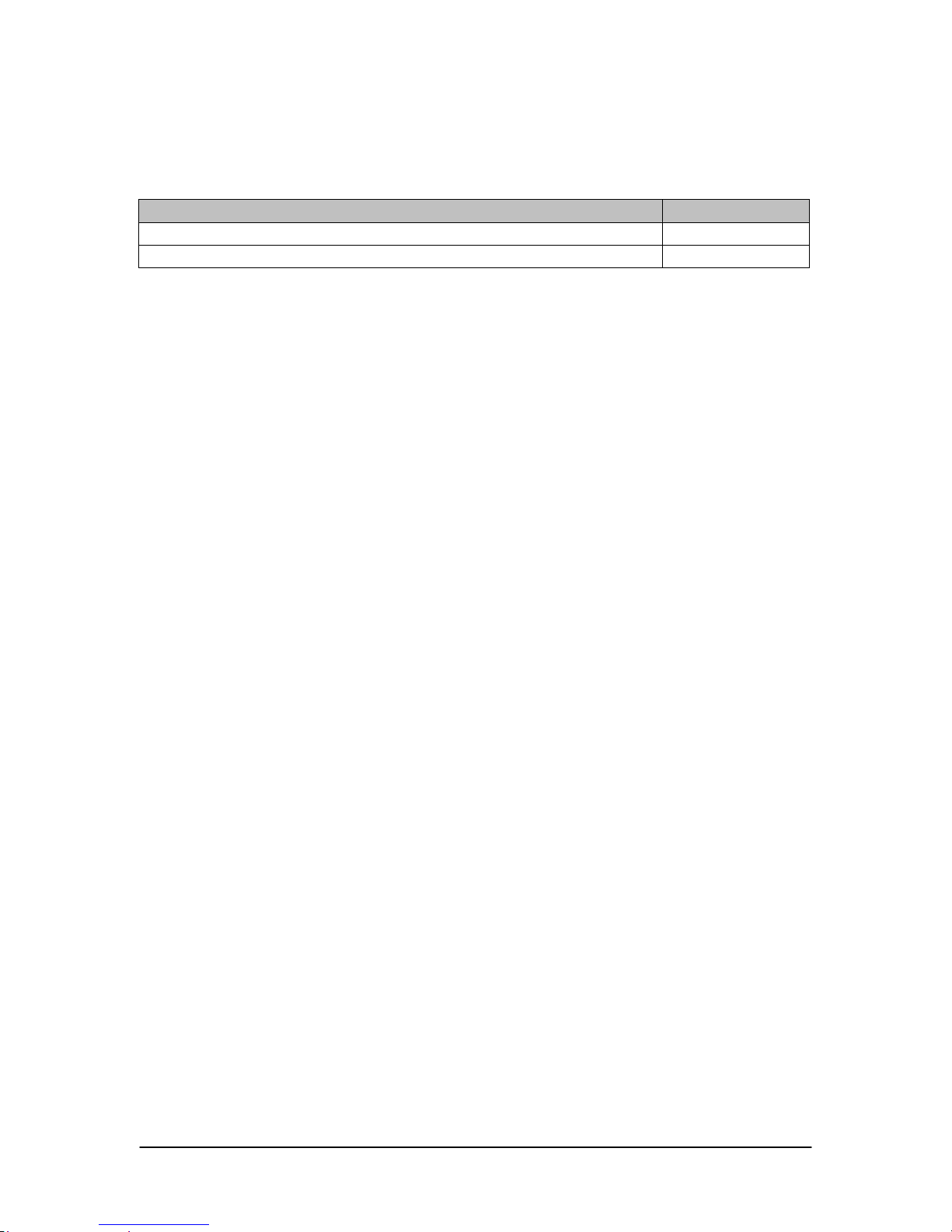
Check the contents of the package. The following items should be included. If there is
any item that is damaged or missing, please contact your dealer immediately.
Description Quantity
The EDG0200 Card 1
BVRP Software CD 1
Table 2 – Package Contents
EDG0200UG001 Page 2 12/12/2005
Page 9
Appearance
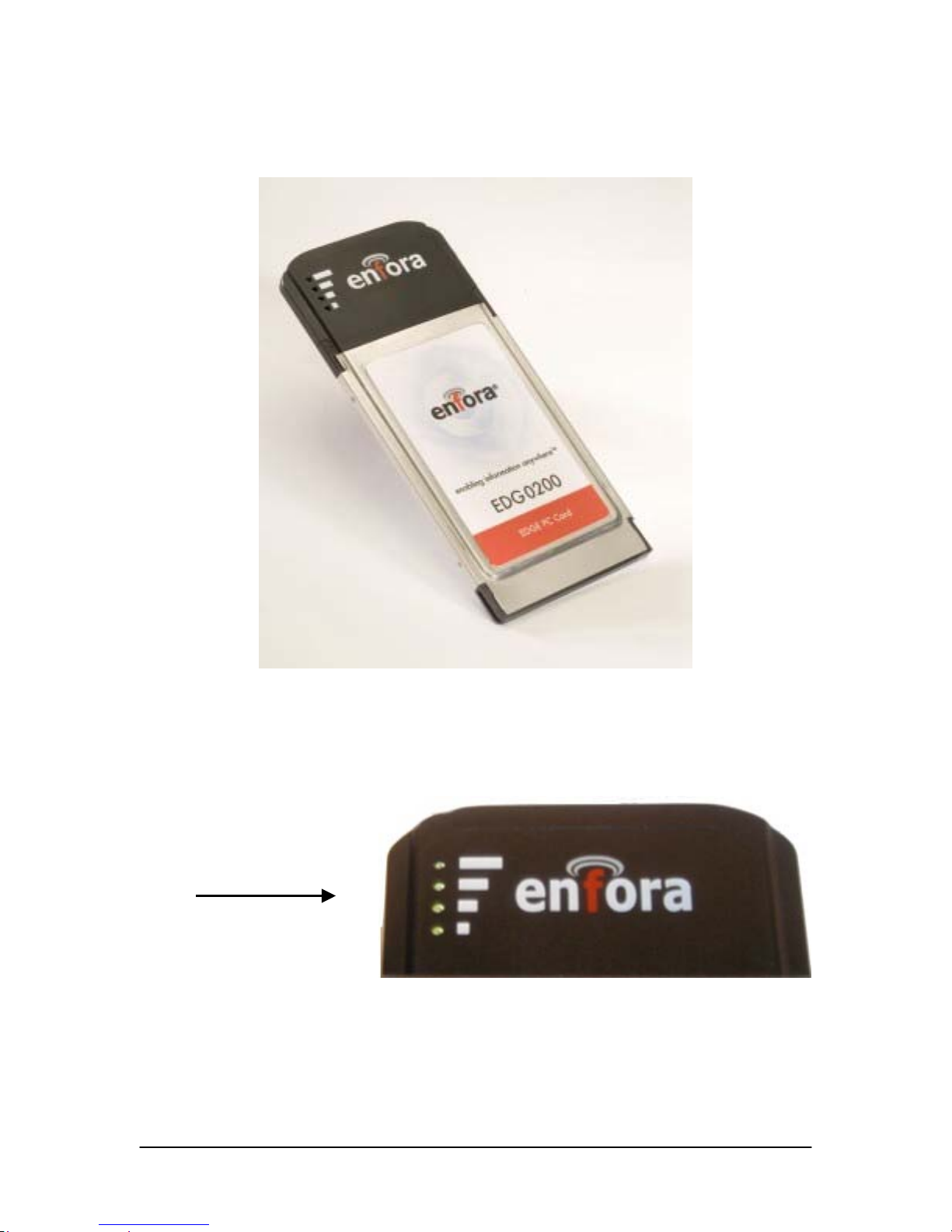
The EDG0200 Card functions like any standard Type II PCMCIA Card. It operates from
either 3.3 V or 5 V PCMCIA Type II slots.
Figure 1 – Photo of EDG0200
Signal Strength
Indicator
Figure 2 – Photo of Antenna with Signal Strength Indicator
EDG0200UG001 Page 3 12/12/2005
Page 10

The Network
The EDG0200 Card transmits data on GSM/GPRS/EDGE networks.
GPRS is the technology that allows data transmission via the GSM network. Voice
minutes are not used when transmitting data with GPRS. However, the wireless carrier
will charge the user for data that is transmitted via the EDG0200 Card. Check with your
wireless carrier for more information on their data plans.
EDGE is the next evolution of GPRS, which allows data transmission at higher speeds
(up to 384 kbps).
The EDG0200 Card can transmit data using GPRS or EDGE, but the actual transmission
speeds you experience will vary.
Network Status (Link) LED Description
The EDG0200 Card has four green LED indicators.
If all indicators are off (not illuminated), the GSM/GPRS/EDGE network has not been
detected.
The numbers of LED indicators that are illuminated indicate the relative signal strength
of the GSM/GPRS/EDGE network.
Installing and removing the SIM
You need to use a SIM (Subscriber Identity Module) with your EDG0200 Card to allow
mobile communication through GSM, GPRS or EDGE networks. A SIM can be
purchased from a variety of network operators in your city, state or country.
To install a SIM Card:
Follow the decal on the back of the EDG0200 for proper SIM insertion instructions.
To remove the SIM Card:
To remove the SIM from the EDG0200 Card, gently slide the SIM out of the holder.
The Antenna
The EDG0200 Card has an integrated antenna located within the black plastic section of
the card. Do not grab or obstruct the antenna while in use.
EDG0200UG001 Page 4 12/12/2005
Page 11
Installing the PCMCIA Card into a Laptop
The EDG0200 Card is a standard Type II PCMCIA card that should work in most laptop
computers. Follow these instructions to install the card into your laptop.
1. Find the PCMCIA slot on your laptop. Typically the slot is located on the side of
your laptop.
2. Install mobile PhoneTools from the accompanying CD. This installation will also
install the drivers for the EDG0200 Card.
3. After you install the software, you will be prompted to insert the EDG0200 Card
into your laptop.
4. Insert the EDG0200 Card into the PCMCIA slot. You should hear a tone from
your laptop when the card is seated in the slot.
To remove from the Laptop:
Follow your laptop and operating system instructions for the steps required to remove a
PCMCIA device.
Note: Some operating systems may require you to stop certain services, such as
the PCMCIA service, prior to physically removing the EDG0200 Card.
System Requirements
Check your hardware and software to see if they satisfy the requirements below. If you
are not sure, please consult your dealer or operator.
1. A valid SIM that has been data-enabled by your network operator.
2. A laptop with Windows 2000 or Windows XP and an available PCMCIA slot.
Installing mobile PhoneTools
In order use the EDG0200 Card to make an EDGE connection, you will use mobile
PhoneTools, which is provided on the CD that came with your EDG0200 Card.
Note: Install the mobile PhoneTools software
before inserting the EDG0200 Card into the
PC slot.
EDG0200UG001 Page 5 12/12/2005
Page 12
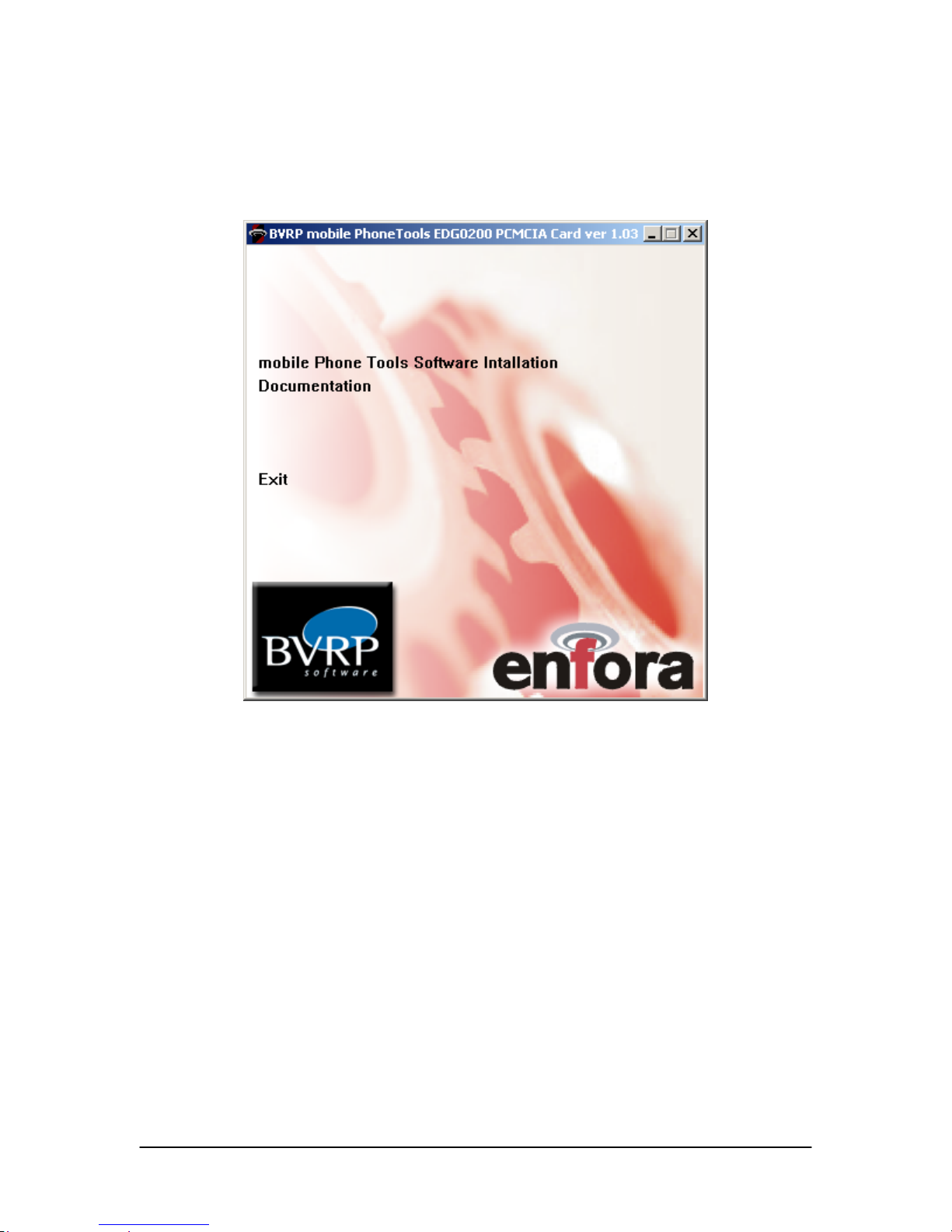
The following instructions explain how to install BVRP mobile PhoneTools on your
computer.
1. Place the Enfora CD into the CD drive of your computer.
2. You will see the BVRP/Enfora setup screen:
3. Click on mobile PhoneTools Software Installation. Click on the Language
Version of mobile PhoneTools that you need. You will see the following screen:
EDG0200UG001 Page 6 12/12/2005
Page 13
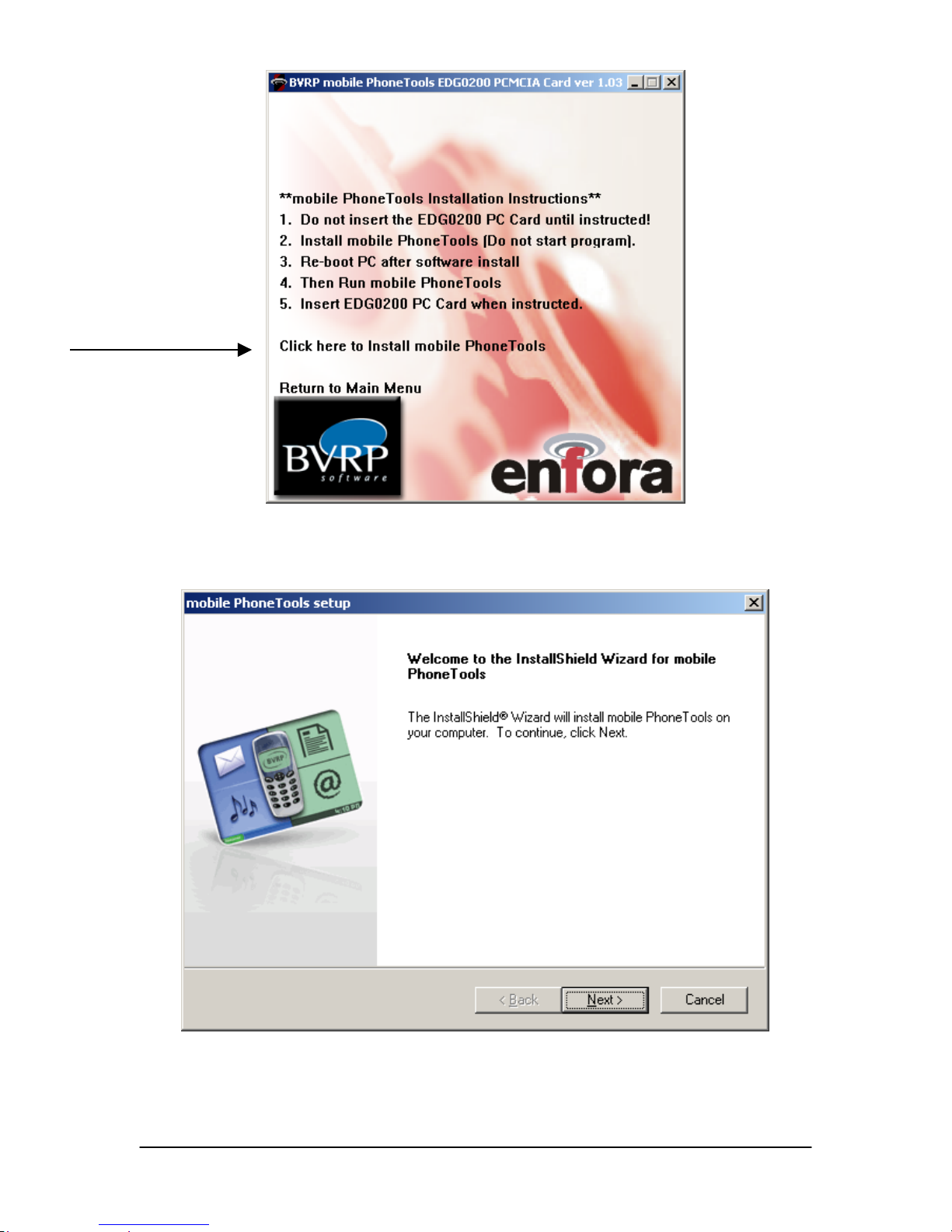
Click here to Install
mobile PhoneTools
4. Click on Click here to Install mobile PhoneTools.
5. You will see the following screen:
6. Click on Next to continue.
7. You will see the following License Agreement screen:
EDG0200UG001 Page 7 12/12/2005
Page 14
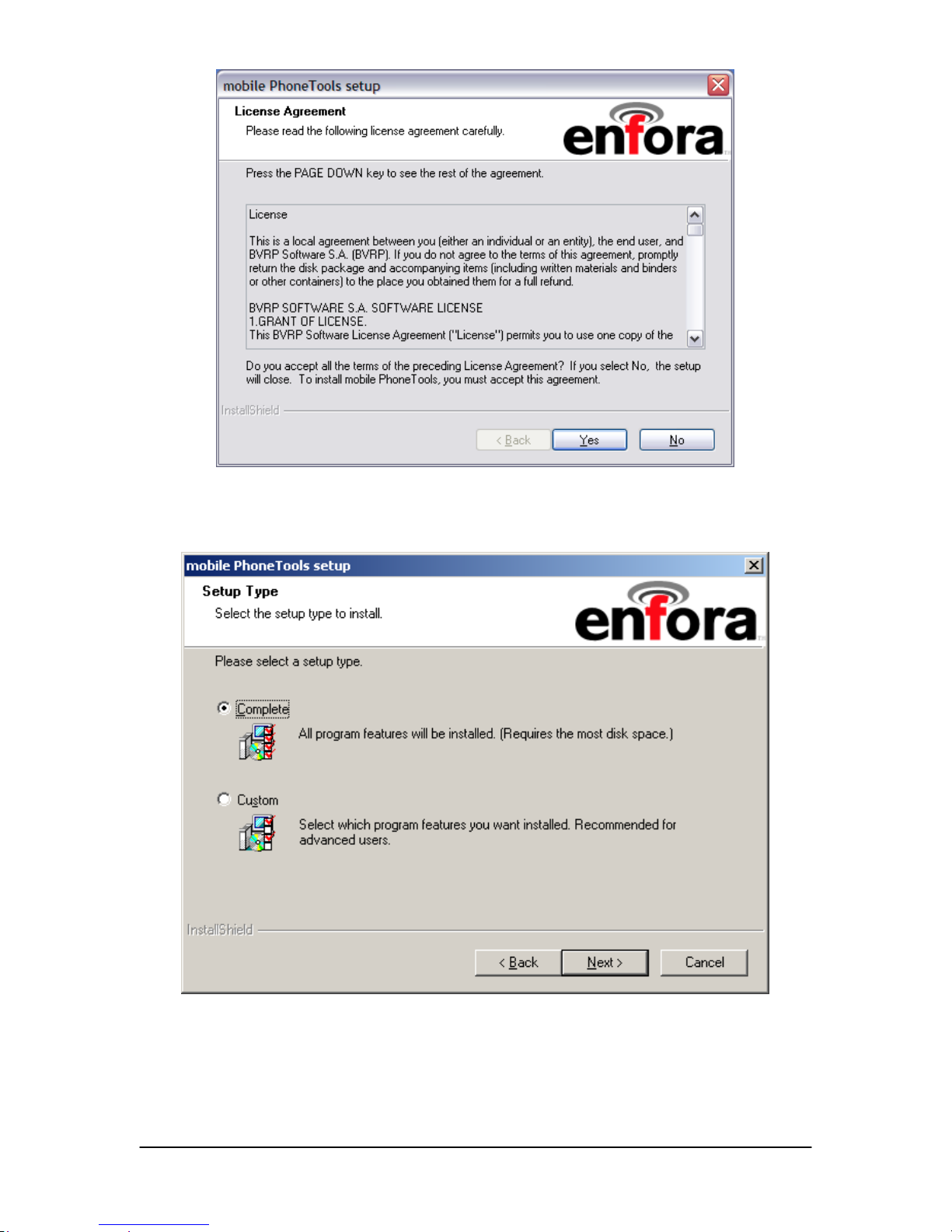
8. Click on Yes to continue. You will see the following screen:
9. Click on the radio button marked Complete.
10. Click on Next to continue. You will see the following Setup Status screen:
EDG0200UG001 Page 8 12/12/2005
Page 15
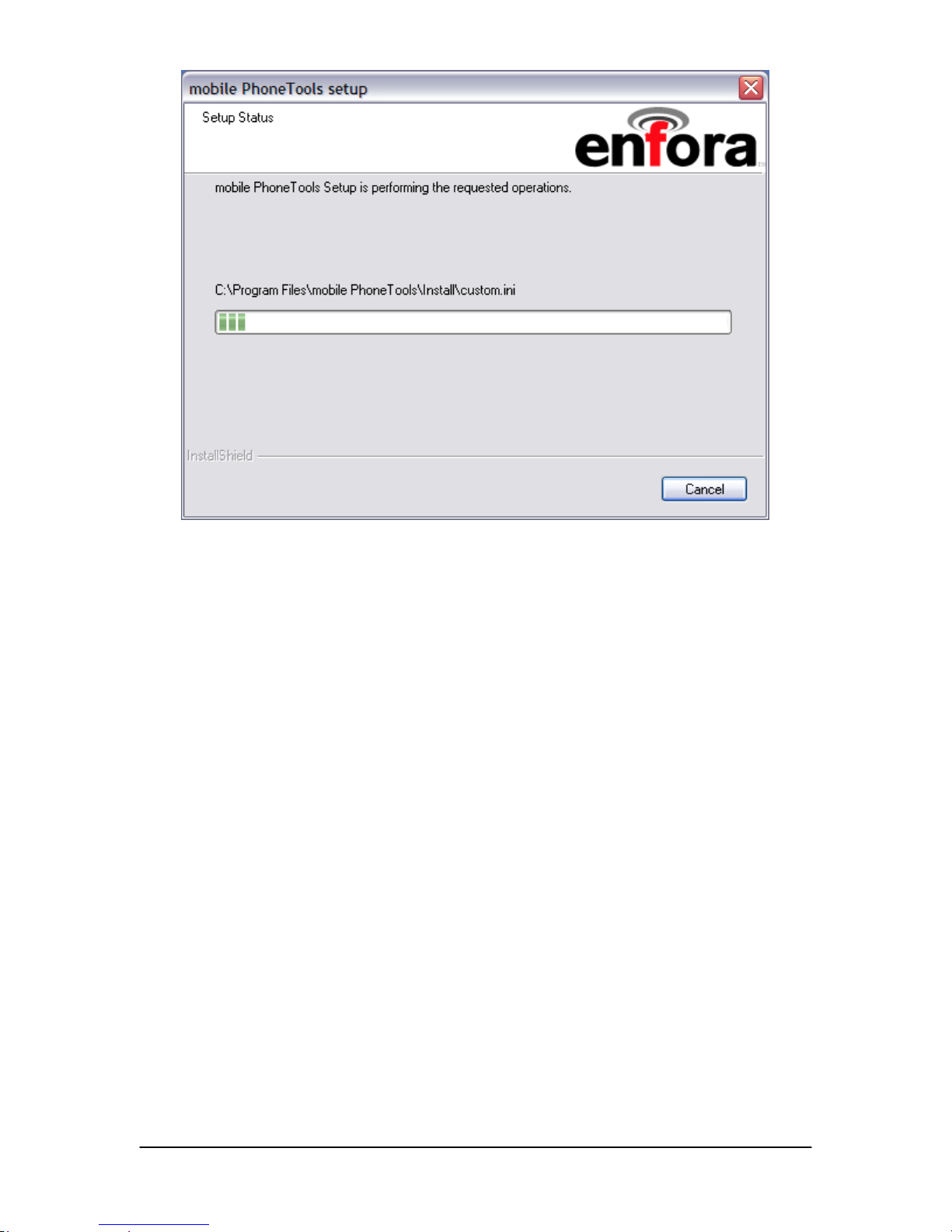
11. Once the installation is complete, you will see the following screen, which
prompts you to configure Persistent Connection Features.
The Persistent Connection Features are:
1) Start mobile PhoneTools on boot, and
2) Automatic Internet Connection (connection automatically reconnects if
dropped).
During this step of the setup process you can choose whether or not you
would like to install Persistent Connection Features.
If you do not choose to install Persistent Connection Features, proceed to Step
15.
EDG0200UG001 Page 9 12/12/2005
Page 16
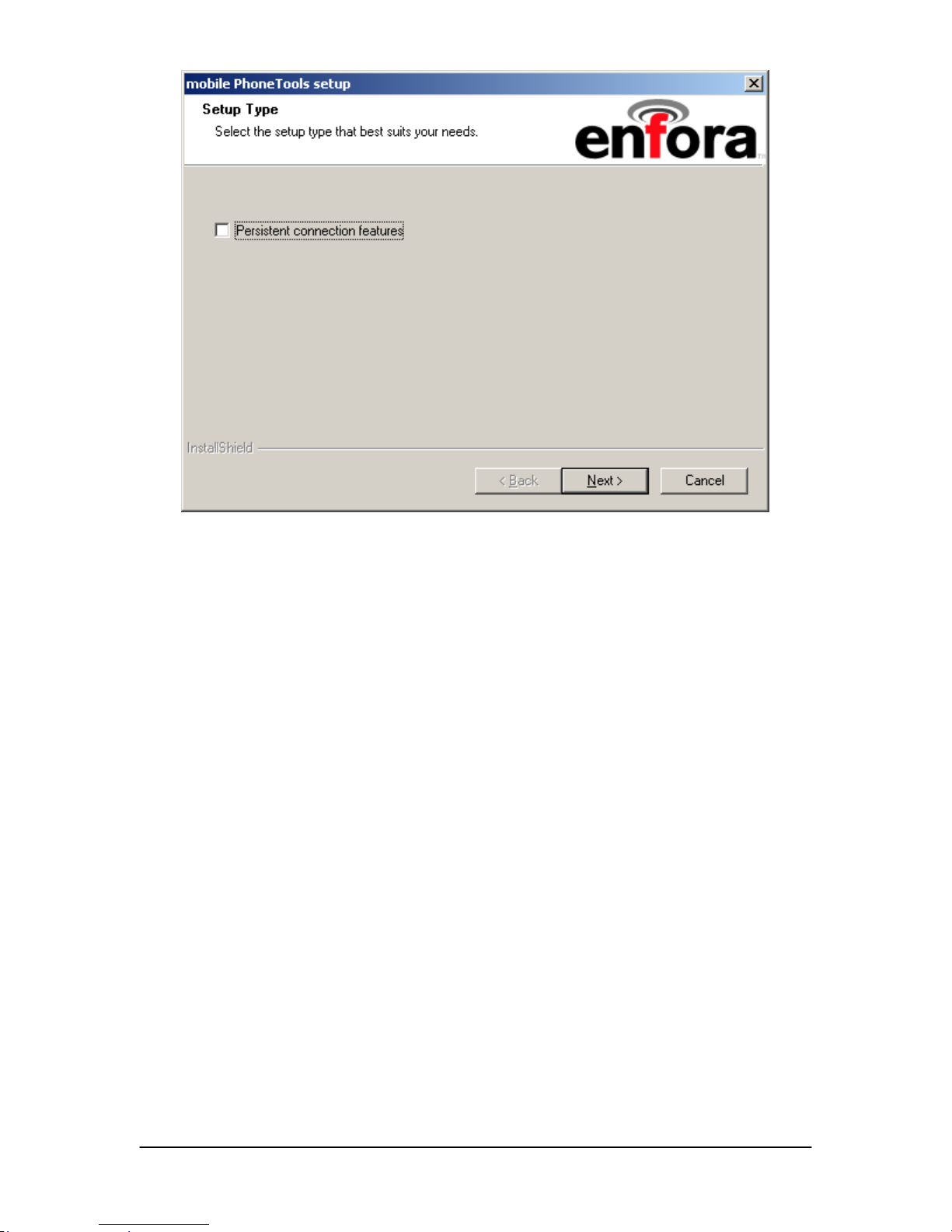
Do not check the above checkmark box if you do not want to install Persistent
Connection Features.
Note: If you choose not to install Persistent Connection Features during Setup,
you will have to run the Setup program again if you choose to install them at a
later time.
EDG0200UG001 Page 10 12/12/2005
Page 17
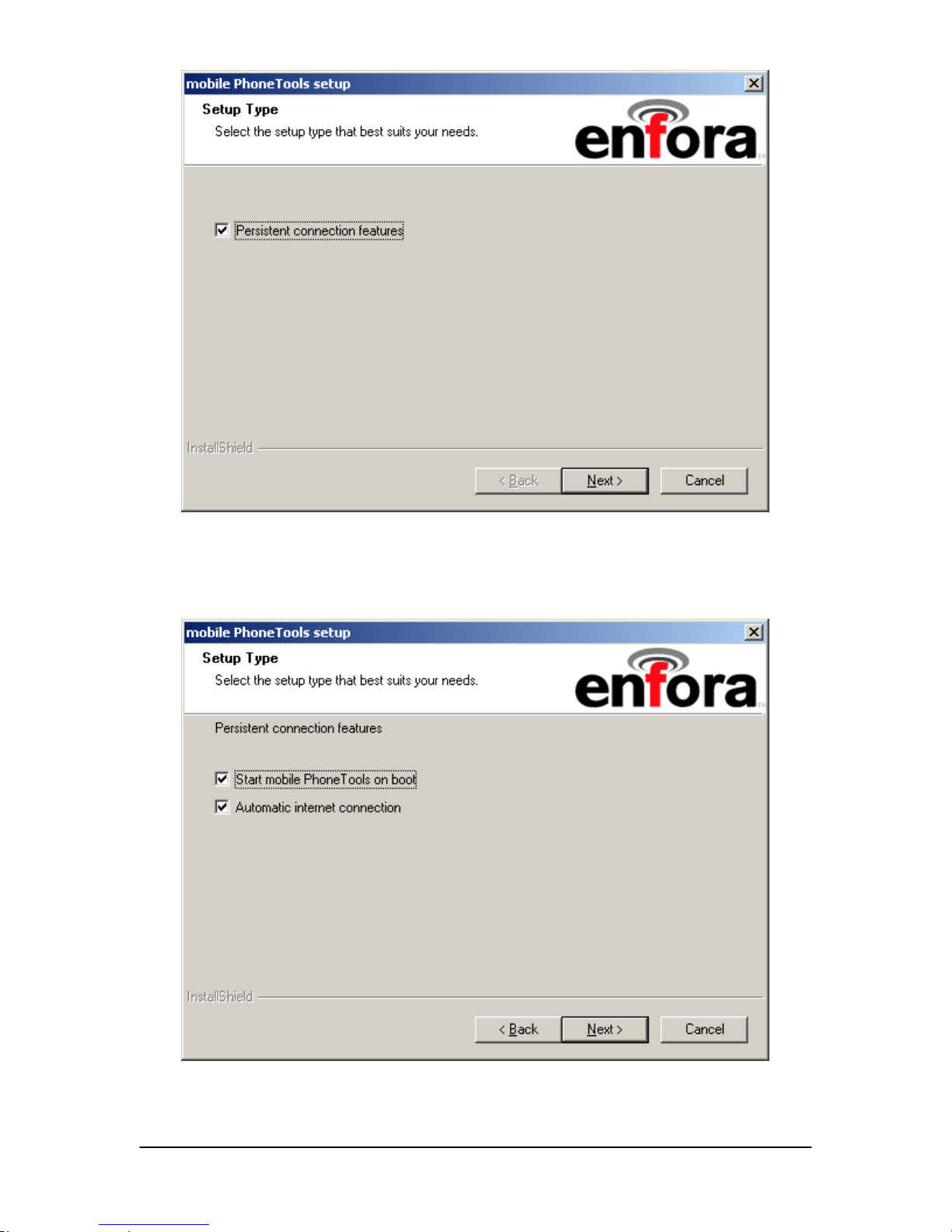
12. If you choose to install Persistent Connection Features click on the check mark
box.
13. Click Next to continue. You will see the following screen:
EDG0200UG001 Page 11 12/12/2005
Page 18
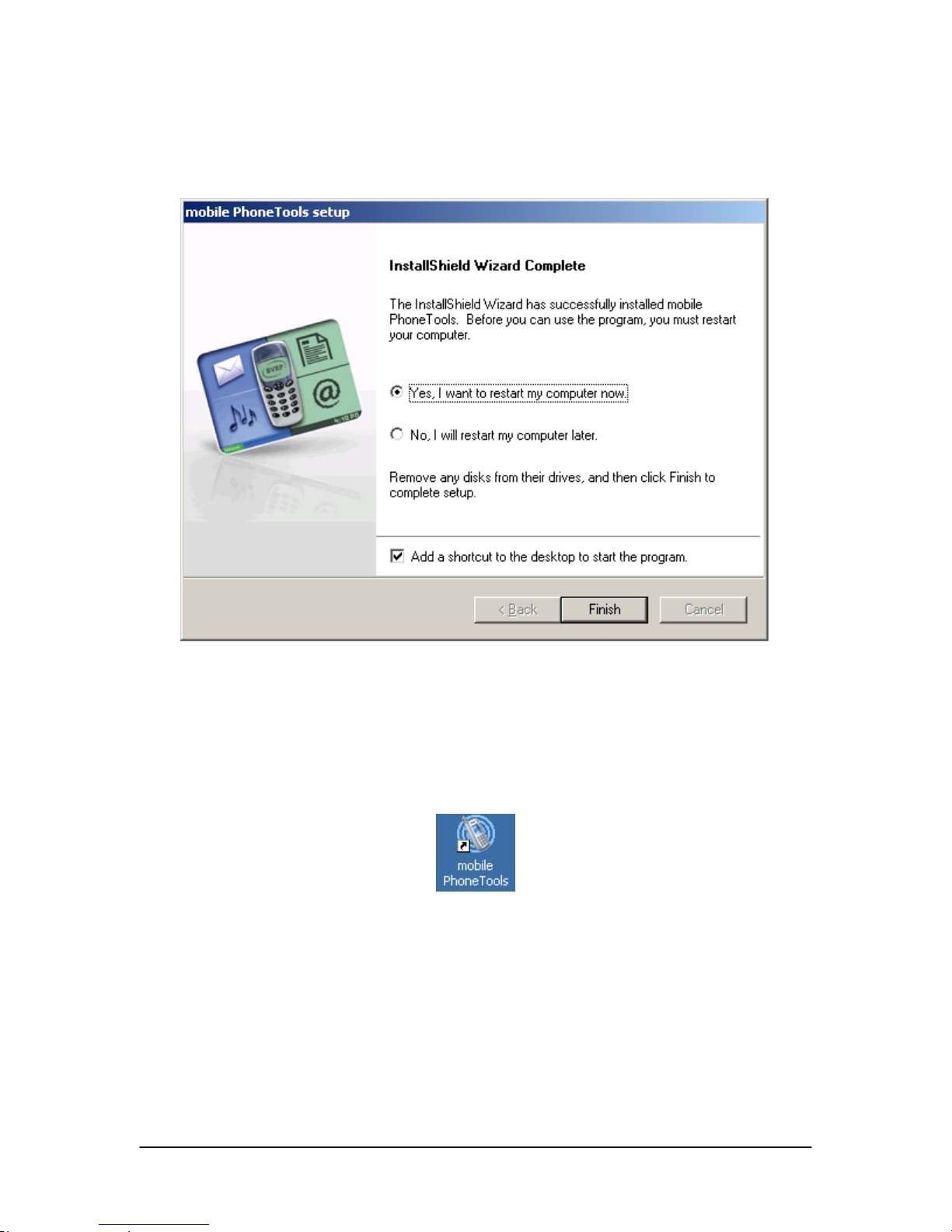
To disable or enable the above features after installation, click on the menu from
mobile PhoneTools, then click on Settings, then the Miscellaneous Tab.
14. Select the Persistent Connection Feature(s) you would like to enable.
15. Click Next to continue. You will see the following screen:
16. At the InstallShield Wizard Complete screen click on the radio button marked
Yes, I want to restart my computer now.
17. Click on Finish.
18. Your computer will restart.
19. Once the mobile PhoneTools is successfully installed on your computer, you will
see this icon on your desktop:
If you installed Persistent Connection Features, mobile PhoneTools will
automatically launch and you will proceed to Step 21.
If you did not install Persistent Connection Features double-click on the mobile
PhoneTools icon on your desktop and proceed to Step 21.
20. Next, you will see the Installing PCMCIA Card screen. Insert the EDG0200 PC
Card into your laptop now.
EDG0200UG001 Page 12 12/12/2005
Page 19
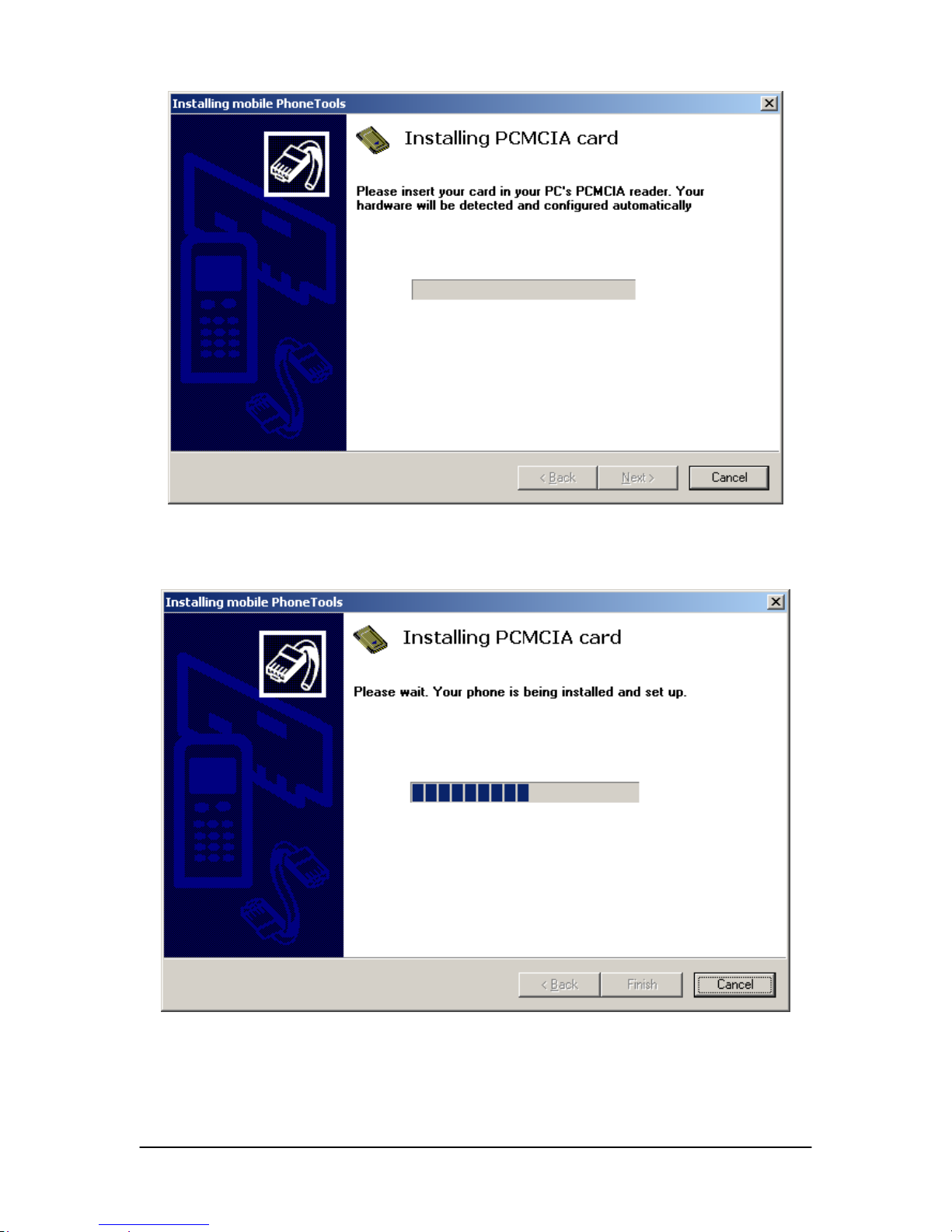
21. Once you have inserted the card into your laptop, you will see the following
screen. Please wait while your PC Card is being configured by the software.
22. You are now ready to begin using your EDG0200 PC Card.
EDG0200UG001 Page 13 12/12/2005
Page 20
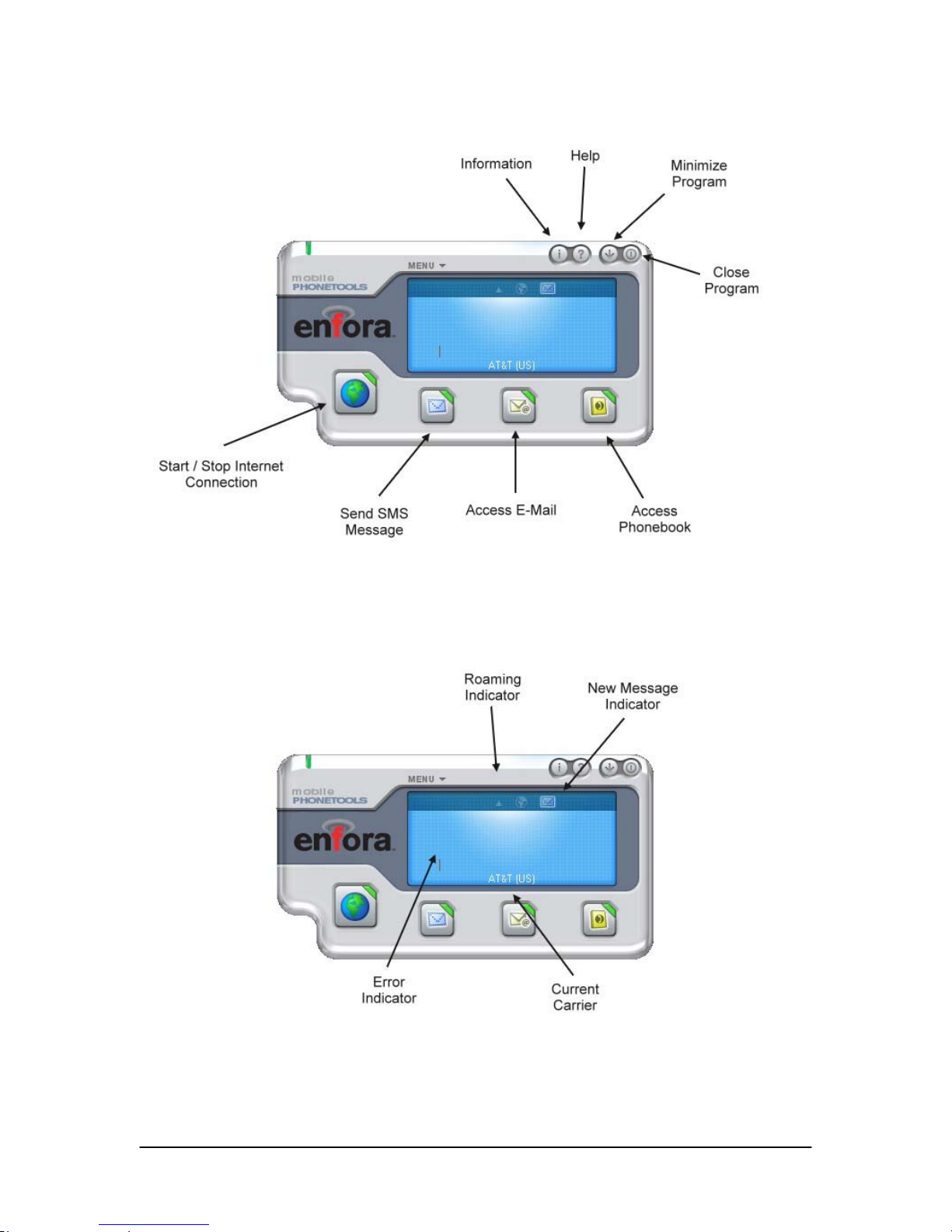
mobile PhoneTools Button Definitions
mobile PhoneTools Display Definitions
EDG0200UG001 Page 14 12/12/2005
Page 21
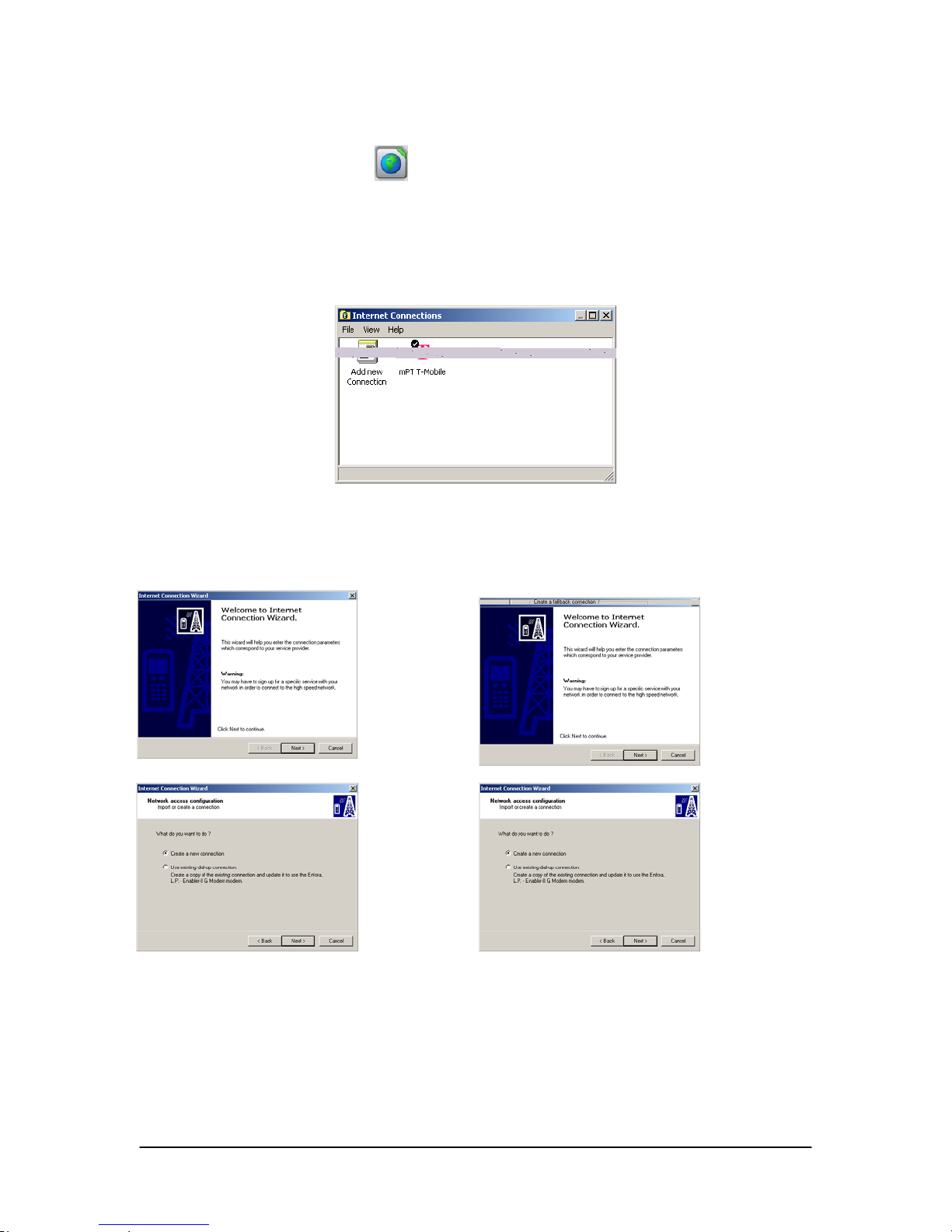
mobile PhoneTools Internet Connection Wizard
There are two ways to create an Internet connection:
1. Select the Globe Icon within mobile PhoneTools. The Internet
Connection Wizard will automatically start if there are no existing Internet
connections defined.
2. Use the Menu > Setup > Internet connections option. Then, activate Add new
Connection.
Internet Connection
Wizard Using the Globe
Internet Connection Wizard
Using the Add New Connection
Start Option
EDG0200UG001 Page 15 12/12/2005
Page 22
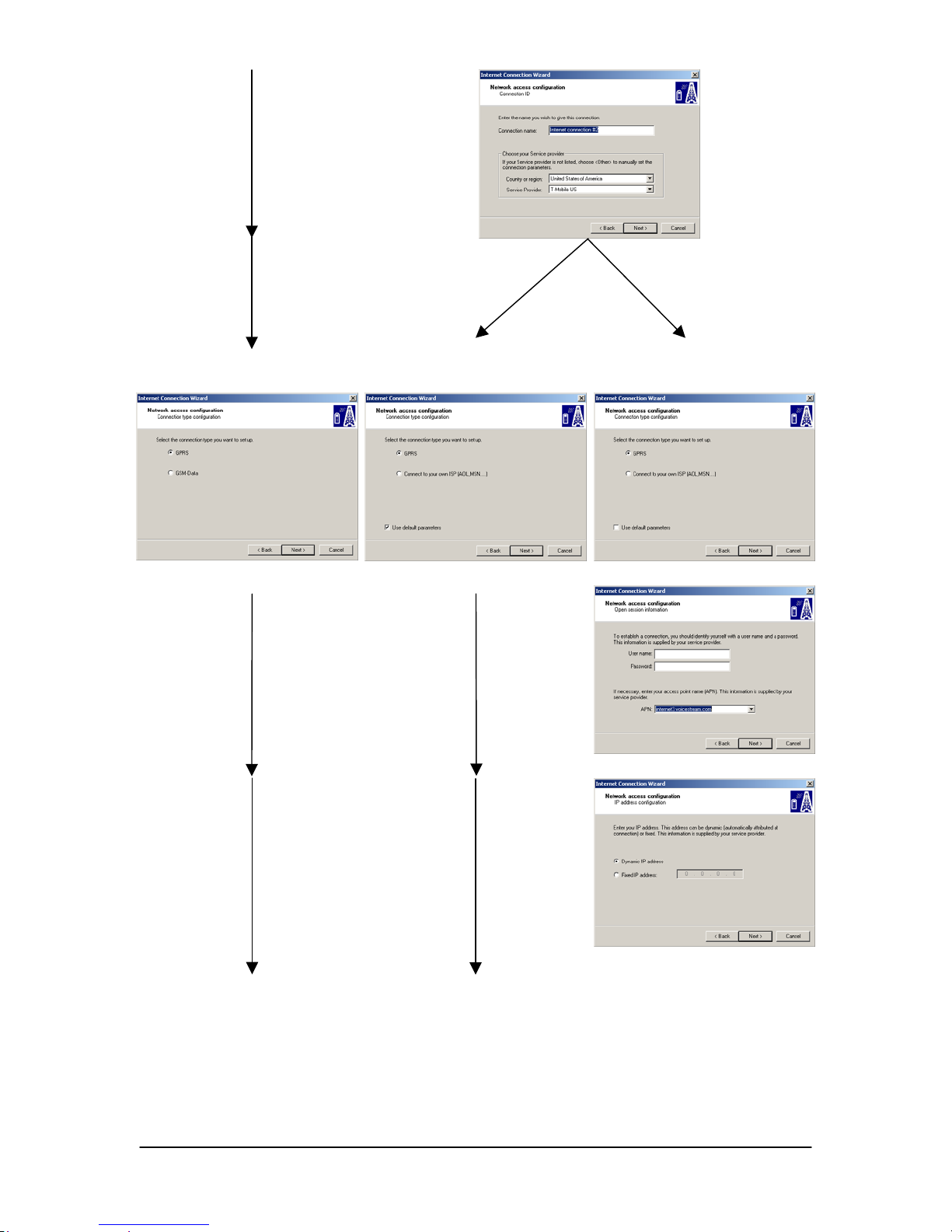
Use Default Network
Settings
Customize Network
Settings
EDG0200UG001 Page 16 12/12/2005
Page 23
EDG0200UG001 Page 17 12/12/2005
Page 24

Troubleshooting
If you have any questions regarding installation, set up, or operation of the EDG0200
PCMCIA EDGE Card, please contact the vendor or distributor from whom you
purchased the card, or your wireless network carrier.
http://www.enfora.com
EDG0200UG001 Page 18 12/12/2005
Page 25

LIMITED WARRANTY
Scope
Enfora warrants to the original purchaser of the product that, for a period of one (1) year from the
date of product purchase, the product hardware, when used in conjunction with any associated
software (including any firmware and applications) supplied by Enfora, will be free from defects
in material or workmanship under normal operation. Enfora further warrants to such original
purchaser that, for a period of ninety (90) days from the date of product purchase, any software
associated with the product will perform substantially in accordance with the user documentation
provided by Enfora, and any software media provided with the product will be free from defects
in material or workmanship under normal operation. Enfora does not warrant that (a) the product
hardware or any associated software will meet the purchaser’s requirements, (b) that the operation
of the product hardware or software will be uninterrupted or error-free, or (c) the product, when
integrated in, or combined with, other products or software not supplied by Enfora, will continue
to perform substantially in accordance with the user documentation. This limited warranty is
only for the benefit of the original purchaser and is not transferable. No other party may act on
behalf of such purchaser for the purpose of claiming or exercising any rights or benefits under or
in connection with this limited warranty except as may be provided in a written agreement
between Enfora and such other party.
Hardware
During the warranty period applicable to the product hardware, Enfora, at its expense and in its
sole discretion, will repair or replace the product if it is determined to have a covered hardware
defect, provided that the purchaser first notifies Enfora of any such defect, furnishes Enfora with
a proof of purchase, requests and obtains a return merchandize authorization (RMA) number from
Enfora, and returns the product, shipping charges prepaid, to Enfora under that RMA. If, upon
reasonable examination of the returned product, Enfora does not substantiate the defect claimed
by purchaser, or determines that the defect is not covered under this limited warranty, Enfora will
not be required to repair or replace the product, but may instead reship the product to the
purchaser, in which case purchaser shall be responsible for paying Enfora’s usual charges for
unpacking, testing, and repacking the product for reshipment to purchaser. Purchaser shall bear
the risk of loss or damage in transit to any product returned by purchaser to Enfora, or any
returned product not found to be defective or covered under this warranty and reshipped by
Enfora to purchaser. In the event Enfora repairs or replaces a defective product, the repaired or
replacement product will be covered under this limited warranty for the remainder of the original
warranty period on the defective product. If Enfora is unable to repair or replace a defective
product, the purchaser’s exclusive remedy shall be a refund of the original purchase price. Any
returned and replaced product, or any product for which Enfora has refunded the original
purchase price, becomes the property of Enfora.
Software
During the warranty period applicable to the software or its media, Enfora, at its expense,
will replace any defective software or media if purchaser gives written notification of the
defect to the technical support department at Enfora during the applicable warranty
period. Enfora will ship or otherwise transmit the replacement software or media to
purchaser, and purchaser shall be responsible for incorporating any replacement software
in the product. Enfora shall not have any obligation to provide any software bug fixes,
upgrades or new releases except as may be necessary to correct any covered defect of
which purchaser notifies Enfora in writing during the applicable warranty period. Enfora,
EDG0200UG001 Page 19 12/12/2005
Page 26

from time to time and in its sole discretion, may make available for download on its
website (www.enfora.com) certain software bug fixes, upgrades or new releases for the
product. The purchaser should periodically visit such website to determine whether any
such bug fixes, upgrades or new releases have become available. Download and use of
any such bug fixes, upgrades or new releases is subject to all of the applicable terms and
conditions of Enfora’s technical support policy as posted and updated on its website.
Exceptions and Disclaimers
Enfora shall have no obligation under this limited warranty for (a) normal wear and tear, (b) the
cost of procurement of substitute products or (c) any defect that is (i) discovered by purchaser
during the warranty period but purchaser does not notify or request an RMA number from Enfora,
as required above, until after the end of the warranty period, (ii) caused by any accident, misuse,
abuse, improper installation, handling or testing, or unauthorized repair or modification of the
product, (iii) caused by use of any software other than any software supplied by Enfora, or by use
of the product other than in accordance with its documentation or (iv) the result of electrostatic
discharge, electrical surge, fire, flood or similar causes. Unless otherwise provided in a written
agreement between the purchaser and Enfora, the purchaser shall be solely responsible for the
proper configuration, testing and verification of the product prior to deployment in the field.
ENFORA’S SOLE RESPONSIBILITY AND PURCHASER’S SOLE REMEDY UNDER THIS
LIMITED WARRANTY SHALL BE TO REPAIR OR REPLACE THE PRODUCT
HARDWARE, SOFTWARE OR SOFTWARE MEDIA (OR IF REPAIR OR REPLACEMENT
IS NOT POSSIBLE, OBTAIN A REFUND OF THE PURCHASE PRICE) AS PROVIDED
ABOVE. ENFORA EXPRESSLY DISCLAIMS ALL OTHER WARRANTIES OF ANY KIND,
EXPRESS OR IMPLIED, INCLUDING WITHOUT LIMITATION ANY IMPLIED
WARRANTIES OF NON-INFRINGEMENT, MERCHANTABILITY, SATISFACTORY
PERFORMANCE AND FITNESS FOR A PARTICULAR PURPOSE. IN NO EVENT SHALL
ENFORA BE LIABLE FOR ANY INDIRECT, SPECIAL, EXEMPLARY, INCIDENTAL OR
CONSEQUENTIAL DAMAGES (INCLUDING WITHOUT LIMITATION LOSS OR
INTERRUPTION OF USE, DATA, REVENUES OR PROFITS) RESULTING FROM A
BREACH OF THIS WARRANTY OR BASED ON ANY OTHER LEGAL THEORY, EVEN IF
ENFORA HAS BEEN ADVISED OF THE POSSIBILITY OR LIKELIHOOD OF SUCH
DAMAGES.
Other Considerations
Some jurisdictions may require a longer warranty period than specified above and, accordingly,
for products sold in those jurisdictions the applicable warranty period shall be extended as
required under the laws of those jurisdictions. Furthermore, some jurisdictions may not allow the
disclaimer of implied warranties or the exclusion or limitation of incidental or consequential
damages, so the above disclaimer, limitation or exclusion may not apply to products sold in those
jurisdictions. This limited warranty gives the purchaser specific legal rights and the purchaser
may have other legal rights that vary from jurisdiction to jurisdiction.
In some instances, certain aspects of the product warranty may also be covered in a separate
written agreement between Enfora and the distributor or reseller, if any, from whom purchaser
purchased the product. That agreement may provide, for example, a different product return
procedure that may also be available to purchaser (e.g., the product may be returned to Enfora
through that distributor or reseller).
EDG0200UG001 Page 20 12/12/2005
Page 27

Governing Law
This limited warranty shall be governed by the laws of the State of Texas, United States of
America, without regard to conflict of laws principles. This limited warranty shall not be
governed in any respect by the United Nations Convention on Contracts for the International Sale
of Goods.
EDG0200UG001 Page 21 12/12/2005
 Loading...