

Page 1

We create the world’s most accessible motion capture
experiences.
Getting Started Guide
Version 1.0.005
Page 2

© 2017 Enflux Inc.
https://www.getenflux.com/
1
Federal Communications Commission (FCC) Statement
Note: This equipment has been tested and found to comply with the limits for a Class B digital device, pursuant to Part 15 of the
FCC Rules. These limits are designed to provide reasonable protection against harmful interference in a residential installation.
This equipment generates, uses, and can radiate radio frequency energy and, if not installed and used in accordance with the
instruction manual, may cause harmful interference to radio communications. However, there is no guarantee that interference
will not occur in a particular installation. If this equipment does cause harmful interference to radio or television reception, which
can be determined by turning the equipment off and on, the user is encouraged to try to correct the interference by one or more of
the following measures:
- Reorient or relocate the receiving antenna.
- Increase the separation between the equipment and receiver.
- Connect the equipment into an outlet on a circuit different from that to which the receiver is connected.
- Consult the dealer or an experienced radio/TV technician for help
Properly shielded and grounded cables and connectors must be used in order to meet FCC emission limits. Enflux Inc. is not
responsible for any radio or television interference caused by using other than recommended cables and connectors or by
unauthorized changes or modifications to this equipment. The FCC requires the user to be notified that any changes or
modifications made to this device that are not expressly approved by Enflux Inc. may void the user’s authority to operate the
equipment.
This device complies with part 15 of the FCC Rules. Operation is subject to the following two conditions: (1) This device may
not cause harmful interference, and (2) this device must accept any interference received, including interference that may cause
undesired operation.
RF Exposure Warning Statement:
This equipment complies with FCC radiation exposure limits set forth for an uncontrolled environment. End users must follow
the specific operation instructions for satisfying RF exposure compliance. This transmitter may be placed less than 5mm from the
user, but must not be co-located or operating in conjunction with any other antenna or transmitter.
ISEDC Statement
This device complies with Industry Canada license-exempt RSS standard(s). Operation is subject to the following two conditions:
1. This device may not cause harmful interference;
2. This device must accept any interference received, including interference that may cause undesired operation of the
device.
Cet appareil est conforme à Industrie Canada une license standard RSS exonérés(s). Son fonctionnement est soumis aux deux
conditions suivantes:
1. Cet appareil ne doit pas provoquer d’interférences
2. Cet appareil doit accepter toute interférence recue, y compris les interférences pouvant provoquer un fonctionnement
indésirable de l'appareil.
Radiation Exposure Statement: This equipment complies with the IC RSS-102 radiation exposure limits set forth for an
uncontrolled environment.
Énoncé d’exposition aux rayonnements: Cet équipment est conforme aux limites d’exposition aux rayonnements ioniques RSS102 Pour un environnment incontrôlé.
Page 3

© 2017 Enflux Inc.
https://www.getenflux.com/
2
Contents
Federal Communications Commission (FCC) Statement 1
ISEDC Statement 1
Contents 2
Introduction 3
Features 3
Technical Specifications (Per Garment) 3
System Requirements 3
Setup 4
Powering On Clothing 4
Pairing (Windows 10) 4
Calibration 5
Streaming 6
Alignment 6
Reset Orientation 7
FAQ 8
Tracking 8
The clothing is experiencing slow or choppy streamed animation. 8
The clothing is experiencing issues with tracking. 8
Pairing 8
Hard Reset 8
Windows Bluetooth Manager gives a “Driver Error”. 8
A popup appears that the device cannot establish a connection. 9
The progress bar stalls in the middle of pairing. 9
My device doesn’t appear in Windows Bluetooth Manager. 9
Recommended Hardware 10
Windows 10 Devices 10
USB Bluetooth Adapters 10
Support 11
About Enflux 11
Page 4

© 2017 Enflux Inc.
https://www.getenflux.com/
3
Introduction
Thank you for purchasing Enflux motion capture clothing! This document covers everything needed to
get started and connect the clothing to your computer.
Features
Each garment (shirt and pants) has 5 embedded IMU sensors to track orientation of your limbs. Each
garment transmits data wirelessly in real-time over Bluetooth Low Energy to your computer.
Technical Specifications (Per Garment)
● 5 IMU sensors @ 9 degrees of freedom (Gyroscope+Magnetometer+Accelerometer)
● 18ms streaming latency for real-time limb orientations
● Wireless data transfer via Bluetooth Low Energy
● Rechargeable battery through the Micro-USB port
● Drift reduction through embedded adaptive filtering algorithm
System Requirements
● Windows 10 (x86 or x86-64)
● Integrated or USB Bluetooth Low Energy adapter (Bluetooth 4.0)
Page 5
© 2017 Enflux Inc.
https://www.getenflux.com/
4
Setup
While wearing the garments, metal objects, magnets, and batteries may interfere with the sensors. Be sure
to remove objects such as watches and belts if they cause interference or incorrect streamed animation.
Powering On Clothing
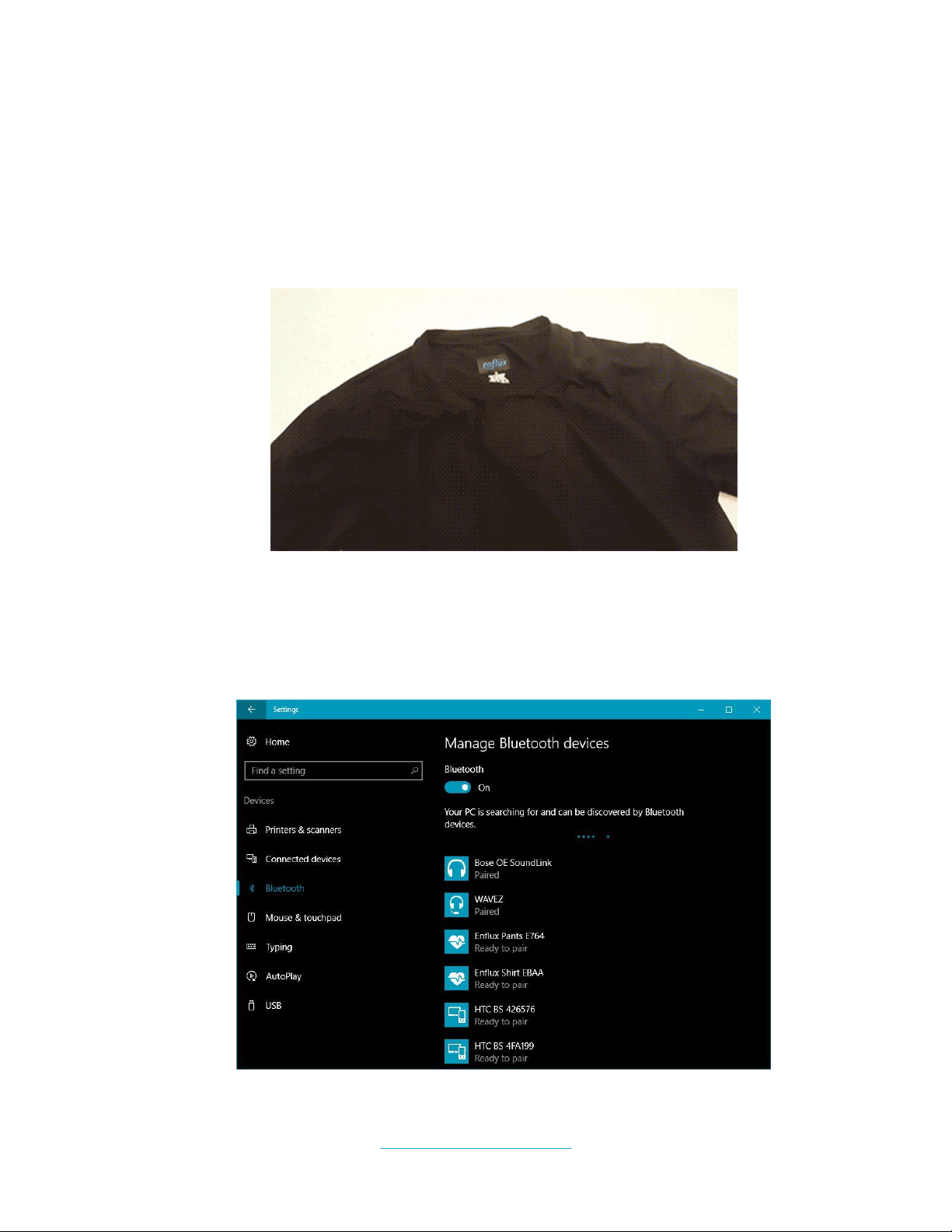
1. Press the center module button to turn on the Enflux device. The LED will blink blue.
Pairing (Windows 10)
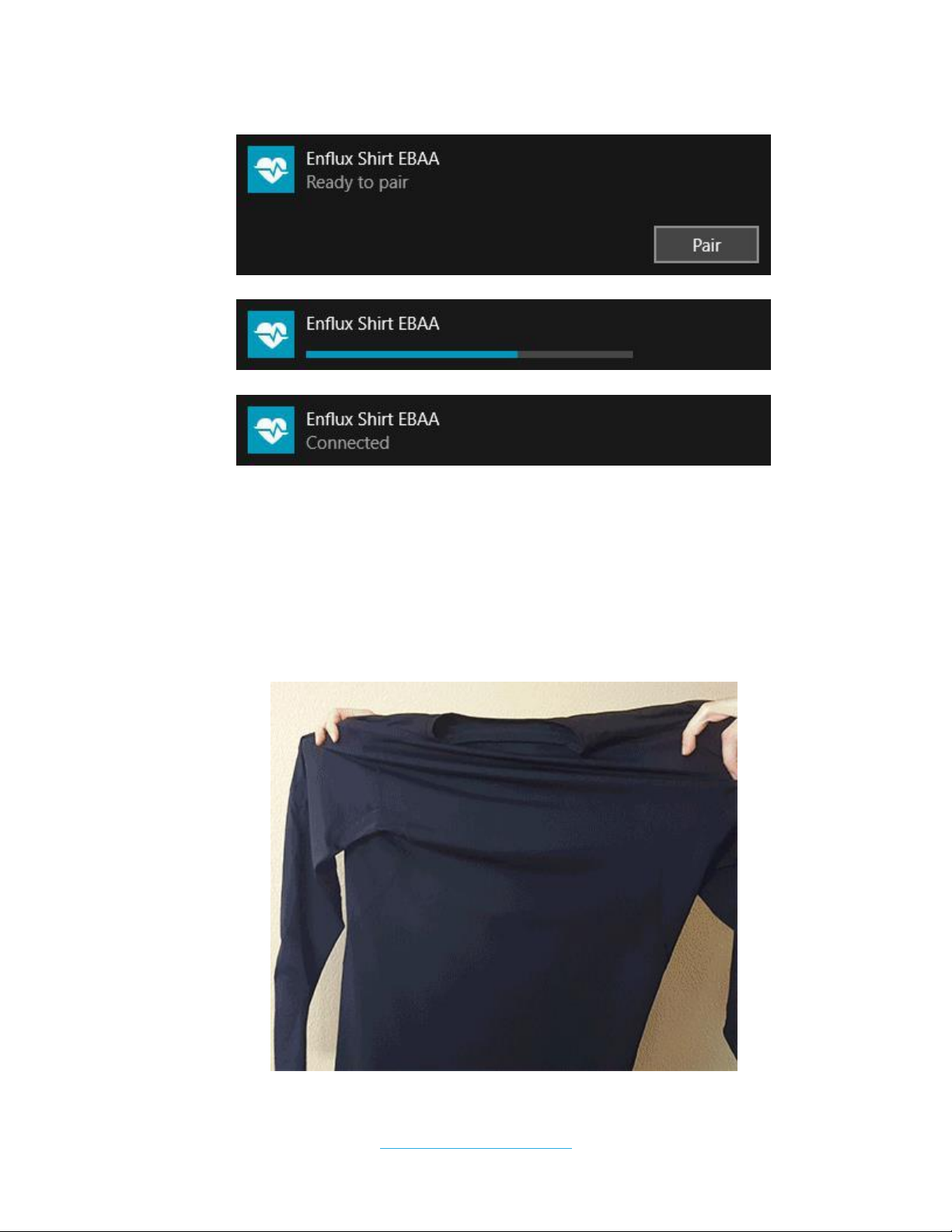
1. Open Windows Bluetooth Manager. This is accessible under Settings > Devices > Bluetooth.
2. Find your garment in the devices list. This will be “Enflux Shirt” or “Enflux Pants”, followed by
a 4 digit ID.
Page 6
© 2017 Enflux Inc.
https://www.getenflux.com/
5
3. Click on the device, then click “Pair”.
4. You’ll see a progress bar as Windows pairs the device.
5. On completion, you’ll see “Connected”.
Calibration
An Enflux device requires a calibration before using. The calibration process is used by the embedded
adaptive algorithm for the device to provide smooth animation and minimize drift.
Calibration may be prompted by an Enflux app or through the SDK. Make sure the clothing is off to
calibrate. Once calibration has started:
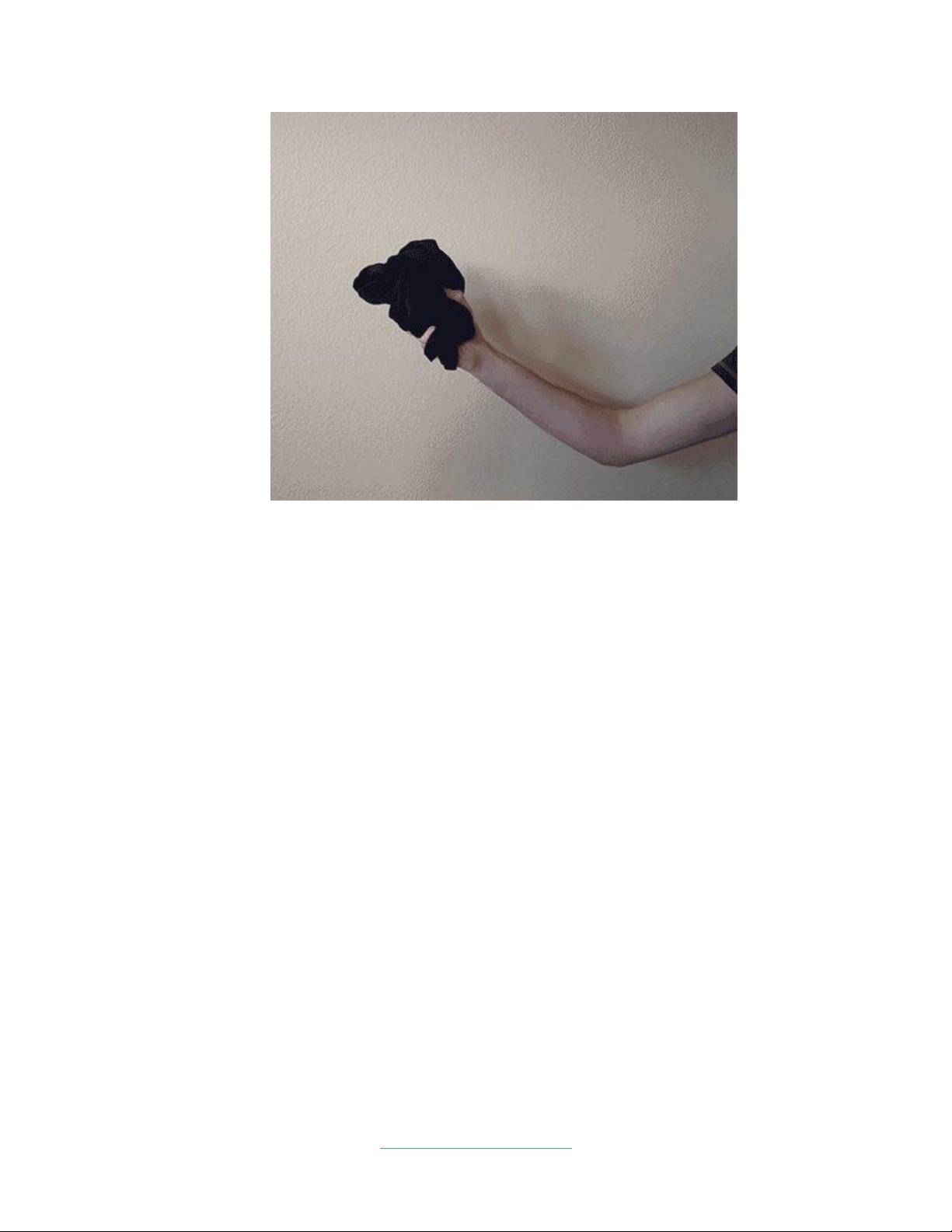
1. Fold the garment into a ball.
2. Rotate the garment around the roll, pitch, and yaw planes.
Page 7
© 2017 Enflux Inc.
https://www.getenflux.com/
6
3. Keep rotating until the application has notified that calibration is finished.
Streaming
Your Enflux app or the SDK will allow real-time animation streaming. When beginning streaming, stay
still until the clothing finishes initializing.
Alignment
Any Enflux app using 3D characters will need to map the clothing’s sensors to the 3D character.
Everybody has different body types, postures, and slight differences in the sensor positions on their limbs.
The process of compensating body limb orientation with the correct sensor placement is called
alignment.
Currently for the alignment process:
1. Assume a T-Pose before it starts.
Page 8

© 2017 Enflux Inc.
https://www.getenflux.com/
7
2. For an accurate alignment, remain as still as possible until the process completes.
Reset Orientation
During an Enflux experience, a short press to the center module button will reset orientation of the
clothing. If you want to change your real-world starting direction in the app, face the new direction and
press the button to reset orientation. Your 3D character will now adjust for the new direction in the app.
Page 9

© 2017 Enflux Inc.
https://www.getenflux.com/
8
FAQ
Tracking
The clothing is experiencing slow or choppy streamed animation.
● Ensure you are close to the Bluetooth receiver without any obstructions between you.
○ Bluetooth technology is recommended to be within a 10 feet maximum distance of the
receiver. Far distances can increase latency and introduce choppy animation.
○ Bluetooth signal does not transmit well through obstructions, liquids, heavy wireless
interference, or USB 3.0 connections.
The clothing is experiencing issues with tracking.
● After initializing the streaming, you should remain still until the clothing finishes initializing.
● Try recalibrating the suit.
● When wearing the suit, it is necessary to remove watches, belts, and other metal, magnetic, or
battery-powered objects that may interfere with the sensors.
● Ensure that the sensors are lined up correctly against your body.
○ When sitting, the waist module can flip upside down, which will give an incorrect pose.
○ Wearing the suit over jeans and baggy clothing can offset the sensors and give incorrect
results.
Pairing
In many cases when encountering pairing issues, a hard reset followed by repairing will quickly fix the
issue.
Hard Reset
1. To perform a hard reset, hold down the center module button for around 5 seconds.
2. The device will forget the computer that it is paired to. Disconnect the device from the computer.
3. Repair the device.
○ It may take up to 15 seconds to update the device pairing, so give it some time before
attempting to pair again.
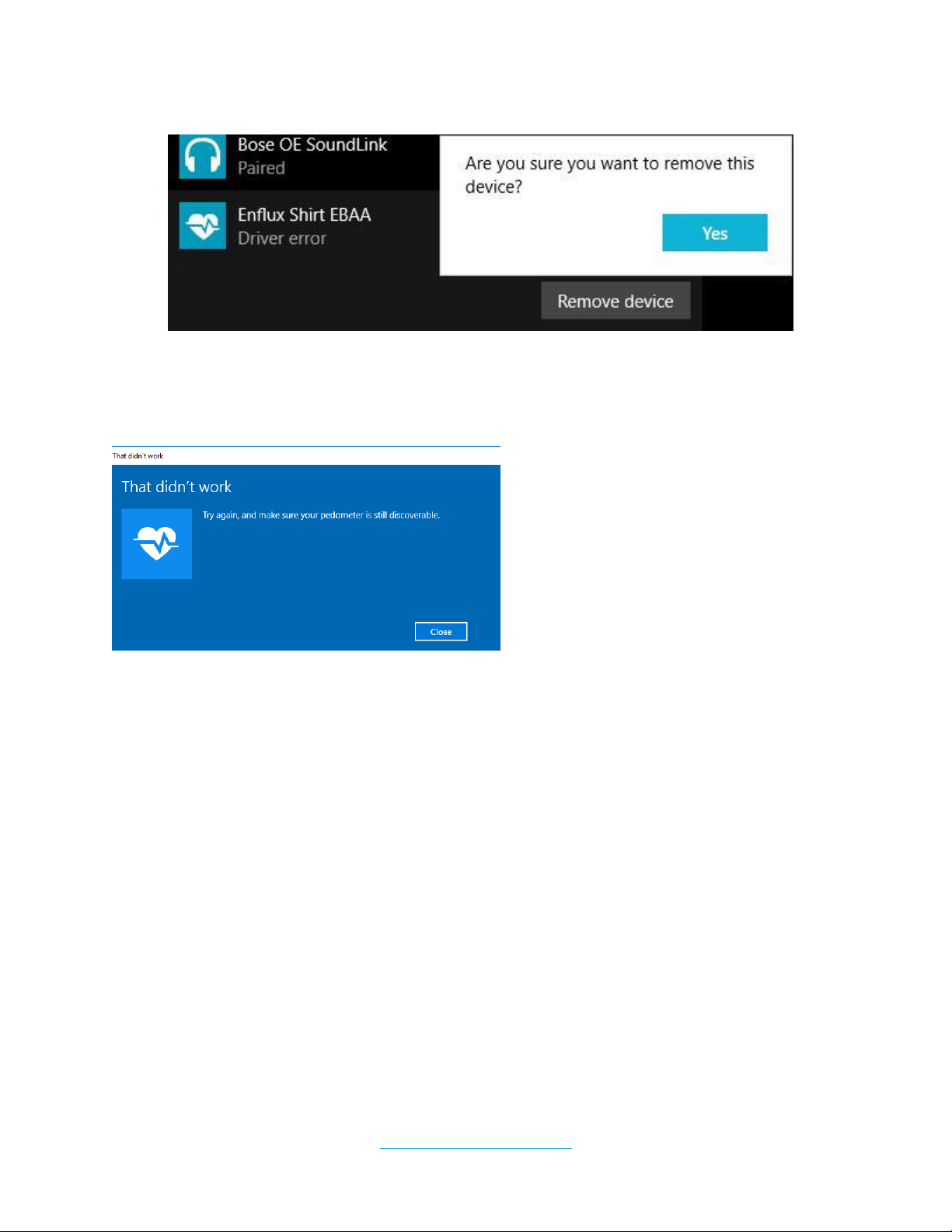
Windows Bluetooth Manager gives a “Driver Error”.
Page 10
© 2017 Enflux Inc.
https://www.getenflux.com/
9
1. Unpair the device from Windows.
2. Perform a hard reset.
3. Wait about 15 seconds.
4. Retry pairing the device.
A popup appears that the device cannot establish a connection.
● Move the suit closer to the Bluetooth adapter and try pairing again.
● If the device is at low battery, it may fail to connect.
● If the device continues to be unable to connect, perform a hard reset.
The progress bar stalls in the middle of pairing.
● This is sometimes a false indicator of an error. Try using the device anyways.
● If the device continues to be unable to connect, try re-pairing or perform a hard reset.
My device doesn’t appear in Windows Bluetooth Manager.
● Ensure that you have the proper system and Bluetooth adapter requirements.
● Sometimes Windows Bluetooth Manager gets stuck and no new Bluetooth devices will appear in
the list.
○ Try to toggle the “Bluetooth” button off, wait 10 seconds, then toggle it back on. Then
power on your clothing.
○ If the device continues to not show up, restart your computer.
Page 11

© 2017 Enflux Inc.
https://www.getenflux.com/
10
Recommended Hardware
Windows 10 Devices
● Windows 10 laptops with:
○ Intel i5 processors or better
○ 8GB of RAM or better
○ Bluetooth 4.0
● Microsoft Surface Pro 4 tablets (Intel i5 processor or better)
● Microsoft Surface Book (Intel i5 processor or better)
USB Bluetooth Adapters
Enflux clothing requires Bluetooth adapters that support “Bluetooth Smart” 4.0. Older and offbrand USB
adapters will have trouble with connecting and maintaining a stable connection.
Recommended adapters:
● ASUS BT-400
Page 12

© 2017 Enflux Inc.
https://www.getenflux.com/
11
Support
Website:
● https://www.getenflux.com/
Website FAQ:
● https://www.getenflux.com/pages/faqs-1
Support Email:
About Enflux
Enflux is a leader in creating fashionable, affordable, simple, and mobile motion capture clothing.
We create the world’s most accessible motion capture
experiences.
 Loading...