

Page 1
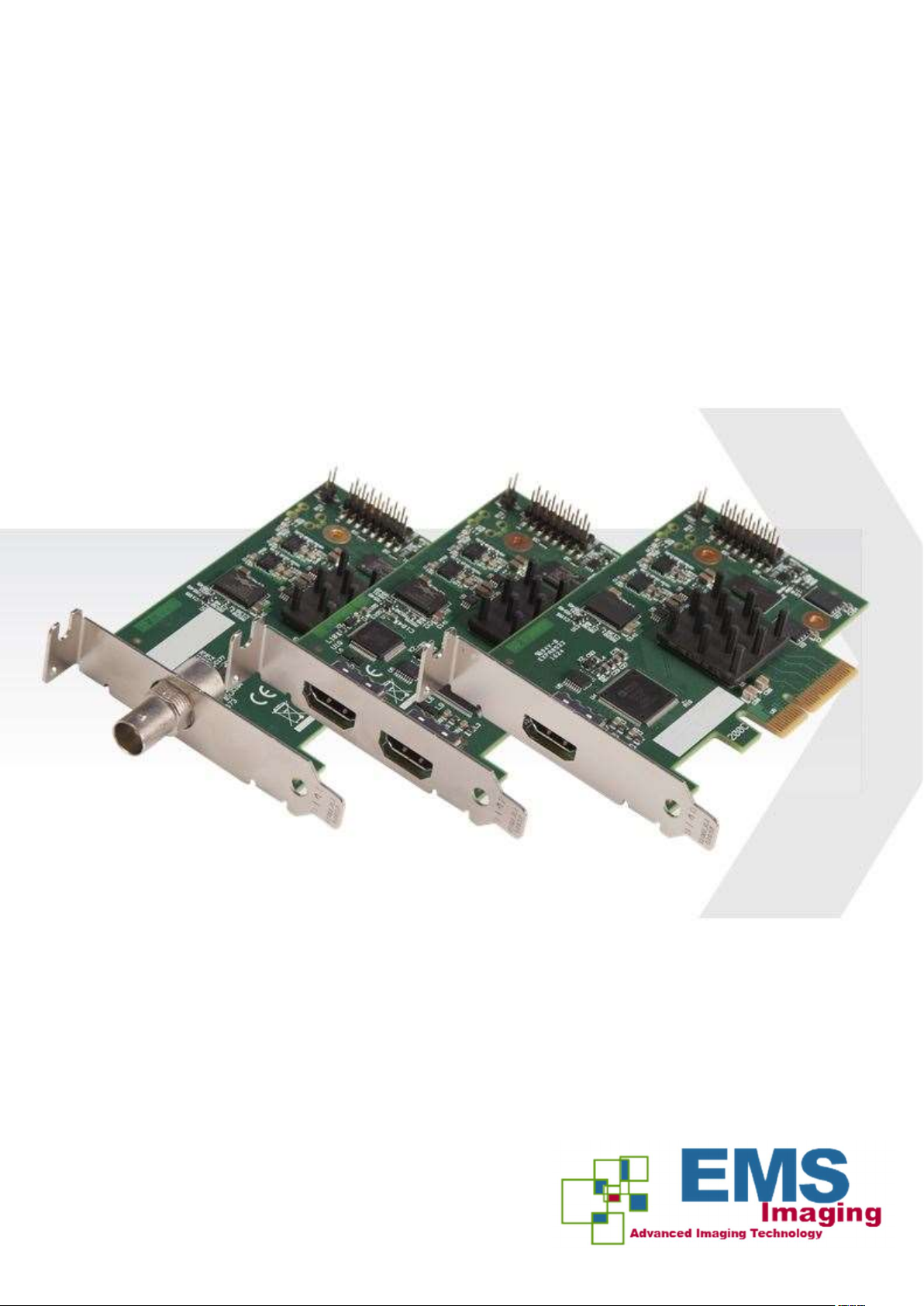
The XtremeLC Range
Dual & Single Channel Live Capture Cards
User Guide
Version 1.0.0
Electronic Modular Solutions Limited
Leicestershire
United Kingdom
Tel: +44(0)116 2775730
Email: [email protected]
Page 2

Table of Contents
Safety
NSTRUCTIONS
I
................................................................................................................. 2
.
Introduction. ............................................................................................................................ 3
Installing the Capture Card. ...................................................................................................... 3
XtremeLC-HD ............................................................................................................................................................ 4
XtremeLC-HD2. ........................................................................................................................................................ 4
XtremeLC-SDI. ..........................................................................................................................................................4
Hardware Overview ................................................................................................................. 4
Software Overview .................................................................................................................. 5
Software Install. ......................................................................................................................................................... 5
Xtreme Configure Dialogue. ...................................................................................................................................... 6
Video Streaming. ...................................................................................................................................................... 7
Firmware Upgrades. ................................................................................................................ 8
Specifications. ........................................................................................................................ 9
EMS
I
NDEX
IMITED
L
.
........................................................................................................................................................ 13
.
............................................................................................................................................ 12
1
Page 3

Safety Instructions
Safety Instructions (UK)
To prevent damage to your EMS product or injury to personnel operating the
equipment, please read the following safety precautions prior to operation. Th ese
instructions should be made available to all those who will use and operate EMS
products.
Power Supply
All EMS products require a mains powe r supply. This power supply must be
disconnected when equipment is being upgraded or relocated.
Cables
Do not expose cables to any liquids; doing so may cause a short circuit which could
damage the equipment. Do not place heavy objects on top of any cables as this can
cause damage and possibly lead to expo sed live wires.
Ventilation
All computer equipment should be located in a well ventilated area. All ventilation
holes on the computer casing must be kep t clear of any obstruction at all times.
Failure to do so will result in the system over heating and damaging your equipment.
Working Environment
The equipment should be located in an en vironment free from dust, moisture and
extreme changes in temperature and should be placed on a stable and solid work
surface. Liquids (hot/cold drinks etc) should not be placed near the equipmen t as
spillage could cause serious damage .
Gas/Flammable Liquids
Electronic equipment should never be used in the presence of gas or any fla mmable
liquid, doing so could result in an explosion or serious fire.
Smoke/Unusual Smells
Should you notice smoke or unusual smells being emitted from your compute r, turn
off and unplug the system from the mains supply. The system should then be passed
to a qualified technician for inspection. Continued operation could result in personal
injury and damage to property.
Maintenance
Maintenance should only be carried out by competent technicians, any EMS plug-in
cards that are physically damaged shou ld be returned to EMS for repair using EMS
RMA procedures.
Consignes de sécurité (Fr)
Afin de ne pas endommager votre produit EMS et d’éviter tout risque de blessure du
personnel exploitant le matériel, veuillez lire les consignes de sécurité suivantes avant
toute utilisation. Ces instructions doivent être mises à disposition de toute per- sonne
souhaitant utiliser et exploiter les produ its EMS.
Alimentation électrique
Tous les produits EMS requièrent une alimentation électrique principale. Cette
alimentation électrique doit être interrompue en cas de mise à jour ou de relocalisation
du matériel.
Câbles
Ne pas exposer les câbles à un liquide quelconque car cela pourrait provoque r un court-
circuit susceptible d’endommager le m atériel.
Ne pas placer d’objets lourds sur les câbles car cela pourrait causer des dommages et
conduire éventuellement à des fils éle ctriques dénudés.
Ventilation
Tout matériel informatique doit être disposé dans un en droit bien ventilé. Veiller à ne
jamais obstruer les orifices de ventilation du boîtier de l’ordinateur ; sinon, il y a risque
de surchauffe du système et votre matériel peut être endommagé.
Environnement de travail
Le matériel doit être placé sur une surface de travail stable et solide, dan s un environne-
ment exempt de poussière et d’humidité et non exposé à des variations extrêmes de
températures. Ne pas placer de liqu ides (boissons chaudes/froides, etc.) près du matériel, car un déversement accidentel pourrait causer de graves dommages.
Gaz/Liquides inflammables
Le matériel électronique ne doit jama is être utilisé en présence de gaz ou de liquide
inflammable ; cela pourrait entraîner une explosion ou un grave incendie.
Fumée/odeurs inhabituelles
Si vous constatez la présence de fumée ou d’odeurs inhabituelles émanant de v otre
ordinateur, éteignez-le et débranchez le système de l’alimentation secteur. Dans ce
cas, le système devra être confié à un technicien qualifié pour inspection. Une poursuite
de son utilisation risquerait de provoquer des blessures corporelles et des do mmages
matériels.
Entretien
L’entretien doit impérativement être e ffectué par des techniciens compétents, toute
carte enfichable EMS physiquement endo mmagée est à retourner à EMS pour
réparation via la procédure EMS RMA.
Instrucciones de seguridad (Esp)
Rogamos leer las siguientes instrucciones de seguridad antes de poner en funcionamiento el equipo, a fin de evitar daños en su producto de EMS o lesione s al personal
encargado de su manejo. Poner estas instrucciones a disposición de todos aquellos que
vayan a utilizar y/o manejar los productos de EMS.
Alimentación eléctrica
Todos los productos de EMS requieren una fuente de alimentación eléctric a. Esta
fuente de alimentación eléctrica debe ser desconectada durante las tareas de
renovación o traslado.
Cables
No exponer los cables a líquidos, ya que ello puede causar un cortocircuito y, por consiguiente, daños en el equipo. No colocar objetos pesados sobre los cables, ya que esto
puede ocasionar daños y poner al descubierto los cables vivos.
Ventilación
Todos los equipos informáticos deben es tar situados en un área bien ventilada. Mantener todos los orificios de ventilación de la carcasa del ordenador siempre libres de
obstrucciones de cualquier tipo. En caso contrario, podría producirse un so brecalentamiento del sistema y daños en el equipo.
Entorno de trabajo
El equipo debe estar emplazado en un ambiente sin polvo, humedad ni cambios bruscos de temperatura y debe ser situado sobre una superficie estable y sólida. No colocar
líquidos (bebidas calientes/frías, etc .) cerca del equipo, ya que un derrame podría causar
graves daños.
Gas/líquidos inflamables
El equipo electrónico nunca debe ser u sado en presencia de gas o líquido inflamable, ya
que esto podría causar una explosión o un incendio grave.
Humo/olores inusuales
En caso de percibir humo u olores inusuales provenientes de su ordenador, apagar y
desenchufar el equipo de la red eléctr ica. El sistema debe ser confiado entonces a un
técnico cualificado para su
inspección. Si el equipo continuara fun cionando, esto podría ocasionar lesiones personales y daños materiales.
Mantenimiento
El mantenimiento solo debe ser ejecutado por técnicos capacitados. Las tarjetas
insertables (plug-in) de EMS que estén físicamente dañadas deben ser devueltas a
EMS para su reparación
Agreement) de EMS.
Sicherheitsanweisungen (D)
Die folgenden Sicherheitsanweisungen dienen der Vermeidung von Schäden an Ihrem
EMS-Produkt und Verletzungen der Nutzer. Bitte lesen Sie sie sorgfältig d urch, bevor
Sie Ihr Produkt in Betrieb nehmen. Diese Anweisungen sollten allen Personen
zugänglich gemacht werden, die mit der Nutzung und der Bedienung von EMSProdukten betraut sind.
Stromversorgung
Alle EMS-Produkte
Stromversorgung muss unterbrochen we rden, wenn Geräte ausgetauscht oder an einer
anderen Stelle platziert werden sollen.
Kabel
Kabel
und somit ein Schaden an dem Gerät ausgelöst werden könnte. Stellen Sie außerdem
keine schweren Objekte auf die Kabel, um Schäden und
Leitungen zu vermeiden.
L
ÜFTUNG
C
OMPUTE RAUSRÜSTUNG
L
ÜFTUN GSLÖCHER
Überhitzung und somit einen Geräteschaden zu vermeiden.
Arbeitsumgebung
Die Geräte sollten in einer staubfreien und trockenen Umgebung, in der keine extremen
Temperaturänderungen zu erwarten sind, auf einer stabilen
werden. In der Nähe der Geräte sollten keine
platziert werden, die
könnten.
Gas/brennbare
Elektronische Geräte sind nicht in Umgebungen zu verwenden, in denen Gas oder
brennbare
besteht.
Rauch/ungewöhnliche
Schalten Sie das System aus und trennen Sie es von der Hauptversorgung, wenn von
Ihrem Computer Rauch ausgeht oder dieser ungewöhnliche
das System anschließend von einem
Betrieb besteht die Gefahr von Verletzungen und Sachschäden.
Wartung
Wartungsarbeiten sollten nur von
Physisch beschädigte Plug-in-Karten von EMS sollten zur Reparatur unter Einsatz der
RMA-Verfahren von EMS an EMS
nicht mit
DÜRFEN
am Computergehäuse
F
LÜSSIGK
F
LÜSSIGK
eiten vorhanden ist/sind und somit Brand- und Explosionsgefahr
los procedimientos RMA (Return Merchand ise
SEGÚN
an die Hauptstromversorgung angeschlossen werden. Die
MÜSSE N
F
LÜSSIGK
sollte in einem gut
VER SCHÜTTET
eiten
G
ERÜCHE
B
eiten in
MÜSSEN
werden und schwerwiegende Schäden anrichten
qualifizierten
qualifizierten
ÜBERGEB EN
kommen, da dadurch ein Kurzschluss
ERÜHRUNG
offen
liegende
Bereich aufgestellt werden. Die
GELÜFTETEN
stets freigehalten werden, um eine
F
LÜSSIGK
Technikern
werden.
Arbeitsfläche
eiten (heiße/kalte Getränke etc.)
G
ERÜCHE
Techniker
PRÜFE N
DURC HGEFÜHR T
.
Bei
STROM FÜHRENDE
aufgestellt
abgibt. Lassen Sie
FORTGEFÜH RTEM
werden.
2
Page 4

Introduction
The XtremeLC range of “Live Capture” cards provide single and dual channel high definition capture channels in a PCIe
low profile card. The full range of LC capture cards include:
XtremeLC-HD - Single channel, high
definition
HDMI live capture
card XtremeLC-HD2 - Dual channel, high
card XtremeLC-SDI - Single channel, SDI live capture card
EMS’s LiveStream Capture architecture allows captured video to be processed and delivered in real time to a processor or
graphics card. The XtremeLC range of cards support on board colour space conversion and scaling, providing the ability to
efficiently
supports 32, 24, 16 and 12 bit YUV and RGB formats.
The XtremeLC range has been designed specifically for use within smaller applications:
•
•
•
•
•
transfer the video signal in a suitable format for rendering or encoding applications. The XtremeLC range natively
Medical operating theatres
Simulation systems
Lecture capture
Real time Streaming
Videoconferencing
definition
HDMI live capture
Installing the Capture Card
You are likely to need a flat blade and /or a cross head screwdriver for the installation of your XtremeLC card; it would be useful
to have these to hand before you begin.
•
Power down the PC (including peripherals), switch off at the mains and disconnect all the cables
connected to the computer, noting the positions for accurate re-connection
Remove the PC cover
•
•
Locate a vacant PCI Express slot (x4 physical or higher) on the motherboard and remove the blanking plate (retain all
screws)
If you are in doubt consult your motherboard documentation to correctly identify a PCI Express slot.
•
Reconnect all cables to the PC then connect HDMI or SDI cables (not supplied) distributing the signal to the connections on
your XtremeLC card
•
Power up the PC and commence the software installation.
Connecting Input Sources
Never use force when connecting cables to your XtremeLC card as it could cause damage to the connector on the card and
in turn, damage the card itself which is not covered under warranty.
3
Page 5

Hardware Overview
XtremeLC-HD
•
Single HDMI capture channel
•
Up to 297 Mp/s pixel clock capturing up to 3840X2160 @30Hz
800 MB/s DMA bandwidth
•
PCIe Gen 1 x4 low profile card
•
XtremeLC-HD2
Capture channel 1 - Bottom Connector
•
HDMI capture channel
•
3840X2160P @30Hz (UHD)
Capture channel 2 - Top Connector
HDMI capture channel
•
•
1920x1080p @ 60Hz (HD)
•
1.6 GB/s total DMA bandwidth
PCI Express Gen 2 x4 low profile
•
XtremeLC-SDI
•
Single SDI capture channel
•
SD-HD-3G at 60 Hz
•
800 MB/s DMA bandwidth
•
PCI Express Gen 1 x4 low profile
Combined features
•
High performance up and down scaling
•
Colour space conversion to supported output formats
•
EMS unified Windows® and Linux® driver support
4
Page 6

5
Software Overview
Software Install
Software for your XtremeLC card can be installed from the XtremeLC software supplied with your capture card:
Regular software updates are available, check the downloads page on the EMS website for details.
Also available on the EMS CD:
The Release Notes - The release notes contain the latest information on the XtremeLC range of capture cards.
•
Installation instructions.
•
•
Release history
•
Known problems
•
Troubleshooting
•
The application Help File - The help file must be stored located on the local machine to view its
content.
The XtremeLC software provided with the capture card allows HDMI or SDI inputs to be captured for either display or encoding.
The DirectShow®, Media Foundation or Video for Linux interfaces can be used in conjunction with the cards to stream video
across a network or to disk. A graphical DirectShow® application interface under the Windows® platform can be used to
configure properties of the card.
The supplied drivers and software require that you are using:
•
A Pentium PCI bus computer.
•
Linux, Windows® XP Professional, Windows® Server 2003, Windows® Server 2008, Windows® Vista, Windows® 7,
Windows® 8 and Windows® 10
Page 7
6
Xtreme Configure Dialogue
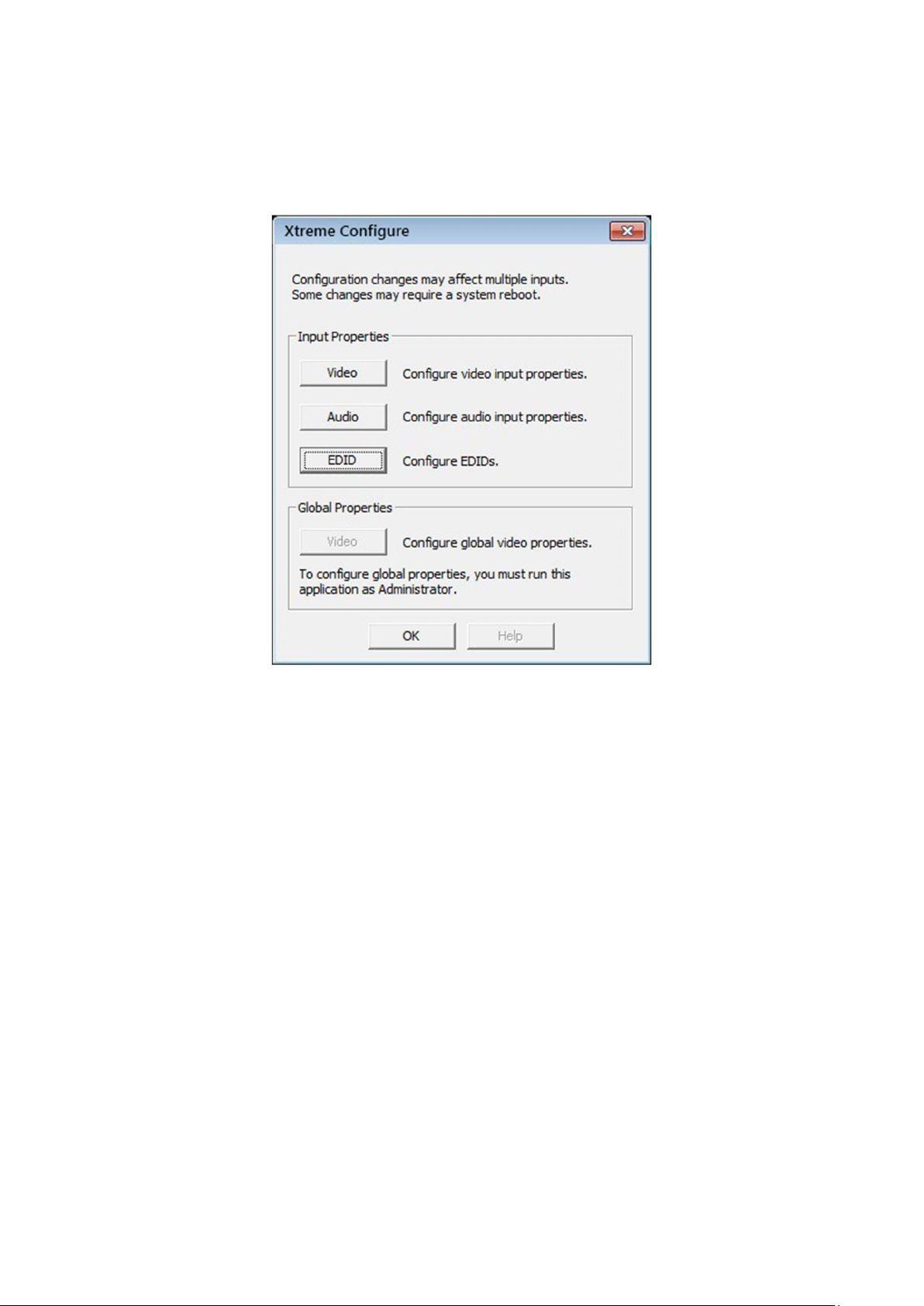
To configure the XtremeLC properties under the Windows® platform, open Start\Xtreme\XtremeLC Configure and the
following dialogue is displayed:
The Xtreme Configure dialogue allows you to configure the input properties for Video, Audio and offers the ability to configure
EDIDs.
Video Input Properties:
Filter Properties
•
•
Filter Colour Properties
•
Filter Configure
•
Filter Information
Audio Input Properties:
•
Audio Format
•
Analogue Audio
•
Output Mixer
Line Out
•
Configure EDIDs:
•
Create an EDID
•
Reset an EDID
•
Import an EDID
Page 8

7
Export an EDID
•
The Global Video properties can only be accessed if the application is run as Administrator.
Click on the Help button for more information regarding the Xtreme Configure dialogue.
Video Streaming
Built upon the Microsoft AV Stream framework, the XtremeLC range of live capture cards can be accessed and enumerated by
any DirectShow or Media Foundation supported application. A Video for Linux (V4L) driver package is also available for download.
Tested applications include:
•
Microsoft Media Encoder
•
VLC
Telestream WireCast
•
•
vMix
•
VirtualDub
•
VidBlaster
•
OBS Project
Adobe Flash Media Encoder
•
Page 9

8
Firmware Upgrades
All cards in the XtremeLC range allow firmware upgrades to be completed on site rather than returning the card to EMS.
Whenever a firmware upgrade is performed, the J4 Link MUST BE FITTED on the card.
To perform the upgrade, follow the step-by-step instructions provided by the upgrade application.
In the unlikely event that something goes wrong during the upgrade process (e.g. System power outage) it is possible to revert
to the factory settings by powering down the system, temporarily removing the J4 link then powering up the system with the
link removed. Once the system has rebooted, replace the J4 link (whilst the system is powered up) and restart the firmware
upgrade process.
It should be noted that the latest driver installation program includes an automatic firmware update, if required. Therefore,
prior to installing the application and driver, ensure that J4 link is fitted.
Page 10

9
Spec
ifications
XtremeLC-HD
Board Format PCIe Gen 1 x4 low
Dimensions 103mm x 64mm (LxH)
Connector HDMI
Capture Rate
Maximum Capture
Resolution
297MP/
560X1600
2
3840X2160
S
at 60Hz
P
Transfer Rate 800MB maximum DMA transfer rate
Hardware Colour Space
Conversion
Audio Support
30 / 24 /
16
12
Stereo pair PCM audio via HDMI channel at 16 bits in depth, sampling
options include 44.1/48/96 kHz
16
BIT
YUV (4:2:2)
BIT
YUV, NV12, YV12 (4:2:0)
BIT
Low Latency LiveStream Capture, Single frame time plus DMA transfer of final line
profile
plug-in card
at 30Hz (UHD)
RGB (4:4:4)
Operating System
Support
Power
Requirements
Windows® Vista / 7 / 8 / 8.1, Windows Server 2003, Windows Server 2008, Windows 10, and
Linux®
Max current at 1A 3.3V
Max power =3.3W
Operating Temperature 0 to 35 ºC ( 32 to 96ºF)
Storage Temperature -20 to 70 ºC ( -4 to 158ºF)
Relative Humidity 5% to 90% non-condensing
Warranty 3 years
XtremeLC-HD2
Board Format PCIe Gen 2 x4 low
Dimensions 103mm x 64mm (LxH)
Connector 2 x HDMI
Channel 1 -
Capture Rate
Channel 2 - 165Mp/s
Maximum Capture
Resolution
Channel 1 - 2
Channel 2 - 102
Transfer Rate 1.6GB maximum DMA transfer rate
Hardware Colour Space
Conversion
30 / 24 /
16
12
16
BIT
YUV (4:2:2)
BIT
YUV, NV12, YV12 (4:2:0)
BIT
profileplug-in
297MP/
S
560X1600
0X1080
RGB (4:4:4)
@ 60Hz,
@ 60Hz
P
card
3840X2160
@30Hz (UHD)
P
Page 11

10
Audio Support
Stereo pair PCM audio via HDMI channel at 16 bits in depth, sampling
options include 44.1/48/96 kHz
Low Latency LiveStream: Capture, Single frame time plus DMA transfer of final line
Operating System
Support
Power
Requirements
Windows® Vista / 7 / 8 / 8.1, Windows Server 2003, Windows Server 2008,
Windows 10, and Linux®
Max current at 1.5A 3.3V
Max power =5W
Operating Temperature 0 to 35 ºC ( 32 to 96ºF)
Storage Temperature -20 to 70 ºC ( -4 to 158ºF)
Relative Humidity 5% to 90% non-condensing
Warranty 3 years
XtremeLC-SDI
Board Format PCIe Gen 1 x4 low
Dimensions 103mm x 64mm (LxH)
Connector SDI-BNC
Maximum Capture
Resolution
SD-HD-3G Level A and Level B at 60Hz
Transfer Rate 800MB maximum DMA transfer rate
Hardware Colour Space
Conversion
Audio Support
30 / 24 /
16
12
Stereo pair PCM audio via SDI input at 16 bits in depth, sampling
options include 44.1/48/96 kHz
16
BIT
YUV (4:2:2)
BIT
YUV, NV12, YV12 (4:2:0)
BIT
profile
RGB (4:4:4)
plug-in card
Video Modes
SD-SDI (480i/576i) ST-259, EBU 3276
HD-SDI (up to
3G-SDI (up to
1080I)
ST-260, 274,296
1080
) ST-274, 296
P
2K Digital Cinema modes ST-2048-2
Low Latency LiveStream: Capture, Single frame time plus DMA transfer of final line
Operating System
Support
Power
Requirements
Windows® Vista / 7 / 8 / 8.1, Windows Server 2003, Windows Server 2008, Windows 10, and
Linux®
Max current at 1A 3.3V
Max power =3.3W
Operating Temperature 0 to 35 ºC ( 32 to 96ºF)
Storage Temperature -20 to 70 ºC ( -4 to 158ºF)
Relative Humidity 5% to 90% non-condensing
Warranty 3 years
Page 12

12
Technical Support
Support page on the EMS Web Site, usually with a response within 24 hours (excluding weekends);
www.ems-imaging.com/support
Via Email
Send an email to [email protected] with as much information about your system as possible. To enable a swift
response we need to know the following details:
•
Specification of the PC - including processor speed
Operating System
•
Application Software
•
•
EMS Hardware / Software
•
The exact nature of the problem - and please be as specific as possible.
Please quote version numbers of hardware and software in use wherever possible.
Page 13

13
Index
A
Analogue Audio
Audio Format 6
B
Bandwidth 4
C
CE
11
Class A D
eclara
Combined features 4
Configure EDIDs
Copyr
igh
t Stat
D
EMS Limited
Driver support 4
F
FC
C
11
FC
C Rules
11
Filter Colour Properties 6
Filter Configure 6
Filter Information 6
Filter Properties 6
Firmware upgrades 8
H
6 Input Sources 3
tion of C
onformit
y
11
I
J
J4 Link
L
LC capture cards
Line Out
O
Output Mixer 6
6
emen
t
12
S
Safet
Single
12
Single SDI captur
T
T
echnical Suppor
Tested applications 7
V
Xtreme Configure Dialogue
XtremeLC-HD 4
XtremeLC-HD2 4
XtremeLC-SDI 4
W
Warranty 3
8
6
y I
nstructions
HDMI
3
captur
e 4
t
2
e 4
12
6
Help File 5
Page 14

14
Electronic Modular Solutions Limited
Leicestershire
United Kingdom
Tel: +44(0)116 2775730
Email: [email protected]
 Loading...