

Page 1

HEART CONTRACTIONS, BREATHING AND BODY MOVEMENT ANALYTICS IN SLEEP
Quick guide
for model IP-9360 (Wi-Fi)
v1.6
25.10.2017
Page 2

1. Electronic unit with attached bed sensor
2. Power supply
3. Plug adapter for European countries
4. Plug adapter for United Kingdom
5. Plug adapter for United States of America
6. Plug adapter for Australia
7. Main Manual
8. Quick Guide
This Quick Guide contains information extracted from the instructions for use. Please read the
“Installation & operating instructions” for the full instructions for use, including information on safety.
Package contents
Please follow the steps of this guide for getting the device into use.
Overview
1.
2.3.
5.
4.6.
7.
8.
Installation
& operating
instructions
Quick Guide
To operate EMFIT QS needs to be connected to the Internet via Wi-Fi network.
Sensor
EMFIT QS
with Wi-Fi tranceiver
Data signal
20 cm
Page 3
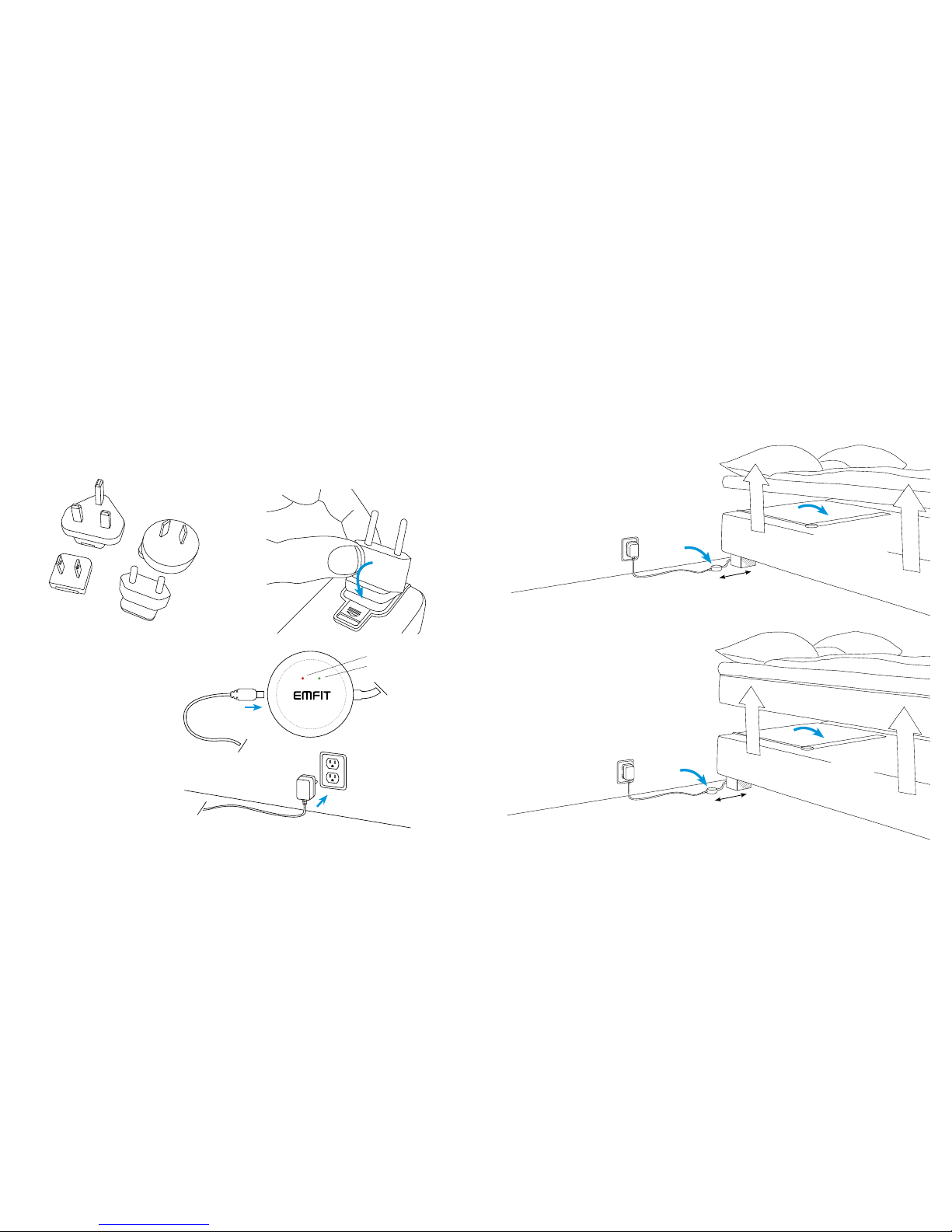
Connect to electrical outlet
1
Select a suitable adapter from the four alternatives.
2
Connect the correct adapter to the power
supply and ensure that it locks in its place.
CLICK!
3
Connect the power supply to
electrical outlet (110 - 230V AC)
and connect the power cord to
Emfit QS.
Green and red lights start to flash
alternately and device makes
beep sounds.
Power cord
Red
Green
Power cord Sensor cord
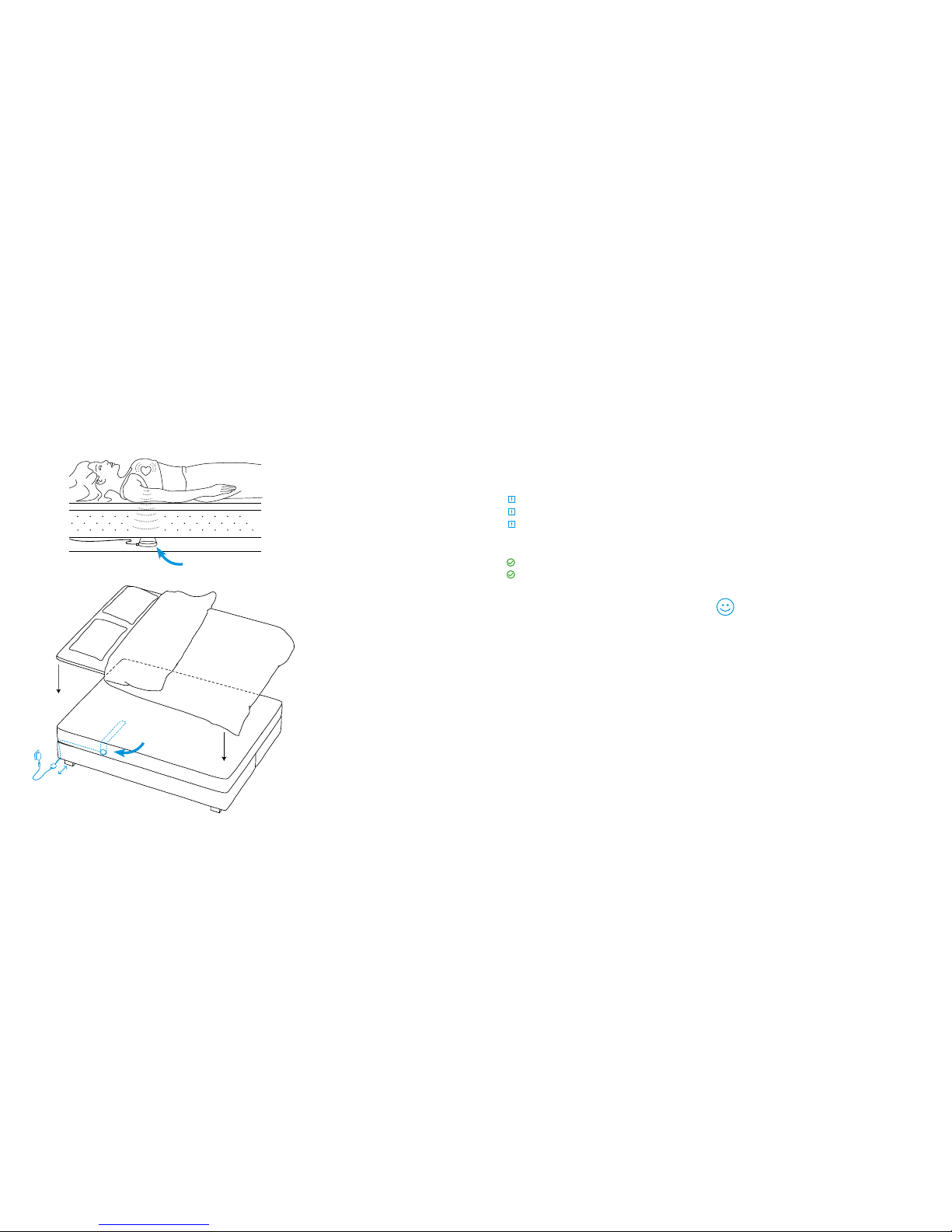
Install the sensor in your bed
Place the electronics unit on the floor and at minimum
20 cm distance from your body.
Place the bed sensor beneath the mattress or
mattress topper across the bed under your chest area.
1
20 cm
20 cm
… or you can place it
beneath the mattress.
You can place the EMFIT QS
beneath the mattress topper…
Page 4
20 cm
Placing the EMFIT QS in double bed
If you sleep with a partner in a double bed,
place the sensor on to your side of the bed as
far as possible from your partner. Make sure
the sensor is still under your chest area.
You can bend the sensor over the corner of
your mattress. It will help to prevent sensing
your partner’s heart rate, especially when you
leave the bed earlier than he/she.
The device works most reliably when the
sensor is located directly below your heart.
Emfit QS supports 2.4 GHz Wi-Fi.
Wi-Fi channels 1 - 11 are supported.
If you do not know is your home Wi-Fi compatible,
go to Main Manual; chapter 13 or just try your luck.
Notice these before attempting
to connect to Wi-Fi
If your router has a WPS button (Wireless Protected Setup) see the Main Manual page 13.
The 5 GHz Wi-Fi is not supported.
Wi-Fi channels 12 , 13 and 14 are not supported. This concerns European customers especially.
Page 5
Note: To use your phone/tablet as hotspot to provide Wi-Fi
for EMFIT QS, you need once some other computing device
to enable this setup.
Note! As per experience in May 2017, using Windows 10
for Wi-Fi setup process is dicult or impossible.
or
Your Wi-Fi network
password
Home Wi-Fi
with Internet access
Mobile device as
Wi-Fi hotspot
Your hotspot Wi-Fi
network password
Computing device
(computer or tablet
or smartphone
with browser)
For
Wi-Fi set up
you need (only once):
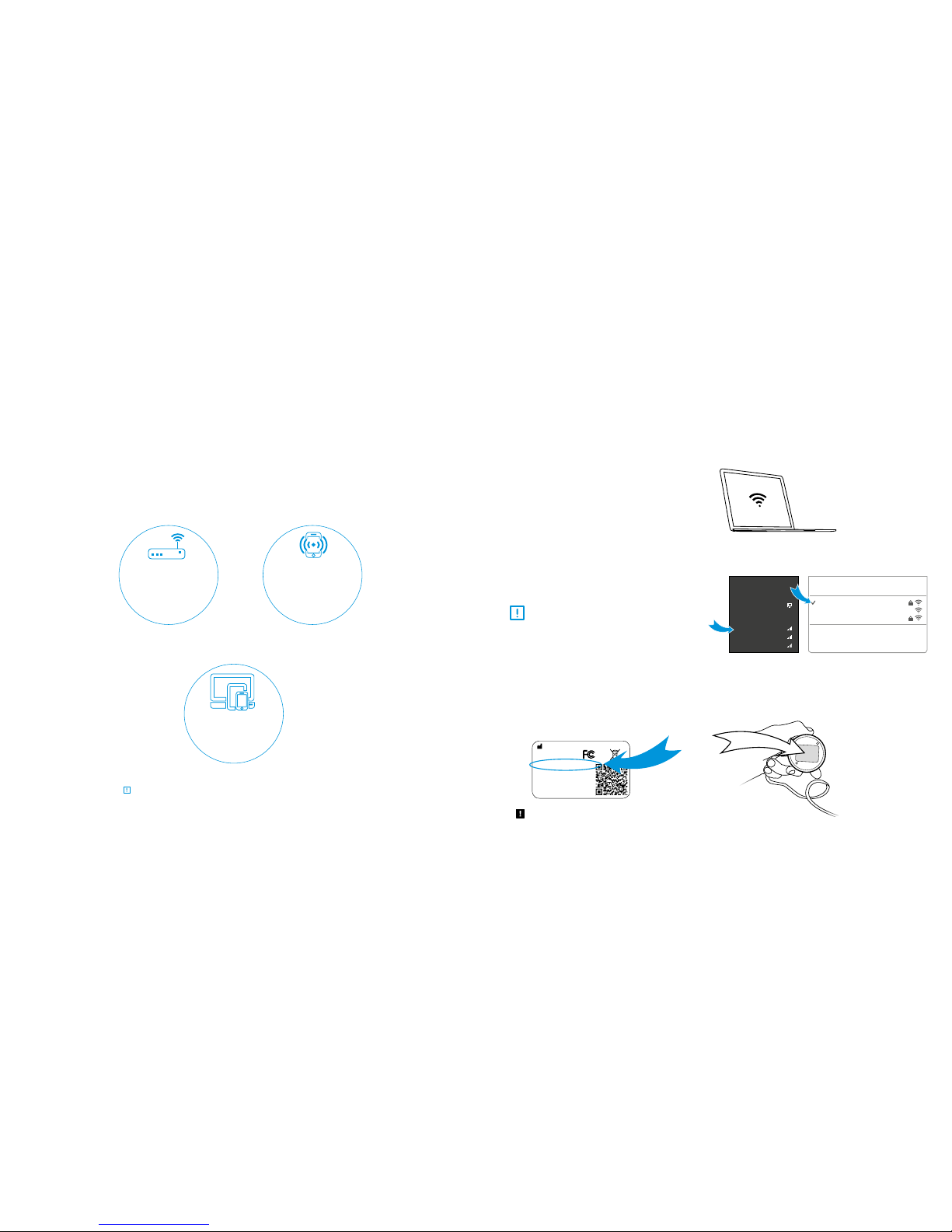
To operate, EMFIT QS needs:
With your computing device search for wireless
networks.
1
3
Steps:
Fill in the requested password
(PW: XXX-XXXX-XXX).
2
Connect your computing device to the network:
Emfit_xxxxxx (where xxxxxx is the serial number
of your device).
Ignore possible “No internet connection”.
Emt Ltd, Finland | Product: Emt QS | Model: IP-9360
Contains FCC ID: W70MRF24WG0MAMB
Contains transmitter module IC:
7693A-24WG0MAMB
Designed and manufactured in Finland.
SN: XXXXXX
PIN: XXXXX
PW: XXX-XXXX-XXX
http://192.168.1.3
Connect to Wi-Fi
Windows Mac OSX
Networks
Turn Wi-Fi O
Emt _1234567
AppleWiFi
Testwork
Join Other Net work…
Create Network…
Open Network Preferences…
Wi-Fi: O n
Connections
Wi-Fi
ConnectedNetwork
Emt_1234567
Some-Guest-2.4GHz
2WIRE123
Note! The password must be filled in
with the hyphens.
Page 6
4
5
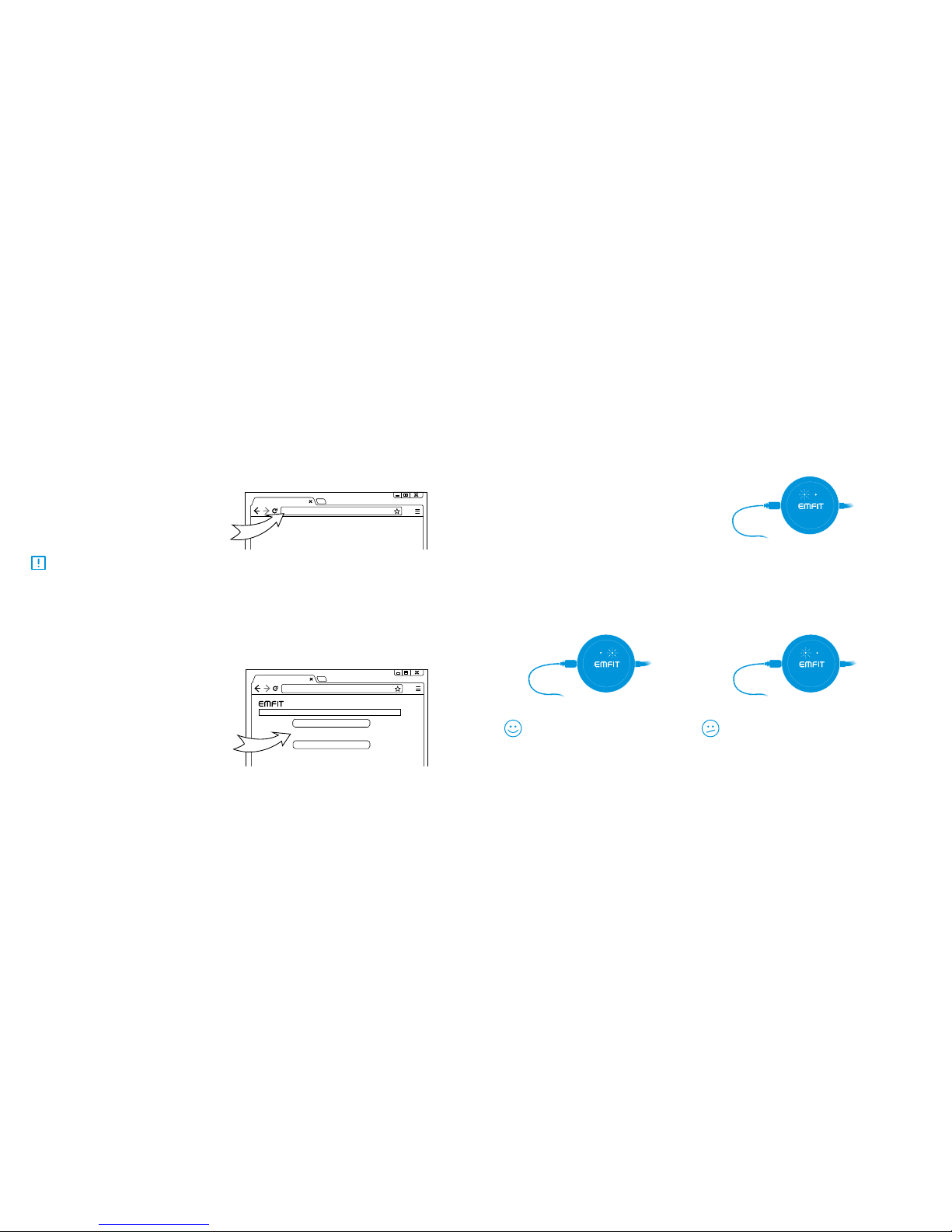
Open your computing devices’ browser
(Mozilla, Safari, Chrome, Internet Explorer etc.).
Type in address/url bar:
http://192.168.1.3 and hit enter.
Select your own Wi-Fi network from the list
and type its password.
If you cannot access above IP-address,
check that your computing device did not
disable itself from EMFIT QS and is perhaps
again connected to your own Wi-Fi. Problem
may also arise with desktop computer when
also LAN/ethernet cable is connected. To
solve possible problem, simply remove
LAN/ethernet cable temporarily.
8
http://192.168.1.3
http://192.168.1.3
Emt
“Your network”
Detected Wireless Networks
Other Network…
Connect to Wi-Fi
…continued
6
Press enter and EMFIT QS will now try to
connect to your Wi-Fi network. Connecting
can take up to few minutes. You hear short
“beep” sounds and see the red led flashing.
Successful connection type 1
Device will emit high tone sounds. In about
1-3 minutes red light will stop flashing and
green light will start flashing.
Successful connection type 2
Device will emit high tone sounds. However
red light will not stop flashing. It flashes one
or two or three times between pauses.
9
You are done! Your device is now connected and ready to track your sleep.
Sorry, you are not done yet! Please see
chapter Troubleshooting page 36 in the
Main Manual. This occurs usually in a corporate Wi-Fi network.
Only red light remain flashing.
Red light starts flashing.
Green light will start flashing.
Page 7
Unsuccessful connection
Red and green lights flash alternately again.
This means device has returned to AP
mode. This is common, you may have to try
even 10-15 times, so please be patient. This
is common issue in Wi-Fi networks.
Please start again from step 1. Check that
your computing device has automatically returned connection to your home Wi-Fi.
You need to search again for available Wi-Fi
networks and reconnect to EMFIT QS.
With your next attempt(s) you probably can
skip step 3 as your laptop/tablet/smartphone remembers the EMFIT QS password.
Red and green lights are flashing alternately.
Device is again at AP mode.
Please don’t get confused if your browser
says “http://192.168.1.3 is not replying.” It is
because your computer probably switched
automatically to your home Wi-Fi and there is
no device in that address in Internet.
Check however again that you write your own
home Wi-Fi network password correctly. Also,
if aer few attempts still no success, check
that your router is not 5 GHz version only or
operating at channels 12-13. For troubleshooting, see Main Manual page 37.
You may also get reply from some other than
EMFIT QS device. For example if you have IP
camera.
Connect to Wi-Fi
…continued
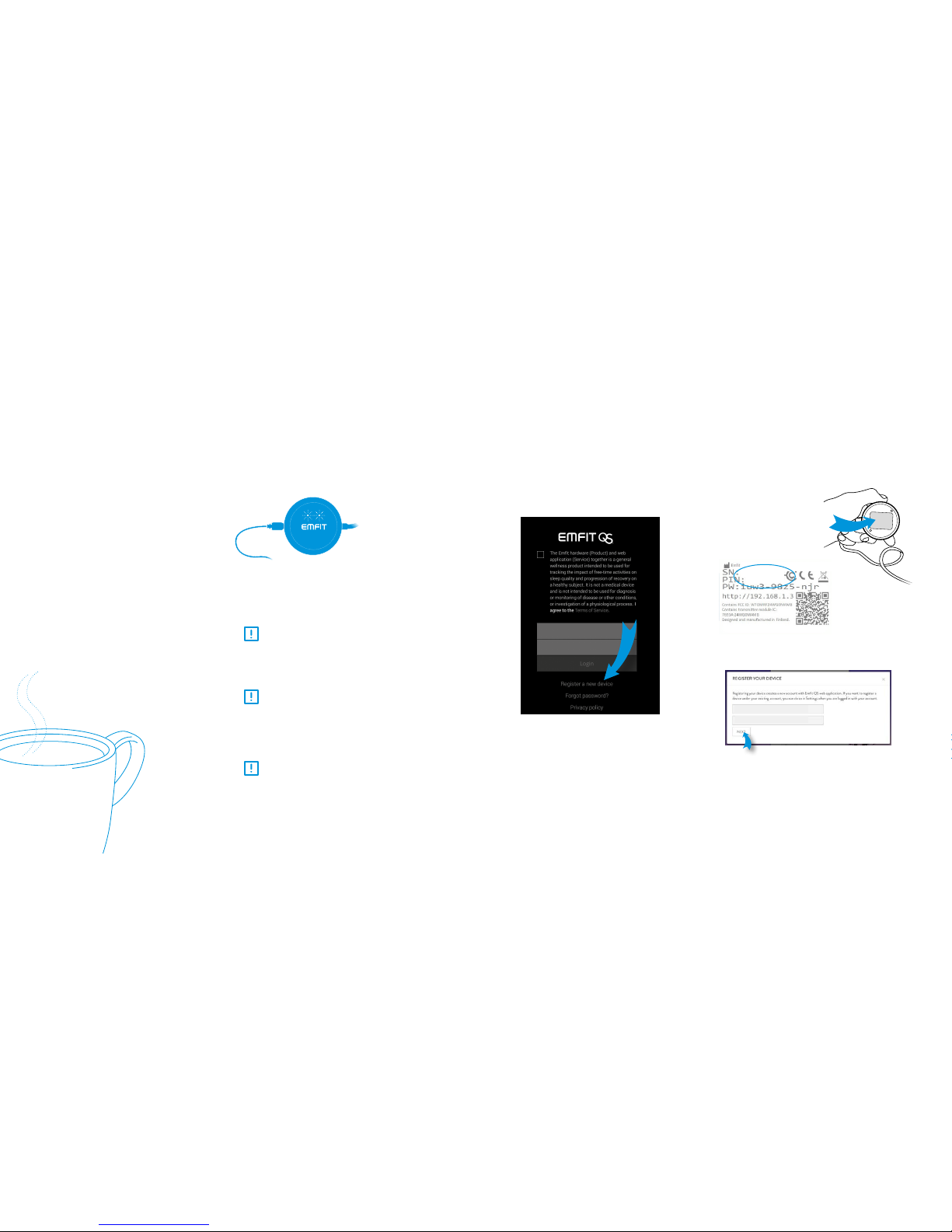
Register your device
Aer successful Wi-Fi connection, it is time to register your device.
Go to https://qs.emfit.com
and click “Register your device”.
Locate your serial and PIN
numbers on the back of the
device.
YOUR SERIAL NUMBER
YOUR PIN NUMBER
Insert serial number and PIN number of your device.
PASSWORD TO YOU R DEVICE (AP A CCESS POINT )
YOUR SERIAL NUMBER
YOUR PIN NUMBER
Click “next”.
1 2
3
Page 8
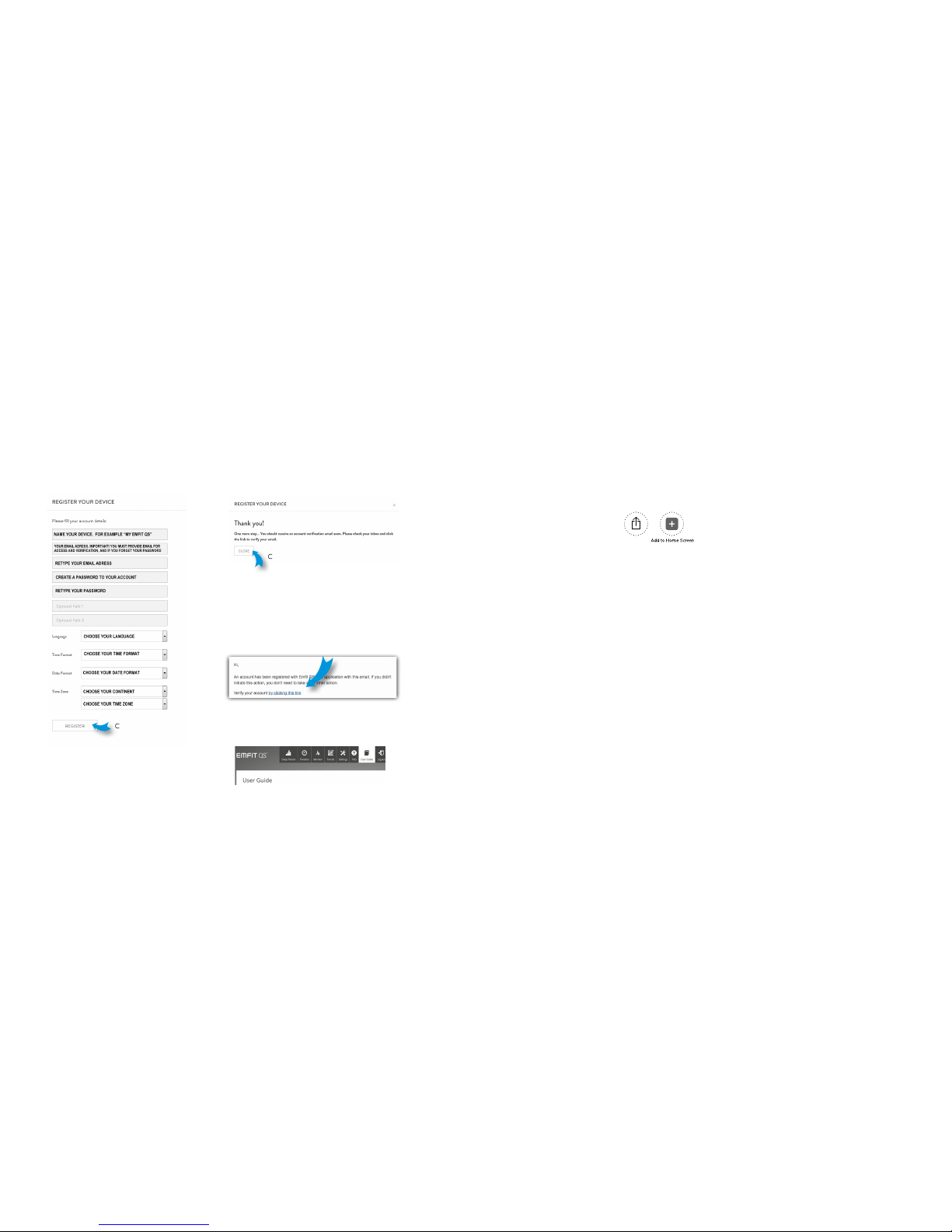
Fill/choose the details.
Click “register”.
4
This will open.
Go and check your email for our verification email.
Open it and click the link in it.
(If you do not receive the confirmation message within
a few minutes of signing up, please check your Spam
folder just in case the confirmation email got delivered
there instead of your inbox.)
Click “close”.
5
6
You will be directed to the Emfit QS web application.
7
…continued
Register your device
iOS devices Android devices
Add QS icon to your phone/tablet
homescreen
1) Open up Safari and go to https://qs.emfit.com
2) At the bottom of the screen
you’ll see a square icon with an
arrow. Tap this icon and you’ll
have a few options. Choose “Add
to Home Screen”.
3) You’ll be asked to write a name for the homescreen icon.
Write EMFIT QS and save it. Now it will show up on your
homescreen and you can access directly to your EMFIT QS
data.
1)Launch Chrome for Android and open the website
https://qs.emfit.com
2) Tap the menu button and tap “Add to homescreen”.
You’ll be asked to write a name for the homescreen icon.
Write EMFIT QS and save it. Chrome will add it to your
home screen.
3) The icon will appear on your home screen and you can
drag it around and place it wherever you like. Chrome for
Android loads the website as a “web app” when you tap
the icon, so it will get its own entry in the app switcher and
won’t have any browser interface getting in the way.
Page 9
www.emfitqs.com
Emfit, Corp.
P.O. Box 342394
Austin, TX 78734
United States
Phone: (512) 266-6950
qs@emfit.com
USA CHINA
Emfit Ltd
Konttisentie 8 B
40800 Vaajakoski, FINLAND
Phone: +358 20 778 0870
qs@emfit.com
EUROPEAN UNION
Release date Revisio
v1.0
v.1.1
v.1.2
v.1.3
v.1.4
v1.5
v1.6
23.2.2017
4.5.2017
1.6.2017
10.8.2017
11.9.2017
4.10.2017
25.10.2017
GENERAL NOTE: THE USE OF THE PRODUCT INCLUDING THE SOFTWARE AND DOCUMENTATION (THE “PRODUCT”) IS SUBJECT EMFIT LTD GRANTS A
NON-EXCLUSIVE RIGHT TO USE THE PRODUCT. THE RECIPIENT SHALL NOT TRANSFER, COPY, MODIFY, TRANSLATE, REVERSE ENGINEER, CREATE DERIV-
ATIVE WORKS; DISASSEMBLE OR DECOMPILE THE PRODUCT OR OTHERWISE USE THE PRODUCT EXCEPT AS SPECIFICALLY AUTHORIZED. THE PROD-
UCT AND THIS DOCUMENT ARE PROVIDED ON AN “AS IS” BASIS ONLY AND MAY CONTAIN DEFICIENCIES OR INADEQUACIES. TO THE MAXIMUM EXTENT
PERMITTED BY APPLICABLE LAW, EMFIT LTD DISCLAIMS ALL WARRANTIES AND LIABILITIES. THE RECIPIENT UNDERTAKES FOR AN UNLIMITED PERIOD OF
TIME TO OBSERVE SECRECY REGARDING ANY INFORMATION AND DATA PROVIDED TO HIM IN THE CONTEXT OF THE DELIVERY OF THE PRODUCT. THIS
GENERAL NOTE SHALL BE GOVERNED AND CONSTRUED ACCORDING TO FINNISH LAW.
COPYRIGHT: TRANSMITTAL, REPRODUCTION, DISSEMINATION AND/OR EDITING OF THIS DOCUMENT AS WELL AS UTILIZATION OF ITS CONTENTS AND
COMMUNICATION THEREOF TO OTHERS WITHOUT EXPRESS AUTHORIZATION ARE PROHIBITED. OFFENDERS WILL BE HELD LIABLE FOR PAYMENT OF
DAMAGES. ALL RIGHTS CREATED BY PATENT GRANT OR REGISTRATION OF A UTILITY MODEL OR DESIGN PATENT ARE RESERVED. EMFI, EMFIT, EMFIT
QS, QS LOGO AND EMFIT LOGO ARE REGISTERED TRADEMARKS OR TRADEMARKS OF EMFIT LTD. © EMFIT LTD 2004-2017. ALL RIGHTS RESERVED. PATENTED,
PATENTS PENDING. ALL SPECIFICATIONS ARE SUBJECT TO CHANGE WITHOUT PRIOR NOTICE. MOZILLA, SAFARI, CHROME, INTERNET EXPLORE, WINDOWS
10 ARE REGISTERED TRADEMARKS OF MOZILLA FOUNDATION, APPLE INC., GOOGLE INC. AND MICROSOFT CORP. WITH WHOM EMFIT IS NOT AFFILIATED.
 Loading...