

Page 1
IMPORTANT
FUNCTIONALITY NOTES
Emergency Assistance+
Page 2
PRODUCT OVERVIEW
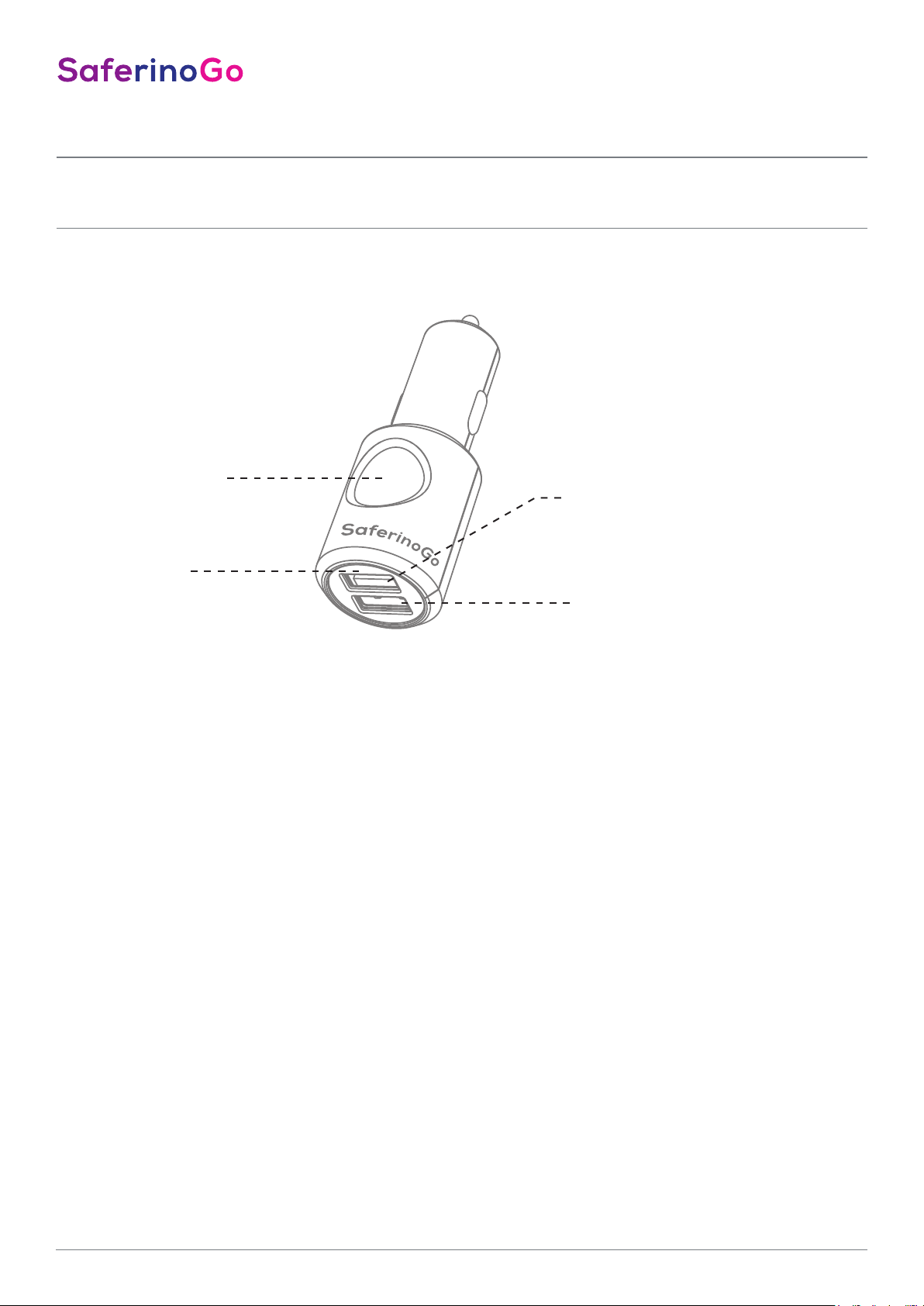
2.
1.
3. Quick Charge 3.0
3. 2.4A
1. LED Notifications
• Blue (blinks every 60 seconds): SaferinoGo is
connected to your smartphone.
• Red (blinks twice every 7 seconds): SaferinoGo is
disconnected from your smartphone
• Red (Steady, 10 seconds): Emergency notifi cations
have been activated
• Red (blinks once every 10 seconds): Battery low –
exchange battery
• 2. Emergency Button
• 3. USB plug - Quick charge 3.0
• 3.2 USB plug – 2,4 A
Emergency Assistance+
2
Page 3
PLEASE NOTE
• You must have internet connection to make
Emergency Notifi cation
• To install the WISO APP on your Android TM/iOS
device, make sure that the software version of
your Android TM 4.4 or later / iOS 7 or later and
that your Android TM / iOS device supports the
Bluetooth4.0 low energy standard.
• Load down the WISO app install it on smartphone
and connected to SaferinoCar. Press the button for
2 seconds in order to activate emergency notifi cations.
• DO NOT close the WISO APP on your smartphone,
otherwise emergency notifi cations will not be
activated.
• You must re-launch the app after you turn o or
restart your smartphone.
• You must enable location services to have the
location be sent via Emergency Notifi cation.
• Emergency phone call is only available for Android
device. It is not available on iOS devices due to its
native restriction.
• The WISO location service will ONLY be displayed
on Google Maps.
• You should use the SaferinoCar charger unit in the
way it is intended. You should not use the SaferinoCar charger unit in a way that would be illegal.
• The SaferinoCar charger unit may have additional
functionality, such as transmission GPS signal or
other identifi cation information. If you have privacy
concerns about these functions, make sure you
follow the instruction to disable these functions.
• WISO uses Bluetooth 4.0 technology
(Range = 5-6 meters)
• SMS emergency notifi cations are disabled while
abroad because of roaming.
Emergency Assistance+
3
Page 4
APP SETTINGS
5.
5.
5.
5.
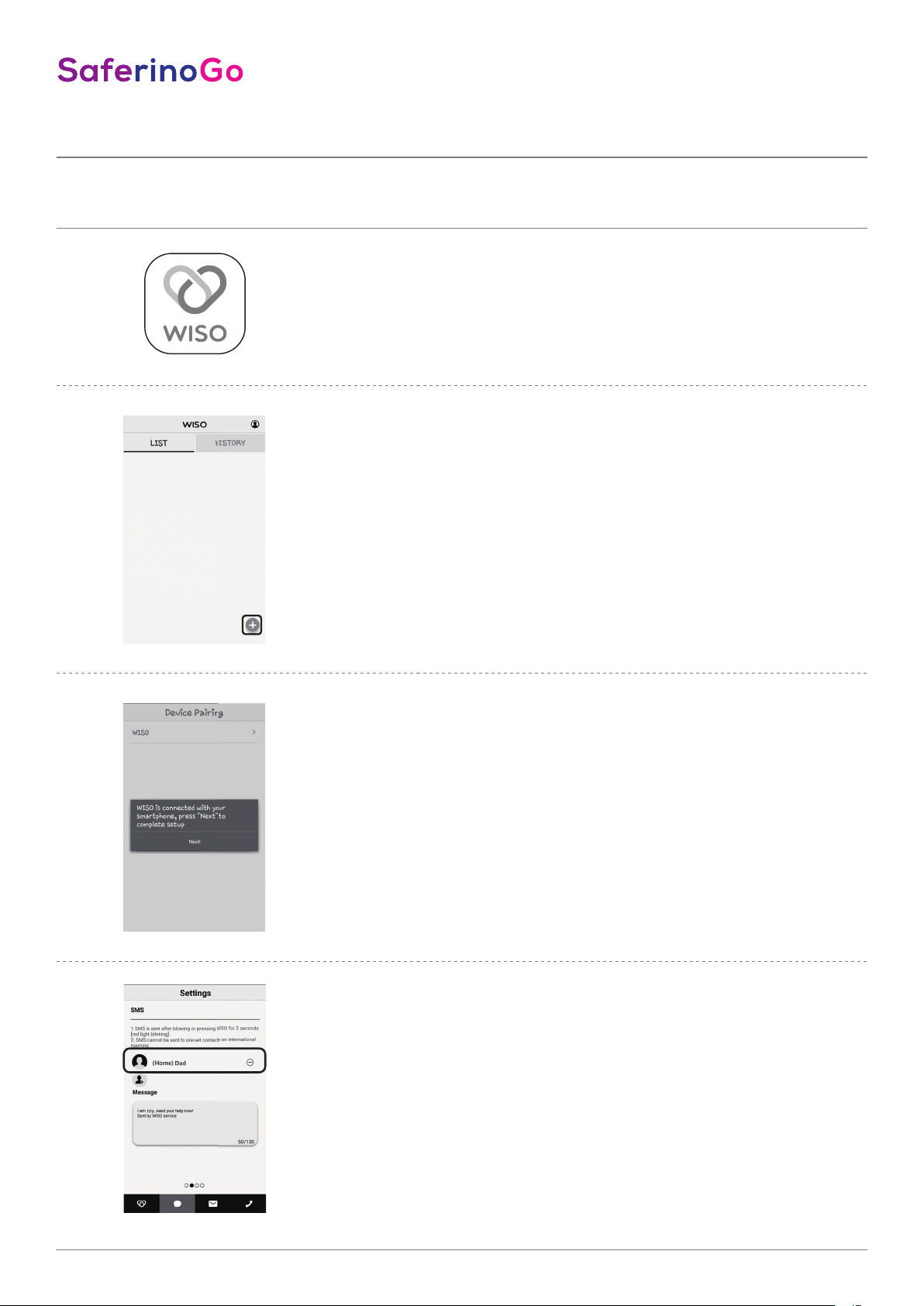
Search “WISO” to download from Apple App Store or Google Play.
Start the login process and follow the setup steps.
1. Settings:
Paring SaferinoGo with your smartphone
Click Add under List tab to start device paring.
2. Settings:
Paring SaferinoGo with your smartphone
Once paired, the APP will notify WISO is connected,
then click NEXT Edit either photo or customize WISO
profi le name and swipe right.
Emergency Assistance+
3. Settings: SMS
Add up to 3 contacts to whom you want to send
emergency SMS and swipe right.
4
Page 5
APP SETTINGS
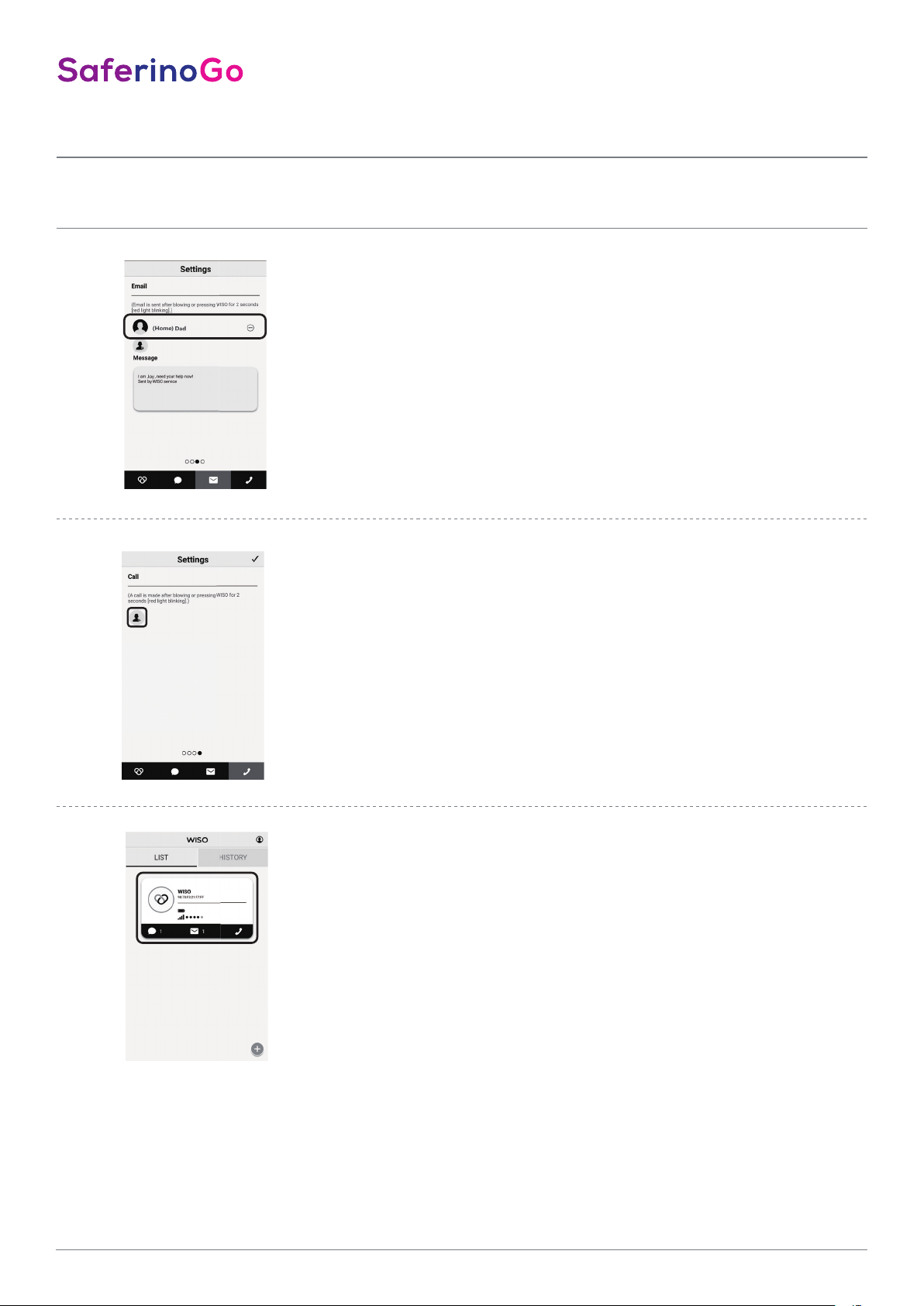
4. Settings: e-mail
Add up to 3 contacts to whom you want to send
emergency emails and swipe right.
5. Settings: call
Add 1 contact to whom you want to call in an
emergency. Android users ONLY
Emergency Assistance+
6. Settings: Done!
You’re done! Click here to see your settings.
5
Page 6
5.
5.
APP SETTINGS
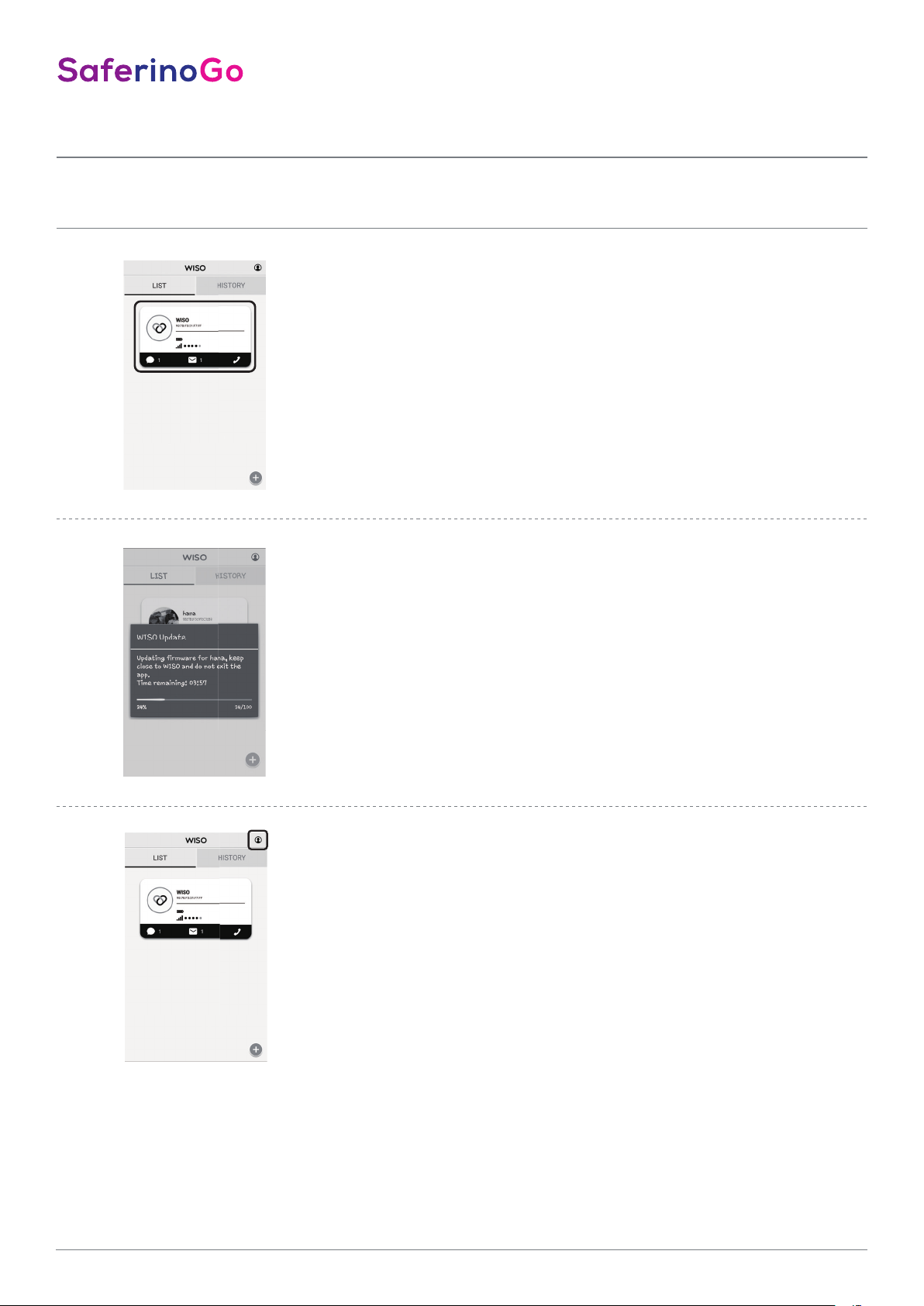
7. Settings: Review all your settings
Review carefully all your settings made.
8. Firmware Update:
Once connected. WISO will automatically update
fi rmware if the WISO fi rmware is not the latest version. Follow the instructions on the screen until the
update has been completed.
Emergency Assistance+
9. Your Profile:
Back to main screen and check all your profi le
settings here.
6
Page 7
APP SETTINGS
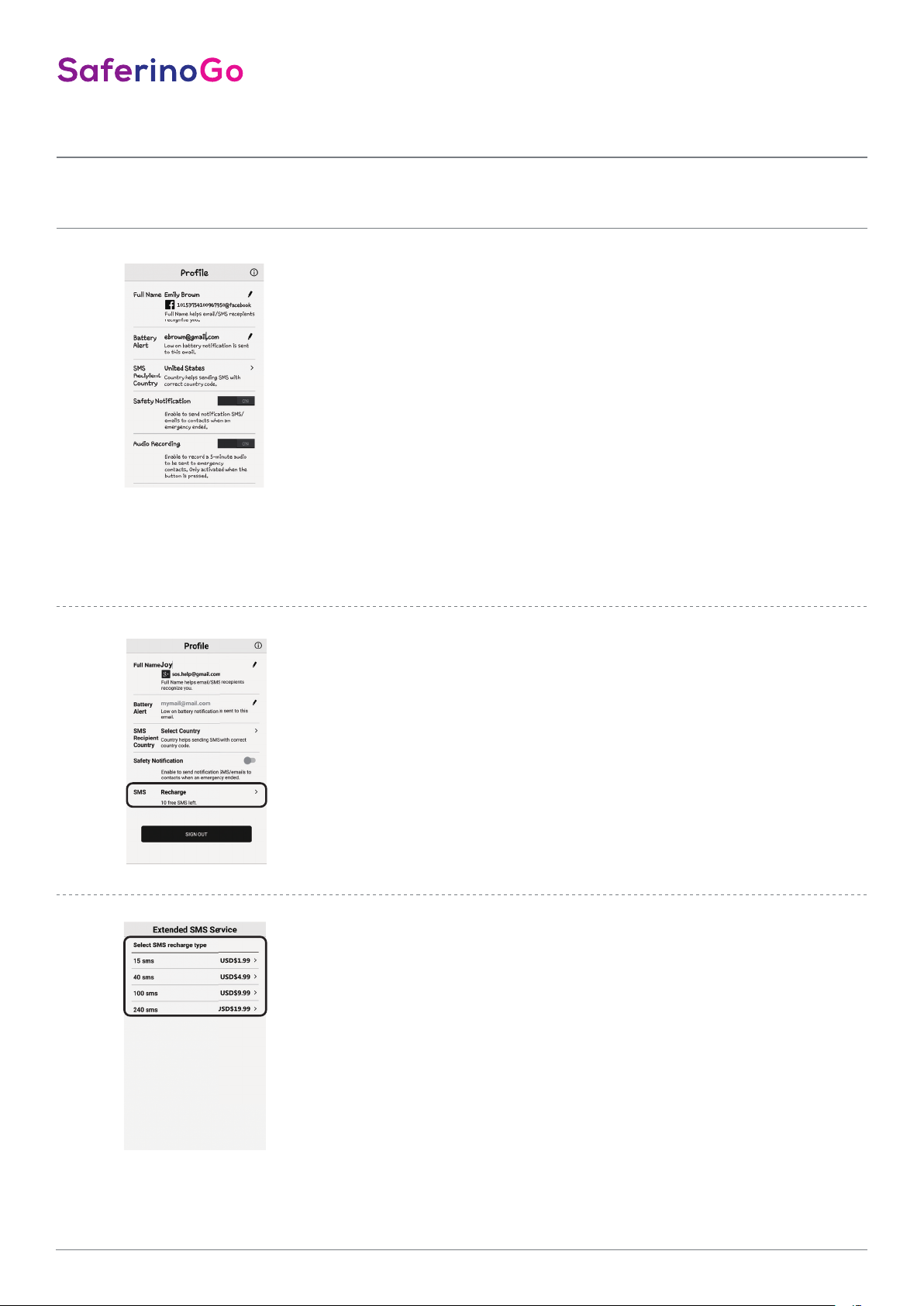
10. Profile Settings:
Store your own data so that every recipient of an emergency message
knows immediately who the sender is.
Activate battery alarm, Activate battery alarm information will be sent to the e-mail
address which is stored in your profi le.
Set country code for the SMS recipient
Safety Notifi cation: Enable this option to send notifi cation SMS / emails when an
emergency has ended.
Enable audio recording: Allows to send a message up to 5 minutes to emergency
SMS / E-mail addresses.
Is activated as long as the emergency button is pressed. If the button is not pressed,
the function is not available.
* Battery life is around 2 months. Please ensure you replace the battery once you get
the low battery notifi cation.
11. Extended SMS service:
Once your account is active, you will receive 10 events of free SMS
notifi cation. After that, you will receive 6 non-roll-over events of SMS for
free per month. Refi ll when needed.
* Though WISO updates your contacts about your location every 2-3 minutes,
each blow/button press will be considered one event.
** Monthly email emergency notifi cations are unlimited up to 3 contacts.
12. Select SMS recharge plan:
Select your plan and follow the payment steps in App Store or Google
Play. The price shown in the instructions may change. Valid is the price
that will be displayed online in the WISO APP.
Emergency Assistance+
7
 Loading...