

Page 1
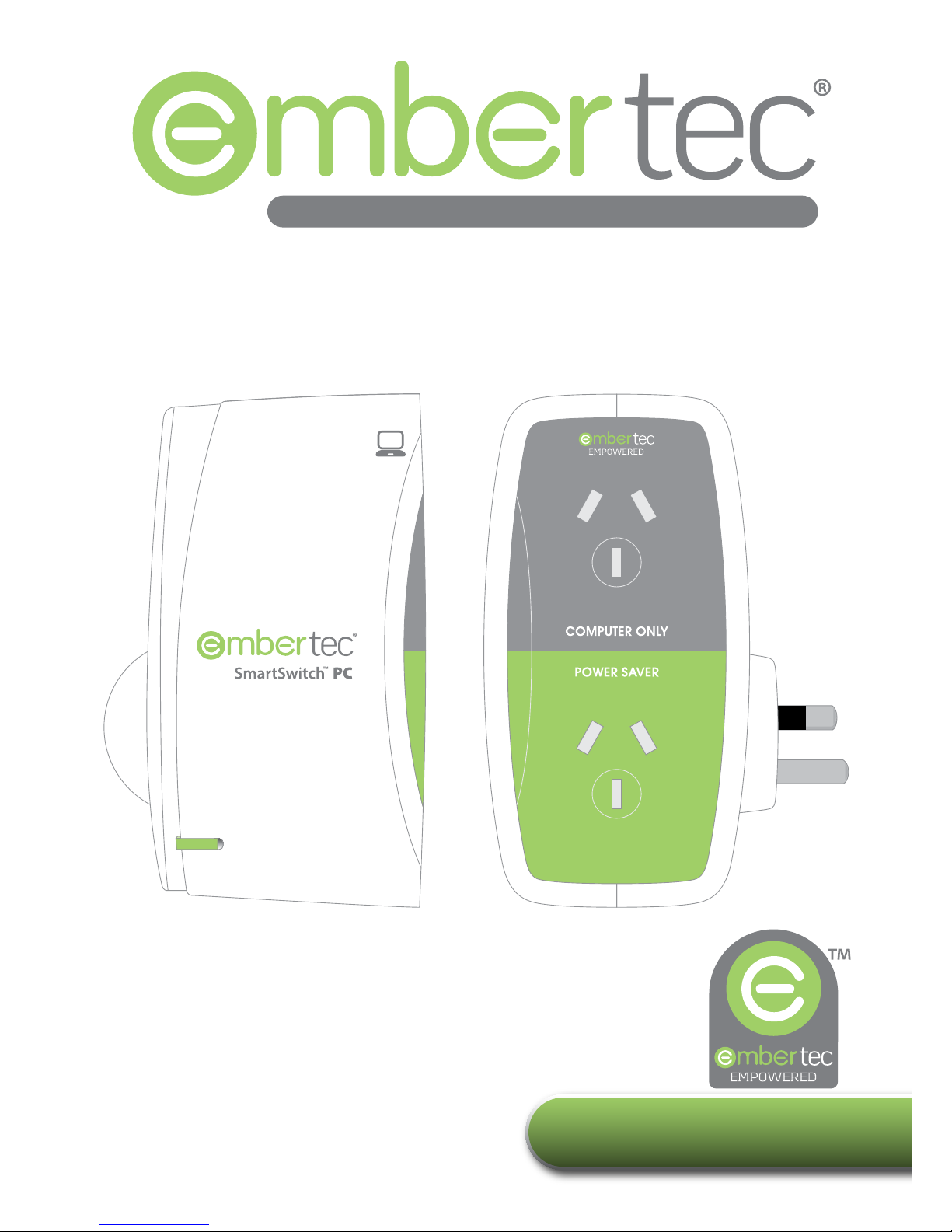
Instruction Booklet
Embertec SmartSwitch™ PC
Automatic Power Down
EmbertecPC-ET-01
MONITORING
COMPUTER
SERIES
ENERGY EFFICIENCY TECHNOLOGIES
Page 2

2
Important
Please retain your instruction
book for future use.
In the event that you need assistance with your Embertec
SmartSwitch™, please contact us on 1300 0 333 678 (1300 0 EFFORT)
or email us at [email protected]. Alternatively,
visit us on our website at www.embertec.com
Page 3

3
Contents
Embertec Recommends p4
Safety First
Quick Installation Guide p6
Your Embertec
SmartSwitch™ PC p8
Fast Facts p9
What is Embertec p10
SmartSwitch™ PC?
Using your Embertec p11
SmartSwitch™ PC
Standby Power Down p14
Care and Maintenance p15
Disposal/Recycling
Troubleshooting Guide p16
Warranty p17
PATENTS GRANTED AND PATENTS PENDING
Page 4

4
Embertec Recommends Safety First
IMPORTANT: Please retain
your instruction book for
future use.
At Embertec, we believe that safe performance is the rst
priority in any consumer product, so that you, our valued
customer can condently use and trust our products. We ask
that any electrical appliance that you use be operated in a
sensible fashion with due care and attention placed on the
following important operating instructions.
• Carefully read all instructions
before operating the
Embertec SmartSwitch™ PC
for the rst time and save for
future reference.
• To protect against electric
shock, do not immerse the
Embertec SmartSwitch™ PC
in water or any other liquid.
• This Embertec SmartSwitch™
PC is intended for household
use only and not for
commercial or industrial use.
• Disconnect from the power
point before cleaning
and when the Embertec
SmartSwitch™ PC is not
in use.
• Do not plug this Embertec
SmartSwitch™ PC into
another adaptor.
• Do not insert needles or
any other metal objects
into the adaptor outlet.
• Avoid moisture, extreme
temperatures, shock and
vibration.
• This device does not convert
voltage. Do not connect
country or travel power
adapters into the Embertec
Important Safeguards For Your
Embertec SmartSwitch™ PC
Page 5

5
SmartSwitch™ PC. Your
connected equipment
must be of Australian
conguration (2-pin, 3-pin),
rated 220 – 240VAC.
• Connected plugs must
be kept clean and free
from defect.
• Suitable for indoor use only.
• Ensure the adaptor is
securely plugged into the
wall socket to avoid the
adaptor slipping out. Ensure
cords plugged into the
adaptor remain tangle free.
Important Safeguards
For All Electrical
Appliances
• The Embertec SmartSwitch™
PC is not intended for
use by persons (including
children) with reduced
physical, sensory or mental
capabilities, or lack of
experience and knowledge,
unless they have been given
supervision or instruction
concerning use of the
appliance by a person
responsible for their safety.
• Children should be
supervised to ensure that
they do not play with the
Embertec SmartSwitch™ PC.
• It is recommended to
regularly inspect the
Embertec SmartSwitch™ PC.
To avoid a hazard do not use
the Embertec SmartSwitch™
PC if it becomes damaged in
any way.
• This Embertec SmartSwitch™
PC is for household use
only. Do not use this
Embertec SmartSwitch™ PC
for anything other than its
intended use. Do not use in
moving vehicles or boats.
Do not use outdoors. Misuse
may cause injury.
• Embertec is not responsible
for special, incidental, or
consequential damages
or loss of components,
or data; loss of operating
instructions; or intentional
misuse of the product.
Damages and loss
include, and not limited
to: lost business; business
downtime; component/
equipment replacement
and reconguration; or
retrieval of lost data.
Page 6

6
Setting Up the Embertec SmartSwitch™ PC
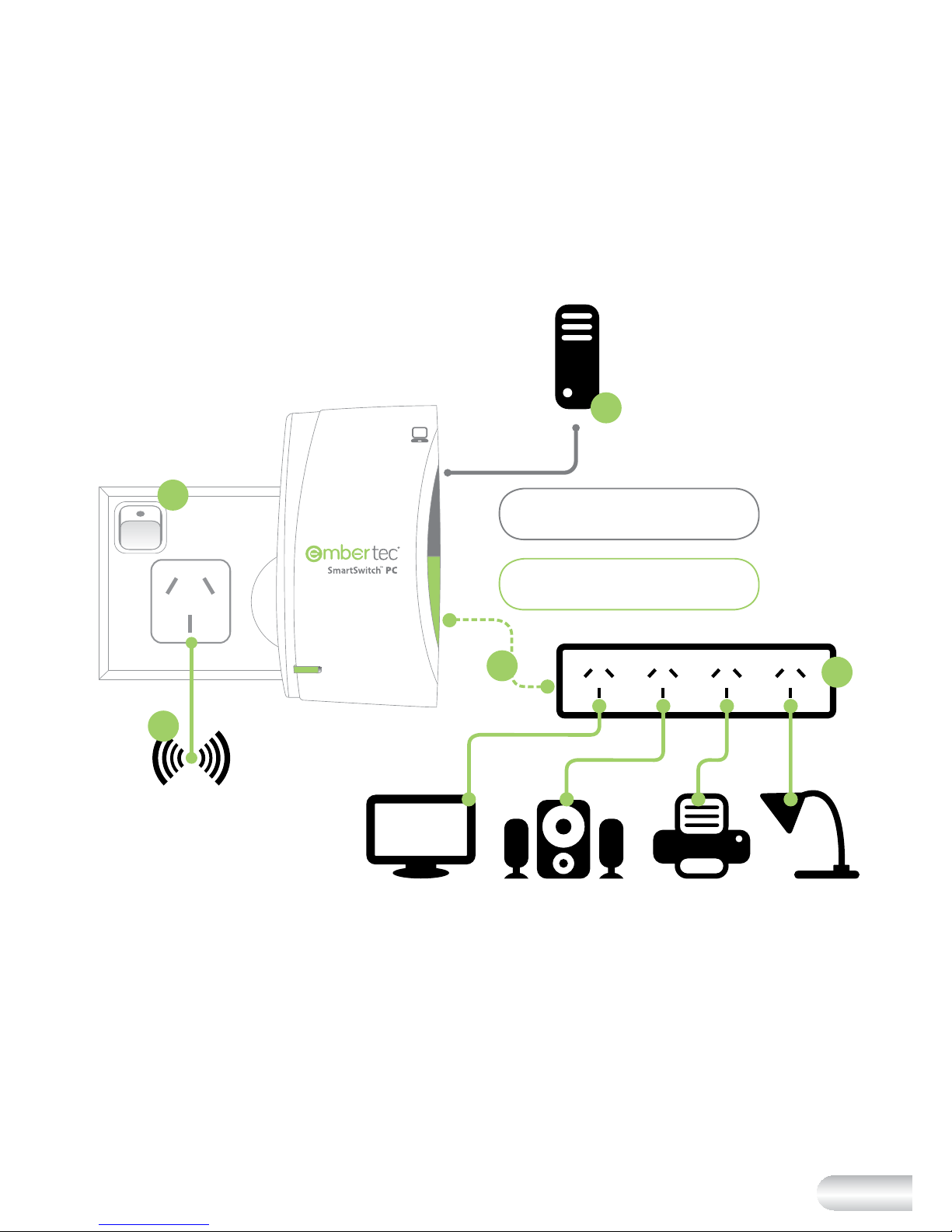
1. Unplug your existing powerboard from the wall socket and
then plug the powerboard into the ‘Power Saver Socket’.
2. Plug the equipment that is used with the computer, such as
monitors, printers, speakers, external hard drives and lamps
into this powerboard.
3. Connect only ONE computer (laptop or desktop) into the
socket marked ‘Computer Only’.
4. Connect the equipment that needs to remain turned
on, such as the internet modem / router, fax machine, to
another free socket on the wall outlet.
5. Plug the Embertec SmartSwitch™ PC into a 230V or 240V
power point, and turn the power point on at the wall.
NOTE: Maximise your energy saving
by ensuring your computer’s power
management settings are active so the
computer enters sleep or standby after
a short period of time (15 minutes).
Normally this function is found in a
menu called ‘Power Options’ in a PC;
and ‘Energy Saver’ in a Mac.
Quick Installation Guide
Page 7
7
POWER SAVER
MONITORING
COMPUTER
SERIES
LampPrinter
SpeakersMonitors
Wireless Modem
COMPUTER ONLY
Computer
or Laptop
1
2
3
4
5
Page 8
8
Your Embertec SmartSwitch™ PC
MONITORING
COMPUTER
SERIES
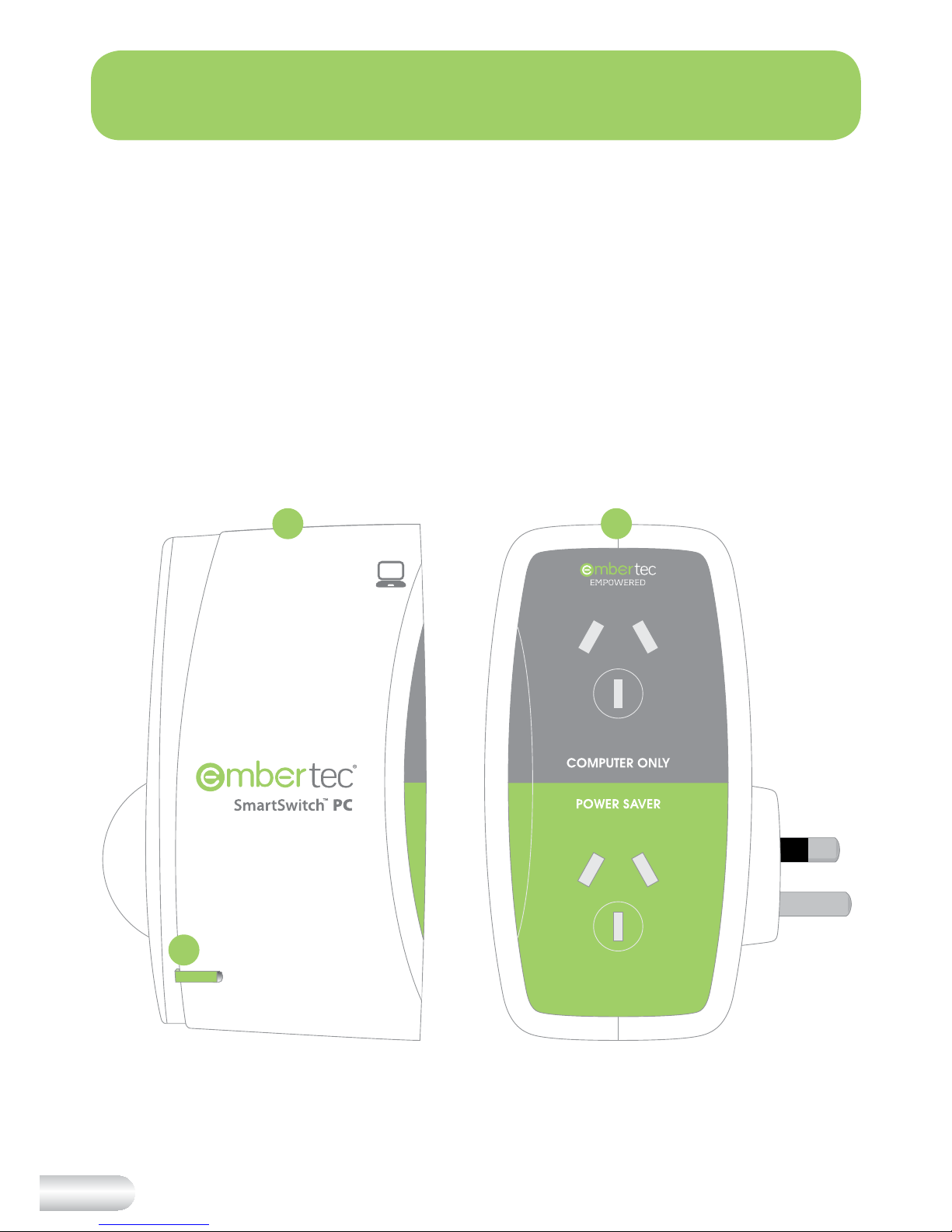
1. Embertec SmartSwitch™ PC
2. On/O ‘Power Saving’
socket indicator light
Not Shown
• Overload protection circuit
breaker re-set button
1 1
2
Page 9

9
• The ‘Computer Only’ socket
(grey) is recommended for
use with a laptop or desktop
computer. This will ensure
that constant computer
power is not interrupted or
removed at any time to avoid
damage to your computer
hardware or data les.
• The ‘Power Saver’ socket
(green) is recommended
for peripheral devices
that can be switched
o automatically when
the computer is not in
use (monitors, printers,
speakers, and lamps). These
devices will be switched
o automatically to save
energy when the computer
enters sleep, hibernate,
standby or o modes.
• LED monitoring light
indicates power, monitoring
and event status, as well as
the operational state of the
Embertec SmartSwitch™ PC.
• Circuit breaker re-set
button.
• 3 pins for use with standard
Australian general purpose
outlets.
Specications
• Surge protection provided
to Embertec SmartSwitch™
PC outlets, providing
assurance that your home
oce equipment and
computer equipment
are protected against
dangerous power surges
from your electricity source.
Total surge protection up to
537 Joules / 13,500amps. In
the event of a major power
surge, electrical overload
or wall outlet failure, the
Embertec SmartSwitch™ PC
will remove power to both
sockets to further protect
your connected equipment.
• Australian designed and
engineered.
• Conforms with Australian
Electrical Safety Standards:
AS/NZS 3197:2005 and
AS/NZS 3100:2009
Fast Facts
Fast Facts
Page 10

10
The Embertec SmartSwitch™
PC automatically switches o
power to peripherals connected
to the power saving socket
when the computer switches o
or goes into sleep mode.
Equipment is re-powered
by simply reactivating your
computer.
The Embertec SmartSwitch™
PC connects to existing
power boards and works
with all computer equipment
regardless of brand or age.
What Power is Wasted?
Many of today’s appliances for
the home and oce continue
to use power, even when
the appliance is turned o.
Appliances that are left on
unintentionally or are in sleep
mode, waste even more power.
Automatic Power Down
Embertec SmartSwitch™ PC
eliminates standby power
consumed by computer and
oce equipment that has
been left on/gone into sleep
mode, or has completed
charging.
NOTE: It is not guaranteed to
work accurately for laptops
with old batteries.
What is Embertec SmartSwitch™ PC?
Page 11

11
Using Your Embertec SmartSwitch™ PC
Before First Use
Remove any packaging and
promotional material from the
Embertec SmartSwitch™ PC
adaptor.
Setting Up the Embertec
SmartSwitch™ PC
To maximise your energy
saving, please ensure
your computer’s power
management settings are
active so the computer enters
sleep, standby or hibernate
modes. Normally this function
is found in a menu in a PC,
called ‘Power Options’.
In a iMac, ‘Energy Saver’ is
used to tell the computer
when to go to sleep. Other
option to send your Mac to
sleep, close the lid on your
portable mac or press the
on/o button once on your
desktop mac.
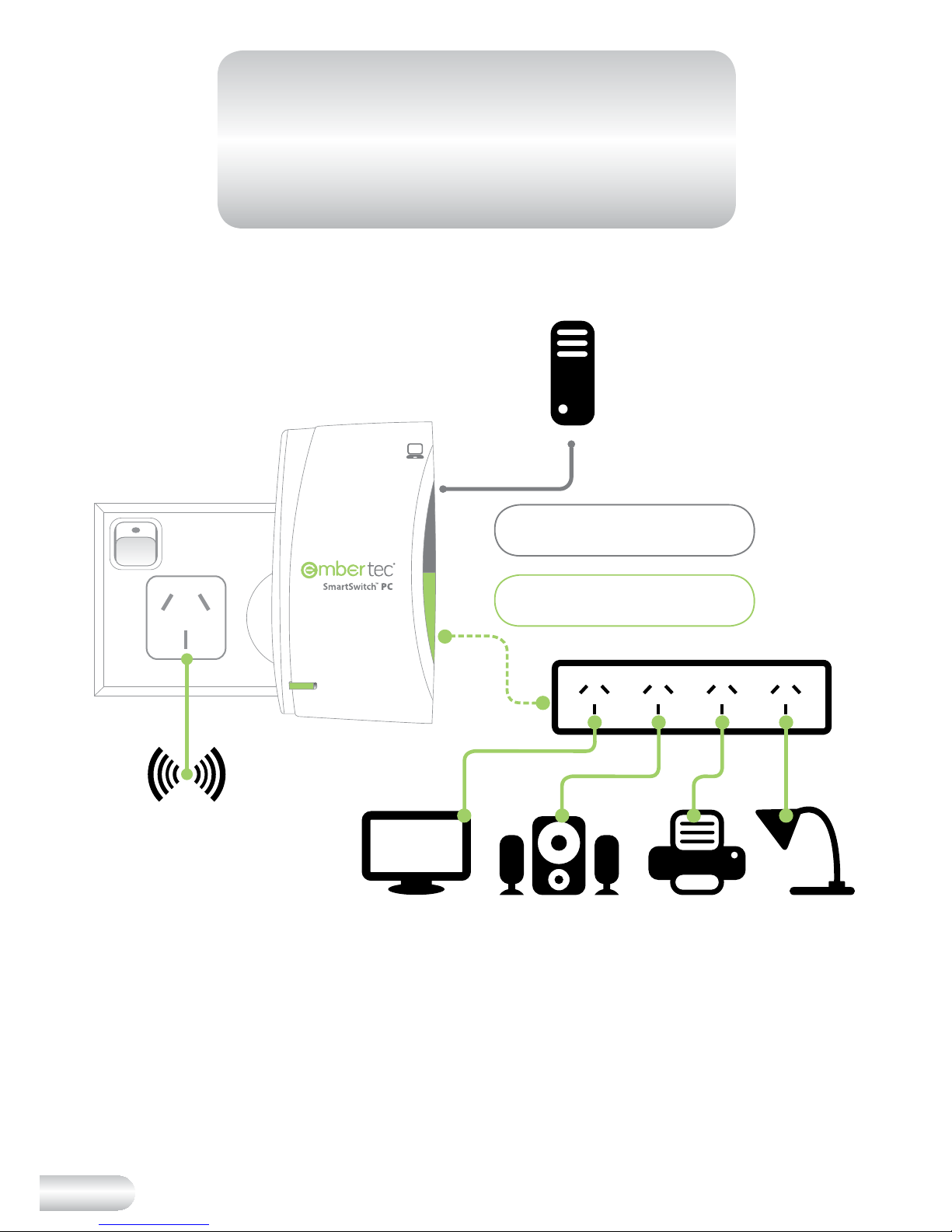
Connect your computer power
plug into the socket marked
‘Computer Only’.
Identify the equipment that is
used with the computer, such
as monitors, printers, speakers,
external hard drives and lamps,
and plug them into the socket
marked ‘Power Saver’.
Connect the equipment that
needs to remain turned on,
such as the internet modem /
router, fax machine, to another
free socket on the wall outlet.
Plug the Embertec SmartSwitch™
PC into a 230V or 240V power
point, and turn the power
point on at the wall.
NOTE: Only one computer
is to be connected to the
‘Computer Only’ socket.
NOTE: Where there is more
than one device that needs
to be connected, any power
board or surge board may
be connected to the ‘Power
Saver’ socket.
NOTE: Devices that are
connected to the ‘Power
Saver’ socket will be
automatically switched o
during a power saving cycle.
NOTE: Only equipment
connected to the Embertec
SmartSwitch™ PC will be
protected against surge.
Page 12
12
POWER SAVER
MONITORING
COMPUTER
SERIES
LampPrinter
SpeakersMonitors
Wireless Modem
COMPUTER ONLY
Computer
or Laptop
NOTE: If the power management settings are
not active on the computer, the peripherals
connected to the Embertec SmartSwitch™ PC
‘Power Saver’ socket will only be turned o
when the computer is manually shut down.
Page 13

13
The LED monitoring light on the Embertec SmartSwitch™
PC will now light up for 3 seconds to indicate detection of
connected equipment. This also indicates the Embertec
SmartSwitch™ PC is monitoring your power consumption
and providing power to the ‘Power Saver’ socket and then
will switch o.
Your PC system is now ready for use normally.
Led Monitoring Light Status
The LED light on your Emberplug™ PC is:
ON whenever power has been applied to the Power Saver
socket, and OFF when the power has been removed from the
Power Saver socket.
Page 14

14
Once the Computer enters standby,
hibernate / sleep or o mode, the
Embertec SmartSwitch™ PC will
detect this and begin the standby
power down mode. During this time,
the Embertec SmartSwitch™ PC will
monitor the power consumption to
ensure the computer is no longer
being used. After approximately 60
seconds of inactivity from the user,
the peripheral appliances connected
to the ‘Power Saver’ socket will be
switched o.
Turning the Computer
And Components o
After Connecting
the Embertec
SmartSwitch™ PC
Simply turn your equipment
o in the normal way.
Once the computer has been
switched o, the Embertec
SmartSwitch™ PC will remove
power from the ‘Power
Saver’ socket after a delay of
approximately 60 seconds.
Reactivating the
Computer, Peripherals
and Equipment
To reactivate your computer,
peripherals and equipment,
simply press the spacebar, move
the mouse, or momentary
press the computer power
button on your computer. The
Embertec SmartSwitch™ PC
will switch on the peripherals
connected to the ‘Power Saver’
socket within 5 seconds.
This will apply power to all
components ready for use.
You can continue using your
computer and components in
the normal way.
To maximise your energy saving,
please ensure your computer’s
power management settings are
active so the computer enters
sleep, standby or hibernate
modes. Normally this function
is found in a menu item called
‘Power Options’.
NOTE: It is not guaranteed to
work accurately for laptops
with old batteries.
NOTE: When using Laptops
and Notebooks: the Embertec
SmartSwitch™ PC may need
additional time to detect battery
charging and condition status
in order to determine whether
peripherals should be on or o.
Standby Power Down
Page 15

15
NOTE: The Embertec
SmartSwitch™ PC will switch
o all peripherals when the
computer enters sleep, standby,
hibernate or o modes. If any
program is working or activity
is detected, all peripherals will
remain on (even when the
screen saver is already on).
Overload Protection
The Embertec SmartSwitch™
PC is tted with a safety
device that switches o
the adaptor in the event
of overloading. Should the
adaptor stop working, turn
o and unplug all units, and
reset the safety protection
button on the adaptor before
attempting to restart the
adaptor. If the adaptor fails to
operate or the safety device
switches o again, contact
Embertec on 1300 0 EFFORT
1300 0 333 678.
To clean the outside of the
Embertec SmartSwitch™ PC
adaptor, rst switch o and
remove the adaptor from the
power point. Then wipe the
exterior with a soft, damp cloth.
Never use an abrasive cleaner.
When not in use, store the
Embertec SmartSwitch™
PC (preferably in its original
box) in a cool, clean and dry
location.
Disposal/Recycling
To protect the environment,
the Embertec SmartSwitch™
PC should be recycled, or
disposed of safely at the end
of its life. Please return the
Embertec SmartSwitch™ PC
to a recycling centre for safe
recycling or disposal.
www.recyclingnearyou.com.au
Care and Maintenance
Page 16

16
Problem To Check
The Embertec SmartSwitch™
PC is not receiving power.
The Embertec SmartSwitch™
PC is not powering down
my peripheral appliances.
This may be caused by
older laptops where the
batteries are continuously
recharging.
• Ensure the mains power supply
switch is turned on at the wall or
power board.
• Ensure the equipment is plugged
into the ‘Power Saver’ socket, not to
the ‘Computer Only’ socket.
• To maximise your energy saving,
please ensure your computer’s
power management settings are
active so the computer enters
sleep, standby or hibernate modes.
Normally this function is found in a
menu item called ‘Power Options’.
The Embertec SmartSwitch™
PC has stopped working.
• Unplug all the appliances connected
into the Embertec SmartSwitch™
PC adaptor and then unplug the
adaptor from the wall socket. Then
reconnect everything again.
Troubleshooting Guide
Page 17

17
Embertec 12 Month Replacement Warranty
This Embertec SmartSwitch™ is supplied by
Embertec Pty Ltd. Embertec Pty Ltd is responsible
for any warranty obligations as dened below.
In Australia, this Embertec
SmartSwitch™ Replacement
Warranty does not limit or
restrict any other rights or
remedies that the purchaser
may have under law including
the guarantees under the
Australian Consumer Law
relating to the appliance.
Our goods come with
guarantees that cannot be
excluded under the Australian
Consumer Law. You are
entitled to a replacement or
refund for a major failure and
for compensation for any other
reasonably foreseeable loss or
damage. You are also entitled
to have the goods repaired or
replaced if the goods fail to be
of acceptable quality and the
failure does not amount to a
major failure.
This Embertec SmartSwitch™
Replacement Warranty is valid
only in the country of purchase,
but other statutory rights or
remedies may still apply.
This Warranty card and the
purchase receipt for this
product are to be retained to
validate proof of purchase and
must be presented if making
a claim under the Embertec
Replacement Warranty.
Embertec warrants the
purchaser against defects in
workmanship and material
for a period of 12 months
domestic use from the date
of purchase (or 3 months
commercial use). The cost of
returning the product is not
covered by this warranty.
The Embertec Replacement
Warranty does not apply to
any defect, deterioration, loss,
injury or damage occasioned
by, or as a result of, misuse or
abuse, negligent handling or
if the product has been used
other than in accordance with
the instructions.
The Embertec Replacement
Warranty excludes breakables
Page 18

18
such as glass and ceramic
items, consumable items and
normal wear and tear.
This Embertec SmartSwitch™
Replacement Warranty is void
if there is evidence of the
product being tampered with
by unauthorised persons.
If the product includes one or
a number of accessories only
the defective accessory or
product will be replaced.
Products may be replaced
by refurbished goods of the
same type.
Subject to your statutory
rights, in the event of
Embertec choosing to replace
the product, the Embertec
SmartSwitch™ Replacement
Warranty will expire at the
original date, i.e. 12 months
from the original date of
purchase.
How to claim
In the event that you need
some assistance with your
Embertec SmartSwitch™
appliance, please contact us
on 1300 0 333 678
(1300 0 EFFORT) or email us at
[email protected]
Alternatively, visit us
on the website at
www.embertec.com or write
to us at Warranty Claims,
Embertec Pty Ltd, 182
Fullarton Road, Dulwich, SA
5065, Australia.
Page 19

Due to continual improvement in design or otherwise, the product you purchase
may dier slightly from the illustration in this book. Issue V3
For further assistance please contact us on
Embertec Pty Ltd
182 Fullarton Road,
Dulwich, SA 5065, Australia
Telephone: 1300 0 333 678 (1300 0 EFFORT)
Website: www.embertec.com
E-mail: [email protected]
ENERGY EFFICIENCY TECHNOLOGIES
Page 20

Due to continual improvement in design or otherwise, the product you purchase
may dier slightly from the illustration in this book. Issue V3
For further assistance please contact us on
Embertec Pty Ltd
182 Fullarton Road,
Dulwich, SA 5065, Australia
Telephone: 1300 0 333 678 (1300 0 EFFORT)
Website: www.embertec.com
E-mail: [email protected]
ENERGY EFFICIENCY TECHNOLOGIES
 Loading...