

Page 1
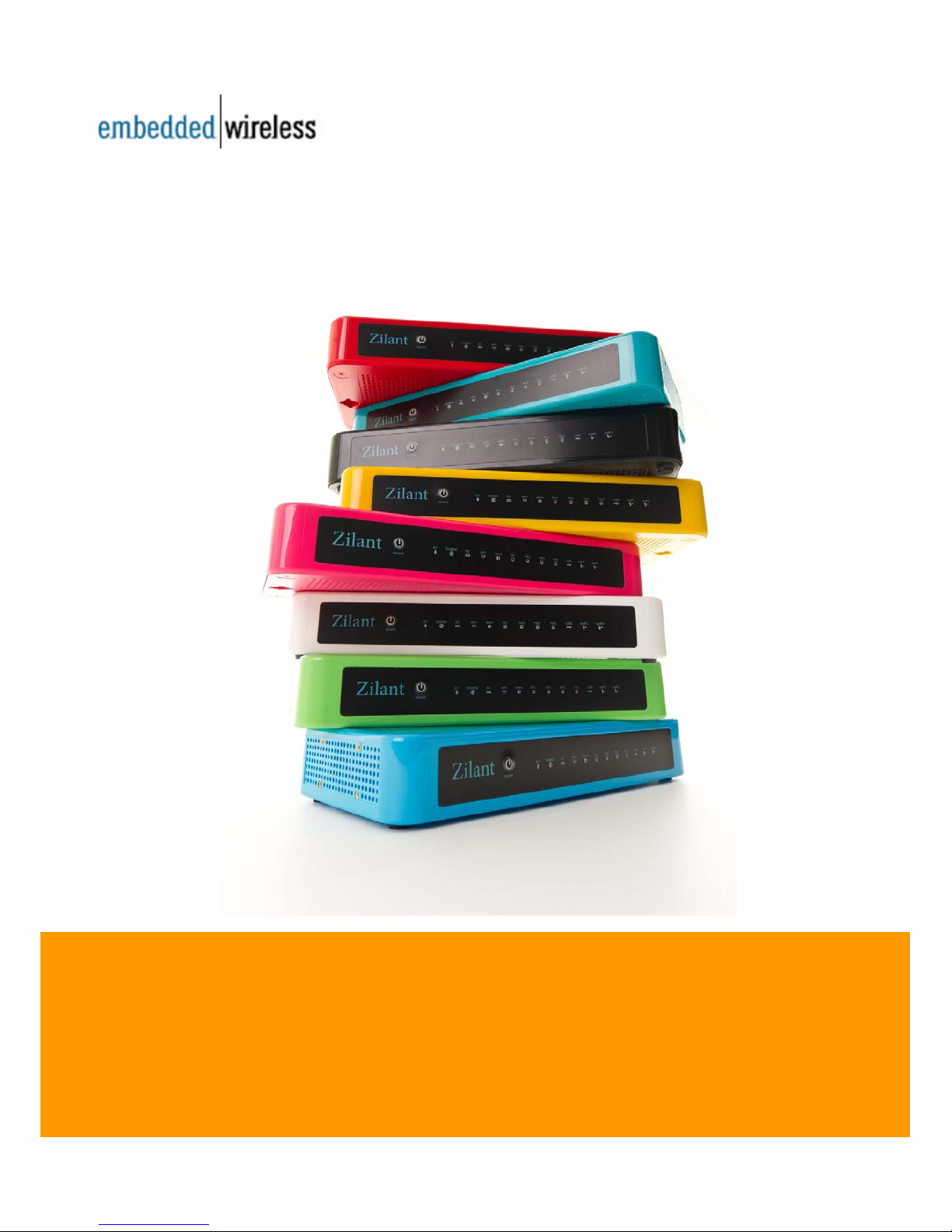
ZILANT™
USER MANUAL
Page 2

THIS PAGE HAS BEEN LEFT BLANK
Page 3

Product Manual for Zilant™
Copyright © 2013 Embedded Wireless Labs Sdn Bhd. All rights reserved.
- 3 -
Zilant™ User Manual
ZMX-8100
ZUM-VG-371220113
www.embeddedwireless.com
Page 4

Product Manual for Zilant™
Copyright © 2013 Embedded Wireless Labs Sdn Bhd. All rights reserved.
- 4 -
Copyright © 2013 Embedded Wireless Labs Sdn Bhd. All rights reserved
All information provided here are subject to change without prior notice.
Trademarks
Zilant™ and ZMS User Interface are trademarks of Embedded Wireless. Names of other
products, companies or standards mentioned herein may be trademarks and/or registered
trademarks of their respective companies.
Revision History
Part No
Revision History Date
ZPM-VG-366260911 Initial release of Zilant™ Product Manual 08/11
ZPM-VG-370190712 New Feature and user interface 07/12
ZUM-VG-371220113
ZUM-VG-372220113
Issued End User version. Updates to LED indicators and EW
profile.
Antenna, LED Indicator, Safety measures
01/13
01/13
Page 5

Product Manual for Zilant™
Copyright © 2013 Embedded Wireless Labs Sdn Bhd. All rights reserved.
- 5 -
Contents
Copyright Notice & Revision History
Contents Page
Welcome Note
Regulatory Statements
1.0 Introduction
About Embedded Wireless
Product Support
2.0 Inspect Product Checklist
3.0 Hardware Configuration
Front Panel Interface
Back Panel Interface
4.0 Installing the Un it
Connect Antenna, Interfaces Port and Power Supply
5.0 Device Readiness
6.0 Restore Factory Default Settings
7.0 Limited Warranty
Page 6

Product Manual for Zilant™
Copyright © 2013 Embedded Wireless Labs Sdn Bhd. All rights reserved.
- 6 -
WELCOME NOTE
Thank you for choosing the Zilant™ product.
The user manual describes how to install and configure the Zilant™ unit.
Page 7

Product Manual for Zilant™
Copyright © 2013 Embedded Wireless Labs Sdn Bhd. All rights reserved.
- 7 -
Wireless Safety and Compliance
Turn wireless off in areas where wireless use is forbidden or when it may cause
interference or danger. Some specific situations are described below. In general,
you should not use your Device with wireless turned on any place you are not
allowed to use a cellular device.
Be Careful Around Other Electronic the Devices The Device generates, uses,
and can radiate radio frequency (RF) energy and, if not used in accordance with
its instructions, may cause harmful interference to radio communications and
electronic equipment. External RF signals may affect improperly installed or
inadequately shielded electronic operating systems, entertainment systems and
personal medical devices. While most modern electronic equipment is shielded
from external RF signals, if in doubt, check with the manufacturer. For personal
medical devices (such as pacemakers and hearing aids), consult with your
physician or the manufacturer to determine if they are adequately shielded from
external RF signals.
Steps to Minimize Interference
If your Device does cause harmful interference to radio or television reception
(which you can determine by turning your Device off and on), you can try to
correct the interference by one or more of the following measures: reorient or
relocate the receiving antenna for the radio or television; increase the separation
between the radio or television and your Device; connect equipment and
receivers to different outlets; or consult the radio or television manufacturer or an
experienced radio/TV technician for help.
Where to Place the Device
The Device should be placed close to your wall power outlet and is normally
more than 20cm from your body. . For example, the Device can be placed on the
floor under a table.
Information regarding Exposure to Radio Frequency Energy Exposure to
Radio Frequency Energy
Your Device is designed and manufactured not to exceed the emission limits for
exposure to RF energy set by the Federal Communications Commission of the
United States (FCC). It should be installed and operated with a minimum
distance of 20 cm from your body. It must not be co-located or operating in
conjunction with any other antenna or transmitter. Information on your Device is
on file with the FCC and can be found under the Display Grant section of
http://www.fcc.gov/oet/ea/ after searching on the FCC ID for your Device, which
can be found on the back of the Device.
Page 8

Product Manual for Zilant™
Copyright © 2013 Embedded Wireless Labs Sdn Bhd. All rights reserved.
- 8 -
Regulatory Statements
The product must be set up and operated strictly according to manufacturer’s
instructions included in the user documentation provided with the product. All
changes and modifications must be expressly approved by the manufacturer.
Failure to do so may nullify the user’s authority to operate the product. The
manufacturer and its authorised resellers and distributors will assume no
responsibility for damage from any failure to comply with these guidelines.
FCC Compliance Statement for Model Number ZMX8100, FCC ID:
R42ZMX8100
This Device complies with part 15 of the FCC rules. Operation is subject to the
following two conditions: (1) This Device may not cause harmful interference; and
(2) this Device must accept any interference received, including interference that
may cause undesired operation.
This Device has been tested and found to comply with the limits for a Class B
digital device, pursuant to part 15 of the FCC rules. These limits are designed to
provide reasonable protection against harmful interference in a residential
installation. However, there is no guarantee that interference will not occur in a
particular installation.
This Device meets the FCC Radio Frequency Emission Guidelines and is
certified with the FCC as the FCC ID number found on the back of the Device.
Important: Changes or modifications to the Device not expressly
authorized by Company could void your authority to operate the Device.
This product is listed by UL. Representative samples of this product have
been evaluated by UL and meet applicable safety standards.
Page 9

Product Manual for Zilant™
Copyright © 2013 Embedded Wireless Labs Sdn Bhd. All rights reserved.
- 9 -
1.0 Introduction
EMBEDDED WIRELESS
Embedded Wireless builds next generation wireless products. The company is
strongly committed to building successful products and have patented over 47
technologies.
Why choose products by Embedded Wireless
Embedded Wireless is a next-generation wireless telecommunications company
offering connected healthcare and services for independent living, chronic
disease management, elderly home care, personal wellness, intelligent
automation, end-end 3G/4G enterprise solutions and telecommunications.
Embedded Wireless delivers custom-designed products and solutions with
cutting-edge engineering capabilities in digital hardware, RF, ASIC/ FPGA,
software and embedded software.
Visit the Website
Browse the Embedded Wireless website at www.embeddedwireless.com.
The Website provides product information, data sheets and access to customer
support.
Page 10

Product Manual for Zilant™
Copyright © 2013 Embedded Wireless Labs Sdn Bhd. All rights reserved.
- 10 -
PRODUCT SUPPORT
Contact your product reseller for product support.
Please provide the following information when contacting support services by
email-
Model number or product name
Serial number of the product
Firmware revision
Any possible screenshots or visual feedback relating to the problem.
Check label at the bottom of the unit for more information.
Page 11

Product Manual for Zilant™
Copyright © 2013 Embedded Wireless Labs Sdn Bhd. All rights reserved.
- 11 -
2.0 INSPECT PRODUCT CHECKLIST
The product packaging should contain all the items listed below -
1. Zilant™ unit x 1
2. Network Cable x 1
3. Telephone Cable x 1
4. Power Supply - External Adaptor 12Vdc, 36 Watts x 1
5. Power Supply Cable x 1
Currently Available Accessories:
Under FCC regulations, this radio transmitter may only operate using an antenna
of a type and maximum (or lesser) gain approved for the transmitter.
To reduce potential radio interference to other users, the antenna type and its
gain should be so chosen that the equivalent isotropically radiated power (e.i.r.p.)
is not more than that necessary for successful communication.
This radio transmitter (FCC ID: R42ZX8100) has been approved under FCC
regulations to operate with the antenna type(s) listed below with the maximum
permissible gain and required antenna impedance for the antenna type(s)
indicated.
Antenna types not included in this list, having a gain greater than the maximum
gain indicated for that type, are strictly prohibited for use with this device.
Antenna Details:
Frequency Band (MHz]: 824~960, 1710~2170
Impedance: 50 Ohm
Connector: SMA (M)
Polarization: Linear, Vertical
Peak Gain: 4dBi
Antenna Alpha Micro, AMC-ANTGS9C55TD-Ax 2
Missing Items?
If any of these items are incorrect, missing or damaged, contact your equipment
supplier. Keep the original packing materials in case you need to return the unit
for repairs.
Page 12
Product Manual for Zilant™
Copyright © 2013 Embedded Wireless Labs Sdn Bhd. All rights reserved.
- 12 -
3.0 HARDWARE CONFIGURATION
Form Factor
Dimensions: W132mm x L 270mm x H 43mm (5.2 in x 10.62 in x 1.69 in)
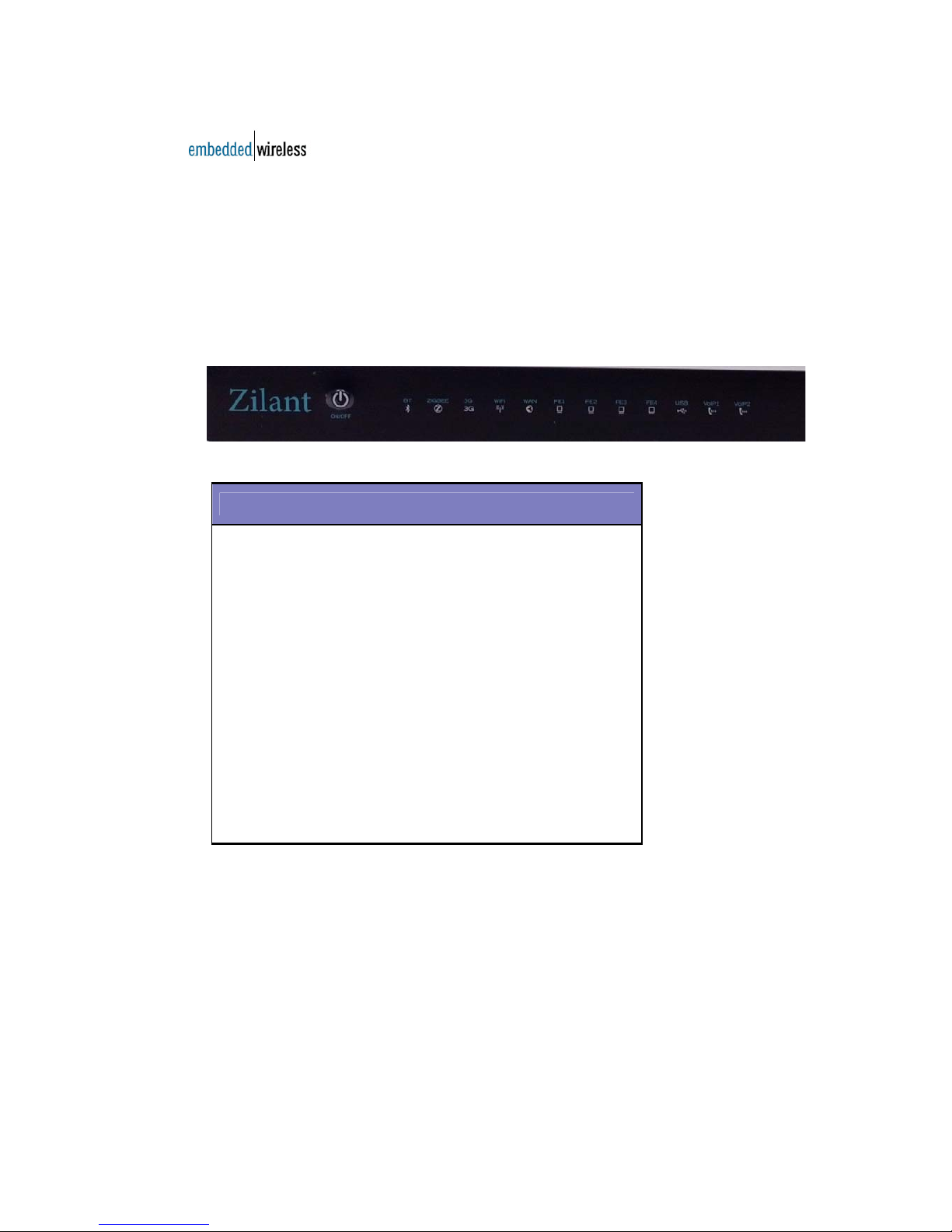
FRONT PANEL INTERFACE
Figure 1: Front Panel view
LED Features
Power LED
BT
ZigBee
3G
Wi-Fi
WAN
FE1
FE2
FE3
FE4
USB
VoIP1
VoIP2
Figure 2 – LED Table
Page 13
Product Manual for Zilant™
Copyright © 2013 Embedded Wireless Labs Sdn Bhd. All rights reserved.
- 13 -
BACK PANEL INTERFACE
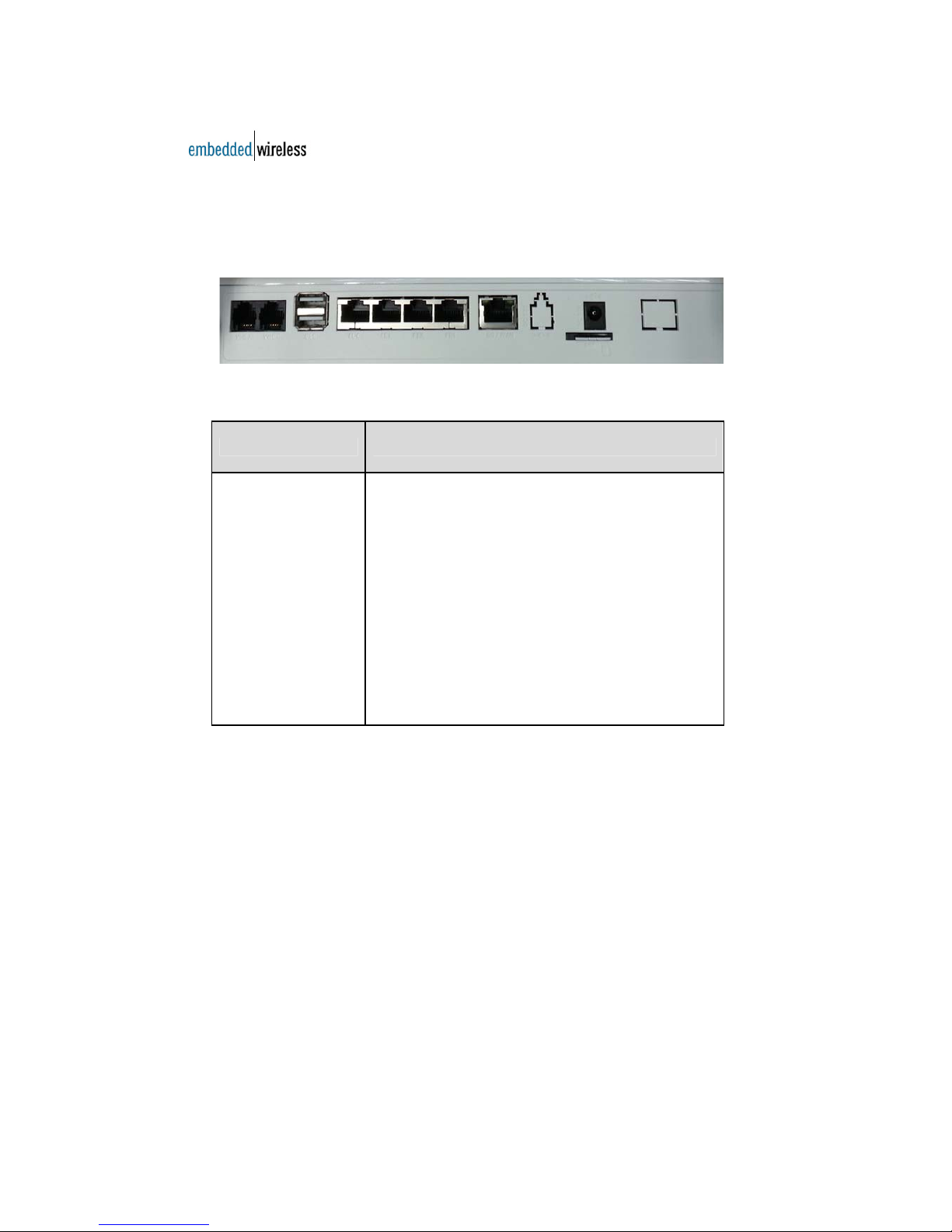
The back of the unit has the following port connections:
Figure 3: Rear panel view
Feature Description
Gigabit Ethernet 1x WAN port for backup to either ADSL or Cable
Broadband Service
FE1-4LAN 4x LAN interfaces for wired connection to your
PC or Laptop (not normally used)
USB
VoIP
Power Supply
2x USB connectors, not normally used
2x VOIP ports with RJ11 connectors
1x Power Supply Connector
Figure 4 – Back Panel Features
Check the Unit Label
Check label at the bottom of the unit to identify serial number.
Page 14
Product Manual for Zilant™
Copyright © 2013 Embedded Wireless Labs Sdn Bhd. All rights reserved.
- 14 -
4.0 INSTALLING THE UNIT
This section describes the steps to install the unit and connect to a power source.
4.1 CONNECT ANTENNA, INTERFACE PORTS AND
POWER SUPPLY
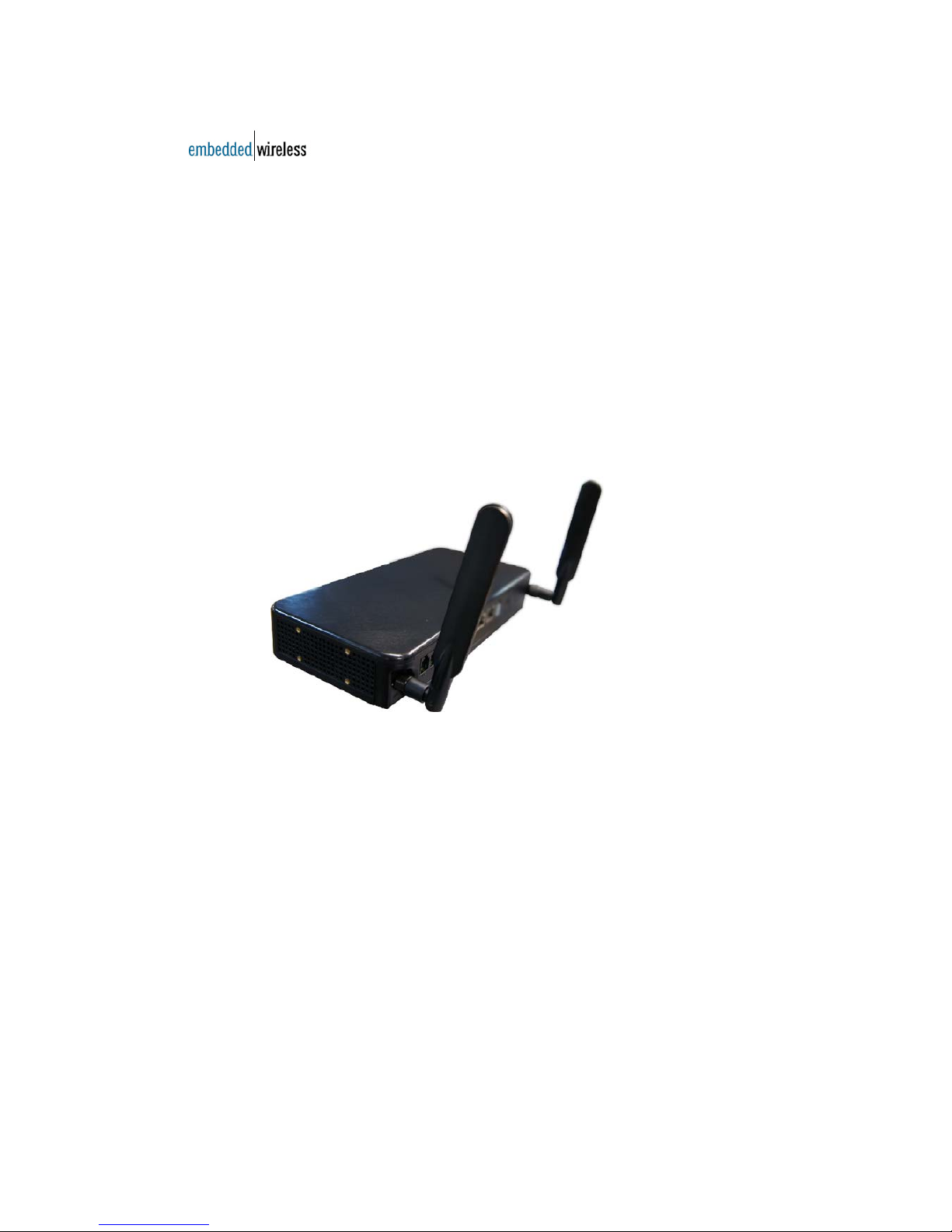
4.1.1 CONNECT ANTENNA
1. Securely attach one (1) antenna to the ANT1 point on rear panel.
2. Securely attach the other antenna to the ANT2 point on rear panel.
3. Adjust the direction of both antennas and place router in a position best
optimised to cover wireless network.
Figure 5: Antenna Connections
4.1.2 CONNECT POWER SUPPLY
1. Plug-in power supply cord to power outlet.
2. Attach the other end of power supply cord to the port marked “DC 12V”on
rear panel.
3. Switch on main power outlet.
4. Turn on power switch at front panel.
5. POWER LED on the front panel will turn Solid Green to indicate power on.
Page 15
Product Manual for Zilant™
Copyright © 2013 Embedded Wireless Labs Sdn Bhd. All rights reserved.
- 15 -
5.0 DEVICE READINESS
The Zilant™ equipment provided by your dealer is pre-configured and ready to
use.
GET ACQUAINTED WITH LED STATUS INDICATOR
Feature LED Action Status Indicator
Power LED Green Solid
Unit is switched on
BT
OFF
Green Solid Wi-Fi is enabled
ZigBee
OFF
Green Solid Wi-Fi is enabled
3G
Red Solid 3G card not detected
Amber Solid
3G card detected. SIM not
registered with operator or No SIM
card
Green Solid
SIM card successfully registered
with operator
Wi-Fi
Red Solid Wi-Fi card not detected
Amber Solid
Wi-Fi card detected. Connectivity
not enabled
Green BLINKING Wi-Fi is enabled
WAN OFF Cable not connected
Green Solid WAN cable is connected to the port
FE 1-4
OFF Cable not connected
Green Solid LAN cable is connected to the port
USB OFF
VOIP1-2
OFF SIP Account not configured
Red Solid
SIP Account Configured.
Registration with SIP Serve r Faile d
Green Solid
Successfully Registered with SIP
Server & Phone ON Hook
Green BLINKING Phone OFF Hook (in USE)
Figure 6 – LED Table
Page 16

Product Manual for Zilant™
Copyright © 2013 Embedded Wireless Labs Sdn Bhd. All rights reserved.
- 16 -
6.0 RESTORE FACTORY DEFAULT SETTINGS
The Reset Button Feature
The “Reset button” is located on the bottom of the unit. It restores factory defaults
settings and erases all configured parameters and passwords.
To reset
1. Keep unit powered on.
2. Hold down “Reset button”, release, and wait.
3. When unit restarts, it reverts to the factory default settings.
4. Now configure the unit with your specific settings.
Page 17

Product Manual for Zilant™
Copyright © 2013 Embedded Wireless Labs Sdn Bhd. All rights reserved.
- 17 -
7.0 LIMITED WARRANTY
In the event the product is found to be defective or not fit for the purpose it was
designed, you can return the product as provided under the term and condition of
the Warranty.
To claim your Warranty, return the product to the outlet you originally purchased
it.
Please retain your original receipt for warranty/repair claims.
Our Warranty
Embedded Wireless guarantees this Product to be free from defects in material
and workmanship at the time of its original purchase, and for a subsequent
period of one (1) year.
If this product fails to operate under normal use and service, due to improper
materials or workmanship, during the said Warranty period, EW, its agents,
subsidiaries, authorized distributors, or Certified Service Centers will repair or
replace the Product in accordance with the terms and conditions stipulated
herein.
Conditions
1. The Warranty is only valid if accompanied by the original receipt issued to
the original purchaser by EW or any retailer indicating the date of purchase and
product serial number, when the product is submitted for repair or service.
EW reserves the right to refuse Warranty service if this information has
been removed or altered subsequent to the original purchase of the Product
from the retailer.
2. Once EW repairs or replaces the product, the repaired or replaced
Product shall be covered by Warranty for the remaining time of the original
warranty period or for ninety (90) days from the date of repair, whichever is
longer. Repair or replacement may include the use of functionally equivalent
reconditioned units. Replaced faulty parts or components will become the
property of EW.
3. This Warranty does not cover any failure of the product due to normal wear
and tear or misuse, (including but not limited to use in a manner other than
the normal and customary manner) accident, modification or adjustment,
Acts of God, improper ventilation, and other such damages.
Page 18

Product Manual for Zilant™
Copyright © 2013 Embedded Wireless Labs Sdn Bhd. All rights reserved.
- 18 -
4. This Warranty does not cover product failures due to repair installations,
modifications, or improper service performed by a non-certified Service Centre or
opening of the product by non-EW certified persons.
5. The Warranty does not cover product failures caused by the use of non-EW
original accessories.
6. Tampering with any of the seals on this product will void the Warranty.
7. No other express warranties, whether written or oral, other than this printed
limited Warranty shall apply. All implied warranties, including, and without
limitation, the implied warranties or merchantability or fitness for a particular
purpose, are limited to the duration of this limited warranty. EW shall
under no circumstances be liable for incidental or consequential damages of
any nature whatsoever. Such damages include, but are not limited to, lost profits
or commercial loss, to the full extent that said damages can be disclaimed by
law.
Power Supply
Only connect the AC (Power Supply) to designated power sources. When
removing the cord from the outlet, hold onto the AC adapter rather than the cord
in order to reduce the risk of damage to the electric cord.
To reduce risk of electric shock, unplug the unit from any power source before
attempting to clean it.
Page 19

Product Manual for Zilant™
Copyright © 2013 Embedded Wireless Labs Sdn Bhd. All rights reserved.
- 19 -
THIS PAGE HAS BEEN LEFT BLANK
Page 20

Product Manual for Zilant™
Copyright © 2013 Embedded Wireless Labs Sdn Bhd. All rights reserved.
- 20 -
EMBEDDED WIRELESS
www.embeddedwireless.com
[email protected]
United States of America
Embedded Wireless, Inc.
19450 Burgundy Way
Saratoga
CA 95070
Tel: 408.740.7246
Fax: 408.740.7247
(For calls originating outside the US, please dial the international prefix)
Malaysia
Embedded Wireless Labs Sdn Bhd
702 Level 7, Uptown 2
No.2 Jalan SS 21/37
Damansara Uptown
47400 Petaling Jaya
Selangor
Tel: +6.03.7660.9787
Fax: +6.03.7660.9786
Made in Malaysia
Copyright © 2013 Embedded Wireless Labs Sdn Bhd.
Zilant™ is a trademark of Embedded Wirel ess. Names of other products, companies or standards
mentioned herein may be trademarks and/or registered trademarks of their respective companies.
 Loading...