

Page 1
Page 2

10
Warranty:
7KH0DQXIDFWXUHUV touch PCs are produced following the most modern production
and testprocesses. Carefully selected components and accurate production ensure
reliableoperation and long life.7KH0DQXIDFWXUHUwarrants to the originalpurchaser that each
touchPC delivered shall be free from defects in material or workmanship at time of shipment,
and that each such module delivered will meet the published specifications for a period of
24 monthsas measuredfrom the date of original shipment.7KH0DQXIDFWXUHUVobligation
under theWarranty contained herein is limited to the repair or replacement of any touch PC
that does not meet the specifications, provided that said product is returned toWKHPIJ,
transportation charges pre-paid, and provided that uponPIJ's examination, the
product, whentested within thespecified ratings and inaccordance with goodengineering
practice, does not meet the specifications as defined. THIS WARRANTY IS IN LIEU OF
ALL OTHER WARRANTIES, EXPRESSED OR IMPLIED, INCLUDING WITHOUT
LIMITATION THE WARRANTY OF MERCHANTABILITY AND THE WARRANTY OF
FITNESS FORAPARTICULAR PURPOSE.
All claims under warranty must be made promptly after occurrence of circumstances
giving risethereto andmust be receivedwithin the applicable warrantyperiod b\WKHPIJor
its authorized representative. Such claims should include the Product type and serial
numbers and a full description of the circumstances giving rise to the claim. Before any
Products arereturned forrepair and/or adjustment,written authorization fromWKHPIJor its
authorized representative for the return and instructions as to how and where these
Products should be shipped must be obtained. Any product returned toWKHPIJ for
examination shallbe sent prepaid via the means oftransportation indicated as acceptable
b\WKHPIJ.7KH0IJ reserves the right to reject any warranty claim not promptly reported
and any warranty claim on any item that has been altered or has been shipped by nonacceptable means of transportation. When any Product is returned for examination and
inspection, or for any other reason, Customer will be responsible for all damage resulting
from improper packing or handling and for loss in transit, notwithstanding any defect or
nonconformity in the Product. In all casesWKHPIJhas sole responsibility for determining
the cause and nature of failure, andWKHPIJ's determination with regard thereto shall be
final. If it is found thatWKHPIJ's Product has been returned without cause and is still
serviceable, Customerwill be notifiedand the Product returned atCustomer's expense. In
addition, a charge for testing and examination may, inWKHPIJ's sole discretion, be made
on Productsso returned.
SELLER'S LIABILITY FOR DAMAGES SHALL NOT EXCEED THE PAYMENT, IF ANY,
RECEIVED BY SELLER FOR THEUNIT OF PRODUCT OR SERVICE FURNISHED OR
TO BE FURNISHED AS THE CASE MAY BE WHICH IS THE SUBJECT OF CLAIM OR
DISPUTE. IN NO EVENT SHALL S ELLER BE LIAB LE FOR INCID ENTAL,
CONSEQUENTIAL OR SPECIAL DAMAGES. LIABILITY TO THIRD PARTIES, FOR
BODILYINJURY INCLUDING DEATH, RESULTINGFROM SELLER'S PERFORMANCE
Page 3

11
support or sustain life and whose failure to perform whenproperly used in accordancewith
instructions for use provided in the labeling can be reasonably expected to result in a
significant injury to the user. A “Critical Component” is any component in a life support
device or system whose failure to perform canbe reasonablyexpected to cause thefailure
of thelife supportdevice or systemor toaffect its safety oreffectiveness.
If yourdevice does have a defectwithin the warranty period,please contactWKHPIJdirectly
.
The
warranty periodis 24months from thedate ofpurchase under thefollowing conditions:
l
l
l
l
l
l
l
All warrantiesare void ifthe unit hasbeen opened ordisassembled withoutPIJ's prior
approval.
Damage caused by improper handling or operation, by incorrect installation or storage,
through improper connections, as well as due to force majeure or other external
influences arenot coveredby the warranty.
For warranty claim, we reserve the right to replace the defective components or to
exchange thedevice.
Exchanged componentsor devicesbecome the propertyofWKHPDQXIDFWXUHU.
Claims for damages are excluded in so far as they are not based on intent or gross
negligence ofthe manufacturer.
After expirationof thewarranty period, warrantyclaims canno longer bepursued.
Any warrantyclaim mustbe accompanied byproof ofpurchase (receipt orinvoice).
Tothe buyer of thisproduct:
Electrical SafetyTips:
Thank you for purchasingWKHtouch-screen PC. You have purchased a small and
powerful desktop system that is suitable for use in harsh work environments. It is
distinguished from standard PC systems through silent operation and an increased
stability,especially through the robustaluminum housing and bythe lackof moving part.
Not to mention the high quality and attractive design (the housing is made out of refined
aluminum) the touch-screen PCs are made for the use in industry, in machine
control, in the Home automation, in the digital signage field, and many other application
fields.
Toavoid mistakes and for the optimal use of the touch-screen computers, please read this
manual indetail beforefirst use.
The device should only be opened by technical service personnel. Improper opening can
result in loss of warranty. Please separate the touch PC from the power supply before
opening.
Operating Safety:
Ongoing changes:
i3URGXFHGL
n China with German know-how and quality management.
Your feedback is the most valuable information for the improvement of our products.
Continuous productionand product improvement isour primary goal.For this reason, there
may be improvements in our products which are not yet included in this user's guide.
Differences between your product and this user's guide are generally related to
specification changes and product improvement
l
l
l
l
l
Please check before first use if all the external adapter and cables are properly
connected.
The PC must not have in any case loose objects, especially any exposed, conductive
objects. Otherwise there is the risk of a short circuit and the permanent damage to the
touch PC.
Dust, moisture and temperature jumps drastically shorten the life of the touch screen PC.
Please avoid,if possible,these external negativefactors.
Although the touch PC is provided with an anti-vibration mechanism please do not drop
the PCand tryto avoid strongand jarringmovements.
Please clean your touch PC not with chemical supplies but use a dry cloth for
cleaning.
12
Page 4
13
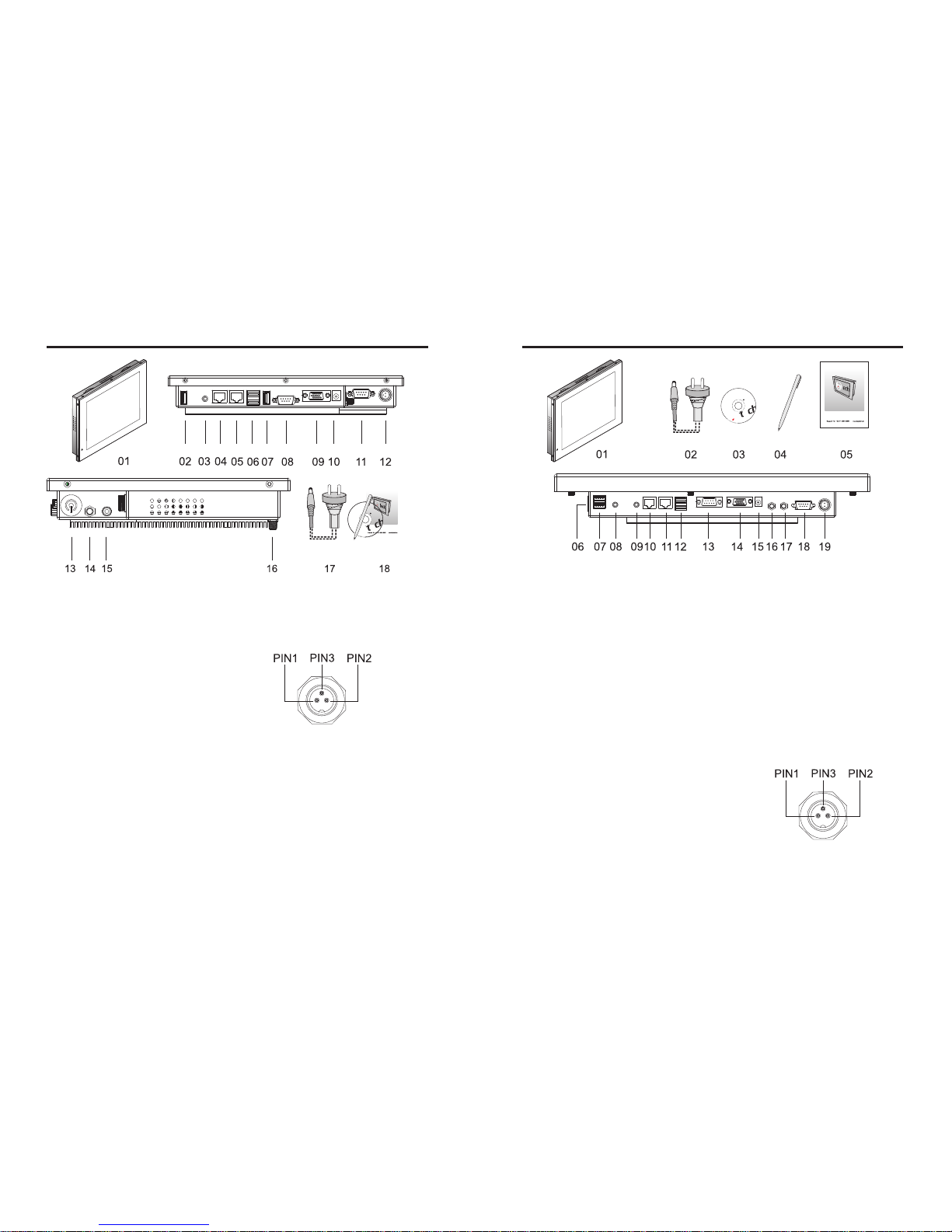
Components of 10" Touch PC :
Touch Driver Installation Disk
C
Ltd.2009
01 T
02
04
05
06
07
08
09
10
11
12 additional screwable
13 Power on/off
14
15
16 W-Lan connector
17
ouch-PCwith VESA-100
USB2.0
03 Ear-Out
10/100/1000MBit network interface
10/100/1000MBit network interface
2xUSB2.0
USB2.0
COM1
VGA-Out
12V DC-IN
COM2
12V DC-IN; PIN1:+12V DC PIN 2: GND
PIN 3: free
W-Lan connector
Mic-In
220V power supply
18 Touch pen, manualand installation CDof Windows or Linux
.
Components of 15" 17"19" touch PC :
Touch Driver Installation Disk
C
Ltd.2009
01
02
04 Touch pen
05
06 Power on/off
07 2x USB2.0
08 Mic-In
09 Ear-Out
10 10/100/1000MBit n
11 10/100/1000MBit n
12 2x USB2.0
13 COM1
14 VGA-Out
15 12V DC-IN
16 W-Lan connector
17 W-Lan connector
18 COM2
19 additional screwable12V DC-IN; PIN1:
+12V DC PIN 2: GNDPIN3: free
Touch-PC withVESA100
220V power supply
03 CD for installationof Windows or Linux
etwork interface
etwork interface
Manual
14
Page 5

15
The manufacturer offers you a
well-engineered, high-quality PC hardware. For the
software installation, use and maintenance the respective useris responsable.
On the bundled driver CD are Windows and Linux drivers for the Touch
PCs included.
If you purchased the system with a SSD, a current image is already
installed with which you can become familiar with the hardware and the use of
the touch-panel.
connect your touchPC simplywith thein deliveryincluded AC
adapter oruse anequivalent 12V DC power source with at least 5A DC. To start
the system, pressthe On / Off button.
Tostart,
If you have bought the touchPC without hard diskand RAM, please follow
the following instructions.
Due to the small size of our touch-PC solutions an installation of a
conventional hard drive due to potential heat problems is not recommended
for model sizes less than 15 ". Please only use SSD drives with 2.5" size and
max. 7mm height or 1.8” SSDs. The subsequent RAM and hard
disk is complicated, for these activities the mainboard must first be taken off.
This should be done only by a computer specialist.Not experienced PC users,
we explicitly recommend to buy a model withmemory and hard diskincluded.
additional screwable DC-connector: The touch PC-series has an additional
screwable powerconnector. The PIN assignments are: PIN1: +12V DC PIN 2:
GND PIN 3: not used Please take care of the right polarity, otherwise your PC
is irrevocably destroyed. Please see paragraph “Components”.
l
l
Commissioning and Installation
16
BIOS-settings
In the following, the most important BIOS settings are explained. Please note
that the
BIOS is a
special BIOS for PC's with built-in display solutions.
Accordingly, it can occur after adjustments to the BIOS that you see no image
on your monitor.For this reason, only experienced users should make changes
to the BIOS. If the system is wrongly adjusted, proceed as described in the
following: press (even if yousee no image) ona connected keyboard the Delete
key until you are sure you are in the BIOS. Then press F9 Enter F10 Enter. The
system will rebootand you should have onan external monitor againa picture.
Make sure thatyou save your changes beforeleaving the BIOS (F10).
The major graphic settings to use the touchPCs internal built inmonitor:
Intel
Video (Intel IGD)Control Sub-Menu
IGD - BootType:VBIOS Default
IGD – LCDControl Sub-Menu
IGD – LCDPanel Type: choose theoriginal resolution of your monitor
l
l
l
l
l
Pre-installation Linux-Software (Optional)
Ubuntu 9.04 has been preinstalled in the Touch-PC with SSD. The User Name
is "user".The password is „user123“. Please look also on the desktop. There is
a text filewith the current password information.
For the calibration please use the preinstalledprogram "eGalaxy".You can start
the program fromthe desktop.
If you will change the password, please open a terminal. Type "sudo su", then
press "Enter". The password is "user123". Please chose "passwd user" and
give your newpassword.
Page 6

17
Optional features
Troubleshooting
1.No picture
2.Touch function is not exact
please download from our website the actual manual for the
use of the touch-function. Please do a recalibration to improve the exactness
of the touch panel.
l
l
l
l
First, check whether the power supply is properly connected and working
(green LED onthe power supply).
when you install new video card drivers, the BIOS is under certain
circumstances adjusted and there is no boot screen to see. Wait a minute or
two until Windowsis loaded.
connect an external keyboard via USB and check wether the Num Lock LED
illuminates (press Num Lock on the keyboard). When it lits, there is usually
only a misaligned BIOS. Turn off the PC, reboot and then press DELETE so
often until you are sure that you are in the BIOS. Set the graphics options in
the BIOS followingthe Chapter BIOS settings.
leads none of the above suggestions to success, please contact our direct
manufacturer service underthe below shown contact information.
Since the Touch PC series is widely used in industry applications, we
offer a number of extensions that you can order from our distribution
partners. See a selection below:
Solid VEAS-100 Stand, Housing adaptations, integration of e.g. Card
readers, scanners, printers
Expansion of the possible operating voltage to 6- 36V DC
W-LAN support viamini-PCI-E with externalW-LANAntenna
Internal use of the Mini-PCI-E slot, the COM and USB ports for
additional devices such as GPS, GPRS, UMTS
devices with RAM,SSD
IP protection classes,other touch technologies
Buttons and portsin the front
In project business, further adjustments are possible to meet your
requirements.
l
l
l
l
l
l
l
7RXFK3&6SHFLILFDWLRQ
PC-specification
Monitor and Touch-Panel-Spezification
CPU
Chipsets
Memory
Graphic
Audio
Network
Storage interfaces
USB
Back Panel Connectors
Internal I/O Connectors
Input voltage
Operating temperature
Driver
Intel
Atom N270
North Bridge: Intel 945GSE
South Bridge: Intel ICH7M
Support 1x DDRII 533 S0Dimm up to 2GB
GMA950 Graphics Card
Realtek
ALC 662 5.1 Channel
Realtek 8111C, supports 10/100/100MBit
2x S-ATA 300MB/s ports
6x USB 2.0 ports, 4 on the backpanel
VGA
4x USB 2.0
2x RJ-45
Audio-In / Audio-Out
12V DC-In
1x MiniPCI-E
2x S-ATA 300MB/s ports
1x Front Panel Audio header
3x USB 2.0 header
1x IR header
4x COM/RS232 header
1x front panel header
12V DC-In
0° to +60°
Windows, Linux, with SSD Linux Ubuntu 9.04 preinstalled
2xCom-Port (Rs232)
additional screwable 12V DC-In
18
Touch-panel:
Touch-connector:
Touch-panel-driver:
Touch life (contacts):
Response time touch-panel (ms):
Surface hardness:
Input force (g):
Mounting:
Aspect ratio:
Brightness (cd/m2):
Contrast:
Visual Angle horizontal, vertical (°):
Physical resolution
4-wire resistive
USB
Windows, Linux, Apple
> 10 000 000
< 10
3H
20 ~ 150
VESA-100 holes
4:3
250
600:1
150;130
1024x768
10"PC
15"PC
4:3
250
500:1
160;160
1024x768
19"PC
16:10
300
1000:1
170;160
1440x900
17"PC
4:3
250
1000:1
170;160
1280x1024
Page 7

RMA-service:
If you thinkyour product has adefect please always contact usdirectly. Our trainedafter sales service specialists canhelp
you
resolve yourproblems. Please checkthe manualand our frequentlyasked questions beforecontacting us –you willusually find
an answerto yourquestion.
 Loading...