

Page 1
615M
-1
Cellular Modem & IP Router
Quick
Start Guide
Device
Connections
STEP
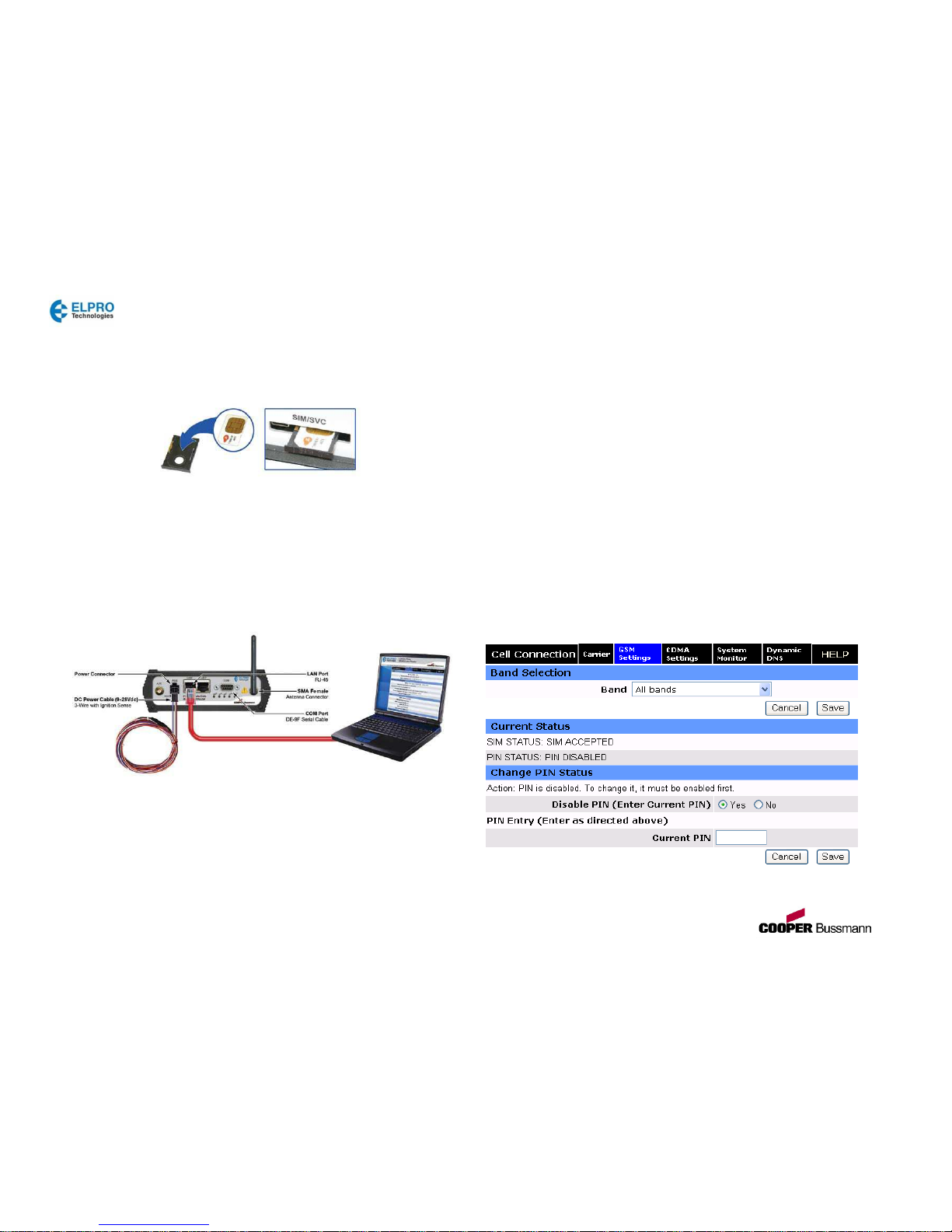
1: For GSM, insert the SIM card with the gold side up.
Push the card completely into the slot until it clicks in place. (Not
required for CDMA).
STEP
2: Connect an antenna to the ANT connector. Use of dual band cellular antenna
is pr
eferred
.
STEP
3: Connect the Ethernet cable to the modem’s Ethernet port and plug the other
end into the network port of your PC.
STEP
4: Connect the DC Power Cable to the modem and plug into a 9-28Vdc
power
source. Connect the ignition sense line (white) with the voltage input line (red). The
ignition sense line is only used for in-car applicatio
n.
At power up, all LEDs will light red, then amber, then green. Once the boot sequence
is complete,
RSSI
will light solid green and SVC will be flashing green.
Accessing the Modem’s Web S
erver
STEP
1: Obtaining the proper IP address to access the modem’s web server:
For Windows XP users, select Start » Control Panel » Network Connections.
Right click Local Area Connection and select Properties. Select Internet Protocol
(TCP/IP)
and click
Properties
. On the General tab, select
Obtain an IP address
automatically
and
Obtain DNS server address automatically
. Click
OK
to complete
TCP/IP configuratio
n.
For Windows 7 users, select
Start » Control Panel » Network and Sharing Center
.
Select
Change adapter Setting
. Right click
Local Area Connection
, select Interne
t
Protocol Version 4 (TCP/IPv4)
and click
Properties
. On the General tab, select
Obtain
an IP address automatically
and
Obtain DNS server address automatically
.
Click
OK
to complete TCP/IP configuratio
n.
STEP
2: Open a web browser and enter
192.168.1.50
in the address bar. A login screen
should appear, enter the User name:
admin
and the Password:
password
and click OK.
STEP
3: On the device Home page, the PPP status will read DOWN until the cellular
device is enabled. Before moving onto activation, please verify you have an
adequat
e
RSSI, which is listed on the home page of the device.
GSM Settings (GSM SIM Card Accepta
nce)
GSM Subscribers
From the device Home page, select
Cell Connection
from the main navigation panel
and then select
GSM Settings
. SIM
STATUS
should read SIM ACCEPTED.
Ver1.0 0612
www.c
ooperbussmann.com/wirelessresources
Page 2
615M
-1
Cellular Modem & IP Router
Quick
Start Guide
Modem Network Connection
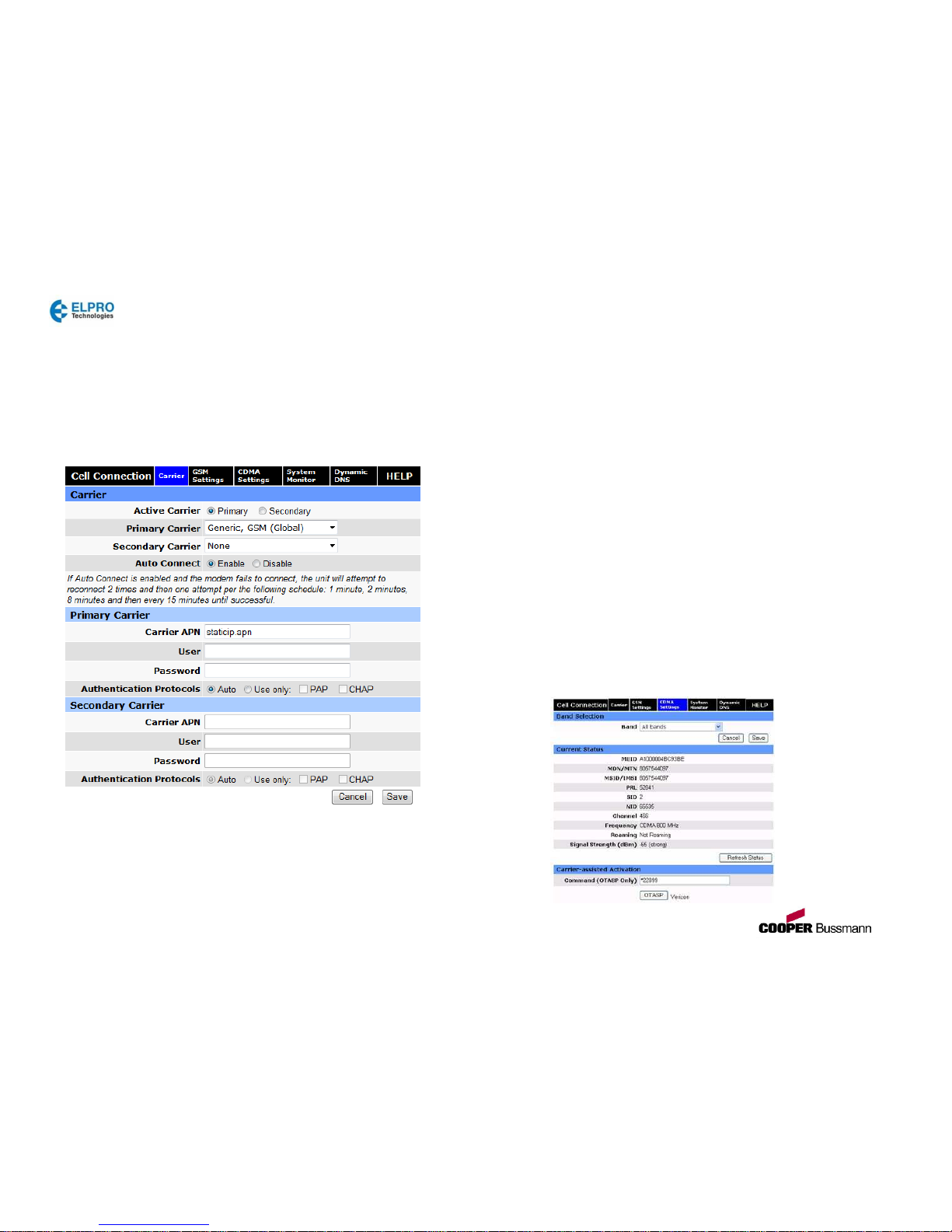
After the modem has been successfully provisioned, and the SIM card has been
accepted, a data connection can be enabled. Select Cell Connection from
the
main navigation panel and then select the Carrier tab
.
• Select the desired Primary and Secondary carriers (they
cannot be the same).
For any carrier not mentioned in the drop-down list please select
:
Generic, GSM (Global)
.
• Select Enable Auto Connect.
• Enter the
Carrier APN
that had been provided by the carrier. Click
Save
.
The SVC LED will indicate when the cellular connection has been established.
Steady green indicates a 3G connection; steady Amber indicates a 2G conn
ectio
n.
Select
Unit Status
from the main navigation panel to verify PPP Status is UP.
The PPP IP Address shows the current IP address assigned to your cellular device.
Your device is ready to browse the web
.
CDMA Subscriber Activation
In order to use the modem, it must be activated for your specific carrier once the MEID
has been provided for the account. Over-The-Air
(OTA)
activation is supported an
d
each carrier has a different pr
ocedure.
CDMA Settings (Provisioning)
From the device Home page, select
Cell Connection – Carrier
from the main
navigation panel and follow the appropriate carrier instructions below. For example:
Sprint Subscribers
• Select
Sprint, CDMA (NA)
as your primary or secondary carrier and set it as
the
Active Carrier
.
• Select
Cell Connection – CDMA Settings
from the main navigation panel and
make sure you have strong or medium signal strength (dBm)
.
Sprint is capable of automatic OMA-DM provisioning. Auto activation is enabled by
default. After power up, wait 3-4 minutes to verify Current Status has been popul
ated
with the MDN/MTN and MSID/IMSI numbers. If these numbers do not populate, your
device did not provision properly. Refer to the User Manual for Manual Activatio
n
procedure
s.
Verizon Subscribers
• Select
Verizon, CDMA (NA)
as your primary or secondary carrier and set it as
the
Active Carrier
.
• Select
Cell Connection – CDMA Settings
from the main navigation panel and
make sure you have strong or medium signal strength (dBm)
and not roaming.
• Click the
OTASP
button to start the provisioning process.
• Confirm or enter OTASP command: *22899
.
Verify Current Status has been populated with the MDN/MTN and MSID/IMSI numbers.
If these numbers do not populate, your device did not provision properly. Refer to User
Manual for Manual Activation pr
ocedures.
Ver1.0 0612
www.c
ooperbussmann.com/wirelessresources
 Loading...