

Page 1
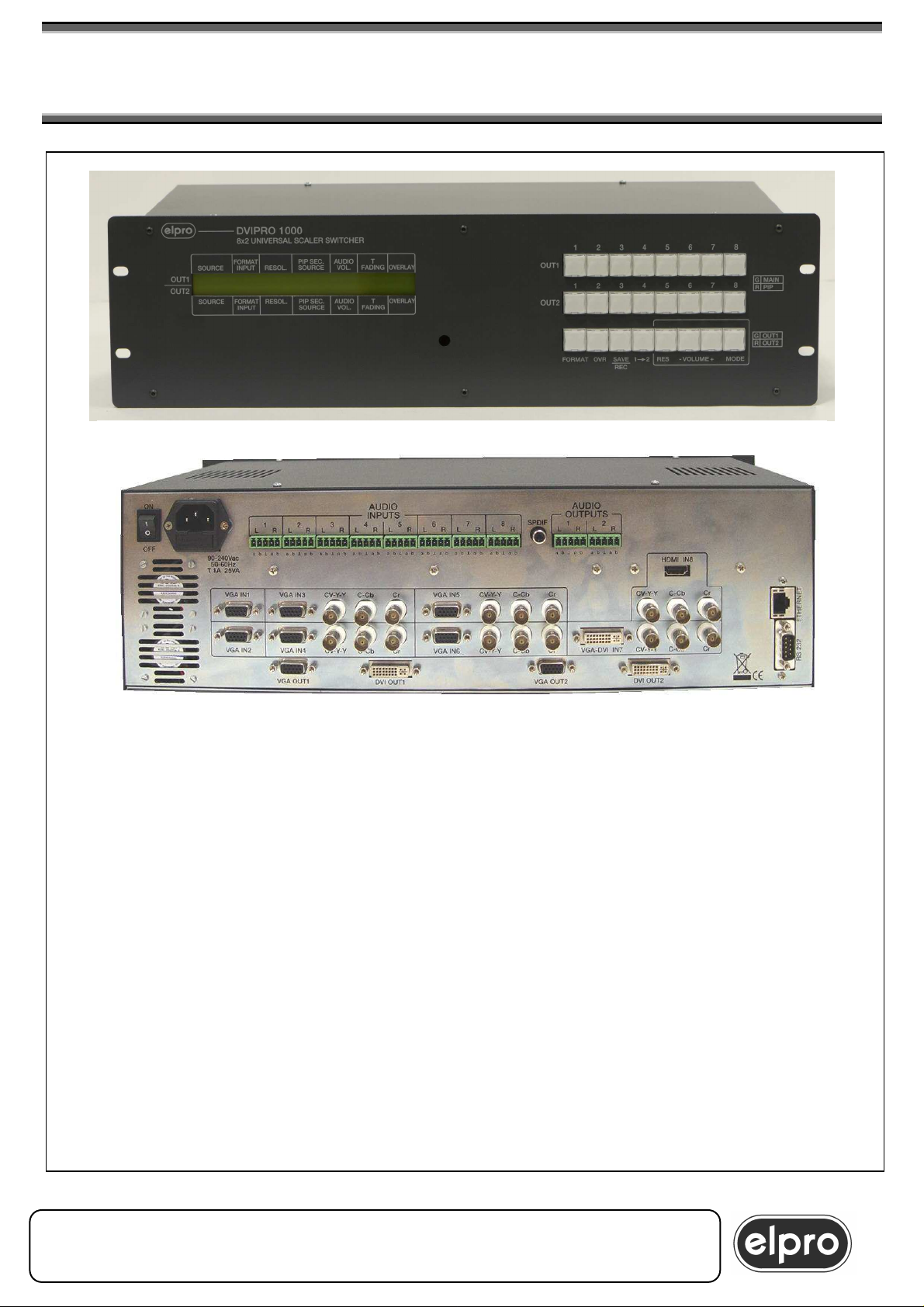
DVIPRO1000
••••
8x2 UNIVERSAL SCALER MATRIX SWITCHER
& EFFECT CONTROL
8 universal inputs
•••• 2 independent double outputs, VGA and DVI
•••• In/Out resolution up to UXGA and 1080p
•••• Seamless switching in Fading, Mixer or Cut
•••• Preview, PIP, Titling and Overlay functions
•••• Image parameter control
•••• Audio associated with video with volume
adjustment
•••• IR, RS232 and Ethernet control
DVIPRO1000 M 28/05/08
ELPRO Video Labs s.r.l.
St.da della Pronda, 45/B 10142 Torino ITALY
Tel.+39 0117701583 – Fax +39 011703751
1
1
Page 2

DVIPRO1000
8x2 UNIVERSAL SCALER MATRIX SWITCHER
& EFFECT CONTROL
INSTALLATION AND USE OF THE DVIPRO1000
CONTENTS:
1.0 Overview 3
2.0 Power supply 5
3.0 Connections 7
4.0 Basic functions 8
5.0 Remote control functions 15
6.0 Detailed Functions 18
7.0 Programming menu 24
8.0 RS 232 and Ethernet commands 31
9.0 Firmware upgrade 41
10.0 Technical data 42
11.0 Notes 44
Please read this handbook carefully when installing the DVIPRO1000 unit.
The manufacture shall not be held responsible for any damages caused by
use, even correct, of its products.
Product data and characteristics may be modified without prior notice.
ELPRO Video Labs s.r.l.
2
St.da della Pronda, 45/B 10142 Torino ITALY
Tel.+39 0117701583 – Fax +39 011703751
2
Page 3
DVIPRO1000
8x2 UNIVERSAL SCALER MATRIX SWITCHER
& EFFECT CONTROL
1.0 OVERVIEW
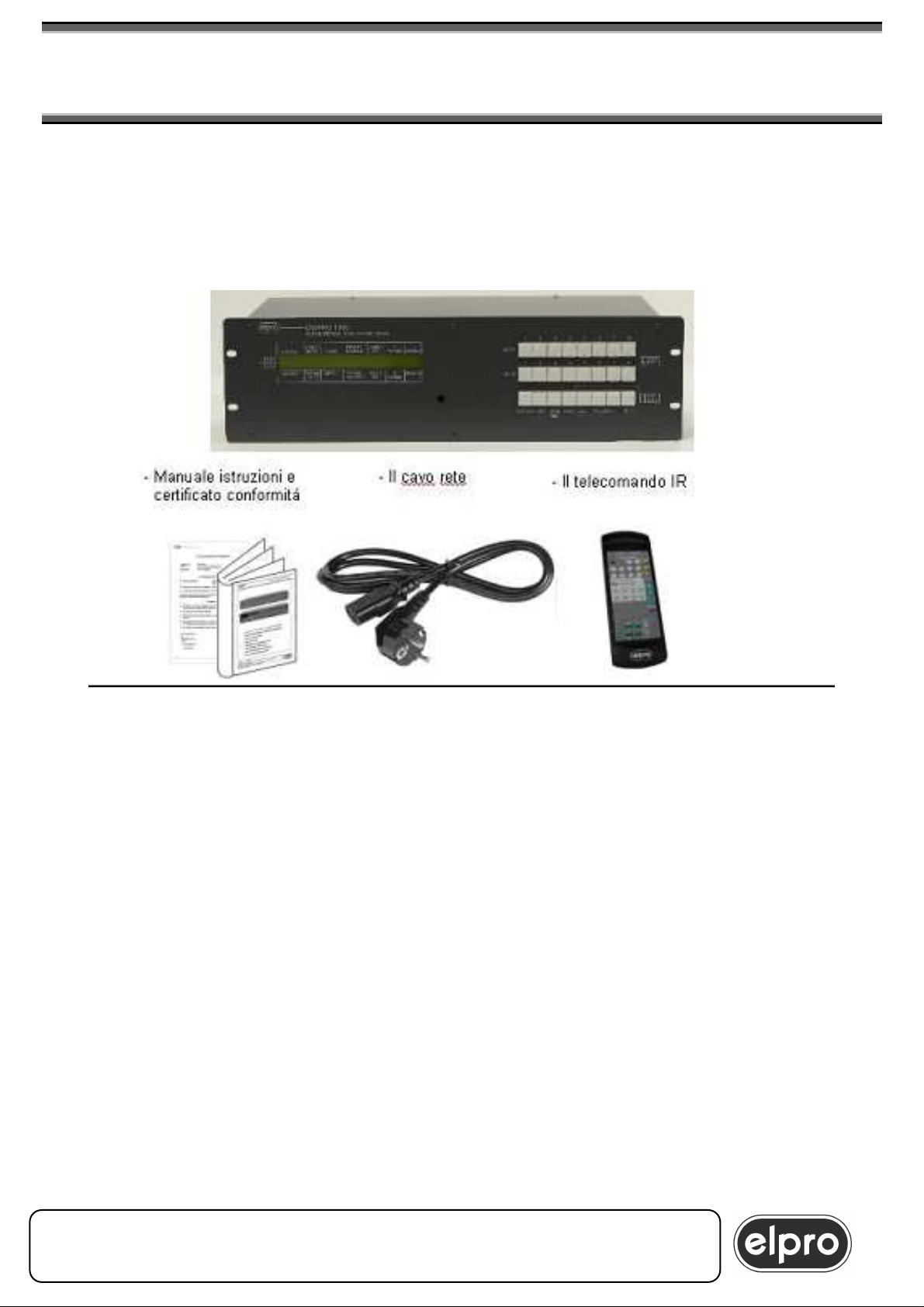
Thank you for buying this product. Check the contents of the packaging
carefully. It contains:
The DVIPRO1000 unit permits switching, on two independent, programmable
outputs, of video and audio signals from eight different sources. In particular,
for the video part:
- IN1 and IN2: 2 inputs on connector VGA HDD15p. that can accept
RGBHV, Component, YC and CVBS signals
- IN3, IN4, IN5, IN6: 4 inputs on connector VGA HDD15p. or on triple
BNC, that can accept RGBHV, Component, YC and CVBS signals
- IN7: 1 input on connector DVI-I or on triple BNC, that can accept
DVI, RGBHV (via adapter VGA-DVI), Component, YC and CVBS
signals
- IN8: 1 input on connector HDMI or on triple BNC that can accept
HDMI, DVI (via DVI-HDMI adapter), Component, YC and CVBS
signals.
ELPRO Video Labs s.r.l.
St.da della Pronda, 45/B 10142 Torino ITALY
Tel.+39 0117701583 – Fax +39 011703751
3
3
Page 4

DVIPRO1000
8x2 UNIVERSAL SCALER MATRIX SWITCHER
& EFFECT CONTROL
The 2 outputs are completely independent. Each output is scalable in a wide
set of formats and available both in DVI digital format and RGBHV analogue
format on connector HDD15p.
Each output channel permits concurrent display of 2 inputs, creating 2
independent windows, MAIN and PIP whose size and position can be set
freely.
The unit performs switching through the Fading, Mixer or Cut effect. Fade and
Mixer time is programmable. These modes are available both in automatic
and in mauial mode. A Preview function is also available to switch the image
of OUT1 on OUT2.
An Overlay function is also available which permits subtitling or overlay
effects between images.
The DVIPRO1000 features 8 different global preset memories that can be
saved and recalled by the user.
The basic commands for control of the machine are available from the
machine keyboard with lighting keys, where an LCD display shows its
complete status.
Using the remote control, it is possible to access all the functions, including
the programming menu.
All functions can also be accessed via a RS232 serial interface and LAN
connection.
The related balanced stereo audio channel is associated to each input.
Output volume can be regulated in digital mode for each single input and for
each single output.
The HDMI channel is fitted with a specific SPDIF internal decoder which is
activated when the audio is contained in the HDMI stream.
ELPRO Video Labs s.r.l.
4
St.da della Pronda, 45/B 10142 Torino ITALY
Tel.+39 0117701583 – Fax +39 011703751
4
Page 5
DVIPRO1000
8x2 UNIVERSAL SCALER MATRIX SWITCHER
& EFFECT CONTROL
2.0 POWER SUPPLY
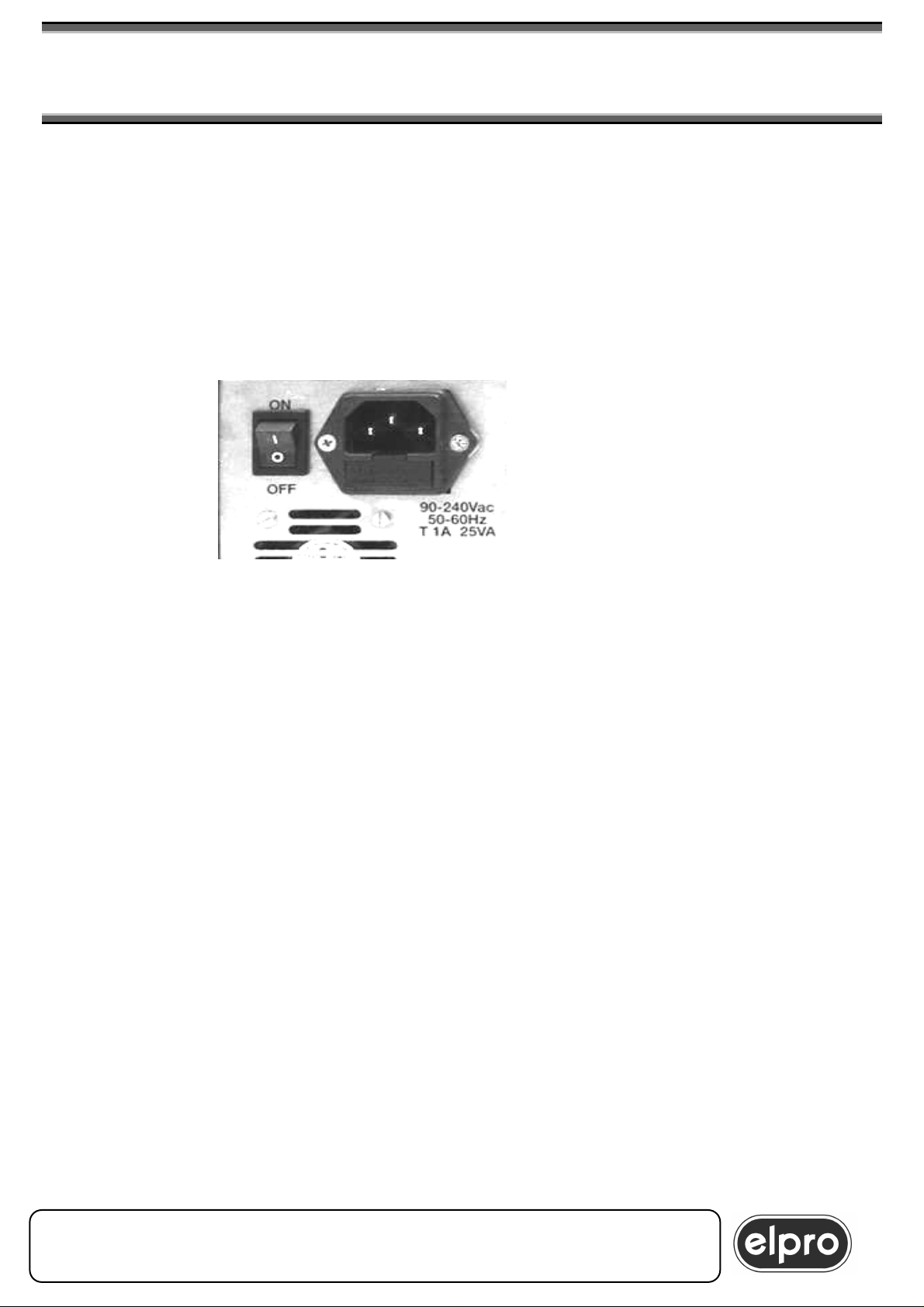
The DVIPRO1000 unit must be powered at 90÷240 Vac 50/60Hz using the
cable provided. The socket of the cable must be inserted in the related panel
plug to the left on the back of the unit.
The panel plug is equipped with a fuse holder for 5X20 fuses. If the fuse
blows, replace it with one of the same rating as specified on the back of the
unit.
All operations must be carried out by qualified personnel who
must be informed of the risk of electric shock
In some countries, the plug of the cable must be adapted to local standards.
The wires are identified according to the following coding:
- Brown PHASE (Identified with the letter L, may be red)
- Blue NEUTRAL (Identified with the letter N, may be black)
- Yellow/Green GROUND (Identified with the letter E, may be green)
WARNING
A ground connection is compulsory
ELPRO Video Labs s.r.l.
St.da della Pronda, 45/B 10142 Torino ITALY
Tel.+39 0117701583 – Fax +39 011703751
5
5
Page 6
DVIPRO1000
DVI
8x2 UNIVERSAL SCALER MATRIX SWITCHER
& EFFECT CONTROL
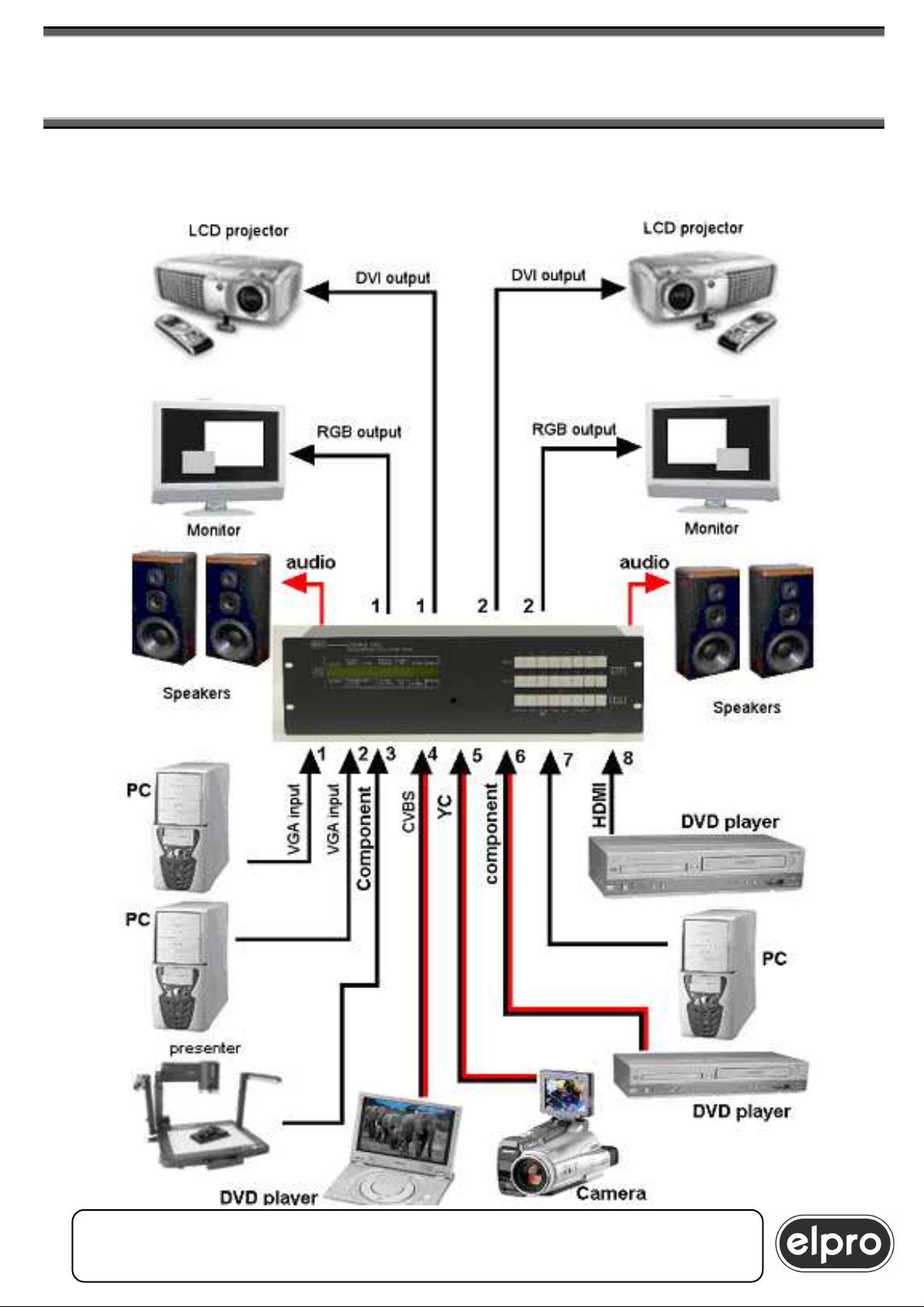
EXAMPLE OF CONNECTION
ELPRO Video Labs s.r.l.
6
St.da della Pronda, 45/B 10142 Torino ITALY
Tel.+39 0117701583 – Fax +39 011703751
6
Page 7

DVIPRO1000
8x2 UNIVERSAL SCALER MATRIX SWITCHER
& EFFECT CONTROL
3.0 CONNECTIONS
Connect the single inputs to the respective connector on the back of the
DVIPRO1000.
For inputs 1 and 2, available only on connector HDD15p, in the case of
connection of Component, YC or CVBS signals, the specific VGA-5BNC type
ADC201 adapter cable must be used on which correspondence is as follows:
GREEN = CVBS, or Y of YC or Y of the component
BLUE = C of the YC or Pb of the component
RED = Pr of the component
For inputs 3, 4, 5 and 6 available on connector HDD15p. and on 3 separate
BNC, connect only one source for each input
For inputs 7 and 8, available on connectors DVI-I, HDMI and 3 separate BNC,
connect only one source for each input
WARNING
Never connect more than 1 source at a time to the universal inputs
in order to prevent damage to the sources or to the DVIPRO1000
Connect the destinations to the related output connectors of the
DVIPRO1000. Resolution can be set for each output.: the DVI and VGA
channels of each output will have the same resolution and setting of the
image.
Connect the inputs and balanced audio outputs on the dedicated terminals.
As regards the HDMI input, as the digital audio signal is already contained in
the HDMI signal, it is not necessary to connect a separate audio signal on IN8
as the DVIPRO1000 is able to decode the audio present in the HDMI signal
and convert this into a traditional analogue signal on the selected output.
If a separate audio is to be associated with the 8 HDMI input, it is necessary
to program the format of input IN8 as DVI instead of HDMI.
ELPRO Video Labs s.r.l.
St.da della Pronda, 45/B 10142 Torino ITALY
Tel.+39 0117701583 – Fax +39 011703751
7
7
Page 8

DVIPRO1000
8x2 UNIVERSAL SCALER MATRIX SWITCHER
& EFFECT CONTROL
4.0 BASIC FUNCTIONS
Power on the DVIPRO1000 using the switch on the rear panel. The unit will
perform a StartUp phase lasting around 20 seconds,
(during this phase the whole keyboard blinks red/green) at the end of which it
will switch to the Default condition. The default setting, activated at initial
power-on, is as follows:
Input formats:
In1 - input VGA
In2 - input VGA
In3 - input CVBS
In4 - input CVBS
In5 - input Component
In6 - input Component
In7 - input DVI
In8 - input HDMI (embedded audio)
Output resolutions
Out1- resolution XGA 1024x768 @60Hz
PIP de-activated
Out2 - resolution XGA 1024x768 @60Hz
PIP de-activated
Channel selection
MAIN channel - In1 (VGA) on OUT1 and OUT2
PIP channel - In3 (CVBS) on OUT1 and OUT2
Switching mode
Fading
PIP and Overlay
Disabled
ELPRO Video Labs s.r.l.
8
St.da della Pronda, 45/B 10142 Torino ITALY
Tel.+39 0117701583 – Fax +39 011703751
8
Page 9
DVIPRO1000
8x2 UNIVERSAL SCALER MATRIX SWITCHER
& EFFECT CONTROL
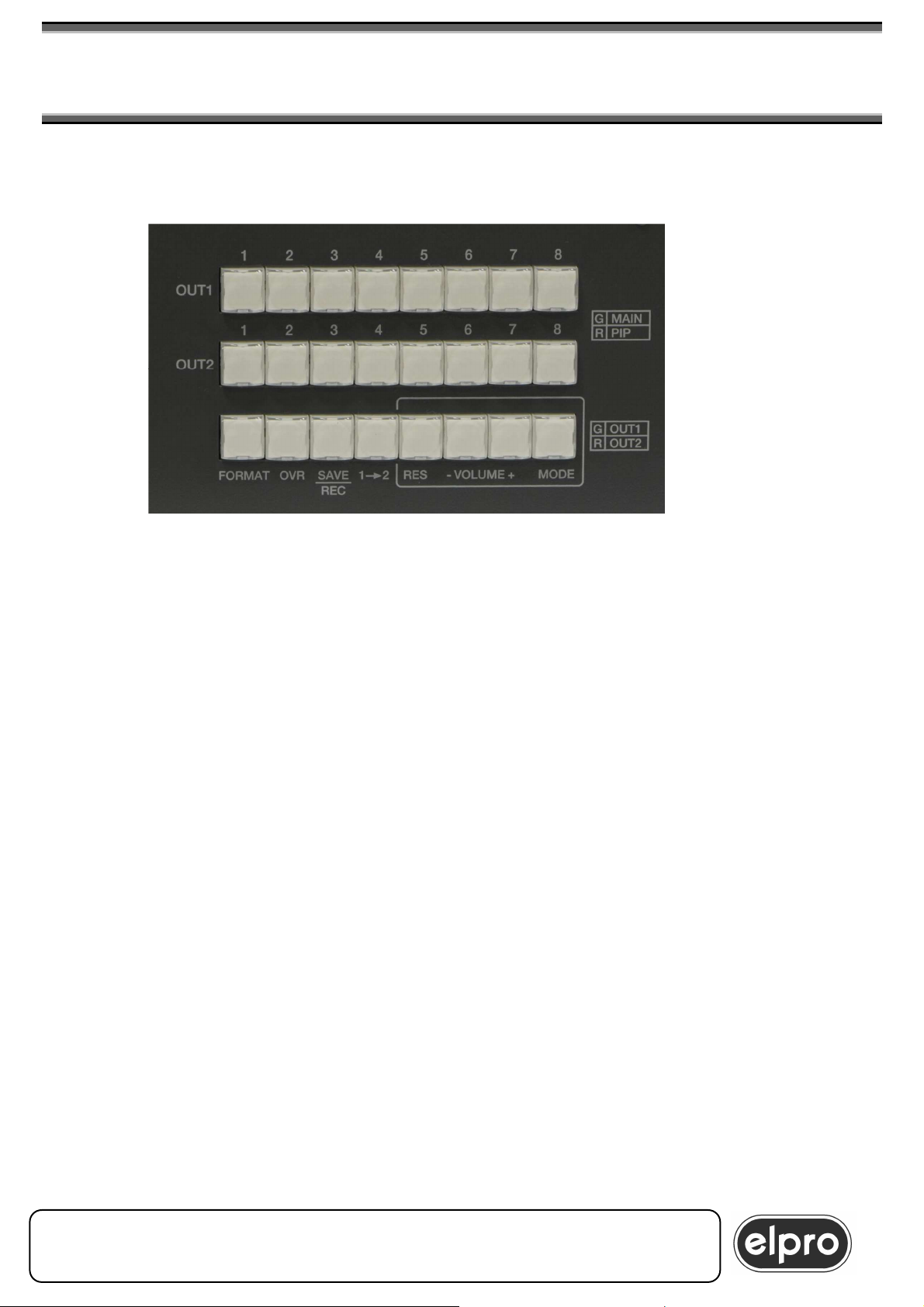
The main commands for functioning of the DVIPRO1000 can be carried out
from the local keyboard.
Machine keyboard
4.0.1 lighting keys
In order to give a better and quicker intellegibility of the system , each key has
An internal red/green/yellow light , with the following scheme;
- Keys from 1 to 8 for both the Out channels : in each row , the
green light is for the Main input , while the red light is for the Pip
input . During the switching phase , the new channel will blink. If both
Main and Pip inputs are the same , then the light will be yellow
(red+green). If Pip is disabled , the red light brightness is lower. In
Mixer and cut modes , the channel Key will blink yellow during the
preparing phase , then it will become green when it is ready to
switch,
- Format key : it will blink during the format selection , together with
the channel key (1 to 8) in programmino.
- Overlay key : red or green or yellow upon the state of the overlay on
the channels (yellow = both channels)
- Save/Recall key: yellow light during these modes
- Preview key 12: it blinks yellow during the transfer of the
configuration from OUT1 to OUT2 : also the interested channel keys
of the second row will blink
- Resolution key: green or red upon the channel which is interested
in the resolution changing. (green OUT1 , red OUT2)
ELPRO Video Labs s.r.l.
St.da della Pronda, 45/B 10142 Torino ITALY
Tel.+39 0117701583 – Fax +39 011703751
9
9
Page 10

DVIPRO1000
10
8x2 UNIVERSAL SCALER MATRIX SWITCHER
& EFFECT CONTROL
4.1 Selection of output resolution
- Volume keys: they flashes yellow for each volume variation. In the
case of a mute condition , both the + and – keys will be on (green
for OUT1 , red for OUT2 , yellow for both channels)
- Out channel key : the green light stands for the OUT1 channel , the
red light for the OUT2 channel . The volume , resolution and overlay
keys will be active for the selected output channel
To define output resolution, proceed as follows:
With the “MODE” key, select the output channel on which the new resolution
is to be set according to the indications screen-printed beside the key.
Then, press the “RES” key: an OSD menu is displayed in the output screen
page with the list of the selectable resolutions, while the currently selected
resolution will be shown on the LCD display.
Continue to press the “RES” key until the resolution desired is highlighted on
the LCD and on the video.
After a brief pressure on the “MODE” key, the programming becomes
effective and the machine will perform a restart cycle of around 10 seconds,
at the end of which the new resolution will be activated.
N.B. the VGA analogue output and the DVI digital output of the single
output channel always have the same resolution.
ELPRO Video Labs s.r.l.
10
St.da della Pronda, 45/B 10142 Torino ITALY
Tel.+39 0117701583 – Fax +39 011703751
10
Page 11

DVIPRO1000
8x2 UNIVERSAL SCALER MATRIX SWITCHER
& EFFECT CONTROL
4.2 Definition of input format
To define the format of the inputs, proceed as follows:
Press the “FORMAT” key on the front panel of the machine and, at the same
time, press the key relating to the input to be defined, using either the buttons
relating to OUT1 or OUT2: each time the key of the input is pressed, the
current assignment of the input will be shown on the LCD and on the video. In
this way, it is possible to scroll all the possible formats that can be assigned.
On releasing the “FORMAT” key, the DVIPRO1000 will make the
programming operative and if, at that moment, the channel reprogrammed
was displayed, will refresh the display.
With regard to input 8, if this is used in HDMI format, the related digital audio
stream inserted in the HDMI signal will be automatically decoded by the
DVIPRO1000. If the audio is to be provided separately in analogue format on
input 8 audio, input 8 must be programmed as DVI format.
WARNING
Format changing is possibile only in Fading Mode.
In Mixer and Cut Mode the operation is not permitted
4.3 Source selection
To select the inputs, use buttons 1 to 8 relating to outputs OUT1 and OUT2
on the front keyboard. Switching is performed in a programmable time of 0 to
3 seconds according to Fading, Mixer or Cut mode.
If the input selected is VGA analogue format, at initial power-on of the
machine, an automatic “AUTOADJUST” procedure will be performed for
improved centering of the image on the screen: subsequent switching
operations will not require this phase except in the case in which the format of
the source in input is modified or if it is connected to a new VGA source.
During this phase , the key of the interested channel will blink fast.
4.4 Activation of the PIP and selection of its source
To activate the PIP on an output channel, proceed as follows:
Press the key relating to the channel currently present on the MAIN; holding
down the key, also press at the same time the key relating to the input that is
to be displayed in PIP: the window will be activated to the bottom right.
Subsequently, from the remote control or using serial commands, it will be
possible to modify the size and position of the MAIN and PIP windows (see
paragraph 6.1.2 and paragraph 7.4).
If repeated, the same operation to activate the PIP will cause de-activation of
this.
ELPRO Video Labs s.r.l.
St.da della Pronda, 45/B 10142 Torino ITALY
Tel.+39 0117701583 – Fax +39 011703751
11
11
Page 12

DVIPRO1000
12
8x2 UNIVERSAL SCALER MATRIX SWITCHER
& EFFECT CONTROL
Example 1 : input 1 is on the MAIN. To activate input 3 in PIP, I press key “1”
and then and at the same time key “3”.
Example 2 : on the MAIN I have input 1 and input 3 on the PIP.
To switch the PIP input on 4, I press key “1” and then at the same time key
“4”.
WARNING
1) Input 7 cannot be activated in the PIP window when this is
programmed as DVI format
2) An input programmed as VGA cannot be activated in PIP if an input
programmed as VGA is already present in the MAIN.
In both cases, the DVIPRO1000 will display the
“NOT ALLOWED” message
3) It is not possible to enable the PIP window when operating in MIXER
or CUT mode.
In this case, the DVIPRO1000 will display the
“ALREADY IN MIXER” message
ELPRO Video Labs s.r.l.
12
St.da della Pronda, 45/B 10142 Torino ITALY
Tel.+39 0117701583 – Fax +39 011703751
12
Page 13

DVIPRO1000
8x2 UNIVERSAL SCALER MATRIX SWITCHER
& EFFECT CONTROL
4.5 Other keyboard commands
4.5.1. Volume adjustment
For each single input, it is possible adjust volume in a scale from 0 to 33
steps corresponding to a change from MUTE to 0dB: to do this, using the
“MODE” key, select the output channel desired, then use the “VOL+” and
“VOL-“ keys for adjustment.
The adjustment will be saved permanently and each input will have its
associated output volume.
4.5.2. Overlay
The “OVR” key can be used to activate machine Overlay mode, scrolling the
various possible modes (see paragraph 6.1.5 and paragraph 7.5).
4.5.3. Saving and recall of presets
Up 8 complete configurations can be saved as presets that can be recalled
subsequently. To do this, press the ”SAVE/RECALL” key and at the same
time press a key from “1” to “8”. The machine will confirm saving with a
message on the OSD.
To recall a preset, press again the “SAVE/RECALL” key and, at the same
time, a key from “1” to “8” relating to the preset to be reloaded: the data of
the preset saved will be loaded in the memory and the machine will switch to
the new conditions after a StartUp cycle of around 20 seconds.
The DVIPRO1000 maintains, as default memory, the last state that was
active at the time of power-off.
4.5.4 preview 1 2 function: see chapter 6.1.2.1
ELPRO Video Labs s.r.l.
St.da della Pronda, 45/B 10142 Torino ITALY
Tel.+39 0117701583 – Fax +39 011703751
13
13
Page 14
DVIPRO1000
14
8x2 UNIVERSAL SCALER MATRIX SWITCHER
& EFFECT CONTROL
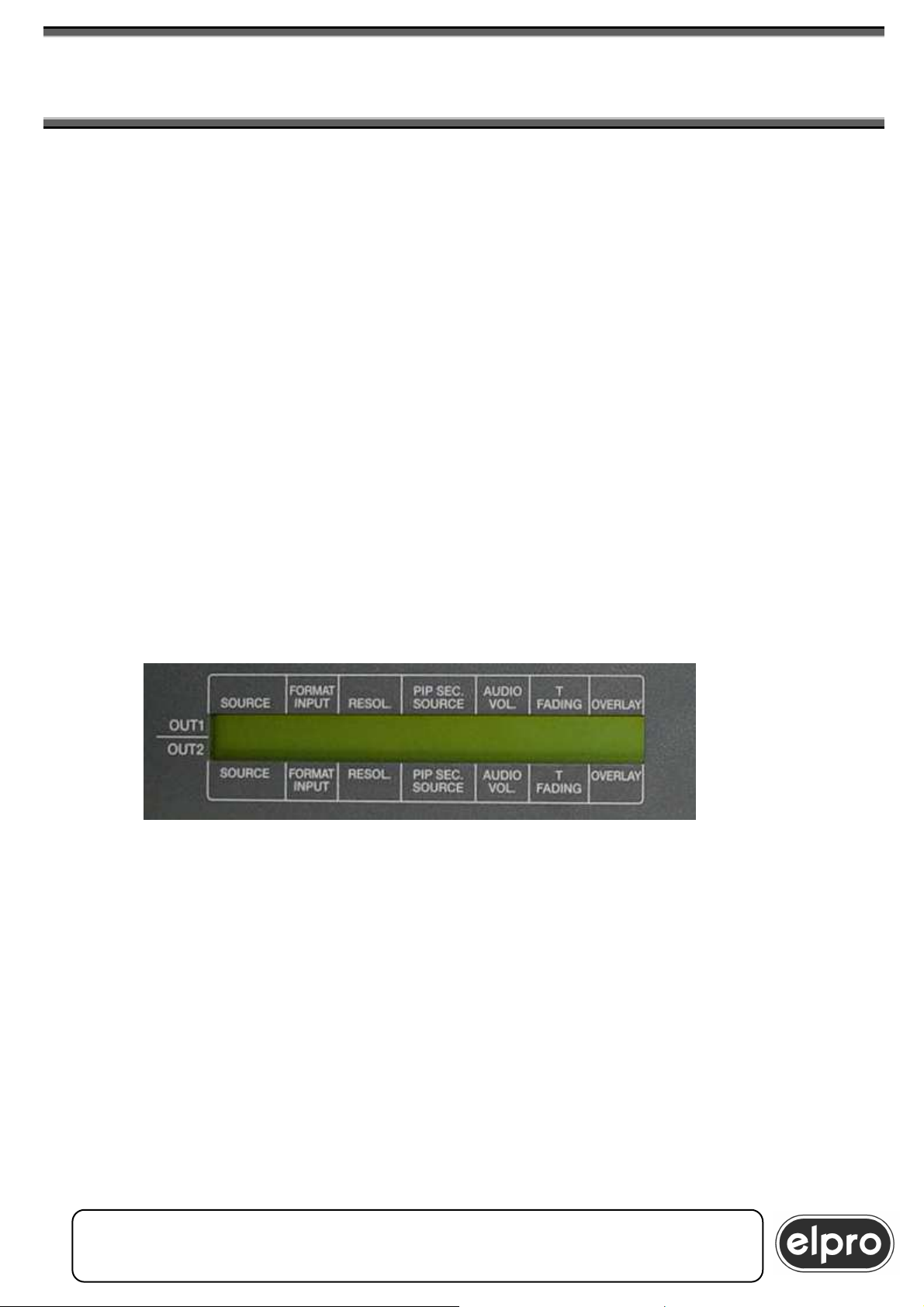
4.6 LCD display
The front panel of the machine includes an LCD display on which information
regarding the current status of the system is displayed.
In particular, the following are displayed for each output channel:
SOURCE - the input selected on the MAIN channel
FORMAT INPUT - the format of the input selected
RESOL - the output resolution
PIP SEC. SOURCE - the input selected as PIP channel
AUDIO VOL - the audio volume of the channel
(from 000 to 033)
T FADING - switching mode (FADE, MIX or CUT, manual
MIX or manual CUT))
followed by the timing value (from 1 to 6 for
FADE and MIX)
OVERLAY - enable of Overlay and type of OVERLAY set
(from 1 to 5 or OFF)
ELPRO Video Labs s.r.l.
14
St.da della Pronda, 45/B 10142 Torino ITALY
Tel.+39 0117701583 – Fax +39 011703751
14
Page 15
DVIPRO1000
8x2 UNIVERSAL SCALER MATRIX SWITCHER
& EFFECT CONTROL
5.0 REMOTE CONTROL FUNCTIONS
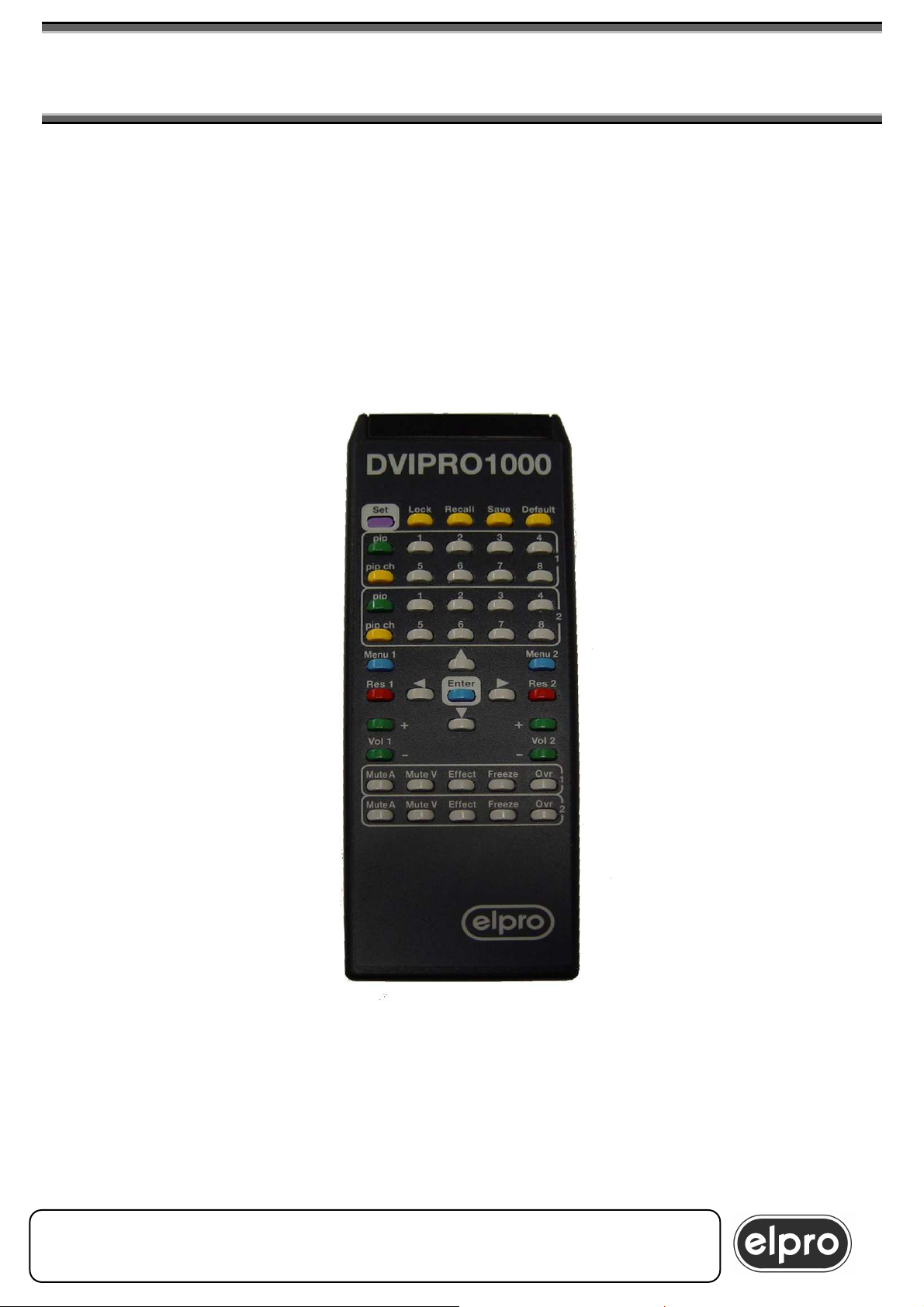
An entire set of advanced functions and programming possibilities can be
accessed via the IR remote control (or external interface).
The remote control provides a certain number of functions available directly
using the keys, plus a direct programming menu of the output format, a
save/memorize menu and an advanced programming menu.
The remote control is of the self-learning type. After inserting the
batteries and each time these are changed, press the “Set” key for a few
seconds followed by the key with the white border (Enter key)
ELPRO Video Labs s.r.l.
St.da della Pronda, 45/B 10142 Torino ITALY
Tel.+39 0117701583 – Fax +39 011703751
WARNING
15
15
Page 16
DVIPRO1000
16
FREEZE/UNFREEZE
FREEZE/UNFREEZE
8x2 UNIVERSAL SCALER MATRIX SWITCHER
& EFFECT CONTROL
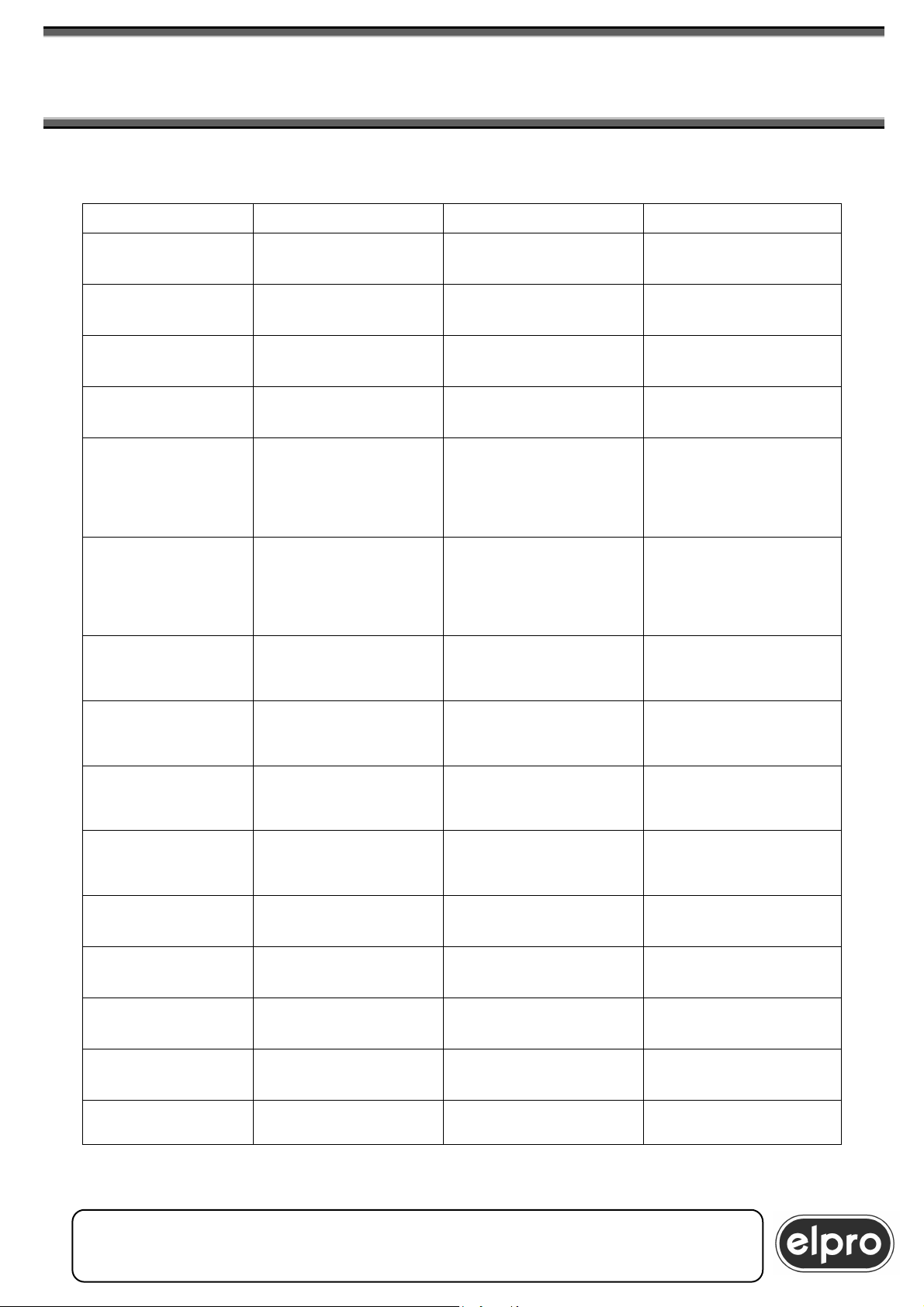
5.1 Commands
KEY FUNCTION COMMENT REFERENCE
1….8
OUT 1
1….8
OUT 2
PIP
OUT 1
PIP
OUT 2
PIP CH
OUT 1
PIP CH
OUT 2
MUTE A
OUT 1
MUTE A
OUT 2
MUTE V
OUT 1
MUTE V
OUT 2
FREEZE
OUT 1
FREEZE
OUT 2
VOL1 +/-
OUT 1
VOL2 +/-
OUT 2
ENTER KEY
SELECT INPUT FOR THE CHANNEL
OF OUT 1
SELECT INPUT FOR THE CHANNEL
ACTIVATE OR DEACTIVATE PIP
ACTIVATE OR DEACTIVATE PIP
ACTIVATE OR DEACTIVATE CHANNEL
SELECTION ON THE
PIP (BLUE OUTLINE
ON THE PIP)
ACTIVATE OR DEACTIVATE CHANNEL
SELECTION ON THE
PIP (BLUE OUTLINE
ON THE PIP)
ACTIVATE/DEACTIVATE MUTE
AUDIO
ACTIVATE/DEACTIVATE MUTE
AUDIO
ACTIVATE/DEACTIVATE MUTE
VIDEO
ACTIVATE/DEACTIVATE MUTE
VIDEO
IMAGE
IMAGE
AUDIO VOLUME
ADJUSTMENT
AUDIO VOLUME
ADJUSTMENT
STATUS OF THE
SYSTEM
OF OUT 2
FOR THE CHANNEL
OF OUT 1
FOR THE CHANNEL
OF OUT 2
FOR THE CHANNEL
OF OUT 1
FOR THE CHANNEL
OF OUT 2
FOR THE CHANNEL
OF OUT 1
FOR THE CHANNEL
OF OUT 2
FOR THE CHANNEL
OF OUT 1
FOR THE CHANNEL
OF OUT 2
FOR THE CHANNEL
OF OUT 1
FOR THE CHANNEL
OF OUT 2
FOR THE INPUT
SELECTED ON OUT1
FOR THE INPUT
SELECTED ON OUT2
ON BOTH
CHANNELS
6.1.1
6.1.1
6.1.2
6.1.2
6.1.2
6.1.2
6.1.3
6.1.3
6.1.3
6.1.3
6.1.3
6.1.3
6.1.6
6.1.6
6.1.11
ELPRO Video Labs s.r.l.
16
St.da della Pronda, 45/B 10142 Torino ITALY
Tel.+39 0117701583 – Fax +39 011703751
16
Page 17
DVIPRO1000
8x2 UNIVERSAL SCALER MATRIX SWITCHER
& EFFECT CONTROL
KEY FUNCTION COMMENT REFERENCE
LEFT
ARROW
RIGHT
ARROW
UP
CYCLES BETWEEN
THE DIFFERENT PIP
MODES
CYCLES BETWEEN
THE DIFFERENT PIP
MODES
PREVIEW COPIES THE OUT1
FOR OUT CHANNEL 1 6.1.2
FOR OUT CHANNEL 2 6.1.2
6.1.2.1
ON OUT2
ARROW
EFFECT
OUT 1
EFFECT
OUT 2
OVR
OUT 1
OVR
OUT 2
RES1
OUT 1
RES2
OUT 2
MENU1
OUT 1
MENU2
OUT 2
DIRECTION
KEYS AND
ENTER KEY
LOCK
RECALL
SAVE
DEFAULT
SELECT FADING,
MIXER OR CUT
SWITCHING
SELECT FADING,
MIXER OR CUT
SWITCHING
ACTIVATE/DEACTIVATE
OVERLAY
ACTIVATE/DEACTIVATE
OVERLAY
ACTIVATE THE
RESOLUTION
SETTING MENU
ACTIVATE THE
RESOLUTION
SETTING MENU
ENTER/EXIT THE
PROGRAMMING
MENU
ENTER/EXIT THE
PROGRAMMING
MENU
NAVIGATION
INSIDE THE MENU
AND
CONFIRMATION OF
SELECTION
BLOCK/UNBLOCK
LOCAL KEYBOARD
RECALL A PRESET ON BOTH
SAVE A PRESET ON BOTH
RESTORE MACHINE
TO INITIAL
CONFIGURATION
FOR OUT CHANNEL 1 6.1.4
FOR OUT CHANNEL 2 6.1.4
FOR OUT CHANNEL 1 6.1.5
FOR OUT CHANNEL 2 6.1.5
FOR OUT CHANNEL 1 6.1.7
FOR OUT CHANNEL 2 6.1.7
DISPLAYS OSD ON
THE OUT CHANNEL
1
DISPLAYS OSD ON
THE OUT CHANNEL
2
OUT 1
AND
OUT 2
ON BOTH
CHANNELS
CHANNELS
CHANNELS
ON BOTH
CHANNELS
7.0
7.0
7.0
6.1.8
6.1.9
6.1.9
6.1.10
ELPRO Video Labs s.r.l.
St.da della Pronda, 45/B 10142 Torino ITALY
Tel.+39 0117701583 – Fax +39 011703751
17
17
Page 18

DVIPRO1000
18
8x2 UNIVERSAL SCALER MATRIX SWITCHER
& EFFECT CONTROL
6.0 DETAILED FUNCTIONS
6.1.1 Selection of MAIN channel
Using the two sets of 8 keys, one set for each output, it is possible to select
the input to be sent to the output .
6.1.2 Selection PIP channel, PIP activation and PIP mode
To activate or de-activate the PIP on the video, continue to press the “PIP”
key of each output channel. When the PIP is visible, using the “PIP CH” key,
it is possible to enable/disable selection of the channel to be sent in PIP:
when the PIP is highlighted by the blue frame, the set of 8 “input” keys will
operate on selection of the PIP and not of the MAIN.
In the initial phase, the PIP window is positioned to the bottom right of the
video with a size of around 1/16th of the screen. Using the “LEFT ARROW”
key (for output channel 1) or the “RIGHT ARROW” key (for output channel
2), it is possible to scroll the different PIP modes, in particular:
- 1 PIP over MAIN 1 small: PIP size 1/64 of the screen
- 2 PIP over MAIN 2 average: PIP size 1/16 of the screen
- 3 MAIN and PIP side by side full screen
- 4 MAIN and PIP side by side proportionally
- 5 SUPERIMPOSED: The PIP covers the MAIN
- 6 USER MODE: MAIN and PIP dimensions and positions selected by the
user
- 7 MAIN over PIP: The windows are exchanged in relation to PIP over
MAIN status
Continuing to press the key, the machine cycles through the different
PIP/MAIN combinations.
The “SUPERIMPOSED” setting is useful in particular when the Overlay/Titling
function is activated and when quick mixing of only two channels is required:
in this particular case, mixed switching is obtained pressing the “PIP” key.
The “MAIN over PIP” setting makes it possible to reverse PIP/MAIN display;
this is useful for also displaying input 7 in PIP when this is programmed as
DVI, a function that the DVIPRO1000 would not permit (see paragraph 4.4).
However, it should be noted that channel switching in this condition generates
an incorrect fade sequence: however, switching is performed normally.
The USER MODE setting permits definition of an arbitrary size and position
for the MAIN and PIP: i.e. accessing the programming menu (see paragraph
7.4).
ELPRO Video Labs s.r.l.
18
St.da della Pronda, 45/B 10142 Torino ITALY
Tel.+39 0117701583 – Fax +39 011703751
18
Page 19

DVIPRO1000
8x2 UNIVERSAL SCALER MATRIX SWITCHER
& EFFECT CONTROL
6.1.2.1 Preview function 12
The “UP ARROW” key , pressed out of menu, activates the Preview
function: the whole state of the Output 1 (preview output) is transferred to the
Output 2 (Main output) through a fading transition.
The parameters which are transferred are:
- the Main channel and the Pip channel
- the Pip Mode
- the image parameters
- the volume
This function is always available with the following restrictions:
- at least an output channel in “Mixer” or “Cut” mode
- at least an output channel in’ “Main over Pip” mode
- the preview channel (Out 1) is in “User size” mode, and the two out
channels don’t have the same resolution
N.B. this function is also available from the Keyboard with the “12” key
6.1.3 Mute and Freeze conditions
The “MUTE AUDIO”, “MUTE VIDEO” and “FREEZE” keys are used
respectively to disable the audio output, disable the video output and to
freeze the image currently displayed. Each output channel has its own set of
keys which, alternatively, enable and disable the functions. To activate the
FREEZE function on the PIP instead of on the MAIN, it is sufficient that the
PIP window be outlined in blue (“PIP” and “PIP CH” keys as explained in
6.1.2) and to press the “FREEZE” key.
6.1.4 Switching effects (Fading, Mixer, Cut)
The DVIPRO1000 performs “seamless switching” between the channels in
three different ways: Fading, Mixer, Cut. To select the switching method,
continue to press the “EFFECT” button of the output to be worked on: the
mode selected will be shown on the LCD display and video.
- FADE mode: is the default mode. The machine switches through
fading through black with a programmable time of from 0 to 3 sec
- Automatic MIXER mode: in this mode, the effect of Mixing the two
inputs in switching is obtained, with a programmable Mixing time of
from 0 to 3 sec (0 setting corresponds to selection of CUT mode)
- Automatic CUT mode: in this mode, the system switches from the
previous input to the new input with a sharp, seamless cut .
ELPRO Video Labs s.r.l.
St.da della Pronda, 45/B 10142 Torino ITALY
Tel.+39 0117701583 – Fax +39 011703751
19
19
Page 20

DVIPRO1000
20
8x2 UNIVERSAL SCALER MATRIX SWITCHER
& EFFECT CONTROL
- Manual MIXER and CUT modes : these modes are identical as the
automatic modes , except for ths: when the system is ready to
perform the transistion to the new channel , you have to press again
the channel key : at this point the transistion is performed
immediatly. If you press a channel key which is different from the
previous , the transistion is aborted , and the new channel is
prepared. Thr channel key light blinks yellow during the preparation
phase , then blinks green when it is ready for the transition.
Each time the user returns to default status (Fading), the conditions prior to
entry to Mixer or Cut mode will be restored. Therefore, if the PIP was present,
it will be re-enabled; however, if the input to be displayed had been changed,
the previous input must be reselected.
WARNING
The PIP function is not available in MIXER and CUT modes.
If “PIP” is pressed in these modes,
the following message is displayed: ALREADY IN MIXER
6.1.5 Overlay effects (Overlay or titling)
The DVIPRO1000 can also be used in image overlay mode with masks of
different color that can be defined by the user to obtain various Overlay or
Titling effects: for example “keyhole” on the image or scrolling of titles on a
strip of the screen, etc.
Activating the Overlay function with the related “OVR” key, the image in the
PIP window will assume various levels of transparency in relation to the
MAIN, according to 4 different combinations of color mask already defined or
using a 5th mask that can be defined by the user in the programming menu
(see paragraph 7.5). The “OVR” key can be used to cycle between the 5
overlay modes until return to the “Overlay Off” condition.
ELPRO Video Labs s.r.l.
20
St.da della Pronda, 45/B 10142 Torino ITALY
Tel.+39 0117701583 – Fax +39 011703751
20
Page 21

DVIPRO1000
8x2 UNIVERSAL SCALER MATRIX SWITCHER
& EFFECT CONTROL
In most cases, the most useful PIP mode when wishing to work with Overlay
is SUPERIMPOSED mode, i.e. PIP that completely covers the MAIN.
However, the other modes (except “MAIN over PIP”) can also be used.
WARNING
The OVERLAY function cannot be activated
when in MIXER or CUT mode
6.1.6 Audio volume adjustment
For each single input, audio volume can be adjusted in a scale from 0 to 33
steps corresponding to a change from MUTE to 0dB. Using the “VOL+” and
“VOL-“ keys referring to the matching output, the audio level of the selected
input can be increased or reduced. Holding down the key, volume is
increased/reduced quickly. The adjustment will be saved permanently and
each input will have its associated volume in output.
ELPRO Video Labs s.r.l.
St.da della Pronda, 45/B 10142 Torino ITALY
Tel.+39 0117701583 – Fax +39 011703751
21
21
Page 22
DVIPRO1000
22
8x2 UNIVERSAL SCALER MATRIX SWITCHER
& EFFECT CONTROL
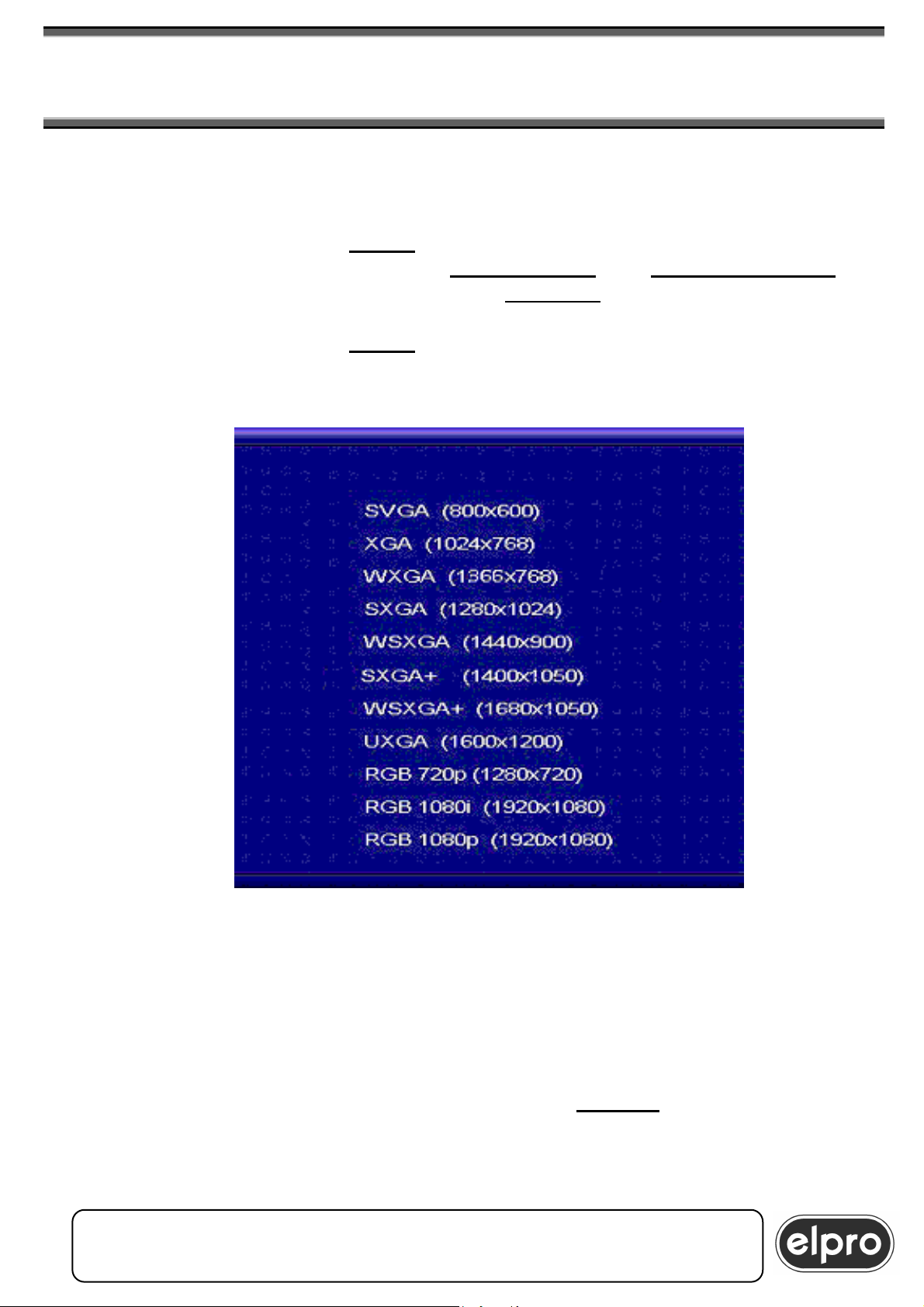
6.1.7 OUTPUT RESOLUTION SETTING MENU
To select output resolution, it is possible to use the keyboard of the machine,
as seen above, or to access the fast resolution selection menu with the
remote control, via the key “RES”.
Scroll available resolutions with the “UP ARROW” and “DOWN ARROW”
keys and confirm that required with the “ENTER” key. The machine will
perform a restart cycle of around 10 seconds, positioning on the new
resolution. The related “RES” key exists for each output and the
programming menu will be displayed only on the output concerned.
The refresh rate (Vertical Synch.) of each output resolution is 60Hz.
On conn. HDD15p. the 720p, 1080i and 1080p formats
6.1.8 Locking of the local keyboard
To block access to machine functions, press the “LOCK” key: all keyboard
functions will be inhibited until the key is pressed again.
ELPRO Video Labs s.r.l.
22
St.da della Pronda, 45/B 10142 Torino ITALY
Tel.+39 0117701583 – Fax +39 011703751
WARNING
are of the RGBHV type.
22
Page 23

DVIPRO1000
8x2 UNIVERSAL SCALER MATRIX SWITCHER
& EFFECT CONTROL
6.1.9 Saving and recall of configurations
The DVIPRO1000 has an internal memory in which 8 different global machine
presets can be saved and recalled at any time. To save a machine state,
press the “SAVE” key: a menu will be displayed from to select the memory
position to be used amongst the 8 available. Confirm selection with the
“ENTER” key: the machine will display a message confirming saving of the
preset.
To recall a previously saved preset, simply press the “RECALL” key and
select the position required from the menu; confirming selection with the
“ENTER” key; the DVIPRO1000 will reload the setting associated to the
preset recalled. This command generates a machine restart phase lasting
around 10 seconds.
6.1.10 Default condition
The DVIPRO1000 can be restored, if desired, at any time to machine
initialization conditions by pressing, for at least 2 seconds the “DEFAULT”
key on the remote control. The machine will be restored to the conditions
described in point 4.0, performing a restart cycle.
The 8 preset memories are not affected by this operation.
The DVIPRO1000 always saves, automatically, the last configuration
activated before power-off: at subsequent power-on, the machine will be set
to the state it was in at power-off.
6.1.11 Status information
As system information is not normally visible on the screen, it can be recalled
with the “ENTER” key, pressed outside Menu functions; a summary screen
page showing machine status in all its functions is shown for each output
channel, i.e.:
- output resolution
- input selected as MAIN and its resolution
- input selected as PIP and its resolution
- PIP activation
- PIP mode
- Overlay mode
- Switching mode
The screen page will be cleared automatically after around 10 seconds.
ELPRO Video Labs s.r.l.
St.da della Pronda, 45/B 10142 Torino ITALY
Tel.+39 0117701583 – Fax +39 011703751
23
23
Page 24

DVIPRO1000
24
8x2 UNIVERSAL SCALER MATRIX SWITCHER
& EFFECT CONTROL
7.0 PROGRAMMING MENU
The DVIPRO1000 can carry out a set of adjustments and settings accessible
via a programming menu.
WARNING
The adjustments and settings are independent for each output.
The menu is accessed pressing the “MENU” key referring to the output
channel concerned.
The programming menus are described below, recalling the general rules of
“navigation” inside these:
- the UP and DOWN ARROWS scroll the various items of each single
page of the menu
- the RIGHT ARROW enters the sub-page selected
- the ENTER key accesses the sub-page selected
- the LEFT ARROW moves to the higher level
- the LEFT and RIGHT ARROWS regulate the parameter selected
- the MENU key moves to the higher level
- the ENTER key confirms selection
After around 20 seconds of inactivity, the OSD menu is cleared automatically.
ELPRO Video Labs s.r.l.
24
St.da della Pronda, 45/B 10142 Torino ITALY
Tel.+39 0117701583 – Fax +39 011703751
24
Page 25
DVIPRO1000
8x2 UNIVERSAL SCALER MATRIX SWITCHER
& EFFECT CONTROL
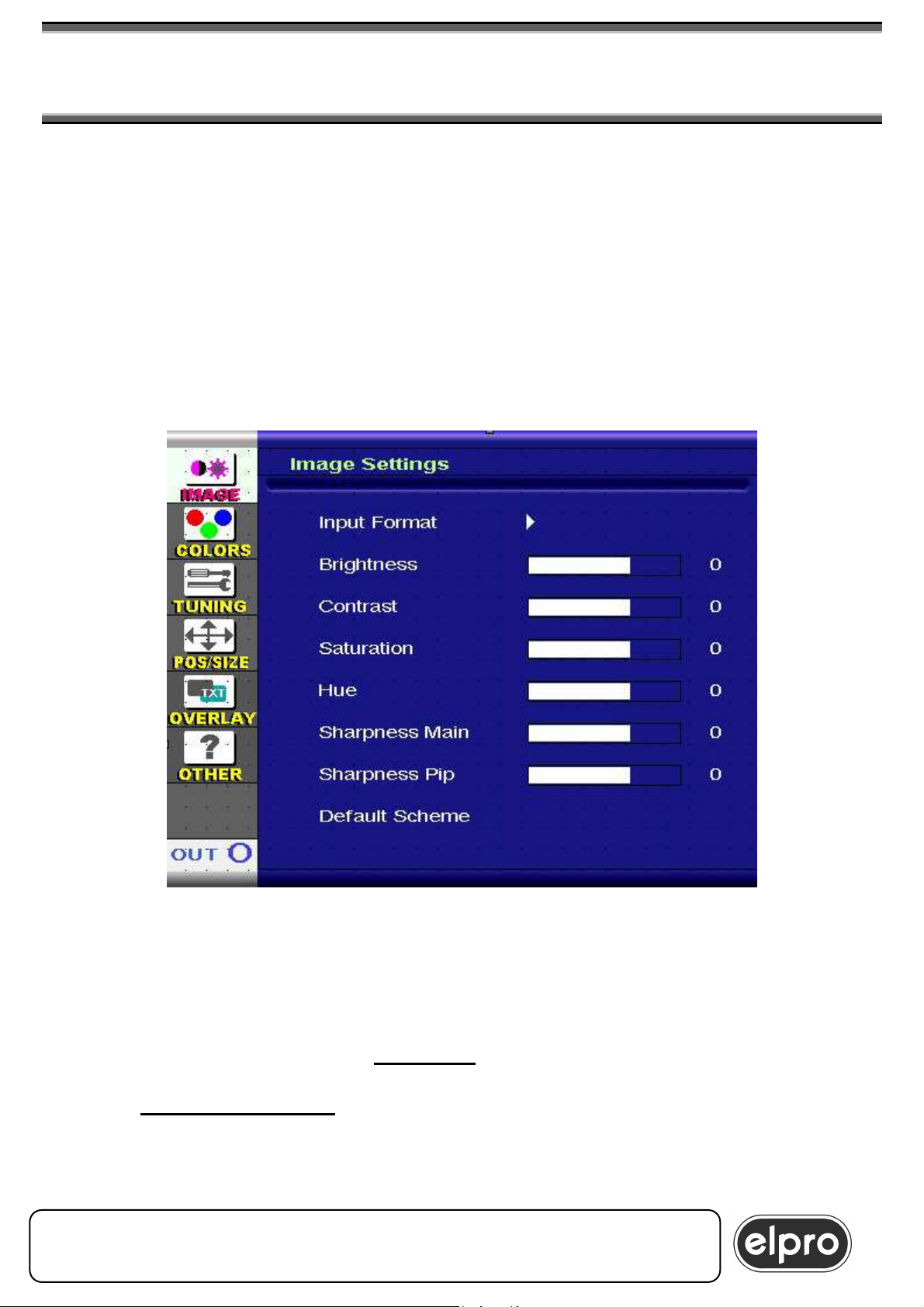
7.1 IMAGE. Tune image menu
This menu can be used to tune image parameters with regard to brightness,
contrast, saturation, hue and sharpness. Select the parameter concerned and
tune with the right and left arrow keys. These parameters belong to the input
present on the MAIN and are also attributed to the channel present at that
moment in the PIP window. Each of the 8 inputs has its personalized
adjustment which is recalled each time that input is selected. In this way,
each video source can be adjusted independently so as to permit display of
constant image parameters adjusted to the destination connected to the
output
From this screen page, it is also possible to access definition of the format of
the 8 inputs, as an alternative to the equivalent operation which can be
carried out from the keyboard. Selecting the “Input Format” item, the format
programming screen is accessed, whereas pressing the 8 keys of the inputs
repeatedly, the various input formats available for each are scrolled: at the
end of selection, confirm with “ENTER”.
The “Default Scheme” item returns all the image parameters to the
predefined default value.
ELPRO Video Labs s.r.l.
St.da della Pronda, 45/B 10142 Torino ITALY
Tel.+39 0117701583 – Fax +39 011703751
25
25
Page 26
DVIPRO1000
26
8x2 UNIVERSAL SCALER MATRIX SWITCHER
& EFFECT CONTROL
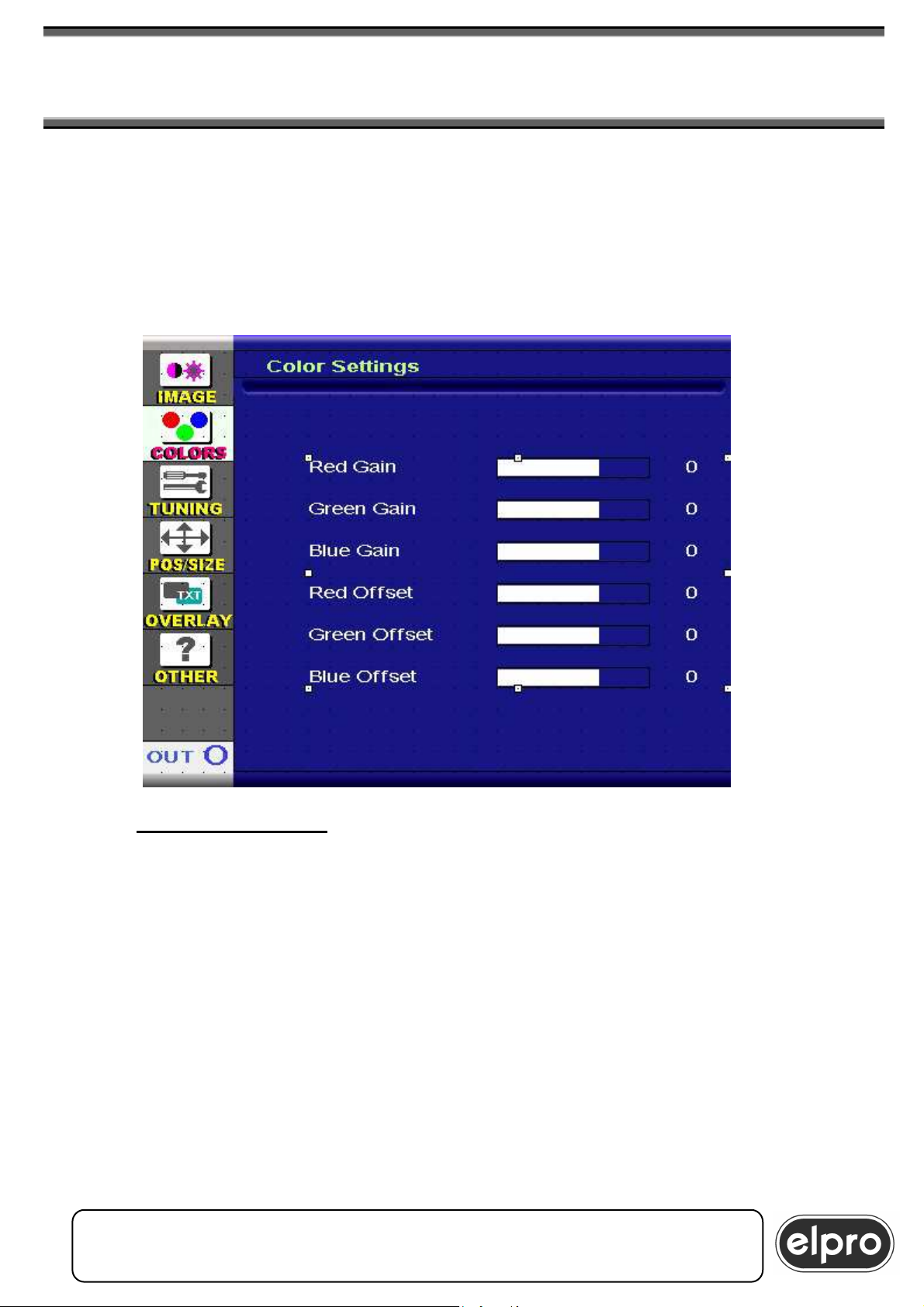
7.2 COLORS. Color adjustment menu
Using this menu, it is possible to regulate the color parameters of the image.
In particular, it is possible to adjust the gain and offset of each single color.
This function may be useful in the case of simultaneous use of the 2 outputs
on 2 different destinations (e.g. video-projectors of different manufacturers) to
guarantee uniform color levels of the two destinations.
The “Default Scheme” item of the previous menu returns all the image
parameters to the predefined default value.
ELPRO Video Labs s.r.l.
26
St.da della Pronda, 45/B 10142 Torino ITALY
Tel.+39 0117701583 – Fax +39 011703751
26
Page 27
DVIPRO1000
8x2 UNIVERSAL SCALER MATRIX SWITCHER
& EFFECT CONTROL
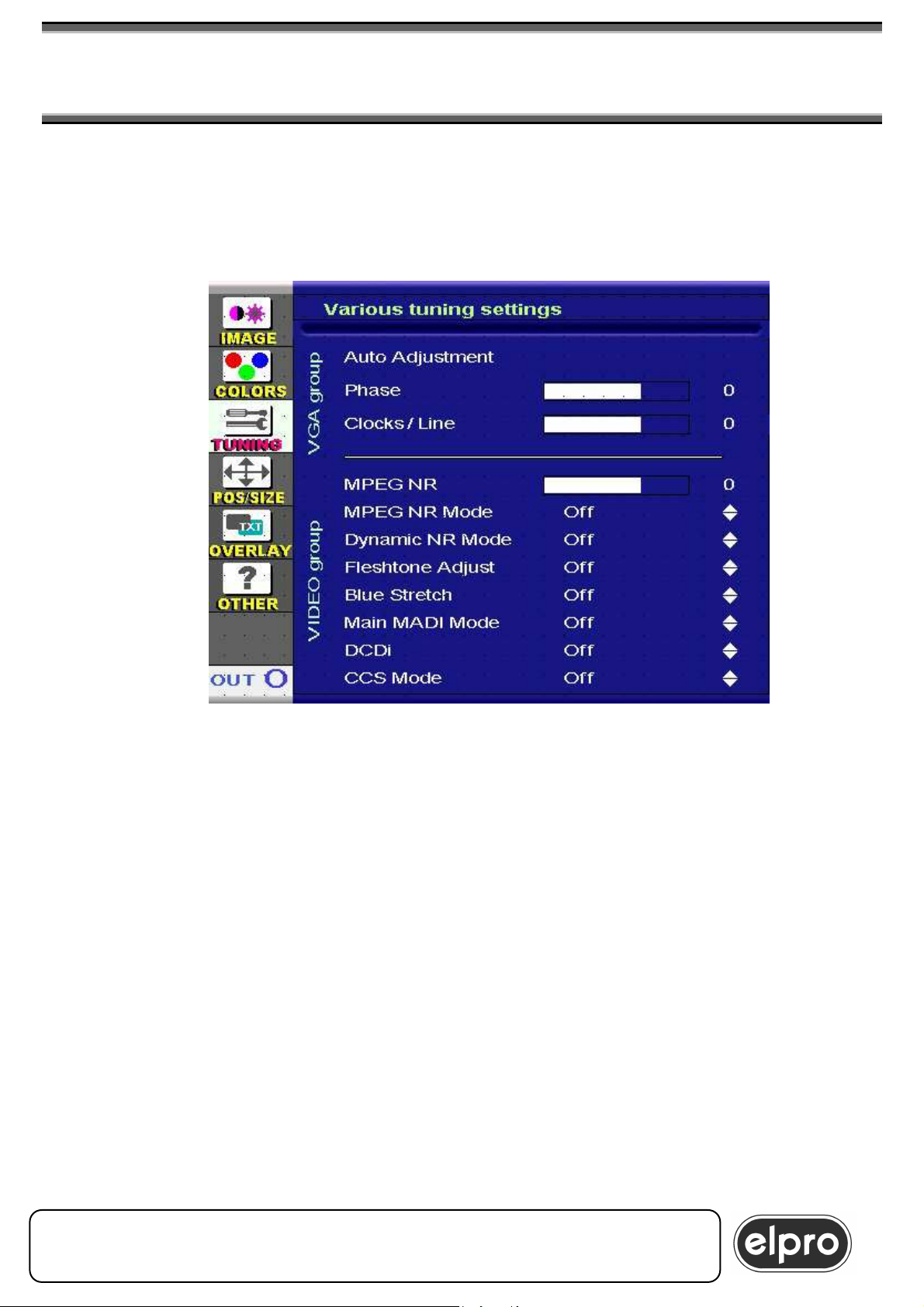
7.3 TUNING. Special functions tuning menu
This menu can be used to adjust certain particular image parameters. Some
are dedicated to VGA analogue inputs (VGA group) while others are of the
CVBS or YC type (VIDEO group).
For the VGA analogue formats, we have:
-Auto Adjustment :Improves centering of the image on the screen: only
for Main when Pip is not active. The unit perform an
automatic Auto Adjustment each time is connected a
new VGA source or is changed the VGA source
resolution.
-Phase : Modifies the pixel energization point
-Clocks/Line : Modifies the input signal sampling frequency
As regards the Video formats, we have:
-MPEG NR :Reduction of noise
-MPEG NR Mode :Elimination MPEG artifacts
-Dynamic NR Mode :Elimination of background noise
-Fleshtone Adjust :Fleshtone adjustment
-Blue Stretch :Correction of blue dominants
-Main MADI Mode :De-interlacing mode
-DCDi :Correction of artifacts of “almost horizontal” lines
(Faroudja system)
-CCS Mode :Elimination of “cross color” effect
ELPRO Video Labs s.r.l.
St.da della Pronda, 45/B 10142 Torino ITALY
Tel.+39 0117701583 – Fax +39 011703751
27
27
Page 28
DVIPRO1000
28
8x2 UNIVERSAL SCALER MATRIX SWITCHER
& EFFECT CONTROL
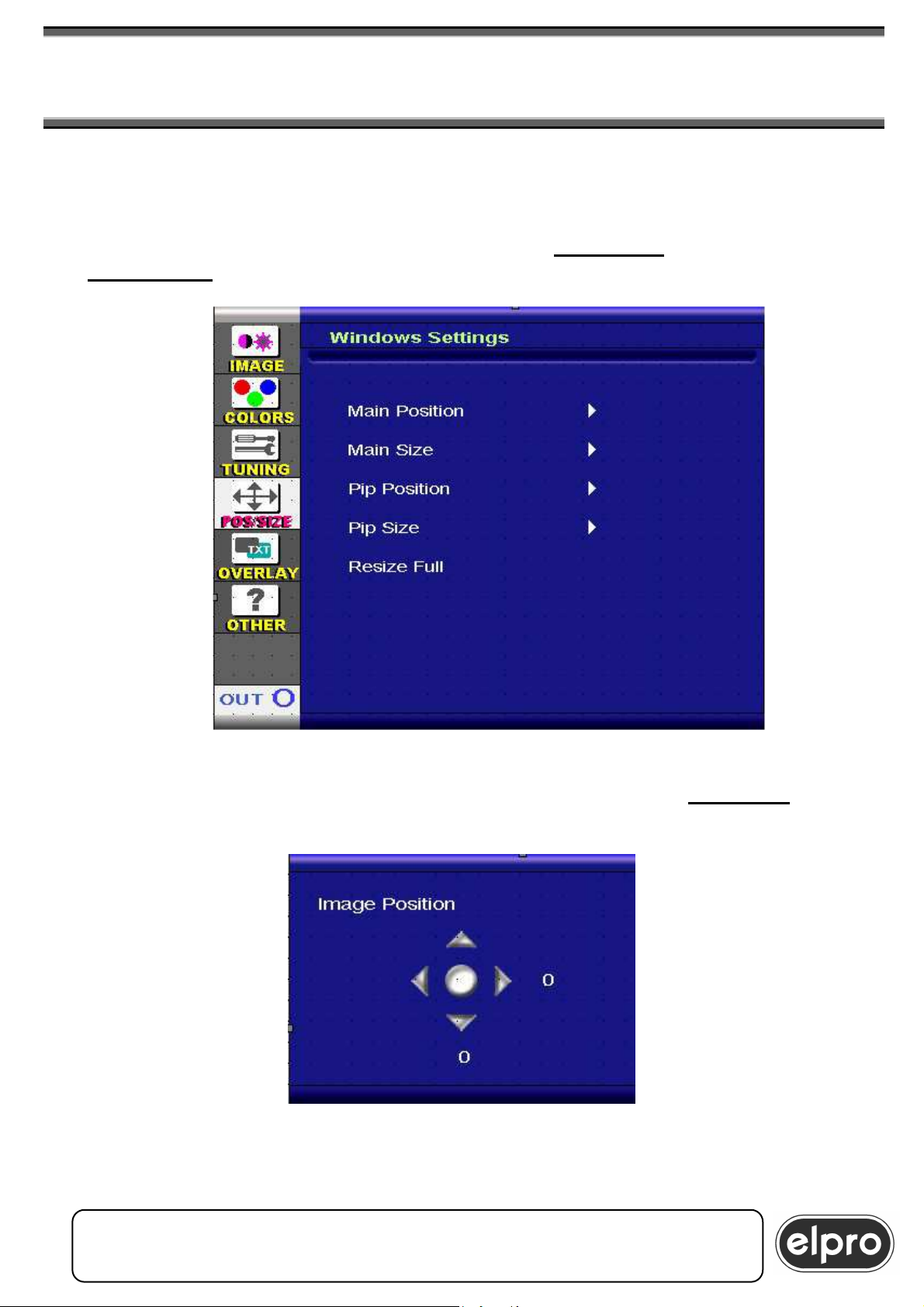
7.4 POS/SIZE. Window size and position adjustment menu
This menu can be used to adjust the size and position of the MAIN and PIP
windows of the system These parameters will be those that will be used when
selecting “USER MODE” as PIP mode, via the Left Arrow (channel One) or
Right Arrow (channel Two) keys of the remote control.
Selecting an adjustment, a setting diamond similar to that shown below will
be displayed: use the four arrows, confirming selection with “ENTER”. The
adjustment is made pixel by pixel.
The “RESIZE FULL” item restores the windows to “PIP over MAIN 1” mode
with full-screen MAIN and PIP in the window to the bottom right.
ELPRO Video Labs s.r.l.
28
St.da della Pronda, 45/B 10142 Torino ITALY
Tel.+39 0117701583 – Fax +39 011703751
28
Page 29
DVIPRO1000
8x2 UNIVERSAL SCALER MATRIX SWITCHER
& EFFECT CONTROL
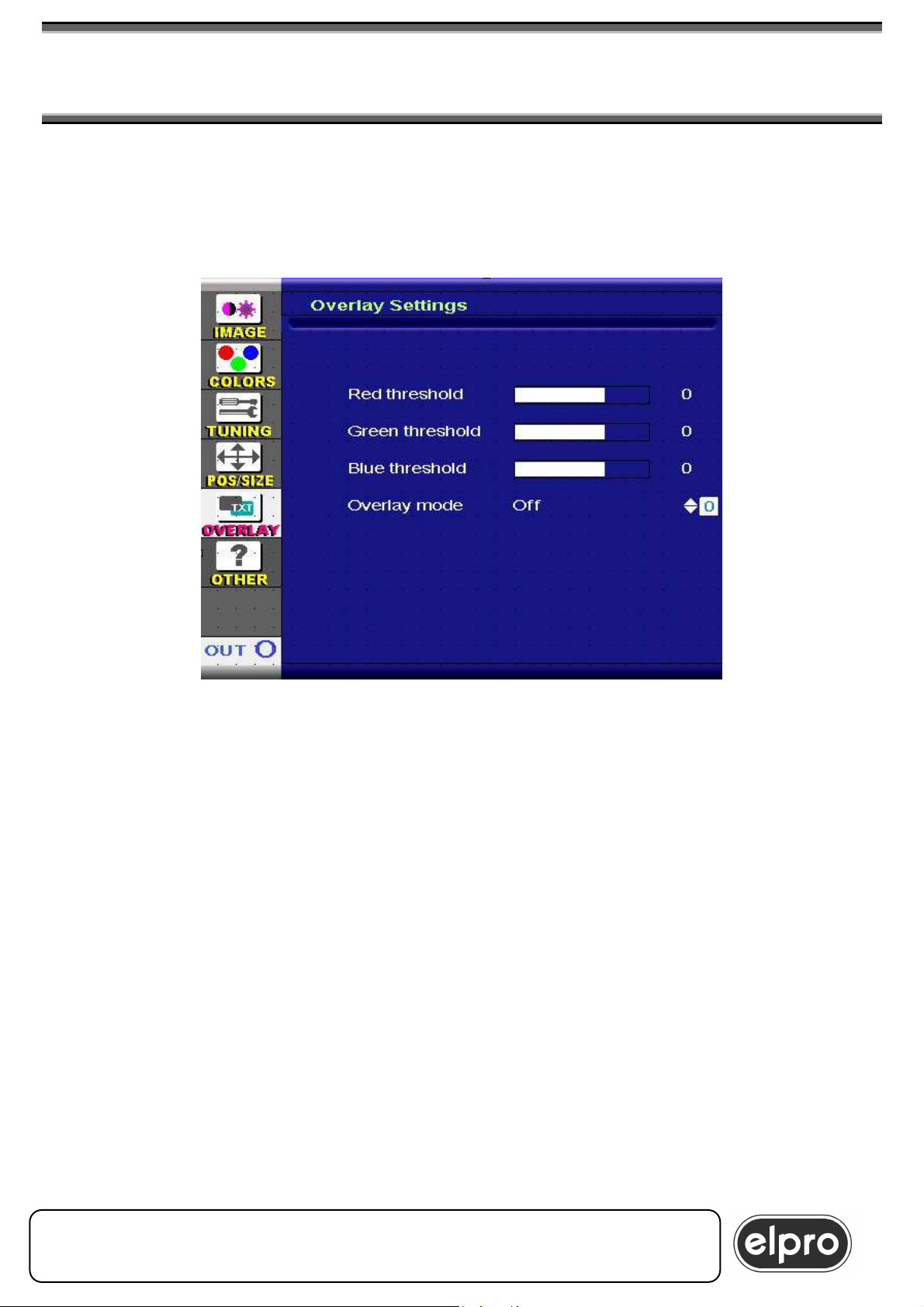
7.5 OVERLAY. Overlay Menu
This menu can be used to set certain parameters for Overlay functioning in
“User Mode”: the other 4 modes are predefined on the DVIPRO1000 and
cannot be modified (see par 6.1.5).
The modifiable parameters are the transparency intervention thresholds of
the three basic colors (RGB) and the type of overlay mask. In particular, there
are 4 types of Overlay Mode:
1) BELOW / AND: in this mode, all the pixels of the PIP image having all
three colors RGB above the threshold set are made transparent
2) ABOVE / OR: in this mode, all the pixels of the PIP image having at
least one of the three colors RGB below the threshold set are made
transparent
3) BELOW / OR: in this mode, all the pixels of the PIP image having at
least one of the three colors RGB above the threshold set are made
transparent
4) ABOVE / AND: in this mode, all the pixels of the PIP image having all
three colors RGB below the threshold set are made transparent
Example 1:
- to obtain a white character titling function, use a PIP image with
black background and set the DVIPRO1000 as “ABOVE / OR”
ELPRO Video Labs s.r.l.
St.da della Pronda, 45/B 10142 Torino ITALY
Tel.+39 0117701583 – Fax +39 011703751
29
29
Page 30
DVIPRO1000
30
8x2 UNIVERSAL SCALER MATRIX SWITCHER
& EFFECT CONTROL
Example 2:
- to obtain a “keyhole” type function, use a PIP image with a
black background and set the DVIPRO1000 as (BELOW /
AND)
For precise functioning, it is advisable to use images with a clearly defined
outline for the PIP (preferably source from PC), in order to avoid areas of
uncertainty in the color change zones.
For adjustment of the Overlay parameters, it is advisable to set the machine
to Overlay condition with the MAIN and PIP images superimposed and then
adjust the parameters in real time using the menu.
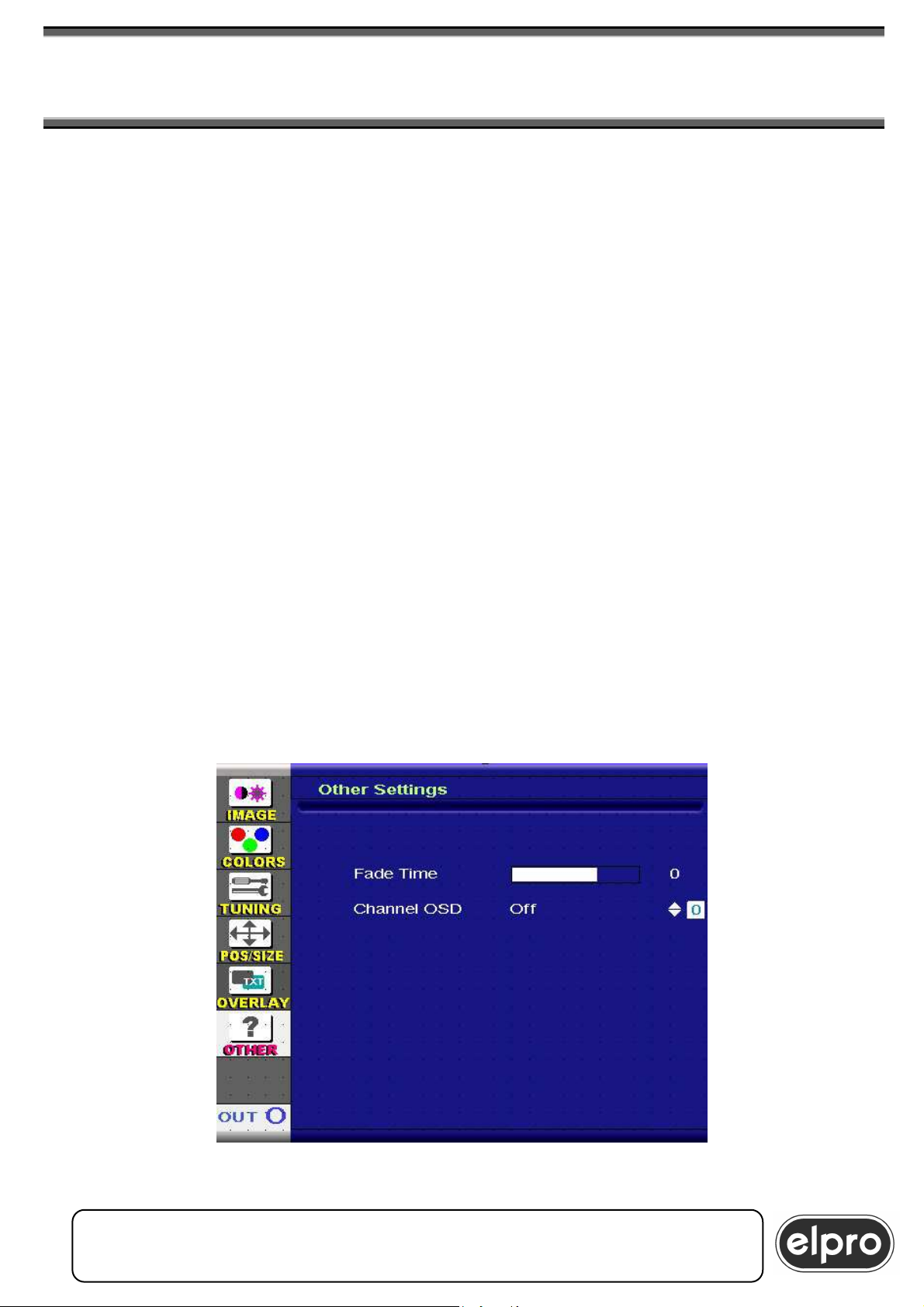
7.6 OTHER. Other adjustments
Certain parameters of various use can be modified in this menu page.
Using the Fade Time item, switching time from one channel to the other is
adjusted. There are 6 adjustment steps that correspond to an interval of time
of from 0 to around 3 seconds.
If in MIXER mode, setting the parameter to 0 corresponds to activating CUT
mode switching.
The time parameters from 1 to 6 are valid both for FADING and MIXER
modes.
Using the Channel OSD item, it is possible to enable or disable the OSD
overlay that appears during switching operations for around 3 seconds.
ELPRO Video Labs s.r.l.
30
St.da della Pronda, 45/B 10142 Torino ITALY
Tel.+39 0117701583 – Fax +39 011703751
30
Page 31
DVIPRO1000
8x2 UNIVERSAL SCALER MATRIX SWITCHER
& EFFECT CONTROL
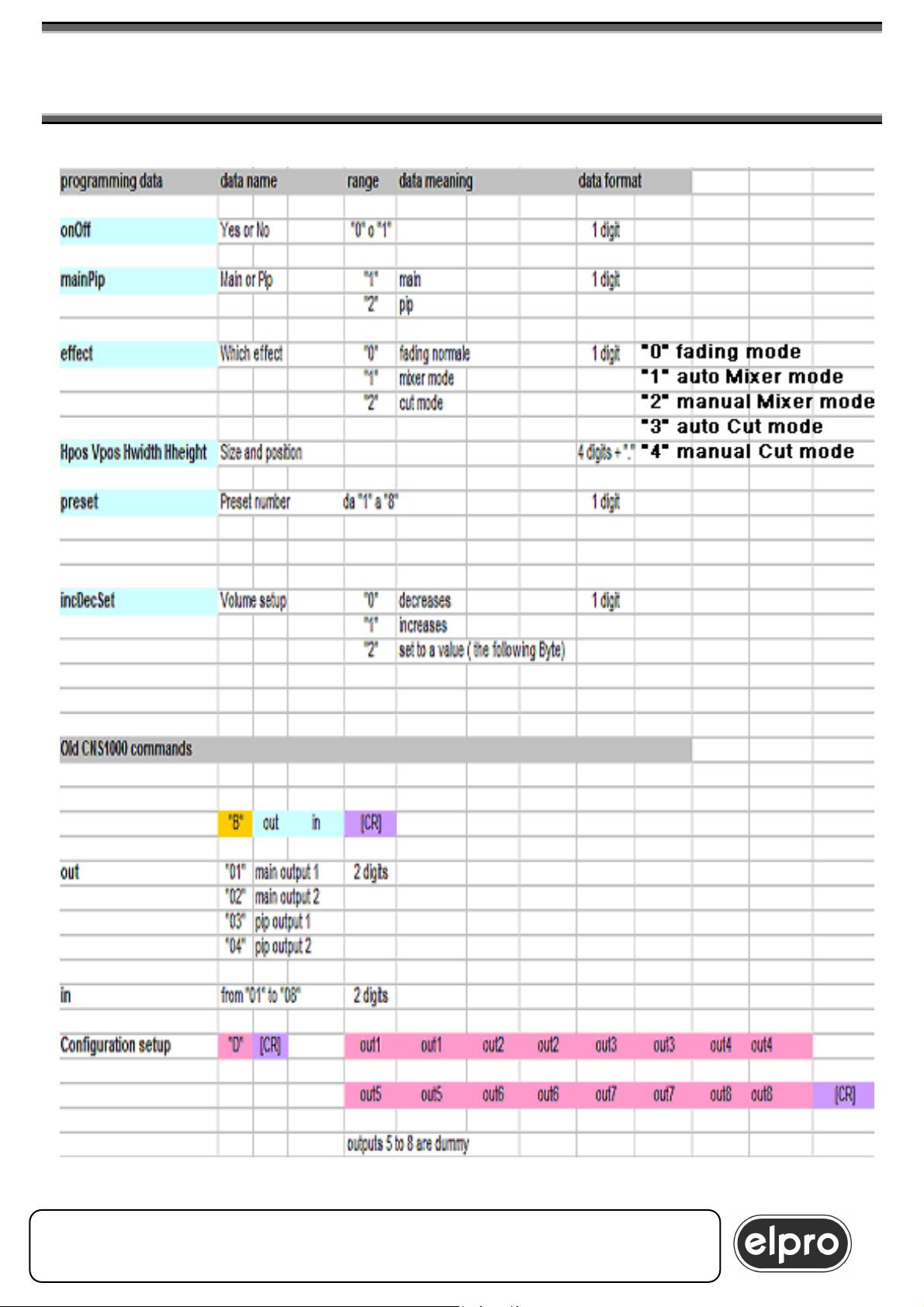
8.0 RS232 SERIAL AND ETHERNET COMMANDS
All the programming operations described above can be carried out using the
remote control or via a remote serial channel: this may be a standard RS232
serial line or an Ethernet LAN that the PC will see as a virtual serial port,
programmable using a specific DSManager software driver that can be
downloaded free from the site www.elprovideolabs.com.
The entire set of commands for driving the DVIPRO1000 and for status
acquisition are described below. Elpro makes available complete
management software for remote driving of the DVIPRO1000.
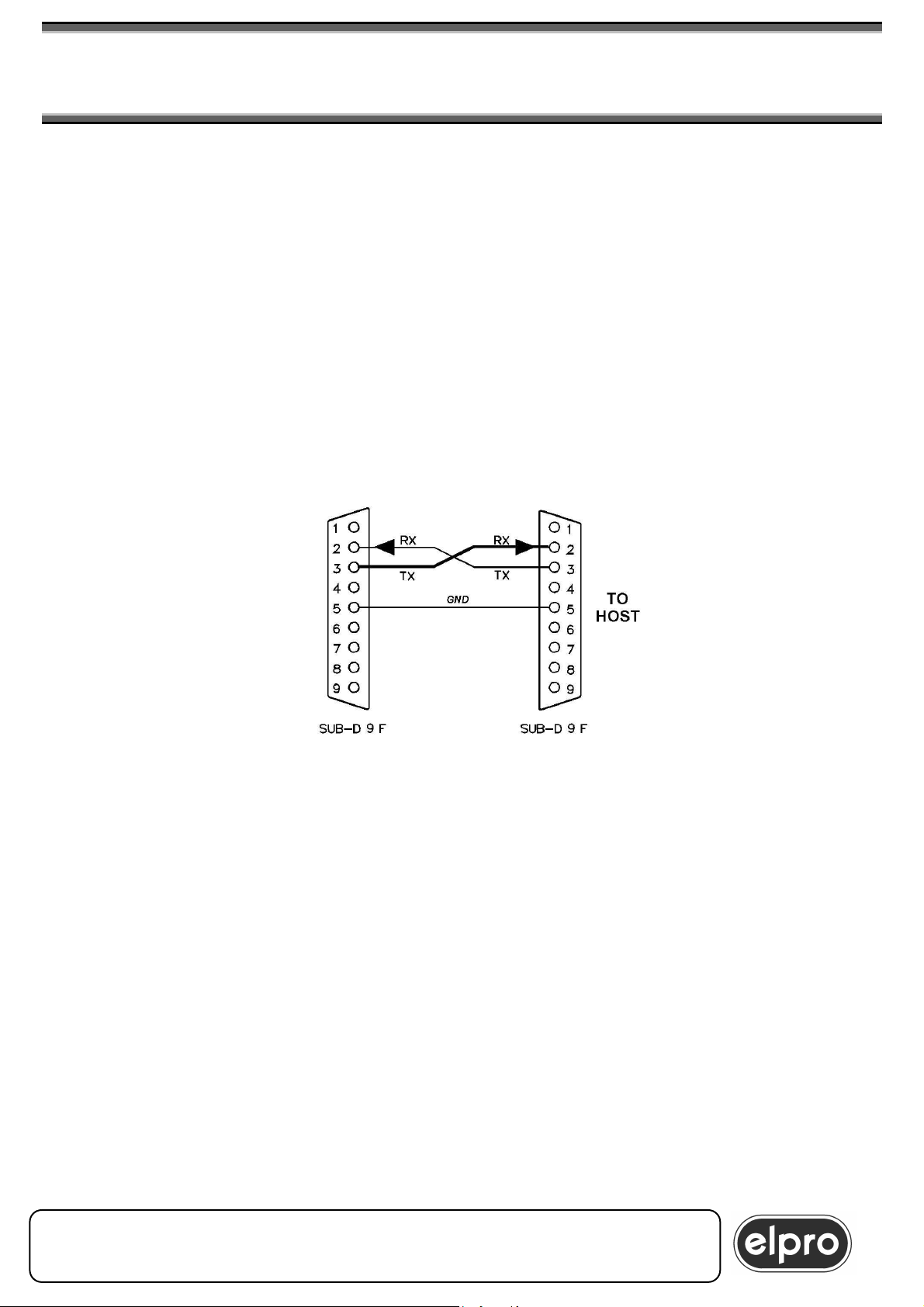
The serial line is of the three-wire type (TX RX GND) with Baud rate of 9600
baud, no parity and no control of hardware or software flow.
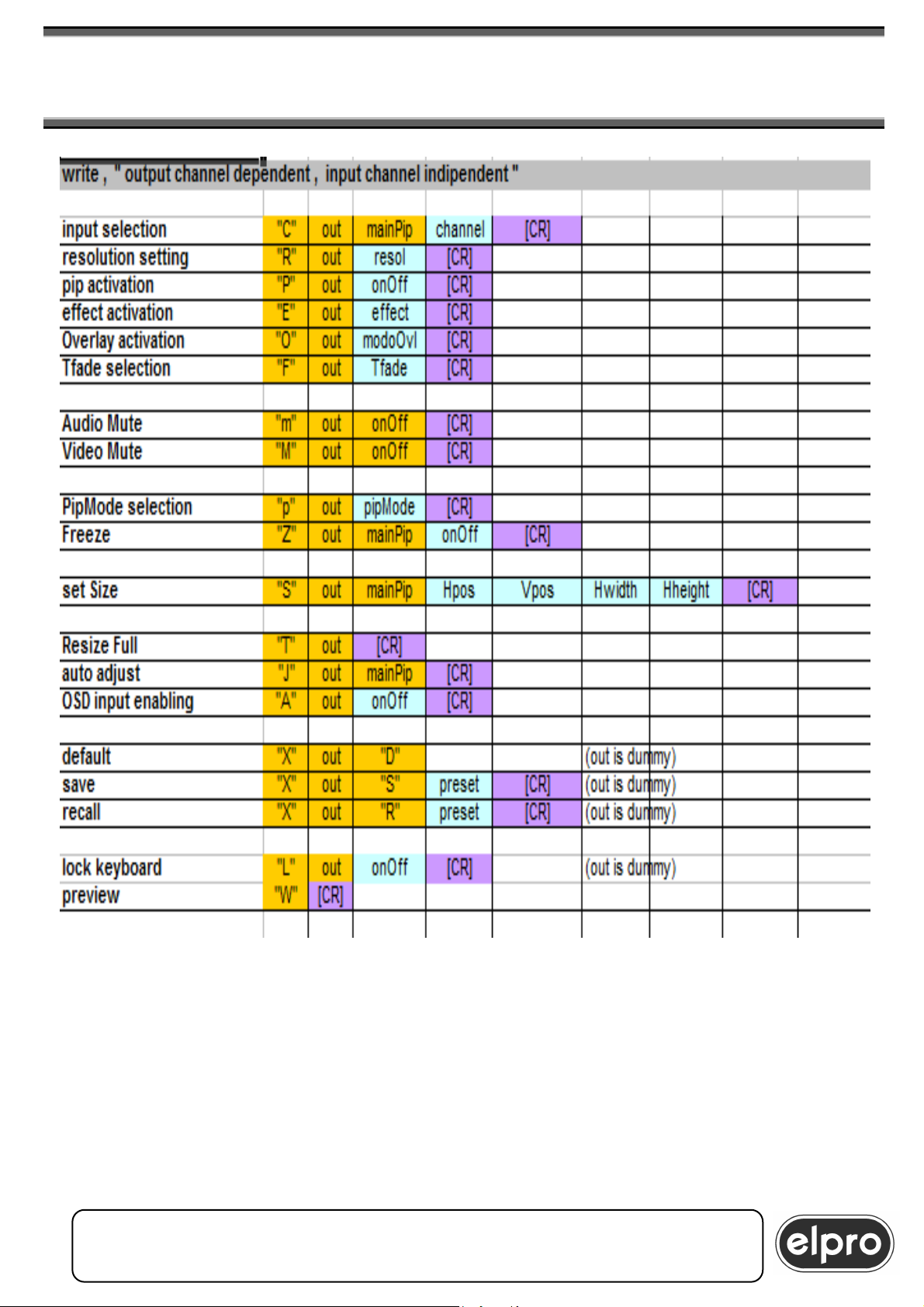
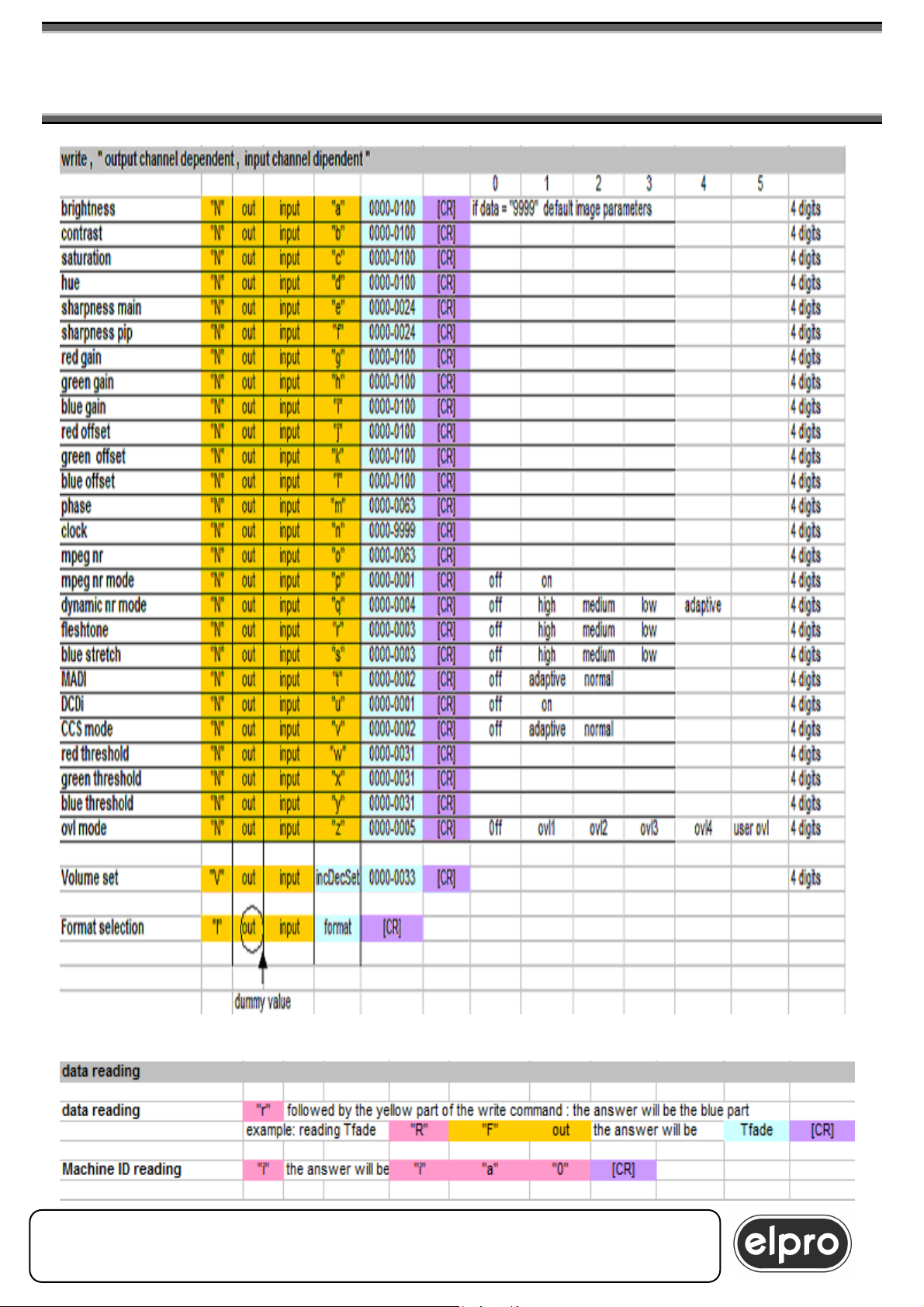
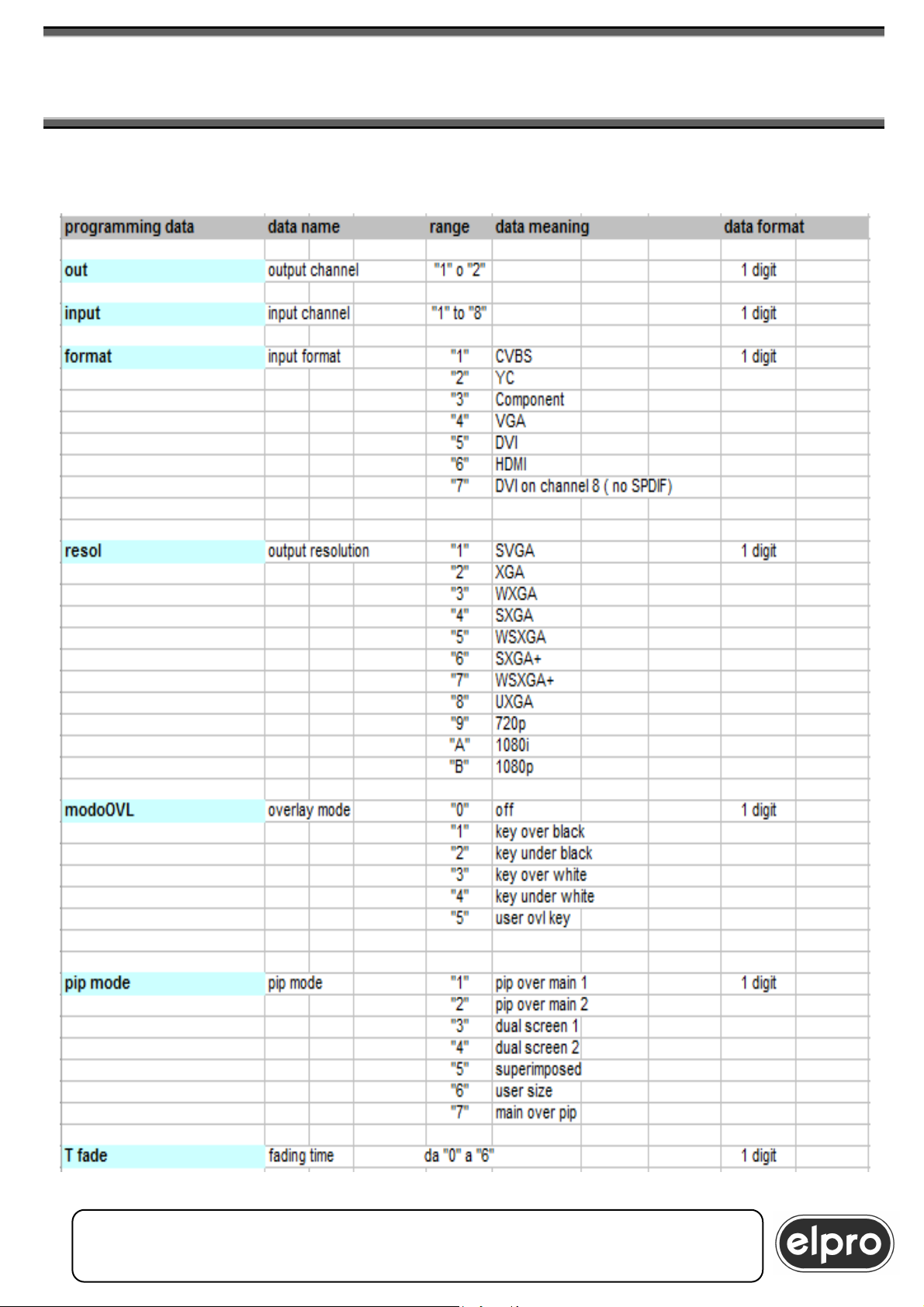
The command strings to be sent to the machine and the expected replies are
shown in the tables below. The strings consist of ASCII characters and are
terminated with the [CR] character.
ELPRO Video Labs s.r.l.
St.da della Pronda, 45/B 10142 Torino ITALY
Tel.+39 0117701583 – Fax +39 011703751
31
31
Page 32
DVIPRO1000
32
8x2 UNIVERSAL SCALER MATRIX SWITCHER
& EFFECT CONTROL
ELPRO Video Labs s.r.l.
32
St.da della Pronda, 45/B 10142 Torino ITALY
Tel.+39 0117701583 – Fax +39 011703751
32
Page 33
DVIPRO1000
8x2 UNIVERSAL SCALER MATRIX SWITCHER
& EFFECT CONTROL
ELPRO Video Labs s.r.l.
St.da della Pronda, 45/B 10142 Torino ITALY
Tel.+39 0117701583 – Fax +39 011703751
33
33
Page 34
DVIPRO1000
34
8x2 UNIVERSAL SCALER MATRIX SWITCHER
& EFFECT CONTROL
ELPRO Video Labs s.r.l.
34
St.da della Pronda, 45/B 10142 Torino ITALY
Tel.+39 0117701583 – Fax +39 011703751
34
Page 35
DVIPRO1000
8x2 UNIVERSAL SCALER MATRIX SWITCHER
& EFFECT CONTROL
ELPRO Video Labs s.r.l.
St.da della Pronda, 45/B 10142 Torino ITALY
Tel.+39 0117701583 – Fax +39 011703751
35
35
Page 36

DVIPRO1000
36
8x2 UNIVERSAL SCALER MATRIX SWITCHER
& EFFECT CONTROL
Examples
Es1: Selection of input 7 on the main window of output channel 1
The host must send the following sequence:
C 1 1 7 followed by CR
which in hexadecimal corresponds to:
43 31 31 37 0D
where 1 is the selection of output channel 1
1 is the selection of the main window
7 is the selection of the input on which to switch
The DVIPRO1000 replies:
ACK (06 hex) if the command has been recognized correctly
NACK (15 hex) if transmission errors have occurred
BEL (07 hex) when the command has been performed completely
Es2: Selection of input 3 on the pip window of output channel 2
The host must send the following sequence:
C 2 2 3 followed by CR
which in hexadecimal corresponds to:
43 32 32 33 0D
where 2 is the selection of output channel 2
2 is the selection of the pip window
3 is the selection of the input on which to switch
The DVIPRO1000 replies:
ACK (06 hex) if the command has been recognized correctly
NACK (15 hex) if transmission errors have occurred
BEL (07 hex) when the command has been performed completely
Es3: Selection of SXGA resolution for output channel 2
The host must send the following sequence:
R 2 4 followed by CR
which in hexadecimal corresponds to:
52 32 34 0D
where 2 is the selection of the output channel and
4 is the selection of the resolution (SXGA = 4)
ELPRO Video Labs s.r.l.
36
St.da della Pronda, 45/B 10142 Torino ITALY
Tel.+39 0117701583 – Fax +39 011703751
36
Page 37

DVIPRO1000
8x2 UNIVERSAL SCALER MATRIX SWITCHER
& EFFECT CONTROL
The DVIPRO1000 replies:
ACK (06 hex) if the command has been recognized correctly
NACK (15 hex) if transmission errors have occurred
BEL (07 hex) when the command has been performed completely
Es4: Setting of the main window of output channel 2 to size 400x300 with
origin in 100,100.
The host must send the following sequence:
S 2 1 0 1 0 0 . 0 1 0 0 . 0 4 0 0 . 0 3 0 0 . followed by CR
which in hexadecimal corresponds to:
53 32 31 30 31 30 30 2E 30 31 30 30 2E 30 34 30 30 2E 30 33 30 30 2E
0D
where 2 is the selection of the output channel
1 is the selection of the main window
0100. is the X coordinate of the origin of the window
0100. is the Y coordinate of the origin of the window
0400. is the width of the window in horizontal
0300. is the width of the window in vertical
The DVIPRO1000 replies:
ACK (06 hex) if the command has been recognized correctly
NACK (15 hex) if transmission errors have occurred
BEL (07 hex) when the command has been performed completely
Es5: Setting of the brightness of input 5 for output channel 1 to 50
The host must send the following sequence:
N 1 5 a 0 0 5 0 followed by CR
which in hexadecimal corresponds to:
53 31 35 61 30 30 35 30 0D
where 1 is the selection of the output channel
5 is the selection of the input
“a” is the Brightness parameter
050 is the value to be set
The DVIPRO1000 replies:
ACK (06 hex) if the command has been recognized correctly
NACK (15 hex) if transmission errors have occurred
BEL (07 hex) when the command has been performed completely
ELPRO Video Labs s.r.l.
St.da della Pronda, 45/B 10142 Torino ITALY
Tel.+39 0117701583 – Fax +39 011703751
37
37
Page 38

DVIPRO1000
38
8x2 UNIVERSAL SCALER MATRIX SWITCHER
& EFFECT CONTROL
Es6: recall of preset number 6
The host must send the following sequence:
X 0 R 6 followed by CR
which in hexadecimal corresponds to:
58 30 52 36 0D
where “R” is the selection of the Recall function
6 is the selection of the preset to be recalled
The DVIPRO1000 replies:
ACK (06 hex) if the command has been recognized correctly
NACK (15 hex) if transmission errors have occurred
BEL (07 hex) when the command has been performed completely
Es7: reading of the Fade time of output channel 1
The host must send the following sequence:
R F 1 followed by CR
which in hexadecimal corresponds to:
52 46 31 0D
where “F” is the selection of the Tfade parameter
1 is the selection of output channel concerned
The DVIPRO1000 replies:
3 CR
which in hexadecimal corresponds to:
33 0D where 3 is the value of the Tfade parameter
Es8: reading of the position of the main window of channel 2
The host must send the following sequence:
R S 2 1 followed by CR
which in hexadecimal corresponds to:
52 53 32 31 0D
where “S” is the selection of size data
2 is the selection of the output channel concerned
1 is the selection of the Main window
ELPRO Video Labs s.r.l.
38
St.da della Pronda, 45/B 10142 Torino ITALY
Tel.+39 0117701583 – Fax +39 011703751
38
Page 39

DVIPRO1000
8x2 UNIVERSAL SCALER MATRIX SWITCHER
& EFFECT CONTROL
The DVIPRO1000 replies:
0 1 0 0 . 0 1 0 0 . 0 4 0 0 . 0 3 0 0 . CR
which in hexadecimal corresponds to:
30 31 30 30 2E 30 31 30 30 2E 30 34 30 30 2E 30 33 30 30 2E 0D
where 0100 is the value of the X origin of the window
0100 is the value of the Y origin of the window
0400 is the value of the width X of the window
0300 is the value of the width Y of the window
Es9: Selection of input 7 on the main window of output channel 1
in CNS1000 compatible mode
The host must send the following sequence:
B 0 1 0 7 followed by CR
which in hexadecimal corresponds to:
42 30 31 30 37 0D
where 01 is the selection of the main window of the channel 1
07 is the selection of input 7
The DVIPRO1000 replies:
ACK (06 hex) if the command has been recognized correctly
NACK (15 hex) if transmission errors have occurred
BEL (07 hex) when the command has been performed completely
Es10: Selection of input 3 on the pip window of output channel 2
in CNS1000 compatible mode
The host must send the following sequence:
B 0 4 0 3 followed by CR
which in hexadecimal corresponds to:
42 30 34 30 33 0D
where 04 is the selection of the pip window of channel 2 and
03 is the selection of input 3
The DVIPRO1000 replies:
ACK (06 hex) if the command has been recognized correctly
NACK (15 hex) if transmission errors have occurred
BEL (07 hex) when the command has been performed completely
ELPRO Video Labs s.r.l.
St.da della Pronda, 45/B 10142 Torino ITALY
Tel.+39 0117701583 – Fax +39 011703751
39
39
Page 40

DVIPRO1000
40
8x2 UNIVERSAL SCALER MATRIX SWITCHER
& EFFECT CONTROL
8.1 Remote command by CNS1000
It is possibile to command the switching of Main and Pip windows of the 2
DVIPRO1000 outputs also by CNS1000 remote console. CNS1000 can be
connected to DVIPRO1000 by RS232 or LAN.
It is necessary to configure a DVIPRO1000 unit in the console CNS1000
through the “NEW UNIT” parameters (see CNS1000 Manual).
The 8 console inputs correspond to the 8 DVIPRO1000 inputs whereas the 4
outputs correspond to:
OUT1 = OUT1 Main Window
OUT2 = OUT2 Main Window
OUT3 = OUT1 Pip Window
OUT4 = OUT2 Pip Window
Example:
To switch input 5 on OUT1 Main Window press the 5 button as “Source” and
the 1 button as “Destination”, confirming the switching with TAKE.
ELPRO Video Labs s.r.l.
40
St.da della Pronda, 45/B 10142 Torino ITALY
Tel.+39 0117701583 – Fax +39 011703751
40
Page 41

DVIPRO1000
8x2 UNIVERSAL SCALER MATRIX SWITCHER
& EFFECT CONTROL
9.0 Firmware Upgrade
The firmware contained inside the DVIPRO1000 can be upgraded by RS232.
In order to activate this function, turn on the machine and press
simultaniously the 1, 2, 7, 8 input keys of the output 2. Connect the PC
through the serial line. Use the Elpro Upgrade software, available at the Elpro
site . LCD will show the Upgrade state, and when it is finished, you have to
turn Off the unit in order to activate the upgrading.
WARNING
Never turn off the apparatus when the upgrade is on progress !!
It is also available a special firmware upgrade for the two Video Output
channels boards. This is accomplished through the VGA HDD15 connector ,
using a special adapter FW1000 to buy apart, and a PC software. Please
contact Elpro in order to obtain the documentation and the adapter.
WARNING
Before to execute any upgrading firmware, is suggested to contact the
technical office of ELPRO in order to make the upgrading procedure in
the appropriate way.
ELPRO Video Labs s.r.l.
St.da della Pronda, 45/B 10142 Torino ITALY
Tel.+39 0117701583 – Fax +39 011703751
41
41
Page 42

DVIPRO1000
42
8x2 UNIVERSAL SCALER MATRIX SWITCHER
& EFFECT CONTROL
10.0 TECHNICAL DATA
VIDEO:
Inputs:
2 universal CV,Y/C,Component,VGA on HDD15 p.f.
4 universal CV,Y/C,Component,VGA on 3 BNC & 1 HDD15 p.f.
1 universal CV,Y/C,Component,VGA,DVI on 3 BNC & 1 DVI-I 29p.f.
1 universal CV,Y/C,Component,HDMI on 3 BNC and 1 HDMI conn.
Input Resolutions:
Graphic: from SVGA (800x600) to UXGA (1600x1200)
Component: from 525i (PAL) and 625i (NTSC) to 1080p (1920x1080)
DVI: Up to 1920x1200 and 1080p 60Hz
HDMI: 720p recommended; max. 1080i 60Hz
Input Video standard: PAL, SECAM, NTSC
Outputs: 2 separate
Output type: twin, DVI-D on DVI-I 29 p.f.and VGA+YPbPr on HDD 15 p.f.
Output resolutions:
Graphic: SVGA (800x600), XGA (1024x768), WXGA (1366x768),
SXGA (1280x1024), SXGA+ (1400x1050),
WSXGA (1440x900), WSXGA+ (1680x1050), UXGA (1600x1200)
YPbPr: 720p, 1080i, 1080p (RGBHV on HDD15p.)
Synch.Level: TTL
Vertical synch. on output: 60 Hz at any resolution
Switching: seamless with Fading, Mixer or Cut
Switching Timing: 6 steps from 0 to 3 sec
PIP: between 2 inputs
UpScale &DownScale: pixel x pixel
Pan of both images in X and Y
Functions:
Preview, Overlay, Titling, Image & color adjustment, DNR, Motion control,
VGA Autoadj., Clock & Phase control,
ELPRO Video Labs s.r.l.
42
St.da della Pronda, 45/B 10142 Torino ITALY
Tel.+39 0117701583 – Fax +39 011703751
42
Page 43

DVIPRO1000
8x2 UNIVERSAL SCALER MATRIX SWITCHER
& EFFECT CONTROL
AUDIO:
Inputs: 8 balanced stereo
Outputs: 2 balanced stereo
Inputs/Outputs type: balanced with Phoenix Screwtype removable
Input coupling: AC
Input impedance: 56 KΩ
Input level: +9 dBm Max
SPDIF out: for HDMI input only
VCA on outputs: from MUTE to 100% (33 steps)
Frequency response: -1 dB from 40 Hz to 20 KHz
Crosstalk: 60 dB at 5 KHz
Distortion: <0.03% at 0 dBm with 10 KÙ load
Hum &noise: -75 dBm unweighted
Remote command: IR, RS232, LAN
Main input: 90 ÷240 Vac 50-60 Hz
Power consumption: 25 VA
Size (WxDxH): 483x210x132 mm
Weight: 4,5 Kg
Operating temp. range: 0 ÷45 °C
Safety: according to EN 60065
EMC: according to EN 55103-1 and -2
CE Mark
ELPRO Video Labs s.r.l.
St.da della Pronda, 45/B 10142 Torino ITALY
Tel.+39 0117701583 – Fax +39 011703751
43
43
Page 44

DVIPRO1000
44
8x2 UNIVERSAL SCALER MATRIX SWITCHER
& EFFECT CONTROL
11.0 NOTE
This product is guaranteed for 5 years from the date of purchase.
If the fault in the product is due to improper use or operations
carried out by third parties, the warranty is forfeited.
During the warranty period, Elpro will repair the faulty units free of charge.
The faulty units must be sent CARRIAGE FREE to the Elpro offices in Turin
with a regular accompanying note.
The units repaired will be returned CARRIAGE FORWARD to the addressee.
Outside the warranty period, Elpro will repair the faulty units EX its Turin
offices, charging the cost of the repair to the customer.
For any problems during installation of the DVIPRO1000,
call the Elpro hot line Tel. +39 011 7701583
or E-mail: [email protected]
ELPRO Video Labs s.r.l.
44
St.da della Pronda, 45/B 10142 Torino ITALY
Tel.+39 0117701583 – Fax +39 011703751
44
 Loading...