

Page 1
Smart Indoor Camera
ECSPCAM
are compatible with the Clicksmart+ APP
Products bearing this mark
General
Our products are designed to comply with the
recommended codes of practice for lighting and to be
installed and serviced by competent persons in
accordance with the relevant regulations.
Contents
• Indoor Camera
• Mounting Pack
• Micro USB Power Cable
• USB Power Adapter
• User Manual
Preparation For Use
Ensure that the smart phone is connected to the same Wi-Fi
network that you would like to attach the device.
Ensure that you have a mobile device running iOS 8 or higher
or Android 4.1x or higher and a 2.4GHzWi-Fi connection.
Download the ClickSmart+ App on your
mobile device from the App Store or
Google Play.
Sign in or Register following the
instructions on the ClickSmart+ App.
Installation
Connect the supplied power adapter to the camera and apply power, the camera will operate after 30secs.
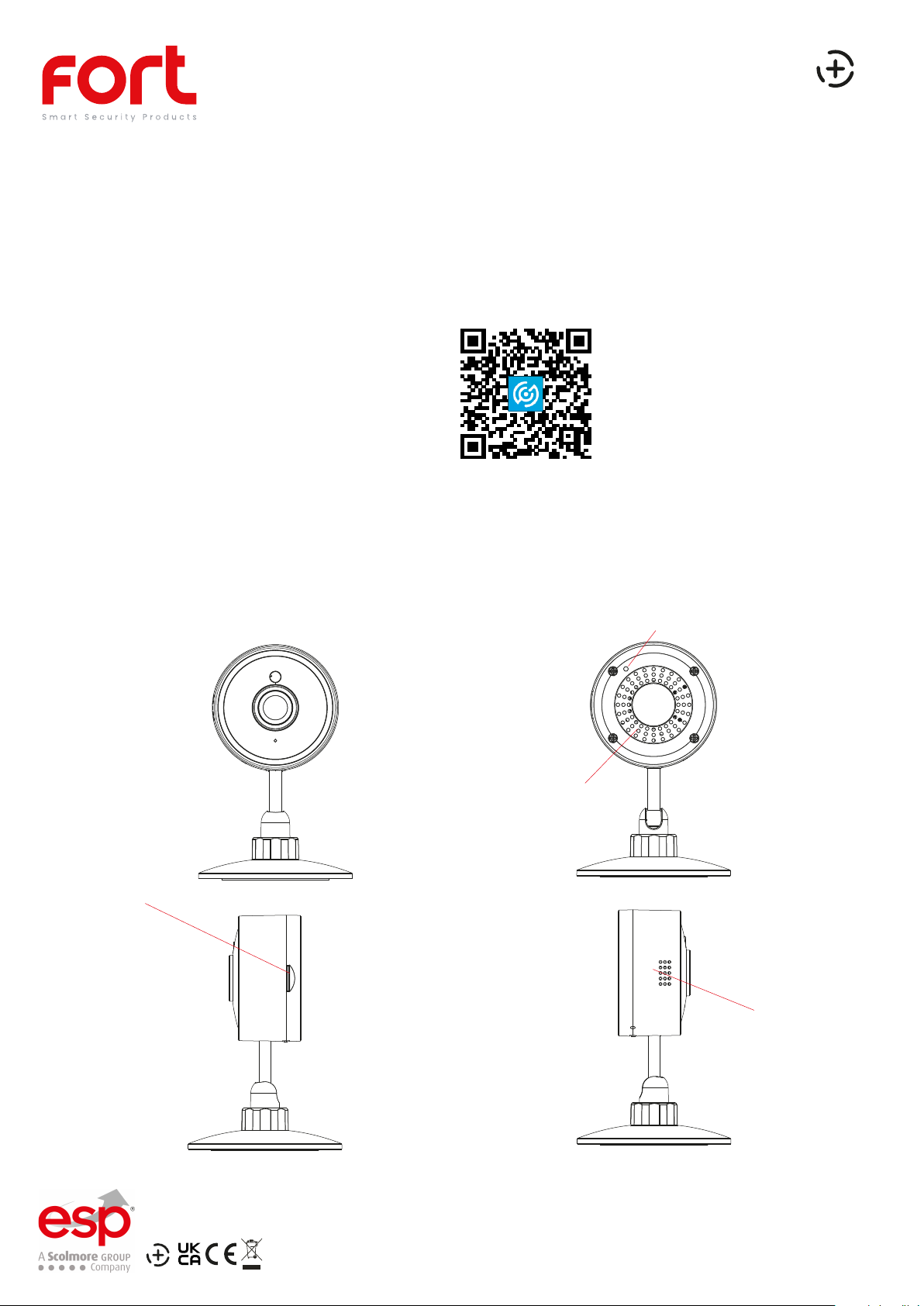
MicroSD Card
Front View
Reset Button
Speaker
Microphone
Elite Security Products
Redditch B98 8YN
Page 2
APP Pairing
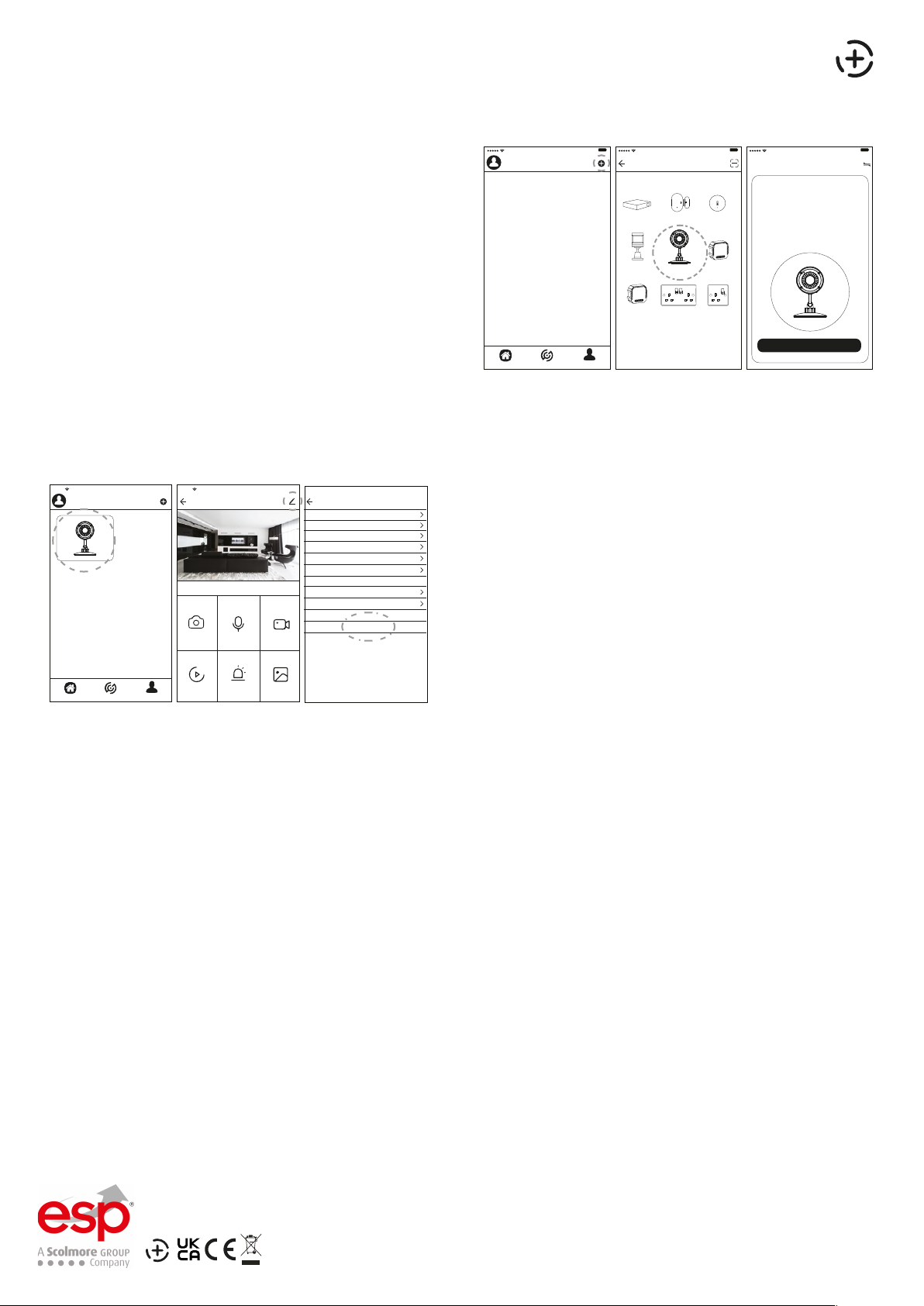
1. Power up the device VIA the 5V Micro USB Cable
2. After 30 Seconds, a double chime will be heard
every 30 seconds.
The ClickSmart+ app will guide you through:
Entering the Wi-Fi Network and Password.
Using the Camera to scan a QR code.
Connecting the Device.
9:41 AM
Home Smart Me
100%
ClickSmart+
2G Dimming
9:41 AM
Add Manually Auto Scan Cancel Net Pairing Mode
Window &
Hub
Door Sensor
PIR Internal Camera 2G Switch
Smart Double
Module
Socket
100%
Humidity &
Temperature...
Module
Smart Single
Socket
9:41 AM
Reset the device first.
①Set up the device as per the
installation instructions
②Connect the device to the power
with the cable provided
③ After 30 seconds a double chime will be
heard ever 30 seconds.
Confirm Unit is bleeping
Resetting the Device
If the camera needs to be reset, connected to a new Wi-Fi network, or if it needs to be paired with a new master
account, remove the device from the app, prior to resetting the device.
100%
9:41 AM
Internal Camera
Home Smart Me
100%
Screenshot Speak Record
Playback Alarm Photo album
9:41 AM
Smart Camera Settings
100%
Device Name Smart Camera
Share Device
Device Infromation
Use Echo
Basic Function Settings
Motion Detection
FAQ & Feedback
Firmware Infromation
9:41 AM
Remove Device
1. Using the reset key, long press the reset button until
3 chimes are heard.
2. The device should now be reset, after 30 seconds,
there should be a double chime heard.
Guidance
100%
Low
>Unit requires a minimum of 2 Mbps (upload/download)
>This unit only operates on 2.4GHz
>If the signal strength of your Wi-Fi router is weak: Change
router/camera relative position to receive better signal, Use Wi-Fi
repeater/extender to maximize the range of your Wi-Fi router.
>If the device is installed on a new network the unit will require
resetting
>If the camera needs to be added to a new account, unbind the
device from the first account prior to resetting the device.
For more product information please visit the ESP website
Elite Security Products
Redditch B98 8YN
Telephone : 01527 51 51 50
Fax: 01527 51 51 43
Email : [email protected]
Web : www.espuk.com
E&OE - Errors and omissions excepted.G21
 Loading...