

Page 1
www.elinz.com.au
[email protected]
1300 881 773
3G TRACKER TK SERIES USER GUIDE
1. 3G Tracker TK Series Model
Product includes:
a. Tracking device
b. Micro USB charging cable
c. User Guide
2. Installation Manual
2.1 SIM Card Pre-installation Checklist:
a. GSM Normal SIM
b. SIM card should have its GPRS function enabled.
c. SMS request will be functional only if Caller ID setting is enabled.
2.2 Procedure for SIM Card Installation or Removal
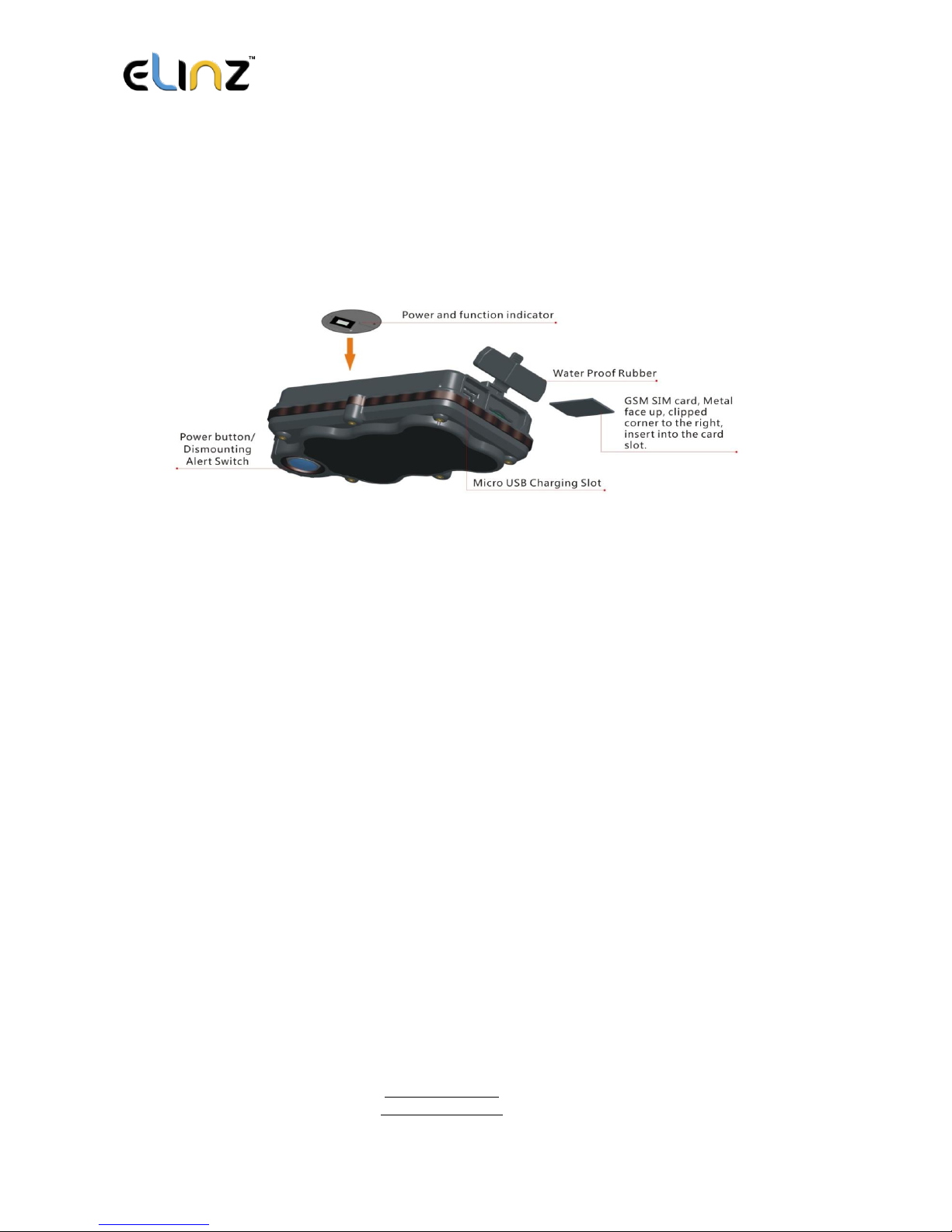
a. Open the waterproof rubber cover.
b. Insert SIM card into the SIM slot, with the metal-chip facing up and the clipped corner
positioned to the right.
Page 2

www.elinz.com.au
[email protected]
1300 881 773
c. Green light flashes once and turns on steadily on for 10 seconds, and then turns
off.
d. Call the device SIM number to activate the device, and it should response to get through
without answer. (If you are using a data SIM which do not support call function, ignore this
step.)
e. Close the waterproof rubber cover after SIM card installation or removal.
2.3 Caution when Operating
a. To maintain a strong GSM and GPS signal, avoid placing device near metallic material.
b. Avoid high temperature environment for example, car bonnet and engines.
3. Button Operation
We strongly recommend you to charge the product before using it for the first time.
The device will be automatically turn on once the SIM card is inserted. Please DO
NOT PRESS ANY BUTTON when you use it for the first time.
*PLEASE ALWAYS MAKE SURE THERE IS ENOUGH CREDIT IN THE SIM CARD AND THE
BATTERY HAS POWER FOR THE GPS TRACKER TO OPERATE PROPERLY.
3.1 Button Operation for GPS function
NOTE: “button” presses must be at least 1 second for device to response.
The blue control button is at the bottom of the device.
Page 3

www.elinz.com.au
[email protected]
1300 881 773
a. Power On: Press control button 5 times. Green light flashes several times and turns on
steadily for 10 seconds when it detects available signal, and then turns off.
b. Power Off: Send command *poweroff* when SIM card is inserted. The blue indicating
light will flash for 5 times.
c. Reset: Press control button 15 times to reset all settings. The blue indicating light will
flash for 3 times. Insert the SIM again and system will be on.
d. Charge: A red light is on during charging and turns off when it is fully charged.
3.2 Panic Button
2 short presses and 1 long press on the control button will trigger an SOS message to alert
a registered master number. The alert will be uploaded to the server.
3.3 Drop Alert
System is equipped with a Drop Alert button. When the device is mounted on a metal surface
over 1 minute, drop alert will be triggered. Master number will receive a SMS alert when
device is removed. System default as On.
App User Guide
1. Tracking via website and applications
Tracking Website: www.miitown.com
QR Codes of IOS and Android app are at the bottom of the front page, please scan
and download.
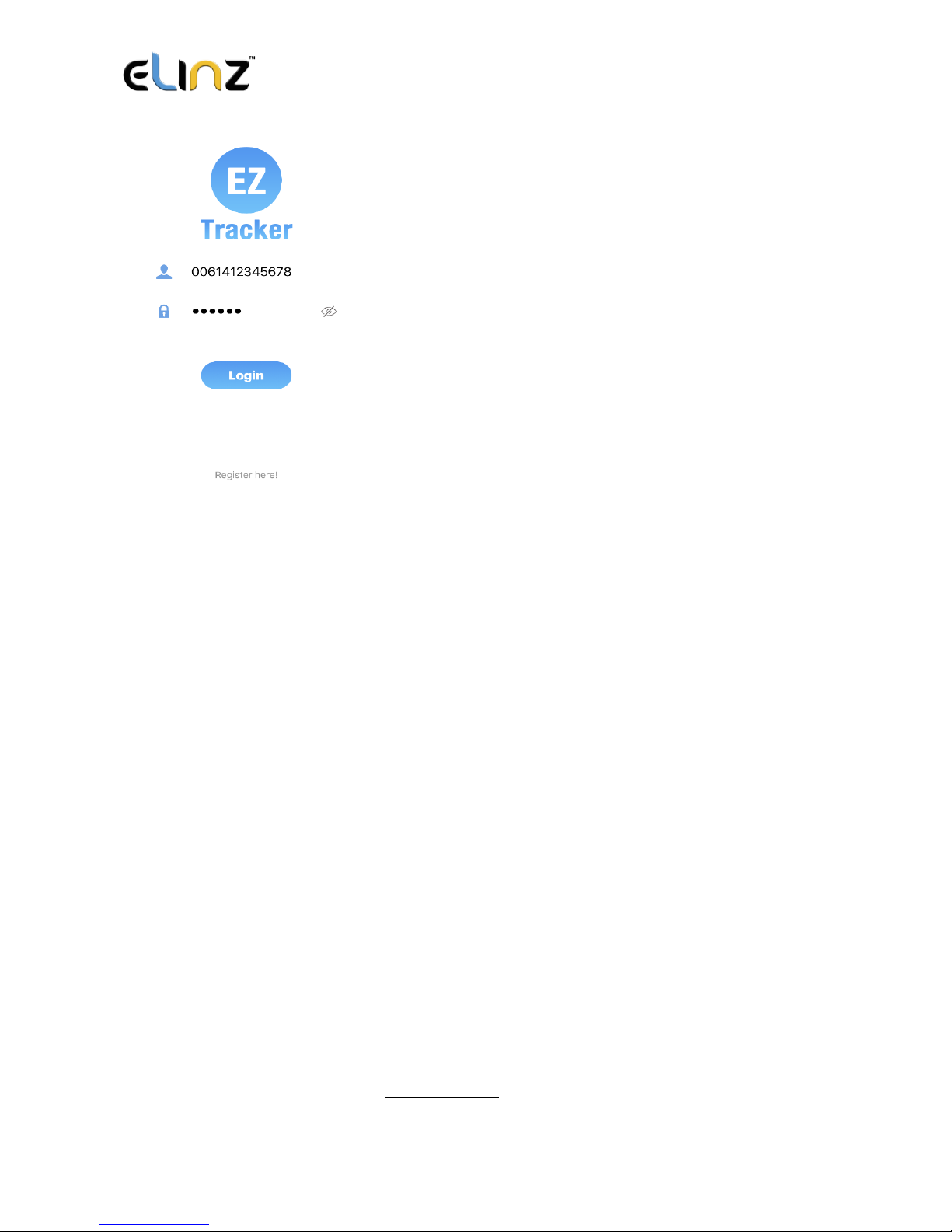
Username: Registered Master phone number. (Please add 0061 and leave out the first 0
e.g. 0061412345678)
Password: Default as 123456.
Page 4
www.elinz.com.au
[email protected]
1300 881 773
2.1 Register an Account
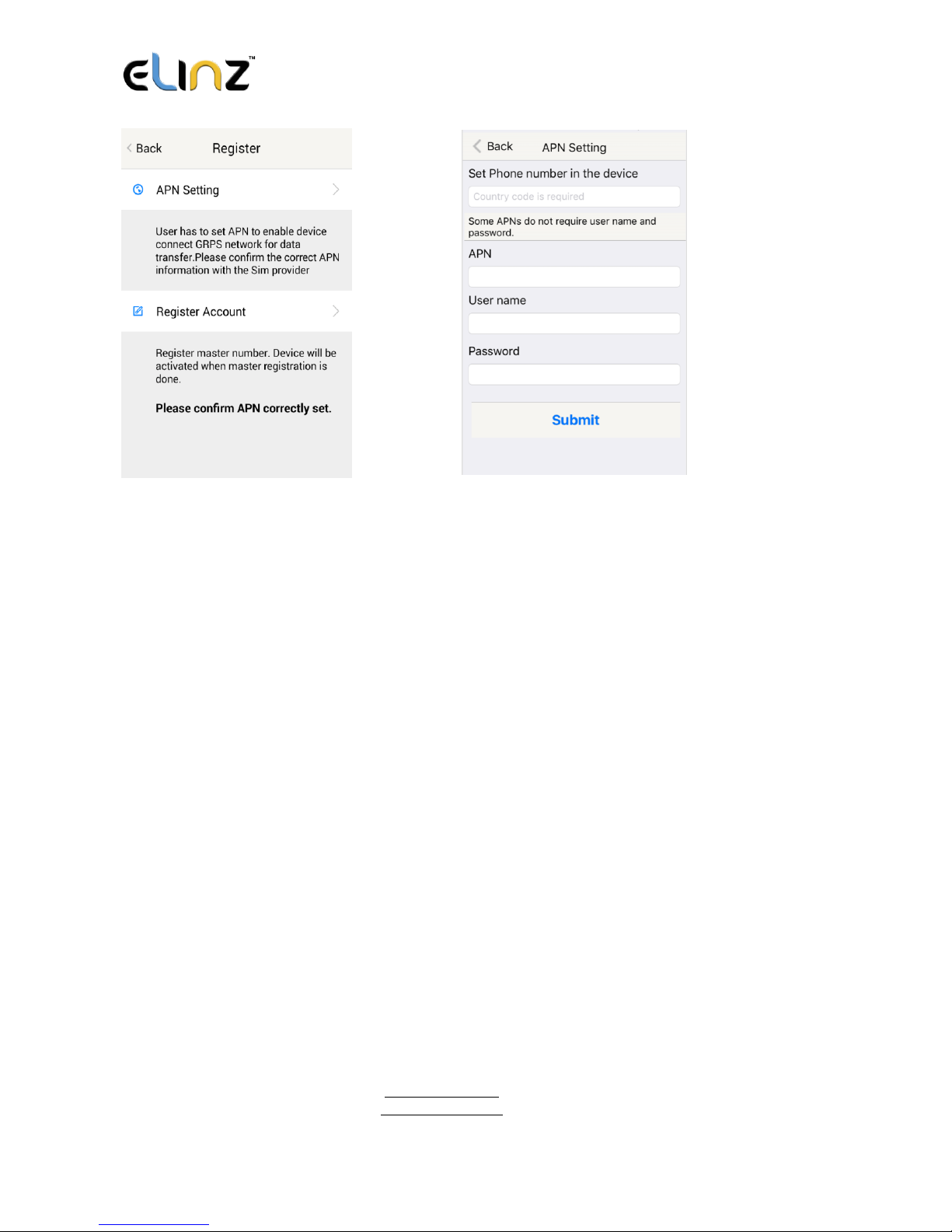
2.1.1 Set APN
APN is Access Point Name.
The correct APN must be set to enable the device to send data to the server.
Different SIM has different APN. Ensure you have the correct APN information with the
SIM provider when you purchase the SIM card.
**ALDI MOBILE SIM APN is preset in the device, if you are using other mobile network;
please reset the APN with your SIM provider.
Page 5
www.elinz.com.au
[email protected]
1300 881 773
2.1.2 Registering Account
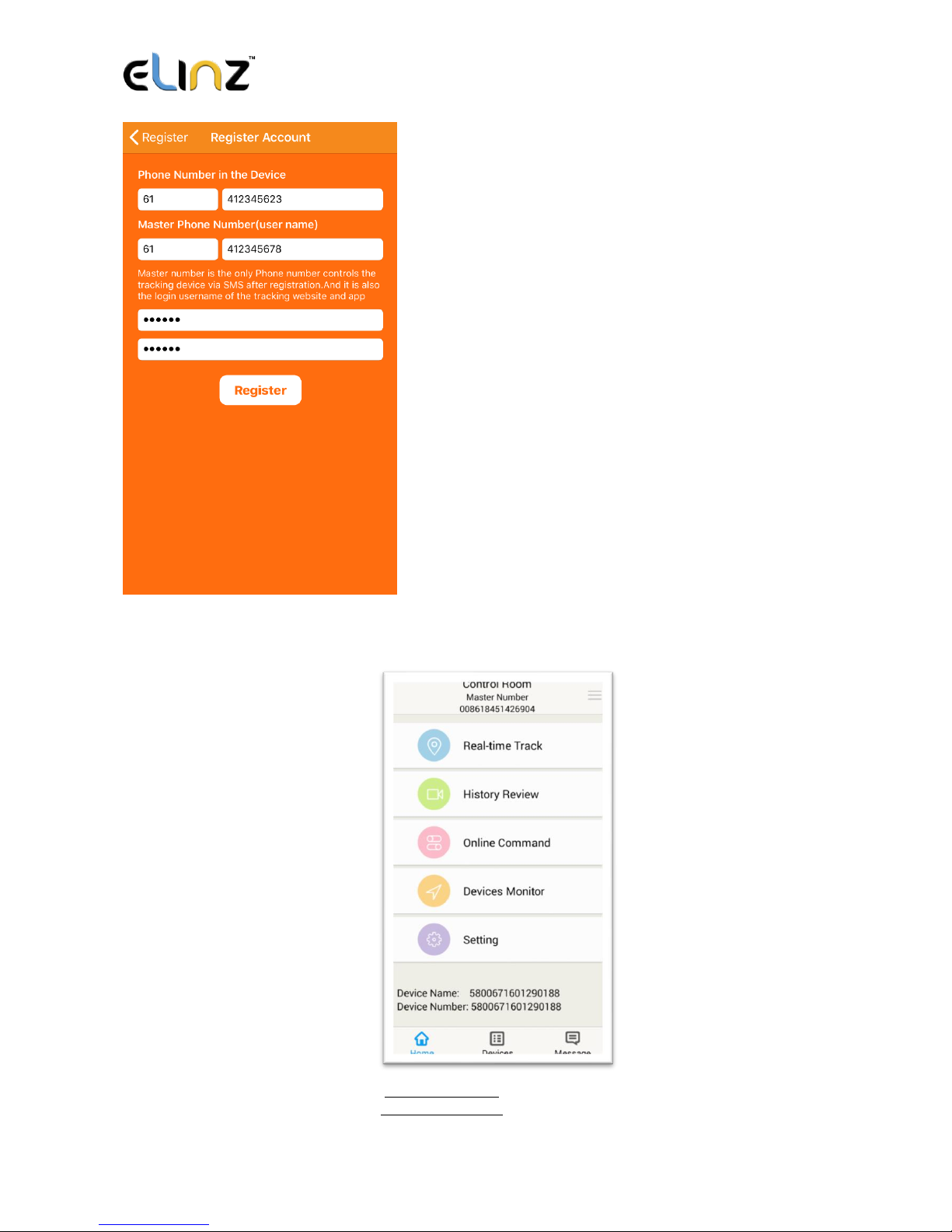
A. For Australia users, please add 61 for country code and leave out the first 0 of your
number.
B. e.g.: 6141234523
C. 123456 is the default login password. And it can be changed in the tracking website at
www.miitown.com
Page 6
Page 7
www.elinz.com.au
[email protected]
1300 881 773
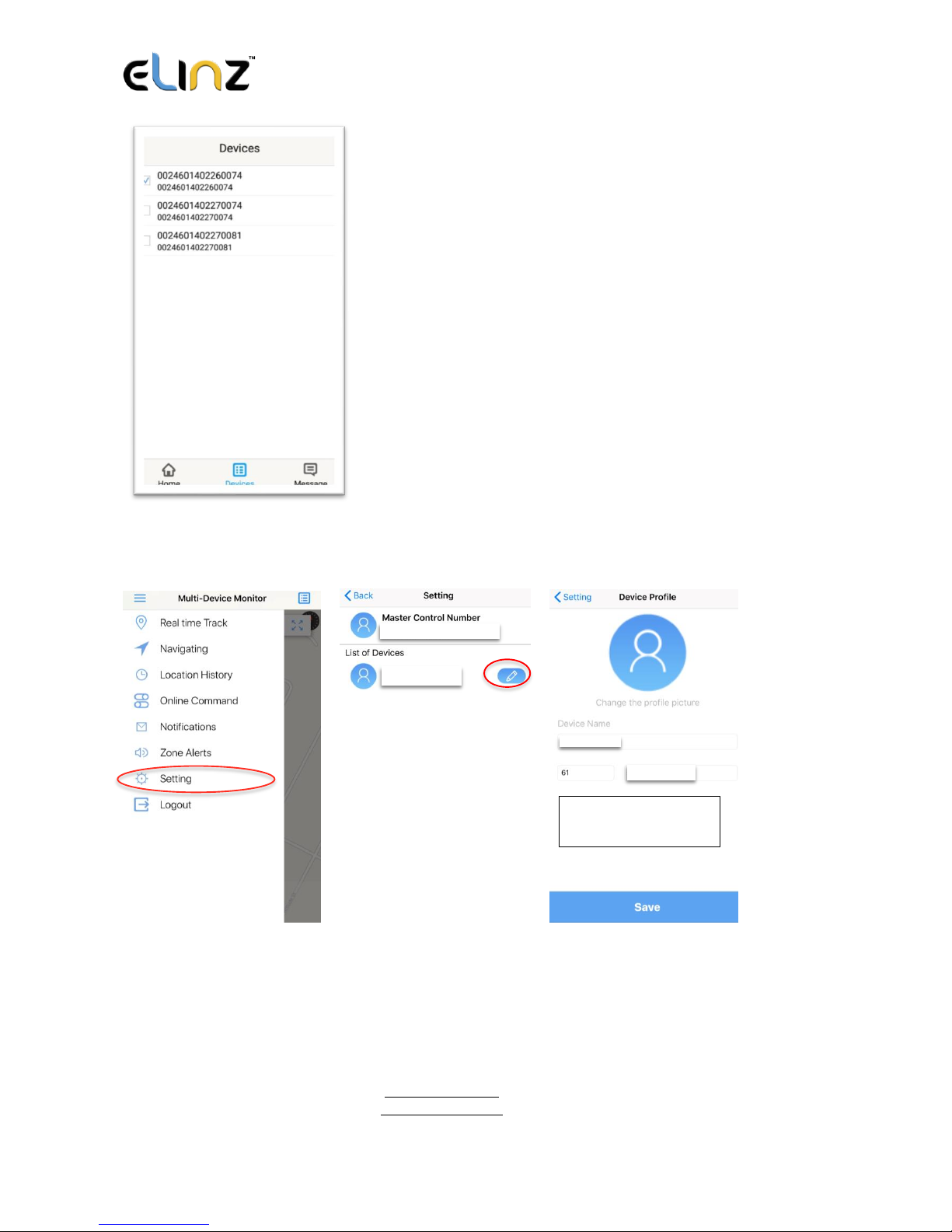
Devices
Show all number devices under the same account.
Tap the device’s serial number to select the one you
need to control.
Please make sure the correct phone number is entered in the device setting:
Step 1 Step 2 Step 3
0061412345678
XXXXXX
XXXXXX
412345623
Phone number in the
device
Page 8
www.elinz.com.au
[email protected]
1300 881 773
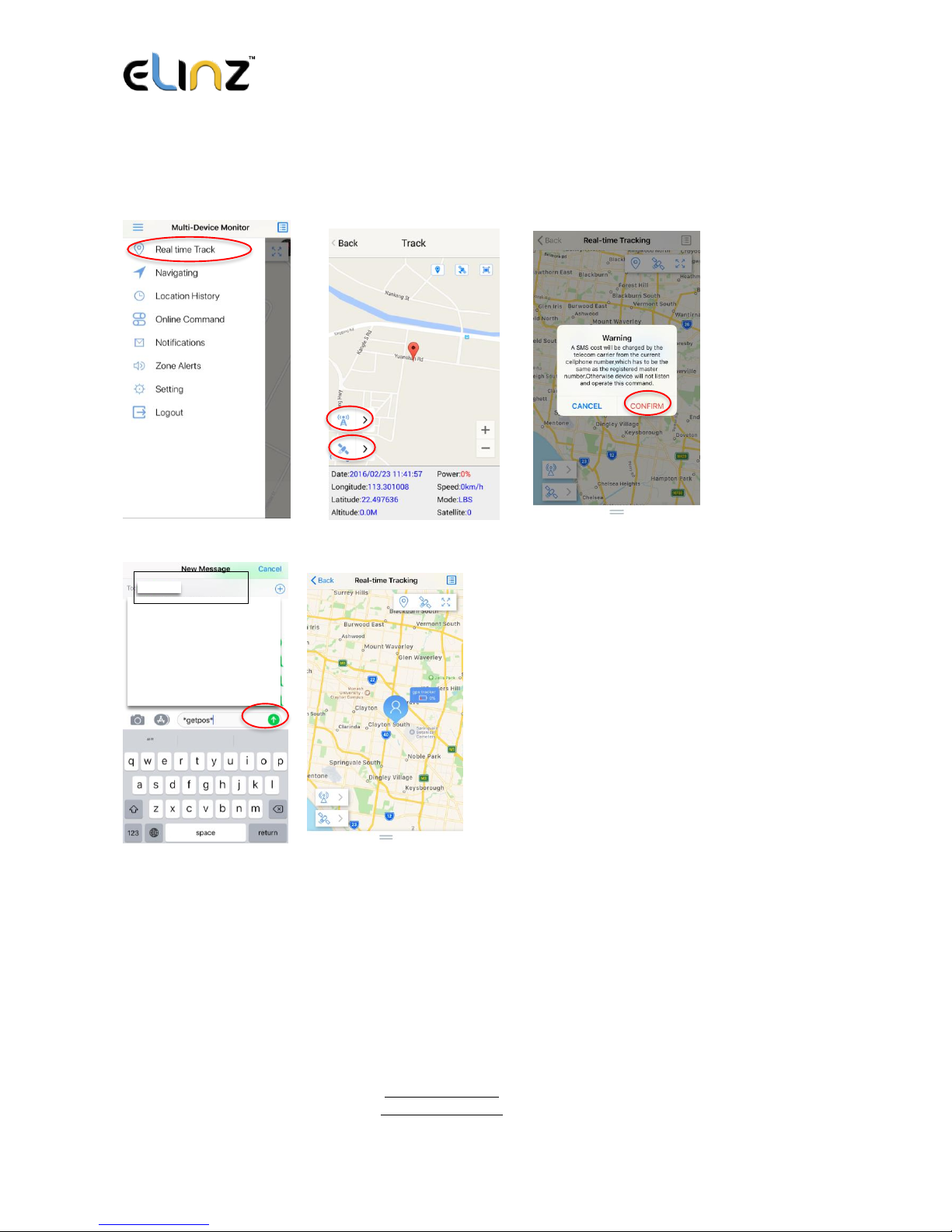
3.1 Real-time Tracking
To get latest location of the device.
Step 1 Step 2 Step 3
Step 4 Step 5 Back to the apps to view location
61412345623
Ta p to get GSM
location
Ta p to get GPS
location
Page 9
www.elinz.com.au
[email protected]
1300 881 773
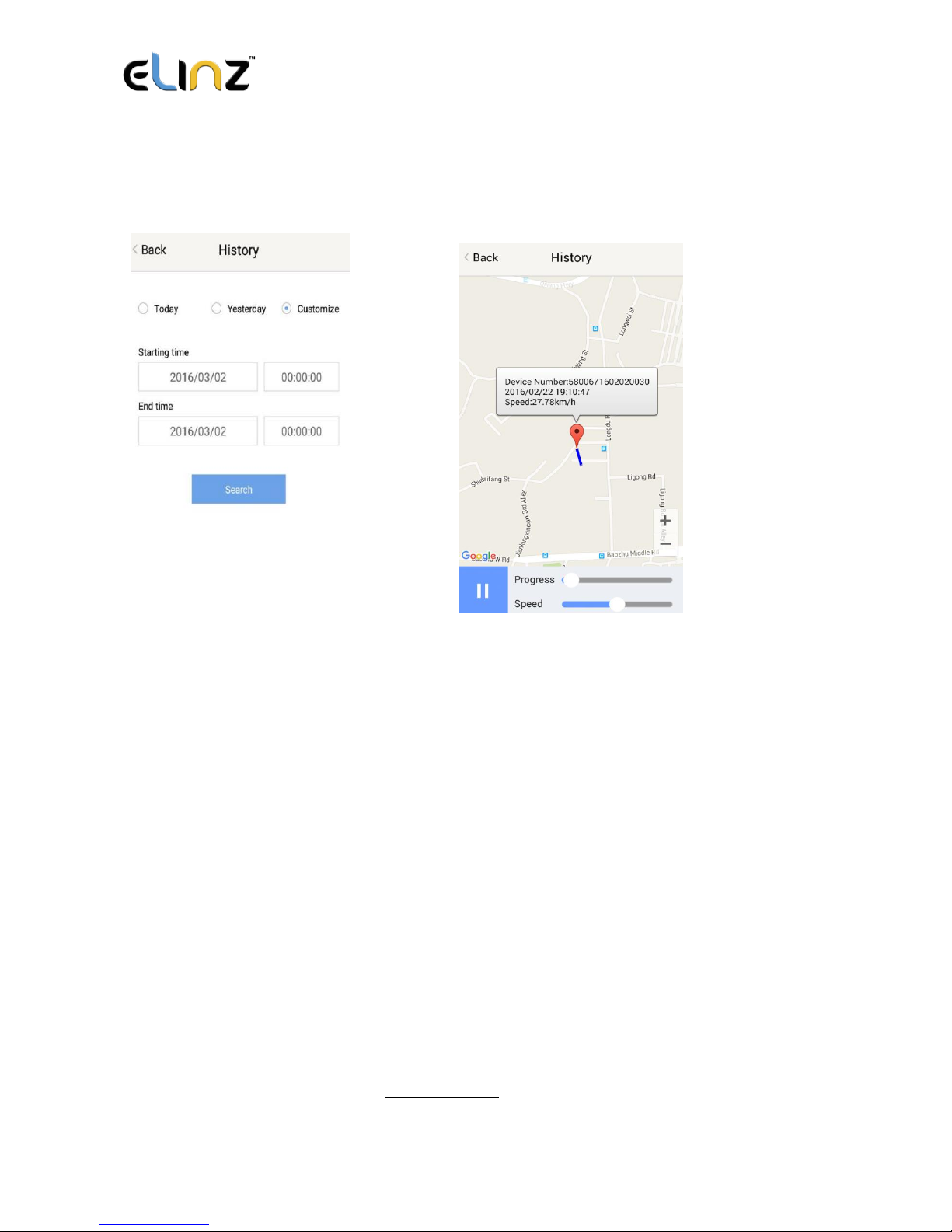
3.2 History Review
To view the previous location record of the selected device.
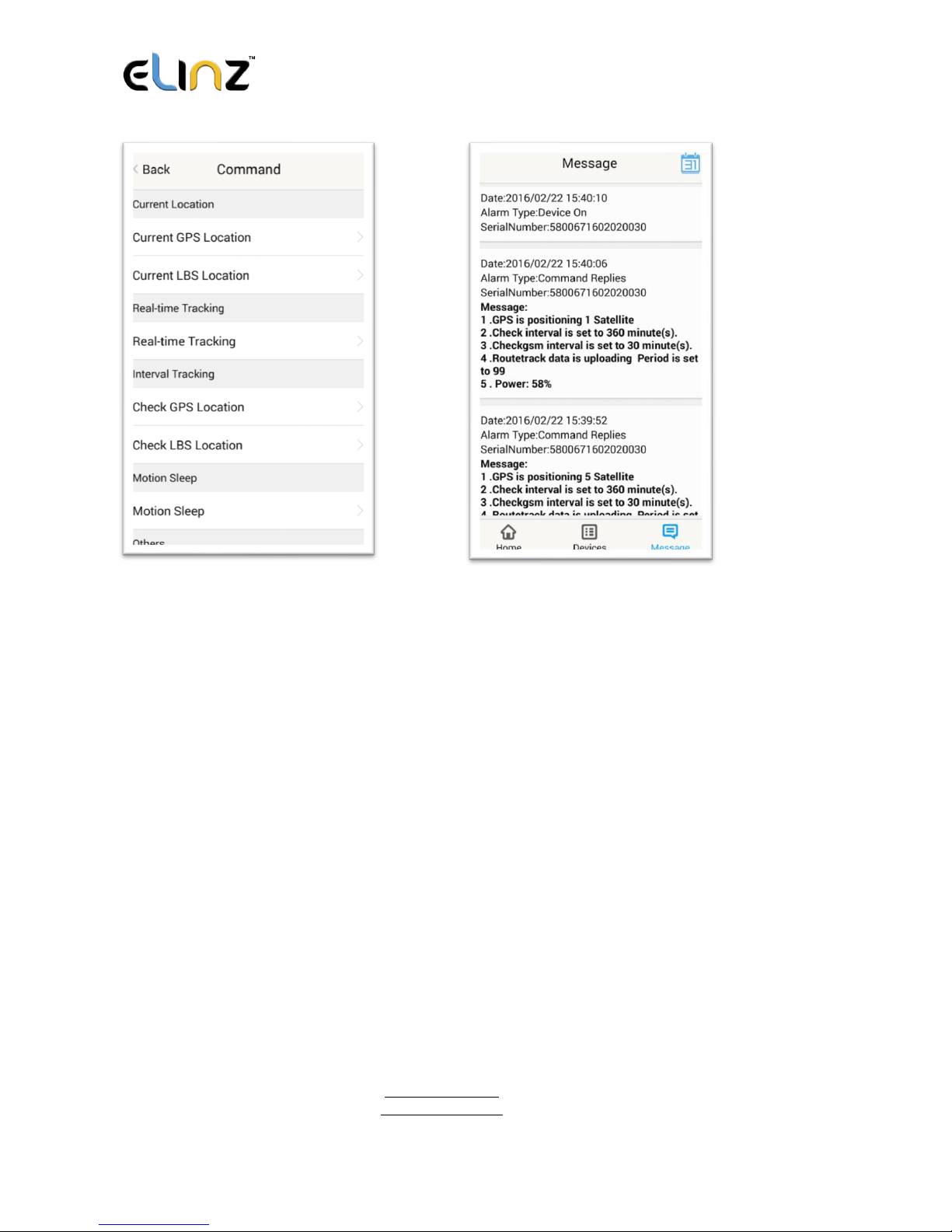
3.3 Online Command
Online Command can control device from APP via SMS. Do note that charges do apply
when sending commands via SMS and cost varies for different SIM provider. And all
replies from the device will be sent back to app via GPRS data, so replies will be shown as
push notification, and all records can be checked in the message section.
Page 10
www.elinz.com.au
[email protected]
1300 881 773
3.3.1 Current GPS Location
To update the latest GPS location of the device. The latest location will be uploaded to the
website and the map in app.
3.3.2 Current LBS Location
To update the latest GSM location of the device. The latest GSM location will be uploaded
to the website and the map in app.
3.3.3 Real-time Tracking
Enables device to upload 6 locations to server every minute when device is in motion.
3.3.4 Check GPS Location
Device will upload GPS location in appointed interval, even if the device is in motion or
Page 11

www.elinz.com.au
[email protected]
1300 881 773
not. Default as 1GPS location uploads every 72 hours.
3.3.5 Check LBS Location
Device will upload GSM location in appointed interval, even if the device is in motion or
not. Default as 1GSM location every 30 minutes.
Check LBS function is the best power saving tracking function, but distance
inaccuracy could be up to 1KM.
3.3.6 Deep Sleep
Device will go to deep sleep mode and wake up after appointed interval, and will be stay
awake for 12 minutes. If there is no new commands received in 12 minutes, device will go
back to deep sleep mode for the next set interval.
The phone function will be off during deep sleep, and no call or SMS can be replied
until device wakes up.
3.3.7 Motion Sleep
Device will go to deep sleep mode and wake up when motion is detected, and will be stay
awake for 12 minutes. If there is no new commands received in 12 minutes, device will go
back to deep sleep mode until the next motion is detected.
The phone function will be off during deep sleep, and no call or SMS can be replied
until device wakes up.
3.3.8 Others
3.3.8.1 Status Query
Check system status, replies will be shown in the message section.
3.3.8.2 Device Information
Check software edition information and device’s serial number. Replies will be shown in the
message section.
3.4 Device Monitor
Page 12

www.elinz.com.au
[email protected]
1300 881 773
All devices will be shown in the latest location.
4. Panic Button
Power button is the panic button. If there is a SIM card inserted, 2 short presses and 1 long
press to trigger SOS alert. Preset numbers will receive the following SOS SMS
“SOS! HELP! SOS!! HELP!! SOS!!! HELP!!!” System default as off.
Note:
1. Interface of the App you download could be different from the screenshot in the
user manual since it is kept updated.
2. Certain functions in APP might not support the models you purchase. Please check
the following SMS Command Operation Guide to confirm detail functions list of
your tracker.
SMS Commands Operating Guide
SMS commands are for non-smartphone user or who would like to control the device
through SMS commands only, without using the App.
1. Registration
1.1 Set APN
Page 13

www.elinz.com.au
[email protected]
1300 881 773
APN is Access Point Name.
The correct APN must be set to enable the device to send data to the server. Different
SIMs have different APN, ensure that you have the correct APN information with the SIM
provider when you purchase the SIM.
Command
*apn* APN’s name*username* password*
Some APN goes without username and password, you can just leave them blank.
Example: Orange France
APN: orange.fr
Username: orange
Password: orange
Correct command format *apn*orange.fr*
orange*orange*
Example: China Union
APN : uninet
Username: null
Password: null
Correct command format *apn*uninet*
Your cell phone will receive confirmation saying that the appointed APN is set (See
screenshot).
1.2 Registering the “Master” Controller
A. Use cellphone to send SMS *master*123456*+country code plus your cellphone
number*to the device SIM number. 123456 is the default password, it can be changed
by changing password command as showed on 1.3.
Page 14

www.elinz.com.au
[email protected]
1300 881 773
Example
*master*123456*+319876543210* (+31 refers to Netherlands country code, 9876543210
refers to the cell phone number)
B. Once your cellphone receives the confirmation
sms, it will become the only master phone to the
tracker (See screenshot).
NOTE: The device will ONLY listen and respond
commands from this number unless you choose to turn
on the multi controller function and open the device to
any cell phone number.
1.3 Changing the Password
SMS: *password*654321* (654321 refers to new password)
Changing password command has to be sent only from the master number. New password
has to be entered when you need to register the device with a new master number.
2. Motion Alert
The motion alert enables device triggered a call/sms alert when motion is detected.
2.1 Set vibration sensitivity
There are 5 levels of the motion sensitivity. 1 being the most sensitive, 5 the least, default
setting is 1.
SMS: *sensitive*1-5*
Page 15

www.elinz.com.au
[email protected]
1300 881 773
2.2 Set SMS/CALL Alert
There will be a Call/SMS alert send to master number when any motion is detected, after 3
minutes of non-movement. The system default setting is call alert, and can be turned
off by command.
SMS: *alertoff*
To turn off motion alert function.
SMS: *smsalert*
To enable motion sms alert function.
SMS: *callalert*
To enable motion call alert function.
2.3 Period Continuous Motion Alert
System will enable continuous motion alert function at appointed time periods, up to 3 time
periods per day.
That means master number will receive the call/sms alerts continuously when device detects
on continuous motion.
Time format need to be in 24-hours.
System default set UTC time, if you are not in this timezone, please set your timezone
before using this function.
SMS:*continuousalert*(2 digits start time)*(2 digits end time)*
Example
*continuousalert*08*14* means system will enable continuous motion alert function from
8am to 2pm.
SMS:*continuousalertoff*
To turn off period motion alert function.
Page 16

www.elinz.com.au
[email protected]
1300 881 773
3. Tracking via SMS
3.1 SMS: *locateaddress*
Master number will receive the GPS address of the device via SMS. If GPS location is invalid,
device will reply a WiFi location or the closest cell tower location instead.
3.2 SMS: *locatemap*
Master number will receive a Google map link. Click the link to view the map via mobile
phone browser. If GPS location is invalid, device will reply the map link of the WiFi location,
or the closest cell tower location instead.
This function is suitable for smart phone user only.
4. Tracking via website and applications
Tracking Website: www.miitown.com
ID: Registered Master phone number.
Password: Default as 123456.
It can be changed on the tracking website.
Recommended Web browsers are Chrome, Firefox or cell phone default browser.
4.1 Real-time Tracking (High Power Consumption)
Page 17

www.elinz.com.au
[email protected]
1300 881 773
Routetrack function enables device to upload 6 locations to server every minute when device
is in motion.
4.1.1 Routetrack
SMS: *routetrack*1-99*
1-98 represents the number of hours that the routerack function works. 99 represents to turn
the routetrack function always on.
Example
*routetrack*1* means uploading 6 location GPS data every minutes for 1 hour
4.1.1.1 Rsampling
Rsampling is to set routetrack data collecting interval.
The smaller interval, the higher accuracy, but the higher power consumption.
SMS *rsampling*1-999*
1-999 represents seconds of data collecting interval, default as 10 seconds
4.1.1.2 Rupload
Rupload is to set routetrack data upload interval.
The smaller interval, the higher accuracy, but the higher power consumption.
SMS *rupload*60-999*
60-999 represents seconds of data uploading interval, default as 60 seconds, minimum
rate should not be less than 60
Example
*rsampling*30* plus *ruplaod*120* means 4 location data will be uploaded to server every 2
minutes when routetrack function is on.
SMS:*routetrackoff*
Page 18

www.elinz.com.au
[email protected]
1300 881 773
To turn off route track function.
4.2 Check GPS Location (Medium Power Consumption)
Check function enables device to upload GPS location in an appointed interval. If GPS
location is invalid, system will upload the WiFi location, or the closest cell tower location
instead.
SMS: *checkm*5-9999*
5-9999 represents the number of minutes that the device Check’s data upload interval,
minimum rate should not be less than 5.
Example
*checkm*360* means uploading WiFi/GPS data every 6 hours.
Noted:
1. Check function is able to work with routetrack and Checkgsm functions at the same time.
2. System is default as *checkm*4320*. 1 location will be uploaded to server every 72 hours.
3. Location will be uploaded to server only when device is in motion.
4.3 Check WiFi/GSM Location (Low Power Consumption)
Checkgsm function enables device to upload ONLY the WIFI/GSM location in appointed
interval of time. Data will be uploaded to server on both occasions, i.e, even if the device is
in motion or not. If WiFi location is invalid, system will update the closest cell tower location
instead.
This function can be used with routetrack and Check function at the same time.
SMS: *checkgsm*5-1800*
5-1800 represents the the number of minutes of Checkgsm’s data upload interval, default
as off; rate should not be less than 5.
Page 19

www.elinz.com.au
[email protected]
1300 881 773
Example
*checkgsm*30* means uploading GSM data every 30 minutes.
4.4 Advanced Tracking
Advanced Tracking including appointed time tracking and appointed period tracking. System
default as UTC time, timezone has to be set to use advanced tracking functions if device is
not using in UTC timezone.
4.4.1 Timezone
SMS: *timezone*0-24*
Example
Italy= *timezone*2*
UK= *timezone*0*
Australia Perth = *timezone*8*
4.4.2 Appointed Time Tracking
To Check map location at appointed time, up to 3 time points per day.
Device will stay in deep sleep mode except the appointed tracking time.
Time format need to be in military time and can be set to every half hour.
SMS:*timinglocatemap*(appointed locating time)*
Example:
*timinglocatemap*0830*1400*1830* means master number will receive a text message with
a google map link at 8:30am 2:00pm and 6:30pm, click the link to view the device location
on goole map through your cellphone browser. It is suitable for smart phone user only.
SMS:*timinglocateoff*
Page 20

www.elinz.com.au
[email protected]
1300 881 773
To end timing locate function.
4.4.3 Period Tracking
Period Tracking is to enable the preset tracking function in appointed periods. Only up to 3
time periods.
Device will stay in deep sleep mode except the appointed tracking period.
Time format need to be in military time and can be set to every half hour.
SMS:*periodlocate*(8 digits locating period 1)*(8 digits locating period 2)*
Example
*periodlocate*08301100*14001830* means system will enable the tracking function during
8:30am-11:00am and 2:00pm-6:30pm of the day. 0830 and 1400 refers to the start time of
the tracking period, 1100 and 1830 refers to the end time of the tracking period.
SMS:*periodlocateoff*
To end period locate function.
3.4 Track Off
Track off will end all the tracking functions, including routetrack, checkm, checkgsm, timing
locate and period locate.
SMS:*trackoff*
To turn off all tracking functions, including routetrack, check, checkgsm, timing locate and
period locate.
Page 21

www.elinz.com.au
[email protected]
1300 881 773
5 Upload Alert
The upload alert function enables device upload alert status to the server including motion
alert, low battery alert and drop alert etc. User can check alert status on the tracking
website or message section in app.
This function is default as ON.
SMS:*uploadalert*on*
To enable upload alert function.
SMS:*uploadalert*off*
To disable upload alert function.
6 Online Control
The online command function enables device to connect with server for 15 minutes, and
user will be able to send online command from the tracking website.
SMS:*onlineon*
To enable online control function.
SMS:*onlineoff*
To end online control function.
7. Sleep Function (Lowest Power Consumption)
7.1 Interval Sleep
Device will go to deep sleep mode and wake up after appointed interval, and stay awake for
12 mintues. If there is no new commands received in 12 minutes, device will go back to deep
sleep mode for the next set interval.
Page 22

www.elinz.com.au
[email protected]
1300 881 773
Note: System will shut down GPS and GSM module during deep sleep period, so no call or
SMS can be received or responded.
SMS:*sleep*1-99*
1-99 refers to the hours of appointed sleep interval.
Example
*sleep*6* means to enable device to go to deep sleep mode and wake up in every 6 hours.
7.2 Motion Sleep
Motion Sleep function enables the device to stay in deep sleep mode and wakes up
once motion is detected. System will upload the current location of the device. If
motion continues, system will stay on and operate the previous tracking settings. If
there is no further motion detected, device will go back to deep sleep in 12 minutes.
And the circle repeats.
Note: System will shut down GPS and GSM module during deep sleep period, so
no call or SMS can be received or responded.
SMS: *sleepv*
To enable motion sleep function.
SMS: * sleepoff*
To turn off motion sleep function.
8. WiFi Functions
Page 23

www.elinz.com.au
[email protected]
1300 881 773
The WiFi function is suitable for models that support WiFi only. Please check your model
number in Hardware Specification to confirm.
8.1 WiFi Fence
8.1.1 Set WiFi Fence
The WiFi fence function enables device recognising the appointed WiFi router signal as a
fence, similar to Geofence. Alerts will be triggered when device enters or exits fence. There
are a few steps to setup a WiFi fence.
Step 1 SMS *wifilist*
Device will detect WiFi signal nearby and reply a list with wifi router names in orders.
Example 1. Apple’s home. 2. Ken’s office 3. Bear’s Cafe
Step 2 SMS *wififence*#*
# refers to the WiFi number in the WiFi list reply. Master number will receive a notice to
confirm the appoint WiFi is set as the WiFi fence.
Example *wififence*2* means WiFi router in the name of Ken’s Office will be set as a WiFi
fence.
Step 3 SMS *wificheck*5-99*
5-99 refers to WiFi fence checking interval in minutes. System will check the set WiFi fences in
appointed time interval. And corresponding alerts will be generated when device enters or exits the
set WiFi fences.
Example *wificheck*5* means system will check set wifi fences in every 5 minutes.
8.1.2 Check WiFi Fence
SMS *wififencelist*
You will receive a list of the WiFi fences you have set. There are up to 3 fences can be set.
Page 24

www.elinz.com.au
[email protected]
1300 881 773
SMS *removefence*#*
If the set WiFi fence number has up to 3, you have to remove at least 1 of them in order to add the
new fence. # refers to the WiFi number in the WiFi fence list reply.
Example *removefence*2* means WiFi router in the name of Ken’s Office will be removed
from the WiFi fence list.
9. SD Offline Storage
The SD offline storage function is only suitable for models support SD card only. Please
check your model number in Hardware Specification to confirm.
Big Buffer
Offline storage enables the device to save location data into the SD card when GPRS
connection is invalid. Data will be automatically uploaded to server when there is a
connection. This process is automatic and no extra command operation is needed.
Logger
The office storage is able to switch the tracking device into a logger for data saving.
Please operate as follows:
a. Insert a Micro SD card in the SD slot.
b. Insert an activated SIM into the SIM slot, set all needed function as usual.
c. Send command *sdon* to enable to the offline storage function.
d. All location data will be saved in the SD card instead of uploading to the server.
e. Take the SD out of the device, copy the .bin files to your PC.
f. visit http://offline.miitown.com/
g. Select the data file and click Submit
Page 25

www.elinz.com.au
[email protected]
1300 881 773
h. Click Report to view saved data report. Click Start to view history playback.
i. Send command *sdoff* to end offline storage function.
Note
If you want to take the SIM out of the device after setting all commands, please use an
invalid SIM or artificial SIM to replace. Since, SIM slot connection is the power switch of the
device, a SIM is required to be inserted anyway.
10. Remote Listening* (Optional)
This remote listening function enable master number to call-in and listen to the
environmental sound of the device, and device also able to call back when receiving the
call back command from master number.
10.1 SMS: *callin*
Master number is able to call the device phone number and start listening within 30 minutes
after the command is sent.
10.2 SMS: *callback*
The device will call the master number when command is received.
11. Status query
SMS: *status*
To check the device setting status and performance, GPS ranking data will shows up only
when routetrack function is on.
12. SOS Alert
SOS Alert function enables the device to send SOS alert to preset number when the panic
button is triggered.
Up to 3 SOS numbers can be preset.
Page 26

www.elinz.com.au
[email protected]
1300 881 773
The registered master number is the default SOS alert number.
12.1 Register the SOS alert number
SMS: *master*123456*cellphone number 1*cellphone number 2*cellphone number 3*
NOTE: Please make sure country code is included in the cellphone number.
12.2 Panic Button
Power button is the panic button. If there is a SIM card inserted, 2 short presses and 1 long
press to trigger SOS alert. Preset numbers will receive the following SOS SMS
“SOS! HELP! SOS!! HELP!! SOS!!! HELP!!!” System default as off.
SMS: *soson*
To enable SOS alert function.
SMS: *sosoff*
To turn off SOS alert function.
13. Low battery Alert
There will be a low battery SMS alert sent to master number when battery drops to 20% of
it’s capacity, and the routetrack function will be turned off for power saving. It will resume
working when battery is charged. The alert number can be appointed to any other mobile
phone number if needed.
Appoint low battery alert number
SMS:*lowbat*alert cellphone number*
Note: Please make sure country code is included in the cellphone number.
Page 27

www.elinz.com.au
[email protected]
1300 881 773
Example
*lowbat*+319876543210*
14. Reboot
SMS: 88888888
Reboot system, previous settings will not be cleared.
15. Master query
SMS: 999999
To check registered master number, password and device’s serial number.
16. Default
SMS: default
To operate factory default, previous settings will be cleared.
17. Multi Controller
Allows any cellphone number to check the device location and status besides the master
number.
17. 1 SMS: *multiquery*
To enable multi controller function.
17. 2 SMS: *multiqueryoff*
To turn off the multi controller function.
18. Device Information
Page 28

www.elinz.com.au
[email protected]
1300 881 773
SMS:*about*
To check device information including software edition and serial number.
Page 29
www.elinz.com.au
[email protected]
1300 881 773
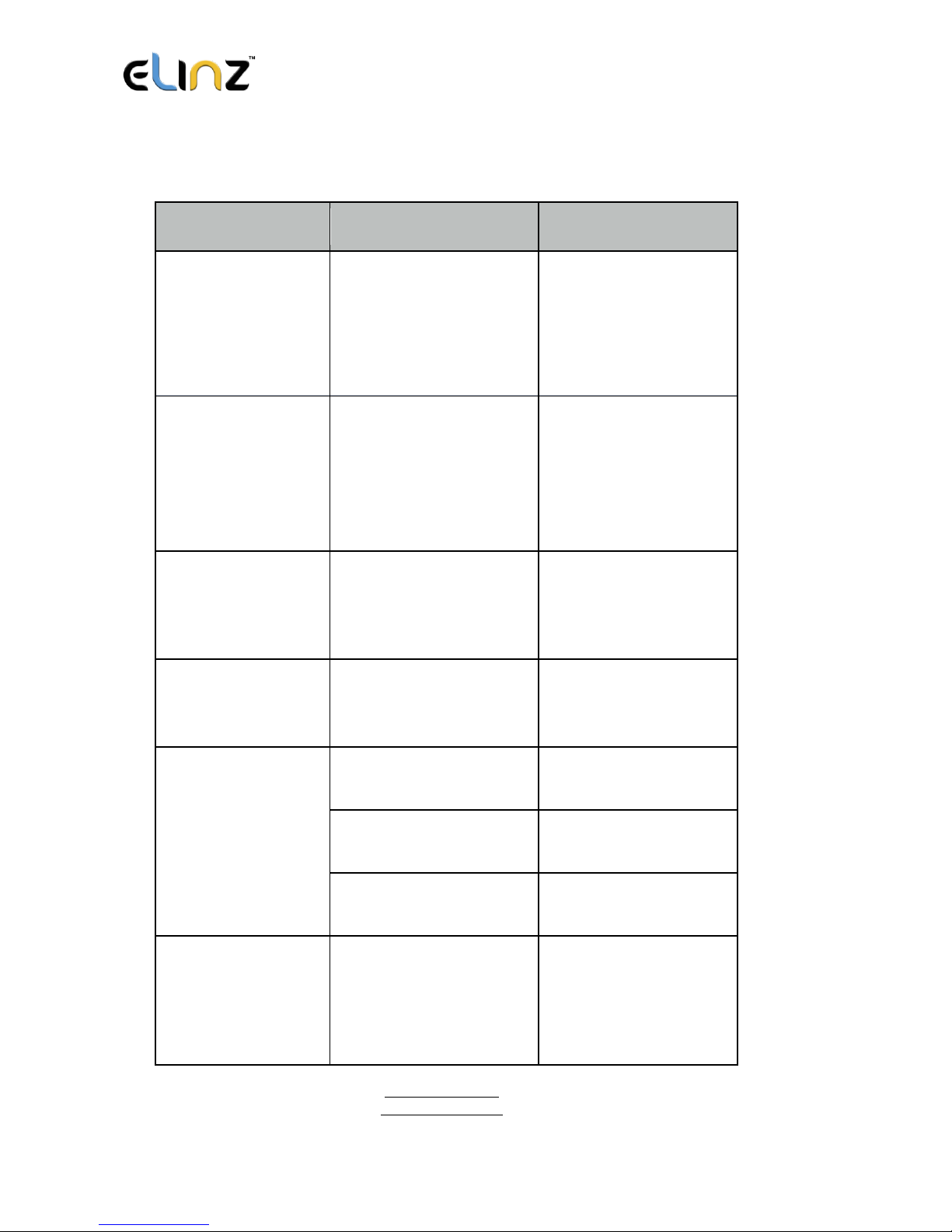
Command Setting List
Function
Command
Description
APN Settings
*apn*APN’s name
*username*password*
Enable device to access
internet.
Master Setting
*master*123456*country
code (plus) cellphone
number*
Register master number.
Password Changing
*password*654321*
Original password is
default as 123456.
654321 refers to new
password.
Vibration Sensitivity
*sensitive*1-5*
Set motion alert
sensitivity, 1 is the most
sensitive, 5 is the least
Motion Alert
*alertoff*
End motion alert
*smsalert*
Motion alert via SMS
*callalert*
Motion alert via Call
Period Motion Alert
*continuousalert*(2 digits
start time)*(2 digits end
time)
Set period motion alert.
The first 2 digitals refers
to start time and second
2 digits refers to end
time in hour.
Page 30
www.elinz.com.au
[email protected]
1300 881 773
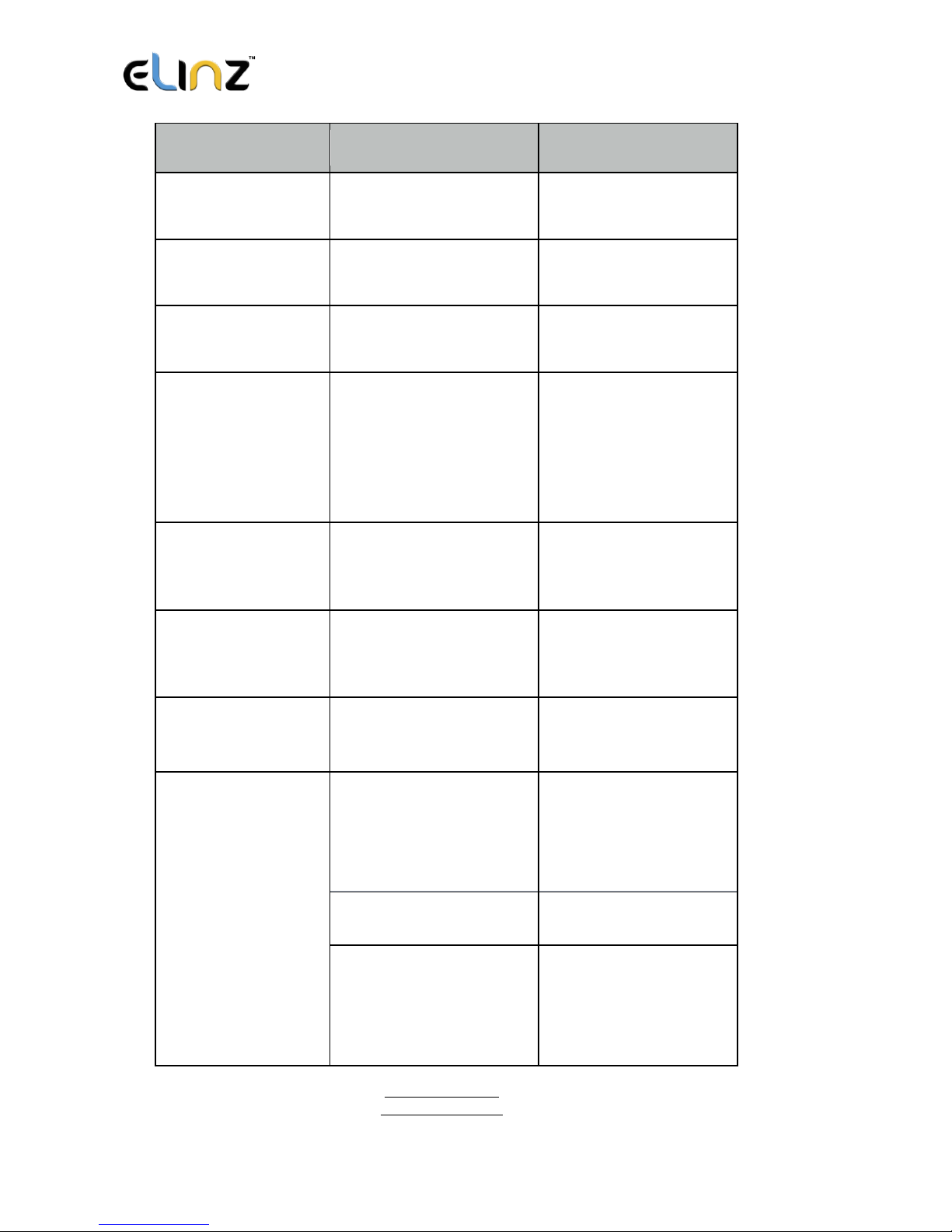
Function
Command
Description
*continuousalertoff*
End period motion alert
function.
Address Query
*locateaddress*
Address information of
current location.
Google Map Search
*locatemap*
Google Map link with
current location.
Real-time Tracking
*routetrack*1-99*
Device will upload 6
locations every
minute.1-98 represents
routetrack data upload
interval in hours. 99
represents always on.
Real-time Tracking
sampling interval
*rsampling*1-999*
1-999 represents
seconds of routetrack
sampling interval
Real-time Tracking
upload interval
*rupload*60-999*
60-999 represents
seconds of routetrack
upload interval
Real-time Tracking
Off
*routetrackoff*
End routetrack function.
Check Location
*checkm*5-9999*
5-9999 represents
minutes of check
function
data upload interval
*checkoff*
End check function
*checkgsm*5-1800*
5-1800 represents
minutes of check gsm
function
data upload interval
Page 31
www.elinz.com.au
[email protected]
1300 881 773
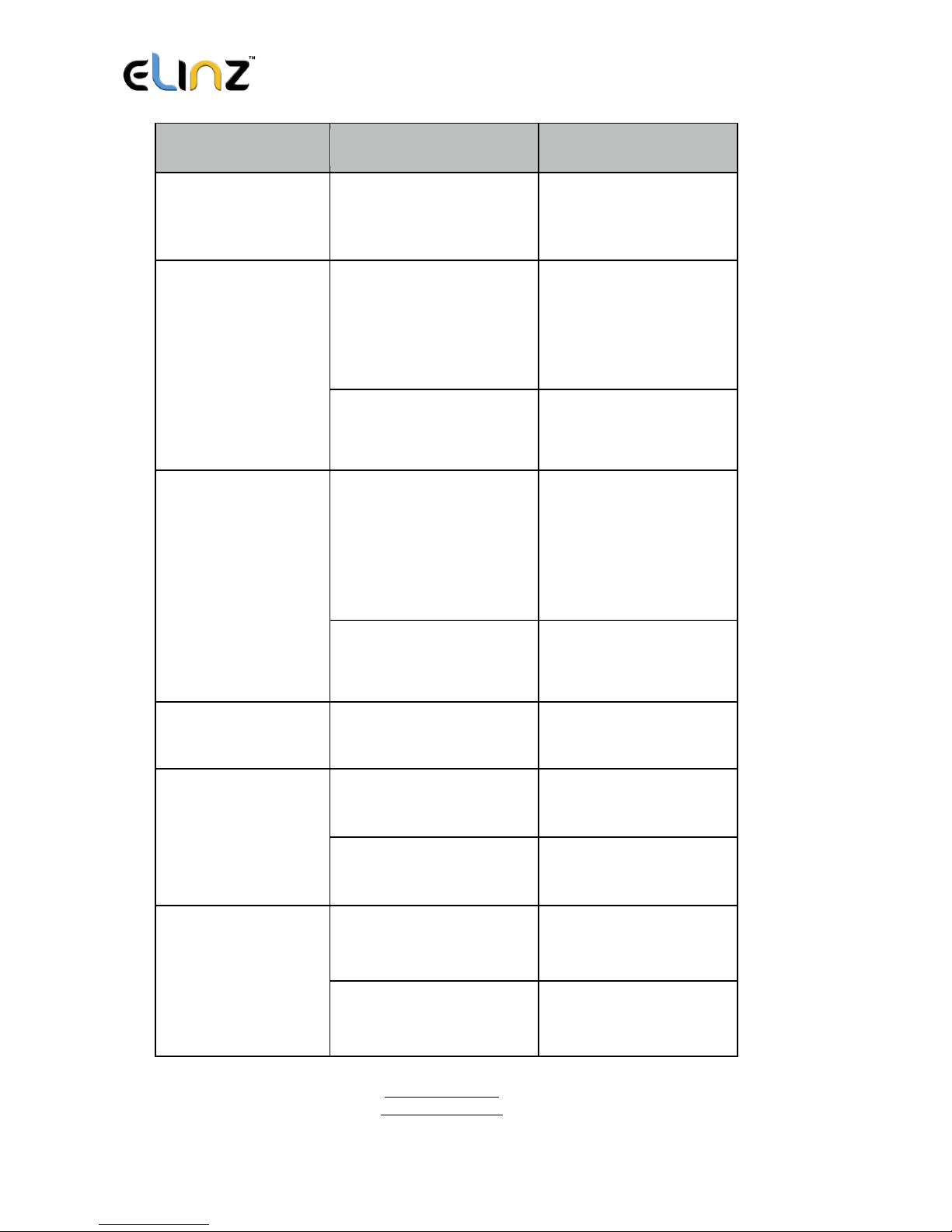
Function
Command
Description
Time Zone
*timezone*0-24*
0-24 represents the
timezone number for
each country.
Appointed Time
Tracking
*timinglocatemap*(appoi
nted locating time)*
Set appointed time
tracking. 4 digitals refers
to start time and end
time in hour. 0830 refers
to 08:30am
*timinglocateoff*
End appointed time
tracking function
Appointed Period
Tracking
*periodlocate*(8 digits
locating period)
Set appointed period
tracking. 8 digitals refers
to start time and end
time of the
period.08001100
represents 8am-11am
*periodlocateoff*
End period locate
function
Track Off
*trackoff*
End all the tracking
functions.
Upload Alert
*uploadalert*on*
Enable upload alert
function
*uploadalert*off*
End upload alert
function
Online Control
*onlineon*
Enable online control
function
*onlineoff*
End online control
function
Page 32
www.elinz.com.au
[email protected]
1300 881 773
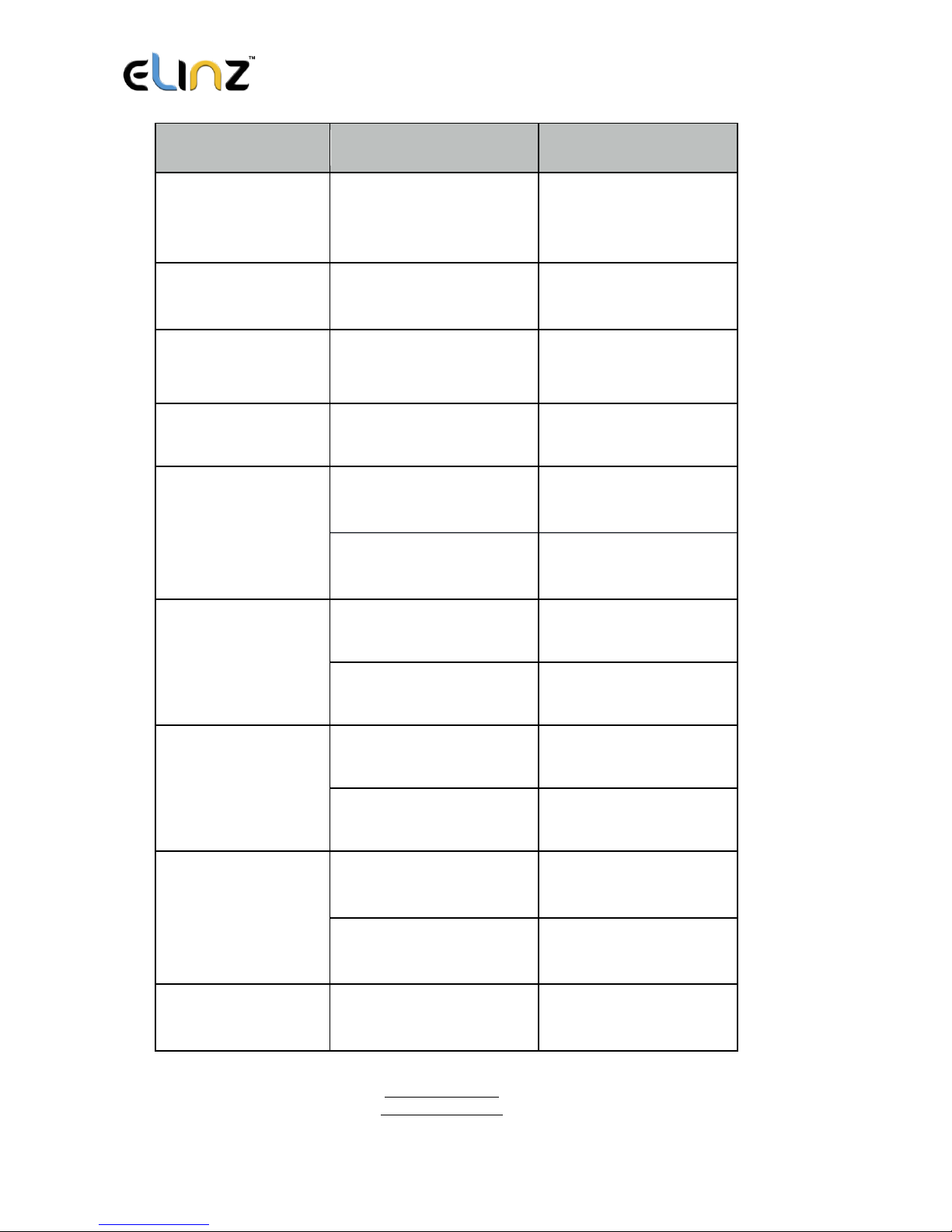
Function
Command
Description
Deep Sleep
* sleep*1-99*
1-99 represents device
wake up interval in
hours.
Motion Sleep
* sleepv*
Motion Sleep function
with motion alert.
Sleep Off
*sleepoff*
End Deep Sleep
function.
Status query
*status*
Check system status.
Multi Controller
*multiquery*
Enable multi controller
function.
*multiqueryoff*
End multi controller
function.
Set WiFi Fence
*wifilist*
Check nearby wifi list.
*wififence*#*
Set WiFi fence.
Check WiFi Fence
*wififencelist*
Check WiFi fence list.
*removefence*#*
Remove WiFi fence.
Offline Storge
*sdon*
Enable offline storage
function
*sdoff*
End offline storage
function.
Remote Listening
*callin*
Enable call-in listening
function for 30 minutes
Page 33
www.elinz.com.au
[email protected]
1300 881 773
Function
Command
Description
*callback*
Enable call back
listening function
SOS Alert
*soson*
Enable SOS alert
function.
*sosoff*
Disable SOS alert
function.
Device Information
*about*
Software edition
information and device’s
serial number.
Reboot
88888888
Reboot the system,
previous settings will
NOT be cleared.
Master Query
999999
Registered master
number information,
password and device’s
serial number.
Low Battery Alert
Number
*lowbat*country code
(plus) cellphone number*
To set low battery alert
number.
Factory Default
default
Default system, previous
settings will be cleared.
Power Off
*poweroff*
Power off the device.
Hardware Specifications:
Page 34
www.elinz.com.au
[email protected]
1300 881 773
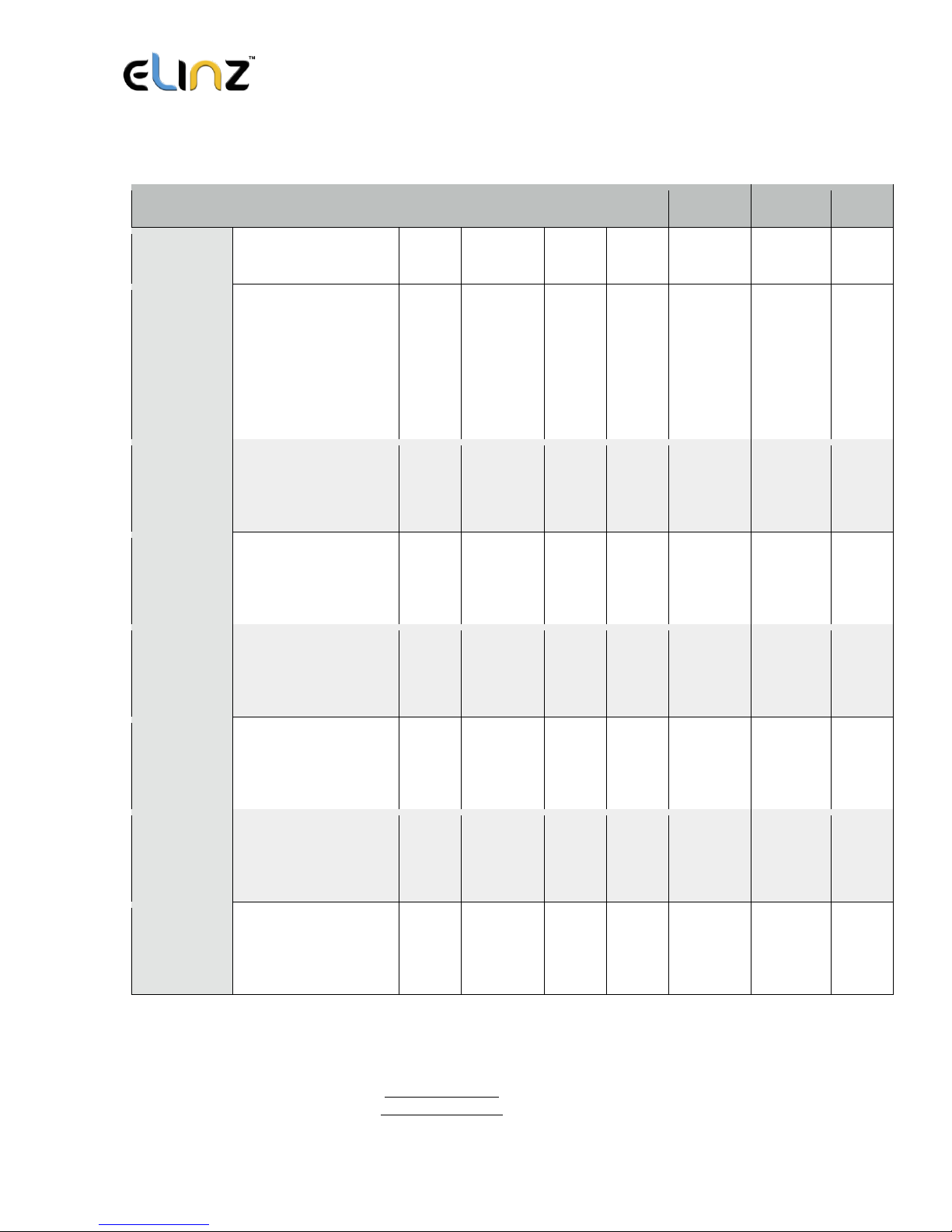
TK SERIES MODEL AND FUNCTION LIST
Model
Size
Weight
Battery
Capacity
SD
WiFi
Remote
Listening
Battery
removable
Solar
TK05GSE
117mm x59mm x
30mm
230g
5000mA
N N N N N
TK10GSE
153mm x59mm x 34mm
342g
10000mA
N N N N N
TK15GSE
153mm x59mm x 39mm
435g
15000mA
N N N N N
TK20GSE
153mm x59mm x45mm
528g
20000mA
N N N N N
TK05G
123mm x62mm x 31mm
274g
5000mA
Y Y Y Y N
TK10G
160mm x64mm x 35mm
386g
10000mA
Y Y Y Y N
TK15G
160mm x64mm x 41mm
478g
15000mA
Y Y Y Y N
Page 35
www.elinz.com.au
[email protected]
1300 881 773
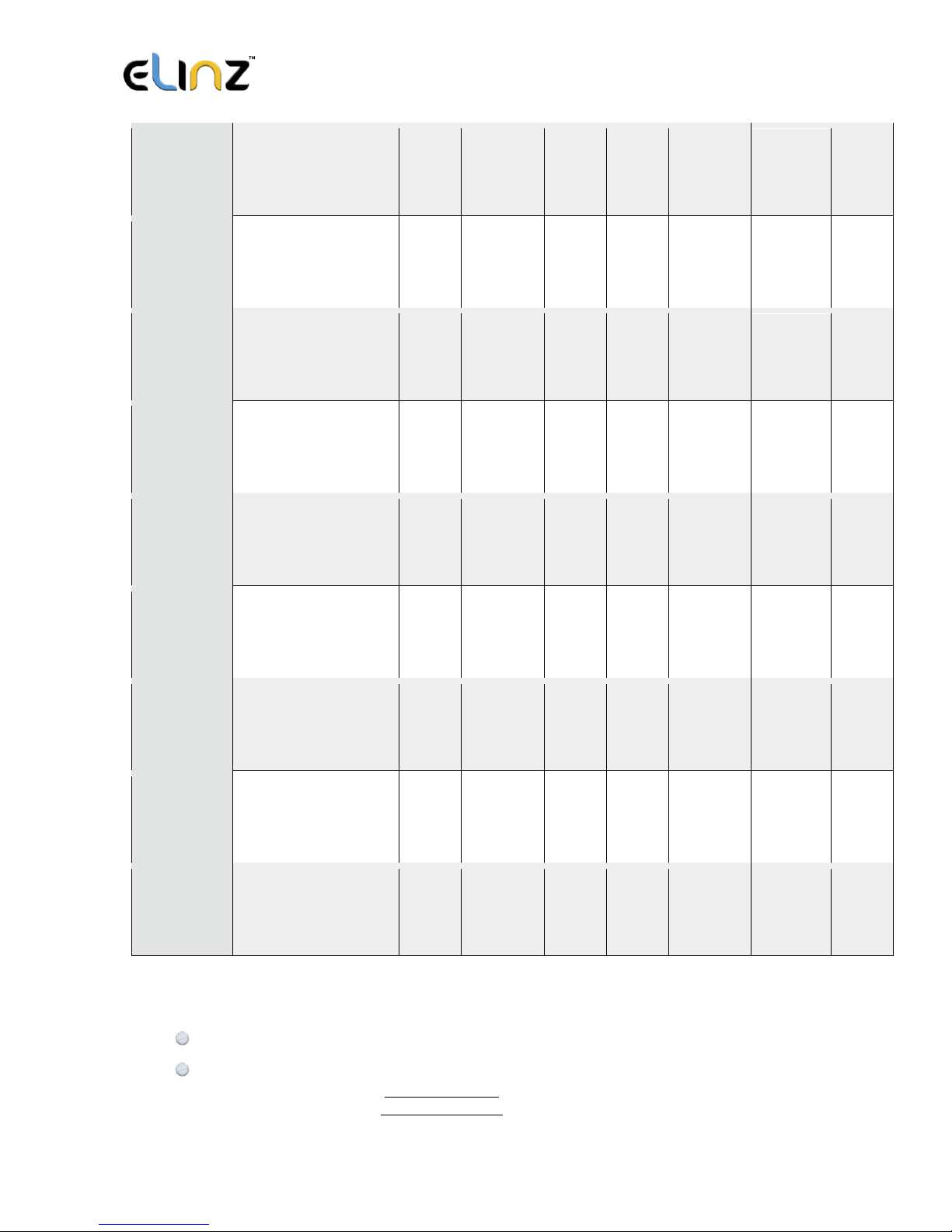
TK20G
160mm x64mm x 47mm
570g
20000mA
Y Y Y Y N
TK05SGSE
160mm x64mm x 37mm
323g
5000mA
N N N Y Y
TK10SGSE
160mm x64mm x 37mm
397g
10000mA
N N N Y Y
TK15SGSE
160mm x64mm x43mm
489g
15000mA
N N N Y Y
TK20SGSE
160mm x64mm x 49mm
581g
20000mA
N N N Y Y
TK05SG
160mm x64mm x 37mm
328g
5000mA
Y Y N Y Y
TK10SG
160mm x64mm x 37mm
402g
10000mA
Y Y N Y Y
TK15SG
160mm x64mm x43mm
494g
15000mA
Y Y N Y Y
TK20SG
160mm x64mm x 49mm
586g
20000mA
Y Y N Y Y
GPRS: MTK 6261
Quad band; WCDMA supports HSDPA/UMTS/EDGE/GPRS/GSM
Page 36

www.elinz.com.au
[email protected]
1300 881 773
UMTS1900/850/ 2100/900 MHz , GSM850/900/1800/1900 MHz
Power: Rechargeable, Lithium-Polymer Battery
Built-in Vibration/motion sensing
GPS: U-BLOX G7020-ST, 50 channel
Antennae: Internal
Position Accuracy: >=5m
Sensitivity: Tracking: (R)C161 dB, Cold starts: (R)C148 dB, Hot starts: (R)C156
dB
Cold start:<27s, Warm Start: <5s, Hot Start: 1s
A-GPS: AssistNow Online and AssistNow Offline services.
 Loading...