

Page 1
Page 2
2eHome EH101 Quick Install Guide
• A laptop computer with an available 32-bit Cardbus slot
• Windows® 2000 (Service Pack 4) or XP (Service Pack 2)
• 300MHz processor and at least 64MB of RAM
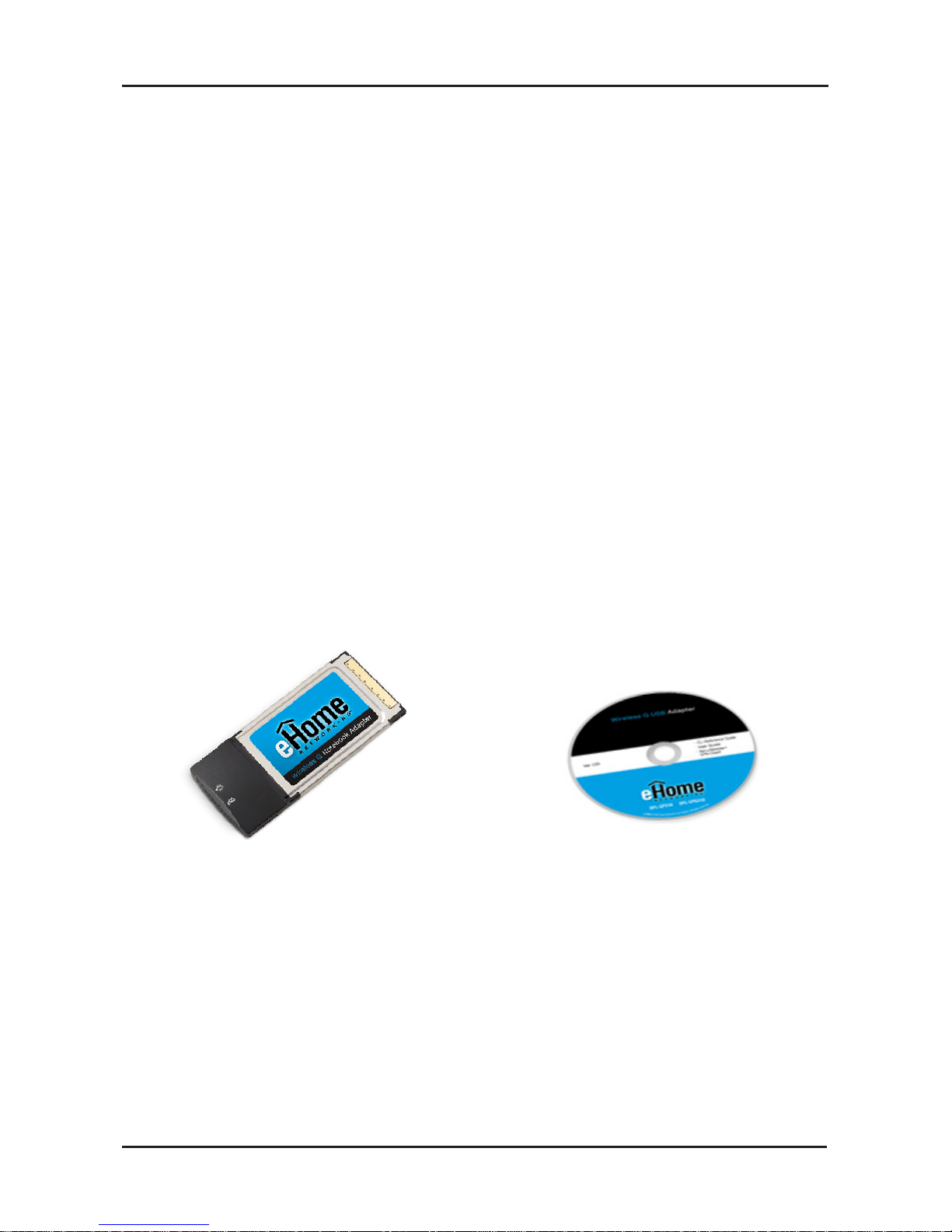
Package Contents
eHome EH101
Wireless G Notebook Adapter
• An 802.11g or 802.11b access point (for Infrastructure mode),
or another 802.11g or 802.11b wireless adapter (for Ad-Hoc
networking mode.)
System Requirements
If any of the above items are missing, please contact your reseller.
Manual, software, and
warranty on CD
Page 3
3 eHome EH101 Quick Install Guide
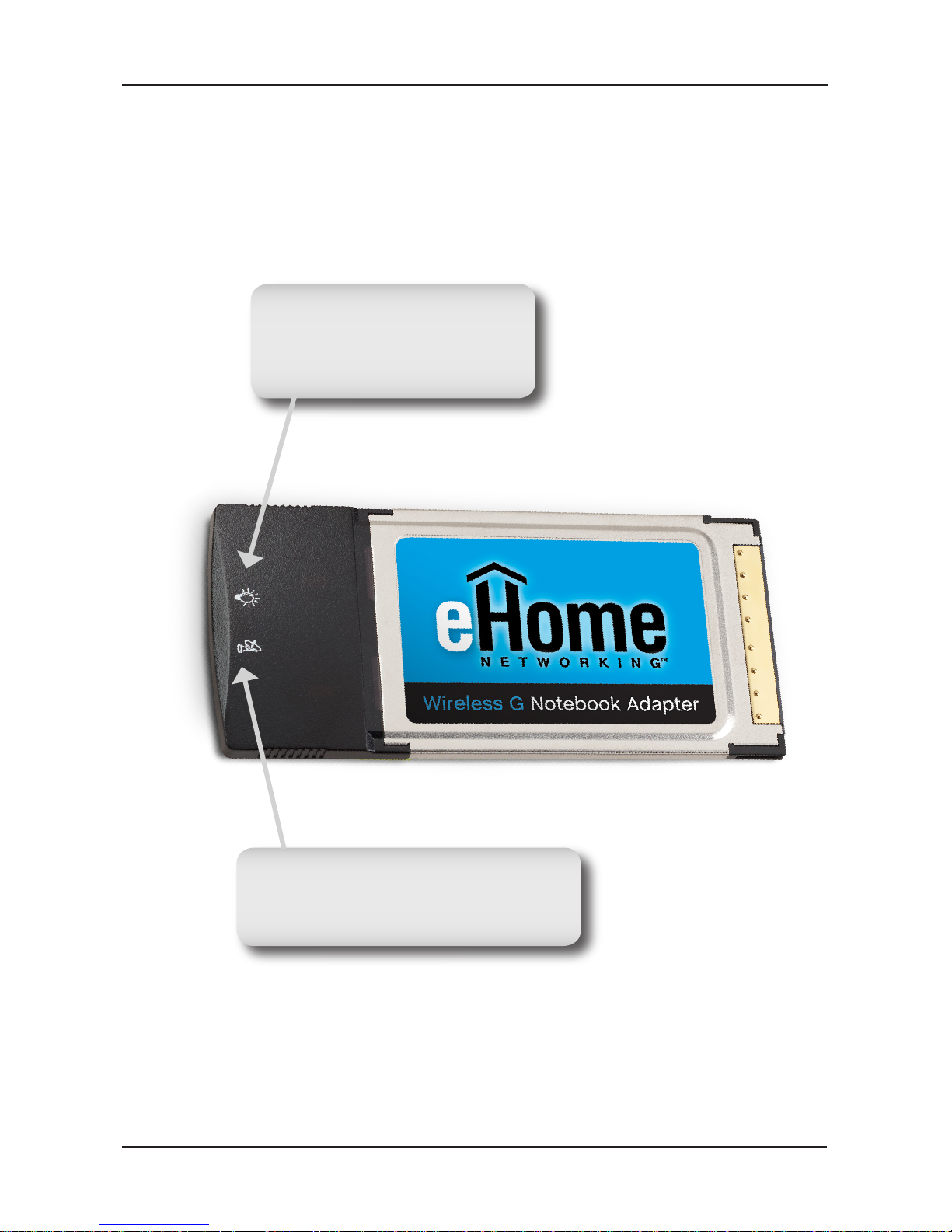
Hardware Overview
Link LED
A steady light indicates a connection to
a wireless network.
Activity LED
A blinking light indicates data is
being transmitted.
Page 4

4eHome EH101 Quick Install Guide
Wireless Installation
Considerations
The eHome wireless adapter lets you access your network using a wireless
connection from virtually anywhere within the operating range of your wireless
network. Keep in mind, however, that the number, thickness and location of
walls, ceilings, or other objects that the wireless signals must pass through,
may limit the range. Typical ranges vary depending on the types of materials
and background RF (radio frequency) noise in your home or business. The
key to maximizing wireless range is to follow these basic guidelines:
1. Keep the number of walls and ceilings between the eHome adapter
and other network devices to a minimum - each wall or ceiling can
reduce your adapter’s range from 3-90 feet (1-30 meters.) Position
your devices so that the number of walls or ceilings is minimized.
2. Be aware of the direct line between network devices. A wall that
is 1.5 feet thick (.5 meters), at a 45-degree angle appears to be
almost 3 feet (1 meter) thick. At a 2-degree angle it looks over 42
feet (14 meters) thick! Position devices so that the signal will travel
straight through a wall or ceiling (instead of at an angle) for better
reception.
3. Building Materials make a difference. A solid metal door or aluminum
studs may have a negative effect on range. Try to position access
points, wireless routers, and computers so that the signal passes
through drywall or open doorways. Materials and objects such as
glass, steel, metal, walls with insulation, water (fish tanks), mirrors, file
cabinets, brick, and concrete will degrade your wireless signal.
4. Keep your product away (at least 3-6 feet or 1-2 meters) from
electrical devices or appliances that generate RF noise.
5. If you are using 2.4GHz cordless phones or X-10 (wireless products
such as ceiling fans, lights, and home security systems), your
wireless connection may degrade dramatically or drop completely.
Make sure your 2.4GHz phone base is as far away from your wireless
devices as possible. The base transmits a signal even if the phone
in not in use.
Page 5
5 eHome EH101 Quick Install Guide
Adapter Installation
Warning: Do NOT install the EH101Wireless G Notebook Adapter
into your computer before installing the driver software from the
eHome CD.
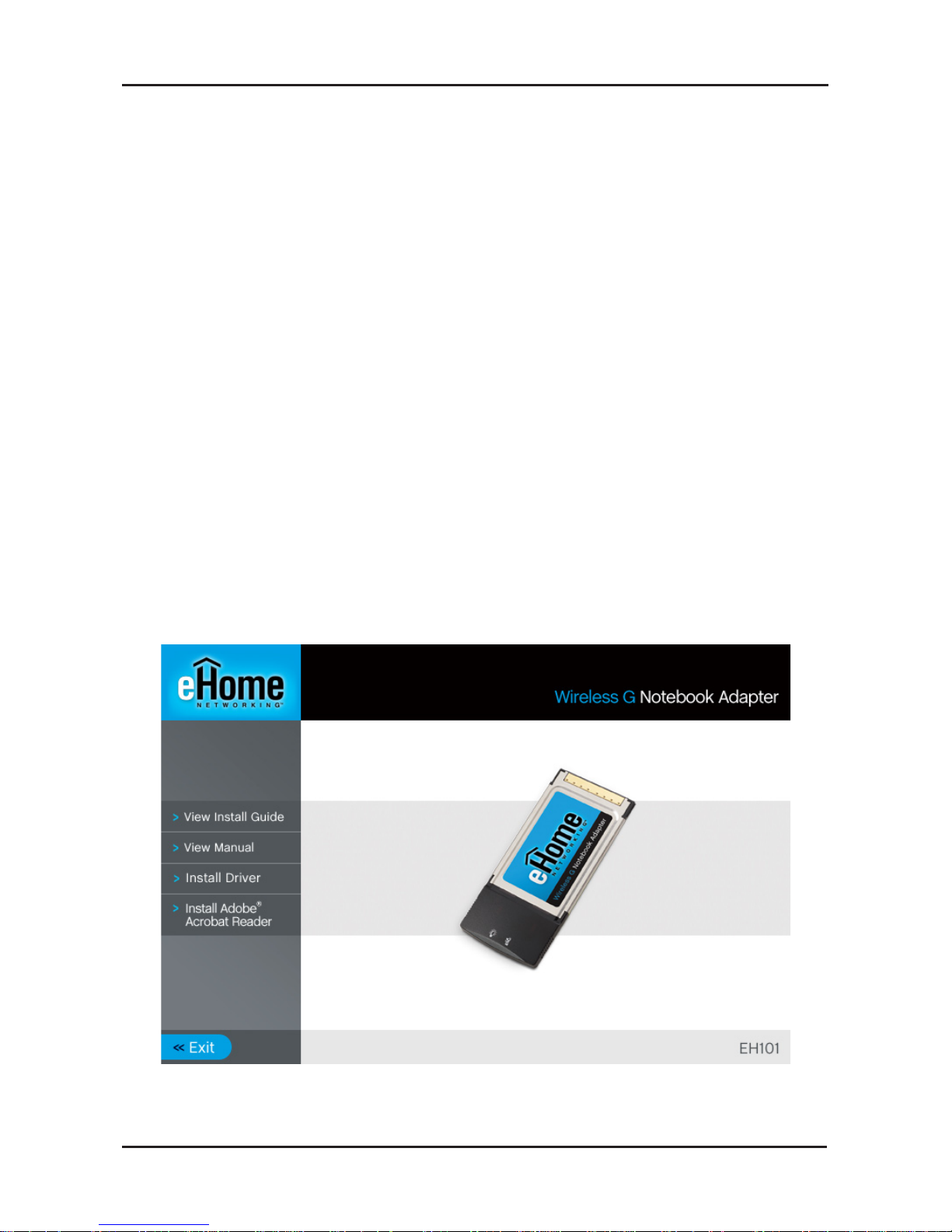
Turn on the computer and Insert the eHome EH101 Driver CD in the
CD-ROM drive. The step-by-step instructions that follow are shown in
Windows XP. The steps and screens are similar for the other Windows
operating systems.
If the CD Autorun function does not automatically start on your
computer, go to Start > Run. In the run box type “D:\Drivers\setup.
exe” (where D: represents the drive letter of your CD-ROM drive).
When the autorun screen appears, click Install Drivers.
Page 6
6eHome EH101 Quick Install Guide
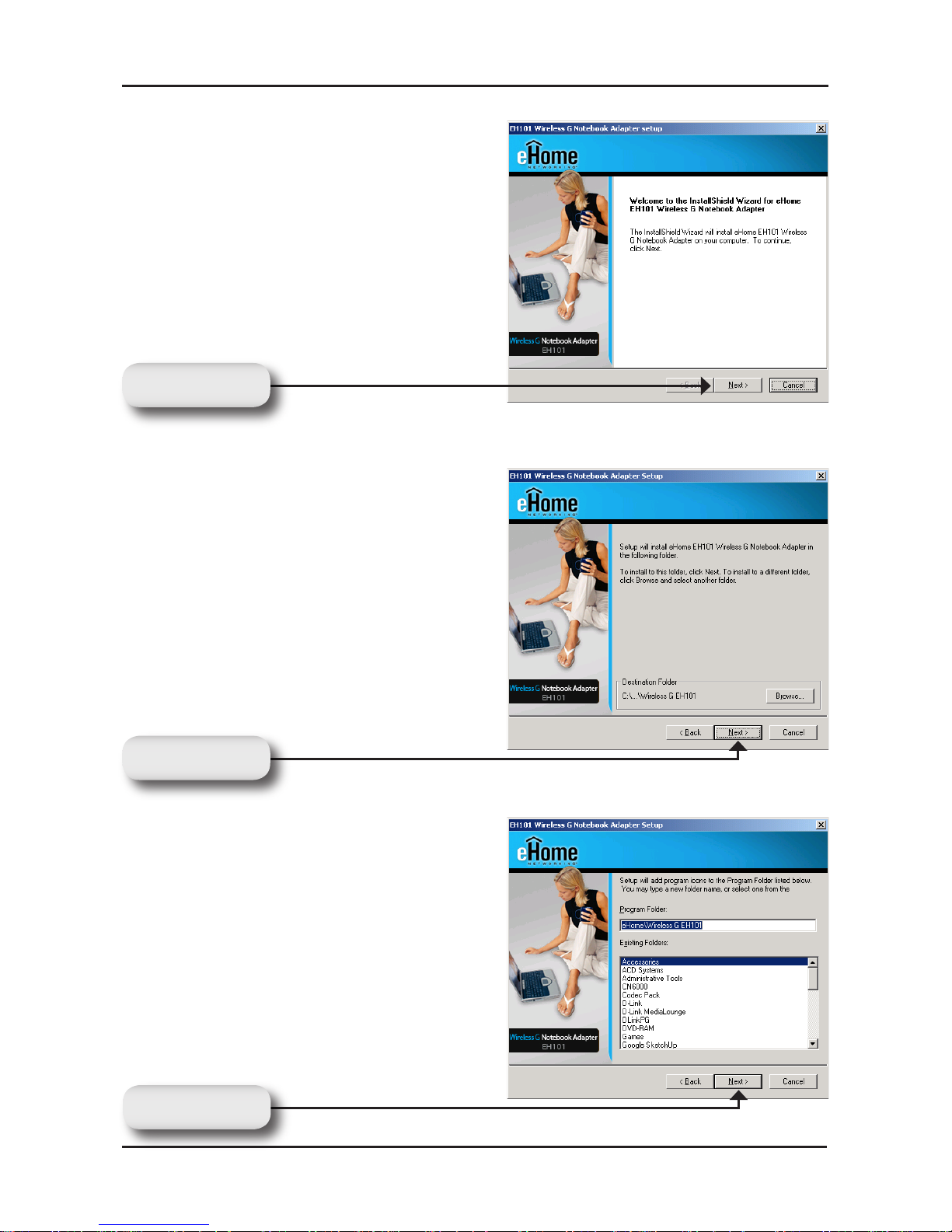
The InstallShield Wizard window
will appear.
By default setup will install to
the default location: C:\Program
Files\Wireless G EH101, where
C: represents the drive letter of
your hard drive. To install to a
different location click Browse
and specify the location.
Select the Program Files folder
location.
Click Next
Click Next
Click Next
Page 7
7 eHome EH101 Quick Install Guide
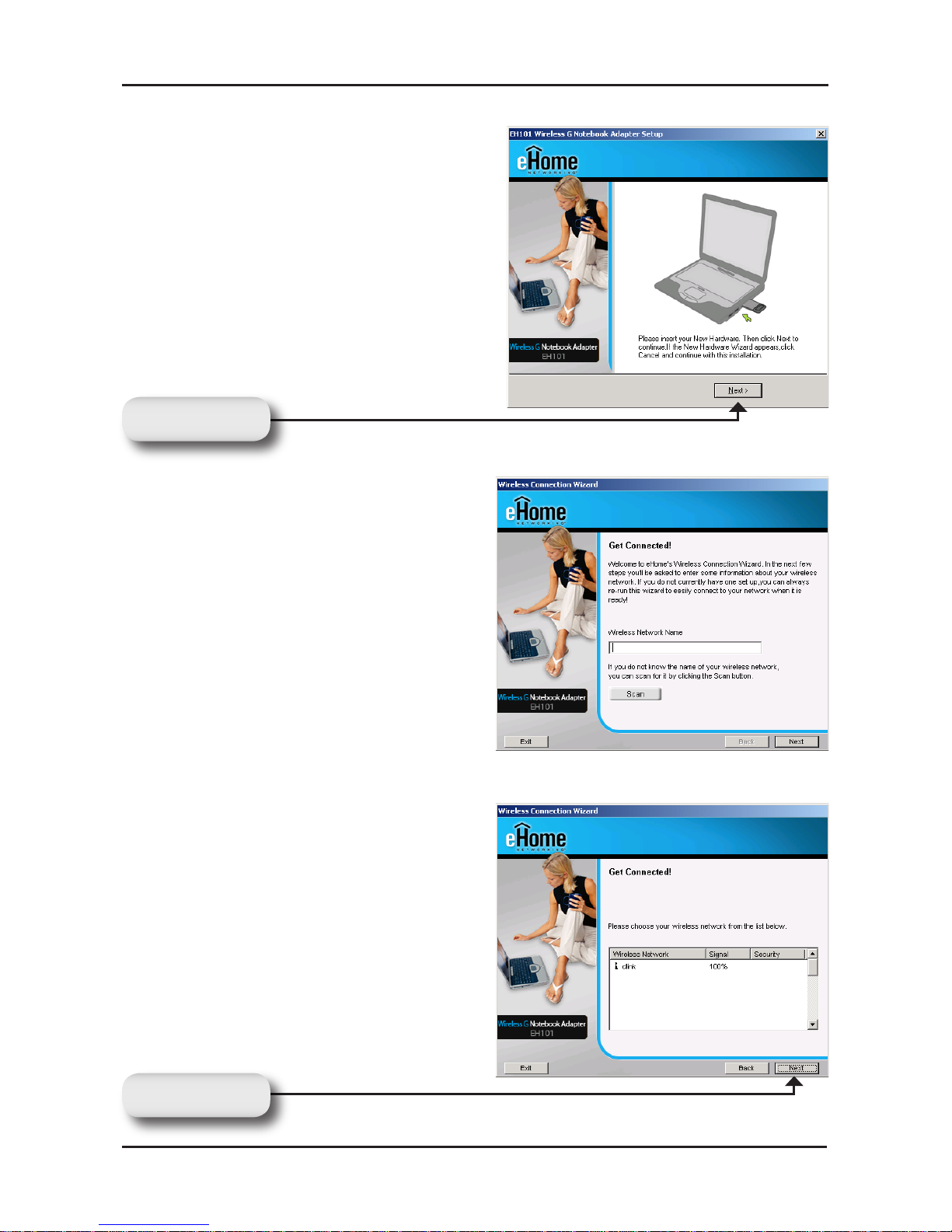
Insert the adapter into an available
cardbus slot on your computer.
If the Found New Hardware Wizard
appears, click Cancel.
Enter the network name (SSID)
manually. If you enter the SSID
incorrectly, you will automatically
be brought to the site survey
page.
Click Next to continue or click
Scan to display the site survey
page.
Click the Scan button to display
a list of wireless networks (site
survey). Click on the network
name (SSID) and click Next.
Click Next
Click Next
Page 8
8eHome EH101 Quick Install Guide
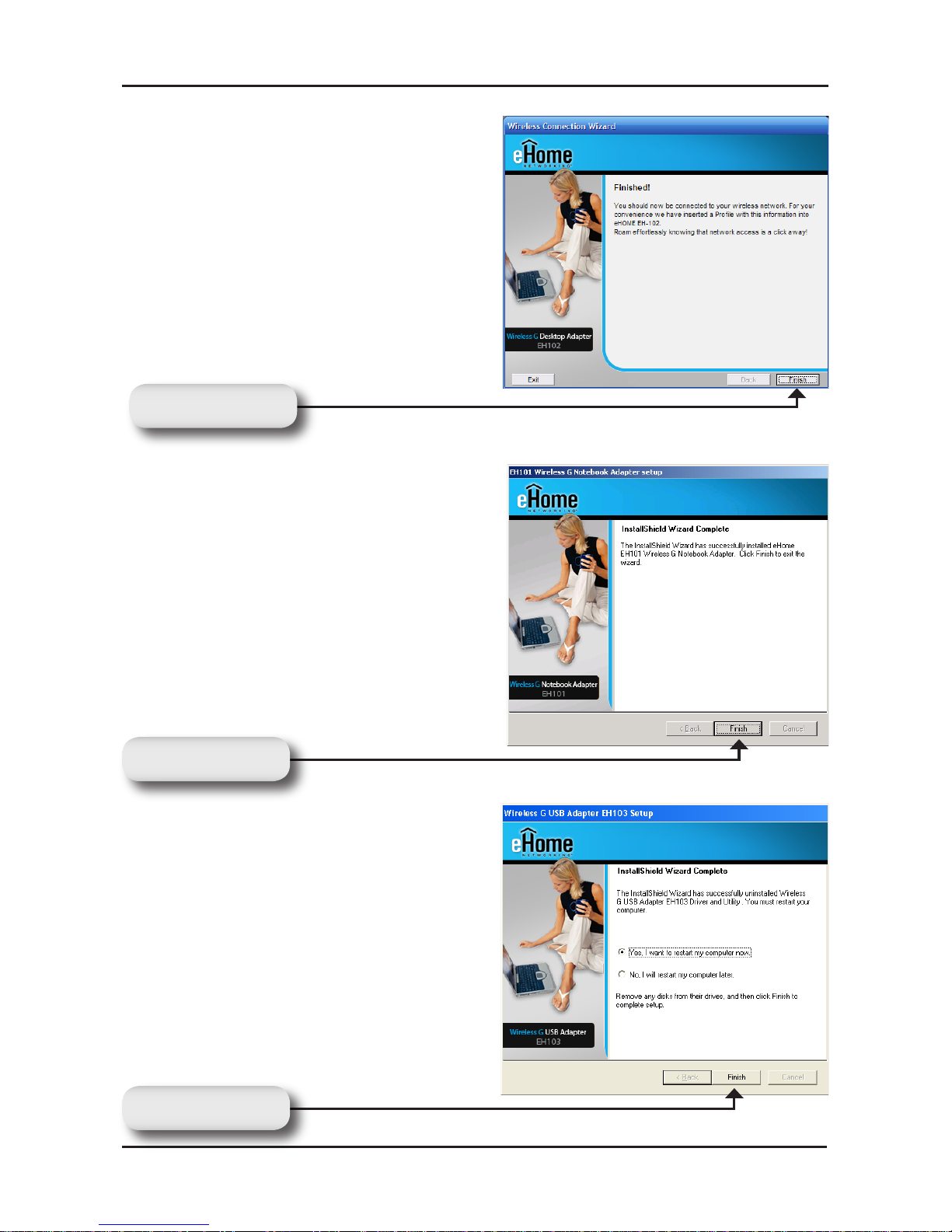
Click Finish to continue. If you are
prompted to reboot your computer,
select Yes, I want to restart my
computer now.
Click Finish
Click Finish
Click Finish
Page 9
9 eHome EH101 Quick Install Guide
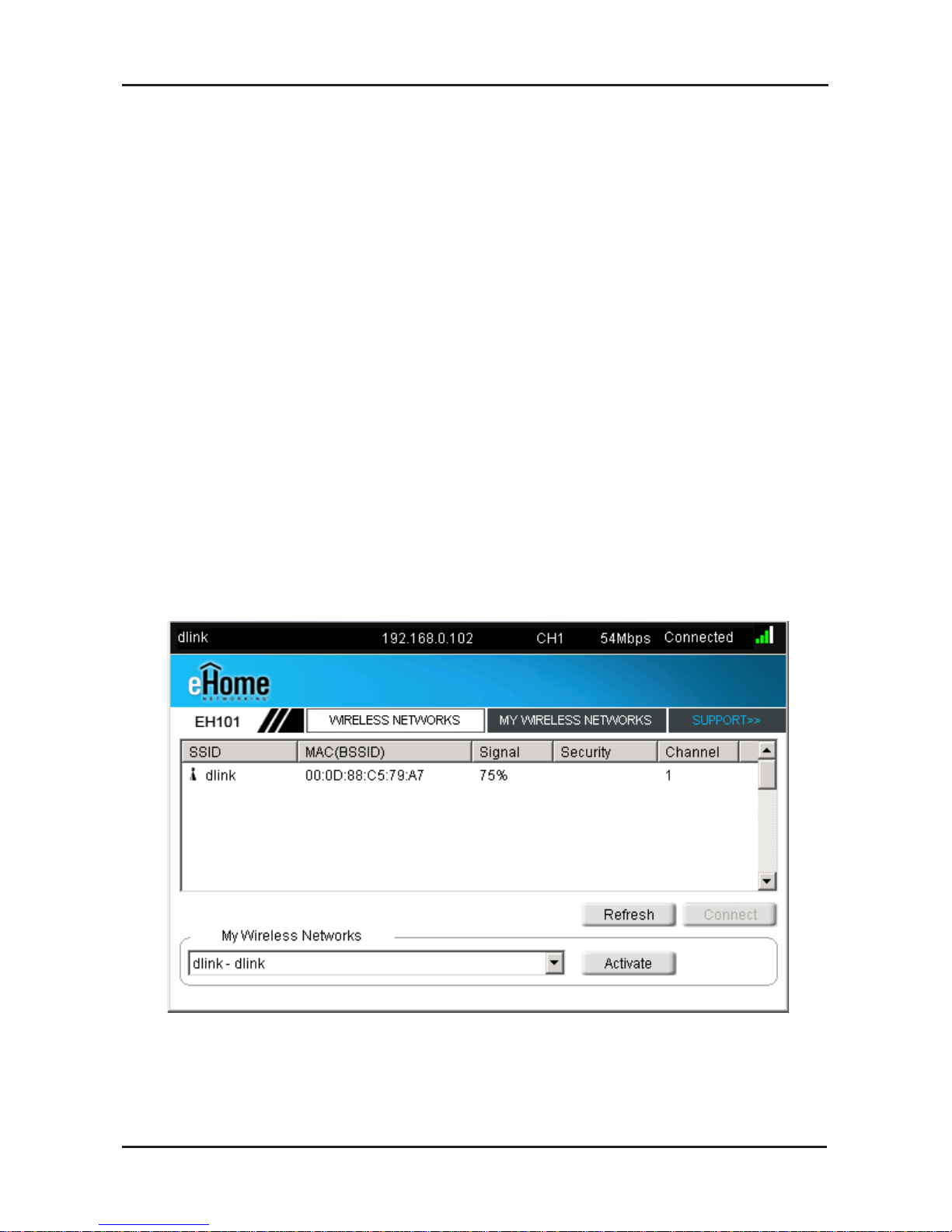
Connect to a Wireless Network
The eHome EH101 uses the Configuration Utility as the management
software. The utility provides the user an easy interface to change
any settings related to the wireless adapter. After you have completed
the installation of the EH101 and whenever you start the computer,
the Configuration Utility starts automatically and the system tray
icon is loaded in the toolbar. Clicking on the utility icon will start the
Configuration Utility.
This window will allow you to see available wireless networks in your
area. Simply click the network (SSID) you want to connect to and
click the Connect button.
Page 10
10eHome EH101 Quick Install Guide
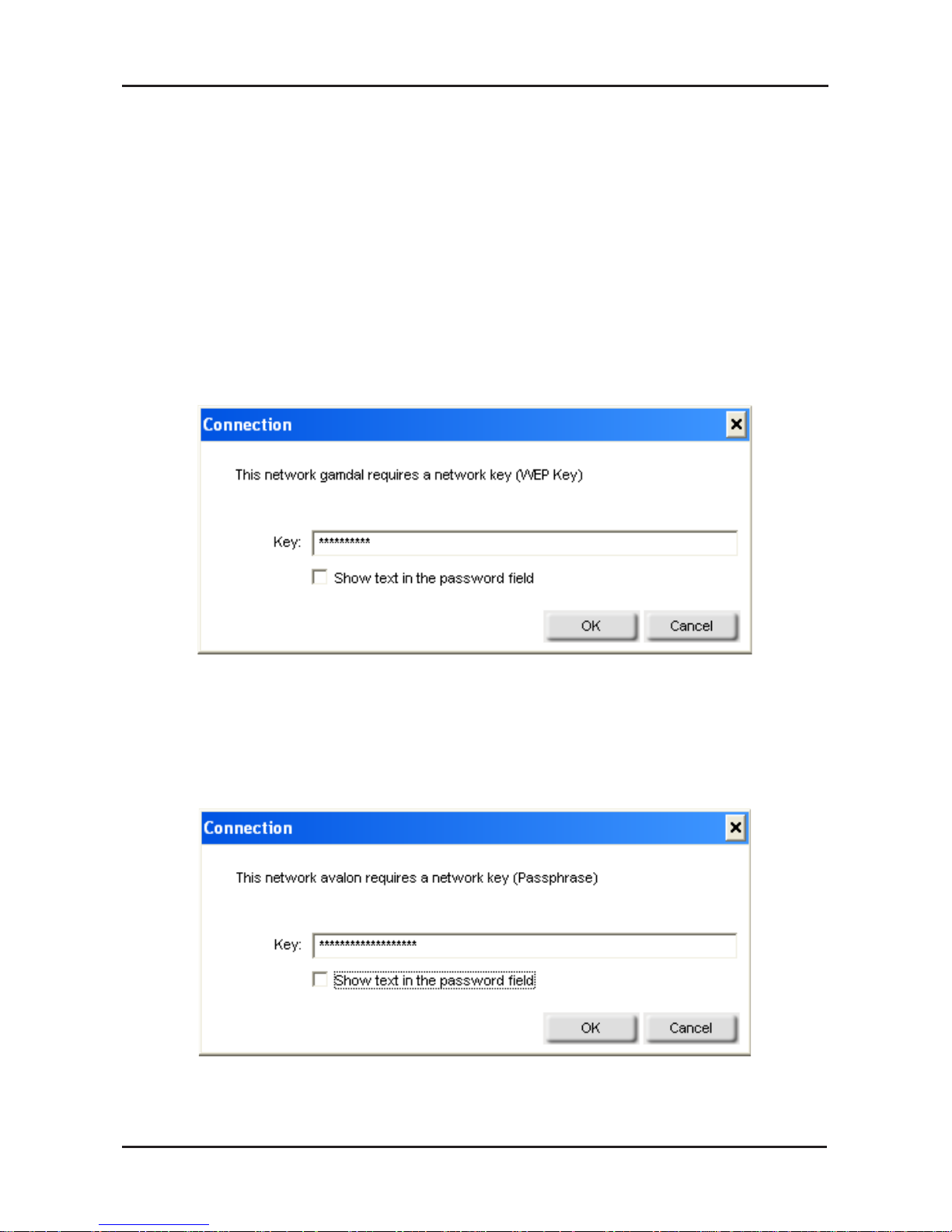
If you are attempting to connect to a secure network, You must supply
the encryption key that is on the router or access point you are trying
to connect to.
Please refer to the manual on the CD for more information on Wireless
Security.
If the network you are connecting to is using WEP, enter the WEP
key for the network and click OK.
If the network you are connecting to is using WPA-PSK, enter the
passphrase for the network and click OK.
Page 11

11 eHome EH101 Quick Install Guide
Notes
Page 12

12eHome EH101 Quick Install Guide
Technical Support
eHome provides free technical support for customers
within the United States and within Canada for the duration
of the warranty period on this product.
U.S. and Canadian customers can contact eHome
technical support at http://www.ehomeproducts.net.
Version 1.0
August 7, 2006
Copyright ©2006 D-Link Corporation/D-Link Systems, Inc. All rights reserved. eHome Networking and the eHome Networking
logo are registered trademarks of D-Link Corporation or its subsidiaries in the United States and other countries. Other trademarks
are the property of their respective owners. Maximum wireless signal rate based on IEEE Standard 802.11g specifications. Actual
data throughput will vary. Network conditions and environmental factors, including volume of network traffic, building materials
and construction, and network overhead lower actual data throughput rate. Product specifications, size and shape are subject to
change without notice, and actual product appearance may differ from that depicted on the packaging.
2907EH101A16000
 Loading...