

Page 1

Fiery X3e
CONFIGURATION GUIDE
Page 2

About the
Documentation
This manual is part of a set of Fiery X3e™ documentation that includes the following
manuals for users and system administrators:
• The
Quick Start Guide
printing. It also describes how to access the online documentation.
• The
User Software Installation Guide
User Software CD to enable users to print to the Fiery X3e, and also describes
setting up printing connections to the Fiery X3e.
• The
Configuration Guide
Fiery X3e for the supported platforms and network environments. It also includes
guidelines for setting up UNIX, Windows NT 4.0/2000, and Novell NetWare
servers to provide printing services to users.
• The
Printing Guide
send jobs from their computers.
• The
Color Guide
Fiery X3e. It explains how to calibrate your Fiery X3e and take advantage of the
ColorWise® color management system, as well as features in ColorWise Pro Tools™.
• The
Fiery Color Reference
color output of the Fiery X3e and outlines key workflow scenarios. In addition, it
offers information on printing color documents from popular Microsoft Windows
and Apple Mac OS applications.
summarizes the steps for configuring the Fiery X3e and
describes how to install software from the
explains basic configuration and administration of the
describes the printing features of the Fiery X3e for users who
provides information on managing the color output of the
addresses concepts and issues associated with managing
• The
Job Management Guide
including Command WorkStation™ and DocBuilder Pro™, and how you can use
them to monitor and control jobs on the Fiery X3e. This manual is intended for an
operator or administrator, or a user with the necessary access privileges, who
monitors and manages job flow, performs color calibration, and troubleshoots
problems that may arise.
•
Release Notes
the problems you may encounter.
provide last-minute product information and workarounds for some of
explains the functions of the job management utilities,
Page 3

Copyright © 2002 Electronics For Imaging, Inc. All rights reserved.
This publication is protected by copyright, and all rights are reserved. No part of it may be reproduced or transmitted in any form or by any means for any purpose
without express prior written consent from Electronics For Imaging, Inc., except as expressly permitted herein. Information in this document is subject to change
without notice and does not represent a commitment on the part of Electronics For Imaging, Inc.
The software described in this publication is furnished under license and may only be used or copied in accordance with the terms of such license.
This product may be covered by one of more of the following U.S. Patents: 4,500,919, 4,837,722, 5,212,546, 5,343,311, 5,424,754, 5,467,446, 5,506,946,
5,517,334, 5,537,516, 5,543,940, 5,553,200, 5,615,314, 5,619,624, 5,625,712, 5,666,436, 5,760,913, 5,818,645, 5,835,788, 5,867,179, 5,959,867,
5,970,174, 5,982,937, 5,995,724, 6,002,795, 6,025,922, 6,041,200, 6,065,041, 6,112,665, 6,122,407, 6,134,018, 6,141,120, 6,166,821, 6,185,335,
6,201,614, 6,215,562, 6,219,659, 6,222,641, 6,224,048, 6,225,974, 6,226,419, 6,238,105, 6,239,895, 6,256,108, 6,269,190, 6,289,122, 6,292,270,
6,310,697, 6,327,047, 6,327,050, 6,327,052, RE36,947, D406,117, D416,550, D417,864, D419,185, D426,206, D439,851, D444,793
Trademarks
ColorWise, EDOX, EFI, Fiery, the Fiery logo, Fiery Driven and RIP-While-Print are registered trademarks of Electronics For Imaging, Inc. in the U.S. Patent
and Trademark Office and/or certain other foreign jurisdictions.
The eBeam logo, the Electronics For Imaging logo, the Fiery Driven logo, the PrintMe logo, the Splash logo, AutoCal, ColorCal, Command WorkStation,
DocBuilder, DocBuilder Pro, DocStream, eBeam, EFI Color Profiler, EFI Production System, EFI ScanBuilder, Fiery X2, Fiery X2e, Fiery X2-W, Fiery X3e, Fiery
X4, Fiery ZX, Fiery Z4, Fiery Z5, Fiery Z9, Fiery Z16, Fiery Z18, Fiery Document WorkStation, Fiery Downloader, Fiery Driver, Fiery FreeForm, Fiery Link,
Fiery Prints, Fiery Print Calibrator, Fiery Production System, Fiery Scan, Fiery ScanBuilder, Fiery Spark, Fiery Spooler, Fiery WebInstaller, Fiery WebScan, Fiery
WebSpooler, Fiery WebStatus, Fiery WebTools, NetWise, PrintMe, PrintMe Networks, Print Me. Everywhere You Go, RIPChips, Splash, Velocity, Velocity
Balance, Velocity Build, Velocity Design, Velocity Estimate, Velocity Scan, and VisualCal are trademarks of Electronics For Imaging, Inc.
All other terms and product names may be trademarks or registered trademarks of their respective owners, and are hereby acknowledged.
Legal Notices
APPLE COMPUTER, INC. (“APPLE”) MAKES NO WARRANTIES, EXPRESS OR IMPLIED, INCLUDING WITHOUT LIMITATION THE
IMPLIED WARRANTIES OF MERCHANTABILITY AND FITNESS FOR A PARTICULAR PURPOSE, REGARDING THE APPLE SOFTWARE.
APPLE DOES NOT WARRANT, GUARANTEE, OR MAKE ANY REPRESENTATIONS REGARDING THE USE OR THE RESULTS OF THE USE
OF THE APPLE SOFTWARE IN TERMS OF ITS CORRECTNESS, ACCURACY, RELIABILITY, CURRENTNESS, OR OTHERWISE. THE ENTIRE
RISK AS TO THE RESULTS AND PERFORMANCE OF THE APPLE SOFTWARE IS ASSUMED BY YOU. THE EXCLUSION OF IMPLIED
WARRANTIES IS NOT PERMITTED BY SOME STATES. THE ABOVE EXCLUSION MAY NOT APPLY TO YOU.
IN NO EVENT WILL APPLE, ITS DIRECTORS, OFFICERS, EMPLOYEES OR AGENTS BE LIABLE TO YOU FOR ANY CONSEQUENTIAL,
INCIDENTAL OR INDIRECT DAMAGES (INCLUDING DAMAGES FOR LOSS OF BUSINESS PROFITS, BUSINESS INTERRUPTION, LOSS OF
BUSINESS INFORMATION, AND THE LIKE) ARISING OUT OF THE USE OR INABILITY TO USE THE APPLE SOFTWARE EVEN IF APPLE
HAS BEEN ADVISED OF THE POSSIBILITY OF SUCH DAMAGES. BECAUSE SOME STATES DO NOT ALLOW THE EXCLUSION OR
LIMITATION OF LIABILITY FOR CONSEQUENTIAL OR INCIDENTAL DAMAGES, THE ABOVE LIMITATIONS MAY NOT APPLY TO YOU.
Apple’s liability to you for actual damages from any cause whatsoever, and regardless of the form of the action (whether in contract, tort [including negligence],
product liability or otherwise), will be limited to $50.
Restricted Rights Legends
For defense agencies: Restricted Rights Legend. Use, reproduction, or disclosure is subject to restrictions set forth in subparagraph (c)(1)(ii) of the Rights in
Technical Data and Computer Software clause at 252.227.7013.
For civilian agencies: Restricted Rights Legend. Use, reproduction, or disclosure is subject to restrictions set forth in subparagraph (a) through (d) of the
commercial Computer Software Restricted Rights clause at 52.227-19 and the limitations set forth in Electronics For Imaging’s standard commercial agreement
for this software. Unpublished rights reserved under the copyright laws of the United States.
Part Number:
45029764
Page 4

FCC Information
WARNING: FCC Regulations state that any unauthorized changes or modifications to this equipment not expressly approved by the manufacturer could void
the user’s authority to operate this equipment.
Class A Compliance
This equipment has been tested and found to comply with the limits for a Class A digital device, pursuant to Part 15 of the FCC Rules. These limits are designed
to provide reasonable protection against harmful interference when the equipment is operated in a commercial environment. This equipment generates, and uses,
and can radiate radio frequency energy and, if not installed and used in accordance with the instruction manual, may cause harmful interference to radio
communications. Operation of this equipment in a residential area is likely to cause interference in which case the user will be required to correct the interference
at his own expense.
Industry Canada Class A Notice
This Class A digital apparatus complies with Canadian ICES-003.
Avis de Conformation Classe A de l’Industrie Canada
Cet appareil numérique de la Classe A est conforme à la norme NMB-003 du Canada.
CE Marking (Declaration of Conformity)
This product complies with the following EU directives: 89/336/EEC, 73/23/EEC, and 93/68/EEC directives. This declaration is valid for the area of the
European Union.
RFI Compliance Notice
This equipment has been tested concerning compliance with the relevant RFI protection requirements both individually and on system level (to simulate normal
operation conditions). However, it is possible that these RFI Requirements are not met under certain unfavorable conditions in other installations. It is the user
who is responsible for compliance of his particular installation.
Dieses Gerät wurde sowohl einzeln als auch in einer Anlage, die einen normalen Anwendungsfall nachbildet, auf die Einhaltung der Funkentstörbestimmungen
geprüft. Es ist jedoch möglich, dass die Funkentstörbestimmungen unter ungünstigen Umständen bei anderen Gerätekombinationen nicht eingehalten werden.
Für die Einhaltung der Funkentstörbestimmungen einer gesamten Anlage, in der dieses Gerät betrieben wird, ist der Betreiber verantwortlich.
Compliance with applicable regulations depends on the use of shielded cables. It is the user who is responsible for procuring the appropriate cables.
Die Einhaltung zutreffender Bestimmungen hängt davon ab, dass geschirmte Ausführungen benützt werden. Für die Beschaffung richtiger Ausführungen ist der
Betreiber verantwortlich.
Software License Agreement
YOU SHOULD CAREFULLY READ THE FOLLOWING TERMS AND CONDITIONS BEFORE USING THIS SOFTWARE. IF YOU DO NOT
AGREE TO THE TERMS AND CONDITIONS OF THIS AGREEMENT, DO NOT USE THE SOFTWARE. INSTALLING OR USING THE
SOFTWARE INDICATES THAT YOU AGREE TO AND ACCEPT THE TERMS OF THIS AGREEMENT. IF YOU DO NOT AGREE TO ACCEPT
THE TERMS OF THIS AGREEMENT YOU MAY RETURN THE UNUSED SOFTWARE FOR A FULL REFUND TO THE PLACE OF PURCHASE.
License
EFI grants you a non-exclusive license to use the software (“Software”) and accompanying documentation (“Documentation”) included with the Product. The
Software is licensed, not sold. You may use the Software solely for your own customary business or personal purposes. You may not rent, lease, sublicense or lend
the Software. You may, however, permanently transfer all of your rights under this Agreement to another person or legal entity provided that: (1) you transfer to
the person or entity all of the Software and Documentation (including all copies, updates, upgrades, prior versions, component parts, the media and printed
materials, and this Agreement); (2) you retain no copies of the Software and Documentation, including copies stored on a computer; and (3) the recipient agrees
to the terms and conditions of this Agreement.
You may not make or have made, or permit to be made, any copies of the Software or portions thereof, except as necessary for backup or archive purposes in
support of your use of the Software as permitted hereunder. You may not copy the Documentation. You may not attempt to alter, disassemble, decompiler, decrypt
or reverse engineer the Software.
Proprietary Rights
You acknowledge that the Software is proprietary to EFI and its suppliers and that title and other intellectual property rights therein remain with EFI and its
suppliers. Except as stated above, this Agreement does not grant you any right to patents, copyrights, trade secrets, trademarks (whether registered or unregistered),
or any other rights, franchises or licenses in respect of the Software. You may not adopt or use any trademark or trade name which is likely to be similar to or
confusing with that of EFI or any of its suppliers or take any other action which impairs or reduces the trademark rights of EFI or its suppliers.
Page 5

Confidentiality
You agree to hold the Software in confidence, disclosing the Software only to authorized users having a need to use the Software as permitted by this Agreement
and to take all reasonable precautions to prevent disclosure to other parties.
Remedies and Termination
Unauthorized use, copying or disclosure of the Software, or any breach of this Agreement will result in automatic termination of this license and will make available
to EFI other legal remedies. In the event of termination, you must destroy all copies of the Software and all of its component parts. All provisions of this Agreement
relating to disclaimers of warranties, limitation of liability, remedies, damages, and EFI’s proprietary rights shall survive termination.
Limited Warranty and Disclaimer
EFI warrants to the original purchaser (“Customer”) for thirty (30) days from the date of original purchase from EFI or its authorized retailer that the Software
will perform in substantial conformance to the Documentation when the Product is used as authorized by EFI’s specifications. EFI warrants the media containing
the Software against failure during the above warranty period. EFI makes no warranty or representation that the Software will meet your specific requirements,
that the operation of the Software will be uninterrupted or error free, or that all defects in the Software will be corrected. EFI makes no warranty, implied or
otherwise, regarding the performance or reliability of any third party products (software or hardware) not provided by EFI. THE INSTALLATION OF ANY
THIRD PARTY PRODUCTS OTHER THAN AS AUTHORIZED BY EFI WILL VOID THIS WARRANTY. IN ADDITION, USE, MODIFICATION,
AND/OR REPAIR OF THE PRODUCT OTHER THAN AS AUTHORIZED BY EFI WILL VOID THIS WARRANTY.
EXCEPT FOR THE ABOVE EXPRESS LIMITED WARRANTY, EFI MAKES AND YOU RECEIVE NO WARRANTIES OR CONDITIONS ON THE
SOFTWARE, EXPRESS, IMPLIED, STATUTORY, OR IN ANY OTHER PROVISION OF THIS AGREEMENT OR COMMUNICATION WITH YOU,
AND EFI SPECIFICALLY DISCLAIMS ANY IMPLIED WARRANTY OR CONDITION OF MERCHANTABILITY OR FITNESS FOR A PARTICULAR
PURPOSE OR NONINFRINGEMENT OF THIRD PARTY RIGHTS.
Limitation of Liability
TO THE MAXIMUM EXTENT PERMITTED BY LAW, EFI AND ITS SUPPLIERS SHALL NOT BE LIABLE FOR ANY DAMAGES, INCLUDING
LOSS OF DATA, LOST PROFITS, COST OF COVER OR OTHER SPECIAL, INCIDENTAL, CONSEQUENTIAL OR INDIRECT DAMAGES
ARISING FROM THE SALE, INSTALLATION, MAINTENANCE, USE, PERFORMANCE OR FAILURE OF THE SOFTWARE, HOWEVER CAUSED
AND ON ANY THEORY OF LIABILITY. THIS LIMITATION WILL APPLY EVEN IF EFI HAS BEEN ADVISED OF THE POSSIBILITY OF SUCH
DAMAGE. YOU ACKNOWLEDGE THAT THE PRICE OF THE PRODUCT REFLECTS THIS ALLOCATION OF RISK. BECAUSE SOME
JURISDICTIONS DO NOT ALLOW THE EXCLUSION OR LIMITATION OF LIABILITY FOR CONSEQUENTIAL OR INCIDENTAL DAMAGES,
THE ABOVE LIMITATION MAY NOT APPLY TO YOU.
Export Controls
You agree that you will not export or re-export the Software in any form in violation of any applicable laws or regulations of the United States or the country in
which you obtained them.
U.S. Government Restricted Rights:
The Software and Documentation are provided with RESTRICTED RIGHTS. Use, duplication, or disclosure by the United States Government is subject to
restrictions as set forth in subparagraph (c)(1)(ii) of the Rights in Technical Data and Computer Software clause at DFARS 252.227-7013 or subparagraphs (c)(1)
and (2) of the Commercial Computer Software Restricted Rights at 48 CFR 52.227-19, as applicable.
General
The laws of the State of California govern this Agreement. You agree that this Agreement shall not be subject to the United Nations Convention on Contracts for
the International Sale of Goods (1980). This Agreement is the entire agreement held between us and supersedes any other communications or advertising with
respect to the Software. If any provision of this Agreement is held invalid, the remainder of this Agreement shall continue in full force and effect.
If you have any questions, please see EFI’s web site at www.efi.com.
Electronics For Imaging
303 Velocity Way
Foster City, CA 94404
Page 6

Page 7

Contents
About the Documentation
Introduction
About this manual
Chapter 1: Connecting to the Network
Fiery X3e on the network
Stages of installation on the network
Quick path to installation
Connecting network cable to the Fiery X3e
Back view of the Fiery X3e 1-11
Ethernet connection 1-12
Parallel cable connection 1-12
Chapter 2: Setting up Network Servers
Fiery X3e on a TCP/IP network with Windows NT 4.0/2000/XP
Tips for experts—Windows NT 4.0/2000/XP with TCP/IP 2-2
Configuring a Windows NT 4.0/2000 server to communicate with the Fiery X3e 2-3
Fiery X3e on a NetWare 4.x or 5.x network
Tips for experts—IPX networks 2-8
Overview of IPX printing to the Fiery X3e 2-8
Configuring a NetWare 4.x server for printing 2-9
xi
1-1
1-2
1-4
1-11
2-1
2-7
Fiery X3e on a NetWare 5.x network with NDPS
Tips for experts—NetWare 5.x networks 2-13
Configuring a NetWare 5.x server for printing 2-14
Fiery X3e on a network with UNIX workstations
Tips for experts—UNIX workstations 2-16
Important note about the remote printer name 2-17
Setting up the Fiery X3e on TCP/IP networks 2-17
Managing print jobs 2-19
2-13
2-16
Page 8

viii Contents
Chapter 3: Preparing for Fiery X3e Setup
Levels of access and control
Fiery X3e print connections 3-1
Passwords 3-3
WebTools 3-4
Control level scenarios 3-6
About Setup
Network server setup requirements 3-8
Ensuring the copier connection 3-8
Chapter 4: Performing Setup from the Control Panel
Fiery X3e Setup from the Control Panel
Fiery X3e Control Panel
Safety warnings 4-2
Accessing Setup options 4-3
About the Control Panel Setup interface 4-3
Types of Setup screens 4-4
Server Setup options
Network Setup options
Port Setup options 4-9
Protocol Setup options 4-11
Service Setup options 4-17
3-1
3-7
4-1
4-2
4-4
4-7
Printer Setup options
PostScript Setup options
PCL Setup options
Color Setup options
PrintMe Setup options
PrintMe Activation Code 4-45
Web Proxy Setup 4-45
Administrative functions in the Setup menu
Job Log Setup 4-48
Exit Setup 4-49
4-35
4-37
4-39
4-41
4-44
4-47
Page 9

ix Contents
Chapter 5: Setting up the Fiery X3e from a Windows Computer
Accessing Setup
Remote Fiery Setup 5-1
General Setup options
Job Log Setup 5-5
Network Setup
Adapters/Ports 5-7
Protocols 5-9
Services 5-14
Windows print sharing with Server Message Block (SMB) 5-24
Printer Setup options
Printer connections 5-30
PS (PostScript) Setup 5-31
Setting up printing groups
Exiting Setup
Printing the Configuration page
Chapter 6: Configuring Fiery WebTools
Configuring the Fiery X3e and clients for WebTools
Setting up WebTools
Setting the WebLink destination
5-1
5-3
5-6
5-30
5-33
5-34
5-34
6-1
6-2
6-3
Chapter 7: Administering the Fiery X3e
Administrator functions
Setting passwords
Passwords from the Control Panel 7-3
Passwords 7-4
Clearing the Fiery X3e
Managing address books
Printing a Configuration page from the Control Panel
7-1
7-2
7-5
7-6
7-8
Page 10

x Contents
Maintaining optimal Fiery X3e performance
Shutting down, rebooting, and restarting the Fiery X3e
Shutting down and rebooting the Fiery X3e 7-10
Restarting the Fiery X3e 7-12
Appendix A: Troubleshooting
Troubleshooting the Fiery X3e
Tr oubleshooting during Setup from the Control Panel A-1
Runtime error messages A-7
Index
7-9
7-10
A-1
Page 11

xi About this manual
Introduction
This manual is intended for anyone who is responsible for integrating the Fiery X3e
into a business environment that includes networked personal computers. After setting
up the Fiery X3e and client workstations, individual users can print to the Fiery X3e as
a high-performance PostScript or PCL printer.
This manual describes how to set up network servers and clients to use the Fiery X3e
and how to install user software and set up printing from Microsoft Windows and
Apple Mac OS computers. For general information on using the copier, your
computer, your software, or your network, see the manuals that accompany those
products.
N
:
OTE
The term “Windows 9x” is used in this manual to represent Windows 98.
The Fiery X3e includes support for the Fiery WebTools™ and software for
Command WorkStation, which allow an operator to manage all jobs sent to the
Fiery X3e. Although it may not be the case at all sites, the documentation for this
product assumes the presence of an operator who controls and manages jobs sent by
users from remote workstations.
Any additional connectivity or administrative features specific to the copier are
described in the
Printing Guide
or the
Release Notes.
About this manual
This manual covers the following topics:
•Basic configuration of the Fiery X3e to support printing over AppleTalk, TCP/IP,
and IPX (Novell) networks
•Administering network printing
Page 12

xii Introduction
• Configuring Novell and Microsoft Windows NT 4.0/2000 servers and UNIX
systems to provide Fiery X3e printing services
•Using the Fiery X3e in mixed network environments
N
:
OTE
The network guidelines in this book are not intended to replace the services of
an experienced network engineer.
This manual is organized as follows:
• Chapter 1 illustrates the supported network configurations and shows the network
connectors on the Fiery X3e.
• Chapter 2 provides guidelines for setting up Windows network servers and UNIX
systems for printing to the Fiery X3e and for using WebTools.
• Chapter 3 describes how to prepare for Fiery X3e Setup™, including planning
system security through access levels.
• Chapter 4 describes Fiery X3e configuration (Setup) from the Control Panel.
• Chapter 5 describes Fiery X3e Setup from a Windows computer.
• Chapter 6 describes setting up the Fiery X3e for Fiery WebTools.
• Chapter 7 summarizes some administrative features of Fiery X3e software that
are available for IPX/SPX, TCP/IP, and AppleTalk networks, and offers
troubleshooting hints.
• Appendix A describes issues that may occur in setting up the Fiery X3e and
offers solutions.
OTE
Administrator features described in other manuals are summarized on page 7-1.
N
:
Page 13

1-1 Fiery X3e on the network
1
Chapter 1: Connecting to the Network
This chapter summarizes the stages in setting up the Fiery X3e, and includes diagrams
that refer you to other chapters or other manuals for completing your installation.
Check those references to find the information you need quickly.
Fiery X3e on the network
When the Fiery X3e is connected to a network, it behaves as a networked PostScript
printer. The built-in Ethernet interface on the Fiery X3e supports the following
network protocols:
•AppleTalk
• TCP/IP (the lpd, nbt, and http protocols)
TCP/IP stands for Transmission Control Protocol/Internet Protocol. The lpd
protocol is the standard TCP/IP printing protocol. The nbt protocol supports
Windows (SMB) printing. The port 9100 is the printer server port number to
publish print connections between the print server and a remote computer. The http
protocol is commonly used for Web pages on the Internet and on intranets. The http
protocol also supports IPP printing.
• IPX/SPX (Novell)
IPX/SPX stands for Internetwork Packet Exchange/Sequenced Packet Exchange.
These protocols (rules that enable computers on a network to communicate with each
other) are supported on Mac OS, Windows, and UNIX platforms and can run
concurrently on the same cable. Workstations that use other protocols can print
through a server that uses one of the protocols mentioned.
When you add the Fiery X3e to a network, it is assumed that a network administrator
has already installed a network cabling system and connected workstations and servers.
Page 14

1-2 Connecting to the Network
1
•Physically connecting the Fiery X3e to a functioning network
• Configuring the network server
• Setting up the Fiery X3e
Stages of installation on the network
Installation can be performed by a network or printing administrator. The stages of a
successful installation are:
Prepare a network node for the Fiery X3e—obtain cable, route it to the location where
the Fiery X3e will be installed, and attach the cable to the network interface. For
details, see page 3-8.
When network servers are required, you need to configure those servers to provide
client access to the Fiery X3e as a PCL or PostScript printer. For information on
configuring network servers in Windows and UNIX network environments, see
Chapter 2.
Configure the Fiery X3e for your particular printing and network environment.
First read Chapter 2, and then see subsequent chapters for details.
•Preparing client workstations for printing
Install the files needed for printing, install additional user software, and connect the
client to the Fiery X3e over the network. These steps are described in the
Installation Guide
•Administering the Fiery X3e
Monitor and maintain system performance and troubleshoot problems that arise.
For details, see Chapter 7 of this manual and the
, and some information is also provided in Chapter 2.
Job Management Guide
User Software
.
Page 15

1-3 Stages of installation on the network
1
Summary of Fiery X3e network installation
CONNECTION
SERVER CONFIGURATION
FIERY X3E SETUP
CLIENT SETUP
Fiery X3e
Network server
Fiery X3e
UNIX Mac OS Windows
Prepare a network node. Connect the Fiery X3e to
the network. If you use a computer running
Command WorkStation software, connect it to
the network.
Configure UNIX, Windows NT 4.0/2000, and IPX
(Novell) servers to specify Fiery X3e print queues
and Fiery X3e users.
No special configuration of AppleShare servers
is required.
On the Fiery X3e Control Panel, configure, at a
minimum, the Server Setup, Network Setup, and
Printer Setup. Configure the remaining Setups.
At each computer from which users print to
the Fiery X3e:
•Install the appropriate printer files and connect
to one or more queues.
•Install Fiery® utilities and an Internet browser
for those computers that will use them.
•Verify the Fiery X3e in the list of printers and
run a test print.
Fiery X3e available on the network
Page 16

1-4 Connecting to the Network
1
Quick path to installation
The diagrams on the following pages show typical systems you can use to print and run
Fiery software from remote workstations. Find the page with your preferred platform
and network type, and then look up the setup procedures referenced in the “Key to
setup” in the upper-left corner of each diagram.
The diagrams describe devices that use the supported networking protocols. They are
logical diagrams and are not intended to describe the physical arrangement (topology)
of devices on the network. A variety of physical arrangements is possible with each
logical arrangement. For example, twisted pair Ethernet networks commonly use a star
configuration around a hub, rather than a bus arrangement. The design of physical
networks is beyond the scope of this manual.
If your network uses more than one protocol or more than one type of workstation,
combine the setups listed for each component of your system. Multiple protocols
(shown in the diagrams as parallel lines) can run on the same cable. A solid connection
from the Fiery X3e with an arrow indicates that other supported network types can be
operational at the same time.
The protocols used in these diagrams are indicated as follows:
IPX (Novell)
AppleTalk
TCP/IP (lpd,
nbt, or http)
Parallel
Other
Page 17

1-5 Quick path to installation
1
Mac OS environment with AppleTalk
Key to setup:
1Mac OS computer User Software Installation Guide
2Fiery Setup Chapter 4
Fiery X3e installed in the copier
2
TCP/IP (http)
for WebTools
AppleTalk
Mac OS computer
AppleTalk protocol
TCP/IP
1
Mac OS computer
1
Mac OS computers can print directly
Mac OS computer
1
Printing on this network
Mac OS computers can print directly using the
AppleTalk protocol.
For using Fiery Utilities
Fiery utilities can be used with the AppleTalk
protocol. To use ColorWise Pro Tools and Fiery
™
, TCP/IP is required.
Link
For using Fiery WebTools
A Mac OS computer with TCP/IP (http) loaded.
Page 18

1-6 Connecting to the Network
4
1
Windows computers in a Novell environment
Key to setup:
1NetWare server page 2-13
2Fiery X3e Setup Chapter 4
3NetWare client User Software Installation Guide
Windows computer with SPX page 2-8
Fiery X3e installed in the copier
2
Another supported
protocol
Windows computer:
NetWare client
3
IPX protocol
SPX protocol (TCP/IP
or AppleTalk
possible)
IPX
Windows computer:
NetWare client
3
NetWare server
1
Windows computer:
NetWare client
running SPX
3, 4
IPX
TCP/IP (http) for WebTools
Printing on this network
All Windows computers can print through the
NetWare server.
For using Fiery WebTools
A Windows computer with TCP/IP (http) loaded.
Page 19
1-7 Quick path to installation
1
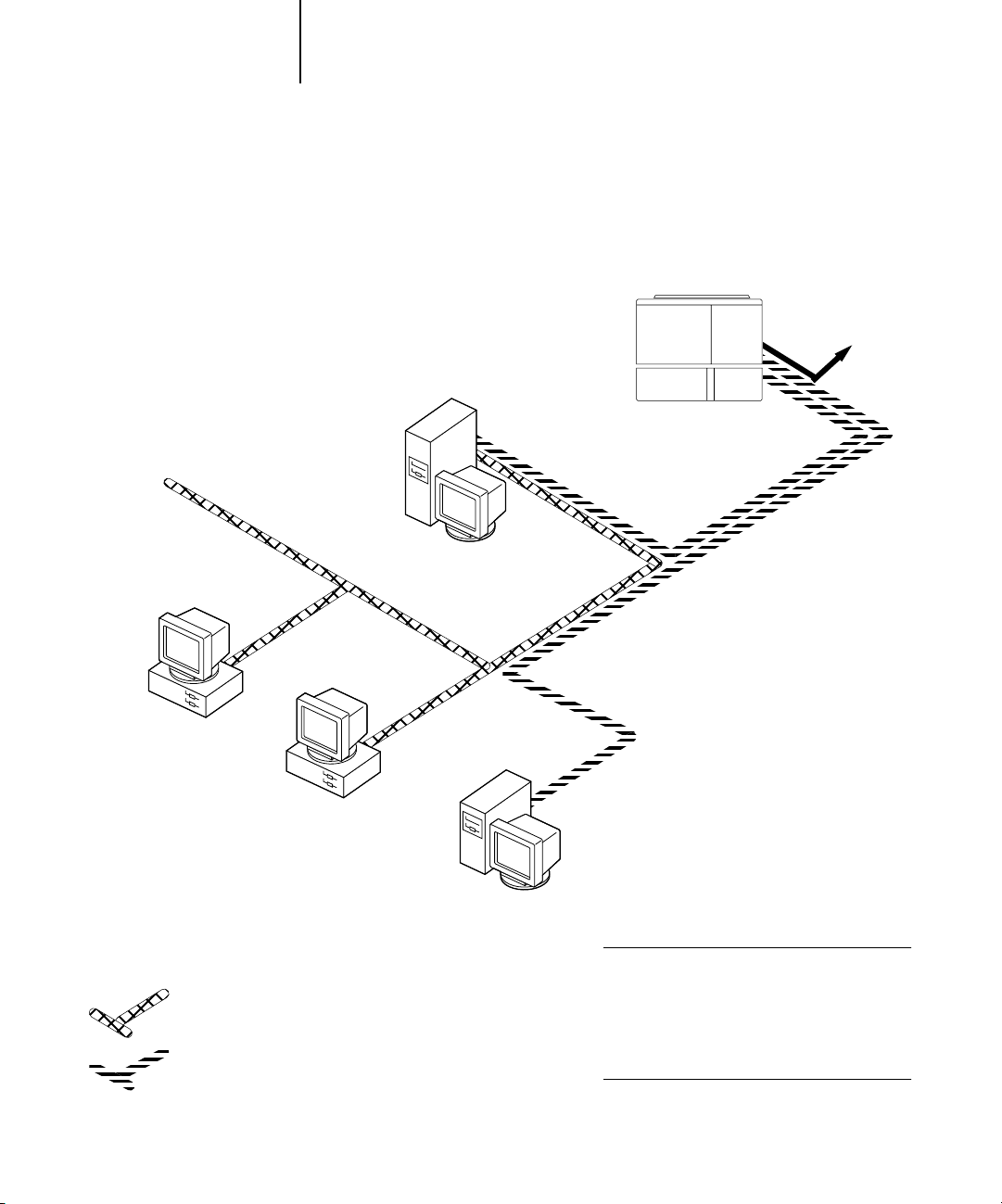
Windows NT 4.0/2000 Server environment
Key to setup:
1 Windows NT 4.0 Server page 2-3
2Fiery X3e Setup Chapter 4
3 Windows NT 4.0 client page 2-5
Windows NT Workstation
or Windows NT Server
acting as print server
1
LAN with
NETBEUI, etc.
Another supported
protocol
Fiery X3e installed in the copier
2
TCP/IP (lpd) for printing
TCP/IP (http) for WebTools
TCP/IP for Fiery utilities
Windows computer
3
Windows computer
NETBEUI or other protocol available on
the clients and the server
TCP/IP
3
Windows computer with
TCP/IP loaded
1
Printing on this network
Windows clients can print using a protocol
available on the Windows NT 4.0/2000 print
server.
Windows computers can print using TCP/IP with
the lpd protocol.
For running Fiery utilities and Fiery WebTools
A Windows computer with TCP/IP loaded.
Page 20

1-8 Connecting to the Network
1
Windows computers using Windows printing
Key to setup:
1 Windows computer User Software Installation Guide
2Fiery X3e Setup Chapter 4
Another supported
protocol
Fiery X3e installed in the copier
2
TCP/IP (nbt)
Windows computer
TCP/IP (nbt) protocol
1
Windows computer
1
Windows computer
1
For Windows printing
Windows (SMB) printing enabled on the
Fiery X3e.
Windows NetBios and TCP/IP enabled on the
computer.
Page 21
1-9 Quick path to installation
1
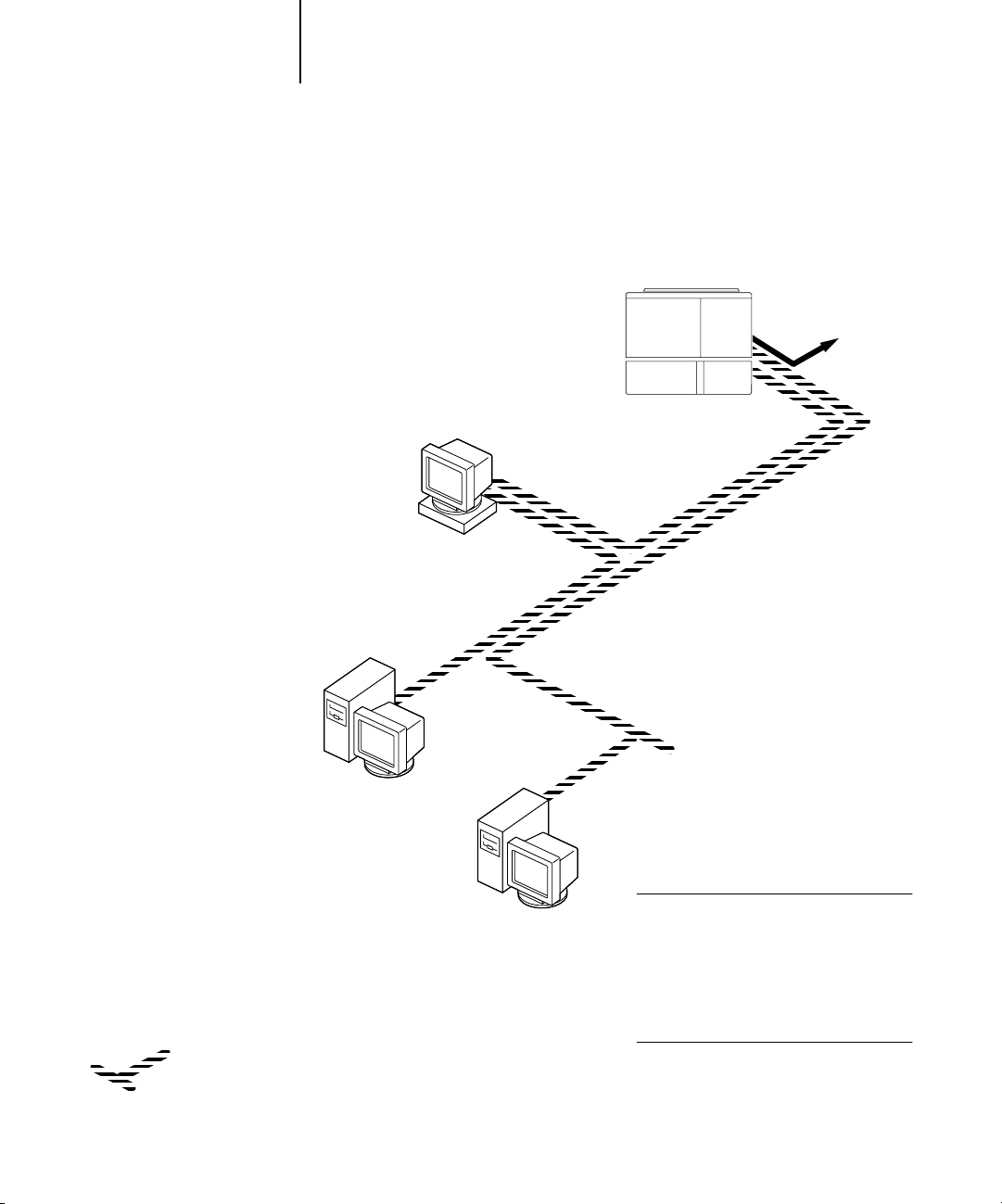
UNIX workstations and Windows computers on a TCP/IP network
Key to setup:
1 UNIX server/host page 2-16
2Fiery X3e Setup Chapter 4
3 UNIX workstation page 2-16
4TCP/IP client User Software Installation Guide,
Chapter 4
5 Windows NT 4.0 client page 2-5
UNIX server or
workstation
1, 3
Another supported
protocol
Fiery X3e installed in the copier
2
TCP/IP (lpd) protocol
TCP/IP client PC
4
TCP/IP (lpd, http, and ipp)
Windows computer with
TCP/IP loaded
5
Printing on this network
UNIX workstations with the TCP/IP (lpd)
protocol can print directly and act as host
for shared printing.
TCP/IP clients can print through UNIX
server or directly; requires TCP/IP and the
lpr print service loaded.
For running Fiery utilities and Fiery WebTools
Windows computers with TCP/IP loaded can
use these applications.
Page 22

1-10 Connecting to the Network
1
Fiery X3e parallel port connection
Key to setup:
1Fiery X3e Setup Chapter 4
2 Windows computer Printing Guide
A supported
network protocol
With the parallel port enabled, the
Fiery X3e can accept and print jobs sent
to its parallel port
Parallel
Fiery X3e installed in
copier
1
Parallel input
Protocol not directly
supported on Fiery X3e
PC workstation,
server, or laptop
2
Page 23
1-11 Connecting network cable to the Fiery X3e
1
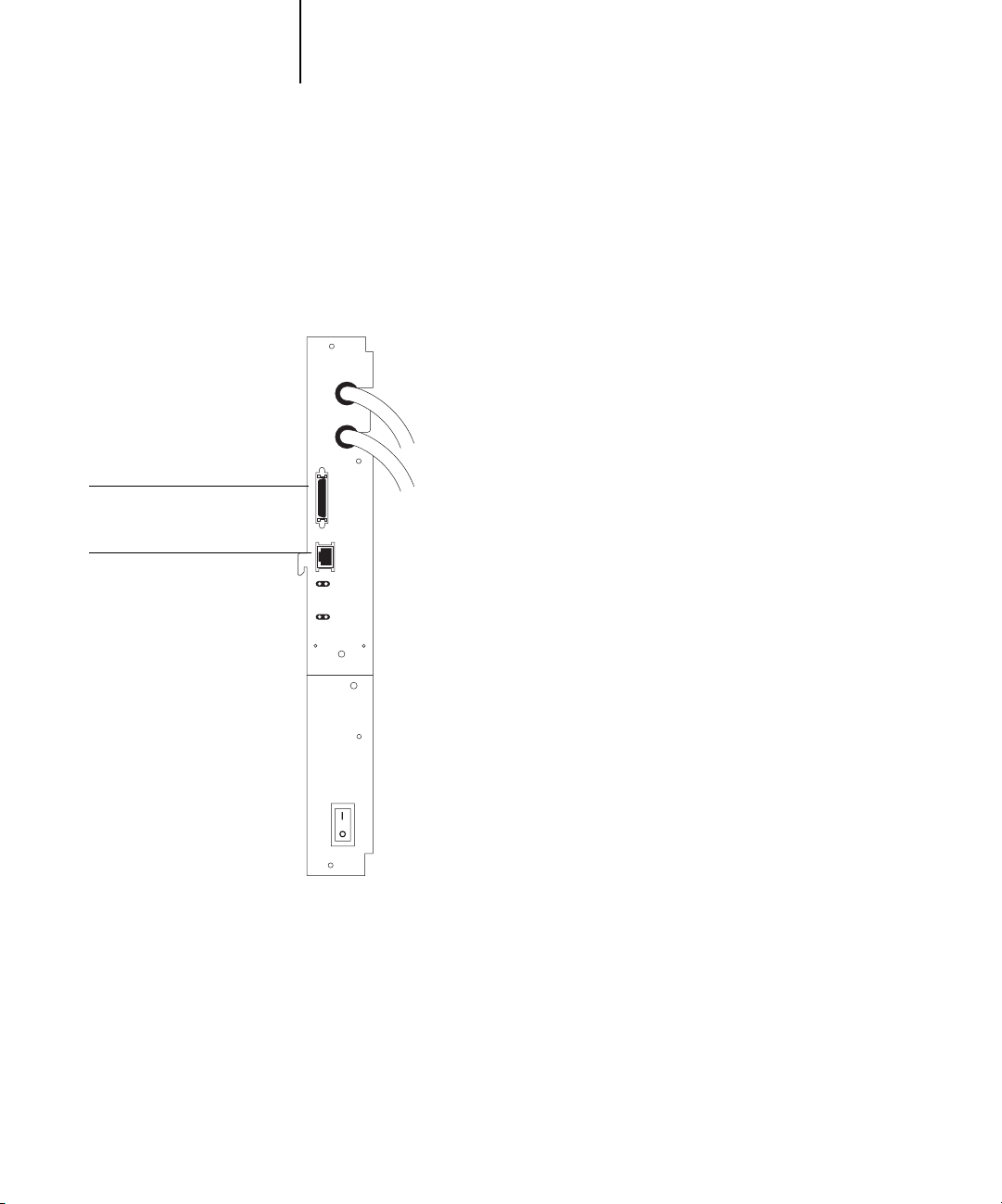
Parallel Port
RJ-45 Ethernet (10/100Base T)
Connecting network cable to the Fiery X3e
In this section, the back panel of the Fiery X3e is illustrated, followed by information
for connecting to the Ethernet board.
Back view of the Fiery X3e
Page 24

1-12 Connecting to the Network
1
Ethernet connection
For Ethernet connections, the Fiery X3e supports cabling, defined as Category 5 for
use with 100BaseT; or as Category 3, Category 4, or Category 5 for use with 10BaseT.
The cable uses an 8-pin RJ-45 connector that plugs into the RJ-45 socket on the
Fiery X3e.
NOTE: The 100BaseT type supported by the Fiery X3e is 100BaseTX, also known as
Fast Ethernet. If an Ethernet hub is used, it must be a 100BaseTX hub. The term
“100BaseT” is used to refer to 100BaseTX.
TO CONNECT TO THE ETHERNET BOARD
• Connect the network cable to the RJ-45 connector on the back of the Fiery X3e.
You must use a Category 5 unshielded twisted pair cable network cable for 100BaseT.
Parallel cable connection
In addition to receiving print jobs over Ethernet or Token Ring, the Fiery X3e can
accept print jobs from a Windows computer through its high-speed parallel port. This
connection is advantageous for portable computers and for workstations on dedicated
networks using protocols other than AppleTalk, TCP/IP, or IPX.
The parallel port connection can be active at the same time as the network ports.
NOTE: The parallel port cannot be used to connect the Fiery X3e with
Command WorkStation or other Fiery utilities.
TO USE PARALLEL CABLE
1. With the Fiery X3e and the Windows computer turned off, attach the parallel cable to
the parallel port of the Fiery X3e.
For the location of the parallel port, see the illustration on page 1-10.
2. Connect the other end of the cable to the parallel port on the Windows computer.
3. Turn on the computer and the Fiery X3e.
4. Proceed to Setup.
Page 25

2-1 Fiery X3e on a TCP/IP network with Windows NT 4.0/2000/XP
2
Chapter 2: Setting up Network Servers
This chapter describes environments that typically include one or more network
servers—Novell NetWare servers and Windows NT 4.0/2000 servers—that share
printing to the Fiery X3e. It describes setting up servers that use IPX/SPX or TCP/IP
protocols for communicating with the Fiery X3e. In addition, it includes guidelines for
setting up direct communication from Windows NT 4.0/2000/XP workstations or
UNIX workstations, where a network server is optional. This chapter also outlines the
requirements for users to print to the Fiery X3e and run Fiery utilities and Fiery
WebTools.
The Fiery X3e can accept jobs concurrently from NetWare, Windows NT 4.0/2000,
and AppleShare servers, as well as jobs sent directly from Windows NT 4.0/2000/XP
or UNIX workstations. Because AppleShare servers require no special configuration,
they are not discussed in this chapter, except for use in a Windows NT 4.0/2000
environment (see “Fiery X3e on a TCP/IP network with Windows NT 4.0/2000/XP”
in the following section).
If your network is based on Windows NT 4.0/2000, proceed to the following section.
For information on UNIX workstations, proceed to page 2-16.
Fiery X3e on a TCP/IP network with
Windows NT 4.0/2000/XP
When a Windows NT 4.0/2000/XP computer is configured to connect to the
Fiery X3e using TCP/IP, it can print directly to the Fiery X3e. If the computer shares
the printer over the network, it is acting as a print server to Windows 9x/Me and
Windows NT 4.0/2000/XP clients. Client computers print to the Fiery X3e by
printing to the Windows NT 4.0/2000 print server. You can then monitor and control
printing at the Windows NT 4.0/2000 server computer.
Typical system combinations are:
•Print server running Windows NT 4.0/2000 Server; clients running
Windows NT 4.0/2000/XP Workstation and Windows 9x/Me
•Print server running Windows NT 4.0/2000/XP Workstation and clients
running Windows 9x/Me
Page 26

2-2 Setting up Network Servers
2
• Make sure you have a valid IP address for the Fiery X3e and any workstations that will
With TCP/IP protocols loaded, you can run Fiery utilities and WebTools from a
Windows computer.
The Windows NT 4.0/2000 server can also use AppleTalk protocols to print to the
Fiery X3e as an alternative to TCP/IP.
NOTE: When you create a printer to share with AppleTalk users, do not “capture” the
printer. Capturing the printer forces all users to print to the server, rather than directly
to the printer. If you capture the printer, Fiery X3e print connections will not appear
in the Mac OS Chooser.
Tips for experts—Windows NT 4.0/2000/XP with TCP/IP
Setting up printing from Windows NT 4.0/2000/XP using TCP/IP protocols is
similar to setting up UNIX workstations with TCP/IP. When TCP/IP network
connections are made from Windows NT 4.0/2000/XP workstations, note
the following:
print to it or run the Fiery utilities.
• In Fiery X3e Setup, enable TCP/IP and enter the IP address, subnet mask, and gateway
address for the Fiery X3e.
You can enter these addresses manually or use DHCP or BOOTP protocols to assign
them dynamically.
• Make sure the Fiery X3e name and address are listed in a domain name server (DNS) or
hosts name database used by your system.
• Make sure the system host table includes the correct internal name for the Fiery X3e
as a remote printer.
For more information, see page 2-17.
•For Windows NT 4.0/2000/XP, install the appropriate printer driver files (PCL or
PostScript) on the Windows NT 4.0/2000 server.
For more information, see the User Software Installation Guide.
• Repeat the installation for all users who print to the Fiery X3e.
Each server and workstation running the Fiery utilities with TCP/IP also needs the
TCP/IP protocol and the Fiery utility software.
Page 27

2-3 Fiery X3e on a TCP/IP network with Windows NT 4.0/2000/XP
2
• Load the TCP/IP network protocol on the server and configure it with an IP address,
• Enter the host name of the Fiery X3e in the host database used by your system (see
•Perform Fiery X3e Setup.
• On the Windows NT 4.0/2000 server, create a printer for each Fiery X3e print
• Enter the host name and remote printer name of the Fiery X3e in the printer
Configuring a Windows NT 4.0/2000 server to communicate with
the Fiery X3e
To configure a Windows NT 4.0/2000 server to communicate with the Fiery X3e,
follow these general steps. More detail is provided in subsequent sections in this
chapter and in your Microsoft documentation.
subnet mask, and gateway.
page 2-4).
connection, install the appropriate printer drivers, and (optionally) share the printer
on the network (see page 2-4).
connection. For more information, see page 2-17.
• If the Windows NT 4.0/2000 server is also a workstation, install Fiery utilities (see
the User Software Installation Guide).
Adding the Fiery X3e to the TCP/IP network
If your TCP/IP network consists of Windows NT 4.0/2000 servers, and
Windows NT 4.0/2000/XP clients, follow the procedures in this section. If the
network also includes UNIX workstations, see the procedures on page 2-17.
Page 28

2-4 Setting up Network Servers
2
TO ADD THE FIERY X3E TO A TCP/IP NETWORK
WITH A WINDOWS NT 4.0/2000 SERVER
1. Register the IP address of the Fiery X3e in the host name database used
by your system.
For installations that do not have a network administrator or central host name
database, add the Fiery X3e to the hosts file on the Windows NT 4.0/2000 server.
Also add it to the hosts file on any workstations that have TCP/IP loaded and will use
the Fiery utilities.
The Windows NT 4.0/2000 hosts file provides compatibility with the UNIX hosts
file. The hosts file is used as a local Domain Name Services (DNS) equivalent. It has
the same format as the /etc/hosts file on UNIX servers. The format of the hosts
entry is:
IP Address<TAB>host name<TAB>#comments
<TAB> indicates that you press the Tab key.
where
To determine the IP address and server name of your system, print a Configuration
page (see page page 7-8).
NOTE: If the Fiery X3e has already been defined in an /etc/hosts file or equivalent host
name database on a UNIX workstation on your network, we recommend you use the
same host name here as you used for the name of the remote printer in the
/etc/printcap file.
2. Perform Fiery X3e Setup to support TCP/IP printing.
Enter the options in Protocol Setup (IP address of the Fiery X3e, subnet mask, and
gateway address).
Installing the Fiery X3e as a shared printer
The first step in creating a printer is installing the printer driver files, which give your
applications access to printer features. You can use the installation instructions in the
User Software Installation Guide for every workstation that will print directly and
independently to the Fiery X3e. However, if you are an administrator running a
Windows NT 4.0/2000 server or Windows NT 4.0/2000/XP computer, you can also
create a printer and share it with clients on the network. This allows clients who do not
have permission to establish an independent network connection to the Fiery X3e to
print through the server.
Page 29

2-5 Fiery X3e on a TCP/IP network with Windows NT 4.0/2000/XP
2
You can specify sharing of the printer during installation of the Fiery X3e printer files.
If you have not yet installed the Fiery X3e printer files on the Windows NT 4.0/2000
print server computer, do so now, following the instructions in the User Software
Installation Guide. During installation, enter the information necessary to share the
Fiery X3e.
If you have already installed the Fiery X3e printer files on the computer you are using
as a Windows NT 4.0/2000 print server, see your Windows documentation for
information about sharing the Fiery X3e.
If more than one Fiery X3e print connection is published (for example, if both the
Print queue and the Hold queue are published), you may want to create a printer for
each print connection, so you and other users can print to each connection directly.
When prompted to specify the printer name, enter a name that indicates the Fiery X3e
print connection.
Configuring clients of a Windows NT 4.0/2000 server
Each client of a Windows NT 4.0/2000 server is already using a network protocol to
communicate with the server. Each client can print to the Fiery X3e if it has been
shared by a Windows NT 4.0/2000 server, or Windows NT 4.0/2000/XP computer.
In that case, the client does not have to use the same network protocol to connect to
the Windows NT 4.0/2000 server as the server uses to communicate with the
Fiery X3e.
TO CONNECT AND PRINT TO THE FIERY X3E SHARED
BY
A WINDOWS NT 4.0 SERVER
•For Windows 9x/Me clients: Before printing, double-click the Windows NT 4.0/2000
server icon in the Network Neighborhood window, and then double-click the
printer name.
You are prompted to set up the printer. When you choose to set it up, the Add Printer
Wizard dialog box appears. Follow the procedures in the User Software Installation
Guide.
•For Windows NT 4.0 Workstation clients: Before printing, connect to the print server
computer and select the Fiery X3e. Right-click and choose Open.
When prompted, click Yes to have Windows set up the printer.
Page 30

2-6 Setting up Network Servers
2
•For Windows 2000/XP clients: Before printing, install the printer driver with the User
Software CD and configure the port.
After clients have selected the printer, they can choose it from the Print Setup, Page
Setup, or Print dialog box of their application. Clients can change printing options for
their own job, but printer properties appear dimmed, and unavailable for changing.
When a client chooses Print, the job is transmitted to the Windows NT 4.0/2000
print server, and from there to the selected print connection on the Fiery X3e. The job
is listed in the Print Manager on the client workstation, and the administrator can
track it in the Fiery X3e window in the Print Manager on the Windows NT 4.0/2000
print server.
Configuring Windows computers without a Windows NT 4.0 server
If your network does not have a Windows NT 4.0/2000 server, Windows 9x/Me and
Windows NT 4.0/2000/XP workstations can still print to the Fiery X3e. This method
of printing is called Windows, or SMB printing. In this type of network environment,
computers running Windows 9x/Me and Windows NT 4.0/2000/XP Workstations
operate in a peer-to-peer environment and communicate directly with the Fiery X3e
when users send print jobs.
Many of the prerequisites for setting up printing through a Windows NT 4.0/2000
server also apply to setting up Windows printing where a server is not present. The
prerequisites are summarized in the following list. More details are available in your
Microsoft documentation.
• Print a Configuration page (see page 7-8).
Use the information on this page to determine the current Fiery X3e settings.
• Load the TCP/IP network protocol on the computer (for Windows 9x/Me, load File and
printer sharing for Microsoft Network. For Windows 2000/XP load Client for Microsoft
Networks).
•Verify the Workgroup name of the computer in the Windows Network control panel.
Make sure the Workgroup name is the same as the one listed in Fiery X3e Setup.
•For Windows 9x/Me, in the File and printer sharing for Microsoft Network Properties
dialog box, specify Automatic or Enabled for Browse Master, and select Yes for
LM Announce.
Page 31

2-7 Fiery X3e on a NetWare 4.x or 5.x network
2
•For Windows 2000/XP, in the Client for Microsoft Networks Properties dialog box,
• Ping the Fiery X3e to verify TCP/IP communication is successful (see page 2-18).
configure the computer to allow file sharing, and then restart the computer.
Fiery X3e on a NetWare 4.x or 5.x network
The NetWise™ features built into the Fiery X3e support the following network
operating environments:
•NetWare 4.x or 5.x—NDS (Novell Directory Services)
•Servers running NetWare 4.x or 5.x in bindery emulation mode
For Ethernet-based networks, the IPX/SPX protocol is supported.
NOTE: Setting up a NetWare environment correctly requires the presence and active
cooperation of the Novell network administrator. You must have administrator
privileges on the network to create new NDS or bindery objects.
The term “bindery server” is used to refer to a Novell file server running NetWare 4.x
or 5.x in emulation mode. The term “NDS” is used to describe components of a
NetWare operating system running NetWare 4.x or 5.x in native mode.
NetWare clients print to the Fiery X3e through the Novell network server. Server setup
and client network setup are outlined in this chapter, client printing setup is described
in the User Software Installation Guide, and printing is described in the Printing Guide.
The Fiery X3e can receive print jobs from NetWare clients over Ethernet network
topologies. During Fiery X3e Setup, you select the frame type or types that will be used
for communication between the Fiery X3e and network servers. Frame type refers to
the format of a communications packet; frame types are specified in a startup file when
the NetWare server (or any other workstation) loads its network drivers.
Page 32

2-8 Setting up Network Servers
2
•A minimum connection to the Fiery X3e consists of a NetWare file server, a NetWare
•A single directory tree and up to eight bindery servers can be configured
• The Fiery X3e looks for print jobs on one NetWare print server per bindery server.
• Each print server can store jobs for any print connection on the Fiery X3e.
Tips for experts—IPX networks
Setting up the Fiery X3e is similar to setting up any other PostScript printer
on the network.
The Fiery X3e with IPX connections has the following characteristics:
print server, and a NetWare queue.
simultaneously.
Overview of IPX printing to the Fiery X3e
NetWare file servers support the creation of print queues, which are storage areas for
print jobs. When a client on a remote computer decides to print, the job is directed to
a print queue on the NetWare file server and spooled to the NetWare server disk,
freeing up the client workstation.
You must give the NetWare queue names a specific extension corresponding to the
Fiery X3e print connection, as follows:
_print
_hold
_direct
NOTE: These extension names must be in English and in all lowercase letters.
You do not need to rerun Setup when you add or remove a NetWare queue; however,
you should restart the Fiery X3e after you create or remove a queue.
Page 33

2-9 Fiery X3e on a NetWare 4.x or 5.x network
2
When the Fiery X3e is configured to connect to a NetWare server, it polls the NetWare
server for jobs in each of its queues. If jobs are found, they are automatically transferred
over the network to the matching connection on the Fiery X3e. For example, jobs
from the NetWare queue with the _print extension are sent to the Fiery X3e Print
queue. While a job is processed and printed, a record of the job is being created. You
can access the Job Log containing these records at any time.
Configuring a NetWare 4.x server for printing
The following sections explain how to set up a NetWare file server so networked users
can print to the Fiery X3e from their workstations, and the Fiery X3e can obtain print
jobs from the NetWare server.
For each NetWare file server that you configure, follow these general steps. More detail
is provided in subsequent sections and in your NetWare documentation.
•Make sure the server is connected to a functioning IPX network.
• Log in as the Supervisor on a PC connected to the NetWare file server.
•For NetWare 4.x installations, set up an NDS connection (see page 2-11).
•For NetWare 4.x in emulation mode, set the bindery context (see page 2-11).
•For NetWare 4.x in bindery emulation, set up a file server, print server, and print
queue for the Fiery X3e (see page 2-12).
With bindery services, you can route all Fiery X3e print jobs through the same
NetWare file server, or you can configure more than one file server to handle
Fiery X3e jobs.
The functions you perform on the Novell server, the Fiery X3e, and the client
workstation are summarized in the following tables. The first table applies to NDS
connections, and the second to bindery connections. Complete the operations in the
left column, then the center column, then the right column.
Page 34

2-10 Setting up Network Servers
2
Configuring an NDS connection
Abbreviations:
FS = file server
PS = print server
PQ = print queue (on the NetWare server)
On NDS FS
In NETADMIN:
Create NDS PQs
Create NDS printer
and assign PQs
Create PS and assign
the printer
Configure users of
the PQs
Configuring a bindery connection
On Bindery FS
In PCONSOLE:
Select NetWare FS
(up to 8)
For each FS:
Configure PS
Configure PQ
Configure users of
the PQ
Port Setup
Protocol Setup
Service Setup
Port Setup
Protocol Setup
Service Setup
In Setup from
Command WorkStation
Ethernet Setup
IPX/SPX Setup—select frame
types
PServer Setup and NDS Setup
Select Root
Browse to select PS
Specify PQ search root
(optional)
Set Polling Interval
In Setup from
Command WorkStation
Ethernet Setup
IPX/SPX Setup—select frame
types
PServer Setup and Bindery Setup
Add FS (up to 8)
Set Polling Interval
On client workstation
Install user software.
For printing:
Connect client to PQs that
you set up on the NetWare FS
(associated with the PS
selected in NDS Setup).
For running Fiery utilities:
Configure the connection to
the Fiery X3e.
On client workstation
Install user software.
For printing:
Connect client to PQs that
you set up on the NetWare FS
(associated with the PS
selected in Bindery Setup).
For running Fiery utilities:
Configure the connection to
the Fiery X3e.
Page 35

2-11 Fiery X3e on a NetWare 4.x or 5.x network
2
Setting up an NDS connection
In NDS, all NetWare entities (objects) are organized in a hierarchical tree structure.
Objects have a name, properties, and a context that defines the location of the object
in the directory tree. For the Fiery X3e, you are mainly concerned with defining a
printer, a print server object, and one or more print queue objects. Objects are created
in NetWare administrator programs such as PCONSOLE, NETADMIN, or NetWare
Administrator.
The top-level tree object is known as the [Root] object. The name of the [Root] object
is also the name of the tree. Below the [Root] are other objects: either containers
(which consist of other objects) or leaf objects (which do not contain other objects).
Access to objects is controlled by rights that are defined as properties of each object.
Rights are established by network administrators.
Setting the NetWare 4.x bindery context
You can connect only one directory tree to the Fiery X3e. If you need to connect
additional NetWare 4.x servers, you can do so by using bindery emulation. You can
connect up to eight bindery servers to the Fiery X3e.
NOTE: The file server you select must not be in the same tree as the one you selected in
NDS Setup.
In order to set up the NetWare 4.x server in bindery emulation mode for printing to
the Fiery X3e, the network administrator must do the following:
•Determine the Directory Services path to the container in which the print server and
the print queue for the Fiery X3e will be created.
The container defines the “bindery context” for your network structure.
•Edit the network startup file to set the bindery context.
•Activate the new bindery context.
Page 36

2-12 Setting up Network Servers
2
Setting up a NetWare print queue for bindery
For NetWare 4.x in emulation mode, the NetWare print server and print queue for
the Fiery X3e are created and configured from NetWare Print Console (PCONSOLE),
a NetWare utility that is stored in the NetWare PUBLIC directory.
As with NDS, you can create several NetWare entities on a Novell server, and then you
can select them in Network Setup (see page 4-17).
Setting up NetWare Windows clients for printing
Before setting up client workstations for printing, perform Network Setup (see
page 4-7), and verify that the settings reflect the entities you created in the NetWare
administrator utilities (see page 2-9).
NOTE: For printing to the Fiery X3e, connect all Windows clients to a NetWare server
and permit them to connect to the Netware print server or servers on which you
defined a NetWare print queue for the Fiery X3e.
After the Novell server and the Fiery X3e have been set up, client setup consists of:
•Installing the networking protocol, binding it to the network adapter card, and
permitting the client to log in to the NetWare file server.
On Windows 9x/Me workstations, loading both the IPX/SPX-compatible protocol
and the Client for NetWare Networks from the Network Control Panel.
On Windows NT 4.0/2000/XP workstations, installing Client Services for
NetWare. Use the CSNW option in the Control Panel to set printing options and
specify a preferred NetWare server.
•Setting up the Fiery X3e as a PostScript printer by installing a PostScript printer
driver and the Fiery X3e PPD (PostScript printer description).
•Adding a network port and connecting the workstation to one or more NetWare
queues that have been defined for the Fiery X3e.
•Installing Fiery X3e software.
For details, see the User Software Installation Guide.
Page 37

2-13 Fiery X3e on a NetWare 5.x network with NDPS
2
Fiery X3e on a NetWare 5.x network with NDPS
The Fiery X3e supports printing over a NetWare 5.x network running either the
TCP/IP protocols or the IPX protocol. For pure IP printing, the Fiery X3e takes
advantage of features in NDPS (Novell Distributed Print Services). For IPX printing,
the Fiery X3e supports the PServer service in Bindery emulation or through NDS
(Novell Directory Services). For more information on IPX-based printing, see
“Fiery X3e on a NetWare 4.x or 5.x network” on page 2-7.
NOTE: Setting up a NetWare environment correctly requires the presence and active
cooperation of the Novell network administrator. You must have administrator
privileges on the network to create new NDS or bindery objects.
NDPS is not like earlier queue-based versions of NetWare printing. Instead, you use an
NDPS Manager and a Printer Agent, which control the tasks previously handled by a
print queue, print server, and spooler. You can also make the printer driver available for
clients to download from Windows 9x/Me and Windows NT 4.0/2000/XP
computers.
During Fiery X3e Setup, you select the frame type or types that will be used for
communication between the Fiery X3e and network servers. Frame type refers to the
format of a communications packet; frame types are specified in a startup file when the
NetWare server (or any other workstation) loads its network drivers.
Tips for experts—NetWare 5.x networks
Setting up the Fiery X3e in an NDPS environment is similar to setting up any other
PostScript printer on the network. Refer to the following information when setting up
the Fiery X3e in such an environment:
• Make sure you have a valid IP address for the Fiery X3e and for any workstations that
will print to it or run Fiery utilities.
• In Fiery X3e Setup, enable TCP/IP and enter the IP address, subnet mask, and gateway
address for Fiery X3e. You can enter these manually or use DHCP or BOOTP protocols to
assign the addresses dynamically.
• Bidirectional communication features in NDPS are not supported on the Fiery X3e.
Page 38

2-14 Setting up Network Servers
2
Configuring a NetWare 5.x server for printing
Before you begin
The following procedure assumes NDPS has been installed during NetWare 5.x
installation and that a Broker is running on the server. Unless you have manually
unloaded the Broker, it loads and runs when you install NDPS. Make sure you are
using the latest NetWare 5.x service pack and Novell gateway. Finally, create an NDPS
Manager. For more information, see your NetWare documentation.
In Fiery X3e Setup, make sure you have enabled TCP/IP (page 4-11) and LPD
printing (page 4-17) on the Fiery X3e. You can ping the Fiery X3e (page 2-18) to
verify that TCP/IP communication is successful.
Setting up the Fiery X3e printer driver
You first need to create a directory for Windows NT 4.0/2000/XP or a folder for
Windows 9x/Me in the NetWare server for NDPS to install the corresponding printer
driver files from the User Software CD.
TO SET UP THE PRINTER DRIVER FOR WINDOWS NT 4.0/2000/XP
1. Log on to the Novell file server as a superuser or Administrator.
2. In the SYS:ndps\resdir\Prndrv\NT4/2000/XP directory, create a directory called Fiery.
3. From the User Software CD, copy the contents of the
ENGLISH\INSTALRS\PS_DRVR\WIN_NT/2000/XP folder to the Fiery directory.
TO SET UP THE PRINTER DRIVER FOR WINDOWS 9X/ME
1. Log on to the Novell file server as a superuser or Administrator.
2. In the SYS:ndps\resdir\Prndrv\Win9x/Me directory, create a folder called Fiery.
3. From the User Software CD, copy the contents of the
ENGLISH\INSTALRS\PS_DRVR\WIN_9x/Me folder to the Fiery directory.
Page 39

2-15 Fiery X3e on a NetWare 5.x network with NDPS
2
Setting up the Fiery X3e on a NetWare 5.x network
Depending on the security needs at your organization, you can set up the Fiery X3e
as a Public Access printer or a Controlled Access printer. The following procedure
describes setting up a Public Access printer. You can then convert the printer to
Controlled Access if necessary. For more information, see your NetWare
documentation.
TO SET UP THE FIERY X3E AS A PUBLIC ACCESS PRINTER
1. In NetWare Administrator, double-click the NDPS Manager object you created.
2. In the Details window for the NDPS Manager object, click Printer Agent List.
The list of Printer Agents appears.
3. Click New.
4. In the Printer Agent (PA) Name field, type a name.
5. Under Gateway Types, select Novell Printer Gateway, and click OK.
6. In the Configure Novell PDS for Printer Agent dialog box, select “((NONE))”, and
click OK.
7. In the Configure Port Handler dialog box, choose “Remote LPR on IP” as the
connection type, and click Next.
8. For Host Address, enter the IP address of the Fiery X3e.
Page 40

2-16 Setting up Network Servers
2
9. For Printer Name, enter the name of the Fiery X3e print connection you want users to
10. In the Select Printer Drivers dialog box, select the printer driver for Windows 9x/Me
11. Click Continue, and then click OK.
print to, and click Finish.
This name must be either print or hold.
and the driver for Windows NT 4.0/2000/XP.
Fiery X3e on a network with UNIX workstations
When a UNIX workstation is configured with the lpd protocol and connected to the
Fiery X3e over a TCP/IP network, it can print directly to the Fiery X3e.
Setting up UNIX workstations requires an administrator with root privileges. After the
initial configuration, UNIX users simply submit print jobs to a named printer.
The job management tools, along with the other Fiery utilities and Fiery WebTools,
are unavailable on the UNIX platform. A Windows or Mac OS computer on the same
network as the UNIX computer that is set up to use TCP/IP for printing to the
Fiery X3e can use the job management tools to manage print jobs that originate from
all workstations on the network.
Tips for experts—UNIX workstations
Setting up the Fiery X3e in a UNIX environment has the same requirements as setting
up any printer or new device:
•A distinct IP address is required for the Fiery X3e as well as for each workstation on
the network.
•A name must be selected for the Fiery X3e that goes with the IP address.
• The IP address of the Fiery X3e must be registered for the network in a host database,
and also on the Fiery X3e itself.
•At least one print connection (Print or Hold) must be published.
Page 41

2-17 Fiery X3e on a network with UNIX workstations
2
• The Fiery X3e is a printer controller that understands lpd protocols.
• The Fiery X3e has a remote printer name you must use in order to communicate with
The following information applies especially to the Fiery X3e:
it successfully.
For details, see the following section.
Important note about the remote printer name
Whichever UNIX system you use, the name used for the remote printer (or rp in the
/etc/printcap file) in configuring the Fiery X3e must be one of the following:
print
hold
The remote printer name is also used when setting up your Windows NT 4.0/2000
Server or Windows NT 4.0/2000/XP Workstation to connect to the Fiery X3e over
TCP/IP. Enter the remote printer name when you set up your Windows NT 4.0/2000
printer, as the “Name of printer or print queue on that (lpd host) server” in the Add
LPR Compatible Printer dialog box.
For the Windows 2000/XP printer driver, enter the remote printer name for Queue
Name under LPR Settings in the Configure Standard TCP/IP Port Monitor dialog
box.
Setting up the Fiery X3e on TCP/IP networks
Every machine (host) on a TCP/IP network, including the Fiery X3e, must have a
unique 32-bit internet address (IP address). Contact your network administrator to
obtain an address for the Fiery X3e. Workstations on a TCP/IP network can print
directly to the Fiery X3e as a remote printer, or can print to a Windows NT 4.0/2000
server or UNIX workstation acting as a print server. Since the Fiery X3e spools jobs
and acts as a print server, there is no advantage in placing another print server between
a workstation and the Fiery X3e. If you choose to do so, however, there is no difference
in setup except that a client machine does not have its own spooling area.
Page 42

2-18 Setting up Network Servers
2
TO SET UP FIERY X3E PRINTING ON UNIX SYSTEMS
1. Specify the appropriate settings in Fiery X3e Server Setup.
To access Fiery X3e Setup, see page 4-3.
2. Specify the appropriate settings in Fiery X3e Network Setup.
Enter a valid IP address, subnet mask, and gateway address for the Fiery X3e.
3. Specify the appropriate settings in Fiery X3e Printer Setup.
Publish the Print queue and/or Hold queue.
TO SET UP TCP/IP FOR COMMUNICATION WITH THE FIERY X3E
1. A superuser (with root login) must add the Fiery X3e to the network’s IP host table or
other system database of network printers.
2. In the file or utility used by your network, specify the remote printer name, the print
server protocol, the queue, and the spool file for the Fiery X3e name you assigned.
3. Make the Fiery X3e available as a printer to other network users.
4. To verify the TCP/IP connection, ping the IP address or the host name. From any
computer on the network, at the command prompt, type:
ping <IP address>
Type the Fiery X3e IP address assigned in Fiery X3e Network Setup.
After the Fiery X3e is set up as a network printer, you can also ping the name you gave
to the Fiery X3e:
ping <hostname>
The server should respond with a message such as:
Reply from <IP address> ...
Some systems will respond with a continuous display of output from the IP address.
To stop the output, type Control-C. You can use the ping command at any time.
Page 43

2-19 Fiery X3e on a network with UNIX workstations
2
TO PRINT TO THE FIERY X3E
• On a UNIX system running SunOS 4.x or other BSD-based variant, use the lpr command
to send a job to the Fiery X3e.
• On a UNIX system running Solaris 2.x or any System V implementation of UNIX, use
the lp command to send a job to the Fiery X3e.
• Windows NT 4.0/2000/XP users with the TCP/IP protocol loaded can send print jobs to
the Fiery X3e from their applications or from a command prompt.
When Windows NT 4.0/2000/XP users print from applications, they can set print
options with the driver but not from the UNIX command line.
Managing print jobs
UNIX network administrators can use UNIX utilities for viewing the list of jobs, and
for printing and removing jobs that are spooled on UNIX servers. If the network
includes a Windows NT 4.0/2000/XP workstation that has TCP/IP protocols loaded,
you can use Command WorkStation or Fiery Downloader™ to download fonts and
files.
You can also use the job management tools to manage jobs from remote workstations.
For more information, see the Job Management Guide.
Even without the Fiery utilities, you can:
•Set up the Fiery X3e to print a log of printed jobs automatically after every 55 jobs
(see Job Log Setup on page 4-48).
•Print a Job Log manually at any time from the Command WorkStation Functions
menu (see the Job Management Guide).
Page 44

Page 45

3-1 Levels of access and control
3
Chapter 3:
Preparing for
Fiery X3e Setup
To prepare for printing at your site, you must do some initial Fiery X3e configuration,
or Setup, to specify the network environment and the kind of printing you will do.
Before you perform Setup, you must decide the levels of access you will implement for
your site. Administrators and operators must also understand how Fiery X3e system
software is structured in order to configure and use the Fiery X3e system correctly.
Levels of access and control
When you configure the Fiery X3e during Setup, you (as system administrator)
implement a particular level of control by enabling or not enabling print connections,
passwords, and access to WebTools. The level of control you implement can range
from minimum to moderate to maximum—or none at all.
•Minimum control might be appropriate for a small site where anyone on the local
network can control all printing and Fiery X3e functions. Although there may be an
administrator or operator charged with certain duties, all users have equal access to
the system and job management tools.
•Maximum control might be appropriate for a high-volume printing environment
where an administrator or operator controls the job flow and all printing; jobs sent
by users are spooled (stored) to the Fiery X3e disk until the operator decides it is
time to print them. In addition, only the administrator and operator have access to
job management tools. This is the recommended level of control.
NOTE: The term “job management tools” is used in this manual to refer to
Command WorkStation, Fiery Spooler™, and Fiery WebSpooler™.
Fiery X3e print connections
The Fiery X3e supports three print connections: Hold queue, Print queue, and Direct
connection. These print connections can be enabled, or “published,” to users on the
network when you configure Printer Setup. All published connections are constantly
checked for the presence of jobs. The Print queue and Direct connection give remote
users more direct access to the Fiery X3e than the Hold queue. Therefore, do not
publish the Print queue and the Direct connection in environments where maximum
control is desired.
Page 46

3-2 Preparing for Fiery X3e Setup
3
In addition, you can enable the Printed queue, which is a storage area for the most
recent jobs from the Print queue. The Printed queue makes it convenient to reprint
those jobs. In Setup, you can enable the Printed queue and specify the maximum
number of jobs retained in the queue (see page 4-6). Reprinting jobs in the Printed
queue requires the job management tools.
To use the Fiery utilities and WebTools, you must enable at least one of the print
connections.
Hold queue
Jobs sent to the Hold queue are spooled to the Fiery X3e hard disk for printing at a
later time or for reprinting. Because the Hold queue is a storage place, jobs sent to it
cannot proceed through the printing process until the operator intervenes using the
job management tools (see the Job Management Guide).
Print queue
This is the standard Fiery X3e queue. Jobs sent to the Print queue are processed and
printed in the order they are received. Jobs prioritized by an operator with the job
management tools and jobs sent via the Direct connection can take priority over jobs
sent to the Print queue.
Direct connection
The Direct connection transmits jobs directly to the Fiery X3e, but only when the
Fiery X3e is Idle. If the Fiery X3e is busy, the job remains at the user workstation until
the Fiery X3e is ready. The job is then processed as soon as the previous job is finished
and before the next queued job is processed.
NOTE: The Direct connection is not supported for LPR printing.
Jobs sent to the Direct connection are not stored on the Fiery X3e hard disk, and
cannot be selected for reprinting, moving, or deletion. Therefore, the Direct
connection provides a measure of security for sensitive files. Jobs sent to the Direct
connection do appear in the Job Log, for accounting purposes.
NOTE: To download fonts to the Fiery X3e, you must publish the Direct connection.
Page 47

3-3 Levels of access and control
3
Passwords
You can implement passwords as a means of controlling access to Fiery X3e functions.
The Fiery X3e allows you to set the following passwords in Setup:
•Administrator—remotely from WebSetup or Command WorkStation, or locally
from the Control Pane
•Operator—from Command WorkStation or Fiery WebSetup
NOTE: By default, no passwords are set on the Fiery X3e. If you do not specifically
set passwords, all users will have administrator privileges, which include access to
important functions such as Setup (including setting passwords), and job control.
We strongly recommend that you set at least an Administrator password to protect
the Fiery X3e from random or accidental changes to Setup.
Administrator privileges
Administrator control, which confers control of Setup, is the highest level of control,
since the person who has access to Setup can control the printing and job management
environment. Administrator privileges include publishing print connections, setting
passwords, deleting fonts, controlling print jobs from the job management tools,
overriding job settings, clearing the Fiery X3e of all job data, performing calibration,
defining default color profiles, and setting default values for print options.
When performing a function from the Fiery X3e Control Panel that prompts you for
the Administrator password, you must enter it promptly. Otherwise, the Fiery X3e
Control Panel returns to Idle, and you must start over again.
Operator privileges
Operator control includes control of print jobs from the job management tools,
including the ability to override job settings.
Guest privileges (no password)
No password is needed for a user to log in as a Guest from the job management tools.
A Guest can view the status of active jobs but cannot make changes to jobs or to the
Fiery X3e state.
Page 48

3-4 Preparing for Fiery X3e Setup
3
WebTools
The Fiery X3e supports Internet or intranet access with WebTools from Windows and
Mac OS computers. To enable use of WebTools, you must do the following in Setup:
•Enable TCP/IP.
•Set an IP address, subnet mask, and gateway address for the Fiery X3e.
•Enable Web Services.
For more information, see Chapter 6.
You can set passwords to control access to WebTools features. If you do not specifically
set these passwords, all users have access to all WebTools functions (see page 3-3).
WebTools include Status™, WebSpooler, WebLink™, WebScan™ WebDownloader™,
WebSetup™, and Installer™.
Status
The Status WebTool provides you with current information on the jobs processing and
printing on the Fiery X3e. It is not affected by passwords. For more information, see
the Printing Guide.
WebSpooler
The WebSpooler interface is very similar to that of Command WorkStation. It allows
remote users to preview, manipulate, reorder, reprint, and delete jobs currently
spooling, processing, or printing on the Fiery X3e. It also allows the administrator and
operator to edit and merge jobs (Thumbnails A and B) and view, print, or delete the
Job Log.
WebSpooler access can be controlled by setting an Operator password in Setup. If you
set a password, only users with that password can manipulate jobs from WebSpooler. A
user who does not have the password can still log in to WebSpooler as a Guest with
view-only access (see page 3-3). For more information, see the Job Management Guide.
Page 49

3-5 Levels of access and control
3
WebLink
WebLink provides all users with a link to an address on the Internet. To change the
WebLink Internet address, see page 6-3. This function requires the Administrator
password, if one has been set (see “Passwords” on page 3-3).
NOTE: If you do not set the Administrator password, any user can change the WebLink
address, which affects all users. For this reason, we strongly recommend that you set an
Administrator password.
WebScan
With WebScan, you can retrieve scanned documents from a computer on the Internet
or your organization’s intranet. It is not affected by passwords. For more information,
see the Printing Guide.
WebDownloader
WebDownloader allows you to print PostScript, EPS, PDF, and TIFF files directly to
the Fiery X3e without first opening the file in an application. It is not affected by
passwords.
WebSetup
WebSetup allows you to view and modify Fiery X3e Setup options from a remote
workstation. This function requires an Administrator password. For more information,
see Chapter 5.
NOTE: WebSetup is supported on Windows computers only.
Installer
The Installer WebTool allows users to download installers for printer drivers directly
from the Fiery X3e. It is not affected by passwords. For more information, see the
User Software Installation Guide.
Page 50

3-6 Preparing for Fiery X3e Setup
3
1. No designated administrator or operator (Minimum control—not recommended)
2. An administrator but no operator
Control level scenarios
Typical scenarios of access and control, ranging from minimum control to maximum
control, are described in this section. Choose the scenario that best matches your site
requirements, and refer to the corresponding number in the following table for
guidance on how to configure your system for those requirements.
NOTE: We strongly recommend that you set at least an Administrator password to
prevent unauthorized changes to system settings.
All users have equal access to all system functions including Setup, clearing the
Fiery X3e, deleting printer fonts, setting the WebLink address, performing calibration,
printing to all Fiery X3e print connections, and managing all jobs from the job
management tools.
Only an administrator can perform Setup, calibration, and other administrator
functions, but all other system functions are accessible to all users, including printing
to all Fiery X3e print connections, and managing all jobs from the job management
tools.
3. An administrator and an operator
Only an administrator can perform Setup, calibration, and other administrator
functions, and only an operator or administrator can control jobs from the job
management tools. Users can print to all Fiery X3e print connections.
4. An administrator and an operator; no WebTool access
Only an administrator can perform Setup, calibration, and other administrator
functions, and only an operator or administrator can control jobs from the job
management tools; users can print to the Hold queue and Print queue, but not to the
Direct connection; the operator controls all job flow, but jobs sent to the Print queue
may not require operator intervention; no access to WebTools.
Page 51

3-7 About Setup
3
5. An administrator and an operator; operator controls all jobs; no WebTool access
(Maximum control)
Only an administrator can perform Setup, calibration, and other administrator
functions, and only an operator or administrator can control jobs from the job
management tools; users can print only to the Hold queue; the administrator and the
operator have complete control of job flow; no access to WebTools.
Use these settings
in Setup
Enable Direct connection √ √ √
Enable Print queue √ √ √ √
Enable Web Services √ √ √
Set an Administrator Password
(strongly recommended )
Set an Operator password √ √ √
1
(Minimum)
234 5
(Maximum)
√ √ √ √
About Setup
Setup configures the Fiery X3e to communicate with other devices and manage print
jobs. You must perform Setup the first time you turn on the Fiery X3e after new
system software is loaded, or any time Server software is reinstalled. An initial Setup
using default settings is adequate for allowing users to print to the Fiery X3e and use
the WebTools. When your network or user printing environment changes, you can
change Setup options accordingly.
Page 52

3-8 Preparing for Fiery X3e Setup
3
The first time you perform Setup, you must use the Fiery X3e Control Panel.
Configure, at a minimum, Server Setup, Network Setup, and Printer Setup, in that
sequence. After the initial Setup, you can change Setup options from the Control Panel
(page 4-2) or Command WorkStation. Most Setup options can be set using any of
these methods.
If you do not configure the remaining Setups, the Fiery X3e uses default settings. You
need to make settings appropriate for the printing environment at your site.
Network server setup requirements
For Novell, and Windows NT 4.0/2000 (using TCP/IP) networks, you must configure
the network servers for printing to the Fiery X3e before you configure Fiery X3e
network settings in Setup. For chapter references to information about network server
Setup, see the diagrams in Chapter 1.
To configure network settings in Setup, you must have a live network connection, so
the Fiery X3e can query the network for zones, servers, and server-based queues.
Whenever the configuration of the Fiery X3e, the copier, or the network itself changes
at your site, you can alter individual settings to correspond to the changed
environment. Changing network or port settings may require that you make changes
to other Setup options, as well.
NOTE: You must configure the Fiery X3e with the correct Windows NT/2000
domain name. This is especially important for Windows printing, also known as
SMB printing.
NOTE: The Fiery X3e does not support the Windows 2000 Active Directory Service.
When you use the Fiery X3e in a Windows 2000 server environment, assign the
Fiery X3e to a Domain or Workgroup.
Ensuring the copier connection
Complete the following steps before you configure the Fiery X3e and the workstations
that will print to the Fiery X3e. A service technician will have performed some initial
installation.
Page 53

3-9 About Setup
3
TO PREPARE FOR FIERY X3E CONFIGURATION
1. Print a copier Test Page to verify the copier is functioning normally.
2. Turn off the copier and connect the interface cable from the copier to the Fiery X3e.
3. To confirm this connection, turn on the copier and the Fiery X3e, and print a Test Page
from the Fiery X3e Control Panel.
To print a Test Page, press the Menu button on the Control Panel to display the
Functions menu. Choose Print Pages, and then choose Test Page.
4. With both the Fiery X3e turned off, connect the network cable to the Fiery X3e, as
described in Chapter 1.
The network should already be installed and operational.
5. Turn on the copier and then the Fiery X3e.
Proceed to Fiery X3e Setup, described in Chapter 4.
Page 54

Page 55

4-1 Fiery X3e Setup from the Control Panel
4
Chapter 4:
Performing
Setup from
the Control
Panel
Setup is required the first time the Fiery X3e is turned on after new system software is
loaded. In this initial Setup, you (or the service technician who loads the software)
choose the language for Fiery X3e Control Panel menus and messages. If you do not
configure a particular Setup option, the Fiery X3e uses default settings. Make sure the
settings are appropriate for the printing environment at your site.
Fiery X3e Setup from the Control Panel
Setup performed from the Control Panel configures the Fiery X3e to communicate
with other devices and manage print jobs sent to it.
Setup provides these groups of options:
•Server Setup to specify system options
•Network Setup to specify all the active network systems that transmit print jobs to
the Fiery X3e
•Printer Setup to specify how print jobs and queues are managed
• PS Setup to specify PostScript settings
• PCL Setup to specify PCL settings
• Color Setup to specify color settings
•Job Log Setup to specify how the Fiery X3e handles its log of printed jobs
•PrintMe™ Setup to specify remote printing options
The Change Password option in the Setup menu allows you to create and change the
Administrator password on the Fiery X3e.
Page 56

4-2 Performing Setup from the Control Panel
4
The Control Panel on the front of the Fiery X3e allows you to set options and view
information about jobs printed to the Fiery X3e. It comprises the following parts:
•Display window—shows status information and options for setting up the Fiery X3e
•Up, down, left, and right arrow buttons—scroll menus, options, and settings
Fiery X3e Control Panel
Utility button
Touch Panel
Menu button
Up and Down arrow
buttons
Utility Mode Check Scan Copy
Job
Job
06:14
Delete
Comp-
lete
Info
Log
Control
Job
Status
Name
Contrast Enlarge Display
MENU
Fiery X3e
Idle
xxxxMB
Vx.x
Fin.
Time
1 2 3
4 5 6
7 8 9
0
Start
C
Stop
Access
Interrupt
Panel Reset
Fiery X3e Control Panel
Use the Fiery X3e Control Panel to view status information, print special pages, and
set up printing. While most elements in the Control Panel display have counterparts in
Command WorkStation, you can view current functions on the Control Panel even
when Command WorkStation is not connected to the server or is not running.
Safety warnings
The Fiery X3e display window is a liquid crystal display (LCD) made of glass, and it
can break. Do not subject it to strong shocks.
If the display window breaks and the liquid crystal material leaks out, do not inhale,
ingest, or touch it. If the material gets on your skin or clothing, wash it off with soap
and water immediately.
Do not touch or put pressure on the display window. This will change the color of the
window.
Page 57

4-3 Fiery X3e Control Panel
4
Accessing Setup options
TO ACCESS SETUP WHEN THE FIERY X3E IS READY
1. Make sure the information screen on the Control Panel reads Ready.
If Printing or RIPping appears, the Fiery X3e is processing, and you must wait
until the system finishes and reaches the Idle state.
2. Press the Utility button on the Control Panel.
3. In the Touch Panel, press the Controller Detail button.
4. Press the Menu button.
5. Use the down arrow button to scroll to Run Setup.
At the main Setup window, press the button for the Setup you want to access.
For first-time Setup, you must perform at least these Setups in this order: Server
Setup, Network Setup, and Printer Setup. After performing these Setups, you can
continue with the remaining Setups, or exit Setup and save your changes.
About the Control Panel Setup interface
When you perform Setup from the Control Panel, you can select one menu after
another and enter information about your Fiery X3e and your network and printing
environment.
In each Setup screen, the last line of the display window shows the name of the current
Setup menu.
Page 58

4-4 Performing Setup from the Control Panel
4
Types of Setup screens
There are two types of Setup options:
Multiple choice
questions
Information
entry options
You are given choices (for example, Yes or No, or a list
of options from which to choose). Only one choice is
displayed at a time. The currently selected (or default)
value appears first.
Use the up and down arrow buttons to scroll through the
choices, and choose OK when the correct information
is displayed.
You must specify the information for your site (the printer
name or IP address). Use the up and down arrow buttons
to scroll through the alphanumeric symbols to make your
selection.
When you enter text, enter it from left to right. The left
arrow button acts as a delete key as well as a cursor-moving
key.
When you have entered the settings, you must save the changes. You are usually
prompted to do so. If you choose Yes, your settings overwrite previous settings. If you
choose No, your previous settings are retained. If necessary, the Fiery X3e restarts after
you exit from the Setup menu.
Server Setup options
The Server Setup menu lets you specify system information that pertains to the
Fiery X3e and all users. To access the menu, follow the instructions on page 4-3.
When you choose Server Setup, the options appear in sequence, as follows. Default
values, where applicable, appear in square brackets. Words shown in italics indicate
that a product- or site-specific value is displayed.
Page 59

4-5 Server Setup options
4
Server Name
Default server name
Enter a name for the Fiery X3e (up to 15 characters long). This name appears in the
Chooser on an AppleTalk network.
System Date
Enter the correct system date in the standard form for your use. The date appears on
the Job Log.
System Time
Enter the correct system time. Enter the time based on the 24-hour clock in the form
HH:MM (Hours:Minutes). The time appears on the Job Log.
Time Zone
Specify the correct time zone. Select from a list of major cities and standard time zones.
Print Start Page
Yes/No [No]
Specify whether the Fiery X3e should print a start page every time it restarts. The start
page displays information about the Fiery X3e, including the server name, current date
and time, amount of memory installed in the Fiery X3e, network protocols enabled,
and connections published.
Use Character Set
Macintosh/DOS/Windows [Macintosh]
Specify whether the Control Panel and Command WorkStation should use the
Macintosh, DOS, or Windows character set for displaying file names. This is
important if file names include accented or composite characters (such as é or æ).
For mixed-platform networks, choose the option that gives the best overall
representation of the special characters you use.
Enable Printing Groups
Yes/No [Yes]
Specify whether to enable printer groups for Member Printing. If you enable this
option, you must use Command WorkStation to define user groups and passwords.
Users must then enter their group name and password when they print.
Page 60

4-6 Performing Setup from the Control Panel
4
No Account Printing
Disable/Enable [Disable]
Specify whether to enable account printing.
Enable Printed Queue
Yes/No [Yes]
Specify whether to enable the Printed queue, which creates a storage location on
the Fiery X3e disk for recent jobs that were printed from the Print queue. Users with
Administrator or Operator access to the job management tools can reprint jobs from
the Printed queue without resending them to the Fiery X3e. If you select No, jobs are
deleted from the Fiery X3e disk immediately after they are printed.
Jobs Saved in Printed Queue
1-99 [10]
This option appears only if Enable Printed Queue is set to Yes. Specify the number of
jobs to be stored in the Printed queue. Jobs in the Printed queue take up space on the
Fiery X3e hard disk. If disk space is low, use a smaller value for saved jobs.
Clear Each Scan Job
After 1 day/Now/Manually/After 1 week [After 1 day]
Specify how you want to remove scanned data from the hard disk. If you select
Manually, the scanned data remains on the hard disk until specifically deleted, or until
all scanned jobs are cleared by the Administrator.
Enable Mailbox Passwords
Yes/No [Yes]
Select Yes to allow users to access mailboxes with passwords.
Save Changes
Yes/No [Yes]
Select Yes to activate any changes made in the Server Setup; select No to return to the
main Setup menu without making any changes.
Page 61

4-7 Network Setup options
4
Network Setup options
When you perform Network Setup, you configure the Fiery X3e to receive print jobs
over the network systems that are used at your site.
In the Setup menu, choose Network Setup, where you specify network addresses and
names to be used by workstations, servers, and the Fiery X3e when they communicate
with each other.
The Network Setup menu includes three submenus that allow you to choose port
types, protocols, and network services. You must perform Port Setup and enable at
least one port.
For each item you enable, you are prompted to enter settings for that item. Default
values, where applicable, appear in this manual with square brackets.
You should display and select options only for the network systems that are currently
used at your site. If your network requirements change, you can change Network
Setup at any time.
If the Fiery X3e is configured to enable more than one protocol, it automatically
switches to the correct protocol when it receives a print job. When the parallel port
and one or two network ports are enabled, print jobs can be received over all of those
ports at the same time.
Page 62

4-8 Performing Setup from the Control Panel
4
The available network types, and the Setup areas that pertain to them, are summarized
in the following table.
For this Network or
Connection Type
AppleTalk over Ethernet Ethernet Setup AppleTalk Setup AppleTalk printing (PAP) is
TCP/IP over Ethernet Ethernet Setup TCP/IP Setup: Ethernet Setup LPD Setup
IPX/SPX over Ethernet Ethernet Setup IPX/SPX Setup PServer Setup (NDS, Bindery,
Parallel Parallel Port Setup
TO ACCESS NETWORK SETUP OPTIONS
1. Confirm that the network cable is connected to the Fiery X3e.
2. Choose Network Setup from the main Setup menu.
Use this
Port Setup
During Network Setup, the Fiery X3e queries the network for zones, servers, and
server-based queues. If you perform Network Setup without a connected and
functioning network, default settings are used that may not meet your needs.
Use this Protocol Setup Use this Service Setup
enabled automatically.
Web Services Setup
Windows Setup
Port 9100 Setup
IPP Setup
(Windows 9x/Me/2000/XP)
or both)
—
—
3. Choose Port Setup from the Network Setup menu.
4. To use Ethernet, choose Ethernet Setup from the Port Setup menu, and enter the
appropriate settings.
5. To print to the parallel port, choose Parallel Port Setup from the Port Setup menu, and
enter the appropriate settings.
6. When you have finished entering port settings, choose Exit Port Setup, and then
choose Protocol Setup.
7. Enter the appropriate settings for the protocol or protocols you will use.
Page 63

Network Setup
Port Setup
4-9 Network Setup options
4
8. When you have finished entering protocol settings, choose Exit Protocol Setup, and
then choose Service Setup.
9. Enter the appropriate settings for the services you will use.
The options are described in detail in the following pages.
TO EXIT NETWORK SETUP
1. When you have finished entering service settings, choose Exit Network Setup.
2. Choose Yes when prompted to save changes.
3. From the main Setup menu, choose another Setup or choose Exit Setup.
Port Setup options
You can enable Ethernet and parallel communication simultaneously. To configure
the Fiery X3e, choose each port type you use and enter the settings for that port.
Since network setups are nested, the names of higher-level menus are shown in this
chapter to the left of each menu heading.
Ethernet Setup
Enable Ethernet
Yes/No [Yes]
Select Yes if you have Ethernet cabling connected to the Fiery X3e.
Ethernet Speed
Auto Detect/100 Mbps/10 Mbps [Auto Detect]
Select Auto Detect if your network environment is mixed or if you do not know the
network speed. If you know the speed of the network to which the Fiery X3e is
attached (10 Mbps or 100 Mbps), select it.
Page 64

Network Setup
Port Setup
4-10 Performing Setup from the Control Panel
4
Parallel Port Setup options
You must enable the parallel port in order to enter the Parallel Port Setup options and
print to the parallel port.
Parallel Port Setup
Enable Parallel Port
Yes/No [No]
Select Yes if you want to print through the parallel port. You can connect a single
Windows computer to the parallel port and print directly to the Fiery X3e.
Port Timeout in Seconds
5–60 [5]
This option appears only if Enable Parallel Port is set to Yes. Your setting determines
how long (in seconds) the Fiery X3e waits without receiving data from the parallel port
before deciding that the current job is complete. Until the timeout, the Fiery X3e
cannot receive new jobs through the parallel port, but it can continue to receive
network print jobs.
Ignore EOF Character
Yes/No [Yes]
This option appears only if Enable Parallel Port is set to Yes. This option specifies that
the Fiery X3e should ignore end-of-file (EOF) messages in a file. This option must be
set to Yes to print PostScript files in binary format (not ASCII); under normal
circumstances, it should be set to No. When this option is set to Yes, the Fiery X3e uses
the parallel port timeout value to determine when the end of the file has been reached.
If you experience printing problems, set this option to No.
NOTE: If you use a PC with Windows XP or Windows 2000, printing over the parallel
port may succeed but you may need to install and use a utility that fixes ECP mode.
Without the fix, ECP mode on those platforms runs very slowly. Contact your
authorized service support center for more information.
Page 65

Network Setup
Protocol Setup
4-11 Network Setup options
4
Protocol Setup options
To configure the Fiery X3e, choose each protocol and enter the settings for that
protocol. You can enable AppleTalk, TCP/IP, and IPX/SPX communication
simultaneously.
AppleTalk Setup
Enable AppleTalk
Yes/No [Yes]
Select Yes if you have an AppleTalk network connected to the Fiery X3e. This
setting enables the Fiery X3e to communicate over AppleTalk networks.
AppleTalk Zone
List of zones
The Fiery X3e searches the network for AppleTalk zones in your network segment.
Scroll through the list to select the AppleTalk zone in which you want the Fiery X3e to
appear. If your segment has only one zone, the Fiery X3e is assigned to that zone
automatically.
The message “No AppleTalk zone found” may mean your network has no zones, or the
network cable is not connected (see Appendix A). Choose OK to dismiss the message.
TCP/IP Setup options
To configure the Fiery X3e for TCP/IP, choose TCP/IP Setup.
Choose Ethernet Setup and enter the appropriate settings. Choose each network
type you use (Ethernet) and enter the appropriate settings.
When you set an IP address, subnet mask, or gateway address for the Fiery X3e during
Setup, you can allow the Fiery X3e to get these addresses automatically from a DHCP
or BOOTP server. First, turn on or restart the Fiery X3e and allow it to reach Idle.
Make sure the DHCP or BOOTP server is running, and then perform Fiery X3e
Setup.
Page 66

Network Setup
Protocol Setup
TCP/IP Setup
4-12 Performing Setup from the Control Panel
4
TCP/IP Setup with Ethernet
Ethernet Setup
Enable TCP/IP for Ethernet
Yes/No [Yes]
Select Yes if you have a TCP/IP network connected to the Fiery X3e over Ethernet
cabling.
NOTE: If you are using TCP/IP for printing from Windows computers, enabling
TCP/IP here also enables you to use Fiery utilities from Windows computers using
TCP/IP protocols.
Enable Auto IP Configuration
Yes/No [Yes]
Select Yes to allow the Fiery X3e to obtain its Ethernet IP address by searching the
network. Depending on your network and the protocol you select in the following
option (DHCP or BOOTP), the IP address can change. Select No to assign the
Fiery X3e a static IP address. If you select No, you proceed to the IP Address option,
where you manually set the IP address.
Select protocol
DHCP/BOOTP [DHCP]
This option appears only if you answered Yes to Enable Auto IP Configuration. Select
the protocol over which the Fiery X3e should search for its IP address. Both DHCP
and BOOTP allow the Fiery X3e to obtain the Ethernet IP address and Subnet Mask
automatically.
Depending on your network, the Fiery X3e might be assigned a different address after
you restart the Fiery X3e. With the DHCP setting, the Fiery X3e can be assigned a
different address even if it is not restarted. Make sure the network is already configured
properly for the protocol you select.
Get Gateway Address Automatically
Yes/No [Yes]
Use this option to assign the gateway address automatically for printing with TCP/IP.
Page 67

4-13 Network Setup options
4
IP Address
[127.0.0.1]
Enter the Fiery X3e IP address for Ethernet. This IP address, unlike an IP address set
automatically, remains the same if you restart the Fiery X3e. You must change the
default to a valid address for your network. For information about setting up printing
with TCP/IP, see Chapter 2.
Subnet Mask
This option lets you modify the subnet mask for printing with TCP/IP over Ethernet.
To set the subnet mask, enter one of the following values:
• 255.0.0.0 if the IP address starts with a number less than 128
• 255.255.0.0 if the IP address starts with a number from 128 through 191
• 255.255.255.0 if the IP address starts with a number greater than 191
NOTE: Confirm the subnet mask setting with your network administrator before
proceeding. In some cases, the required setting may be different from that listed.
Gateway Address
[127.0.0.1]
This option appears only if you answered No to Get Gateway Address Automatically.
Use this option to set the gateway address for printing with TCP/IP. If your network
uses a gateway, you must change the default to a correct gateway address for your
network.
Page 68

Network Setup
Protocol Setup
DNS Setup
4-14 Performing Setup from the Control Panel
4
DNS Setup
DNS Setup
Enable DNS
Yes/No [No]
Select Yes to allow the Fiery X3e to resolve a name to an IP address. This option
must be enabled to use PrintMe services.
Get DNS Automatically
Yes/No [No]
Select Yes to allow the Fiery X3e to resolve a name to an IP address automatically.
Primary DNS Server
IP Address
255.255.255.255
This option only appears if you have selected No to Get DNS Automatically. Specify
the IP address of the primary DNS server.
Domain Name
Enter the DNS domain name.
Host Name
Enter the DNS host name of the Fiery X3e.
Page 69

4-15 Network Setup options
4
IPX/SPX Setup options
To specify the frame types the Fiery X3e uses for IPX/SPX protocols, choose
IPX/SPX Setup from the Protocol Setup menu. You must choose at least one frame
type to enable IPX/SPX protocols. The Fiery X3e supports the following frame
types for IPX/SPX:
•For Ethernet—Ethernet 802.2, Ethernet 802.3, Ethernet II, and Ethernet SNAP
For protocols other than IPX/SPX, the frame type is automatically enabled and does
not require setup, as follows:
With this protocol And these printing services
AppleTalk PAP (Printer Access Protocol) Ethernet SNAP
TCP/IP with Ethernet LPD (Line Printer Daemon) Ethernet II
This frame type is
automatically enabled
Page 70

4-16 Performing Setup from the Control Panel
4
Select Frame Types
Enable IPX Auto Frame Type
Yes/No [No]
Specify whether the Fiery X3e should try to bind to all available frame types
automatically. The Fiery X3e does so whether or not all frame types are appropriate.
To determine the frame types that were successfully bound, save your changes, exit
Setup, restart the Fiery X3e, and print a Configuration page. The Configuration page
lists only one of the frame types that were successfully bound.
If you answer No to this option, you can select frame types manually. You must choose
at least one frame type to enable IPX/SPX protocols.
The frame selection screen allows you to make multiple selections. Depending on your
Port Setup selection, only Ethernet frame types or all frame types are displayed.
Press OK for each frame type used on your IPX/SPX network. An asterisk (*) appears
beside each selected frame type. Press the line selection button again to cancel a
selected frame type. Use the up and down arrow buttons to scroll to additional frame
types. The Fiery X3e binds to each frame type as you select it.
When you have selected all the frame types used, choose Exit IPX/SPX Setup.
Clear Frame Types
You can clear all frame types at once by choosing Exit IPX/SPX Setup, choosing
IPX/SPX Setup, and then choosing Clear Frame Types.
Page 71

Network Setup
Service Setup
LPD Setup
4-17 Network Setup options
4
Service Setup options
PServer is a program in the Fiery X3e software that services the Novell print queues
assigned to the Novell print servers set up for printing to the Fiery X3e. When you
choose PServer Setup and enable PServer, you can set up NDS (Novell Directory
Services), Bindery Services, or both. NDS is used with NetWare 4.x; Bindery Services
are used with NetWare 3.x or 4.x in bindery emulation mode.
LPD Setup options
Enable LPD
Yes/No [Yes]
Select Yes to allow lpd printing. For more information, see “Setting up the
Fiery X3e on TCP/IP networks” on page 2-17.
PServer Setup options
Network Setup
Service Setup
PServer Setup
Enable PServer
Yes/No [No]
Select Yes if you have a Novell network connected to the Fiery X3e.
Choose NDS Setup if your network uses NetWare in native mode. Choose Bindery
Setup if your network uses NetWare in bindery emulation mode.
If your network uses both NDS and Bindery, set up NDS first. If you set up NDS
after Bindery, you will overwrite Bindery Setup.
If your network uses both NDS and Bindery, and uses NetWare servers in bindery
emulation, note that the Fiery X3e cannot service NDS and bindery emulation
servers on the same NDS tree.
Page 72

Network Setup
Service Setup
PServer Setup
4-18 Performing Setup from the Control Panel
4
NDS Setup
Before entering NDS settings, make sure the Fiery X3e is connected to the network
and that you have configured an NDS directory tree with a Printer, Print Server,
and one or more Print Queue objects for Fiery X3e jobs (see page 2-12).
To perform NDS Setup, you may need permission to browse the NDS tree.
If access to the Print Server is restricted, you need a login password.
The main objective of NDS Setup is to specify the Print Server object. In addition,
you can indicate the location of the Fiery X3e print queues.
NOTE: The terms NetWare server, Novell server, and IPX server are in common use
and are used here interchangeably to mean the server on an IPX network running
Novell NetWare networking software.
Enable NDS
Yes/No [No]
Select Yes if the NetWare servers you will use to print to the Fiery X3e are running
NetWare in native mode.
Select NDS Tree
List of trees
Use the up and down arrow buttons to browse the list of NDS trees available to the
Fiery X3e. Choose OK when you have displayed the tree that contains the Printer,
Print Server, and Print Queue objects you previously defined for the Fiery X3e.
Your new NDS tree selection automatically overwrites any previous tree selection.
If you change the NDS tree selection and there are also current Bindery settings, you
are alerted that they will be deleted. If you continue with NDS Setup, you can replace
Bindery settings later. If you do not want to continue, press the Menu button to exit
NDS Setup.
Page 73

4-19 Network Setup options
4
Is user login needed to browse NDS tree?
Yes/No [No]
Select No if no password is required to browse the tree. You can proceed to navigate to
the Print Server object.
Select Yes if network permissions require that you log in to browse the NDS tree and
see the Print Server object you want to select. If you select Yes, you are prompted to
navigate to the User Login object.
Navigate the NDS tree to User Login object.
This message is displayed if you selected Yes for the previous option. Choose OK and
browse the NDS tree, as described in the following paragraphs.
NDS Tree name
Object list, “..”
Browsing to find the User Login object begins with the NDS tree that you selected
previously (with Select NDS Tree). Use the up and down arrow buttons to scroll
through a list of objects in the tree beneath the [Root] in the hierarchy, or use the
navigation symbol “..” to go up one level at a time.
In each subsequent browse screen, the top line represents your current location. The
second line contains:
•A list of objects in the current container directly below your current location
• The symbol “..” to go up one level
With an object selected, choose OK to travel down the tree, or choose “..” to go up the
tree. When you select an object and choose OK, that object is displayed on the top
line, and the second line lists objects directly below it.
Continue to browse the NDS tree until the User Login object is displayed in the
second line. Choose OK.
Page 74

4-20 Performing Setup from the Control Panel
4
Enter Password
Enter the login password for the NDS tree, using the up and down arrow buttons to
select characters, and the left and right arrow buttons to move the cursor. Choose OK.
Navigate NDS Tree to the Print Server.
Choose OK to browse the NDS tree to the Print Server object.
Browsing to find the Print Server object begins with the NDS tree that you selected
previously (with Select NDS Tree). In each subsequent browse screen, the top line
represents your current location. The second line contains:
•A list of objects in the current container directly below your current location
• The symbol “..” to go up one level
With a container object selected, choose OK to travel down the tree, or choose “..” to
go up the tree. When you select an object and choose OK, that object is displayed on
the top line, and the second line lists objects directly below it.
When the Print Server is displayed in the second line, choose OK.
Enter Print Server Password
Enter the Print Server password, using the up and down arrow buttons to enter
characters, and the left and right arrow buttons to move the cursor. Choose OK. (If no
password is required, choose OK.)
Server should look for print queues in:
Entire NDS Tree/Specif. Subtree [Entire NDS Tree]
By default, the Fiery X3e searches the entire NDS tree for Fiery X3e print connections.
This option lets you restrict the search for Fiery X3e print jobs to a subtree (the Print
Queue root) in which the Fiery X3e print connections have been defined. This makes
the search more efficient. Select Entire NDS Tree if the tree is small. Select Specif.
Subtree to restrict the search and specify the subtree.
Page 75

4-21 Network Setup options
4
If you select Entire NDS Tree, choosing OK returns to PServer Setup. Proceed with
Bindery Setup (see page 4-22), set the Polling Interval (see page 4-27), or choose Exit
PServer Setup to return to the Service Setup menu.
Browse to the root of the Print Queue Subtree.
This message is displayed if you selected Specified Subtree in the previous option.
Choose OK to browse the NDS tree to the Print Queue subtree.
Browsing to find the container object begins with the NDS tree that you selected
previously (with Select NDS Tree). In each subsequent browse screen, the top line
represents your current container. The second line contains:
•A list of objects directly below your current location
• The symbol “..” to go up one level
• The symbol “.” to select the current container object (displayed in the top line)
without traveling down the tree
With an object selected, choose OK to travel down the tree, or choose “..” to go up the
tree. When you select an object and choose OK, that object is then displayed on the
top line, and the second line lists objects contained within.
When the container that contains print queues is displayed in the second line, choose
OK. In the next screen, choose “.” and choose OK to select the object in the top line.
When the Fiery X3e displays the container name, choose OK to return to PServer
Setup.
Proceed with Bindery Setup (see page 4-22), set the Polling Interval (see page 4-27), or
choose Exit PServer Setup to return to the Service Setup menu when prompted.
Page 76

Network Setup
Service Setup
PServer Setup
4-22 Performing Setup from the Control Panel
4
Bindery Setup options
Bindery Setup
Use Bindery Setup if you have already configured one or more bindery servers (file
servers running NetWare in bindery emulation) with a Print Server and a Print Queue
for Fiery X3e jobs. Before entering bindery settings, be sure the Fiery X3e is connected
to the network and the NetWare file server is running. If Guest Login is not
supported, you need a valid user name and password.
NOTE: The terms NetWare server, Novell server, and IPX file server are in common use
and are used here interchangeably to mean the server on an IPX network running
Novell NetWare networking software.
Bindery Setup menu
Because you can set up more than one Novell server to handle Fiery X3e print jobs, an
additional menu is displayed for this purpose. The options are:
•Add File Server—creates a new file server connection to the Fiery X3e. You can set
up a maximum of eight file server connections. After you have finished adding a new
server, you return to the Bindery Setup menu, where you can set up another server.
•View Server List—displays the list of file servers that have already been selected to
communicate with the Fiery X3e.
•Edit Connection—lets you change the NetWare Print Server that will print to the
Fiery X3e.
•Remove File Server—lets you disconnect the Fiery X3e from a file server to which it
is currently connected. Remove a file server when you want to reduce the number of
connections to the Fiery X3e or reassign the connection to a different NetWare file
server.
•Exit Bindery Setup—lets you exit this menu after you have added all servers, viewed
a list of file servers, or removed a file server from the list.
NOTE: If you change your mind about any of the menus you have selected, use the
Menu button to escape and return to the main Bindery Setup menu. To cancel all
changes, exit Network Setup and select No to Save Changes.
Page 77

Network Setup
Service Setup
PServer Setup
Bindery Setup
4-23 Network Setup options
4
Add File Server
This option gives you two ways to add a Novell NetWare file server.
Select File Server
From List/Search by Name [From List]
You may select the file server from a scrollable list, or by a name search.
Choose From List if your network does not have a large number of file servers.
Choose Search by Name if the number of file servers is so large that scrolling through
the list would take a long time.
If you selected From List:If you selected Search by Name:
Add Server
List of all servers
The Fiery X3e obtains a list of NetWare
file servers by querying the IPX network.
Use the up and down arrow buttons to
select a NetWare file server from the list.
Choose the server on which you have
configured a print server and print queue
to handle Fiery X3e print jobs.
Once you have chosen a file server, the Fiery X3e immediately tries to log in as a guest
without a password. If it succeeds, it skips to the NetWare Print Server option.
If you try to add a file server but all Fiery X3e connections are already in use, you are
prompted to remove a file server (see “Remove File Server” on page 4-26).
Enter First Letters of Server Name
Use the up and down arrow buttons to
enter the first letters of the name of the
file server you want to use, and then
choose OK.
Add Server
List of servers matching the search
This option is displayed if you entered
letters to search. Scroll through the list to
select the serve you want.
Page 78

4-24 Performing Setup from the Control Panel
4
File Server Login
administrator/supervisor/Enter Login Name [supervisor]
This option appears only if a password is required for login, or if there is no guest
account, or the guest account is restricted. Choose Enter Login Name to enter your
own login name and password or log in as a guest. Choose administrator or supervisor
if you have those privileges.
Enter Your Login Name
[guest]
This option and the next appear only if you selected Enter Login Name for the File
Server Login. Enter your login name or select guest.
Enter Your File Server Password
Enter the password for logging in to your NetWare file server.
NetWare Print Server
Print Server Name
Select the name of the print server that you configured in the NetWare utility
PCONSOLE. This print server will route print jobs to the Fiery X3e from computers
on IPX networks.
Print Servr Password
This option appears only if your NetWare print server is set up to require you to log in
with a password. Enter your print server password.
Choose Add Server again until you have connected each NetWare file server you have
configured for printing to the Fiery X3e. When you have added all the IPX file servers
for your site, choose Exit Bindery Setup.
Page 79

Network Setup
Service Setup
PServer Setup
Bindery Setup
Network Setup
Service Setup
PServer Setup
Bindery Setup
4-25 Network Setup options
4
View Server List
Supported servers
This option allows you to view the list of file servers currently connected to the
Fiery X3e—that is, servers you have added in Bindery Setup. You are notified if there
are none. When you choose OK, you return to the Bindery Setup menu.
Edit Connection
On each connected NetWare file server, you have defined a print server to handle
Fiery X3e print jobs. Choose this option to change the print server assigned to the
Fiery X3e.
Choose File Server
File server name
From the list of connected NetWare file servers, choose the file server whose print
server you want to change.
NetWare Print Server
List of print servers on selected file server
Choose the name of the print server to use. This is the print server that will route print
jobs to the Fiery X3e from computers on IPX networks.
If you do not want to make any changes, press the Menu button to return to the
Bindery Setup menu.
Page 80

Network Setup
Service Setup
PServer Setup
Bindery Setup
4-26 Performing Setup from the Control Panel
4
Enter Your Print Server Password
This option appears only if your NetWare print server is password-protected. Enter
your print server password.
The Bindery Setup menu is displayed again. You can edit other connections, choose
another Bindery Setup option, or choose Exit Bindery Setup.
Remove File Server
Remove support for
File server name
This option allows you to select a NetWare file server from a list of connected file
servers and remove the connection to it. You are notified that you have removed the
connection, and the Bindery Setup menu is displayed again. If you change your mind
and do not want to remove any of the file servers, press the Menu button.
Network Setup
Service Setup
PServer Setup
Bindery Setup
You can choose another Bindery Setup option (such as adding another file server) or
choose Exit Bindery Setup and proceed to set the polling interval.
Exit Bindery Setup
Choose Exit Bindery Setup after you view a list of IPX file servers, remove a file server
from the list, or connected all the configured NetWare file servers. After you select
Exit Bindery Setup, you return to the PServer Setup menu.
Page 81

Network Setup
Service Setup
PServer Setup
4-27 Network Setup options
4
Polling Interval options
Polling Interval
Whether you use NDS or Bindery services, choose Polling Interval from the main
PServer Setup menu. If you do not reset the interval, the default value of 15 seconds
is used.
NetWare Server Poll Interval in Seconds
1–3600 [15]
Specify the interval, in seconds, at which the Fiery X3e communicates with the Novell
print server to see if there are print jobs waiting.
NOTE: If you select a short interval, the amount of network traffic increases. This may
slow down other network jobs.
Windows Setup options
Network Setup
Service Setup
Windows Setup
Enable Windows Printing
Yes/No [Yes]
Enabling Windows Printing enables Server Message Block (SMB), the file and
printer sharing protocol built into Windows. Enabling SMB allows the Fiery X3e to
be listed on the network so that Windows clients can print to a particular print
connection (Hold, Print, or Direct) on the Fiery X3e without any other networking
software. For information on setting up a Windows computer for Windows
printing, see the User Software Installation Guide. Windows printing runs via
TCP/IP, so you must configure TCP/IP on the Fiery X3e and on all computers that
use Windows printing.
Page 82

4-28 Performing Setup from the Control Panel
4
Use Automatic Configuration
Yes/No [No]
This option appears if you chose DHCP or BOOTP as the protocol for automatically
obtaining the IP address of the Fiery X3e.
Choose Yes and the Fiery X3e uses a WINS name server and automatically obtains its
IP address. Make your choice and proceed to the Server Name option.
Choose No to proceed to the Use WINS Name Server option, where you specify
whether to use a WINS name server, and then to the WINS IP Address option, where
you specify its IP address.
Use WINS Name Server
Yes/No [No]
Broadcasts from SMB devices cannot pass across a router without a WINS name
server. Setting up the WINS name server is outside the scope of this manual. To find
out if a name server is available, contact your network administrator.
Point and Print Drivers
PS/PCL [PS]
Select the type of driver to download when setting up a printer for Windows printing.
WINS IP Address
[127.0.0.1]
This option appears only if you choose Yes for WINS Name Server. Change the default
address to the correct IP address for the WINS Name Server. Obtain the correct
address from your network administrator.
Server Name
Default Name
The server name is the name that will appear on the network for accessing the
Fiery X3e via SMB. The default name is the same as the server name assigned in Server
Setup (see page 4-4).
Server Comments
Server comments (optional) can contain information about the printer. These
comments are listed in the Fiery X3e Properties in Network Neighborhood and can be
up to 15 characters.
Page 83

Network Setup
Service Setup
Web Services Setup
4-29 Network Setup options
4
Set Domain Name
Select from list/Enter manually [Select from list]
This option provides two ways to specify the workgroup or domain in which you
want the Fiery X3e to appear.
If you selected Select from list:If you selected Enter manually:
Choose Domain
List of domains
Select the workgroup or domain from
the list.
Web Services Setup
Enable Web Services
Yes/No [Yes]
Select Yes to make the WebTools available to users (see page 6-1). TCP/IP must
be enabled on the Fiery X3e and on user workstations. The WebTools include
WebSpooler, Status, WebLink, WebScan, WebDownloader, WebSetup, and
Installer.
Workgroup or Domain
Enter the name of the workgroup or
domain. For more information about
entering text and characters, see “Types of
Setup screens” on page 4-4.
Network Setup
Service Setup
IPP Setup
A Java-enabled Web browser and a valid IP address or DNS host name are required
for each user. For details on browser choice and workstation requirements, see the
User Software Installation Guide.
IPP Setup
Enable IPP
Yes/No [Yes]
Select Yes to enable printing with the Internet Printing Protocol (IPP). You must
enable Web Services. For information on setting up user computers to use IPP
printing, see the User Software Installation Guide.
Page 84

Network Setup
Service Setup
Port 9100 Setup
Network Setup
Service Setup
E-mail Setup
4-30 Performing Setup from the Control Panel
4
Port 9100 Setup
Enable Port 9100
Yes/No [No]
This option enables applications to open a TCP/IP socket to the Fiery X3e at
Port 9100 to download a print job.
Port 9100 Queue
Direct/Print Queue/Hold Queue [Print Queue]
Specify the Fiery X3e print connection for downloading jobs to Port 9100. Only
the print connections you have enabled in Printer Setup are available.
E-mail Setup
Enable E-mail Services
Yes/No/Restore Settings [No]
This option enables the Fiery X3e to use e-mail as a means of communication for a
variety of purposes. The Fiery X3e serves as a messenger between the copier and the
e-mail recipient. Choose Restore Settings to restore the previous settings.
Enable Print via E-mail
Yes/No [No]
Choose Yes to enable printing through e-mail.
Enable Remote Diagnostics
Yes/No [No]
Enabling this option allows the service technician to remotely run diagnostics through
e-mail. See your copier documentation for more information.
RD Outgoing Server
127.0.0.1
This option appears only if you have selected Yes to Enable Remote Diagnostics. See
your copier documentation for more information.
Page 85

4-31 Network Setup options
4
RD Incoming Server
127.0.0.1
This option appears only if you have selected Yes to Enable Remote Diagnostics. See
your copier documentation for more information.
RD Server Type
POP3/IMAP [POP3]
This option appears only if you have selected Yes to Enable Remote Diagnostics. See
your copier documentation for more information.
RD E-mail User Name
This option appears only if you have selected Yes to Enable Remote Diagnostics. See
your copier documentation for more information.
RD E-mail Domain Name
This option appears only if you have selected Yes to Enable Remote Diagnostics. See
your copier documentation for more information.
RD Account Name
youraccount
This option appears only if you have selected Yes to Enable Remote Diagnostics. See
your copier documentation for more information.
RD Password
This option appears only if you have selected Yes to Enable Remote Diagnostics. See
your copier documentation for more information.
RD Admin User Name
youremail
This option appears only if you have selected Yes to Enable Remote Diagnostics. Enter
the user name of the Administrator e-mail account. This is typically the part of the
e-mail address that precedes the @ symbol. For example, in the address pat@test.com,
the user name is pat. See your copier documentation for more information.
Page 86

4-32 Performing Setup from the Control Panel
4
RD Admin Domain Name
yourdomain.com
This option appears only if you have selected Yes to the previous option, Enable
Remote Diagnostics. Enter the name of the Fiery domain where the administrator has
an account. This is typically the part of the e-mail address that follows the @ symbol.
For example, in the address pat@test.com, the domain name is test.com. See your
copier documentation for more information.
Outgoing Server
[127.0.0.1]
Enter the IP address of the server on your network that handles outgoing e-mail.
Incoming Server
[127.0.0.1]
Enter the IP address of the server on your network that handles incoming e-mail.
Server Type
POP3/IMAP [POP3]
Choose the type of mail server.
Fiery E-mail User Name
Enter the user name of the e-mail account. This is typically the part of the e-mail
address that precedes the @ symbol. For example, in the address pat@test.com, the
user name is pat.
Fiery E-mail Domain Name
Enter the name of the domain in which the user has an account. This is typically the
part of the e-mail address that follows the @ symbol. For example, in the address
pat@test.com, the domain name is test.com.
Account Name
Enter the account name. This is the internal name your network recognizes, which is
not necessarily the same as User Name.
Password
Enter the password for the e-mail account.
Page 87

4-33 Network Setup options
4
Administrator E-mail User Name
Enter the administrator name of the administrator e-mail account. This is typically the
part of the e-mail address that precedes the @ symbol. For example, in the address
pat@test.com, the administrator e-mail user name is pat.
Administrator E-mail Domain Name
Enter the name of the domain in which the administrator has an account. This is
typically the part of the e-mail address that follows the @ symbol. For example, in the
address pat@test.com, the domain name is test.com.
The administrator authorizes a unique e-mail address to remotely administer Fiery
E-mail Services via e-mail. If an error occurs while you are executing a scan to e-mail,
the e-mail service sends an error message to that administrator e-mail address. The
administrator can authorize additional e-mail addresses as administrators from this
e-mail address.
Timeout (sec)
30–300 [60]
Enter the length of time, in seconds, the Fiery X3e should try to connect to each
e-mail server before determining that the connection is unsuccessful.
Poll Interval (sec)
1–3600 [15]
If you have enabled auto-checking for new messages in the previous option, enter
the interval in seconds at which the Fiery X3e should automatically check for
new e-mail.
Max Scan File Size
0–15000 [1000]
Specify the maximum file size the Fiery X3e can send scans as an attachment. If the
scan file exceeds this maximum, the file is automatically sent as a URL.
Page 88

Network Setup
Service Setup
FTP Setup
4-34 Performing Setup from the Control Panel
4
FTP Setup
Enable FTP Services
Yes/No [Yes]
This option enables users to scan jobs from the Fiery X3e to an FTP site.
Enable Proxy Setup
No/Yes [No]
Select Yes to enable the following proxy server setup options for security purposes
when scanning to an FTP site. Selecting No returns you to the main Network Setup
menu.
Proxy Server IP Address
127.0.0.1
Enter the IP address of the proxy server on your network. This option appears only if
you have selected Yes to Enable Proxy Setup.
Proxy Server Port Number
0-9999 [0]
Enter the port number of the proxy server on your network. This option appears only
if you have selected Yes to Enable Proxy Setup. This port number must be entered at
the Fiery X3e when scanning jobs to a secure FTP site.
Proxy Server Timeout (sec)
0-999 [0]
Enter the length of time, in seconds, that the Fiery X3e should try to connect to each
proxy server before determining that the connection is unsuccessful. This option
appears only if you have selected Yes to Enable Proxy Setup.
Page 89

Network Setup
Service Setup
4-35 Printer Setup options
4
Proxy Server User Name
Enter the user name for the proxy server. This option appears only if you have selected
Yes to Enable Proxy Setup.
Proxy Server User Password
Enter the user password for the proxy server. This option appears only if you have
selected Yes to Enable Proxy Setup.
Exit Service Setup
This returns you to the main Network Setup menu. Choose Exit Network Setup.
Save Changes
Yes/No [Yes]
Select Yes to activate any changes made in Network Setup; select No to return to the
main Setup menu without making any changes.
Printer Setup options
Printer Setup configures the connections and printing behavior associated with a
particular printing device. For more information on Fiery X3e print connections,
see page 3-1.
TO ACCESS PRINTER SETUP OPTIONS
1. In the main Setup menu, choose Printer Setup.
2. Enter the options appropriate to the printing requirements at the site.
3. When you have finished, save changes.
In the following list of options, default values, where applicable, appear in brackets.
NOTE: For users to use the Fiery utilities and WebTools or print to the Fiery X3e over a
TCP/IP network, you must publish at least the Hold queue or the Print queue.
Page 90

4-36 Performing Setup from the Control Panel
4
Publish Direct Connection
Yes/No [Yes]
This option allows users to print (or download) jobs to the Fiery X3e without
spooling. Jobs printed to the Direct connection are not saved in the Printed queue.
If you plan to download fonts to the Fiery X3e, you must publish the Direct
connection.
Publish Print Queue
Yes/No [Yes]
This option allows users to print (or download) jobs to the Print queue. Jobs that are
printed to the Print queue are spooled to the Fiery X3e disk and printed on a first-in,
first-out basis. Only queues published in the Printer Setup are available to users.
NOTE: To print to the Fiery X3e over the parallel port, you must publish a queue or
publish the Direct connection.
Publish Hold Queue
Yes/No [Yes]
Use this option to allow users to print (or download) jobs to the Hold queue. Jobs in
the Hold queue can only be printed by copying or moving the jobs to the Print queue
with the job management tools.
Personality
Auto/PCL/PostScript [Auto]
In PCL or PostScript mode, the Fiery X3e is restricted to PCL or PostScript jobs,
respectively. Jobs sent to the Fiery X3e that do not match the personality selected on
the Fiery X3e are not printed. In Auto mode, the Fiery X3e switches to the appropriate
page description language for each job.
Save Changes
Yes/No [Yes]
Select Yes to activate any changes made in the Printer Setup; select No to return to the
main Setup menu without making any changes.
Page 91

4-37 PostScript Setup options
4
PostScript Setup options
PS (PostScript) Setup allows you to set defaults for the Fiery X3e. Users can override
most of these defaults on a job-by-job basis. However, users printing from UNIX or
DOS command lines cannot override defaults from their applications. Therefore, you
must set defaults in PostScript Setup. For information about these defaults, see the
Printing Guide.
TO ACCESS POSTSCRIPT SETUP OPTIONS
1. In the main Setup menu, choose PS Setup.
2. Enter the options appropriate to the printing requirements at the site.
3. When you have finished, save changes.
In the list of options that follows, default values, where applicable, appear in square
brackets.
Default Paper Sizes
US/Metric [US in the United States, Metric elsewhere]
Specify whether to print on US paper sizes (for example, Letter, Legal, 11x17), or
Metric paper sizes (for example, A4 or A3) by default. When no page size is defined
within a PostScript file, jobs are printed on Letter paper if you selected US; or A4
paper if you selected Metric.
Convert Paper Sizes
No Letter/11x17->A4/A3 A4/A3->Letter/11x17 [No]
Specify whether to convert paper sizes in documents automatically to the default paper
sizes specified. For example, if you select Letter/11
is automatically printed on A4 paper.
NOTE: This option works in conjunction with the Default Paper Sizes option. For
example, if Convert Paper Sizes is set to Letter/11
is set to US, then jobs are printed A4/A3 size. This also includes Fiery X3e system
pages such as the Start Page, Test Page, and Job Log.
x17->A4/A3, a letter size document
x17->A4/A3, and Default Paper Sizes
Page 92

4-38 Performing Setup from the Control Panel
4
Color Mode
CMYK/Grayscale [CMYK]
Specify whether to print color (CMYK) or Grayscale images to the Fiery X3e by
default. CMYK gives you full color prints. Select CMYK as the Color Mode before
performing calibration on the Fiery X3e. Grayscale converts all colors into shades
of gray.
Print to PS Error
Yes/No [No]
Specify whether the Fiery X3e should print the available portion of a print job when it
encounters a PostScript error. Select Yes to print the portion of the job that was
processed before the error occurred; select No to cancel the print job entirely when a
PostScript error is encountered. Leave this option at No unless you encounter printing
problems.
Allow Courier Substitution
Yes/No [Yes]
Specify whether to substitute Courier for fonts that are unavailable when you
download files to the Fiery X3e, or when you print a document for which you do not
have the corresponding printer font. If this option is set to No, jobs with fonts that are
unavailable on the Fiery X3e hard disk generate a PostScript error and do not print.
This setting does not apply to PDF files; font substitution occurs automatically in PDF
files.
Print Cover Page
Yes/No [No]
Specify whether the Fiery X3e prints a cover page (job summary) at the end of each
print job. If you select Yes, each print job is followed by a page containing the name of
the user who sent the job, the document name, the server name, the time the job was
printed, the number of pages printed, and the status of the job. If a PostScript error
occurs and the Print to PS Error option is set to Yes, the cover page lists the PostScript
error message instead of the job status.
Save Changes
Yes/No [Yes]
Select Yes to activate any changes made in PS Setup; select No to return to the main
Setup menu without making any changes.
Page 93

4-39 PCL Setup options
4
PCL Setup options
PCL Setup allows you to set defaults to control printer output. These defaults can be
overridden by the user from within an application, but they determine how a job will
be printed in the absence of other information.
NOTE: PCL printing is supported for Windows computers only. Mac OS computers
must use the PostScript driver.
TO ACCESS PCL SETUP OPTIONS
1. In the main Setup menu, choose PCL Setup.
2. Enter the options appropriate to the printing requirements at the site.
3. When you have finished, save changes.
In the list of options that follows, default values, where applicable, appear in square
brackets.
Default Tray
Auto/Tray 4, Tray 3, Tray 2, Tray 2 [Auto]
Specify the default paper tray.
Default Duplex
Off/Top-Bottom/Left [Off]
Select Off for simplex (single-sided) printing. Select Top-Bottom for duplex
(double-sided) printing with the back side upside down. Select Left for duplex printing
with both sides using the same top edge.
Default Copies
1-999 [1]
Specify the default number of copies the Fiery X3e will print for PCL jobs.
Paper Size
A3wide+/A3wide/A3/A4/A5/A6/ISO B4/JIS B4/ISO B5/JIS B5/JIS B6/Hagaki/
12.25x18/12x18/11x17/11x14/Legal/Letter/5.5x8.5/4x6/Exe./FLS1/FLS2/FLS3/
FLS4/C10/C5/DL/Monarch [Letter in the United States, A4 elsewhere]
Specify the default paper size that the Fiery X3e uses to print PCL jobs.
Page 94

4-40 Performing Setup from the Control Panel
4
Default Orientation
Portrait/Landscape [Portrait]
This option determines whether the text or image will be oriented along the short edge
of the paper (portrait) or along the long edge of the paper (landscape).
Form Length (lines)
5-128 [60]
This option sets the number of lines to be printed per page.
Font Size (pt)
4.0-999.75 [012.00]
When the number selected in Font Number represents a proportionally spaced scalable
font, the Font Size option appears, allowing you to determine the point size (height) of
the default font.
Font Pitch (char/in)
0.44-99.99 [010.00]
When the number selected in Font Number represents a fixed pitch scalable font, the
Font Pitch option appears, allowing you to determine the width of scalable type. Pitch
is measured by characters per inch, so 10-pitch type fits ten characters per inch.
Symbol Set
ASCII/Roman-8/ECMA-94 L1/PC-8... [Desktop]
This option lets you choose the symbol set that best matches the needs of users
printing to the Fiery X3e.
Font Number
0-999 [0]
The font number designates the default font for the Fiery X3e.
To determine font numbers, print the internal PCL Font List. The standard fonts are
listed in order. The font numbers, however, are not displayed.
Page 95

4-41 Color Setup options
4
Paper Size for System Pages
US/Metric [US in United States, Metric elsewhere]
Specify the paper size that PCL system pages print on. System pages are pages that you
print from the Control Panel, such as the PCL Font List.
Save Changes
Yes/No [Yes]
Select Yes to activate any changes made in PCL Setup; select No to return to the main
Setup menu without making any changes.
Color Setup options
Color Setup allows you to set defaults the Fiery X3e uses to control color output.
Mac OS and Windows users who use the printer drivers provided on the User
Software CD can override most of these defaults on a job-by-job basis. However, users
printing from UNIX or DOS command lines cannot override defaults from their
applications. Therefore, you must set defaults in Color Setup.
The preferred method for setting color defaults is to use Color Setup, part of the
ColorWise Pro Tools. The color options are described in this section for your
reference. For more information about these defaults, see the Printing Guide and
Color Guide.
NOTE: In addition to the defaults described in this section, additional settings are
available to Mac OS and Windows users from the printer drivers.
TO ACCESS COLOR SETUP OPTIONS
In the following list of options, default values, where applicable, appear in
square brackets.
RGB Source Profile
EFIRGB/sRGB (PC)/Apple Standard/None [EFIRGB]
The RGB source is the color space used to control color for conversion from monitor
to printed output. EFIRGB is based on the reference points used in the creation of the
Fiery X3e software. sRGB is based on an average of a large number of PC monitors.
Apple Standard is the standard reference point for Apple’s ColorSync software.
Page 96

4-42 Performing Setup from the Control Panel
4
Rendering Style
Photographic/Presentation/Abs. Colorimetric/Rel. Colorimetric [Presentation]
The color rendering dictionary (CRD) defines how colors are converted from the RGB
color space to device CMYK. Photographic, designed for images, retains the relative
balance between colors to maintain the overall appearance of the image. Presentation,
designed for bright colors, produces the saturated prints needed for most business
presentations, but handles photographic images the same way as the Photographic
CRD. Absolute Colorimetric provides the closest match to the CMYK device being
simulated, including rendering the paper color as the background. Relative
Colorimetric provides a close match to the CMYK device being simulated, regardless
of the media used.
CMYK Simulation Profile
SWOP-Coated (EFI)/DIC (EFI)/Euroscale (EFI)/None [SWOP-Coated (EFI) in North
America, Euroscale (EFI) elsewhere]
CMYK simulation allows color correction to simulate printed output on a commercial
press, so that the Fiery X3e output can be used for proofing. The SWOP-Coated
standard is used in the United States, DIC in Japan, and Euroscale in Europe. Custom
simulations are user defined and named. The simulations provided with the Fiery X3e
have the designation “EFI” after their names.
If users create and load custom simulations on the Fiery X3e with ColorWise Pro
Tools, these also appear in the list of simulations. A custom simulation can be selected
as the default simulation. For more information about custom simulations, see the
Color Guide.
CMYK Simulation Method
Quick/Full (Source GCR)/Full (Output GCR) [Full (Output GCR)]
Quick simulation assumes that the copier toners match the printer’s inks, and all
changes affect only one color (C, M, Y, or K) at a time. Full (Source GCR) simulation
allows for more flexibility in matching toner to ink and all changes interact to maintain
a better color balance. Full (Output GCR) offers accurate proofing by providing a
colorimetric conversion of all four plates. In this simulation method, the black (K)
plate is mixed into the CMY plates, then reseparated based on the Output profile.
Page 97

4-43 Color Setup options
4
RGB Separation
Output/Simulation [Output]
This option defines how the Fiery X3e processes RGB jobs. Select Output for RGB
jobs that you print to the final output device. Select Simulation to simulate an output
device that is not the device to which you are printing.
Pure Black Text/Graphics
On/Off [On]
The Pure Black Text/Graphics option optimizes black text and line art. The option
also minimizes toner use for documents consisting of both color and black-only pages.
With this option On, black text and line art are printed with black toner only.
With the option Off, black text and line art are printed using all four colors of toner.
For more information, see the Color Guide.
Black Overprint
On/Off [On]
With this option On, black text overprints on colored backgrounds. With this option
Off, black text knocks out color backgrounds. Generally this option should be On.
For more information, see the Color Guide.
Spot Color Matching
On/Off [On]
With this option On, the Fiery X3e uses an internal lookup table to print the best
equivalents of PANTONE colors. With this option Off, PANTONE colors are printed
using the CMYK values defined in the original applications. For more information, see
the Color Guide.
Save Changes
Yes/No [Yes]
Select Yes to activate any changes made in Color Setup; select No to return to the main
Setup menu without making any changes.
Page 98

4-44 Performing Setup from the Control Panel
4
PrintMe Setup options
PrintMe allows users to access and print their e-mail messages, Internet content, and
other documents anytime, anywhere, from any device, to the Fiery X3e.
NOTE: Jobs sent with a PrintMe account are only sent through the Fiery X3e
Direct connection.
For more information about PrintMe, go to www.printme.com.
TO ACCESS PRINTME SETUP OPTIONS
1. In the main Setup menu, choose PrintMe Setup.
2. Enter the options appropriate to the printing requirements at the site.
3. When you have finished, save changes.
In the following list of options, default values, where applicable, appear in square
brackets.
Enable PrintMe
Yes/No [No]
To enable PrintMe, you must first set up DNS. For information on DNS Setup, see
page 4-14. Select Yes to enable PrintMe, select Save, and exit Setup.
The Fiery X3e restarts and acquires the 16-digit activation code required to proceed
with PrintMe Setup. Immediately after the Fiery X3e restarts, a PrintMe activation
page is printed with the Fiery X3e PrintMe activation code.
From any web enabled computer, go to www.printme.com and click Activate Stations.
Enter the 16-digit activation code that was printed on the PrintMe confirmation page.
NOTE: We highly recommend that you enter your PrintMe activation code within an
hour from the time it is printed. Your activation code may become invalid if you try to
enter your code after this time elapses. If this happens, you must disable PrintMe in
Setup, allow the Fiery X3e to restart, and go through PrintMe Setup again to get a
valid activation code.
Page 99

PrintMe Setup
Activation Code
PrintMe Setup
Web Proxy Setup
4-45 PrintMe Setup options
4
PrintMe Activation Code
Activation Code
This displays the PrintMe activation code. If no activation code is available,
PrintMe is not enabled. You must first enable PrintMe and follow the instructions
on the previous page.
Web Proxy Setup
Specify proxy settings if your network uses a proxy server to access external web sites.
Web Proxy Setup
Proxy Type
None, Auto Detect, HTTP, Socksv4, Socksv5 [None]
Specify the proxy type used.
Proxy Server
Proxy Server By
DNS Name/IP Address [DNS Name]
Select DNS if you Proxy server is assigned a name. Select IP address if no DNS name
is assigned.
By DNS Name
Enter the DNS name of your proxy server. This option appears only if you selected
DNS Name in the previous option.
By IP Address
Enter the IP address of your proxy server. This option appears only if you selected IP
address in the Proxy Server By option.
Page 100

4-46 Performing Setup from the Control Panel
4
Proxy Port Number
Proxy Port Number
0-65535 [0]
Enter the proxy port number assigned to PrintMe Services.
In addition, some proxy servers require a user name and password for access. If the
proxy server in your environment has such requirements, you must configure PrintMe
services with a valid user name and password to use when accessing the proxy server.
Some Microsoft proxy servers also require that you specify the Windows domain for
which the user name and password are valid.
Proxy Server Domain
Proxy Server Domain
Enter the name of the proper domain for use with the proxy server.
Proxy User Name
Proxy User Name
Enter the user name for use with the proxy server.
Proxy Password
Proxy Password
Enter the password for use with the proxy server.
Verify New Password
Reenter the password assigned to the proxy server.
Save Changes
Yes/No [Yes]
Select Yes to activate any changes made in PrintMe Setup; select No to return to the
main Setup menu without making any changes.
 Loading...