

Page 1
Copyright 2007 © EDIMAX Technology Co., Ltd. All Rights Reserved
HHooww ttoo ccoonnffiigguurree PPrriinntteerr SSeerrvveerr tthhrroouugghh TTCCPP//IIPP?
?
AAuutthhoorr:: LLoonnggcceenntt
((22000066..1122..1111)
)
TThhiiss FFAAQQ iiss aapppplliieedd ttoo tthhee bbeellooww mmooddeellss aanndd ooppeerraattiioonn ssyysstteemmss::
PPSS--33110011 // PPSS--33110033
WWiinnddoowwss 22000000//XXPP oonnllyy
IInnttrroodduuccttiioonn:
:
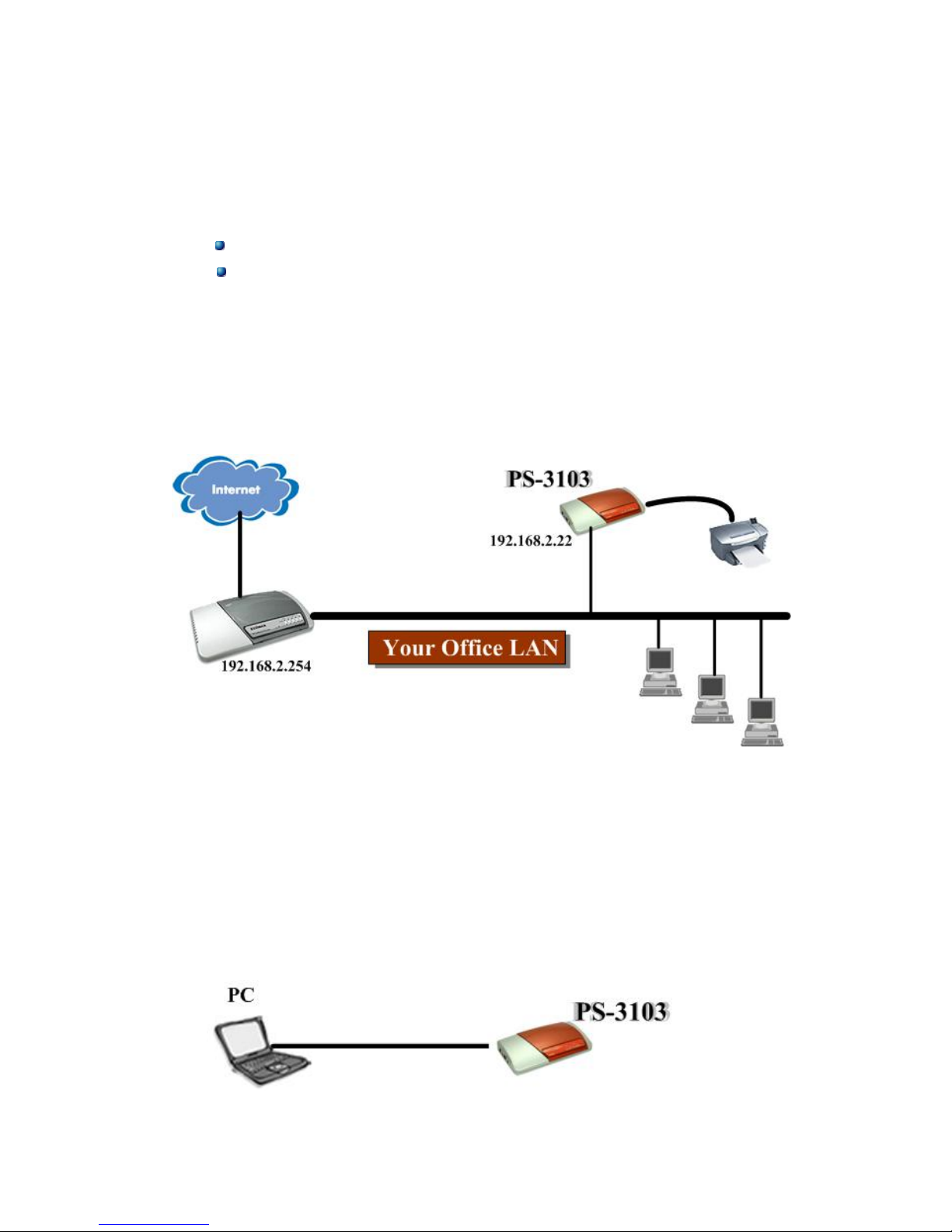
This installation guide is for walking you through the configuration of Edimax
Printer Server as shown in the below figure. No software is required for sharing Printers
in this way.
Step by step
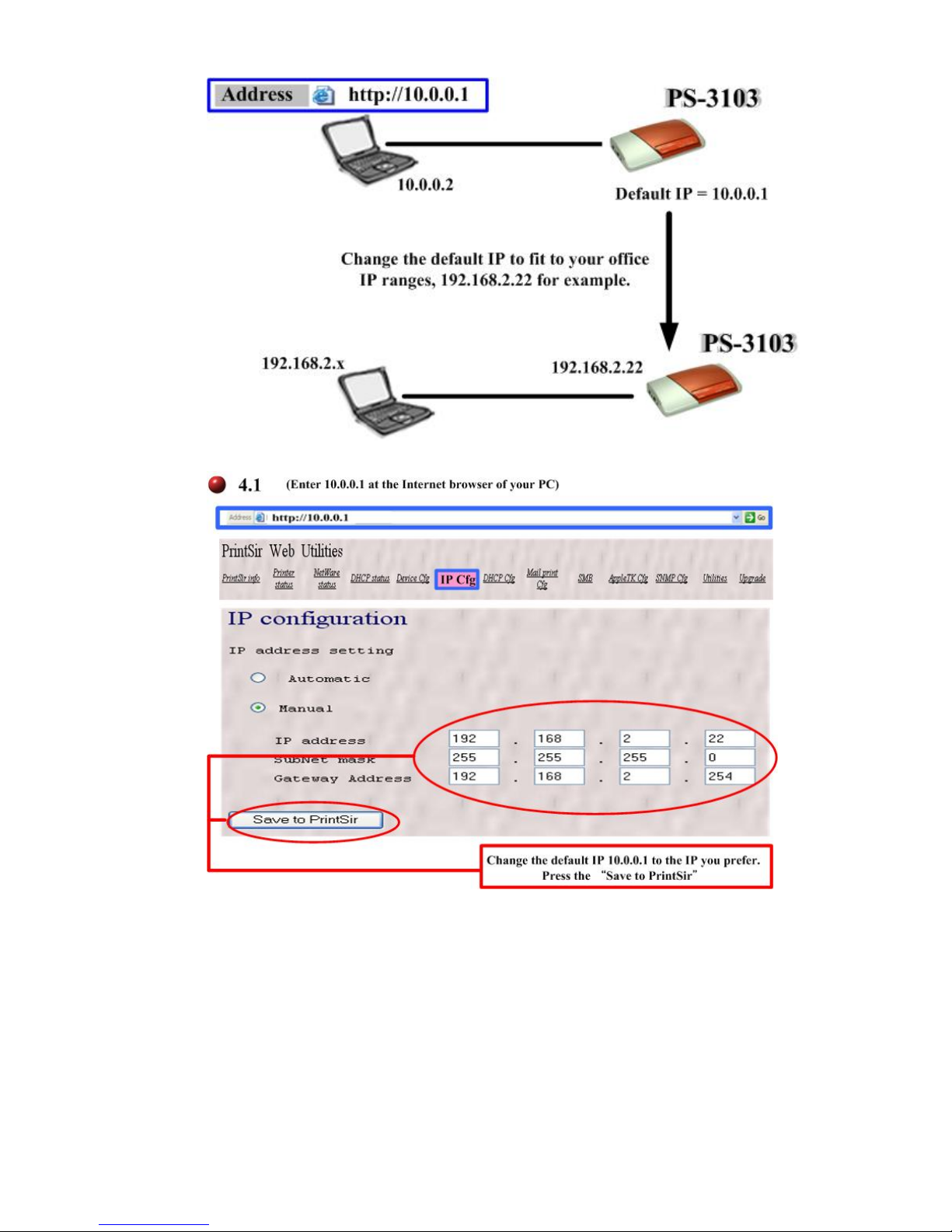
Step one : Change the default IP of Edimax print server from
10.0.0.1 to fit within the IP ranges of your office LAN.
1. Shut down both the Edimax print server and the PC used to configure the
prnter server. Power on the print server before booting up the PC.
2. Connect the PC to the print server like figure below..
Page 2
Copyright 2007 © EDIMAX Technology Co., Ltd. All Rights Reserved
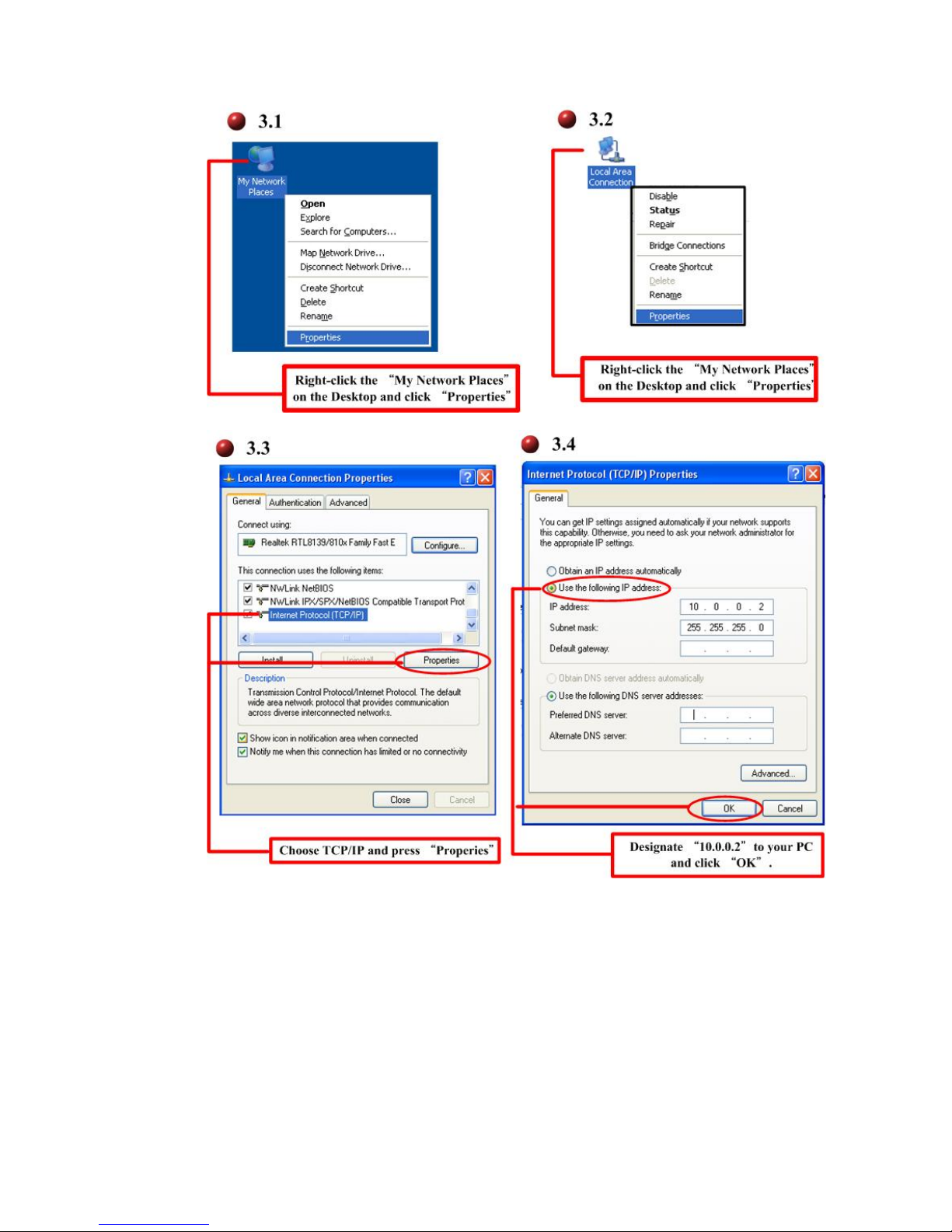
3. Assign IP, 10.0.0.2 to the PC.
4. Assign another IP address of print server to meet your office LAN
requirement. (Here we assign 192.198.2.22 to the print server. Please give
proper IP address to your Printer server based on your office networking
requirement.)
Page 3
Copyright 2007 © EDIMAX Technology Co., Ltd. All Rights Reserved
Page 4
Copyright 2007 © EDIMAX Technology Co., Ltd. All Rights Reserved
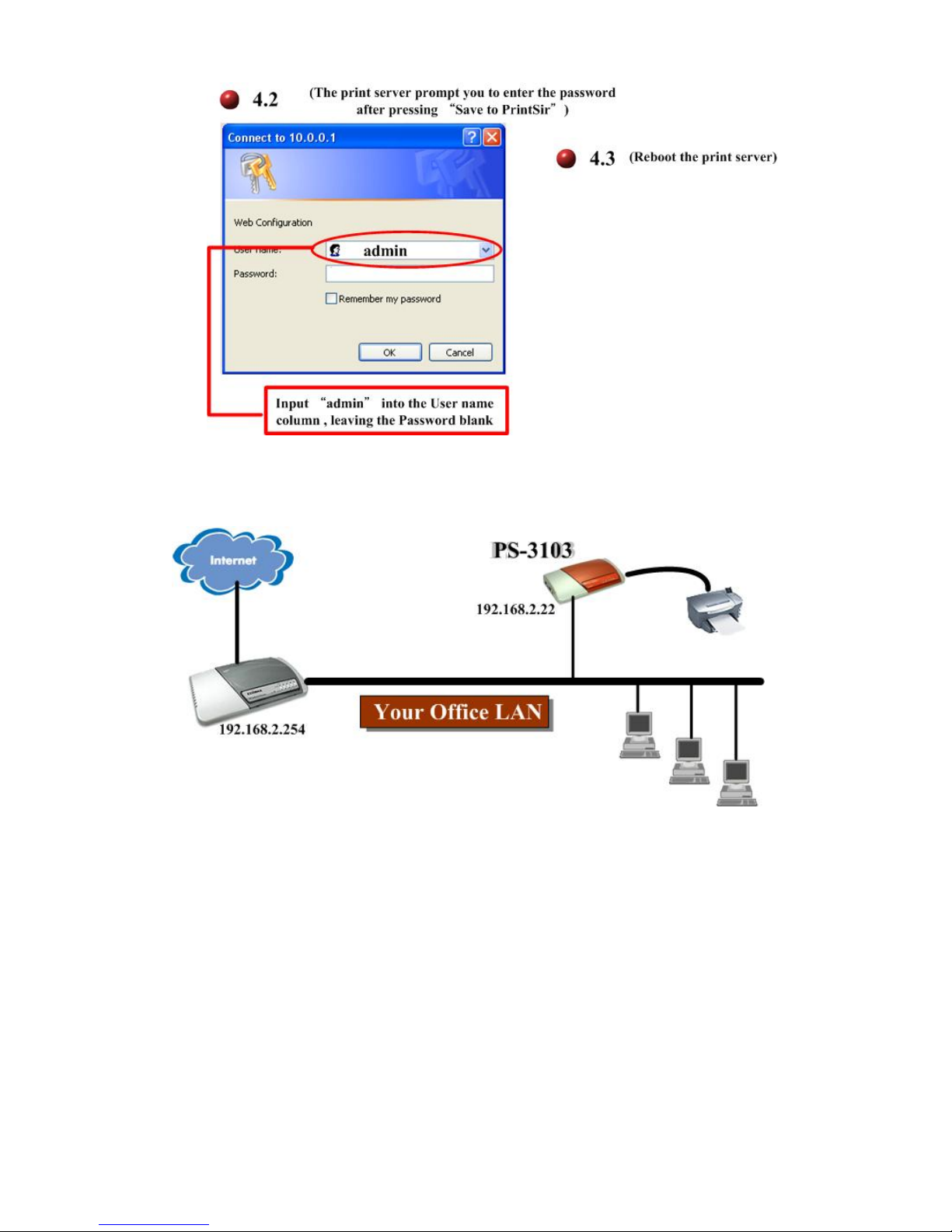
Step two : Connect the Print server to your office LAN.
Note : At this stage, all the PCs in your LAN is able to communicate with the print
server. Please set up your PC back to be within your office IP ranges,
192.168.2.20 for example or obtain the IP from the DHCP, if any..
Step three : Easy configurations on the PCs for using the printers
shared by Edimax print server.
5. Install the printer driver. (Please refer to the printer manual. In this guide, we
assume that you have installed the printer driver, HP LaserJet 1100)
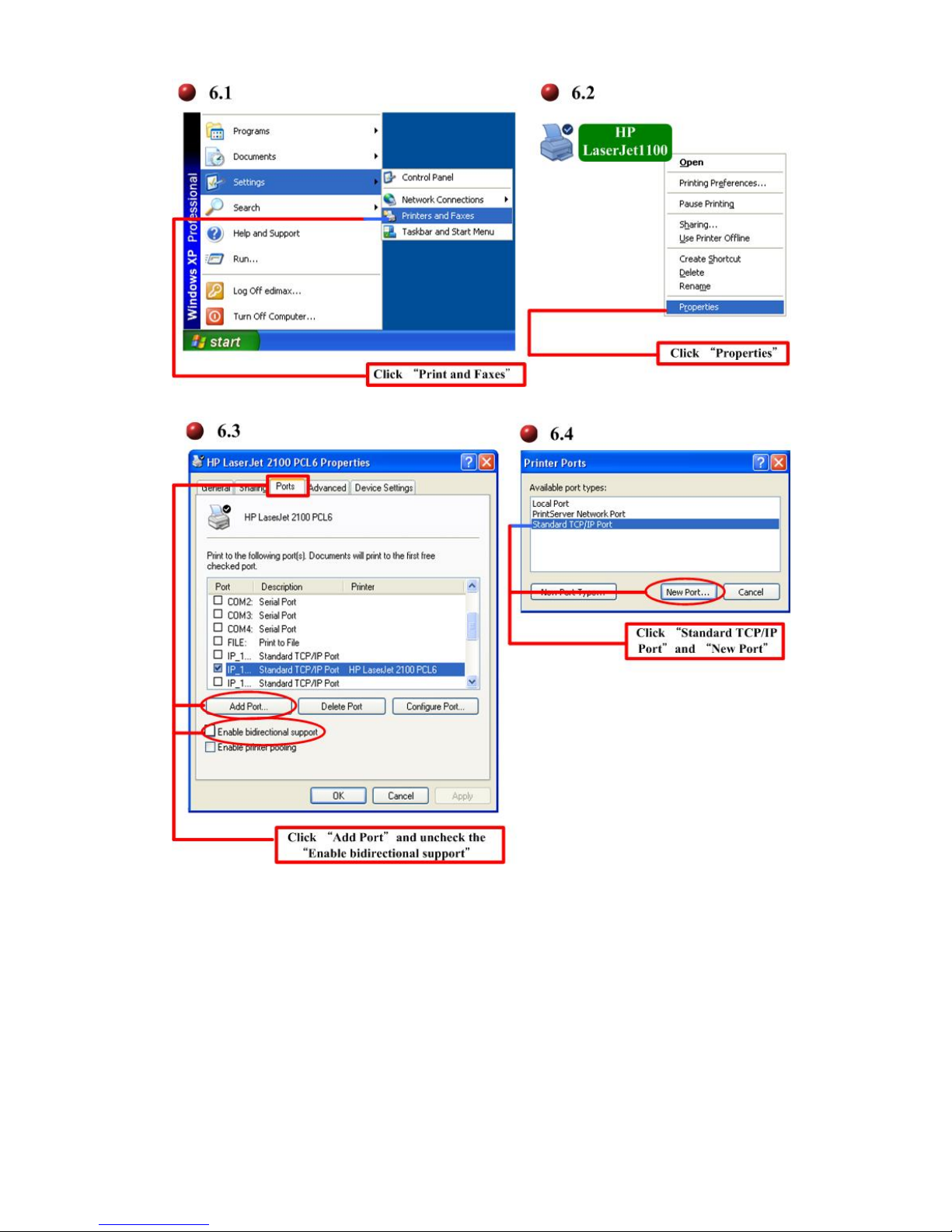
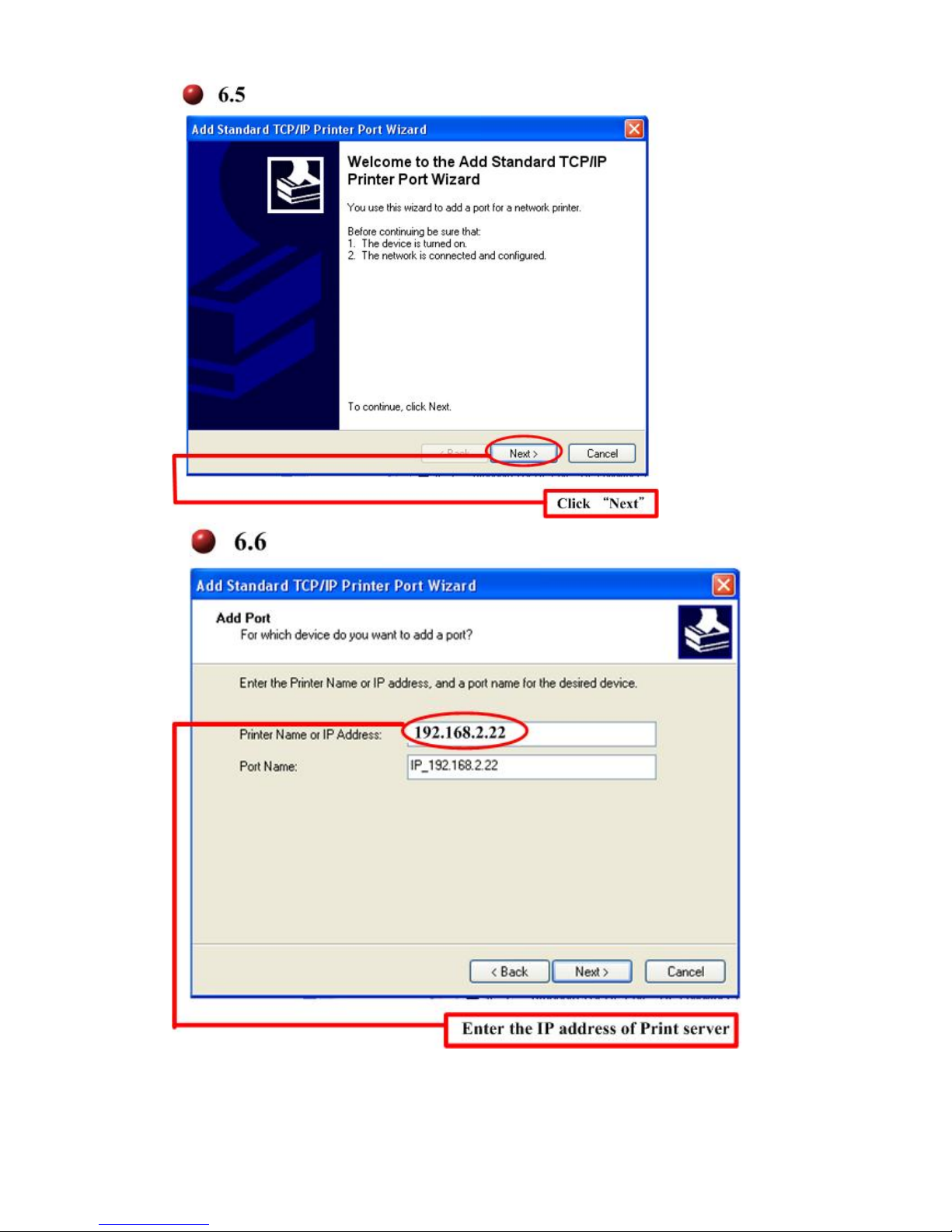
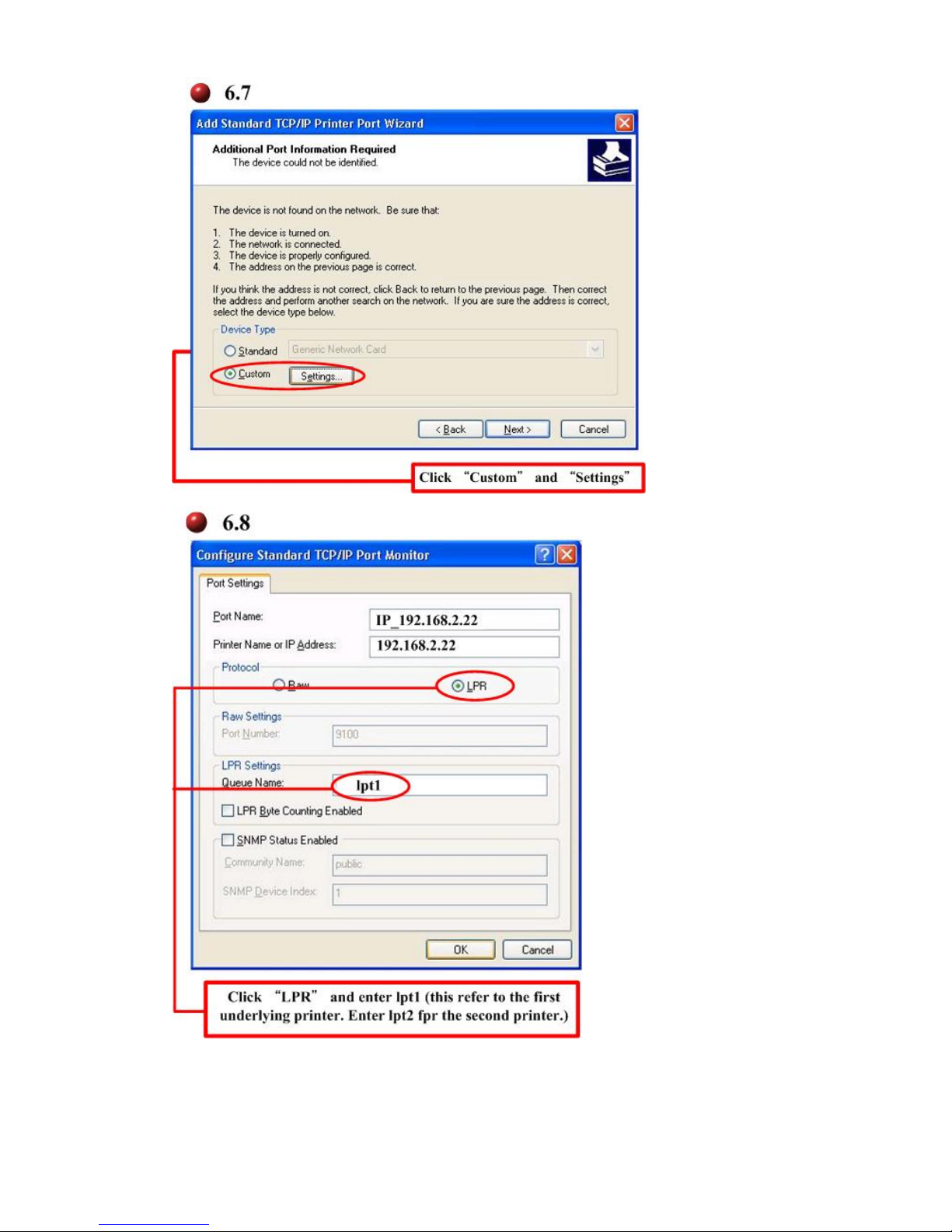
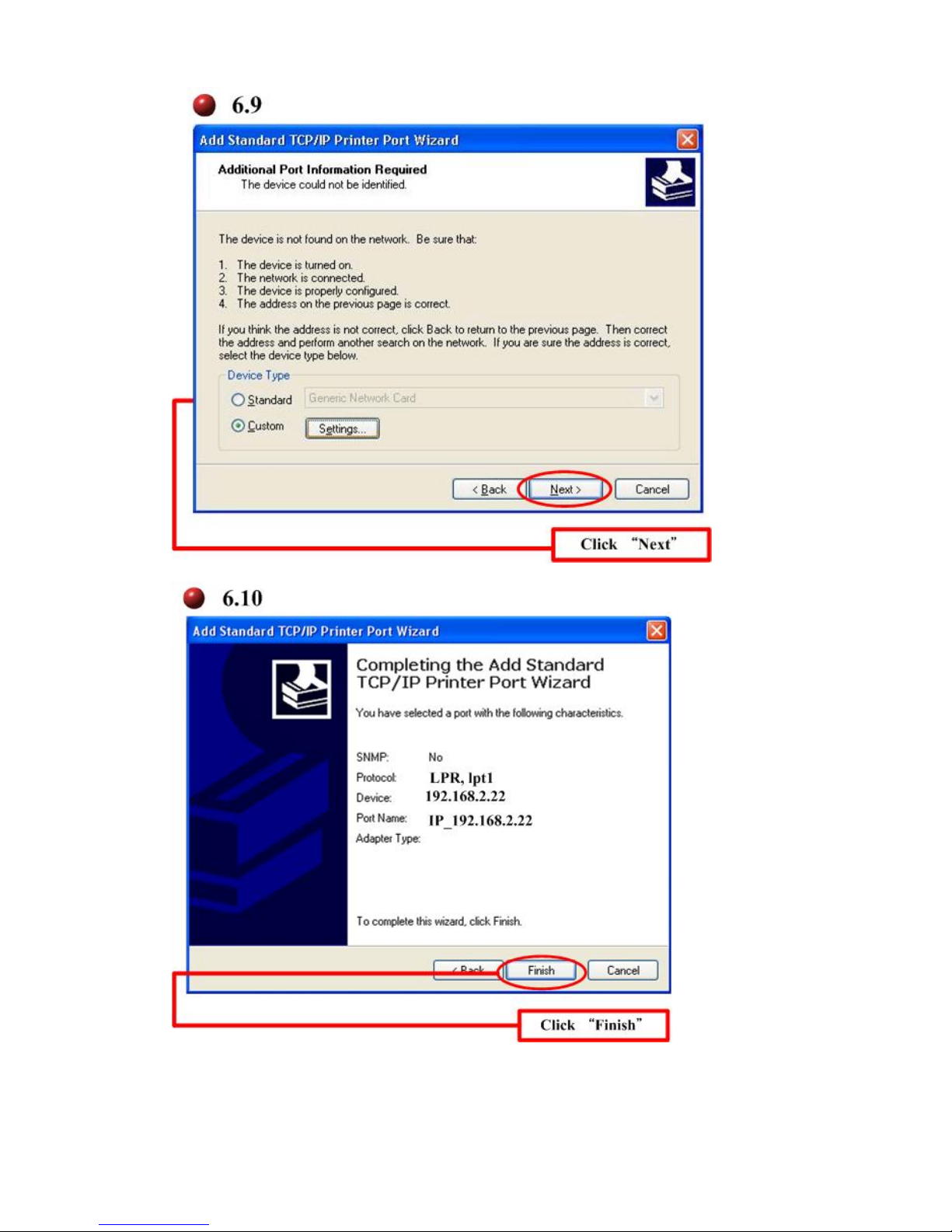
6. Use Windows build-in wizard to add the print port using the IP,
192.168.2.22 of Printer Server.
Page 5
Copyright 2007 © EDIMAX Technology Co., Ltd. All Rights Reserved
Page 6
Copyright 2007 © EDIMAX Technology Co., Ltd. All Rights Reserved
Page 7
Copyright 2007 © EDIMAX Technology Co., Ltd. All Rights Reserved
Page 8
Copyright 2007 © EDIMAX Technology Co., Ltd. All Rights Reserved
Congradulations! All configurations are finished. Enjoy a cup of coffee and test
the printing.
Page 9

Copyright 2007 © EDIMAX Technology Co., Ltd. All Rights Reserved
 Loading...