

Page 1
Need
Help?
Visit us at:
jlabaudio.com/
mp3support/
MP3 + VIDEO PLAYER
USER MANUAL
TOUCH PRO
Page 2

CONTENTS
WELCOME 2
CONTACT US 2
NOTES 3
SAFETY & USAGE 4
FEATURES 5
APPEARANCE 6
BASIC OPERATION 7
CONNECTING TO PC 9
MAIN MENU 12
MUSIC 13
VIDEO 15
PICTURES 17
RADIO 20
eBOOK 22
TOOLS 24
RECORDER 25
FILES 27
APPLICATION 27
SETTINGS 28
VIDEO CONVERSION 31
FCC INFORMATION 34
LIMITED MANUFACTURER’S WARRANTY 35
Page 3

WELCOME
We love that you are rocking Eclipse by JLab!
We take pride in our products and fully stand
behind them.
We’re pumped you’re joining the JLab family. JLab is
passionate about making amazing audio products with
incredible sound – offering extra features and quality for
your money. If you’re already using Eclipse by JLab and
loving your products, please share your feedback – via word
of mouth, social media or even Amazon or online reviews.
Plus our personal service team has your back! We want to
#ROCKITOUT with you for life.
–Win Cramer, JLab Audio President
@wincramer
#ROCKITOUT
CONTACT US
Customer Support VIP Help Line:
1-866-358-6640 (Monday - Friday 9:00 AM - 5:00 PM PST)
Or for even faster service, email us at:
service@jlabaudio.com
For tips and how-to videos, visit:
jlabaudio.com/mp3support
2
Page 4

NOTES
1. The playback times listed refer to the maximum playback
times possible, using the best power savings. The actual
playback time may differ as adjustments to screen brightness,
power savings modes, volume, etc. are made.
2. As parameters such as formats, bitrate, codecs, framerates,
and resolutions differ, the player will not be compatible with all
les of the listed types. If you are experiencing issues playing
your les on this player, we recommend using a supported
conversion tool to reconvert your le to the specications of
the device.
JLab Audio bears no responsibility for any damage or loss of
personal data due to misuse of software and/or hardware,
damage to the player caused by human factors, replacement
of battery, or other unforeseen circumstances. To prevent loss
of your data, please backup your data regularly.
Information in the manual is subject to change without notice
and is subject to copyright protection. Copying or otherwise
reproducing this material without prior written consent is
prohibited.
Due to rmware changes, some of the pictures and functions
described in this manual may not be the same as are included
with your player.
3
Page 5

SAFETY & USAGE
• Do not use the player in exceptionally cold or hot, dusty,
damp or dry environments.
• Do not drop, strike, or throw your player. Physical damage
to your player will void ALL warranties.
• Please charge your battery when:
> Battery power icon shows an empty icon;
> The system automatically shuts down and the power is
soon off when you switch on the unit once again;
> There is no response if you operate on any key
• Please always follow the correct disconnect procedures for
your operating system. Do not disconnect power abruptly
when the player is being formatted or in the process of
uploading or downloading les. Otherwise it may lead to le
corruption, rmware failure, and even hardware damage.
• We are not liable for any loss of data stored on this device.
• Please do not dismantle this player. Any disassembly not
done by an authorized technician will void ALL warranties.
• Do not listen to your device at high volume for extended
periods of time. Doing so can cause permanent hearing
loss. Protect yourself by using the lowest volume setting
that you can hear comfortably and take frequent breaks by
removing your earphones or headphones.
4
Page 6

FEATURES
• Touch screen operating system for ease of use
• 240x320, 26K color high speed TFT screen
• Music player: compatible with MP3 and WAV formats
• Picture browser: compatible with JPEG, BMP, GIF, PNG
and TIF formats
• Video player: compatible with AVI, 3GP and FLV formats
• High Speed USB 2.0 interface
5
Page 7
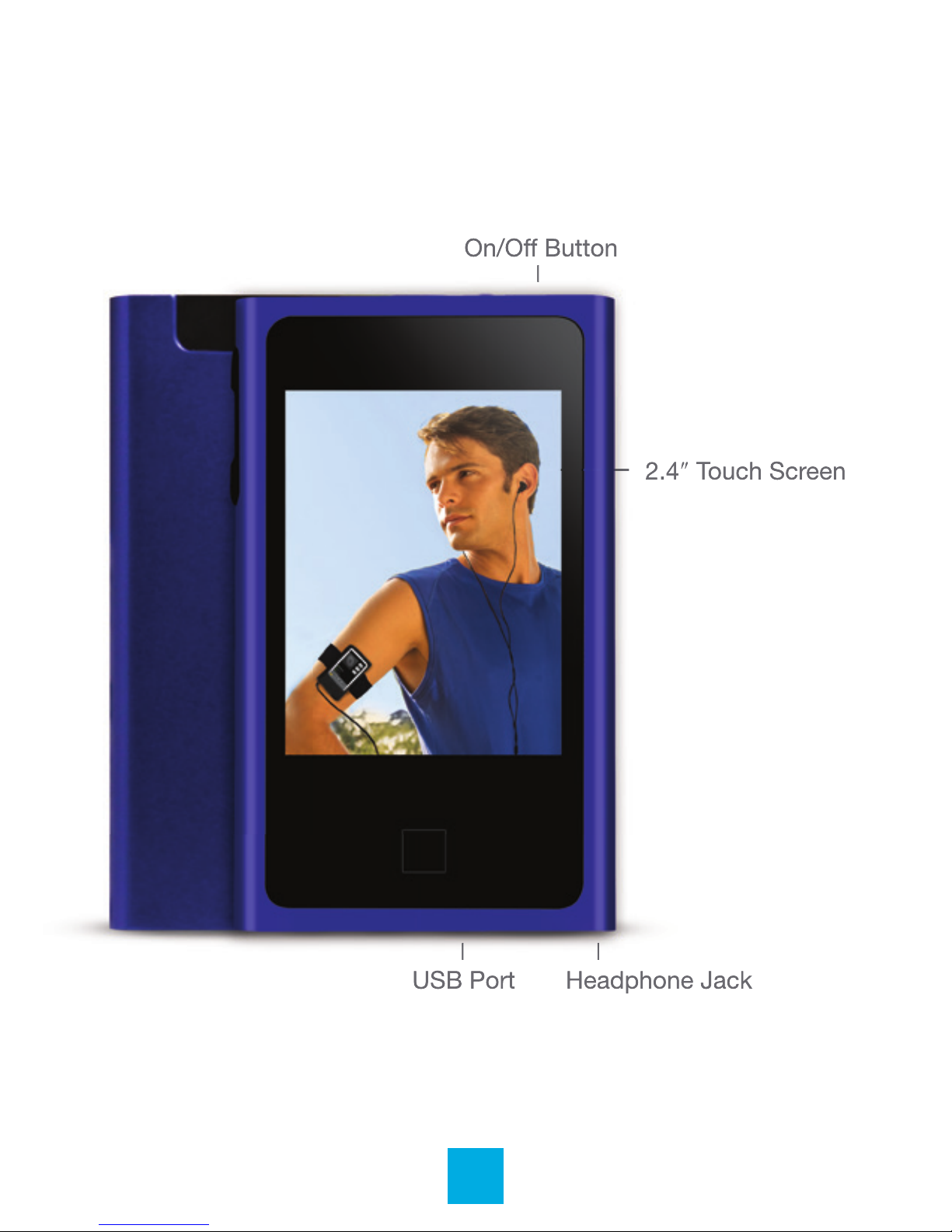
APPEARANCE
6
Page 8

BASIC OPERATION
Power On/Off
To power the player on/off, press and hold the Power button
until the device powers on or off.
Lock/Unlock
The unit is lock automatically after 60 seconds, when the unit
is locked, switch and hold the power button to unlock the unit.
Volume Adjustment
In Music or FM Radio mode, touch the dot above and if
using your nger, keep touching to the right of the dot to
increase volume. Touch to the left of the dot to decrease
volume (Or, with the stylus, drag the volume icon). In Video
mode touch the to enter, and then do the same steps as
Music or FM Radio, above.
Charging
When battery power is low, the player will prompt you, power
off, and enter Standby mode automatically. Do not try to turn
on the unit. You must charge again before using. Charger
current specication recommended: 400-500mA. To charge
the player, simply connect it to a powered USB port, or
external AC adapter.
7
Page 9
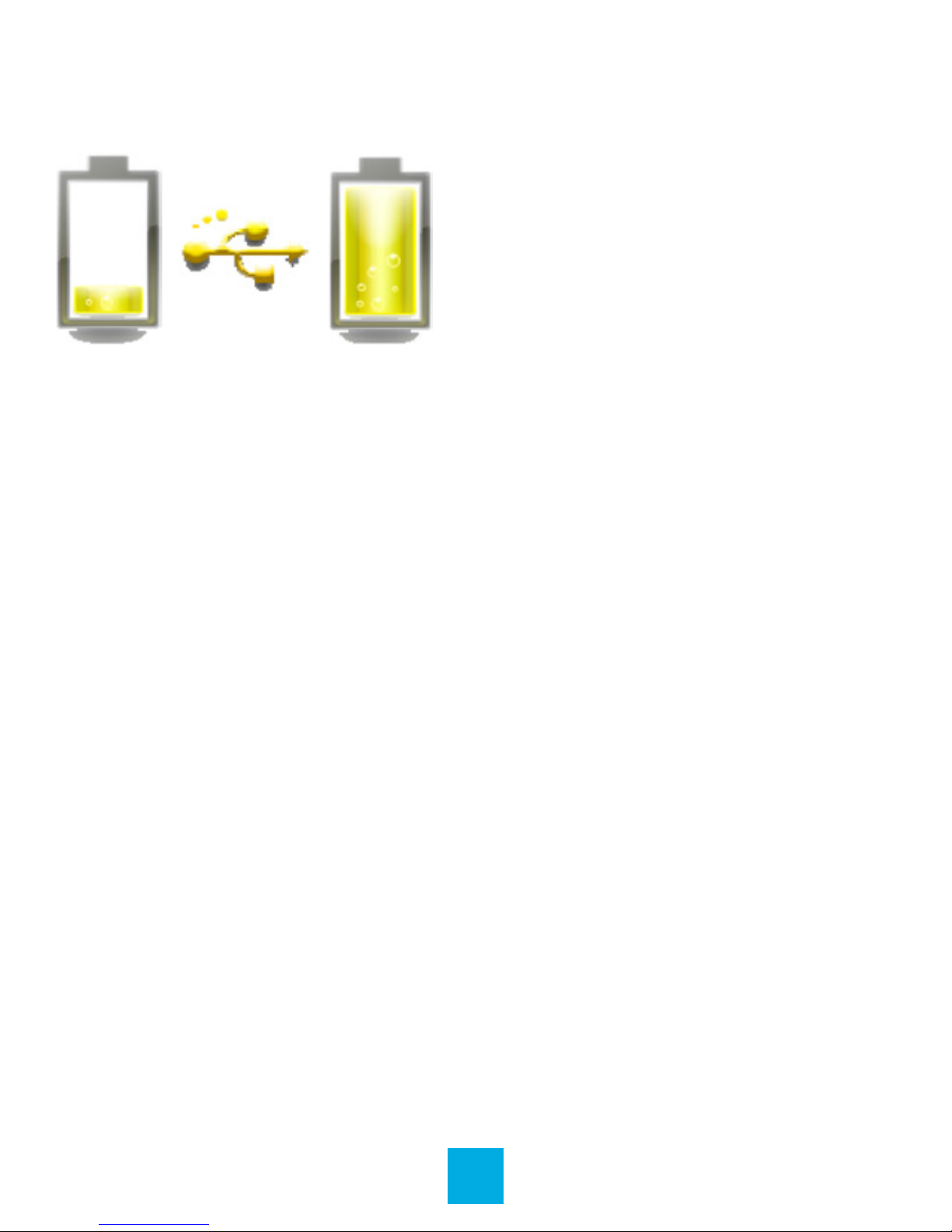
Note: If you choose to use a third party adapter, please ensure
that it is 5V and between 350 and 1000mA, or 1amp.
Inserting & Removing the microSD Card
Inserting
Ensure that the player is powered off, and disconnected from
the computer. Hold the microSD card face up (side with words
aligned in the opposite direction of the display screen), and
slide the card into the socket on the player, slightly past ush.
When you hear the card click into place, you can access it.
Removing
Ensure that the player is powered off, and push the SD card
just past ush. When you hear the click, release pressure, and
the card will slide out.
Caution: Please ensure that the power is off when you
connect or disconnect your SD card, or damage may occur to
the player or your card.
8
Page 10
CONNECTING TO PC
Loading Files: Copy & Paste
Note: This alternate method is used to load videos, pictures,
and eBook les as well as audio les.
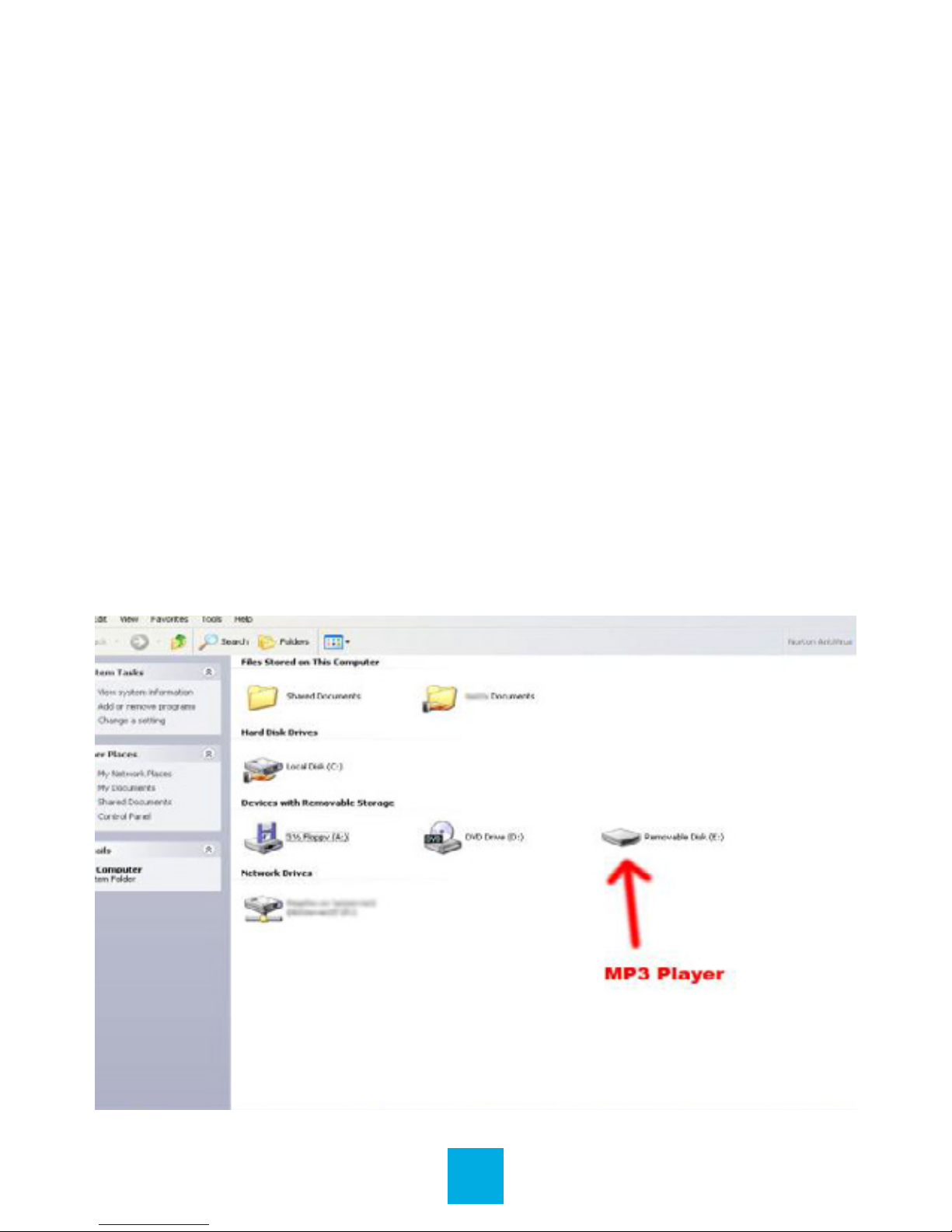
1. Connect the MP3 player to a working USB port.
2. Go to the My Computer (or This PC if using Windows 10)
section of your computer. In there you will nd a section called
Devices with Removable Storage.
3. Locate the drive created by the unit, generally just called
Removable Disk with a letter in parentheses. Drive letters vary
depending on your system conguration.
9
Page 11
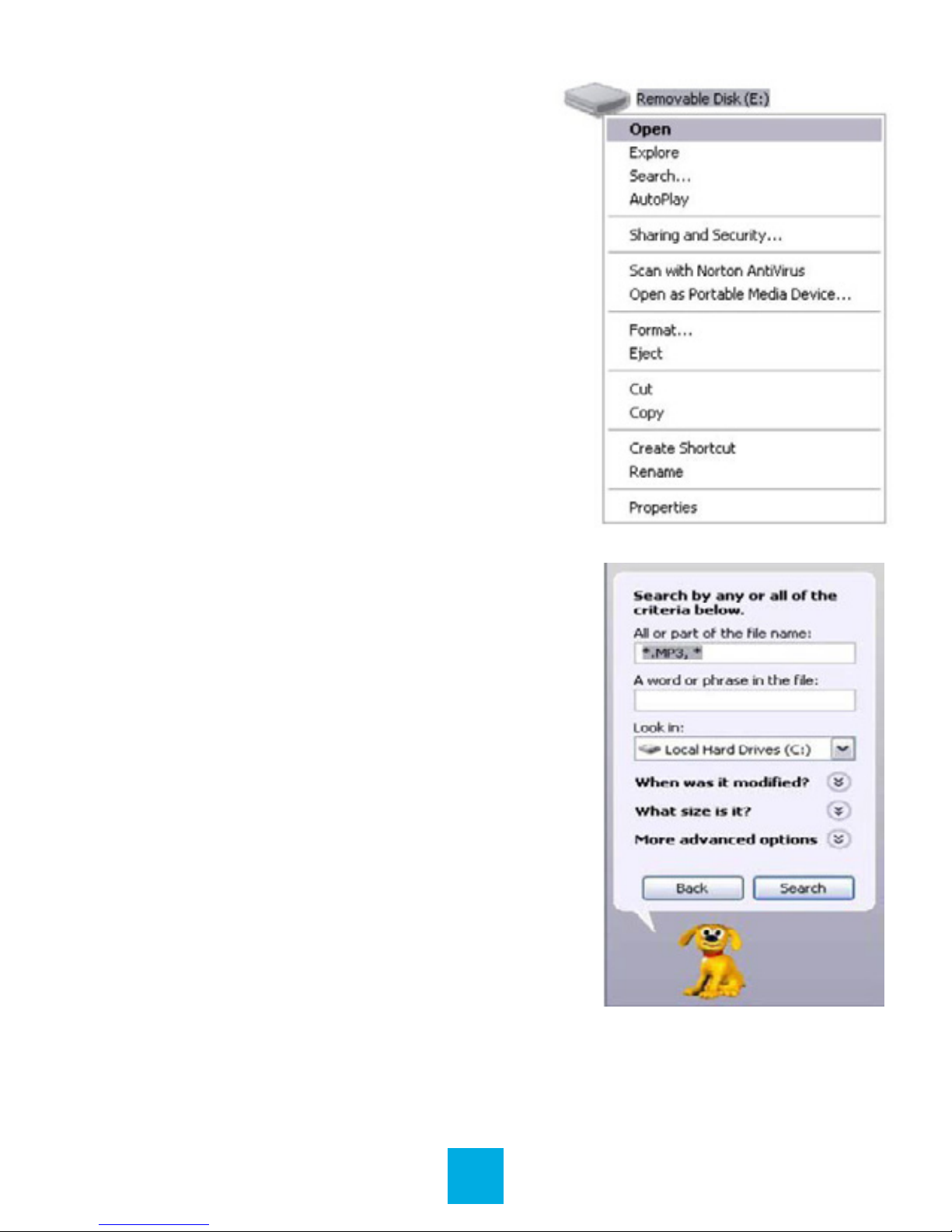
4. Open the drive by either double
left clicking on the drive itself,
or by right clicking to open the
option menu then left clicking
on the desired drive.
5. Locate the music stored on your
computer. Generally this is stored
in the My Music folder of your
computer.
Note: If you are unable to locate the
music on your computer, click on
start, search, les and folders,
then search for “ *.MP3* ”.
10
Page 12
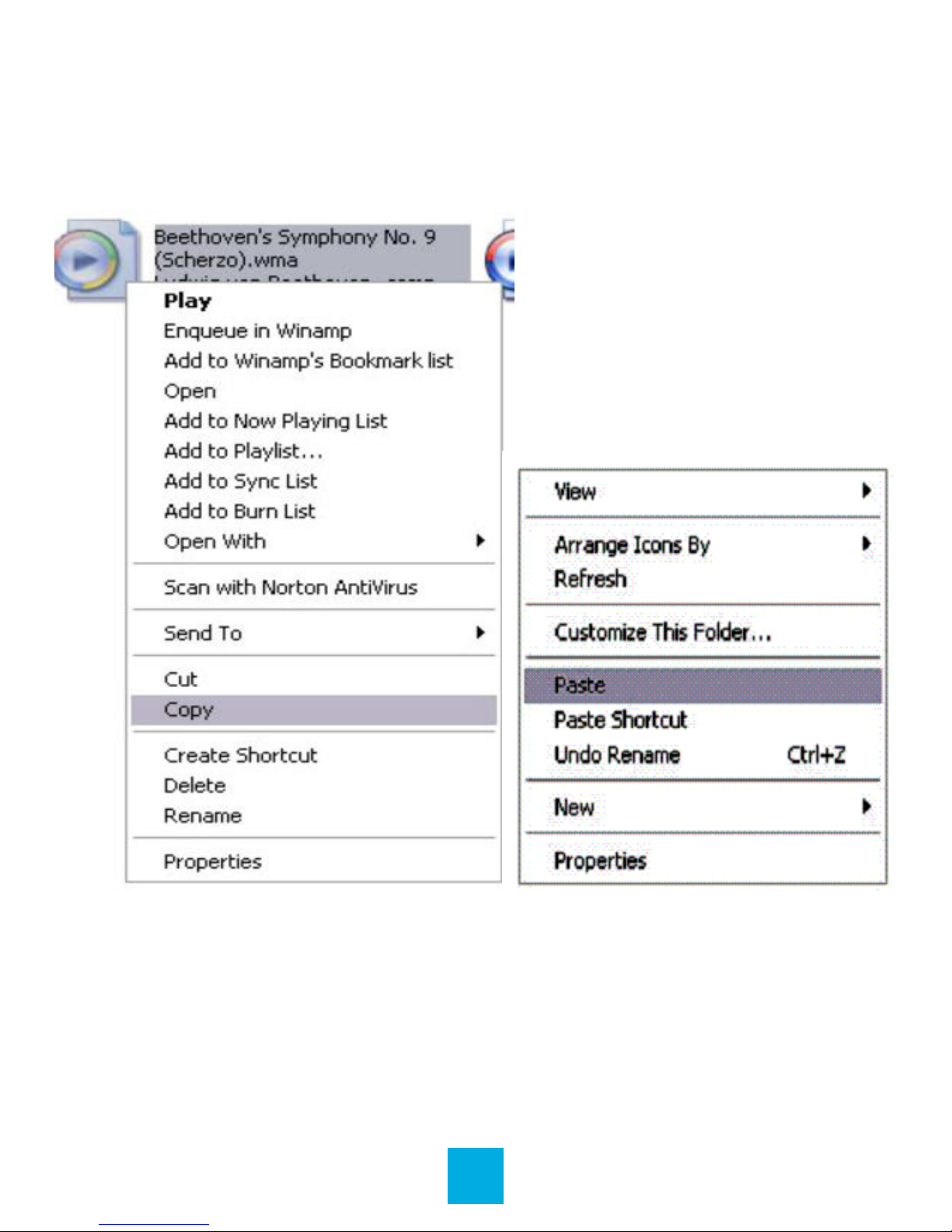
6. Once you have located the song les, you can right click
on the song itself and select Copy. Open the removable disk
drive, right click on in the empty space and select Paste.
This will transfer the song on to your player.
7. Repeat step 6 for as many songs as you want to copy on to
the unit.
Note: MAC computers
When connected to your MAC computer, the device will act as
a removable drive. Simply drag your les to the device.
11
Page 13

MAIN MENU
This player provides a touch screen Operating System for
direct operation. The main menu interface is shown in the
picture below:
1. The battery is shown on the upper right corner of the main
menu interface .
2. Under the main menu interface, choose and touch an icon
on the screen, and the player will enter the selected mode.
3. After the player enters a mode, touch the icon on the
upper left corner to return to the main menu.
12
Page 14

MUSIC
Plug the earphones into headphone jack. In the main interface,
touch the Music icon to enter music mode. Compatible with
MP3 and WAV formats.
Main Interface
Music Setting Interface
Touch one of the 4 buttons at the bottom of the interface to
enable an appropriate function.
Lyrics Display
The player is compatible with lyrics les of LRC format and
enables playing songs with synchronous lyrics. The name of
the lyrics le should be the same as that of the song le. The
lyrics of the song will be displayed on the playing interface.
13
Page 15

Icon Description
Number of the song being played/
total songs.
Menu: Touch to choose Playing
Mode, Select EQ, Screen Mode,
Add Playlist, Add Bookmark and
Set Rating.
Song playing progress bar:
Drag to adjust playing progress.
Volume: Touch to adjust volume.
Previous: Skip to previous song,
long touch for fast rewind.
Play: Touch and it will change to
pause button, and touch again to
continue playing.
Next: Skip to the next song,
long touch for fast forward.
Return to main menu.
14
Page 16

VIDEO
Video mode will allow you to watch your movie and video les
loaded on the player. Compatible with AVI (XVID), WMV (non
encrypted), and FLV formats.
Note: If you are having a hard time viewing your video les,
please convert them using the AVI conversion tool included
with the player. See page 33.
Main Interface
Delete Video
If you want to delete the video, touch the icon to choose
the word Delete and the video will be removed from your
device.
15
Page 17

Icon Description
Menu: Touch to choose Play Mode,
Scan Speed, Screen Mode, Add Bookmark,
Resume and Delete.
Play: Touch and it will change to pause button,
and touch again to continue playing.
Volume: Touch to adjust volume.
Fast Rewind: Long touch for fast rewind;
Short touch for the previous video le.
Fast Forward: Long touch for fast forward;
Short touch for the next video le.
Return to the main menu.
16
Page 18

PICTURES
Photo mode will allow you to view your image les, whether
they are photos, computer generated images, album art, etc.
Compatible with JPEG, BMP, GIF, PNG and TIFF.
Note: We recommend converting your les to 320x240 or
240x320 dimensions before loading them to the player for
optimum quality.
Main Interface
17
Page 19

Browse Pictures
1. Touch Scan Mode to change to the List mode.
2. Touch the Now playing and Directory list to browse pictures.
Touch the picture, and the icons will appear automatically at
the screen.
Delete Picture
If you want to delete the photo, touch the icon to choose
the word Delete and the photo will be removed from your
device.
18
Page 20

Icon Description
Menu: Touch to choose Rotate, Zoom,
Slideshow Interval, Slide Effect, Delete and
Information.
Previous: Previous picture.
Next: Next picture.
Return to the main menu.
19
Page 21

RADIO
Main Interface
Icon Description
Menu: Touch to choose Delete Channel,
Auto Search, Record Radio, Record Quality
and Region.
Auto Search: Touch to enter Auto Search
mode. All channels can be automatically
searched and saved. After search is completed,
the player will play radio at the preset channel
1. During channel search, touch icon to stop
Auto Search.
20
Page 22

Record: To enter recording interface to start
recording. Touch Stop icon to pause and save
recording.To playback the recorded le, go to
the Files icon and touch Record and choose
FM to touch >>/<< to select and play the le.
Volume: Touch to adjust volume.
Previous: Previous radio channels.
Next: Next radio channels.
Return to the main menu.
21
Page 23

eBOOK
This player will display only eBook and text les which are in
TXT format. You can create these les using your Windows
Notepad or WordPad programs.
Main Interface
View Text File
Select a TXT le to enter eBook browser interface.
Turn Pages
Use your nger to swipe the up screen to choose previous
page and swipe the down screen to choose next page.
22
Page 24

Icon Description
Menu: Touch to choose Skip To, Autoip Time,
Add Bookmark, Language, Font Size and
Font Color.
Skip To: Touch to show “Skip To” dialogue box,
and touch < or > to select the skip percentage.
Touch to choose Skip percentage and exit.
Autoip Time: Touch to show Autoip Time
dialogue box, and touch < or > to select the
Autoip Time percentage. Touch to choose
Autoip Time percentage and exit.
Return to the main menu.
23
Page 25

TOOLS
Calendar
This simply displays a calendar on the screen of the player.
Tapping the or icons will adjust which month or year
you are looking at. You can tap a date on the calendar to turn
the date blue.
Calculator
This calculator will act exactly as a standard calculator. Simply
tap the icons.
24
Page 26

Stopwatch
This application will open a stopwatch function. Tap the start
icon to begin timing an item, and the pause icon to
pause the timer. Tapping the Next icon will pause your
current timer, and start timing on the next line. Tap the Reset
icon to reset all timing data.
RECORDER
Touch Recorder icon to enter Recorder mode.
25
Page 27

Icon Description
Menu: Touch the icon to choose Record
Format, Record Quality.
Record Format: Touch to select WAN or
MP3 le.
Record Quality: Touch to select High,
Medium, Low.
Stop: Touch it and it will change to play icon to
enter recording mode.
Touch to save the recorded le.
Return to the main menu.
26
Page 28

FILES
Touch the Files icon to select ebook, Music, Photo, Playlist,
Record, Software, Tools and Manual, and Video.
APPLICATION
The Applications item on the main menu allows you to access
one of several extra applications on the player. Please note
that applications may be added or removed as rmware
changes on the player, so not all items shown in this section
may be available for use, or some applications not described
in this manual may be available on your player. For instruction
on using any application loaded to the player which is not
described in the manual, please contact our technicians at
1-866-358-6640.
27
Page 29

SETTINGS
Touch the Settings icon to select Display, Power Saving, Time
& Date, Languages, Updating Music Library, and Advanced.
Set Time
This will allow you to adjust the date and time, which is
displayed on most screens of the player. Setting the 24 hour
time to on or off will change the way time is displayed, for
example, 3PM will display as 15:00 if set to on, and 3:00 if set
to off. Tap the < or > icons next to each item (year/month/day/
etc.) to adjust the value of that item.
28
Page 30

Language
Tap 1 of 27 languages to display items in that language.
Display
Display allows you to adjust your screen brightness and
backlight time.
Back Light Time
Allows you to adjust the length of time that the backlight will
stay lit when the player is idle. Tap the < or > icons to adjust
this item.
Brightness
Allows you to adjust the screen brightness. Tap the numbered
icons to adjust your screen brightness, from 1-5. 5 is the
brightest setting, and will use the most power.
Note: Brightness setting 1 will make your screen exceedingly
hard to view, and may make readjusting your settings
neccessary! Please exercise extreme caution when adjusting
your brightness.
Power Off
This option allows you to set a timer to automatically power
the player off. This setting is great if you plan on dozing off
to some music, but don’t want to drain the battery of your
device. Tap the or icons to adjust this item.
29
Page 31

Default Settings
This option will allow you to restore the player to factory
defaults.
Upgrade
This option will allow you to update the rmware on the player.
Firmware updates will be released at www.jlabaudio.com.
Please check there regularly for updates.
Other Settings
Touch the Other Settings in the system setting interface
to enter other setting mode to format main disk or format card.
30
Page 32

VIDEO CONVERSION
If your video les will not play on your Eclipse by JLab player,
you can convert them using the conversion tool which is
included with the device. To do so, you will need to rst install
the software.
When you connect the player to your computer, it will act as a
removable disk drive. Open the drive, as described in the Copy
and Paste section of the manual. Inside, there is a folder called
Tools & Manual. Open this folder, and then the Tools folder.
Inside is a Setup.exe application. Run this le and follow the
onscreen instructions. Please note that depending on your OS
version and security settings you may need to right click on the
le and select Run as Administrator.
Once installed, you will have an item called Media Player
Utilities in your programs list. Select this item and then Video
Converter, or AVI Converter.
31
Page 33

Once the conversion tool is open, the rst step in actually
converting and loading the le is to select the le you wish to
convert. Locate the Input File line towards the top of the
window, and select the Add le button and use the le
selection window to select the le you want to convert and
load. The second step is to select the location you want the
converted le saved to. Locate the Output File line immediately
below the Input File line and select the Video Path button
and use the browse for folder window to select the save
location. As this conversion tool is already calibrated to convert
your les for optimal quality, you simply need to select the
Begin button and the player will convert the le for you.
Please note that if the player is connected to your computer
when you open this tool, you will see an additional window to
the right of the main window. This is the media player window.
Please note that the window will display the drive letter
assigned to your player. If you have multiple players
connected, it will have an option for each drive. Below the
drive letter is a pie chart showing the amount of storage space
available and the amount used. There is also a check box
giving you the option to automatically copy the video le to
your drive. Selecting this will save you a step in loading your
video les, as the converter will save a copy of the converted
le to your computer, and then automatically load it on to the
player as well!
Once the le has nished converting and loading on to your
player, follow the Safely Remove Hardware instructions
outlined above, and enjoy your video.
32
Page 34

If you receive an error when attempting to convert a video
le, then you likely lack the proper video codecs on your
computer. There are several large codec packs which will
contain the majority of the common video codecs, such as
the K-Lite Mega codec pack, and the Storm codec pack. We
recommend downloading them from a trusted source and
installing them and attempting to convert the les then.
33
Page 35

FCC INFORMATION
This equipment has been tested and found to comply
with the limits for Class B Digital device, pursuant to part
15 of the FCC rules. These limits are designed to provide
reasonable protection against harmful interference in a
residential installation. This equipment generate, uses and
can radiate radio frequency energy and, if not installed and
used in accordance with the instructions, may cause harmful
interference to radio or telephone reception, which can be
determined by turning the equipment off and on, the user in
encouraged to try to correct the interference by one or more of
the following measures:
• Reorient or relocate the receiving antenna.
• Increase the separation between the equipment and the
receiver.
• Connect the equipment to an outlet on a circuit different from
that to which the receiver is connected.
• Consult the dealer or an experienced radio/TV technician for
help.
34
Page 36

LIMITED MANUFACTURER’S
WARRANTY
1. Eclipse by JLab products carry a one year from date of
purchase warranty. This warranty is nontransferable.
2. JLab Audio warrants to the original registered end-user
purchaser that Eclipse by JLab products will be free from
defects in materials and workmanship for one year from the
date of new purchase. During the warranty period, and upon
proof of purchase the product will be repaired or replaced
(with the same or a similar model, which may be a refurbished
model) at JLab Audio option, without charge for either parts or
labor. This warranty shall not apply if the product is modied,
tampered with, misused, physically damaged, or subjected
to abnormal working conditions (including, but not limited
to, electrical, re, and water damage). THIS WARRANTY
DOES NOT GUARANTEE YOU UNINTERRUPTED SERVICE.
REPAIR OR REPLACEMENT AS PROVIDED UNDER THIS
LIMITED WARRANTY IS THE EXCLUSIVE REMEDY OF THE
PURCHASER.
To obtain service under this warranty, you must contact
our Technical department at 1-866-358-6640 to obtain
an RMA number. JLab Audio will only replace or repair
product that is sent to us with an authorized RMA
number.
35
Page 37

Return Merchandise Authorization (RMA)
1. Customers will be charged additional for testing and
repackaging when returned “bad” items are found to have no
problems or defects.
2. Items found to be out-of-warranty or not belonging to JLab
Audio will not be replaced. Instead, they will be returned back
to the customer freight-collect.
3. RMAs will be shipped back to customer via UPS ground
delivery. Express shipping will be at additional costs to the
customer.
4. All RMAs must be accompanied with a copy of original
receipt or invoice with name, return address and phone
number of customer.
Exchanges
1. Items will not be cross-shipped for any reason.
2. The original receipt or invoice must accompany all
exchanges.
3. All exchanges must be shipped freight pre-paid by the
customer and include a pre-paid shipping label for shipment
back to the customer. Furthermore, the customer is expected
to insure all items being shipped back. JLab Audio is not
responsible for any losses or damages for such equipment.
36
Page 38

Discrepancy & Shipping Damage
1. For wrong items, missing items, shipping damage, or other
discrepancy; customer should report to RMA department on
the day in which the items were received. Any claims after one
business day of receipt will not be honored.
2. For any shipping damage, customer must le a claim with
their carrier immediately. All items are shipped insured, thus
must be reported for coverage.
3. Customer is responsible for paying any freight charge
caused by refused shipment or unclaimed goods.
4. JLab Audio will make every reasonable effort to deliver on
time however; JLab Audio will not be liable for late or lost
shipments.
Consequential Damages & Limitations
1. JLab Audio shall not be liable for any failure to perform or
delay in performing any of its obligations when such failure or
delay is due to circumstances beyond its reasonable control,
including, without limitation, any act of God, war, strike,
riot, re, ood, earthquake, lock-out, late or non-delivery by
suppliers, shortage or unavailability of materials, components
or transportation facilities, or any act, refusal to act, regulation,
order or intervention of any governmental authority.
37
Page 39

2. Under no circumstances shall JLab Audio be liable for any
special, indirect, incidental or consequential damages of any
kind or nature whatsoever, including, without limitation; lost
goodwill, lost resale prots, loss of data or software, work
stoppage or impairment of other goods, and whether arising
out of breach of any express or implied warranty, breach of
contract, tort (including negligence), strict product liability or
otherwise, even if advised of the possibility of such damage or
if such damage could have been reasonably foreseen.
38
 Loading...