

Page 1
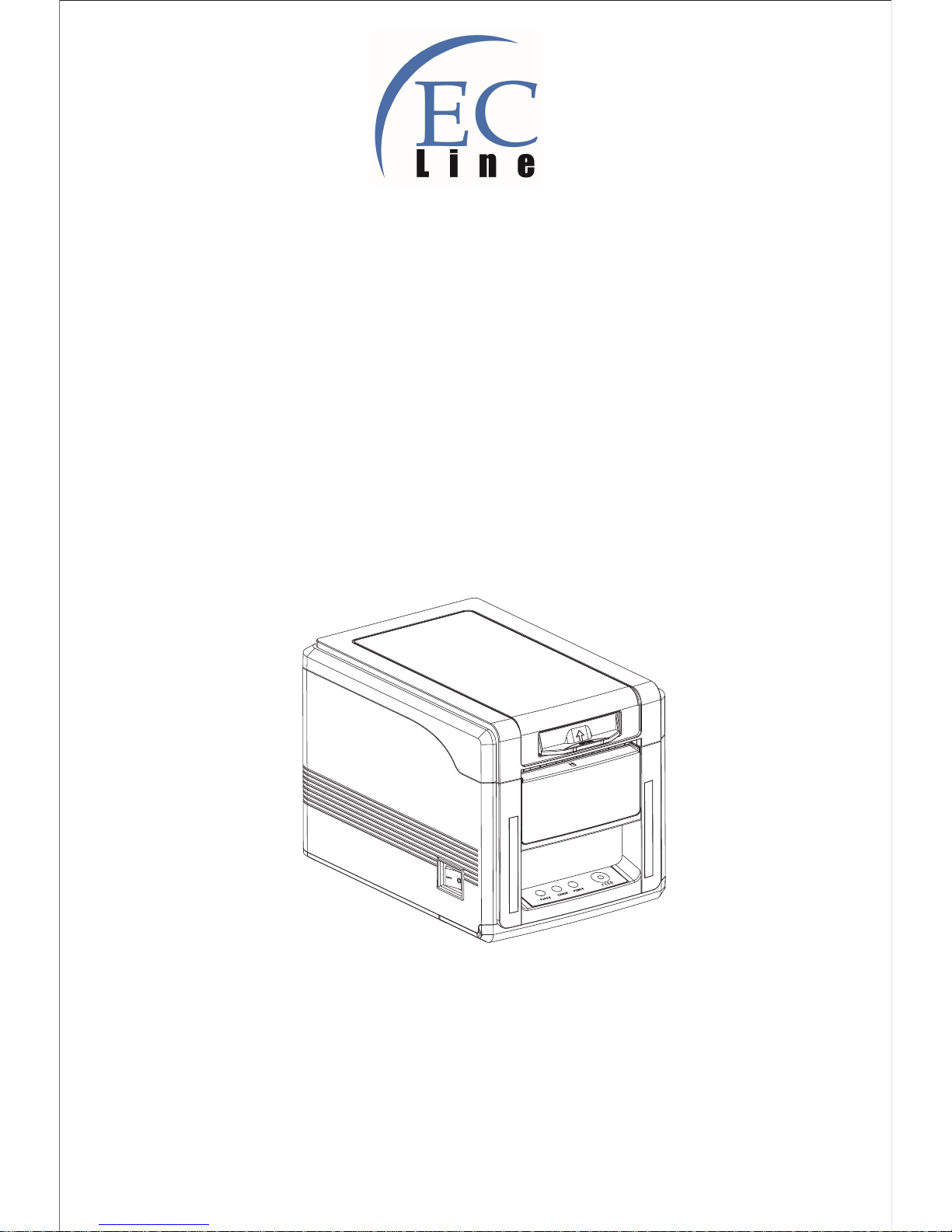
EC-80340
Proficient in Commercial POS Receipt Printers
THERMAL RECEIPT PRINTER
User’s Manual
Page 2

Line Th ermal Print ers
1
1.Safety Notice:
* Install the printer on stable place, choose a firm, level surface where avoid vibration.
* Do not use and store the printer under high temperature, humid or seriously polluted environment.
* Connect AC power adapter to a proper power outlet. Avoid to use the same outlet with other large
electric machines which generate voltage fluctuation.
* Do not let water or conducting material (eg. metal) into the printer.
* Do not print when it is out of paper, which will seriously damage the printer head and rubber roller.
* We recommend that you unplug the printer from the power outlet whenever you do not plan to use it
for a long period.
* Do not try to disassemble, repair or remodel the printer by yourself.
* Only use the power supply that is come along with the printer.
* We recommend that you use good paper to deliever high quality receipts and to ensure
the printer's lifespan.
* Make sure that printer is off when connecting or disconnecting the plug, always hold the
plug - notthe cord.
* Please keep this manual for your reference.
2. Applications:
* POS system Receipts
* EFT POS system Receipts
* Gym, post, hospital, civil aviation system Receipts
* Inquiry, Service system Receipts
* Instrument test Receipts
* Tax, Tab Receipts
3. Unpacking
After unpacking the unit, check that all the necessary accessories are included in the package.
CD Disk 1 PC
Printer 1 PC
Serial interface cable 1 PC
Power Adapter (include power cord) 1 SET
Warranty Sheet
1 PC
Page 3
OP O
S
Line Th ermal Print ers
2
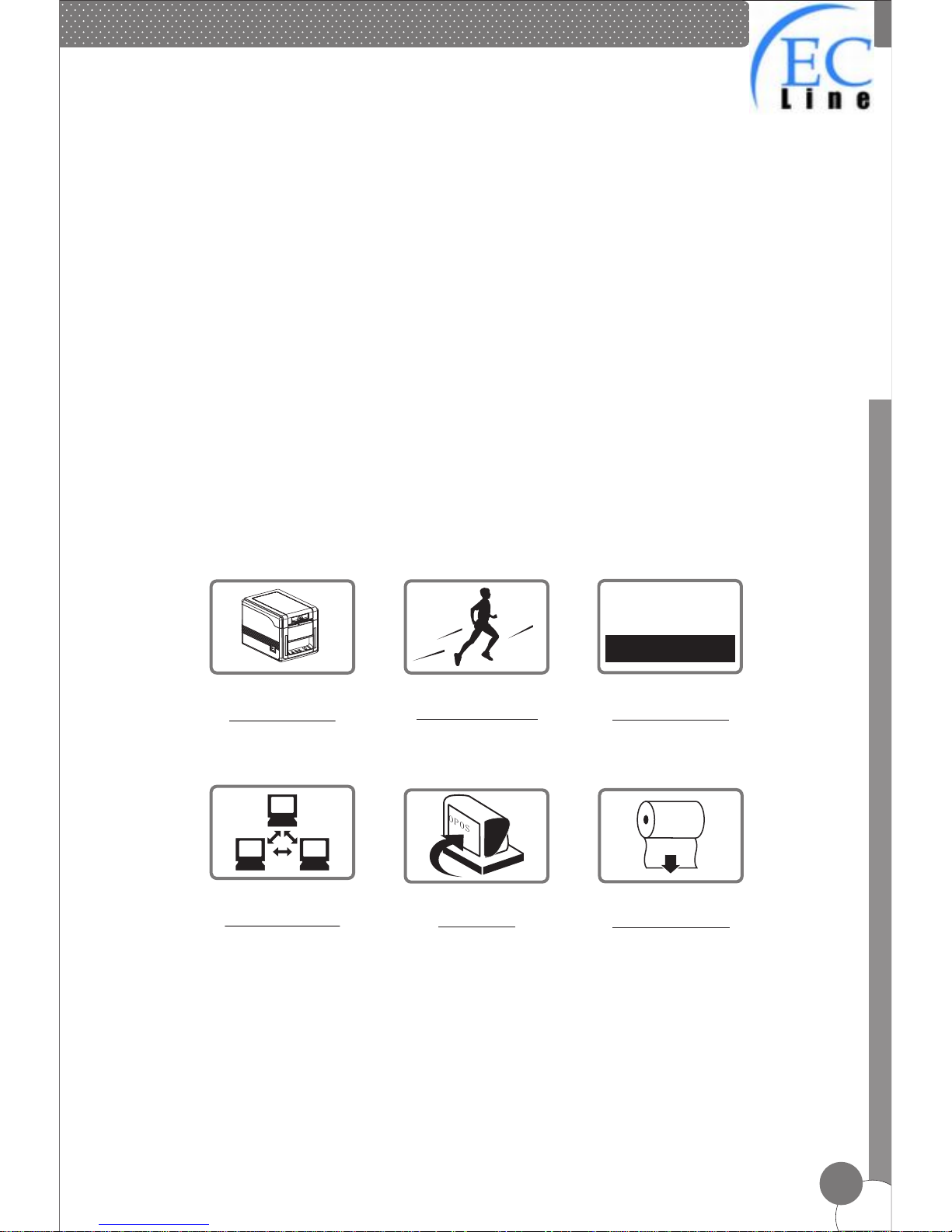
High Speed Printing
Bar Code Printing
Network Printing
OPOS Driver
120mm Large Roll
Front Paper Exit
2010M06D18
BA RC OD E
4. Features
300mm/sec high printing speed
Support 2D barcode printing
Support kitchen printing and network printing
Support front paper dispensing and auto cutter, stopping paper from jamming
Support bar code printing
Ports:Serial+USB+Ethernet
83mm Large Paper Roll Capacity
Rational construction, easy maintenance
Built in data buffer which can receive new task when printing is in progress
Characters can be enlarged, bonded, underlined, line space and character space
can be adjusted
Support different density NV logo and download printing
Low power consumption and low operation cost
Compatible with EPSON ESC/POS and Star command sets
Character and columns per line are optional by using DIP switches
Support print status monitoring, multilink print, OPOS driver
Support printer identification, software bundle, high speed driver printing mode
Support various international characters
; USB+Wifi ; USB+Bluetooth
*
*
*
*
*
*
*
*
*
*
*
*
*
*
*
*
*
Page 4
EC-80340
Line Th ermal Print ers
3
Printing speed
300mm/sec
Dot density
512/576 dots/line
Character size
ANK Character,
Font A: 12×24dots,
Font B: 9×17dots,
Chinese Character: 24×24dots
DC 24V/2A
DC 24V/1A
156×217×160mm(W×D×H)
Dimension
Powersupply
Power adapter
Input: AC110V 220V, 50~60HZ
Output: DC 24V/2A
~
Cash drawer
Work environment
Temperature: 0~45℃, Dampness: 10~80%
Storage environment
Temperature: -10~60℃, Dampness: 10~90%
UPC-A/UPC-E/JAN13(EAN13)/JAN8(EAN8)/CODE39/
ITF/CODABAR/CODE93/CODE128/QRCODE/PDF417
Print command
Interface
Compatible with EPSON ESC/POS
and Star command sets
Serial+Ethernet+USB ; USB+Wifi ; USB+Bluetooth
Barcode mode
Reliability
Paper thickness
0.06~0.08mm
150Km
Auto cutter
Partial
Paper roll
Paper Width:43/58/70/80/82mm
Paper Diameter:83mm max.
Roller diameter: Inside: 12mm
Outside: 18~26mm
Model
5.Specification
Page 5
Line Th ermal Print ers
4
6. Printer Connection
7. Paper Installation
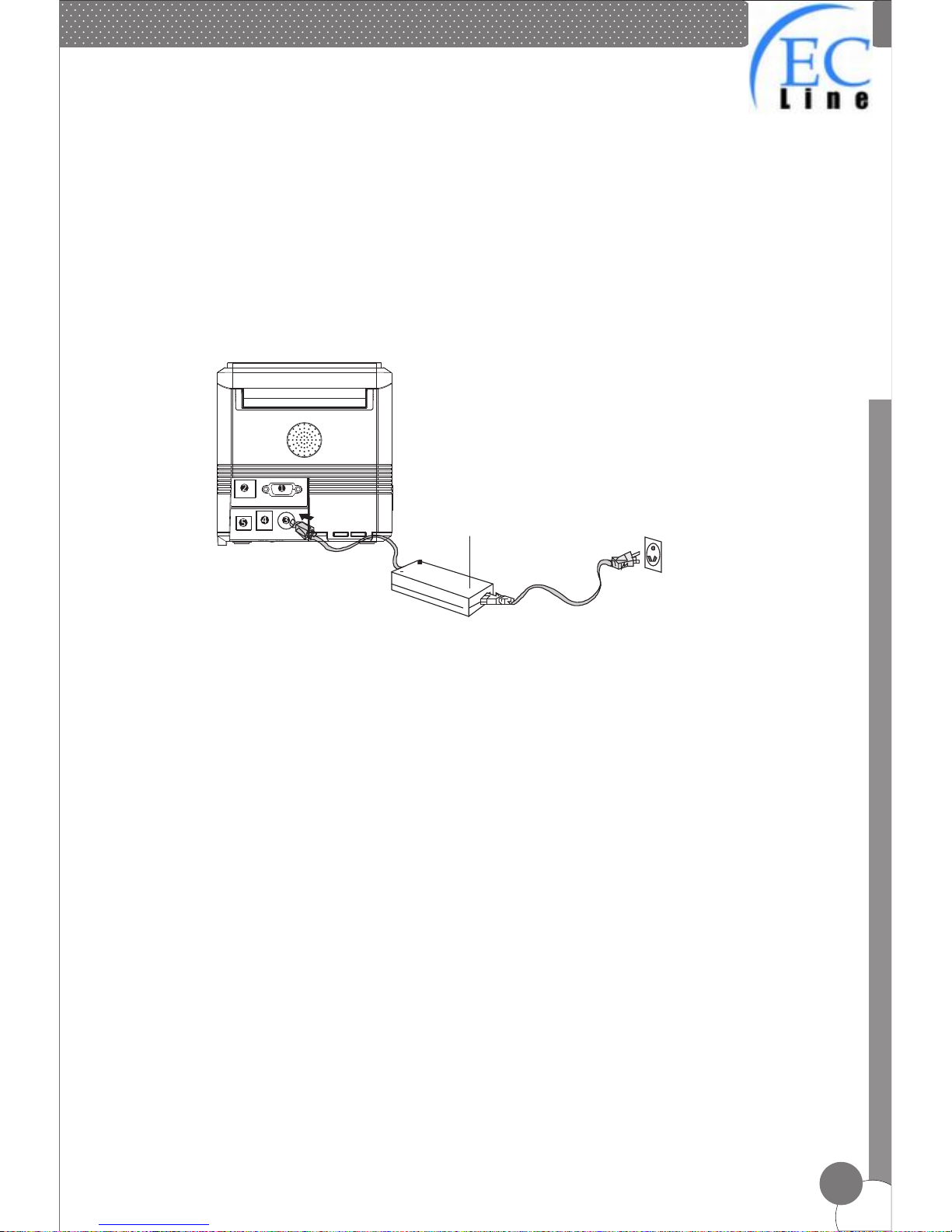
a. Plug the power adapter cable into the printer’s power port.
b. Plug the interface cable securely into the printer’s Serial/USB/Ethernet port.
c. Plug the cash drawer’s RJ-11 phone jack into the printer RJ-11 socket.
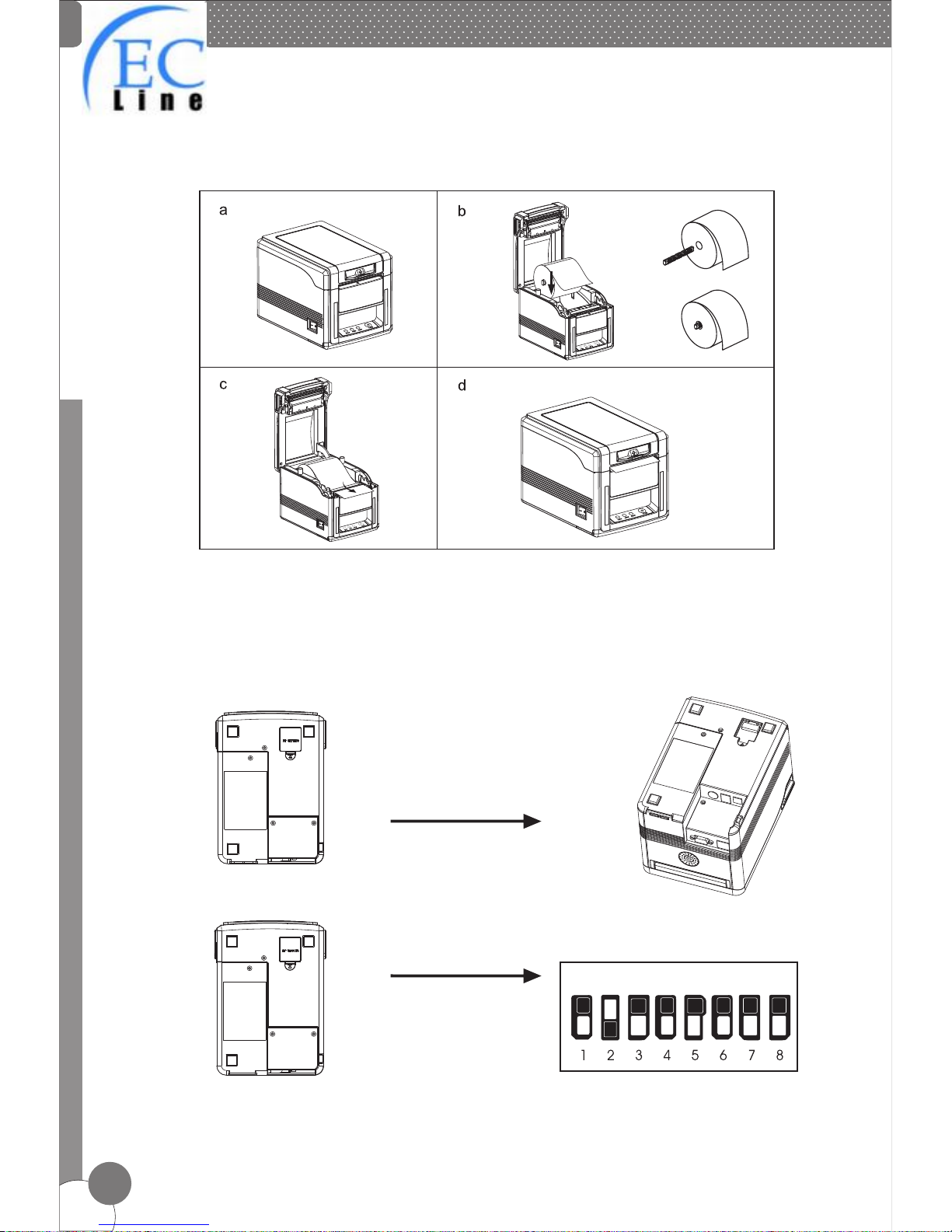
a. Press the button to open the printer cover.
b. Put the paper roll into the hollow ( pay attention to the paper direction).
c. Pull the leading edge of the roll outside of the printer and then close the cover.
d. Press the center of printer cover firmly to prevent paper misloading, then tear
off the paper outside.
Power Adapter
1.Serial Port
2.Ethernet Port
3.Power Port
4.Cash drawer
5.USB Port
Page 6
Line Th ermal Print ers
5
8. Print Mode (DIP switches)
Users can select the auto cutter, language, printing speed, beep, print density by
using DIP switches to set the printer.
Setting
1. Remove the DIP switches cover
on the bottom of the printer.
2. DIP switches setting.
Page 7
Line Th ermal Print ers
6
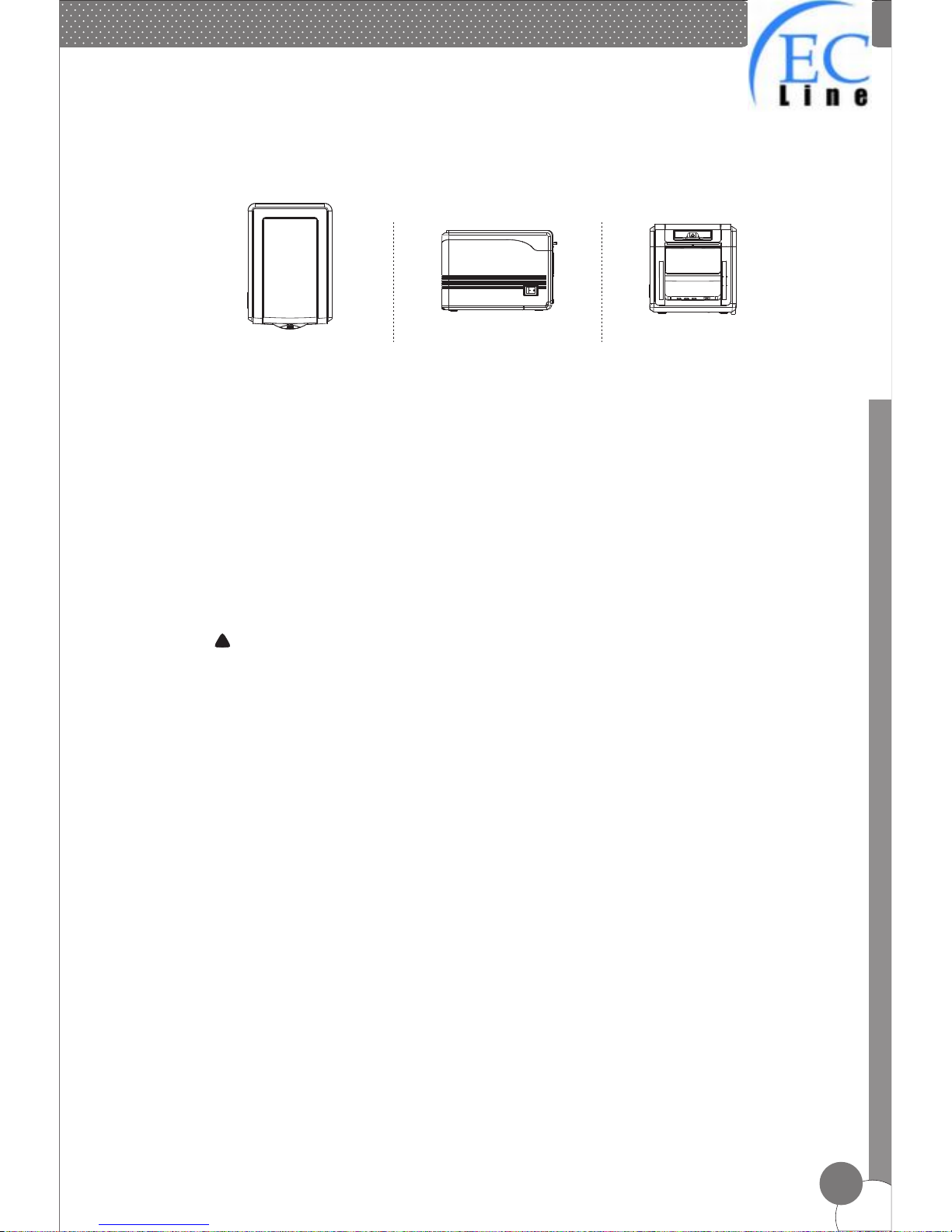
9. Three-view Drawing
Top view
Side view
Front view
!
If step 1 failed, follow the below instructions
I. Open the printer cover as showing
III.Press the “FEED”again, cutter will return to its home position.
Attention: Do not use force to separate the printer cover in case of any damage
to the print head and auto cutter.
10. Cutter Maintenance
Page 8
12. Function of button and indicators
Line Th ermal Print ers
7
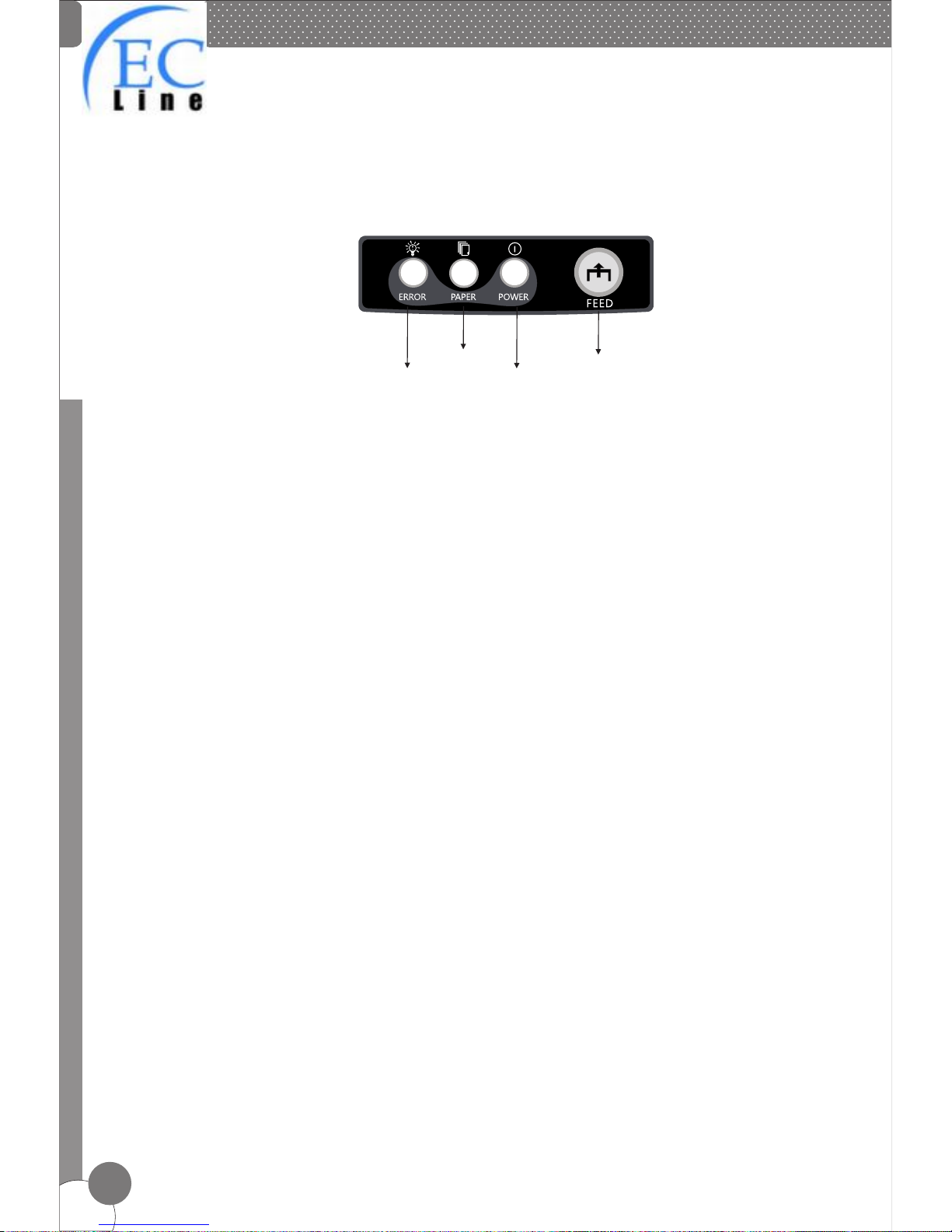
Feed Button
Paper Indicator
Power IndicatorError Indicator
11. Button and Indicators
(1)
(2)
(3)
(4)FEED Button
Press the FEED button to feed the paper roll.
ERROR Indicator
ON may indicate paper out, cutter error, print head overheated.
OFF indicates normal status
PAPER Indicator
PAPER & ERROR are both ON, indicating printer is out of paper;
PAPER & ERROR are both OFF, indicating printer is in normal status.
POWER Indicator
ON indicates printer power is on
OFF indicates printer power is off.
Page 9

Line Th ermal Print ers
8
13. Professional Performance
a. 300mm/sec high printing speed
b. Support front paper exit and auto cutter
c. Support bar code printing
d. 83mm large roll paper
e. Support various paper width printing
Page 10

Manufacturer: EC LINE
Thank you very much for using EC Line product
For service, please contact [email protected]
www.ecline.com.mx / www.ecline.com.hk
 Loading...