

Page 1
For the full smartwatch and App
User Guide use your smartphone
to SCAN this QR code or visit:
ByDzyne.com/UserGuides
(available in multiple languages)
EN V1.01 PV
tůw
TM
Smartwatch
USER GUIDE
Page 2

Tracking Ůr Wellness
Page 3
Welcome to your innovative wellness tracker,
the tůwTM Smartwatch from ByDzyneTM - an
intelligent device specically designed to
monitor your daily lifestyle, helping you to
improve your overall wellness.
Page 4
3
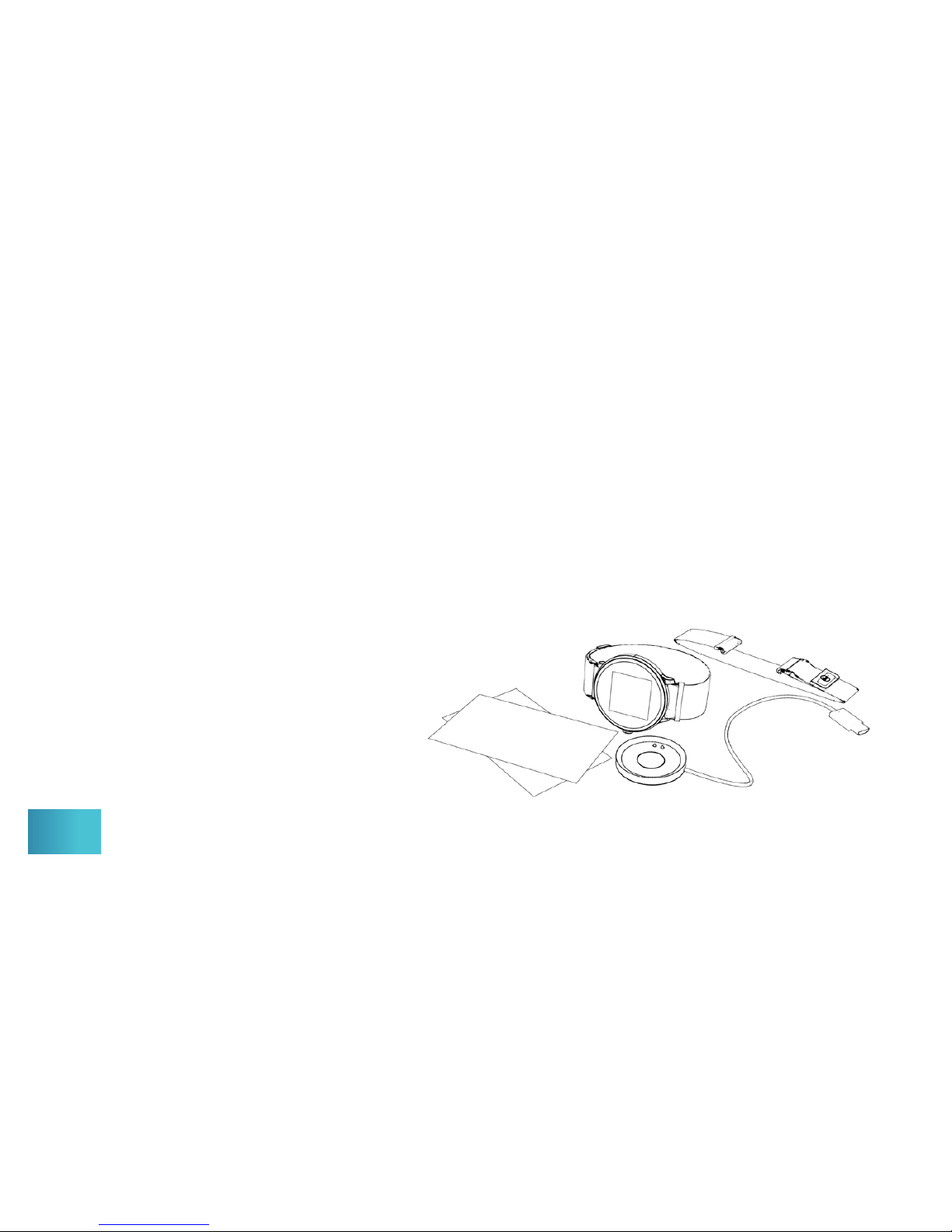
What’s Included In The Box
*Please read the full User Guide prior to use.
• tůwTM Smartwatch Device with Stainless Steel Black Band
• Additional Stainless Steel Silver Fashion Band
• USB Charger (USB-supported adapter not included)
• Smartwatch User Guide
• App & Languages Insert
Page 5
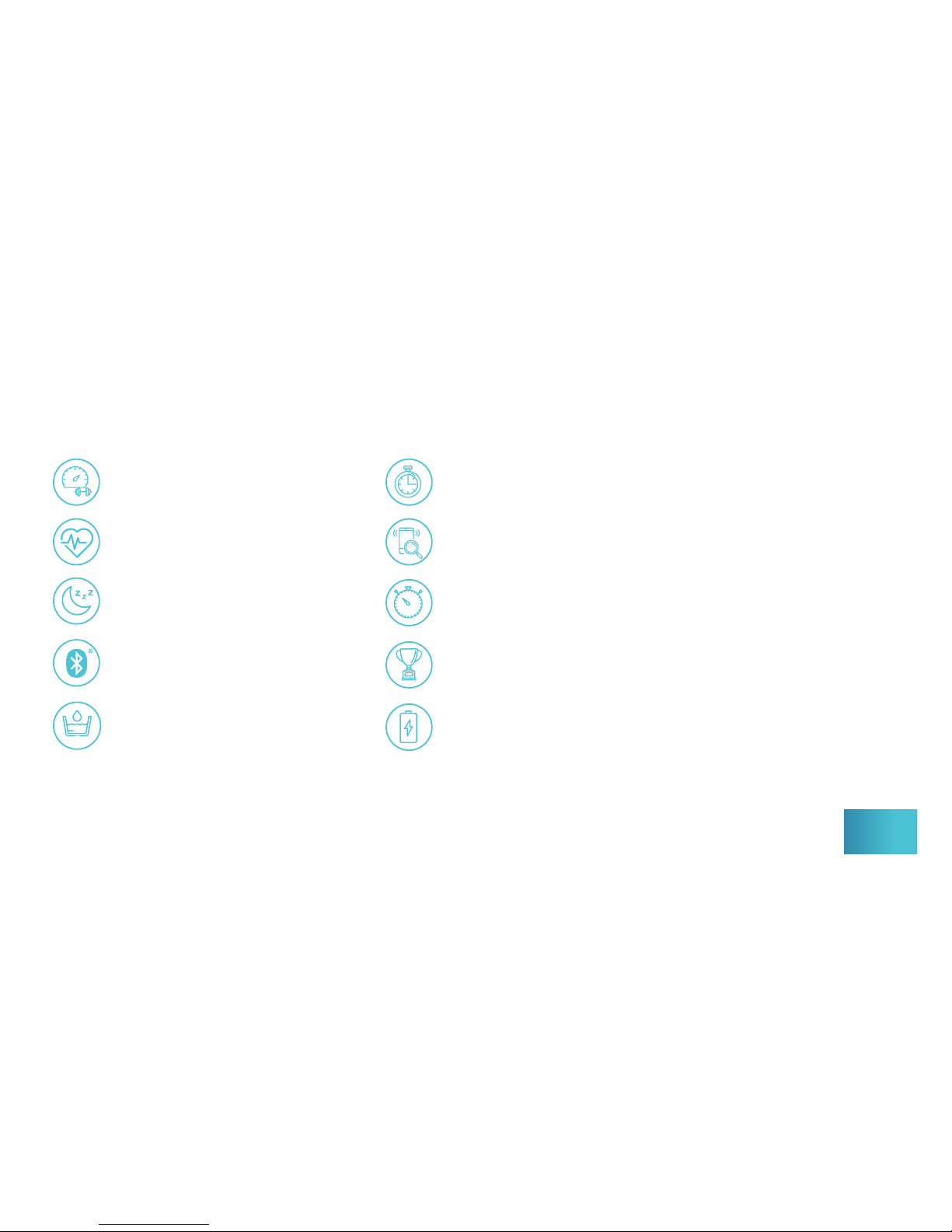
Fitness Dashboard
Heart Rate Monitor
Sleep Monitor
Countdown Timer
Find Phone
Stopwatch
Sport Mode
TM
Smartwatch Features List
Bluetooth 5.0
200mHa Battery
IP67 Waterproof 1m
tůwTM Smartwatch Features
*Extra features are also available via the tůwTM Smartwatch App.
4
Page 6
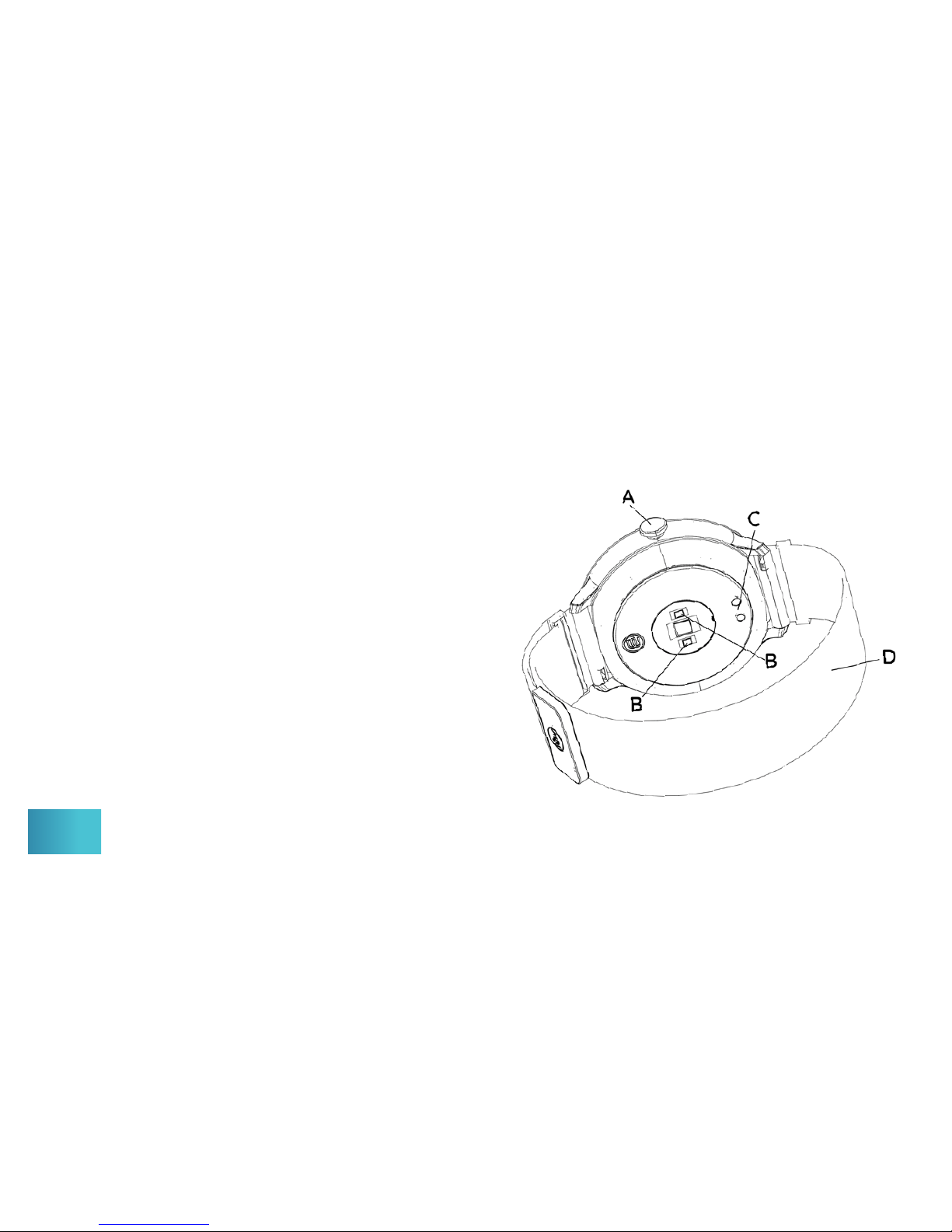
Get To Know Your tůwTM Smartwatch
5
A. On/O
B. Green PPG LED & skin contact sensors
for taking measurements. When the sensor
is on, a green LED is displayed.
C. Copper contact points for charging
D. Stainless steel, fully adjustable band
Page 7

Charging Your Smartwatch & Battery Life ............................................. 7-8
Putting On Your Smartwatch & Changing The Band ....................9-10
On / O / Wake Up ................................................................................................. 11-12
Feature Navigation .................................................................................................. 13-14
• Clock / Home .......................................................................................................... 15
• Fitness Dashboard .............................................................................................. 16
• Heart Rate Monitor ............................................................................................. 17
• Sleep Data Monitor ............................................................................................. 18
• Countdown Timer ................................................................................................ 19
• Find Phone ................................................................................................................ 20
• Stopwatch.................................................................................................................... 21
• Sport Mode ............................................................................................................... 22
• Extra Features Via The App…..................................................................... 23
Care & Cleaning................................................................................................................. 24
Specications & Material .......................................................................................... 25
Product Disclaimer, Warranty, FCC Compliance ..........................26-28
This smartwatch
is designed to be
utilized with the
tůwTM Smartwatch
App (available on
Apple and Android
mobile devices).
For instructions on
connecting your
smartwatch via
Bluetooth® and how
to use the App visit:
ByDzyne.com/
UserGuides
Table Of Contents
6
Page 8
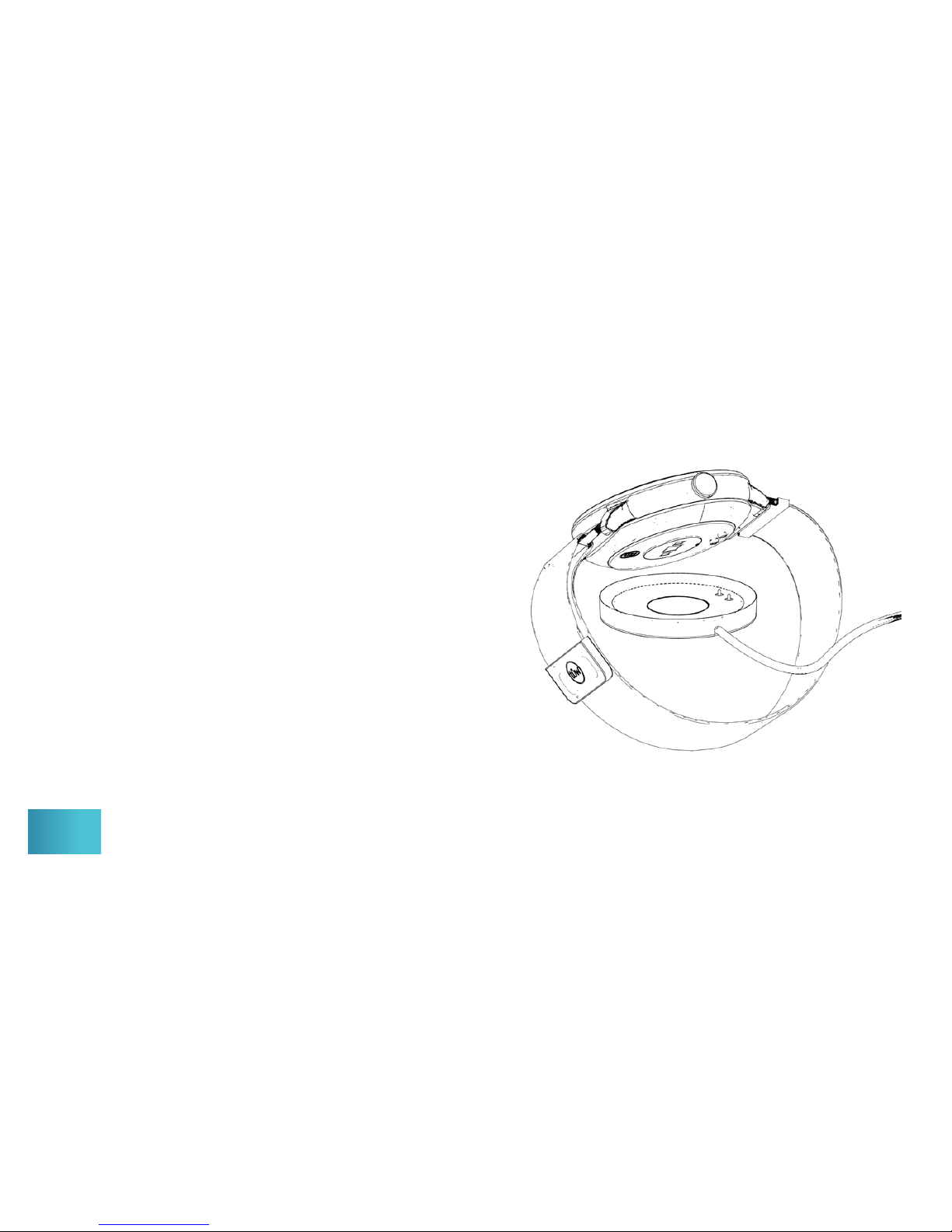
Remove the included USB charger
from underneath the insert holding
your smartwatch (in the box). Connect
the USB cable to any USB-supported
charging device (output: 5V 1A). On the
backside of the watch align the copper
contact points with the copper points on
the charging base.
* For optimal performance, please ensure your smartwatch is fully charged before use.
7
Charging Your Smartwatch
Page 9
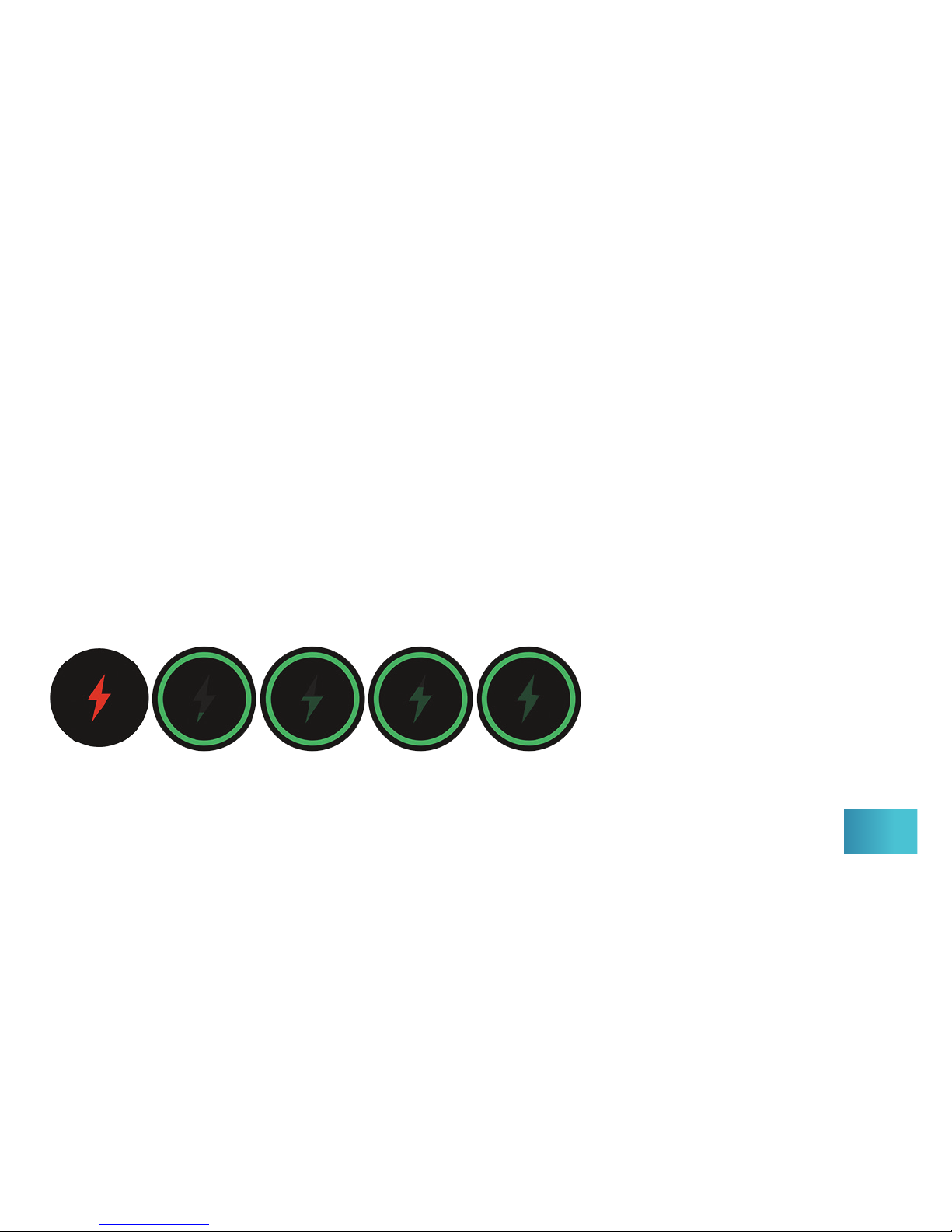
When the smartwatch’s battery is low, the red lightning bolt icon will appear
when you touch the display screen. When the battery is completely exhausted,
the smartwatch will automatically turn o. Once placed on the charger, it will
automatically turn on. The lightning bolt icon will appear and become solid
green when the smartwatch is fully charged. While charging, the main home/
clock face will appear but no other functions can be operated.*
* The battery will last up to 5 days depending on usage. It takes approximately 2
hours to fully charge. Do not attempt to replace the battery yourself, as it may cause
damage to your smartwatch.
Battery Life
8
Page 10
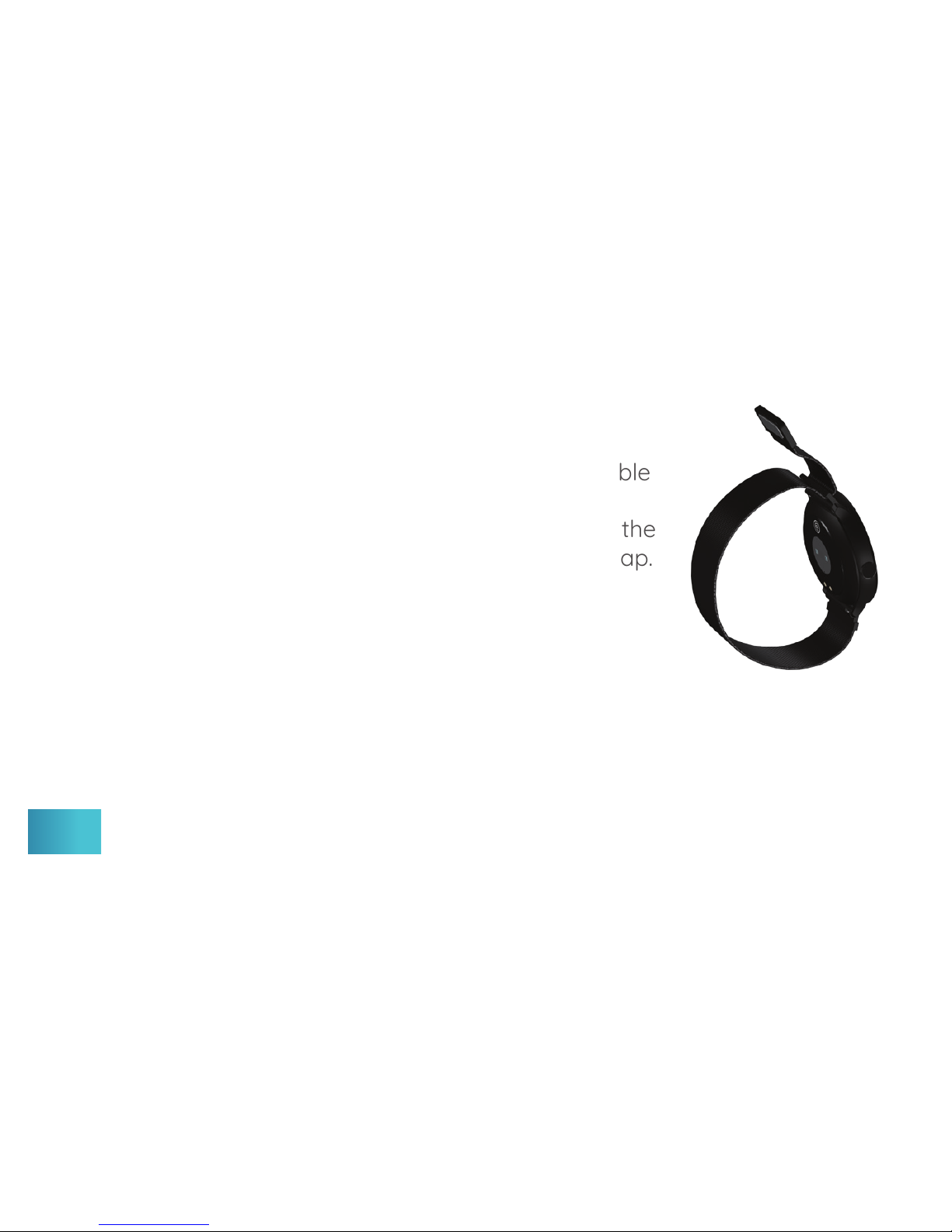
Your tůwTM Smartwatch is designed with an adjustable
magnetic strap. Simply slide the band through the
watch brackets to lengthen. Once on your wrist, pull the
magnetic buckle strap tight, then let it rest on the strap.
Putting On Your Smartwatch
9
Changing The Band
1. Unbuckle the band by sliding the magnetic buckle through its
bracket and place the device face down on a clean surface or cloth.
*The additional Silver Fashion Band is a fashionable accessory. Though showering
with it or daily use will not harm the metal, when exposed to continuous moist
conditions and harsh chemicals, such as high humidity, sweat, and contact with
water, the band can potentially tarnish and aect the look of your silver band.
Page 11

10
2. Locate the spring-loaded pins in the bracket. One at
a time, slide the pin’s knob inwards towards the center
and tilt to detach the bracket from the shoulder of the
device.
3. Once separated, remove the two pins and insert
them into the brackets on your new band.
4. To attach your new band, insert one end of the
spring-loaded pin into the pin-size hole located in the
shoulder. Apply pressure downwards on the pin’s knob
so you can slide the top part into the corresponding
hole on the opposite side. Repeat the process with the
other bracket. Once both brackets are in place, check
they are both secured.
Page 12
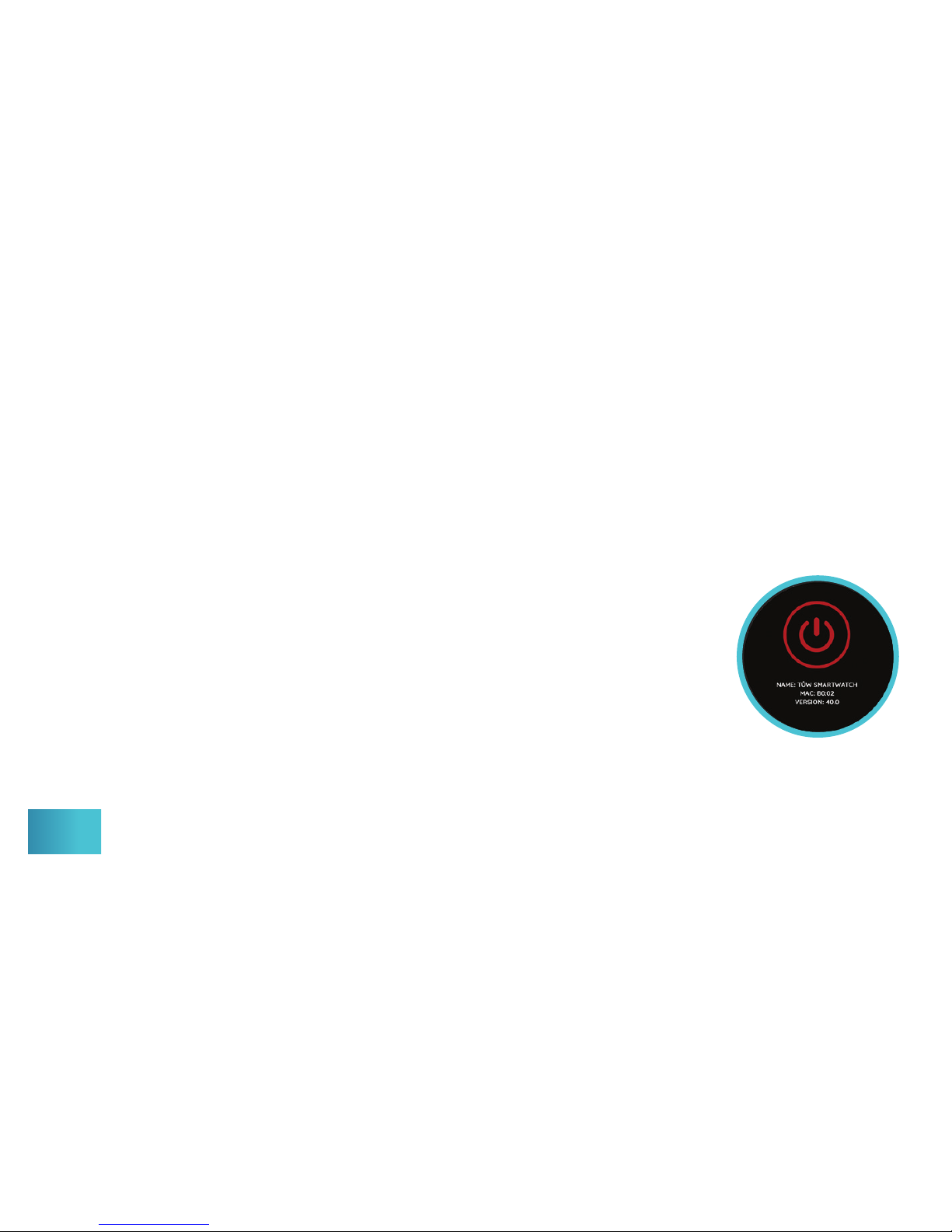
To turn on your tůwTM Smartwatch, simply press and hold
the side button for 3 seconds. The smartwatch will vibrate
and the tůwTM logo will appear.
To turn o your smartwatch, simply press and hold the
side button for 3 seconds until the tůwTM logo disappears.
The smartwatch will vibrate again. You can also swipe the
display screen until you see the picture on the right
(power o icon). Press and hold this icon for 3 seconds to
turn o the smartwatch.
On / O / Wake Up
11
Page 13
12
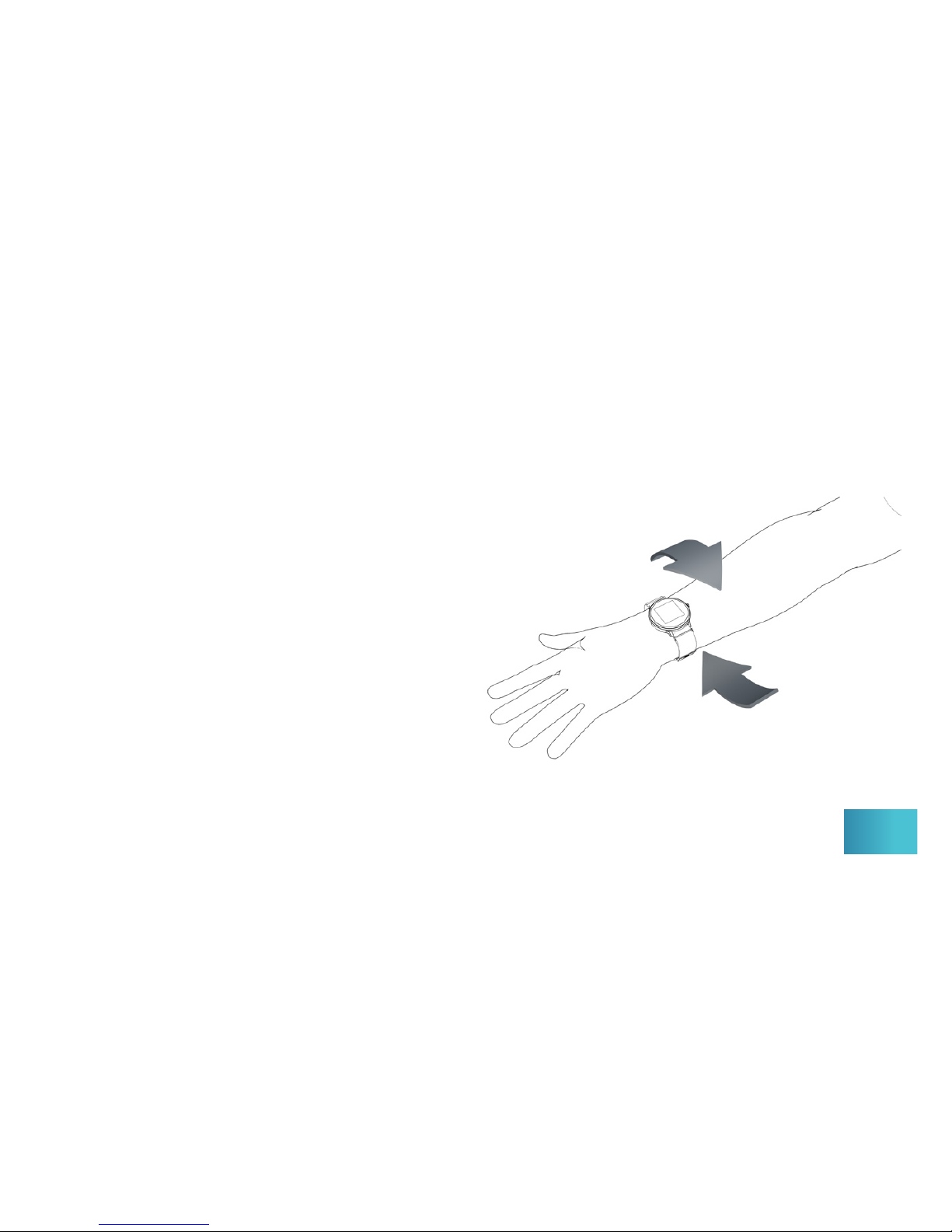
Wake Up
To wake up the smartwatch screen either
tap the display screen, press the side button,
or rotate your wrist. To change the length of
time the display is awake, its sensitivity, and
to change other features, refer to the App
User Guide.
Page 14
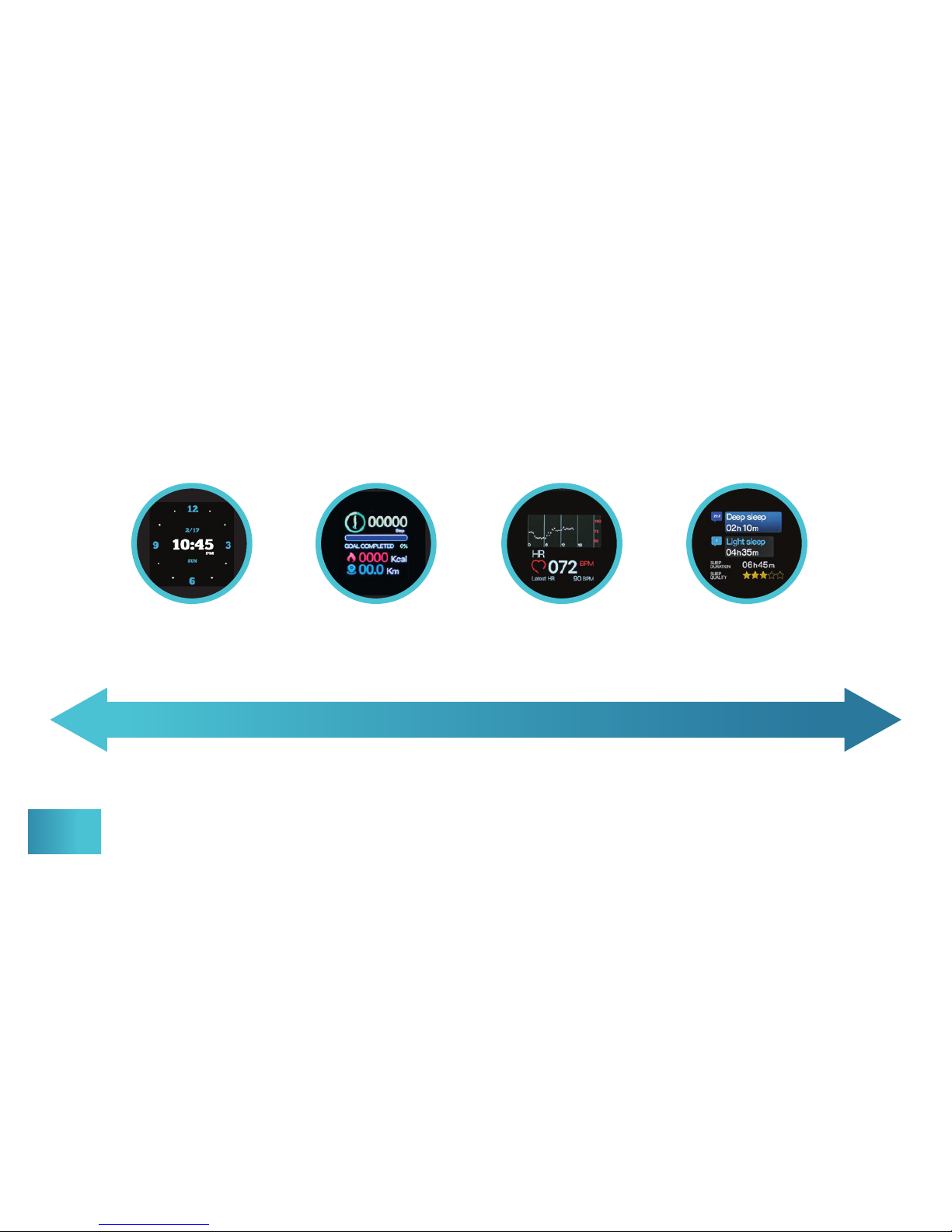
Feature Navigation
Heart
Rate
Sleep
Data
Fitness
Dashboard
Various features & notications of the smartwatch are turned on by default when
shipped, and can be customized through the App. Go to ByDzyne.com/UserGuides
to download the App User Guide.
13
Swipe Left to Right or Right to Left
Clock/
Home
Page 15
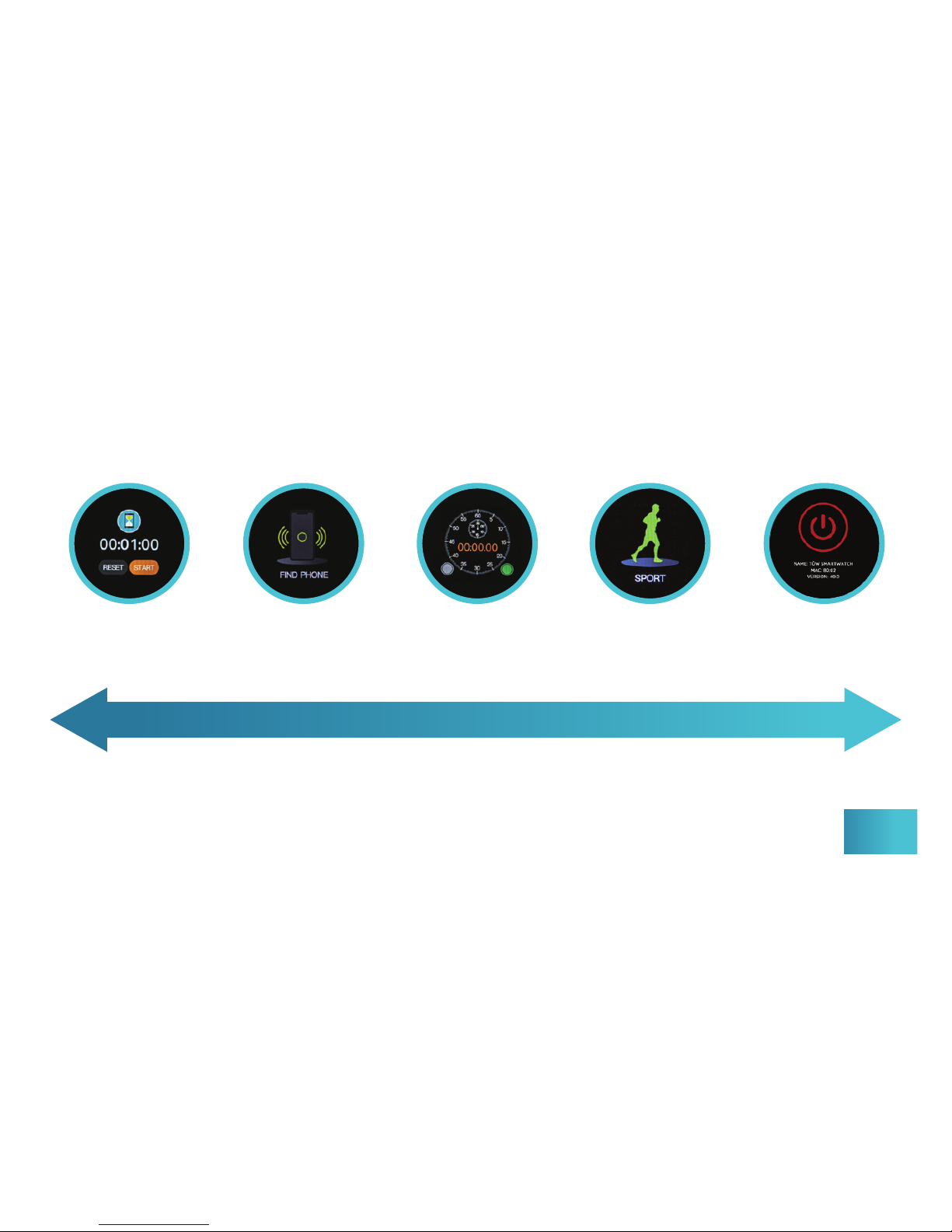
Countdown
Timer
Find
Phone
Stopwatch Sport
Mode
Power
O
14
Swipe Left to Right or Right to Left
Page 16
15
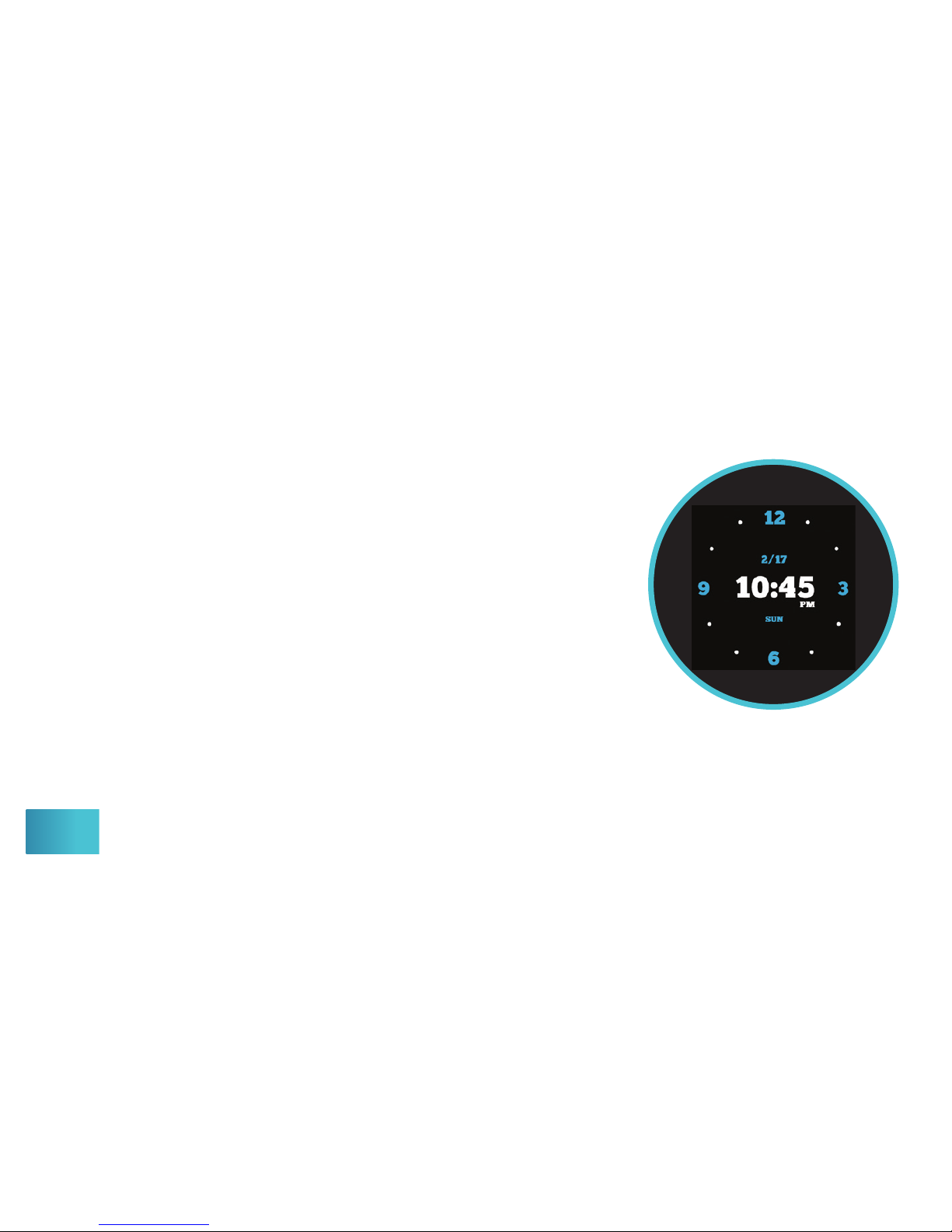
The clock face is your home screen. Swipe your
nger up or down across the display screen to
change the look of the home screen to that of
your choice.
To navigate to the various tůwTM Smartwatch
features, simply swipe your nger left to right
(or right to left) across the display screen.
Clock / Home
*Once the smartwatch is paired to a mobile phone via the tůwTM Smartwatch
App, the clock’s time zone will be updated to the same time zone & settings as the
mobile phone.
Page 17
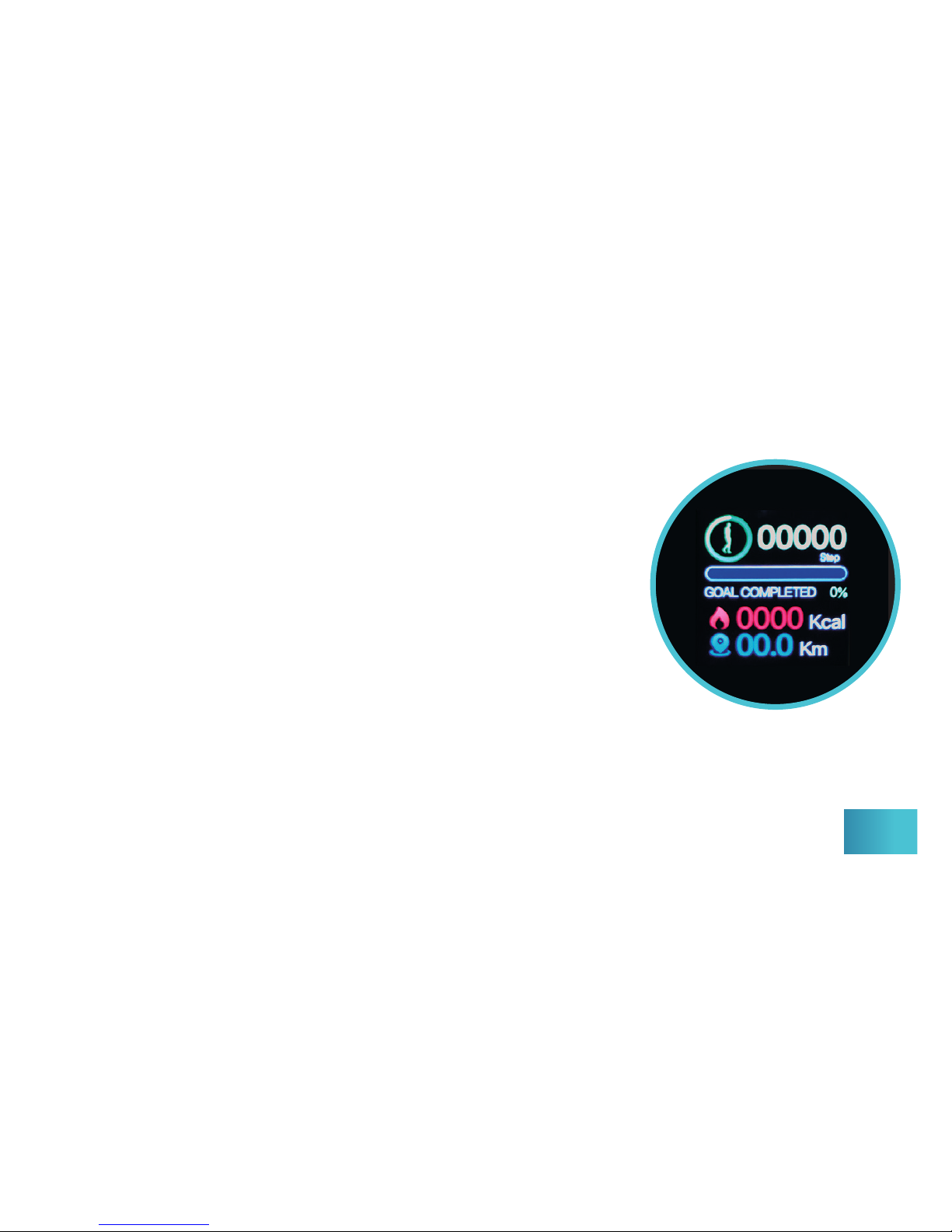
From this screen, get a snapshot of your daily
tness progress including your current daily steps,
calories burned, and the distance walked/ran. Use
this feature to reach your daily tness goals. The
default goal is set to 9,000 steps*.
To view your entire Fitness Dashboard history
download and use the tůwTM Smartwatch App.
Fitness Dashboard
16
*Various features & notications of the smartwatch are turned on by default when
shipped, and can be customized through the App. Go to ByDzyne.com/UserGuides
to download the App User Guide.
Page 18
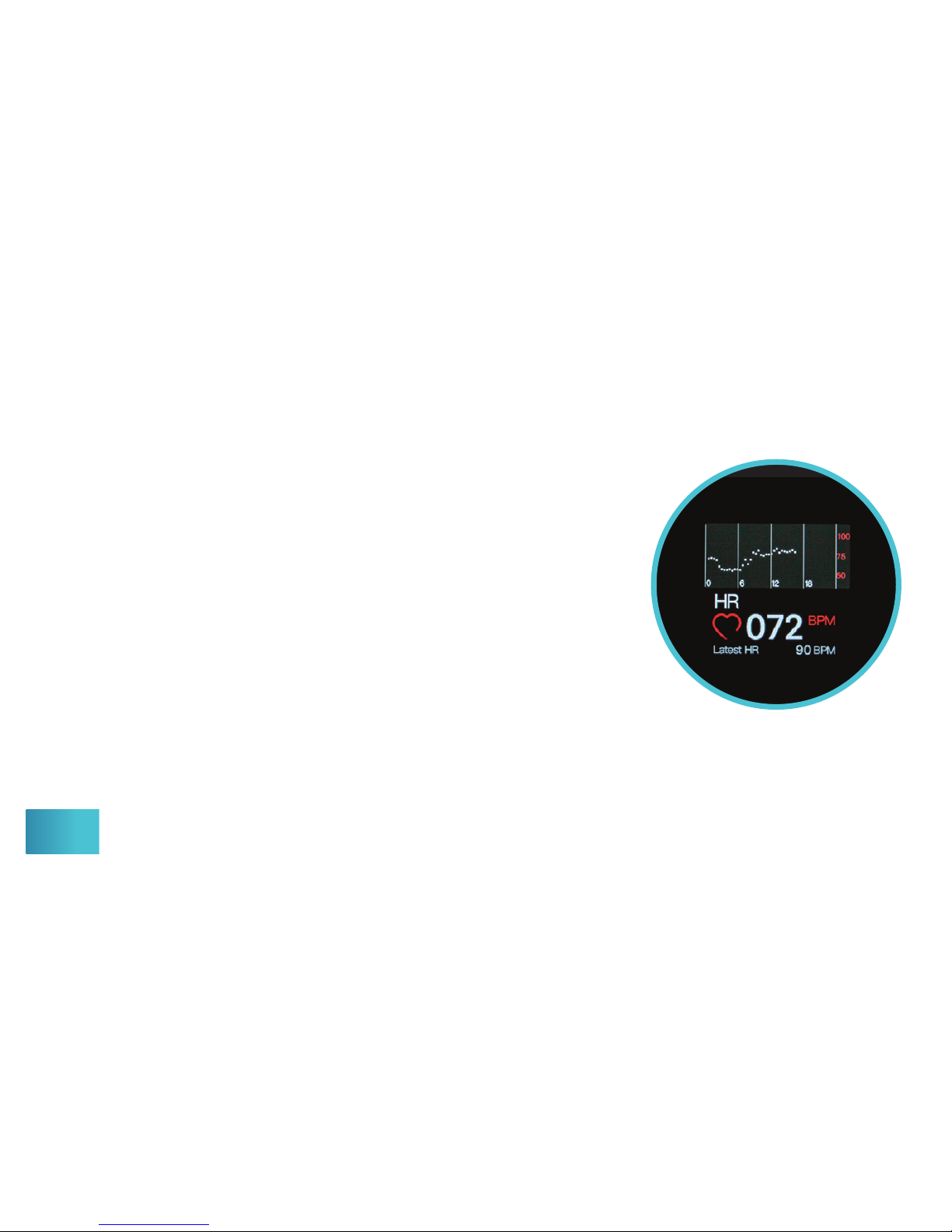
Use the App to view your heart rate graph, customize your heart rate features,
record your daily measurements, and to see your entire heart rate measurement
history. Refer to the App User Guide for more details.
17
This intuitive heart rate feature measures the
user’s latest heart rate in real time, in beats per
minute, along with a graph of your average heart
rates throughout the day. Swipe left or right to
access the screen and the measurement will begin.
After a few seconds, the results will be displayed
and continue to take measurements in real time.
After approximately 60 seconds, the screen will
automatically go into sleep mode.
Heart Rate Monitor
Page 19
18
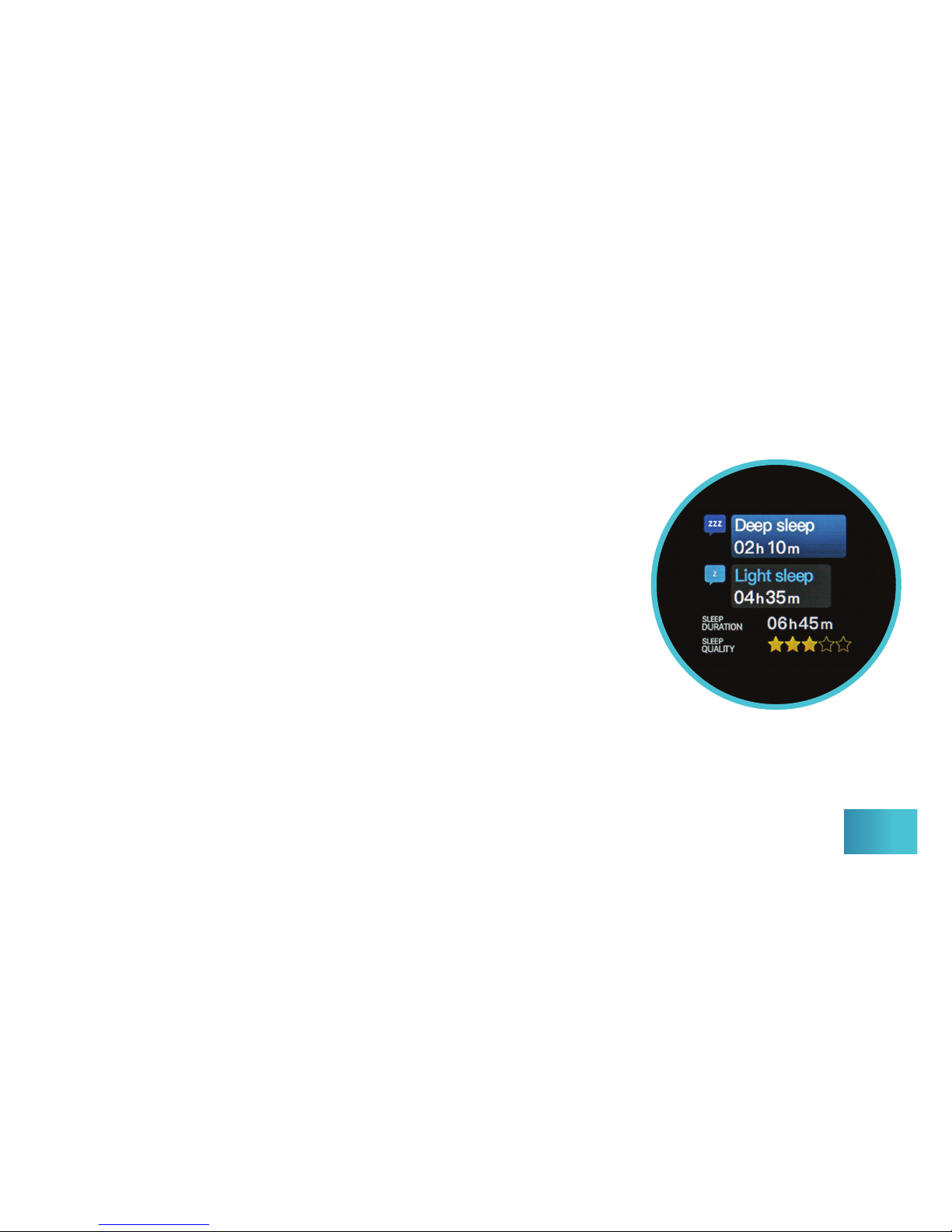
Continue to monitor your sleep quality and trends, and view your entire history
through the App. Refer to the App User Guide for more details.
The sleep feature detects when you begin to go
to sleep and when you wake up. It accurately and
automatically records and displays total sleep
duration, including deep and light sleep durations,
over a 24 hour period. The smartwatch will display
your sleep time and quality of sleep from the last
recorded night.
Sleep Data Monitor
Page 20
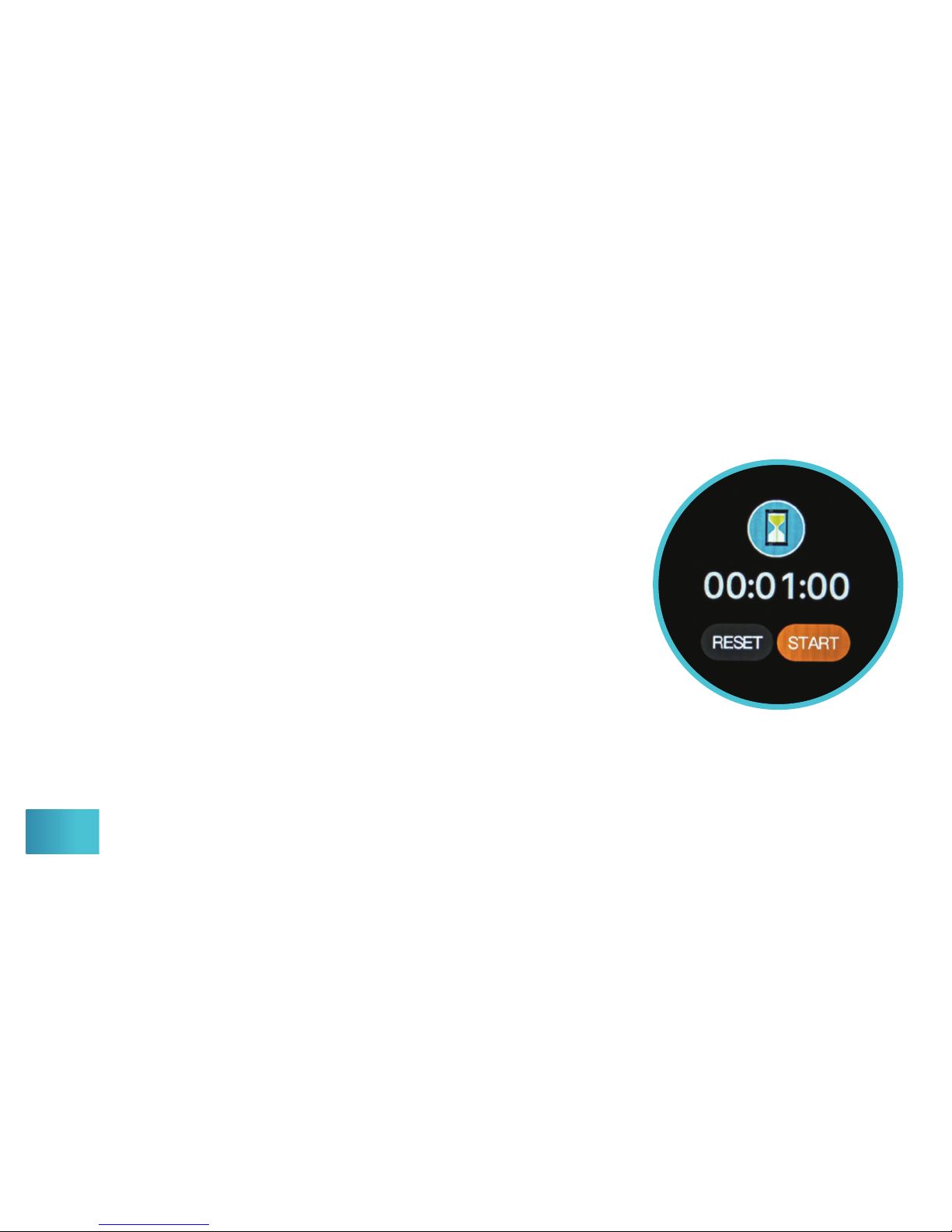
The Countdown Timer is a great feature for interval
training. Press “START” and the timer will begin to
countdown. Upon reaching zero the smartwatch
will vibrate until you press “RESET.” You may also
use the pause and resume buttons during an active
countdown. The default setting for this feature is
1 minute and can be changed via the
tuwTM Smartwatch App.
Countdown Timer
19
Page 21
20
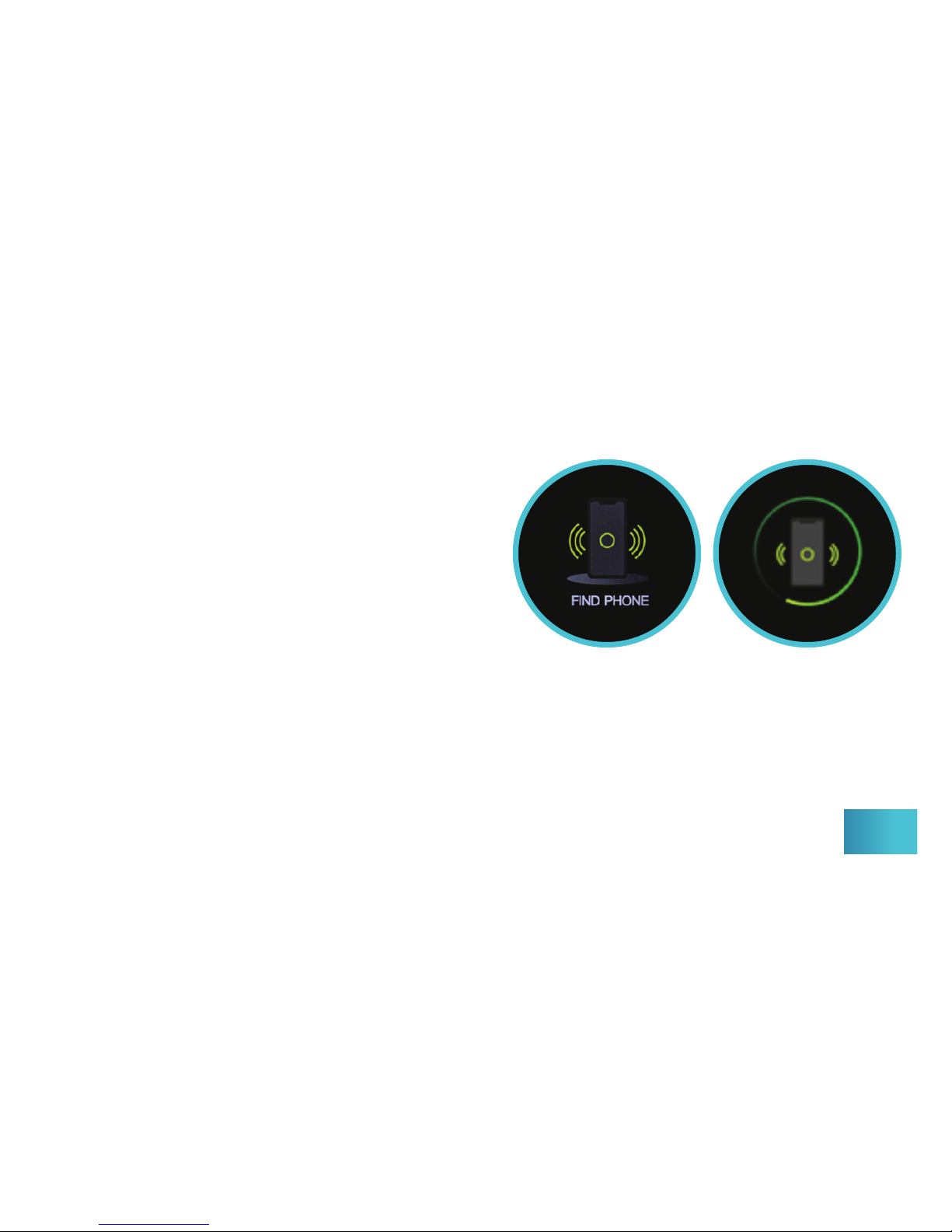
When the Find Phone feature is set
to ON via the App (feature is ON by
default), a user can locate their mobile
phone through their smartwatch by
touching the Find Phone icon once.
If the mobile phone and smartwatch
are connected via Bluetooth® then the
mobile phone will ring for 1 minute, or
until the user touches the smartwatch
phone icon again to turn it o.*
Find Phone
*If the smartwatch and mobile phone are not connected via Bluetooth®, this feature
will not work.
Page 22
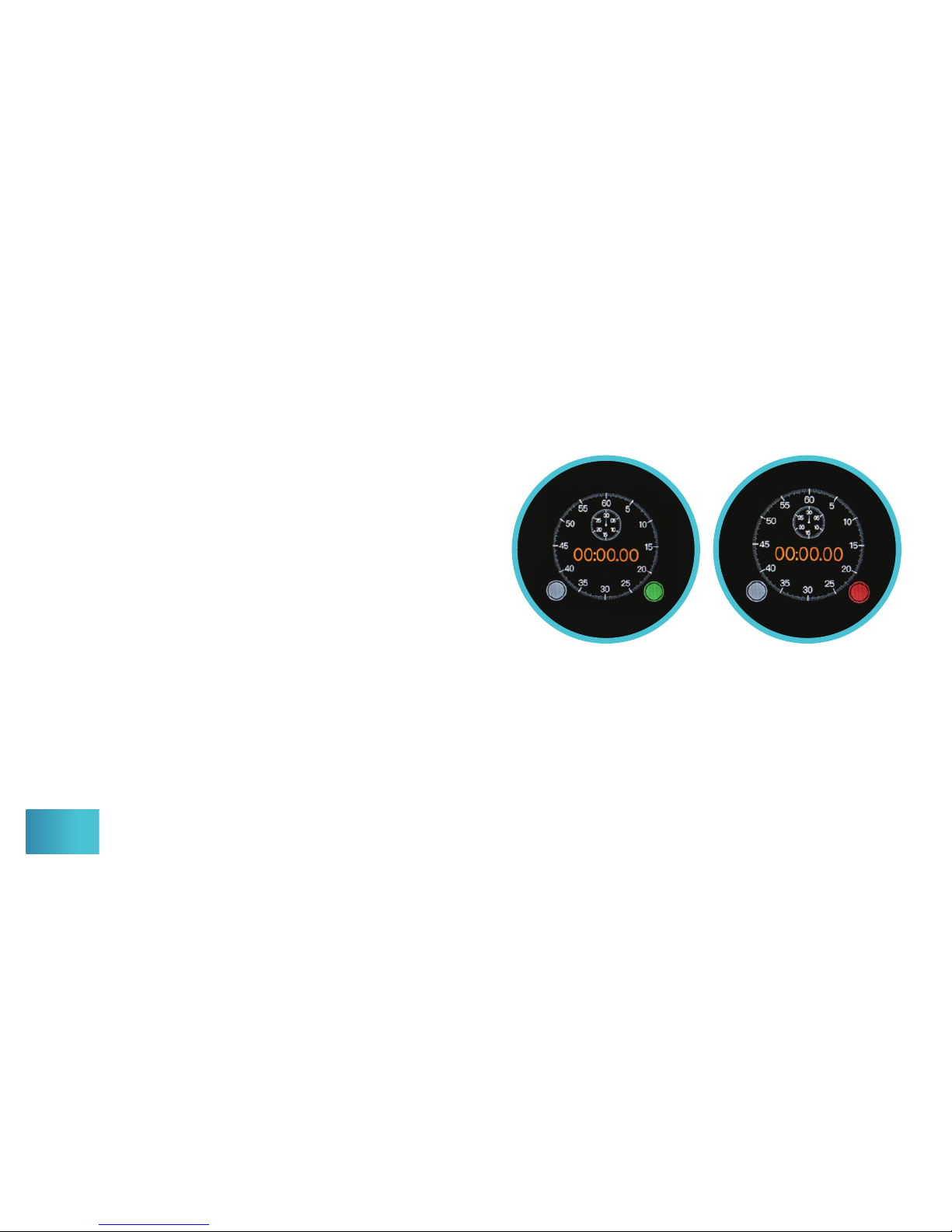
Use the built-in stopwatch feature to
time your tness activities easily with
one touch. To start the timer, touch the
green icon on the bottom-right once
and the icon will turn red. Touch the red
icon once to pause the timer. To reset the
time, touch the gray icon on the bottomleft once. After the stopwatch is running
for 1 minute, the screen will automatically
turn o. Touch the screen once and the
stopwatch screen will reappear.
Stopwatch
21
This stopwatch feature display is set to ON by default and can be turned o via
the tůwTM Smartwatch App.
Page 23
22
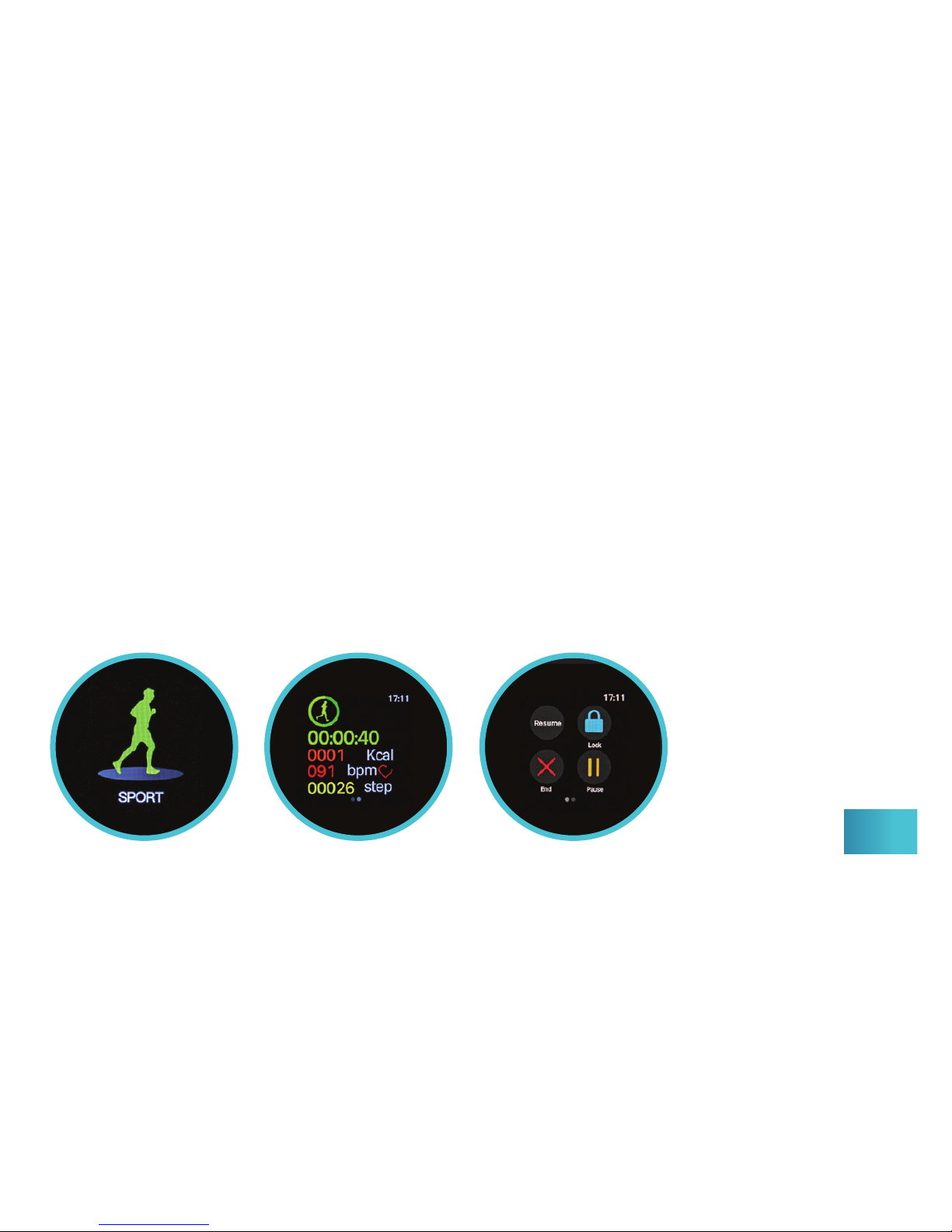
Start your workout with the Sport Mode feature to track your elapsed
activity time, calories burned (kcal), real-time heart rate (bpm) and steps
taken. To begin tracking, press once to activate the sport mode. To lock,
pause, or exit, simply swipe your nger once from left to right, then click
the appropriate icon. The Sport Mode can also be activated and the entire
history viewed via the App. Download the App User Guide for more details.
Sport Mode
Page 24

In addition to the features on your smartwatch, the following extra features
are available for use and customization via the tůwTM Smartwatch App.
• Alarm Clock
• Automated or Manual Monitoring
• Heart Rate Alert
• Notication Messages
• Inactivity Reminder
• Disconnect Alert
• Fitness Goal Settings
• Wear Detection
• Take Photo
Download the App User Guide at: ByDzyne.com/UserGuides
Extra Features Via The App
23
T
M
Page 25

24
Your tůwTM Smartwatch and black band is designed to be worn day and
night. It is important to keep the smartwatch’s sensor clean to ensure an
accurate measurement. Wipe the smartwatch face, smartwatch back, and
the band with a non-abrasive, lint-free cloth (if necessary, lightly dampen the
cloth with fresh water). Dry all parts thoroughly with a non-abrasive, lint-free
cloth.
Care & Cleaning
The additional Silver Fashion Band is a fashionable accessory. Though
showering with it or daily use will not harm the metal, when exposed to
continuous moist conditions and harsh chemicals, such as high humidity,
sweat, and contact with water, the band can potentially tarnish and aect the
look of your silver band.
Page 26

25
Supports Android 5.1 or IOS 8.0 or Above
Display: IPS 1.22” Color Touch Screen, 240*240
Main Chip: NRF 52832
Battery: 200mAH Li-Polymer Battery
IP67 Waterproof 1m
Smartwatch front: Tempered Glass
Smartwatch back: Polycarbonate
Bands: Stainless steel with N52 NdFeB Magnet (neodymium iron boron)
Detachable Quick Release Band
Specications & Material
5.0
Page 27

26
The tůwTM Smartwatch is a general wellness product intended to promote
physical tness by tracking exercise and aerobic activity. The tůwTM
Smartwatch is not a medical device and is not intended to be used in the
diagnosis, monitoring, prevention, or treatment of disease. You should not
use this information to diagnose or treat a health problem or disease without
consulting with a qualied healthcare provider. Prior to beginning any tness
program please be sure to consult your doctor.
Product Disclaimer
Page 28

ByDzyne warrants that during the warranty period of one year from the
original date of purchase, the included hardware product and accessories will
be free from defects in materials and workmanship. The one-year warranty
does not warrant against normal wear and tear, nor damage caused by
accident, improper use and storage, and unauthorized repair or modications.
To obtain more information regarding the warranty, please contact Customer
Support through your backoce Ticketing System, or email
[email protected]. Valid proof of purchase must be submitted when
making a claim under this warranty. If you submit a valid claim under the
warranty, ByDzyne will either repair or replace your tůw Smartwatch or its
accessories at its own discretion.
One-Year Warranty
27
Page 29

This device complies with part 15 of the FCC rules. Operation is subject to the
following conditions: (a) this device may not cause harmful interference, and
(b) this device must accept any interference received, including interference
that may cause undesired operation.
FCC Compliance Statement
28
Page 30
ByDzyne.com/tuw
 Loading...