

Page 1

Dualcore Enjoy TV Box User Manual
V1.0
Introduction
Dual core Android TV box, is a box connected to your TV HDMI input that turn your TV to a
multifunction smart TV: a media player, an internet browser with big
view, a photo viewer, a game player, a music player, a huge size screen E-book / E-
magezine / newspaper reader, an online video TV, and it is a revolutionary entertainment
on your TV. It provides a new family television entertainment experience.TV is smart from
now on.
The box is using ARM Dual CORTEX A9 CPU, based on Android 4.1 operating system.
Supporting Google Chrome browser, wire and wireless networking access, USB external h
ard disk, and single hand keyboard, mouse as well as easy like a normal remote control.
Features
ARM CORTEX A9, frequency is 1.5GHz, 1G RAM, built in 4G flash memory
Powered by Android 4.1
Built in 802.11b/g/n WIFI module, wireless Internet access
RJ45 10/100M Ethernet interface
Support 1080P video playback
HDMI 1.4 video output, connect to HDTV for HD video playback
USB interface, support mobile HDD, support mouse and keyboard operating.
Support weather, calendar, and desktop clock gargets
Support USB mouse and keyboard operation
Support 2.4G wireless motion (also called air or sky) remote control
Support flash player 10.2 hardware decoding version and flash player 11.1 software
decoding version for online video playing back
Support music player, picture player and more family entertainment
Support SD card
Support Google Chrome browser
AppInstaller for application installation from USB/SD
Video format support:
DAT/MPEG/MPE/MPG/M2V/ISO/TS/VOB/AVI/MKV/MP4/MOV/3GP/3GPP/FLC/AVI/WMA/
TS/M2TS/M3TS/M4TS/M5TS/MTS/M4V/FLV/3G2/PCM/AFS/RM/RMVB/AVS/WebM.
Audio format support:
WMA/WAV/OGG/OGA/FLAC/ALAC/APE/AAC/M4A/RM/AC3/DTS
Image format support:
JPEG/BMP/GIF/PNG/TIF
1
Page 2
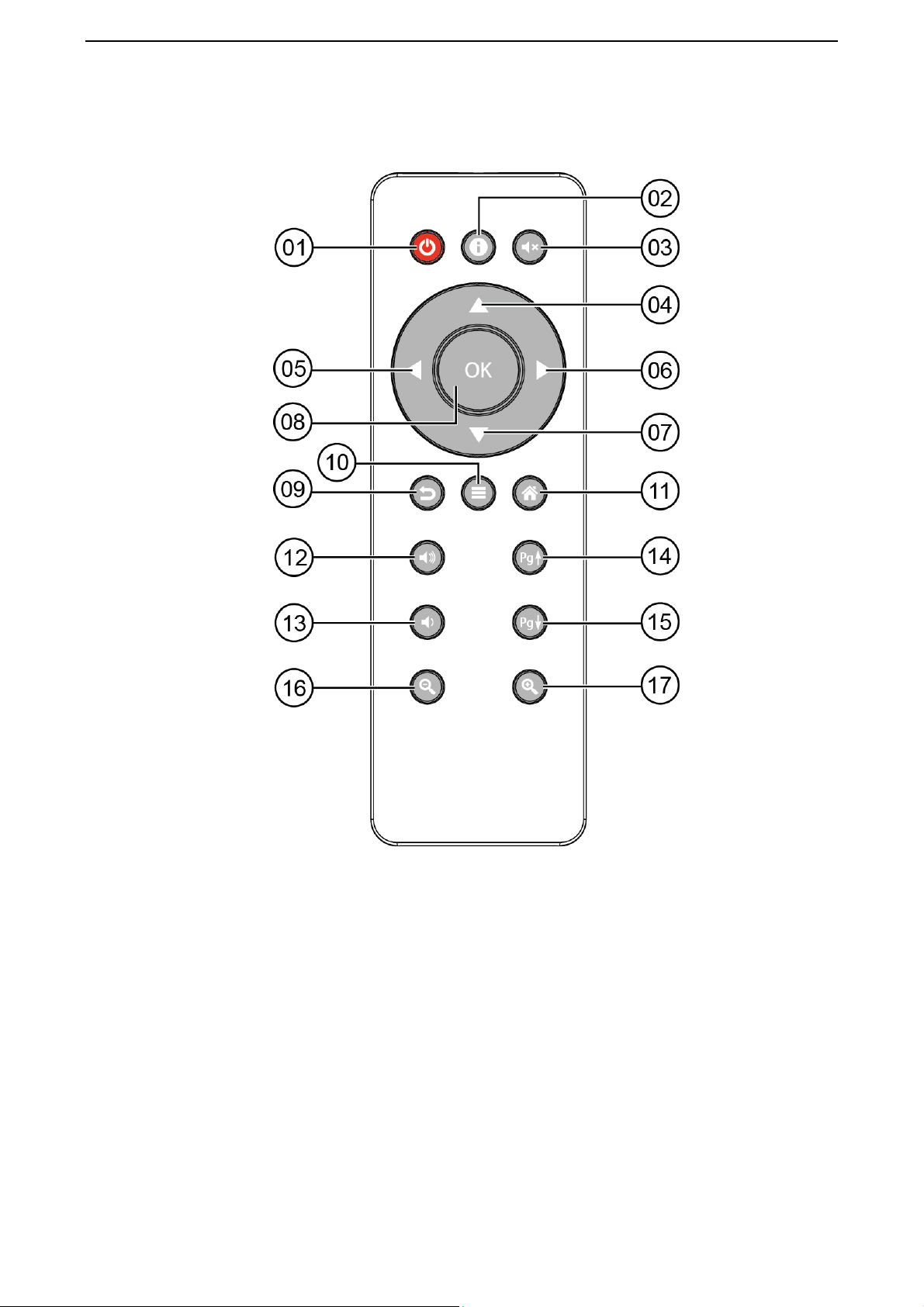
iRemote KR32
[01] Power
[02] Notification
[03] Mute
[04] Up
[05] Left
[06] Right
[07] Down
[08] OK
[09] Exit
[10] Menu
[11] Home
[12]VOL+
[13]VOL[14]Page up
[15]Page down
[16]Zoom out-
Zoom in
[17]
2
Page 3
Start Up
1 Plug in power adapter, and connect Enjoy TV Box to TV via HDMI cable.
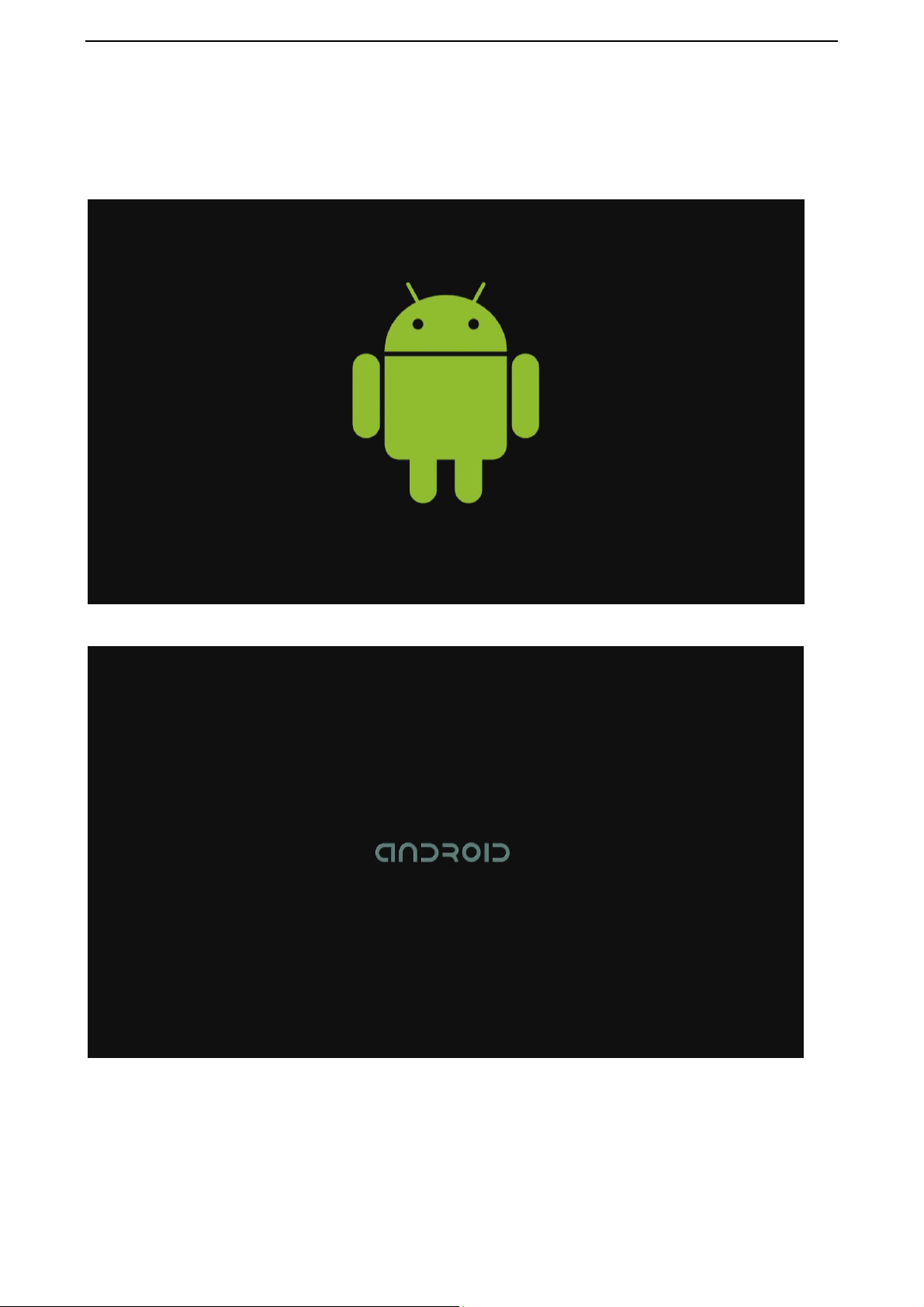
2 There are two screens appear while starting, first screen is robotic logo, second is
android text logo.
3
Page 4
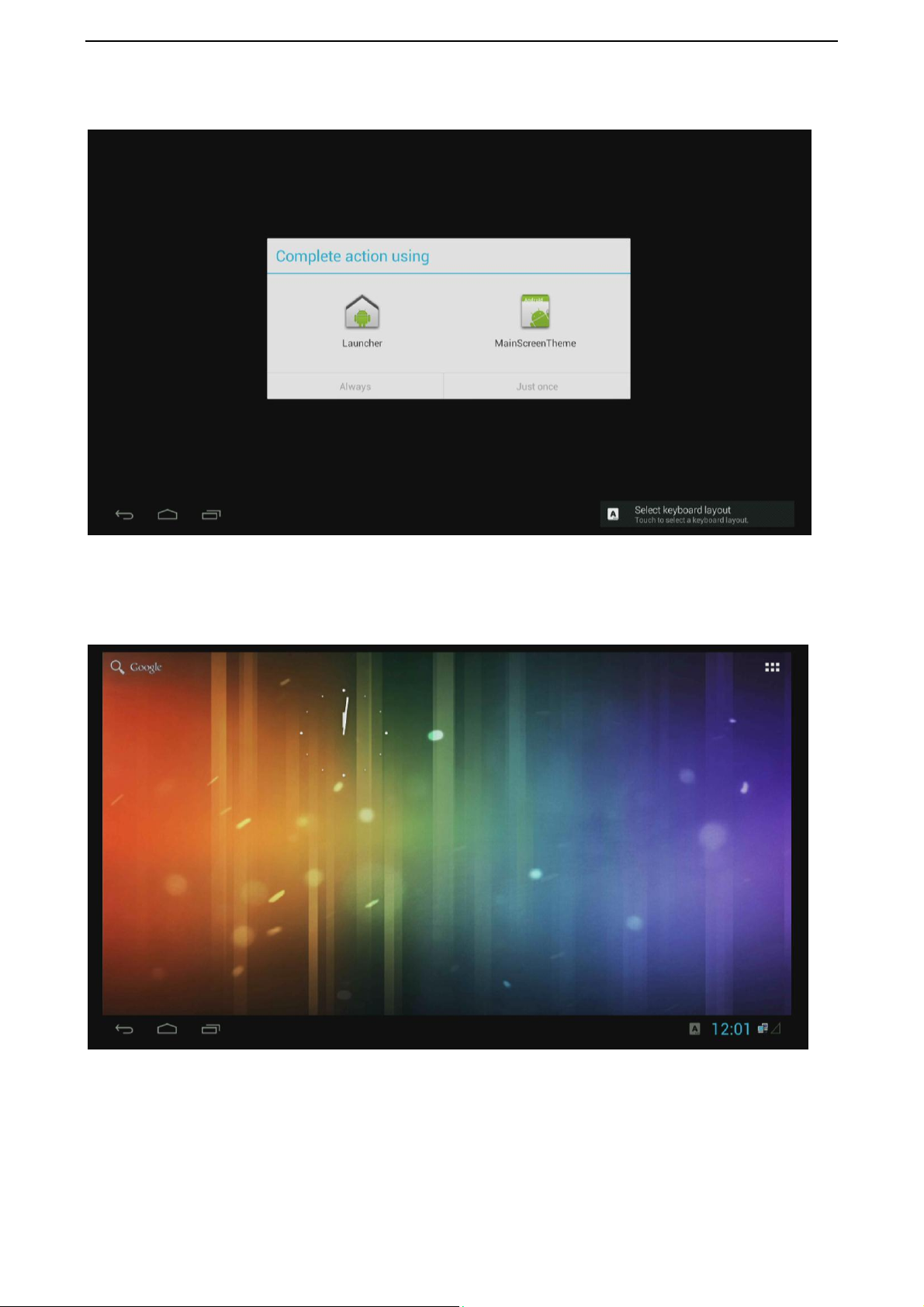
3 Home screen
Two launchers for option.
First one
4
Page 5
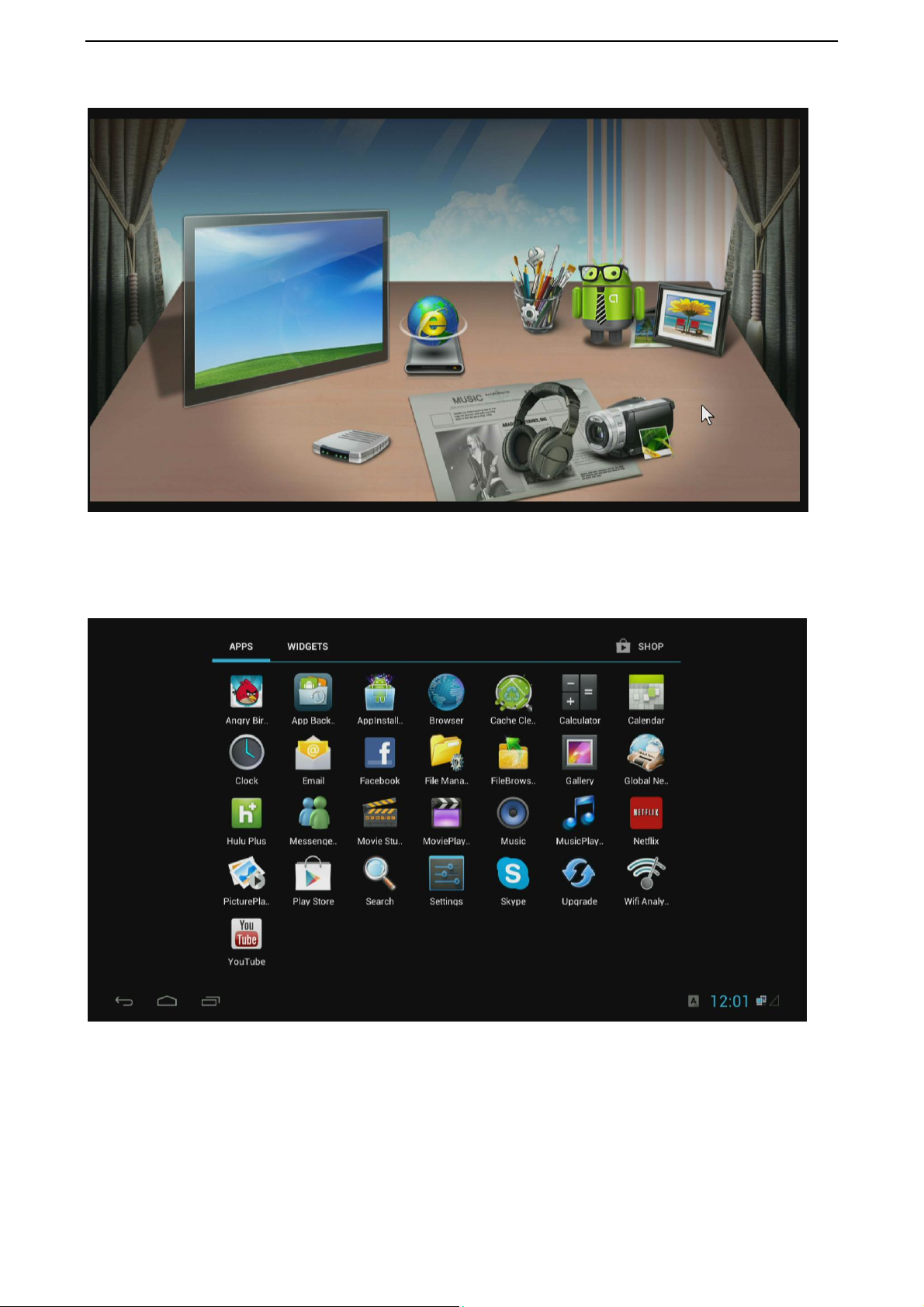
Second one
APP list, you can install any other apps you want.
5
Page 6
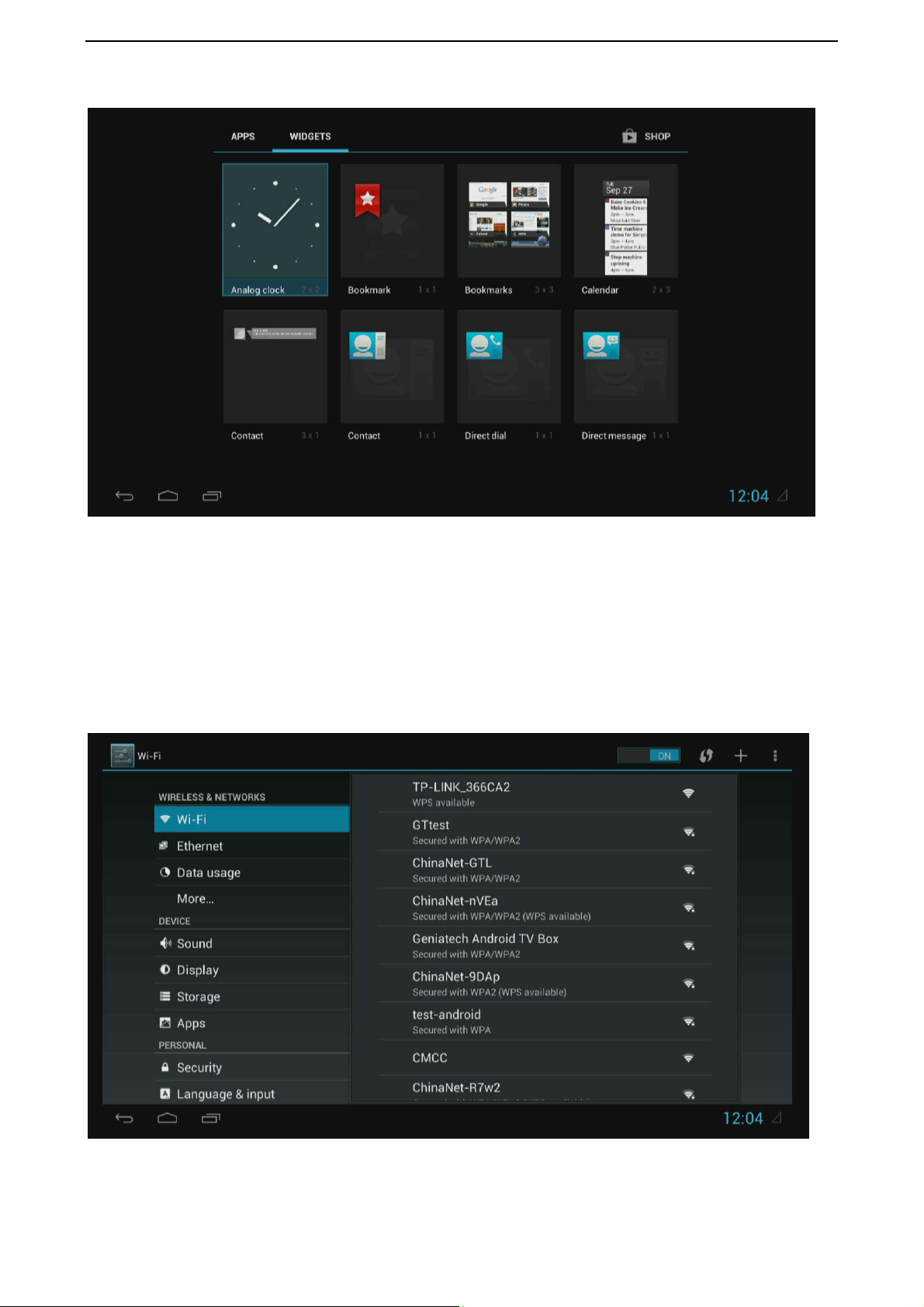
Widgets screen
Settings
Settings provides individual preference setting functions.
1. Wi-Fi
It will scan ambient Wi-Fi networks automatically when you click OFF to turn on Wi-Fi.
6
Page 7
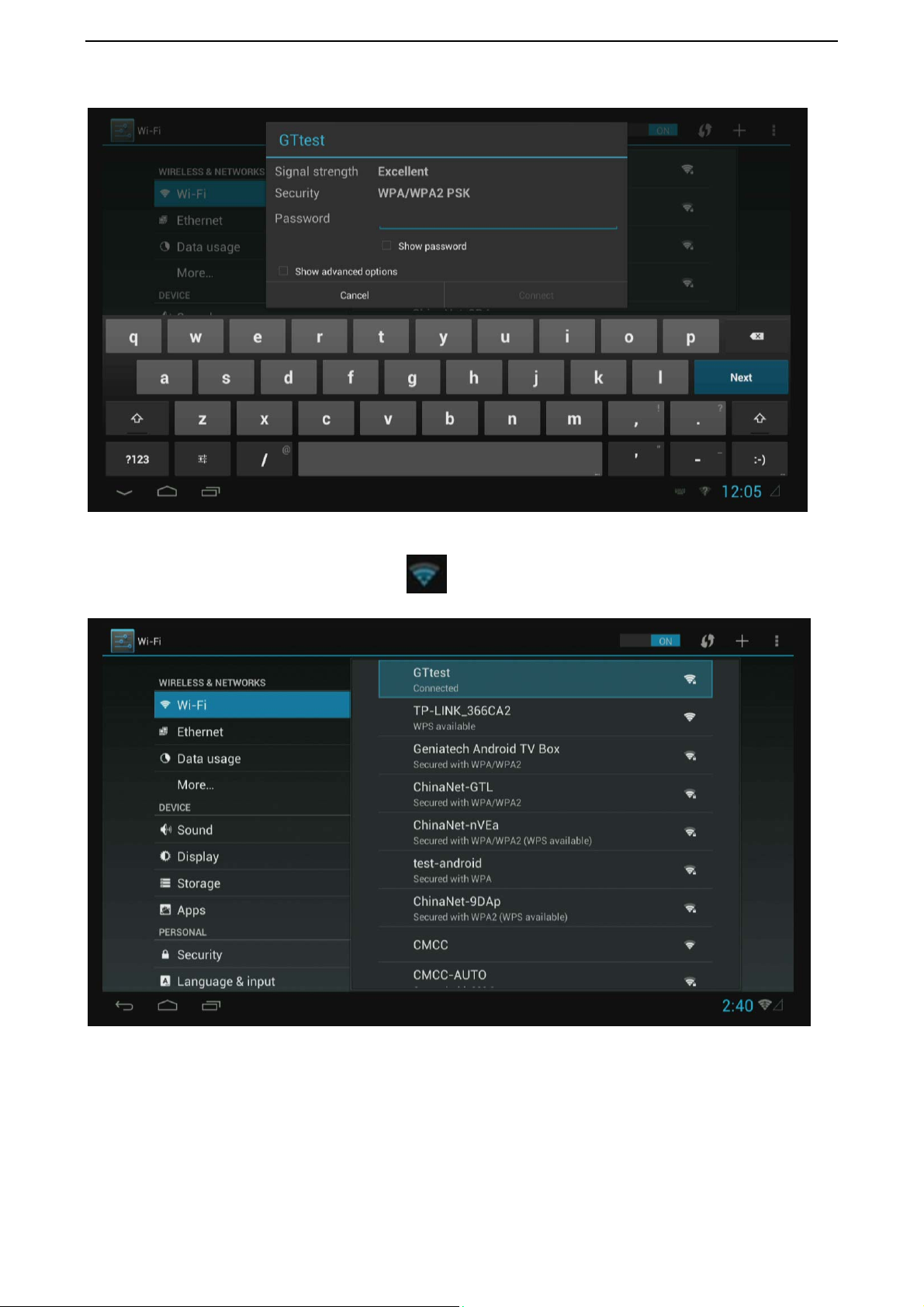
Choose one encrypted or opened Wi-Fi network to connect
Once network is working, you will see icon in the right corner of the screen.
7
Page 8
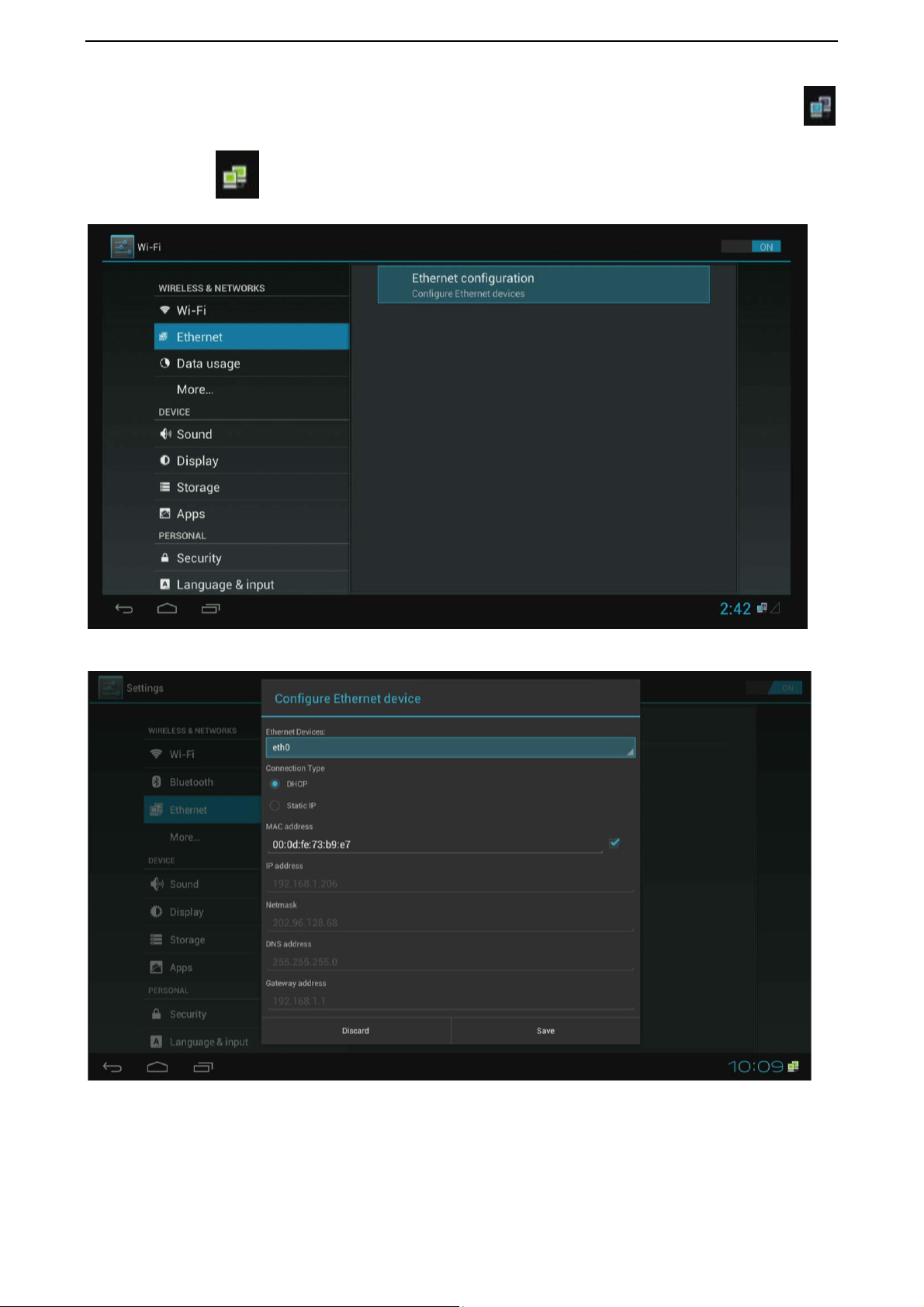
2. Ethernet
Plug the network cable to RJ45 port, click OFF button to turn on Ethernet, you will see
icon in the right corner of the screen, once the box is connected to network, above icon will
become green
.
8
Page 9
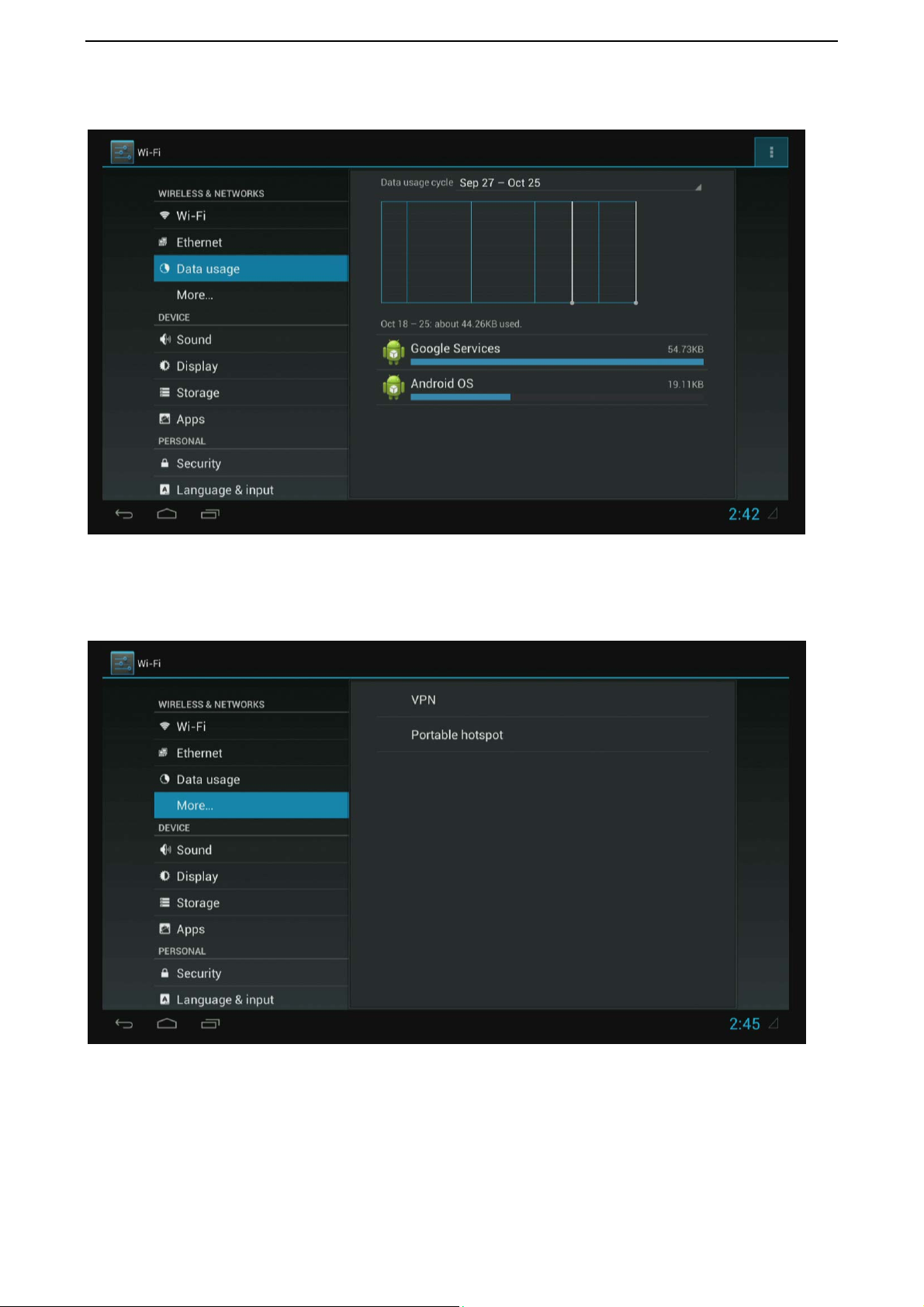
3. Data usage
Show data usage information.
4. More
It includes VPN, Portable hotspot.
9
Page 10
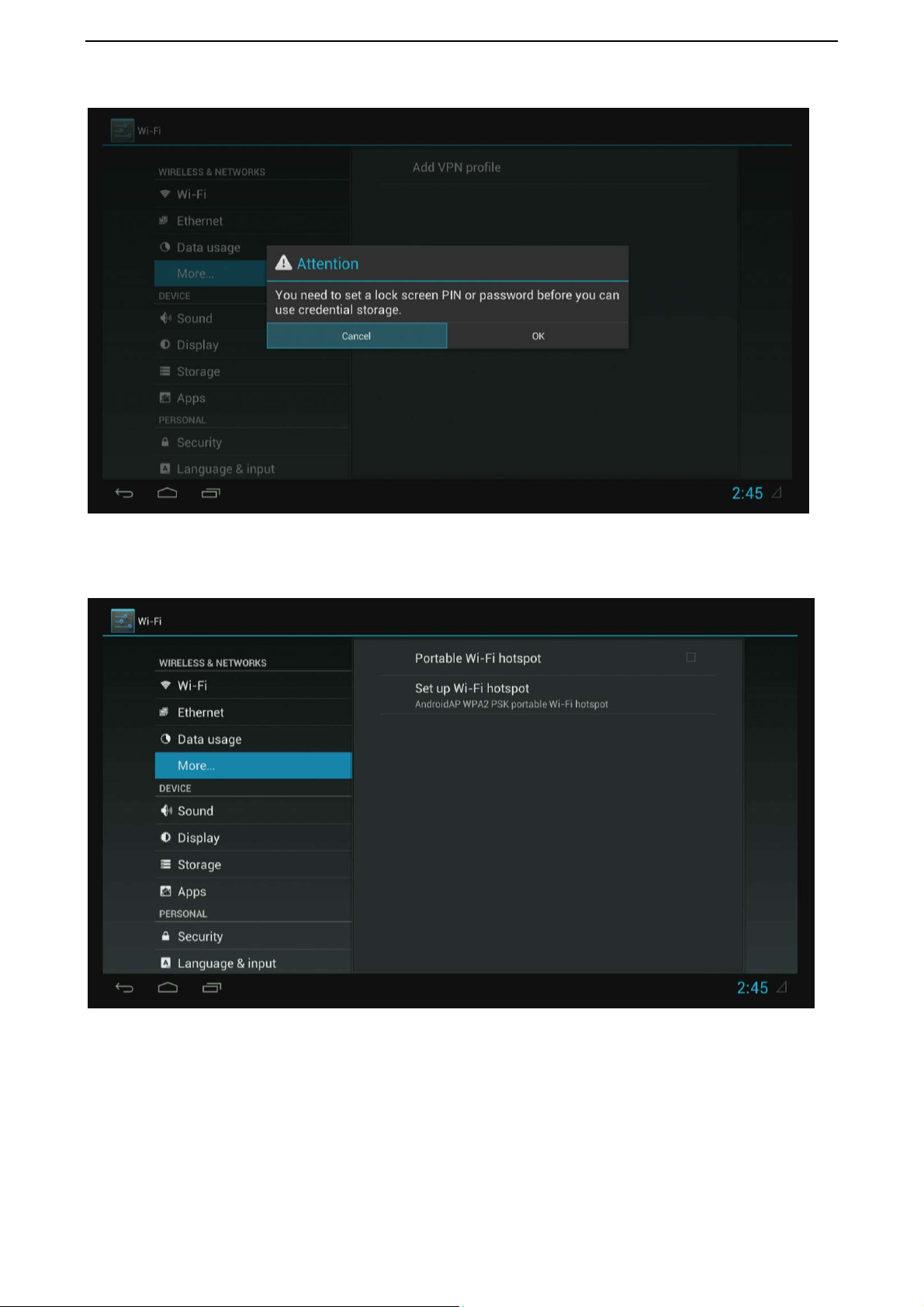
Add VPN profile
Enable Portable hotspot
10
Page 11
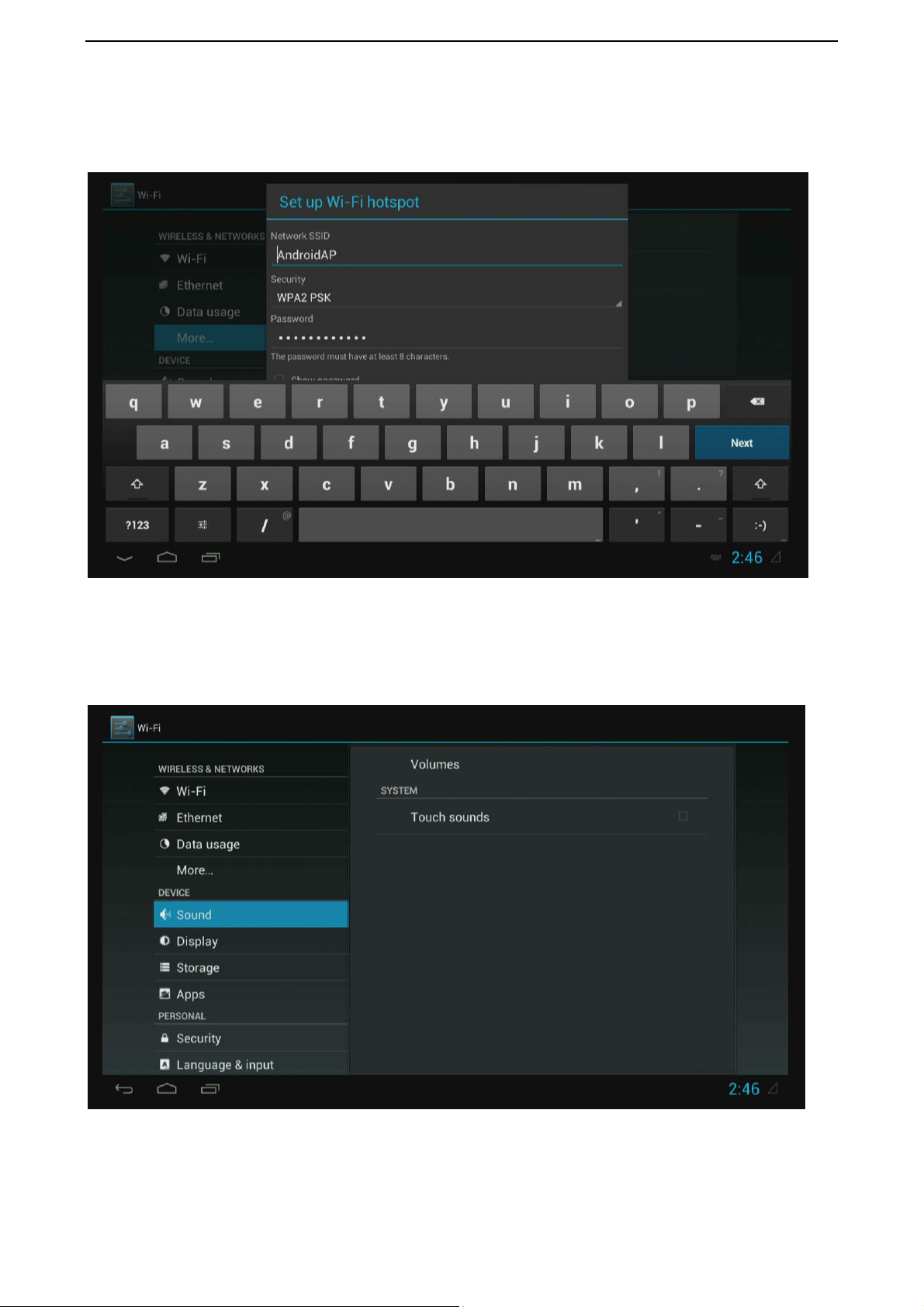
Set up Wi-Fi hotspot.
Choose different security way to share your network.
Please note you need to disconnect Wi-Fi and connect Ethernet while using hotspot
function. Wi-Fi and hotspot connection can’t be existed at the same time.
5. Sound
If you enable Touch sound, you will hear the sound while move remote control.
11
Page 12
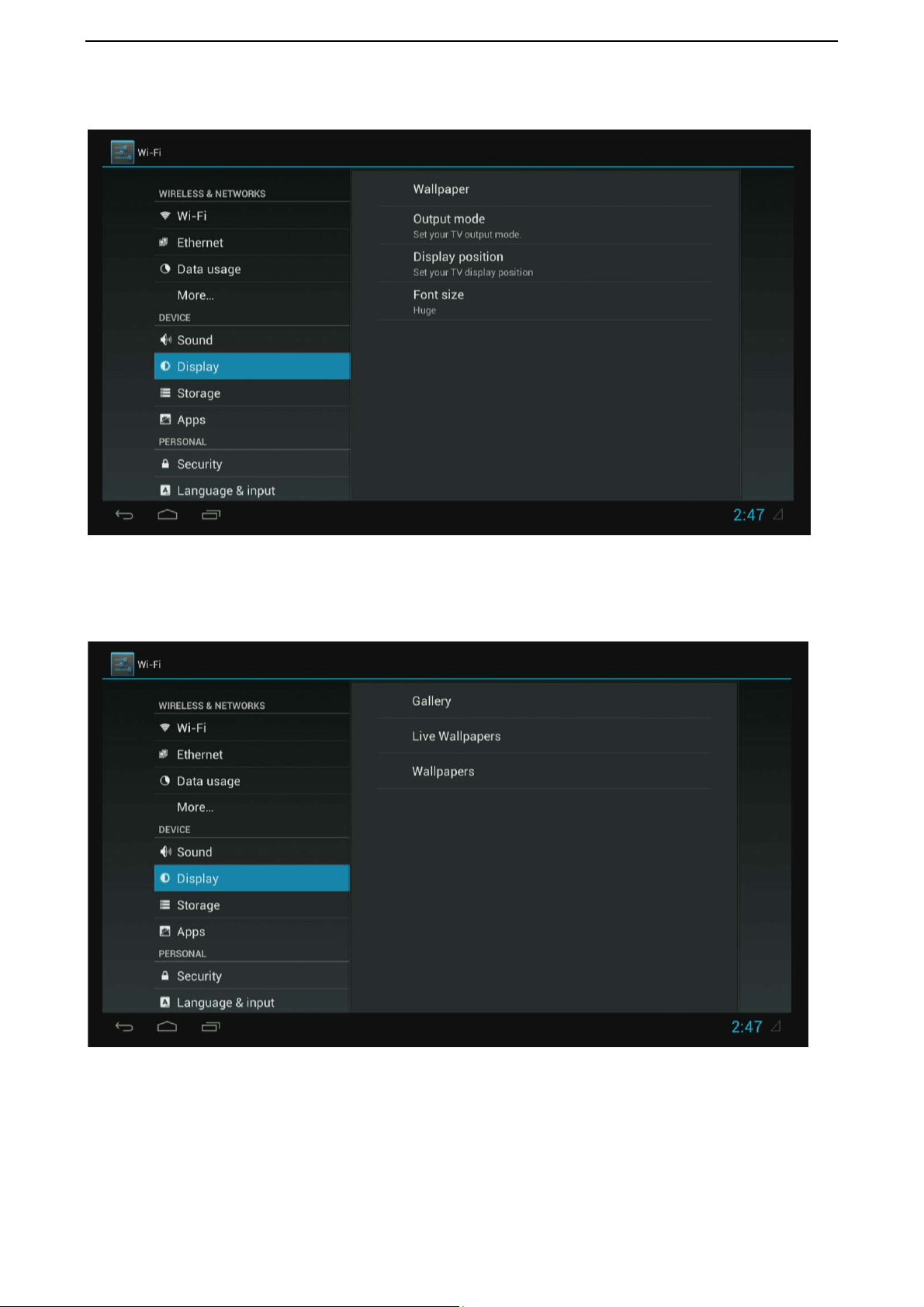
6. Display
Set wallpaper, output mode, display position and font size.
Choose picture from Gallery, live wallpapers or wallpapers and set it to the wallpaper.
12
Page 13
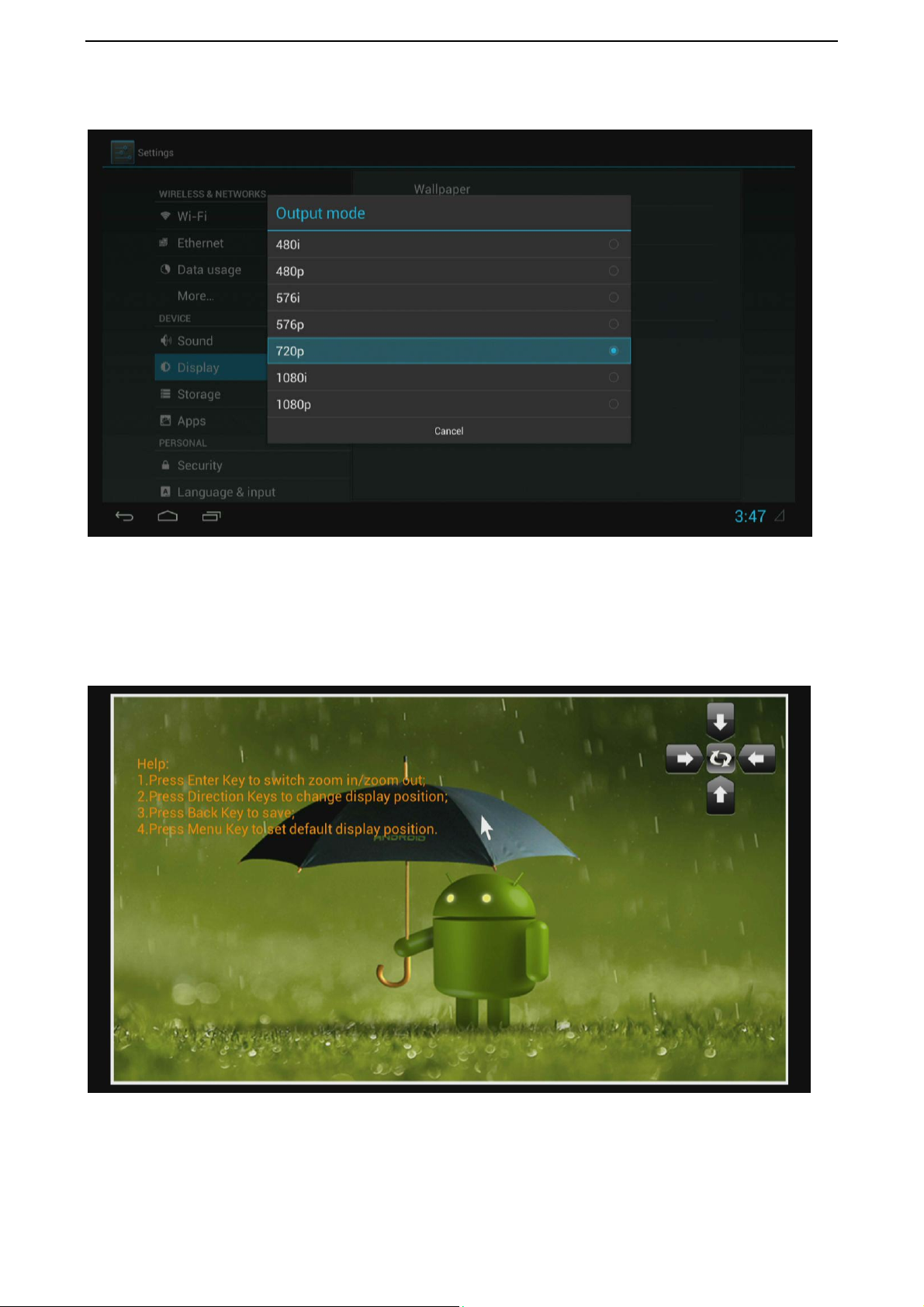
Output mode
The default resolution is 720P
Display position
Use direction and Enter/Ok buttons on remote control to adjust display position when the
screen is not display as full screen on your TV.
13
Page 14
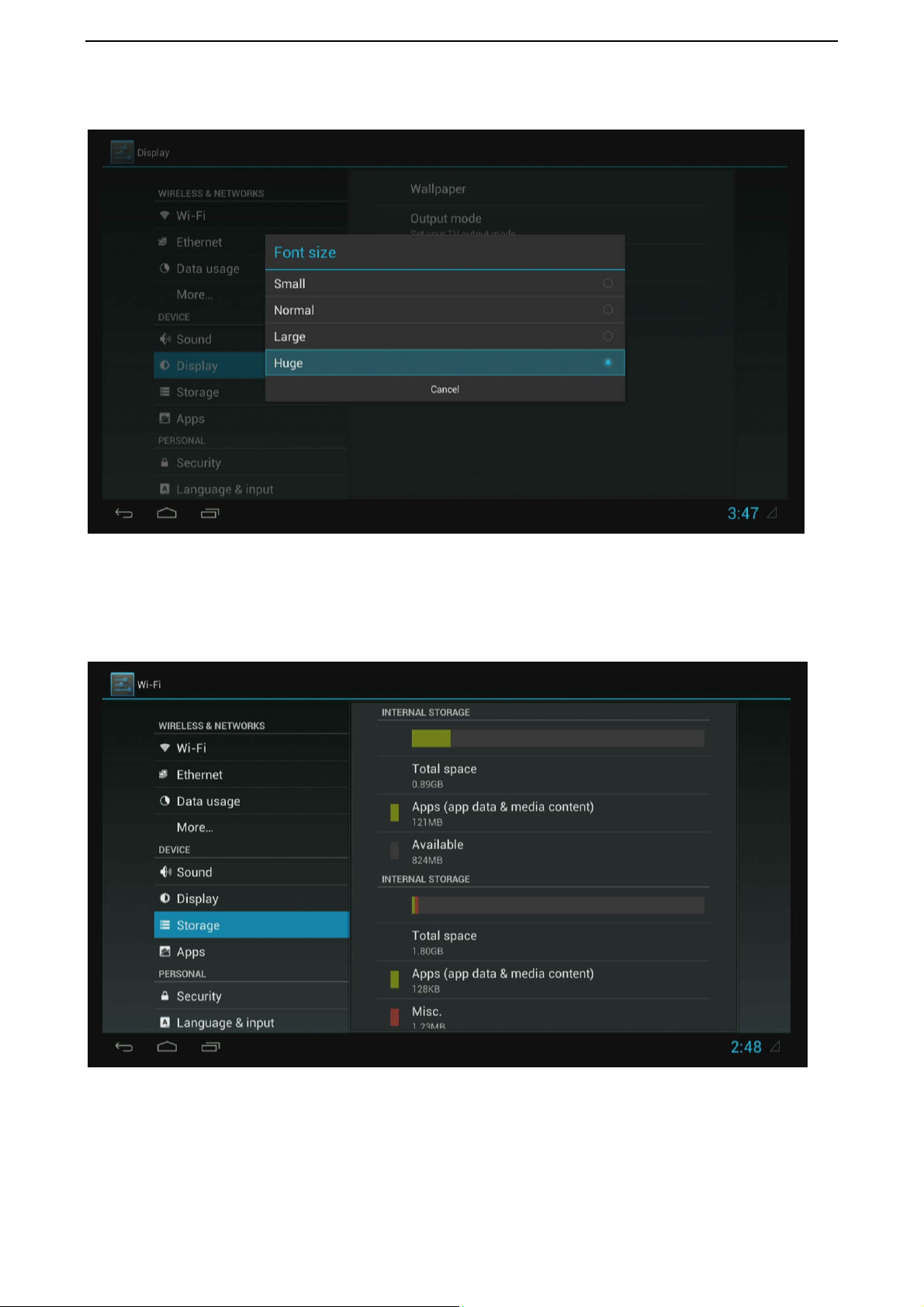
Font size
Change the font size of OSD.
7. Storage
Shows the storage used of the 4G flash.
14
Page 15
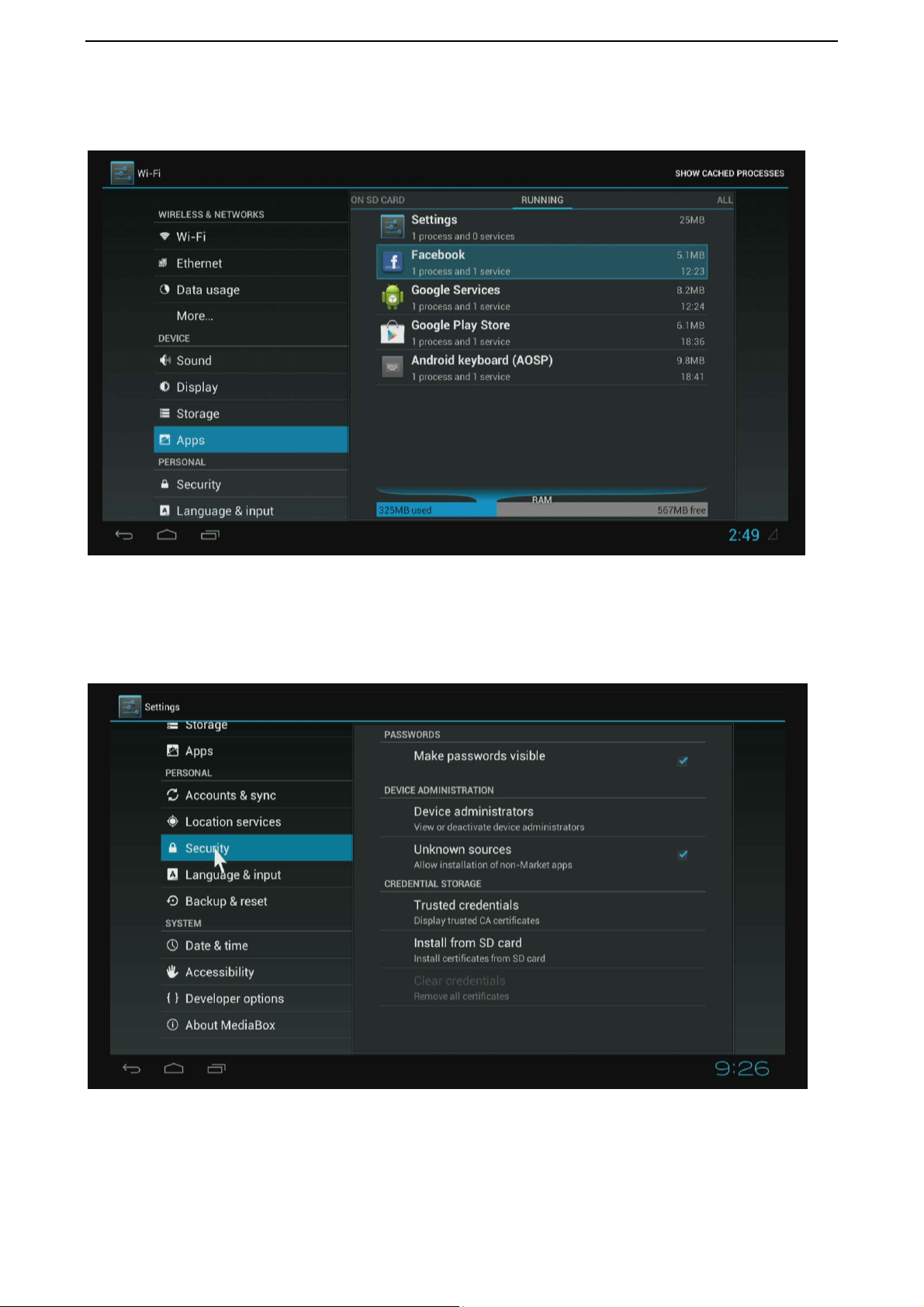
8. Apps
List all apps on different status.
And, you can check the free RAM which click RUNNING module.
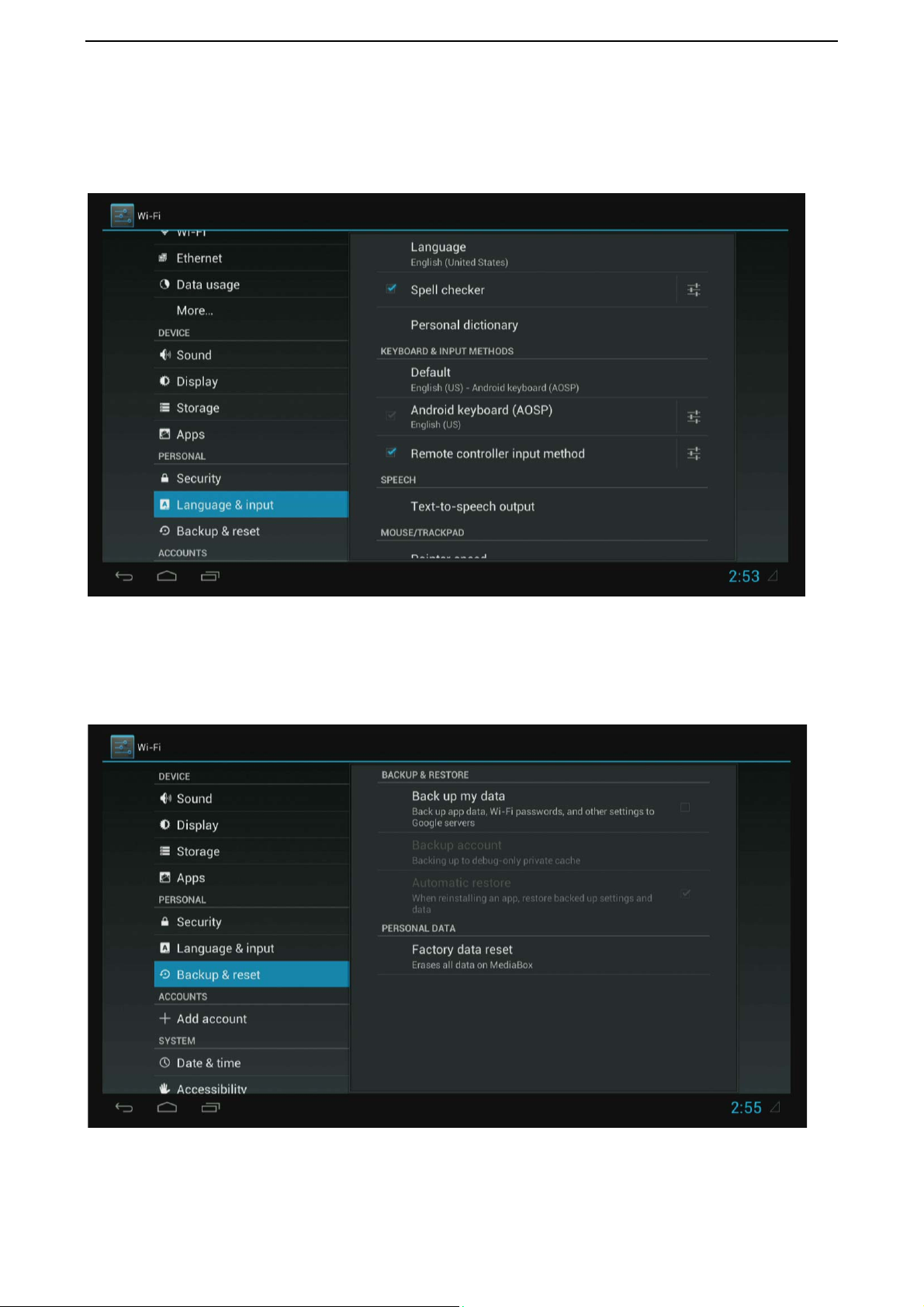
9. Security
Enable unknown sources, it will allow you to install non-market apps.
15
Page 16
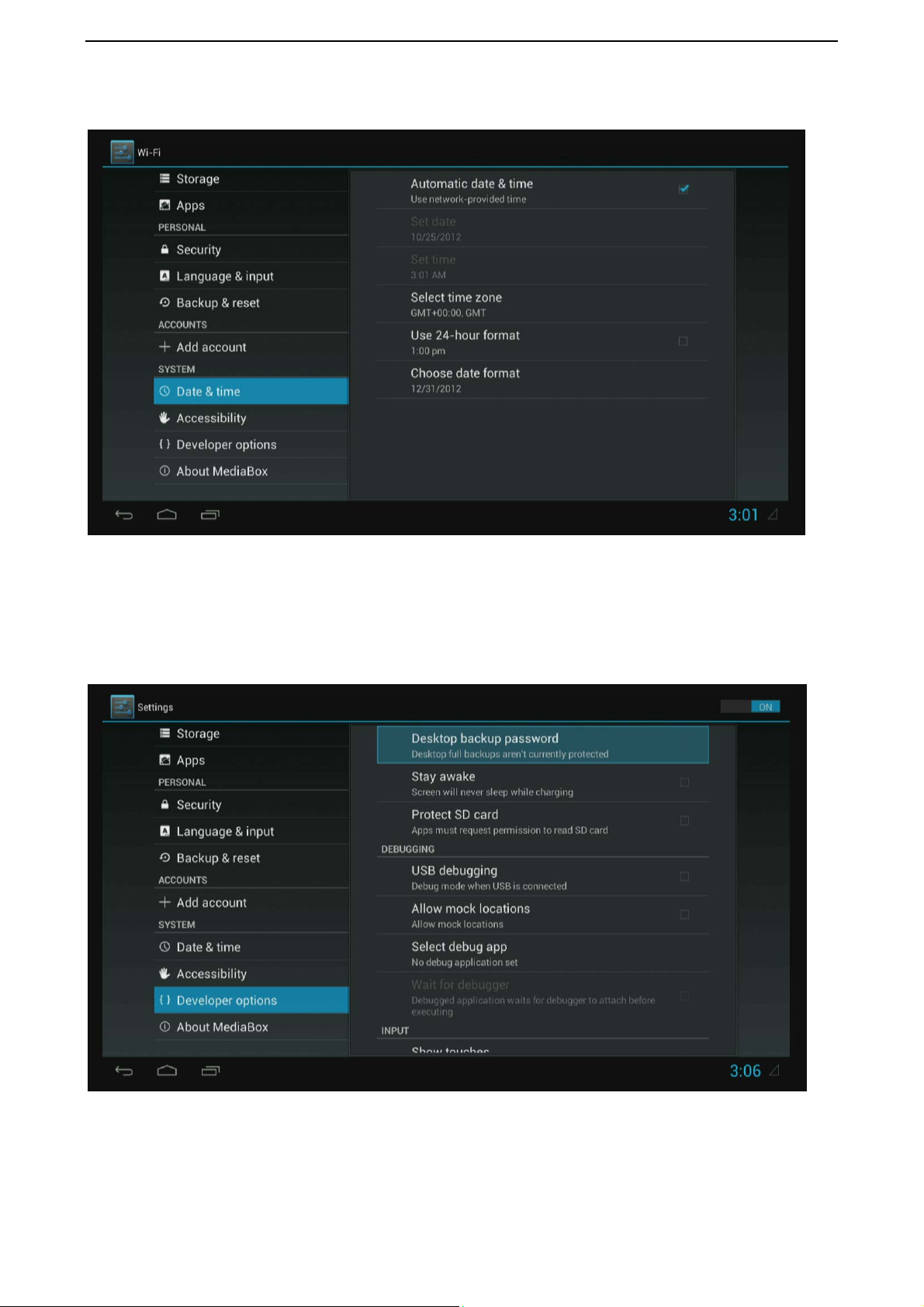
10. Language & input
Change OSD language and input method.
The default input method is android standard keyboard.
If you are using our IR remote control, enter into “Default” option and switch to remote
controller input method.
11. Backup & reset
Choose factory reset, it will erase all user data of the box.
16
Page 17
12. Data & Time
Set the time of the box.
13. Developer options
If you are a developer of android OS, and you need to do some debug on the box.
Enable USD debugging, you will get ADB function by Ethernet or Wi-Fi.
17
Page 18
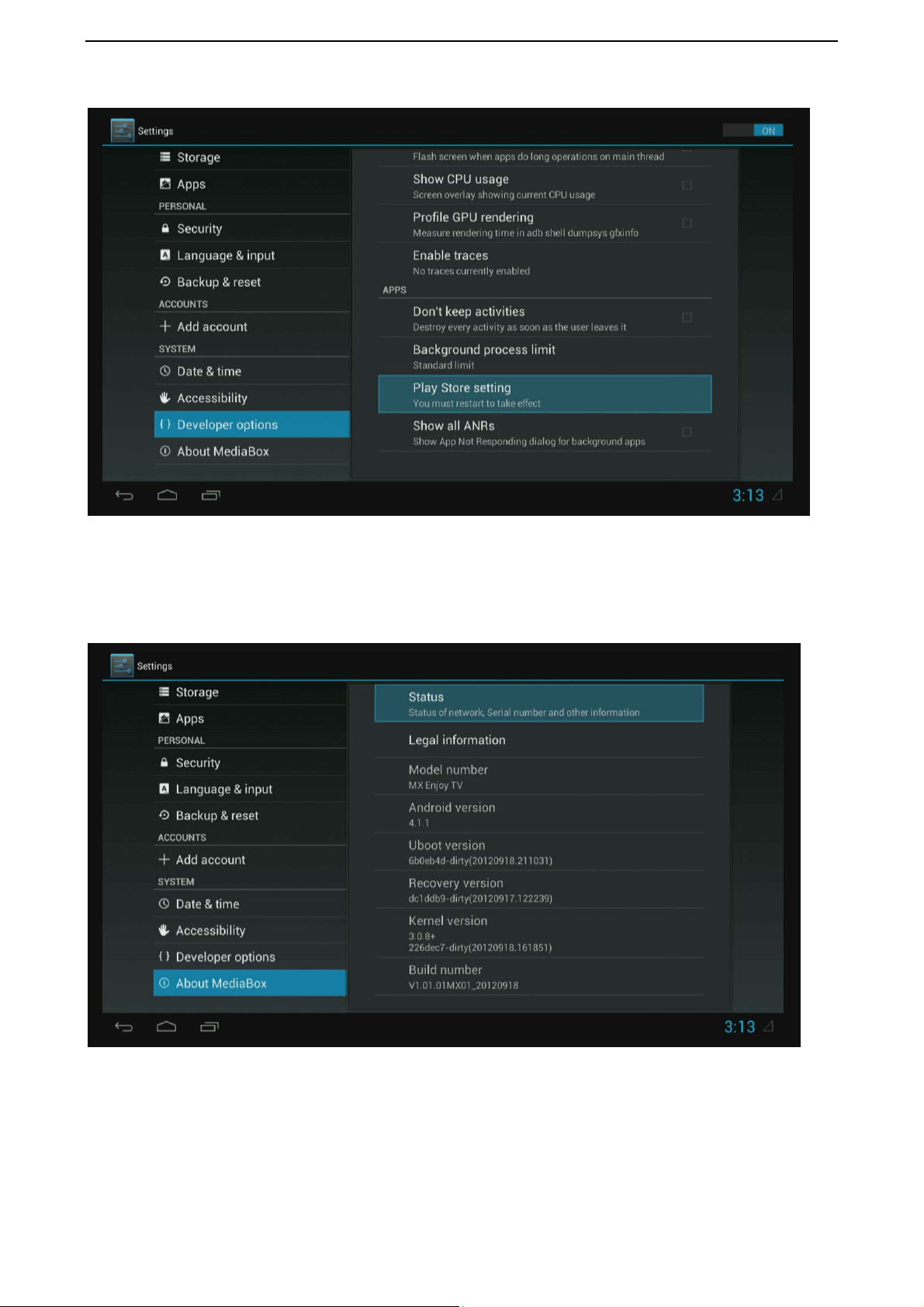
And, you also can change the area of Google play store in Play Store setting.
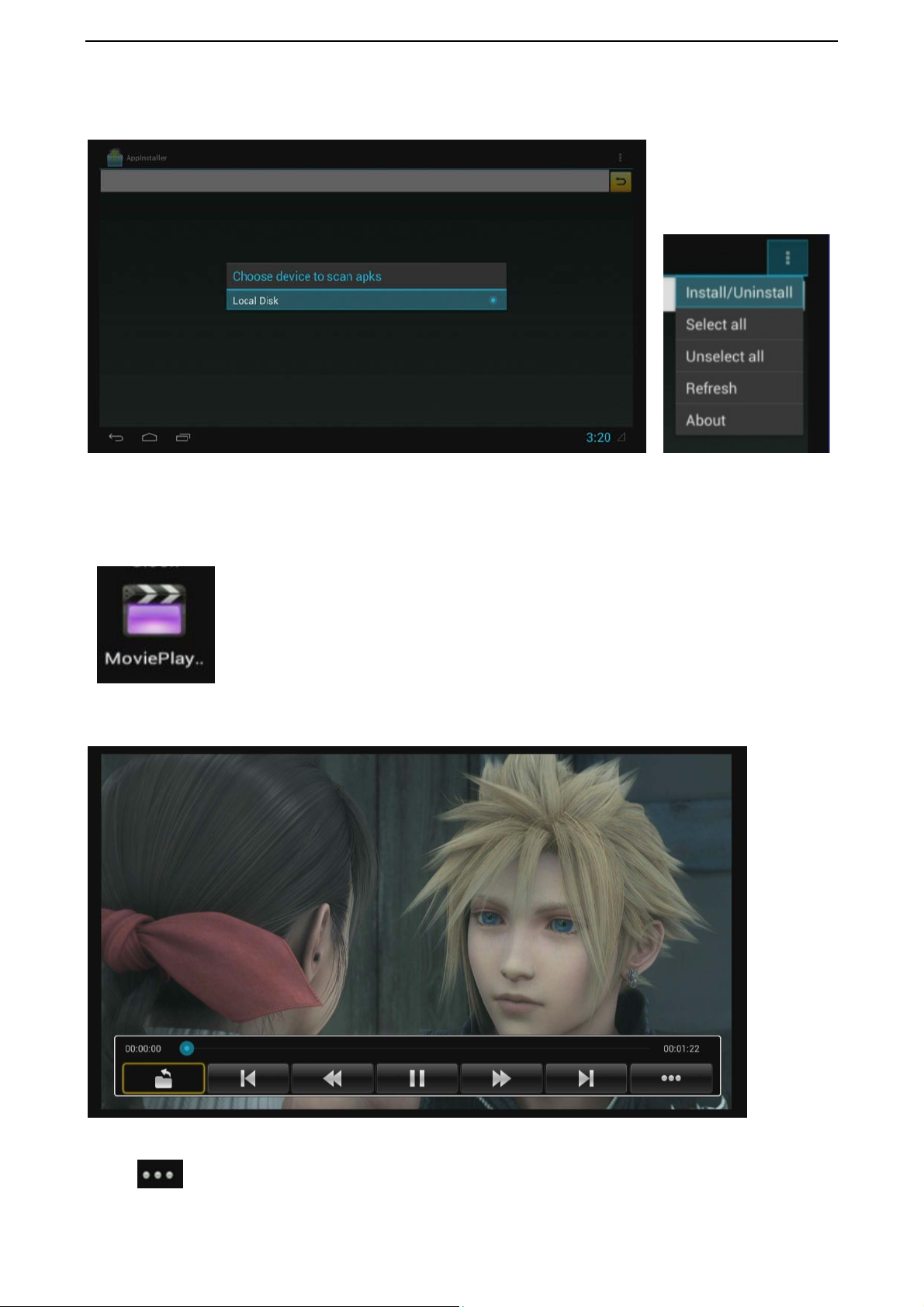
14. About Media Box.
You will find firmware version under build number.
18
Page 19
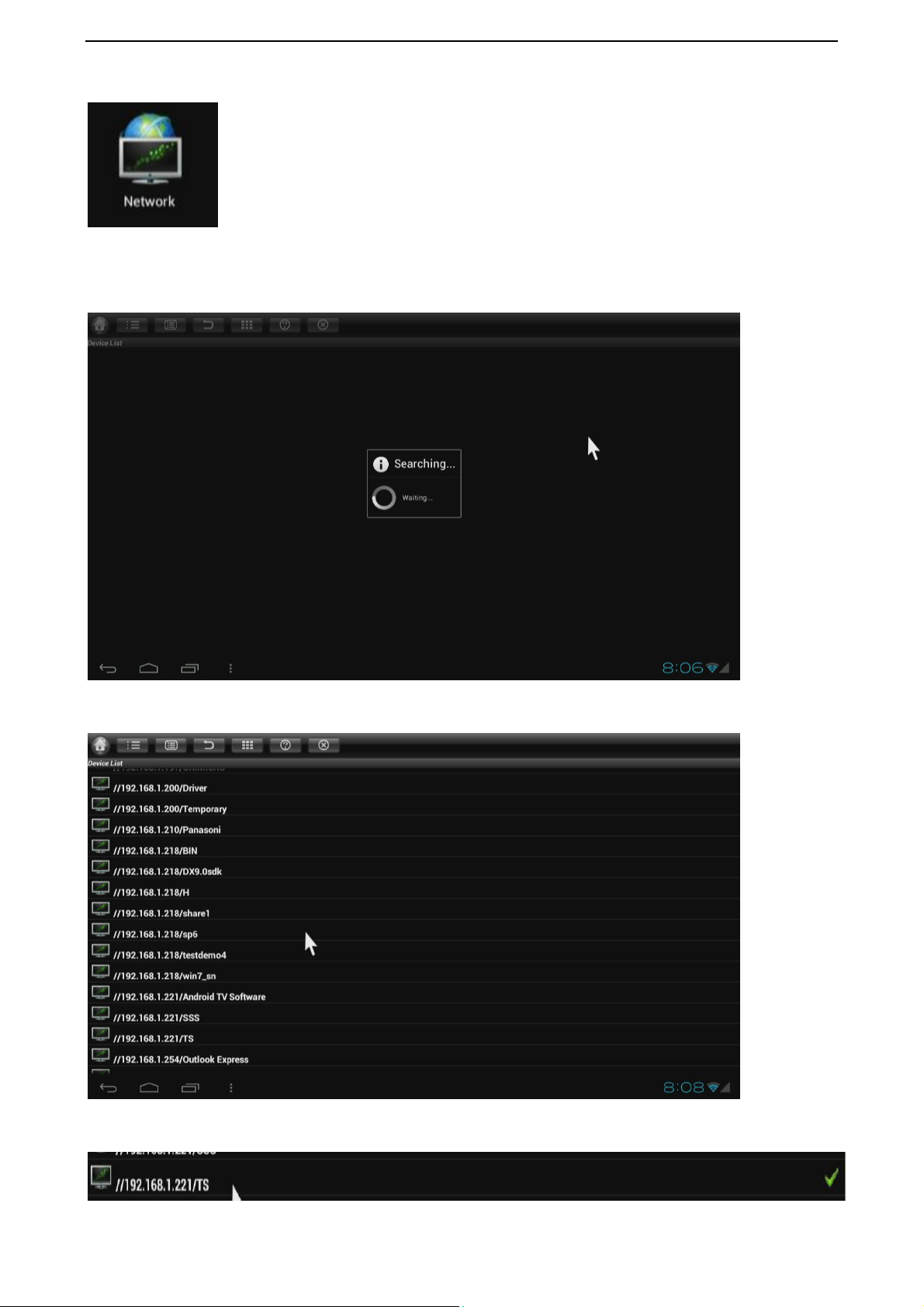
AppInstaller
Install apk from external SD card / USB disk /USB HDD.
Movie player
.
Play videos from SD card, USB disk and USB / SATA HDD
Click button to change video mode, subtitle, audio track, and get video information
and so on.
19
Page 20
Network (SAMBA function)
When you open network app at the first time, it will scan all shared folders in local area
network.
Scanned shared folders
Choose one of them, you will see a green icon appeared on the right.
20
Page 21
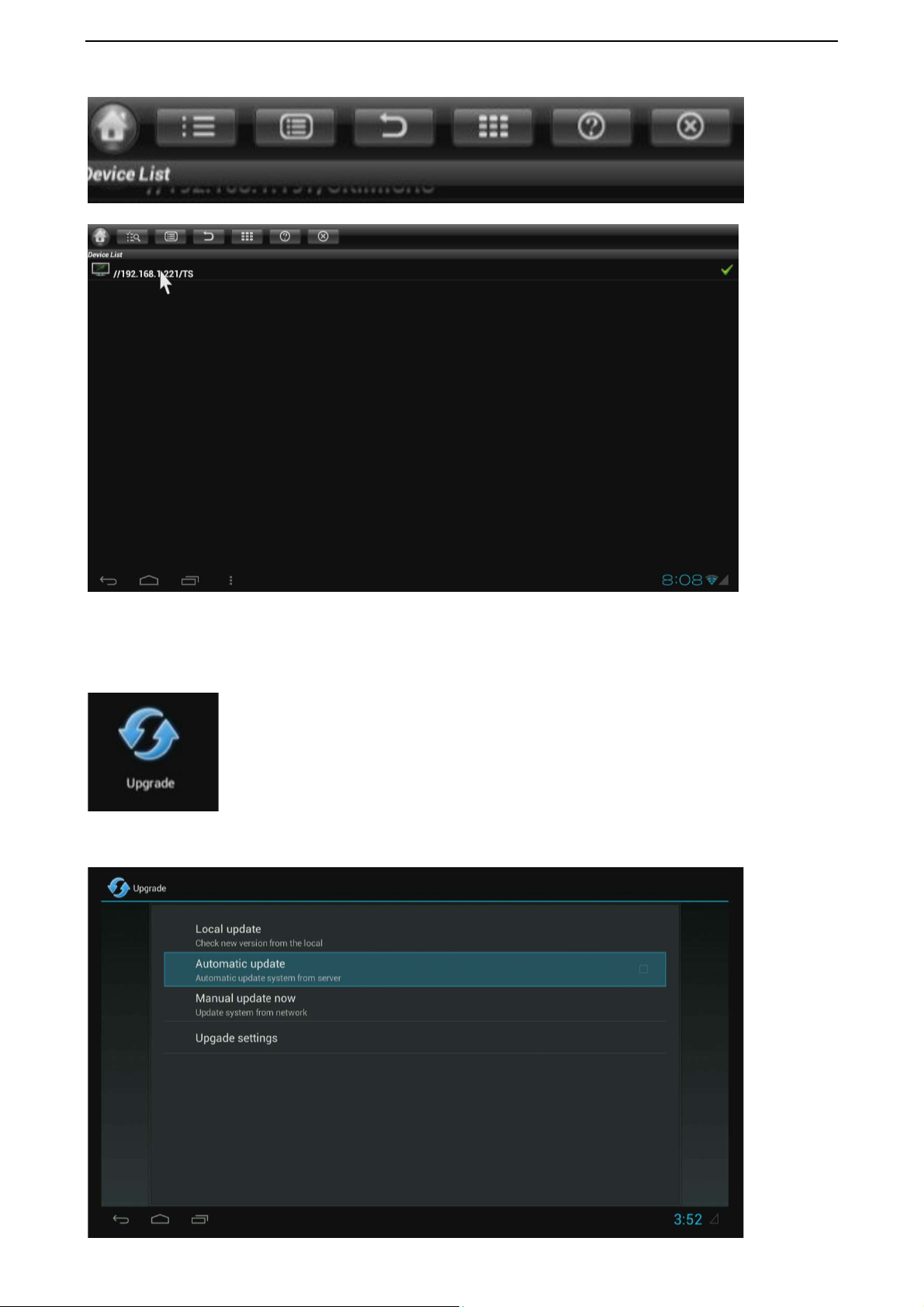
Click the second button to confirm the choice.
Then, click and open the folder to browse videos, music, pictures and documents inside it.
Upgrade
Upgrade the firmware from local device or online update server
21
Page 22

FCC Warning Statement
Changes or modifications not expressly approved by the party responsible for compliance
could void the user's authority to operate the equipment.
This equipment has been tested and found to comply with the limits for a Class B digital
device, pursuant to Part 15 of the FCC Rules. These limits are designed to provide
reasonable protection against harmful interference in a residential installation. This
equipment generates uses and can radiate radio frequency energy and, if not installed and
used in accordance with the instructions, may cause harmful interference to radio
communications. However, there is no guarantee that interference will not occur in a
particular installation. If this equipment does cause harmful interference to radio or
television reception, which can be determined by turning the equipment off and on, the user
is encouraged to try to correct the interference by one or more of the following measures:
-- Reorient or relocate the receiving antenna.
-- Increase the separation between the equipment and receiver.
-- Connect the equipment into an outlet on a circuit different from that to which the receiver
is connected.
-- Consult the dealer or an experienced radio/TV technician for help
FCC Radiation Exposure Statement
The antennas used for this transmitter must be installed to provide a separation distance of
at least 20 cm from all persons and must not be co-located or operating in conjunction with
any other antenna or transmitter.
22
 Loading...