

Page 1
DUKANE
AV PRODUCTS
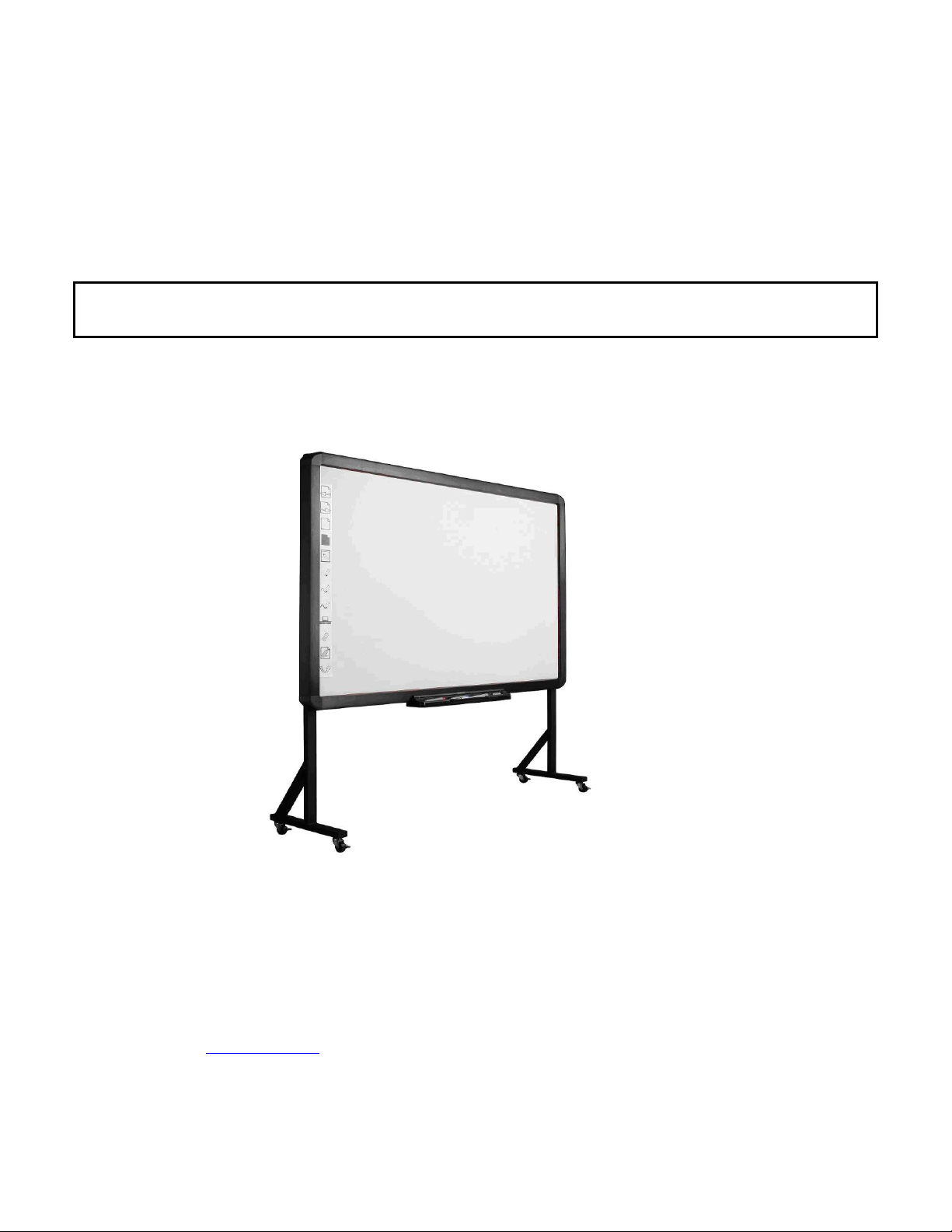
INTERACTIVE WHITEBOARD Touch operation Model LB78T
User Guide IWB Model LB78T
Information in this Guide may change due to product improvements. To obtain the latest manuals, literature, and software please visit the
Dukane web site at; www.dukane.com/av and look at the specific model SUPPORT or DOWNLOADS section.
UGLB78T030510
Page 2

Table of Contents
What’s In The Carton ........................................................................... 2
DUKANE Whiteboard System Requirements .................................... 2
Introduction........................................................................................... 3
Whiteboard Software Features ........................................................... 3
How to Install Hardware ....................................................................... 4
P a g e | 1
How to Install Software ........................................................................ 8
Board operation menu ......................................................................... 9
Troubleshooting Guide ...................................................................... 12
DUKANE Interactive Whiteboard User Tips .................................... 13
Specifications ....................................................................................... 14
Technical Support .............................................................................. 16
The information contained herein is subject to change without notice. The only warranties for Dukane Products and services are set forth
in the express warranty statements accompanying such products and services. Nothing herein should be construed as constituting an
additional warranty. Dukane shall not be liable for technical or editorial errors or omissions contained herein.
Page 3

P a g e | 2
White Board * 1 pc
Writing Pen *3 pc
USB Cable 49 ft (7.5m) * 1 pc
Eraser * 1 pc
Installation CD * 1 pc
Warranty Card * 1 pc
Pen Tray (Optional) * 1 pc
Wall-mounting Bracket (Optional) * 1 set
What‟s in the carton?
Thank you for your purchase of the DUKANE Interactive Whiteboard. If any items are missing or damaged, please
contact your authorized reseller immediately.
CONTENTS:
DUKANE Whiteboard System Requirements
Lowest System Requirements:
· CPU: 300MHz×86
· Memory: 128M
· Display Card: Support 256 or above
· Hard Disk: 100M
· Screen Display Resolution: 800×600、1024×768、 1280×1024
· USB1.1 port
Recommended:
· CPU: 1GHz×86
· Memory: 256M or above
· Display Card: Support 256 or above
· Hard Disk: 500M
· Screen Display Resolution: 1024×768 、1280×1024
· USB port
Software Running Environment: Microsoft Windows versions; WIN 2000,XP (32-bit), Vista (32-bit),
WIN 7 (32-bit).
Page 4

P a g e | 3
Introduction
DUKANE‟s Interactive Whiteboard uses infrared technology. Working seamlessly with a projector and
computer, the DUKANE Interactive Whiteboard provides more convenient, interactive and effective
presentations. Perfect for school auditoriums, conference rooms, trade shows, symposiums and lecture halls.
Users can write on the screen using the included pens, a wand, or the user‟s finger.
Writing: Write, draw and perform mouse functions with your finger. The Whiteboard displays your written
moves instantaneously.
Annotating: The user can operate and annotate over any computer applications, or save notes directly
into Dukane Notes Software, plus PowerPoint, Word, Excel, MEPG JPEG, AVI and etc.
Interacting: In video conferencing, both parties can share data and write in real time just like a standard
conference room. Once integrated with Polycom or other video conferencing systems, using DUKANE‟s
Interactive Whiteboard can improve video conference efficiency. The system can support up to 40 writing
locations.
Touch System: DUKANE Interactive Whiteboard is sensitive to touch speed and can be used as a
high-resolution interactive white board.
Touch Recognition: Can recognize touch of a single-finger, certain gesture, right-click, left-click and
double click.
Hot Keys: Hot keys located on the side(s) of the boards provide quick access to frequently used keys.
Energy conservation: Controls energy consumption using less than 0.5W. There is no separate power
supply.
Whiteboard Software Features:
Designed for teaching and conference systems.
High gain and low glare screen.
Saves images in Vector image format. Vector images take up less
storage space and make file transferring easier and faster
Users can customize pen type, line width, and color schemes to fit
their individual preferences.
Powerful screen functions supports real-time editing
Graphic tools allow users to choose a background, input graphics and images.
Paintbrush pen is speed sensitive
Writing file allows for easy conversion to many other formats such as: PDF, JPG, GIF, PNG, TIFF, BMP, etc.
Page 5
P a g e | 4
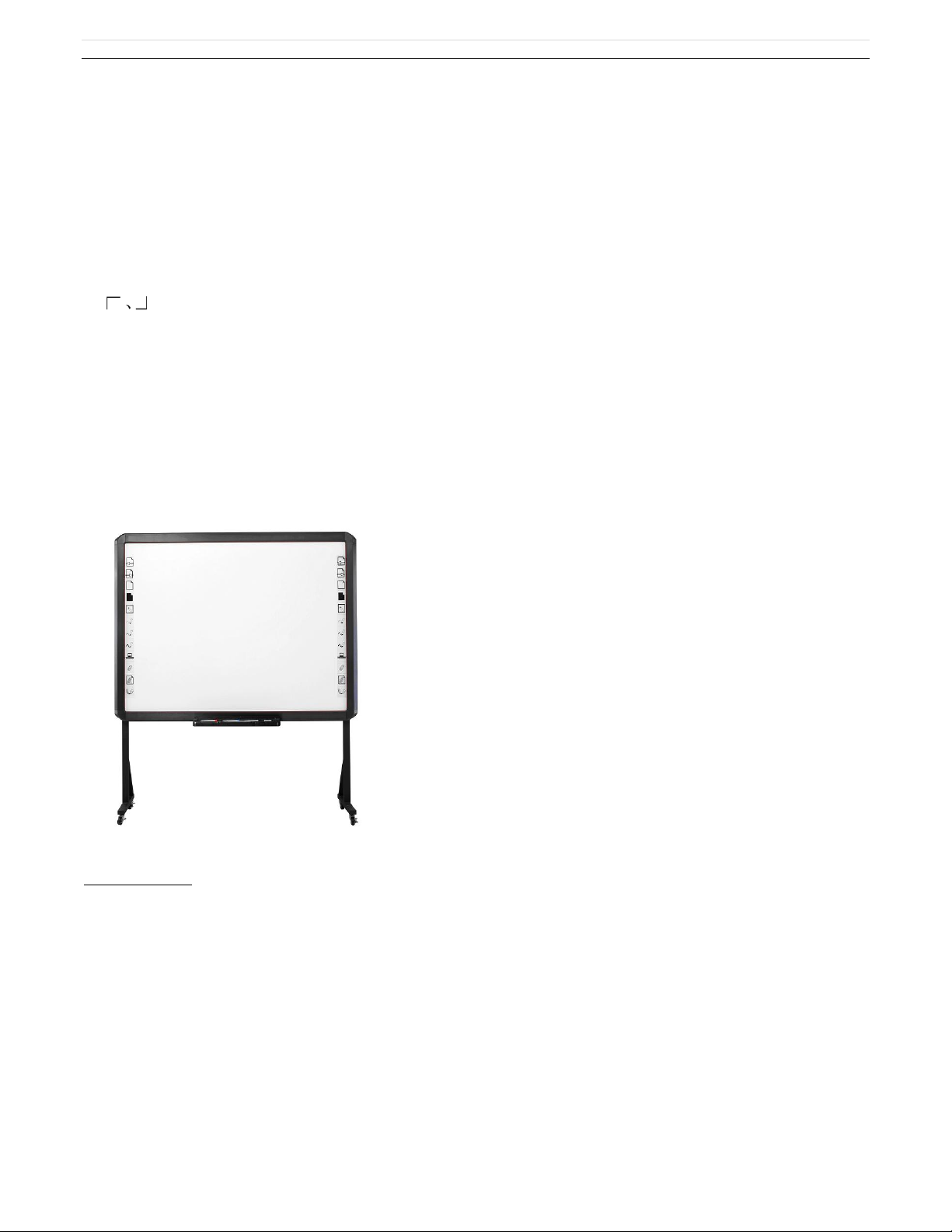
Graphic tools and Hot Keys allow users to choose a pen to annotate, or use as a mouse control. The 12
Hot Keys function as: Page Up & Down, Insert White Background, Insert Black Background, Select Pen
Size, Eraser, Save and Cancel.
Supports other application software.
Note: The projection area is outlined at the upper left and lower right corner of the board using these icons
(“ ”). Please project onto this area for best results.
How to Install Hardware
1. How to install LB78T hardware
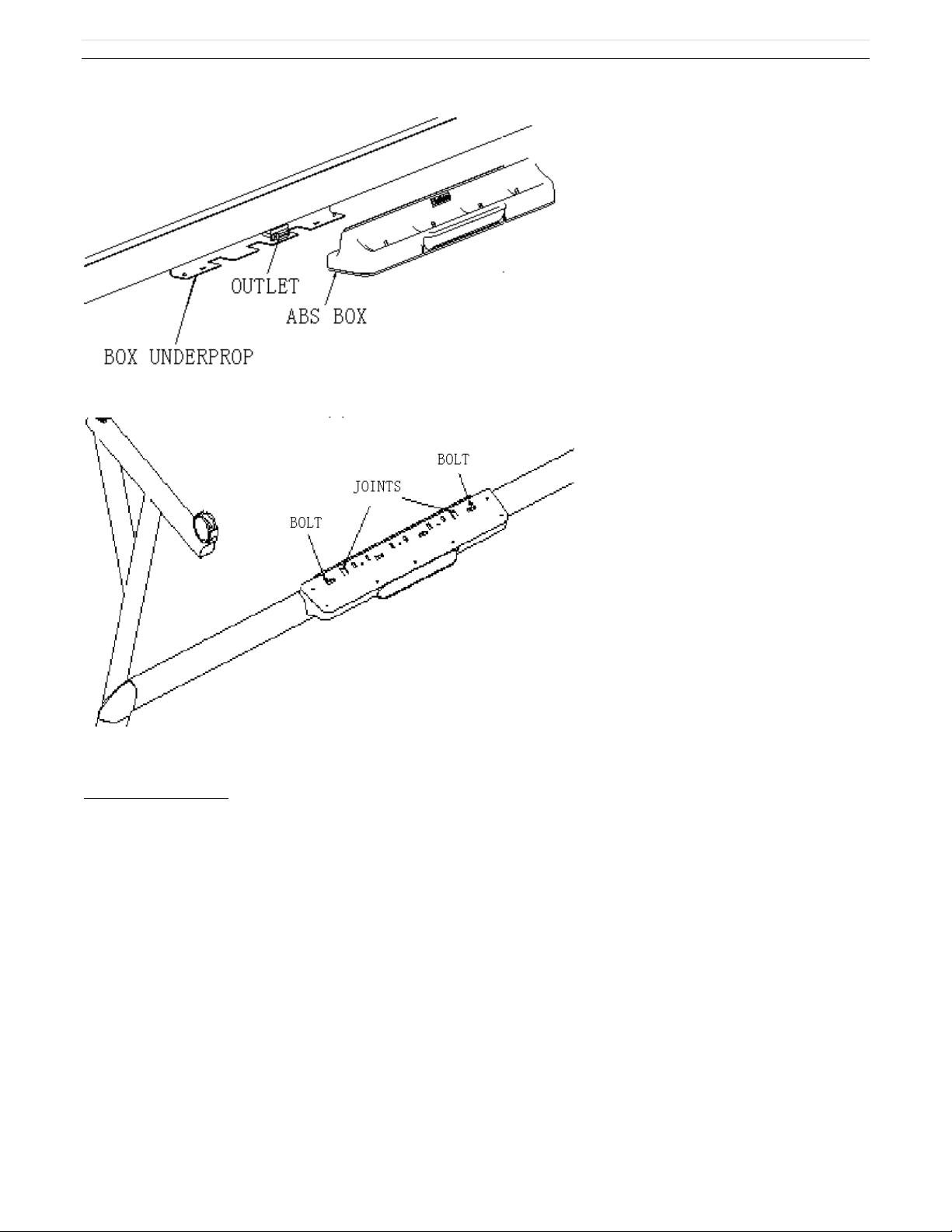
Install Pen Tray: In the frame of the board, prior to securing the pen tray you will find a slot that accommodates a
Kensington lock. If you would like to use a Kensington lock insert and loop the cable through the center hole on
the frame, position the pen tray in line with the four screws, and then screw the pen tray in place. (Shown below)
Page 6
P a g e | 5
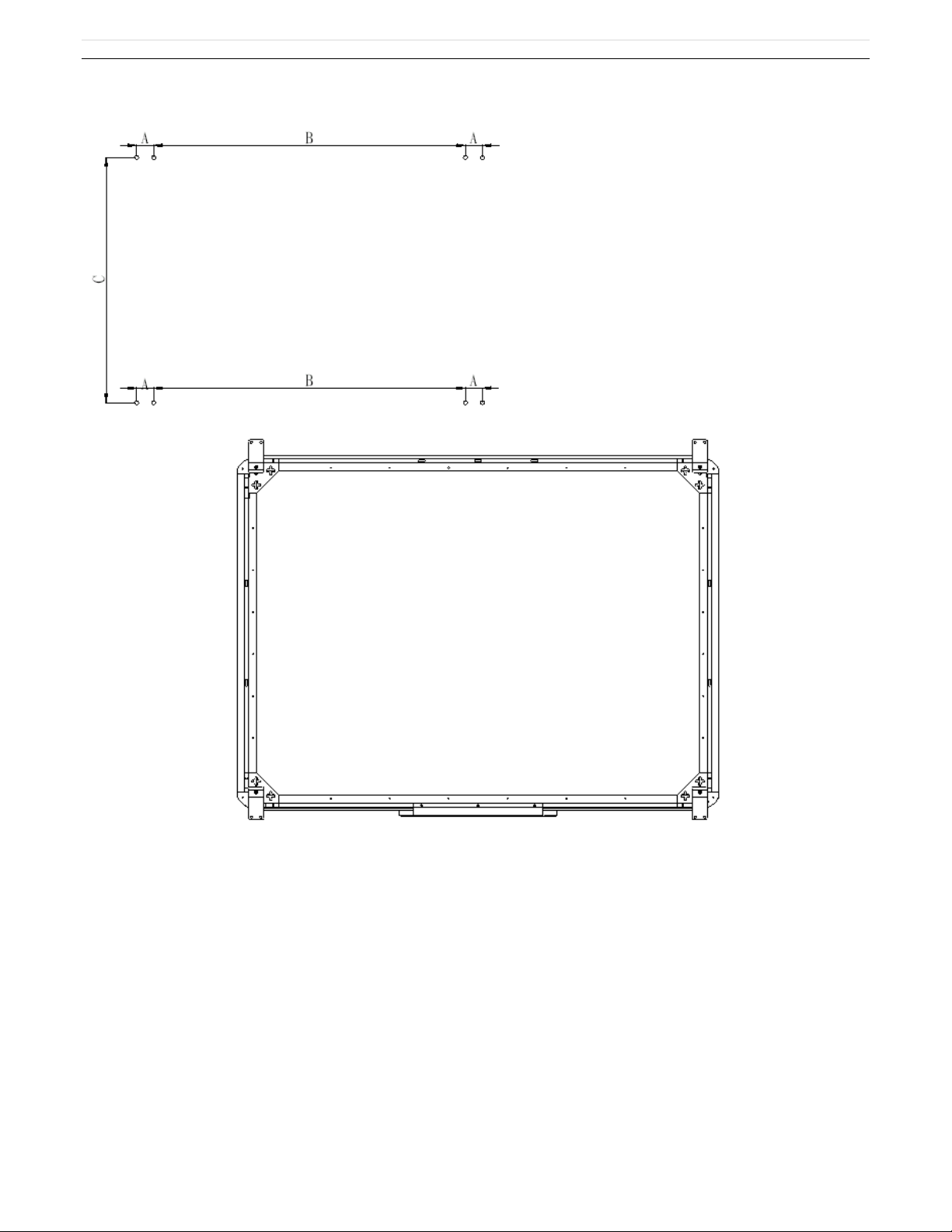
Install Wall mounting: Set desired height according to user‟s preferences. Using the wall-mounting brackets as a
template, place the 8 stilettos on the wall and screw bolts into each hole. Align the wall-mounting brackets onto the
bolts and tighten the bolts. Check that each location hole faces each corresponding bolt and hang the white board
to the wall. (As shown below)
Page 7
P a g e | 6
Page 8
P a g e | 7
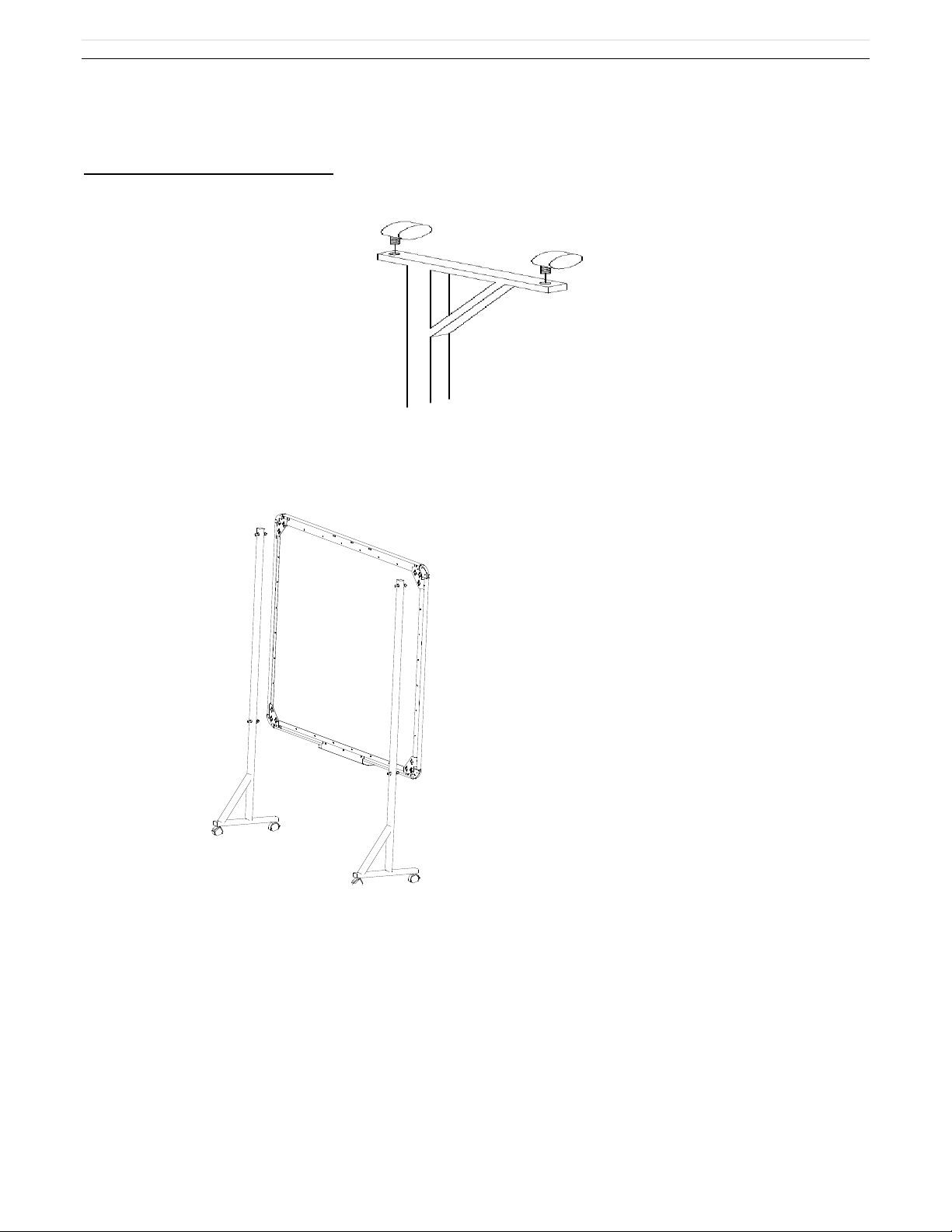
Install White Board on a Floor Stand:
(1) Lock all four casters in the down position (as shown)
(2) With an assistant‟s help, hang Interactive whiteboard on the floor stand by lowering the two bolts onto the top
hooks and securing the bottom bolts into the bottom hooks. There are two heights for hanging according to user‟s
preferences.(as shown below)
Page 9
P a g e | 8
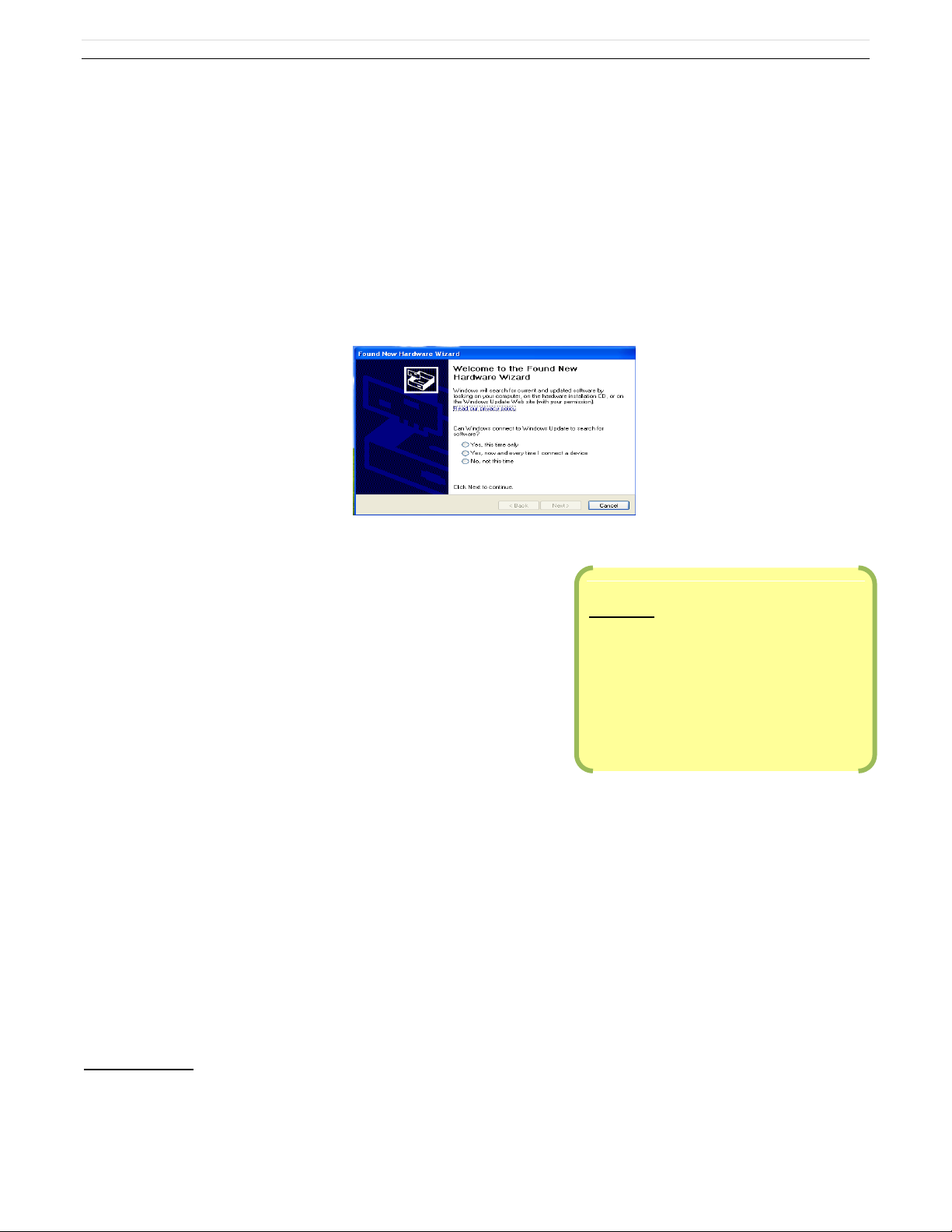
CD Menu;
1. Dukane Notes v 2.5.0 software and
drivers
2. User Guide for Dukane Notes software
3. User guide for IWB LB78T
4. Image library for Dukane notes
How to Install Software
1. Install Software
Connect the Whiteboard to your computer or laptop using the provided USB cable and insert the DUKANE
Interactive Whiteboard CD. Once the USB cable is connected the computer will notify that it has “found new
hardware” and the following window will appear:
Pease click “Cancel” and use the following method to install the application software such as Dukane Notes.
Place the DUKANE Interactive Whiteboard CD in the computer‟s
CD-ROM, then use the menu to load the Dukane notes software on
the PC.
1. Load Dukane Notes software from the CD. This software
includes the drivers for the board operation.
2. Restart the PC. The “Found New hardware wizard” will
appear.
3. Click; “Yes, this time only”, and “Next”. The wizard will load the drivers.
4. Follow the prompts in the dialog box messages to complete the installation. Restart the PC when
prompted.
Run software from the; ALL PROGRAMS / DUKANE / DUKANE NOTES, or use the Desktop Icon for “Dukane
Notes”.
Image Library
The image library can be unzipped from the CD. Assign it to the location by selecting “Browse” and then the file
path C:\Program Files\Dukane\Dukane Notes.
Page 10
P a g e | 9
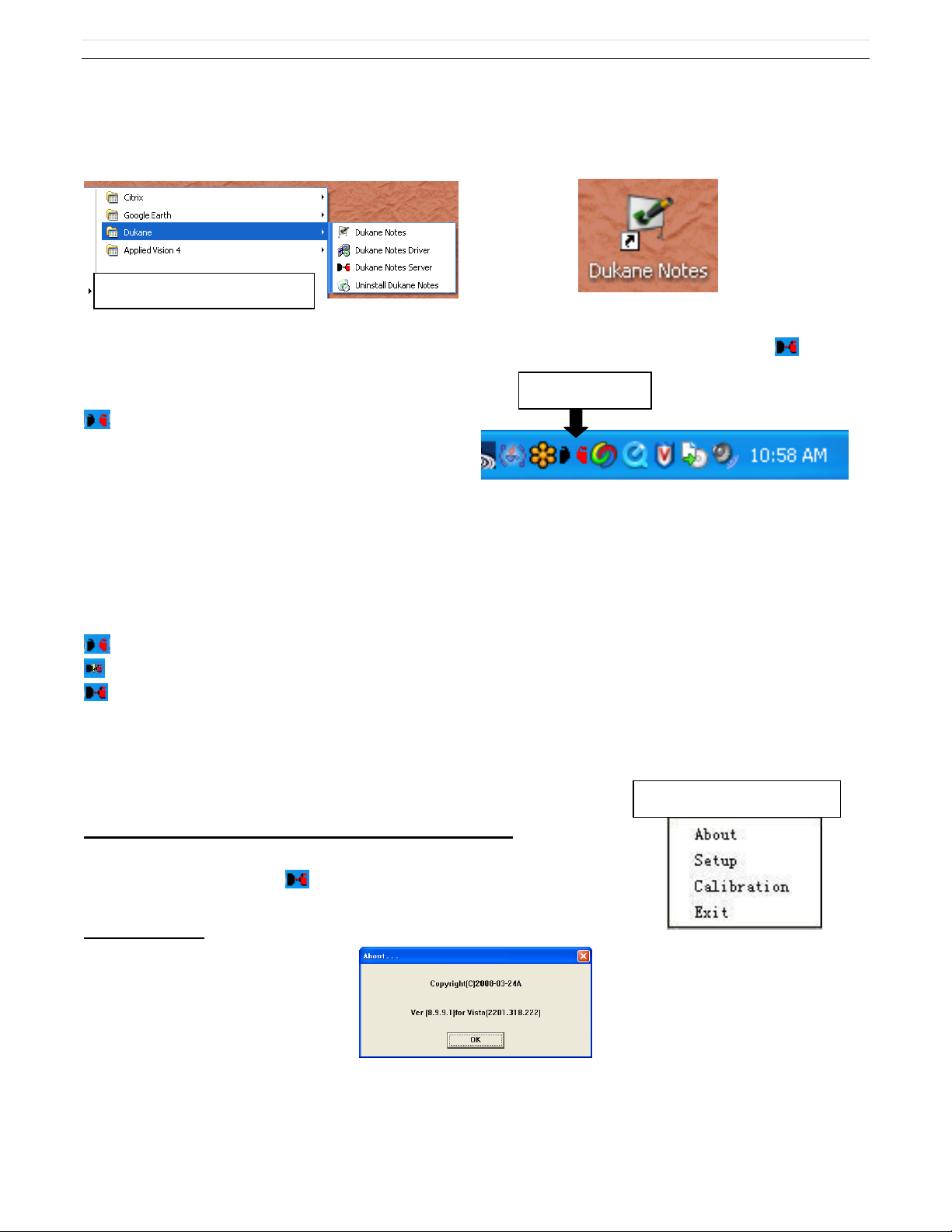
“Start / All programs” menu
ICON IN TRAY
Menu for the board
Click Dukane Notes software or the desktop shortcut to begin operation.
Once the software is installed an icon will appear in the computer‟s window lower system tray. The indicates
a connection has been made to the Whiteboard. The
indicates no connection has been made, please
check the hardware connection and USB driver.
Note: For Windows XP, the USB driver may need to be reinstalled if a connection is made to another USB port.
Please CLICK; “Yes, this time only” . And then click “Next” to search and install the USB driver automatically.
Note: There are three conditions for the Whiteboard connection;
Shows the LB78T White Board is not connected properly
Shows the LB78T White Board is in the process of connecting
Shows the LB78T White Board is connected properly
Board operation Menu from icon in tray
Double-click or hover on the icon to produce the board menu.
‘About’ Option
The dialog box displays application software copyright date, edition and hardware information.
Page 11
P a g e | 10
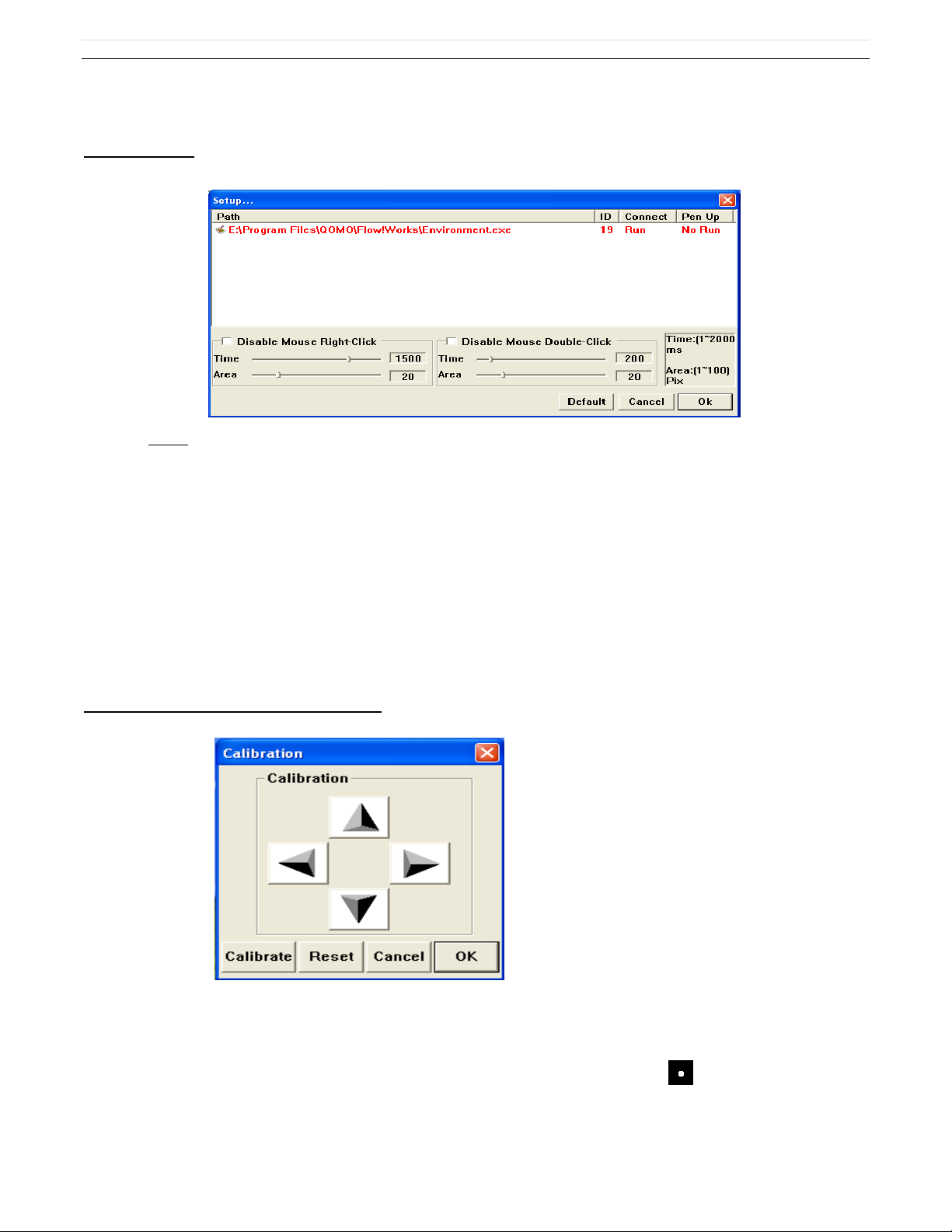
‘Setup’ Option
System setup is used to set the simulation of mouse‟s right-click and double-click based on user‟s
preferences.
To Simulate Right-click: The pen or finger will function as a mouse right-click when the pen tip stops on the
screen more than 1500 milliseconds (right-click time) and moves a distance less than 20 pixels (response
time).
To Simulate Double-click: The pen or finger will function as a double-click on the screen when two
consecutive clicks occur in less than 200 milliseconds (double-click time) and in position less than 20 pixels
(response area) from one another.
‘Calibration’ Calibrating Whiteboard
Users can calibrate image if the projected touch point is offset from actual contact location. To calibrate, click
„Calibrate‟ on the options menu then click „Start‟ White dots will appear on the Interactive Whiteboard screen, to
orient the projected image on the board, follow the on screen instructions by clicking on the white dot each
time it appears on the screen. The orientation data saves in the Interactive Whiteboard software automatically and
remains unchanged until you the next time you calibrate.
Page 12
P a g e | 11
Exit’ Driver Software
When the DUKANE Interactive Whiteboard control software is no longer needed, click ”Exit” to exit the program.
The Whiteboard software can be reopened from the start menu.
Note: There are three conditions for the Whiteboard connection;
Shows the LB78T White Board is not connected properly
Shows the LB78T White Board is in the process of connecting
Shows the LB78T White Board is connected properly
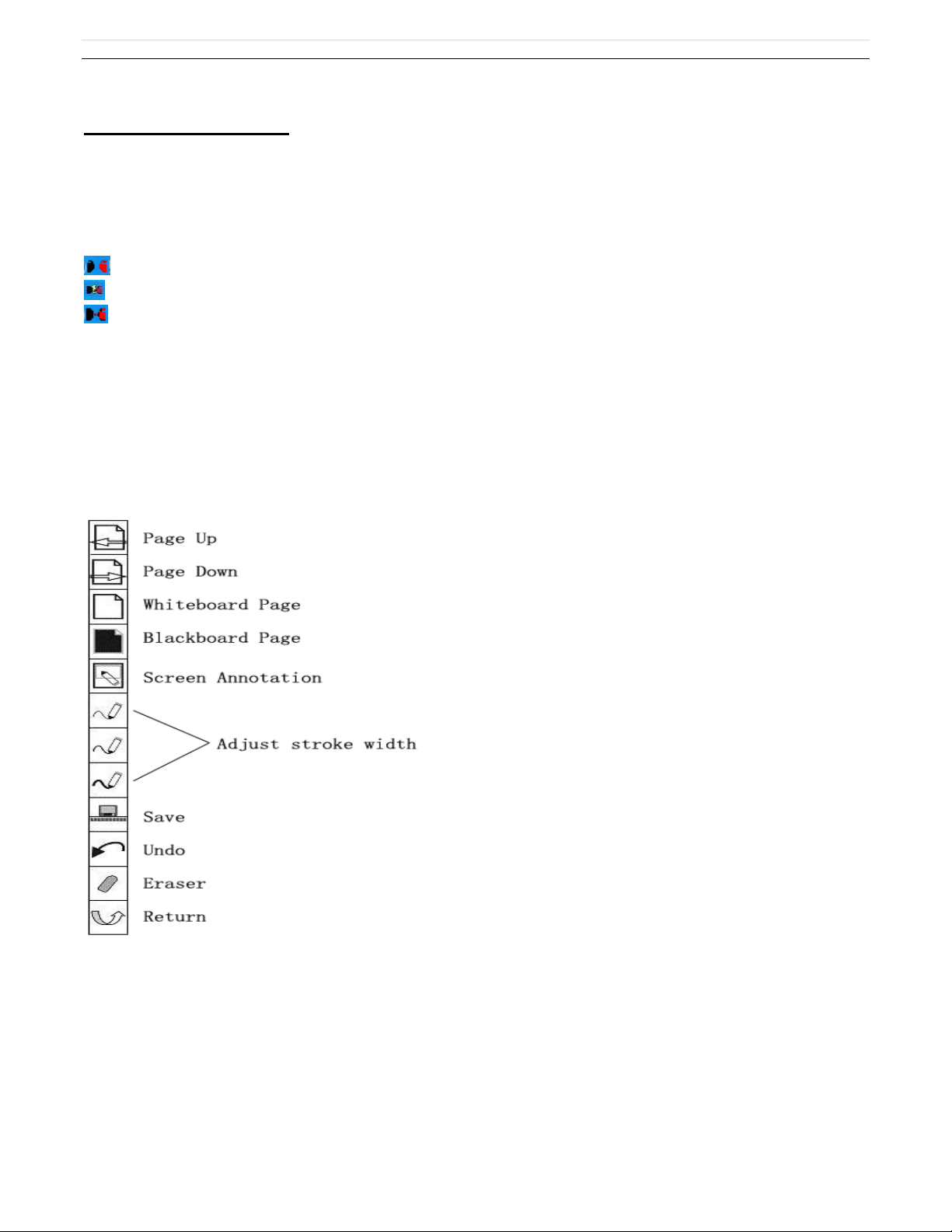
2. Hot Keys
There are twelve hot keys on the right and left hand sides of the board.
Note: Only available on 78-inch and 105-inch models. The 56-inch and 88-inch model whiteboards have
hot keys only on the left hand side. The functions are listed below:
Writing pens and eraser
There are three colored writing pens and one eraser, red, black, and blue. The writing pen can write with the same
color or users can choose a different color from the color palette in the software.
★ Writing is also possible using a single or multiple fingers.
Using the Whiteboard Annotation Software
Please refer to the User Guide for the Dukane Notes software.
Page 13
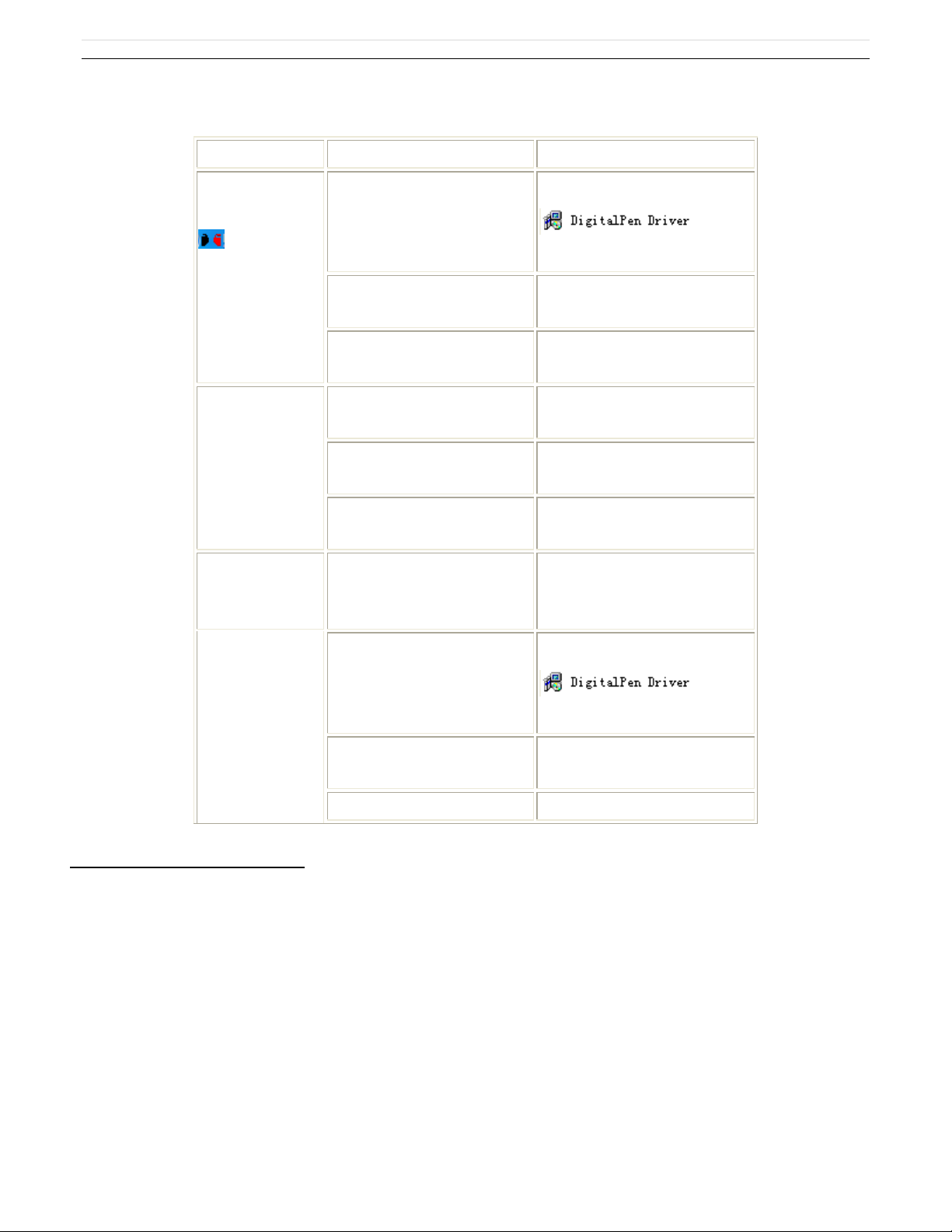
Troubleshooting Guide
Problem
Reason
Try the following
icon appears
on the task bar at
the lower right of
screen
The whiteboard driver is not
installed
Install/reinstall the driver by run
in windows START menu
Connection Failure between the
computer and the whiteboard
Retry the connection
Installation error
Restart computer and reinstall
software
The writing content
cannot be
displayed on the
screen
The stroke color is the same or
similar to the background
Reset the stroke color
Hands and/or some objects are
on the screen
Remove all objects
White Board software is not
started
Start the software
The blue indicator
on whiteboard does
not light up
USB error
Reconnect USB cable or change
cable
The blue indicator
on the whiteboard
does not light up or
is always flashing
The whiteboard driver is not
installed
Install/reinstall the driver by run
in windows START menu
USB port error
Retry connection using another
USB port
USB cable failure
Change USB cable
P a g e | 12
Frequently Asked Questions
Why isn‟t anything showing up on the screen?
:The selected stroke color may be the same as or similar to the background color. Please change the stroke
color and try again.
Do I have to run calibration after reinstalling the application software?
:No. To keep it simple, the system records your last location adjustment parameters.
Is the object covered by the page sorter window really covered?
:The object is only covered by the page sorter window temporarily and it will be shown after the page sorter
window is closed.
Page 14

P a g e | 13
Can I custom define a page background and color?
:Yes, please refer to Setup Page Background.
How do I know if my LB78T White Board is working properly?
: If the red indicator is shining while writing on the screen, the White Board works properly.
Why the teaching page color cannot be displayed?
:The background color can be covered by the image if the fore ground image is larger and the image is not
transparent.
DUKANE Interactive Whiteboard User Tips
When searching for a specific page among many pages enter the Page Index mode and look up this page quickly
on the Page Sorter window.
Press the Ctrl+ key combination ( 、 、 ) to move/place objects accurately.
To improve the display speed, the size of the image in use should be no larger than the size of the screen
resolution.
If possible, convert the picture that will be inserted into WMF format first. This operation can improve the display
speed and reduce distortion when magnifying or shrinking the image.
In order for the image to be displayed on the screen clearly, set the image size to the same size as the screen
being displayed. For example: If the screen resolution is 1024×768, the image pixel should be set to1024×768.
Page 15
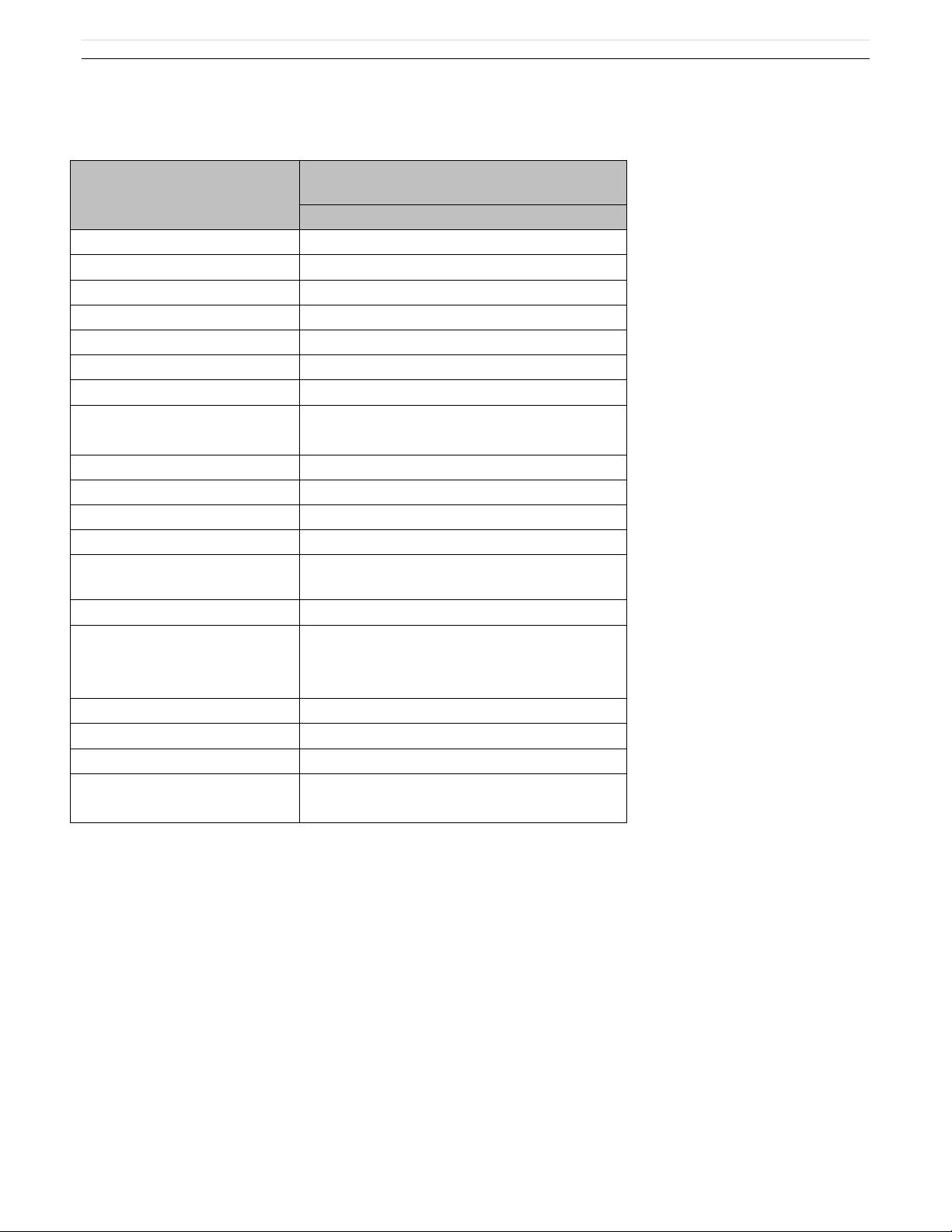
Specifications
78" Interactive Whiteboard
LB78T
Technology
Infrared
Touch System
Pen, Wand or Finger
Touchable range
65" x 46" (1653mm x 1159mm)
Resolution
1024 x 1024
Response Time
First dot:25ms,continuous dot:8ms
Cursor Speed
120 inches/second
Coordinate Accuracy
3mm
Consumer Current Active
Area Size (Diagonal)
≤80mA
Port
USB
Dimensions
72" x 51" (1824mm x 1301mm)
Packing Dimensions
80" x 60" x 8" (2040 x 1520 x 200mm)
Net Weight
57 lbs (26kg)
Gross Weight
75 lbs (34kg)
Software Drivers
Windows 2000/XP/32 bits vista
Accessories
Standard: 3 Interactive Pens (red, black,
blue), Eraser, Pen Tray
Optional: Floor Stand
Operating Temp
5°F to 122°F (-15°C to 50°C)
Operating Humidity
20~90%
Storage Temp
-40°F to 122°F (-40°C to 50°C)
Storage Humidity
10~95%
P a g e | 14
Page 16

P a g e | 15
Technical Support
How to Reach DUKANE:
By Phone
Call us at 1-800-676-2487. Our expert support staff is available to provide technical assistance from
9:00AM through 5:00PM Central Standard Time, Monday through Friday. If you have a service issue
after hours, you may call our Emergency Technical Support at 630-632-5244 or 630-464-0783.
Please have the following information before calling:
- Product model name(s) and numbers
- Product serial number(s)
- Date of purchase
- Detailed and specific questions
Online
Technical support is also available online at DUKANE‟s web site at
www.dukane.com/av.
DUKANE CORP AV SERVICE DEPT
2900 Dukane Drive
St Charles, IL 60174
800-676-2487 / 630-762-4032
Fax 630-584-5156
[email protected]
www.dukcorp.com/av
Copyrights 2010 DUKANE, Corp. All Rights Reserved.
 Loading...