

Page 1

e n g l i s h
=^]TTSc^cda]^]h^da?2
9dbc_[dVX]c^P]Tcf^aZ
R^]]TRcX^]P]ScP[Z
fXaT[Tbb
Taking internet telephony a step further
3088
User Manual
www.dualphone.net
CALL
FOR FREE
PLUG
& DIAL
Page 2

e n g l i s h
THIS IS HOW THE DUALPHONE WORKS . . . . . . . . . . . . . . . . . . . . . . . . . . . . . . . . . . . . . . . . . . . . . . . 3
HOW THE MANUAL IS ORGANIZED . . . . . . . . . . . . . . . . . . . . . . . . . . . . . . . . . . . . . . . . . . . . . . . . . . . 5
INSTALLATION AND BASIC FUNCTIONS – SECTION 1 n . . . . . . . . . . . . . . . . . . . . . . . . . . . . . . . . . . . 6
In the box . . . . . . . . . . . . . . . . . . . . . . . . . . . . . . . . . . . . . . . . . . . . . . . . . . . . . . . . . . . . . . . . . . . . 6
Your handset at a glance . . . . . . . . . . . . . . . . . . . . . . . . . . . . . . . . . . . . . . . . . . . . . . . . . . . . . . . . . 7
How to install the base station . . . . . . . . . . . . . . . . . . . . . . . . . . . . . . . . . . . . . . . . . . . . . . . . . . . . 8
How to install the handset . . . . . . . . . . . . . . . . . . . . . . . . . . . . . . . . . . . . . . . . . . . . . . . . . . . . . . . 9
First time start-up . . . . . . . . . . . . . . . . . . . . . . . . . . . . . . . . . . . . . . . . . . . . . . . . . . . . . . . . . . . . . . . 10
Getting started with Skype . . . . . . . . . . . . . . . . . . . . . . . . . . . . . . . . . . . . . . . . . . . . . . . . . . . . . . . 12
Create a new Skype account . . . . . . . . . . . . . . . . . . . . . . . . . . . . . . . . . . . . . . . . . . . . . . . . . . . . . . 12
Sign in to Skype . . . . . . . . . . . . . . . . . . . . . . . . . . . . . . . . . . . . . . . . . . . . . . . . . . . . . . . . . . . . . . . 13
Skype features supported by DUALphone . . . . . . . . . . . . . . . . . . . . . . . . . . . . . . . . . . . . . . . . . . . . 14
Main display . . . . . . . . . . . . . . . . . . . . . . . . . . . . . . . . . . . . . . . . . . . . . . . . . . . . . . . . . . . . . . . . . . 15
Main menu . . . . . . . . . . . . . . . . . . . . . . . . . . . . . . . . . . . . . . . . . . . . . . . . . . . . . . . . . . . . . . . . . . . 17
Contacts . . . . . . . . . . . . . . . . . . . . . . . . . . . . . . . . . . . . . . . . . . . . . . . . . . . . . . . . . . . . . . . . . . . . . . . 18
Add a Skype contact . . . . . . . . . . . . . . . . . . . . . . . . . . . . . . . . . . . . . . . . . . . . . . . . . . . . . . . . . . . . 18
Add a SkypeOut or landline contact . . . . . . . . . . . . . . . . . . . . . . . . . . . . . . . . . . . . . . . . . . . . . . . . 20
Search for Skype users . . . . . . . . . . . . . . . . . . . . . . . . . . . . . . . . . . . . . . . . . . . . . . . . . . . . . . . . . . 21
Make and receive calls . . . . . . . . . . . . . . . . . . . . . . . . . . . . . . . . . . . . . . . . . . . . . . . . . . . . . . . . . . . 22
Call a Skype contact . . . . . . . . . . . . . . . . . . . . . . . . . . . . . . . . . . . . . . . . . . . . . . . . . . . . . . . . . . . . 22
Dial a landline number . . . . . . . . . . . . . . . . . . . . . . . . . . . . . . . . . . . . . . . . . . . . . . . . . . . . . . . . . . 22
Receive a call . . . . . . . . . . . . . . . . . . . . . . . . . . . . . . . . . . . . . . . . . . . . . . . . . . . . . . . . . . . . . . . . . 23
Troubleshooting . . . . . . . . . . . . . . . . . . . . . . . . . . . . . . . . . . . . . . . . . . . . . . . . . . . . . . . . . . . . . . . . 24
Dear customer
In this manual
ADVANCED FUNCTIONS – SECTION 2 n . . . . . . . . . . . . . . . . . . . . . . . . . . . . . . . . . . . . . . . . . . . . . . . . 26
Menu tree of your DUALphone . . . . . . . . . . . . . . . . . . . . . . . . . . . . . . . . . . . . . . . . . . . . . . . . . . . 26
Emergency calls . . . . . . . . . . . . . . . . . . . . . . . . . . . . . . . . . . . . . . . . . . . . . . . . . . . . . . . . . . . . . . . . 28
Skype settings . . . . . . . . . . . . . . . . . . . . . . . . . . . . . . . . . . . . . . . . . . . . . . . . . . . . . . . . . . . . . . . . . 29
Change your online status . . . . . . . . . . . . . . . . . . . . . . . . . . . . . . . . . . . . . . . . . . . . . . . . . . . . . . . 29
Choose auto or manual sign in . . . . . . . . . . . . . . . . . . . . . . . . . . . . . . . . . . . . . . . . . . . . . . . . . . . . 30
Change your Skype profile
Change your password . . . . . . . . . . . . . . . . . . . . . . . . . . . . . . . . . . . . . . . . . . . . . . . . . . . . . . . . . . 32
Create a personal voicemail greeting . . . . . . . . . . . . . . . . . . . . . . . . . . . . . . . . . . . . . . . . . . . . . . . . 33
Listen to your voicemail . . . . . . . . . . . . . . . . . . . . . . . . . . . . . . . . . . . . . . . . . . . . . . . . . . . . . . . . . . 34
Privacy . . . . . . . . . . . . . . . . . . . . . . . . . . . . . . . . . . . . . . . . . . . . . . . . . . . . . . . . . . . . . . . . . . . . 36
Notification . . . . . . . . . . . . . . . . . . . . . . . . . . . . . . . . . . . . . . . . . . . . . . . . . . . . . . . . . . . . . . . . . . . 37
Phone settings . . . . . . . . . . . . . . . . . . . . . . . . . . . . . . . . . . . . . . . . . . . . . . . . . . . . . . . . . . . . . . . . . 38
Tones . . . . . . . . . . . . . . . . . . . . . . . . . . . . . . . . . . . . . . . . . . . . . . . . . . . . . . . . . . . . . . . . . . . . 38
Change the call alert . . . . . . . . . . . . . . . . . . . . . . . . . . . . . . . . . . . . . . . . . . . . . . . . . . . . . . . . . 38
Change the ring tone . . . . . . . . . . . . . . . . . . . . . . . . . . . . . . . . . . . . . . . . . . . . . . . . . . . . . . . . . 39
Adjust the ringing volume . . . . . . . . . . . . . . . . . . . . . . . . . . . . . . . . . . . . . . . . . . . . . . . . . . . . . 39
Adjust the keypad tones . . . . . . . . . . . . . . . . . . . . . . . . . . . . . . . . . . . . . . . . . . . . . . . . . . . . . . . 40
. . . . . . . . . . . . . . . . . . . . . . . . . . . . . . . . . . . . . . . . . . . . . . . . . . . . . . . 31
2
C O NT EN T S
Page 3

e n g l i s h
Set the time and date . . . . . . . . . . . . . . . . . . . . . . . . . . . . . . . . . . . . . . . . . . . . . . . . . . . . . . . . . 40
Set the preferred line . . . . . . . . . . . . . . . . . . . . . . . . . . . . . . . . . . . . . . . . . . . . . . . . . . . . . . . . . 42
Change the country code . . . . . . . . . . . . . . . . . . . . . . . . . . . . . . . . . . . . . . . . . . . . . . . . . . . . . . 43
Change the landline country setting . . . . . . . . . . . . . . . . . . . . . . . . . . . . . . . . . . . . . . . . . . . . . . 45
Change the handset language . . . . . . . . . . . . . . . . . . . . . . . . . . . . . . . . . . . . . . . . . . . . . . . . . . 46
Register / deregister your handset . . . . . . . . . . . . . . . . . . . . . . . . . . . . . . . . . . . . . . . . . . . . . . . . 47
Set the contrast . . . . . . . . . . . . . . . . . . . . . . . . . . . . . . . . . . . . . . . . . . . . . . . . . . . . . . . . . . . . . 48
Internet settings . . . . . . . . . . . . . . . . . . . . . . . . . . . . . . . . . . . . . . . . . . . . . . . . . . . . . . . . . . . . . 50
Adjust the earpiece volume . . . . . . . . . . . . . . . . . . . . . . . . . . . . . . . . . . . . . . . . . . . . . . . . . . . . . 55
Mute the microphone . . . . . . . . . . . . . . . . . . . . . . . . . . . . . . . . . . . . . . . . . . . . . . . . . . . . . . . . . 55
Connect a headset . . . . . . . . . . . . . . . . . . . . . . . . . . . . . . . . . . . . . . . . . . . . . . . . . . . . . . . . . . . 56
Reset the phone and base . . . . . . . . . . . . . . . . . . . . . . . . . . . . . . . . . . . . . . . . . . . . . . . . . . . . . . 56
Contacts . . . . . . . . . . . . . . . . . . . . . . . . . . . . . . . . . . . . . . . . . . . . . . . . . . . . . . . . . . . . . . . . . . . . . 57
Exchange contact details request . . . . . . . . . . . . . . . . . . . . . . . . . . . . . . . . . . . . . . . . . . . . . . . . 59
Rename a contact . . . . . . . . . . . . . . . . . . . . . . . . . . . . . . . . . . . . . . . . . . . . . . . . . . . . . . . . . . . . 60
Remove a contact . . . . . . . . . . . . . . . . . . . . . . . . . . . . . . . . . . . . . . . . . . . . . . . . . . . . . . . . . . . . 61
Block a contact . . . . . . . . . . . . . . . . . . . . . . . . . . . . . . . . . . . . . . . . . . . . . . . . . . . . . . . . . . . . . . 62
Make and receive calls . . . . . . . . . . . . . . . . . . . . . . . . . . . . . . . . . . . . . . . . . . . . . . . . . . . . . . . . . 63
Dialling . . . . . . . . . . . . . . . . . . . . . . . . . . . . . . . . . . . . . . . . . . . . . . . . . . . . . . . . . . . . . . . . . . . . 63
Dial editor . . . . . . . . . . . . . . . . . . . . . . . . . . . . . . . . . . . . . . . . . . . . . . . . . . . . . . . . . . . . . . . 63
Character map . . . . . . . . . . . . . . . . . . . . . . . . . . . . . . . . . . . . . . . . . . . . . . . . . . . . . . . . . . . . 64
Speakerphone . . . . . . . . . . . . . . . . . . . . . . . . . . . . . . . . . . . . . . . . . . . . . . . . . . . . . . . . . . . . 65
Start a new call during a call . . . . . . . . . . . . . . . . . . . . . . . . . . . . . . . . . . . . . . . . . . . . . . . . . 65
Conference call . . . . . . . . . . . . . . . . . . . . . . . . . . . . . . . . . . . . . . . . . . . . . . . . . . . . . . . . . . . 66
Skype Conference call . . . . . . . . . . . . . . . . . . . . . . . . . . . . . . . . . . . . . . . . . . . . . . . . . . . . . . 66
Divert all calls . . . . . . . . . . . . . . . . . . . . . . . . . . . . . . . . . . . . . . . . . . . . . . . . . . . . . . . . . . . . . 66
View call history . . . . . . . . . . . . . . . . . . . . . . . . . . . . . . . . . . . . . . . . . . . . . . . . . . . . . . . . . . . 68
Set privacy for calls . . . . . . . . . . . . . . . . . . . . . . . . . . . . . . . . . . . . . . . . . . . . . . . . . . . . . . . . . 69
Call waiting . . . . . . . . . . . . . . . . . . . . . . . . . . . . . . . . . . . . . . . . . . . . . . . . . . . . . . . . . . . . . . 70
Dial outgoing calls . . . . . . . . . . . . . . . . . . . . . . . . . . . . . . . . . . . . . . . . . . . . . . . . . . . . . . . . . . . . 71
Dial a telephone number from the outgoing calls list . . . . . . . . . . . . . . . . . . . . . . . . . . . . . . . . . 71
Firmware update . . . . . . . . . . . . . . . . . . . . . . . . . . . . . . . . . . . . . . . . . . . . . . . . . . . . . . . . . . . . . 72
SUPPORT INFORMATION – SECTION 3 n . . . . . . . . . . . . . . . . . . . . . . . . . . . . . . . . . . . . . . . . . . . . . 73
Advanced troubleshooting . . . . . . . . . . . . . . . . . . . . . . . . . . . . . . . . . . . . . . . . . . . . . . . . . . . . . 73
Advanced FAQ . . . . . . . . . . . . . . . . . . . . . . . . . . . . . . . . . . . . . . . . . . . . . . . . . . . . . . . . . . . . . . . 80
CE Declaration of Conformity . . . . . . . . . . . . . . . . . . . . . . . . . . . . . . . . . . . . . . . . . . . . . . . . . . . 85
End-user license agreement from Skype . . . . . . . . . . . . . . . . . . . . . . . . . . . . . . . . . . . . . . . . . . 86
3
C O NT EN T S
Page 4
4
e n g l i s h
Your DUALphone could entirely change the way you think about using your telephone and using Skype. You
can use your DUALphone to make and receive both landline and Skype calls. And, because Skype is built into
your DUALphone, you no longer need a computer to use Skype.
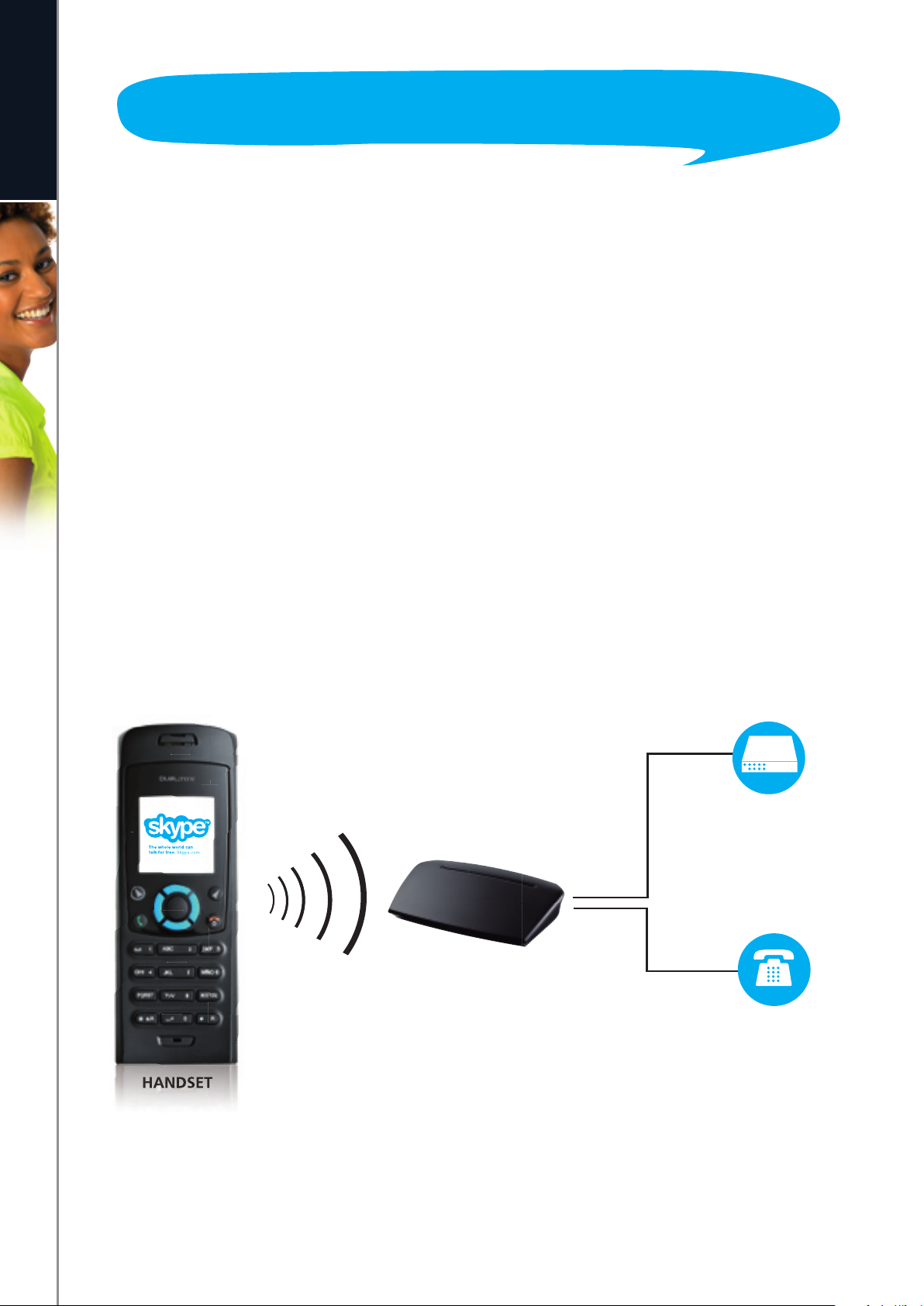
In order to use your DUALphone for Skype calls, the base station must be linked up with an active Internet
connection. If you already have a computer linked up to your Internet connection, this device might occupy
the connection port that is needed by the DUALphone base station. In this case you need a router, allowing
you to attach more devices to your Internet connection.
Attach the router to the Internet connection and connect your computer and the base station to the router.
Should you have any questions regarding the use of the Internet and the router please contact your Internet
provider. You will fi nd more information on this issue under Advanced Troubleshooting.
Please note: When installing a new router you should be aware that it might take some time – up to one hour
– before it is properly registered with your Internet provider.
To use Skype telephony via your DUALphone you need a Skype account as well as a user name and a
password. Please see Getting started with Skype in the Installation and basic functions section.
With Skype you call for free when talking to other Skype users – and you can buy a number of additional
features to expand the possibilities of your DUALphone. Please see Skype services in the Installation and
basic functions section.
This is how the DUALphone works
BROADBAND
CONNECTION
( ROUTER/MODEM)
BASE STATION
LANDLINE OPERATOR
HANDSET
T H IS I S HO W TH E D U AL PH O N E W OR K S
Page 5

How the manual is organized
e n g l i s h
This manual falls in three parts:
(1) Installation and basic functions,
(2) Advanced functions,
(3) Support information.
NEW USERS:
• Please read Section 1 of this document. Section 2 is for more advanced users who wants a deeper
knowledge of the DUALphone. Section 3 is for FAQ and troubleshooting issues.
5
H O W TH E MA N U AL IS OR GA N I ZE D
Page 6

SECTION
1
Installation and basic functions – Section 1
e n g l i s h
n
In the box
• 1 cordless DUALphone handset
• 1 charging cradle for the handset with power supply
• 1 DUALphone base station
• 1 power supply for the base station
• 1 Ethernet cable
• 1 telephone cable
• 1 belt clip
• 1 Installation Guide
• 1 credit card size quick guide
• 2 batteries (AAA; rechargeable)
• 1 SkypeOut voucher
• Telephone plug(s) (not all countries)
Should anything be missing, please contact your place of purchase.
Dear customer
6
I N ST A L LAT IO N AN D BA S IC FU N CT IO N S
Page 7
n
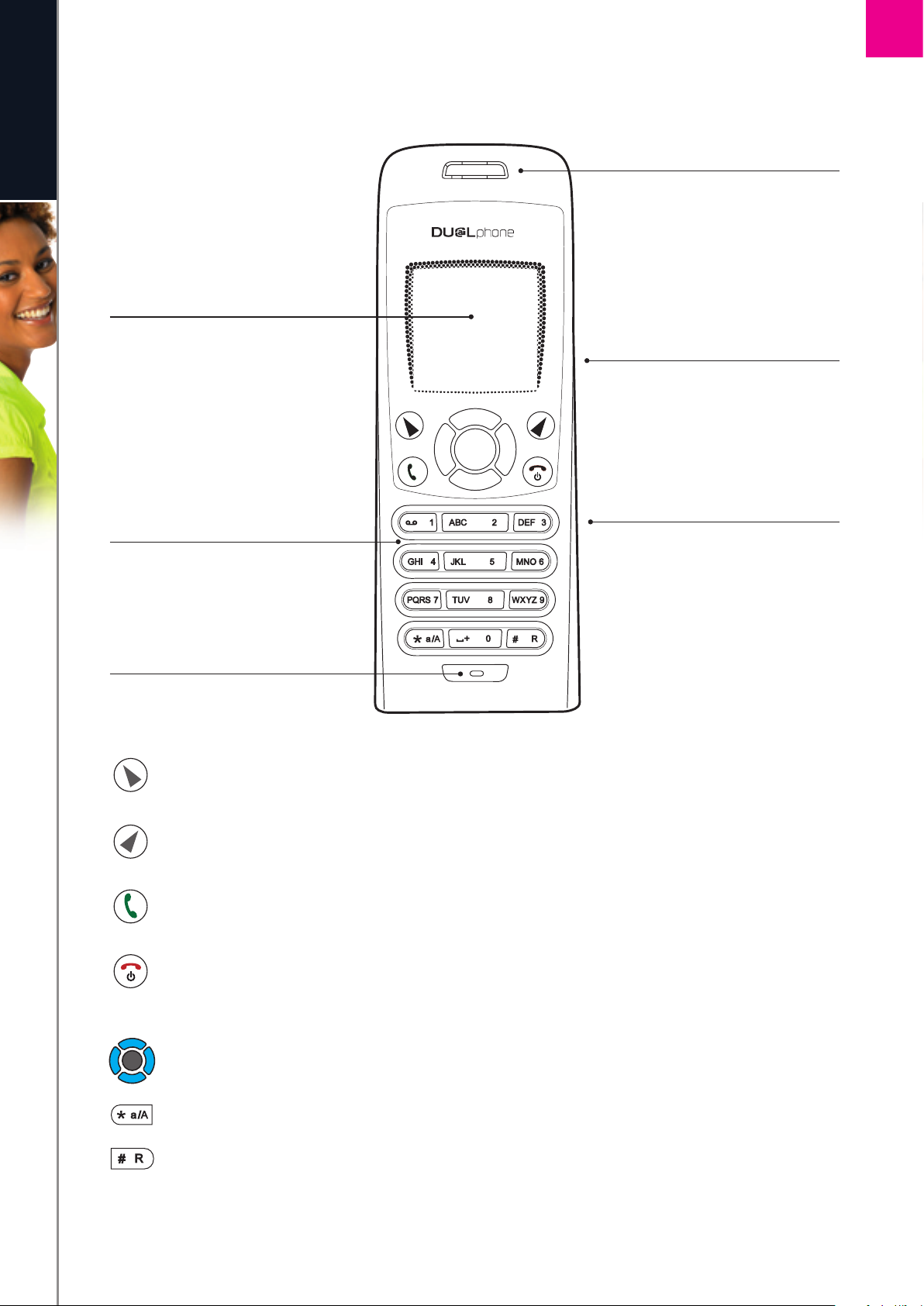
Your handset at a glance
SECTION
1
e n g l i s h
Earpiece
Colour Display
Displays the status of your handset.
Loudspeaker/ringer
For handsfree speakerphone and
ringing (on the back of the
DUALphone).
Headset jack
Key Pad
Keys used for entering digits 0-9 and
letters A-Z.
(on the side of the DUALphone).
For 2.5 mm jack
Microphone
Left soft Key.
Selects the current menu item or confirms a setting, depending on the current screen.
Right soft Key.
Cancels the last action or returns to the previous screen, depending on the current screen.
Call key.
Initiates or answers a call.
End/power key/Skype status.
When in call, ends a call. Turns the phone on or off by pressing and holding. From idle, provides access to Skype status menu with a short key press.
Navigation keys/Enter key.
The outer keys navigate up, down, left and right. The Enter key in the centre selects/confirms a setting.
When you are in text editor, changes to lower-case, upper-case or numeric entry.
When you make a landline call, you can send a #-key by pressing the key shortly. If you wish to switch
between an ongoing call and a call waiting, press the key down for a longer period of time. When
you are in text editor, provides a symbol table.
7
I N ST A L LAT IO N AN D BA S IC FU N CT IO N S
Page 8

SECTION
1
n
How to install the base station
e n g l i s h
a) b) c)
a) Connect on the base station to a LAN (Local Area Network) port on your broadband connection
(modem, router, hub, switch etc.) using the provided Ethernet cable.
b) Connect the power adapter to an active power outlet and connect on the base station to the power
adapter (12 V, 300 mA, 3.6 VA).
c) Connect on the base station to a telephone socket (if available), using the provided telephone cable
and optional plug.
The light indicator on the front has two functions:
• Always on confirms that the Ethernet cable is connected.
• Blinking indicates that the Ethernet cable is not connected.
8
I N ST A L LAT IO N AN D BA S IC FU N CT IO N S
Page 9
n
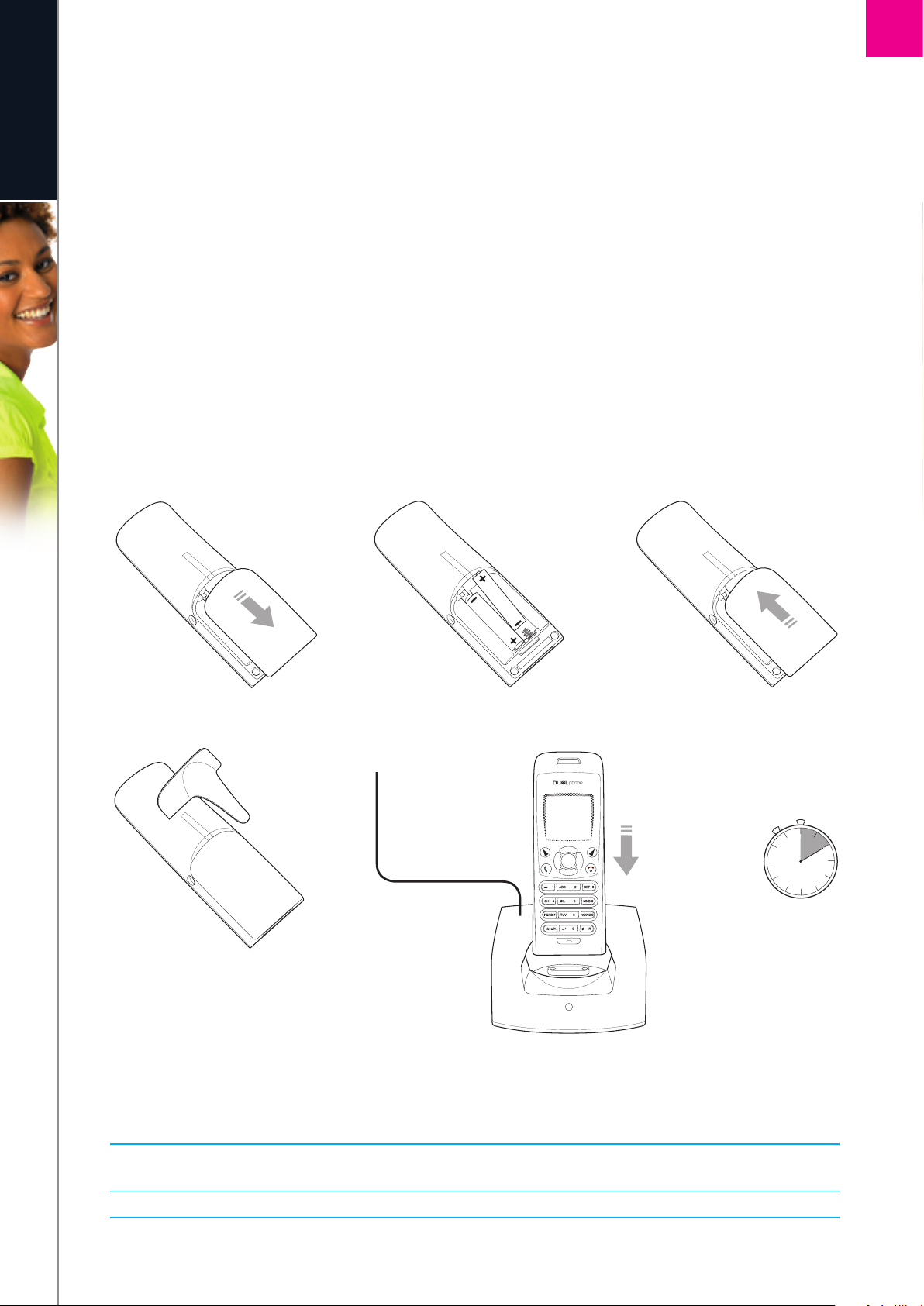
How to install the handset
1) Push the top of the battery compartment cover on the back of the handset inwards and downwards.
SECTION
1
e n g l i s h
2) Insert the two batteries provided with the handset, making sure that their plus and minus ends are facing
the same way as shown in the illustrations on the sides of the battery compartment.
3) Slide the battery compartment cover shut.
4) Affix the belt clip as illustrated.
5) Connect the power adapter of the charging cradle to an active power outlet.
6) Place the handset in the charging cradle to charge the batteries.
7) Wait for 10 minutes and the batteries will be ready for first-time start-up.
1 )
2 ) 3 )
4 ) 5 )
100-240V
6 ) 7 )
10 min.
NOTES:
• After completion of the full installation procedure we recommend that you charge the batteries fully
before first use. This takes approximately 6 hours.
• Normally, you need to be within 50 m of the base station to connect successfully.
9
I N ST A L LAT IO N AN D BA S IC FU N CT IO N S
Page 10
10
e n g l i s h
1
SECTION
n
First time start-up
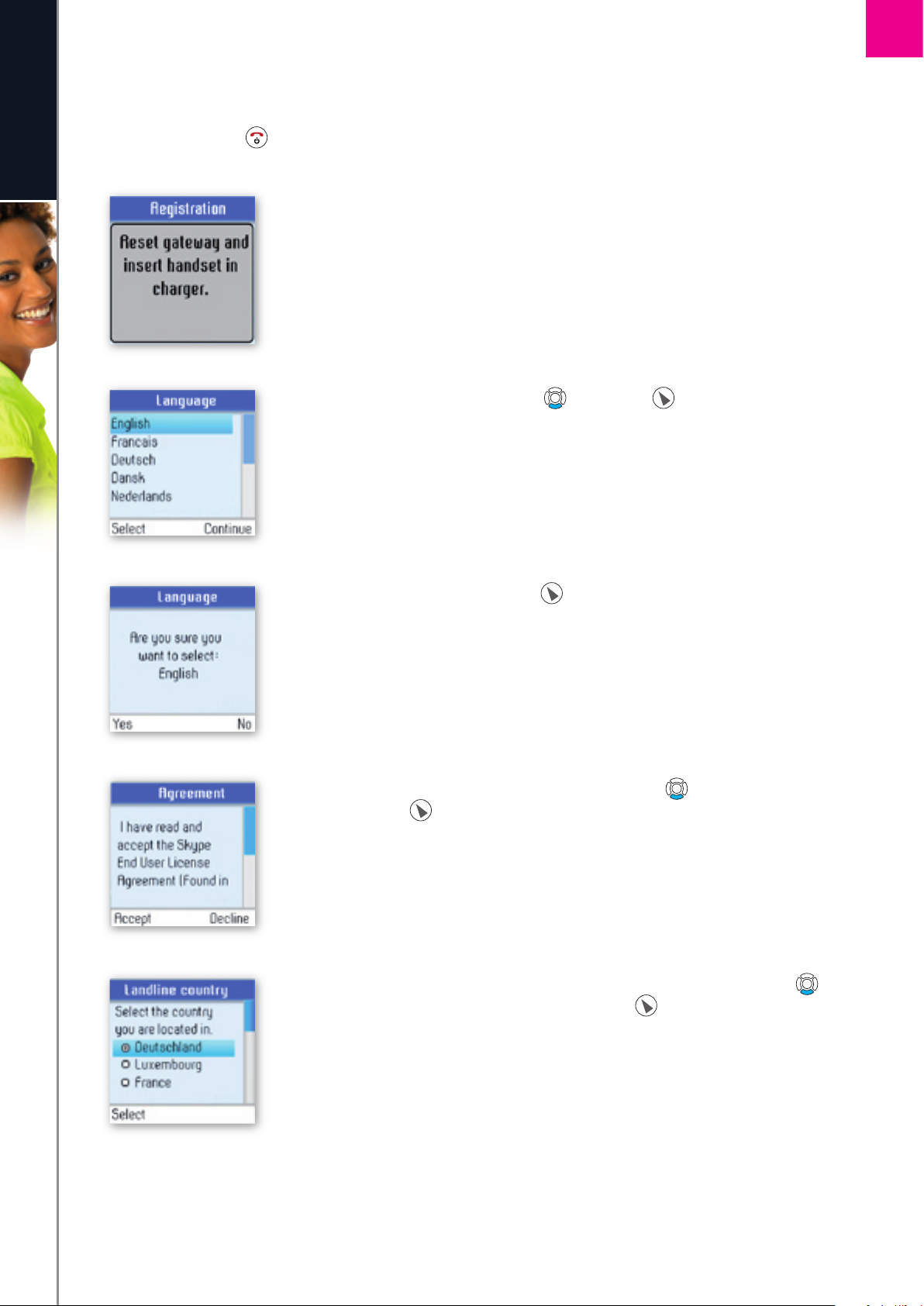
You must complete the following steps the fi rst time you use your DUALphone. Start by turning on the
handset by pressing until the handset turns on.
1) Reset the base station by pressing the button on the back of the unit and insert
the DUALphone in the cradle in order to register with the base station. The
DUALphone screen informs you when ready for next step.
2) Find your preferred language using , then press to select
a language.
3) Confi rm your selection by pressing .
4) You are then directed to the Skype Agreement. Use to read the entire text
and then press to accept the agreement.
5) You are then directed to Country setting for landline confi guration. Use
to fi nd the country you are located in, then press to select your country.
I N ST A L LAT IO N AN D BA S IC FU NC T I ON S
Page 11
11
e n g l i s h
1
SECTION
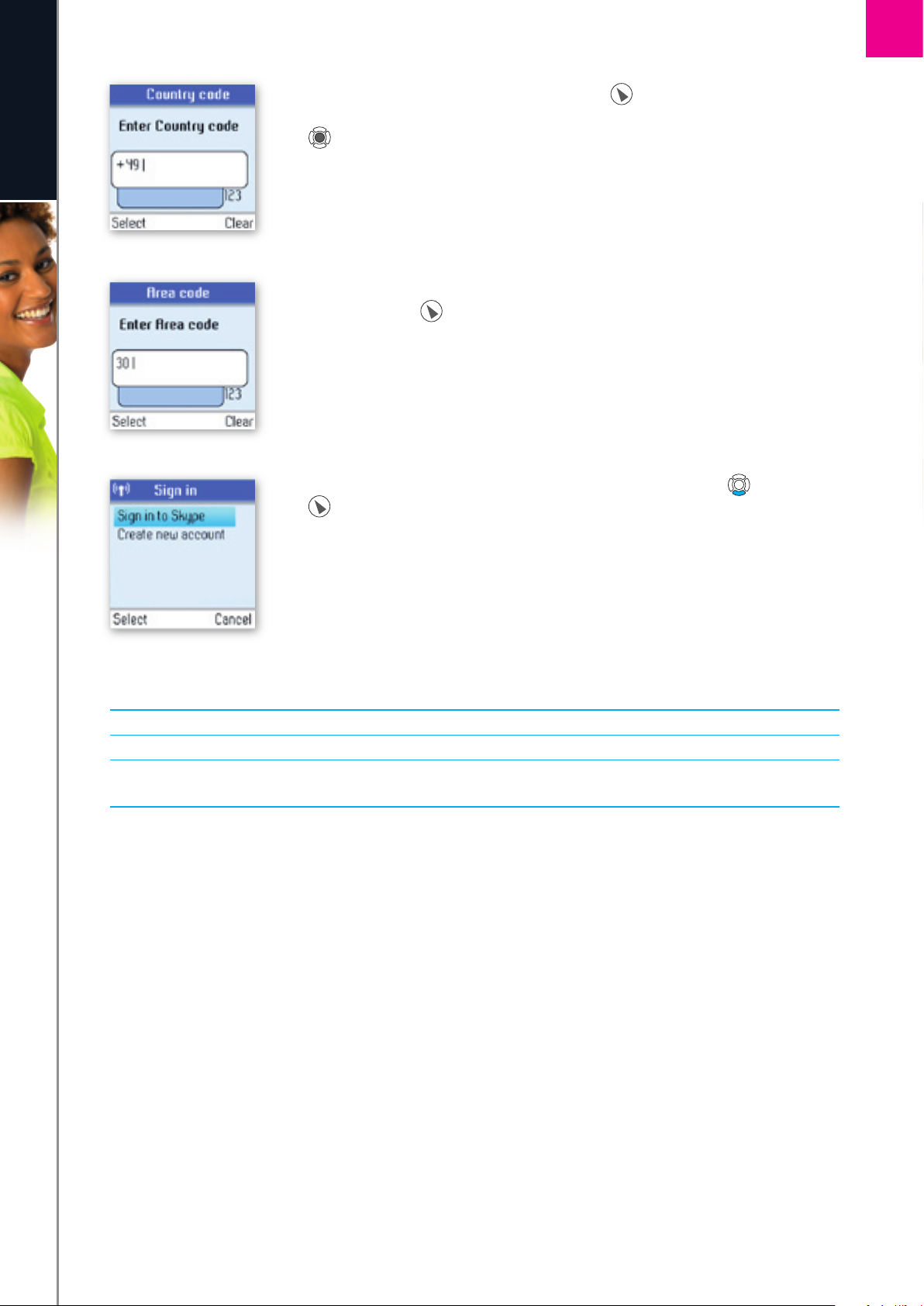
6) Confi rm the country code setting by pressing . Alter your country code by
inserting “+” followed by the country code number of your choice and press
.
7) If your country uses area codes, please enter the area code following the above
procedure. Press to continue.
8) Choose Sign in to Skype or Create new account by pressing followed by
.
NOTES:
• The country setting confi gures the landline telephony port.
• If your country setting is not confi gured correctly, emergenc y calls may not work properly.
• Emergency calls via the landline are only possible if power is applied to the base station and the landline is
properly connected.
I N ST A L LAT IO N AN D BA S IC FU NC T I ON S
Page 12
12
e n g l i s h
1
SECTION
n
Getting started with Skype
You can confi gure your DUALphone with an existing Skype account during the fi rst-time installation, or you
can optionally create a new Skype account. You only need a Skype username and password defi ned by you to
create a new account. You can enter further account details when your DUALphone has been confi gured and
is online.
NOTE:
• Skype does not allow emergency calls. Such calls are therefore always routed to the traditional telephony
port.
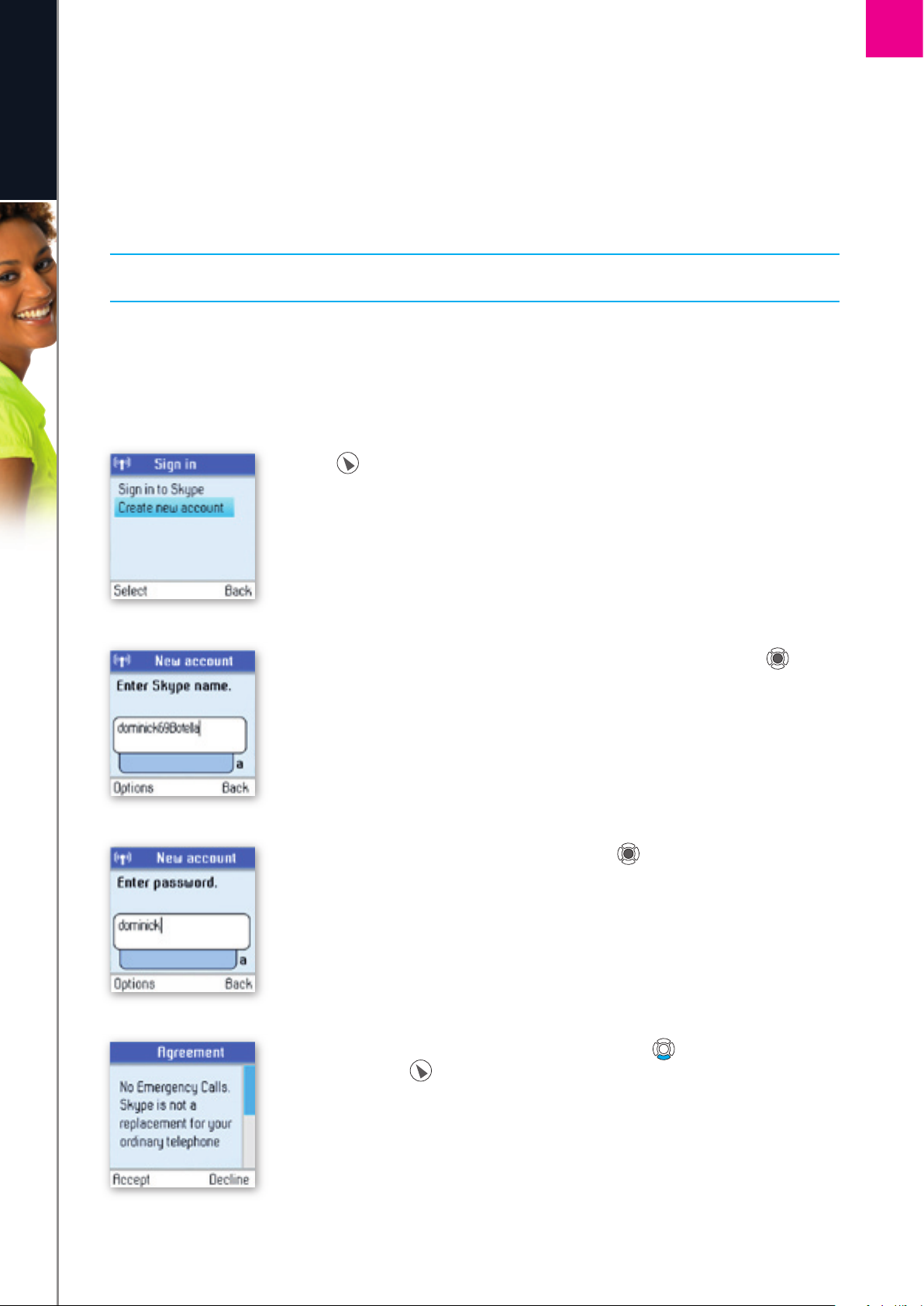
Create a new Skype account
If you do not have a Skype account, follow this procedure.
1) Use to select Create new account.
2) Use the keypad to enter a Skype name of your own choice and press .
3) Use the keypad to enter a password and press . You are asked to confi rm
the password by entering it again.
4) You are then directed to the Skype Agreement. Use to read the entire text
and then press to accept.
I N ST A L LAT IO N AN D BA S IC FU NC T I ON S
Page 13
13
e n g l i s h
1
SECTION
NOTES:
• Use to change to lower-case, upper-case or numeric entry when entering your Skype name and
password. Skype names can be 6-32 characters. You can use any mix of upper- and lower-case characters,
numbers and punctuation marks. You cannot use spaces and your name cannot begin with a number or
punctuation mark. If the name is already in use, you will be prompted to try another name.
• Use to input symbols from the symbol table.
• Passwords can be 4-20 characters. You can use any mix of upper- and lower-case characters, numbers and
punctuation marks. You cannot use spaces, your password cannot begin with a number or punctuation
mark, and you cannot use your Skype name as a password.
• Please be patient as the creation of your Skype account may take several minutes to perform.
• After you have created your Skype Name, it is strongly recommended that you register an email address for
your Skype Name on the Skype website. This will allow Skype to generate a new password for you in the
event that you lose your password. Go to www.skype.com and sign in to your account. Then follow the
on-screen instructions for registering an email address for your account.
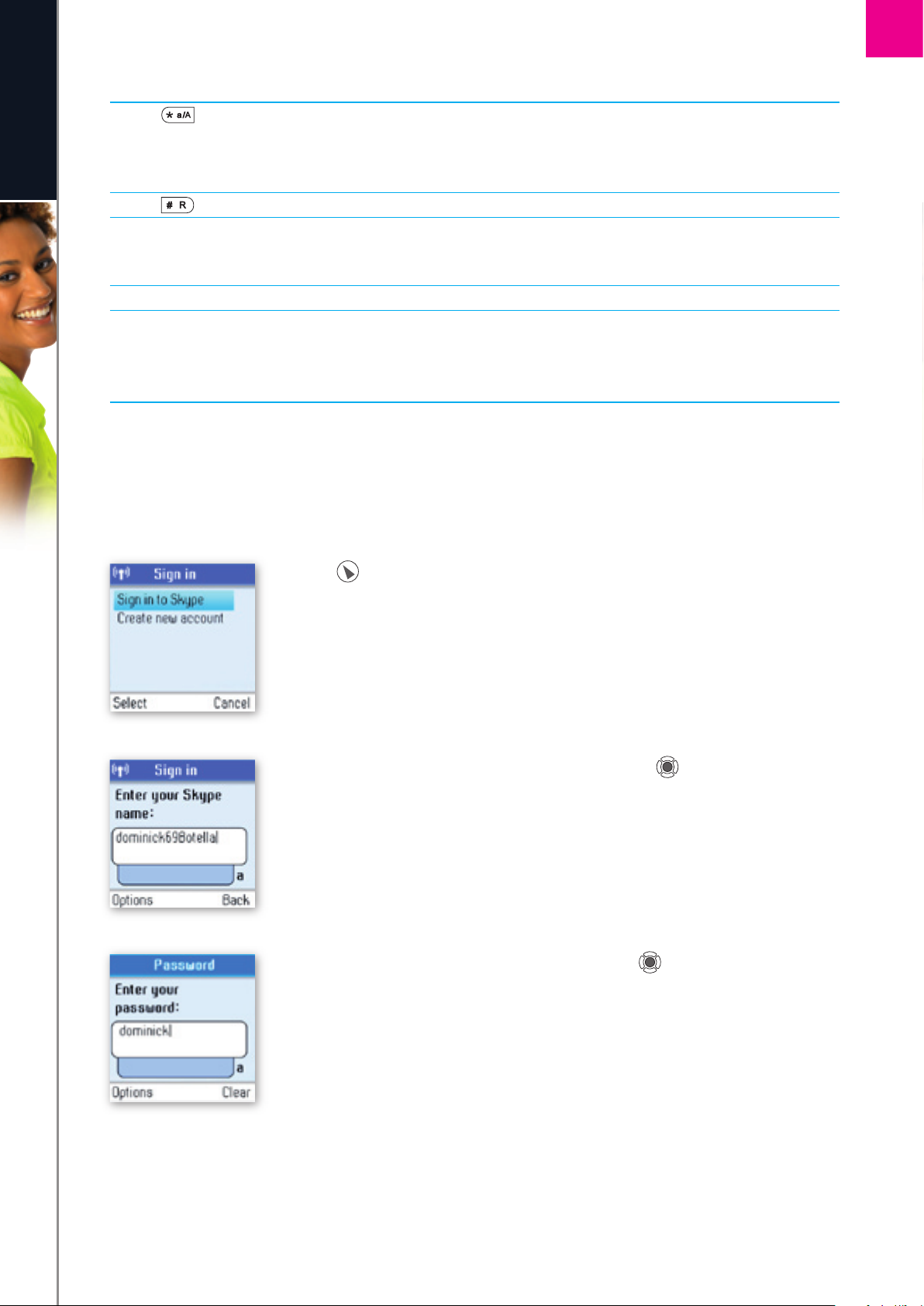
Sign in to Skype
When you have a Skype account, you can sign in to Skype. Please have your Skype name and password ready
before you sign in and beware of lowercase/upper-case and special characters.
1) Use to select Sign in to Skype.
2) Use the keypad to enter your Skype name and press .
3) Use the keypad to enter your password and press .
I N ST A L LAT IO N AN D BA S IC FU NC T I ON S
Page 14

14
e n g l i s h
1
SECTION
4) You are now asked whether you want to save your Skype name and password
for automatic sign-in. Press to accept, to decline.
NOTES:
• Use to change to lower-case, upper-case, or numeric entry when entering your Skype name and
password.
• Us to input symbols from the symbol table.
• If you have forgotten your Skype password go to www.skype.c om and choose “Sign in”. Then choose
“Forgot your password?” and follow the directions on your computer screen.
• Please be patient as synchronization of Skype contacts might take several minutes.
Skype features supported by DUALphone
After you have created your Skype account, you can call other people with Skype accounts for free. Skype also
offers additional subscription features, including:
All of these features are supported by your new DUALphone and are available at www.skype.com. Please
visit www.dualphone.net to explore which future Skype features your DUALphone supports.
I N ST A L LAT IO N AN D BA S IC FU NC T I ON S
SkypeOut
Allows you to make calls to ordinary landline and mobile phones.
SkypeIn
Provides you with an ordinary phone number for receiving Skype calls on your
DUALphone from ordinary landline and mobile phones.
Skype Voicemail
Skype Voicemail allows you to send and receive voicemail messages and record a
greeting.
Page 15
15
e n g l i s h
1
SECTION
Main Display
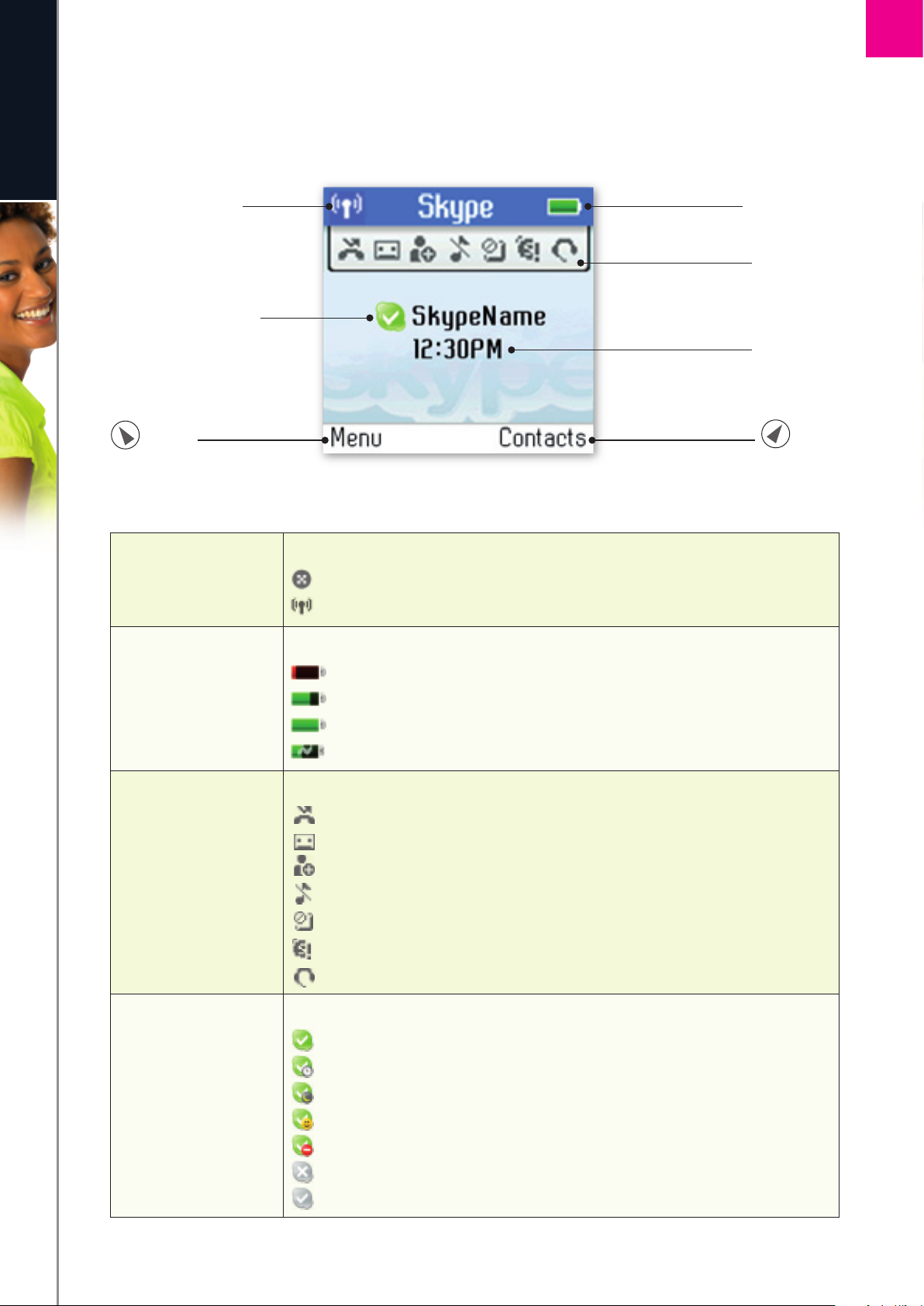
The main display of your DUALphone provides various status indicators and access to the Skype menu-based
interface. The illustration below shows the main screen and its elements.
Radio signal Status
Battery status
Skype™ online status
Notifi cations
Current time
Action
Action
Radio signal status
Indicates the strength of the radio signal.
No radio signal.
Radio signal.
Battery status
Indicates the status of the battery.
Low level.
Partially charged.
Fully charged.
Charging.
Notifi cations
Displays notifi cation icons.
Missed call.
New voicemail.
Exchange contact details request.
Silent mode is active.
Keypad locked.
Skype credit is close to expiry.
Headset connected.
Skype online status
Indicates your current Skype online status.
Online.
Away.
Not available.
Skype Me. Available for calls from anyone.
Do not Disturb. Indicates you are busy.
Offl ine (not signed in).
Invisible. Still online, but unseen by others.
I N ST A L LAT IO N AN D BA S IC FU NC T I ON S
Page 16
SECTION
1
Current time
e n g l i s h
Skype credit
Action
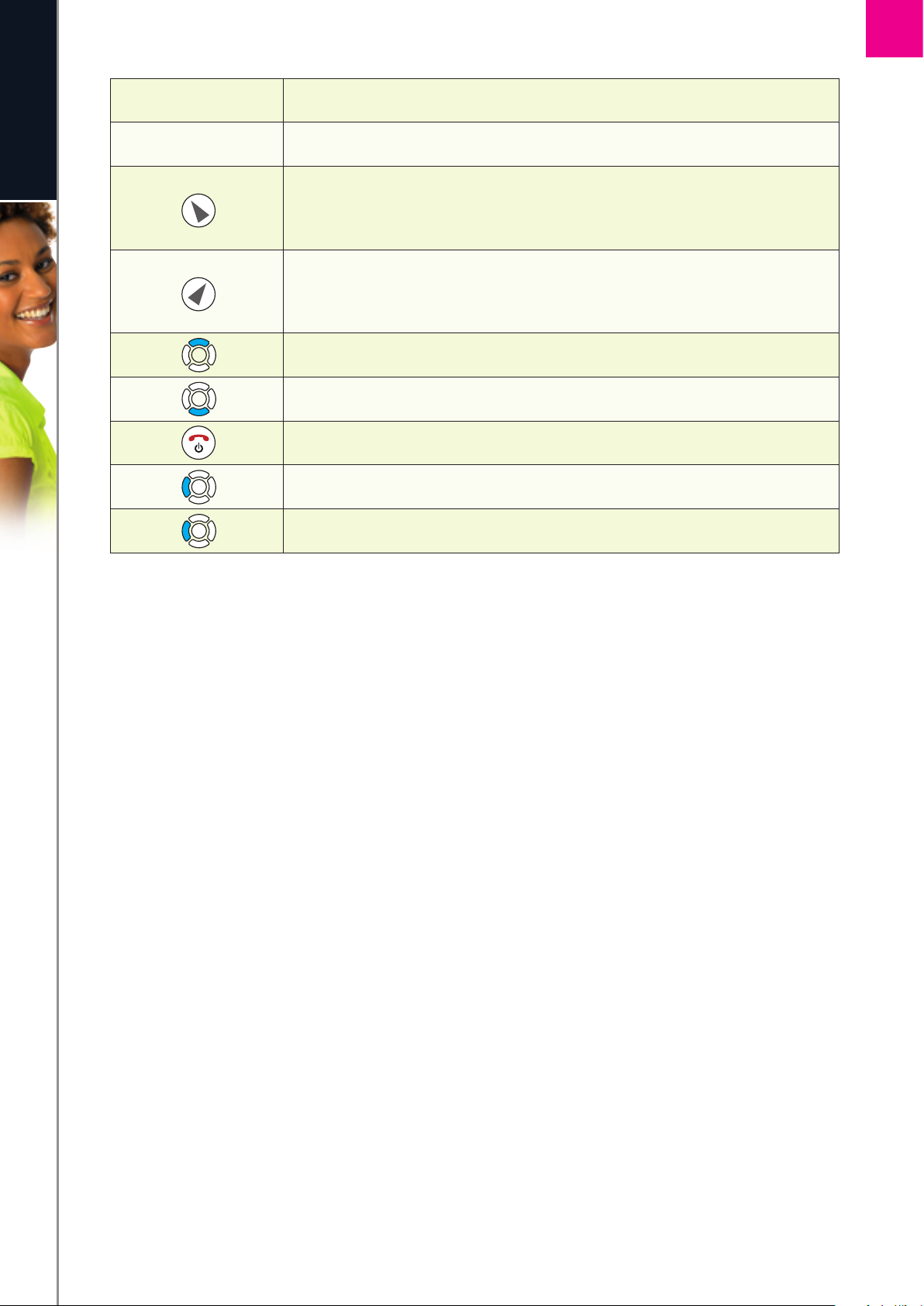
Action Right soft key.
The currently set time.
Your current Skype credit balance.
Left soft key.
Selects the current menu item or confirms a setting, depending on the
current screen.
Cancels the last action or returns to the previous screen, depending on the
current screen.
Short cut to outgoing calls.
Short cut to all call history.
Short key press is a short cut to the Skype status menu.
Short cut to search Skype users.
Mute ringer.
16
I N ST A L LAT IO N AN D BA S IC FU N CT IO N S
Page 17
17
e n g l i s h
1
SECTION
Main Menu
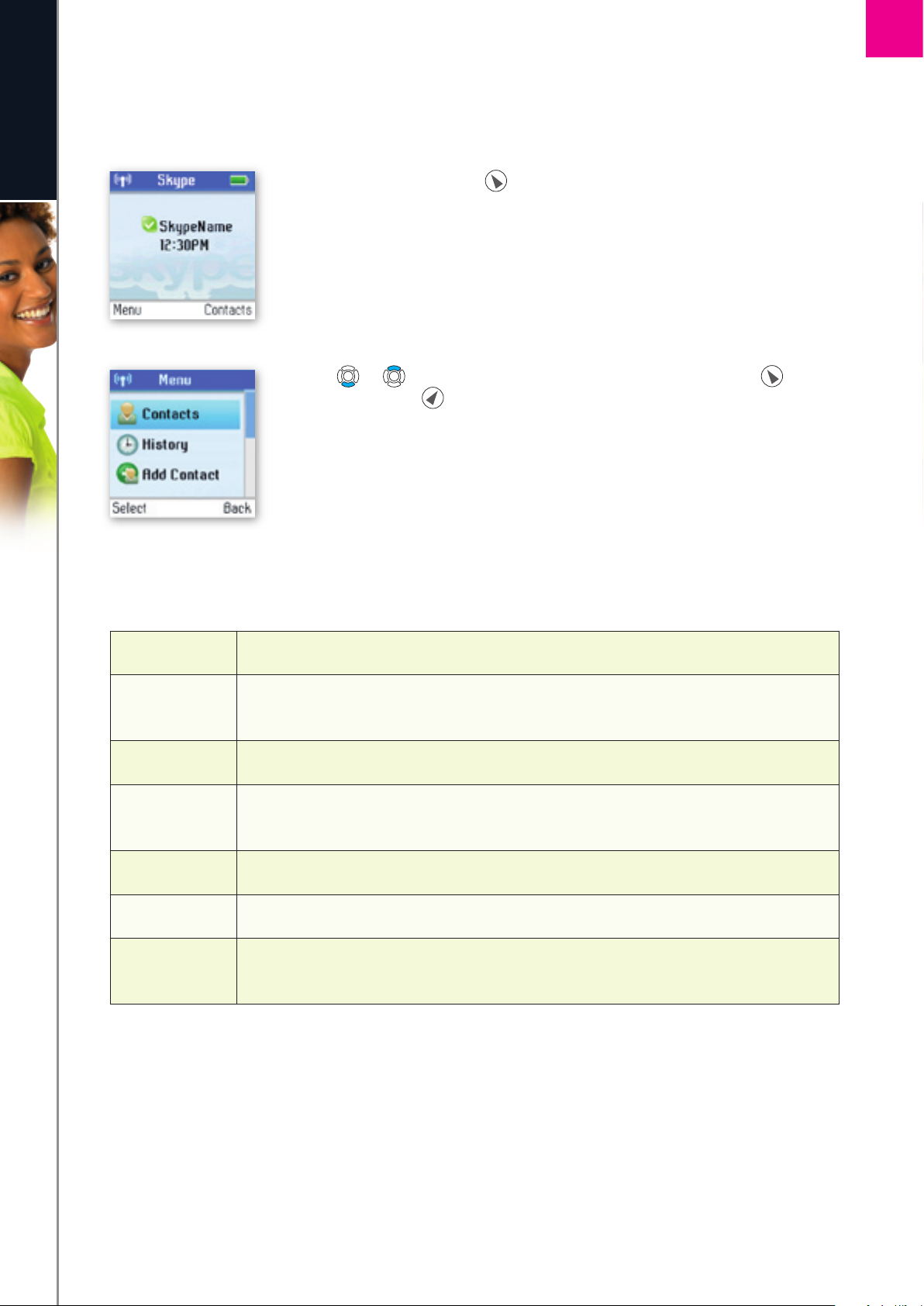
The main menu provides easy access to all of your Skype and DUALphone settings.
1) From idle screen just press to enter the main menu.
2) Use or to navigate and highlight an item. Select by pressing or go
back by pressing .
The following table outlines the main menu items:
I N ST A L LAT IO N AN D BA S IC FU NC T I ON S
Contacts
Your contact list and the current Skype status of your contacts.
History
Your calls, missed calls, incoming and outgoing calls, voicemails and exchange contact
details.
Add Contact
Adds a Skype user or SkypeOut number to your contact list.
Status
Sign in to Skype, create a new account, change your profi le, change your password,
choose auto sign-in.
Search
Searches for Skype contacts online.
Services
View Skype credit, SkypeIn and Skype Voicemail status.
Settings
Settings for call divert, privacy, sounds, time and date, manage blocked users, cordless
settings, phone settings, information and advanced settings.
Page 18
18
e n g l i s h
1
SECTION
n
Contacts
Your contact list displays all of the names you can make calls to. If you have an existing Skype account, your
contact list is automatically downloaded when you sign in. If you are new to Skype and have just created an
account, your contact list will be empty. You will need to add contacts to your list.
Skype protects the privacy of its users by requiring exchange contact details on names that you wish to add to
your contact list. When you add a name to your list, an exchange contact details request is sent to the user.
The user can accept or decline the request. When a request is accepted, you can see when your contacts are
online and make calls to them. You can also view their personal profi le details.
Add a Skype Contact
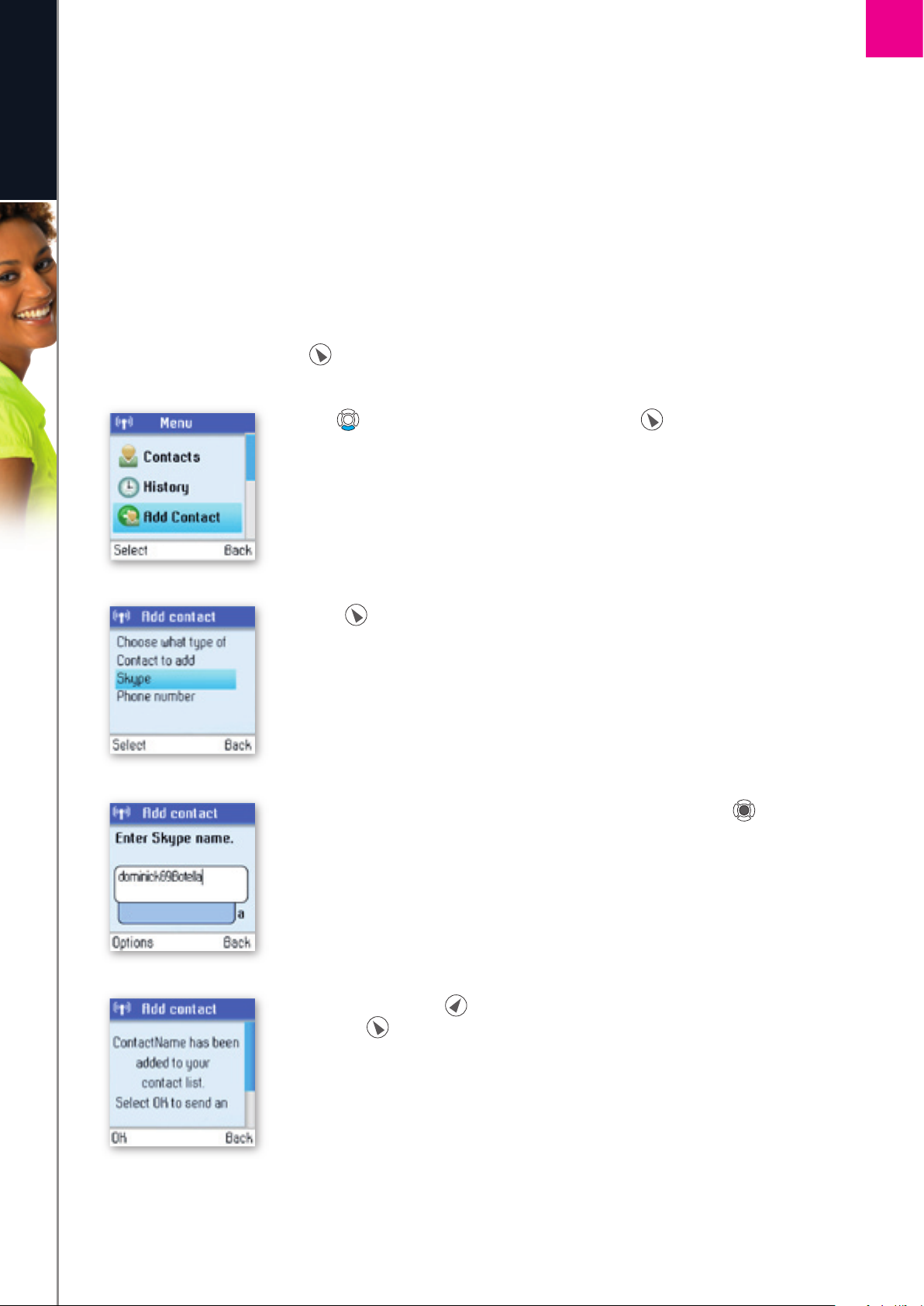
To add a Skype contact, press to select Menu, then:
1) Use to go to Add Contact, select by pressing .
2) Press to select Skype.
3) Use the keypad to enter the Skype name or full name and press .
4) Confi rm by pressing back or send a request to exchange contact details by
pressing .
I N ST A L LAT IO N AN D BA S IC FU NC T I ON S
Page 19

SECTION
1
NOTES:
• After you press in step 4, an exchange contact details request is sent to the contact. When it has been
e n g l i s h
sent, a confirmation message is displayed. The name is added to your contact list, and when accepted by
the contact it will change status.
• Please be patient as synchronization of Skype contacts might take several minutes.
• Use “echo123” to test your Skype connection. Add “echo123” to your contacts. Calling echo123 will
launch an automated testing robot that allows you to record and play back sound.
19
I N ST A L LAT IO N AN D BA S IC FU N CT IO N S
Page 20
20
e n g l i s h
1
SECTION
I N ST A L LAT IO N AN D BA S IC FU NC T I ON S
Add a SkypeOut or landline contact
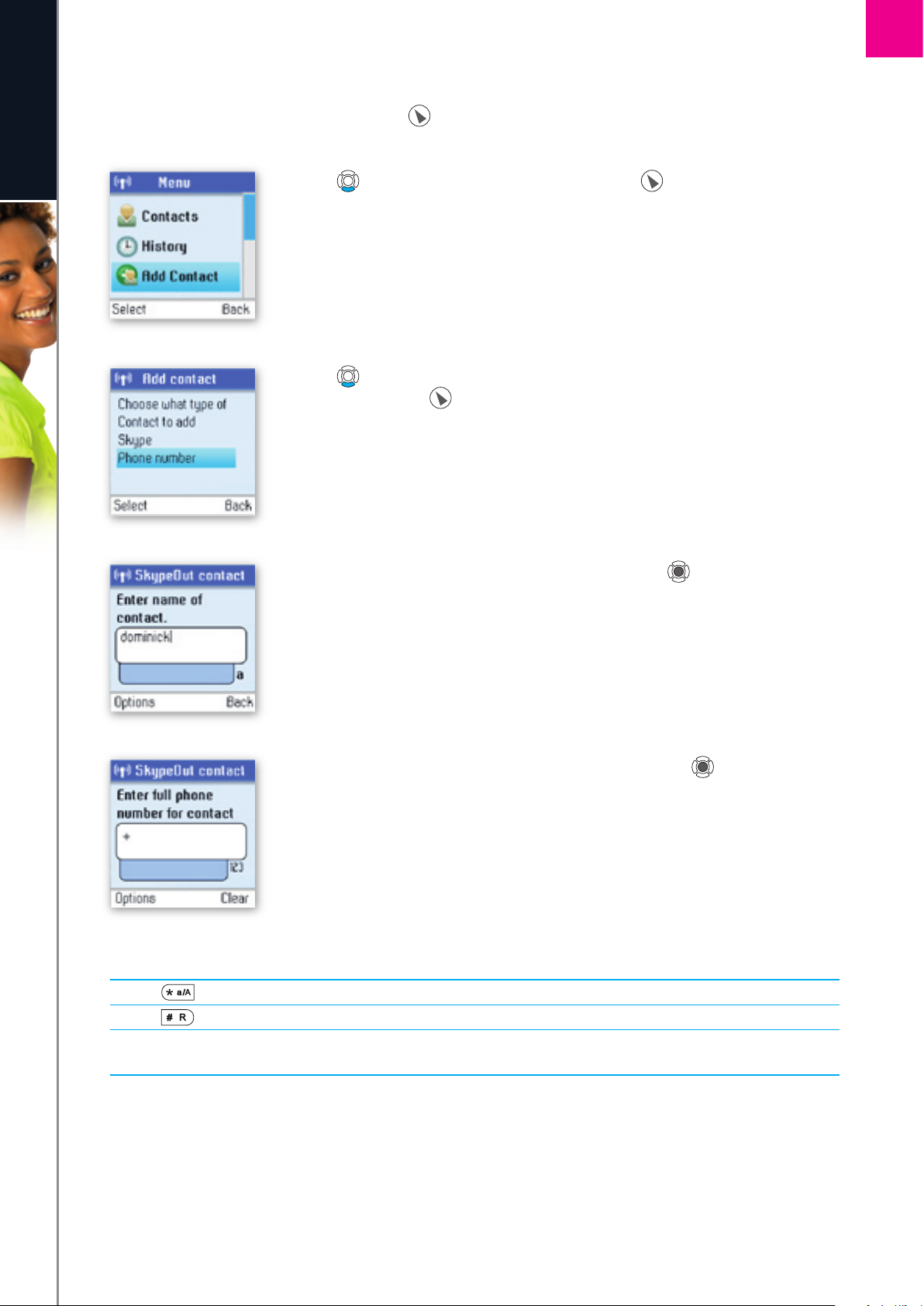
To add a SkypeOut or landline contact, press to select Menu, then:
1) Use to go to Add Contact, select by pressing .
2) Use to enter a phone number for use with SkypeOut or landline.
Select by pressing .
3) Use the keypad to enter the contact’s name and press .
4) Use the keypad to enter the full phone number and press .
SkypeOut numbers (even local numbers) must be entered in the following
format: “+” followed by “country code”, “area code” and “number”.
NOTES:
• Use to change to lower-case, upper-case or numeric entry.
• Use to input symbols from the symbol table.
• SkypeOut allows you to make calls to traditional landline and mobile phones. Go to www.skype.com to
learn more about SkypeOut.
Page 21
21
e n g l i s h
1
SECTION
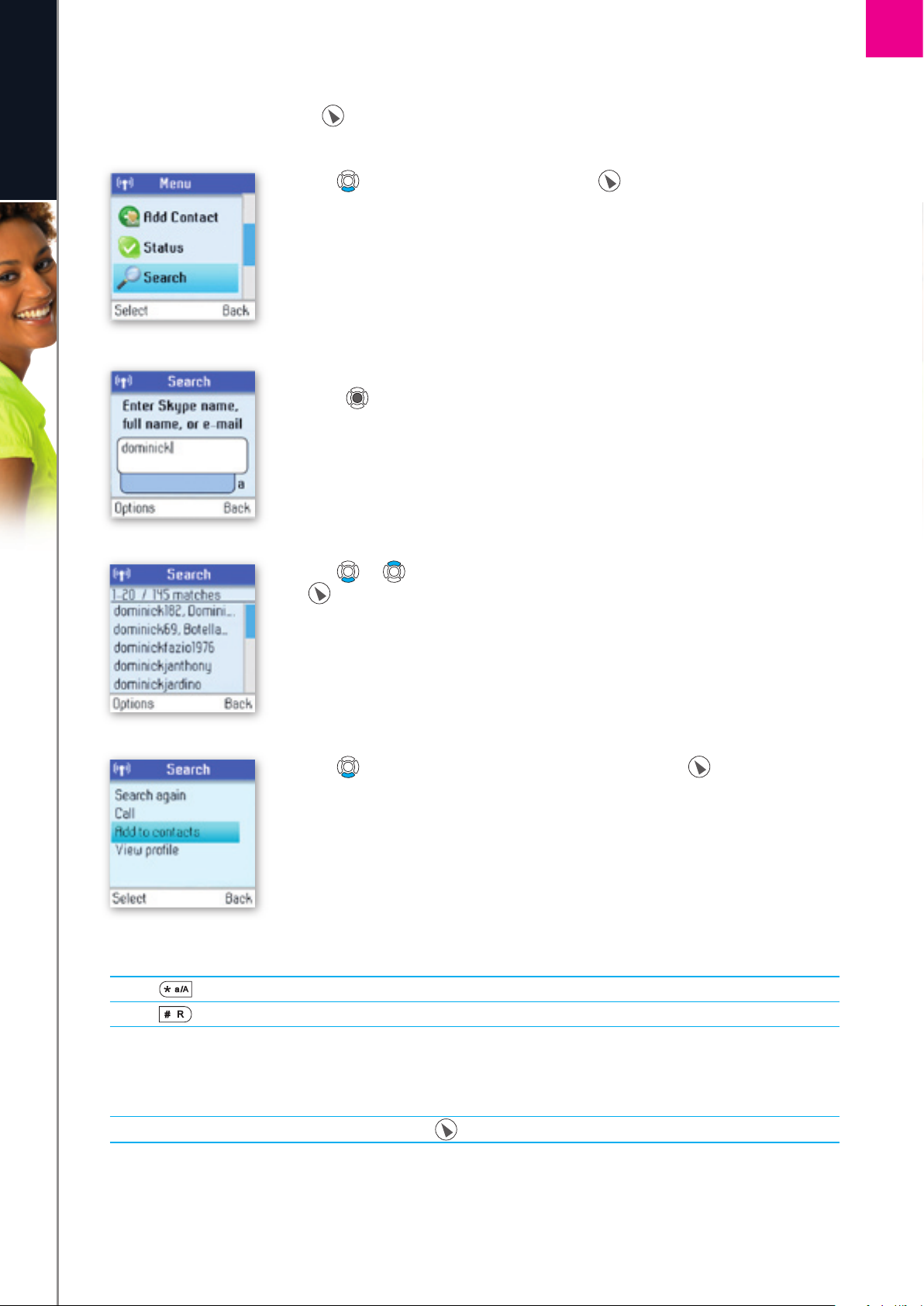
Search for Skype users
To search for Skype users, press to select Menu, then:
1) Use to go to Search, select by pressing .
2) Use the keypad to enter the Skype name or full name name and
press .
3) Use or to navigate and highlight a name from the list, select by pressing
.
4) Use to highlight Add to contacts, select by pressing .
NOTES:
• Use to change to lower-case, upper-case or numeric entry.
• Use to input symbols from the symbol table.
• Other options available during a search include:
Search again – Repeats the search.
Call – Calls the selected name.
View profi le – Displays the selected name’s profi le.
•
You can stop a search at any time by pressing
.
I N ST A L LAT IO N AN D BA S IC FU NC T I ON S
Page 22
22
e n g l i s h
1
SECTION
n
Make and receive calls
The procedures for making and receiving calls apply to any type of call – Skype-to-Skype calls, SkypeOut calls
and SkypeIn calls. Furthermore, you can use your phone for landline telephony.
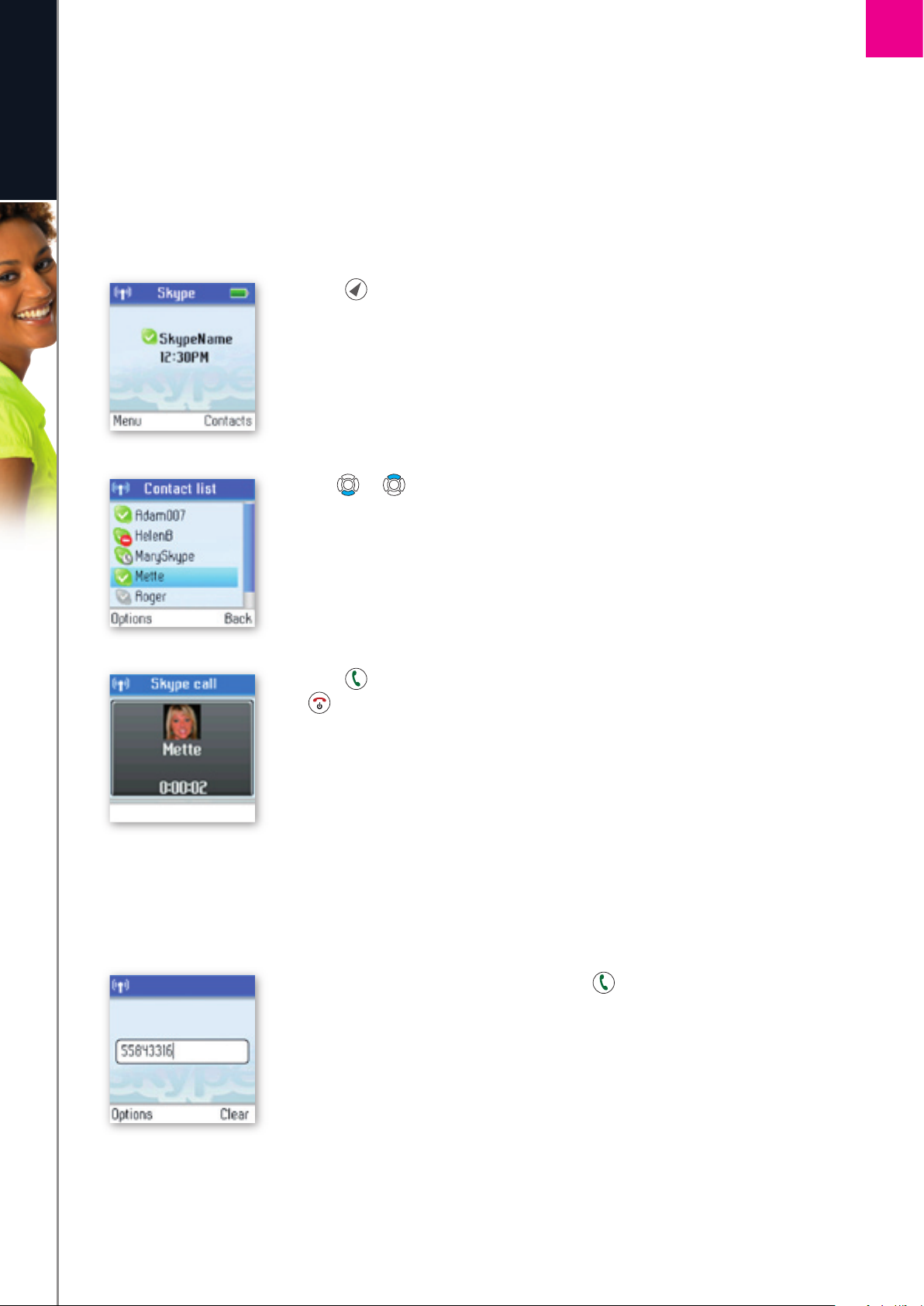
Call a Skype contact
To make a Skype call:
1) Press to select Contacts.
2) Use or to select a contact from the list.
3. Press to call. Wait for the call to connect, ring, and be answered. Press
to end the call.
Dial a landline number
To dial a landline number:
1) Use the keypad to enter the number. Press to call the number.
I N ST A L LAT IO N AN D BA S IC FU NC T I ON S
Page 23
23
e n g l i s h
1
SECTION
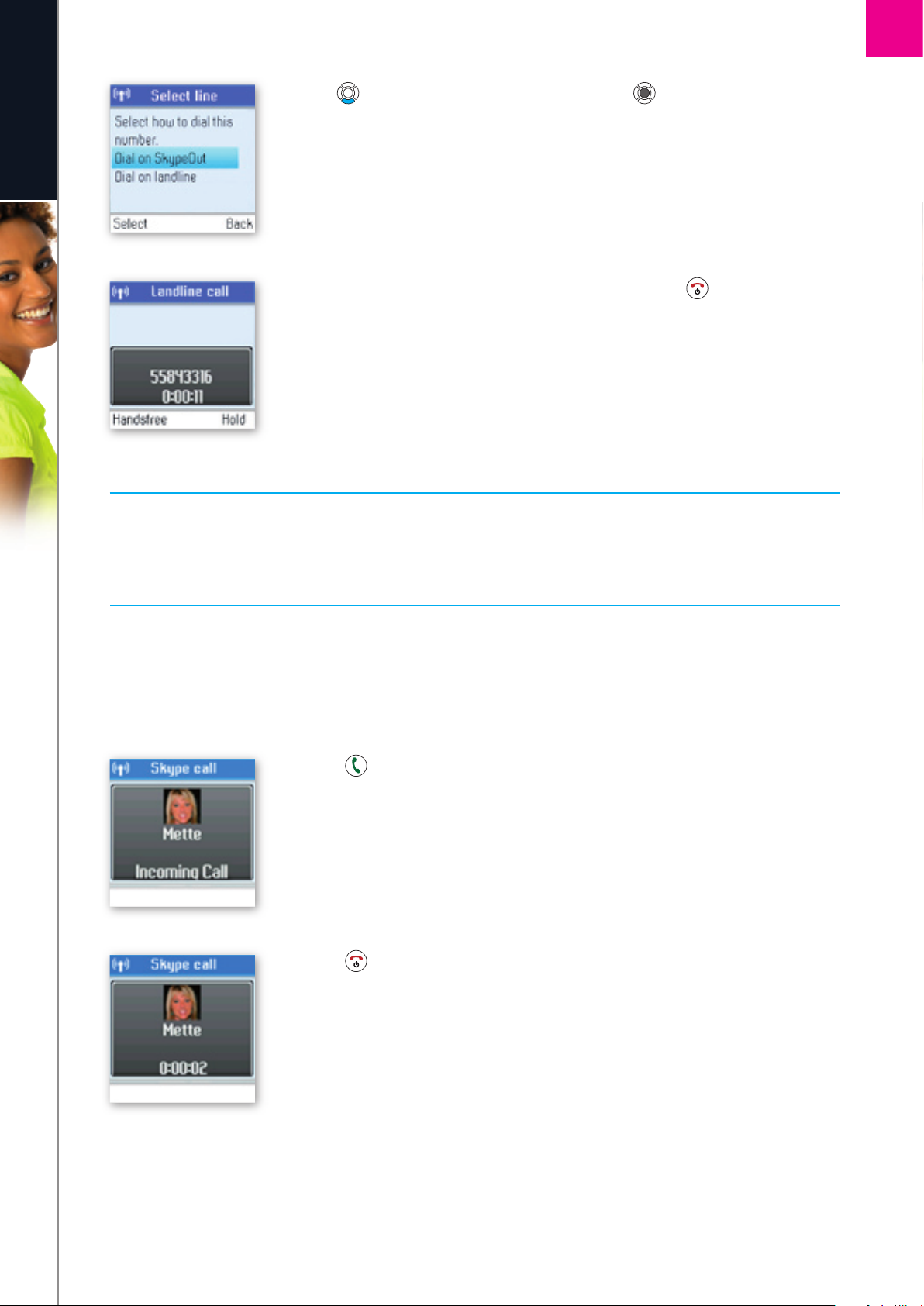
2) Use to select landline or SkypeOut and press .
3) Wait for the call to connect, ring and be answered. Press to end the call.
NOTES:
• You can select a preferred line for dialing by going to Menu > Settings > Phone settings > Preferred line.
Choose one of the following options:
1) Always landline
2) Always SkypeOut
3) Always ask
Receive a call
When someone calls you, the ringing tone sounds and the incoming call message is displayed. To receive a
Skype, SkypeIn or landline call:
1) Press to receive the call.
2) Press to end the call.
I N ST A L LAT IO N AN D BA S IC FU NC T I ON S
Page 24

SECTION
1
n
Troubleshooting
This is a guide to the most common problems that may occur during installation or use of your DUALphone.
e n g l i s h
You can easily solve some of the problems yourself, but may need your broadband service provider or landline
provider to help you with others. Check www.dualphone.net for more information.
PROBLEM POSSIBLE CAUSE SOLUTION
My DUALphone
does not work
I cannot sign in to
Skype
Screen displays:
“Network connection
lost” and the base
station light indicator
is blinking slowly
I cannot make a
Skype call
• The software needs to be
updated to the latest version.
• Skype does not accept your
Skype name and/or password.
• The Ethernet cable is not
connected.
• The Ethernet cable is not
connected.
• The router or the modem is
not turned on.
• Go to the Setting menu and select Advanced
settings and Firmware update. Select the
latest software version and confirm to update.
• Check if you are using the correct Skype
name and password. Beware of upper-case/
lower-case letters and numeric numbers.
• Check that the Ethernet cable between
on the base station and the LAN port on
your broadband connection (modem, router,
hub, switch etc.) is connected properly.
• Check that the Ethernet cable between
on the base station and the LAN port on
your broadband connection (modem, router,
hub, switch etc.) is connected properly.
• Turn on the power to the modem or router
and reset the base station.
No display
Handset is not
registering
• The base station cannot
retrieve the IP address
• You are not signed in as a
Skype user.
• The batteries are discharged. • Charge or replace the batteries.
• Base station is not ready for
registration.
• The charging cradle is not
connected.
• There are no batteries in the
handset.
• In Internet settings, check that the IP mode
corresponds to the IP mode of your Internet
connection or you are behind a proxy server.
Check the user manual for the proxy settings
guidance.
• Go to the status menu and select Sign in as
a Skype user. From there refer to the section
“Sign in to Skype” in this guide.
• Reset the base station by pressing the key on
the back of the base station and try to
register again.
• Make sure the power supply is properly
connected to the charging cradle and that
the power is on.
• Make sure the batteries are correctly fitted
into the handset. Reset the base station and
try to register again.
24
I N ST A L LAT IO N AN D BA S IC FU N CT IO N S
Page 25

PROBLEM POSSIBLE CAUSE SOLUTION
SECTION
1
e n g l i s h
Handset is not
registering
(continued)
No connection
between handset
and base station
Handset on the
charging cradle does
not charge
• The base station is not
connected.
• You are out of range of the
base station.
• The handset is not registered.
• The base station is not
connected to power.
• The cradle is not powered.
• The handset is not placed
properly in the charging cradle.
• The batteries are not inserted
correctly.
• Make sure that the power supply is properly
connected to on the base station and
that the power is on.
• Move closer to the base station.
• Register the handset.
• Make sure the power supply is properly
connected to on the base station and
that the power is on.
• Connect the power adapter of the charging
cradle to an active power outlet.
• Place the handset correctly in the charging
cradle.
• Check the position of the batteries.
Handset does not
ring
NOTES:
•
This Installation Guide covers the basic installation process and the most common features of your
DUALphone.
•
For more advanced functionality descriptions you should consult the User Manual found at
www.dualphone.net
• The Skype status is set to
offline or do not disturb.
• The handset ringer may be off.
• The handset may be too far
away from the base station.
• Set your Skype status to online.
• Increase the ringer volume.
• Move closer to the base station.
25
I N ST A L LAT IO N AN D BA S IC FU N CT IO N S
Page 26

SECTION
2
Advanced functions – Section 2
e n g l i s h
n
Menu tree of your DUALphone
The following menu trees show how the different features are accessed through the handset. and are
generally used to move to the next level by choosing Select, Option or Back.
From the idle screen, press for Menu.
MAIN MENU LEVEL 1 LEVEL 2 LEVEL 3
Contacts Call
Send Voicemail
View Profile
Advanced
History All calls
Missed Calls
Incoming Calls
Outgoing Calls
Voicemails
Contacts requests
Skype
SkypeOut or landline
View Contact’s Skype Profile
Rename
Remove Remove and Block
Edit Remove
Block/Unblock
Request Details
Call
Send Voicemail
Details
Delete
View Profile
Add to Contacts
Clear List
Play
Call
Send Voicemail
Details
Delete
View Profile
Add to Contacts
My Greeting
Accept
Decline
Decline and block
26
Add Contact Skype
Phone Number
Status Sign In To Skype
Create New Acctount
Change Status
A D VA N C ED FU NC T I ON S
Offline
Online
Skype me
Away
Not available
Do not disturb
Invisible
Page 27

MAIN MENU LEVEL 1 LEVEL 2 LEVEL 3
SECTION
2
Status Sign Out
e n g l i s h
(continued) My Profile
Change Password
Auto Sign In
Search
Services Skype Credit
SkypeIn
Voicemail
Settings Call Divert
Privacy
Manage blocked users
Tones
Time & Date
Details shown to all
Private
Automatically
Promt
Call Forward
Call forward number
Voicemail
Welcome message
Skype Calls Anyone
Contacts
Known numbers
SkypeIn Calls Anyone
Contacts
If details shared
Incoming Alert Type Ringing
Ring once
Beep once
Ring tones Silent
Melody 1
...
Beep
Landline ring tones Silent
Melody 1
Beep
Intercom ring tones Silent
Beep
Ringing Volume
Notification Alert Beep
Silent
Keypad tones On
Off
Time
Time Zone
Daylight Savings
Time format
Time Separator
Date
Date format
Date Separator
...
Melody 1
...
27
A D VA N C ED FU NC T I ON S
Page 28

MAIN MENU LEVEL 1 LEVEL 2 LEVEL 3
2
Settings Cordless Settings
e n g l i s h
(continued)
Phone Settings
Information
Advanced
Register handset
Deregister handset Handset 1
Handset 2
Handset 3
Handset 4
Handset name
Contrast
Language Dansk
Deutch
English
….
….
Preferred Line Landline
SkypeOut
Always ask
Region Country Code
Area Code
Landline Country Australia
Belgique
Denmark
…
Internet settings IP mode
Skype proxy
Firmware proxy
Firmware update Latest Firmware
Current Firmware
All Firmware vers.
Skype ports
Reset
28
n
Emergency calls
PLEASE NOTE:
• Skype does not allow emergency calls. Such calls are always routed to the landline connection. Therefore
it is important that you set the correct landline country. Do not forget that your DUALphone has to be
connected to a power outlet in order to work. Your DUALphone will not function during a power failure.
A D VA N C ED FU NC T I ON S
Page 29
29
e n g l i s h
n
Skype settings
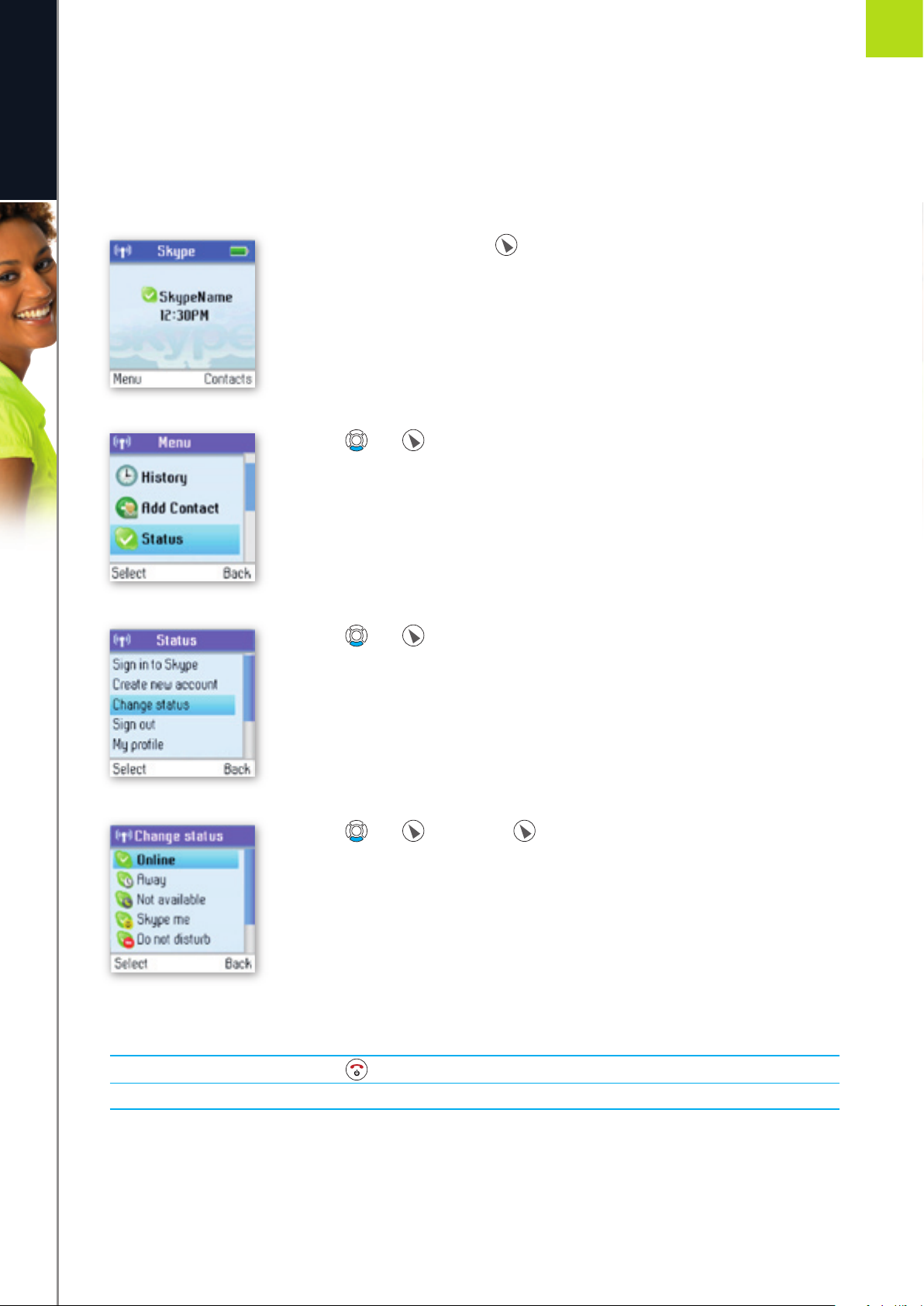
Change your online status
Your online status can be seen by all Skype contacts authorised by you. For more on this, please see Main
display in the Installation and basic functions section. For more on authorisations, please see Exchange
contact details request in this section of the manual.
1) From the Idle screen, press to enter the main menu.
2) Press and to select Status.
3) Press and to select Change status.
4) Press and or just press to select your preferred status (Online,
Away, Not available, Skype me, Do not disturb, Invisible, Offl ine).
NOTES:
• Alternatively, you can also press from the idle screen in order to change your Skype status.
• When you select Do not disturb, you mute all incoming Skype as well as landline calls.
A D VA N C ED FU NC T I ON S
SECTION
2
Page 30
30
e n g l i s h
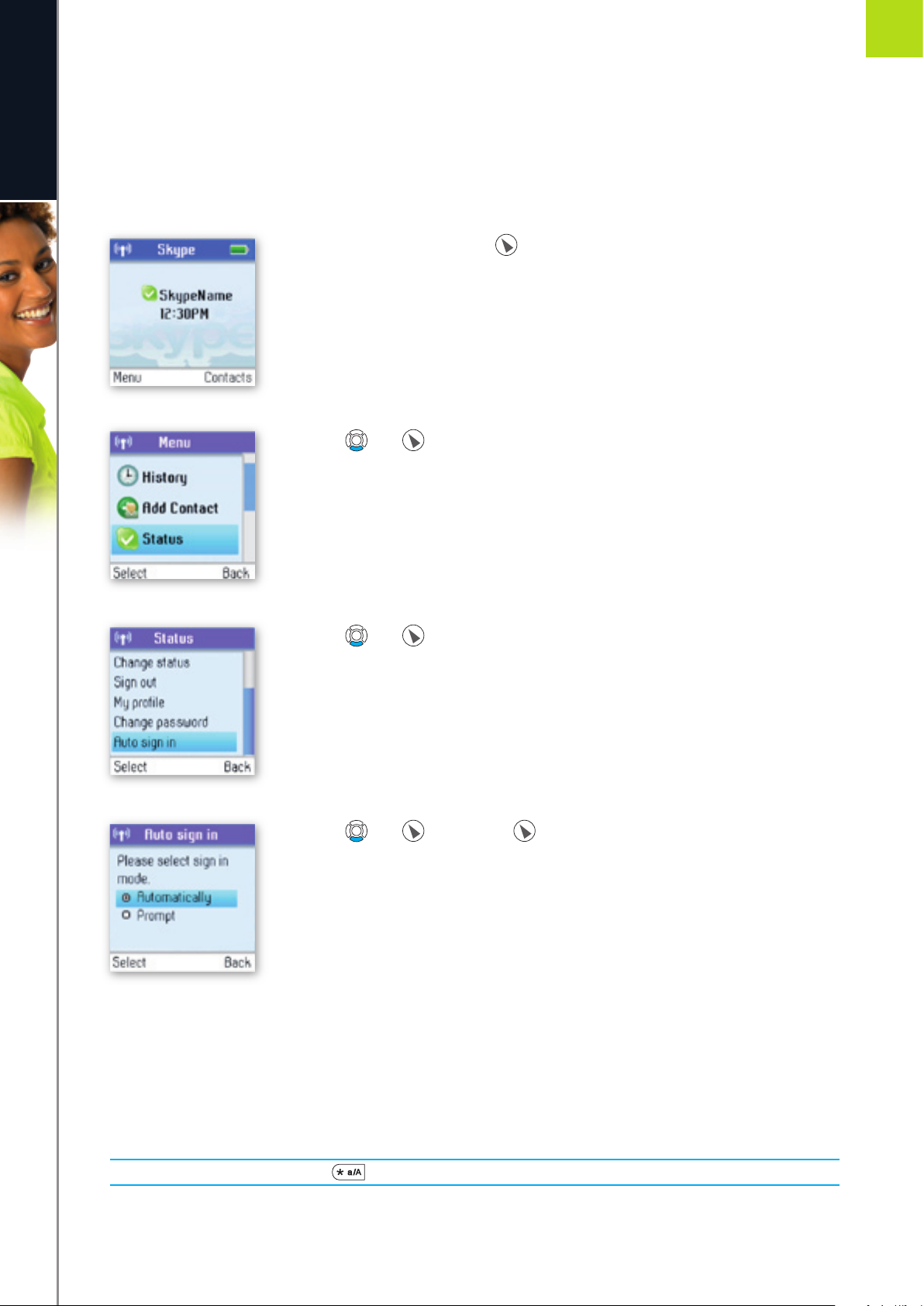
Choose auto or manual sign in
Your fi rst sign in has to be manual, but after that you can activate Auto sign in and sign in to your Skype
account automatically, in case you should turn off the base station or the handset. If you activate Prompt, you
have to enter your Skype password every time you sign in. We therefore recommend that you choose Auto
sign in.
1) From the Idle screen, press to enter the main menu.
2) Press and to select Status.
3) Press and to select Auto sign in.
4) Press and or just press to select your preferred sign in mode
(Automatically, Prompt).
We suggest that you note your Skype name and your Skype password here for future reference:
My Skype name: __________________________ My Skype password: ________________________
NOTE:
• When in the text editor, press to switch between lowercase, uppercase and numerical entry.
A D VA N C ED FU NC T I ON S
2
Page 31
31
e n g l i s h
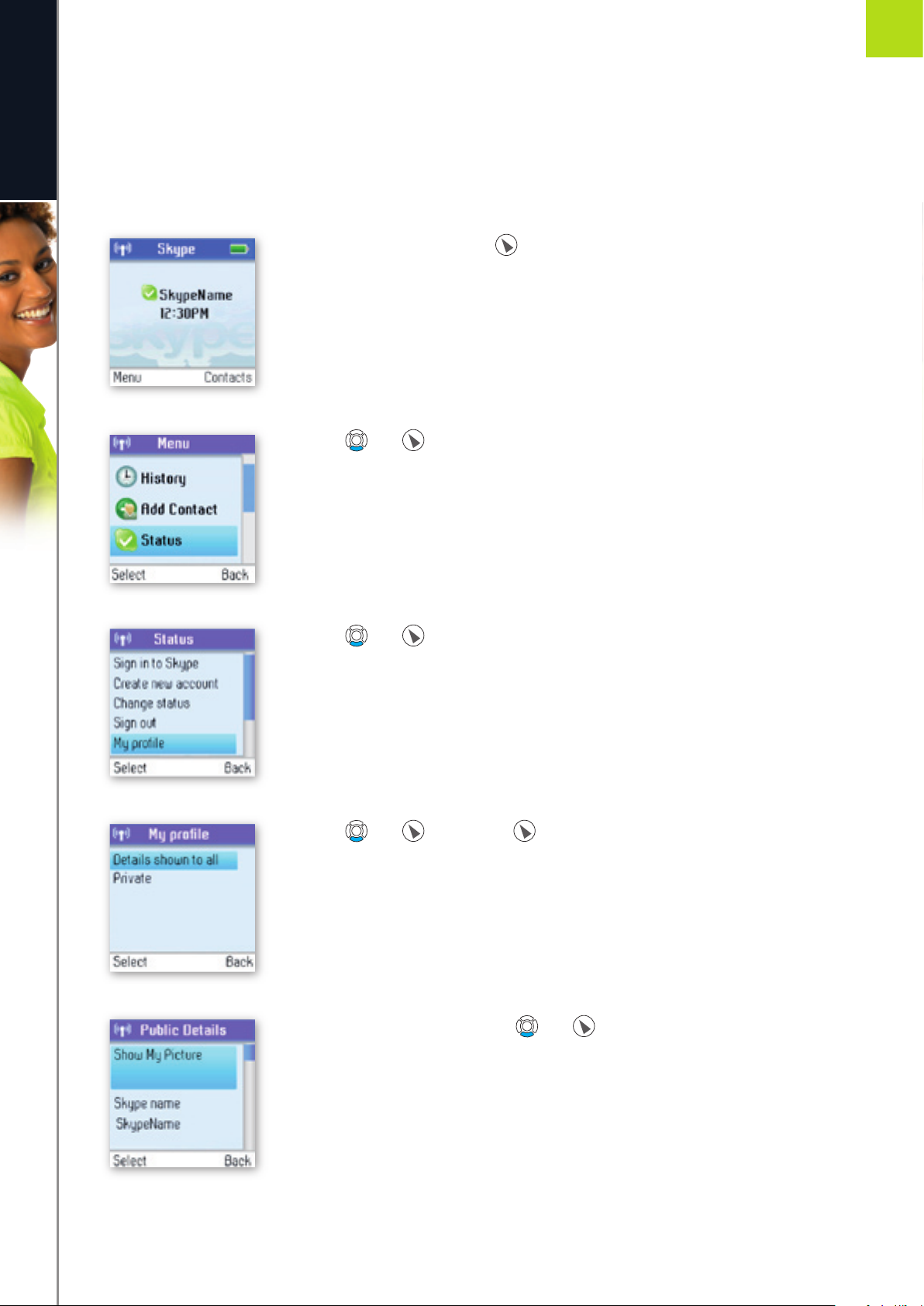
Change your Skype profi le
In My profi le you can tell other Skype users a bit about yourself. Please note that any Skype user can see all
confi gurations you make in Details shown to all, even the Skype users you have not authorised.
You must be signed into Skype to change your profi le.
1) From the Idle screen, press to enter the main menu.
2) Press and o select Status.
3) Press and to select My profi le.
4) Press and or just press to select your preferred profi le (Details
shown to all, Private).
5) In Details shown to all, press and to select your preferred setting
(Show my picture, Skype name, Full name, Gender, Birthdate, Country/
region, State/province, City, Language, Home phone, Offi ce phone,
Mobile, Home page, About me, Mood).
A D VA N C ED FU NC T I ON S
SECTION
2
Page 32
32
e n g l i s h
a) In Show My Picture, press to select.
b) In Skype name, please note that you cannot change your Skype name here.
c) In Full name, use the keypad to enter your data.
d) In Gender, use to select (Male, Female, Both, Unknown).
e) In Birthday, enter the month using the keypad, press ARROWRIGHT to go to the day and enter the day
using the keypad, press ARROWRIGHT again to go to the year and enter the year using the keypad.
f) In Country/Region, use and or just to select (A ‡ Z).
g) In State/Province and City, use the keypad to enter your data.
h) In Language, use and or just to select (A ‡ Z).
i) In Home phone, Offi ce phone, Mobile, Home page, About me and Mood, use the keypad to enter
your data.
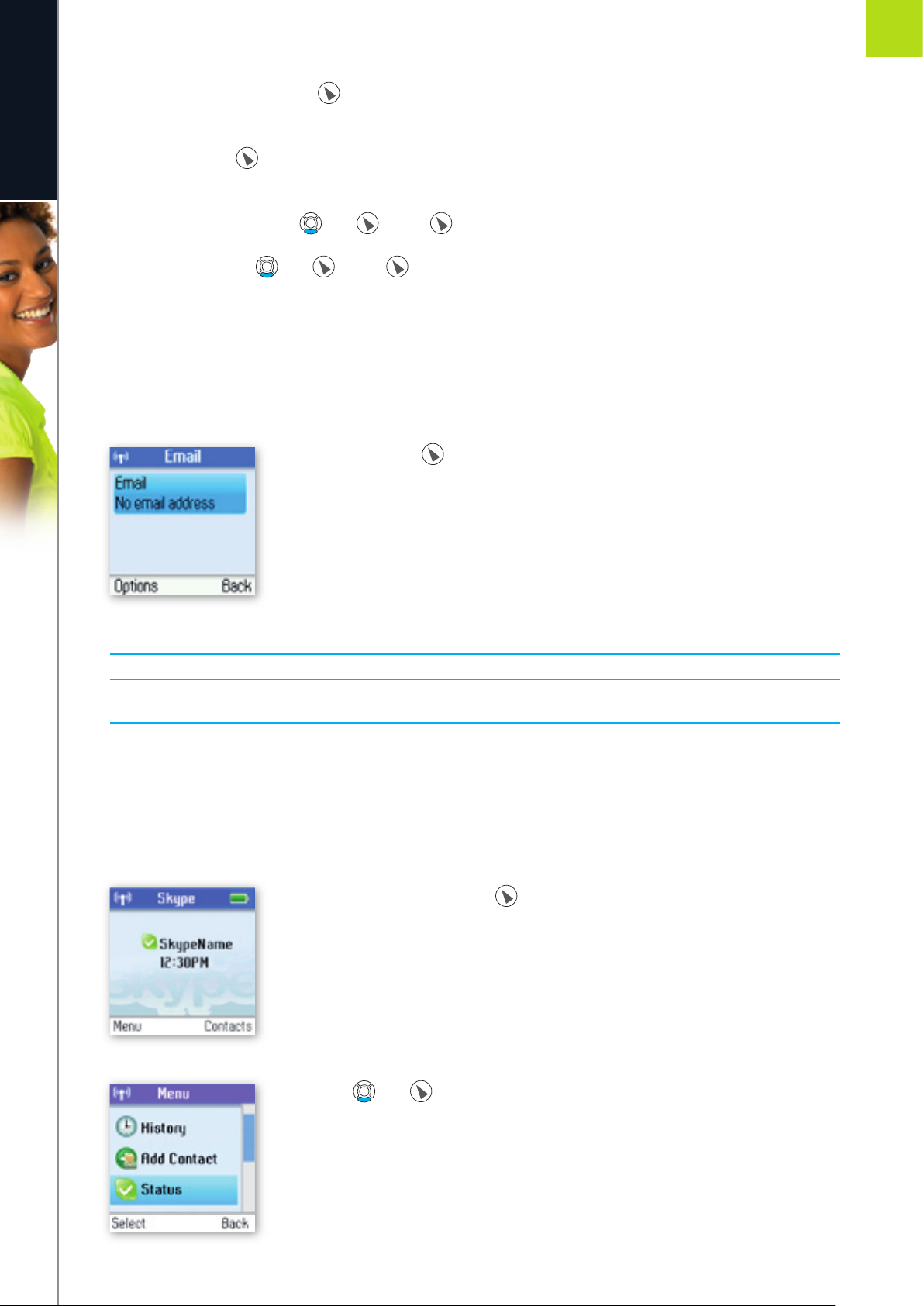
In Private you can enter your e-mail address. The address will not be shown to other Skype users and is
merely used for the search function: Save your private e-mail address in Private, and users who know this
address will be able to fi nd you by searching for it on Skype.
1) In Private, press to select options (Edit, Remove, Add).
NOTES:
• In Show My Picture, the pictures for use with your profi le must be edited on a computer with a Skype client.
• All data regarding home phone, offi ce phone and mobile supplied by a Skype user will be recorded in your
Contact list when you add the user.
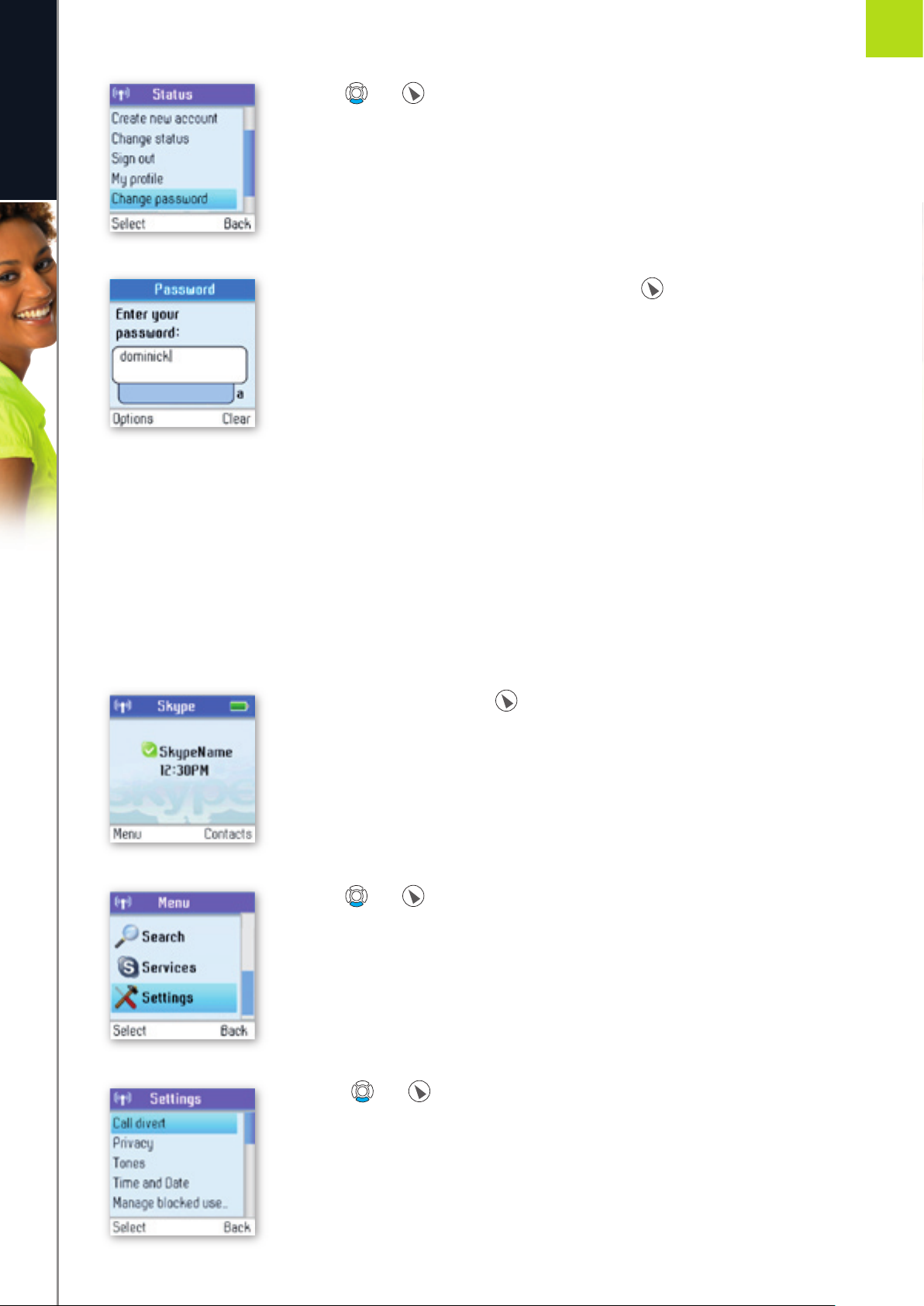
Change your password
You can change the Skype password used for signing in to your Skype account. See Create a new Skype
account in the Installation and basic functions section for more information.
1) From the Idle screen, press to enter the main menu.
2) Presse and to select Status.
A D VA N C ED FU NC T I ON S
2
Page 33
33
A D VA N C ED SE TT I N GS
e n g l i s h
2
SECTION
3) Press and to select Change password.
4) Enter your password using the keypad, then press .
5) Enter your new password, then press the “OK” softkey.
6) Repeat your new password, then press the “Change” softkey.
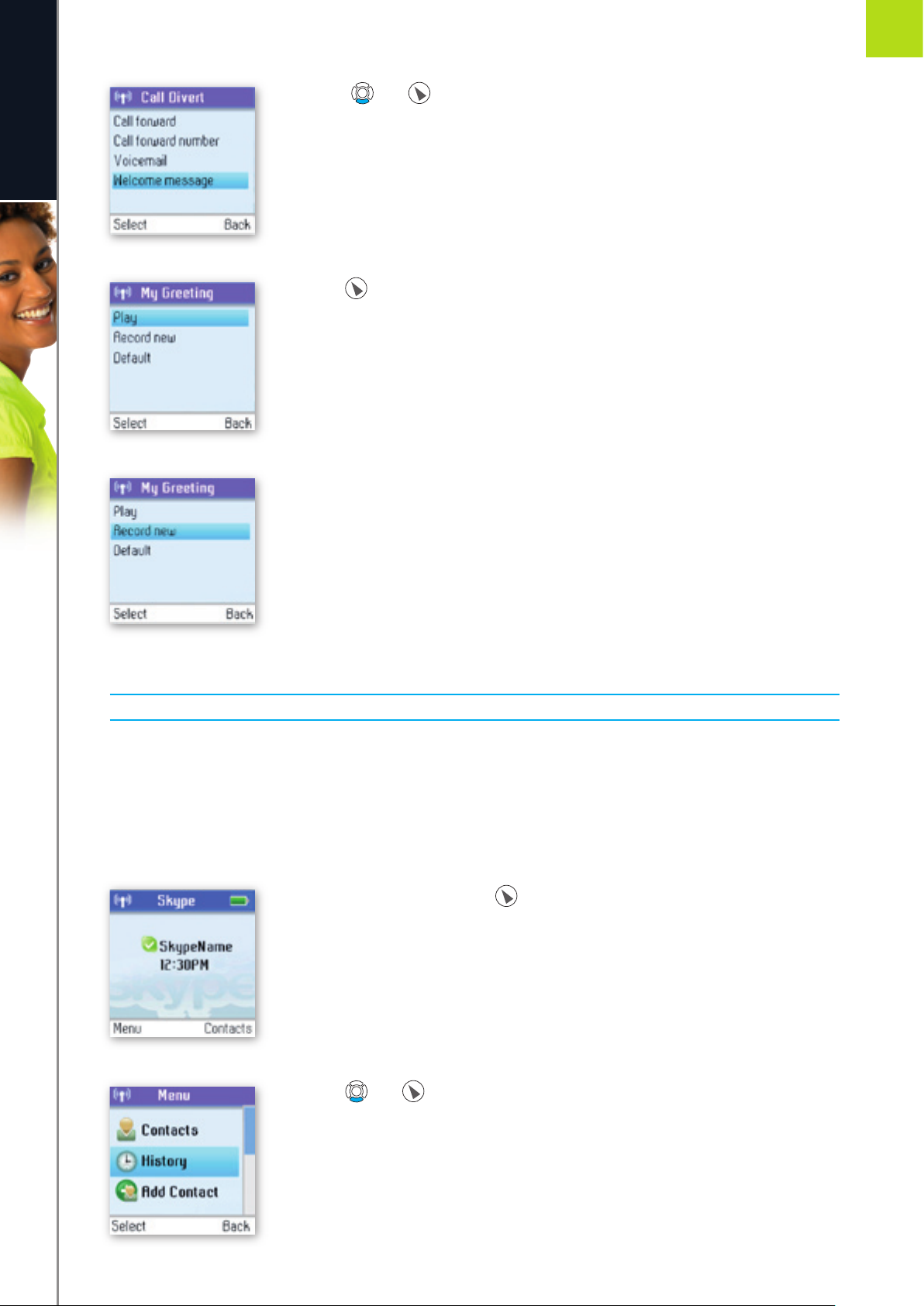
Create a personal voicemail greeting
Skype voicemail has a default voicemail greeting. You can also create your personal welcome greeting, which
will be played back to people calling you when you are unable to answer the call.
1) From the Idle screen, press to enter the main menu.
2) Press and to select Settings.
3) Presss and to select Call divert.
Page 34
34
A D VA N C ED SE TT I N GS
e n g l i s h
2
SECTION
4) Presss and to select Welcome message.
5) Press to select options.
6) Press Record new to record your welcome greeting, and press Play to hear the
recorded message.
NOTE:
• You have to buy a Skype voicemail subscription to use this service. See more at www.skype.com.
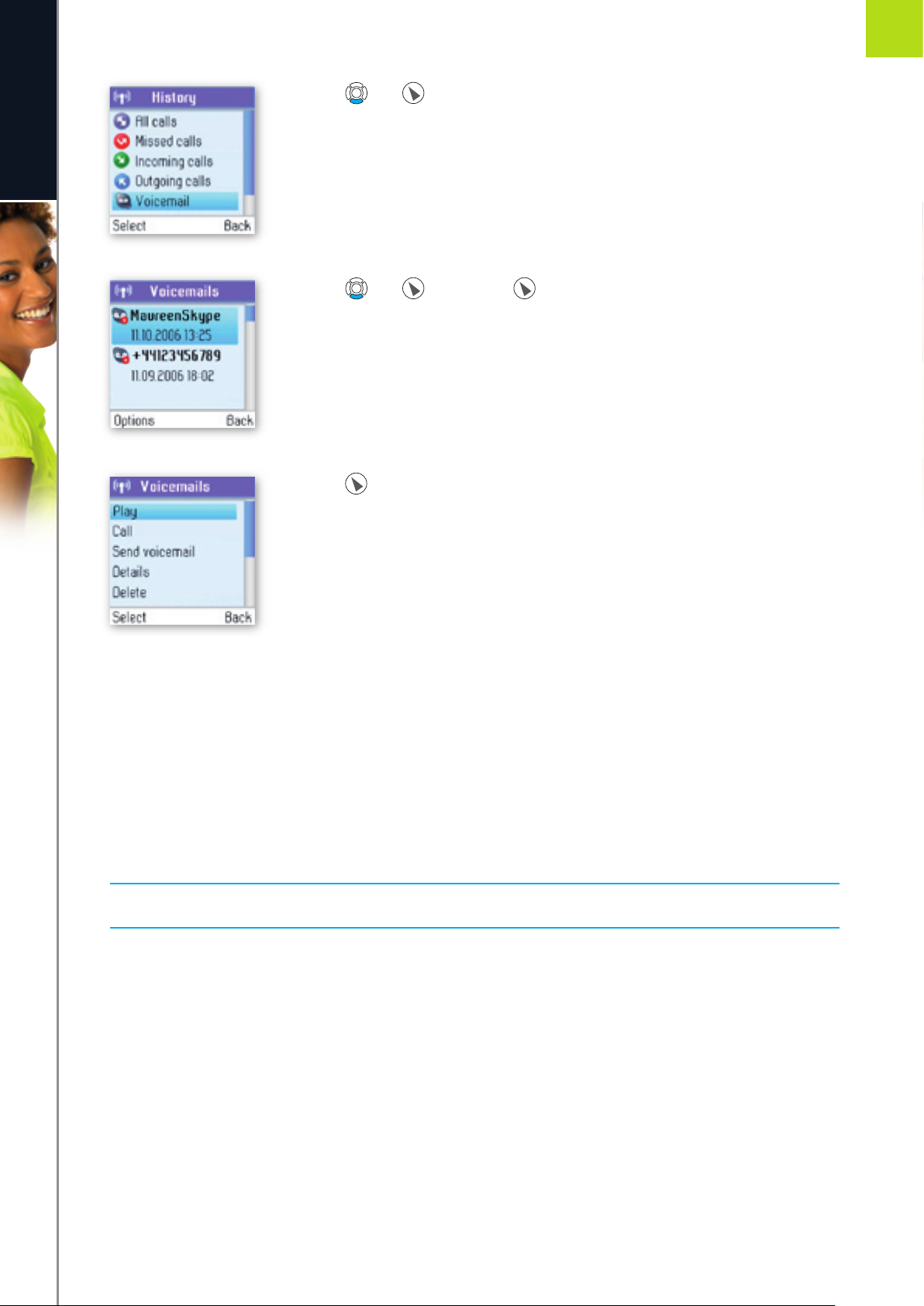
Listen to your voicemail
Callers can leave a message for you. Whenever someone sends you a voicemail, the message You have 1
new voicemail will be displayed on your DUALphone.
1) From the Idle screen, press to enter the main menu.
2) Press and to select History.
Page 35
35
A D VA N C ED SE TT I N GS
e n g l i s h
2
SECTION
3) Press and to select Voicemail.
4) Press and or just press to select the voicemail of your choice.
5) Press to select options (Play, Call, Send voicemail, Details, Delete, View
profi le, Add to contacts, My greeting).
Play: Play back the voicemail.
Call: Call the person who has left the voicemail for you.
Send voicemail: Send the person who has left the message for you a voicemail.
Details: View the details of the voicemail (Name, number, date, time, duration).
Delete: Remove the voicemail.
View profi le: View the profi le of the person who has sent the voicemail.
Add to contacts: Add the person who has left the voicemail for you to your Contact list.
My greeting: Play back or record your personal welcome greeting.
NOTE:
• If you activate your voicemail through Settings ‡ Divert ‡ Voicemail, the voicemail will work only with
incoming Skype and SkypeIn calls, not with calls on your landline.
Page 36
36
A D VA N C ED SE TT I N GS
e n g l i s h
2
SECTION
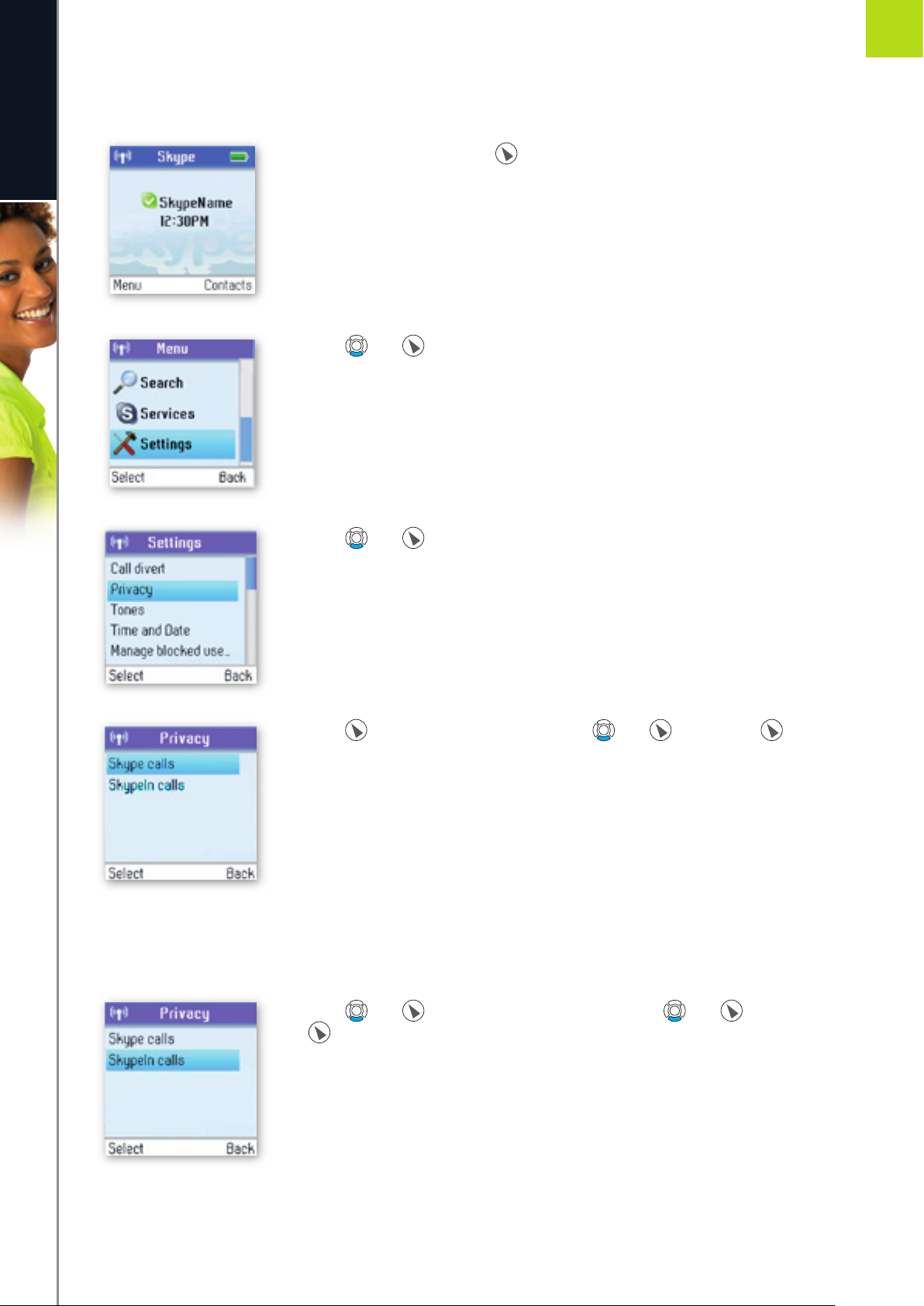
Privacy
You can make restrictions as to whom you wish to accept a Skype or SkypeIn call from. Your choices are:
1) From the Idle screen, press to enter the main menu.
2) Press and to select Settings.
3) Press and to select Privacy.
4) Press to select Skype calls, then press and or just press
to select your preferred privacy status for incoming Skype calls (Anyone,
Contacts, If details shared).
Anyone: All Skype users can call you, even users not on your Contact list.
Contacts: Skype users can call you only if they are on your Contact list.
If details shared: Only Skype users authorised by you can call you.
5) Press and to select SkypeIn calls, then press and or just press
to select your preferred privacy status for incoming SkypeIn calls (Anyone,
Contacts, Known numbers).
Anyone: You can receive calls from anyone calling your SkypeIn number.
Contacts: Only SkypeOut contacts on your Contact list can call you.
Known numbers: Only SkypeIn calls providing a Caller ID will be accepted.
Page 37
37
A D VA N C ED SE TT I N GS
e n g l i s h
2
SECTION
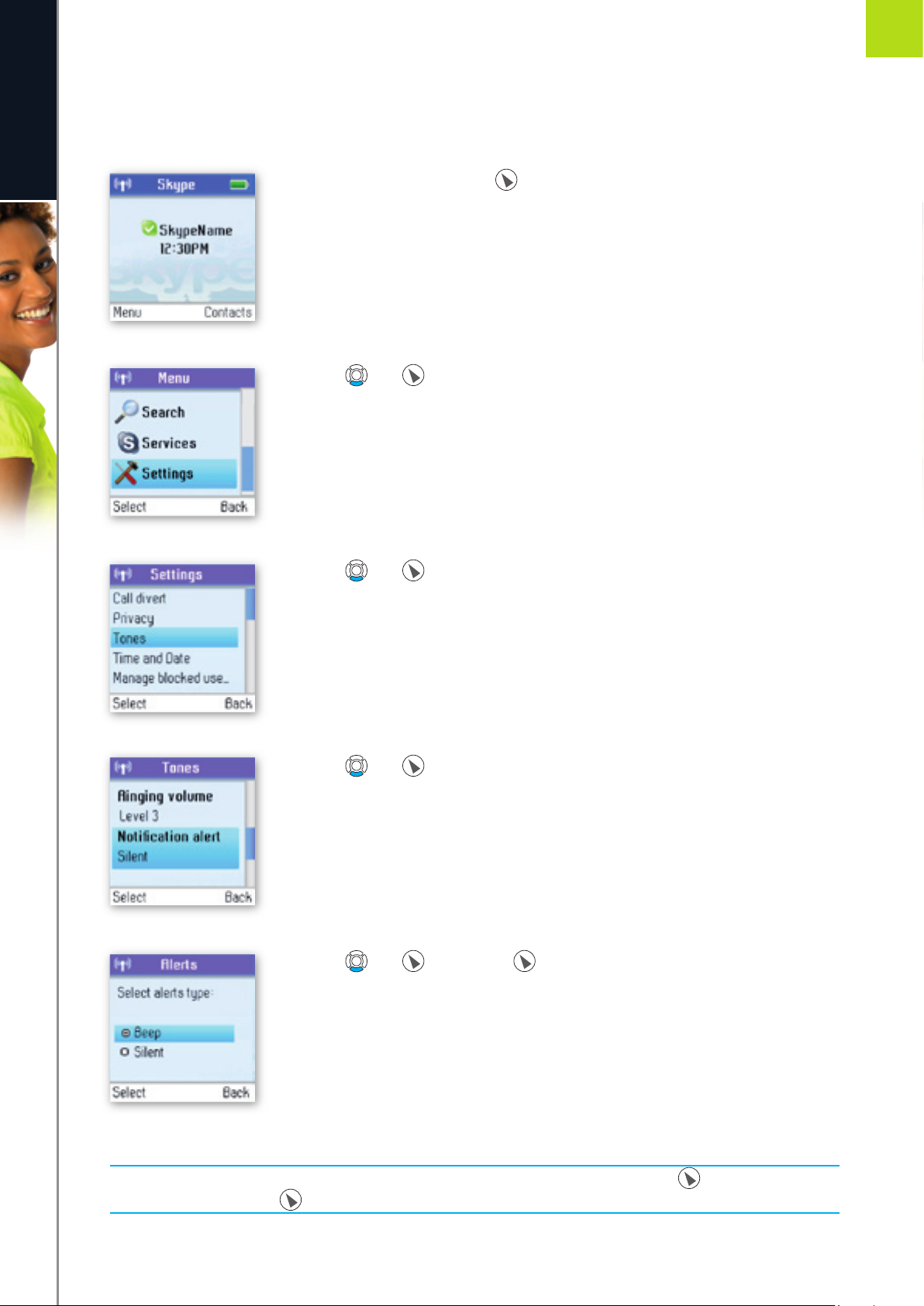
Notifi cation
You can choose whether you want to be alerted by a tone whenever you receive a voicemail or an
authorisation request.
1) From the Idle screen, press to enter the main menu.
2) Press and to select Settings.
3) Press and to select Tones.
4) Press and to select Notifi cation alert.
5) Press and or just press to select your preferred alert type (Beep,
Silent).
NOTE:
• Whenever you receive a voicemail, miss a call, or get an authorisation request, the key will fl ash a blue
light signal. Just press to see your options.
Page 38
38
A D VA N C ED SE TT I N GS
e n g l i s h
2
SECTION
n
Phone settings
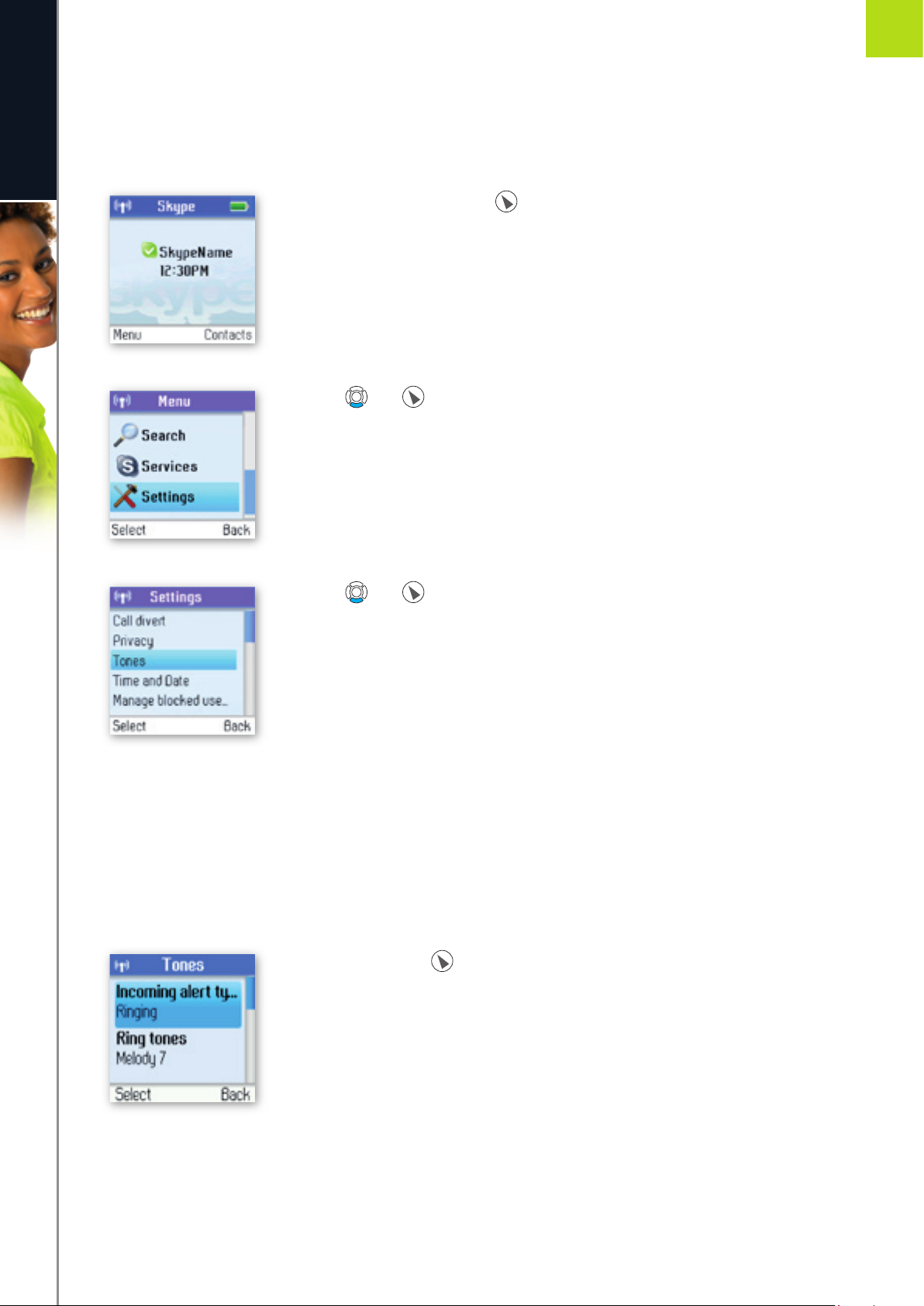
Tones
You can confi gure keypad tones, ring tones etc. on your DUALphone. The following are just a few examples.
1) From the Idle screen, press to enter the main menu.
2) Press and to select Settings.
3) Press and to select Tones.
Change the call alert
You can defi ne how you want your DUALphone to alert you with incoming calls:
Ringing: The handset will ring as long as the incoming call is active.
Ring once: The handset will ring only once.
Beep once: The handset will make one beep only on an incoming call.
1) From Tones, press to select Incoming alert type.
Page 39
39
A D VA N C ED SE TT I N GS
e n g l i s h
2
SECTION
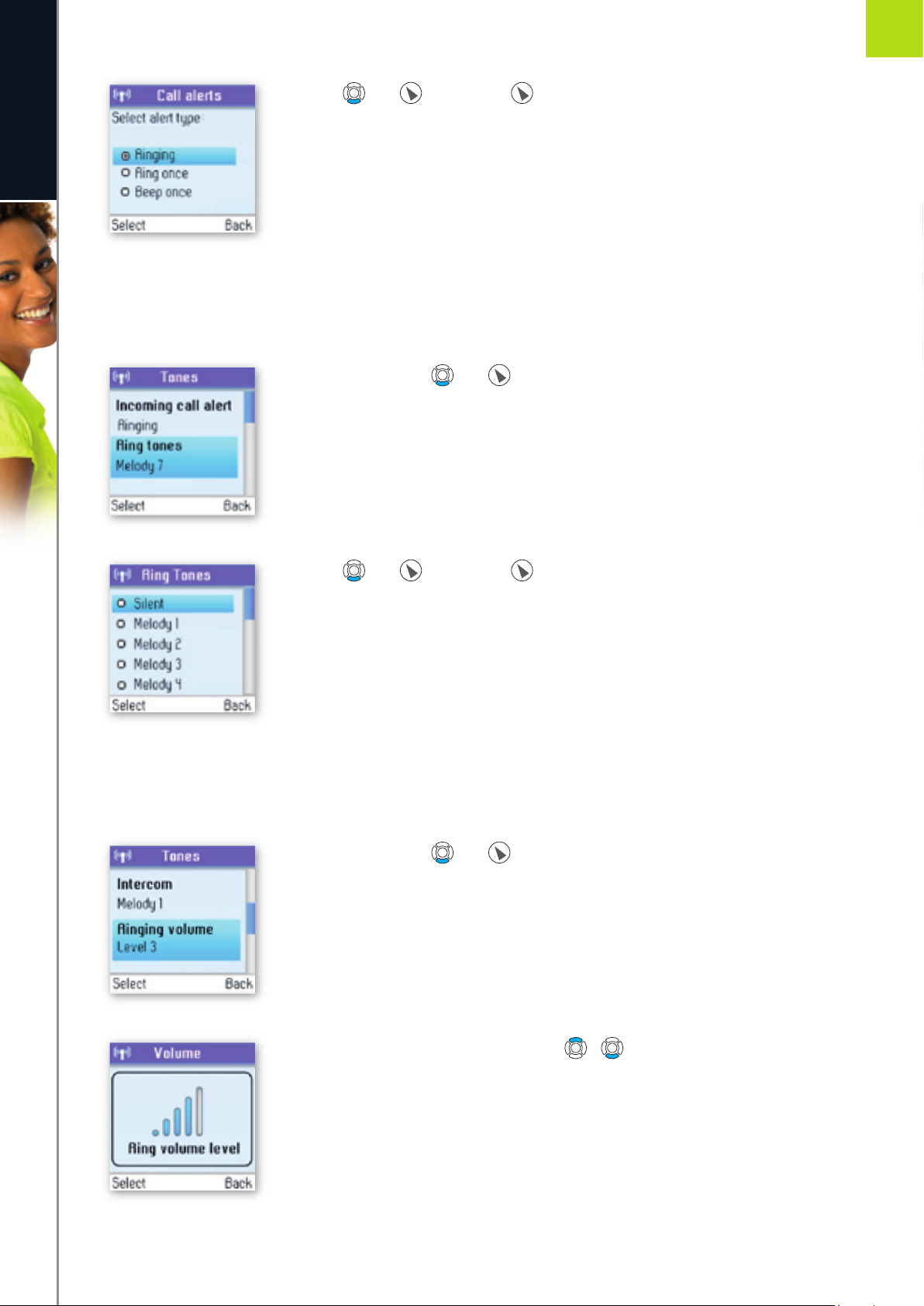
2) Press and or just press to select your preferred alert type (Ringing,
Ring once, Beep once).
Change the ring tone
You can defi ne how you want your DUALphone to ring on incoming calls.
1) From Tones, press and to select Ring tones.
2) Press and or just press to select your preferred ring tone (Silent,
Melody 1 ‡ 11, Beep).
Adjust the ringing volume
You can adjust the ringing volume of the handset for incoming calls.
1) From Tones, press and to select Ringing volume.
2) Change the ringing volume level using / .
Page 40
40
A D VA N C ED SE TT I N GS
e n g l i s h
2
SECTION
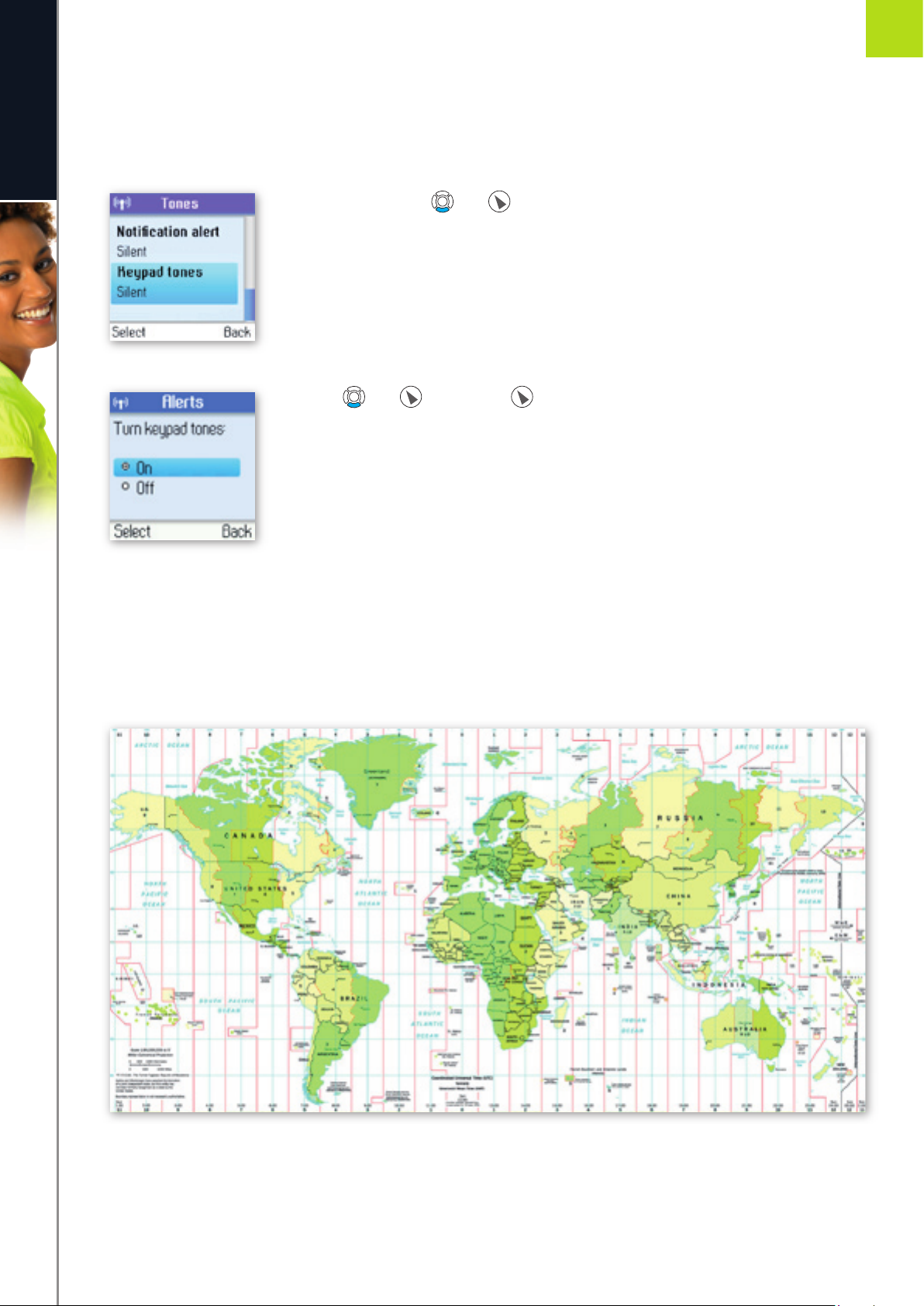
Adjust the keypad tones
You can choose whether you want to hear a tone whenever you press a key or whether you want your keys
to be silent.
1) From Tones, press and to select Keypad tones.
2) Press and or just press to select your preferred setting (On, Off).
Set the time and date
Your DUALphone will always obtain time and date information from the Internet. Thus, you only have to
confi gure the Time zone and Daylight saving settings. When this is done, the time and date obtained by
your DUALphone from the Internet will be adjusted according to your choices.
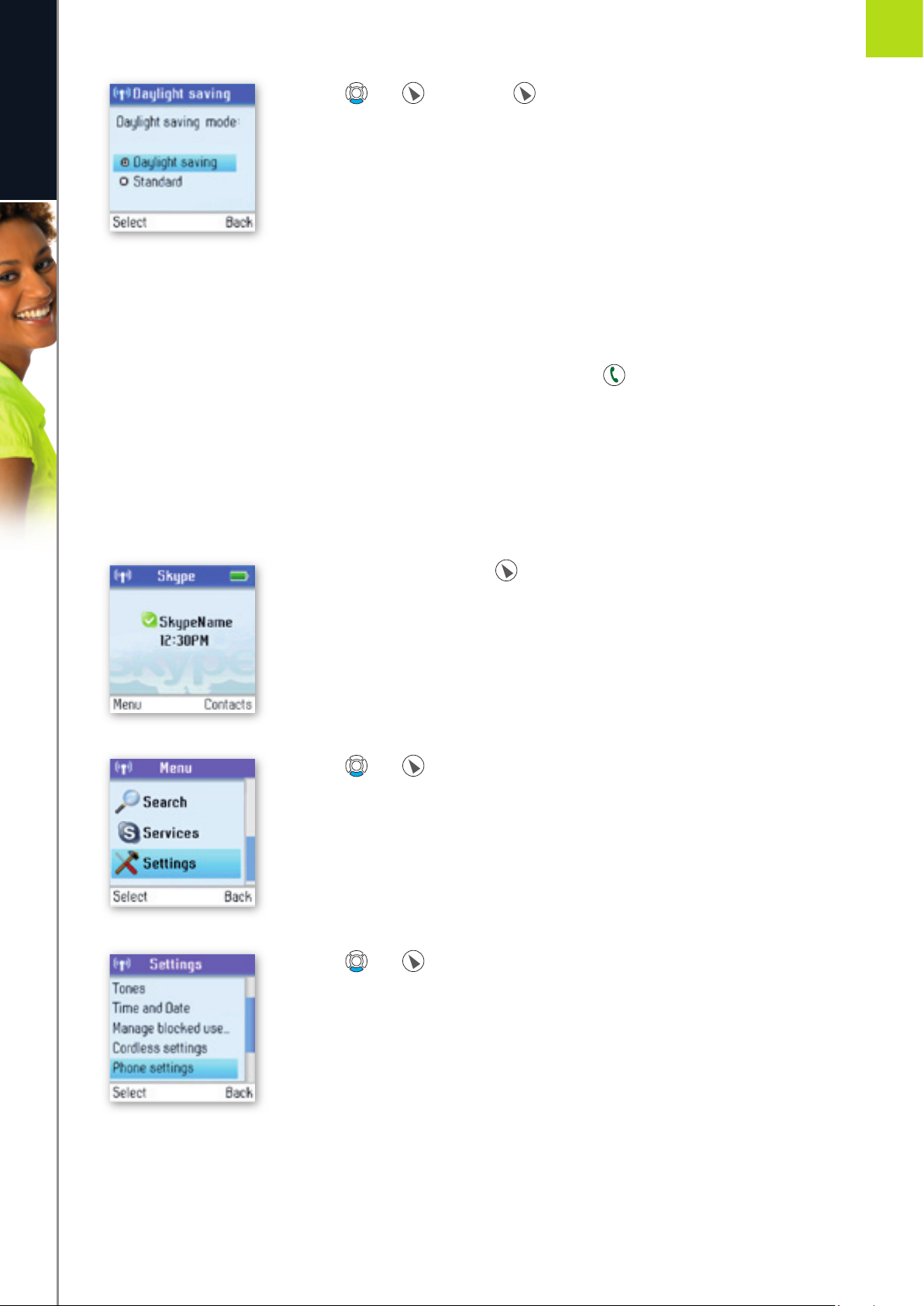
In Time zone it is important that you choose the correct time zone, otherwise the time shown on the idle
screen will not be right. In Daylight saving you have two options. Choose Daylight saving when you are in
a zone with summertime, and choose Standard in all other zones.
Page 41
41
A D VA N C ED SE TT I N GS
e n g l i s h
2
SECTION
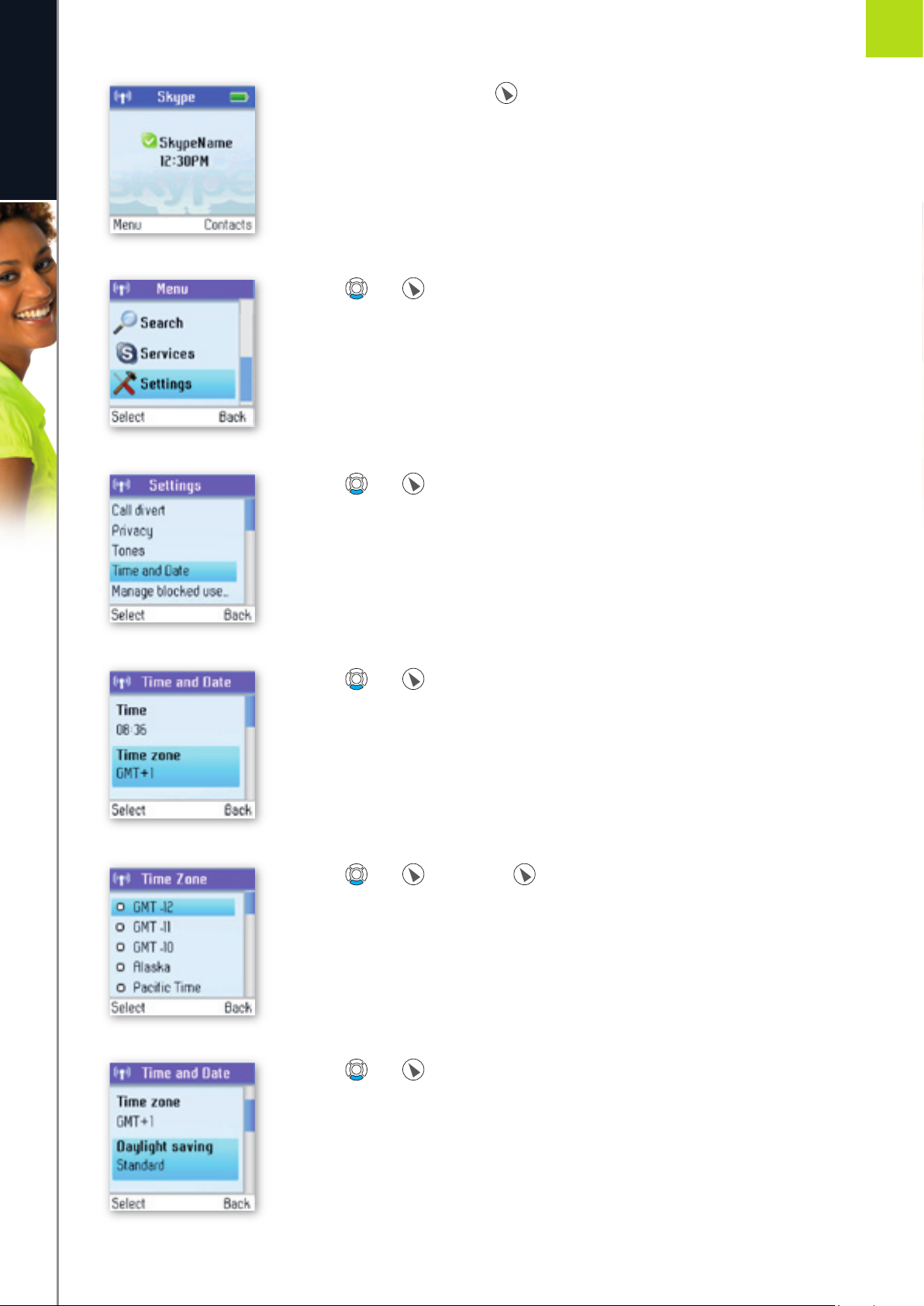
1) From the Idle screen, press to enter the main menu.
2) Press and to select Settings.
3) Press and to select Time and date.
4) Press and to select Time zone.
5) Press and or just press to select your preferred time zone
(GMT -12 ‡ GMT +13).
6) Press and select Daylight saving.
Page 42
42
A D VA N C ED SE TT I N GS
e n g l i s h
2
SECTION
7) Press and or just press to select your preferred mode (Daylight
saving, Standard).
If you wish to adjust the Time format and Time separator as well as the Date format and Date separator
settings, this is easily done here.
Set the preferred line
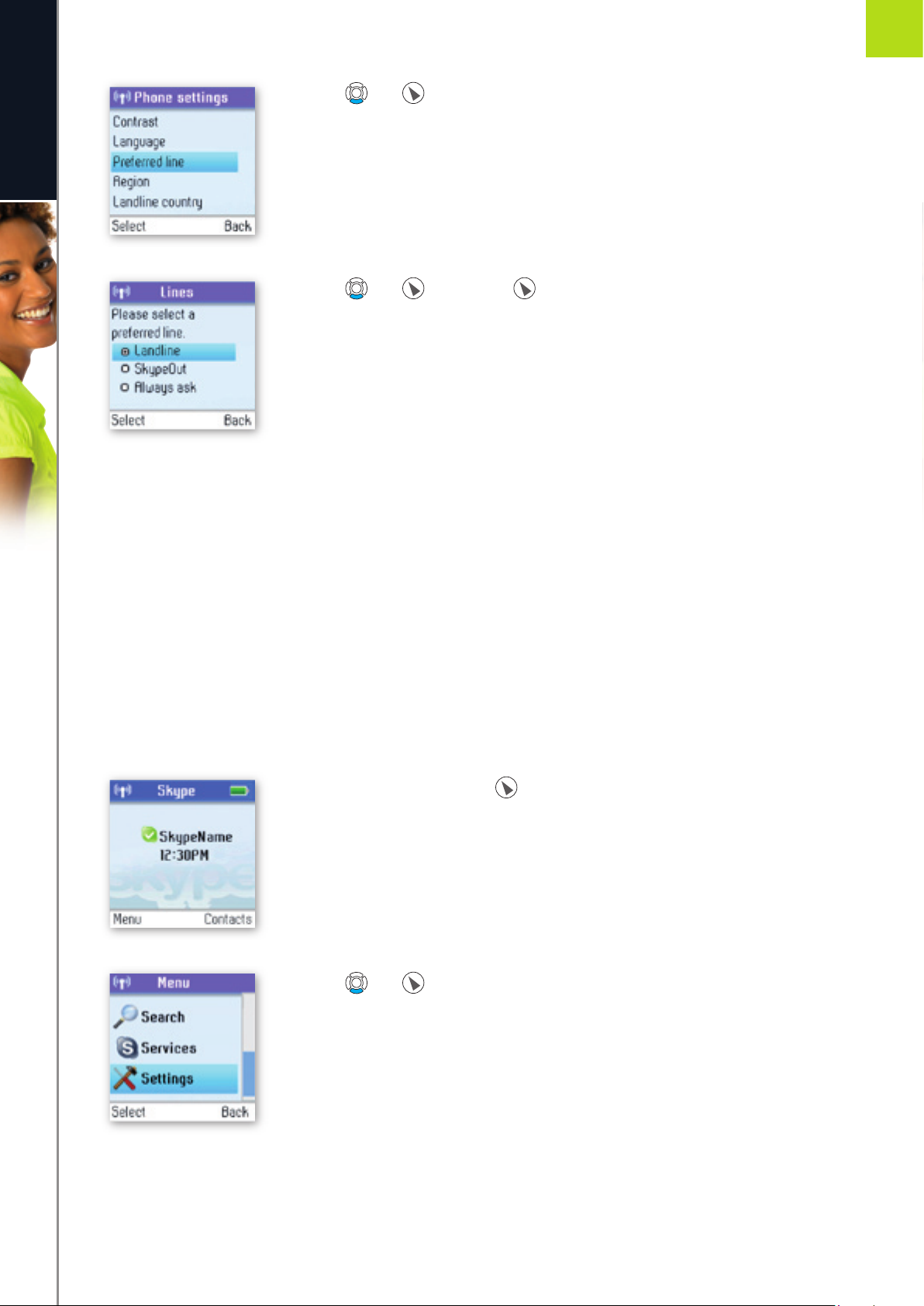
You can confi gure how you want to route your outgoing calls when using . These are your options:
Landline: Select this option if you always want to route your landline and/or mobile phone calls via the
landline (traditional telephony).
SkypeOut: Select this option if you always want to route your calls to the landline and/or mobile phones
via the Internet (SkypeOut).
Always ask: Select this option if you want to always be prompted to specify the preferred routing for a call.
1) From the Idle screen, press to enter the main menu.
2) Press and to select Settings.
3) Press and to select Phone settings.
Page 43
43
A D VA N C ED SE TT I N GS
e n g l i s h
2
SECTION
4) Press and to select Preferred line.
5) Press and or just press to select your preferred port (Landline,
SkypeOut, Always ask).
Change the country code
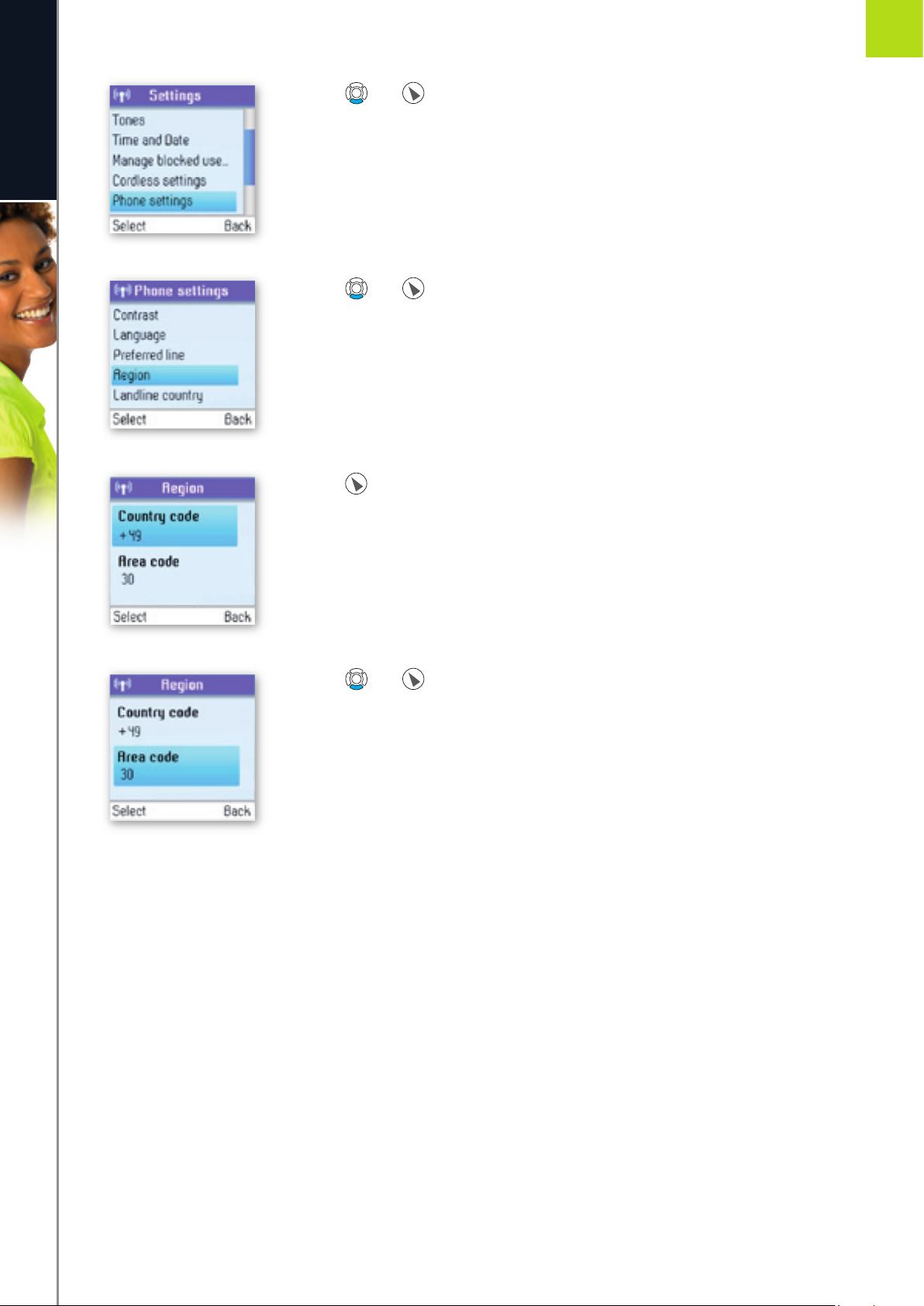
As Skype does not know where in the world you are connected to the Internet, you will always have to enter
the country setting when calling landline phones and/or mobile phones via the Internet (SkypeOut). This
applies even when you call a phone in your own country. If you save your country settings in Country code,
you do not have to enter the country code every time you call a phone in your own country. Thus, a country
code is only needed when calling someone in a country other than your own.
In some countries area codes are used, for instance when calling between states or regions. If you live in a
country where area codes are used, you can save your settings in Area code. Please note that you can choose
this function only if the code you have saved in Country code applies to a country where area codes are in fact
used.
1) From the Idle screen, press to enter the main menu.
2) Press and to select Settings.
Page 44
44
A D VA N C ED SE TT I N GS
e n g l i s h
2
SECTION
3) Press and to select Phone settings.
4) Press and to select Region.
5) Press to select Country code, then enter your preferred country code using
the keypad.
6) Press and to select Area code, then enter your preferred area code
using the keypad.
Page 45
45
A D VA N C ED SE TT I N GS
e n g l i s h
2
SECTION
Change the landline country setting
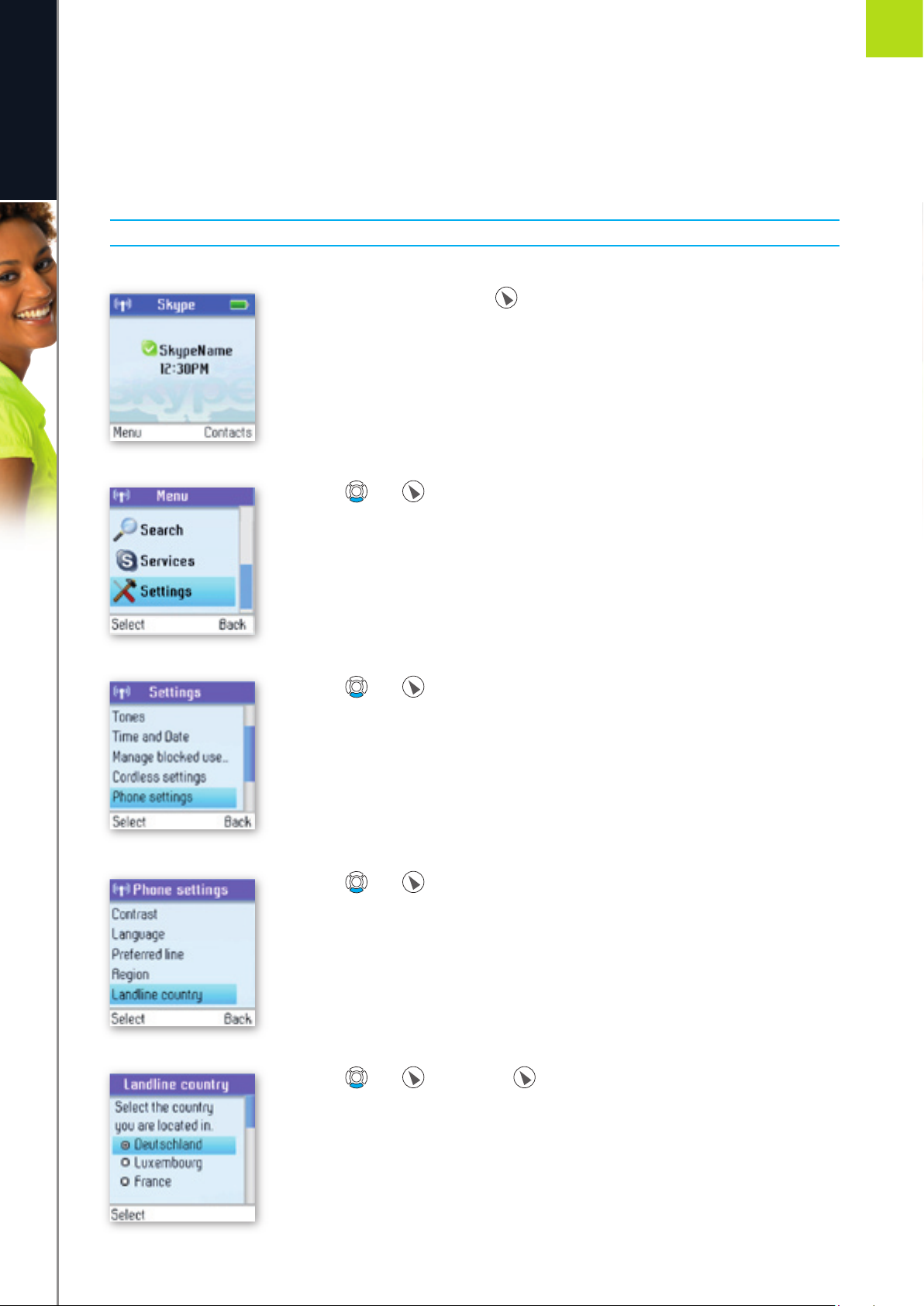
As your DUALphone works both with Skype telephony and ordinary telephony via landline connections, your
DUALphone has to know in what country you are connecting to the landline system. In other words, the
confi guration you make here has nothing to do with Skype, only with landline telephony.
PLEASE NOTE:
• Emergency calls can only be made via the landline.
1) From the Idle screen, press to enter the main menu.
2) Press and to select Settings.
3) Press and to select Phone settings.
4) Press and to select Landline country.
5) Press and or just press to select the country you are located in.
Page 46
46
A D VA N C ED SE TT I N GS
e n g l i s h
2
SECTION
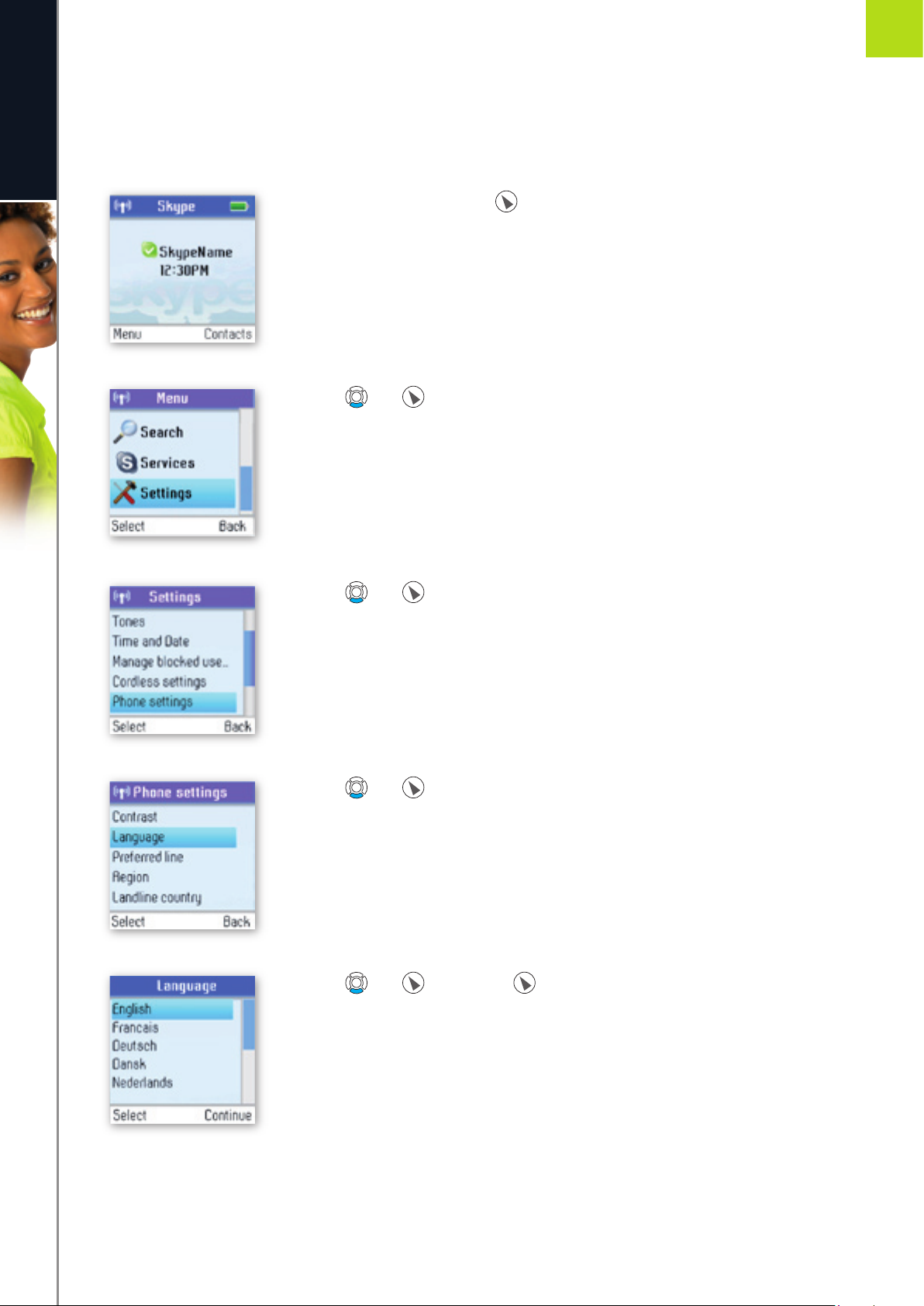
Change the handset language
You can change the language displayed on your handset. You can select another language than English only if
your DUALphone is connected to the Internet.
1) From the Idle screen, press to enter the main menu.
2) Press and to select Settings.
3) Press and to select Phone settings.
4) Press and to select Language.
5) Press and or just press to select your preferred language (A ‡ Z).
Page 47
47
A D VA N C ED SE TT I N GS
e n g l i s h
2
SECTION
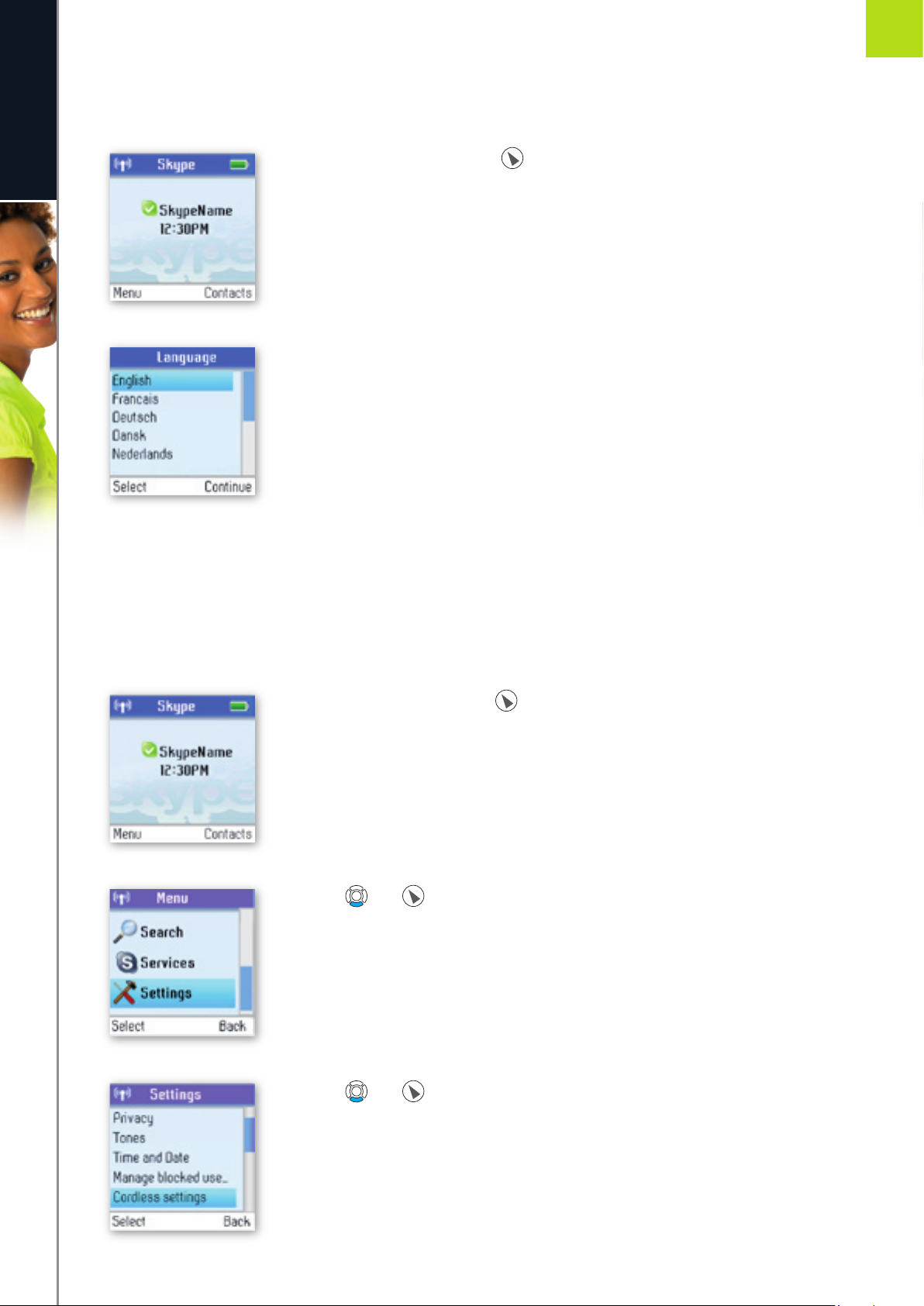
Should you accidentally select a language which makes it hard for you to fi nd the Language menu again, use
this shortcut:
1) From the Idle screen, presss to enter the main menu.
2) Press three times on the number 8 key.
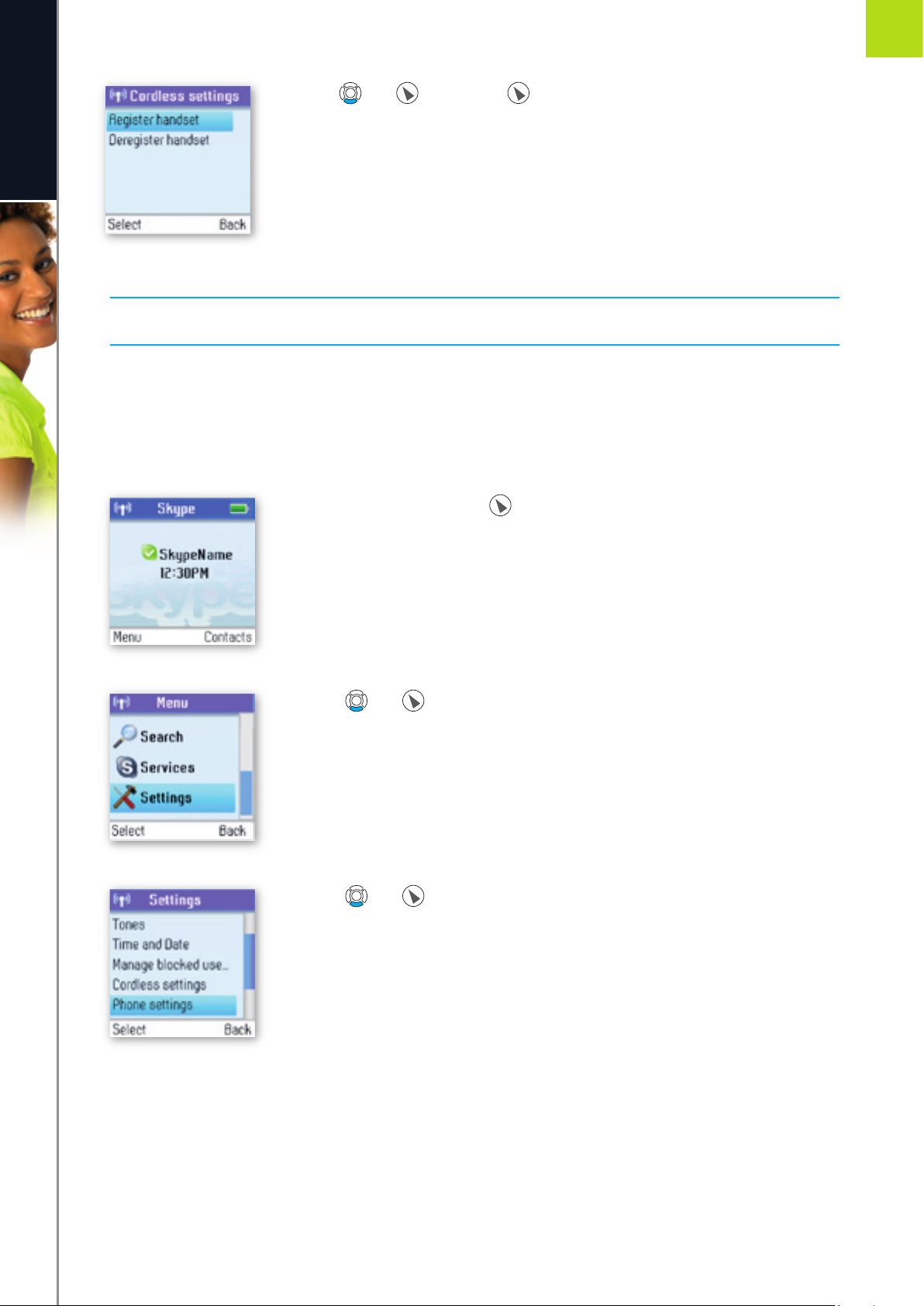
Register / deregister your handset
Use the Register function whenever you need to register your handset with a base station, for instance
when registering the handset with a base station other than the one you are already registered to. Use the
Deregister function to deregister your handset from a base station.
1) From the Idle screen, press to enter the main menu.
2) Press and to select Settings.
3) Press and to select Cordless settings.
Page 48
48
A D VA N C ED SE TT I N GS
e n g l i s h
2
SECTION
4) Pres and or just press to select Register handset or Deregister
handset.
NOTE:
• To make registration possible, make sure that the base station has registration mode enabled. This is done
by pressing Reset on the back of the base station.
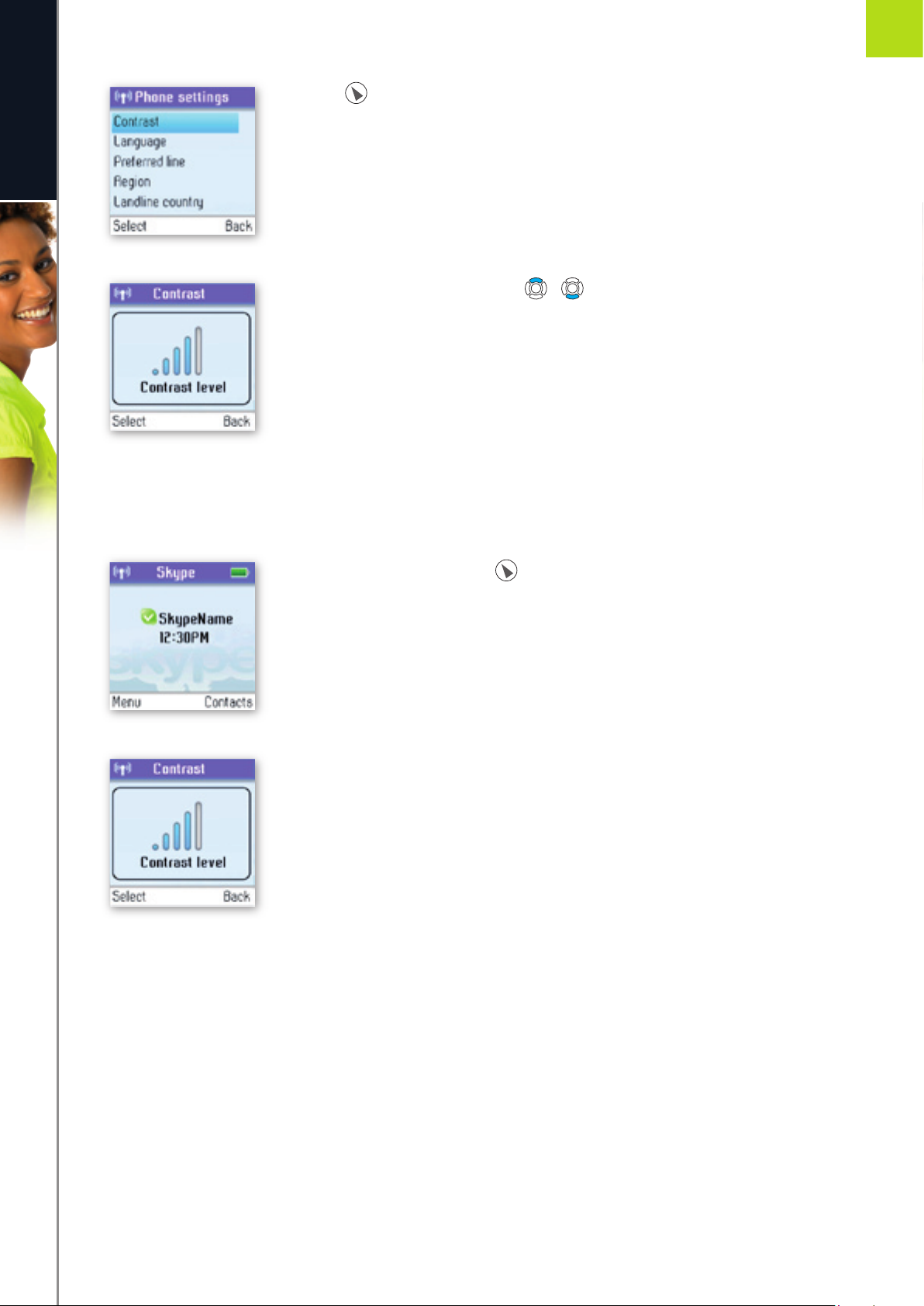
Set the contrast
You can adjust the contrast of your display.
1) From the Idle screen, pres to enter the main menu.
2) Press and to select Settings.
3) Press and to select Phone settings.
Page 49
49
A D VA N C ED SE TT I N GS
e n g l i s h
2
SECTION
4) Press to select Contrast.
5) Change the Contrast level using / .
Should you accidentally select a setting which makes it hard for you to fi nd the Contrast menu again, use this
shortcut:
1) From the Idle screen, press to enter the main menu.
2) Press three times on the number 5 key.
Page 50
50
A D VA N C ED SE TT I N GS
e n g l i s h
2
SECTION
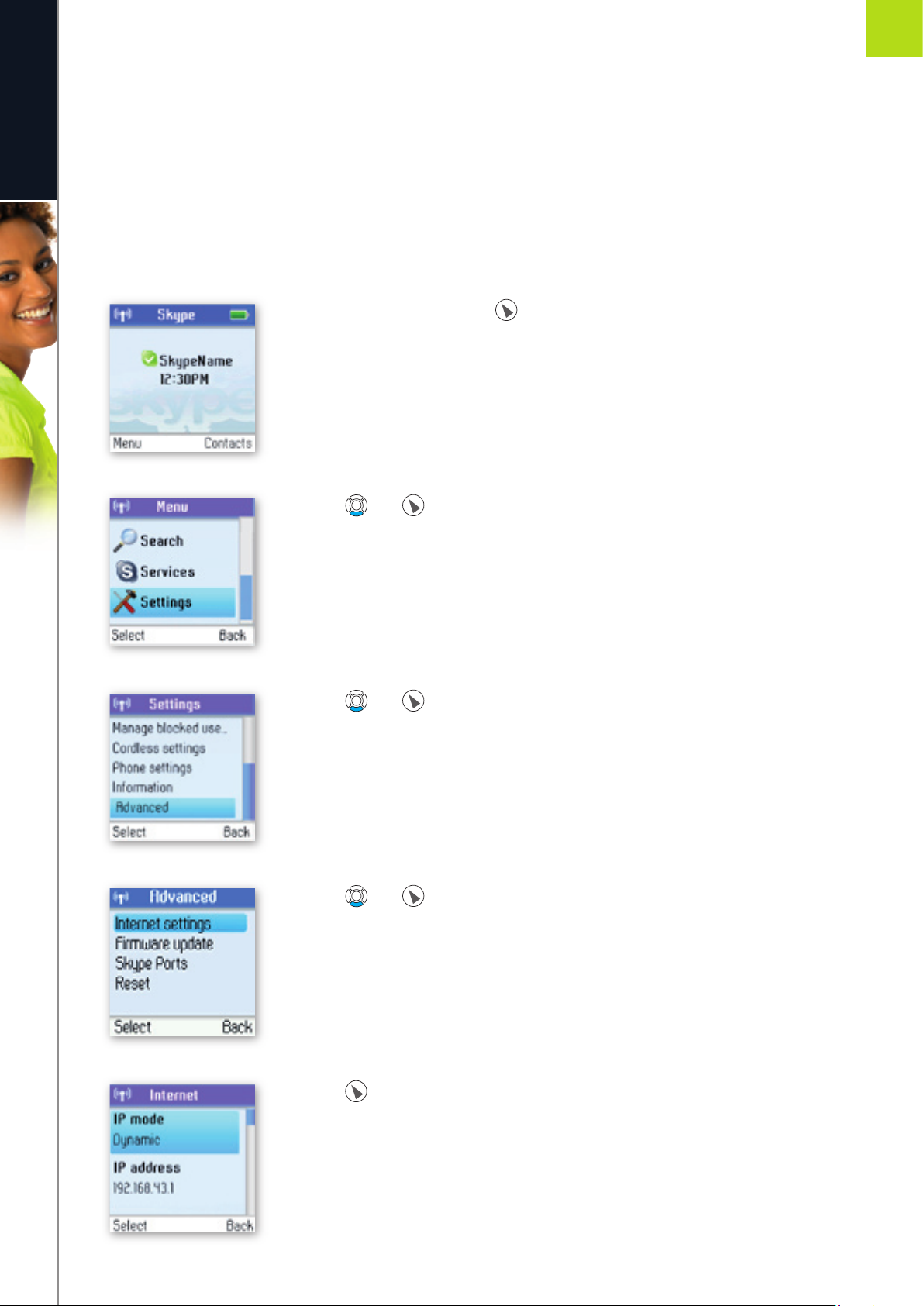
Internet settings
You can confi gure settings such as IP mode, IP address, Skype proxy and Firmware proxy. However, if you
have an advanced Internet connection and are not familiar with fi rewalls and ports, we recommend that you
consult someone with knowledge on this or read more on the topic at www.skype.com.
In IP mode you can choose Dynamic or Static. The default setting of your DUALphone is dynamic IP mode,
which covers the needs of most users. Should you wish to attach the base station to an Internet connection
using the static IP mode instead, this is how to confi gure this mode:
1) From the Idle screen, press to enter the main menu.
2) Press and to select Settings.
3) Press and to select Advanced.
4) Press and to select Internet settings.
5) Press to select IP mode.
Page 51
51
e n g l i s h
2
SECTION
A D VA N C ED SE TT I N GS
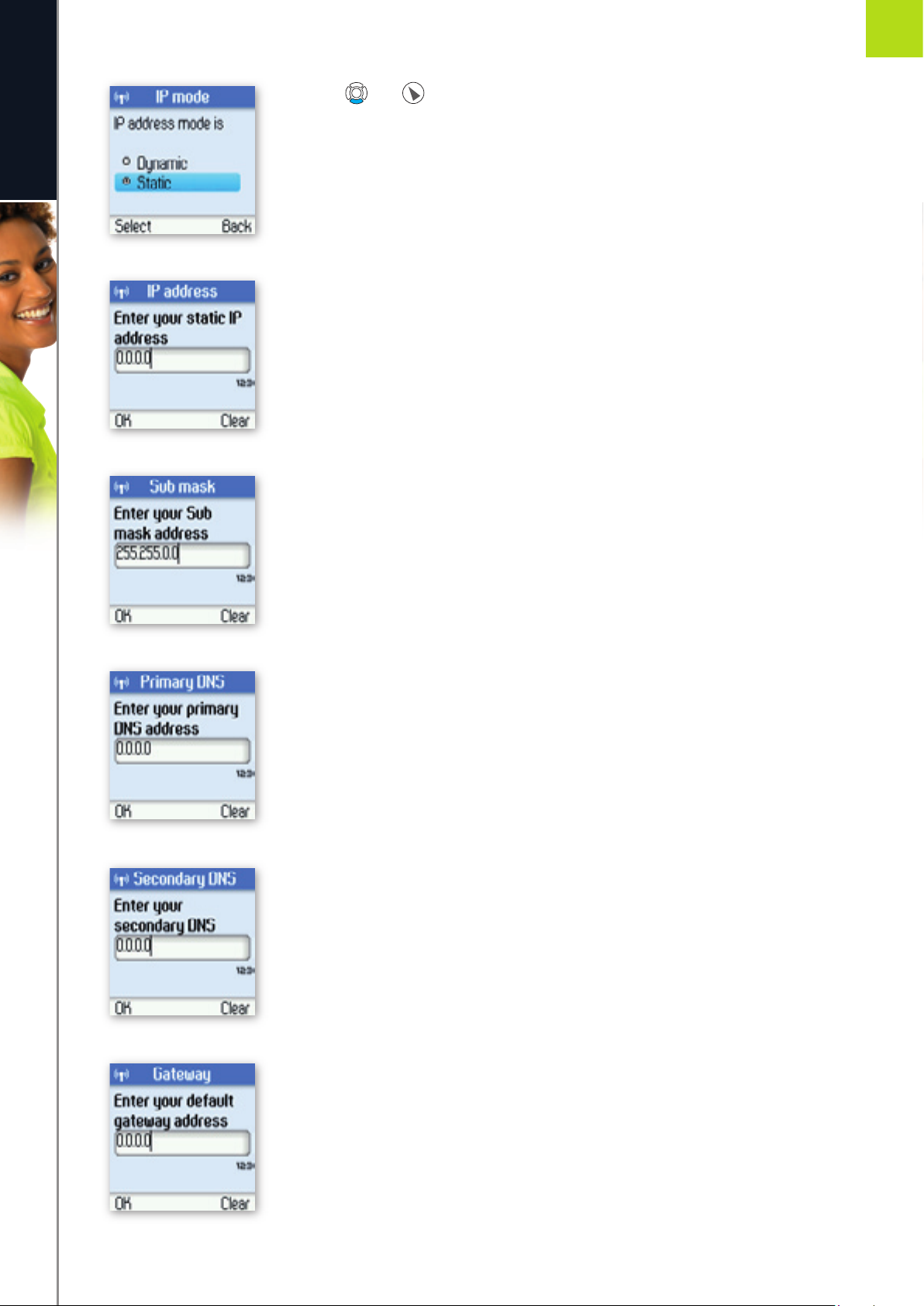
6) Press and to select Static.
7) A wizard will guide you through the confi guration.
7a)
7b)
7c)
7d)
Page 52
52
A D VA N C ED SE TT I N GS
e n g l i s h
2
SECTIONSECTION
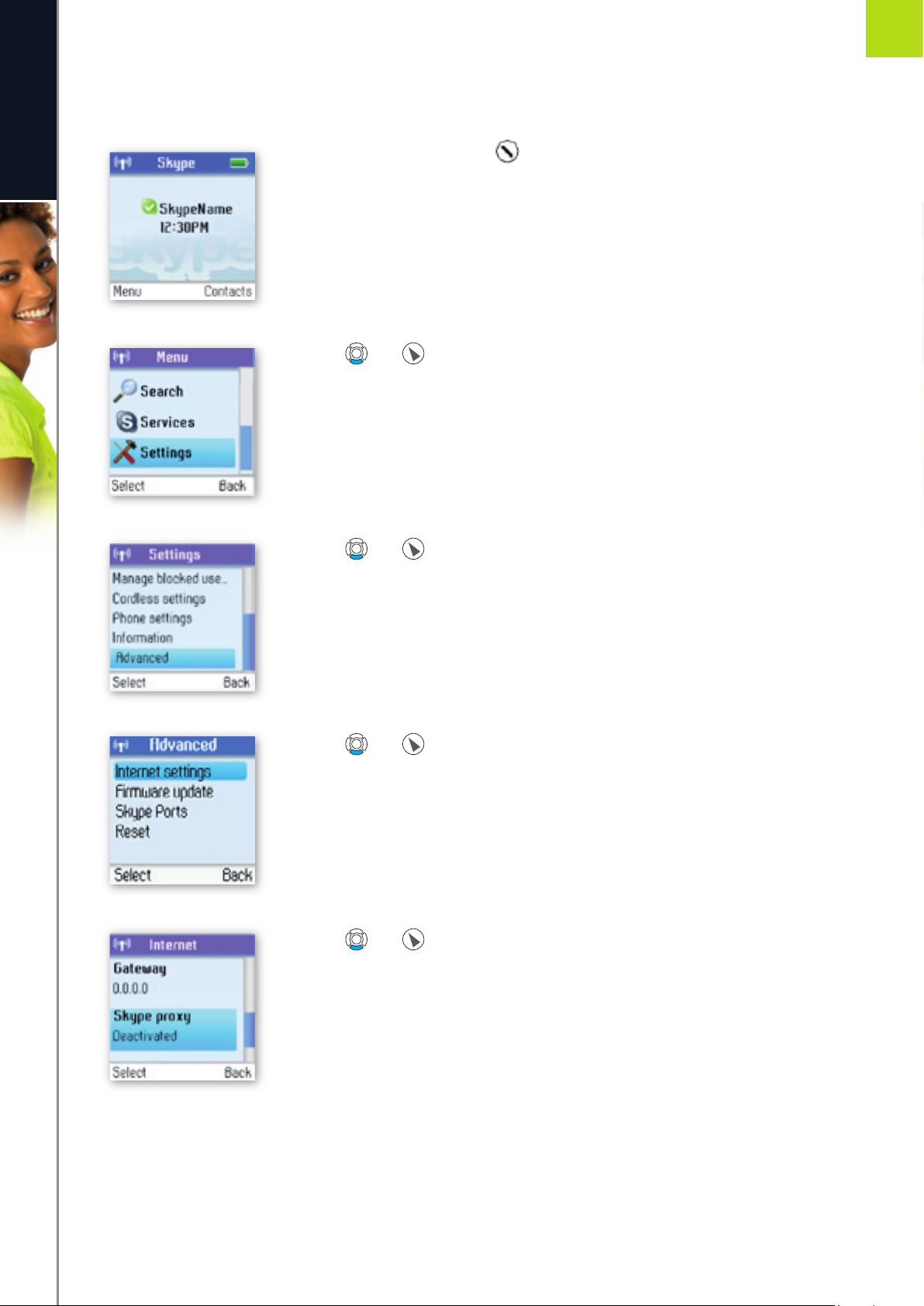
In Skype proxy you can confi gure all the settings regarding this proxy. This is how to do it:
1) From the Idle screen, press to enter the main menu.
2) Press and to select Settings.
3) Press and to select Advanced.
4) Press and to select Internet settings.
5) Press and to select Skype proxy.
Page 53
53
A D VA N C ED SE TT I N GS
e n g l i s h
2
SECTION
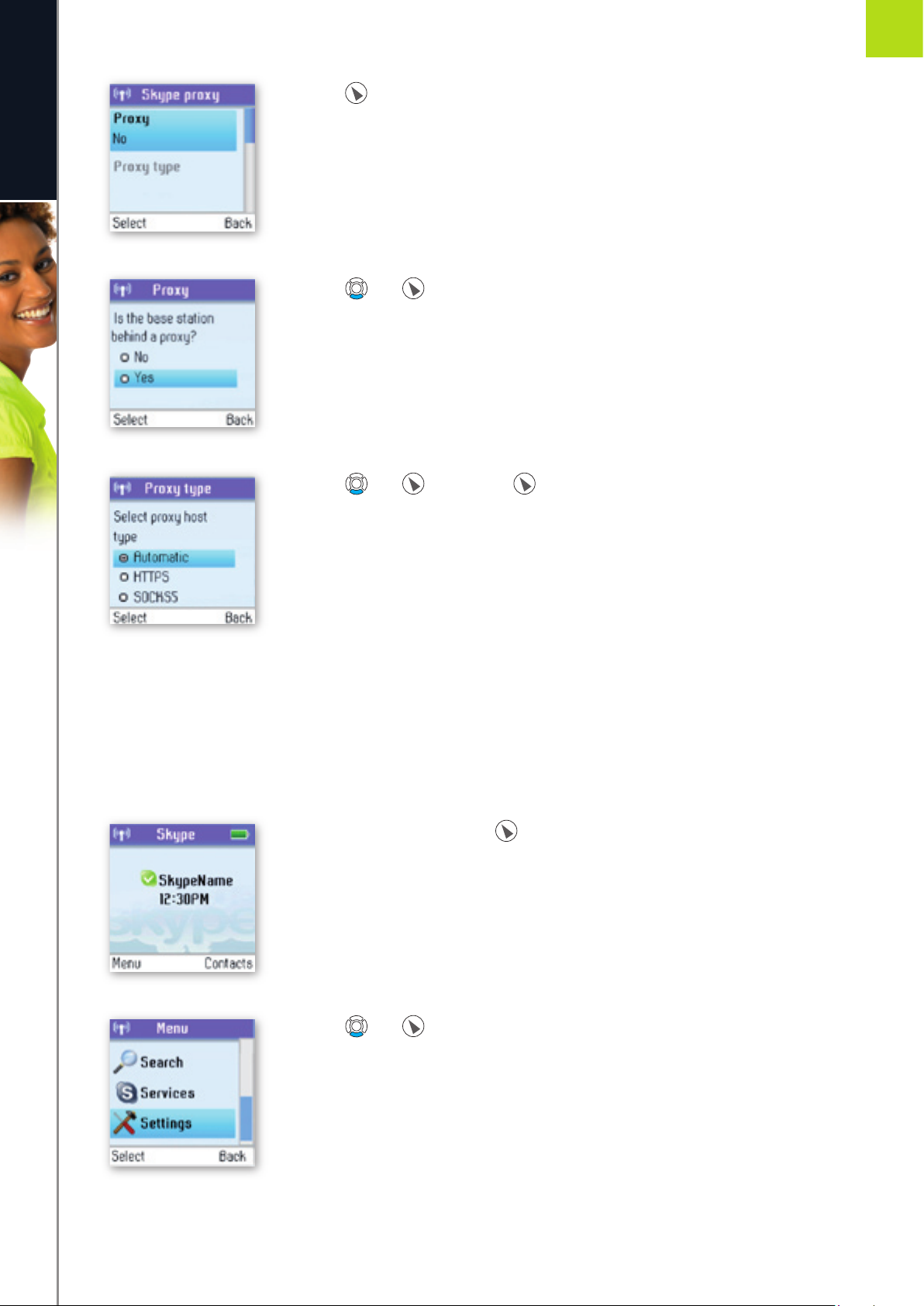
6) Press to select Proxy.
7) Press and to select Yes.
8) Press and or just press to select the proxy host type (Automatic,
HTTPS, SOCKS5).
9) Automatic may be selected if your proxy supports this feature. If you select one of the other options, a
wizard will guide you through the relevant confi guration.
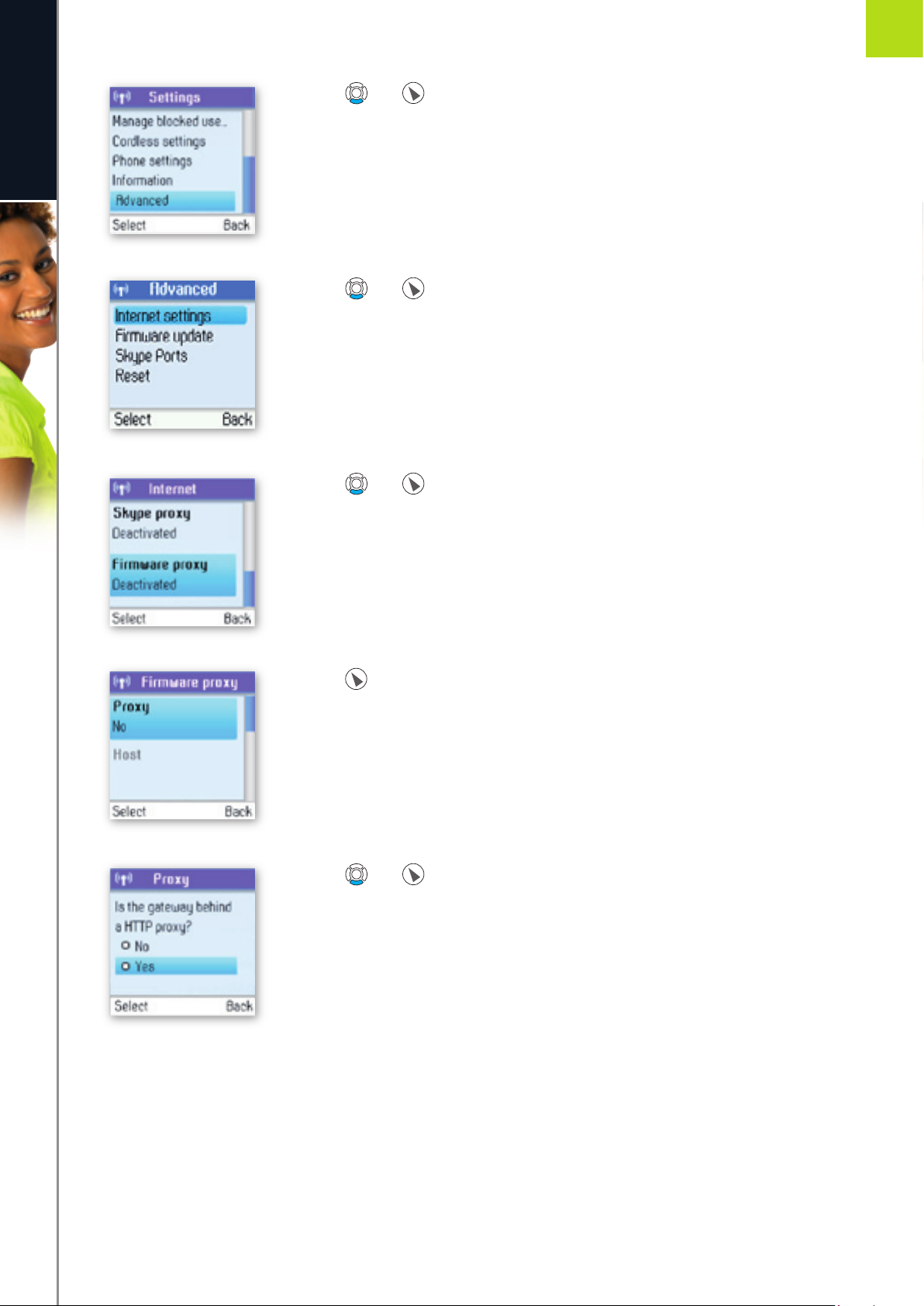
In Firmware proxy you can confi gure all the settings regarding this proxy. This is how to do it:
1) From the Idle screen, press to enter the main menu.
2) Press and to select Settings.
Page 54
54
A D VA N C ED SE TT I N GS
e n g l i s h
2
SECTION
3) Press and to select Advanced.
4) Press and to select Internet settings.
5) Press and to select Firmware proxy.
6) Press to select Proxy.
7) Press and to select Yes.
8) Use the keypad to enter the HTTP proxy IP Address. A wizard will guide you through the confi guration.
Page 55
55
A D VA N C ED SE TT I N GS
e n g l i s h
2
SECTION
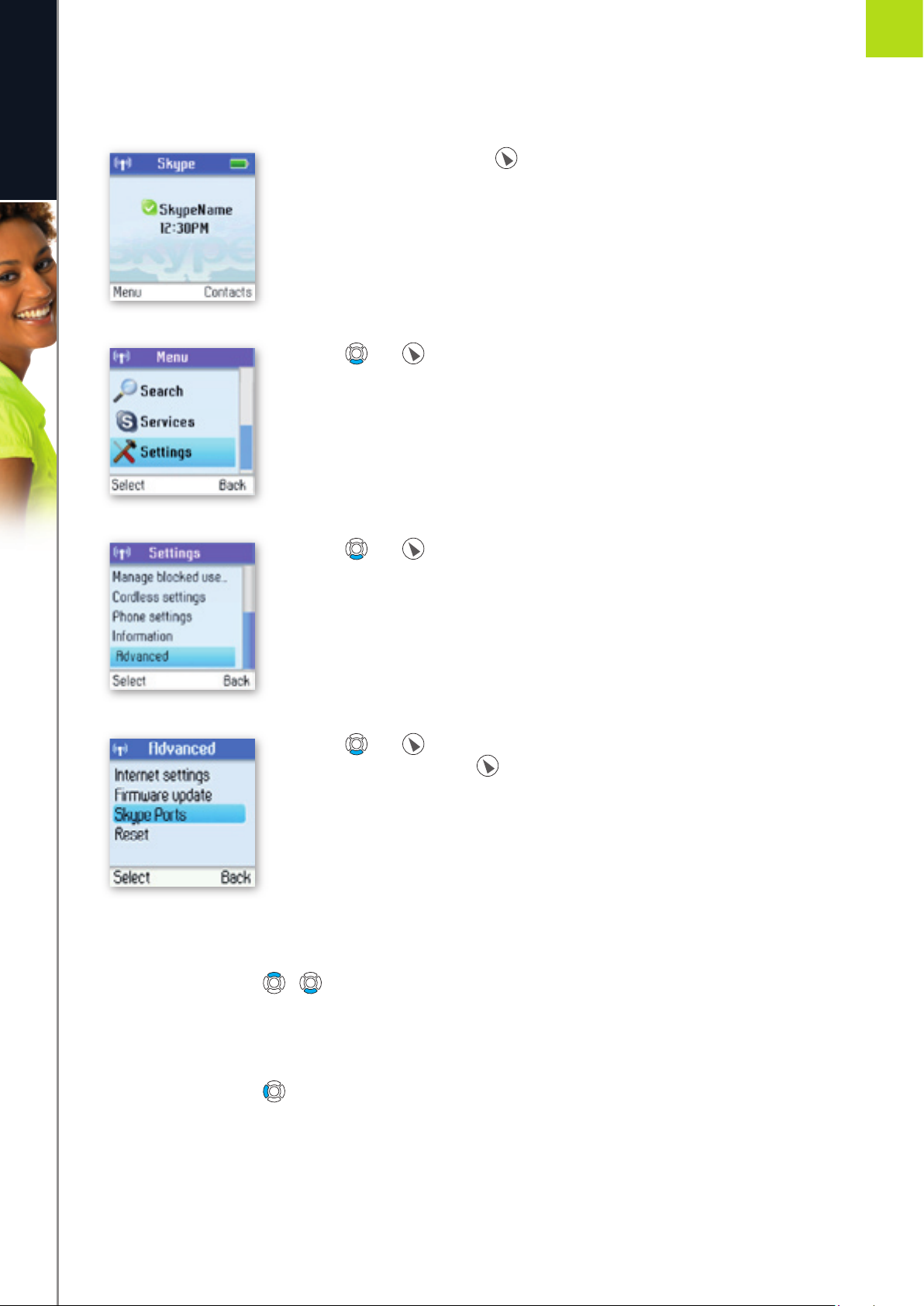
In Skype ports you can confi gure all the settings regarding the incoming connection port. This is how to do it:
1) From the Idle screen, press to enter the main menu.
2) Press and to select Settings.
3) Press and to select Advanced.
4) Press and to select Skype ports, then enter your choices for Port and
Alternative ports using .
Adjust the earpiece volume
During a call just press / to increase or decrease the volume. The setting will be retained after the call
is terminated.
Mute the microphone
During a call just press to mute the microphone. Press again to unmute.
Page 56
56
A D VA N C ED SE TT I N GS
e n g l i s h
2
SECTION
Connect a headset
Free your hands while talking – connect an external headset. The connector is of the mono type, plug size
2.5mm. Please note that not all headsets will be suitable. Ask for a set with an impedance of 30 Ohms or
higher.
NOTE:
• We recommend that you use the Jabra EarWave boom with a universal 2.5mm jack.
(Jabra p/n 100-73030 000-50)
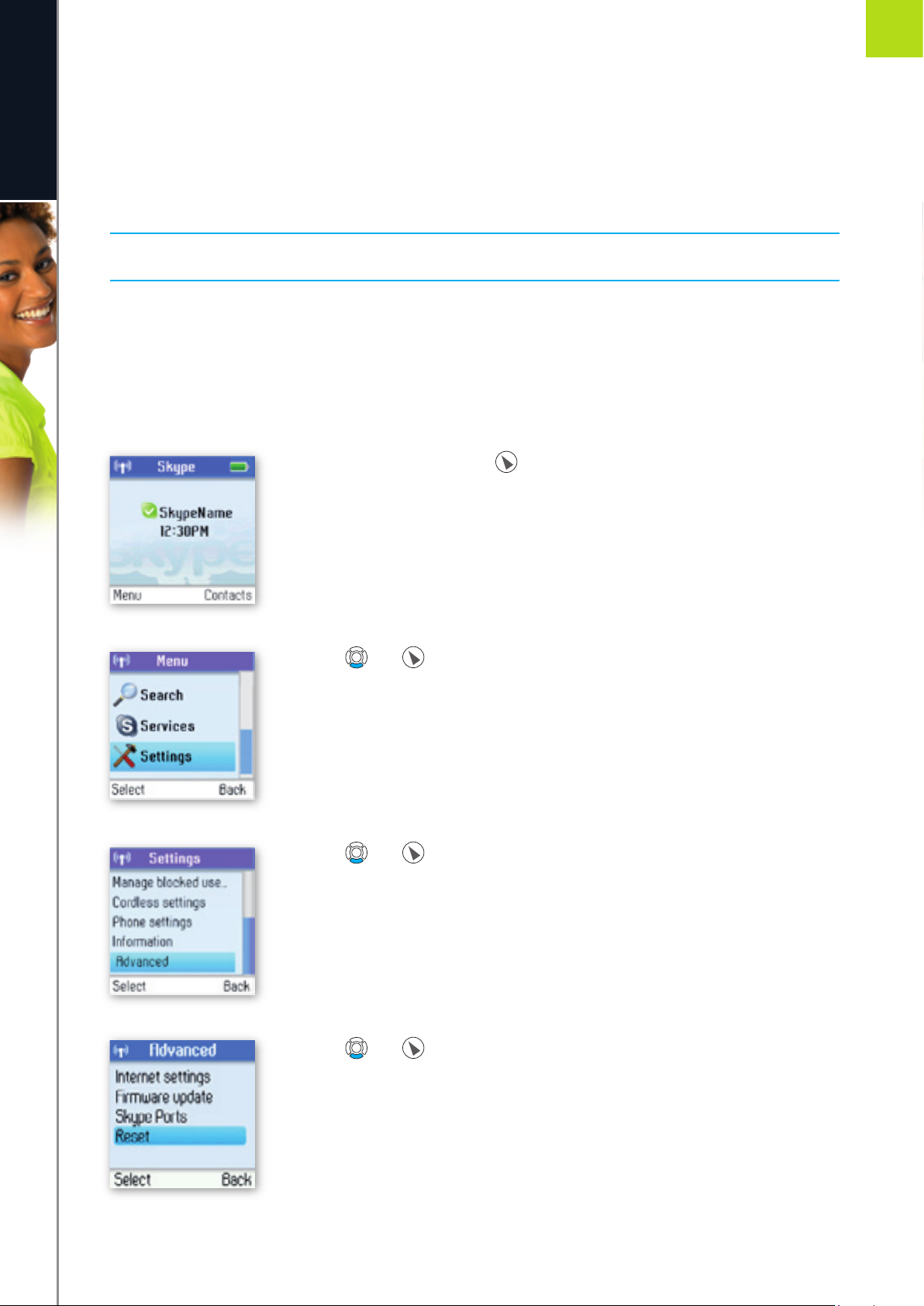
Reset the phone and base
To restore the DUALphone’s factory settings you can reset the phone and base. Please note, though, that all
your personal settings will be lost.
1) From the Idle screen, press to enter the main menu.
2) Press and to select Settings.
3) Press and to select Advanced.
4) Press and to select Reset.
Page 57
57
A D VA N C ED SE TT I N GS
e n g l i s h
2
SECTION
n
Contacts
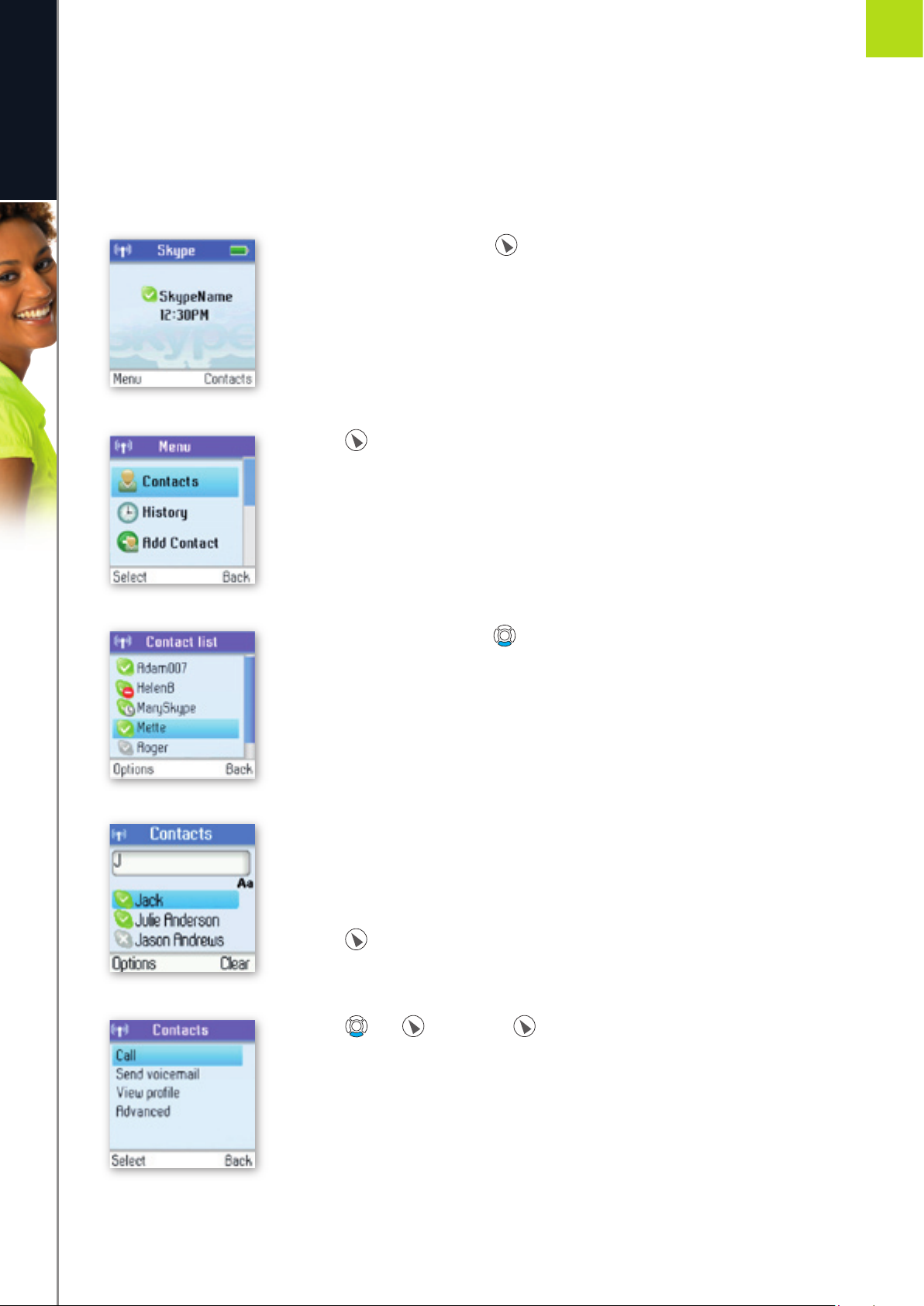
Your list of contacts contains all Skype users as well as all landline phone users that you have added. There is a
limit to the number of entries you can make, but your contact list can nevertheless hold hundreds of contacts.
It is easy to access your list of contacts:
1) From the Idle screen, press to enter Contacts.
2) Press to select Contacts.
3) Browse your contacts using .
4) Or search for a contact with the quick search feature by using the letters on the
keypad. For example, if you press the letter J, you will see a list showing all of
your contacts beginning with this letter.
5) Press to select a contact.
6) Press and or just press to select the desired action (Call, Send
voicemail, View profi le, Advanced).
Page 58

58
A D VA N C ED SE TT I N GS
e n g l i s h
2
SECTION
7) Under Advanced you have access to more options (Rename, Remove, Edit,
Block, Request details, Add contact).
Your contacts are ordered as follows:
• Online Skype contacts (alphabetically by full name)
• Offl ine Skype contacts with call forwarding and SkypeOut contacts (alphabetically by full name)
• Offl ine, voicemail divert, and non-authorised Skype contacts (alphabetically by full name)
NOTE:
• If you have more contacts than your DUALphone supports, you might experience that your DUALphone
will not show all the available contacts.
Page 59
59
A D VA N C ED SE TT I N GS
e n g l i s h
2
SECTION
Exchange contact details request
You can send an authorisation request to a Skype user – and if it is accepted, you can see his or her online
status.
When adding a contact to your Contact list you will be prompted to specify if you want to send an
authorisation request. We recommend that you send this request but you do not have to do so – and you
can send the request whenever you wish to. If you do not send the request, you will never be able to see the
contact’s online status. Users who have not been authorised will be indicated by on your contact list.
Similarly, you will receive an authorisation request whenever a Skype user adds you to his or her Contact list.
By accepting the request, you allow the user to see your online status.
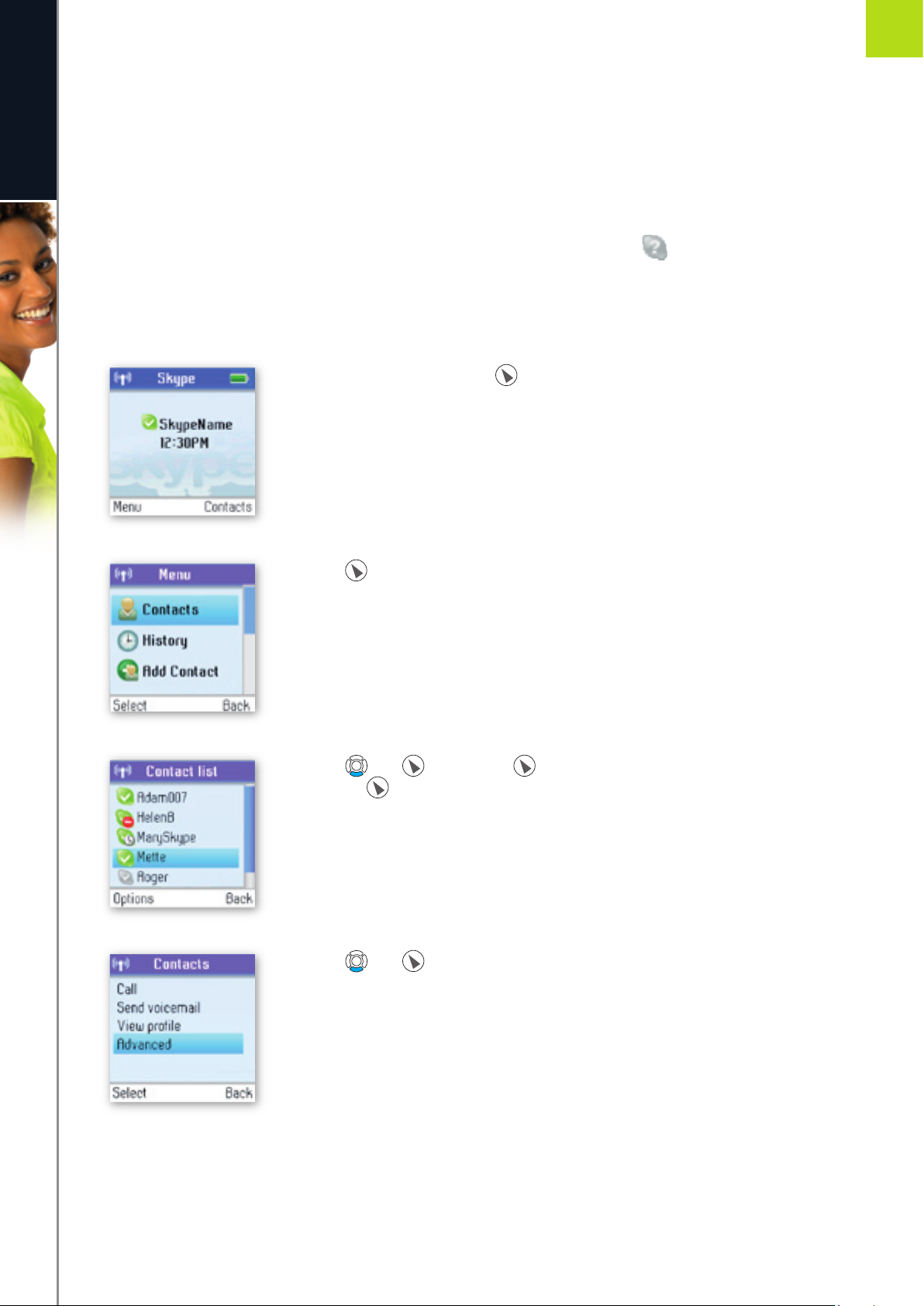
1) From the Idle screen, press to enter the main menu.
2) Press to select Contacts.
3) Press and or just press to fi nd a contact, and select the contact by
pressing .
4) Press and to select Advanced
Page 60
60
A D VA N C ED SE TT I N GS
e n g l i s h
2
SECTION
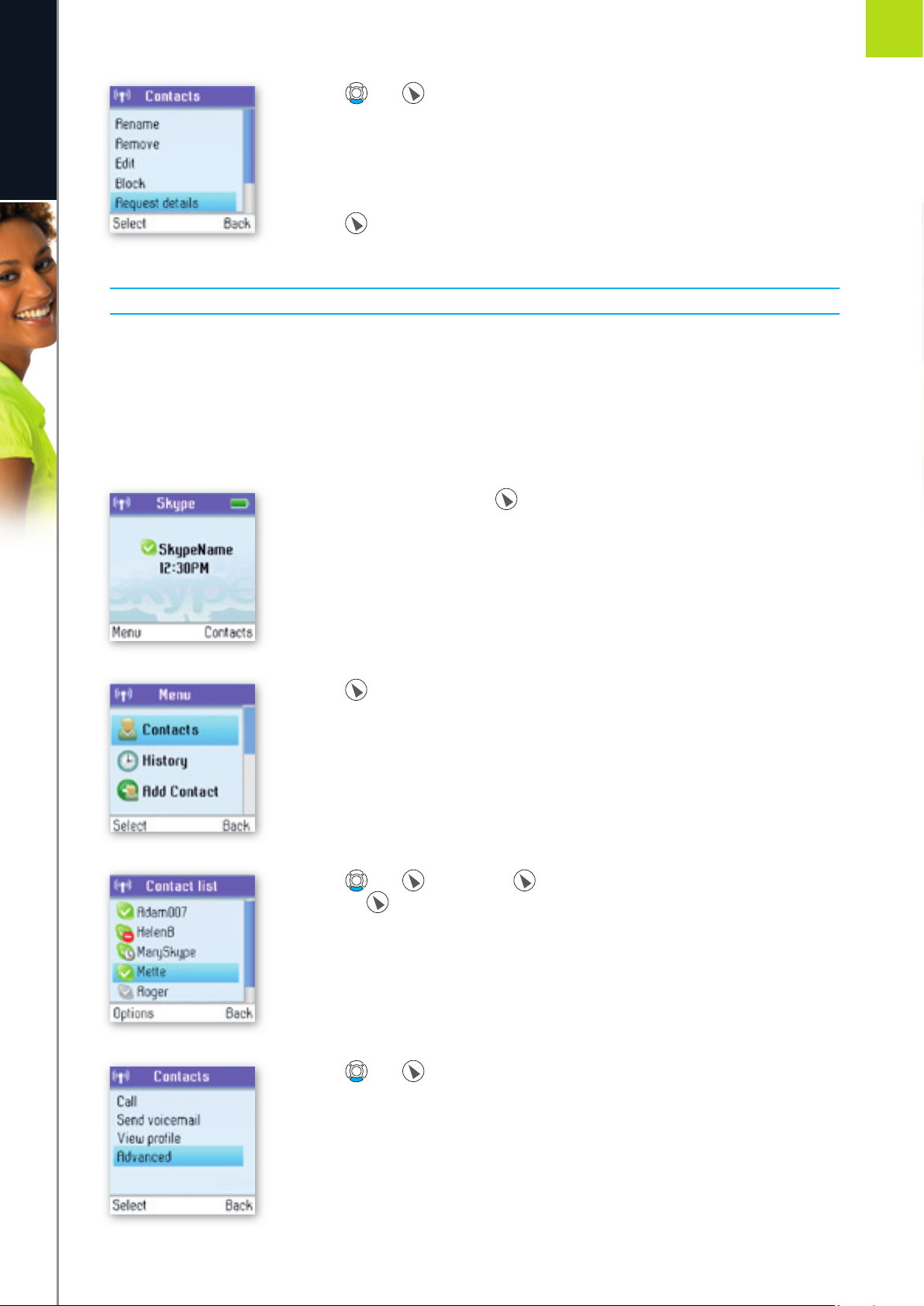
5) Press and to select Request details.
6) Use the keypad to enter any text to be sent along with your request.
7) Press to send the request.
NOTE:
• You can only request details from users whose online status is shown with a question mark.
Rename a contact
You can change the name of a contact.
If a contact has a Skype user name that is not very informative, you can give him or her a more distinctive
name to be shown on your contact list.
1) From the Idle screen, press to enter the main menu.
2) Press to select Contacts.
3) Press and or just press to fi nd a contact, and select the contact by
pressing .
4) Press and to select Advanced.
Page 61
61
A D VA N C ED SE TT I N GS
e n g l i s h
2
SECTION
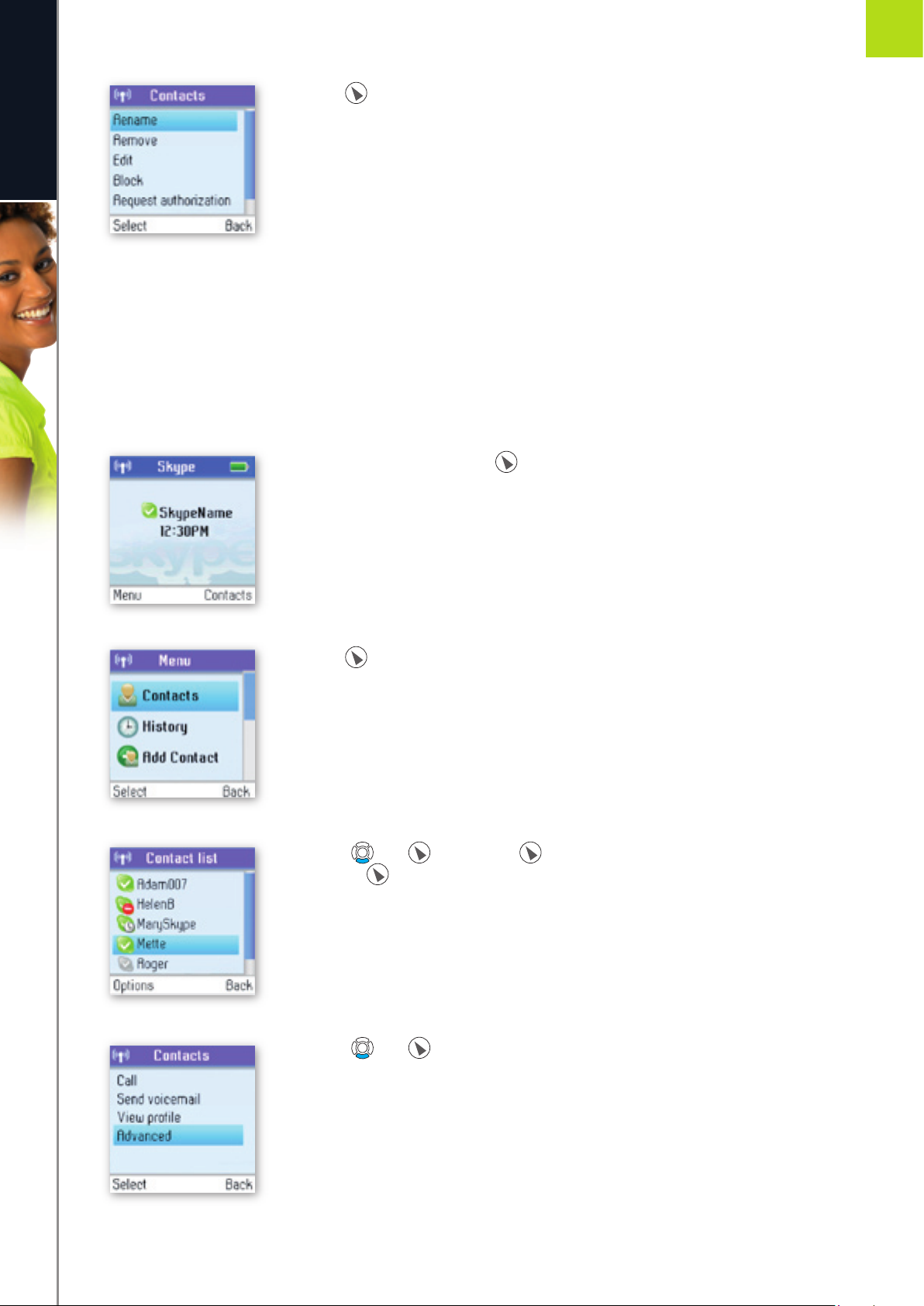
5) Press to select Rename.
6) Enter the desired new name using the keypad.
Remove a contact
You can remove a contact. Your options are:
Remove and block: Remove and block a contact. Please note that this option applies only to Skype contacts.
Remove: Remove a contact from your Contact list. This option applies to Skype as well as
landline contacts.
1) From the Idle screen, press to enter the main menu.
2) Press to select Contacts.
3) Presss and or just press to fi nd a contact, and select the contact by
pressing .
4) Presss and to select Advanced.
Page 62
62
A D VA N C ED SE TT I N GS
e n g l i s h
2
SECTION
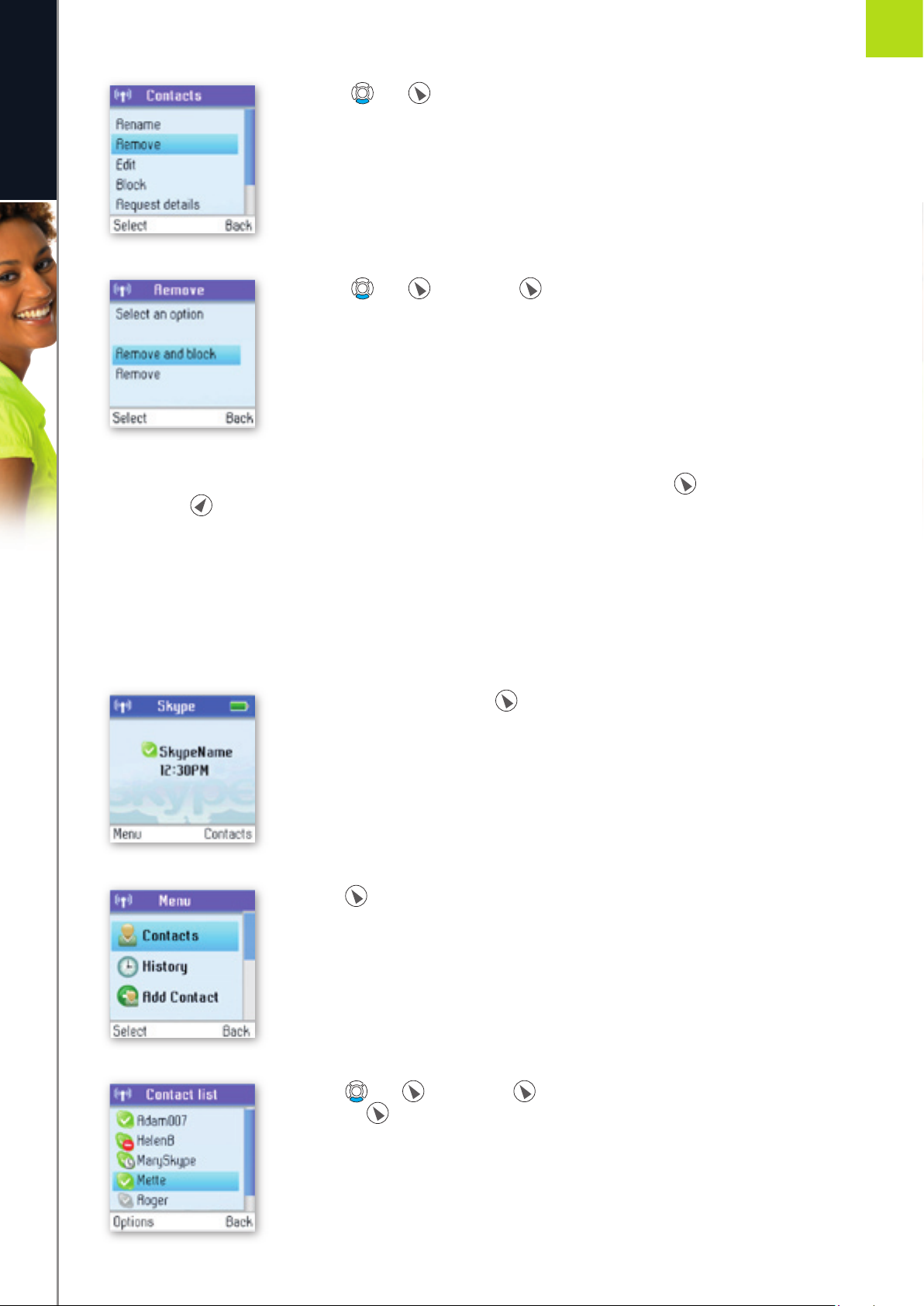
5) Presss and to select Remove.
6) Presss and or just press to select the required type of removal
(Remove and block, Remove).
7) In both cases you are asked whether you really want to remove the contact. Press to remove the
contact, to cancel.
Block a contact
You can block a Skype contact to prevent him or her from calling you. Please note that this option applies only
to Skype calls. You can see your blocked contacts under Settings ‡ Manage blocked users. At any time
you can choose to unblock a blocked contact.
1) From the Idle screen, press to enter the main menu.
2) Press to select Contacts.
3) Press and or just press to fi nd a contact, and select the contact by
pressing .
Page 63
63
A D VA N C ED SE TT I N GS
e n g l i s h
2
SECTION
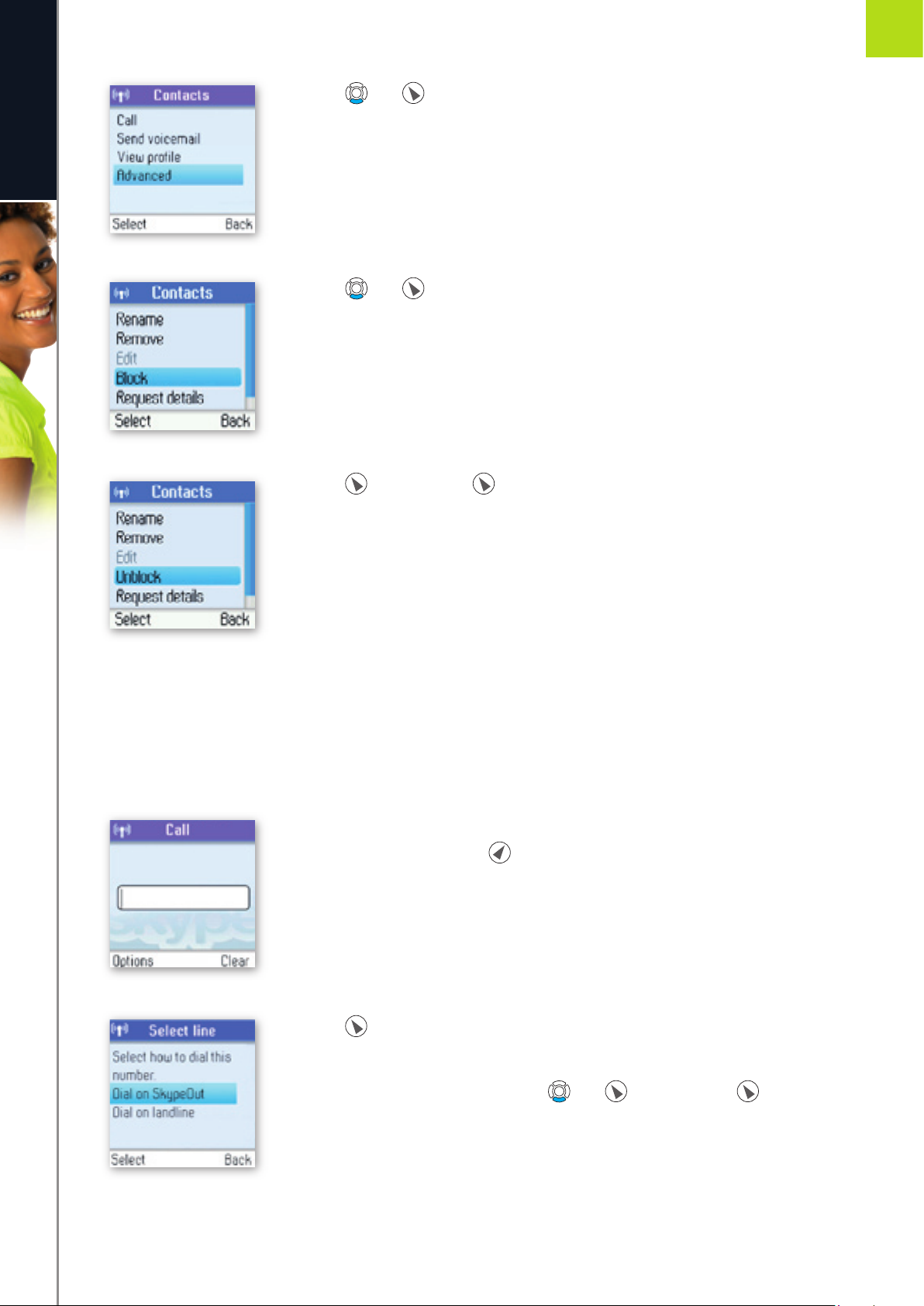
4) Press and to select Advanced.
5) Press and to select Block.
6) Press to block, press again to unblock.
n
Make and receive calls
Dialling
Dial editor
1) From the Idle screen, type the phone number you want to call using the
keypad; alternatively, press to select the number from Contacts.
2) Press to select the line (Dial on SkypeOut, Dial on landline).
3) Select the preferred line by pressing and or just pressing .
Page 64
64
A D VA N C ED SE TT I N GS
e n g l i s h
2
SECTION
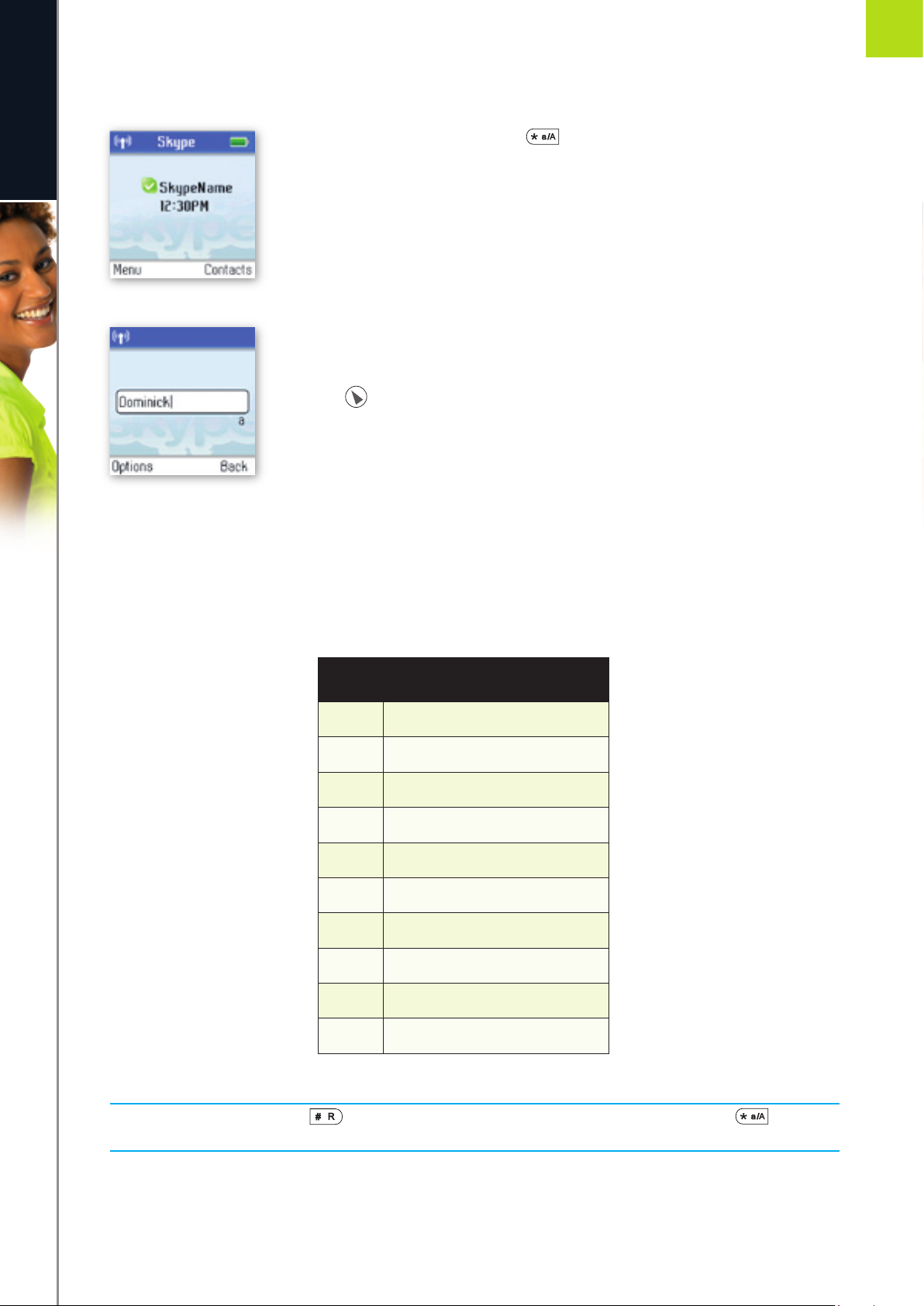
How to pre-dial a Skype user:
1) From the Idle screen, hold down for more than two seconds.
2) Type the Skype name of the person you want to call.
3) Press to call.
Character map
For keys 0 ‡ 9, multi tapping is possible.
Multi Tap Order:
PLEASE NOTE:
When in the text editor, press to see all special characters. When in the text editor, press to switch
between lowercase, uppercase and numerical entry.
KEY MULTI TAP ORDER:
0
Space + 0
1
1 . , ? ! - _ @
2
a b c 2 æ å ä á à â ã ç
3
d e f 3 ë é è ê
4
g h i 4 ï í ì î
5
j k l 5
6
m n o 6 ø ö ñ ó ò ô õ
7
p q r s 7 ß
8
t u v 8 ü ú ù û
9
w x y z 9 ÿ ý æ ø å
Page 65
65
A D VA N C ED SE TT I N GS
e n g l i s h
2
SECTION
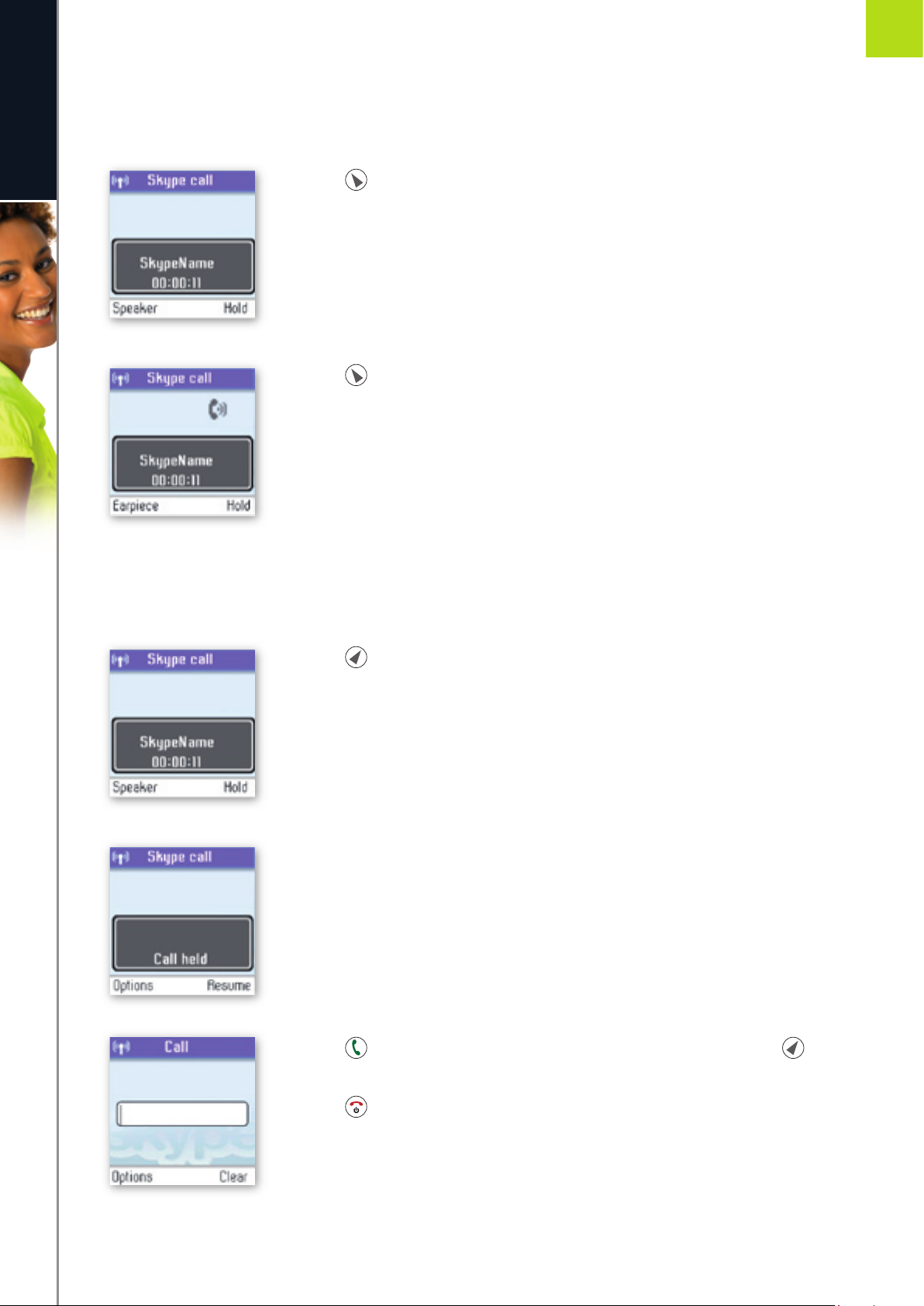
Speakerphone
During a call you can switch between the speaker and earpiece.
1) Press to select Speaker.
2) Press again to return to Earpiece.
Start a new call during a call
This is how to start a new call during an active call:
1) Press to put your active call on Hold.
2) Use the keypad to enter a new number manually or locate the number on your
Contact list by using “Options->Search in contact list”
3) Press to start the call. You can switch between the calls by pressing .
4) Press to terminate the active call.
Page 66
66
A D VA N C ED SE TT I N GS
e n g l i s h
2
SECTION
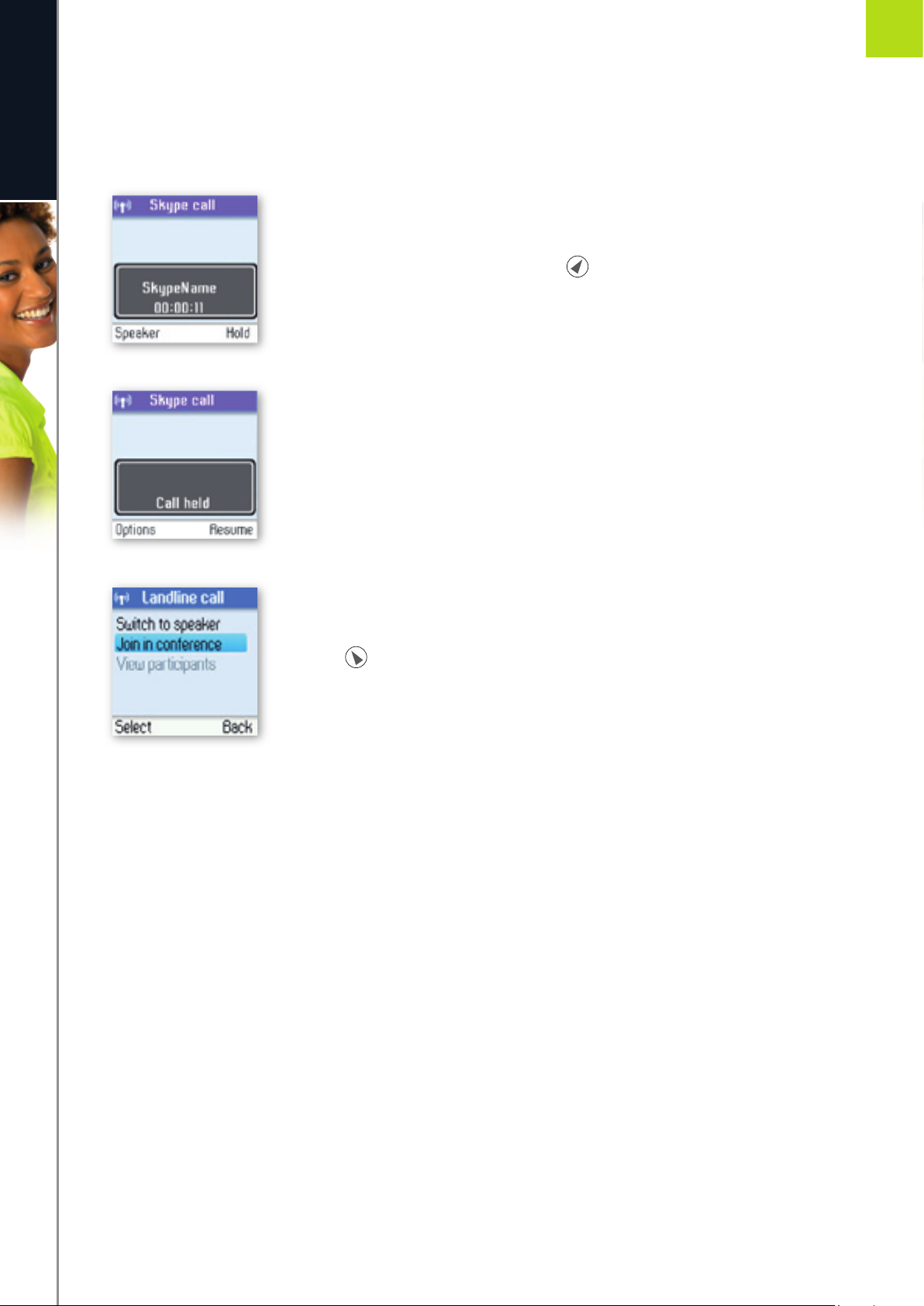
Conference call
From your DUALphone you can initiative a 3-party conference call between one Skype user, one landline caller
and yourself.
1) Start a Skype or landline call.
2) Put the active call on Hold by pressing .
3) Start a landline or Skype call.
4) Choose “Options->Join in conference”, and the conference is established.
5) Press to end the conference.
Skype Conference call
The DUALphone cannot initiate a Skype conference call, but you can participate in a Skype conference call
initiated from a computer.
If the active call is a Skype conference call, you can see the participants via the View participants menu.
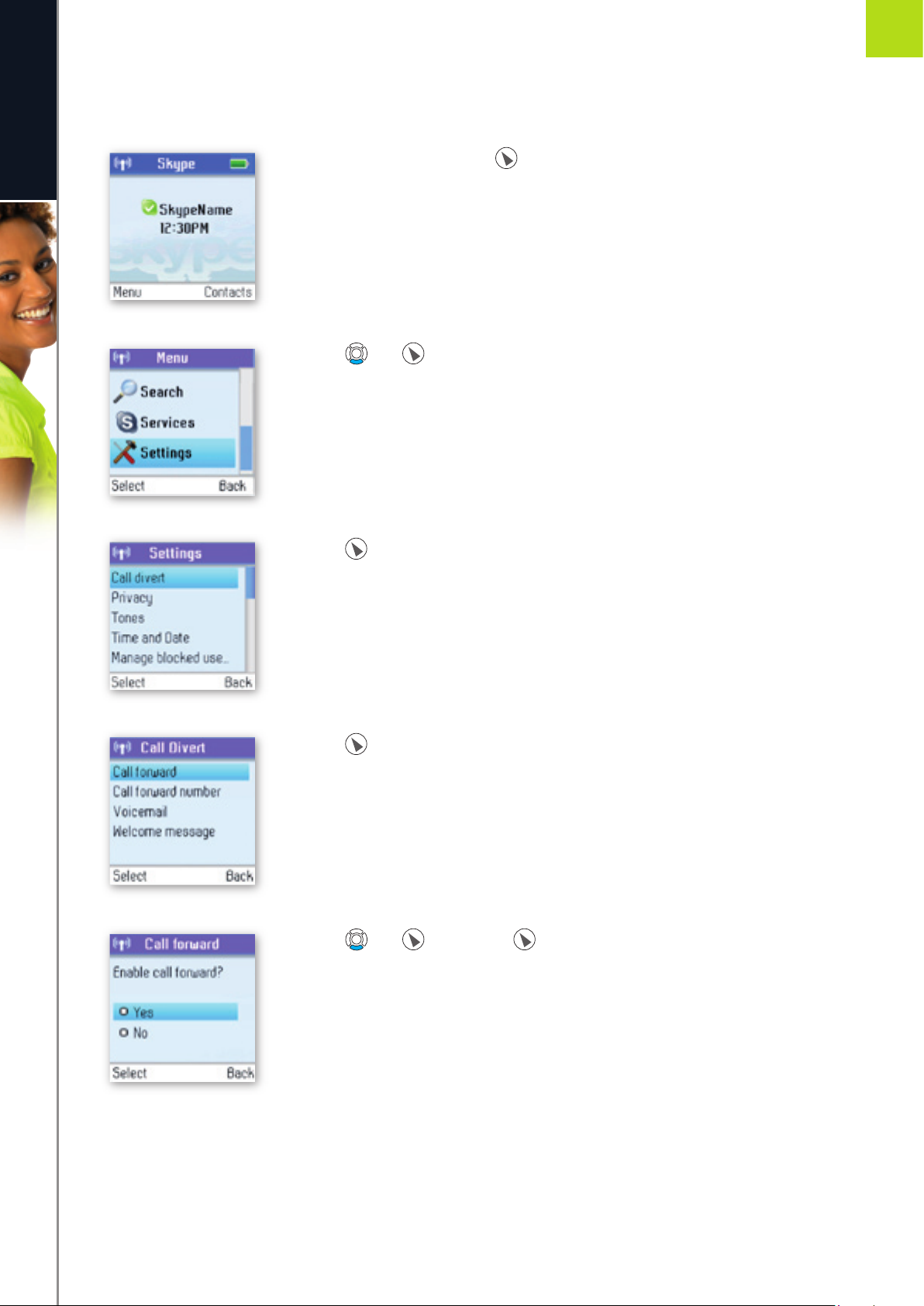
Divert all calls
You can confi gure your DUALphone to forward all incoming Skype calls either to a landline/mobile phone or
to your Voicemail. Please note that in order to use this function, you have to have Skype credits. Your options are:
Call forward: Activate forwarding to another phone number. You will be prompted to enter the
relevant number. Please remember to enter the country code.
Call forward number: Edit the phone number when Call forward is active.
Voicemail: Activate your Voicemail, allowing callers to leave a message after listening to your
welcome message.
Welcome message: After activating Voicemail you can record your welcome message. If you do not
record a personal message, the Skype standard message will be used instead.
Page 67
67
A D VA N C ED SE TT I N GS
e n g l i s h
2
SECTION
Regarding forwarding of landline calls: Please contact your landline provider.
1) From the Idle screen, press to enter the main menu.
2) Press and to select Settings.
3) Press to select Call divert.
4) Press to select Call forward.
5) Press and or just press to select the required option (Yes, No).
6) After selecting Yes you will be prompted to enter a call forward number. Press the keypad.
Page 68

68
A D VA N C ED SE TT I N GS
e n g l i s h
2
SECTION
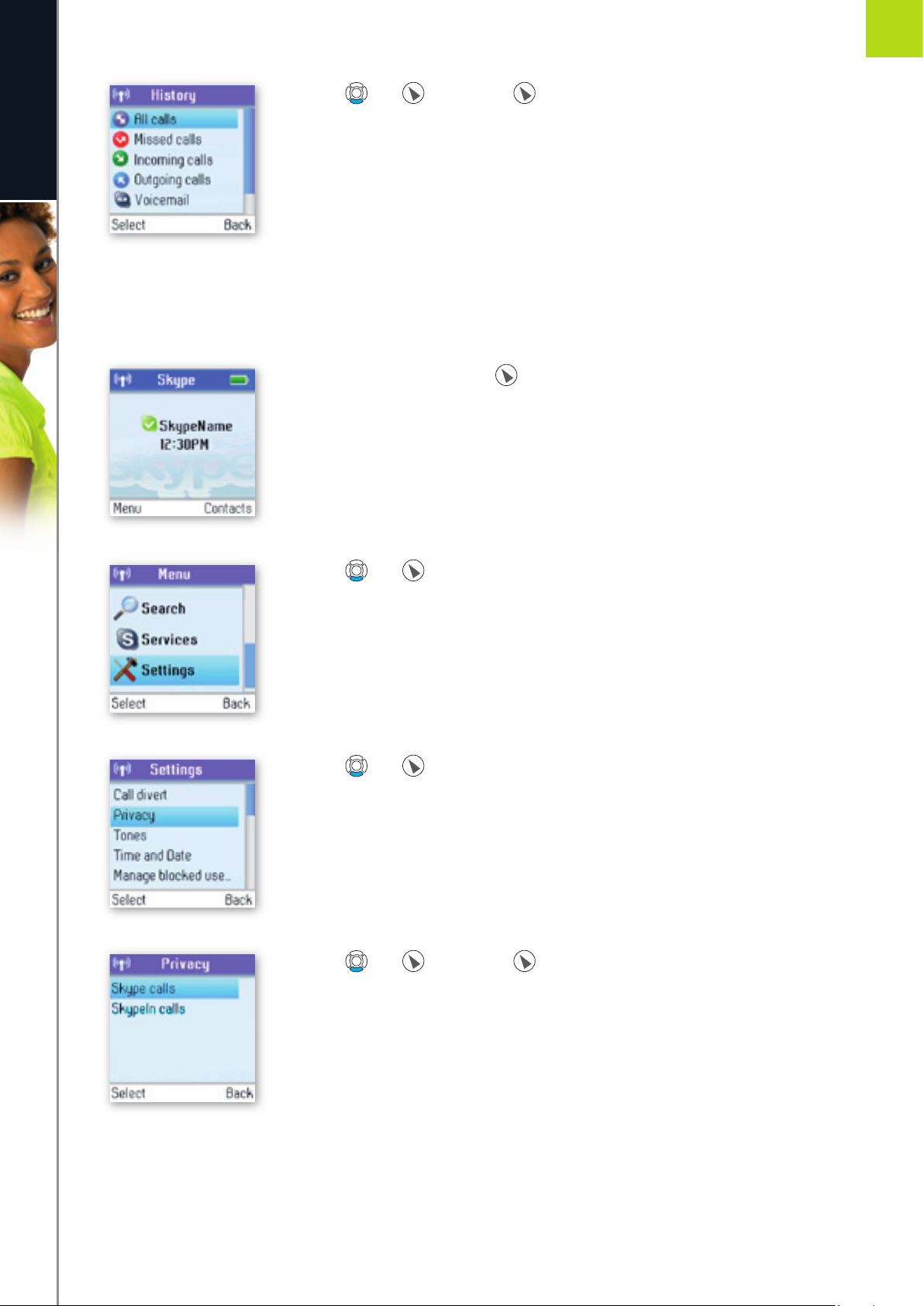
View call history
You can see all call history information, including missed calls, outgoing calls, incoming calls, authorisation
requests or voicemails. Whenever there is an entry on one of the lists, you can see the details, such as the
phone number, name (when accessible) and a time log indicating when the entry was received. Please note
that the lists can contain 30 entries – the oldest ones will be deleted fi rst. Also, please note that the lists will
be deleted whenever you sign out of Skype. Your options are:
All calls: A list containing all missed, incoming and outgoing calls. Please note that landline
as well as Skype calls will be registered.
These are your options when working with the lists:
Call: Call the number.
Send voicemail: Return a call with a voicemail.
Please note that this works only with Skype calls.
Details: View details regarding the call.
Delete: Remove the entry.
View profi le: View the profi le for the entry.
Please note that this works only with Skype calls.
Add to contacts: Add an entry to your Contact list.
Clear list: Delete all entries on the list.
Missed calls: A list showing only the missed calls.
Please note that landline as well as Skype calls are registered.
Incoming calls: A list showing only the incoming calls.
Please note that landline as well as Skype calls are registered.
Outgoing calls: A list showing only the outgoing calls.
Please note that landline as well as Skype calls are registered.
1) From the Idle screen, press to enter the main menu.
2) Press and to select History.
Page 69
69
A D VA N C ED SE TT I N GS
e n g l i s h
2
SECTION
3) Press and or just press to view the preferred history (All calls,
Missed calls, Incoming calls, Outgoing calls, Voicemails, Authorizations).
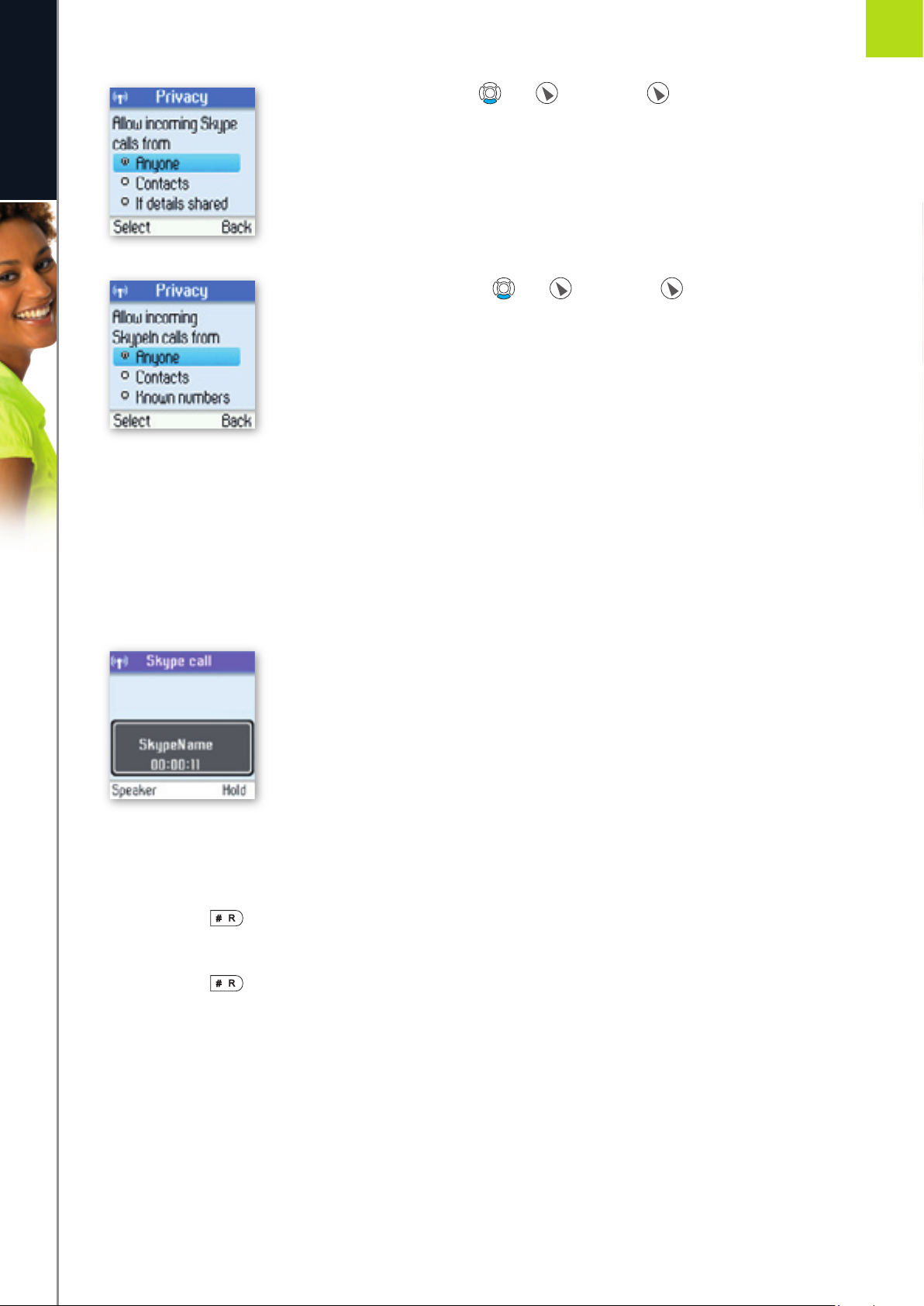
Set privacy for calls
You can specify which kinds of Skype and SkypeIn calls you want to accept.
1) From the Idle screen, press to enter the main menu.
2) Press and to select Settings.
3) Press and to select Privacy.
4) Press and or just press to select your preferred Privacy setting
(Skype calls, SkypeIn calls).
Page 70
70
A D VA N C ED SE TT I N GS
e n g l i s h
2
SECTION
5) Under Skype calls, press and or just press to select your preferred
setting (Anyone, Contacts, If details shared).
6) Under SkypeIn calls, press and or just press to select your
preferred setting (Anyone, Contacts, Known numbers).
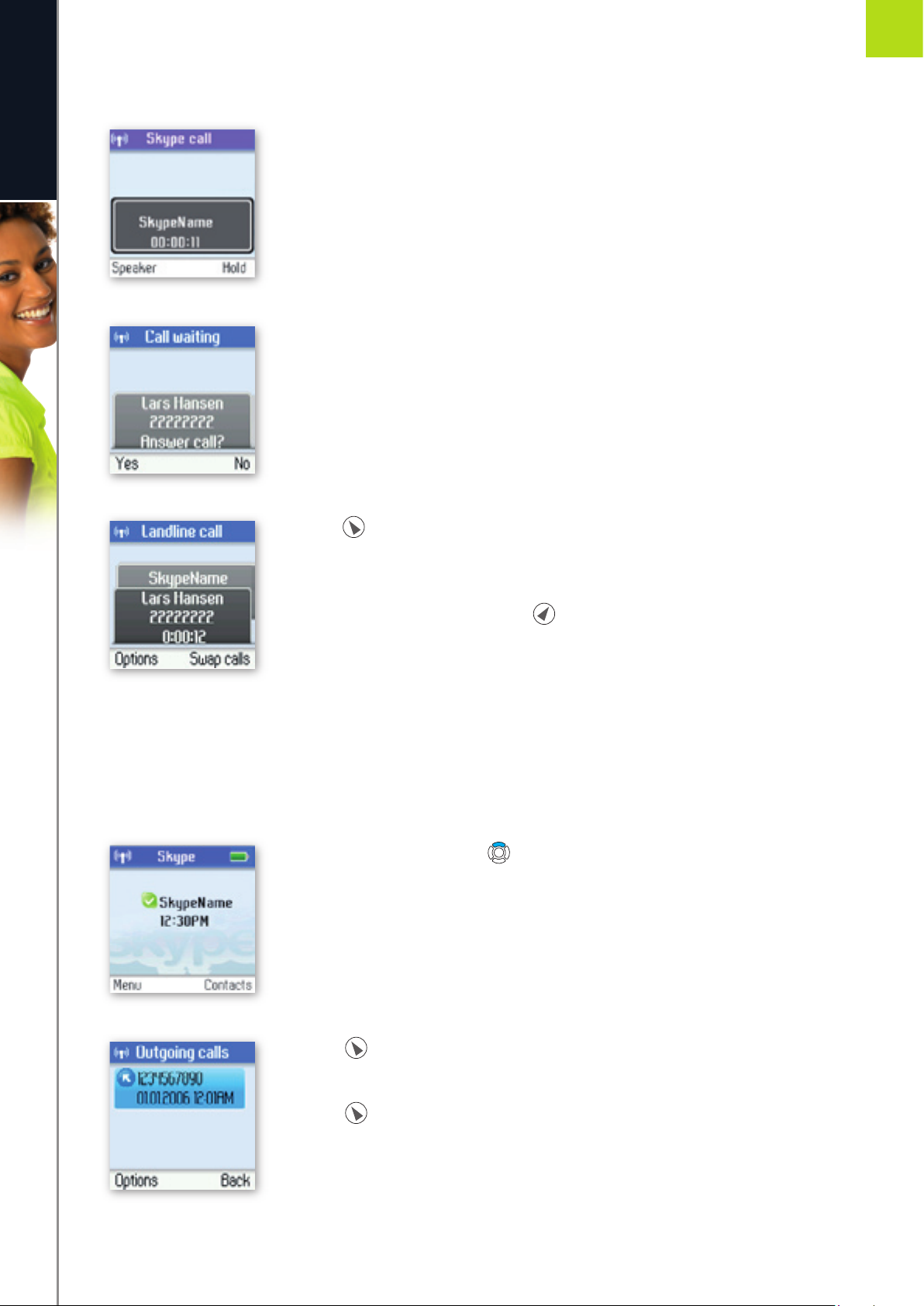
Call waiting
When someone calls you during an active call, you will be notifi ed by a tone in the earpiece as well as the
message ‘Call waiting’ on the display.
There are two types of waiting calls: Calls on the same line you are presently using, and calls on the other line.
Example one:
1) You have an active Skype to Skype call.
2) When you receive a second Skype call. you will hear a beep.
3) Hold down to answer the new call while automatically putting the original call on hold.
4) Hold down again to switch between the calls.
Page 71
71
A D VA N C ED SE TT I N GS
e n g l i s h
2
SECTION
Example two:
1) You have an active Skype call.
2) When you receive a landline call, you will hear a beep.
3) Press to answer the new call while automatically putting the original call on
hold.
4) To switch between the calls, press .
n
Dial outgoing calls
Dial a telephone number from the outgoing calls list
1) From the idle screen, press to access the list of outgoing calls.
2) Press for Options.
3) Press to select Call.
Page 72
72
A D VA N C ED SE TT I N GS
e n g l i s h
2
SECTION
n
Firmware update
You can check to see which software version your DUALphone is presently using as well as upgrade to the
most recent version. Your options are:
Latest Firmware: Displays the latest fi rmware version. Please note that you cannot use
your DUALphone during the update process. The update typically lasts 15 minutes,
depending on your Internet connection.
Current fi rmware: Displays the fi rmware version currently used by your DUALphone.
All Firmware vers.: Displays a list of all accessible fi rmware versions that your DUALphone
can use. Thus, you can choose to downgrade to an older version.
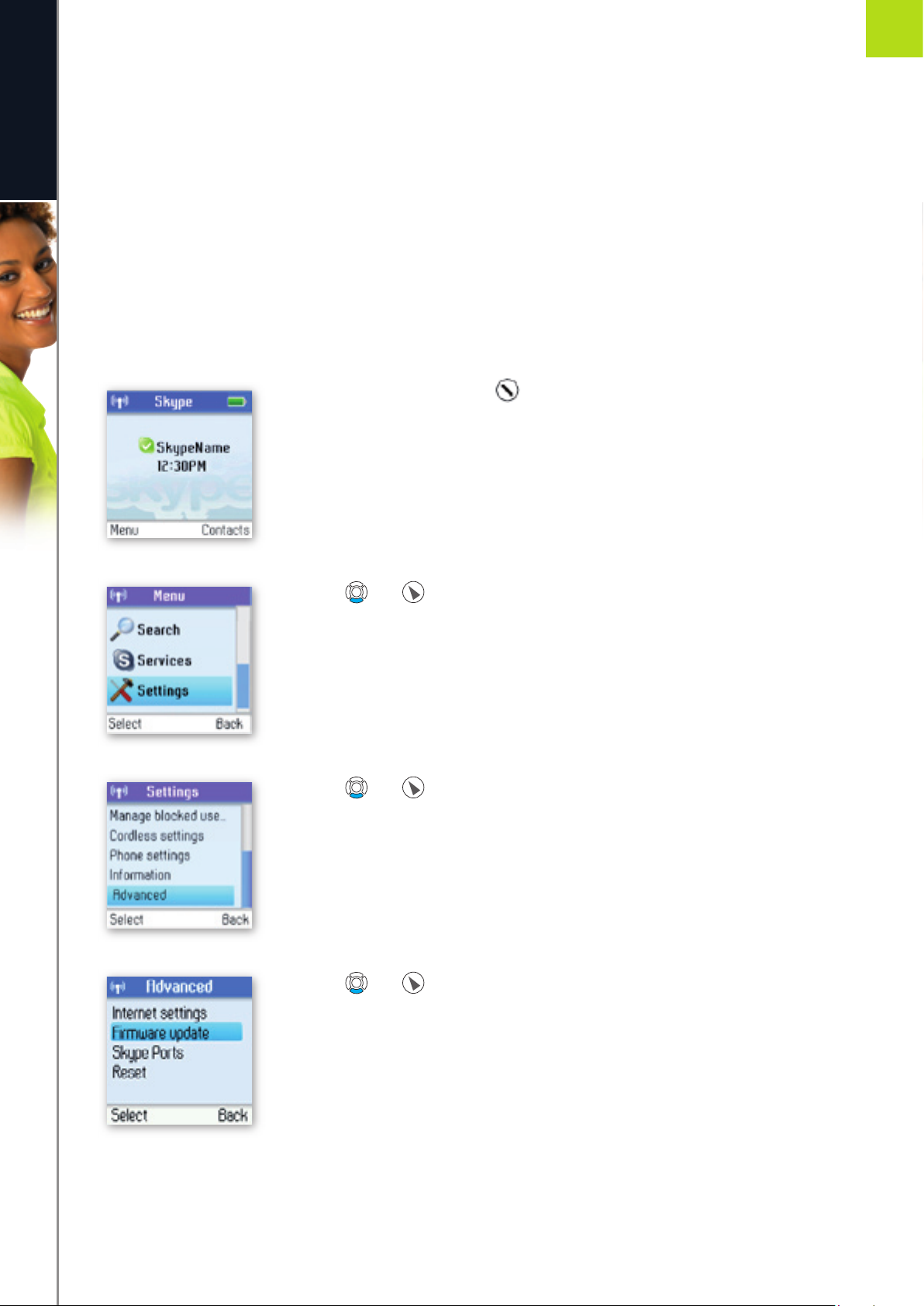
1) From the Idle screen, press to enter the main menu.
2) Press and to select Settings.
3) Press and to select Advanced.
4) Press and to select Firmware update.
Page 73
73
A D VA N C ED SE TT I N GS
e n g l i s h
2
SECTION
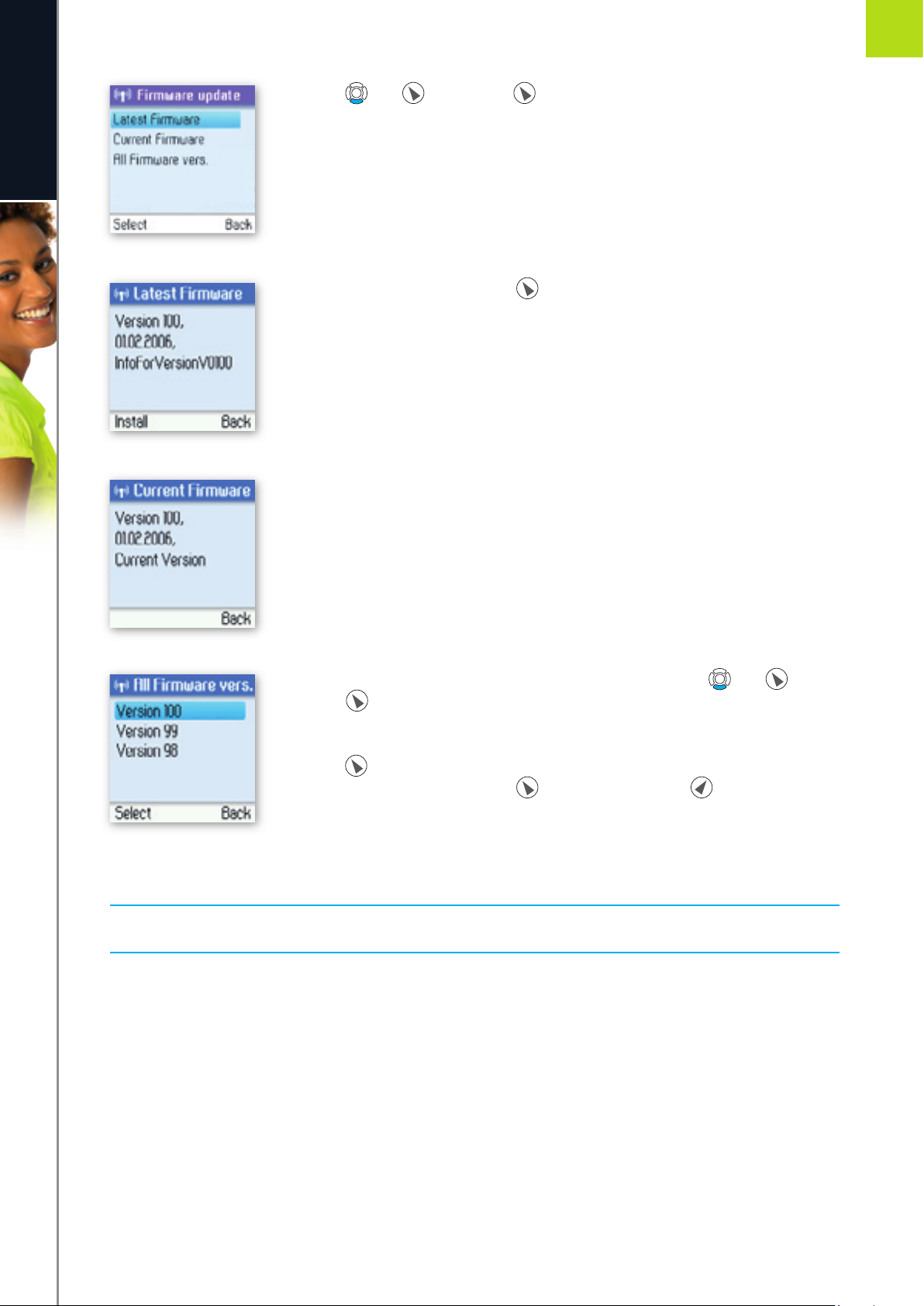
5) Press and or just press to select the required option (Latest
Firmware, Current Firmware All Firmware vers.).
6) Under Latest Firmware, press to install. Please be aware that the
download can take some time. The handset will prompt you when the fi rmware
update is fi nished.
7) Under Current Firmware, you fi nd specifi cations of the fi rmware version
presently used by the base station and the handset.
8) Under All Firmware vers., you can see prior updates. Press and or just
press to select your preferred version.
9) Press again to install the selected version. You will then be asked if you are
sure you want to update. Press to accept the update, to cancel.
NOTE:
• If your DUALphone has not been updated after 30 minutes, you must restart the DUALphone by
disconnecting and reconnecting the base station to the power outlet.
Page 74

SECTION
3
Support information
e n g l i s h
Please visit www.dualphone.net for updated help and support. Here you will find documentation on FAQ,
troubleshooting and new features.
n
Advanced troubleshooting
PROBLEM CAUSE SOLUTION
I have nowhere to
plug in the base
station.
I have problems with
my DUALphone.
I cannot sign in to
Skype.
• Your computer or other
equipment may be occupying
the Internet connection port.
• You are not using the latest
software.
• There is a problem between
your DUALphone and the
device (modem/router/switch)
to which it is connected.
• You are using an incorrect
Skype name and/or password.
• You have no Skype account.
• Your base station is not
connected to the Internet.
• Get a router, allowing you to attach more
units to the same Internet connection port.
If you are buying a new one, we recommend
a peer2peer-friendly router.
• Update the software via Settings >
Advanced > Firmware update > Latest
firmware.
• Restart your modem/router/switch and then
restart the base station by turning the power
off and on.
• Check the Skype name and/or password and
try again. Be sure to enter large and small
letters and special characters correctly.
• Create a Skype account via
new account.
• Check that all cables are attached correctly.
Status > Create
74
S U PP ORT IN FO R MAT IO N
• The base station has not been
provided an IP address.
• Check via Settings > Information that an
IP address is shown under IP address. If not,
check your Internet connection. If you are
using a router, switch or hub, restart the
device(s) and then restart the base station.
Please refer to My base station does not
receive an IP address under Advanced
troubleshooting.
(continues)
Page 75

PROBLEM CAUSE SOLUTION
SECTION
3
e n g l i s h
I cannot sign in to
Skype.
(continued)
• Your Internet connection
timed out because you are not
using an “Always on”
connection.
• A firewall/NAT/router is
blocking access to the Internet.
• Some broadband connections require that
you log on the Internet every time you wish
to use it, and the connection will
automatically close after for example 20
minutes of inactivity. Your DUALphone does
not work with such connections, only with
“Always on” connections. Contact your
Internet provider and get an “Always on”
connection. Possibly “Always on” may be
enabled via your provider’s homepage.
• Restart your router and then restart your
base station. It this does not help it may be
because you are using a very restrictive kind
of router/NAT. Please contact your Internet
provider or router manufacturer.
• If you are about to buy a new router we
recommend a peer2peer-friendly router.
Skype needs unrestricted outgoing TCP
access to all destination ports over 1024 or
to ports 80 and 443 in order to work
properly. To obtain even better sound, we
recommend that you open the specific port
to incoming TCP and/or UDP traffic. Please
check Settings > Advanced > Internet
settings > Skype ports.
My base station does
not receive an IP
address.
I cannot connect to
Skype from my
workplace or school.
• You may be using an Internet
connection with a static IP
address.
• Other equipment, for instance
a computer, has been
connected to the Internet
connection.
• Most likely your base station is
behind a proxy server, which
are often used by companies
and schools.
• Configure the static IP address via Settings
> Advanced > Internet settings > IP
mode. Select Static and enter the IP
address; then follow the wizard to make the
further required entries.
• Connect the base station to the Internet
connection port. Turn on the base station
and wait for about one hour. Restart the
base station and check if your DUALphone
works. Check via Settings > Information if
the base station has received an IP address.
• Configure the Skype proxy via Settings >
Advanced > Internet settings > Skype
proxy. Also, you have to configure via
Settings > Advanced > Internet settings
> Firmware proxy. Please contact the IT
support resource at your workplace or
school for further information.
75
S U PP ORT IN FO R MAT IO N
Page 76

PROBLEM CAUSE SOLUTION
SECTION
3
e n g l i s h
The time on the idle
display is incorrect.
I cannot make a
Skype to Skype call.
• The base station is not
connected to the Internet.
• You have not programmed
your Time Zone and
saving.
• Your DUALphone is behind a
proxy server.
• You are not signed in.
• You have no Internet
connection.
Daylight
• The handset gets the time and date from the
Internet. Connect the base station to the
Internet and wait for a few minutes.
• Select your time zone via Settings > Time
and Date > Time zone. Then select
Settings > Daylight saving and choose
Daylight saving if you are in a zone with
summertime, otherwise select Standard.
• In order for the SNTP (Simple Network Time
Protocol) to work, UDP/IP port 123 must be
set to open proxy.
• Choose
Skype name and password when prompted
for it. If you have no Skype account, you can
create one via Status > Create new account.
• Please refer to “I cannot sign in to Skype”
under Advanced troubleshooting.
Status > Sign in and enter your
I cannot make a
SkypeOut call.
My SkypeOut call
does not reach the
person intended.
I cannot receive
Skype calls from
certain persons.
• You are not subscribing to this
service.
• You are out of Skype credits.
• You have not stored your
country code.
• You have specified restrictions
as to whom you want to
communicate with.
• The person is a blocked Skype
contact.
• You are signed out.
•You can buy SkypeOut at
• Check your available Skype credits via
Service > Skype Credit.
• Check that your country code is registered
via Settings > Phone settings > Region >
Country code. You may also need to check
your area code via Settings > Phone
settings > Region > Area code.
• Check the person who is unable to call you
via Settings > Privacy > Skype calls (or
SkypeIn calls). Select a privacy option
which allows the person to call you.
• Check if the Skype contact is blocked via
Settings > Manage blocked users.
Unblock if required.
• Sign in to your Skype account via Status >
Sign in to Skype.
www.Skype.com.
76
My DUALphone does
not ring on incoming
calls.
S U PP ORT IN FO R MAT IO N
• You have muted your handset.
• You have enabled Call divert,
which means that all incoming
Skype calls are forwarded.
• Adjust the volume via Settings > Tones >
Ring tones.
• Disable call forwarding via Settings > Call
divert > Call forward.
Page 77

PROBLEM CAUSE SOLUTION
SECTION
3
e n g l i s h
I experience a bad
sound quality during
Skype calls.
I cannot send
voicemails.
Landline and mobile
phones cannot call
me via SkypeIn.
• You are probably behind a
router which interferes with
the sound.
• Another unit (for instance a
computer) is using the Internet
connection.
• You are not subscribing to this
service.
• You are not subscribing to this
service.
• You are out of Skype credits.
• In order to obtain better sound, we
recommend that you open the specific port
shown under
Internet settings > Skype ports to
incoming TCP and/or UDP traffic. However,
on some routers you cannot configure
incoming UDP traffic although you can still
configure rerouting of ports with incoming
TCP traffic. If you are using several Skype
clients on the same router, you must make
sure that they are not using the same Skype
Port.
• Free up bandwidth by ending other ongoing
Internet traffic or get an Internet connection
with more bandwidth.
• You can buy SkypeOut at
Check if your voicemail is active via Service
> Voicemail.
• You can buy SkypeIn at www.Skype.com.
• Check your status via Service > SkypeIn.
Settings > Advanced >
www.Skype.com.
I cannot call via my
landline connection.
I cannot receive calls
via my landline
connection.
• People calling your SkypeIn
number do not wait long
enough before they hang up.
• The base station is not
connected to your landline.
• The landline is out of order.
• The landline connection is
occupied by another phone in
the house.
• The base station is not turned
on.
• You are using incorrect
landline country setting.
• People calling you should allow the phone to
ring at least five times before they hang up
due to the delay before the SkypeIn call
reaches you.
• Connect the landline to your base station.
• Check your landline connection with a
traditional phone and hear if there is a
dialling tone. If not, contact your landline
provider.
• Check that the landline connection is not
occupied.
• Turn on the base station.
• Select the correct landline country setting via
Settings > Phone settings > Landline
country. Please note: The landline country
setting has no influence on Skype calls.
77
S U PP ORT IN FO R MAT IO N
Page 78

78
S U PP ORT IN FO R MAT IO N
e n g l i s h
3
SECTION
PROBLEM CAUSE SOLUTION
I cannot access the
main menu Contacts.
• You are signed out. • Your contact list resides on a central Skype
server and is therefore visible only when you
are signed in. Sign in via Status > Sign in
to Skype.
I cannot see if a
Skype contact is
online as his or her
online status is
always shown as
• The contact in question has
not been authorised.
• Send an Authorisation request: From
Contacts, select Options > Advanced >
Request details. Whenever a person has
accepted your request, you will be able to
see his or her online status.
The main menu
History is suddenly
empty.
• You are signed out. • The History list is deleted whenever you sign
out. Sign in via Status > Sign in to Skype.
Please note: Old call details will not be
restored at the next sign in.
My friends cannot
fi nd me on Skype by
searching for my
e-mai l address.
• You have not confi gured your
data under My profi le.
• Save your e-mail address via Status > My
profi le > Private. Other Skype users cannot
see your e-mail address, they can only use it
for searching for you if they know the
address already.
The handset does
not charge when
placed in the charger.
• The handset is not placed
correctly in the charger.
• The charger is not connected
to the power outlet or it is not
turned on.
• The batteries are not inserted
correctly in the handset.
• Check that the charger makes a beep when
the handset is placed correctly.
• Check that the power supply is connected to
the outlet and that the unit is turned on.
• Check that the batteries are inserted
correctl y. Use only rechargeable batteries,
type Ni-MH.
I cannot turn the
handset on.
• The batteries are empty.
• The batteries are not inserted
correctly in the handset.
• Place the handset in the charger. The
handset will turn on automatically after
some time in the charger.
• Place the batteries correctly in the handset.
The display is black. • The handset is not turned on.
• The display contrast is wrong.
• Hold down for approximately two
seconds to turn on the handset.
• From the idle screen, press Menu > 555,
then select your preferred contrast setting.
There is no antenna
symbol in the upper
right hand corner of
the display.
• You are too far away from the
base station.
• The base station is not turned
on.
• Move the handset closer to the base station.
• Turn on the base station. The red LED light
must be on at all times.
(continues)
Page 79

PROBLEM CAUSE SOLUTION
SECTION
3
e n g l i s h
There is no antenna
symbol in the upper
right hand corner of
the display.
(continued)
I do not understand
the language on the
handset.
I cannot register the
handset to the base
station, the message
‘Open base station
could not be found’
is shown on the
handset.
No Caller ID is shown
when I receive
landline calls.
• The handset is not registered. • Register the handset via Settings >
Cordless settings > Register handset.
• You have chosen the wrong
language.
• The base station is turned off.
• The base station is not in
registration mode.
• You are too far away from the
base station.
• You are not subscribing to this
service with your landline
provider.
• From the idle screen, press Menu > 888,
then select your preferred language from
the list.
• Turn the base station on. The LED light on
the base station must be red.
• Press the Reset button on the back of the
base station, then press for Retry on the
handset.
• Move the handset closer to the base station
(for instance in the same room).
• Contact your landline provider.
I do not get a new
line on my landline
connection when
sending a flash (by
pressing ).
• You are using an incorrect
country setting.
• You are using an incorrect
country setting.
• Select the correct country setting via
Settings > Phone settings > Landline
country.
• Select the correct country setting via
Settings > Phone settings > Landline
country.
79
S U PP ORT IN FO R MAT IO N
Page 80

n
FAQ
SECTION
3
e n g l i s h
QUESTION ANSWER
Why is the
DUALphone 3088 for
Skype better than a
Wi-Fi phone for
Skype?
Where can I buy the
DUALPhone 3088?
What is a
DUALphone?
Is it easy to connect
my DUALphone to
the Internet?
Because it is more reliable (DECT), has no interference problems with other
wireless devices (Wi-Fi, Bluetooth), has a much longer talk time (more than 10
hours), standby time (more than 140 hours) and range (up to 300 meters). In
practice the DUALphone 3088 has a superior voice quality with increased distance
between the handset and the base station/router. This is due to less packet loss
and interference compared to a Wi-Fi phone. Furthermore, with the DUALphone
3088 you get a 2-in-1 telephone for both Skype and ordinary landline calls.
You can buy the DUALphone 3088 at
www.skype.com and retailers. Please visit www.dualphone.net for further
information.
Your DUALphone combines two phones in one unit, allowing you to use Skype,
SkypeOut /SkypeIn as well as traditional telephony via landline. Thus, you can use
your DUALphone on two networks, for instance allowing you to establish a
conference call between users on both networks.
Yes. It only requires you to connect the base station to a power outlet and to your
Internet connection. However, you might need a router/switch/hub if you want to
connect more units to the same Internet connection, for instance both your
computer and your DUALphone. We recommend that you use a peer2peer
friendly router for this purpose.
www.dualphone.net and
Are there any special
requirements on my
Internet connection?
Can my DUALphone
be updated with
new software?
What Skype services
does my DUALphone
support?
Yes. You have to use an Internet connection that is “Always on”. Some broadband
connections demand that you log onto the Internet every time you wish to use it,
and the connection will automatically close after for example 20 minutes of
inactivity. Your DUALphone does not work with such connections, only with
‘Always on’ connections. Contact your Internet provider and get an “Always on”
connection. Possibly “Always on” can be enabled via your provider’s homepage.
Yes. Unlike many other products, the firmware of your DUALphone can be
updated to always give you access to the latest features.
Your DUALphone supports Skype, SkypeOut, SkypeIn and Voicemail.
80
S U PP ORT IN FO R MAT IO N
Page 81

QUESTION ANSWER
SECTION
3
e n g l i s h
What Skype features
does my DUALphone
support?
• Superior Skype sound quality
• Calling via Internet: Skype to other Skype users
• Calling via SkypeOut to ordinary telephone numbers
• Works with SkypeIn – enables reception of calls from ordinary telephone
numbers (PSTN)
• Works with Skype VoicemailTM (view, play, delete, record personal greeting)
• Skype conference call (invited party)
• View, search and call Skype contact list
• Skype Call Forwarding
• Skype Call Waiting
• Caller Identity with Skype name and picture of calling party
• Notification of missed calls, new voicemail
• Set your Skype online status (Offline, Away, Do Not Disturb etc.)
• View the status of your Skype contacts on the handset display
• View Call History of Skype and ordinary calls (30 entries)
• Contact list (Telephone book): 200 entries
• Create a new Skype account
• Manual and automatic sign-in to Skype account
• Edit my profile
• Update notification when new Skype and DUALphone software is available
• View Skype credits
What is SkypeOut?
What is the price
of a call to
ordinary phones
and mobile phones
via SkypeOut?
Is it expensive to use
Skype with a volume
based Internet
connection?
Does Skype work
behind a NAT router?
Does my DUALphone
support several
languages in the
menus?
SkypeOut allows you to call ordinary phones and mobile phones at very competi
tive prices. There might be restrictions applying to calls to special service numbers
in certain countries.
You can make big savings. Check the prices at http://
www.skype.com/products/skypeout/rates/all_rates.html?currency=EUR
No. Skype does not take up much bandwidth. On average, Skype uses 0-0.5 Kbps
during standby and 3-16 Kbps during calls.
Yes. Skype works behind most NAT routers. We recommend that you use a
peer2peer friendly router.
Yes. You can choose between 12 languages: Italian, Portuguese, Polish, Spanish,
Dutch, Finnish, Danish, Swedish, English, German and French
NOTE:
Russian will be available in a forthcoming firmware version.
-
81
Does my DUALphone
support connections
via proxy servers
and firewalls with
approval?
S U PP ORT IN FO R MAT IO N
Yes. Your DUALphone supports HTTP or HTTPS proxies, authenticating HTTPS/SSL
and SOCKS5 proxies.
Page 82

QUESTION ANSWER
SECTION
3
e n g l i s h
In which countries
has the DUALphone
3088 been approved?
Can I use the
DUALphone as a
conference phone?
Is it safe to call via
Skype?
Is it safe to have my
user data on the
Skype server?
Can I make an
emergency call via
Skype?
The DUALphone 3088 has been approved in the following European Union
Member States: Austria, Belgium, Cyprus, Czech Republic, Denmark, Estonia,
Finland, France, Germany, Greece, Hungary, Ireland Italy, Latvia, Lithuania,
Luxembourg, Malta, Poland, Portugal, Slovakia, Slovenia, Spain, Sweden,
The Netherlands, United Kingdom. Other countries: Iceland, Liechtenstein,
Norway, Bulgaria, Faroe Island, Greenland, Romania and Switzerland. Coming
soon: Australia, South Africa and New Zealand.
Yes, the DUALphone 3088 has a handsfree speakerphone, just as you can be the
invited party on a Skype conference call. DUALphone 3088 can also manage a
3-party call between landline and Skype calls.
Yes. All your Skype calls are encrypted, thus increasing the safety and protection
of personal information.
Yes. All your profile data and your contacts are located on a Skype Server, not on
your DUALphone. A digital signature, based on a public and a private key,
protects all profile data. The public key is used to encrypt the data, allowing only
the person with the right key to make the data readable again.
No. Skype does not allow emergency calls, but provided you have an active
landline connection and your DUALphone is connected to the base station and
the base station is connected to the landline, you can route emergency calls via
this line. Please note that emergency calls can only be made when the base
station is connected to the power outlet and it is turned on. The phone cannot be
used during a power failure.
Can I protect myself
against harassment
via Skype?
Can my DUALphone
use a static IP
address?
Can I call ordinary
phones and mobile
phones via Skype?
Can ordinary phones
and mobile phones
call me via Skype?
Can I take my
DUALphone with me
and use it in another
country?
What is the range of
my DUALphone?
Yes. You can always block certain persons from contacting you via Skype. You can
also prevent groups of persons from contacting you.
Yes. You may configure a static IP address.
Yes. However, this requires that your Skype account supports SkypeOut, a service
you can buy at www.skype.com. With SkypeOut you can call ordinary phones and
mobile phones at very competitive prices.
Yes. However, this requires that your Skype account supports SkypeIn, a service
you can buy at www.skype.com. With SkypeIn you get an ordinary phone
number that your contacts can call.
Yes. Your DUALphone can be connected to the Internet anywhere with an active
Internet connection. The landline connection will also be working in other
countries.
The maximum distance between the handset and the base station depends on
the environment you are working in. However, you should typically have a range
of some 50 metres indoors and 300 metres outdoors.
82
S U PP ORT IN FO R MAT IO N
Page 83

QUESTION ANSWER
SECTION
3
e n g l i s h
Is the handset GAP
compatible?
Can I use several
handsets with the
same base station?
Can I divert an
incoming Skype call?
Can I check my Skype
credit status?
Is there an answering
machine in my
DUALphone?
Can I send instant
messages (chat) via
my DUALphone?
Your DUALphone uses a number of features specific to Skype. Therefore we
recommend that you do not use other handsets than the one provided with your
DUALphone.
Yes. You will be able to use up to six handsets which can all take advantage of
the same Skype account. This is a coming feature.
Yes. However, this requires you to have Skype credits on your Skype account.
Yes, you can check your Skype credits from your DUALphone handset.
Yes, provided your Skype account supports Voicemail, a service that you can buy
via www.skype.com. This allows you to divert all incoming Skype calls to your
voicemail.
No.
Can I associate a
picture with my
Skype account?
Which protocol does
my DUALphone use?
How long is the talk
time on fully charged
batteries?
How long is the
stand by time on
fully charged
batteries?
Do I need a
computer?
Yes. However, you have to sign in to your Skype account via your computer and
upload the picture from there. Skype will automatically change the uploaded
picture to the correct size. In order to have the best picture quality we
recommend that you upload a 96 x 96 pixel picture. You can upload in JPG (.jpg)
as well as bitmap (.bmp) format.
The Skype part of your DUALphone uses a protocol of its own. The HTTP protocol
is used for Firmware updates and all data transmissions are encrypted.
Minimum 10 hours.
Up to 140 hours.
No, there is no need to have a computer – simply connect the DUALPhone base
station to your broadband router or modem. If you want to use the landline
connection feature, you will also need to connect the base station to the landline
connection.
83
How many Skype
contacts does the
DUALphone support?
S U PP ORT IN FO R MAT IO N
200.
Page 84

QUESTION ANSWER
SECTIONSECTION
3
e n g l i s h
Which headset
works with the
DUALphone?
I don’t have a land
line wall receptacle
near the place where
I want to put the
DUALphone base
station and I don’t
want to do install
new telephone wires
between the base
station and the
landline receptacle.
What do I do?
Does the Skype
online status Do not
disturb work with
landline calls?
The connector is of the mono type and the plug size 2.5 mm. Please note that not
all headsets will be suitable. Ask for a set with an impedance of 30 Ohms or
higher. We recommend that you use the Jabra EarWave boom with a universal
2.5mm jack. (Jabra p/n 100-73030000-50).
-
We recommend that you purchase a wireless phone jack, which can be installed
in 1 minute. Please visit
Yes, you will not be disturbed by any landline calls, but you can see the calls
under missed calls
www.wireless-phonejack.com.
84
S U PP ORT IN FO R MAT IO N
Page 85

SECTION
3
n
CE Declaration of Conformity
This product is manufactured for RTX Products A/S. Please also refer to the introduction in the Installation Guide
e n g l i s h
and User Manual, guarantee and safety & warranty information sheets.
The DUALphone 3088 complies with the requirements of EC directives:
99/05/EC Directive for radio facilities and telecommunication terminals
Conformity with essential requirements of Council Directive 99/05/EC is assured according to:
R&TTE Directive 99/05/EC Standard: EN301406 V 1.5.1
Additionally, the DUALphone 3088 is in conformity with the directives below:
EMC Directive 89/336/EC Standard: EN301489 – 1 V 1.5.1
Standard: EN301489 – 6 V 1.2.1
Safety Directive 77/23/EC Standard: EN60950 – 1:2001 (1st edition)
Health/SAR Recommendation 99/519/EC Standard: EN50360, EN50385
Due to existing differences between public telecommunication networks in different states, this authentication
does not in itself constitute an unconditional guarantee of the successful operation of these units on every
network terminal point.
Intended use:
The DUALphone 3088 is designed to switch onto the analogue telephone network via the normal telephone
socket and a LAN interface on a broadband connection. Any other use is deemed as not intended use.
The company does not accept any claims resulting from unauthorised alterations or modifications not described
in this user manual.
Denmark, Noerresundby, 23-11-2006
Klaus Ahlbeck
RTX Products A/S
Stroemmen 6
9400 Noerresundby
Denmark
Telephone: +45 96322300
Fax: +45 96322310
85
C E D EC L A RAT IO N O F CO N F OR M I TY
Page 86

SECTION
3
n
End-user license agreement from Skype
e n g l i s h
86
S U PP ORT IN FO R MAT IO N
 Loading...