

Page 1
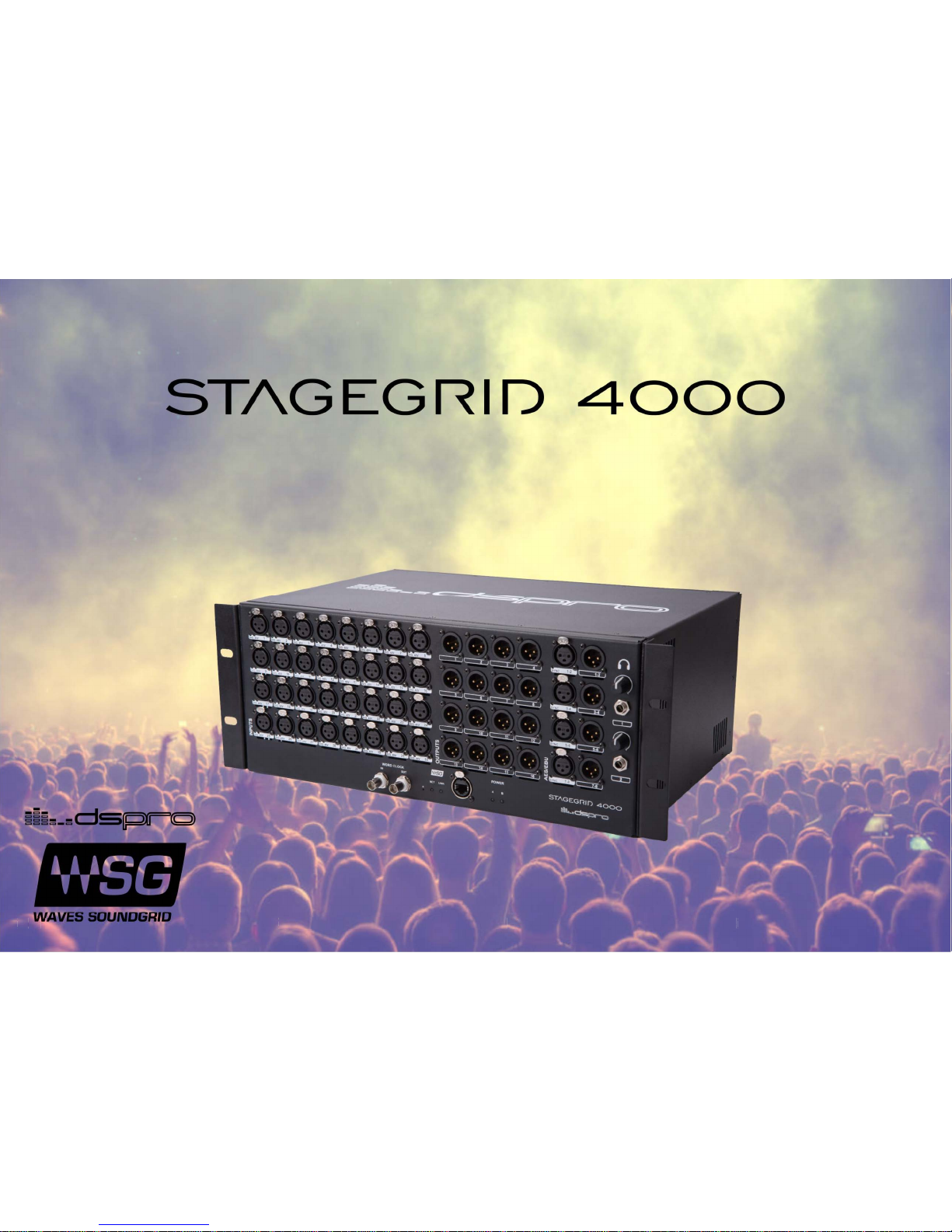
1 of 26 STAGEGRID 4000 User Guide rev.01 abr-18
USER GUIDE
Page 2

1 of 26 STAGEGRID 4000 User Guide rev.01
April 2018
SUMÁRIO
About ................................................................................................................................................................ 2
STAGEGRID 4000 ........................................................................................................................................... 2
SoundGrid ..................................................................................................................................................... 3
System Requirements ................................................................................................................................... 3
Hardware .......................................................................................................................................................... 4
Package Contents ......................................................................................................................................... 4
Rack Installation ............................................................................................................................................ 5
Setups ........................................................................................................................................................... 6
Front Panel ................................................................................................................................................. 10
Back Panel ................................................................................................................................................... 12
Software ......................................................................................................................................................... 13
Control Panel .............................................................................................................................................. 16
Firmware Update ........................................................................................................................................ 22
Specifications .................................................................................................................................................. 23
Page 3

2 of 26 STAGEGRID 4000 User Guide rev.01
ABOUT
STAGEGRID 4000
Thank you for choosing DSPRO STAGEGRID 4000 for your SoundGrid system.
This stagebox features 32 microphone inputs and 16 analog outputs. When used in conjunction with
Waves eMotion LV1, it provides an excellent solution for live mixing.
The preamplifiers were designed with attention to every detail in order to achieve a pure
sound and superior clarity that reveal quality of the eMotion LV1mixing console. Its performance
compares to the best systems on the market.
Designed for the road, DSPRO STAGEGRID 4000 components were carefully selected to improve system
reliability and strength, including redundant power supply units.
The main features are:
32 Microphone or line inputs
16 balanced analog outputs on XLR connectors
4 Stereo AES / EBU inputs and 4 outputs
Sample Rates from 44.1 kHz to 96 kHz
2 Headphone outs with individual volume controls
Word Clock input and output, BNC connectors
SoundGrid Ethernet connection
Redundant AC power supply
Page 4

3 of 26 STAGEGRID 4000 User Guide rev.01
SoundGrid
SoundGrid is a flexible and scalable network audio distribution infrastructure for studio, broadcast, and
live high fidelity applications, providing uncompressed multichannel, low-latency audio.
There are several SoundGrid hardware options for IO and real-time audio processing, so a network can be
configured in different ways to meet the most demanding situations.
System Requirements
A STAGEGRID connected to a computer.
At least one SoundGrid software host is installed (SoundGrid Studio, Multirack, or eMotion LV1).
SoundGrid Studio is Windows and MAC compatible. Please consult the Waves website for
currently-supported OS versions and DAWs.
Ethernet Cable CAT5e/6/7. Additional details on network infrastructure can be found on the Waves
website.
o Cable specifications: www.waves.com/support/ethernet-cables-for-soundgrid-systems
o Switches specifications: www.waves.com/support/network-switches-for-soundgrid-systems
For your convenience, register your SoundGrid product at the Waves website to receive exclusive offers for
SoundGrid system owners.
Page 5

4 of 26 STAGEGRID 4000 User Guide rev.01
HARDWARE
Package contents
1. One STAGEGRID 4000
2. Two power cords
3. One Safety Instructions Guide
4. One serial number label
The unit serial number can be found on the label on the
back panel of the device. For future reference, take
note of the Serial number:
S/N: _____________________
Page 6
5 of 26 STAGEGRID 4000 User Guide rev.01
Rack Installation
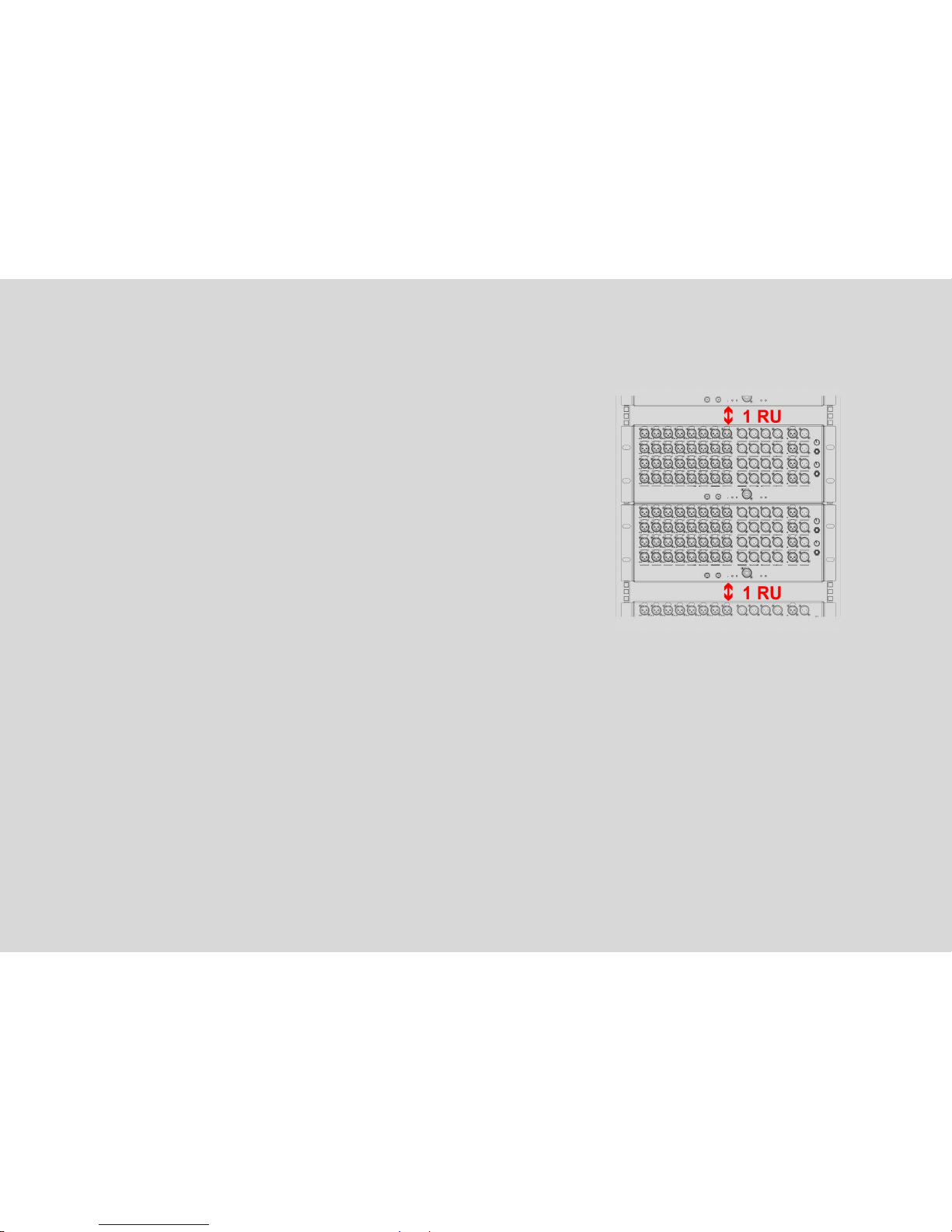
STAGEGRID 4000 is a standard 19" rack mount, four RU in height.
A fan at the rear panel provides proper cooling for the unit.
Air exits the enclosure through front and sides. Do not obstruct
the air low.
To ensure that the equipment operates within the full rated
temperature range, it is necessary to maintain a distance of one
rack unit from other equipment.
If more than one STAGEGRID 4000 is used, it is possible to group
two units together, as shown in this figure.
Regularly clean the dust filter located on top of the fan—without using water or any other liquid.
If a replacement is required, a 45ppi filter should be used.
Page 7
6 of 26 STAGEGRID 4000 User Guide rev.01
Setups
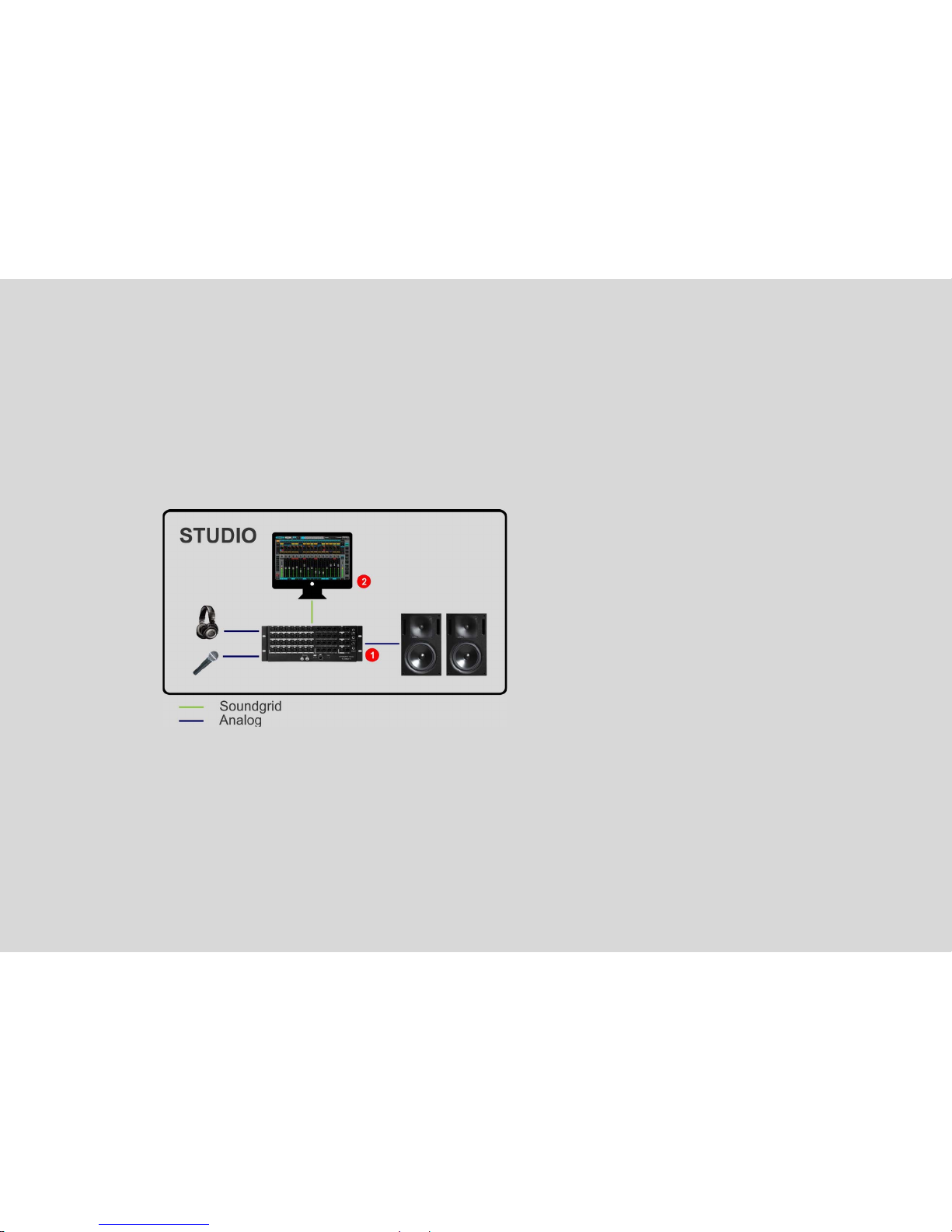
Studio
The simplest implementation of the device is to use the STAGEGRID as an audio interface for a native
DAW.
Using SoundGrid driver, all channels will be seen as a local interface and the control panel will allow you
to set all equipment parameters.
1. STAGEGRID 4000
2. Host
Page 8
7 of 26 STAGEGRID 4000 User Guide rev.01
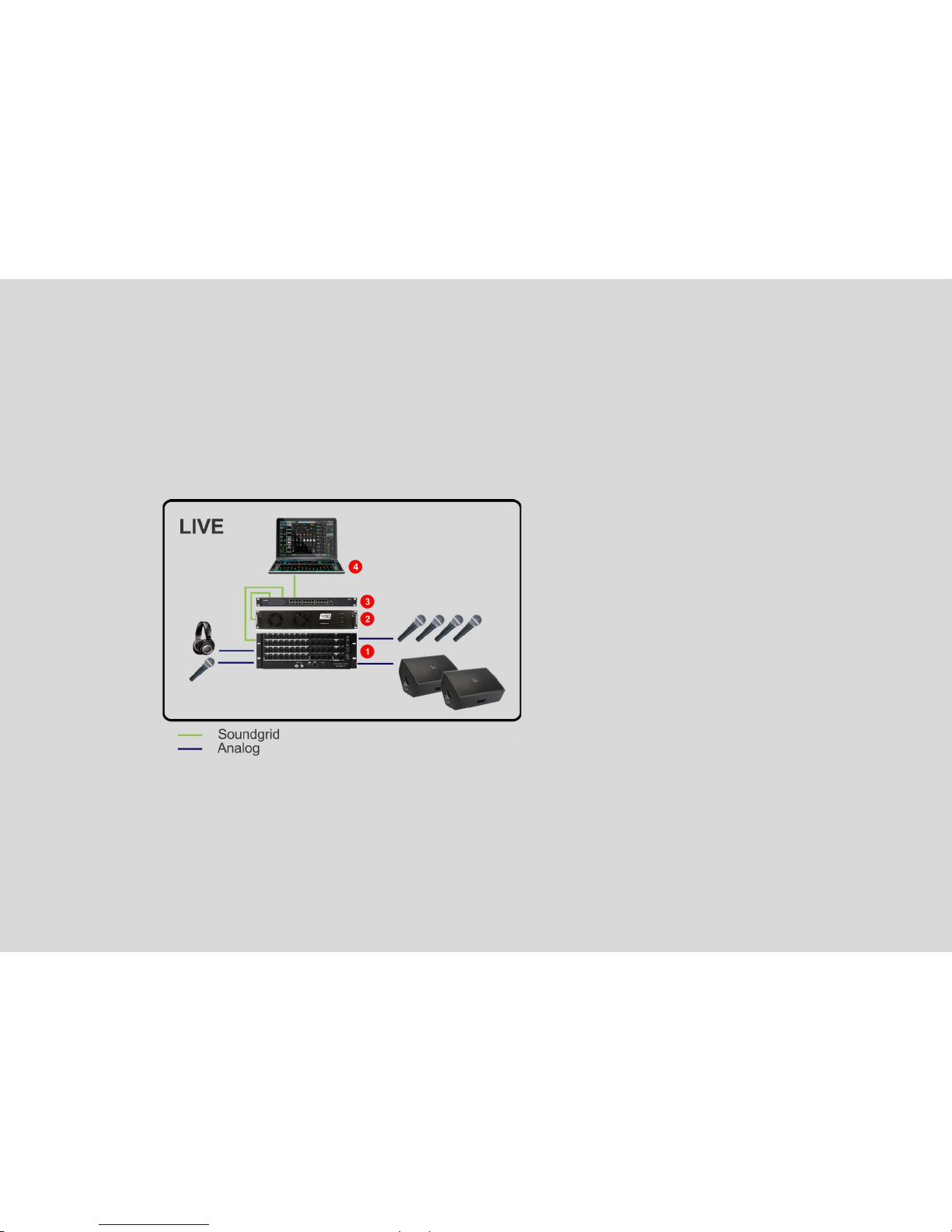
Live
By adding a Waves server, all real-time processing is offloaded from the host computer, allowing for
more power-demanding plugins.
With eMotion LV1 on the host computer, you'll have a complete 32-channel software mixing console.
eMotion LV1 is a light, flexible, and powerful mixing console with up to eight plugins per channel.
1. STAGEGRID 4000
2. Waves Server One
3. Network switch
4. Host laptop
Page 9
8 of 26 STAGEGRID 4000 User Guide rev.01
Large PA
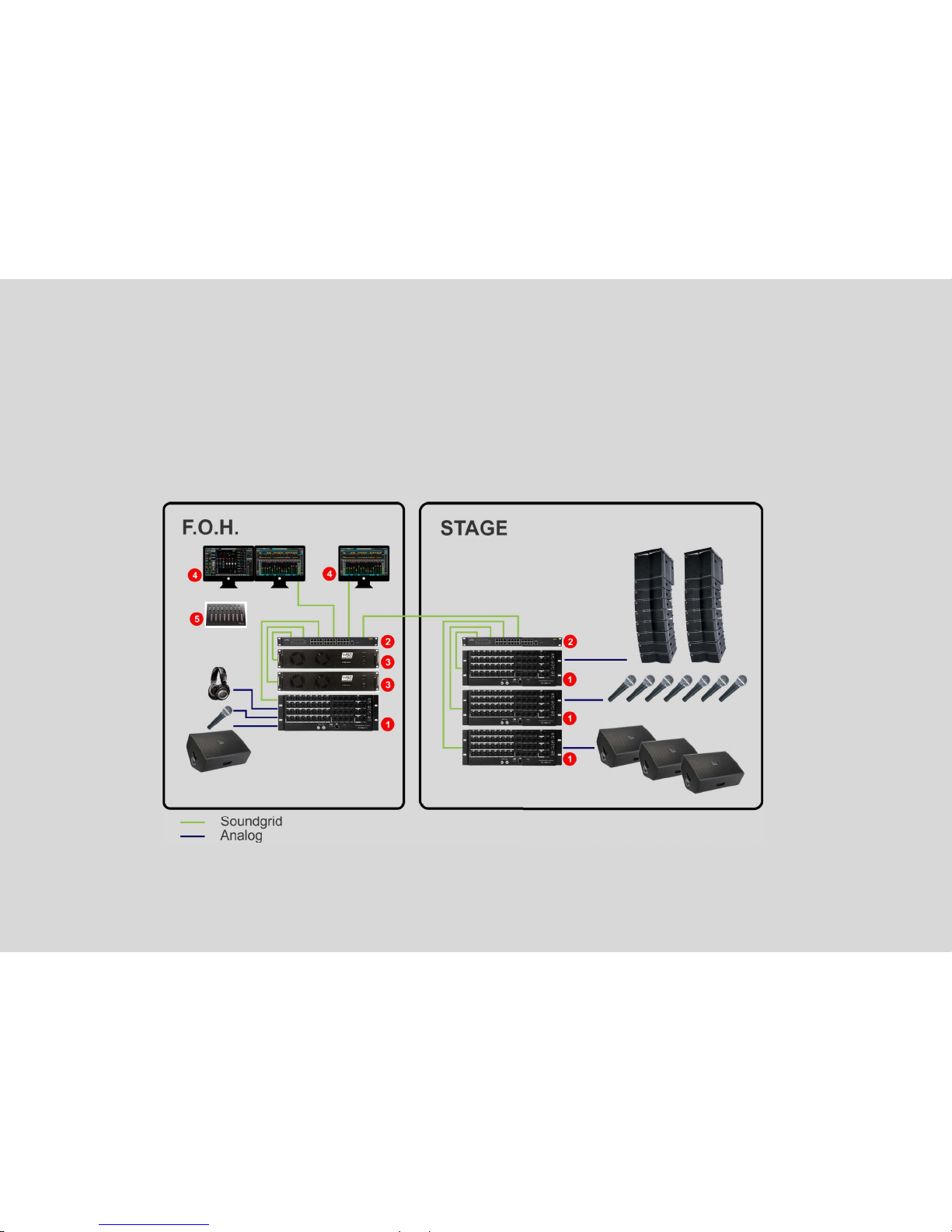
To increase the channel count, more STAGEGRID 4000s can be added to the system. Network components
are connected with Ethernet switches, so configurations can easily be modified according to the needs of
event.
In this example,two servers are used together for redundancy, significantly increasing fault tolerance. The
system is divided between between stage and house mix positions.
Page 10

9 of 26 STAGEGRID 4000 User Guide rev.01
1. STAGEGRID 4000 (4x)
2. Network switch (2x)
3. Waves Extreme Server (2x)
4. Host and Recording DAW
5. Control surface (optional)
Page 11
10 of 26 STAGEGRID 4000 User Guide rev.01
Front Panel
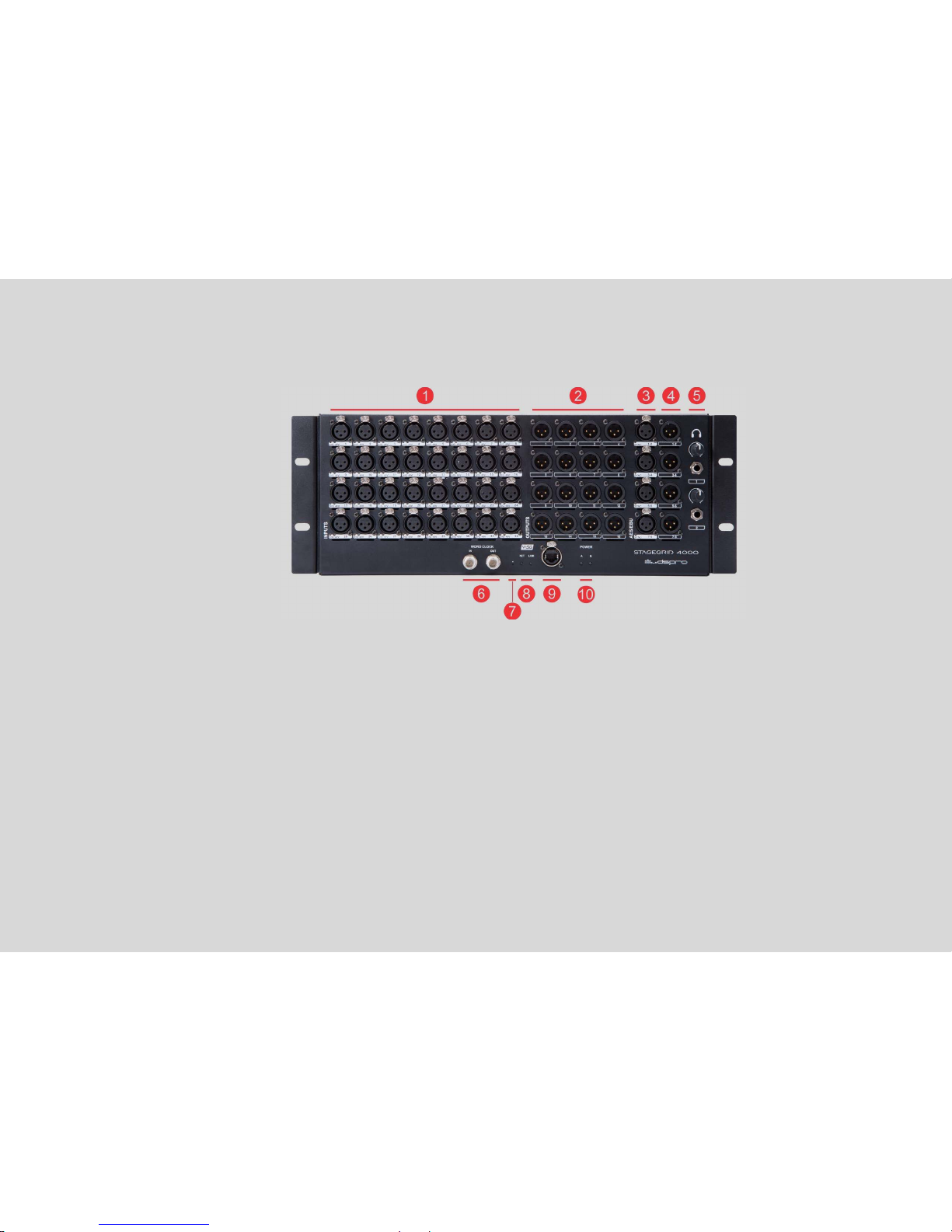
1. 32 mic/line inputs
2. 16 line outputs
3. 4 AES/EBU stereo inputs
4. 4 AES/EBU stereo outputs
5. 2 Headphones
6. Word Clock IN and OUT
7. Reset button
8. Network LEDs:
a. NET – SoundGrid network status
Blue: Synchronized with a SoundGrid host application
Red: no SoundGrid sync
Page 12

11 of 26 STAGEGRID 4000 User Guide rev.01
Yellow: Firmware updating
White: Unit malfunction
Cycling colors: Used to identify the equipment
b. LINK – Ethernet status
Green: Link up
Blink: Link up and network activity
Off: Link down
9. SoundGrid Gigabit Ethernet port
10.Power status LEDs
a. Power A and B
Green: Power OK
Red: Power fail
Page 13
12 of 26 STAGEGRID 4000 User Guide rev.01
Back Panel
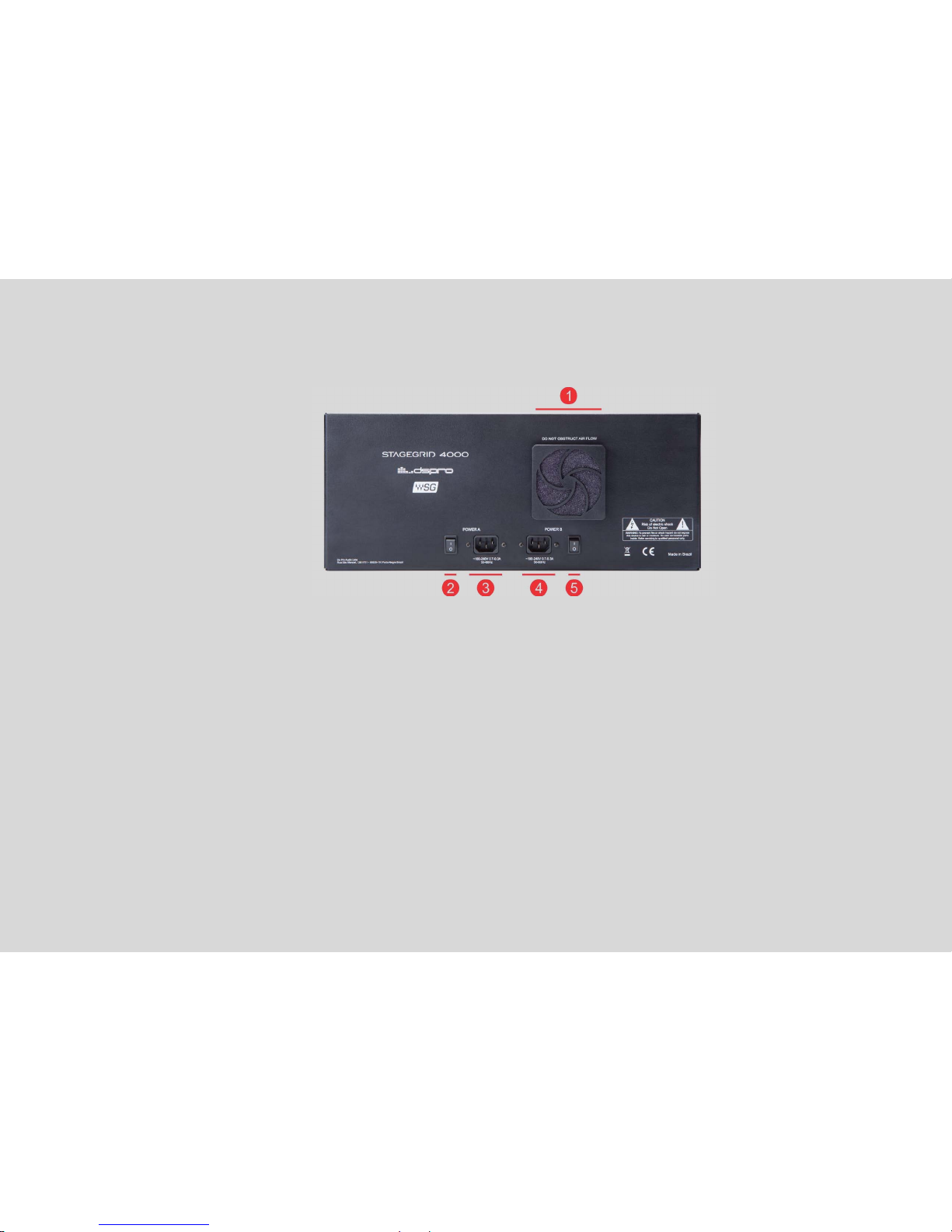
1. Device fan. Air flows from the back to front and sides.
2. Power A On/Off switch
3. Power A connector
4. Power B connector
5. Power B On/Off switch
Page 14

13 of 26 STAGEGRID 4000 User Guide rev.01
SOFTWARE
To use STAGEGRID 4000, you must first install the Waves SoundGrid application and the device
drivers.
Software is installed to the host computer using the the Waves Central application, a platform for
managing user resources and licenses . Download Waves Central at:
www.waves.com/downloads/central.
Page 15
14 of 26 STAGEGRID 4000 User Guide rev.01
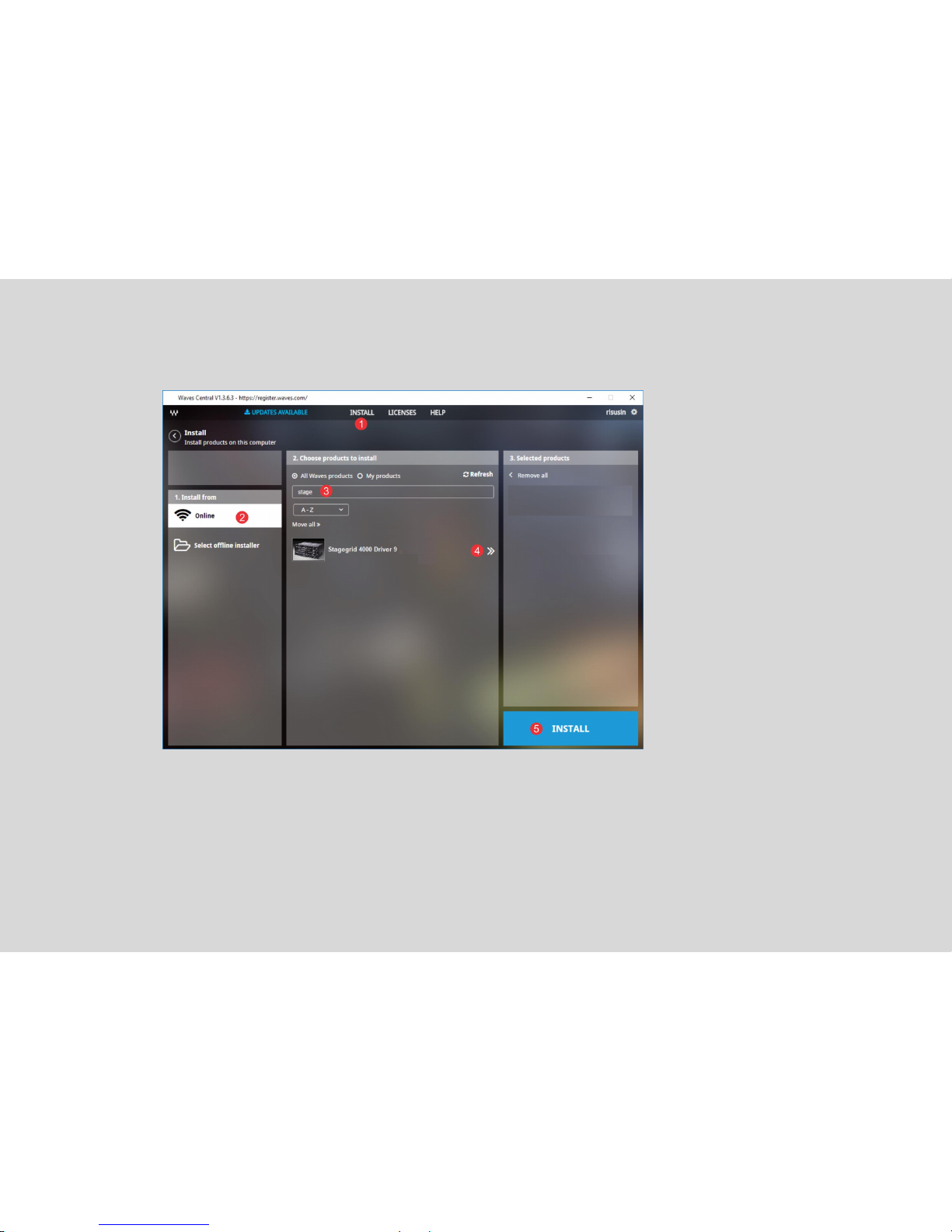
Use your Waves ID to log in to Waves Central.
1. Select “INSTALL”
2. Select “Online”
3. Search for “STAGEGRID”
4. Select STAGEGRID to add it to the Selected products column.
5. Start the Install
Page 16
15 of 26 STAGEGRID 4000 User Guide rev.01
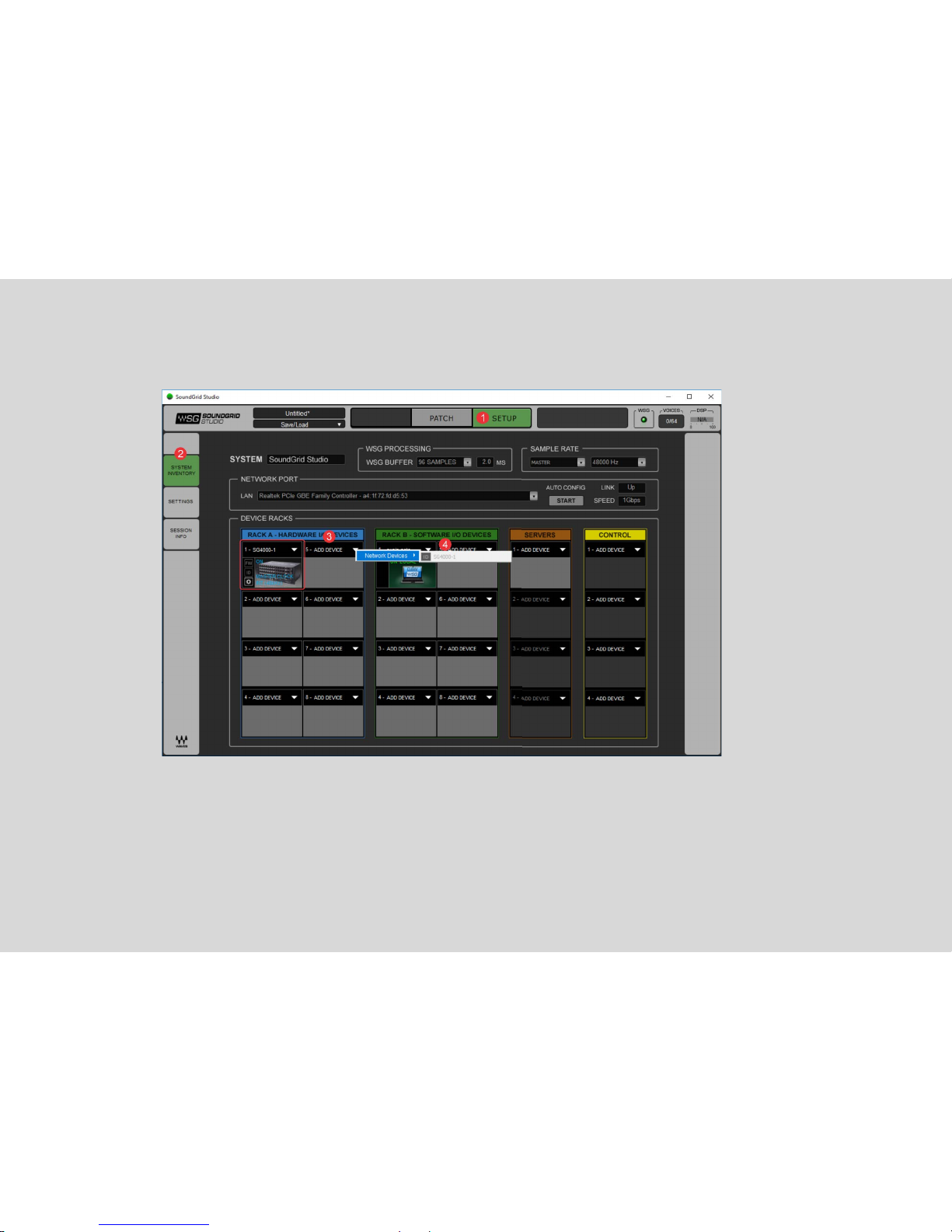
When installation is complete, run SoundGrid Studio and follow these steps:
1. Select SETUP tab
2. Select SYSTEM INVENTORY
3. At Rack A, add SoundGrid IO devices
4. Select Add Device-> Network Devices->SG4000 to allocate STAGEGRID 4000
Page 17
16 of 26 STAGEGRID 4000 User Guide rev.01
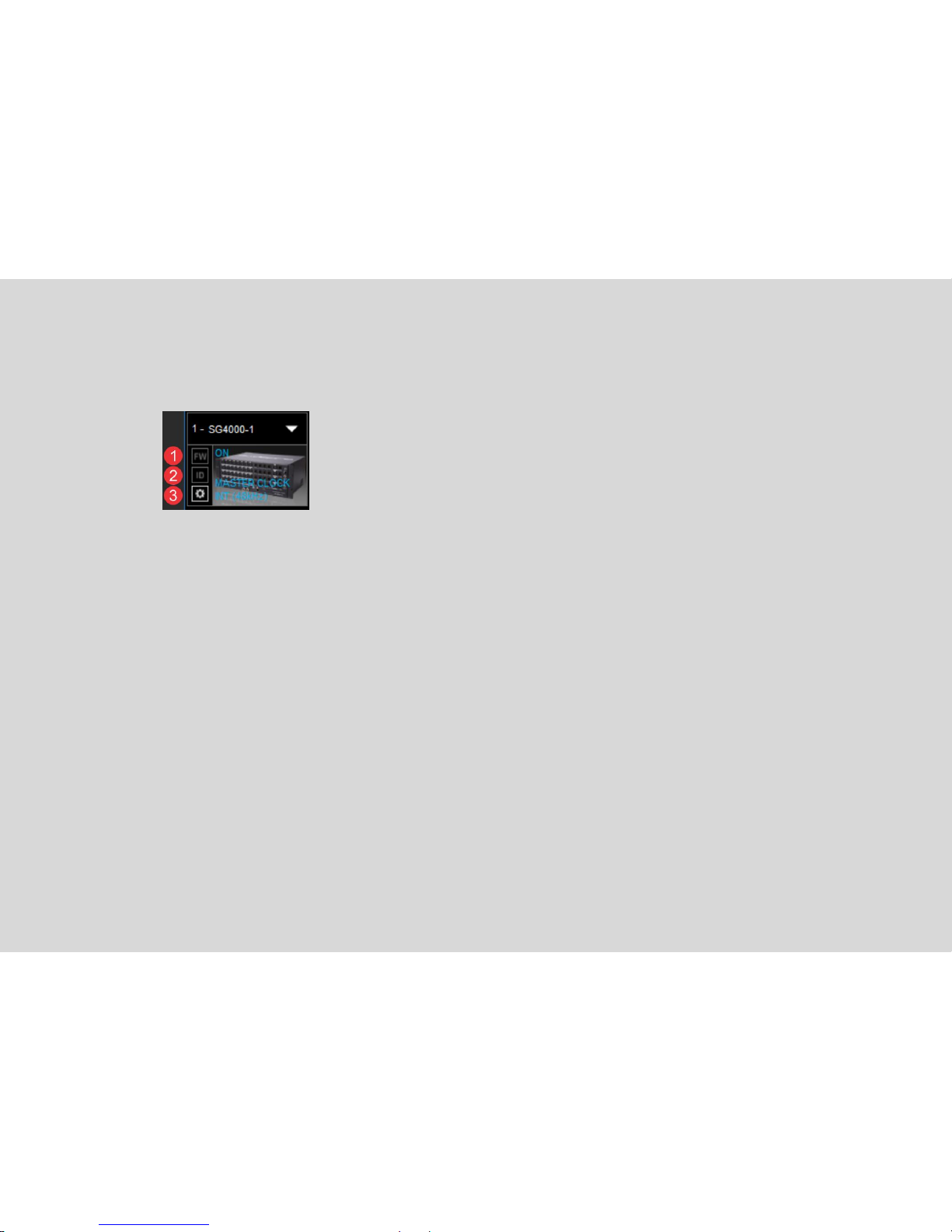
After adding a STAGEGRID to the System Inventory, the following screen will appear:
1. FW: To perform a device firmware update (check “Firmware Update” for detailed procedure)
Blue: New firmware available
Red: New mandatory firmware available
Grey: Firmware up to date.
2. ID: Identify the device by cycling NET LED colors on the front panel of the device
3. Gear: Access the device's control panel
Control Panel
The control panel has five tabs:
About: Device description
System: System details
Clock: Clock setup
Input: Input ports setup
Output: Output ports setup
Page 18
17 of 26 STAGEGRID 4000 User Guide rev.01
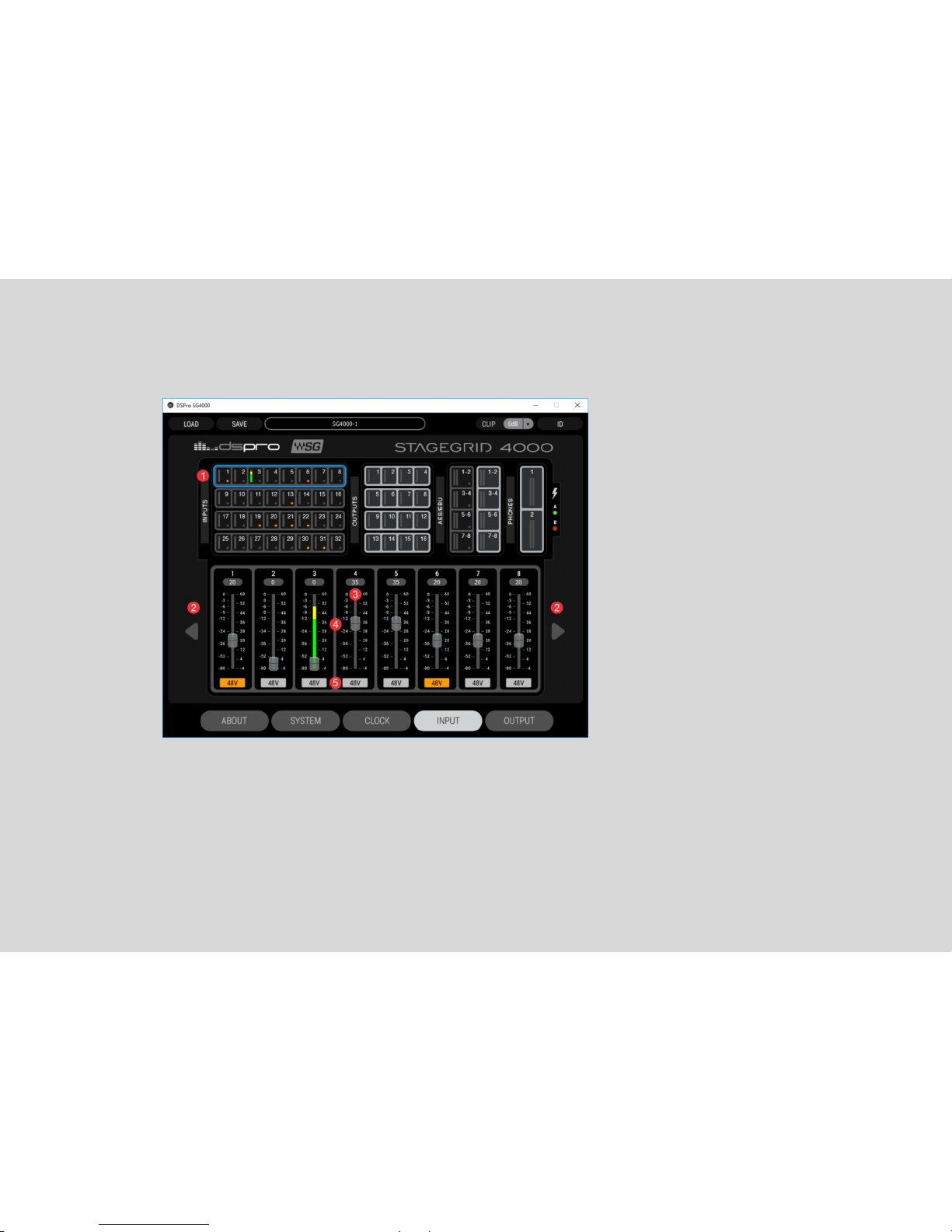
Input tab
1. Selected channel group
2. Navigation arrows between channel groups
3. Detailed output VU meter
4. Preamp gain control fader -4 dB to 60 dB
5. Channel phantom power on/off button
Page 19
18 of 26 STAGEGRID 4000 User Guide rev.01
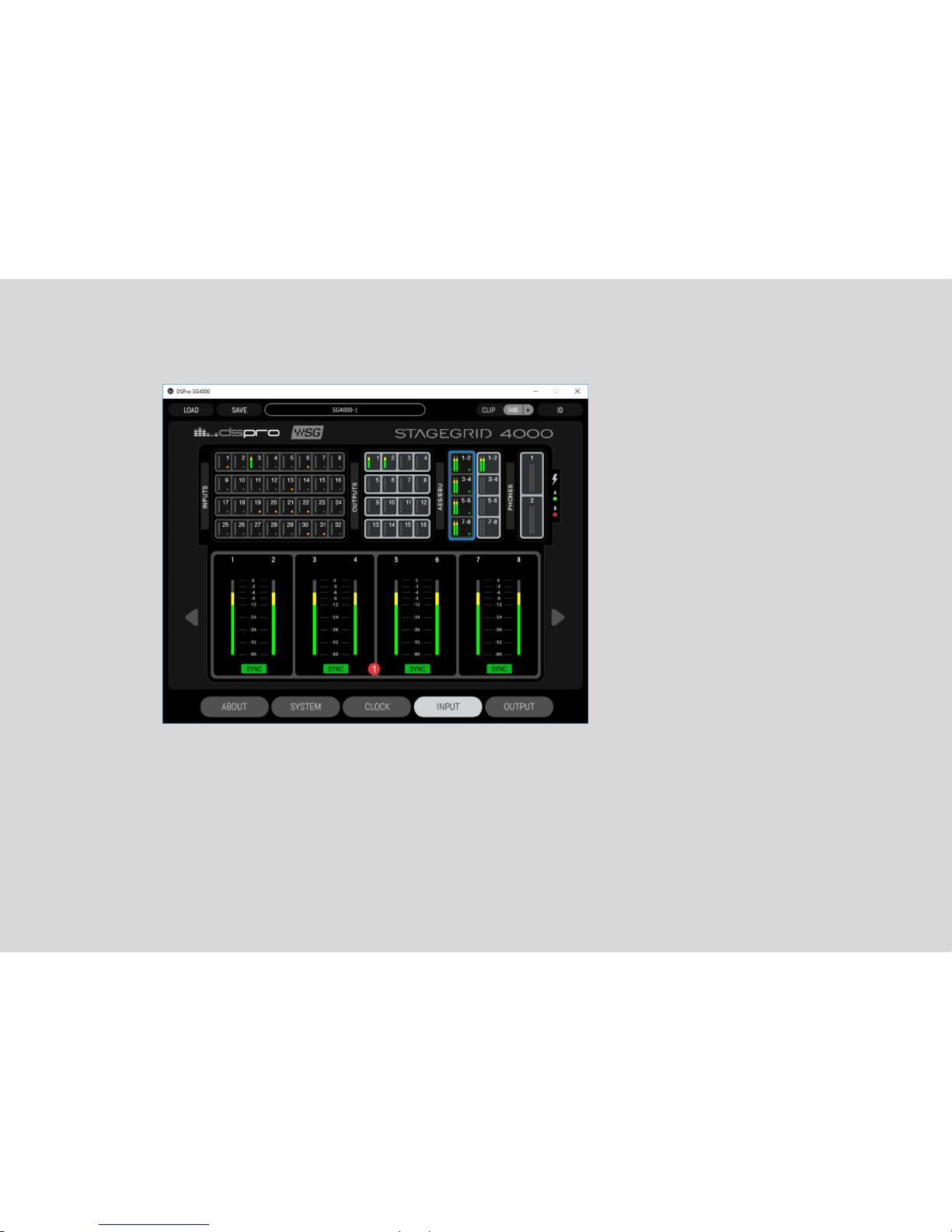
AES Input tab
1. SYNC: AES/EBU operation status:
o Green: Synchronized
o Orange: Clock slip. Same sample rate but non-identical clock.
o Red: Different sample rate
o Grey: No signal
Page 20
19 of 26 STAGEGRID 4000 User Guide rev.01
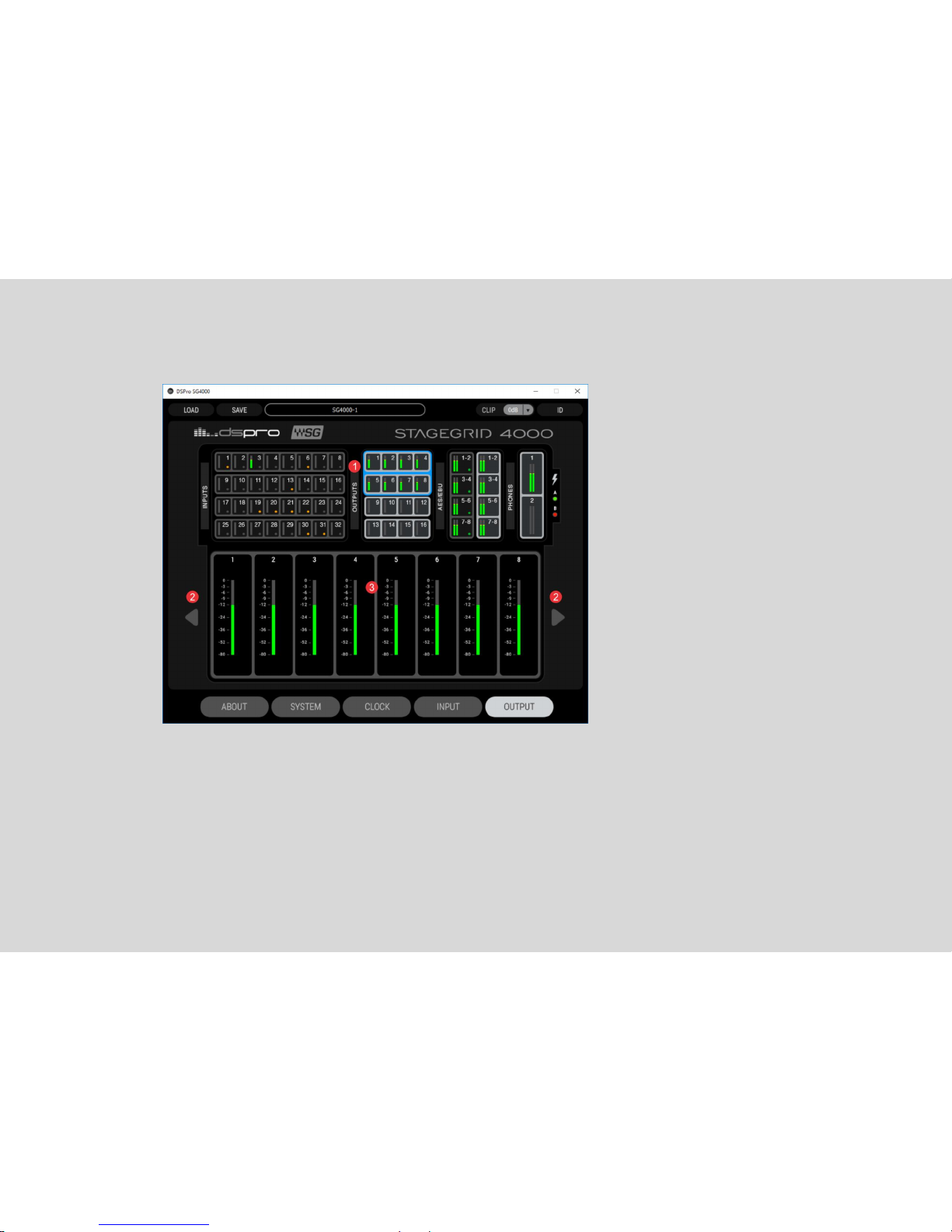
Output Tab
1. Selected channel group
2. Navigation arrows to move between channel groups
3. Detailed output VU meter
Page 21
20 of 26 STAGEGRID 4000 User Guide rev.01
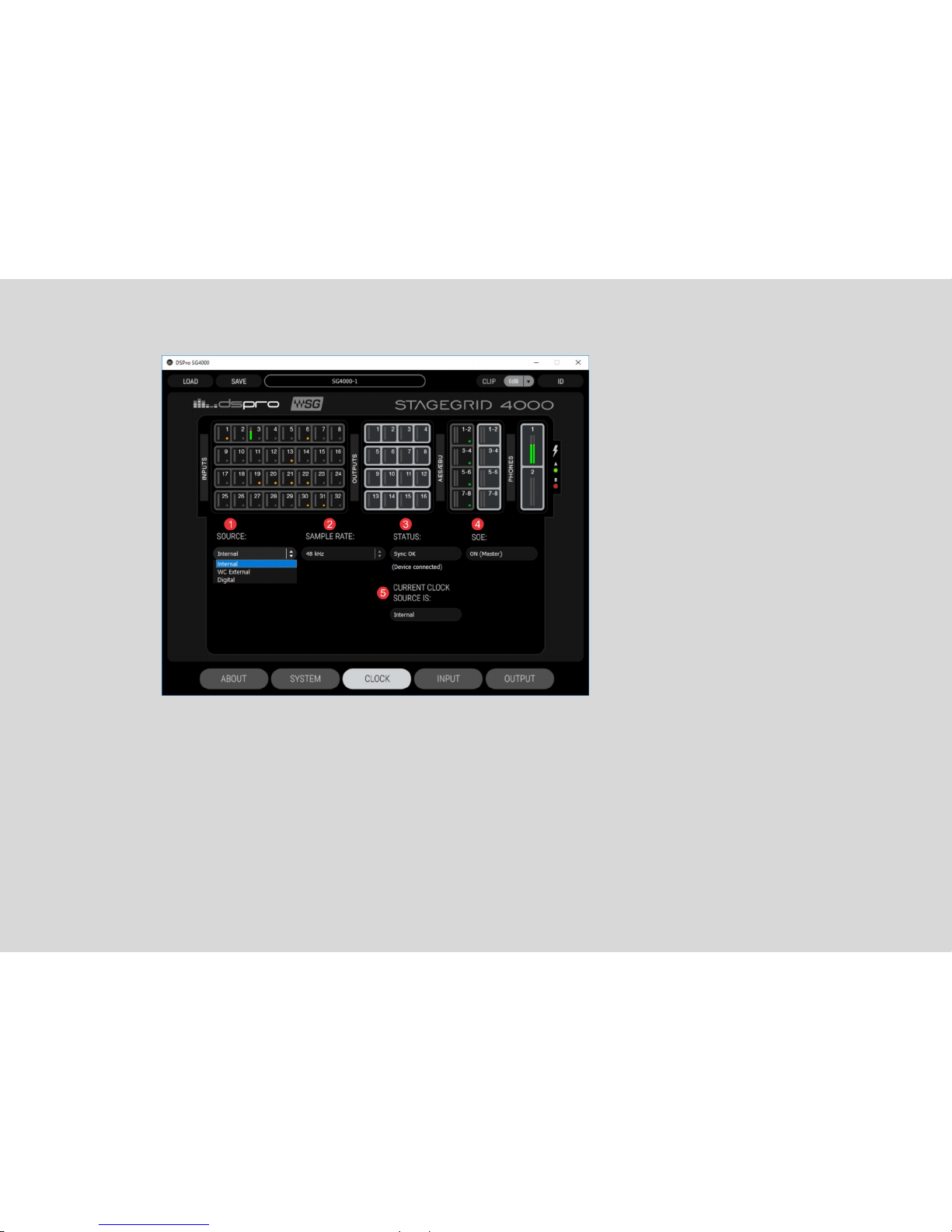
CLOCK Tab
1. SOURCE: The device clock source
When the device is the SOE Master, these options are available:
o Internal: Clock is internally generated.
o WC External: Clock is synchronized to Word Clock input.
o Digital: Clock is synchronized to AES/EBU input. A second drop-down menu selects the port.
When the equipment is SOE Slave, no options are available.
Page 22

21 of 26 STAGEGRID 4000 User Guide rev.01
2. SAMPLE RATE: Selects the network sample rate between: 44.1 kHz, 48 kHz, 88.2 kHz, and 96 kHz.
Available only when the device is SOE Master.
3. STATUS: Displays current selected clock source synchronization status.
4. SOE: Indicates if the device is the (SOE) network clock master or slave.
5. CURRENT CLOCK SOURCE: Indicates the current clock source, based on previous configurations
and fallback mechanisms.
Page 23

22 of 26 STAGEGRID 4000 User Guide rev.01
Firmware Update
Use a SoundGrid host application to perform firmware updates. The color of the FW button on a device's
icon indicates firmware status.
BLUE: An optional update is available.
RED: A mandatory update is available. It will not be possible to use the unit without performing the
update
GREY: current firmware is up to date.
In the event of a failure during the upgrade process, or any other failure that prevents the device from
being recognized by the host application, the following recovery procedure may be performed:
1. Turn off the device power.
2. Press the reset button "R" (on the front panel of the device).
3. Turn on the device while keeping the reset button pressed.
4. Release the button only after the device has started
This will boot the equipment into forced update mode, which can be verified by a yellow “NET” LED.
Page 24

23 of 26 STAGEGRID 4000 User Guide rev.01
SPECIFICATIONS
Dimensions:
Height: 176 mm (4RU)
Width: 430 mm (for 19” rack)
Depth: 300 mm (not including connectors)
Power supply:
Voltage: 110 or 240 VAC
Frequency: 50 Hz or 60 Hz
Power: 60 W
Environmental specifications:
Interfaces:
Operating temperature: 0°C to 40°C
Relative humidity: Up to 90% non-condensing
Analog inputs: 32
Analog outputs: 16
AES/EBU inputs: 4
AES/EBU outputs: 4
Page 25

24 of 26 STAGEGRID 4000 User Guide rev.01
Word Clock in: 1
Word Clock out: 1
SoundGrid: 1
Headphones: 2
Analog Inputs:
Impedance: 2.86 kOhms
Gain range: -4 dB to 60 dB
Max input level: 28 dBu (-4 dB gain)
Dynamic range: 115 dB (-60 dBFS, 20 dB gain, 1 kHz, A-weighted)
THD: 0,002 % (-1 dBFS, 20 dB gain, 1 kHz, A-weighted)
Equivalent input noise: -128 dBu (60 dB gain, A-weighted, 150 ohms)
Frequency response: +/- 0.1 dB (20 Hz to 40 kHz at 96 kHz sampling rate)
Phase Shift: <10° at 20 kHz
Analog Outputs:
Output impedance: 50 ohms
Max output Level (0dBFS): 24 dBu
Dynamic range: 115 dB (-60 dBFS, 1 kHz, A-weighted)
Page 26

25 of 26 STAGEGRID 4000 User Guide rev.01
THD: 0,002 % (-1 dBFS, 20 dB gain, 1 kHz, A-weighted)
Frequency response: +/- 0.1 dB (20 to 40 kHz at 96 kHz)
Phase shift: <5° at 20 kHz
AES/EBU IN/OUT:
Standard: AES3 (2009)
Sample rates: 44.1, 48, 88.2 and 96 kHz
Impedance: 110 ohms
Headphones:
SoundGrid:
Word Clock
Output Power: 150 mW per channel on 16 ohms
Dynamic range: 100 dB
Interface: Gigabit Ethernet
Connector: Neutrik EtherCON
Connector: BNC
Impedance: 75 Ohms
Voltage level: 5V TTL
 Loading...