

Page 1
XH6830
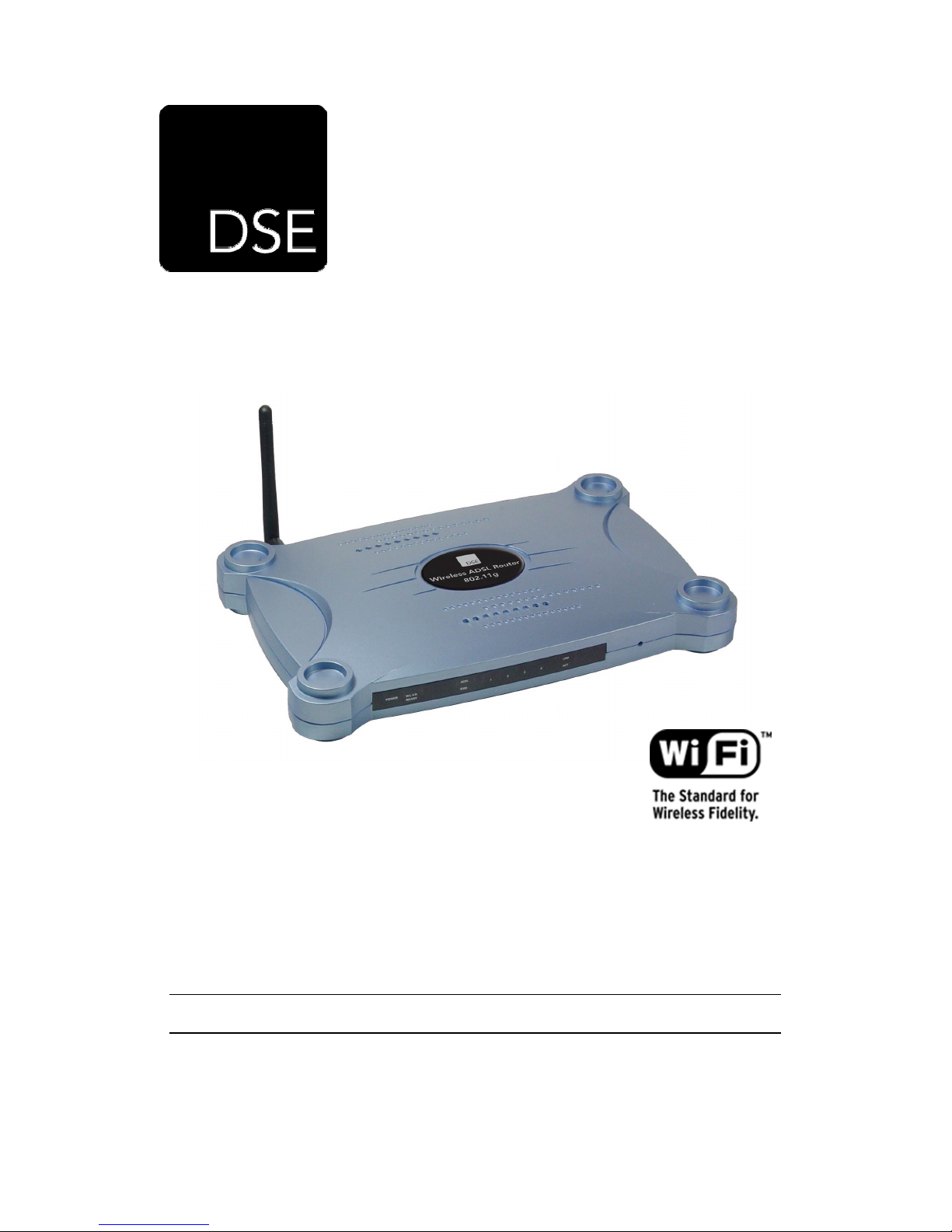
DSE 802.11g ADSL Router
Installation Guide
V1.0 – Last Updated on 05/04/04 by Julius Spencer – © Copyright 2004- DSE(NZ)Ltd
Page 2

1
Life Support Ap p l i c a t i o n s
This product is not designed for use in life support appliances, devices, or systems where
malfunction of the product can reasonably be expected to result in personal injury. Customers
using this product for use in such applications do so at their own risk and agree to fully indemnify
DSE(NZ)Ltd for any damages resulting from such improper use or sale.
Warning
This is a Class B product. In a domestic environment, this product may cause radio interference
in which case the user may be required to take adequate measures.
Telepermit Note
The grant of a Telepermit for any item of terminal equipment indicates only that Telecom has
accepted that the item complied with minimum conditions for connection to its network. It
indicates no endorsement of the product by Telecom, nor does it provide any sort of warranty.
Above all, it provides no assurance that any item will work correctly in all respects with another
item of Telepermitted equipment of a different make or model, nor does it imply that any product
is compatible with all of Telecom’s network services.
Manual Versions
Date Version Author Changes
12 / 01 / 04 1.0 Julius Spencer Original version
Page 3

XH6830 – DSE 802.11g ADSL Router
2
Contents
1 INTRODUCTION .................................................................................................................4
1.1 P
1.2 M
2 FEATURES & SPECIFICATIONS.......................................................................................5
3 PANEL DESCRIPTION.......................................................................................................7
3.1 F
3.2 R
4 HARDWARE INSTALLATION ............................................................................................9
4.1 C
4.2 C
4.3 C
4.4 C
5 NETWORK SETTINGS CONFIGURATION .....................................................................12
5.1 W
5.2 W
6 DEVICE ADMINISTRATION .............................................................................................15
6.1 W
6.2 Q
7 ADVANCED SETTINGS MENU........................................................................................21
7.1 D
7.2 A
7.3 WAN ...........................................................................................................................26
7.4 LAN ............................................................................................................................32
7.5 W
7.6 A
7.7 MAC F
7.8 S
7.9 LAN PC M
7.10 URL B
7.11 V
7.12 DMZ........................................................................................................................53
7.13 A
7.14 D
ACKAGE CONTENTS
INIMUM SYSTEM REQUIREMENTS
RONT PANEL
EAR PANEL
ONNECTING THE ROUTER TO YOUR NETWORK
ONNECTION TO POWER SUPPLY
ONNECTION TO
..................................................................................................................8
4.3.1 Make sure ADSL service is activated
4.3.2 Configure your phone equipment
4.3.3 Option 1: Install ADSL Filter/s yourself
4.3.4 Option 2: Have an ADSL splitter professionally installed
ONNECTION TO
INDOWS
INDOWS
EB BASED CONFIGURATION
UICK SETUP
EVICE INFO
DMINISTRATION
7.2.1 System Settings ..................................................................................................23
7.2.2 Administrator .......................................................................................................24
7.2.3 Upgrade Firmware ..............................................................................................24
7.2.4 Miscellaneous Commands ..................................................................................24
IRELESS
7.5.1 Info ......................................................................................................................34
7.5.2 Basic ...................................................................................................................35
7.5.3 Security ...............................................................................................................37
7.5.4 Association..........................................................................................................39
7.5.5 Advanced ............................................................................................................40
7.5.6 802.1x .................................................................................................................41
CCESS CONTROL
ERVICE TIME
98/ME C
NT/2000/XP C
................................................................................................................21
(802.11G)...................................................................................................34
ILTER
................................................................................................................45
ANAGEMENT
LOCKING
IRTUAL SERVER
UTO
2-W
AY APPLICATIONS
YNAMIC
DNS .........................................................................................................56
......................................................................................................4
..................................................................................4
................................................................................................................7
................................................................9
...................................................................................9
WAN .................................................................................................10
...........................................................10
..................................................................10
.........................................................10
..........................11
LAN...................................................................................................12
ONFIGURATION
ONFIGURATION
...............................................................................................................17
..........................................................................................................23
........................................................................................................43
..............................................................................................................46
................................................................................................49
........................................................................................................50
......................................................................................................51
...............................................................................13
.....................................................................14
.......................................................................................15
.....................................................................................55
Page 4

3
7.15 UPNP ......................................................................................................................57
8 ABOUT WI-FI ....................................................................................................................58
8.1 WI-F
8.2 WI-FI CERTIFIED = C
8.3 WI-FI C
8.4 W
9 TROUBLESHOOTING ......................................................................................................60
10 FREQUENTLY ASKED QUESTIONS...........................................................................64
11 SUPPORT......................................................................................................................66
12 WARRANTY ..................................................................................................................66
13 GLOSSARY OF TERMS ...............................................................................................66
14 HOTSPOTS IN NEW ZEALAND ...................................................................................71
I IS FREEDOM
ONNECTS YOU
HO CAN USE WI-FI
.......................................................................................................58
ONFIDENCE
..................................................................................................58
? .................................................................................................59
...............................................................................58
Page 5

XH6830 – DSE 802.11g ADSL Router
4
1
Introduction
Thank you for purchasing the DSE 802.11g ADSL router. This product is the perfect option to
connect a group of wired or wireless PCs to a high-speed ADSL Internet connection.
Configurable as a DHCP server for your existing network, this router acts as the only externally
recognized Internet gateway on your local area network (LAN) or wireless local area network
(WLAN) and serves as an Internet NAT firewall against unwanted outside intruders. This router
can also be configured to filter users by MAC address, provide a level of security using Wired
Equivalent Privacy (WEP) and control internal users’ access to the Internet.
A typical router relies on a hub or a switch to share its Internet connection, but this Wireless
Router channels this connection through the blazing, full duplex speed of its built-in 4-Port
10/100Mbps Switch. This cutting-edge combination of Wireless Router and switch technology
eliminates the need to buy an additional hub or switch and extends the range of your wireless
network.
1.1 Package Contents
Carefully unpack and remove the contents. If any of the following items are missing or damaged,
contact the Dick Smith Electronics store you purchased the device from.
• 1 x XH6830 DSE 802.11g ADSL router
• 1x Power adapter
• 1 x RJ-11 Cable
• 1 x RJ-11 to BT Adapter
• 1 x RJ-45 Cable
• Vertical Stand Supports
• Installation CD
• This installation guide
• Quick Start Guide
1.2 Minimum System Requirements
• Pentium class computer, 200 MHz or higher with a network card or a 802.11b/g adaptor
• Any operating system or computer capable of 10Mbps or 100Mbps, Simplex or Duplex
connection with support for TCP/IP. HTTP browser and FTP client required for web
access and firmware upgrading respectively
• One ADSL enabled telephone line and account with an ISP
• One splitter or one filter (XH7556) for each telephone connected in the home
• A Java capable web browser
Page 6

5
2 Features & Specifications
• Web-based setup for installation and management.
• Built in 4 x 10/100 Mbps Switch port for LAN connection.
• One 10/100Mbps WAN port for cable/xDSL modem connection.
• 802.11g wireless networking, with the ability to operate in 802.11g-only or 802.11b+g
modes.
• OFDM modulation with data rate up to 54Mbps.
• 64-bit and 128-bit WEP encryption security.
• Support full-duplex 802.3 flow control.
• Compliant with IEEE 802.3/802.3u and auto-negotiation.
• Support packet filtering functionality (To/From WAN).
• Flash memory for firmware upgrade.
• Hardware Reset button for fast default setting recovery.
• LED indicator indicates connection status.
• IEEE 802.11g standard compliant.
• Operate in 802.11g-only or 802.11b+g modes, providing backwards compatibility with
802.11b devices or dedicating the wireless network to the higher bandwidth 802.11g 54
-Mbps devices.
• Wireless access can be restricted by MAC address.
• Wireless network name broadcast can be turned off so that only devices that have the
net- work name (SSID) can connect.
• Blocks unwanted traffic from the Internet to your LAN.
• Blocks access from your LAN to Internet locations or services that you’d specified.
• Logs security incidents. The Wireless Router will log security events such as blocked
incoming traffic, port scans, attacks, and administrator logins.
• Extensive Protocol Support
• IP Address Sharing by NAT. The Wireless Router allows several networked PCs to
share an Internet account using only a single IP address, which may be statically or
dynamically assign -ed by your Internet service provider (ISP).
Page 7

XH6830 – DSE 802.11g ADSL Router
6
•
•
•
•
•
Automatic Configuration of DHCP. The Wireless Router dynamically assigns network
configuration information, including IP Address, WAN Gateway, Domain Name Server
( DNS ) Addresses, … etc. This greatly simplifies configuration of PCs on your local
network.
Dynamic DNS. This is a method of keeping a domain name linked to a changing IP
Address as not all computers use Static IP addresses. Typically, when a user connects
to the Internet, the user's ISP assigns an unused IP address from a pool of IP
addresses, and this address is used only for the duration of that specific connection.
PPP over Ethernet (PPPoE). PPPoE is a method for the encapsulation of PPP packets
over Ethernet frames from the user to the ISP over the Internet. One reason PPPoE is
preferred by ISPs is because it provides authentication (username and password) in
addition to data transport. A PPPoE session can be initiated by either a client application
residing on a PC, or by client firmware residing on a modem or router.
PPTP (Point-to-Point Tunneling Protocol) – PPTP is a protocol (set of communication
rules) that allows corporations to extend their own corporate network through private
"Tunnels" over the public Internet. Effectively, a corporation uses a wide-area network
as a single large local area network. A company no longer needs to lease its own lines
for wide-area communication but can securely use the public networks. This kind of
interconnection is known as a virtual private network.
Support UPnP. Universal Plug and Play (UPnP) enhances peer-to-peer network
connectivity for personal computers, wireless devices, and other intelligent appliances,
in a distributed, open networking architecture. UPnP provides an architectural
framework for creating self-configuring, self-describing devices and services. Networks
managed by UPnP require no configuration by users or network administrators because
“UPnP” supports automatic discovery. UPnP enables a device to dynamically join a
network, obtain an IP address, and convey its capabilities on request.
•
•
•
•
•
Easy Installation and Management
Quick Setup. The Quick Setup is meant to help you install the product quickly and
easily.
Browser-based management. Browser-based configuration allows you to easily
configure your router from almost any type of personal computer, such as Windows,
Macintosh, or Linux.
Visual monitoring. The Wireless Router’s front panel’s LEDs provide an easy way to
monitor the connection status and activity.
NZ Telepermit: PTC 272/04/001
Page 8
7
3 Panel Description
3.1 Front Panel
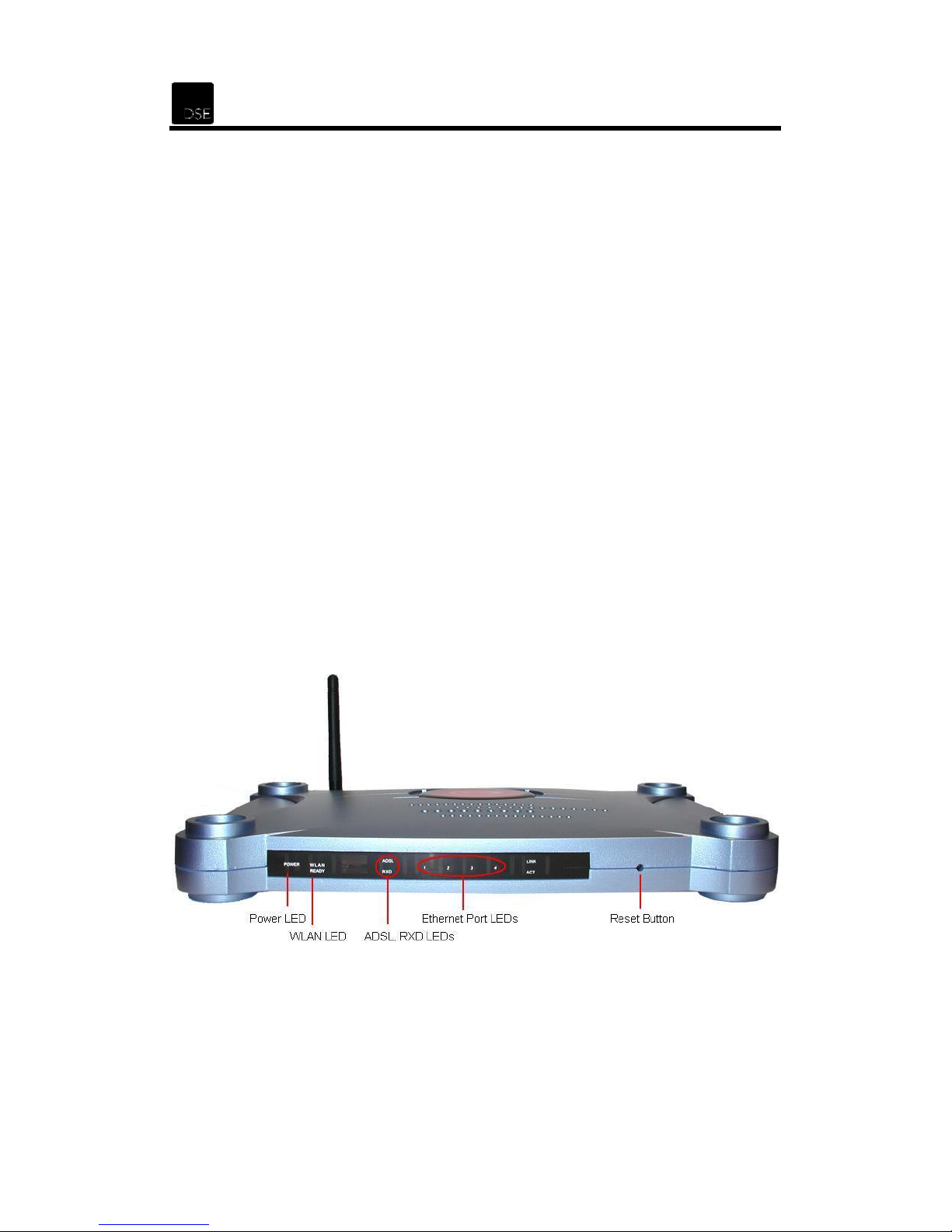
The router’s front panel’s LEDs provide an easy way to monitor the connection status and
activity.
• POWER: Lights up when the router is powered on.
• WLAN READY: Lights up when the wireless communication is active.
• ADSL: Steady green light indicates a valid ADSL connection. This light will blink during
the ADSL negotiation process.
•
•
•
•
•
•
RXD: Blinks when the router is actively sending/receiving data.
1: Blinks when the router is actively sending/receiving data.
2: Blinks when the router is actively sending/receiving data.
3: Blinks when the router is actively sending/receiving data.
4: Blinks when the router is actively sending/receiving data.
Reset: Press for 10 seconds to restore the router factory default settings.
Page 9
XH6830 – DSE 802.11g ADSL Router
8
3.2 Rear Panel
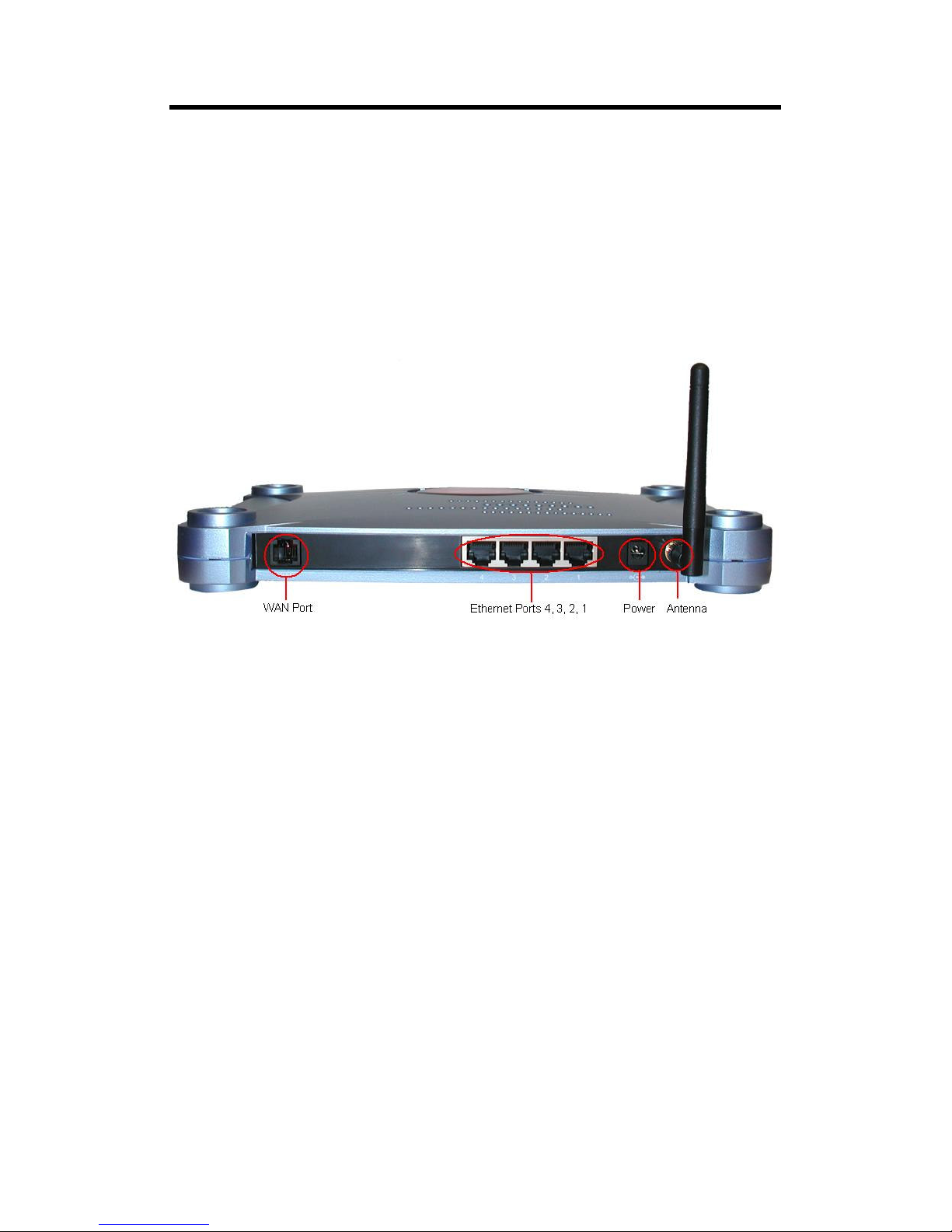
The router’s rear panel provides the following connections.
•
•
•
•
WAN: Connects to an ADSL enabled telephone line through a filter/splitter.
Ports 1~4: Connects to a network device. Supports auto crossover functionality.
Power: Connects to the AC/DC power adaptor.
Antenna: The antenna connects here.
Page 10
9
4 Hardware installation
4.1 Connecting the router to your network
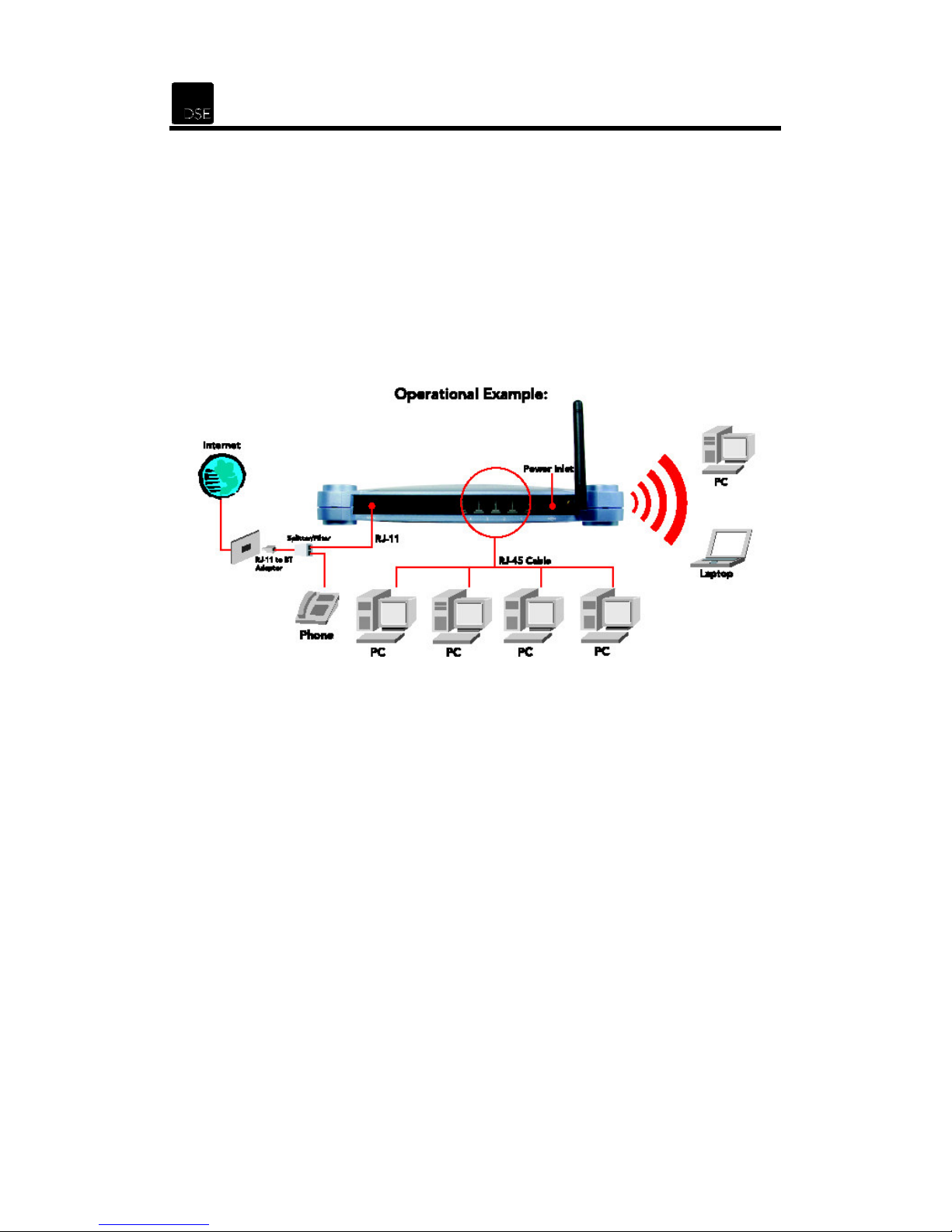
This router can connect to PCs via Ethernet with network cables or wirelessly via radio waves.
The router can also be connected to the Internet through an ADSL enabled telephone line via a
filter/splitter to allow all PCs in your network to have access to the Internet.
4.2 Connection to Power Supply
Connect the Power Adaptor provided to the router’s POWER port, and then plug the other end
of the power adaptor to the power outlet.
Page 11

XH6830 – DSE 802.11g ADSL Router
10
4.3 Connection to WAN
4.3.1 Make sure ADSL service is activated
Before you can use any ADSL modem or router, you must confirm the following:
• You are located within about 5km of an ADSL enabled phone exchange and you can get
Telecom’s ADSL service. This can be checked on-line by visiting “adsl.dse.co.nz” and
clicking on the link “your area” – or by calling Telecom on 0800 253 878.
Telecom has enabled the ADSL service to your house or office.
•
This can be facilitated by Ihug, Xtra or directly with Telecom
Because ADSL and voice works on the same phone line at the same time, you need to
•
install ADSL filter/s on each of your normal Telephone devices or contact Telecom on 123 to
arrange for someone to install a central splitter. You can also order ADSL on-line by visiting
“adsl.dse.co.nz” and clicking on the “Order JetStream @ Home” or “Order JetStream @
Work” links.
You need to have an account with an Internet Service Provider (ISP) to enable your new
•
ADSL line to connect to the Internet.
•
To connect with IHUG, simply call 0800 GET IHUG or visit www.ihug.co.nz/dse
To connect with XTRA, simply call 0800 GET XTRA
4.3.2 Configure your phone equipment
ADSL works by combining both voice and data signals on the same phone line. At your
premises, these signals need to be separated through the use of an approved Filter or Splitter.
Whilst both achieve the same results, each has their pro’s and cons.
Filter Splitter
Ideal for
Installation method
Maximum phones
How to get
Cost
Smaller installations with a
limited amount of phone
outlets (phones, answering
machines, cordless phones,
56K modems, Fax, etc.)
Self install Professional contractor only
5 – although double and triple
adaptors can be plugged into
the phone socket of each filter.
Dick Smith Electronics –
XH7556
Low per unit for most
installations
Larger installations or
situations where filters
cannot be used (alarm
diallers and other
permanently wired
telephone devices).
Unlimited
Call Telecom on 123
Higher – depends on
installer and the actual
installation
4.3.3 Option 1: Install ADSL Filter/s yourself
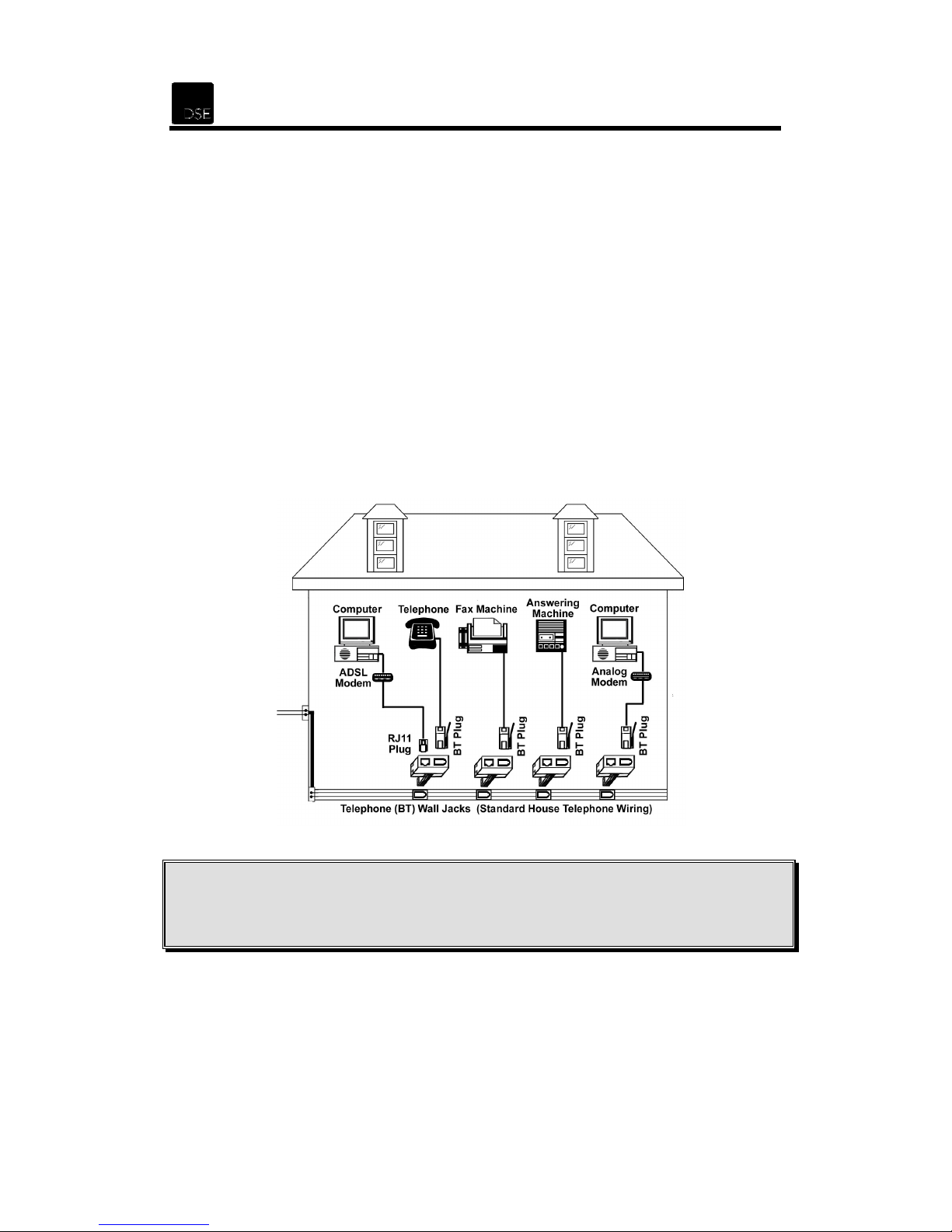
• All telephone equipment must be filtered in an ADSL installation. This includes corded &
cordless phones, answering machines, faxes, caller display units, analogue modem
(including such devices as a Sky digital decoder with integrated modem), dedicated diallers,
Etc. Filtering telephone equipment is as simple as plugging the XH7556 DSE ADSL filter
in-line with the device/s.
Page 12
11
Your ADSL modem or router will be the only device that can connect directly to your
•
jackpoint. However should an adaptor be required between the plug on the modem cord and
the jackpoint, or you wish to connect telephone equipment to the same jackpoint, the DSE
ADSL filter can be used by plugging the router or modem into the “ADSL” socket.
Do not plug an ADSL modem or router into the “PHONE” socket if the modem cord has this
•
type of plug.
It is important that the filter is connected the right way around.
•
- The lead coming out of the side marked “LINE” is plugged into the telephone jackpoint
- Non-ADSL telephone equipment then plugs into the “PHONE” socket on the filter
- The ADSL Modem or Router plugs into the “ADSL” socket on the filter.
Up to 5 filters can be used on a single telephone line. If you need to install more than 5
•
filters, a central splitter must be installed by Telecom.
If you need to connect more than one item of telephone equipment at the same jackpoint,
•
then a double adaptor can be plugged into the “PHONE” socket of this filter.
This Line Filter has a RJ11 “ADSL” socket incorporated. Only ADSL modems or routers
•
may be plugged into this socket.
CAUTION:
Failure to connect ALL telephone type equipment via a filter will result in loss of the data link
whenever a call is made or answered. In many cases the link will also be lost when a call is
received, even if it is not answered.
4.3.4 Option 2: Have an ADSL splitter professionally installed
Contact Telecom on 123 to arrange for a central splitter to be installed.
Page 13

XH6830 – DSE 802.11g ADSL Router
12
4.4 Connection to LAN
Connect an Ethernet network cable from your PC’s Ethernet port to one of the router’s LAN
ports. The LAN LINK/ACT LED indicator will be lit by the corresponding port’s number when a
successful connection is made.
All the Ethernet ports support auto crossover functionality which means that either a patch or
crossover cable can be used.
5 Network Settings Configuration
This section will help you configure your computers to be able to communicate with the router.
Computers access the network and the Internet using a protocol called TCP/IP (Transmission
Control Protocol/ Internet Protocol). Each computer on your network must have TCP/IP installed
and selected as its networking protocol. If a Network Interface Card (NIC) or Wireless LAN Card
is already installed in your PC, then TCP/IP is probably already installed as well.
The following description assumes the router has the factory default settings. (If not, please hold
the reset button down for 10 seconds). The default router’s LAN IP is 192.168.8.1 and the DHCP
server setting for LAN users is on (offered IP range from 192.168.8.17 to 192.168.8.128 by
default).
Follow the procedures below to set your computers to get an IP address from the router.
Page 14
13
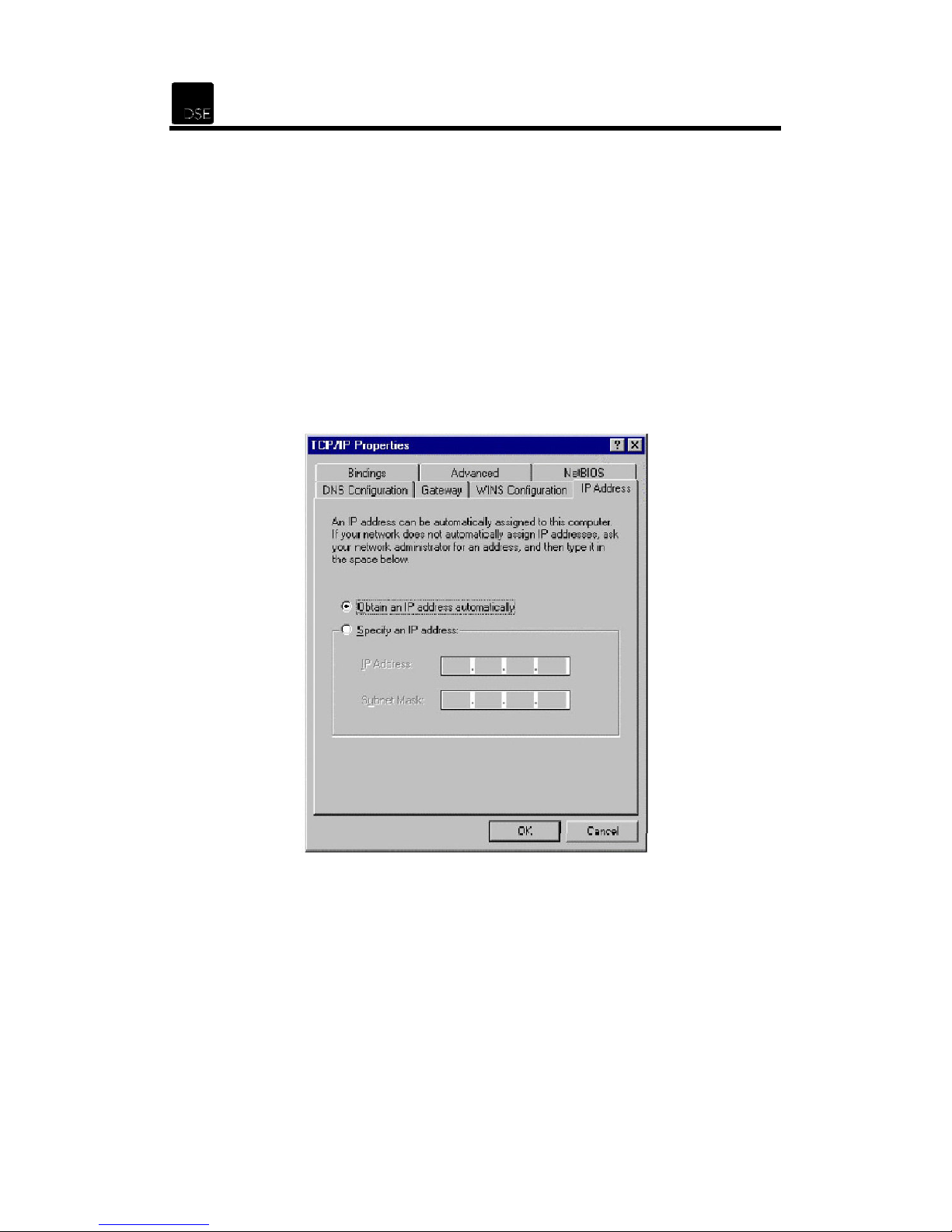
5.1 Windows 98/Me Configuration
1. From the Windows desktop, click the Start button and choose Settings, then click Control
Panel.
2. From Control Panel, double-click the Network icon.
3. In the Network window, under the Configuration tab, double-click the TCP/IP entry of the
WLAN adaptor.
4. On the Internet Protocol (TCP/IP) Properties dialog box, make sure Obtain an IP
address automatically and Obtain DNS server address automatically are selected. If
not, select them, click OK and OK again. Note that Windows may ask you to insert the
Windows 98 CD so have it ready.
5. Restart your computer.
Page 15
XH6830 – DSE 802.11g ADSL Router
14
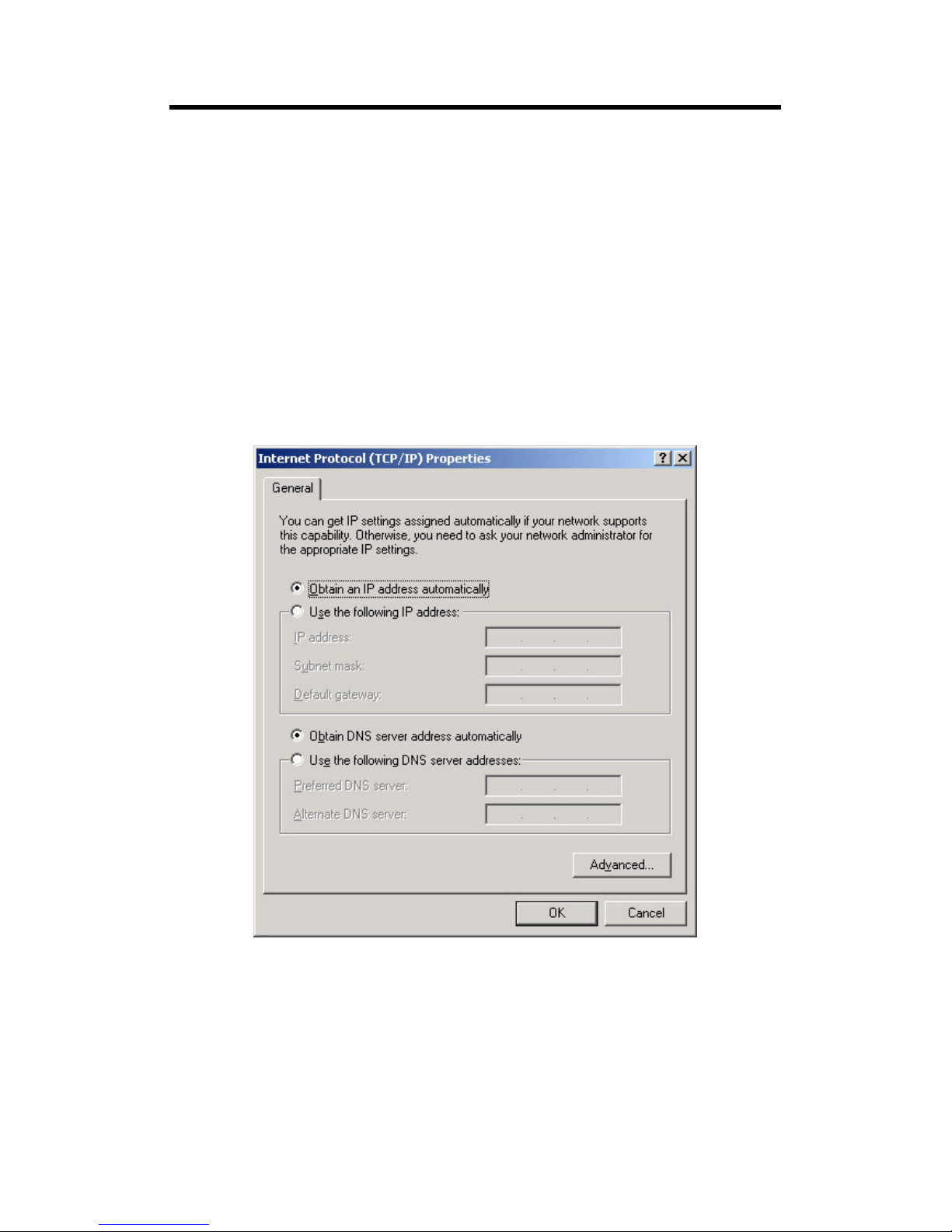
5.2 Windows NT/2000/XP Configuration
1. From the Windows desktop, click the Start button. Choose Settings, then click Control
Panel.
2. From Control Panel, double-click the Network & Dial-Up Connections icon.
3. Double-click the icon that corresponds to the connection to your router.
4. Click Properties and double-click Internet Protocol (TCP/IP).
5. On the Internet Protocol (TCP/IP) Properties dialog box, make sure Obtain an IP
address automatically and Obtain DNS server address automatically are selected. If
not, select them and click OK to close the window.
Page 16
15
6 Device Administration
The router has a web-based utility that allows you to manage it. This section discusses the
functions in the utility.
6.1 Web Based Configuration
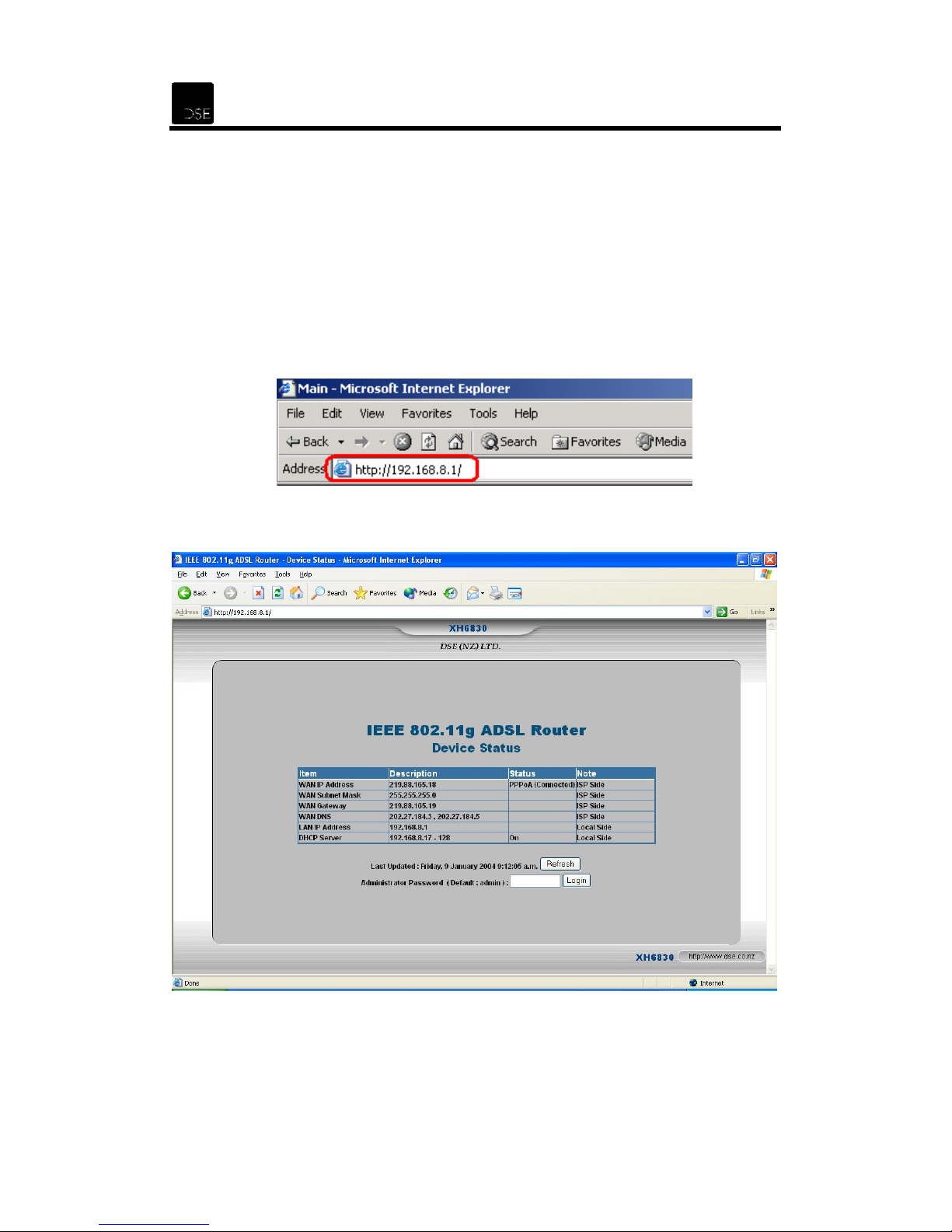
To access the web-based utility, launch Microsoft Internet Explorer, Netscape Navigator or the
web browser you normally use. Enter the router’s default IP address, http://192.168.8.1 in the
Address field and press Enter.
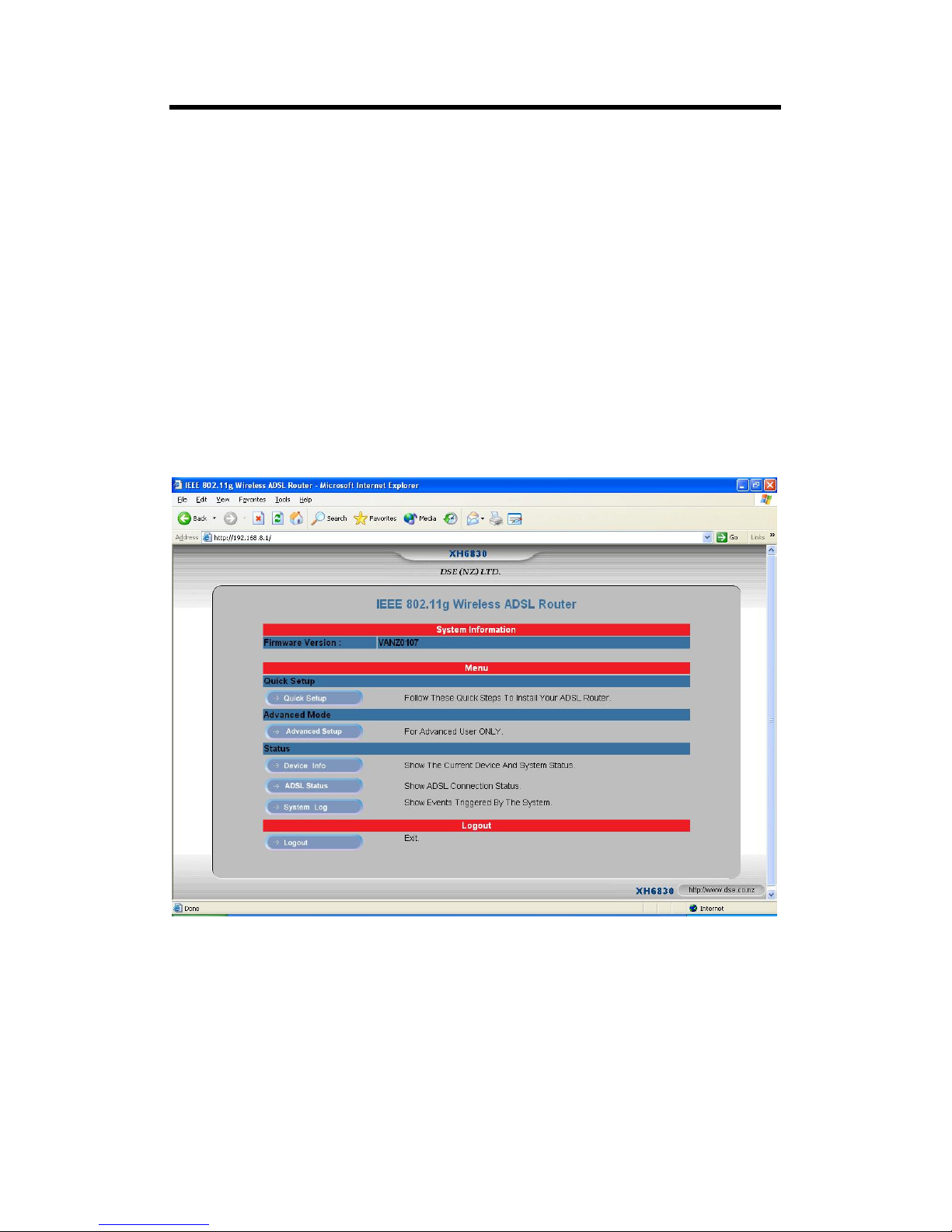
The main page with all the device status information will appear.
Enter the default Administrator password admin and press Enter to log in. The router System
Information will appear.
Page 17
XH6830 – DSE 802.11g ADSL Router
16
Firmware Version: Shows the current router Firmware version.
Quick Setup: The Quick Setup is provided to help you set up the router quickly and easily.
Advanced Settings:
the router. No changes should be made to this section without a
networking concepts.
Device Info:
status.
ADSL Status
upstream/downstream errors and other statistics.
System Log: Displays a log of system events such as system start, administrator log-in/log-out,
dial/hang-up, etc…
Logout: To log out of the web management interface.
Displays the
The
Advanced
router
: Displays the current status of the ADSL connection: data rate,
Settings page allows the advanced user to configure
thorough understanding of
’s current or previous connection settings, con
figuration and
Page 18
17
6.2 Quick Setup
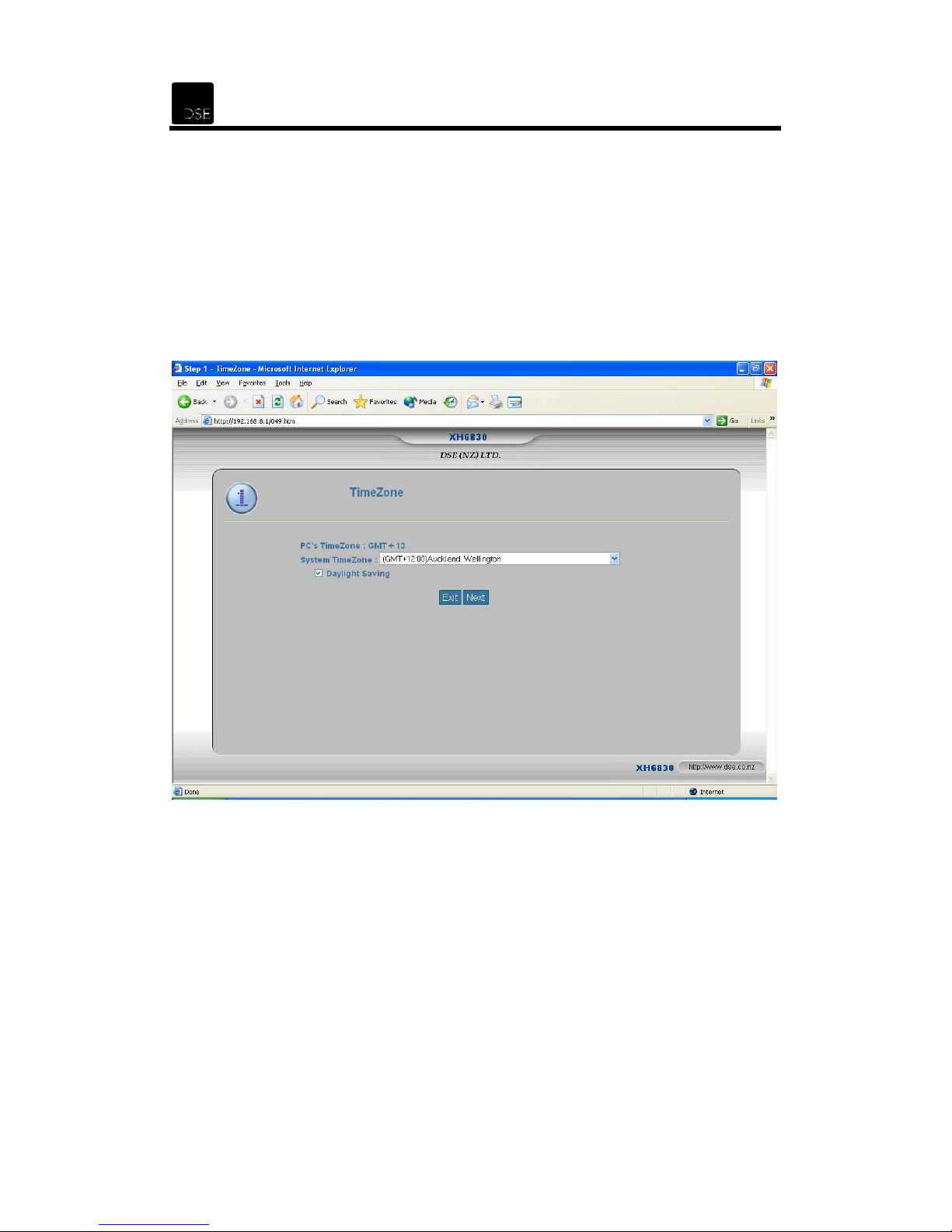
The Quick Setup is provided to help you set up the router quickly and easily. Follow the steps
described below.
STEP 1. Time Zone
Select the System Time Zone / Country. Click Next after your selection.
If your region uses Daylight Savings Time, click the box to activate this feature.
Page 19
XH6830 – DSE 802.11g ADSL Router
18
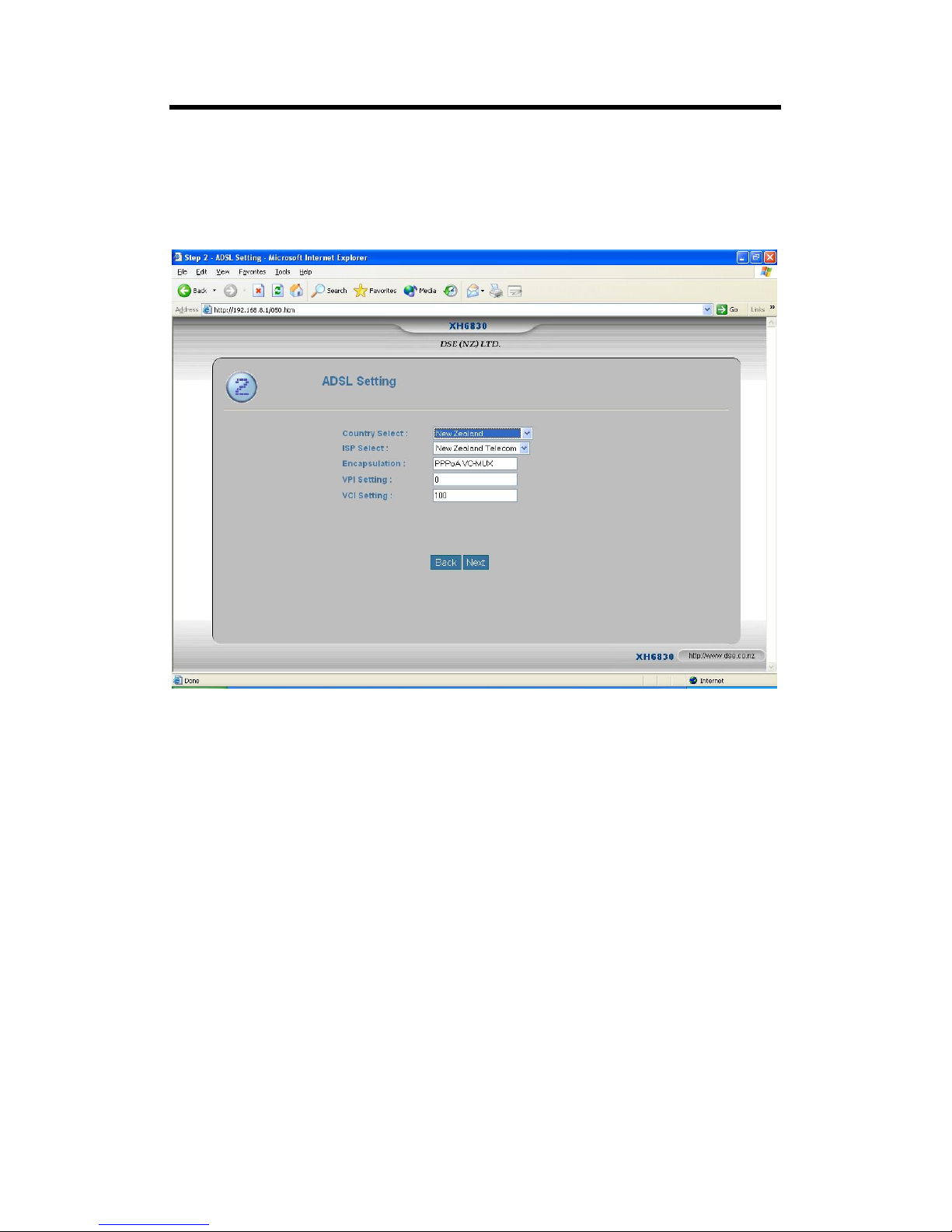
STEP 2. ADSL Setting
From the top drop down box, select New Zealand as your country. This should automatically
select Telecom New Zealand as your ISP, PPPoA VC MUX for Encapsulation, VPI 0 and VCI
100.
Page 20
19
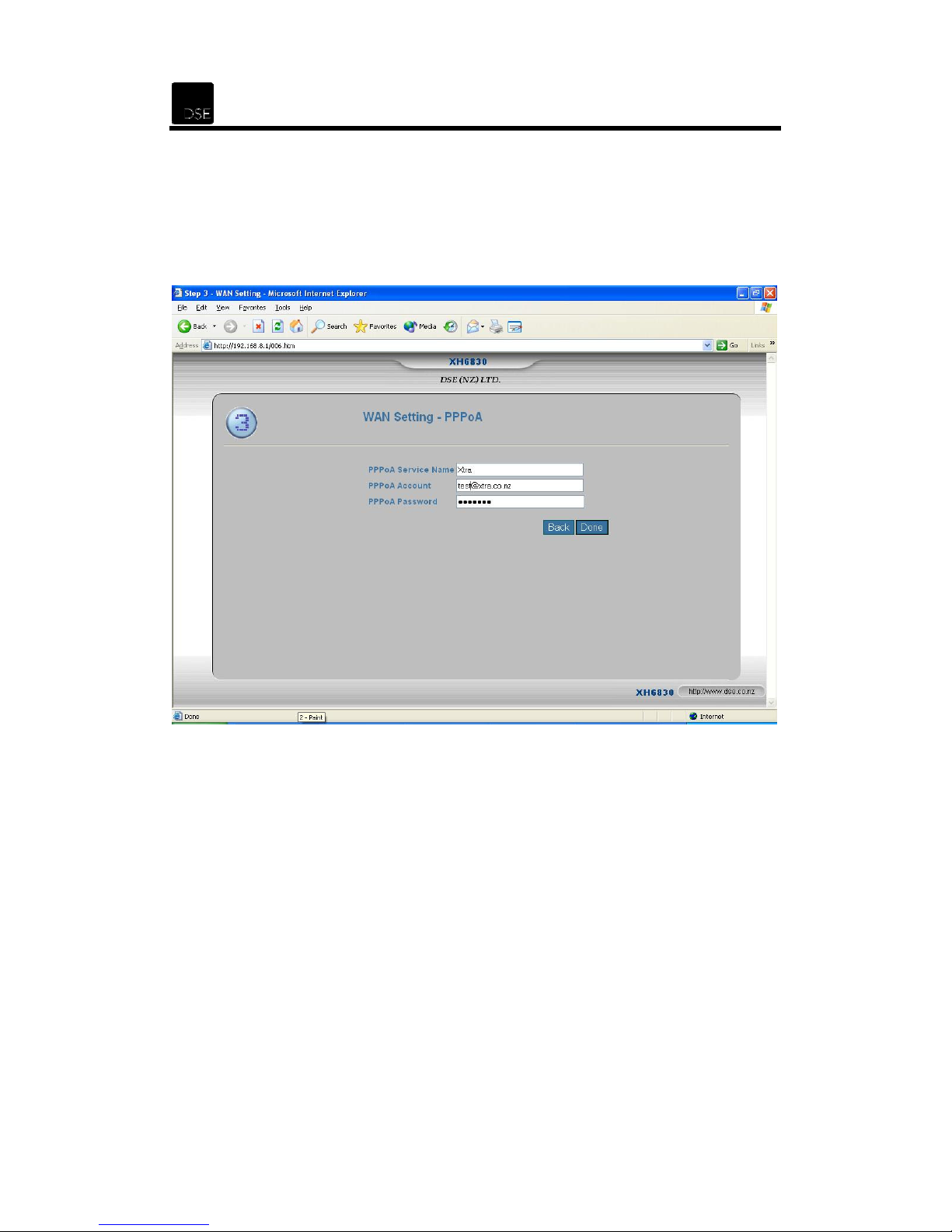
STEP 3. WAN Setting - PPPoA
In the boxes provided insert your account details as provided by your ISP (Account, Password)
and select Next. For Ihug, the format is
user[email protected]. In both instances, user is the user name advised to you by your ISP.
user@adsl.ihug.co.nz.
For Xtra, the format is
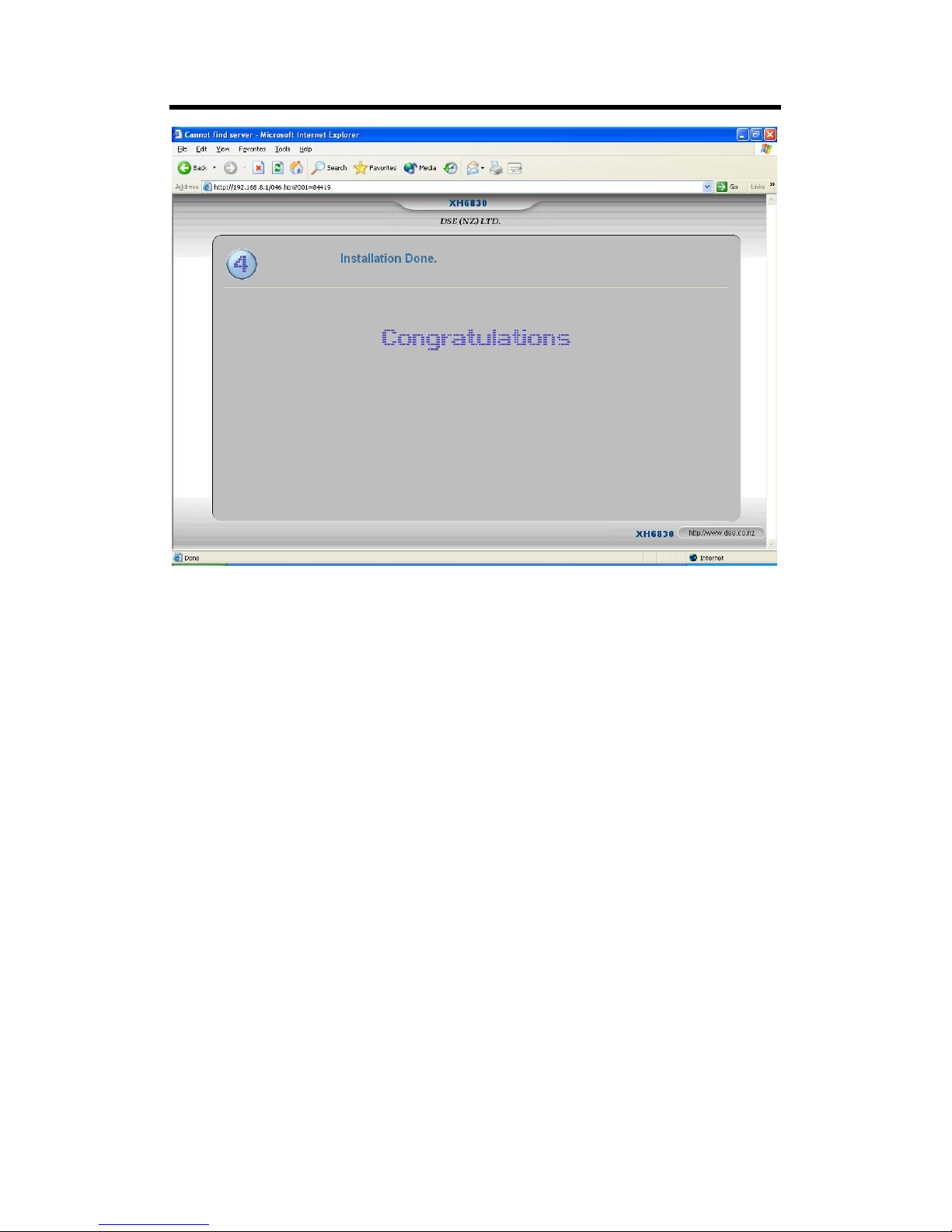
“Restarting…” should appear and your connection may be temporarily lost to the router. You
should then see Congratulations and then be forwarded back to the main System Information
page.
Page 21
XH6830 – DSE 802.11g ADSL Router
20
The router should now be operational and the only things left to do are to change the default
administrator password and enable WEP in order to have a secure wireless network. Please
refer to the appropriate sections later in this manual.
Page 22
21
7 Advanced Settings Menu
7.1 Device Info
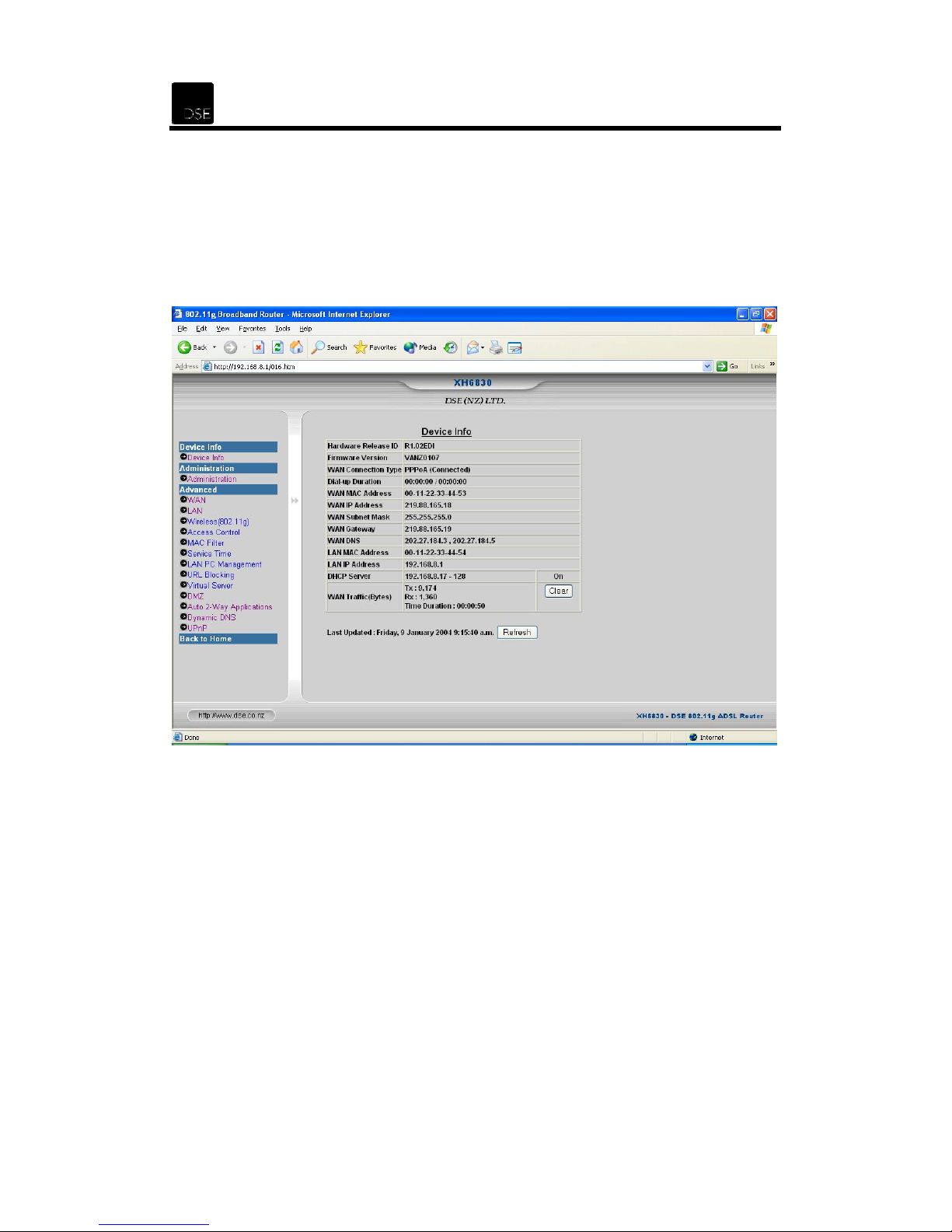
This page displays the
status
.
router
’s current or previous connection settings, con
figuration and
See the table on the following page for explanations of the fields.
Page 23

XH6830 – DSE 802.11g ADSL Router
22
s WAN connection, by default, set as a DHCP
IP Address as seen by external
as seen by external users
as seen by
DNS (Domain Name System) IP
Wireless
are common. In most cases, the
s IP Address. The default value is
Hardware Release ID
Firmware Version Shows the firmware version you are using.
Wan Connection Type
Dial-up Duration Shows the connected time duration of the device
WAN MAC Address Display the WAN MAC address of the Internet interface
WAN IP Address
WAN Subnet Mask
WAN Gateway
WAN DNS
Shows the hardware version of the Wireless Router.
The Wireless Router’
client
Shows the Wireless Router’s WAN
users on the Internet
Show the Wireless Router’s Subnet Mask
on the Internet.
Show the Wireless Router’s WAN Gateway IP Address
external users on the Internet
Shows the WAN
Address/Addresses of the DNS currently used by the
Router. Multiple DNS IP settings
first available DNS entry is used.
LAN MAC Address Shows the LAN MAC Address of the LAN interface
LAN IP Address
DHCP Server
WAN Traffic (Bytes)
Refresh
Shows the Wireless Router’
192.168.8.1
Shows the ranges of the DHCP (Dynamic Host Configuration
Protocol) Server IP addresses to each computer on its network
Shows the packets/data been Transmitted/Received. Press the
[Clear] button to clear the WAN traffic counter
Press the
[Refresh]
button to refresh the last update
Page 24
23
7.2 Administration
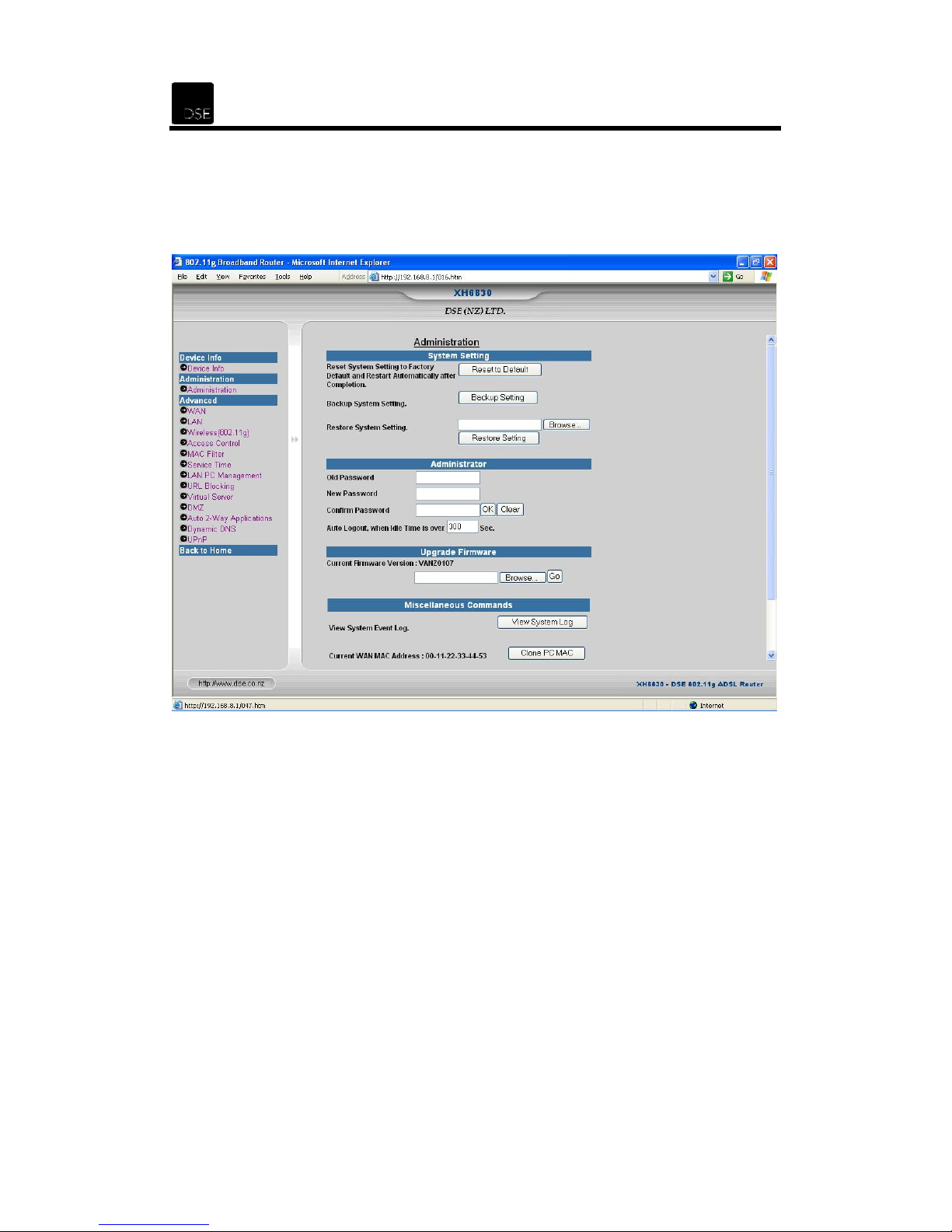
This page allows the user to reset, save and restore the router settings. The password can be
changed, the firmware can be upgraded and the system log can also be viewed.
7.2.1 System Settings
Reset to Default: Restores the factory defaults and restarts automatically after completion.
Backup Setting: Saves the current system settings/configuration into a file in order to restore
all settings/configuration when needed in the future.
Restore Setting: Restores the previous system setting/configurations from a saved backup file.
Select the backup file by clicking on Browse…. The router will restart automatically after the
upgrading process.
Please note that the Backup/Restore function will only work if the current firmware version is
the same as when the backup was made.
Page 25

XH6830 – DSE 802.11g ADSL Router
24
7.2.2 Administrator
You can change the password you use to access the router management pages. The default
password is admin.
Note: We strongly recommend that you change the default password. Failure to change the
default password could lead to unauthorised access to your router, network or computer.
We also recommend that you change your password often.
To change your password, enter your current password in Old Password, enter your new
password in New Password, enter the new password again in Confirm Password and click
OK.
The Auto Logout is the period of time after which the router will log out the administrator
automatically if it has been idle. The default time is 300 seconds.
7.2.3 Upgrade Firmware
You can upgrade the firmware if a firmware upgrade file is available (if it is, it will be on our
website at www.dse.co.nz). Click on Browse to select the upgrade file (*.upg) and click Go to
upgrade. The router will restart automatically when the upgrade process is completed.
7.2.4 Miscellaneous Commands
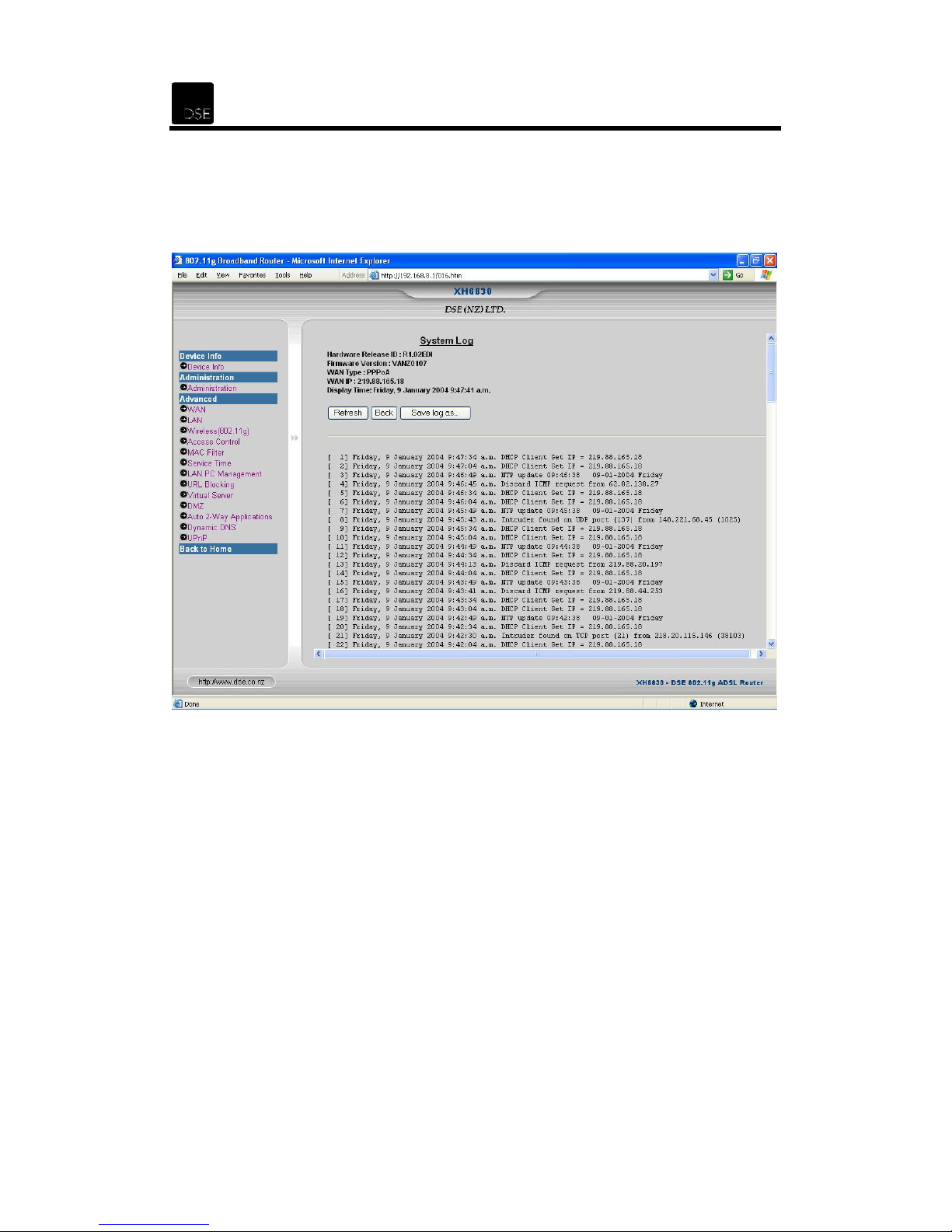
View System Event Log: The router records all the system events such as system start,
administrator log-in/log-out, dial/hang-up, hacker intrusion event, etc... This provides the
administrator a convenient diagnostic method for troubleshooting. Click View System Log to
view the log. The log can also be saved. See the following page for an example of a system log.
Page 26
25
Current WAN MAC Address: Shows the current WAN MAC address of the router. Click Clone
MAC to duplicate the MAC address of the administrator’s PC to be the WAN MAC of the router.
Restart System: Forces the router to restart immediately.
Page 27
XH6830 – DSE 802.11g ADSL Router
26
7.3 WAN
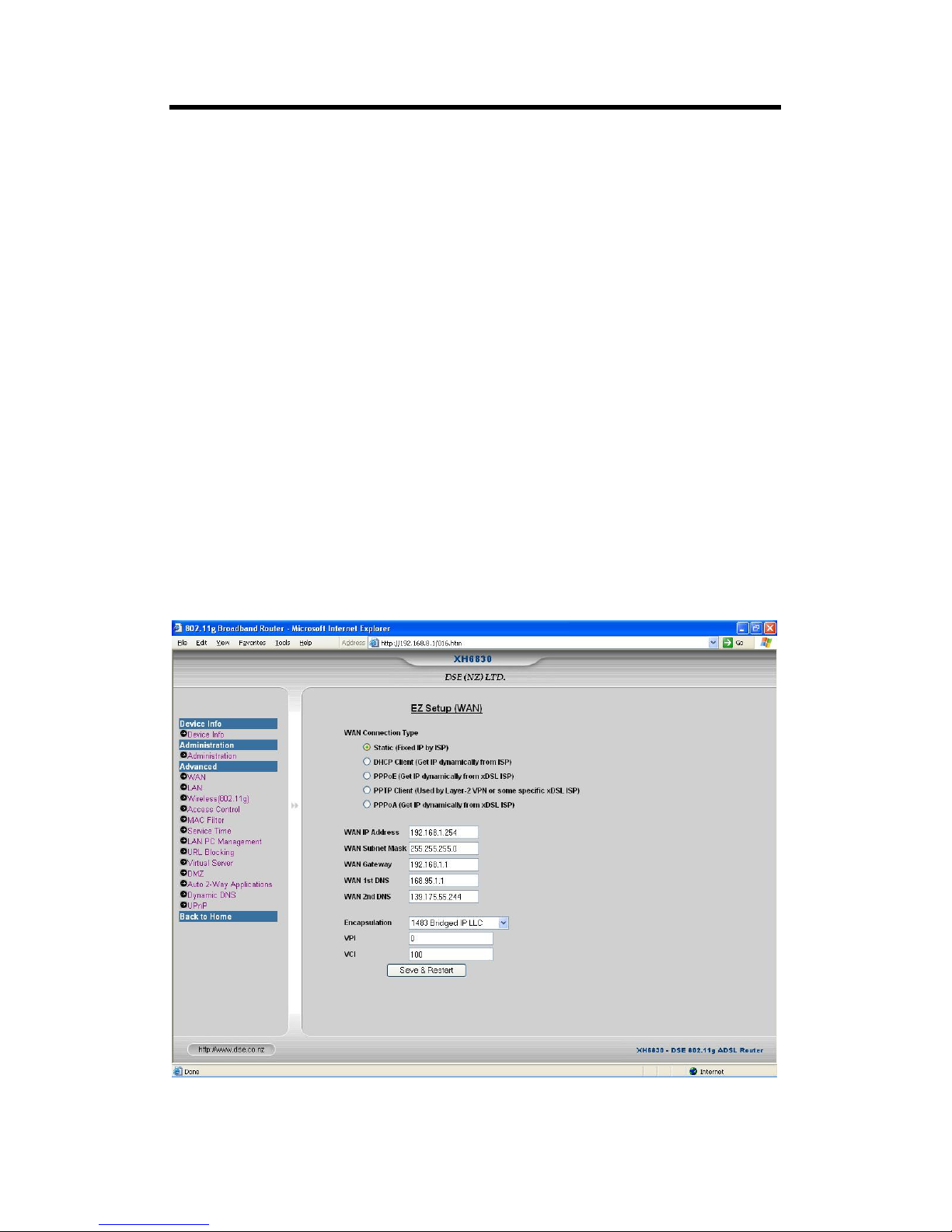
Click the WAN link in the left hand side frame. If using ADSL to connect to the Internet in New
Zealand, go to option 5, PPPoA. The router supports 5 connection options:
1. Static IP: If you are connecting through a static IP (Fixed IP) address:
A. WAN IP Address: Enter the IP Address in the WAN IP Address. This is the
IP Address as seen by external users on the Internet (including your ISP).
B. WAN Subnet Mask: Enter the WAN Subnet Mask.
C. WAN Gateway: Enter the WAN Gateway Address. The ISP will provide the
Gateway IP Address.
D. WAN DNS: Enter the WAN 1st DNS and/or WAN 2nd DNS. You must enter at
least one DNS address. Check your ISP for details.
E. Encapsulation: Select the encapsulation type. The ISP will provide the
encapsulation type.
F. VPI: Enter in the VPI. The ISP defines this also. The default should be 0.
G. VCI: Enter in the VCI. The ISP defines this also. The default should be 100.
H. Click Save & Restart to save the settings.
Page 28
27
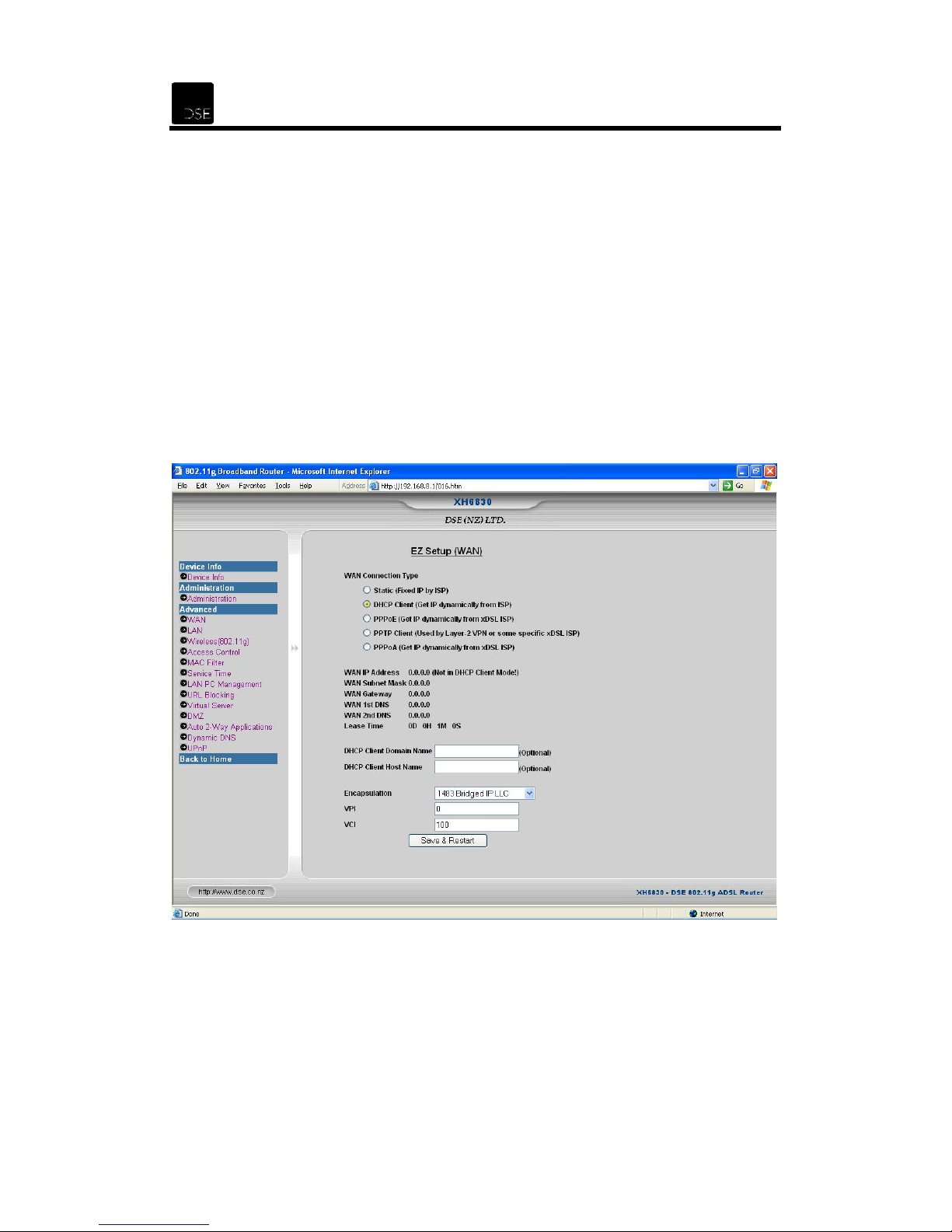
2. DHCP Client: If you are connecting through a Dynamic IP Address or DHCP
Client:
A. Once DHCP Client is set, your ISP will automatically and dynamically assign
the IP Address and other settings for your router.
B. Keep the DHCP Client Domain Name and DHCP Client Host Name blank.
C. Encapsulation: Select the encapsulation type. The ISP will provide the
encapsulation type.
D. VPI: Enter in the VPI. The ISP defines this also. The default should be 0.
E. VCI: Enter in the VCI. The ISP defines this also. The default should be 100.
F. Click Save & Restart to save the settings.
Page 29
XH6830 – DSE 802.11g ADSL Router
28
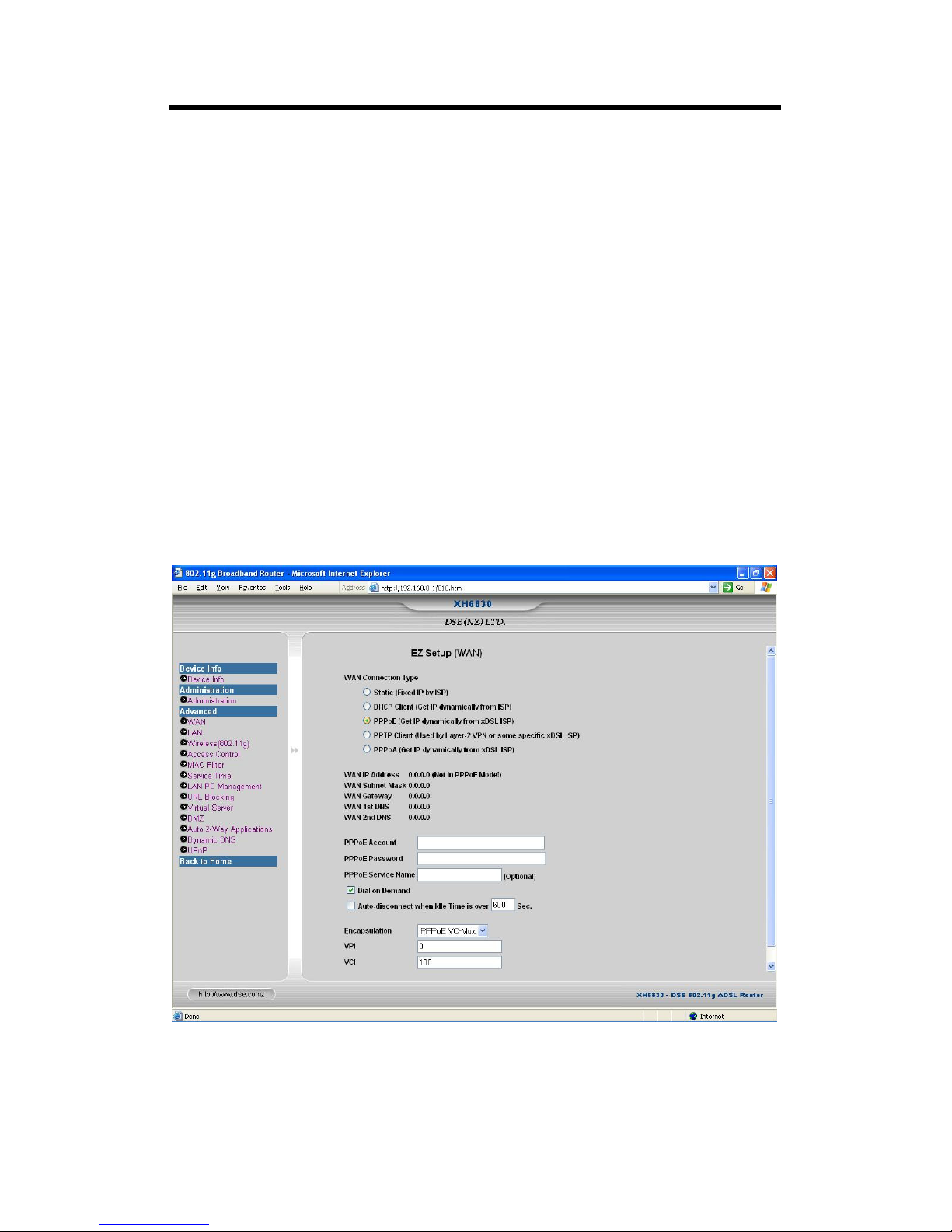
3. PPPoE: Note that at the time of writing, PPPoE is not supported in New Zealand. If
you are connecting through PPPoE:
A. Enter the PPPoE Account provided by your ISP.
B. Enter the PPPoE Password provided by your ISP.
C. The PPPoE Service Name may kept blank.
D. Select Dial on Demand for simulating a dial-up connection.
E. Select Auto-disconnect when Idle Time is over… and enter a period of
time after which you will be disconnected automatically if your Internet
connection is idle.
F. Encapsulation: Select the encapsulation type. The ISP will provide the
encapsulation type.
G. VPI: Enter in the VPI. The ISP defines this also. The default should be 0.
H. VCI: Enter in the VCI. The ISP defines this also. The default should be 100.
I. Click Save & Restart to save the settings.
Page 30

29
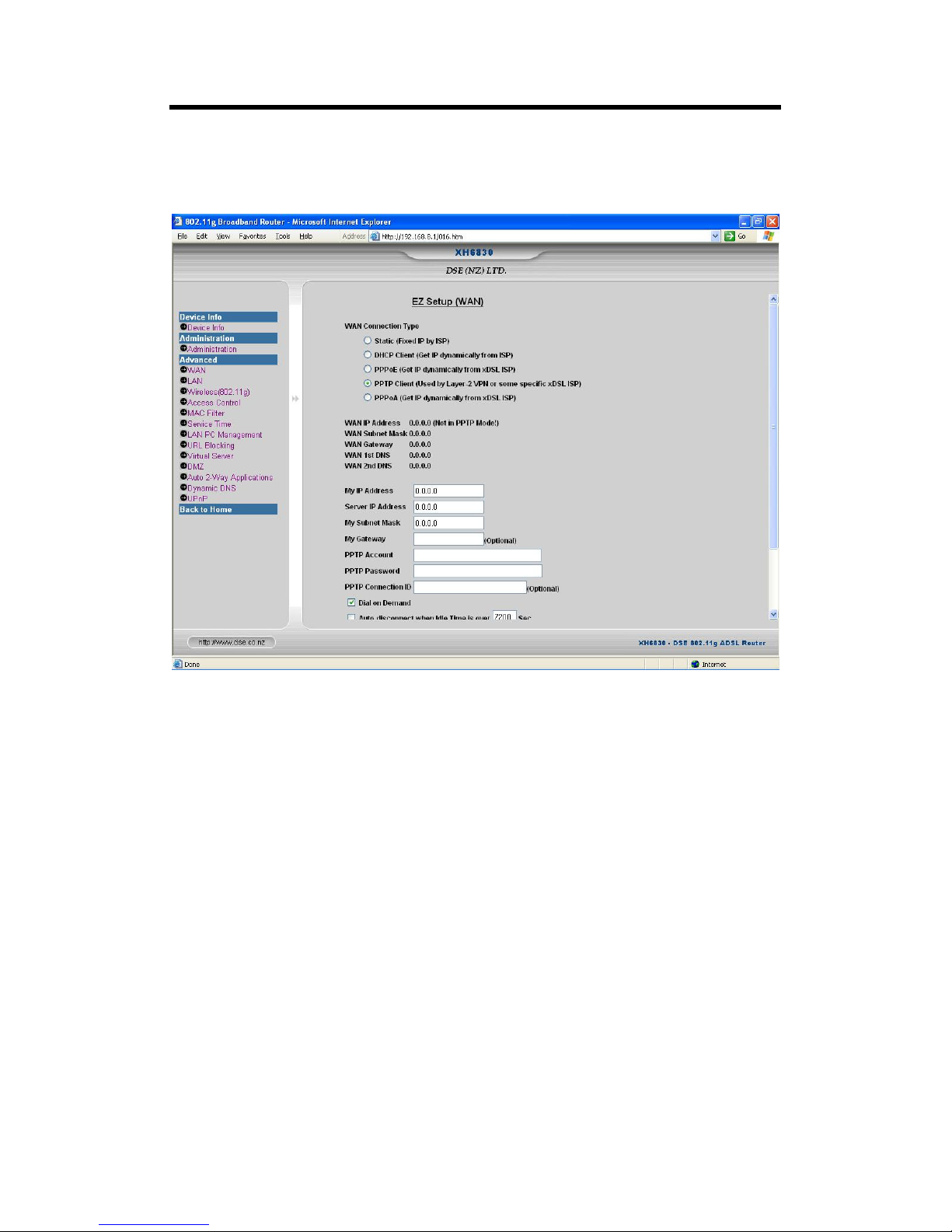
4. PPTP: If you are connecting through PPTP:
A. My IP Address: Enter the router (PPTP client) IP Address.
B. Server IP Address: Enter the ADSL router/Cable modem (PPTP server) IP
Address.
C. My Subnet Mask: Enter the router Subnet Mask.
D. My Gateway: Optional if the PPTP client and server are in the same subnet.
For Layer-2 VPN application, this field is typically necessary. Check with your
ISP for the settings to use.
E. PPTP Account / PPTP Password: Provided by your ISP. Check with your
ISP for the settings to use.
F. PPTP Connection ID: Left blank for most applications. Check with your ISP
for the correct settings to use.
G. Dial on Demand: When enabled, the router will attempt to connect with the
specific ISP if:
i. At least one LAN user would like to access Internet and/or
ii. The current WAN connection is on disconnected condition.
H. Auto-disconnect when Idle Time is over: Enter a period of time in
seconds if you want to disconnect automatically when your Internet
connection is idle for more than the specified period of time.
I. Encapsulation: Select the encapsulation type. The ISP will provide the
encapsulation type.
J. VPI: Enter in the VPI. The ISP defines this also. The default should be 0.
K. VCI: Enter in the VCI. The ISP defines this also. The default should be 100.
Page 31
XH6830 – DSE 802.11g ADSL Router
30
L. Click Save & Restart to save the settings.
Page 32
31
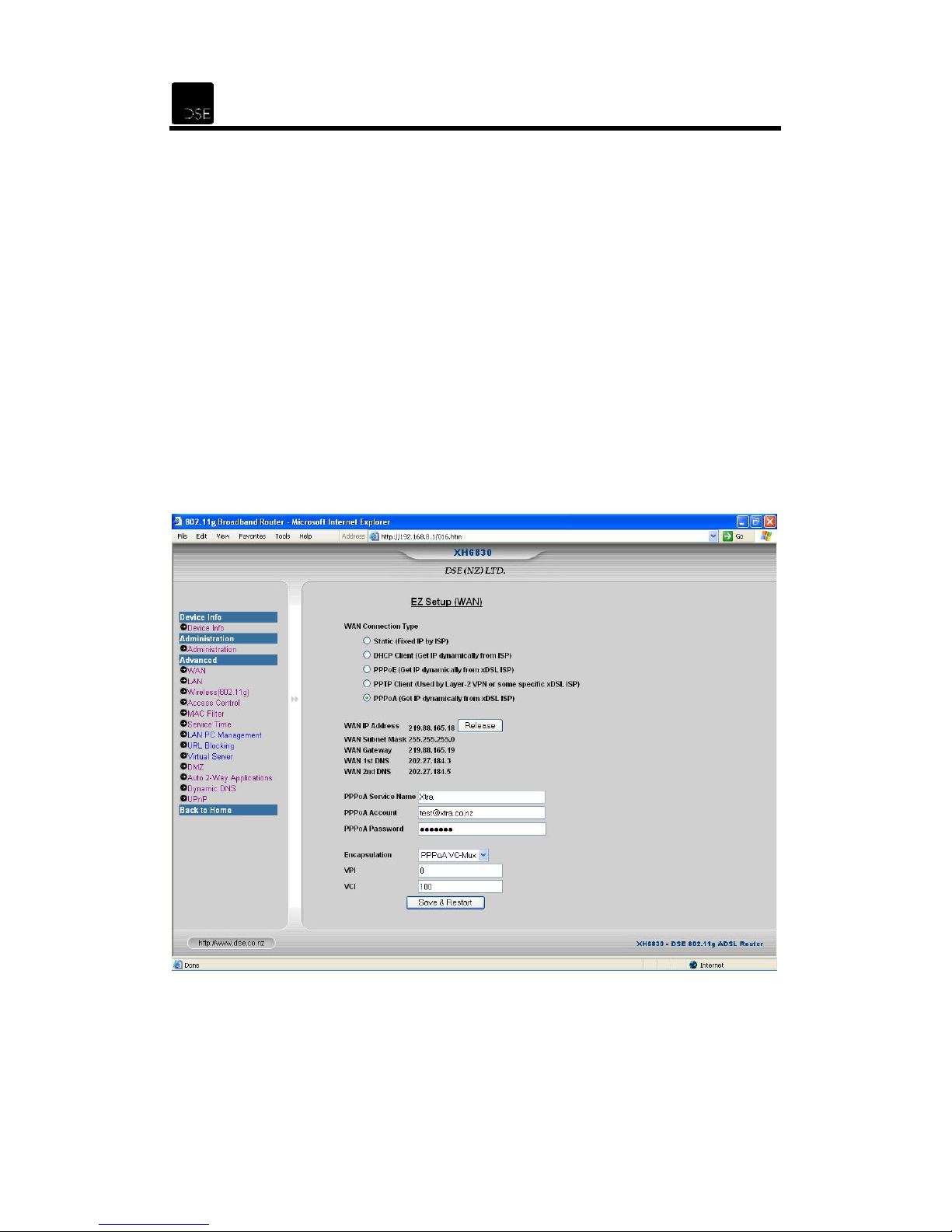
5. PPPoA: This is the most common option for using ADSL to connect to your ISP.
There is a list of details of any current connection. To renew the IP address, click
the Release button and then click Renew.
A. PPPoA Service Name: This field is an optional descriptive field.
B. PPPoA Account/Password: Enter in the account username and password
in these fields as provided by your ISP. For Ihug, the format is
user@adsl.ihug.co.nz. For Xtra, the format is user[email protected]. In
both instances, user is the user name advised to you by your ISP.
C. Encapsulation: Select the encapsulation type. The ISP will provide the
encapsulation type. The default will be PPPoA VC-Mux in New Zealand.
D. VPI: Enter in the VPI. The ISP defines this also. The default should be 0.
E. VCI: Enter in the VCI. The ISP defines this also. The default should be 100.
F. Click Save & Restart to save the settings
Page 33
XH6830 – DSE 802.11g ADSL Router
32
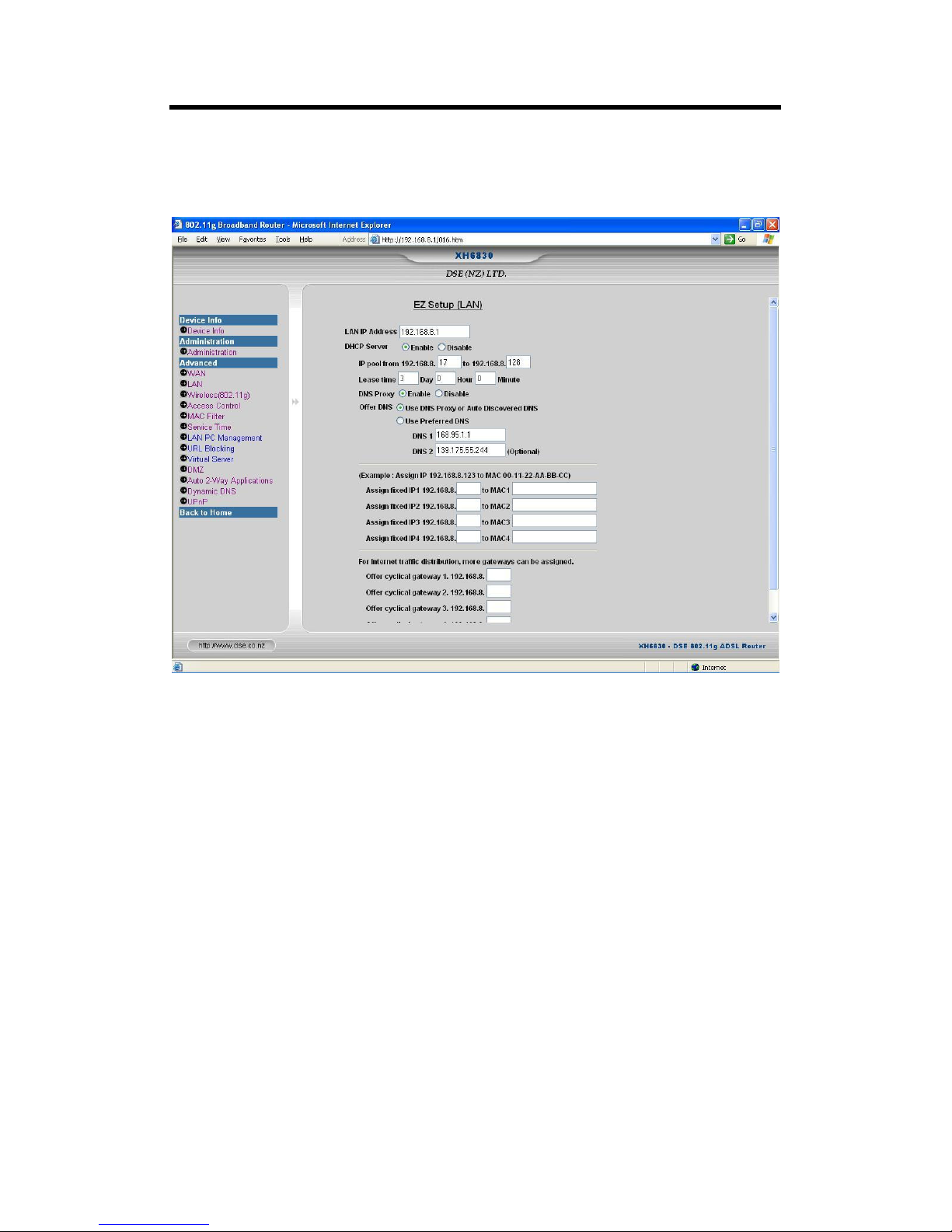
7.4 LAN
Click the LAN link in the left hand side frame to view and change the LAN settings.
LAN IP Address:
192.168.8.1
DHCP Server:
DNS Proxy:
IP Pool from 192.168.8.x to 192.168.8.y:
offer unused IP addresses from the IP address pool to the requesting computer. Note that the
End Address
Lease time:
Assign fixed IP 192.168.8.x to MAC:
clients such as Web/E-mail server computers. Those computers will be identified by their MAC
address.
Offer cyclical gateway:
routers can be assigned as a DHCP server. The other routers should be set as LAN clients and
their DHCP server function should be disabled. This is a very simple mechanism for
Internet/WAN traffic distribution among those routers within a network.
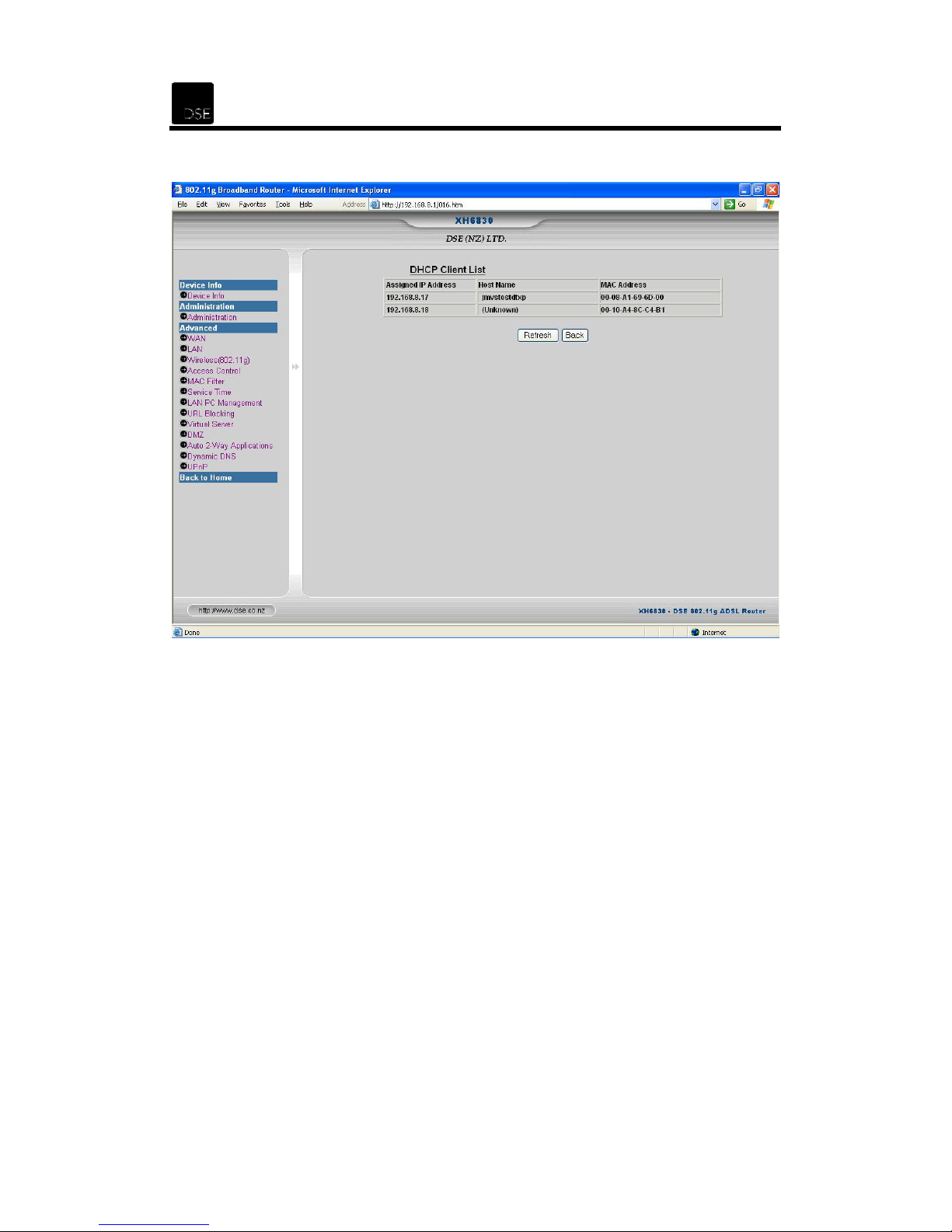
DHCP Client List:
The router’s IP address as seen on the internal LAN. The default value is
.
Select
Enable
Select
Enable
must be greater than the
The assigned IP address will be valid during the lease time.
Click on this button to display the list of the clients connected to the router.
to enable the router’s DHCP server function.
to enable the DNS Proxy.
Whenever there is a request, the DHCP server will
Starting Address
The DCHP server can assign a fixed IP Address to the
If you have more than one router on the same subnet, only one of the
. The default values are 17 and 128.
Page 34
33
Save & Restart: Click on this button to save the settings.
Page 35
XH6830 – DSE 802.11g ADSL Router
34
7.5 Wireless (802.11g)
Click the Wireless (802.11g) link in the left hand side frame to view and change the Wireless
LAN settings.
7.5.1 Info
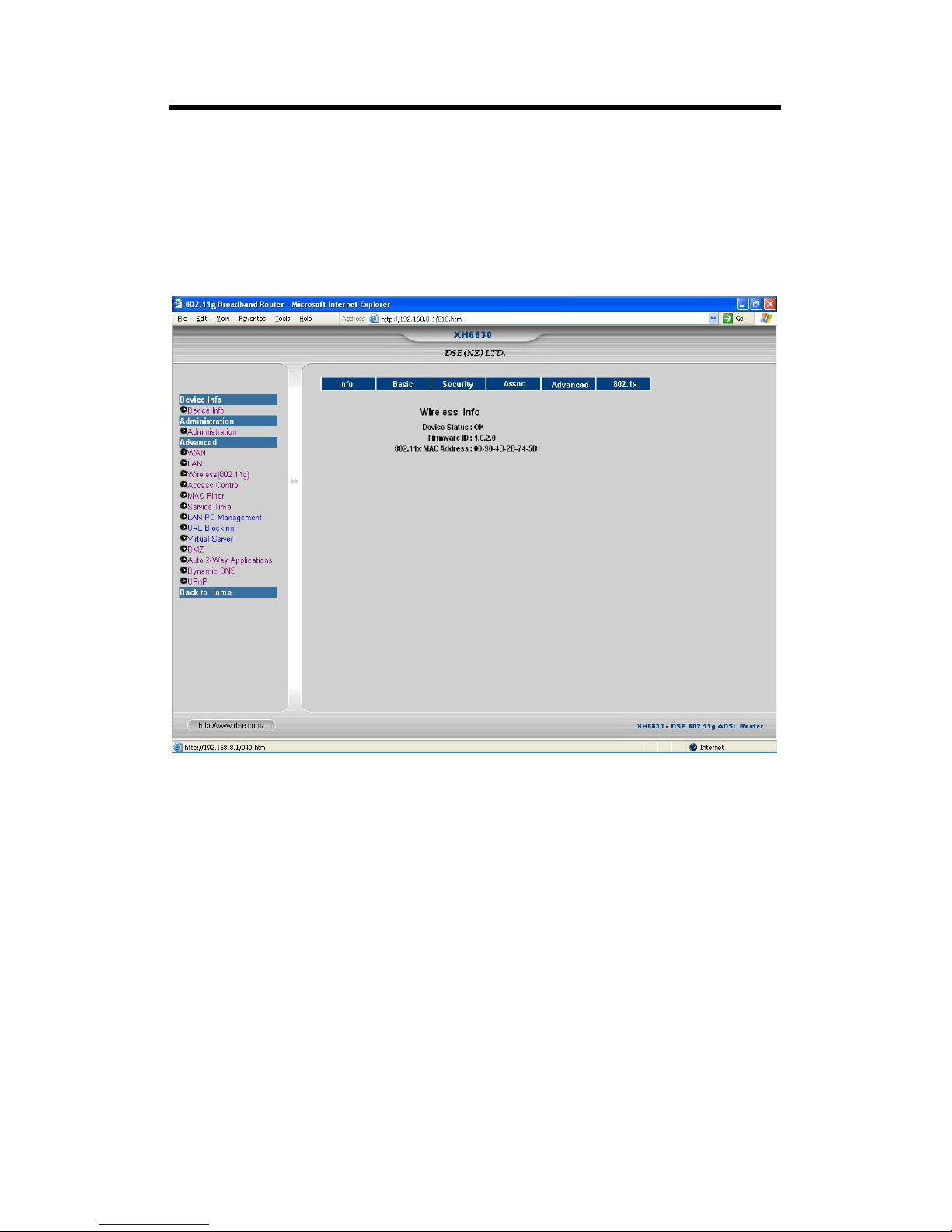
This page shows the IEEE 802.11g Wireless LAN Status and Information.
Device Status: Indicates the IEEE 802.11g Wireless LAN status.
Firmware ID: Shows the identification version of the IEEE 802.11g Wireless LAN firmware.
802.11 MAC Address: Shows the IEEE 802.11g Wireless LAN MAC Address.
Page 36
35
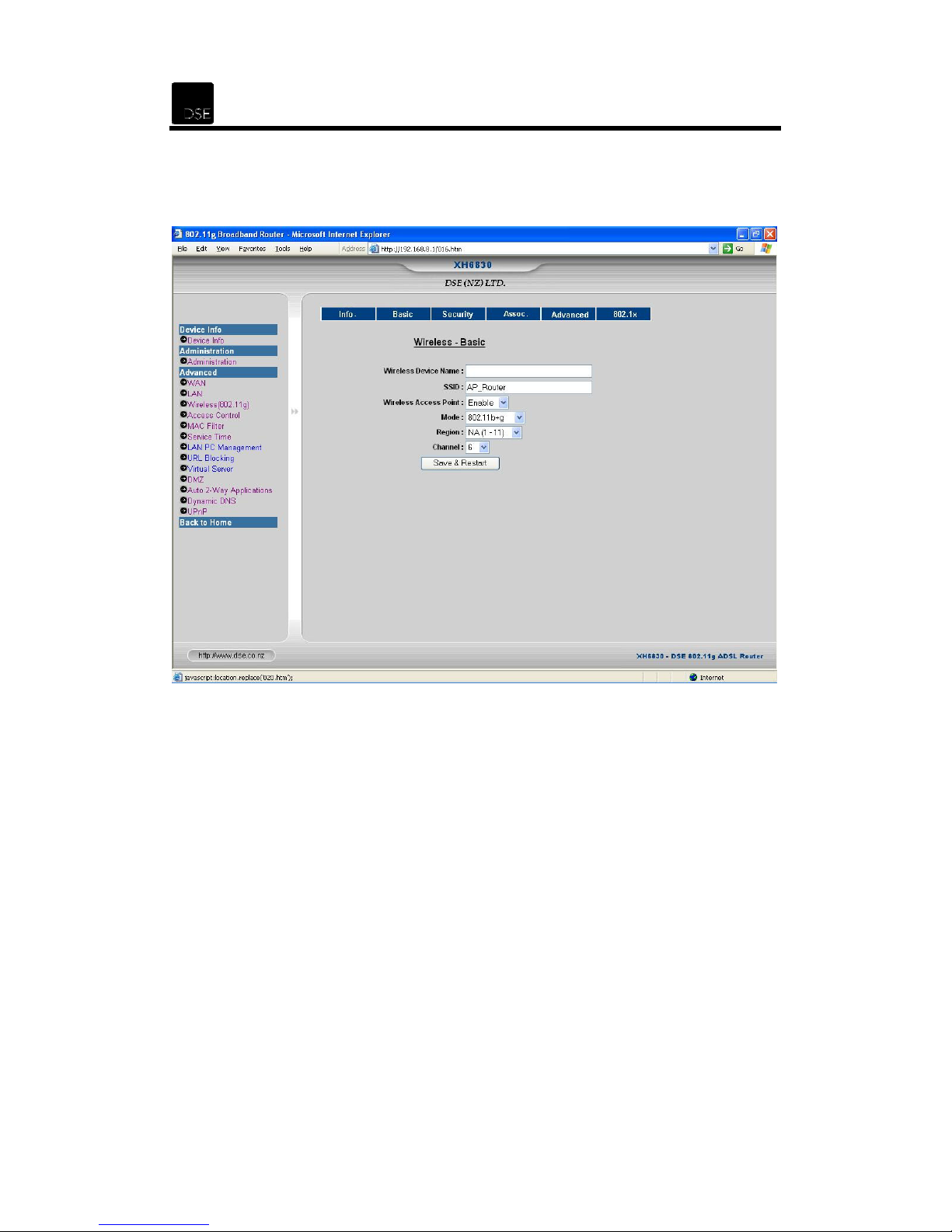
7.5.2 Basic
This page allows you to set the basic settings for your wireless network.
Wireless Device Name: Sets the device identifier string. It is left blank by default.
SSID: The SSID is a unique name for your wireless network. The default SSID is AP_Router.
Note that all the wireless devices in your wireless network must have the same SSID so that they
can communicate with one another.
Wireless Access Point: Enables/Disables your router’s Access Point function. It is enabled by
default.
Mode: Sets the Mode of operation. Select 802.11b+g for the maximum compatibility with other
wireless devices and select 802.11g only to gain the best wireless performance.
Page 37

XH6830 – DSE 802.11g ADSL Router
36
Region: Since the allowed RF Band is not the same globally, select the appropriate region from
the list provided to correspond with your network settings. There are five regions available:
North American ( NA (1-11) )
•
ETSI: Pan Europe ( ETS (1-13) )
•
France ( FR (10-13) )
•
Japan ( JP (1-14) )
•
Spain ( SP (10-11) )
•
When using this router in New Zealand, select NA (1-11).
Channel: Select the appropriate channel number to correspond with your network settings. All
devices in your wireless network should use the same channel number.
Save & Restart: Click on this button to save the settings.
Page 38
37
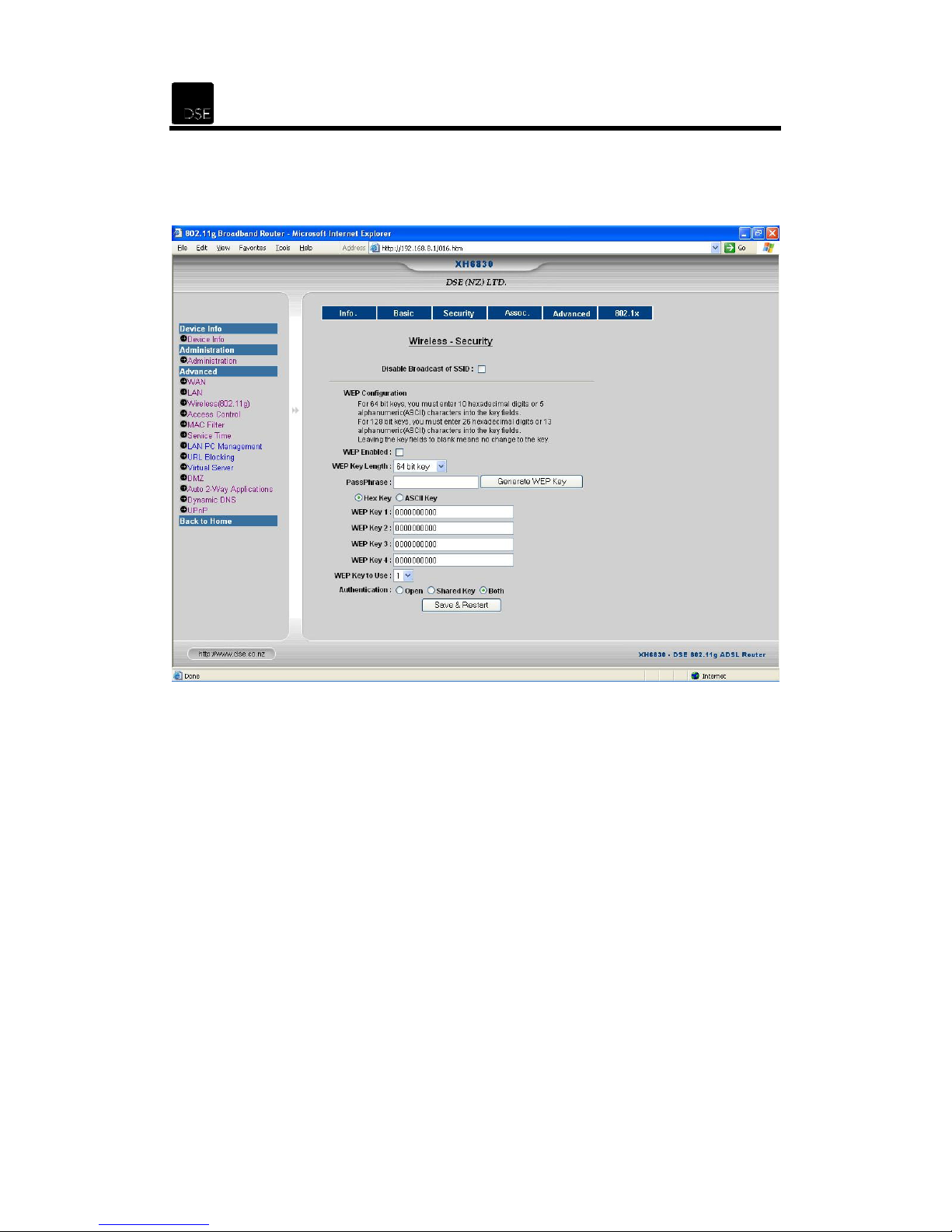
7.5.3 Security
This page allows you to configure the security settings for your wireless network.
Disable Broadcast of SSID: Typically, someone could easily obtain the SSID information with
site survey software and gain unauthorized access to your network. Leave this blank to enable
broadcast. Tick to increase network security and prevent the SSID from being seen on
networked PCs.
WEP Enabled: Enables/Disables the Wired Equivalent Privacy (WEP) security function. WEP
is a data privacy mechanism based on a 64-bit (10 Hexadecimal characters in length) or 128-bit
(26 Hexadecimal characters in length) shared key algorithm, as described in the IEEE 802.11
standard.
WEP key Length: Selects 64-bit or 128-bit key WEP encryption. Be sure that all of your
wireless devices are using the same encryption level and the same key.
Page 39

XH6830 – DSE 802.11g ADSL Router
38
PassPhrase: The WEP Encryption key is generated in one of two ways:
1. You may create an encryption key by using a PassPharse:
Enter a word or group of printable characters in the PassPhrase field. The
•
PassPhrase can be letters, symbols or numbers. No space can be used in this field.
Click “Generate WEP Key” tab to create the key. The Key will be a 10-digit key if you
•
chose the 64-bit encryption, or a 26-digit key if you chose the 128-bit encryption.
2. You may enter the encryption key manually.
WEP Key: The WEP keys that may be used for data encryption.
WEP Key to Use: Select one of the four WEP keys to be used for data encryption.
Authentication: To provide a certain level of security, the IEEE 802.11 standard has defined
two types of authentication methods, Open System and Shared Key.
Open: With Open authentication, a wireless PC can join any network and receive any
•
messages that are not encrypted.
Shared Key: With Shared Key authentication, only those PCs that possess the
•
correct authentication key can join the network.
• Both:
Save & Restart:
Uses both authentication methods.
Click on this button to save the settings.
Page 40
39
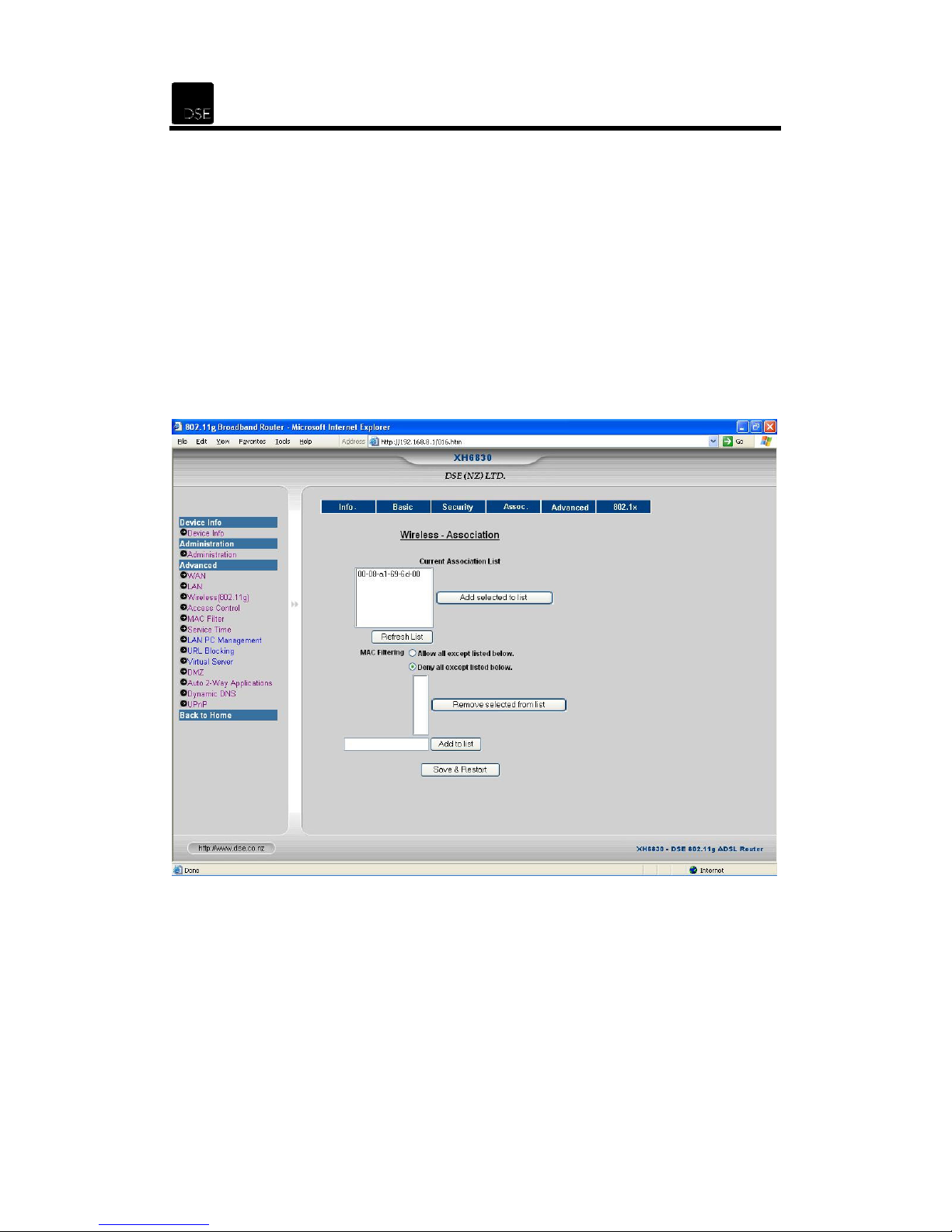
7.5.4 Association
The Association page shows the current associated client list. The router will show the MAC
address list of all the detected clients. Click on Refresh List to display the most current
information. Click Add selected to list to invite the selected stations.
MAC Filtering: This feature filters the Ethernet Adaptor’s specific MAC address from going out
to the Internet. There are two mechanisms:
Allow all wireless client PCs except the following MAC address stations.
•
Deny all wireless client PCs except the following MAC address stations.
•
Save & Restart: Click on this button to save the settings.
Page 41
XH6830 – DSE 802.11g ADSL Router
40
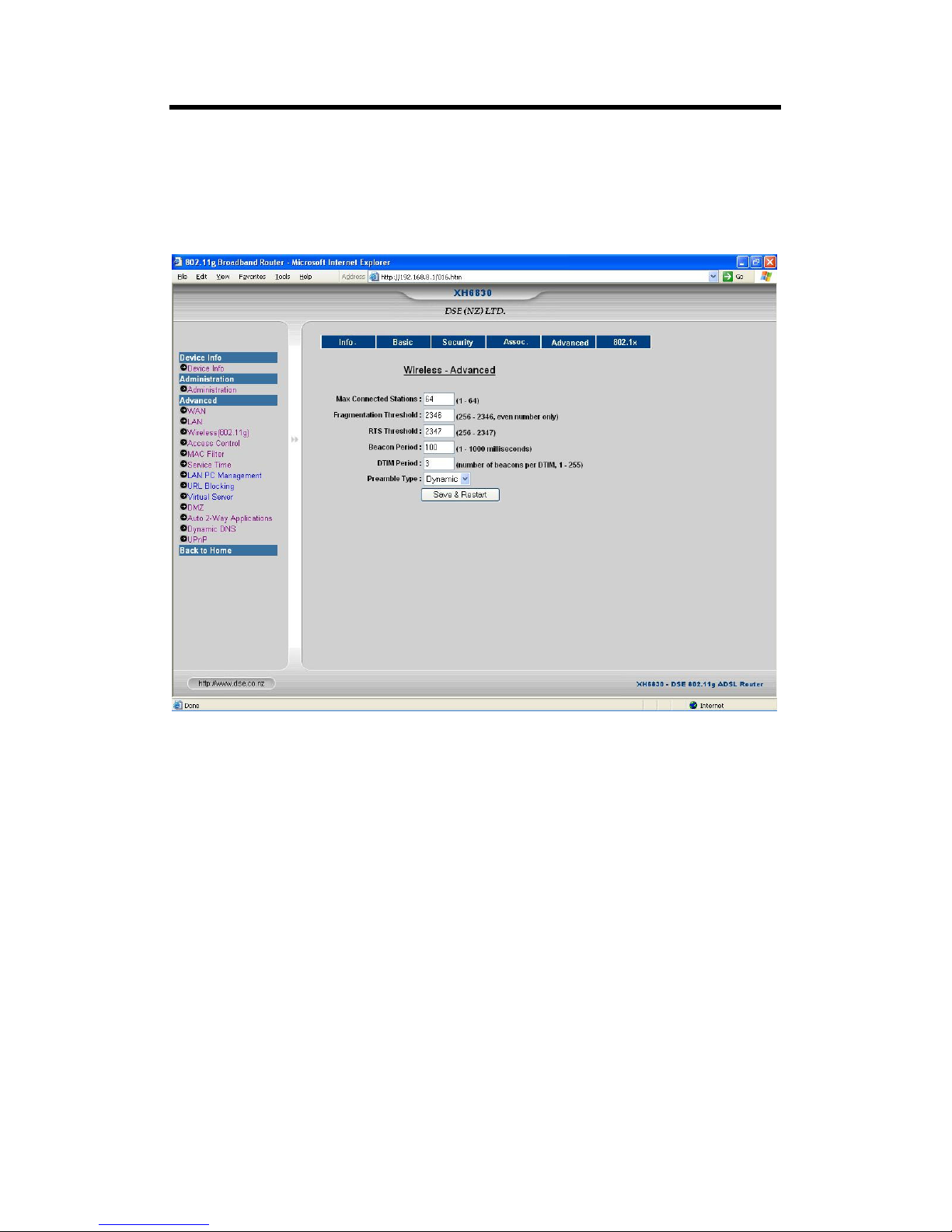
7.5.5 Advanced
Before making any changes to the Advanced settings page, please check the wireless settings
for all your wireless devices, as these changes will alter/change the router’s effectiveness. In
most cases, these settings do not need to be changed and should not be changed unless you
know what you are doing.
Max Connected Stations:
Fragmentation Threshold:
devoted to recovering packet errors. The default setting is 2,346. Only minor modifications of
this value are recommended.
RTS Threshold:
recommended.
Beacon Period:
synchronized. This value indicates the frequency interval of the Beacon signal.
DTIM Period:
(DTIM). A DTIM field is a countdown field informing clients of the next window for listening to
broadcast and multicast messages.
Preamble Type:
the router and the roaming Network Card. There are three options:
Normally the high network traffic areas should use the shorter preamble type.
Save & Restart: Click on this button to save the settings.
The default setting is 2,347. Only minor modifications of this value are
A beacon is a packet broadcast by the router to keep the network
This value indicates the interval of the Delivery Traffic Indication Message
The preamble defines the length of the CRC block for communication between
Specifies the Maximum allowed wireless stations to the router.
This value indicates how much of the router’s resources are
Long, Short
and
Dynamic
.
Page 42
41
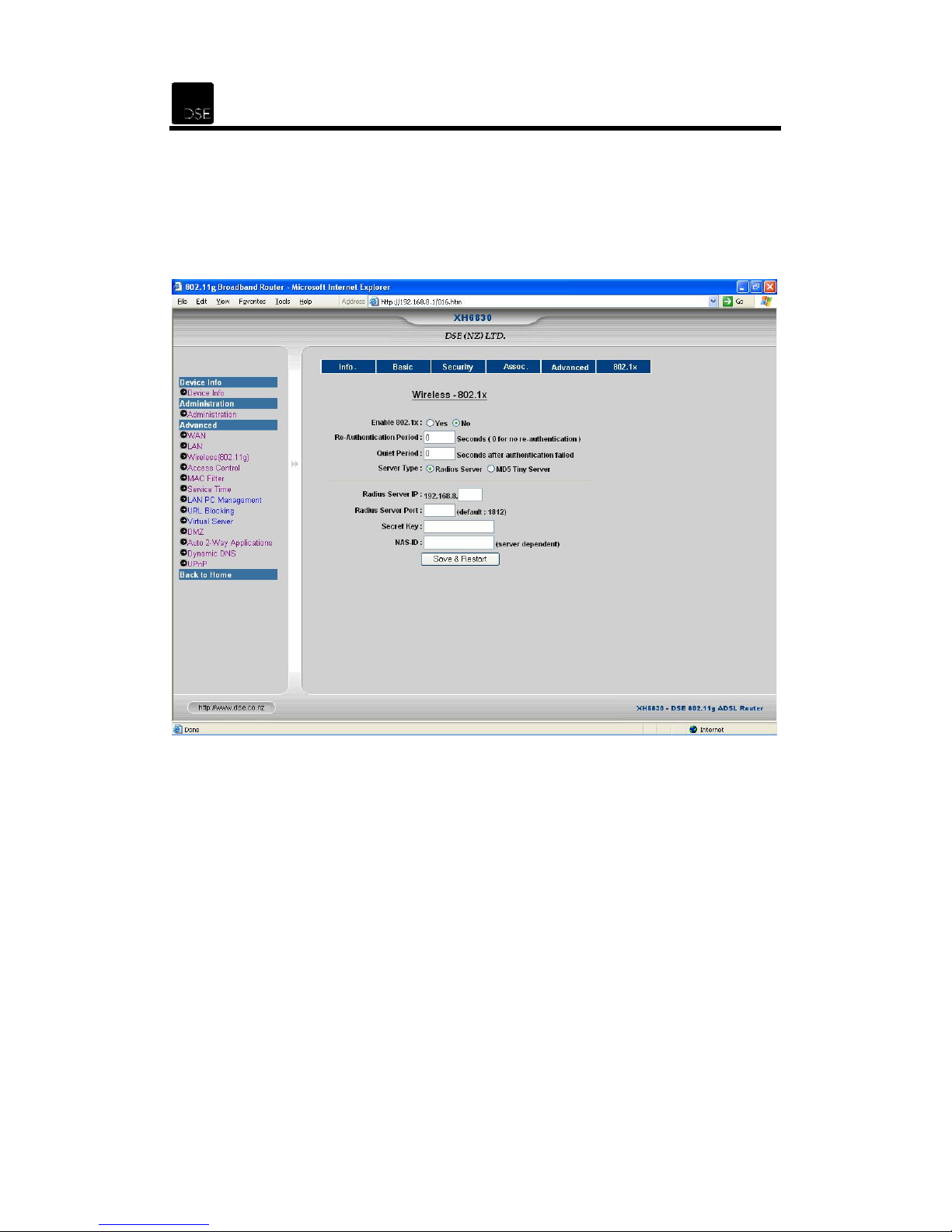
7.5.6 802.1x
802.1x defines port-based, network access control used to provide authenticated network
access and automated data encryption key management. The IEEE 802.1x standard offers an
effective framework for authenticating and controlling user traffic to a protected network, as well
as dynamically varying encryption keys.
Enable 802.1x: Select Yes/No to enable/disable the 802.1x functions.
Re-Authentication Period: Enter the time for the Re-authentication period.
Quiet Time: Enter the time for the quiet period after the authentication process failed.
Server Type:
• Radius Server:
RADIUS is an authentication system. Using RADIUS, you must enter your user name
and password before gaining access to a network. This information is passed to a
RADIUS Server, which will check the correctness of the incoming information, and
then authorize access.
• MD5 Tiny Server:
message is compressed and then signed with a private key. MD5 takes a message of
an arbitrary length and creates a 128-bit message digest. MD5 provides the same
secure authentication mechanism, and works even in the absent of the RADIUS
server environment.
RADIUS stands for Remote Authentication Dial-In User Service.
MD5 is an algorithm for security applications in which a large
Page 43

XH6830 – DSE 802.11g ADSL Router
42
If the MD5 Tiny Server is enabled, click on the Save & Restart button. The Setup link will then
appear. Click on the Setup link and enter Username, New Password and Confirm password.
Radius Server IP: Enter the Radius Server IP Address.
Radius Server Port:
Secret Key:
NAS-ID:
the network.
Save & Restart: Click on this button to save the settings.
Enter your secret Key.
Enter your Network Access Server ID, which provides the LAN and WAN access for
Enter the Radius Server Port number. The default is 1812.
Page 44
43
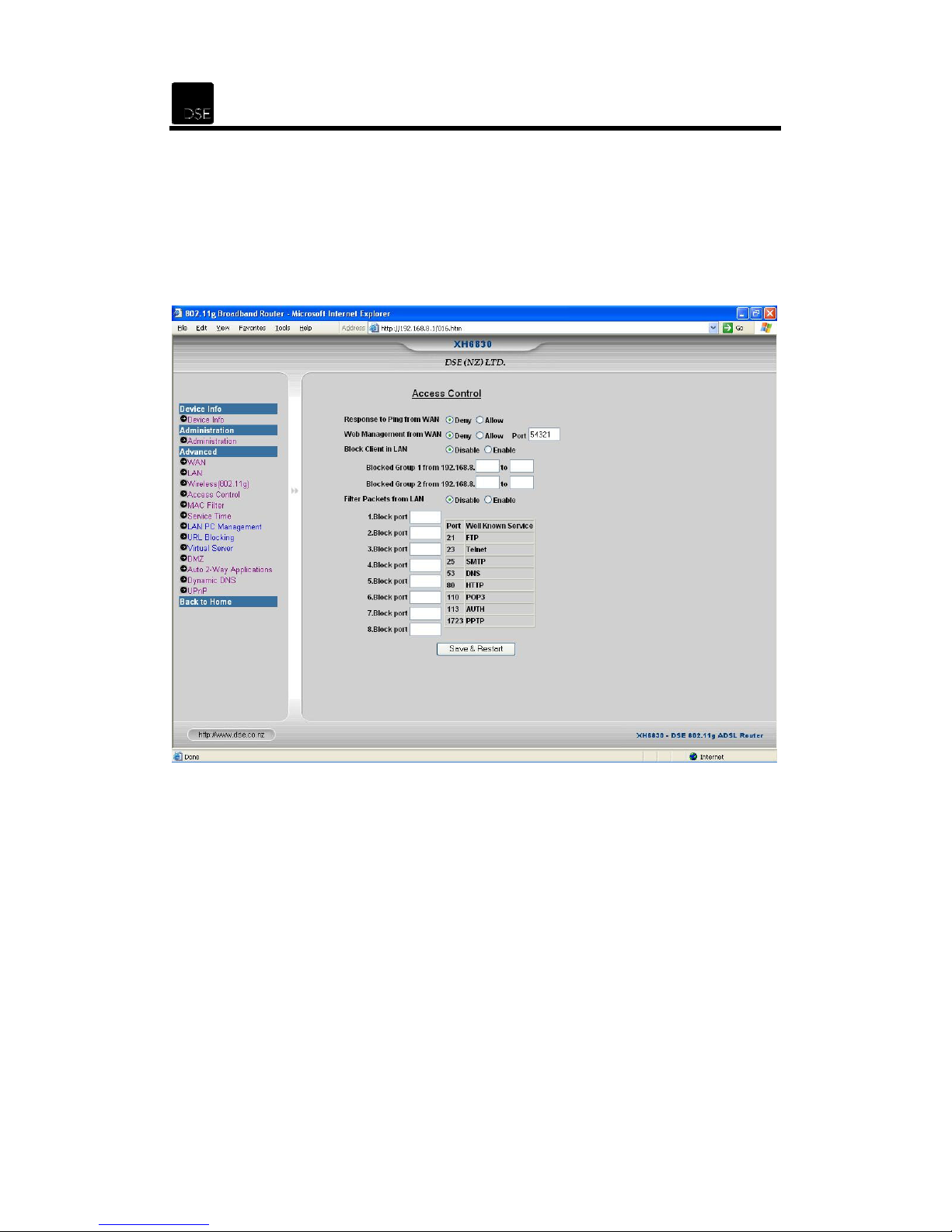
7.6 Access Control
The router provides lots of advanced functions such as MAC address filtering, IP address
filtering, TCP/UDP service port blocking, URL keyword blocking, virtual server, DMZ, etc.
Please note that Filtering is an advanced function and no changes are recommended without a
thorough understanding of network concepts. The Access Control page allows you to control
the WAN-to-LAN or LAN-to-WAN access capability of this router.
Response to Ping from WAN: Allow or deny responses to PING requests to the WAN Port of
the router.
Web Management from WAN: This feature allows the administrator to manage the router from
a remote location via the Internet. Select Allow and enter the Port number if you want to be
able to manager the router remotely.
Block Client in LAN: Users who have filtered IP addresses will no longer be able to access the
Internet. Select Enable or Disable and enter the desired IP address ranges.
Filter Packets from LAN: To filter users by network port number, enter a network port number.
Users connected to the router will no longer be able to access any port number as listed. Select
Enable or Disable.
FTP: An Application-layer protocol that enables you to transfer files from one device to another
over a network.
Page 45

XH6830 – DSE 802.11g ADSL Router
44
Telnet: A protocol that links two computers in order to provide a terminal connection to
remote machine. Instead of dialing into the computer, you connect to it over the
using Telnet. When you issue a Telnet session, you connect to the Telnet host and log in. The
connection enables you to work with the remote machine as though you were a terminal
connected to it.
SMTP: Simple
Application-layer protocol that uses the TCP Transport-layer protocol to send and
e-mail.
DNS: DNS is a TCP/IP service for centralized management of address resolution.
DNS, you can specify a symbolic name instead of an IP address.
HTTP:
provide documents on the World Wide Web.
POP3: A standard mail server commonly used on the Internet. It provides a message store that
holds incoming e-mail until users log on and download it. POP3 is a simple
selectivity. All pending messages and attachments are downloaded at the same time. POP3
uses the SMTP messaging protocol.
AUTH:
purpose.
PPTP: Point-to-Point Tunneling Protocol. PPTP is a protocol that enables a PPP client to
connect to a remote server as if the connection were directly terminated at the server.
Hypertext
Services
Mail
Transfer Protocol. In the TCP/IP protocol suite, SMTP is an
Transfer Protocol. HTTP enables Internet users to request, receive,
system with little
such as e-mail and ftp use Ident ( Port 113 ) for logging in and
authentication
the
Internet
receive
Using
and
Save & Restart: Click on this button to save the settings.
Page 46
45
7.7 MAC Filter
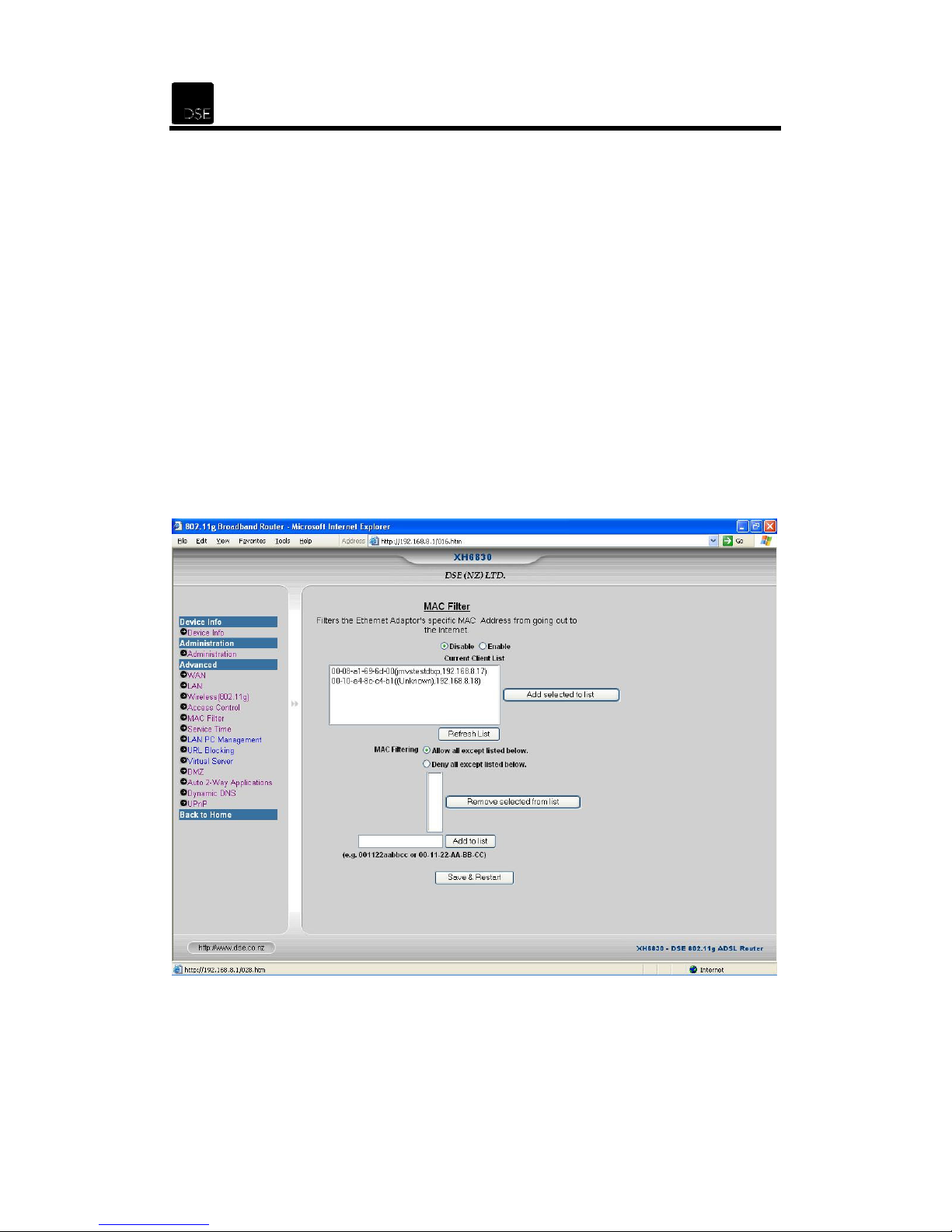
The MAC Filter function allows the filtering of a specific Ethernet adaptor’s MAC address so as
to prevent that computer from accessing the Internet. Select Enable or Disable.
There are two ways of doing this but only one can be chosen at a time.
Allow all clients to access the Internet except those with the MAC address as listed.
•
Allow only those clients with the MAC Address as listed to access the Internet.
•
To check your Ethernet adaptor’s MAC address, run winipcfg in Windows 98 or ipconfig /all
from the command line.
To set a MAC filter, you can enter the MAC address and click the Add to list button.
Alternatively, you can click the Refresh List button to list all the detected MAC addresses,
select the desired MAC addresses and click Add selected to list.
Save & Restart: Click on this button to save the settings.
Page 47
XH6830 – DSE 802.11g ADSL Router
46
7.8 Service Time
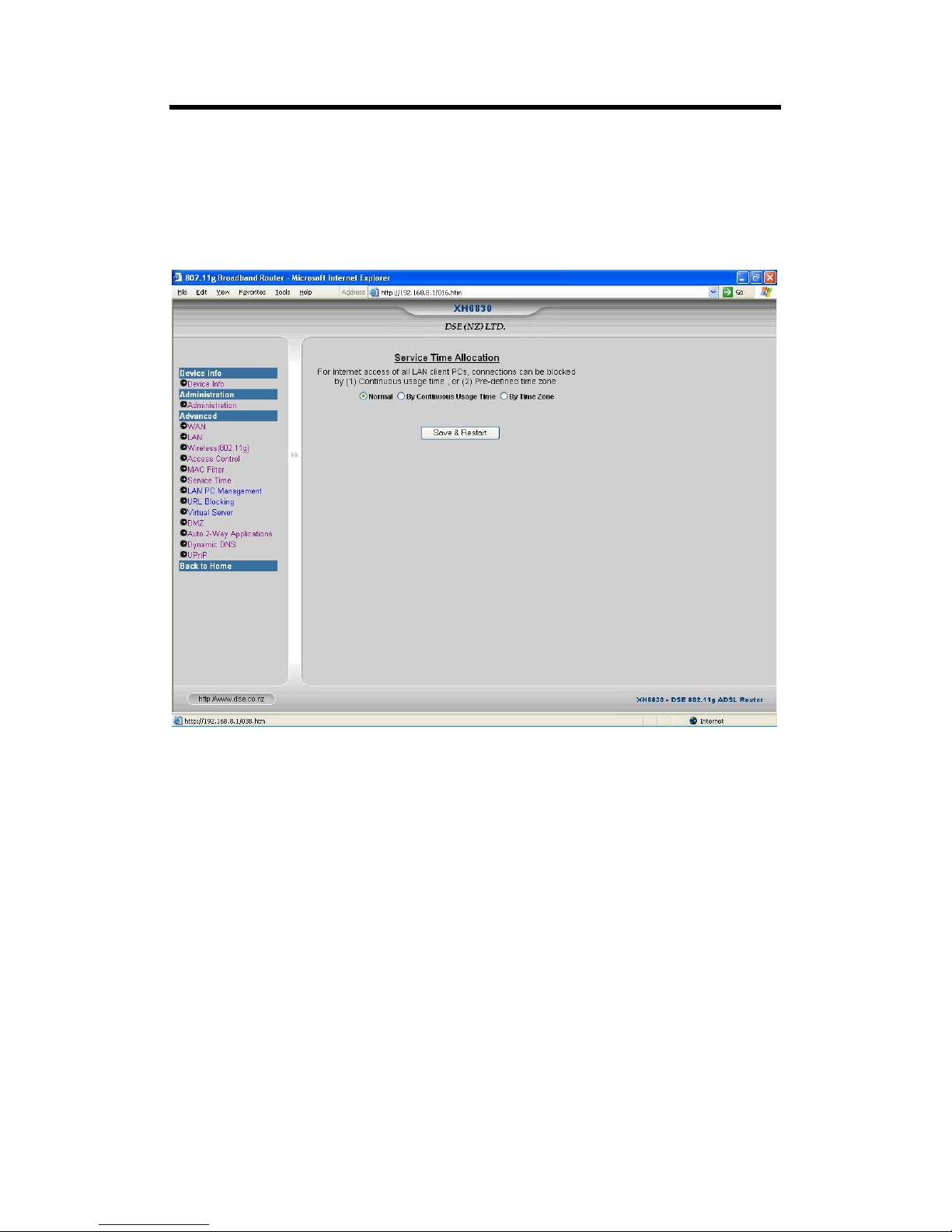
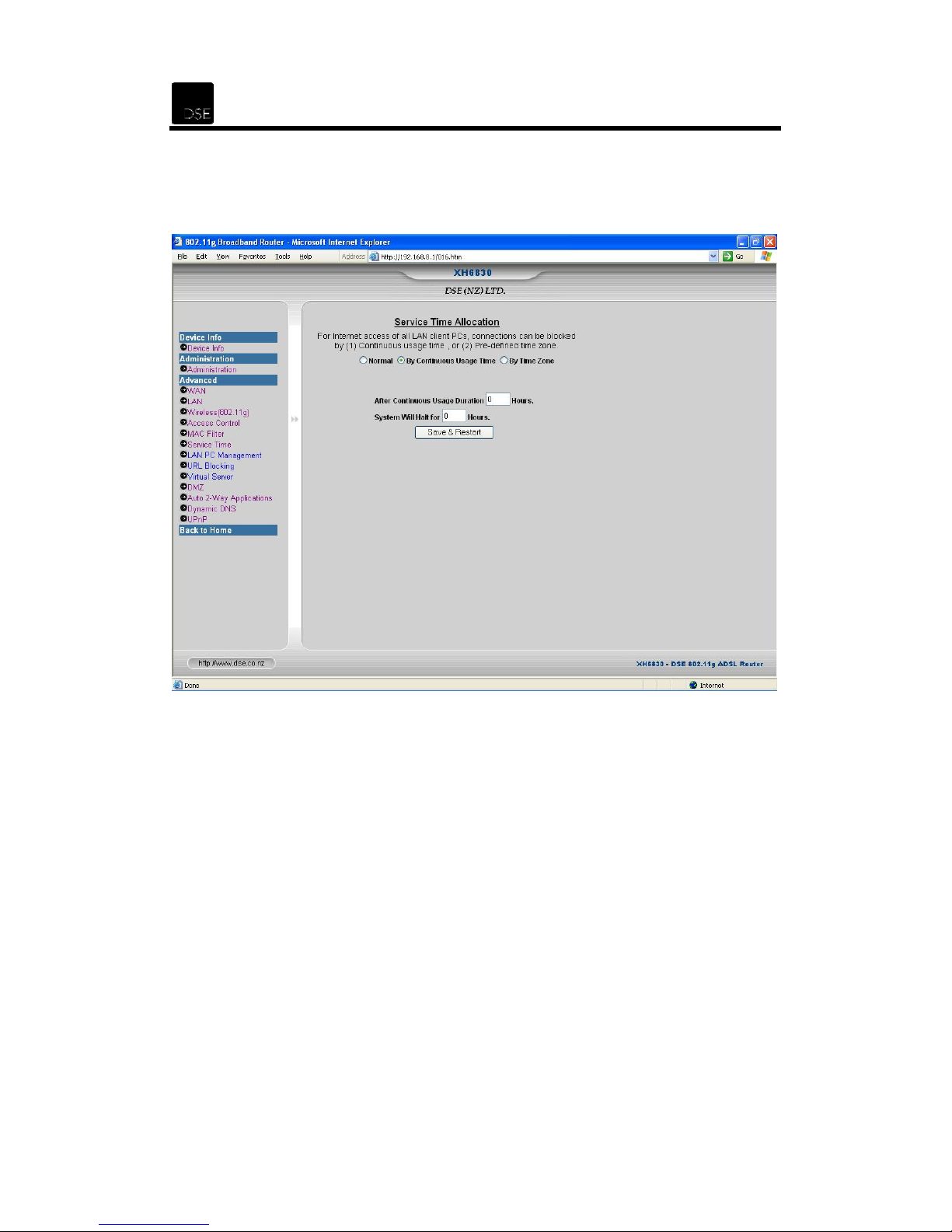
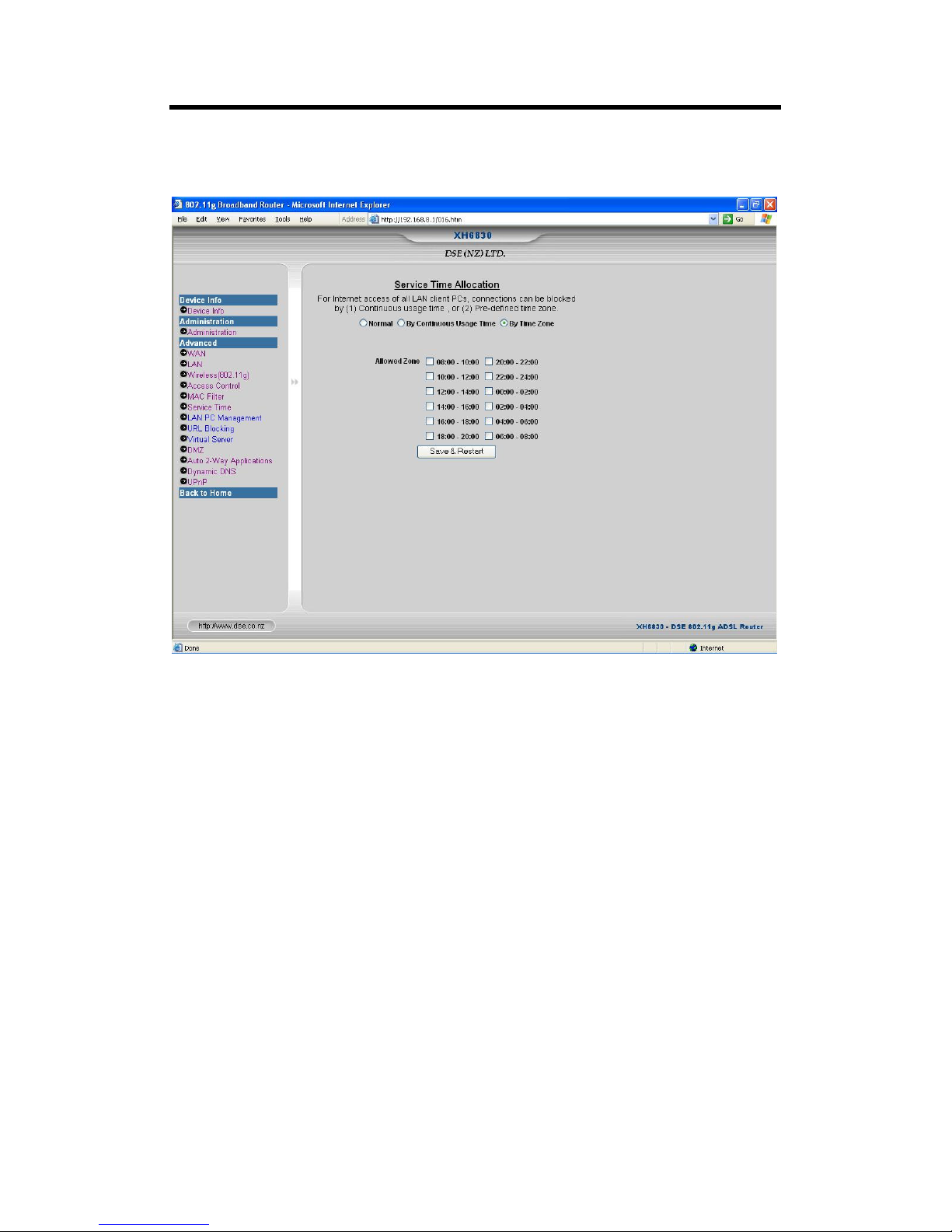
The Service Time Allocation allows you to define a specified period of time a network user will
be allowed to access the Internet. There are three ways of doing this:
If you want to allow Internet access at all times, select Normal.
Page 48
47
Select
By Continuous Usage Time
period of time of continuous usage.
if you wish
to allow Internet access only for a specified
Page 49
48
Select
By Time Zone if you wish
XH6830 – DSE 802.11g ADSL Router
to allow Internet access only during the
predefined time zones
.
Save & Restart:
Click on this button to save the settings.
Page 50
49
7.9 LAN PC Management
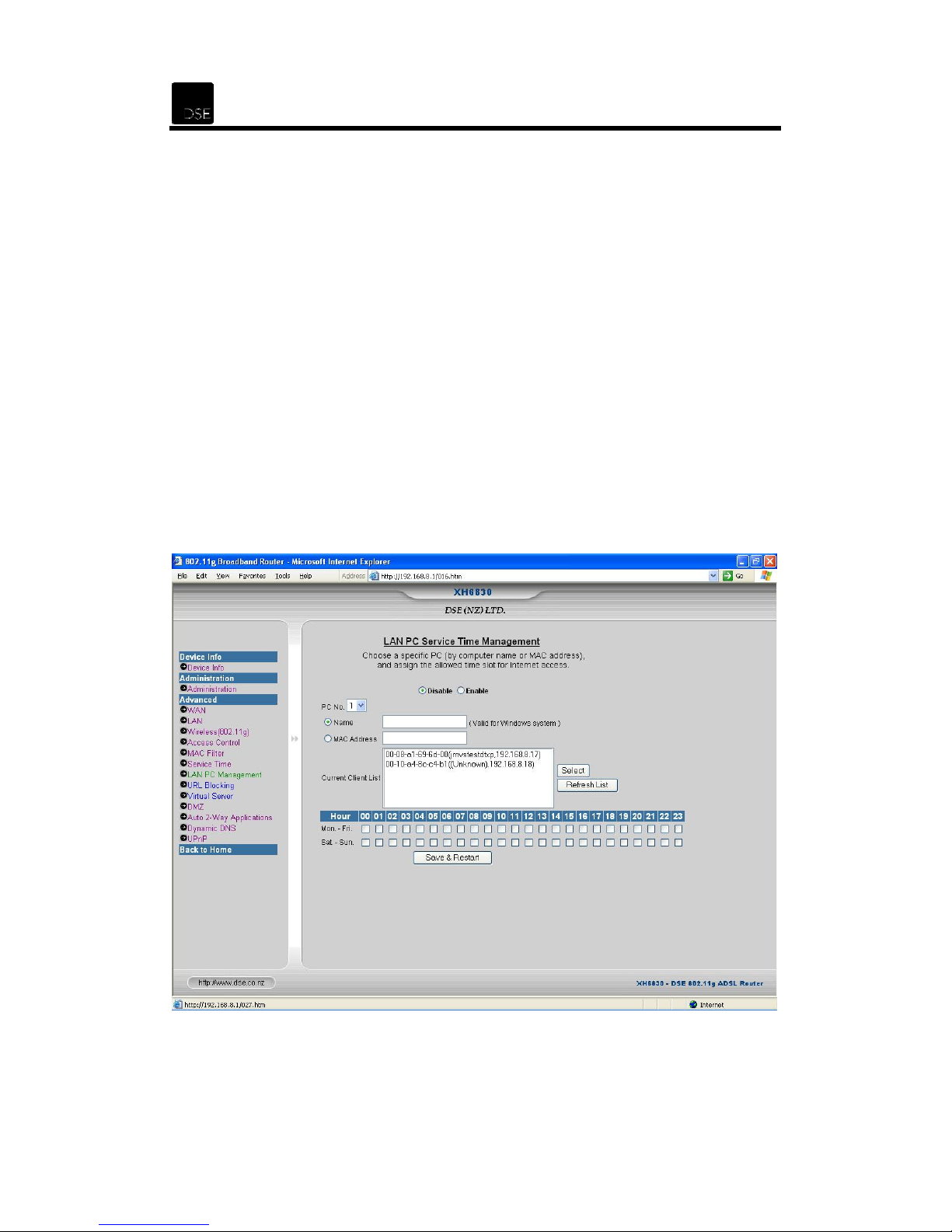
Besides the Service Time Allocation function, the router also provides time-based
management for each individual LAN client PC (up to 8 PCs).
To enable the service blocking by schedule, do the following:
1. Select Enable to activate the management features.
2. Select the desired PC (From 1 to 8).
3. Select MAC Address and enter the PC’s MAC address. Alternatively, you
can click Refresh List to list
then click
4. Click the specified times you wish to allow Internet access. The time duration
for each specified time period start with XX:00 Hour and ending with XX:59.
For example, if you ticked hour 09, Internet access will be granted to the
selected PC from 9am to 9.59am.
5. Click Save & Restart to save the settings.
Select
.
all the MAC addresses of the current clients,
Page 51
XH6830 – DSE 802.11g ADSL Router
50
7.10 URL Blocking
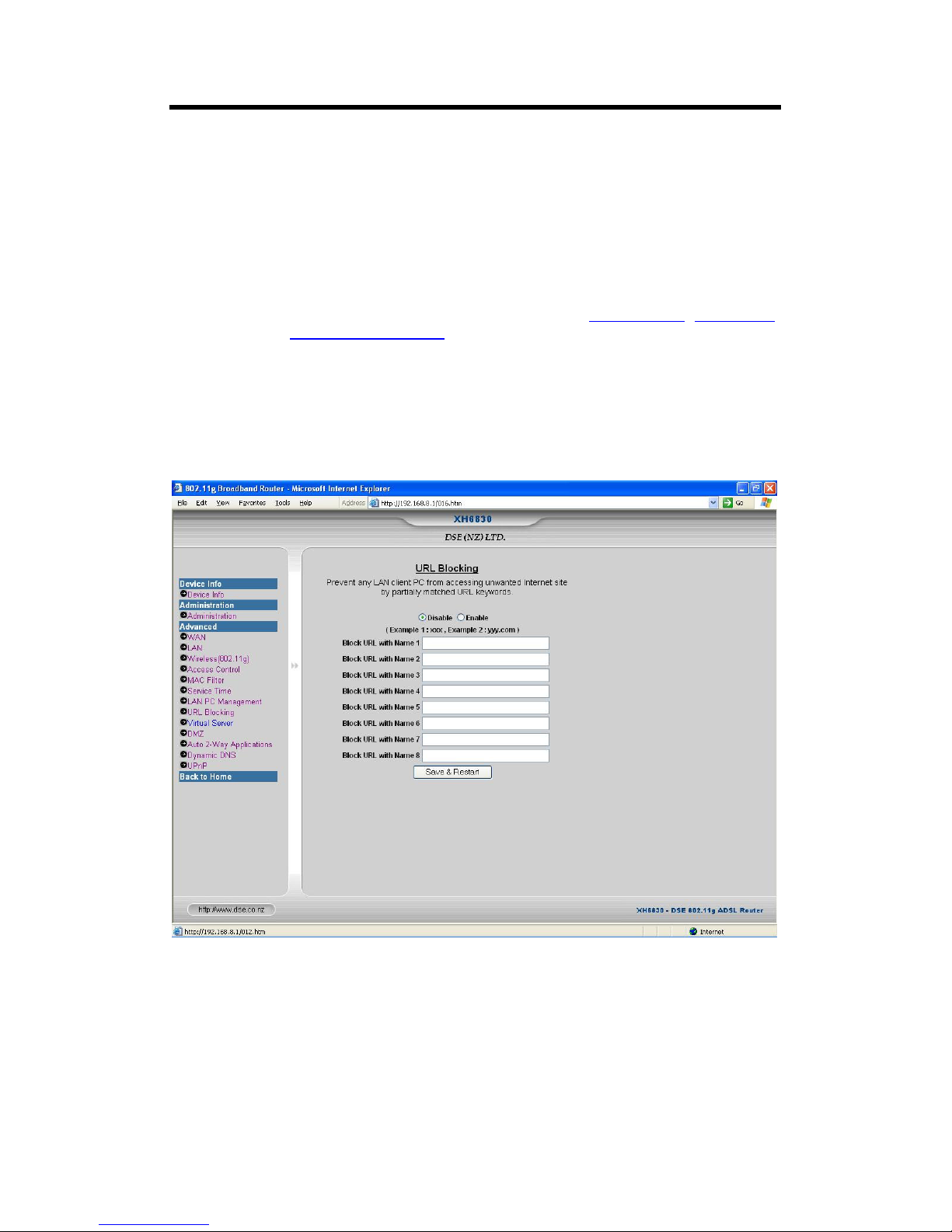
In order to prevent LAN users from accessing several specific websites, the router allows the
administrator to restrict access based on web address keywords.
1. Select Enable to activate this feature and enter the URL keywords manually.
Keyword application examples:
If the keyword “XYZ” is specified, the URL; www.XYZ.com, ftp.XYZ.com,
•
www.abc.com/XYZ.html will all be blocked.
If the keyword “.com” is specified, only websites with other domain suffixes,
•
such as “.edu”, “.gov”, “.co.nz” will be accessible.
Enter “.” Will block all Internet access.
•
2. Click Save & Restart to save the settings.
Page 52
51
7.11 Virtual Server
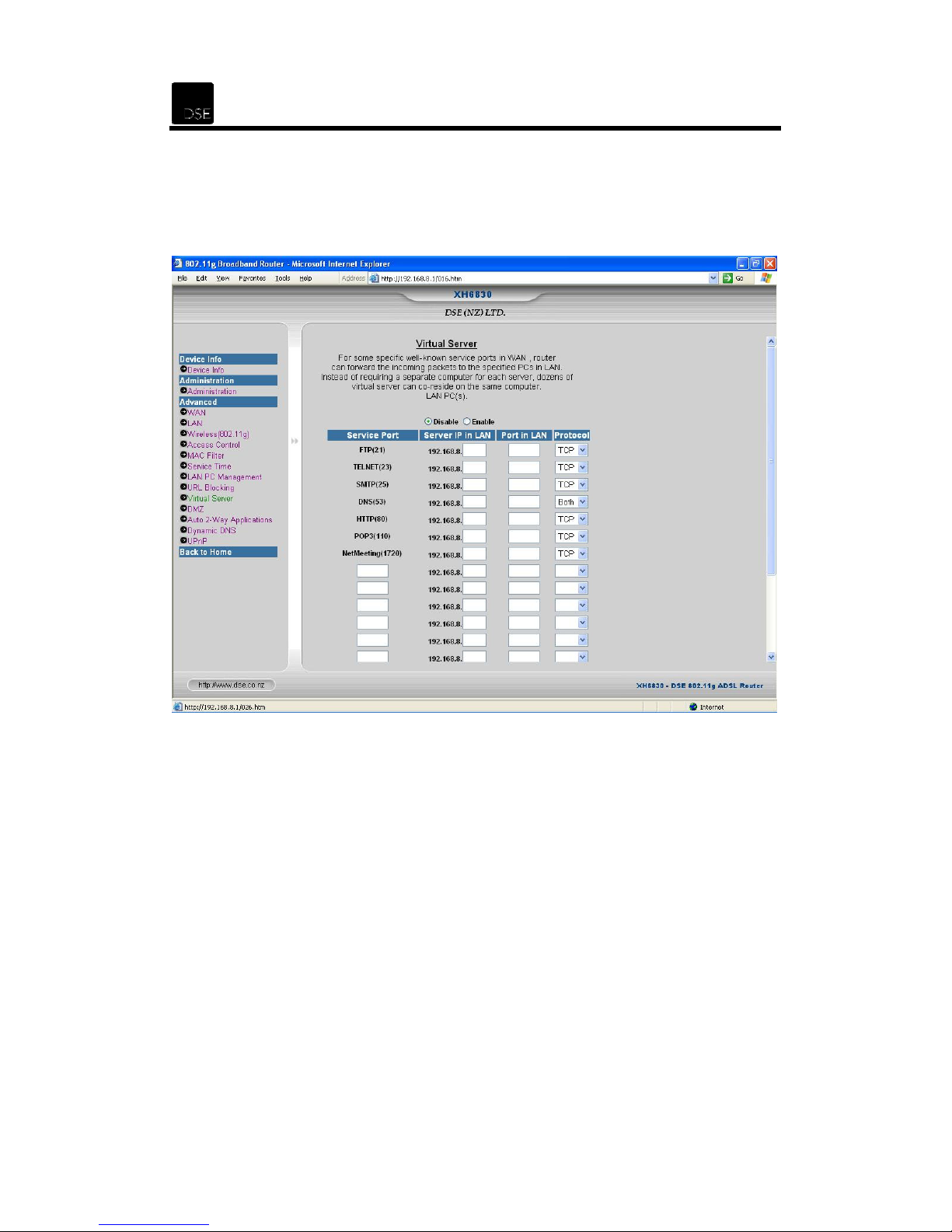
The router allows you to set up virtual servers. If any specific local PC needs to be mapped to the
UDP/TCP port on the WAN side, you will need to input the mappings on this page.
Virtual Servers allow you to set up public services, such as a Web server, FTP, E-mail, etc. that
can be accessed by external users on the Internet. This is the same as setting up Pinholes.
Each service is provided by a dedicated network computer configured as a server with a fixed IP
address. When packets come in from the WAN port and their destination port number matches
the Virtual Server’s ports of the router, these packets will be forwarded to the pre-defined LAN’s
IP address.
Page 53

XH6830 – DSE 802.11g ADSL Router
52
Consider the example below:
If you have an FTP server (Port 21) at 192.168.8.5, a mail server (Port 110) at 192.168.8.6, a
web server (Port 80) at 192.168.8.7 and a VPN server at 192.168.8.8 you need to set up the
virtual servers as listed below:
Protocol
Service Port Server IP in LAN Port in LAN
TCP UDP Both
FTP (21) 192.168.8.5 21 X
POP3 (110) 192.168.8.6 110 X
HTTP (80) 192.168.8.7 80
VPN (1723) 192.168.8.8 1723 X
Do the following to set up port forwarding via a virtual server:
1. Select Enable to activate this feature.
2. Enter the Server IP in LAN, Port in LAN and Protocol (TCP, UDP or Both).
3. You can also create your own Service Port.
4. Click Save & Restart to save the settings.
X
Page 54
53
7.12 DMZ
A DMZ host is a computer which has been nominated to receive all the packets that do not
match anything in your NAT or Port Forwarding tables. When a packet is sent to your router, the
router will check the NAT or Port Forwarding tables to see if there's a match for that packet, and
then send the packet on to whatever it matches. If there is no match, then the router won't know
where to forward the packet onto and the packet will be dropped and lost. The main reason for
having a DMZ host is so that no packets sent to your network will be rejected but received by at
least one computer. Effectively, a DMZ host acts as a “Lost & Found” for network packets,
where they all go if they would otherwise be lost.
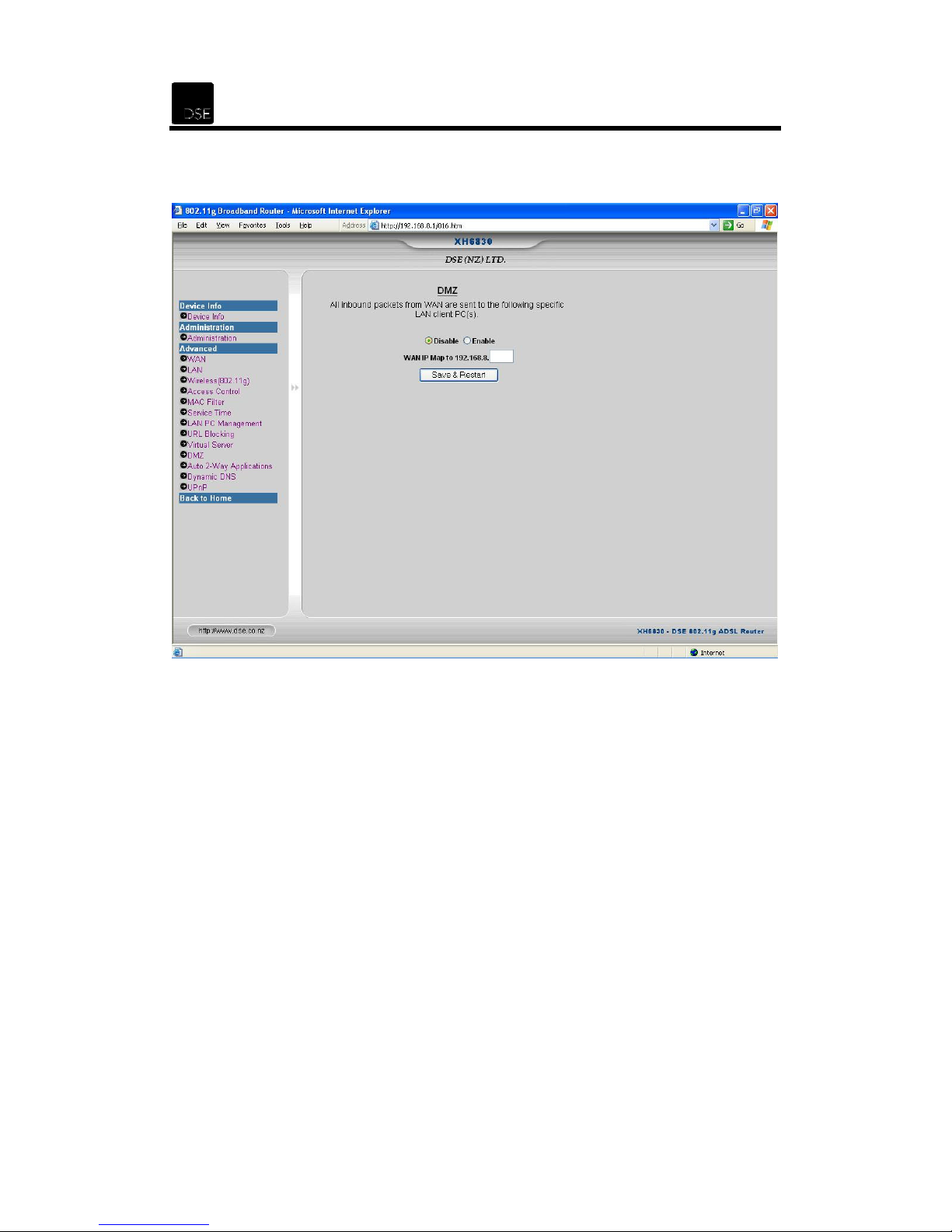
If you are using DHCP Client (Get IP dynamically from ISP) for your WAN Connection Type,
select Enable and enter the WAN IP Address. Click Save & Restart to save your settings.
If Static IP is used for the WAN Connection Type where there are ranges of IP addresses
assigned to the WAN interface instead of a single IP Address, this router allows up to 8
computers in the LAN to become DMZ hosts.
The default DMZ server feature is helpful when using some online games and
videoconferencing applications that are incompatible with NAT. Incoming traffic from the
Internet is normally discarded by the router unless the traffic is a response to one of your local
computers or a service that you have configured in the Ports menu. Instead of discarding this
traffic, you can have it forwarded to one computer on your network. This computer is called the
Default DMZ Server.
Page 55

XH6830 – DSE 802.11g ADSL Router
54
The mechanism of multiple DMZ host is based on the mapping relation between the WAN IP
Address and the LAN IP Address. These DMZ hosts will skip NAT port translation to gain
unrestricted 2-way communication capability.
To assign a computer or server to be a DMZ server, do the following:
1. Click the WAN link and set your WAN Connection Type to Static IP.
2. Manually enter your WAN IP address, WAN Subnet Mask, WAN Gateway and
WAN DNS.
3. Click Save & Restart to save the settings.
4. Click the DMZ link and select Enable to activate the DMZ function.
5. Enter the WAN IP Address and the LAN IP Address.
6. Select WAN Connected with Bridging Mode if Bridging Mode configuration is
supported by the ISP. Leave this item Blank if Routing Mode is supported by
the ISP.
7. Click Save & Restart to save your settings.
Consider the example below:
WAN IP router Sent to LAN IP
WAN IP1 ( 210.65.226.17 )
WAN IP1 ( 210.65.226.18 ) 192.168.8.18
WAN IP1 ( 210.65.226.19 ) 192.168.8.19
WAN IP1 ( 210.65.226.20 ) 192.168.8.10
192.168.8.17
Page 56
55
7.13 Auto 2-Way Applications
Some special applications (e.g. MS messenger, MS game zone, etc…) always connect to an
outside server with a fixed destination port. Then the server would communicate with the
application in the LAN by using a predefined incoming port (or a specific range of incoming
ports). In this case, the router can provide a fully automatic mechanism to support such
applications.
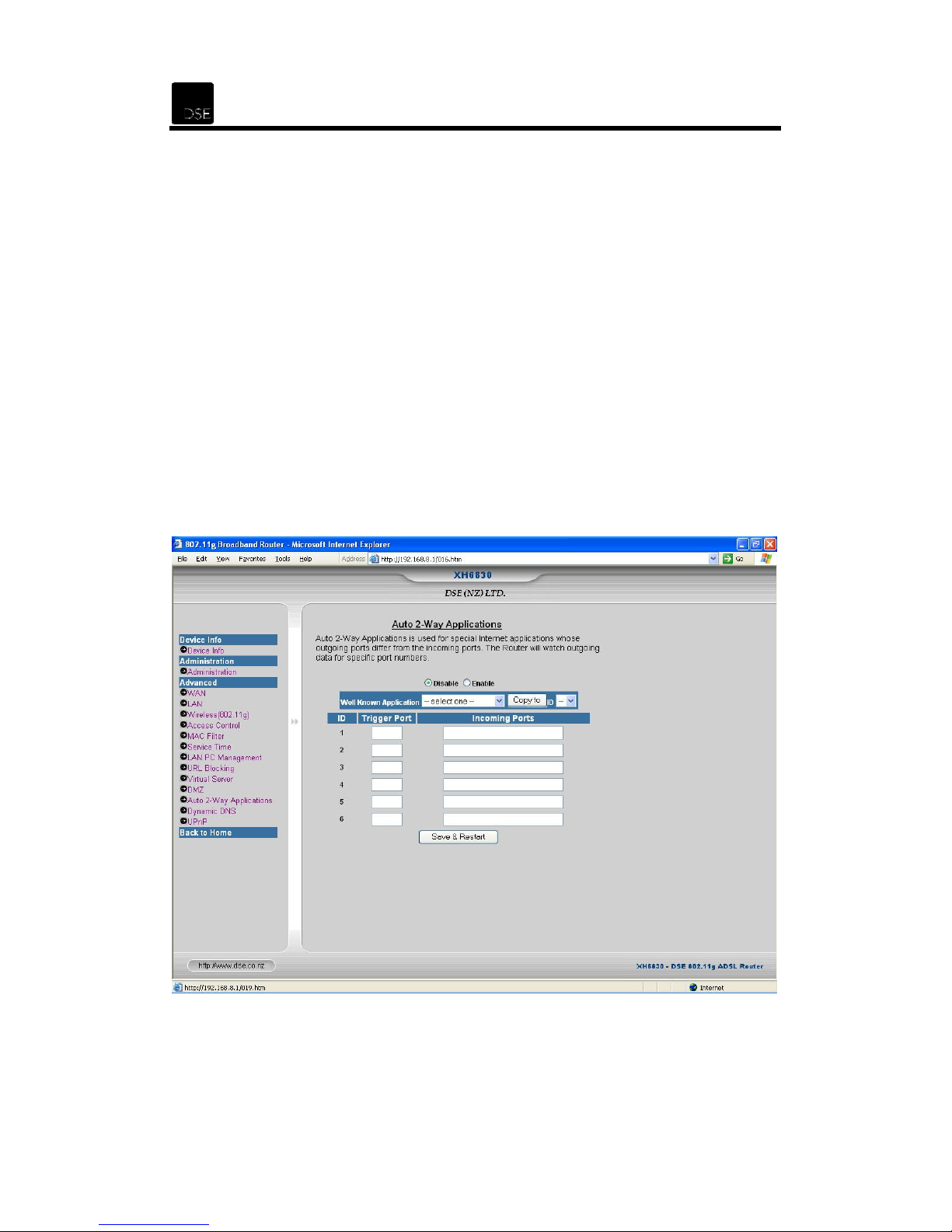
Click the Auto 2-Way Application link and select Enable to allow the router to watch outgoing
data for specific port numbers. The IP address of the computer that sends the matching data is
remembered by the router, so that when the requested data returns through the router, the data
is pulled back to the proper computer by way of IP address and port mapping rules.
1. Select Enable to activate the Auto 2-Way Application.
2. Select the Well Known Application from the list provided and click Copy to a
dedicated ID as listed.
3. You can also enter the Trigger Port and Incoming Ports used by the
application manually.
Click Save & Restart to save the settings.
Page 57
XH6830 – DSE 802.11g ADSL Router
56
7.14 Dynamic DNS
Dynamic DNS (Domain Name System) is a method of keeping a domain name linked to a
changing IP Address as not all computers use Static IP addresses. Typically, when a user
connects to the Internet, the user's ISP assigns an unused IP address from a pool of IP
addresses, and this address is used only for the duration of that specific connection. This
method of dynamically assigning addresses extends the usable pool of available IP addresses.
A dynamic DNS service provider uses a special program that runs on the user's computer,
contacting the DNS service each time the IP address provided by the ISP changes and
subsequently updating the DNS database to reflect the change in IP address. In this way, even
though a domain name's IP address will change often, other users do not have to know the
changed IP address in order to connect with the other computer.
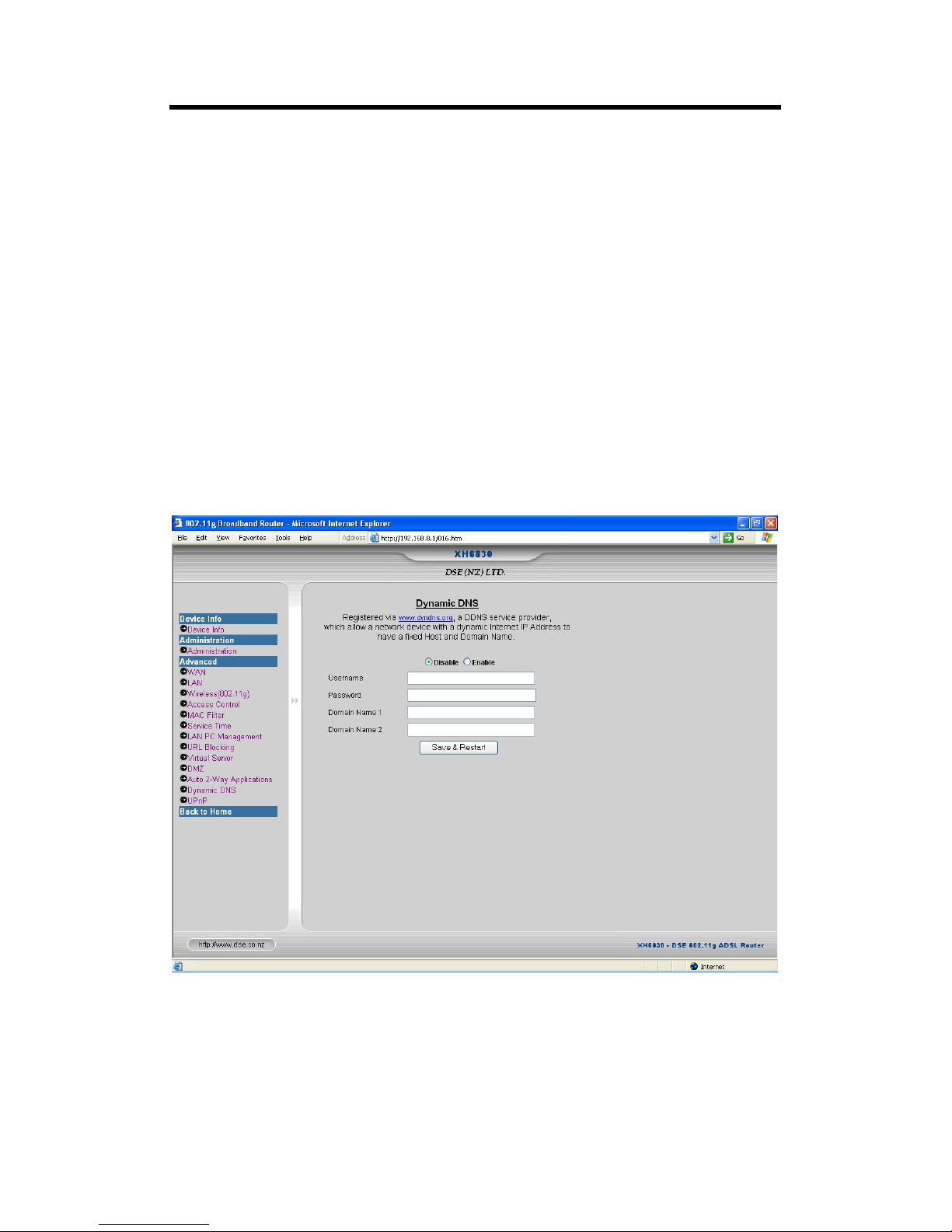
1. Select
2. Enter
3. Click
Enable
User Name, Password
Save & Restart
to activate the Dynamic DNS function.
to save the settings.
and
Domain Name
.
Page 58
57
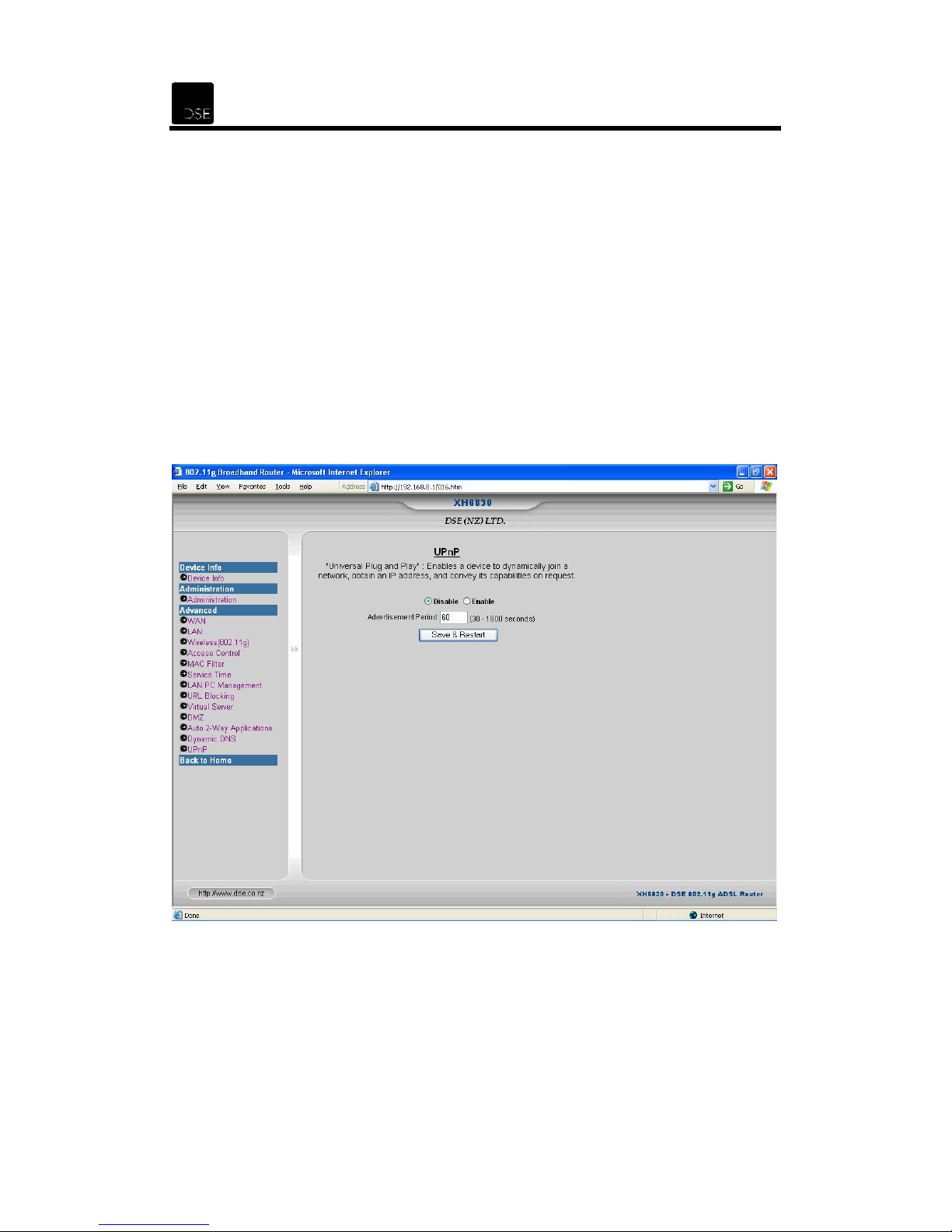
7.15 UPnP
Universal Plug and Play (UPnP) enhances peer-to-peer network connectivity for personal
computers,
architecture. UPnP uses existing standard protocols, such as TCP/IP, Hypertext Transfer
Protocol (HTTP), and Extensible Markup Language (XML) to seamlessly connect networked
devices and to manage data transfer among
architectural framework for creating self-configuring, self-describing devices and services.
Networks managed by UPnP require no configuration by users or net
because UPnP supports automatic discovery. UPnP enables a device to dynamically join a
network, obtain an IP address, and convey its capabilities on request.
wireless devices, and other intelligent appliances in a distributed, open networking
connected devices. UPnP provides an
work administrators
1. Select Enable to activate the UPnP function and enter the Advertisement Period.
2. Click Save & Restart to save the settings.
Page 59

XH6830 – DSE 802.11g ADSL Router
58
8 About Wi-Fi
8.1 Wi-Fi is Freedom
Wi-Fi, or Wireless Fidelity, is freedom: it allows you to connect to the Internet from your couch at
home, a bed in a hotel room or a conference room at work without wires. How? Wi-Fi is a
wireless technology like a cell phone. Wi-Fi enabled computers send and receive data indoors
and out; anywhere within the range of a base station. And the best thing of all, it's fast. In fact, it's
several times faster than the fastest cable modem connection.
However, you only have true freedom to be connected anywhere if your computer is configured
with a Wi-Fi CERTIFIED radio adaptor (a PC Card or similar device). Wi-Fi certification means
that you will be able to connect anywhere there are other Wi-Fi CERTIFIED products - whether
you are at home, the office or corporate campus, or in airports, hotels, coffee shops and other
public areas equipped with a Wi-Fi access available.
8.2 Wi-Fi CERTIFIED = Confidence
Look for the Wi-Fi CERTIFIED logo on a product before you buy it. The Wi-Fi certified logo is
your only assurance that the product has met rigorous interoperability testing requirements to
assure products from different vendors will work together. The Wi-Fi CERTIFIED logo means
that it's a "safe" buy. Wi-Fi Certification comes from the Wi-Fi Alliance, a nonprofit international
trade organisation that tests 802.11-based wireless equipment to make sure it meets the Wi-Fi
standard and works with all other manufacturers' Wi-Fi equipment on the market. Thanks to the
Wi-Fi Alliance, you don't have to read the fine print or study technical journals: if it says Wi-Fi, it
will work.
8.3 Wi-Fi Connects You
Imagine working on your laptop or checking e-mail from anywhere in your home. Imagine being
able to connect to your office network from an airport or coffee shop. Imagine retrieving files or
presentations from the corporate network, cruising the Internet or sending instant messages to
co-workers - and doing it all from a conference room or the company cafeteria.
Now, imagine doing all these things easily and quickly - without worrying about finding a wired
network connection. That is Wi-Fi.
Imagine being able to move your entire office without losing your investment in networking
installations, or to add new staff, all without moving cables or installing complicated hubs and
routers. That is Wi-Fi.
Page 60

59
8.4 Who Can Use Wi-Fi?
Everyone can use Wi-Fi, almost everywhere in the world. Home Wi-Fi networks can connect
multiple computers to each other, to peripherals, and to the Internet. A Wi-Fi network can
connect a family's computers together to share such hardware and software resources as
printers and the Internet. That means everyone in the family can share stored files, photos and
documents and print them out on a single printer attached to one desktop computer - all without
unsightly cables running throughout the home. In a home or home office, using Wi-Fi
CERTIFIED equipment in your wireless network gives you the ability to share a single
high-speed broadband cable or DSL connection. A Wi-Fi network can easily be expanded to ten
users or more. It also gives you assurance that the Wi-Fi CERTIFIED equipment you purchase
today will work with the equipment you add to your network in the future. Wi-Fi networks also
work well for small businesses, providing connectivity between mobile salespeople, floor staff
and behind-the-scenes finance and accounting departments. Because small businesses are
dynamic, the built-in flexibility of a Wi-Fi network makes it easy and affordable for them to
change and grow.
Page 61

XH6830 – DSE 802.11g ADSL Router
60
9 Troubleshooting
This chapter provides possible solutions to problems regarding the installation and operation of
the router. After each problem description, instructions are provided to help you diagnose and
solve the problem.
1. Router LAN port connection failure
•
•
•
•
•
•
2. Router configuration through the web browser (by a client PC in LAN) failure
•
•
•
Make sure your router is powered on.
Check the LED indicator which will be lit when a proper connection is made on the LAN
port.
Ensure that your PC and the router are on the same network segment. Initiate the
DHCP function to let your PC get an IP address automatically from the router.
Make sure the IP address of your PC is in the range 192.168.8.17 (~ 128).
Check the Subnet Mask setting. The setting should be 255.255.255.0.
Press the Reset button for 10 seconds to restore the factory default settings of the
router. Repeat the above steps.
Check the hardware connection of the router’s LAN port. The LED will be lit when a
proper connection is made.
Check your TCP/IP settings. Please refer to section 5 on how to set the correct TCP-IP
settings.
Make sure the IP address of your PC is in the range 192.168.8.17 (~ 128).
Page 62
61
3. The router is unable to access the Internet
•
Check whether the router is able to obtain a WAN IP address from the ISP.
i. Launch your browser and access the main menu of the router’s configuration
by typing http://192.168.8.1 in the address bar and logging in as admin.
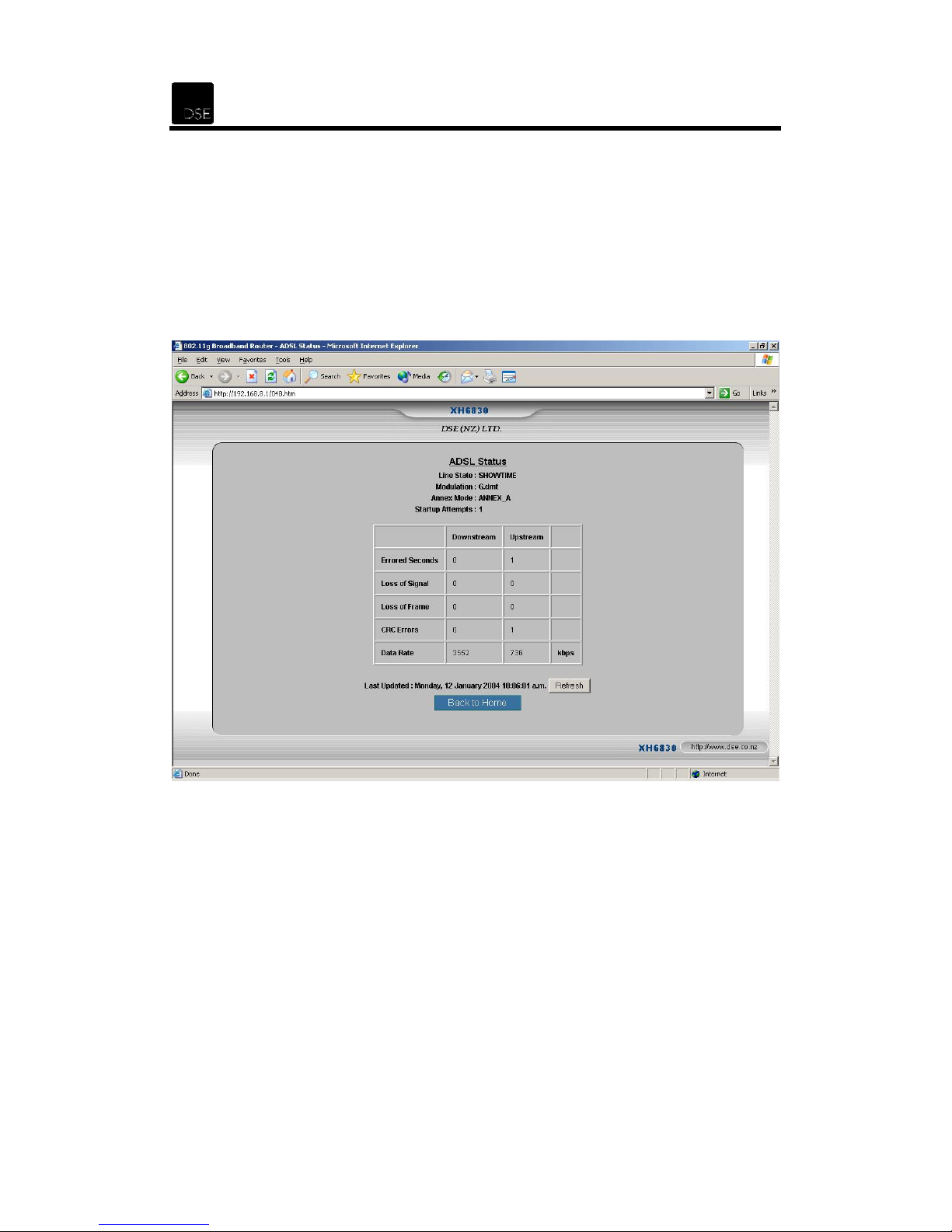
ii. Select ADSL Status from the menu and check the errors, data rate and other
statistics.
iii. Select Advanced Setting from the main menu, then WAN from the menu and
check the WAN Connection Type is PPPoA if using ADSL in New Zealand.
iv. Manually enter your login Account and password details.
v. Inform your ISP, check your login details and the status of the network status.
Page 63

XH6830 – DSE 802.11g ADSL Router
62
4. I forgot or lost the Administrator Password
•
•
5. I want to upgrade the firmware
•
6. Testing the LAN path to your router
•
Reset the router to the factory default settings by pressing the Reset button at the back
of the router for 10 seconds.
If you are still getting prompted for a password when saving settings:
i. Access the Router’s web interface by going to http://192.168.8.1.
ii. Enter the default password admin, and click the Administration link.
iii. Enter a New Password and enter confirm the new password.
iv. Click OK to save the new password.
If there is a new firmware available, you will be able to find it by searching for the
product/catalog number on the DSE website at www.dse.co.nz.
i. Download the latest firmware and save it on your hard drive.
ii. Refer to the section on firmware upgrade for the procedure.
To verify whether the LAN path from your PC to your router is good, you can ping the
router with the following steps:
i. From the Windows toolbar, click Start and select Run.
ii. In the open field, type ping 192.168.8.1 and click OK.
iii. If the path is working, you should see a series of messages that read: Reply
from 192.168.8.1 bytes=32 time<10ms TTL=60
iv. If the path is not working, you should see the following message: Request
timed out
•
7. Failed to connect with the router via Wireless LAN adaptor
•
If the LAN path is not functioning correctly
v. Make sure the LAN port LED indicator is on.
vi. Check whether you are using the correct LAN cable.
vii. Check your Ethernet Adaptor installation and configuration.
viii. Verify that the IP address for your router and your workstation are correct and
that the addresses are on the same subnet.
Ensure that the wireless LED indicator of the router is on.
Page 64

63
•
•
Check that your Wireless LAN adaptor settings (e.g. SSID, Channel Number) are the
same as your router.
Check whether you have used the same WEP Encryption Key for both your Wireless
LAN and your router.
Page 65

XH6830 – DSE 802.11g ADSL Router
64
10 Frequently asked questions
What is the maximum IP addresses supported by this Wireless Router?
The Wireless Router will support up to 253 IP addresses.
What is MAC Address?
Short for Media Access Control Address. It is a hardware address that uniquely identifies each
node of an Ethernet networking device. This address is usually permanent.
Where is the Wireless Router installed on the network?
The Wireless Router is installed in between the Cable/xDSL Modem and the Ethernet LAN
Adaptor.
Does the WAN connection of the Wireless Router support 100Mbps Ethernet speed?
Yes. This Wireless Router supports 100Mbps Ethernet speed. However, due to the limitations of
the broadband Internet connections, the Wireless Router’s will drop to 10Mbps Ethernet on its
WAN port. See the ADSL Status page for upstream and downstream data rates while
connected.
Which modems are compatible with the Wireless Router?
The Wireless Router is compatible with virtually any Cable or xDSL Modem that supports
Ethernet.
Can the Wireless Router act as a DHCP Server?
Yes. This Wireless Router has DHCP Server functionality built-in.
What is IEEE 802.11b standard?
IEEE 802.11b is an extension standard to 802.11 that applies to Wireless LAN and provides
11Mbps transmission speed in the 2.4 GHz band.
What is IEEE 802.11g standard?
IEEE 802.11g is an extension standard to 802.11 that applies to Wireless LAN and provides
54Mbps transmission speed in the 2.4 GHz band.
What is NAT (Network Address Translation) and what is it used for?
NAT translates multiple IP Addresses on the private LAN to one public IP Address (in WAN) that
is sent out to the Internet. NAT adds a level security since the IP address of a PC connected to
the private LAN is never transmitted on the Internet.
Page 66

65
What can I do if l lost connection with the Wireless Router when I change the LAN
subnet Address ( e.g. change from 192.168.8.1 to 192.168.1.1 ) ?
When the LAN client PC is no longer on the same Subnet IP Address as the Wireless Router,
release your LAN client PC’s IP Address and renew the IP Address from the Wireless Router
once again.
What can I do when I am not able to get the web configuration screen for this Wireless
Router?
Remove the proxy settings on your Internet Browsers or remove the dial-up settings on your
browser.
What is DMZ (DeMilitarized zone)?
DMZ allows one IP Address (computer) to be exposed to the Internet. Some applications require
multiple TCP/IP ports to be open. It is recommended that you set your computer with a static IP
if you want to use DMZ features.
Does the Wireless Router pass PPTP or actively route PPTP sessions?
Yes, this Wireless Router allows PPTP packets to pass through.
Is this Wireless Router cross-platform compatible?
Yes, any platform that supports Ethernet and TCP/IP is compatible with this Wireless Router.
What is BSS ID?
A specific Ad-Hoc LAN is called a Basic Service Set (BSS). Computers in a BSS must be
configured with the same BSS ID.
What is SSID?
Short for Service Set Identifier. SSID is a 32 character unique identifier attached to the header of
packets sent over a WLAN that acts as a password when a mobile device tries to connect to the
BSS. The SSID differentiates one WLAN from another, so all Access Point and all devices
attempting to connect to a specific WLAN must use the same SSID. A device will not be
permitted to join the BSS unless it can provide the unique SSID.
What is WEP?
Short for Wired Equivalent Privacy. WEP is a security protocol for wireless local area networks
defined in the 802.11b standard. WEP is designed to provide the same level of security as that
of a wired LAN. WEP aims to provide security by encrypting data over radio waves so that it is
protected as it is transmitted from one end point to another.
Page 67

XH6830 – DSE 802.11g ADSL Router
66
11 Support
Should you encounter problems with the installation of this device, please follow these steps:
1. Read the troubleshooting guide.
Contact the DSE Support Team
2.
DSE support operates during normal business hours.
– Phone: 09-414-2836
– email: [email protected]
– or call into your nearest Dick Smith Electronics store
Note: Consumers are advised not to rely on our ability to provide support for Open Source,
GNU, Freeware or Shareware software, as this software is often under continual development.
We will however help where we can which may be limited to providing web links only. Windows
software that does not fall into the categories above is supported.
Please visit our website http://www.dse.co.nz from time to time as the most up-to-date drivers
and manuals will be posted there.
12 Warranty
This device is supplied with a 12-month, non-transferable end user warranty. In the unlikely
event that this device should fail within the warranty period, please return it, along with your
purchase receipt, to your nearest Dick Smith Electronics store.
Please Note:
Damage due to misuse, abuse or electromagnetic discharge (including, but not limited to
lightning, etc) is not covered by warranty.
13 Glossary of terms
IEEE 802.11 Standard: The IEEE 802.11 is a standard that has been developed by the IEEE
(Institute of Electrical and Electronic Engineers) for Wireless local area networks (WLAN).
802.11a: An IEEE standard for wireless networks that operate in the 5 GHz frequency range (5.725
GHz to 5.850 GHz) with a maximum data transfer rate of 54 Mbps.
802.11b: An IEEE standard for wireless networks that operate in the 2.4 GHz frequency range (2.4
GHz to 2.4835 GHz) with a maximum data transfer rate of 11 Mbps. This is a very commonly used
frequency. Microwave ovens, cordless phones, medical and scientific equipment, as well as
Bluetooth devices, all work within the 2.4 GHz frequency band.
802.11g: An IEEE standard similar to 802.11b but with a maximum data transfer rate of 54 Mbps. It
also operates in the 2.4 GHz frequency band but uses a different radio technology in order to boost
overall bandwidth. 802.11g devices are backward compatible with 802.11b devices.
Page 68

67
Access Point: An internetworking device that seamlessly connects wired and wireless networks
together. Access points can also bridge to each other if they have a wireless bridge function.
Ad Hoc: An Ad Hoc wireless LAN is a group of computers, each with a WLAN adaptor, connected as
an independent wireless LAN.
ADSL: Asymmetric Digital Subscriber Line is a DSL technology that is asymmetric, thereby
reserving more downstream bandwidth (coming to the user from the Internet) than upstream
bandwidth (going from the user to the Internet). This type of DSL is advantageous for residential
users that do not need the same bandwidth speed in both directions.
Backbone: The core infrastructure of a network or the portion of the network that transports
information from one central location to another central location. The information is then off-loaded
onto a local system.
Bandwidth: The amount of transmission capacity that is available on a network. The available
bandwidth depends on several variables such as the data transmission rates between networked
devices, number of users and the type of network devices used. The more bandwidth a network
provides, the more data can flow through it. 802.11b provides a maximum bandwidth of 11 Mbps
while 802.11a and 802.11g provide a maximum bandwidth of 54 Mbps.
Bit: The basic unit in data communications, represented as either a one or a zero. When discussing
digital data, a small "b" refers to bits, and a capital "B" refers to bytes.
Bit rate: The number of bits of data transmitted per second.
Bridge: A device that connects a local area network (LAN) to another local area network that uses
the same protocol (e.g. wireless, Ethernet or token ring). Wireless bridges are commonly used to link
buildings.
Broadband: A relatively fast Internet connection. Services such as ISDN, cable modem, ADSL and
satellite are all considered broadband as compared to dial-up Internet access.
BSS: A group of computers with a WLAN adaptor each and an Access Point compose a Basic
Service Set (BSS).
BSSID: Computers in a BSS must be configured with the same BSSID.
Client: Any computer connected to a network that requests services (e.g. files, print capability) from
another member of the network.
DHCP: Dynamic Host Configuration Protocol is a method in which IP addresses are dynamically
assigned by a server to clients on the network. DHCP is used for Dynamic IP Addressing and
requires a dedicated DHCP server on the network.
Direct Sequence Spread Spectrum: This is the method the wireless cards use to transmit data
over the frequency spectrum. The other method is frequency hopping. Direct sequence spreads the
data over one frequency range (channel) while frequency hopping jumps from one narrow frequency
band to another many times per second.
Diversity antenna: A type of antenna system that uses two antennas to maximize reception,
transmission quality and reduce interference.
Page 69

XH6830 – DSE 802.11g ADSL Router
68
Encryption key: An alphanumeric string that enables data to be encrypted and then decrypted so it
can be safely shared among members of a network. WEP uses an encryption key that automatically
encrypts outgoing wireless data. On the receiving side, the same encryption key enables the
computer to automatically decrypt the information so it can be read.
ESS: Stands for Extended Service Set. More than one Basic Service Sets (BSS) can be configured
as an Extended Service Set. An ESS is basically a roaming domain.
ESSID: Computers in an ESS must be configured with the same ESSID.
Ethernet: Ethernet is a 10/100Mbps wired network that runs over dedicated home/office wiring.
Users must be wired to the network at all times to gain access.
Firewall: A device that secures a network and prevents access by unauthorized users. Firewalls can
be software, hardware or a combination of both. Firewalls can prevent unrestricted access into a
network, as well as restrict data from flowing out of a network.
Gateway: A gateway is a hardware and software device that connects two dissimilar systems, such
as a LAN and a mainframe. Generally, a gateway is used as a funnel for all traffic to the Internet.
HotSpot: A place where you can access Wi-Fi service. This can be free or for a fee. HotSpots can
be inside a coffeeshop, airport lounge, train station, convention center, hotel or any other public
meeting area. Corporations and campuses are also implementing HotSpots to provide wireless
Internet access to their visitors and guests. In some parts of the world, HotSpots are known as
CoolSpots. There are several hot spots in New Zealand, predominantly in Wellington and Auckland.
See the HotSpots in New Zealand section for a list of HotSopts.
IEEE: The Institute of Electrical and Electronics Engineers is a membership organization comprised
of engineers, scientists, and students that sets standards for computers and communications.
Infrastructure: Compared to Ad-Hoc mode where PCs communicate directly with one another,
clients set in Infrastructure mode all pass data through an access point. The access point not only
mediates wireless network traffic, but also provides communication with the wired network. If the
wireless clients need to have access to the wired LAN, they will have to be set in Infrastructure mode.
IP address: A 32-bit number that identifies each computer across a network or the Internet.
IPX: Short for Internetwork Packet Exchange, IPX is a networking protocol used by the Novell
NetWare operating systems. Like UDP/IP, IPX is a datagram protocol used for connectionless
communications.
ISM Band: The FCC and their counterparts outside of the U.S. have set aside bandwidth for
unlicensed use in the so-called ISM (Industrial, Scientific and Medical) band. Spectrum in the vicinity
of 2.4 GHz, in particular, is being made available worldwide. This presents a truly revolutionary
opportunity to place convenient high-speed wireless capabilities in the hands of users around the
globe.
ISO: The International Organization of Standardization develops, coordinates, and promulgates
international standards that facilitate world trade.
ISP: An Internet Service Provider is an organization offering and providing Internet access to the
public using computer servers connected directly to the Internet.
ITU: The International Telecommunication Union is a United Nations organization that coordinates
the use of the electromagnetic spectrum and creation of technical standards for telecommunication
and radio communication equipment.
Page 70

69
Local Area Network (LAN): A LAN is a group of computers, each equipped with the appropriate
network adaptor card connected by cable that share applications, data and peripherals. All
connections are made via cable, but a LAN does not use telephone services. It typically spans a
single building.
MAC address: Every network device has its own specific MAC address hard-coded into it. This
unique identifier can be used to provide security for networks.
NAT: Network Address Translation enables a local area network (LAN) to use one set of IP
addresses for internal traffic and a second set of IP addresses for external traffic. This feature is
used so that an end user can have an internal computer network in their home, with all its computers
using internal IP addresses, using only one routable IP address, which accesses the outside
(Internet).
Network: A network is a system of computers connected to one another. Data, files, and messages
can be transmitted over this network. Networks may be local or wide area networks.
PCMCIA: Personal Computer Memory Card International Association. A PCMCIA card is also
referred to as a PC Card. PCMCIA cards are usually used with notebooks.
Peer-to-peer network: A wireless or wired network that has no server, access point, hub or router.
All the networked PCs are connected directly to one another and are equally able to act as a network
server or client.
Protocol: A protocol is a standardized set of rules that specify how a conversation is to take place,
including the format, timing, sequencing and error checking.
Proxy server: Used in larger companies and organizations to improve network operations and
security, a proxy server is able to prevent direct communication between two or more networks. The
proxy server forwards allowable data requests to remote servers and/or responds to data requests
directly from stored remote server data.
Range: The range is a measure of how far your wireless network will stretch.
Roaming: In an infrastructure network, this is when a wireless PC moves out of range of the
previously connected access point and connects to a newly connected access point. Throughout the
network environment where access points are deployed, PCs can always be connected regardless
of where they are located.
Router: A device in a packet-switched computer network that directs and controls the flow of data
through the network.
Server: A computer that provides its resources to other computers and devices on a network. These
include print servers, Internet servers and data servers.
Site survey: The process whereby a wireless network installer inspects a location prior to putting in
a wireless network. Site surveys are used to identify the radio and client-use properties of a facility so
that access points can be optimally placed.
SSID: A Network ID unique to a network. Only clients and Access Points that share the same SSID
are able to communicate with each other. This string is case-sensitive. A device will not be permitted
to join the BSS unless it can provide the unique SSID. Because an SSID can be sniffed in plain text
from a packet, it does not supply any security to the network.
Page 71

XH6830 – DSE 802.11g ADSL Router
70
SNMP: Simple Network Management Protocol is the network management protocol of TCP/IP. In
SNMP, agents (which can be hardware as well as software) monitor the activity in the various
devices on the network and report to the network console workstation. Control information about
each device is maintained in a structure known as a management information block.
Static IP Addressing: A method of assigning IP addresses to clients on the network. In networks
with Static IP addresses, the network administrator manually assigns an IP address to each
computer. Once a Static IP address is assigned, a computer uses the same IP address every time it
reboots and logs on to the network, unless it is manually changed.
Subnet: Found in larger networks, these smaller networks are used to simplify addressing between
numerous computers. Subnets connect to the central network through a router, hub or gateway.
Each individual wireless LAN will probably use the same subnet for all the local computers it talks to.
TCP/IP: Transmission Control Protocol / Internet Protocol is the protocol suite developed by the
Advanced Research Projects Agency (ARPA). It is widely used in corporate Internet works, because
of its superior design for WANs. TCP governs how each packet is sequenced for transmission
through the network. The term TCP/IP is often used generically to refer to the entire suite of related
protocols.
VPN: A type of technology designed to increase the security of information transferred over the
Internet. VPN can work with either wired or wireless networks, as well as with dial-up connections.
VPN creates a private encrypted tunnel from the end user's computer, through the local wireless
network, through the Internet, all the way to the corporate servers and database.
WAN: A Wide Area Network consists of multiple LANs that are tied together via telephone services
and / or fiber optic cabling. WANs may span a city, a state, a country, or even the world.
WEP: Wired Equivalent Privacy is a basic wireless security as described in the IEEE 802.11
standard. In some instances, WEP may be all a home or small-business user needs to protect
wireless data. WEP is available in 40-bit (also called 64-bit), or in 108-bit (also called 128-bit)
encryption modes. As 128-bit encryption provides a longer algorithm that takes longer to decode, it
can provide better security than basic 40-bit (64-bit) encryption.
Wi-Fi: An interoperability certification for wireless local area network (LAN) products based on the
Institute of Electrical and Electronics Engineers (IEEE) 802.11 standard.
WLAN: A Wireless LAN does not use cable to transmit signals, but rather uses radio to transmit
packets through the air. Radio Frequency (RF) is the commonly used type of wireless transmission.
Page 72

71
14 HotSpots in New Zealand
Available HotSpots at the time of printing:
Astoria Cafi: 159 Lambton Quay, Wellington, 6001, New Zealand
Bordeaux Bakery: 220 Thorndon Quay, Wellington, 6001, New Zealand
Cafe on the Quay: 250-260 Lambton Quay, Capital on the Quay, Wellington, 6001, New
Zealand
Dizengoff: 256 Ponsonby Road, Ponsonby, 1300, New Zealand
Janus Bakkerij: 250-260 Lambton Quay, Capital on the Quay, Wellington, 6001, New Zealand
Lambton Quay North: 92 Lambton Quay, Wellington, 6001, New Zealand
Midland Park: Cnr Waring-Taylor St and Lambton Quay, Wellington, 6001, New Zealand
Paris Cafe: 132 Lambton Quay, Wellington, 6001, New Zealand
Quay Computers: Corner Bowen St and Lambton Quay, Wellington, 6001, New Zealand
REACH: Auckland - Viaduct Harbour: Restaurant Quarter, Viaduct Harbour Drive, Auckland, ,
New Zealand
Starbucks Cashel: Shopp G3, The Crossing, Chrischurch Central, 1300, New Zealand
Starbucks Newmarket: Corner Tead and Broadway, Newmarket, 1300, New Zealand
Starbucks Parnell: 305 Parnell Road, Auckland, 1300, New Zealand
Starbucks Parnell: 305 Parnell Road, Auckland, 1300, New Zealand
Starbucks Queen St: 220 Queen St, Auckland, 1300, New Zealand
The CD Store and Cafi: 250-260 Lambton Quay, Capital on the Quay, Wellington, 6001, New
Zealand
Wellington City Library: 65 Victoria St, Wellington, 6000, New Zealand
Whangarei Town Basin: 44 Riverside Drive, Whangarei, 01500, New Zealand
Page 73

XH6830 – DSE 802.11g ADSL Router
72
Copyrigh t
Copyright 2004 by DSE(NZ)Ltd - all rights reserved. No part of this publication may be
reproduced, transmitted, transcribed, stored in a retrieval system, or translated into any
language or computer language, in any form or by any means, electronic, mechanical,
magnetic, optical, chemical, manual or otherwise, without the prior written permission of
DSE(NZ)Ltd.
Disclaimer
DSE(NZ)Ltd makes no representations or warranties, either expressed or implied, with respect
to the contents hereof and specifically disclaims any warranties, merchantability or fitness for
any particular purpose. Any software described in this manual is sold or licensed "as is". Should
the programs prove defective following their purchase, the buyer (and not DSE(NZ)Ltd, its
distributor, or its dealer) assumes the entire cost of all necessary servicing, repair, and any
incidental or consequential damages resulting from any defect in the software. Further,
DSE(NZ)Ltd reserves the right to revise this publication and to make changes from time to time
in the contents hereof without obligation to notify any person of such revision or changes.
All brand and product names mentioned in this manual are trademarks and/or registered
trademarks of their respective holders.
Page 74

73
Dick Smith Electronics Stores
14 John Street, Phone: (09) 438 0687, Fax: (09) 438 9635.
Drive, Albany MegaCentre, Phone: (09) 415 7410, Fax: (09) 415 4360;
Shopping Town), Phone: (09) 442 2314, Fax: (09) 442 2317;
(09) 486 4039;
Road, Phone: (09) 827 0433, Fax: (09) 827 0466;
8024, Fax: (09) 838 9258;
Karangahape Road:
Road, Phone: (09) 524 7033, Fax: (09) 524 7033;
0102, Fax: (09) 845 0105;
Shoppingtown, Reeves Road, Phone: (09) 576 6604, Fax: (09) 576 4446;
Great South Road, Phone: (09) 262 4150, Fax: (09) 262 4151;
0943, Fax: (09) 296 1713;
Barton Street:
Phone: (07) 838 1484, Fax: (07) 834 1138. Cnr Willow & Springs Street, Phone: (07) 578 7071, Fax:
(07) 577 6674. 1175 Pukuatua Street, Phone: (07) 349 0270, Fax: (07) 348 2464.
Shop 6, 2 Owens Place, Phone: (07) 574 3942, Fax: (07) 574 3943. 233 Emerson St, Phone: (06) 835
5137, Fax: (06) 834 0463. 70-72 Devon Street East, Phone: (06) 758 3309, Fax: (06) 758 5034.
122b Victoria Ave, Phone: (06) 348 7270, Fax: (06) 348 7275. Cnr
Fitzherbert Ave & Ferguson St, Phone: (06) 359 4447, Fax: (06) 359 4452.
171 Featherston Street, Phone: (04) 473 9858, Fax: (04) 473 0407;
8198, Fax: (04) 801 6258;
Queens Drive, Phone: (04) 566 2022, Fax: (04) 566 1277;
Phone: (04) 237 6654, Fax: (04) 237 6456. 150 Hardy Street, Phone: (03) 548 9161, Fax: (03) 548 2900.
Palms:
Cnr Colombo & St Asaph Streets, Phone: (03) 366 2703, Fax: (03) 379 4684;
Langdon's Road, Phone: (03) 352 8770, Fax: (03) 352 7608;
Fax: (03) 343 3880. 295 Stafford Street, Phone: (03) 684 6876, Fax: (03) 684 7678.
Place:
Cumberland Street, Phone: (03) 470 1680, Phone: (03) 470 1681, Fax: (03) 470 1682. 63 Leven
Street, Phone: (03) 214 4363, Fax: (03) 214 0672
City:
26-28 Wyndham Street, Phone: (09) 303 1355, Fax: (09) 303 2783;
Henderson:
Botany:
442 Karangahape Road, Phone: (09) 309 4402: Fax: (09) 373 4456;
Pukekohe:
299 Barton Street, Phone: (07) 839 4491, Fax: (07) 838 1226
Manners Mall:
Manchester Street:
Cnr Marshlands & New Brighton Roads, Shirley, Phone: (03) 386 2670, Fax: (03) 386 2147;
342 Moray Place, Phone: (03) 474 1096, Phone: (03) 477 4495, Fax: (03) 474 1032;
Shop B01 Botany Town Centre, Phone: (09) 271 4100, Fax: (09) 271 4101;
St Lukes:
Onehunga:
252-258 Onehunga Mall, Phone: (09) 634 6767;
106 Manukau Road, Phone: (09) 237 1530, Fax: (09) 237 1534.
4 Manners Mall, Phone: (04) 385 6788, Fax: (04) 385 6785;
130 Manchester Street, Phone: (03) 365 5560, Fax: (03) 365 5561;
Takapuna:
Cnr St Lukes Road and Wagener Road, Phone: (09) 845
Porirua:
Riccarton:
Glenfield:
451 Lake Road, Phone: (09) 486 4037, Fax:
Level 1 (Shop 128), Westcity Mall, Phone: (09) 838
Papakura:
Vivian Street:
Porirua Mega Centre, 36 Parumoana Street,
107 Riccarton Road, Phone: (03) 343 0812,
Glenfield Road, (Above Westfield
Manukau City:
130 Great South Road, Phone: (09) 298
; Ward Street:
57 Vivian Street, Phone: (04) 384
Papanui:
Albany:
Don McKinnon
New Lynn:
3045 Great North
Newmarket:
Pakuranga:
Cnr Ronwood Avenue &
131-135 Ward Street,
Cnr Main North Rd &
Cumberland Street:
50 Remuera
Featherston Street:
Lower Hutt:
Colombo Street:
Westfield
90
The
Moray
59
KERIKERI:
Tronix, Westpac Plaza, Bakehouse Lane, Orewa, Phone: (09) 426 2007, Fax: (09) 427 8085.
Plus, 80 Arawa Steet, Matamata, Phone: (07) 888 5955, Fax: (07) 888 5944.
Ltd, 509 Pollen Street, Thames, Phone: (07) 868 9691, Fax: (07) 868 7980.
The Strand, Whakatane, Phone: (07) 308 8761, Fax: (07) 308 9151.
Puke, Phone: (07) 573 7544, Fax: (07) 573 9490.
Taupo, Phone: (07) 377 0668, Fax (07) 377 0669.
Phone: (06) 868 1366, Fax (06) 867 9103.
Phone: (06) 878 8962, Fax: (06) 878 5509.
Phone: (06) 370 9202, Fax: (06) 370 9303.
(06) 323 7141, Fax: (06) 323 7921.
1132, Fax: (03) 577 8981.
Fax: (03) 448 7631.
(04) 904 4100, Fax: (04) 904 4101
Kerikeri Electronics Ltd, 63 Main Street, Kerikeri, Phone: (09) 407 5589, Fax: (09) 407 5587.
ALEXANDRA:
KAPITI:
Authorised Distributors
OREWA:
MATAMATA:
THAMES:
WHAKATANE:
TE PUKE:
TAUPO:
HASTINGS:
MASTERTON:
Fielding:
BLENHEIM:
Central Betta Electrical, 15 Tarbert Street, Alexandra, Phone: (03) 448 7317,
Kapiti Electronics Ltd, 7-8 Kapiti Lights, Amohia Street, Paraparaumu, Wellington, Phone:
Talktime 2000 Limited, Cnr Gascoigne & Tamamutu Steets,
GISBORNE:
David Brice Electronics Ltd, 47 Kimbolton Road, Fielding, Phone:
Quantum Electronics, 5 Maxwell Road, Blenheim, Phone: (03) 578
AMPS Electronics, 131 Gladstone Road, Gisborne,
Baytech Services Limited, 114 North King Street, Hastings,
Hedley's Home & Office, 152 Queen Street, Masterton,
Electronic Plus, 63 Jellicoe Street, Te
Piaggi Systems & Software
Boonen Electronics, 76
Electronics
 Loading...