

Page 1
Operation Manual
drive.web
Your speedy sp
Run Mode Ramp
0%
Stopped
41)Crawl Speed
10.00 %
27)Forward Minimum Speed
0.83 %
26)Ramp Input
0.00 %
28)Reverse Minimum Speed
0.00 %
37)Jog Speed 1
5.00 %
38)Jog Speed 2
-5.00 %
39)Slack Speed 1
5.00 %
40)Slack Speed 2
-5.00 %
42)Jog Mode Select
Disabled
C17d)RMR System Reset Pulse Input 29)Ramp Auto Preset
Enabled
30)Ramp External Preset
Disabled
31)Ramp Preset Value
0.00 %
C11s)Run Mode Ramp Demand Output
996)Run Mode Ramps GOTO
65)Ramped Speed Reference 4
21)Ramp Output Monitor
0.83 %
35)Ramping Flag
Low
34)Ramping Threshold
0.50 %
33)Ramp Hold
Disabled
22)Forward Up Time
3.0 secs
23)Forward Down Time
3.0 secs
24)Reverse Up Time
3.0 secs
25)Reverse Down Time
3.0 secs
32)Ramp S-Profile %
2.50 %
43)Jog/Slack Ramp
1.0 secs
56)Stop Ramp Time
6.0 secs
168)Internal Running Mode Monitor
STOP
689)At Jog Flag
Low
714)In Slack Flag
Low
166)Drive Start Flag
Low
dw111 - Installation &
drive.web automation
speedy sp
Contents!! ! ! ! Page
Warnings, speedy sp Features ! ! 1
Options, Winder specials! ! ! 2
speedy sp Installation! ! ! 2-3
Ethernet networking, Get savvy!! 3
Get started with savvy, savvy-SFD 3-6
savvyPanel Operator Touch Station App! 7,8
ModbusTCP, drive.web highlights, training!8
Warning! ! It is essential that you read and understand this entire
manual, the PL Series Product Manual, HG501441, and the entire
contents of the savvy software “Help” menu before proceeding with
your installation and product configuration. For more information and
copies of product manuals and software, go to www.driveweb.com.
Warning!! Your use of savvy software, drive.web devices and PL
Series drives may cause motors and machinery to power up with high
voltages or start or operate in an unexpected, dangerous or lethal way. It
is essential that you are completely familiar with savvy and all of the
equipment and the system design you are working with before attempting
to program or edit a program or connect to any live device.
Warning!! You are entirely responsible for the configuration or use of
any drive.web product. By configuring or using these products you
agree to indemnify and hold harmless Bardac Corporation, its’
employees, directors, officers, distributors and resellers against the
consequences of your configuration or use of the products.
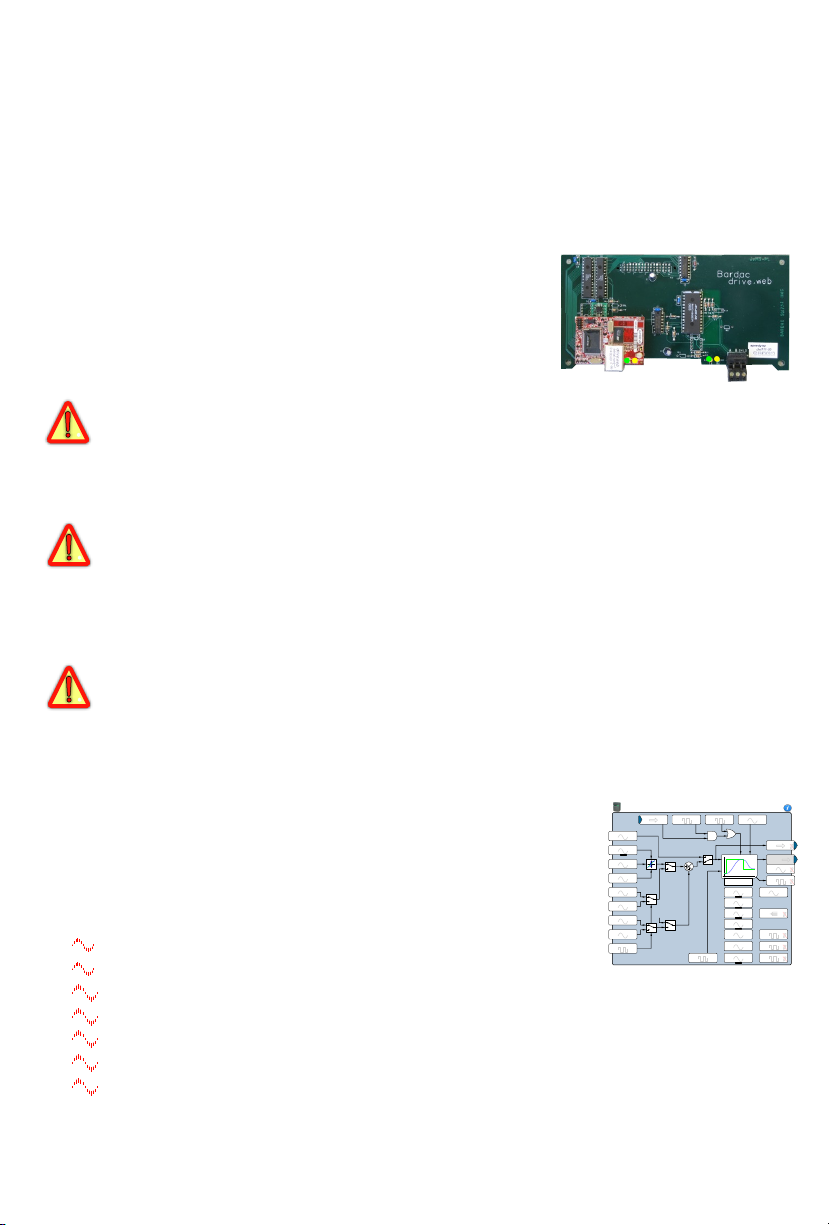
Product Identification speedy sp Model dw111
Intelligence, system connectivity for PL-Series Digital DC drives:
Bardac Corporation, PL series DC drives
Eurotherm, ERCPL series DC drives
Sprint Electric Ltd., PL series DC drives.
drive.web Distributed Process Control over Ethernet
savvyPanel Operator Touch Station, option 26. See page 7.
ModbusTCP/IP over Ethernet with option 04. See page 8.
ModbusRTU for Serial Networks. Option 02, 12 Server, Client. Pg.2.
Easy upgrades with savvy software. See page 6.
System libraries; Basic and Optional; Process, Winder and Math.
and monitoring, Math, logic, PID, comparator, filter, latch, timer, counter,
ramps, winder diameter, taper tension, torque compensator, more.
speedy sp HG502277Iss4.0! www.driveweb.com ! Page 1/8
Function Blocks; Extensive PL-Series DC Drive parameter control
Page 2

drive.web automation
!
!
speedy-sp Options
Add software Options 04, 05, 06, 10 and 26 with savvy. See Upgrading, page 6.
See savvy User Manual, Appendix A for current list of available function blocks.
02* ModbusRTU slave. 250V isolated EIA485(RS485), up to 19.2 kbps
04 ModbusTCP/IP. Ethernet, 10baseT enabled Modbus slave/server. See page 6.
05 Process Control. Function Block Library 1 - arithmetic, logic, PID, switches,
comparators, user log, profiler, latches, filters, counters, timers, more.
06 Winder Control Function Block Library 2 - Diameter Calculator, Taper
Tension, Torque Compensator.
10 Math Function Block Library 3 - trig, polynomials, log, exponent, more.
12* ModbusRTU Master. 250V isolated EIA485/RS485 serial, up to 115kbps
26 savvyPanel Operator Touch Station. See page x
*
ModbusRTU Options 02 and 12 are mutually exclusive. It is essential that you
read and understand the entire drive.web Modbus Installation and Operation
Manual, HG502421, included with these options before installing them.
speedy sp Winder Specials
Include options 05 and 06, generic engineered solution and a wiring diagram.
dw111-1101 speedy sp winder 1 Open Loop Constant Tension Center Winder.
dw111-1102 speedy sp winder 2 Closed Loop Dancer Control Center Winder.
dw111-1103 speedy sp winder 3 Closed Loop Loadcell Control Center Winder.
speedy sp Installation
Dimensions and Weight: 7.8”w, 4.0”h, 1.5”d (198, 101, 38mm) 0.5 lb (0.2 Kg)
Power Requirements: 5VDC, 50mA supplied from the PL-series drive.
Storage and Operation Environment: Temperature range; 0 to 50˚C.
Humidity less than 95% non-condensing.
Ethernet Port “RJ45” 8P8C, 10BaseT. LEDs; green, link and yellow, activity.
Warning!
Components on your speedy sp and PL-series printed
circuit boards are ESD Static Sensitive!
Do NOT proceed with installation, nor remove your
speedy sp from its ESD-safe packaging without
grounding yourself and your work area with static
control equipment.
speedy sp HG502277Iss4.0! www.driveweb.com ! Page 2/8
Page 3
drive.web automation
speedy sp Installation continued...
Warning!
Risk of electric shock resulting in injury or death!
Your PL-series drive is powered from more than one
source of high voltage electricity. Remove and isolate all
sources of electric power before proceeding.
Only qualified personnel should proceed with installation!
1.Ensure all sources of electricity are removed and safely isolated.
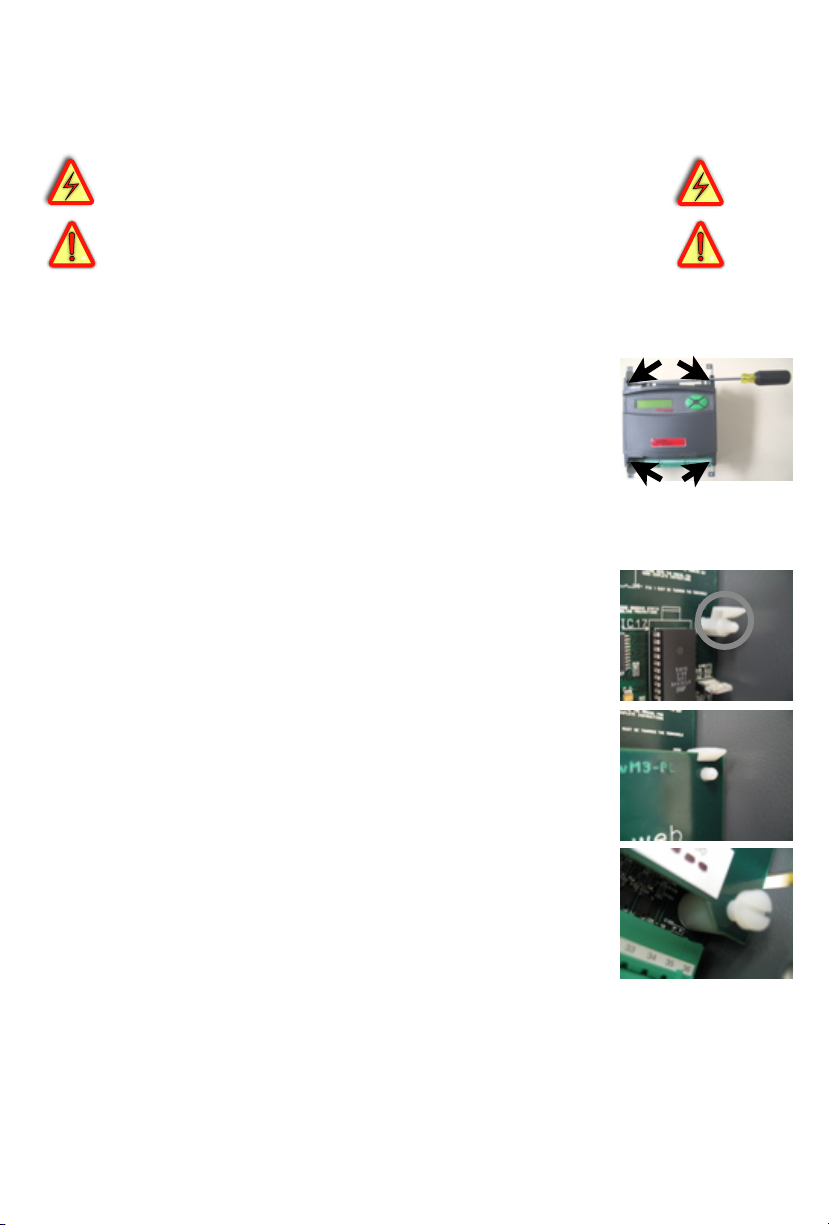
2.Loosen the thumb screws and remove the upper and lower
terminal covers.
3.Locate and remove the four Philips head screws that hold the
drive cover and display assembly in place. You will need a long #2
Philips head screwdriver to remove these.
4.Gently lift the cover and display assembly and rotate it upwards
and away from the drive. Support the assembly above the drive
so that you do not strain the two ribbon cables.
5.Remove the two nylon screws that hold the PL-series control
circuit board in place at its’ bottom corners. You will be replacing
these two nylon screws with the longer nylon screws and spacers
provided with your speedy sp.
6.Ensure that you are grounded with ESD control equipment.
Remove your speedy sp from its’ static-safe bag and carefully
locate it’s parallel interface plug over the corresponding socket on
the PL-series control board. Snap-clips should align with the holes
in the top corners of your speedy sp.
7.Gently push down, inserting the plug into the socket and allowing
the clips to engage the top edge of the speedy sp circuit board.
Use two hands and apply pressure above the socket and at the snap
clips to avoid flexing the circuit board.
8.Now locate the provided nylon spacers between the PL-series
control board and the speedy sp board at the bottom corners.
Insert and tighten the two provided longer nylon screws.
9.Replace the PL series cover and display assembly and reinstall
the four mounting screws.
10.Reconnect the power sources to your PL-series drive.
11.Replace the PL terminal covers and tighten the thumb screws.
12.The speedy sp installation procedure is complete.
speedy sp HG502277Iss4.0! www.driveweb.com ! Page 3/8
Page 4
drive.web automation
!
!
speedy sp Ethernet Networking & Programming
Before proceeding, it is important to have a basic understanding of
Ethernet TCP/IP networks. Assigning an invalid or duplicate IP
address will cause serious network malfunctions! speedy sps are all
shipped with the same IP address, 10.189.189.189. Consult your
company’s IT department for an appropriate, unique IP address.
Find useful networking information, under the Help menu, click on
User Manual. Scroll down to the Basic Network Administration.
Set up Physical Ethernet Network - You Will Need:
A standard Category 5e cable with 8P8C/RJ-45 connectors on both
ends for each drive.web device and your computer.
For systems with more than one drive.web device, an Ethernet
switch with ports for all drive.web devices and your computer.
Set up Your Computer - Get savvy
With free drive.web savvy software, program and monitor your
speedy sp, trend data and create distributed control systems.
To download the latest version of savvy and to view the savvy
user manual, go to www.driveweb.com and click on Get savvy.
Java Runtime Environment must be installed to run savvy.
There is a link on the Get savvy page to download Java for free.
If you do not have internet access, install savvy and Java from the
Bardac Infodisk. Browse to the savvy link, off-line installation.
Contact us for the files or Infodisk.
Get started with savvy
We strongly recommend you attend our free on-line training
seminars. To register, e-mail [email protected] or call.
Before proceeding with your systems designs it is very important to
familiarize yourself with savvy, the configuration software.
We strongly recommend you read the introductory guides under
the Help menu; Getting Started with savvy, Getting Started
with savvy-SFD, savvy-SFD and the PL series drive.
Use Create Phantom in the Directory menu to practice, explore
all drive.web products and options and design and configure off-line.
Design systems in Phantom devices and Export Data under the
Directory menu for later use in live devices. Import Data into
phantoms to work off-line.
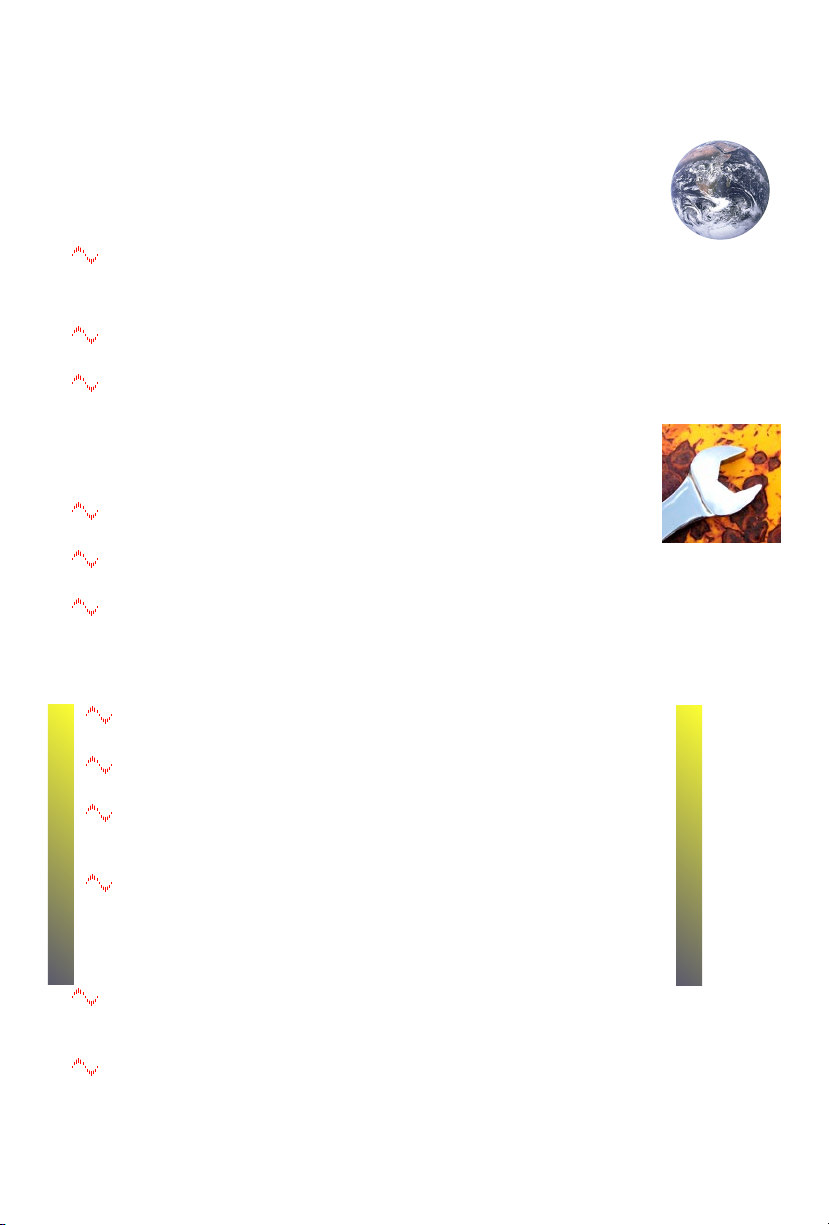
Under the Directory menu, click Discover All Local Devices. If
your speedy sp is powered and on the same local network as your
computer, an icon should appear.
Discover drive.web devices anywhere on the internet unless they
are protected by firewalls or other network security devices. Assign a
public IP address or use a VPN. Under the Directory menu, click on
Discover Device...
speedy sp HG502277Iss4.0! www.driveweb.com ! Page 4/8
Page 5
drive.web automation
!
!
Get started with savvy continued...
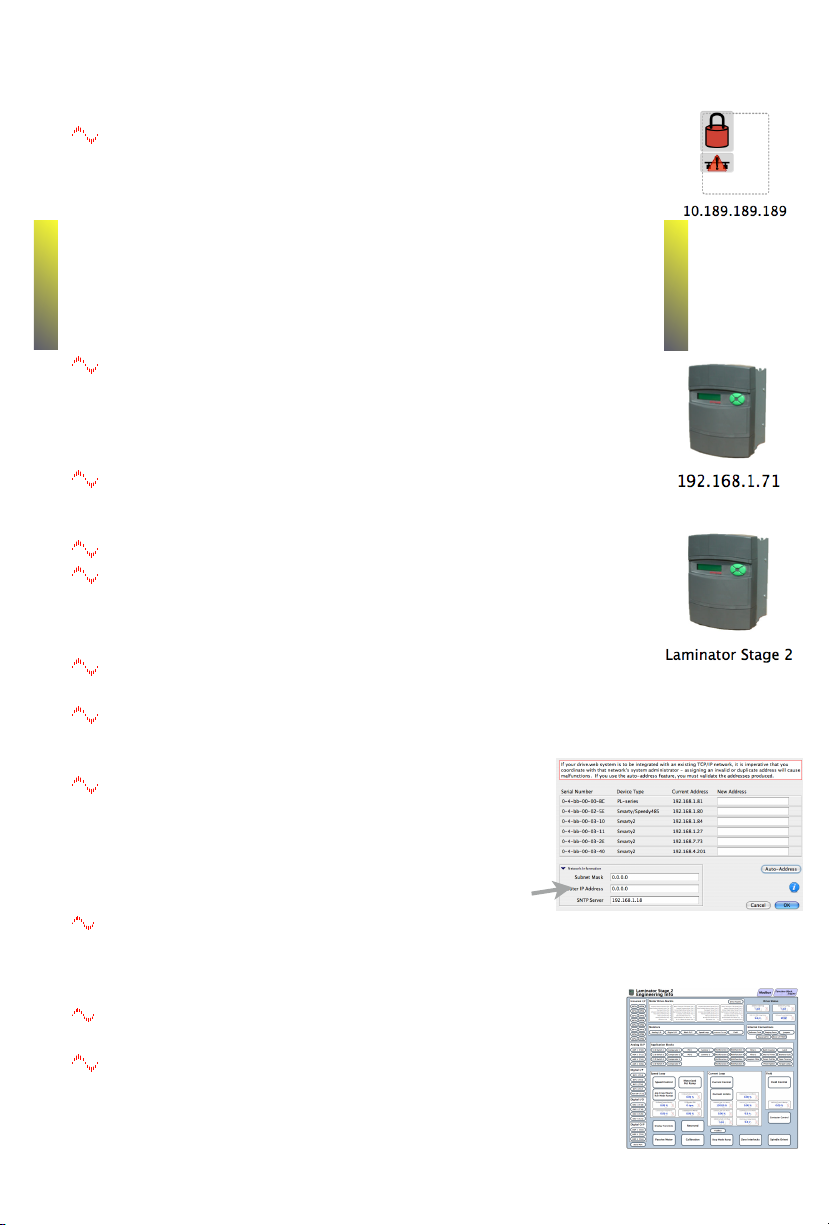
If the icon at right appears with the red padlock and comms-fail
indication, a network connection problem exists. Check connections,
LEDs and that the speedy sp IP address is within your computer’s
subnet mask.
Warning! Changing a device IP address WILL disrupt its network
connections! If a speedy sp is communicating with other devices or
drives you must be prepared for system disruption and to remap
connections in those devices when changing an IP address. In the File
menu choose Utility > Remap Export File to remap a dw-system
file with different IP address(es).
Under the File menu, click Administrate > Set IP Addresses for
System. Locate the serial number on the product label of your
speedy sp. Enter a unique IP address that is within your computer’s
subnet mask and click OK. A speedy sp icon should appear with IP
address beneath.
Hover cursor over a device icon, function block, connection or
parameter to see contextual information in the status bar at the window
top margin and reveal the hover button.
Click a hover button or right-click an icon to access a contextual menu.
In the speedy sp contextual menu, choose Change Name to
name your speedy sp for easy identification. Also, a powerful Find
Parameter... function locates and jumps views to a parameter. Simply
enter its number, name or partial name.
To Import or Export (load or save) configuration data to or from
your speedy sp, use its contextual menu.
To Import or Export all configuration and connection data to or
from all drive.web devices and phantoms in the directory use
Directory menu.
Advanced Users: At the bottom of the Setup IP
Addresses window, click the arrow next to Network
Information to set subnet mask and router IP addresses.
See the savvy user manual. Note! If the Network
Information box is expanded, this network information
will be set in the device(s) whose IP address(es) changed.
savvy views are hierarchical with the Directory view at top. Use the
navigation arrows in the status bar to view the next higher level or go
backward and forward through a series of views. Note that menus
change as you navigate.
savvy function may be limited if you do not have the
required capability level or a device is locked with a password.
Click the speedy sp icon to view the Engineering Info
screen (Standard savvy, no SFD). Click the Function Block
Engine icon and if you have options 02, 04 or 12, the
Modbus icon to view.
speedy sp HG502277Iss4.0! www.driveweb.com ! Page 5/8
Page 6
drive.web automation
Get started with savvy continued...
In the Function Block Engine view (Standard savvy, no SFD),
click the FBE menu and select function blocks in the order to be
processed. Processing order is from left to right, then top to bottom.
Click on a function block to view its parameters and function detail.
Effortlessly connect between parameters and to parameters in other
drive.web devices over Ethernet.
Under the File menu, choose New Viewer... and then Open
Device Directory. Now you can click on a parameter, drag a
connection and drop onto a destination parameter in the other viewer.
Use parameter contextual menus for Get Info, Add to Dock, Copy,
Connect to… start or end connections, Re-name..., and Re-scale...
Click any blue connection to jump views to the other end.
Use contextual menu in drive.web-over-Ethernet and FBE-to-drive
connections to Change Sample Period… and prioritize connections.
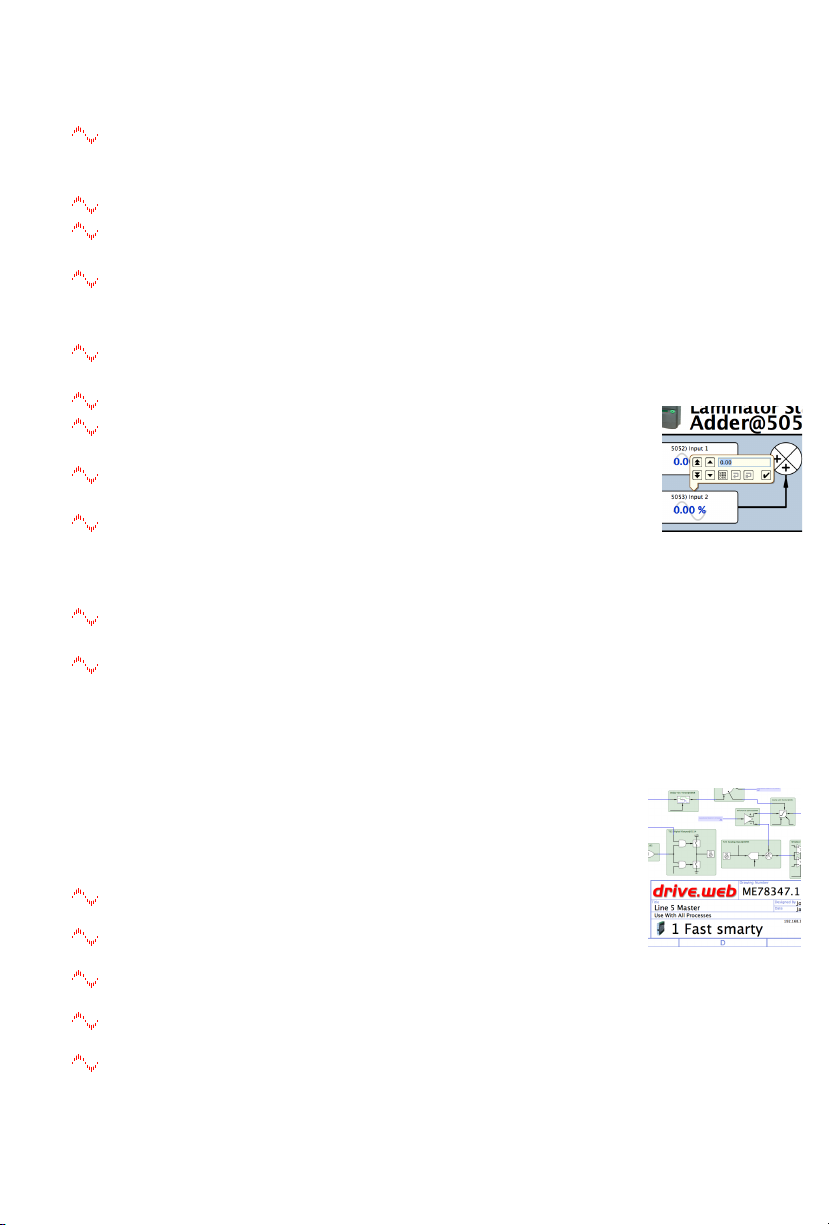
Click on parameters to open the setter box. Adjust the value with
convenient graphical buttons or keyboard entry.
Most drive.web parameters use 16 bit words allowing raw decimal
integer values 0 to 655 35 o r ±3 2767 . These raw values are formatted,
limited and scaled depending on the parameter. Use Get Info or Re-
Scale to verify or change.
A blank rectangle connected to or from a parameter indicates a
remote device is not discovered in savvy.
Very complex function block configurations with numerous Ethernet
connections may produce Timebase Overrun indications at the
System function block. Performance WILL be affected. In the System
block contextual menu adjust the speedy sp’s Timebase Setpoint.
Make a connection from the Program Status parameter to log these
occurrences or provide warning signals.
Upgrading savvy and speedy sp
Upgrade savvy with SFD Signal Flow Diagram.
Upgrade speedy sp with software options.
Process credit cards or Vouchers on-line or Coupons off-line.
To upgrade savvy go to the Commerce menu, select Upgrade
savvy, check the desired option and click OK.
To upgrade speedy sp, right-click on the speedy sp icon, choose
Upgrade Device…, check the desired option and click OK.
Your selected options will appear in the Shopping Cart. Select your
method of payment.
To process Vouchers, choose Pay>Online Via Vouchers in the
Shopping Cart. Enter each Voucher code on a separate line.
To process Coupons click Buy and forward the code to your drive.web
distributor. When you receive your coupons go to the Commerce
menu and choose Coupon Manager. Enter individual codes in the top
box and click the Add button. Click Apply.
speedy sp HG502277Iss4.0! www.driveweb.com ! Page 6/8
Page 7
drive.web automation
savvy-SFD Signal Flow Diagram Upgrade
With savvy-SFD, build systems graphically while creating live
drawings that are stored in your speedy sp.
Set borders with user attributes, drag and drop connections, zoom,
pan, cross-reference and annotate multi-page drawings.
Right-click in an empty area of the SFD to zoom, add a new
function block, note or parameter for convenient viewing.
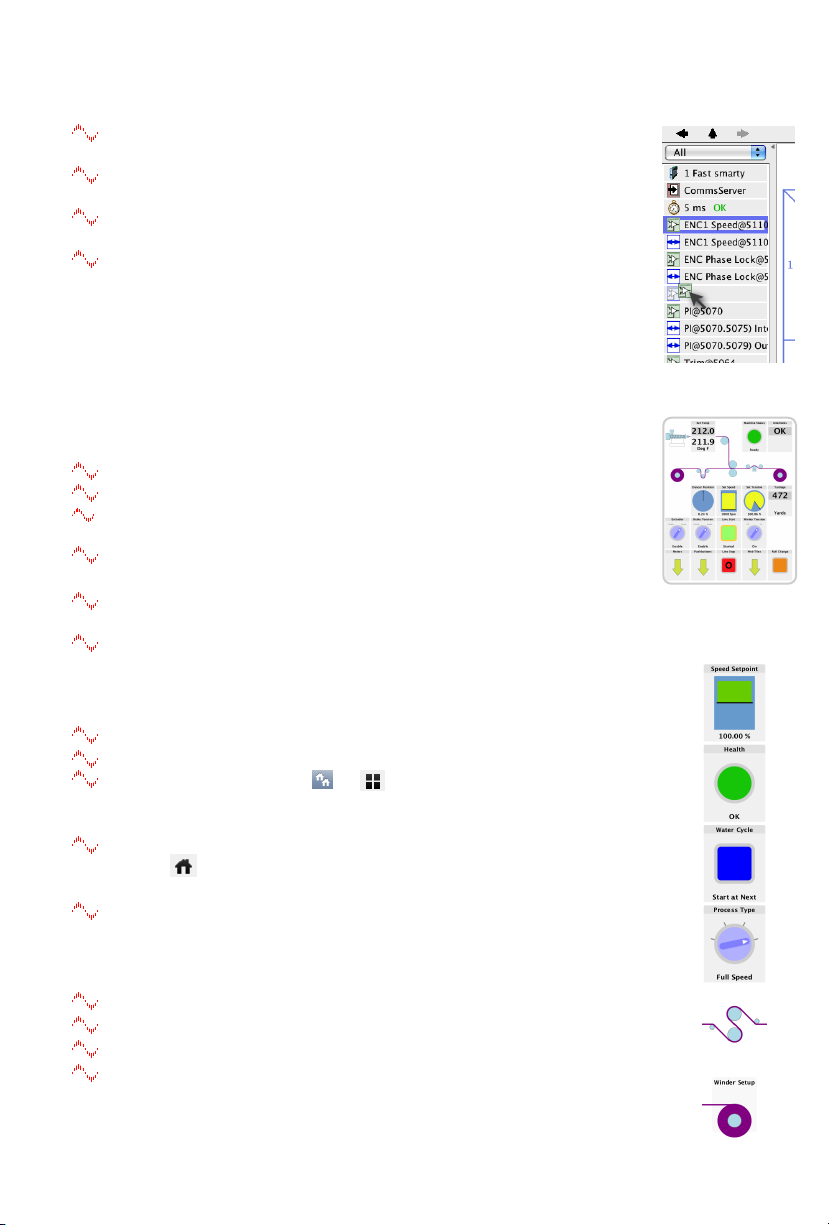
A filterable list of function blocks and connections is at left of the
Signal Flow Diagram showing program execution order from
top down. This can greatly influence system performance and the
function of logic engines. Change execution order by dragging
function blocks up or down the list. In this picture, ENC1 Speed
function block and its outgoing connection will be moved so that
they are processed after ENC Phase Lock.
savvyPanel Operator Station
With savvyPanel, your computer, Apple® mobile digital device;
iPad®, iPhone® and iPod Touch® are operator touch stations.
All operator station data is stored in the drive.web devices.
Editing & building savvyPanel systems requires savvy SFD.
savvyPanel dwOption-26 required in drive.web device to enable
the full suite of tiles. A limited set is available without the option.
Find complete information on in the savvy User Manual.
Get savvyPanel Free from the Apple App Store℠
When your iPad or iPhone has WiFi internet access, you are
connected to a real drive system in our plant in Maryland, USA.
Drive the demo with savvy in your computer. File>Demo Mode,
Discover Internet Demo Devices, then File > Open savvyPanel.
Three savvyPanel Page Types
Systems Page present with multiple savvyPanel systems discovered.
A savvyPanel system may contain tiles from many devices.
A drive.web device contributes to only one savvyPanel system.
Touch the systems button, or , in the window bar to access the
systems page from home page. Lock button with home password.
Home Page is the first operator page in a savvyPanel System.
Access home page from any operator page with the home
button, . This may be locked with the home password.
Operator Pages show graphic, page-link and parameter tiles.
Pages can be renamed. The name appears in the window title bar.
Three savvyPanel Tile Types
Parameter Tiles. Touch for the savvyPanel setter if it is not read-
only and has no incoming drive.web connection.
Meter tiles; digital panel meter, dial or bar meter.
Indicator tiles. Variety of colors. Shows on/off, true/false state.
Pushbutton tiles; colored momentary and lighted Start/Stop.
Multi-position Switch tiles for enumerated parameters.
Graphic Tiles - create diagrams with a variety of process elements.
Page-Link Tiles - A graphic tile that is also a touch page-link.
Apple, iPad, iPhone and iPod touch are trademarks of Apple Inc., registered in the U.S. and other
speedy sp HG502277Iss4.0! www.driveweb.com ! Page 7/8
countries. App Store is a a service mark of Apple Inc.
Page 8
drive.web automation
savvyPanel Launch, Setup and Important Notes
See the savvy User manual for detailed instructions.
Launch savvyPanel from a command line or batch file.
Limit operators to savvyPanel-only, specify start system & page.
Discover devices specifically by discovery file, automatically or
filtered by group and/or savvyPanel name.
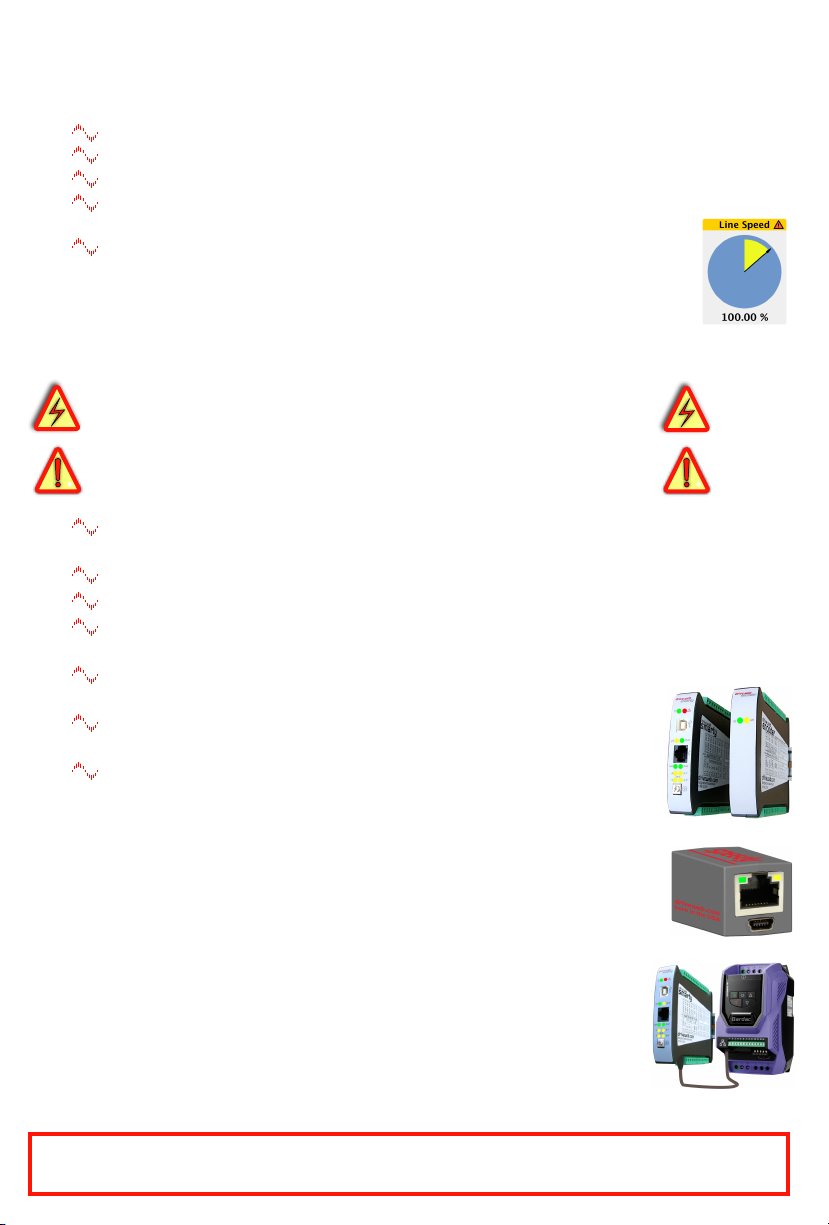
Operator’s Note: If communication with a drive.web device is
interrupted, affected tiles indicate a yellow bar at top with an
exclamation warning. The displayed value is not updated.
Important Design Note: An over-range enumeration is required if
misreading an out-of-range value could cause a hazard.
speedy sp Option 04 ModbusTCP/IP Slave/Server
Warning! Use of speedy sp option 04 may cause motors and
machinery to power up with high Voltages or start or operate in an
unexpected, dangerous or lethal way. It is essential that you are
completely familiar with the ModbusTCP/IP protocol and all of the
equipment and the system design you are working with before
attempting to use this option.
Supports up to three simultaneous masters. Further
connection attempts are refused until a connection is ended.
Adheres to Modbus Conformance Class 0.
Supports Modbus Function Codes 03 and 16.
You cannot write or force parameters that are read-only or have
incoming drive.web connections.
ModbusTCP Slave Port 502 is the standard specified in the
protocol. May be changed in the unusual case that it is non-standard.
Modbus Indirect function blocks with sequentially numbered
parameters. Enter parameter addresses for marshaled polling.
Directly address any numbered parameter individually. You are
NOT required to use Indirect parameters.
drive.web Product Line Overview
smarty 16 configurable analog and digital I/O. Optional dual serial
ports, dual encoder module, winder, shaft-lock and position functions.
speedy Ultra-miniature drive.web controller with Ethernet, serial, USB.
Drive-dedicated smarty and speedy. Complete control for ODE2,
ODP, ODP2, ODV2 and YF7 AC drives. Serial-link and function blocks.
All drive.web products are designed & assembled in the U.S .A .
Get expert help. Call us or email [email protected]
drive.web Training Courses
Free!drive.web!online interactive training seminars take about an hour.
Specialized online and factory training sessions are also available. !
To register email [email protected] or call.
speedy sp HG502277Iss4.0! www.driveweb.com ! Page 8/8
drive.web 40 Log Canoe Circle, Stevensville, MD 21666 USA.
Ph. 410-604-3400, Fax 410-604-3500, www.driveweb.com
 Loading...