

Page 1

www.drive-eld.com
DriveELD
User Manual
Page 2
GeTTinG sTarTed
01
operaTion
04
MalfunCTions
11
For more information or instructional videos, please visit
drive-eld.com/customer-support
Version HisTory
Version Date Version Date
1.0.0 11/21/2017 1.2.0 06/20/2018
1.0.1 11/30/2017 1.2.1 10/28/2019
1.0.2 12/11/2017 1.2.2 02/13/2020
1.0.3 01/10/2018 1.3.0 11/18/2020
1.0.4 01/24/2018 1.3.1 12/03/2020
1.1.0 06/07/2018
DriveELD
866.623.7483
www.drive-eld.com
[email protected]
Table of ConTenTs
© 2020, Drive ELD LLC, All Rights Reserved, v 1.3.1
Page 3
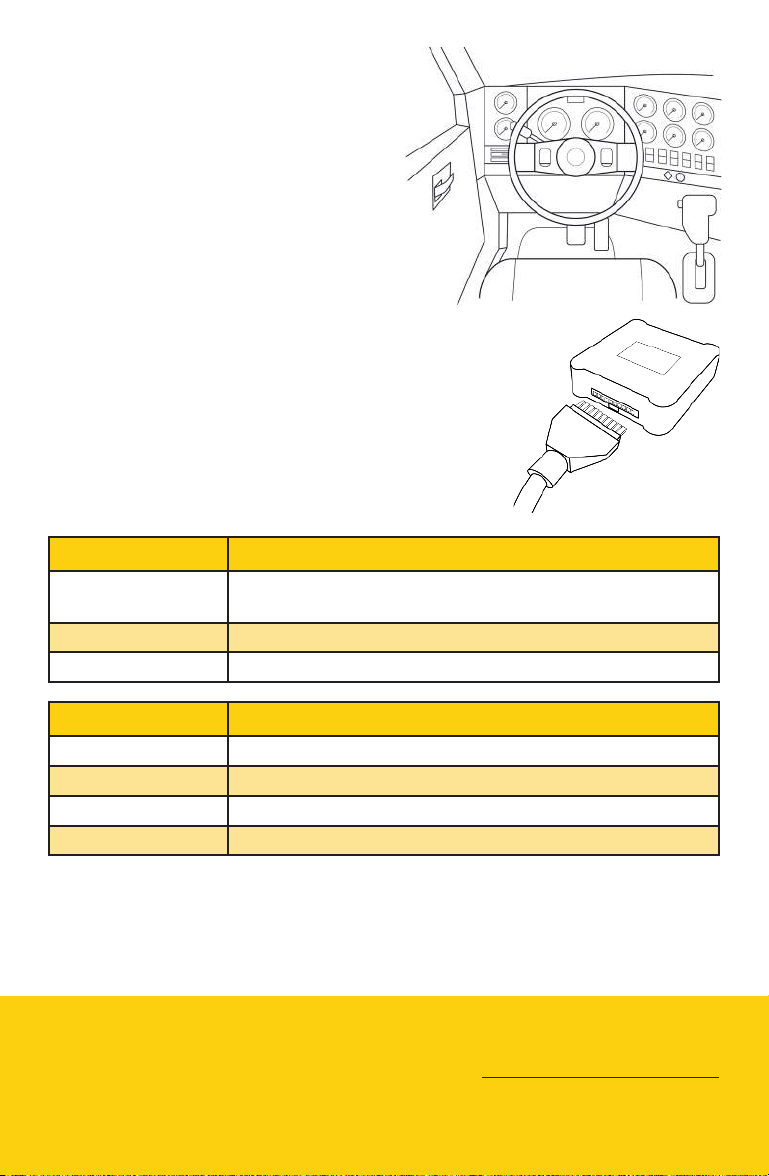
ConneCT THe Hardware
• Locate your diagnostic port in
your vehicle while the engine is
turned o.
• Four common locations for
diagnostic ports are starred on
the right.
• Connect the DriveELD cable to
your diagnostic port.
• Attach the free end of the cable to the
DriveELD device.
• Position the device so that it does not impact
your driving abilities or restrict your movement.
*
*
*
*
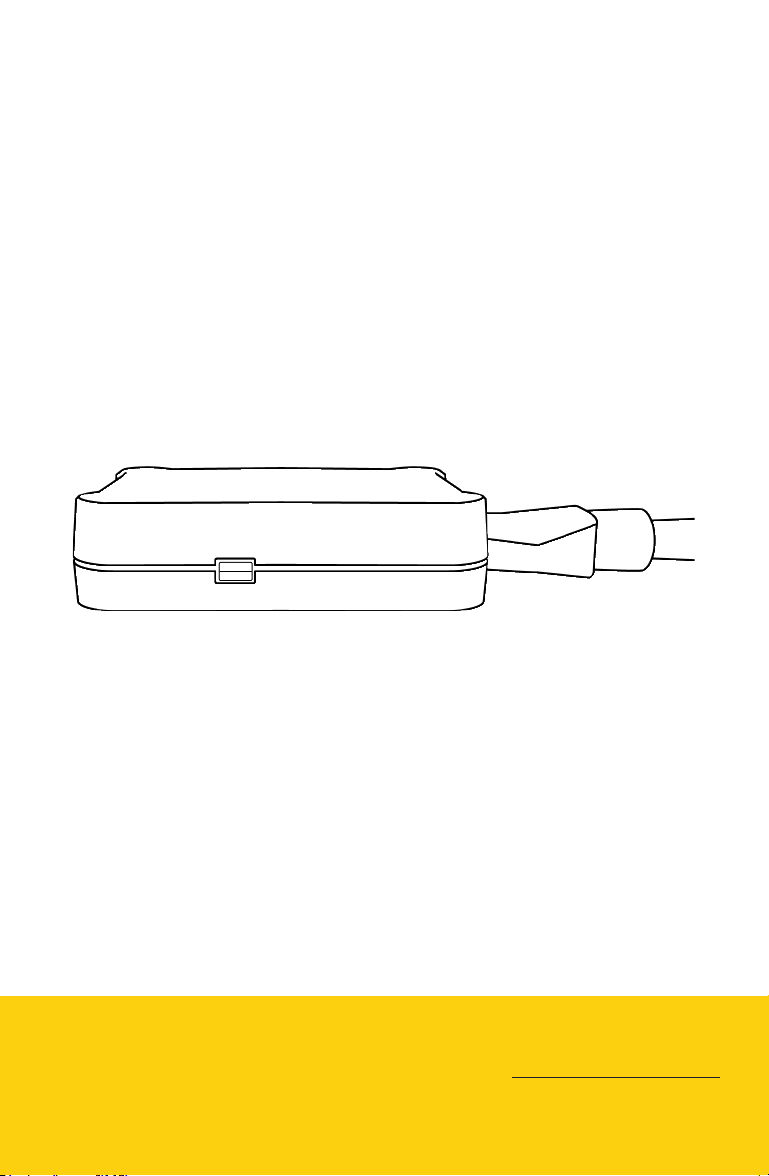
Hardware liGHTs
Red LED State
O GPS power management engaged. GPS is turned o, GPS
backup clock is ON.
Blinking GPS is in acquisition mode.
On GPS signal is locked.
Green LED State
O Device is not plugged in.
Short Blink Device is powered, but a vehicle is not detected.
Fast Blink Vehicle activity detected, device is registering.
On Device is registered on the vehicle.
Note: When the device is fully operational and both lights are
on together they will bleed into an orangey red color.
DriveELD
866.623.7483
www.drive-eld.com
[email protected]
© 2020, Drive ELD LLC, All Rights Reserved, v 1.3.1
GeTTinG sTarTed
1
Page 4

1. download app
• Download the free DriveELD mobile app from the Apple App Store
or the Google Play Store.
2. siGn up
• Select the Sign Up button.
• Enter your email address and a password to create an account.
• Note: The email address used for a Driver Account on the
mobile app cannot be the same as an email address used for
a Carrier Account on the eet website.
3. ConneCT To a Carrier
• If a carrier has added you as a driver on the eet website with the
same email address that you used to create your Driver Account
on the mobile app you will be able to see the carrier once you
create a Driver Account. Select your carrier and select conrm to
continue.
• If you do not see your carrier search for your carrier with the Find
Your Carrier button.
DriveELD
866.623.7483
www.drive-eld.com
[email protected]
© 2020, Drive ELD LLC, All Rights Reserved, v 1.3.1
GeTTinG sTarTed
2
Page 5
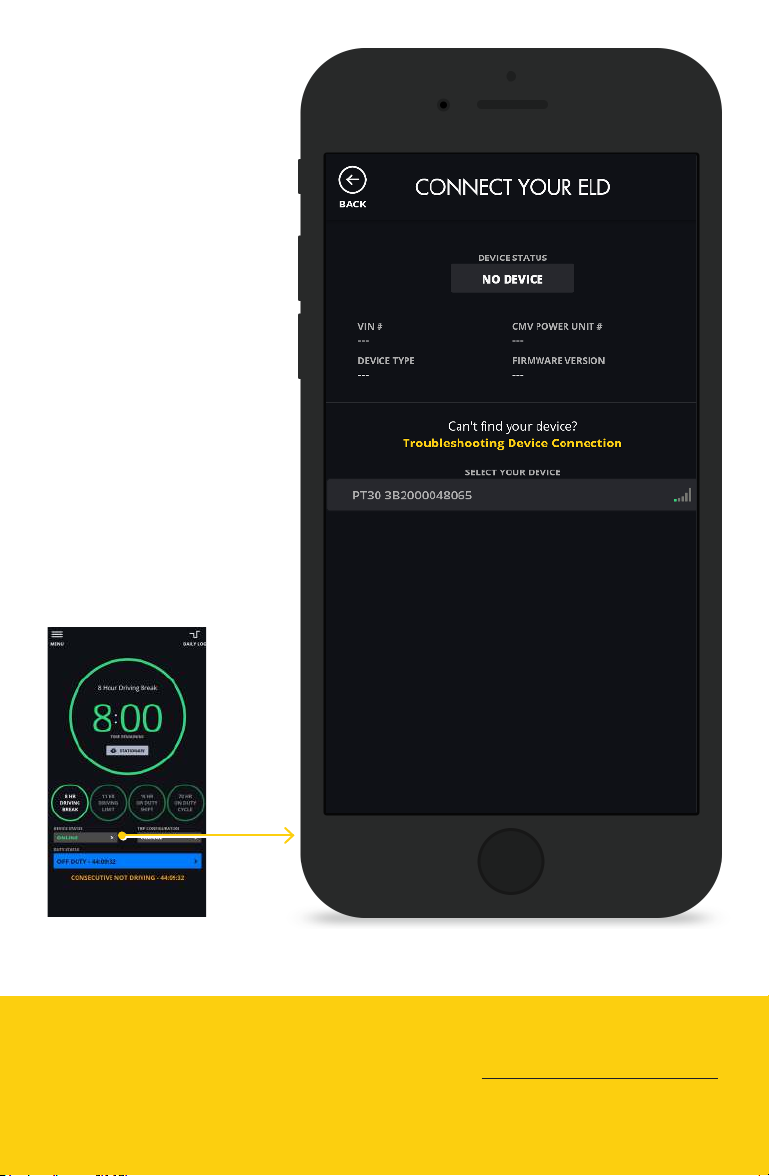
pair your eld
• Make sure Bluetooth
is enabled on your
phone.
• Android devices
require Location to be
turned on for
Bluetooth to work.
• Select your device
from the device list
below and its
information will show
above when it has
connected.
• You may occasionally
be asked to update
your rmware on this
screen.
Today’s Trip
DriveELD
866.623.7483
www.drive-eld.com
[email protected]
GeTTinG sTarTed
3
© 2020, Drive ELD LLC, All Rights Reserved, v 1.3.1
Page 6
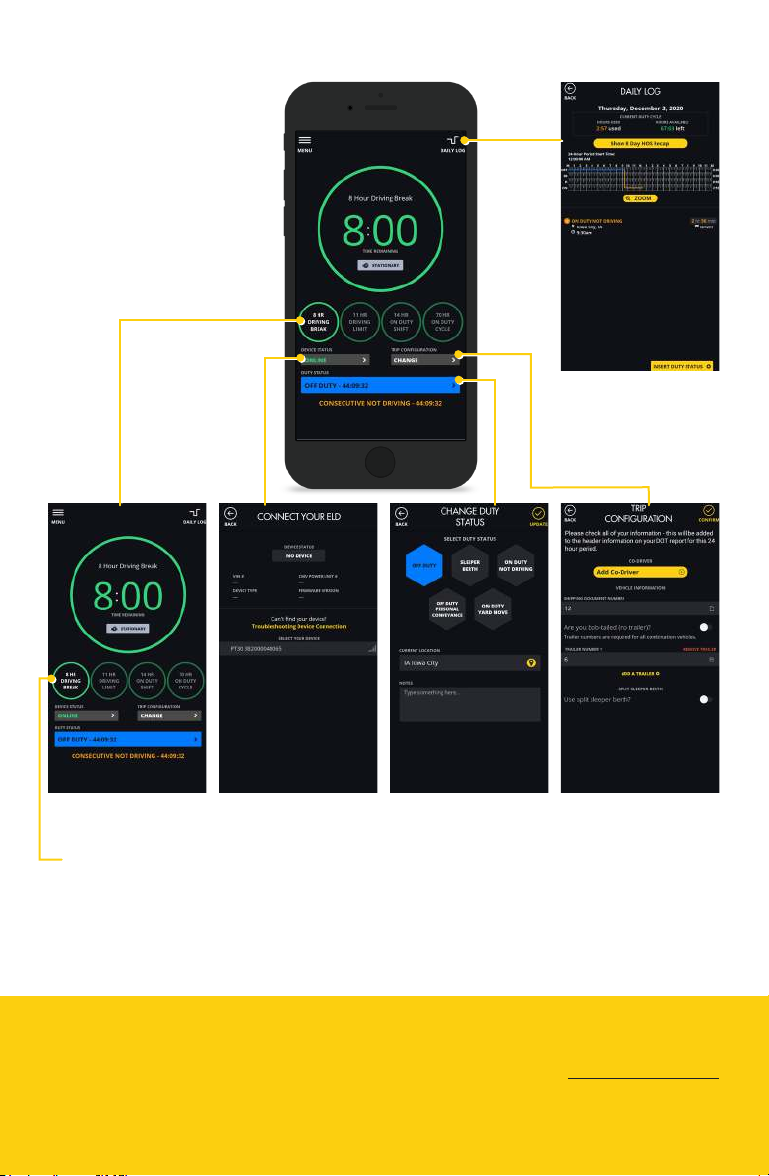
Today’s Trip
daily log
See details of the
current day’s log.
CloCk
Breakdowns
Cycle through
the displays by
selecting clocks.
*Note: The FMCSA requires a trailer number for all combination vehicles.
DriveELD
866.623.7483
www.drive-eld.com
[email protected]
deviCe sTaTus
Connect and
update your
ELD device.
duTy sTaTus
Change duty
status.
shipment & trailer
split sleeper berth.*
Trip
ConfiguraTion
Add co-driver,
info, toggle on/o
operaTion
4
© 2020, Drive ELD LLC, All Rights Reserved, v 1.3.1
Page 7
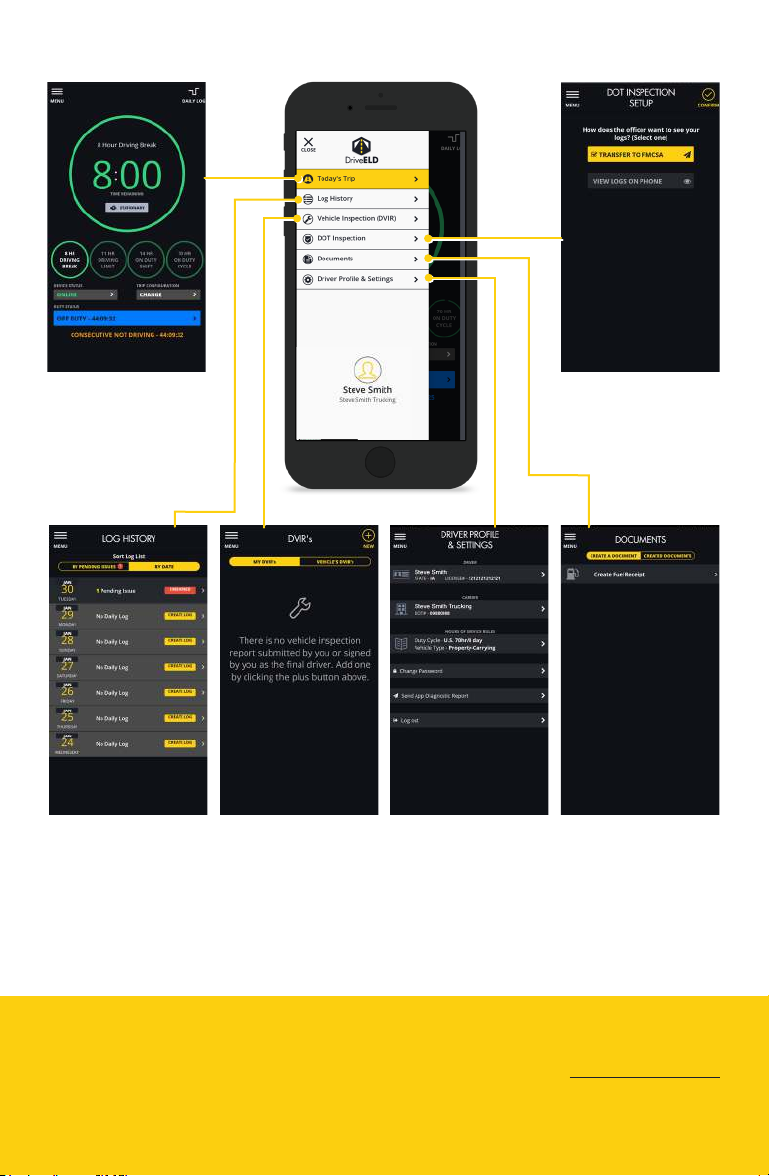
app oVerView
Today’s Trip doT inspeCTion
View daily info,
connect ELD,
congure trip, and
change duty status.
Send or display
logs to an ocer.
log hisTory
View, edit, certify, or
add information to
past logs.
DriveELD
866.623.7483
www.drive-eld.com
[email protected]
vehiCle inspeCTion
(dvir)
View, add, or sign
vehicle inspections.
driver profile
& seTTings
Edit your driver
prole settings.
doCumenTs
Scan fuel receipts
for IFTA.
operaTion
© 2020, Drive ELD LLC, All Rights Reserved, v 1.3.1
5
Page 8
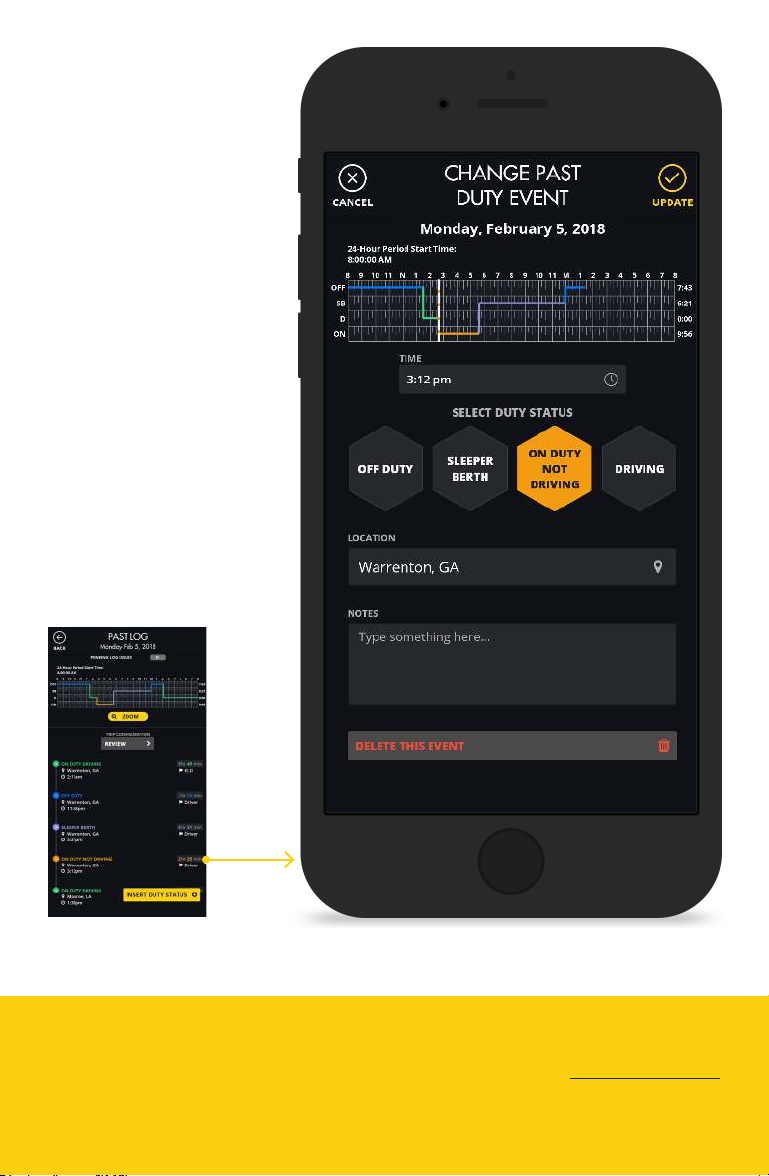
ediT pasT loG
• From the log history
screen select a day
and then an event
during that day.
• Change the start time,
duty status, and
location as needed.
• At the bottom add
notes. Notes will show
up as annotations in
the logs. All edits
require an annotation
• Note: you will be
asked to resign your
logs whenever an
edit is made.
pasT log
DriveELD
866.623.7483
www.drive-eld.com
[email protected]
operaTion
6
© 2020, Drive ELD LLC, All Rights Reserved, v 1.3.1
Page 9
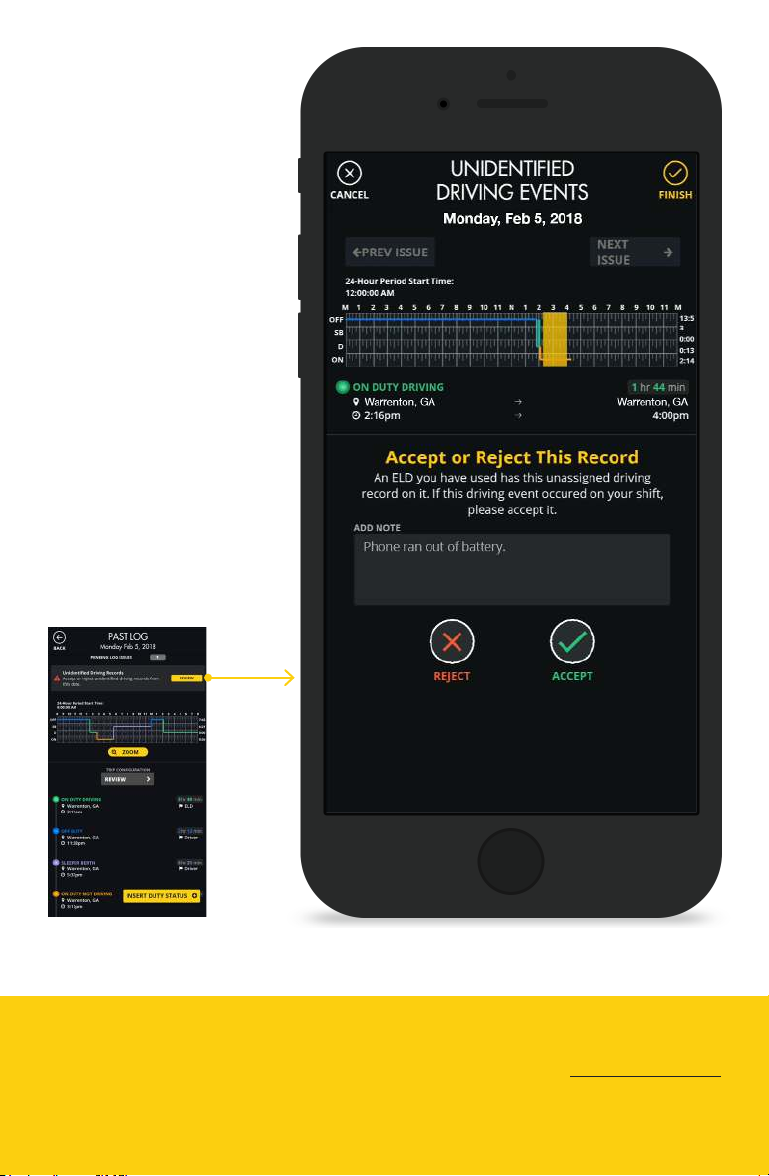
unidenTified
driVinG eVenTs
• On the Unidentied
Driving Events Page
you will be able to
review the event.
• When you are done
select the Finish
button at the top
and that event is
added to your Daily
Log.
daily log
or pasT log
DriveELD
866.623.7483
www.drive-eld.com
[email protected]
operaTion
7
© 2020, Drive ELD LLC, All Rights Reserved, v 1.3.1
Page 10
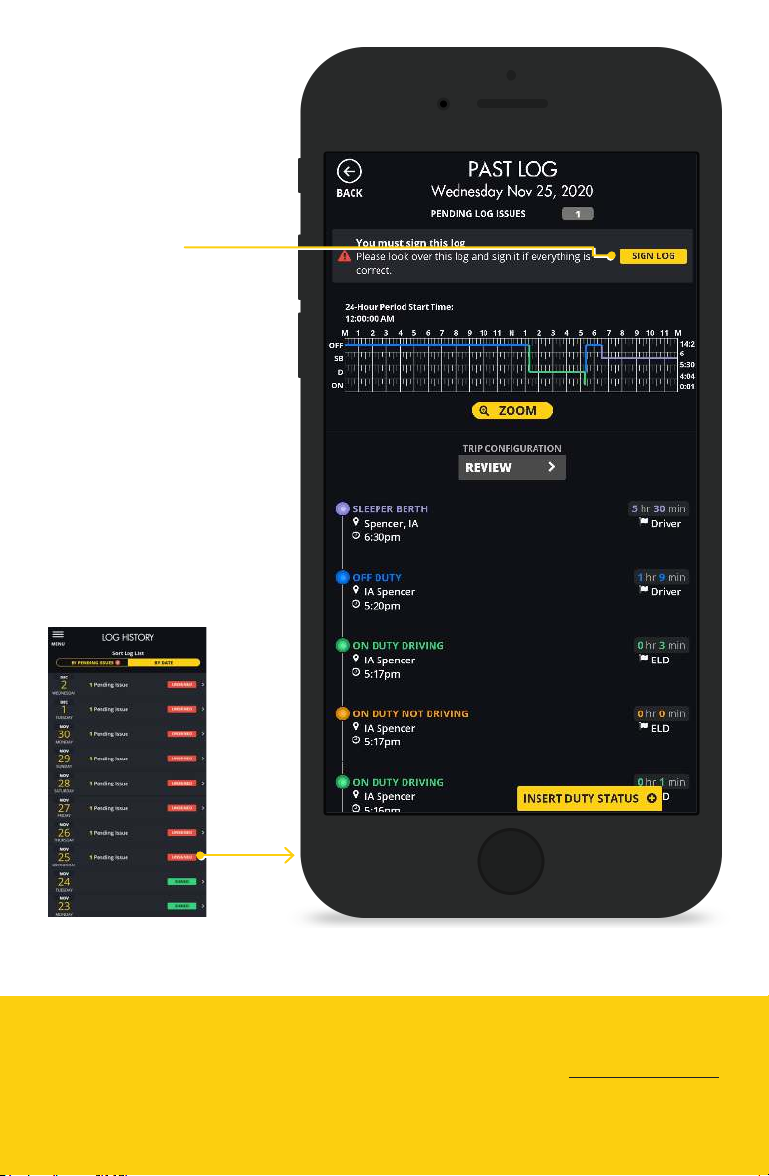
siGn loG
• A Sign Log button will
appear in the header
if a past log has not
been signed.
• Select this button to
sign the log.
log hisTory
DriveELD
866.623.7483
www.drive-eld.com
[email protected]
operaTion
8
© 2020, Drive ELD LLC, All Rights Reserved, v 1.3.1
Page 11
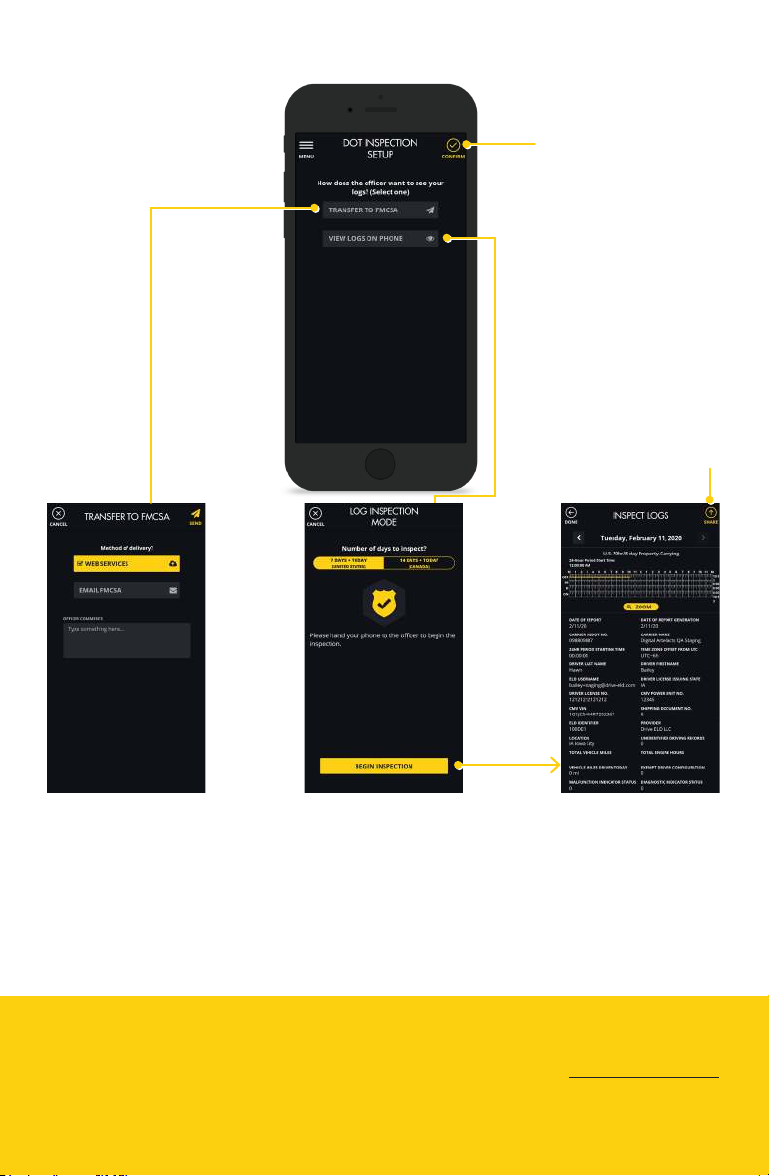
doT inspeCTion seTup
After picking how
the ocer wants to
see your logs select
conrm to continue.
Click the share button
in order to bring up
sharing options on
your device.
Transfer To
fmCsa
Transfer logs
through web
services or email.
DriveELD
866.623.7483
www.drive-eld.com
[email protected]
view logs
on phone
Show or share
logs with an
ocer.
operaTion
9
© 2020, Drive ELD LLC, All Rights Reserved, v 1.3.1
Page 12
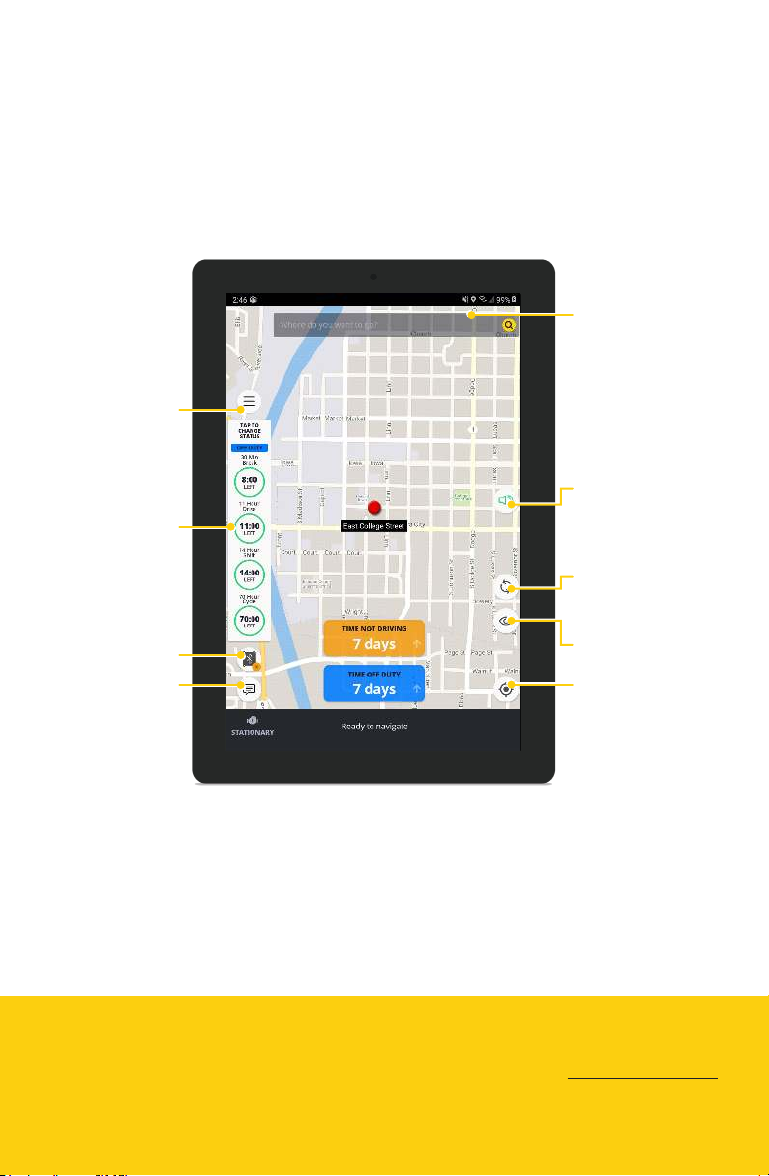
naViGaTor
If you have the Navigator tier subscription you will have all the
features from DriveELD as well as turn-by-turn navigation and
messaging.
Search for
destination.
App main menu.
Tap to change
duty status and
view current
daily log.
Connect to
ELD device.
Messaging.
Mute the
navigation voice.
Switch to night
mode or set as
automatic.
Switch between
2D and 3D view.
Re-center map.
DriveELD
866.623.7483
www.drive-eld.com
[email protected]
operaTion
10
© 2020, Drive ELD LLC, All Rights Reserved, v 1.3.1
Page 13
MalfunCTions
§ 395.22Motor carrierresponsibilities - In general.
(h) In-vehicle information.Amotor carriermust ensure that
itsdriverspossess onboard acommercial motor vehicle
anELDinformation packet containing the following items:
... (3) An instruction sheet for the driver describing ELD malfunction
reporting requirements and record keeping procedures during ELD
malfunctions; ...
*
If you do not see that the lights are powered on while the truck is
running, please contact your carrier or call DriveELD Support
(866-623-7486 ext. 2).
DriveELD
866.623.7483
www.drive-eld.com
[email protected]
MalfunCTions
11
© 2020, Drive ELD LLC, All Rights Reserved, v 1.3.1
Page 14

THe insTruCTions below follow THe Guidelines
speCified in rule § 395.22 and § 395.34.
for driVers
• Contact DriveELD support at (866) 623-7483 or
[email protected]
• Note the malfunction of theELDand provide written notice of the
malfunction to themotor carrierwithin 24 hours.
• Create a paper log for the current day and the last 7 days, unless
youalready can access the last 7 days through the ELD.
for Carriers
• If amotor carrierreceives or discovers information concerning
the malfunction of anELD, themotor carriermust take actions to
correct the malfunction of theELDwithin 8 days of discovery
of the condition or adriver’s notication to themotor carrier,
whichever occurs rst.
• If the ELD stops working as a result of the malfunction, then per
the warranty DriveELD will ship a new device when given notice of
the malfunction.
• Amotor carrierseeking to extend the period of time permitted
for repair, replacement, or service of one or more ELDsshall
notify the FMCSA Division Administrator for theStateof
themotor carrier’sprincipal place of business within 5 days after
adrivernoties themotor carrier underparagraph (a)(1) of the
ruling § 395.34 section (d) 2.
DriveELD
866.623.7483
www.drive-eld.com
[email protected]
© 2020, Drive ELD LLC, All Rights Reserved, v 1.3.1
MalfunCTions
12
Page 15
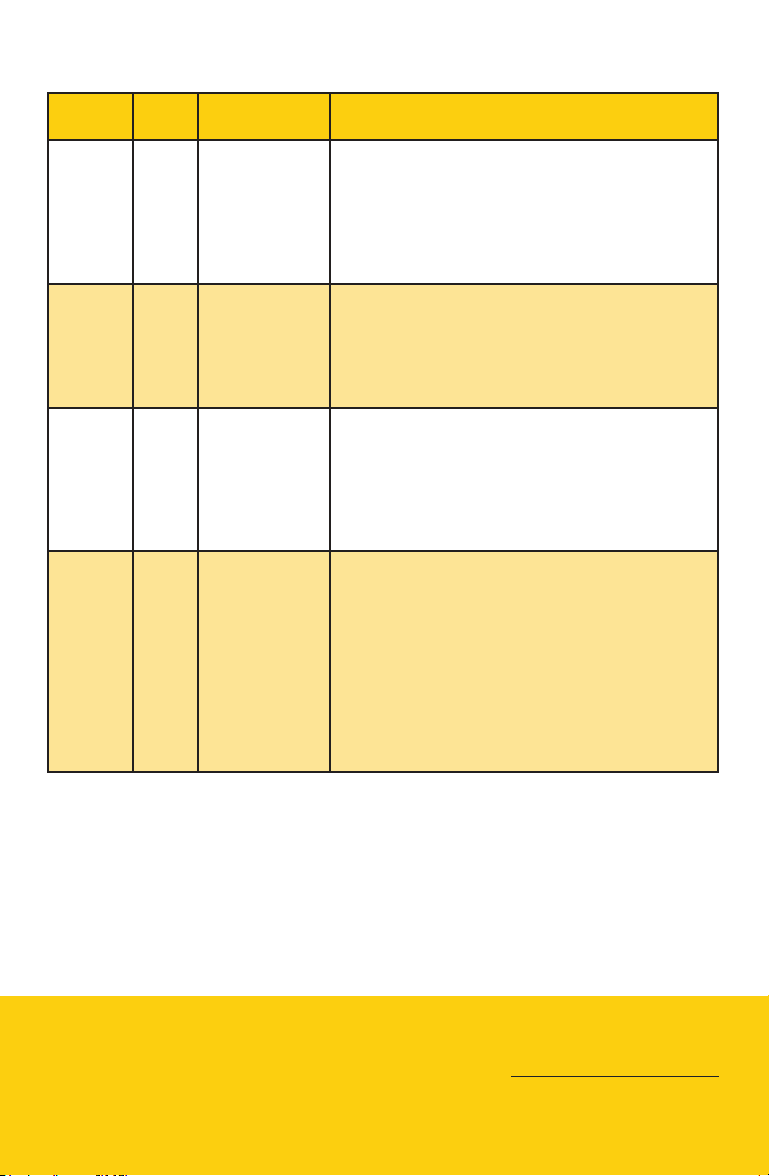
MalfunCTions eVenTs
Requirement #
4.6.1.1 P Power
4.6.1.2 E Engine
4.6.1.3 T Timing
4.6.1.4 L Position
Event
Code
Event Name Description
Compliance
Malfunction
Synchronization
Compliance
Malfunction
Compliance
Malfunction
Compliance
Malfunction
An ELD must set a power compliance malfunction
if the power data diagnostics event described in
paragraph 4.6.1.1(a) of this appendix indicates an
aggregated in-motion driving time understatement
of 30 minutes or more on the ELD over a 24-hour
period across all driver proles, including the
unidentied driver prole.
An ELD must set an engine synchronization
compliance malfunction if connectivity to any of
the required data sources specied in section 4.3.1
of this appendix is lost for more than 30 minutes
during a 24-hour period aggregated across all driver
proles, including the unidentied driver prole.
The ELD must periodically cross-check its
compliance with the requirement specied in
section 4.3.1.5 of this appendix with respect
to an accurate external UTC source and must
record a timing compliance malfunction when it
can no longer meet the underlying compliance
requirement.
ELD records requiring location information must
use the last valid position measurement and
include the latitude/longitude coordinates and
distance traveled, in miles, since the last valid
position measurement. An ELD must monitor
elapsed time during periods when the ELD fails to
acquire a valid position measurement within 5 miles
of the CMV’s movement. When such elapsed time
exceeds a cumulative 60 minutes over a 24 hour
period, the ELD must set and record a positioning
compliance malfunction.
DriveELD
866.623.7483
www.drive-eld.com
[email protected]
MalfunCTions
13
© 2020, Drive ELD LLC, All Rights Reserved, v 1.3.1
Page 16
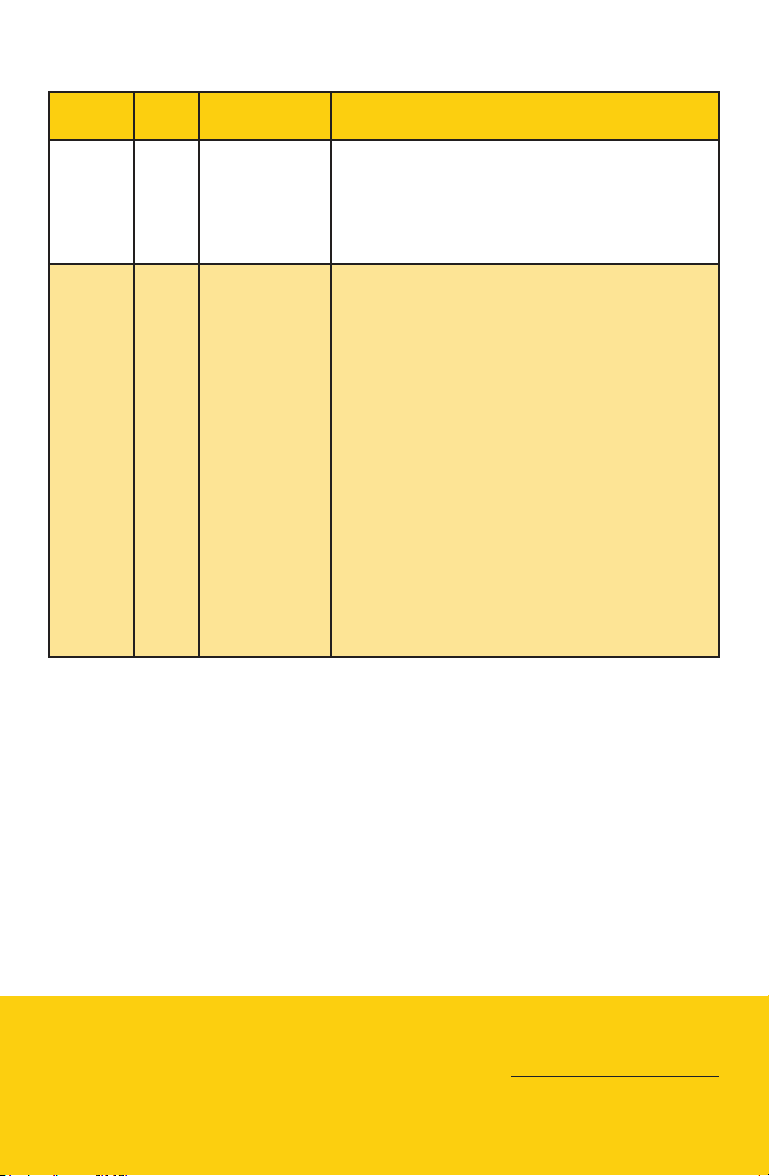
MalfunCTions eVenTs ConT.
Requirement #
4.6.1.5 R Data Recording
4.6.1.7 S Data Transfer
Event
Code
Event Name Description
Compliance
Malfunction
Compliance
Malfunction
An ELD must monitor its storage capacity and
integrity and must detect a data recording
compliance malfunction if it can no longer record
or retain required events or retrieve recorded logs
that are not otherwise catalogued remotely by the
motor carrier.
(a) An ELD must implement in-service monitoring
functions to verify that the data transfer
mechanism(s) described in section 4.9.1 of this
appendix are continuing to function properly. An
ELD must verify this functionality at least once
every 7 days. These monitoring functions may be
automatic or may involve manual steps for a driver.
(b) If the monitoring mechanism fails to conrm
proper in-service operation of the data transfer
mechanism(s), an ELD must record a data transfer
data diagnostic event and enter an unconrmed
data transfer mode.
(c) After an ELD records a data transfer data
diagnostic event, the ELD must increase the
frequency of the monitoring function to check at
least once every 24-hour period. If the ELD stays
in the unconrmed data transfer mode following
the next three consecutive monitoring checks,
the ELD must detect a data transfer compliance
malfunction.
DriveELD
866.623.7483
www.drive-eld.com
[email protected]
MalfunCTions
14
© 2020, Drive ELD LLC, All Rights Reserved, v 1.3.1
Page 17
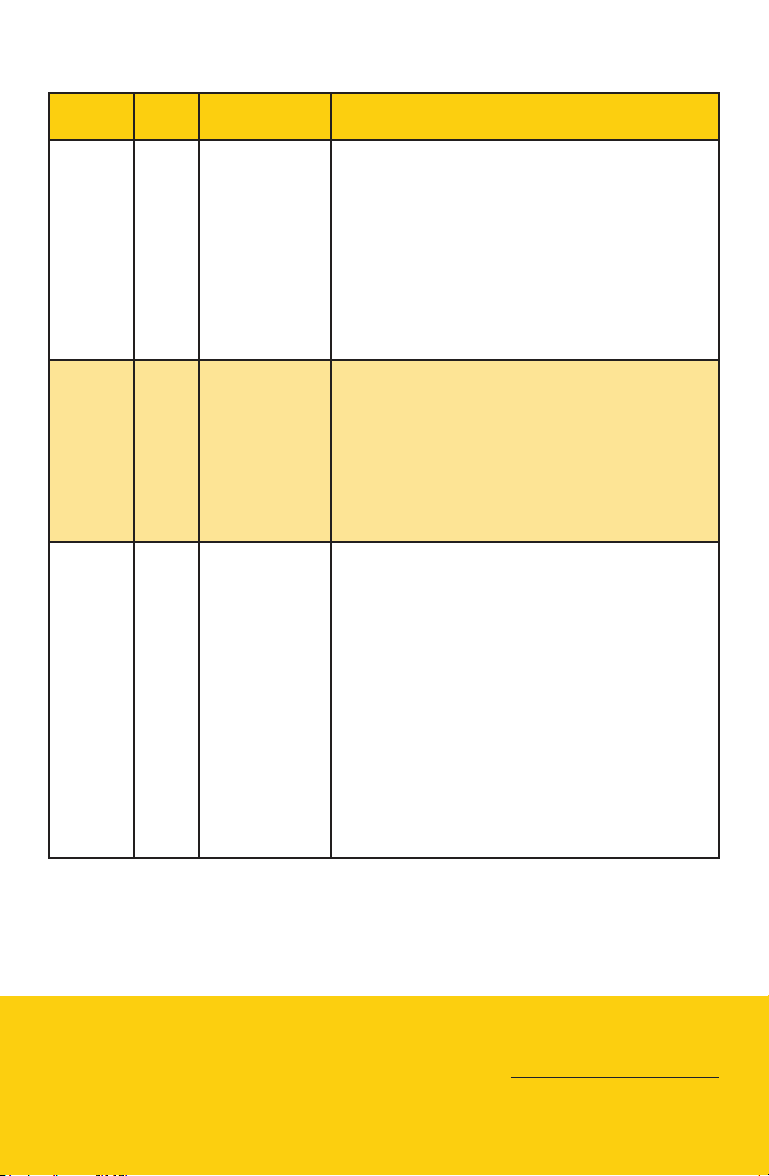
daTa diaGnosTiC eVenTs
Requirement #
4.6.1.1 1 Power Data
4.6.1.2 2 Engine
4.6.1.4
(d)
Event
Code
3 Missing Data
Event Name Description
Diagnostic
Event
Synchronization
Data Diagnostic
Event
Elements Data
Diagnostic
Event
An ELD must monitor data it receives from the
engine ECM or alternative sources as allowed
insections 4.3.1.1-4.3.1.4 of this appendix, its
onboard sensors, and data record history to
identify instances when it may not have complied
with the power requirements specied insection
4.3.1.1, in which case, the ELD must record a power
data diagnostics event for the corresponding
driver(s), or under the unidentied driver prole
if no drivers were authenticated at the time of
detection.
An ELD required to establish a link to the engine
ECM as described insection 4.2must monitor
its connectivity to the engine ECM and its ability
to retrieve the vehicle parameters described
undersection 4.3.1 of this appendix and must
record an engine-synchronization data diagnostics
event when it no longer can acquire updated values
for the ELD parameters required for records within
5 seconds of the need.
If a new ELD event must be recorded at an instance
when the ELD had failed to acquire a valid position
measurement within the most recent elapsed
5 miles of driving, but the ELD has not yet set a
positioning compliance malfunction, the ELD must
record the character “X” in both the latitude and
longitude elds, unless location is entered manually
by the driver, in which case it must log the character
“M” instead. Under the circumstances listed in this
paragraph, if the ELD event is due to a change in
duty status for the driver, the ELD must prompt the
driver to enter location manually in accordance with
section 4.3.2.7 of this appendix. If the driver does
not enter the location information and the vehicle is
in motion, the ELD must record a missing required
data element data diagnostic event for the driver.
DriveELD
866.623.7483
www.drive-eld.com
[email protected]
MalfunCTions
15
© 2020, Drive ELD LLC, All Rights Reserved, v 1.3.1
Page 18
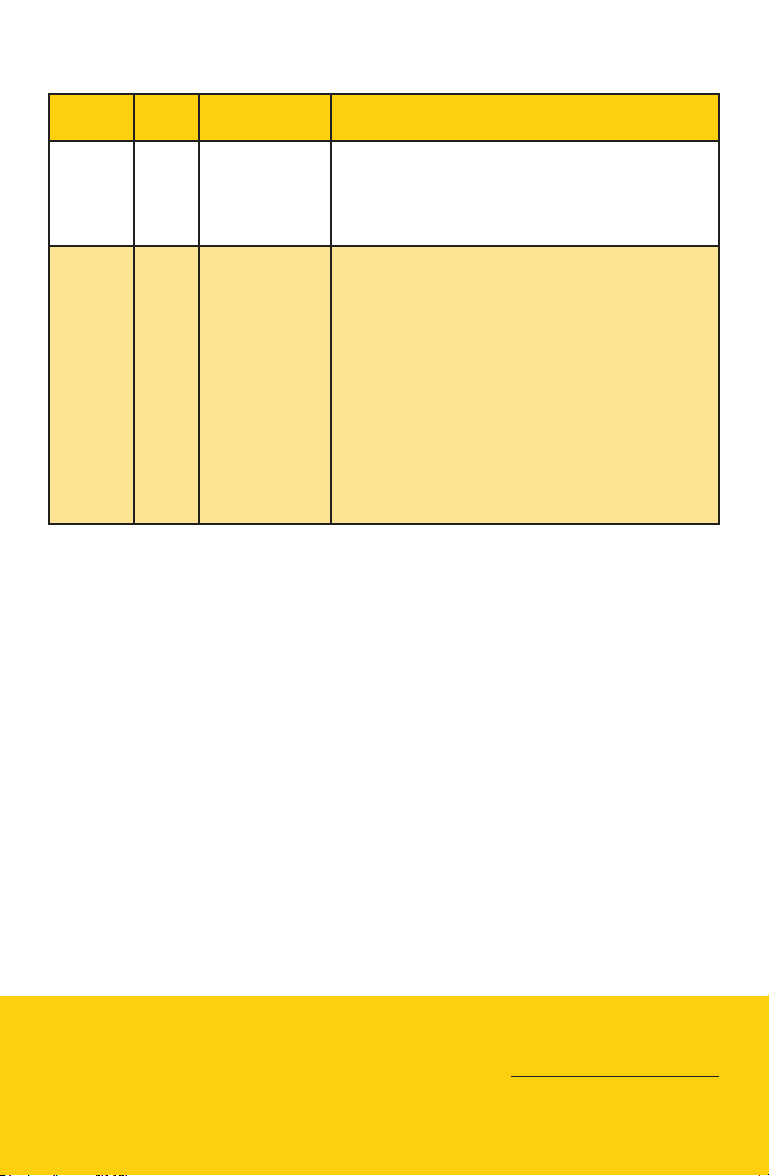
daTa diaGnosTiC eVenTs ConT.
Requirement #
4.6.1.7 4 Data Transfer
4.6.1.6 5 Unidentied
Event
Code
Event Name Description
Data Diagnostic
Event
Driver Data
Diagnostic
Event
If the monitoring mechanism fails to conrm
proper in-service operation of the data transfer
mechanism(s), an ELD must record a data transfer
data diagnostic event and enter an unconrmed
data transfer mode.
(b)The ELD must provide a mechanism for the
driver to review and either acknowledge the
assignment of one or more of the unidentied
driver records attributable to the driver under
the authenticated driver's prole as described
in paragraph 4.3.2.8.2(b)(1) of this appendix or
indicate that these records are not attributable to
the driver. (c)If more than 30 minutes of driving
in a 24-hour period show unidentied driver
on the ELD, the ELD must detect and record an
unidentied driving records data diagnostic event
and the data diagnostic indicator must be turned
on for all drivers logged in to that ELD for the
current 24-hour period and the following 7 days.
DriveELD
866.623.7483
www.drive-eld.com
[email protected]
MalfunCTions
16
© 2020, Drive ELD LLC, All Rights Reserved, v 1.3.1
Page 19
VisiT our supporT paGe
If you would like more information on how to use the system, please
visit drive-eld.com/customer-support/
GiVe us a Call
Call DriveELD Customer Support
(866) 623-7483 Ext. 2
DriveELD
866.623.7483
www.drive-eld.com
[email protected]
sHooT us an eMail
17
© 2020, Drive ELD LLC, All Rights Reserved, v 1.3.1
Page 20

 Loading...