

Page 1
User Manual
Professional Gaming Mouse
G18
MOUSE
Page 2
CONTENTS
PACKAGE CONTENTS / SYSTEM REQUIREMENTS
GAMING MOUSE LAYOUT
INSTALLING YOUR DRAGONWAR G18 MOUSE
CONFIGURING YOUR DRAGONWAR G18 MOUSE
ALTERNATE MOUSE BUTTON
BUTTON ASSIGNMENT MENU
SENSITIVITY OPTIONS
02
03
04
05
06
07
08
Page 3
FOR southpaw
Dragonwar03
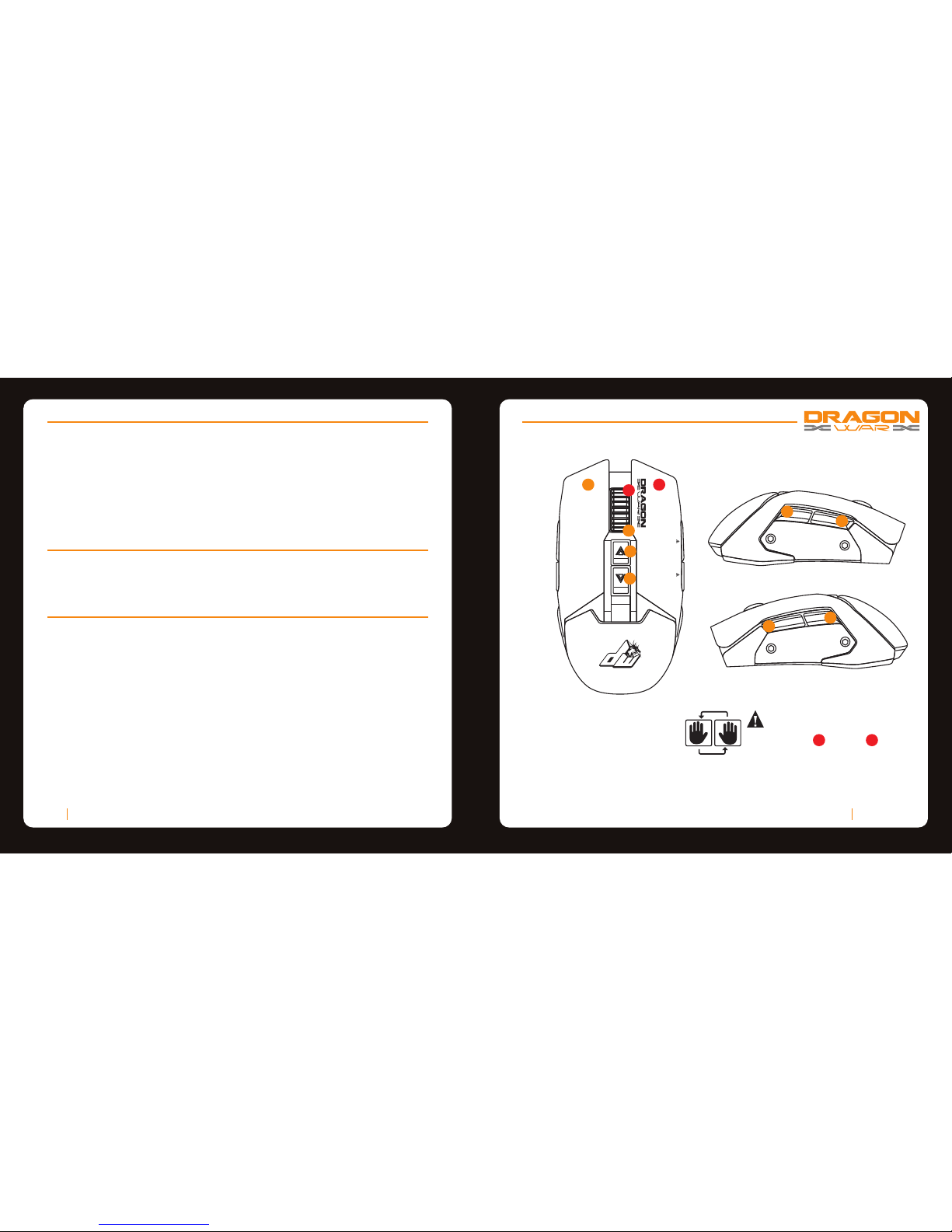
GAMING MOUSE LAYOUT
A. Left Mouse Button
B. Right Mouse Button
C. Scroll Up
D. Scroll Down
E. Sensitivity Stage UP
F. Sensitivity Stage Down
G. Forward
H. Backward
I. Volume UP
J. Volume Down
A
B
C
D
E
F
PACKAGE CONTENTS / SYSTEM REQUIREMENTS
PACKAGE CONTENTS
• Dragonwar G18 Gaming Mouse
• User Manual
SYSTEM REQUIRMENTS
• PC with a free USB 2.0 port
• Windows 10 / Windows 8 / Windows 7 / Windows Vista / Windows XP
TECHNICAL SUPPORT
• 1 years limited warranty
• Free online technical support at www.dragonwar.jp
• Driver download from : www.dragonwar.jp
TECHNICAL SPECIFICATIONS
• Customizable ergonomics to fit all hand sizes
• Swap between LEFT / RIGHT hander
• 3400dpi Optical sensor system
• Gold plated connector
• Braided USB cable
Dragonwar02
G
H
I
J
Hold the scroll wheel & right
key for 3 seconds.
The function of the key will swap.
(Vice versa)
B
C
Swap between Left/Right Hander :
Page 4
Dragonwar04
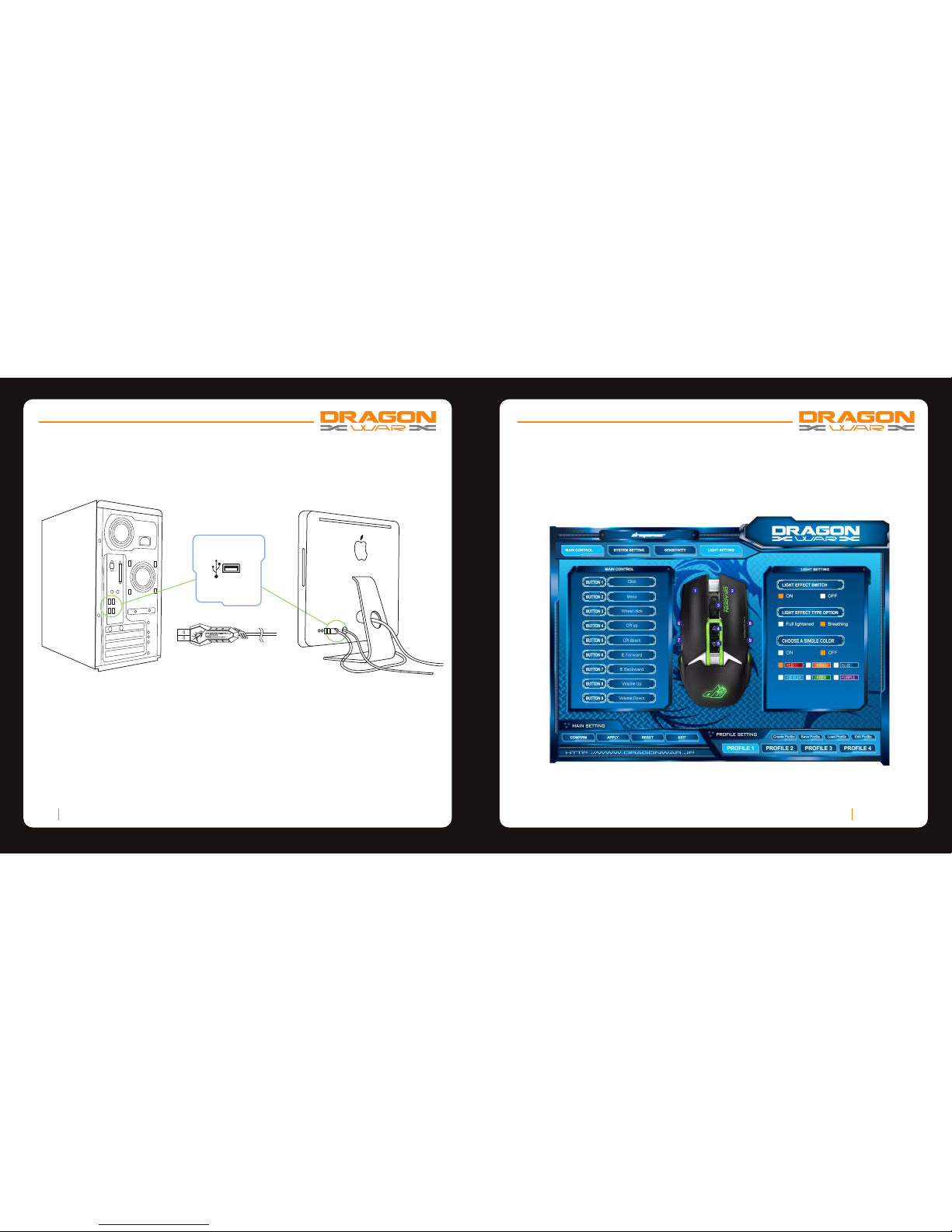
INSTALLING YOUR DRAGONWAR G18
Step 1: Plug the Dragonwar G18 into the USB port of your computer.
Step 2: Run the installer and follow the Programme.
Step 3: Wait until the software automatically downloads and installs.
Step 4: Open the programme, then set up
Dragonwar05
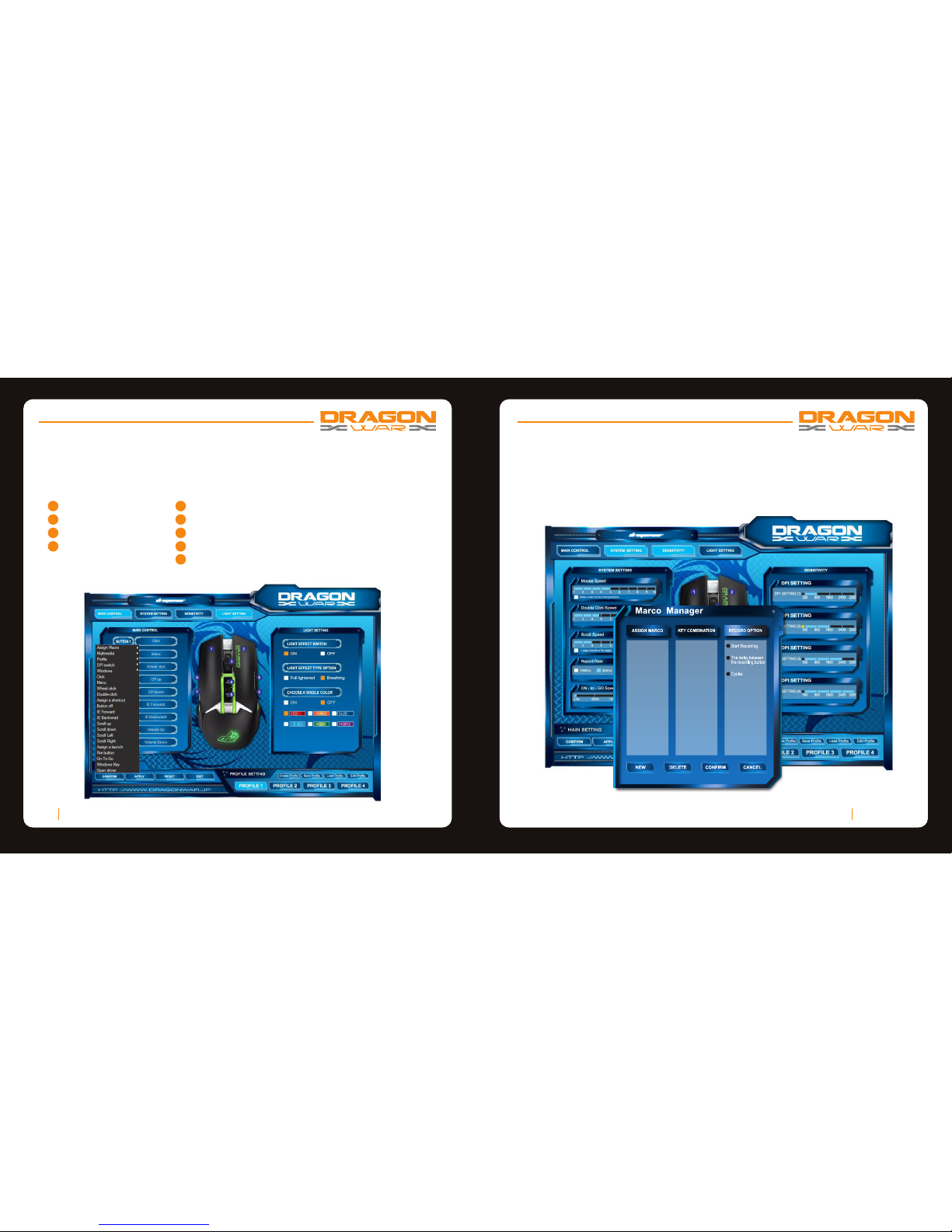
CONFIGURING YOUR DRAGONWAR G18
MOUSE TAB
The Mouse Tab is your default tab when you first install Programme. This tab allows
you to customize your device’s profiles, button assignments, performance and lighting.
Page 5
5
6
7
8
Dragonwar06
ALTERNATE MOUSE BUTTON
Initially, each of the mouse buttons is set to DEFAULT.
Which you can choose from the Assign Button submenu
Play/Pause
Pre Track
Media Player
Stop
9
Volume Volume +
Next Track
Switch Key
DPI Repetition
1
2
3
4
Dragonwar07
BUTTON ASSIGNMENT MENU
Each of the mouse buttons is set to DEFAULT. However, you may change the
function of these buttons by clicking the desired button to access the BUTTON
ASSIGNMENT Menu.
Page 6
Dragonwar08
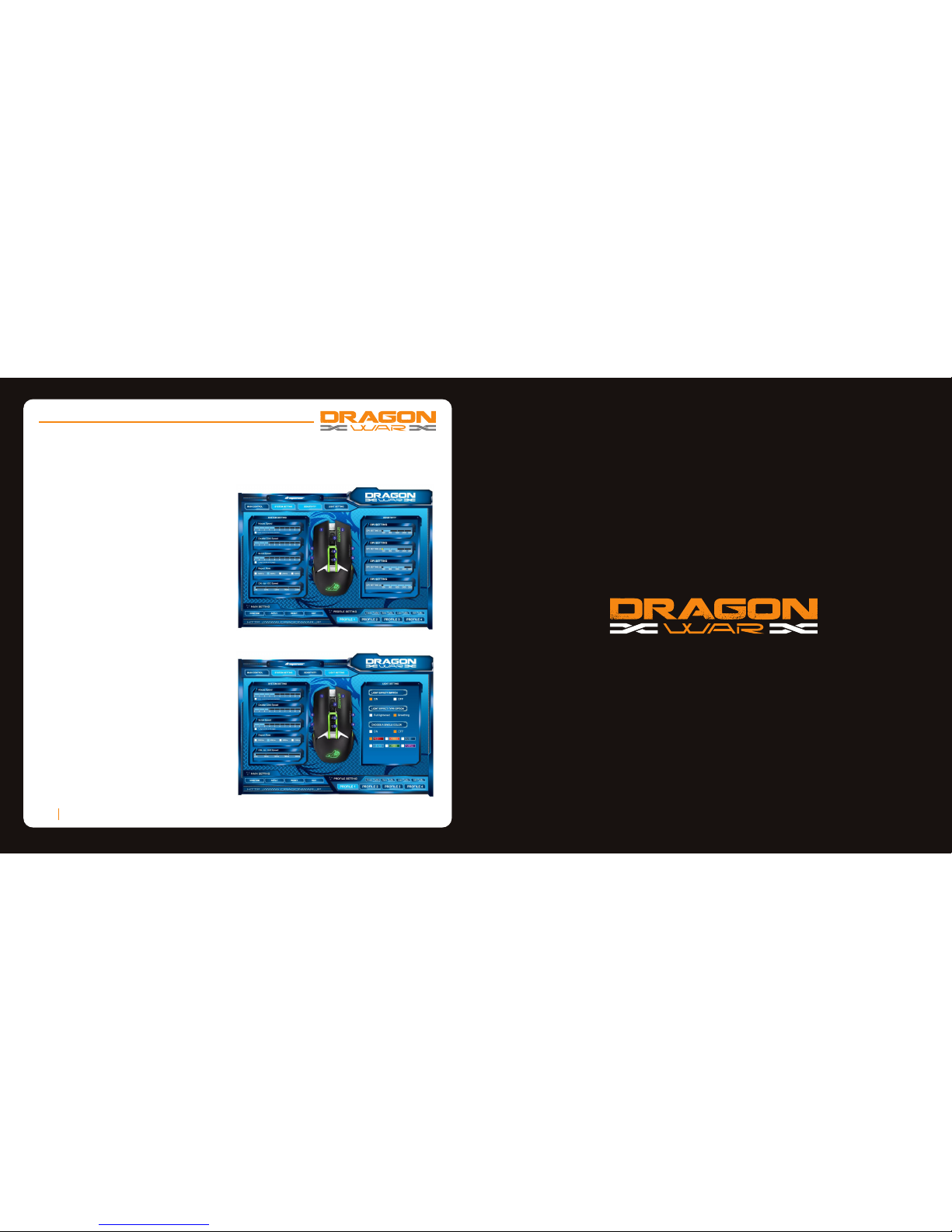
SENSITIVITY OPTIONS
Sensitivity pertains to how much effort is needed to move the mouse pointer in any
direction. The higher the sensitivity, the more responsive the mouse will be.
1. Select the number of sensitivity
stage needed.
2. Click on the stage you would like to
preset and adjust using the arrow
on the slider below.
3. Click “Apply” when done. To switch
between different sensitivity stages,
simply assign the Sensitivity Stage
Up and Sensitivity Stage Down
functions to the desired buttons.
BREATHING LIGHT SETTING
Each of the mouse buttons is set to
DEFAULT. However, you may change the
function of these buttons by clicking the
desired button to access the BUTTON
ASSIGNMENT Menu.
 Loading...