

Page 1
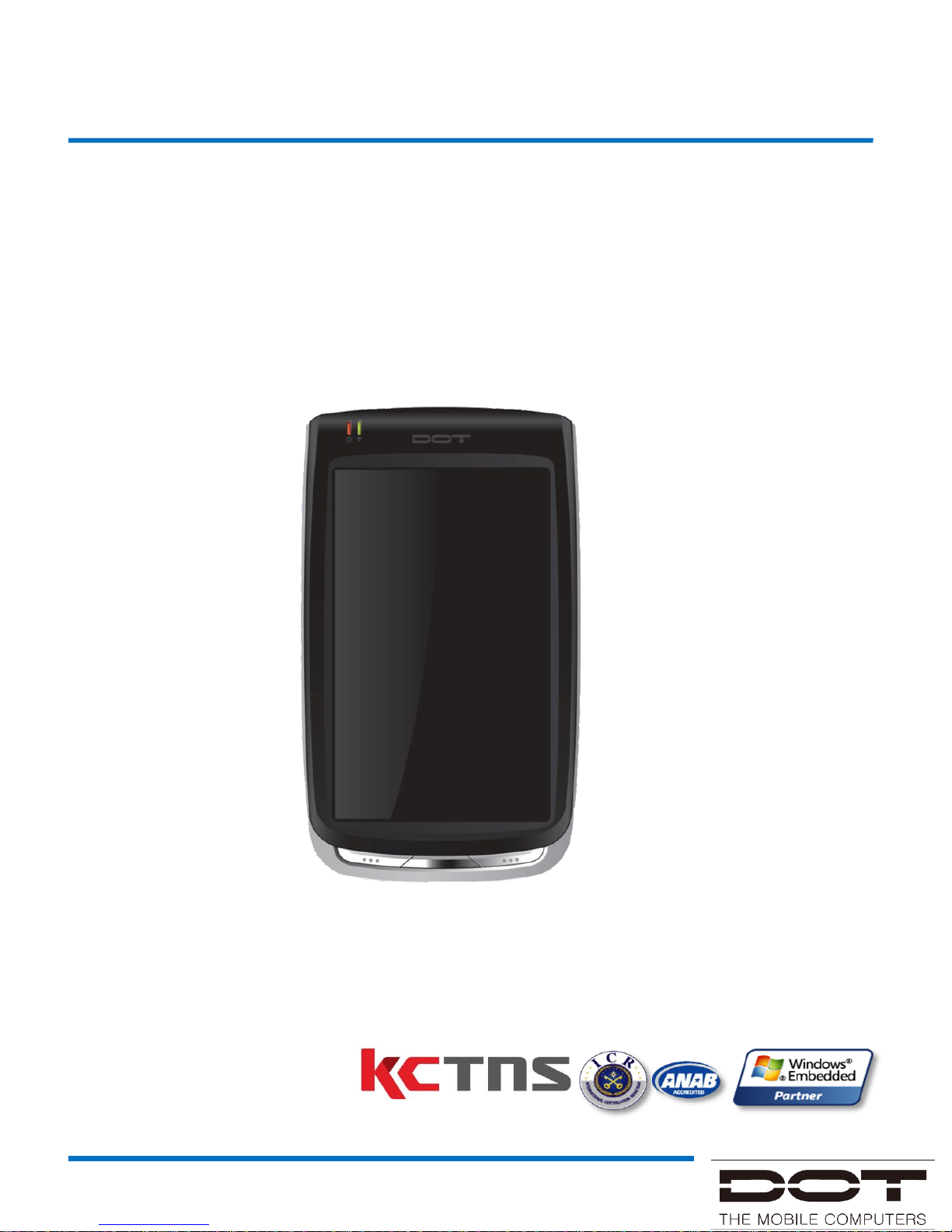
DOTH-500
USER MANUAL
ISO 9001
MS WEPP
DOTH-500 Manual
Page 2

DOTH-500 Manual
1. This user manual may be changed without notice in accordance with
improvements to the product or changes in available functions.
2. This user manual has been prepared based on information available at the
time of publishing and may have technical or editorial errors or omissions.
3. The screen and shape of the product in this manual may differ from that of
the actual product.
4. All the content of this manual is protected by Copyright Law.
5. All the rights for the software installed on this product belong to DOTel Co.,
Ltd. And are protected by Copyright Law.
6. Among the content specified in this manual, some functions may not be
installed in your PDA (Wireless LAN, Bluetooth)
1. The device have been developed in accordance with the CE directive
1999/5/EC (R&TTE)
2. DOTEL possesses a certified quality assurance system in accordance with
ISO9001
Notice
Page 3

DOTH-500 Manual
Copyright and Use
1. All the contents in this manual and PDA software are protected by Copyright Law
and all the rights belong to DOTel Co., Ltd.
2. No part of this manual may be duplicated, renovated or translated into other
languages without prior written consent. The act of duplicating, correcting or
distributing this manual without permission is a crime punishable in accordance
with Copyright Law.
3. As to instructions for separate business programs not specified in this manual,
and questions about and after service for such programs, please contact the
software provider.
4. For all other applications or programs installed by the user except the basic
program, each software provider should specify contact information required to
make inquiries or ask for technical support on the product manual or on the
packaging, or enclose a separate manual with contact information.
5. DOTel Co., Ltd. Does not provide any warranty for all the software installed once
PDAs are shipped out of the factory.
6. DOT is a trademark of DOTel Co., Ltd. Protected by law.
7. The logos and product names, Microsoft, Windows and Internet Explorer, are
trademarks of Microsoft and MS Windows CE software installed on this device is
a product officially licensed by Microsoft.
8. All the product names and program names used in this manual and the product
are company names, symbols, trademarks or registered trademarks of each
owner.
9. DOTel Co., Ltd. May ask the application providers to provide their software
loaded in this product on request of mobile communication providers or for
improvement or verification of the products.
Page 4
DOTH-500 Manual
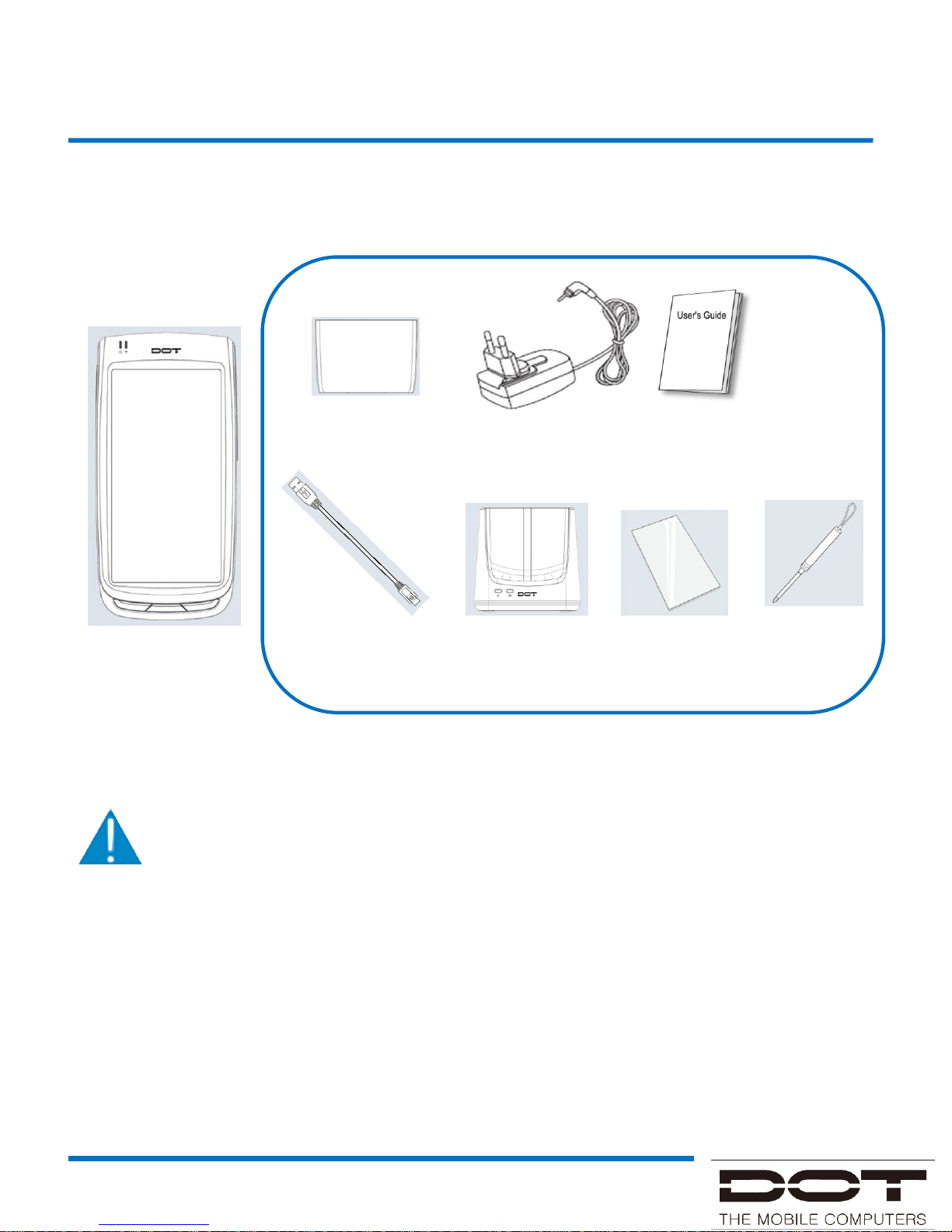
Contents in Package
Body Micro USB Cable Cradle Touch Film Stylus Pen
Two Standard Batteries A/C Adapter Manual
Standard Accessories
The specification and components of this product may change According to
the situation of the manufacturer.
Page 5
DOTH-500 Manual
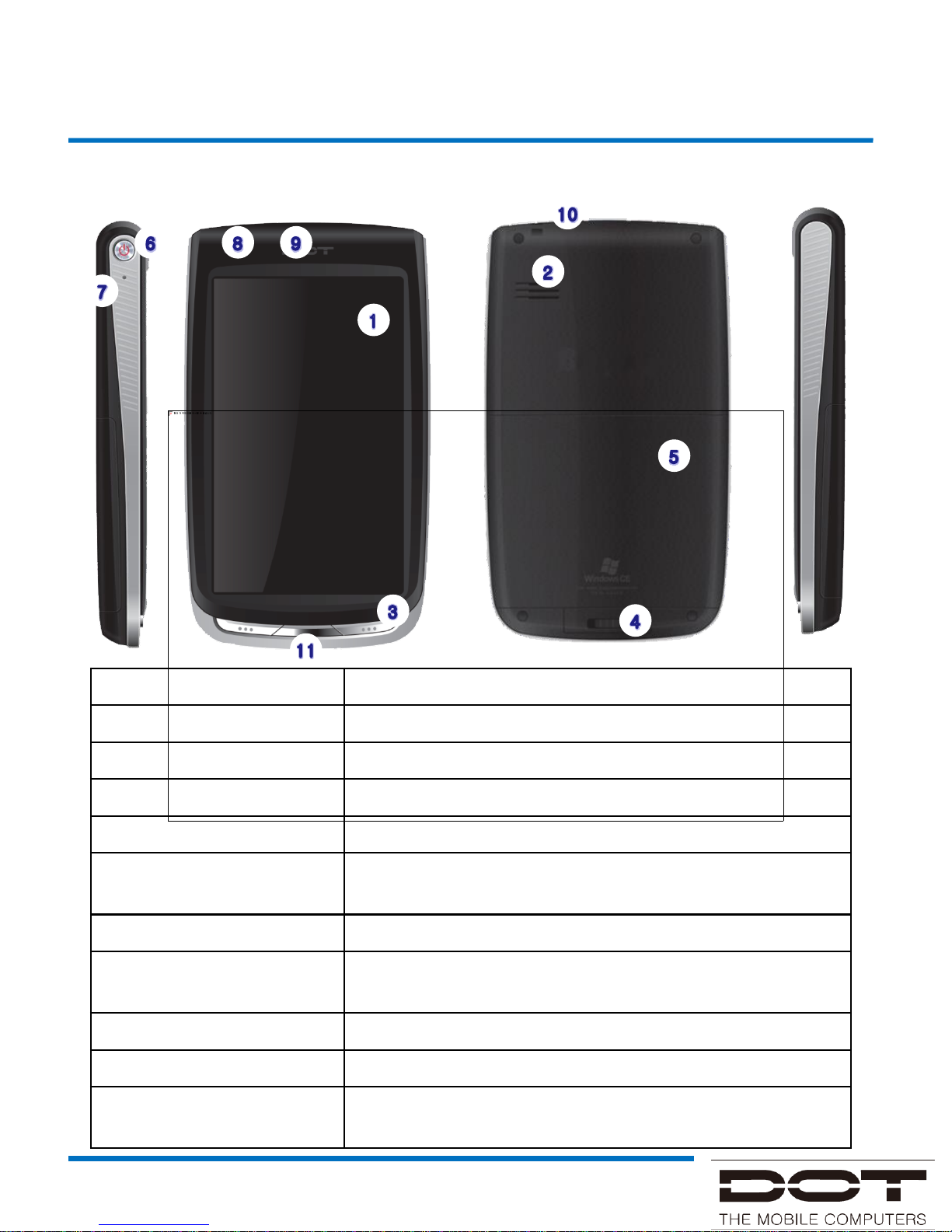
Part Description and Function
①
LCD
Touch screen
on which information is displayed
②
Speaker
Where the
sound is output
③
Buttons
Function
Key
④
Battery Switch
Switch used to mount
or remove the battery
⑤
Battery
Standard capacity
battery
⑥
Power key
Switching the product on/off by pressing and holding
this key
⑦
Reset key
Used
to the product to reboot
⑧
Battery Charge
indicator
Displays
the status of battery charging and complete
⑨
WLAN indicator
Displays
the status of WLAN links
⑩
Stylus pen holder
Stylus pen holder
⑪
Cradle Insertion Hole
Place
to insert the cradle for charging and
synchronization
Learning Basics
Name of Parts
Page 6
DOTH-500 Manual
Learning Basics
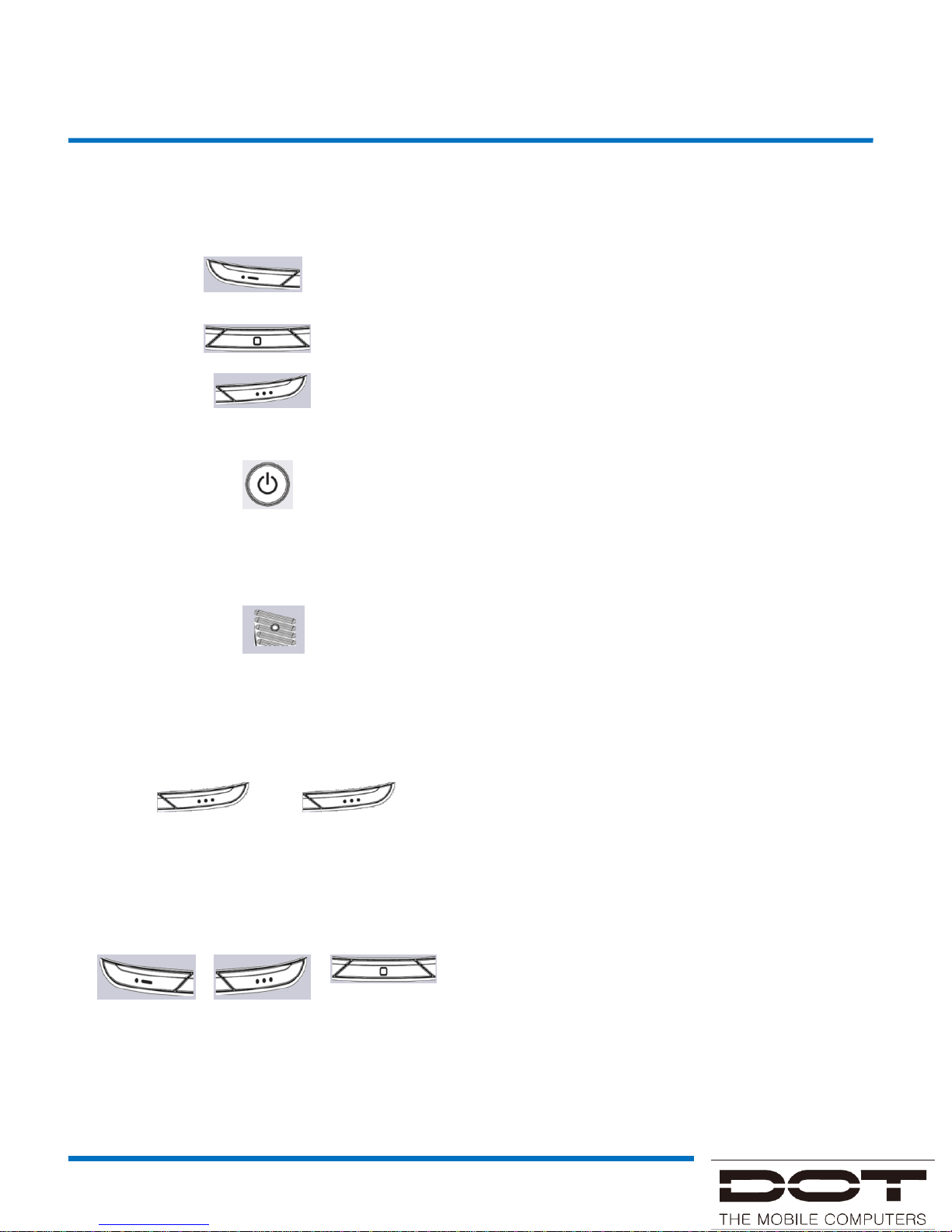
Function Key1
Function Key2
Function Key3
To turn on/off the product, pressing and
holding the power key for three seconds.
To turn on/off the LCD while the device
is on, pressing the power key.
Used to reset the product to reboot it
when a problem has occurred during
use.
Download mode
Pressing and holding the function key3
for 3 seconds while device is turning on.
And then press function key3
Factory reset
Pressing and holding the function key3
and the function key1 for 1 second at
the same time while device is turning on.
And then press function key2
Function of Buttons
Page 7
DOTH-500 Manual
Learning Basics
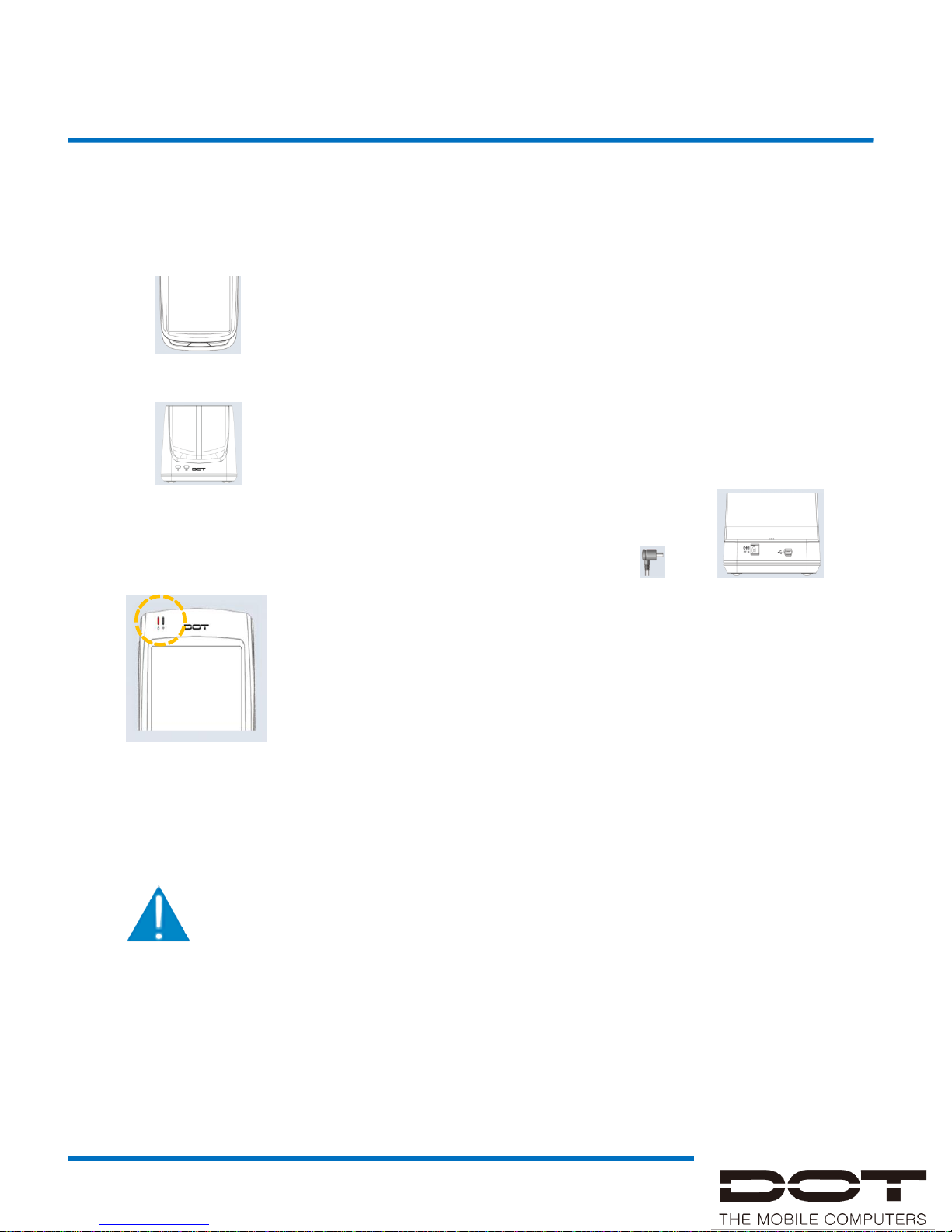
Power connection and charging
Connect the device to the cradle.
1
Connect an adapter to the back of the cradle.
2
While charging, the red LED light will be on.
When charging is complete, light will turn green.
3
- The Charging time is calculated based on using the proper
charging cradle.
- Charge, talk and standby time may depending on user
environment.
Page 8
DOTH-500 Manual
User Interface
WIFI
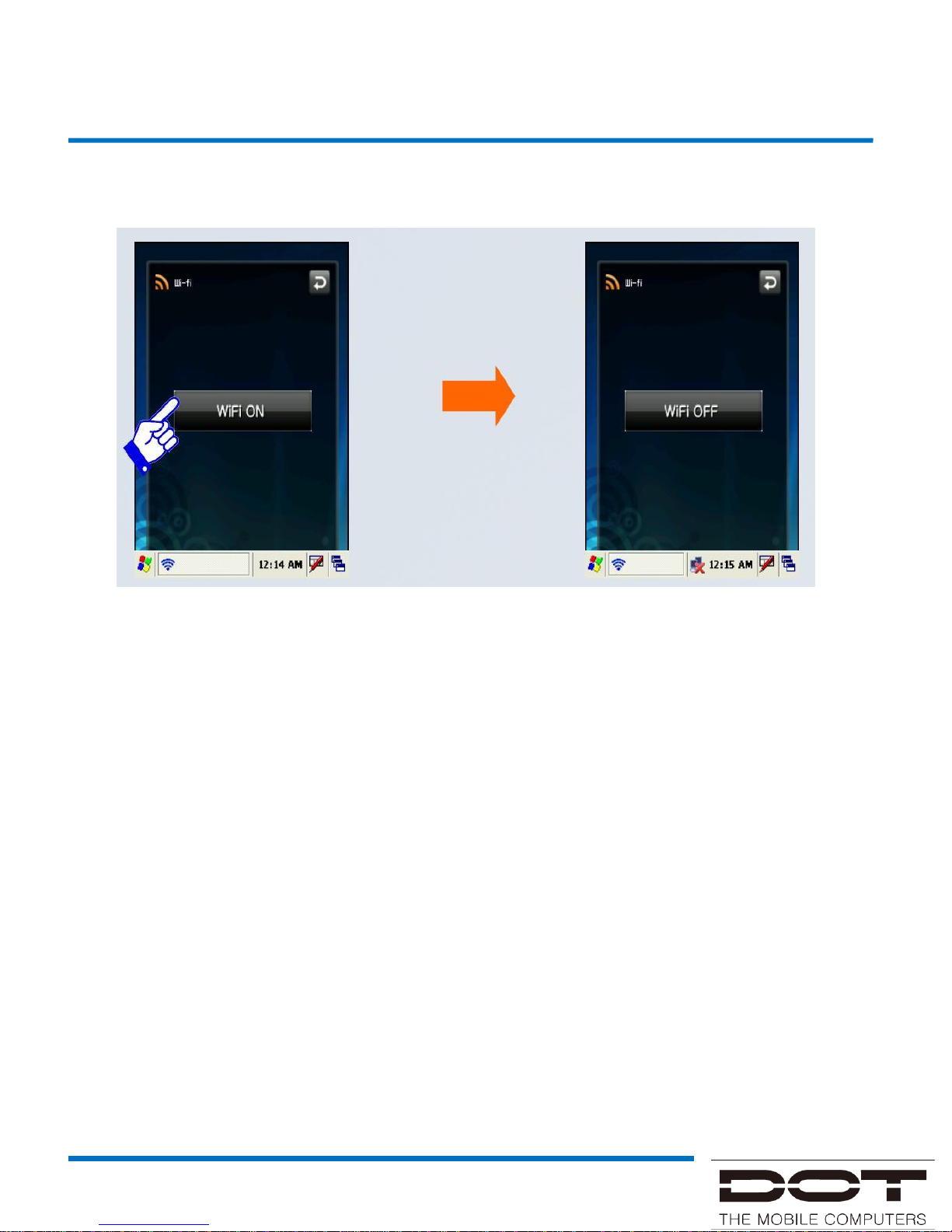
It can be controlled by pressing on or off as shown in the figure above
after selecting ‘Start’ -> ‘Program’ -> ‘WiFi’ from the tool bar at the bottom
of Windows wallpaper.
WLAN on/off state is maintained even after the system is rebooted.
Page 9
DOTH-500 Manual
User Interface
Bluetooth
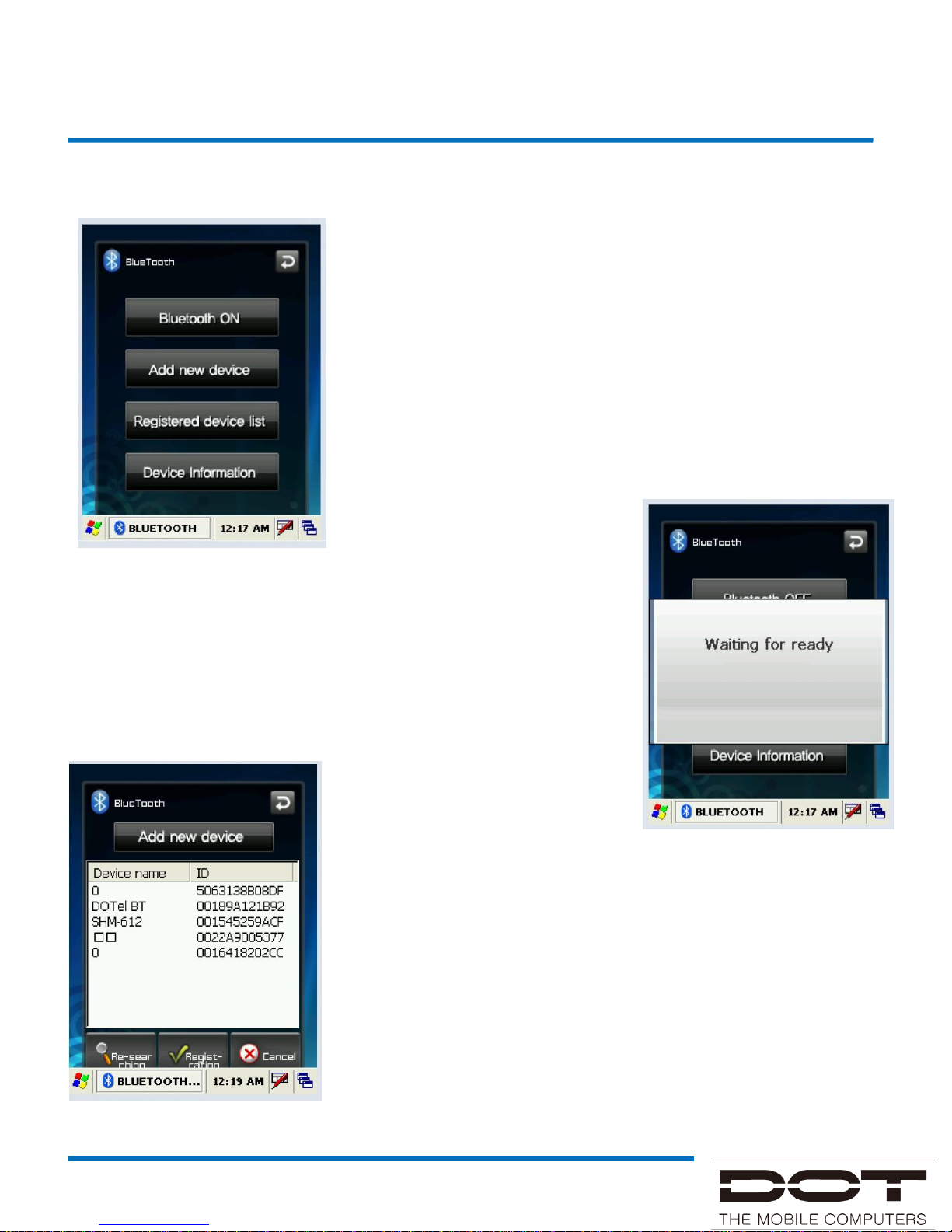
Use this menu to activate or deactivate Bluetooth
function. Bluetooth function can be used only after
turning the module on by pressing ‘Bluetooth On’
button.
When Bluetooth function is not being used, the function
should be turned off by pressing ‘Bluetooth Off’ button
In order to extend the battery life.
Place the Bluetooth device within 10meters of this
equipment.
Press “search Device” button.
Press “Register” button after selecting the Bluetooth
device to be connected from among the list of devices
searched.
Page 10
DOTH-500 Manual
User Interface
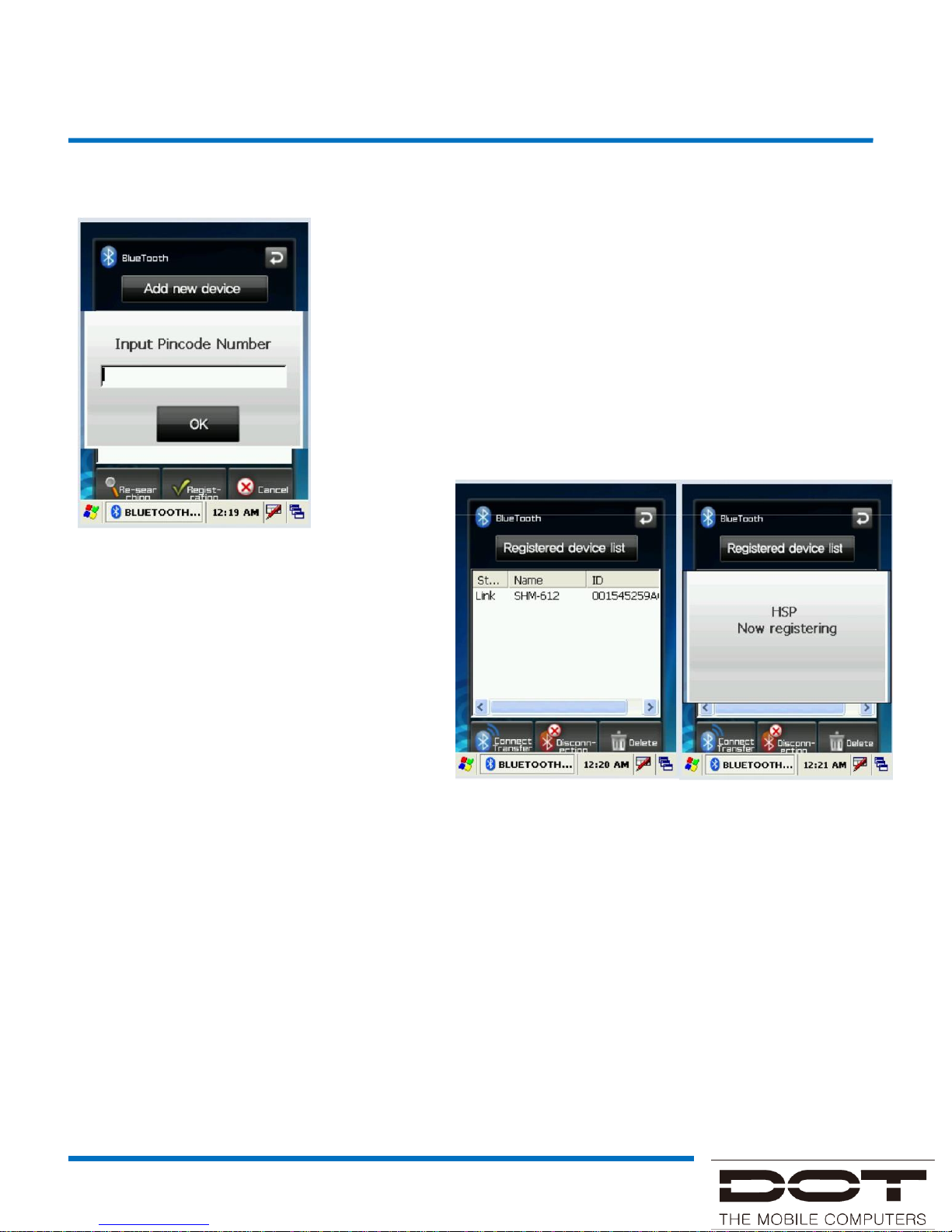
When the window asking to enter the pin code pop up,
enter the pin code and press “Confirm”. Each Bluetooth
device has a unique pin code which is used for
certification. Check the pin code with the manufacturer of
The Bluetooth device.
If ‘Registered Device List’ Window
appears with a popup window
informing that connection is made,
connection is successfully achieved.
If a failure window pops up, the
steps should be taken again from
the step #1 in order.
Caution : Please refer to the manual of the Bluetooth device to be connected with
this equipment as the method to execute each Bluetooth device differs from
one device to another. Prior “Pairing” is required for Bluetooth devices. Once
pairing is done for Bluetooth devices, connection can be made without being
required to pair again later.
However, if pairing information is deleted or the device list item is deleted by
repair, pairing should be done again.
Bluetooth
Page 11
DOTH-500 Manual
User Interface
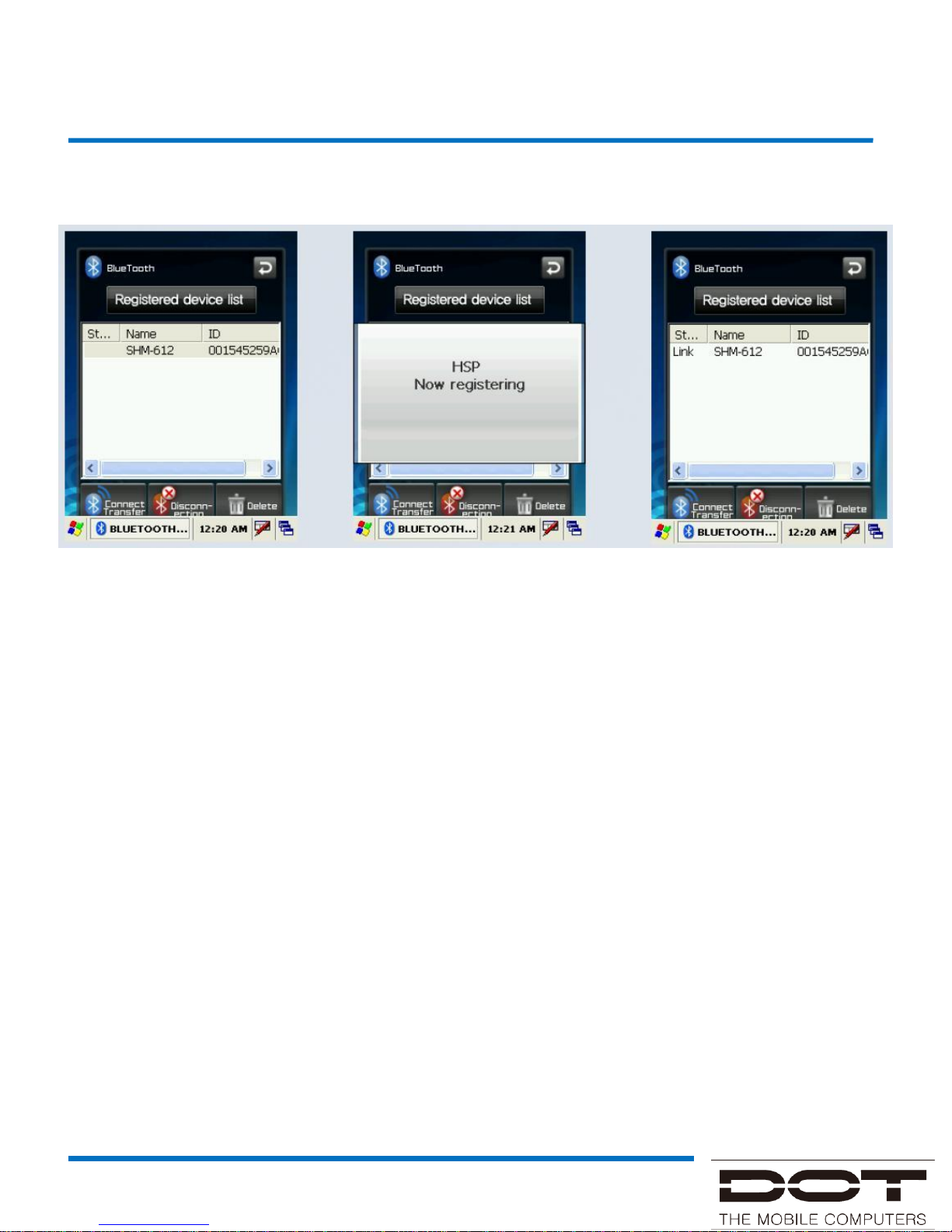
Press “Registered Device List” button.
Press ”Connect/Transmit” button after selecting the item which has been connected
before from the “Registered Device List”. A popup window will appear to inform that
the connection is made and connection status will be displayed in the status blank
of the list.
In case connection has not been made, start from the step #1 again. In order to
disconnect the device connected, press “Disconnect” button.
Caution : If the device has been paired before, connection can be made right away
without pairing procedure. The list of devices paired before will be shown in
the “Registered Device List”.
Bluetooth
Page 12
DOTH-500 Manual
User Interface
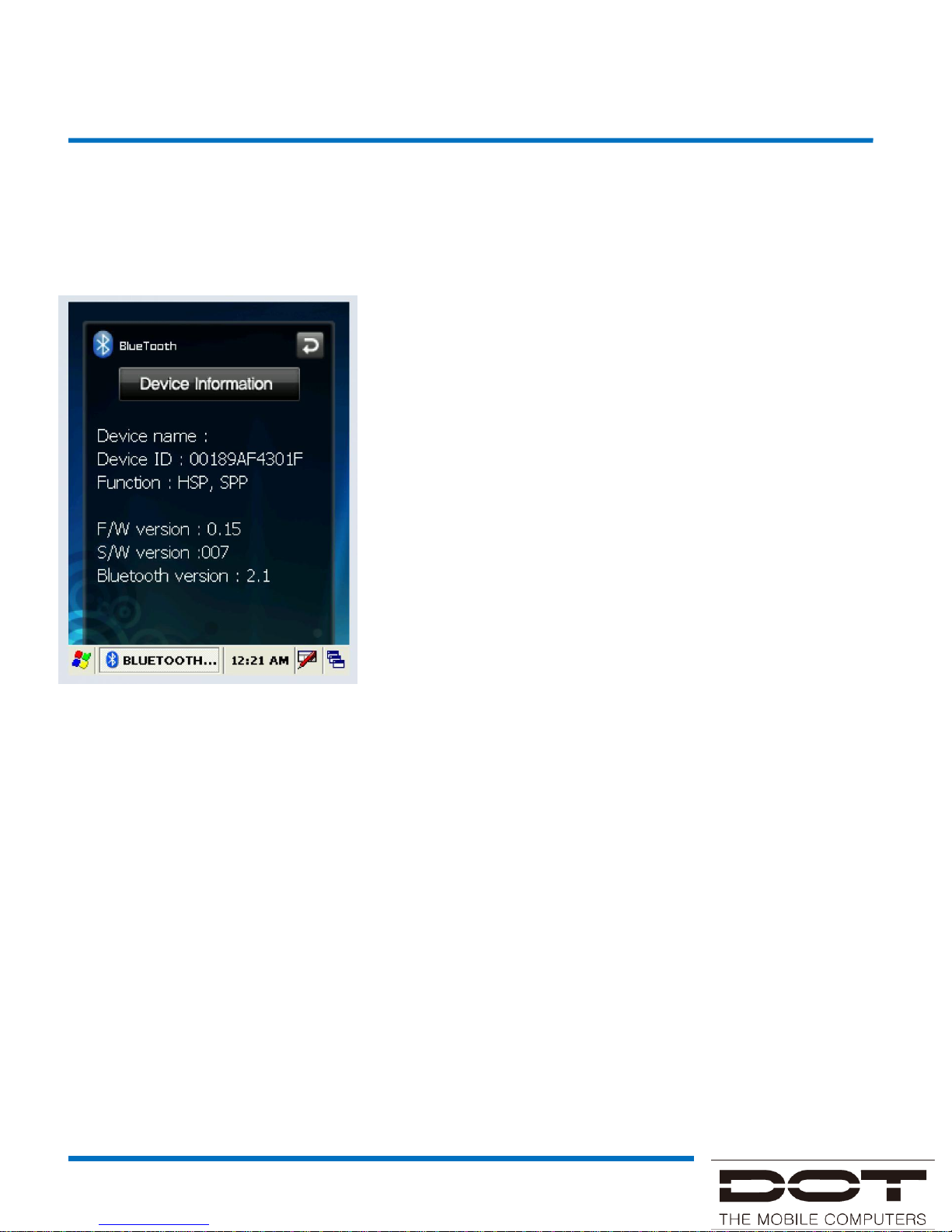
The Device Information screen shown information
about Bluetooth device such as device name,
device ID (BD address), support profile, Bluetooth
version, firmware version and software version.
In order to delete a device once connected, press
“Delete” button after selecting the item to be
deleted. A device currently connected cannot be
deleted. Delete the list after disconnecting the
device.
* Reference : Even after the device is deleted from the
‘Registered Device List’, pin code window can
popup if connection is requested by the Bluetooth
device. At this time, connection can be made by
pressing ‘Confirm’ button after entering the pin
code
Bluetooth
Page 13
DOTH-500 Manual
Problem Solving
FAQ
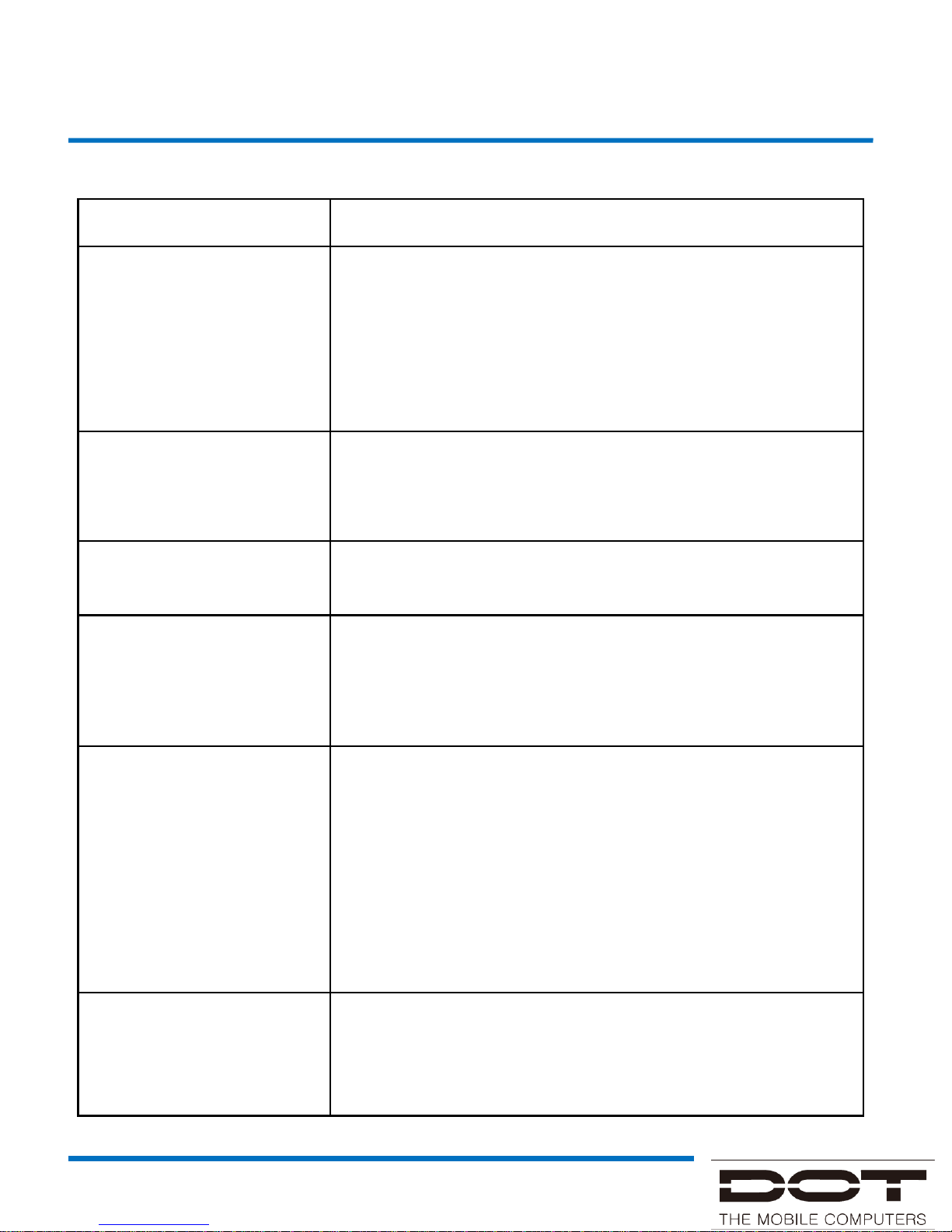
Problem Solution
Product does not turn on.
When the product is shipped from the factory, the
circuitry is disconnected. Press the power button for 2
seconds or longer, when the product will turn on.
Check if the battery is fully charged and charge the
battery before using the product.
No sound from the
speaker.
Check if the volume of the product is not set at 0.
Screen is dark
Enter into ‘Setup’ and adjust the lighting.
Some points in manual
are unclear.
Use customer support in the Web site or contact
customer center over phone, and a customer support
agent will be glade to help you.
The product seems to be
hot.
This product is designed to properly radiate the heat
generated inside the product through the case.
If the product is used for a long period of time or the
adapter is connected for long, you may feel warmth
from
the case please use the product at ease as there is no
problem with the product.
The PC does not
recognize the product.
If the connection is frequently cut and instable, please
connect the product not to a separate hub but directly to
the USB terminal of the PC.
Page 14
DOTH-500 Manual
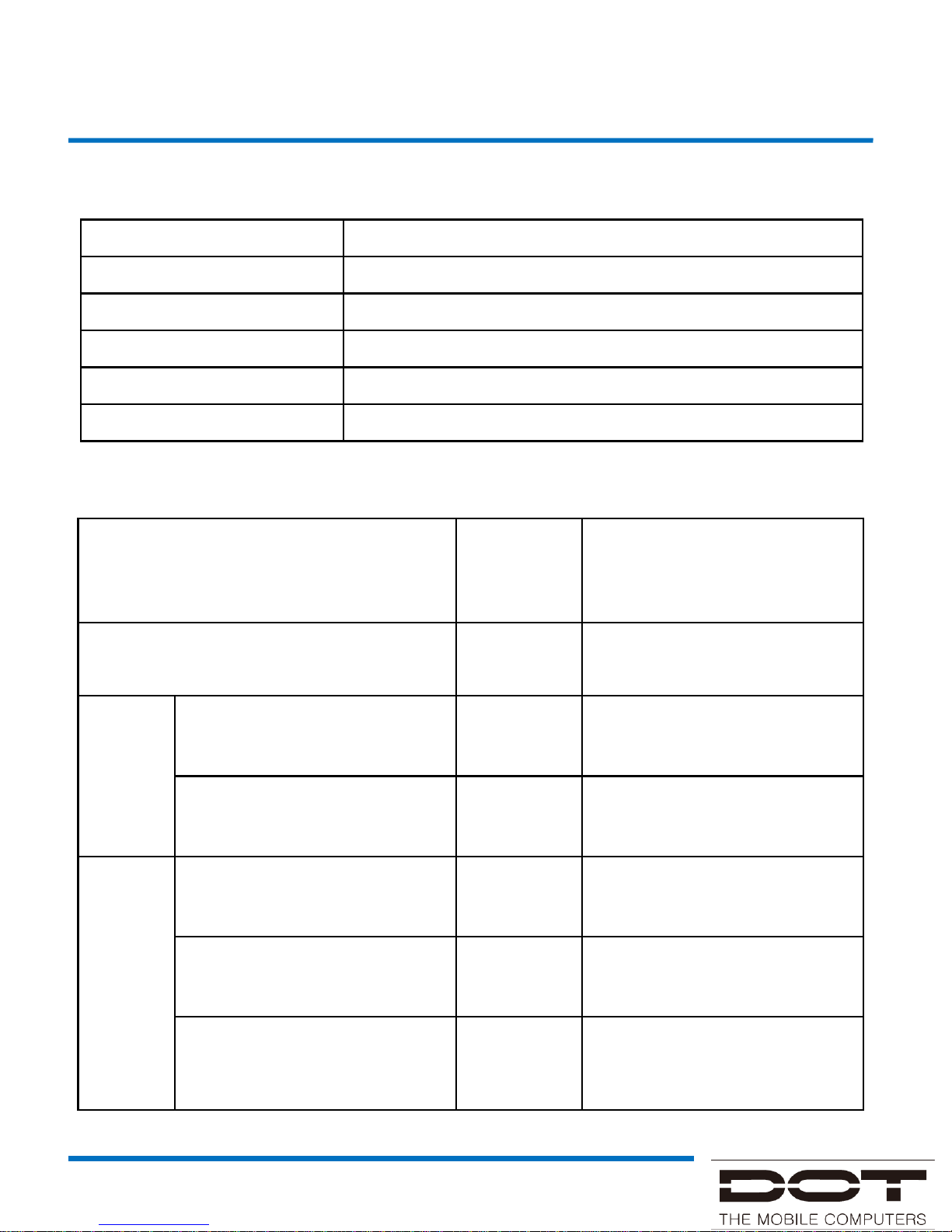
Classification Content
Model name DOTH-500
Date of purchase
Purchased from
Manufacturing no.
Warranty period One year from the date of purchase
Warranty
Product Warranty
Product failure type
Within
warranty
period
Out of warranty
Failure within 10 days after purchase Replace
Repair
Failures more than 3 times
due to same defect
Free repair Repair at a cost
Failures more than 4 times
due to same defect
Replace Repair at a cost
Non-
Repair
If repair is impossible within
one month after the purchase
Replace
Replace after deducting a
fixed amount of depreciation
If repair is impossible due to
unavailability of repair part
Replace
Replace after deducting a
fixed amount of depreciation
If replacement is impossible Refund
Refund the amount after
deducting a fixed amount of
depreciation plus 10 percents
Service Policy
Page 15
DOTH-500 Manual
Specification
DOTH-500
Classification Content
OS Windows CE
CPU Samsung ARM11 800MHz
Display 5” WVGA(480*800), 262K color
Memory RAM : 128MB, ROM : 256MB
Key 3 function keys / 1 power key
Battery 2,600 mAh / Li-on Polymer
USB 2.0
Bluetooth Bluetooth Ver2.0 Class
WLAN IEEE 802.11 a/b/g
Camera 3M pixel with Auto focus & Flash
Dimensions 87(W) X 149(H) X 19(D)
Weight 240g
 Loading...