

Page 1
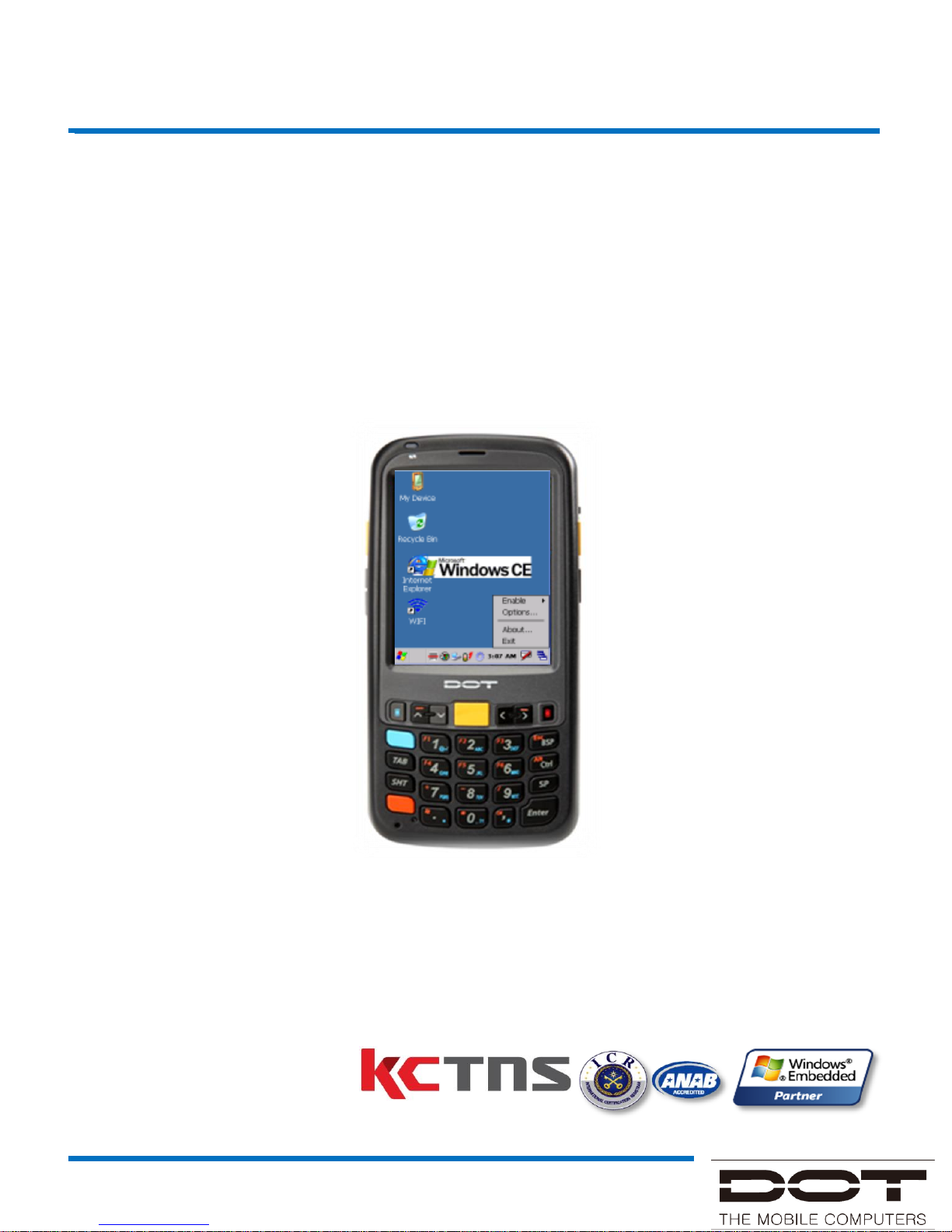
DOTH-300 Manual
ISO 9001
MS WEPP
DOTH-300
USER MANUAL
Page 2

DOTH-300 Manual
1. This user manual can be changed without notice in accordance with improvement
of the product or change in the functions.
2. This user manual has been prepared based on the available information at
present and may have technical or editorial errors or omissions.
3. The screen and shape of the product in this manual may differ from those of the
actual product.
4. All the contents of this manual is protected by Copyright Law.
5. All the rights for the program loaded in this product belong to KCTNS Co., Ltd.
and are protected by Copyright Law.
6. Among the contents specified in this manual, the functions not installed in your
product cannot be used.
1. This product is a B grade domestic broadcasting/communication
equipment.
2. This product is electromagnetic compatibility registered domestic(B grade)
equipment and is mainly for domestic use but can be used anywhere.
Notice
Page 3

DOTH-300 Manual
1. All contents in the manual and PDA software are protected by Copyright Law
and all the rights belong to KCTNS Co., Ltd.
2. No part of this manual may be duplicated, renovated or translated into other
languages without a prior written consent. Any act of duplicating, correcting
or distributing this manual without permission will be an object of criminal
punishment in accordance with Copyright Law.
3. As to instructions for separate business programs which are not specified in
the manual, and questions about and after service for such programs, please
contact the software provider.
4. For all other application programs loaded separately on this product except
the basic program, each product provider should specify contact information
required to make inquiries or ask for technical support on the product manual
or on the packing box, or enclose a separate manual with contact information.
5. KCTNS Co., Ltd. does not provide warranty for the software loaded after the
products is shipped out of the factory.
6. DOT is a trademark of KCTNS Co., Ltd. and protected by law.
7. The logos and product names, Microsoft, Windows and Internet Explorer, are
trade marks of Microsoft, and MS Windows CE software loaded in this
product is a product officially licensed by Microsoft.
8. All the product names and program names in the manual are in ownership to
its registered trade name, symbol, or trademark
9. KCTNS Co., Ltd. may ask the application program providers to provide their
software loaded in the product on request of mobile communication
providers or for improvement or veritification on the products.
Copyright and User
Page 4
DOTH-300 Manual
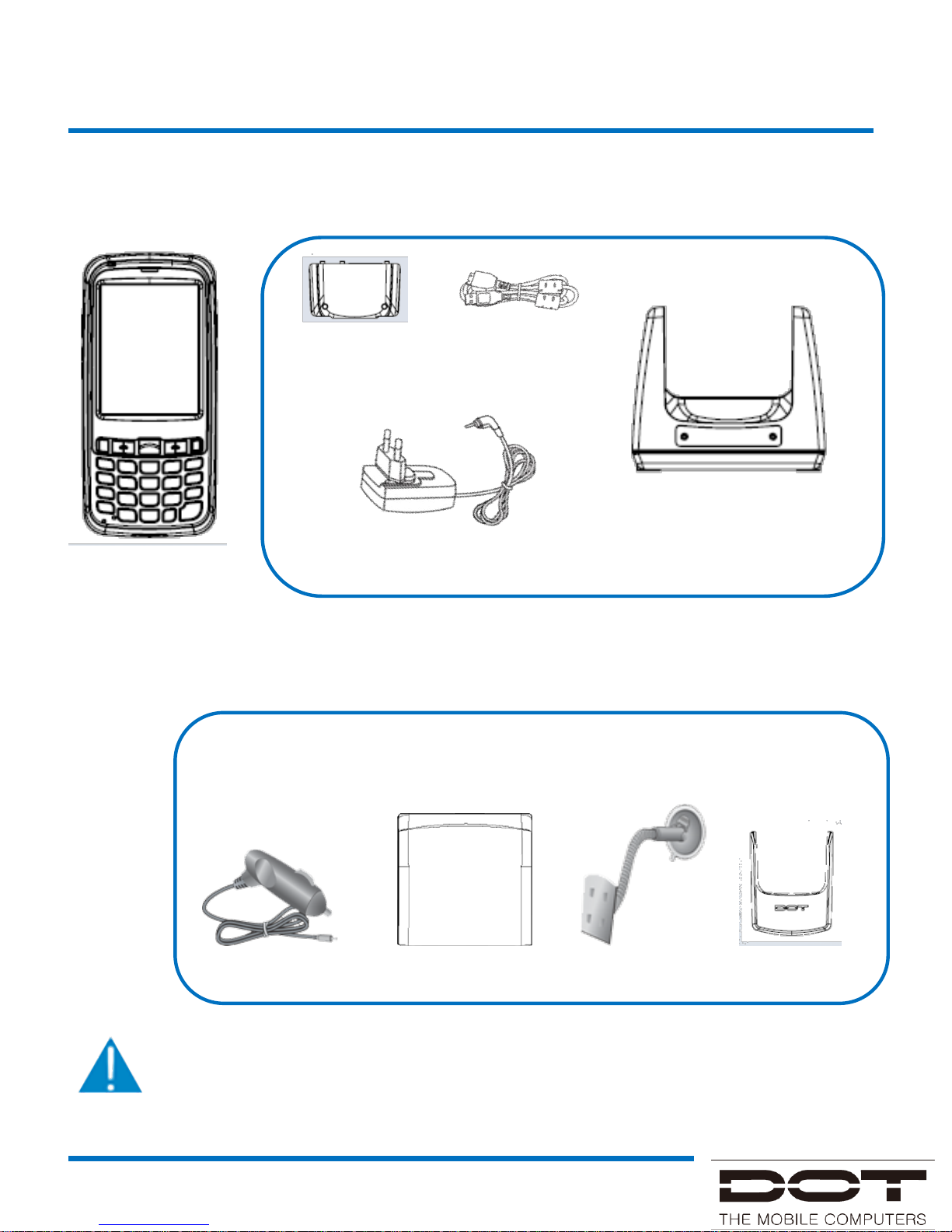
Contents in Package
표준 악세서리
The images and accessories in the manual may not reflect the color, shape and
contents of the actual product. Please contact us on the web at www.dotel.co.kr if
you wish to purchase any additional or optional products.
선택 악세서리
Body
USB Cable
Cradle
Battery
Adapter
Snap on Vehicle Mount
Extended Battery Cigar Jack
Page 5
DOTH-300 Manual
Learning Basics
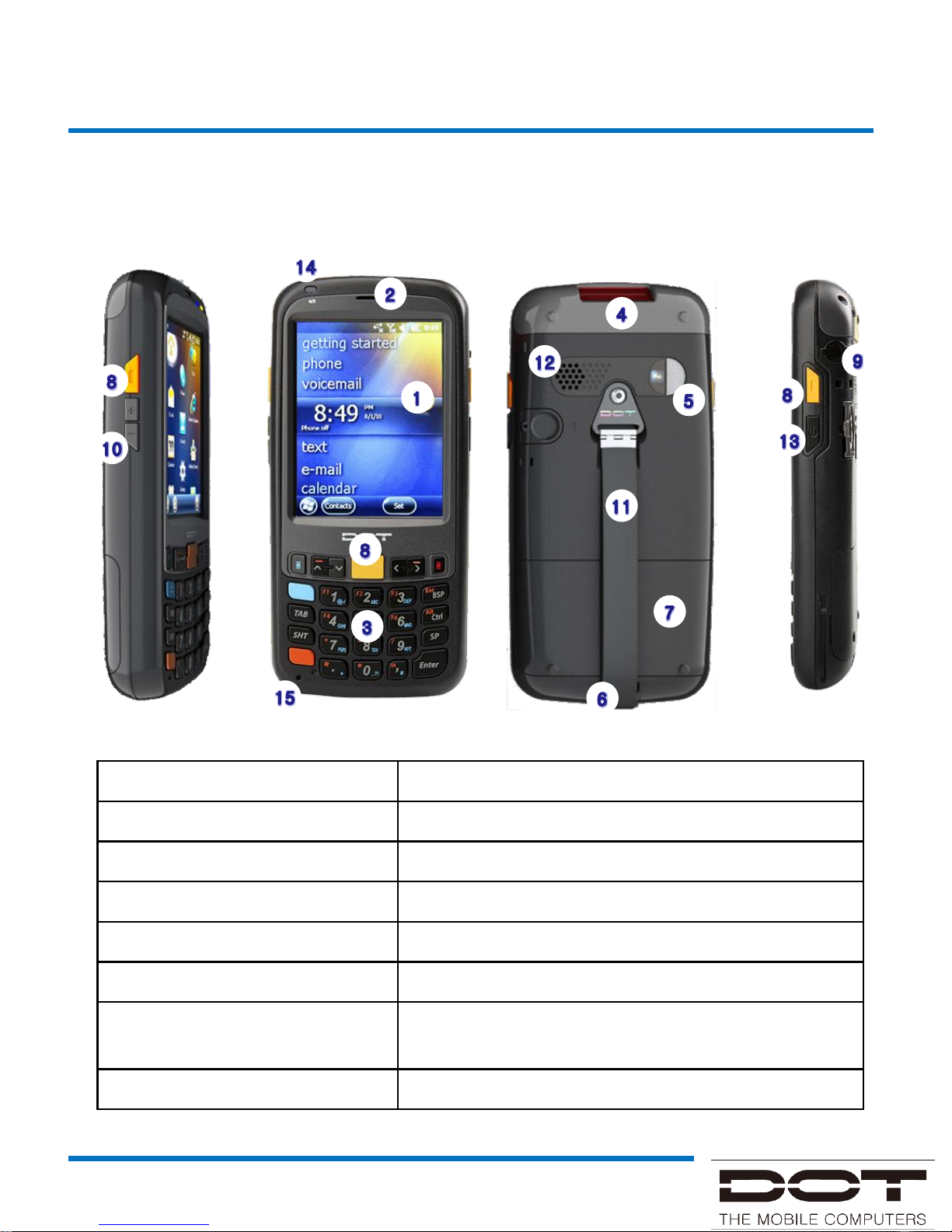
Model: DOTH-300S
① LCD ② Receiver: Speaker for telephone use
③ Button ④ Barcode Reader
⑤ Camera & Flash ⑥ Battery Lock
⑦ Battery ⑧ Barcode Scanner Button
⑨ Earphone Jack ⑩ Volume key
⑪ Strap ⑫ Speaker
⑬ Sleep Button
⑭ LED • Red : Battery is charging
• Green: Battery is fully charged
⑮ Mic.
Name of Parts
Page 6
DOTH-300 Manual
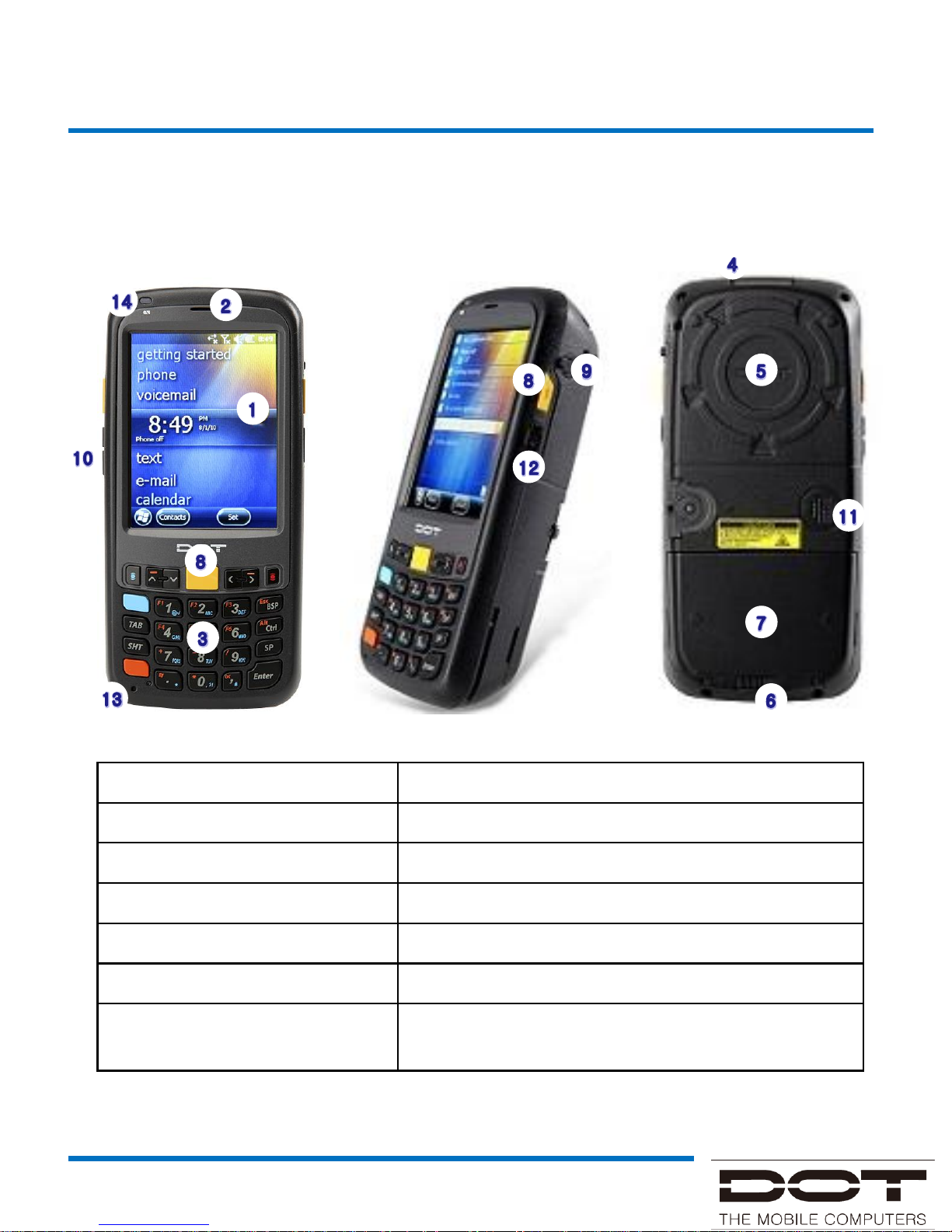
Model: DOTH-300C
Learning Basics
① LCD ② Receiver: Speaker for telephone use
③ Button ④ Barcode Reader
⑤ UHF Antenna ⑥ Battery Lock
⑦ Battery ⑧ Barcode Scanner Button
⑨ Earphone Jack ⑩ Volume key
⑪ Speaker ⑫ Sleep Button
⑬ Mic.
⑭ LED • Red : Battery is charging
• Green: Battery is fully charged
Name of Parts
Page 7
DOTH-300 Manual
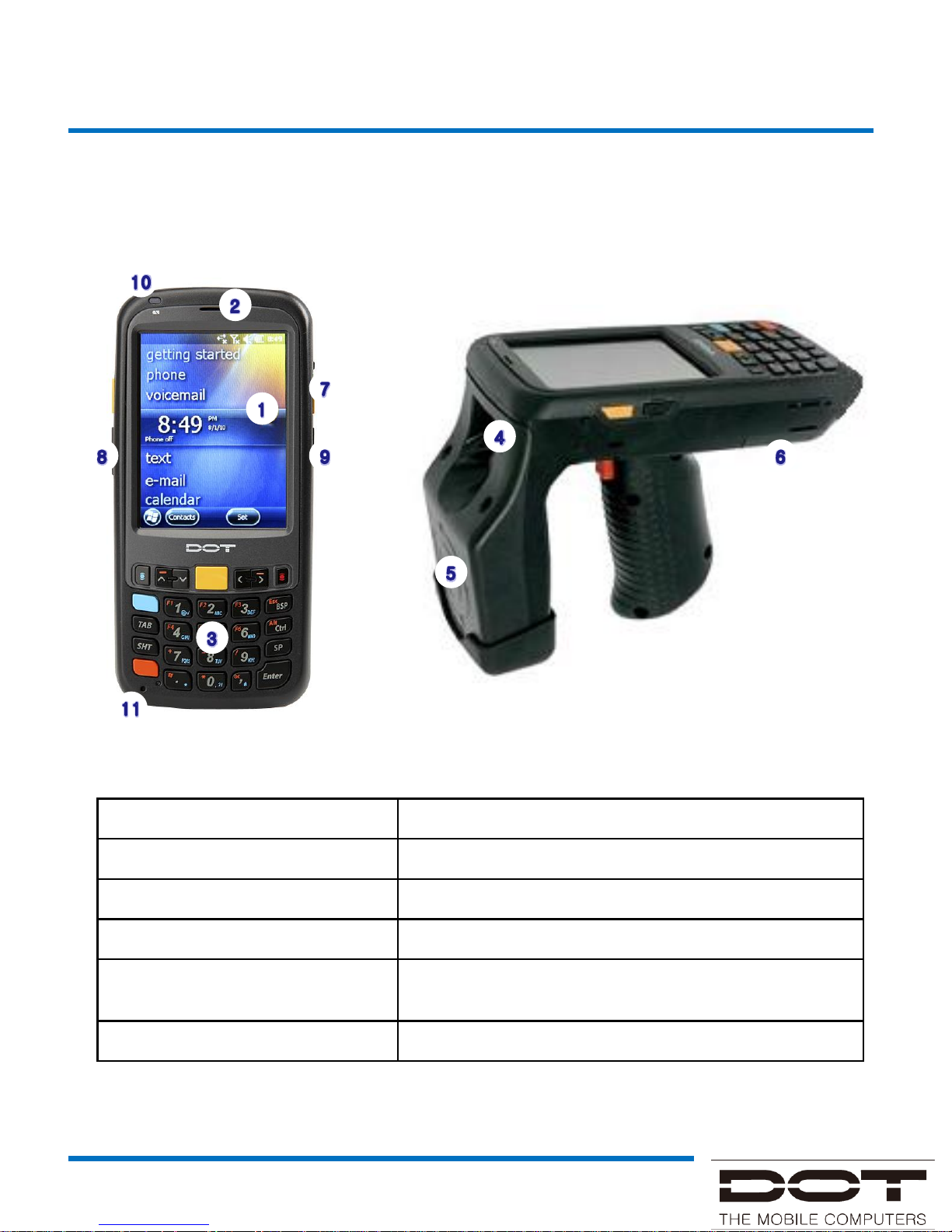
Learning Basics
Model : DOTH-300U
Name of Parts
① LCD ② Receiver: Speaker for telephone use
③ Button ④ Barcode Reader
⑤ UHF Antenna ⑥ Battery
⑦ Barcode Scanner Button ⑧ Volume key
⑨ Sleep Button
⑩ LED • Red : Battery is charging
• Green: Battery is fully charged
⑪ Mic.
Page 8
DOTH-300 Manual
Learning Basics
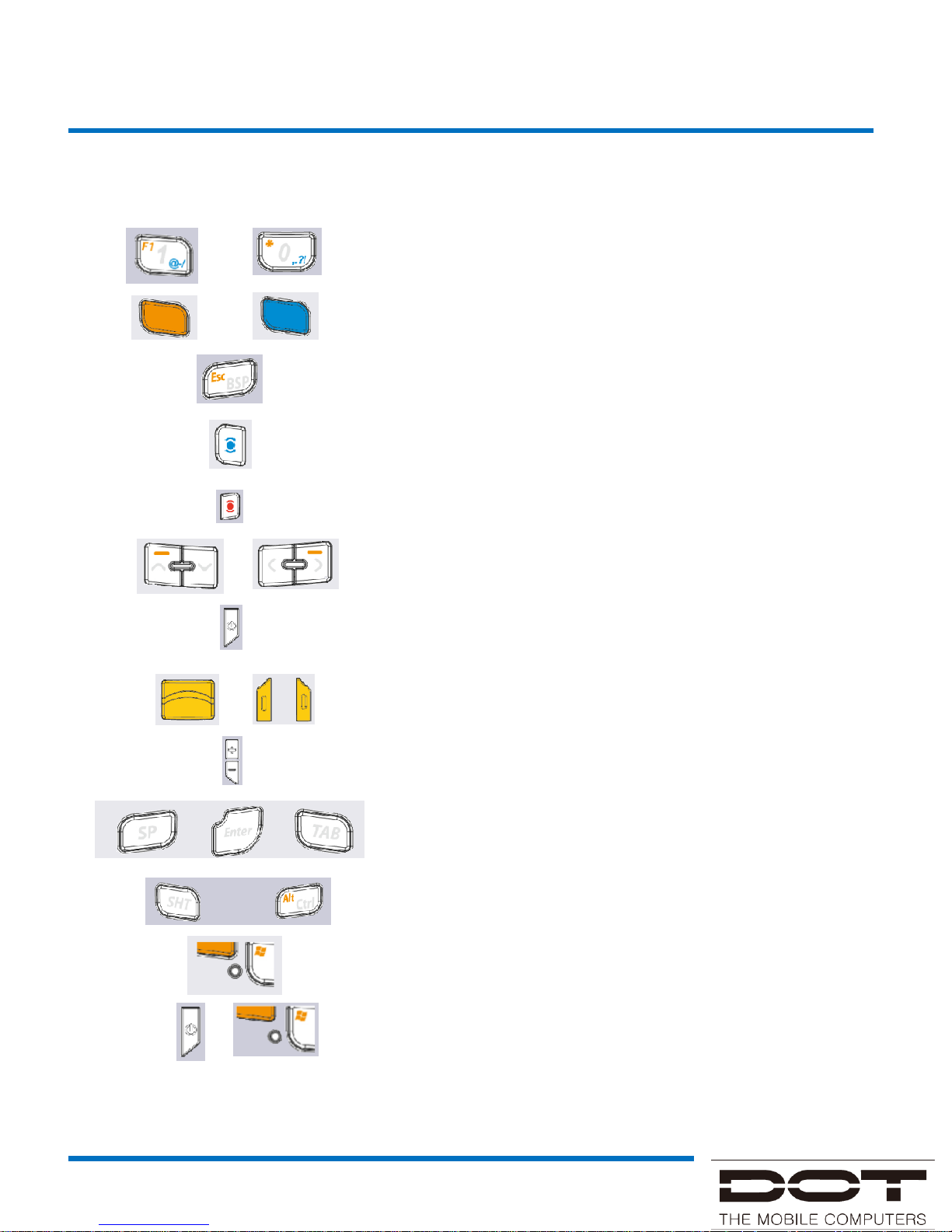
Function of Buttons
Input numbers and letters.
Convert the function of keys to English letter or
symbol key.
Delete one letter when entering letters.
Connect to the latest
call and to receive incoming call
during execution of phone program
.
End call
.
Moving cursor in 4 directions ; up, down, left and right.
Turn on or off the and also used as a sleep mode.
Barcode scan button
Volume up and down while phone function is in use
Space bar,
execution, tab
Shift and control
Soft reset.
Time, date and registry are kept.
Hard reset. Time, date are should be reset.
Page 9
DOTH-300 Manual
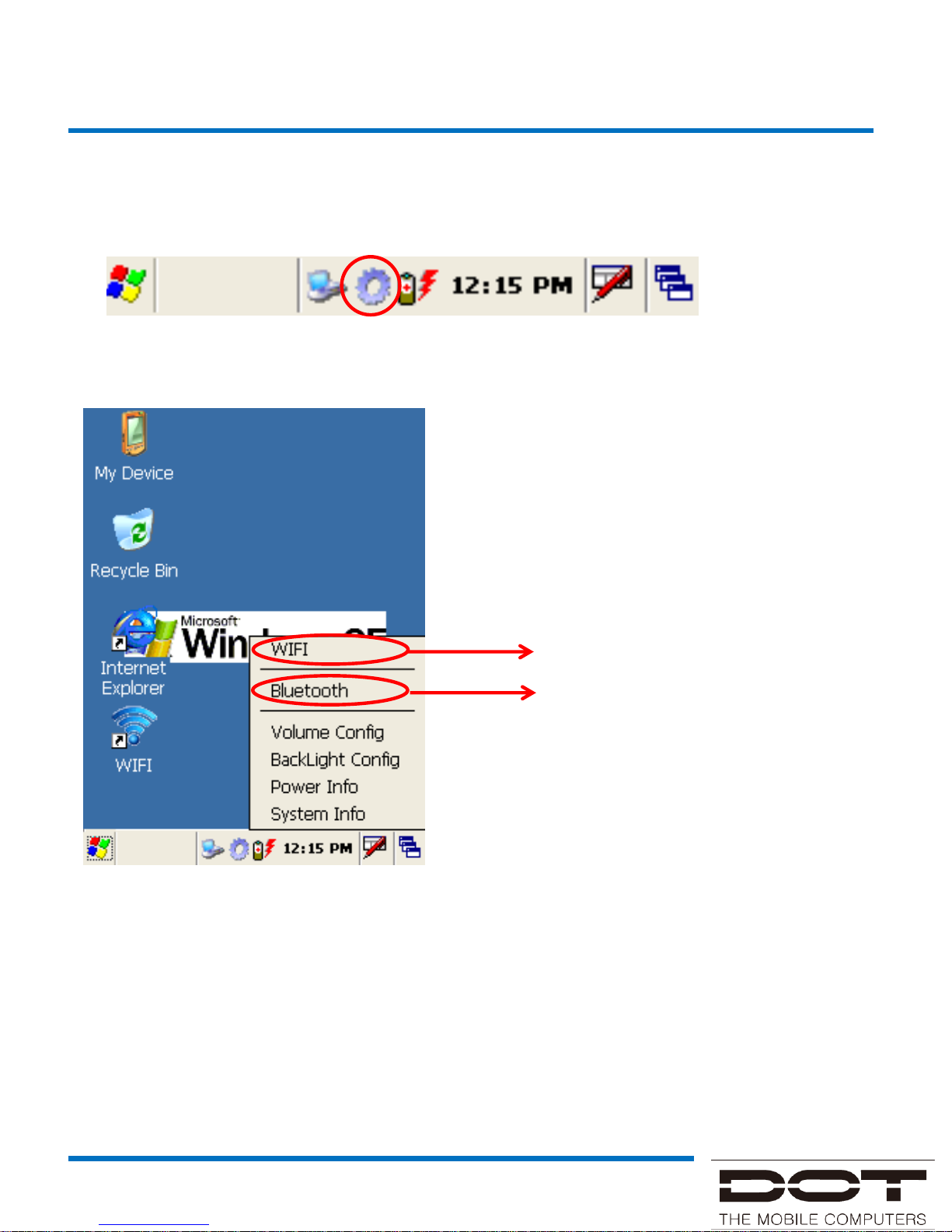
3. Quick Setting
Keyboard Wedge 실행
Refer to WLAN
- Volume Config : Adjust volume and configure sound
- BackLight Config : Adjust display brightness and auto brightness / configure device
power saving mode
- Power Info : Check battery of device
- System Info : Check system information of device
1. Tap on the bottom tray of the Desktop
2. Activate Quick Setting
Refer to Bluetooth search and pairing
User Interface
Tray Program Description
Page 10
DOTH-300 Manual
4. Keyboard Wedge(바코드 스캐너)
Keyboard Wedge 실행
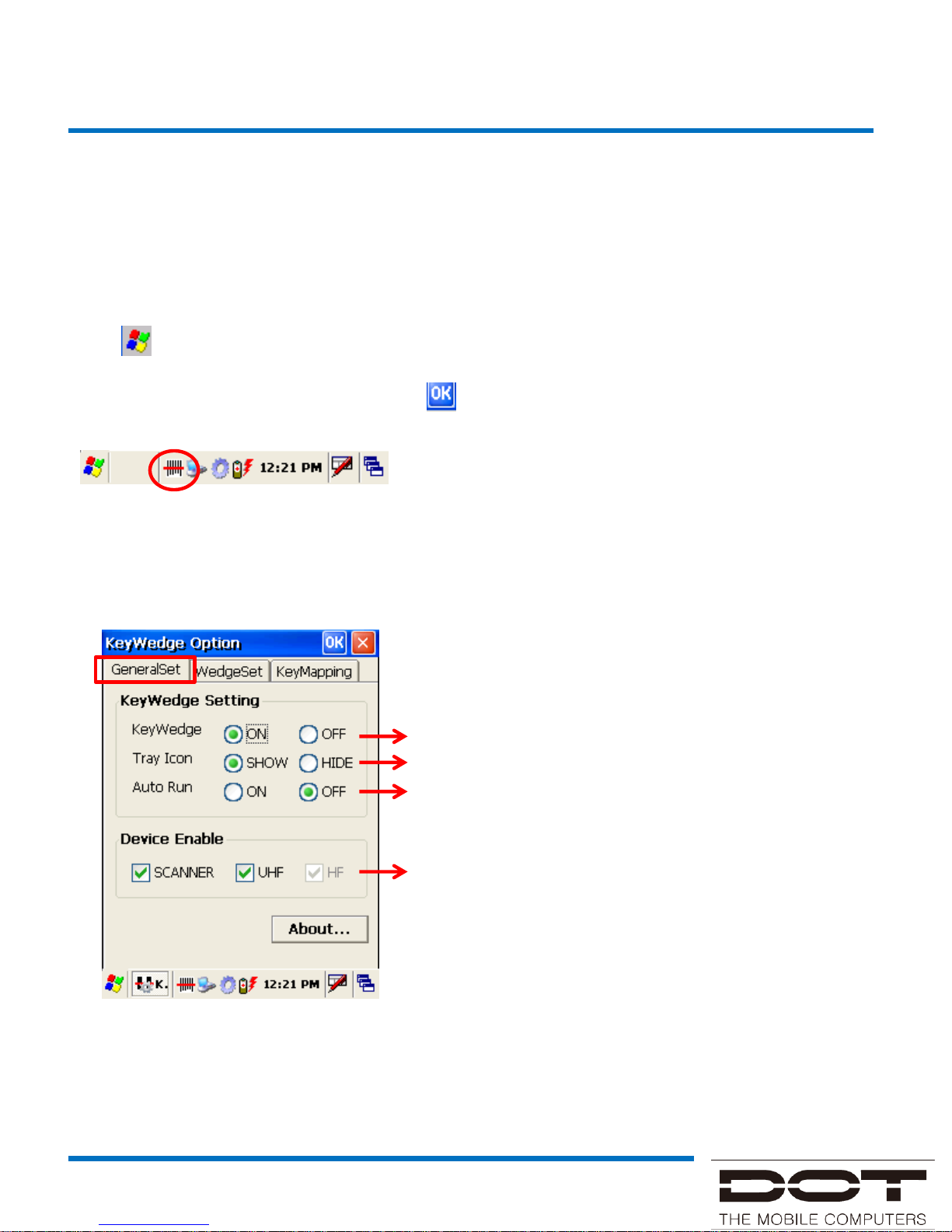
Tap tray icon → Tap Option → Open KeyWedge Option
1. GeneralSet
In order to use the barcode scanner, you can activate/deactivate Keyboard Wedge.
When Keyboard Wedge tray is running, you can configure all the options of the
barcode scanner.
1. Click (icon) on the bottom left the Desktop → Click on KeyWedge of the Program
tab
2. Open KeyWedge Option → Tap KeyWedge ON from the KeyWedge Setting → Tap
(ok icon) on the top right then save
3. KeyWedge tray icon will appear like the bottom figure.
Turn on / off KeyWedge function.
Show / Hide tray icon.
Turn on / off auto run for KeyWedge.
Select the module for KeyWedge function.
User Interface
KeyWedge Description
Page 11
DOTH-300 Manual
4. Keyboard Wedge(바코드 스캐너)
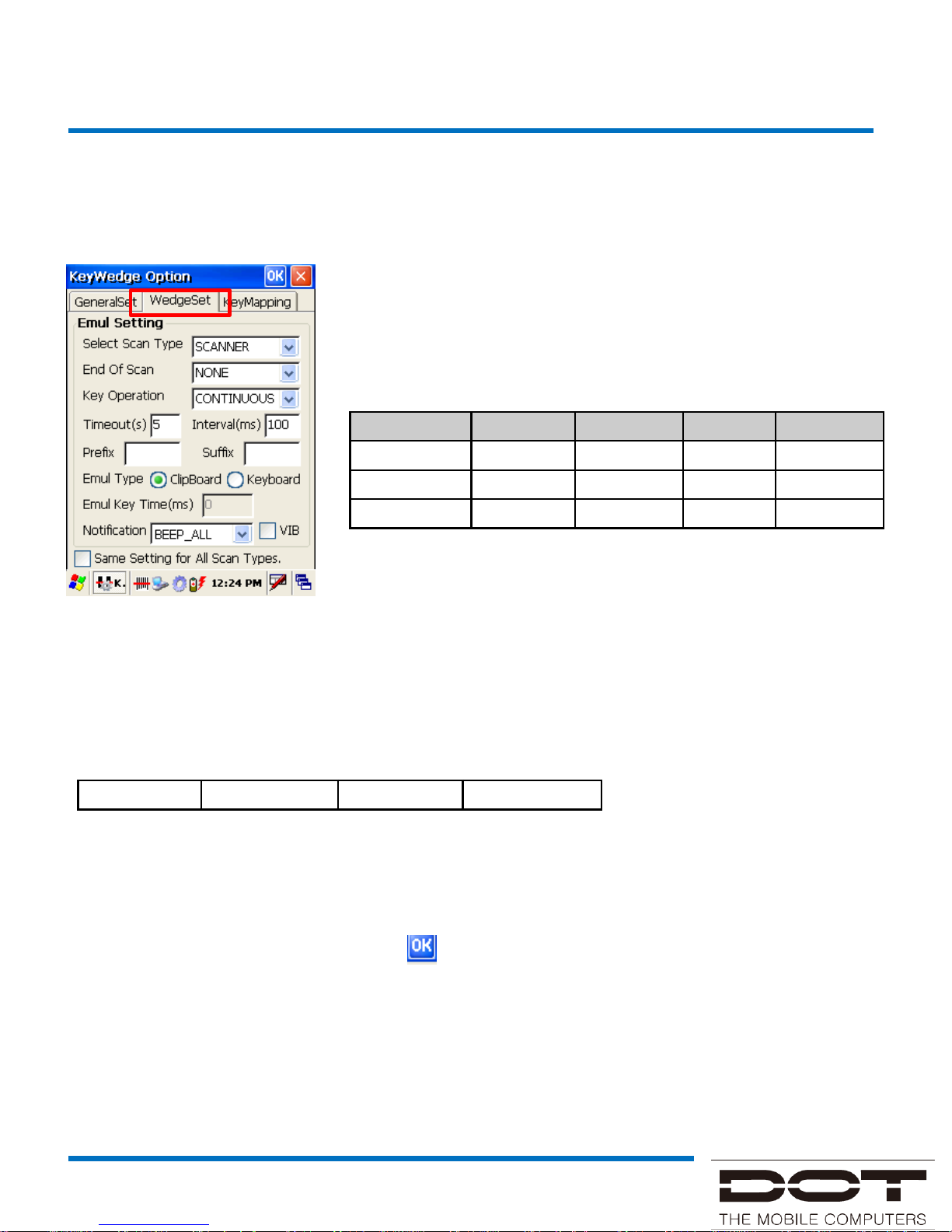
2. WedgeSet
- Timeout : Adjust the time range of successful scan from 1s ~15s
- Interval : 'Configure the interval of initial scan to the next scan in 'Continuous' mode from
100ms ~ 3000ms
- Prefix : Insert up to 5 digits of string before the decoded data
- Suffix : Insert up to 5 digits of string after the decoded data
- Emul Type: 'Clipboard' → Outputs the result values in clipboard form
'Keyboard' → Outputs the result values in keyboard form
- Notification: Alerts that the scan was successful through either sound or vibration
When the setting is complete, tap on on the top of the screen to save.
- Select Scan Type : Select the module for Emul setting.
- End of Scan : Designate command on scanned data appearance
- Key operation : Select scan task mode. Supports three modes.
Mode
Key Down
Key Up Success
Time out
SYNC
Start Stop Stop Stop
ASYNC
Start No change
Stop Stop
CONTINOUS
Start Stop Try again Try again
Prefix
Data
Suffix
End
Of Scan
User Interface
KeyWedge Description
Page 12
DOTH-300 Manual
3. KeyMapping
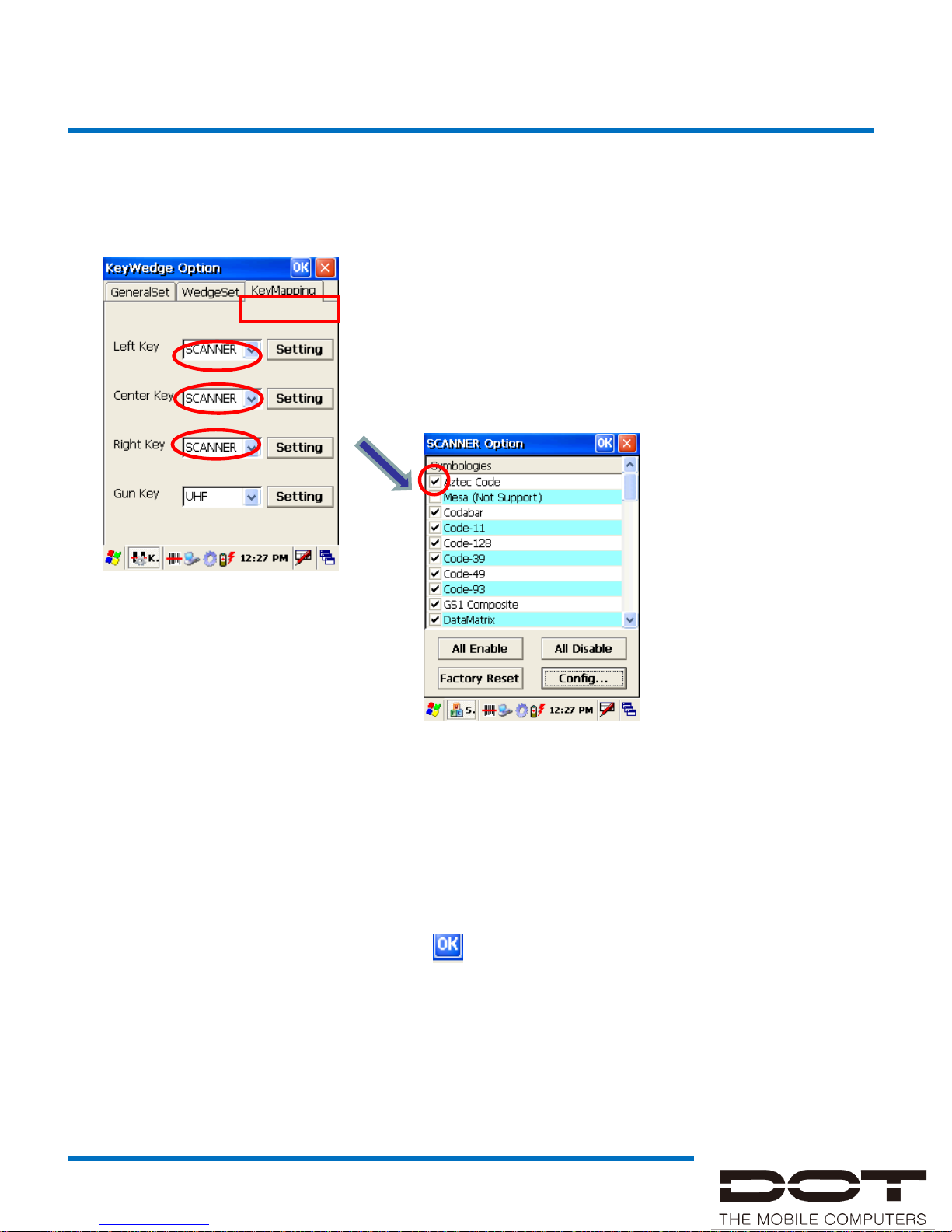
- You can designate the device's Left / Right/ Center
scan key with different types of scan functions
Setting
click
- All Enable : Select all barcodes
- All Disable : Unselect all barcodes
- Factory Reset : All settings will be reset to its initial setting
Select / Unselect the available barcode types that can be
scanned
When the settings are complete, tap the on the top of the screen to save.
SCANNER select
User Interface
KeyWedge Description
Page 13
DOTH-300 Manual
5. Keyboard Wedge(UHF RFID 리더)
Keyboard Wedge 실행
Keyboard Wedge 실행
Keywedge 설정
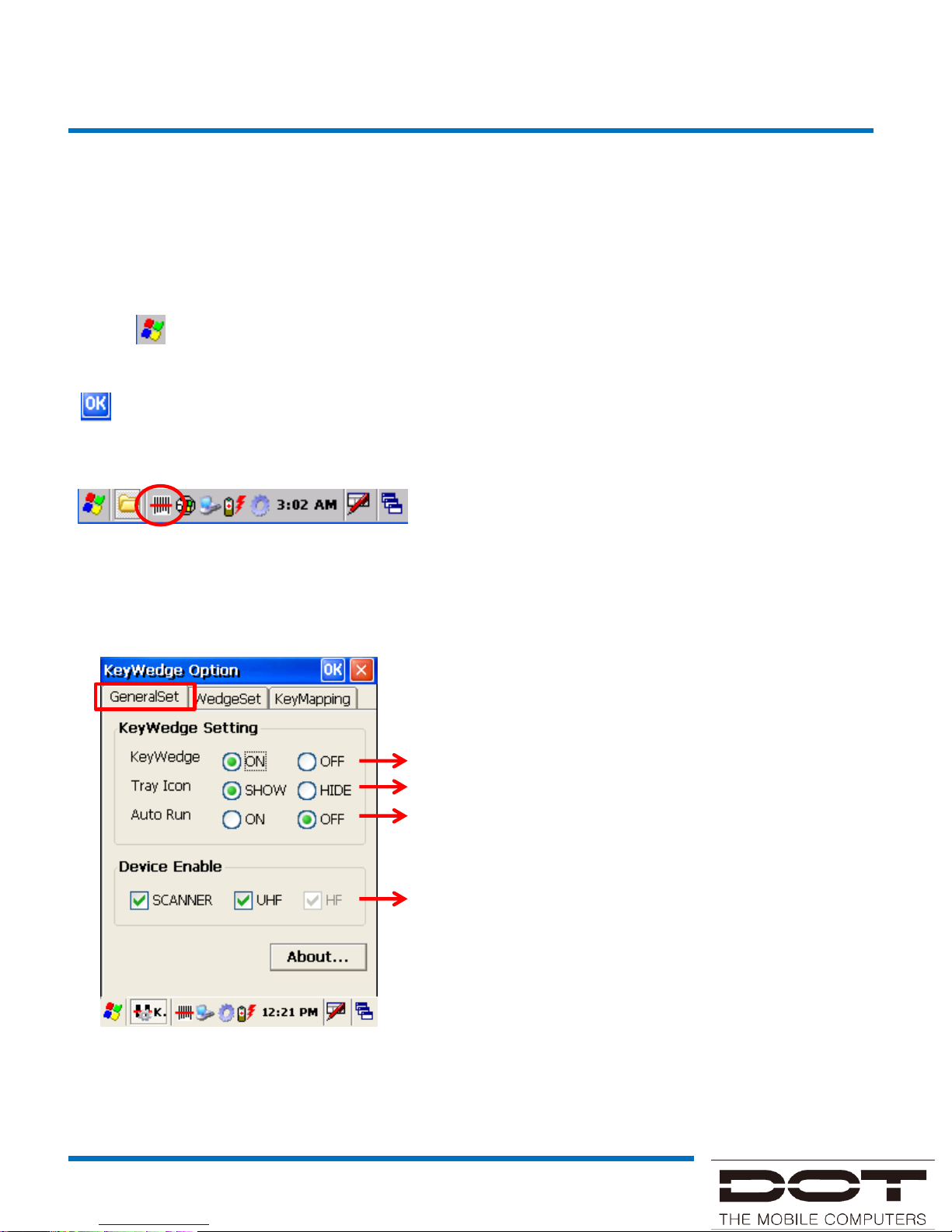
In order to use the UHF RFID reader, you can activate/deactivate Keyboard Wedge.
When Keyboard Wedge tray is running, you can configure all the options of the RFID
reader
1. Click on the bottom left the Desktop → Click on KeyWedge of the Program tab
2. Open KeyWedge Option → Tap KeyWedge ON from the KeyWedge Setting → Tap
on the top right then save
3. KeyWedge tray icon will appear like the bottom figure
Tap tray icon → Tap Option → Open KeyWedge Option
1. GeneralSet
Turn on / off KeyWedge function.
Show / Hide tray icon.
Turn on / off auto run for KeyWedge.
Select the module for KeyWedge function.
User Interface
KeyWedge Description
Page 14
DOTH-300 Manual
Keyboard Wedge 실행
Keywedge 설정
5. Keyboard Wedge(UHF RFID 리더)
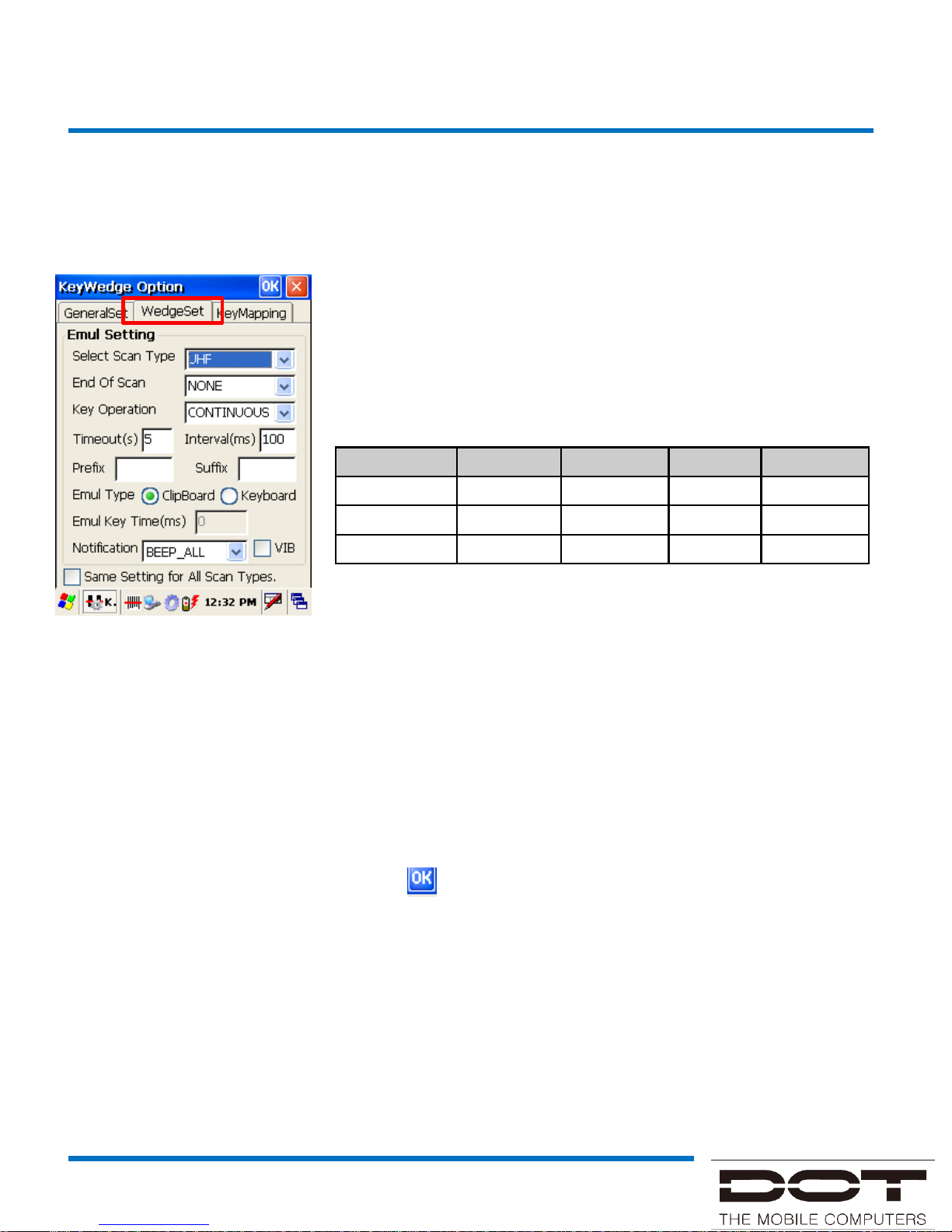
2. WedgeSet
- Timeout: Adjust the time range of successful scan from 1s ~15s.
- Interval: Configure the interval of initial scan to the next scan in 'Continuous' mode from
100ms ~ 3000ms.
- Prefix: Insert up to 5 digits of string before the decoded data.
- Suffix: Insert up to 5 digits of string after the decoded data.
- Emul Type: 'Clipboard' → Outputs the result values in clipboard form.
'Keyboard' → Outputs the result values in keyboard form.
- Notification: Alerts that the scan was successful through either sound or vibration.
When the setting is complete, tap on on the top of the screen to save.
Keywedge 설정
- Select Scan Type : Select the module for Emul
setting.
- End of Scan : Designate command on scanned
data appearance.
- Key operation : Select scan task mode. Supports
three modes.
Mode
Key Down
Key Up Success
Time out
SYNC
Start Stop Stop Stop
ASYNC
Start No change
Stop Stop
CONTINOUS
Start Stop Try again Try again
User Interface
KeyWedge Description
Page 15
DOTH-300 Manual
Keyboard Wedge 실행
5. Keyboard Wedge(UHF RFID 리더)
Max Att1 Att2 Att3 Att4 Att5 Att6 Att7 Att8 Att9
25dBm
-1dB -2dB -3dB -4dB -5dB -6dB -7dB -8dB -9dB
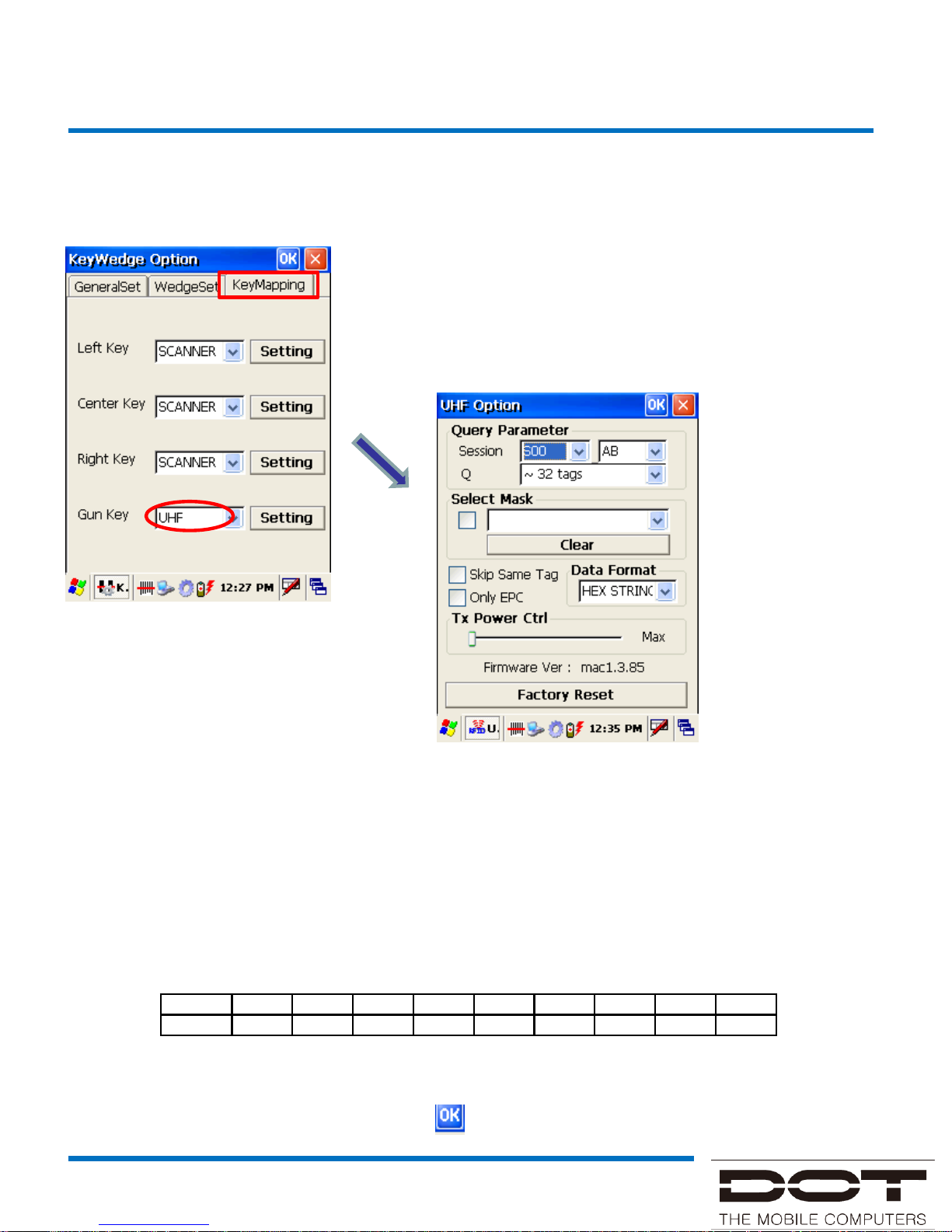
- You can designate the device's Left / Right/ Center
scan key with different types of scan functions.
3. KeyMapping
Setting
Click
SCANNER select
- session : Selects one section among four sections when recognizing in multiple
tag environment. "S00" or "S01" is selected normally for test purposes
- Tag inventory type: Selects one of three types and senses/recognizes the tag's
status. "A" or "AB" is selected normally for test purposes.
- Q : Used for allocating when tag slot is calculated. Default value is "~32 tags" and
the range is 1~32,768.
- Select Mask: Used for recognizing an already saved tag.
- Tx Power Ctrl: Used for adjusting the RF output.
- Factory Reset: All settings will be reset to its initial setting.
When the setting are complete, tap the on the top of the screen to save.
User Interface
KeyWedge Description
Page 16
DOTH-300 Manual
6. Wireless LAN (SUMMIT 탑재)
Keyboard Wedge 실행
무선랜 실행
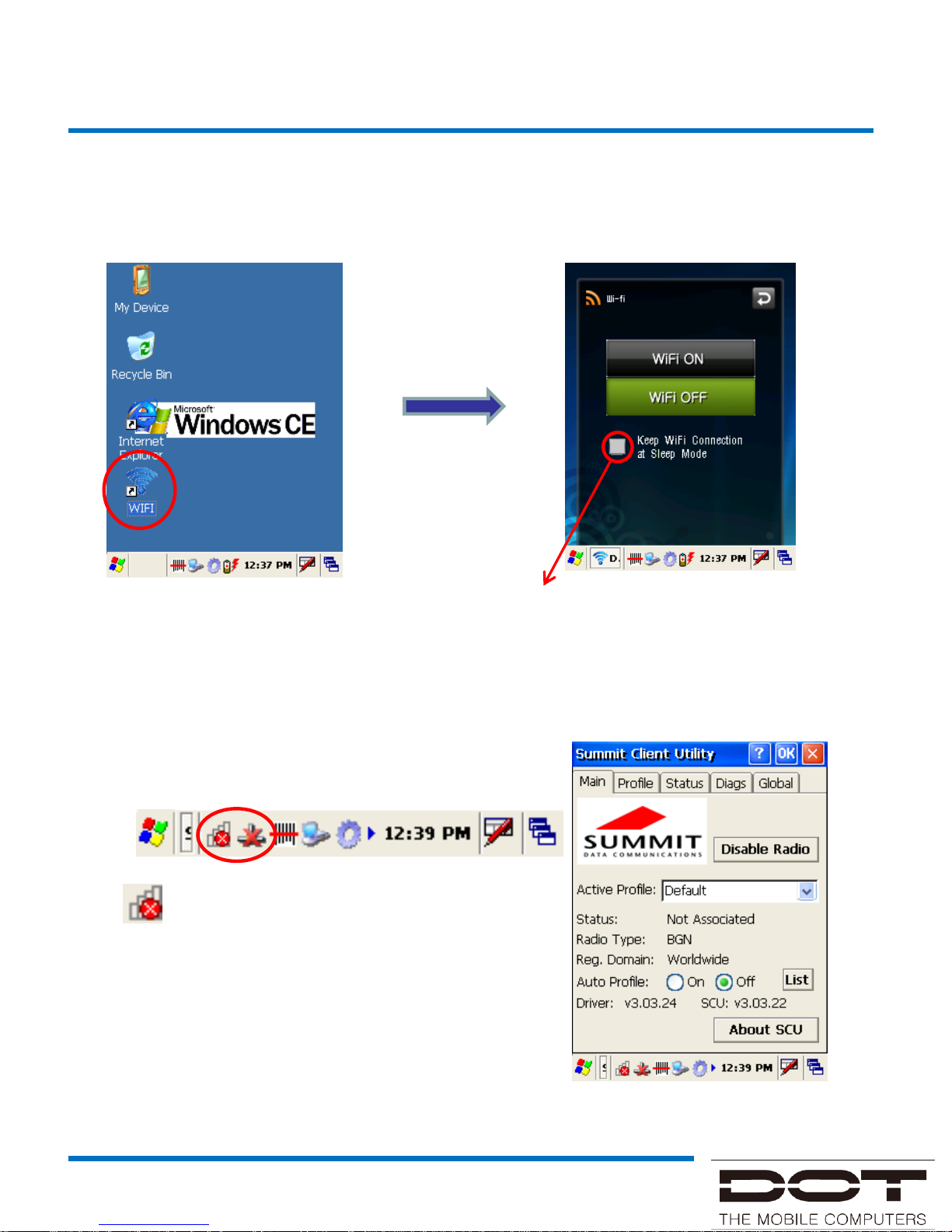
1. Double tap the "WIFI" shortcut
icon on the Desktop
3. Tap WiFi ON
2. Open WiFi ON / OFF window.
Check to maintain WLAN connection during
Sleep Mode.
1. When WLAN is executed, a tray icon appears
on the bottom tray of the Desktop.
2. double tap → Opens configuration screen.
User Interface
WLAN Description
Page 17
DOTH-300 Manual
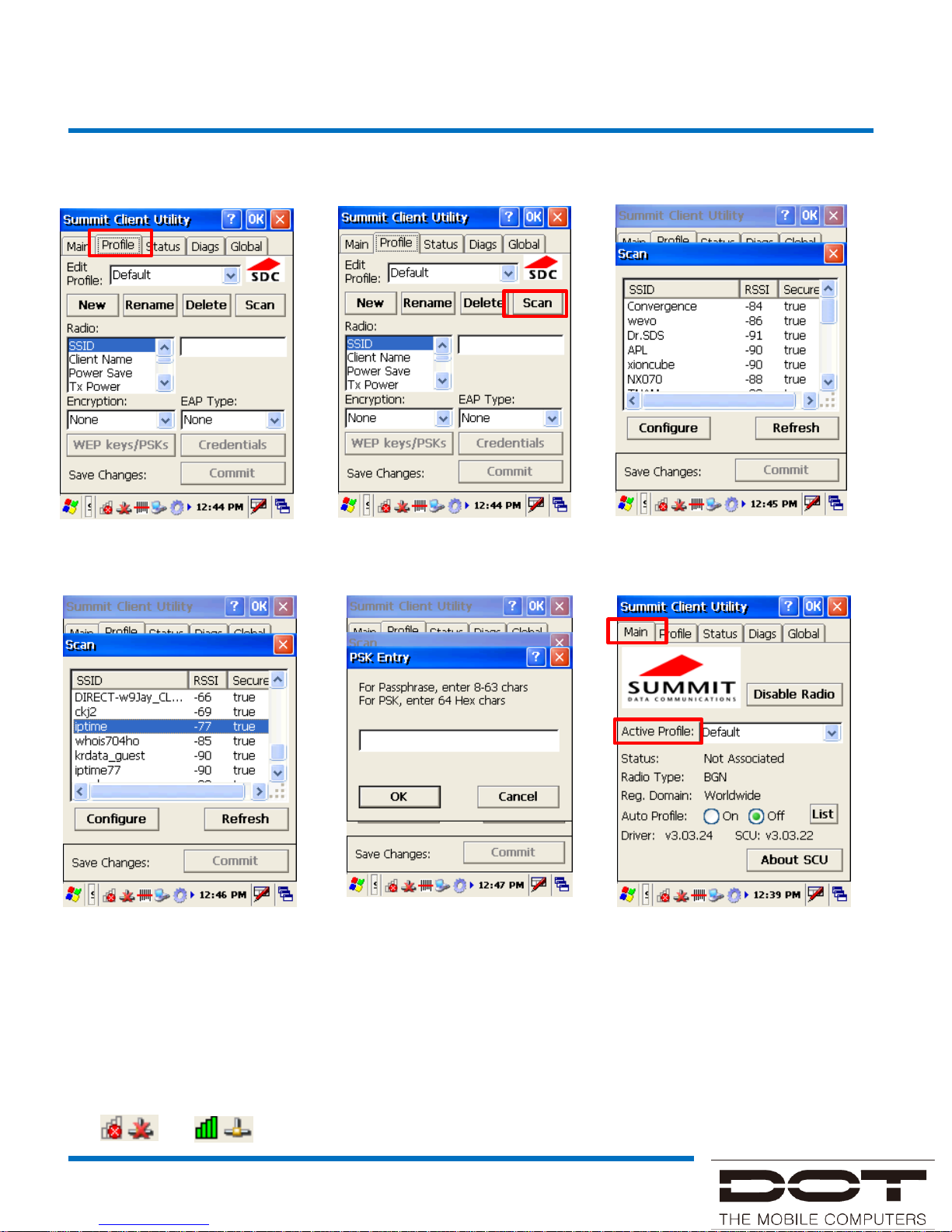
3. Tap Profile
4. Tap Scan
5. Search nearby WLAN SSID
6. Select WLAN
from the list that you
wish to connect,
then tap Configure
7. After inputting
network key, tap OK
→ Tap Apply
8. Tap Main tab → Select
the SSID registered to the
Active Profile
9. When the connection is established the icon on the tray changes from
→
User Interface
WLAN Description
Page 18
DOTH-300 Manual
7. 블루투스
Keyboard Wedge 실행
블루투스 검색 및 페어링
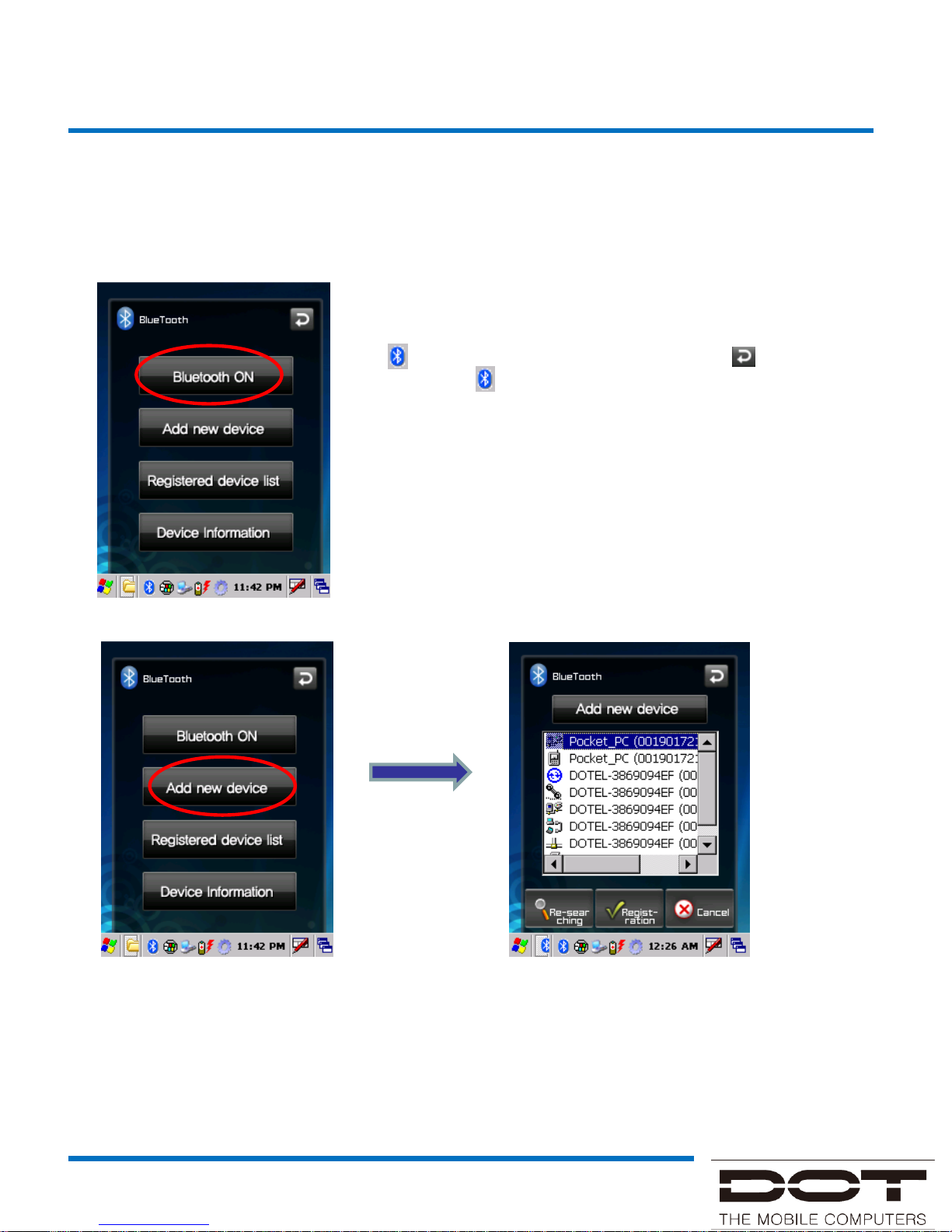
1. My Device (Desktop) → Flash Disk → BLUETOOTH → BluetoothHSSP
-When the Bluetooth is activated, the tray shows
icon; to deactivate tap and press for about
5s until the is removed from the tray.
- Bluetooth ON : Turn on Bluetooth power.
- Bluetooth OFF : Turn off Bluetooth
power(Bluetooth OFF will
appear when Bluetooth is ON)
Select “Add
new device”
- Re-searching : Search for Bluetooth devices
- Registration : Select a Bluetooth device from the result list then tap
Registration → Enter PIN code in the PIN code screen (Default is
normally set to 0000 or 1234) → When the device is registered
you will be moved to the Registered device list window.
User Interface
Bluetooth Description
Page 19
DOTH-300 Manual
7. 블루투스
Keyboard Wedge 실행
블루투스 검색 및 페어링
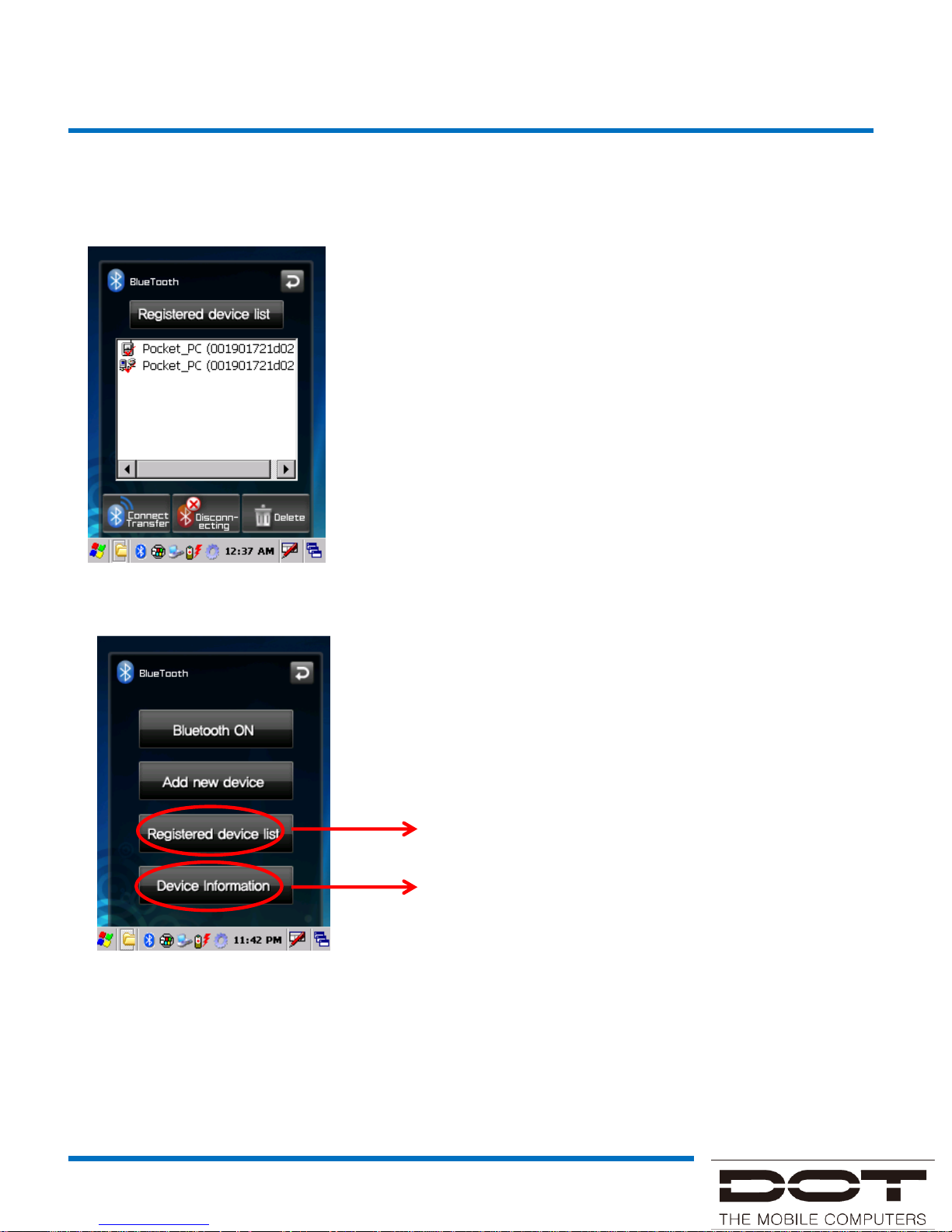
- Connect Transfer : Once a device has previously
been paired, it can be
connected right away from the
registered device list.
- Disconnecting : Disconnects the device.
- Delete : Deletes the device from the Registered
device list.
Displays the devices that has been previously
paired.
Displays the device name, ID, and other
supporting profile information.
User Interface
Bluetooth Description
Page 20
DOTH-300 Manual
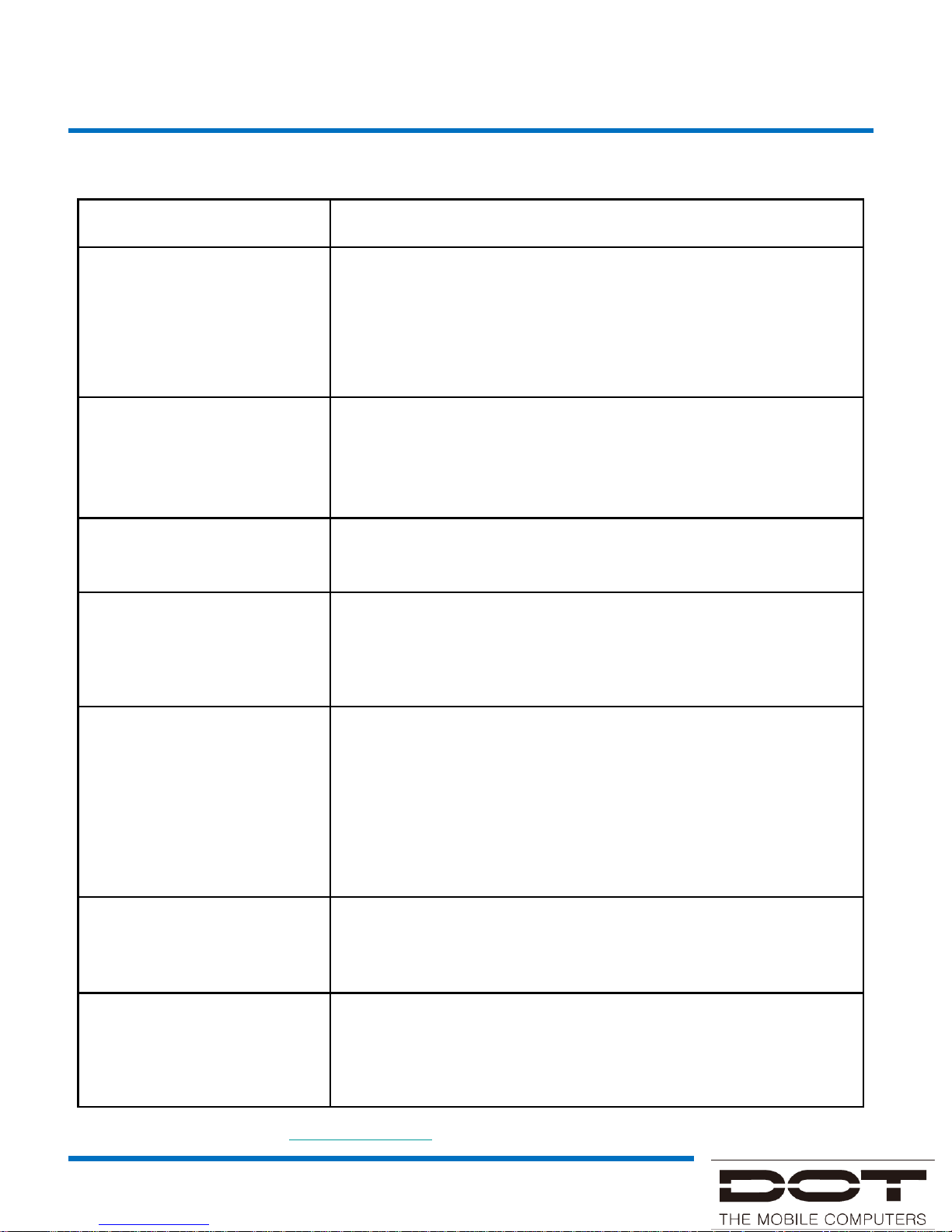
Problem Solving
FAQ
Problem Solution
Product does not turn on.
When the product is shipped from the factory, the circuitry is
disconnected. Press the power button for 2 seconds or
longer, when the product will turn on. Check if the battery is
fully charged and charge the battery before using the product.
No sound from the speaker.
Check if the earphone is plugged in. If the earphone is not
plugged in, the speaker will not output any sound.
Check if the volume of the product is not set at 0.
Screen is dark.
Enter into ‘Setup’ and adjust the lighting.
I do not understand what is
explained in the manual.
Use customer support in the Web site or contact customer
center over phone, when we will sincerely answer your
questions.
The product seems to be
hot.
This product is designed to properly radiate the heat
generated inside the product through the case. If the product
is used for a long period of time or the adapter is connected
for long, you may feel warmth from the case. Please use the
product at ease as there is no problem with the product.
Buttons cannot be pressed
or screen touch does not
work
Check if the line is connected or in hold state
The PC does not
recognize the product.
If the connection is frequently cut and instable, please
connect the product not to a separate hub but directly to the
USB terminal of the PC.
Please visit us on web www.dotel.co.kr for more FAQ in detail
Page 21
DOTH-300 Manual
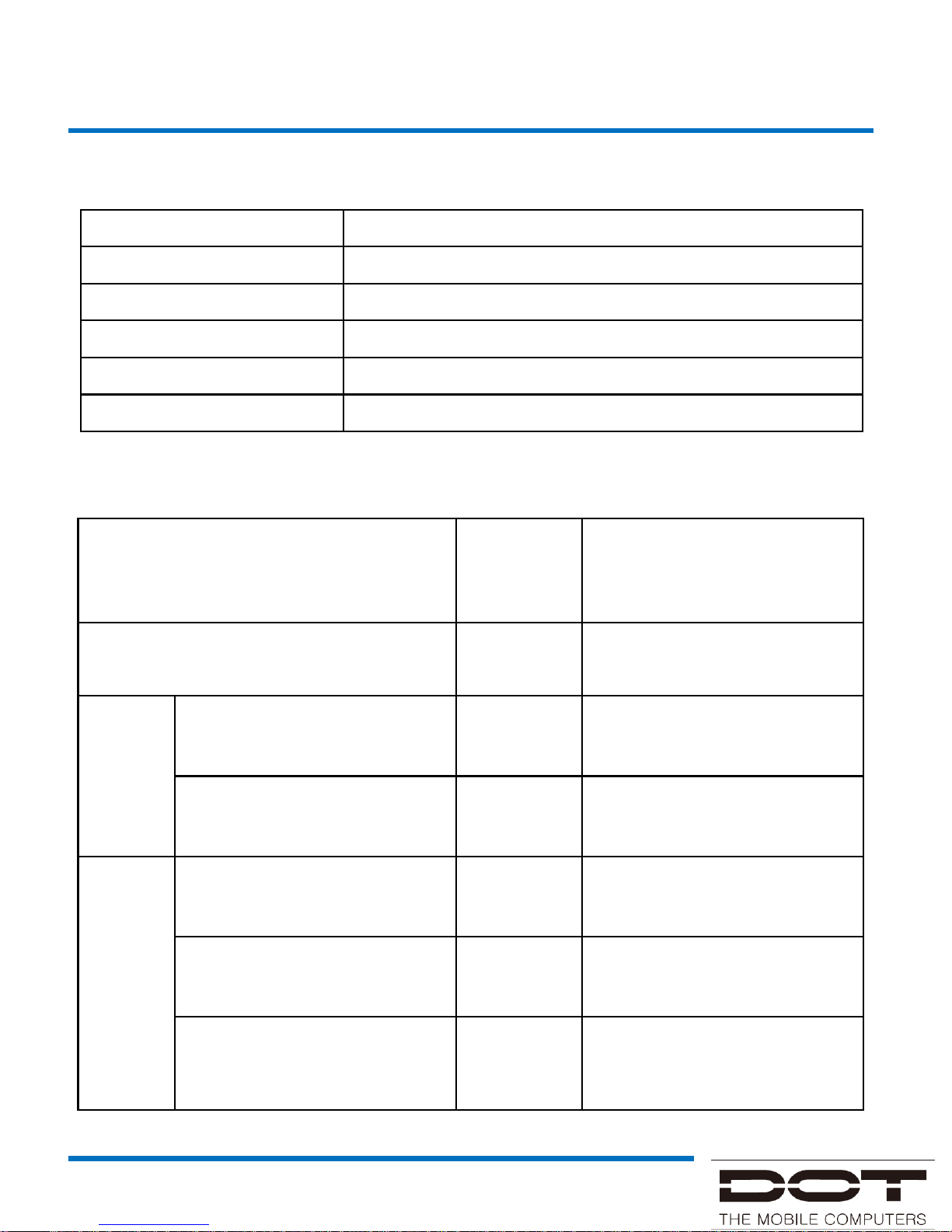
Classification Content
Model name DOTH-300S / DOTH-300C / DOTH-300U
Date of purchase
Purchased from
Manufacturing no.
Warranty period One year from the date of purchase
Product failure type
Within
warranty
period
Out of warranty
Failure within 10 days after purchase Replace
Repair
Failures more than 3 times
due to same defect
Free repair Repair at a cost
Failures more than 4 times
due to same defect
Replace Repair at a cost
Non-
Repair
If repair is impossible within
one month after the purchase
Replace
Replace after deducting a
fixed amount of depreciation
If repair is impossible due to
unavailability of repair part
Replace
Replace after deducting a
fixed amount of depreciation
If replacement is impossible Refund
Refund the amount after
deducting a fixed amount of
depreciation plus 10 percents
Warranty
Product Warranty
Service Policy
Page 22
DOTH-300 Manual
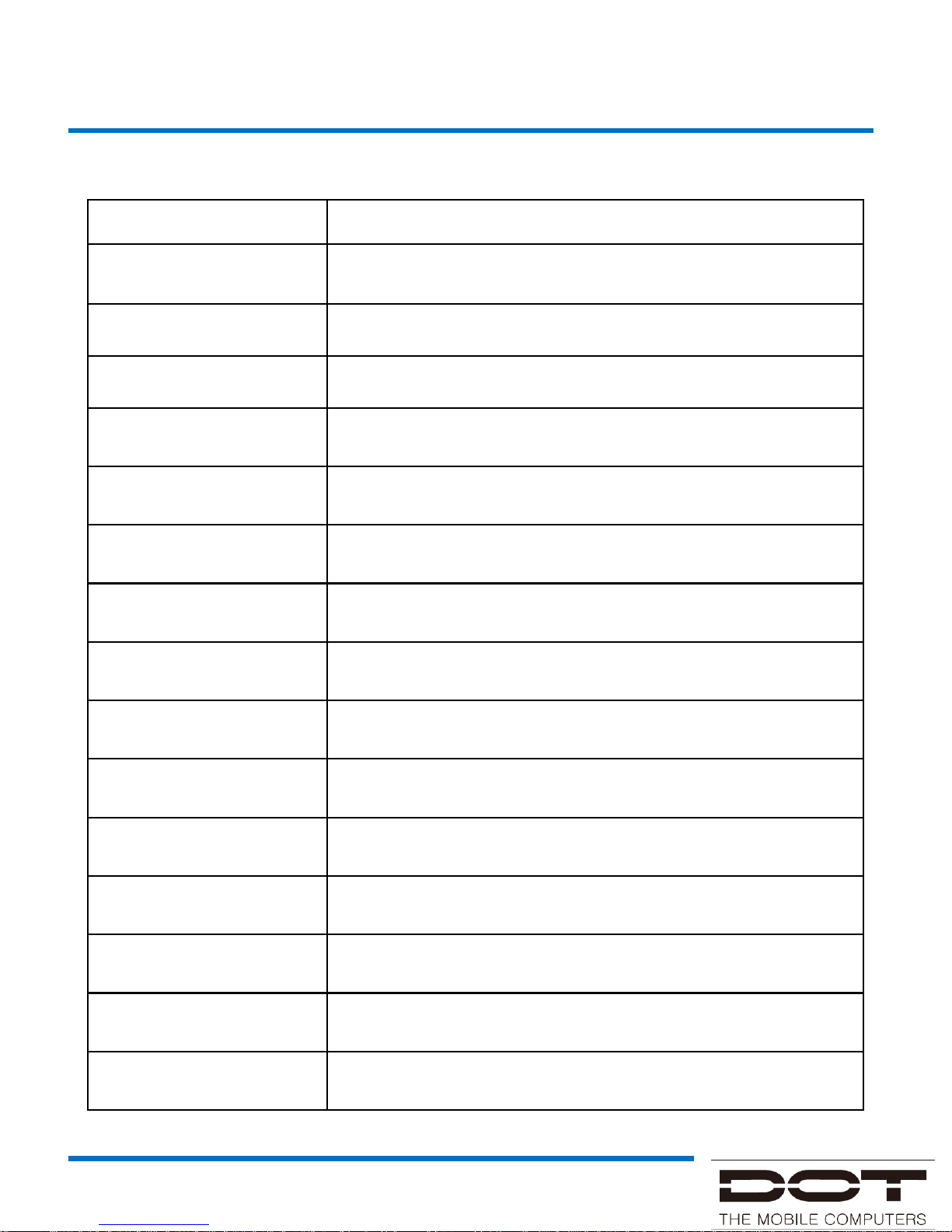
Classification Content
OS Windows Mobile 6.5 / Windows CE
CPU PXA320 806MHz
Display 3.5 inch
Memory RAM : 256MB, ROM : 512MB ( Option up to 1GB )
Key Numeric, Qwerty, Azerty
Battery Standard 2,400 mAh / 3,600 mAh (Optional) Li-on Polymer
GPS A-GPS
Telecom HSUPA, GSM, EDGE, GPRS, WCDMA2100
Bluetooth Bluetooth Ver2.0 Class
Barcode Scanner 1D Scanner, 2D Imager(Optional)
WLAN IEEE 802.11 b/g/n, a/b/g (Optional)
Camera 3M pixel with Auto focus & Flash
HF RFID 13.56MHz ISO 15693 / ISO 14443 (MiFare) and B(optional)
Dimensions 75(W) X 159(H) X 22(D)
Weight 270g
Specification
DOTH-300S
Page 23
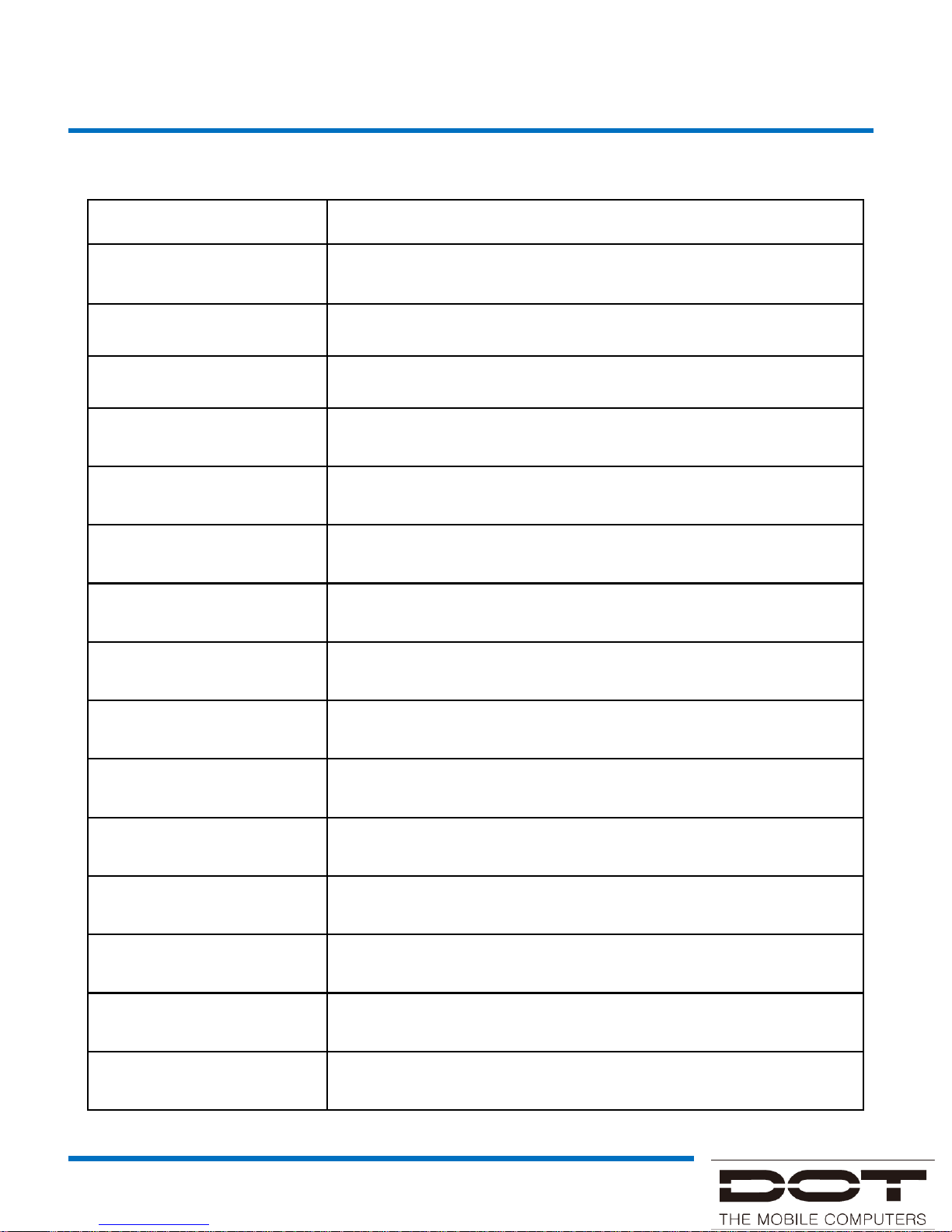
DOTH-300 Manual
Classification Content
OS Windows Mobile 6.5 / Windows CE
CPU PXA320 806MHz
Display 3.5 inch
Memory RAM : 256MB, ROM : 512MB ( Option up to 1GB )
Key Numeric, Qwerty, Azerty
Battery Standard 2,400 mAh / 3,600 mAh (Optional) Li-on Polymer
GPS A-GPS
Telecom HSUPA, GSM, EDGE, GPRS, WCDMA2100
Bluetooth Bluetooth Ver2.0 Class
Barcode Scanner 1D Scanner, 2D Imager(Optional)
WLAN IEEE 802.11 b/g/n, a/b/g (Optional)
Camera 3M pixel with Auto focus & Flash
HF RFID 13.56MHz ISO 15693 / ISO 14443 (MiFare) and B(optional)
Dimensions 75(W) X 159(H) X 22(D)
Weight 270g
Specification
DOTH-300S
Page 24
DOTH-300 Manual
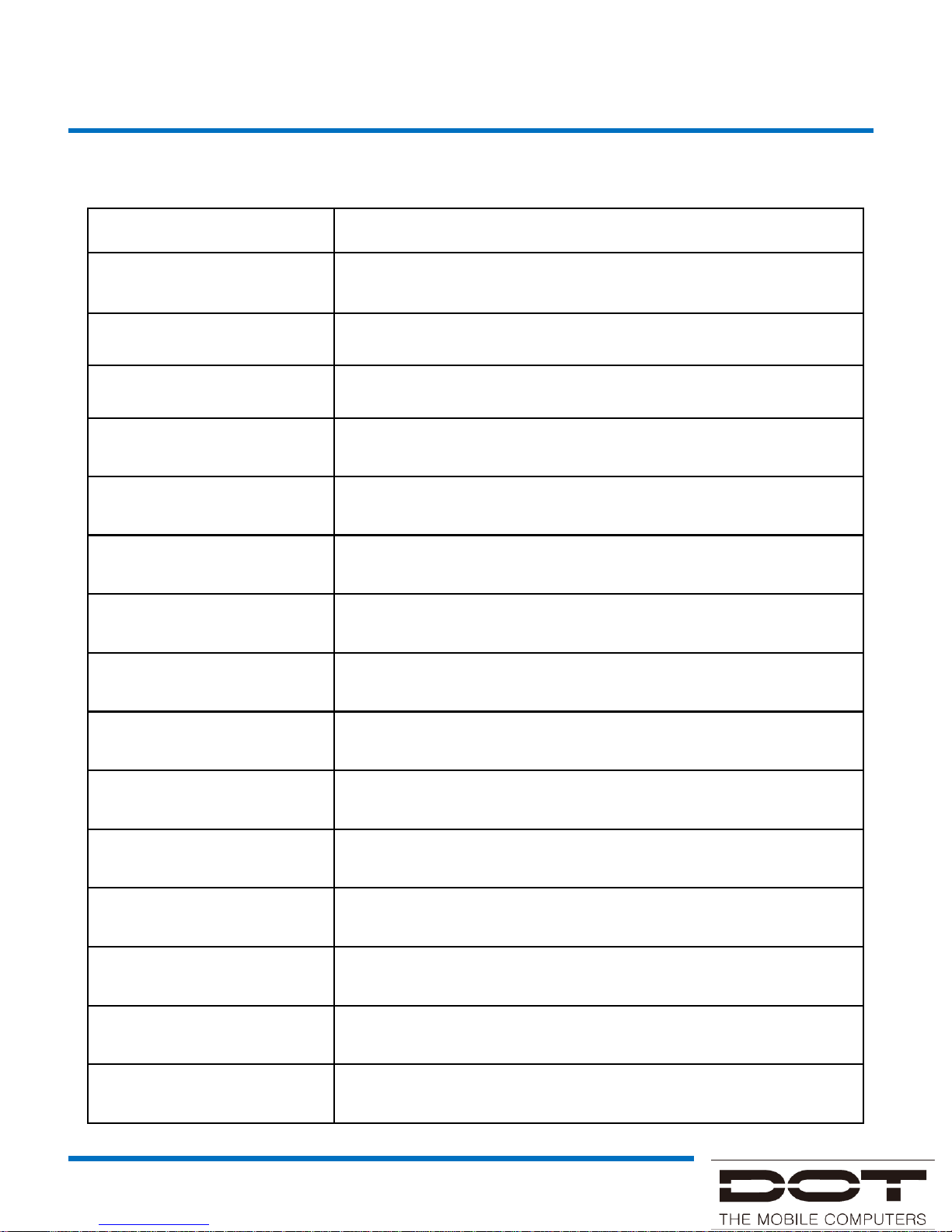
Specification
DOTH-300C
Classification Content
OS Windows Mobile 6.5 / Windows CE
CPU PXA320 806MHz
Display 3.5 “ QVGA(240X320), VGA(480X640), 262K color
Memory RAM : 256MB, ROM : 512MB ( Option up to 1GB )
Key Numeric, Qwerty, Azerty
Battery 4,000 mAh (Optional) Li-on Polymer
GPS A-GPS
Telecom HSUPA, GSM, EDGE, GPRS, WCDMA2100
Bluetooth Bluetooth Ver2.0 Class
Barcode Scanner 1D Scanner, 2D Imager(Optional)
WLAN IEEE 802.11 b/g/n, a/b/g (Optional)
Camera 3M pixel with Auto focus & Flash
UHF RFID ISO 18000-6C, EPC Class1 Gen2
Dimensions 75(W) X 159(H) X 32(D)
Weight 350g
Page 25
DOTH-300 Manual
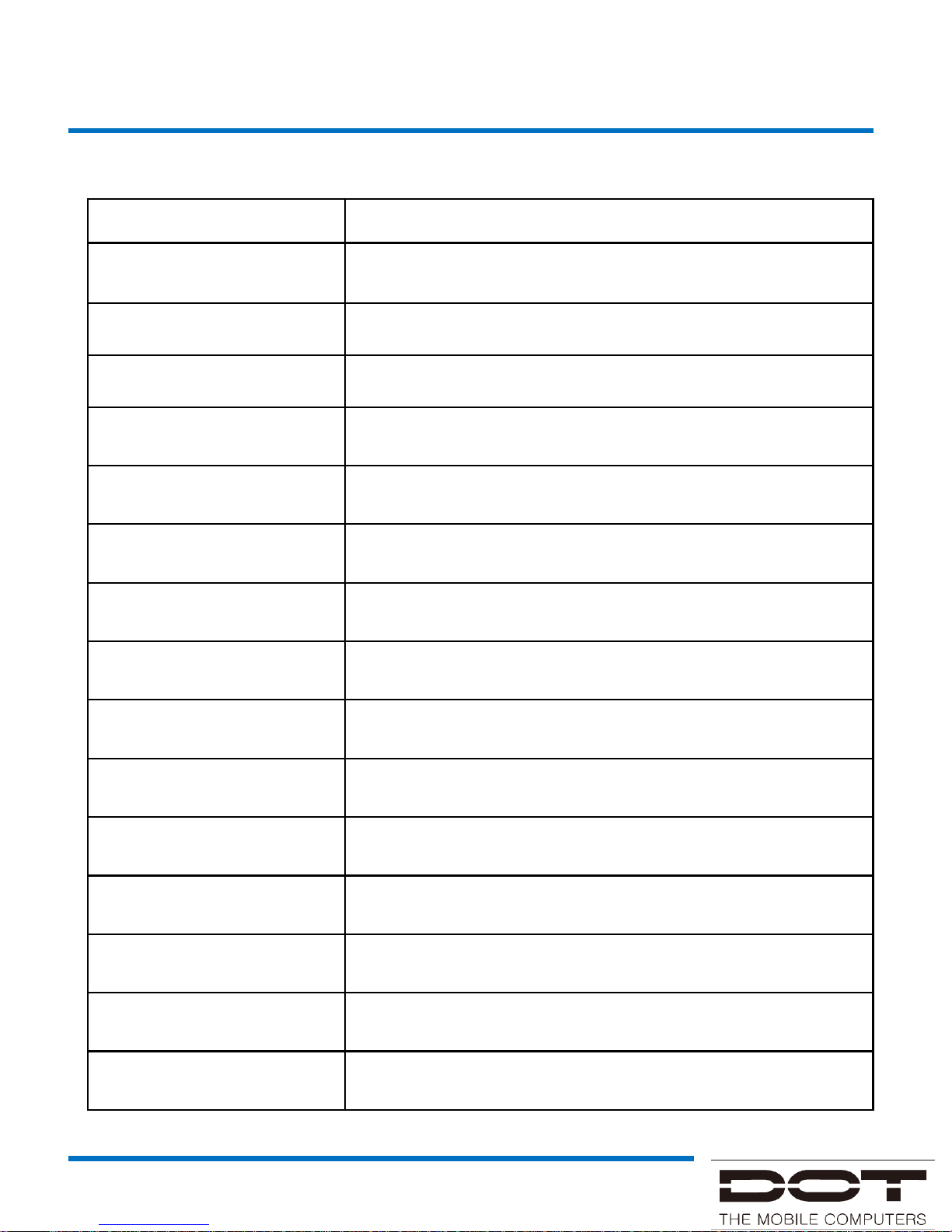
Specification
DOTH-300U
Classification Content
OS Windows Mobile 6.5 / Windows CE
CPU PXA320 806MHz
Display 3.5 inch
Memory RAM : 256MB, ROM : 512MB ( Option up to 1GB )
Key Numeric, Qwerty, Azerty
Battery Standard 4,000 mAh / Gun : 2,600 mAh / Li-on Polymer
GPS A-GPS
Telecom HSUPA, GSM, EDGE, GPRS, WCDMA2100
Bluetooth Bluetooth Ver2.0 Class
Barcode Scanner 1D Scanner, 2D Imager(Optional)
WLAN IEEE 802.11 b/g/n, a/b/g (Optional)
Camera 3M pixel with Auto focus & Flash
HF RFID Frequency 865-928 MHz
Dimensions 75(W) X 174(H) X 129(D)
Weight 530g
 Loading...