

Page 1
DECT indePENDANT
Your private Emergency Call
Emergency Call Fall Alarm Smoke Alarm Reminder Daytime
Telephone name list Handsfree Phone Voice Assistant Operating all DECT stations
User Guide
You will find more up-to-date operating instructions on enclosed USB-stick
or on your distributor’s website
Page 2

This Manual V1.0 has not been reviewed
and may contain non-actualized data and information
Please contact Website of Supplier or Dealer
and download actualized version of Manual
Page 3

Contents
with (*) marked: minimum settings
1 Overview
1.1 operating elements and LEDs …………………………………………….. 4
2 Getting started
2.1 package contents check …………………………………………….. 5
2.2 place Charging Disc and charge Device (*) …………………………………………….. 6
2.3 subscribe to DECT Base Station (*) see also chap 3.3 …………………………………………….. 7
2.4 check telephone line (*) …………………………………………….. 8
2.5 hints regarding DECT Range …………………………………………….. 8
3 Settings via PC APP
3.1 install and use PC APP …………………………………………….. 9
3.2 language selection …………………………………………….. 10
3.3 enter personal data …………………………………………….. 11
3.4 login to DECT Base Station.. see also chap 2.3 …………………………………………….. 12
3.5 Help Call/emergency call sequence …………………………………………….. 13
3.6 Family & Friends contacts …………………………………………….. 14
3.7 Fall Detection / help call sequence …………………………………………….. 16
3.8 Smoke Alarm / help call sequence... …………………………………………….. 15
3.9 time-dependent instruction set (Reminder) …………………………………………….. 17
3.10 general settings …………………………………………….. 18
3.11 system settings …………………………………………….. 19
4. Special instructions
4.1 Fall Detection …………………………………………….. 21
4.2 Smoke Alarm detection …………………………………………….. 22
5 Important notes
5.1 troubleshooting Guide …………………………………………….. 23
5.2 Device charging …………………………………………….. 25
5.3 hands-free speaker …………………………………………….. 25
5.4 adjusting necklace length …………………………………………….. 25
5.5 protection against environmental influences …………………………………………….. 25
5.6 cleaning …………………………………………….. 26
5.7 repair …………………………………………….. 26
5.8 disposal …………………………………………….. 26
5.9 warranty …………………………………………….. 26
5.10 CE Declaration of Conformity …………………………………………….. 26
5.11 technical services …………………………………………….. 26
6 Technical data …………………………………………….. 27
7 Ordering information …………………………………………….. 27
User Manual Guide DECT indePENDANT EN 04-2019 3 von 27
Page 4
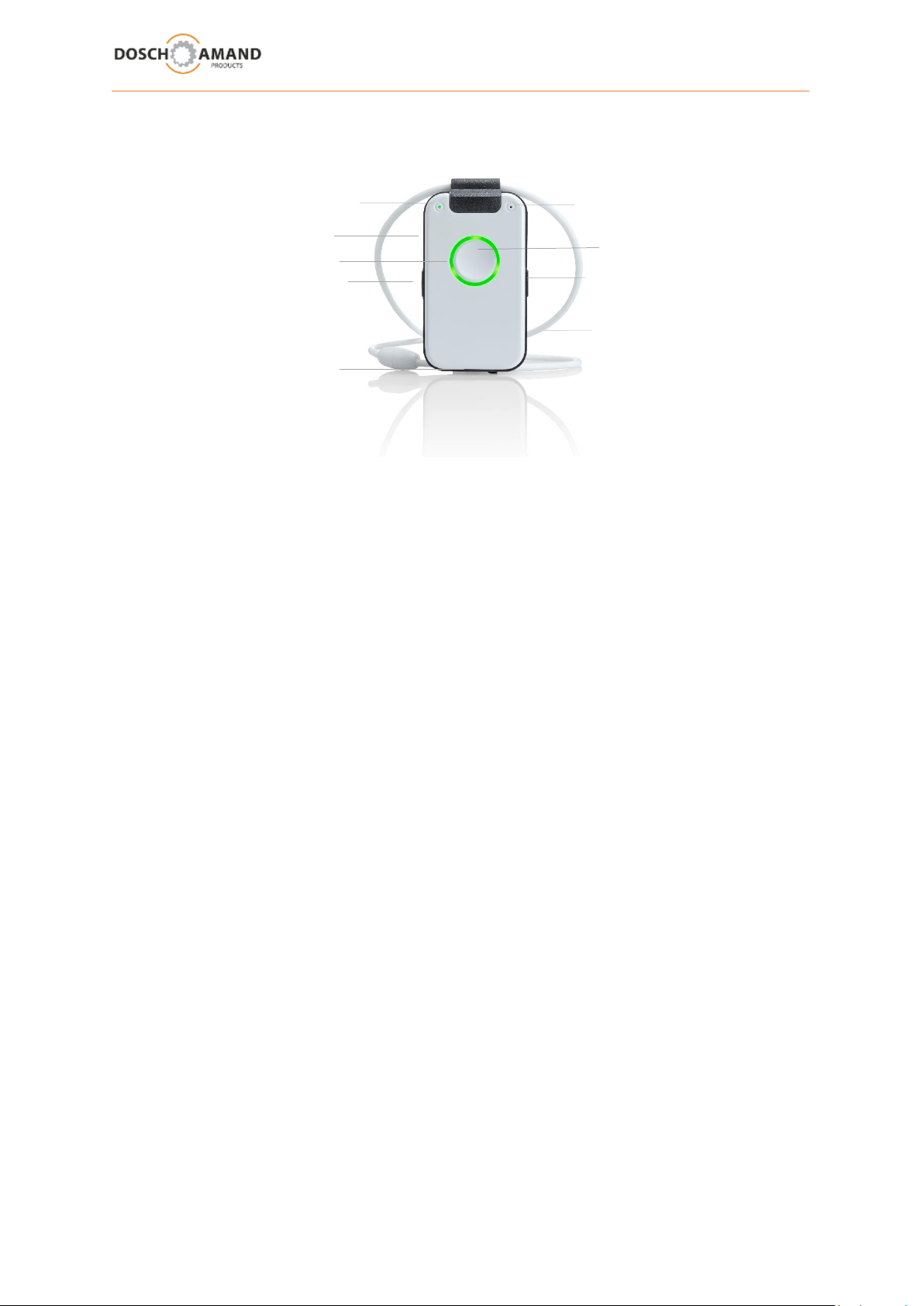
Call Button
Status LED
Loudspeaker
left Side Key
Microphone
Micro USB
right Side Key
Ring LED
Necklace
1 Overview
Call Button
___________________________________________________
press long trigger help call
press short trigger stop ongoing connection
various functions according to announcement
Side Key __________________________________________________
press short trigger select of a number (Idle state)
increase volume (duRing call)
press long trigger both at the same time: switch off the Device
Status LED ___________________________________________________
Radio range and battery status indicator
green 1/20 sec both functions work correctly
yellow 1/5 sec one or both functions at borderline
red 1/1 sec one or both functions in error state
Ring LED ___________________________________________________
red permanent there is a telephone to call for help
red flashing dialing a phone number is enabled
green permanent there is a telephone connection
green flashing incoming phone call
yellow permanent there is a link with PC app via USB
yellow flashing DECT Subscription ongoing
3D sensor has been activated; possible man-down detected
USB connector ___________________________________________________
Micro USB for connection with PC via supplied cable
Page 5
2 Getting started
2.1 package contents check
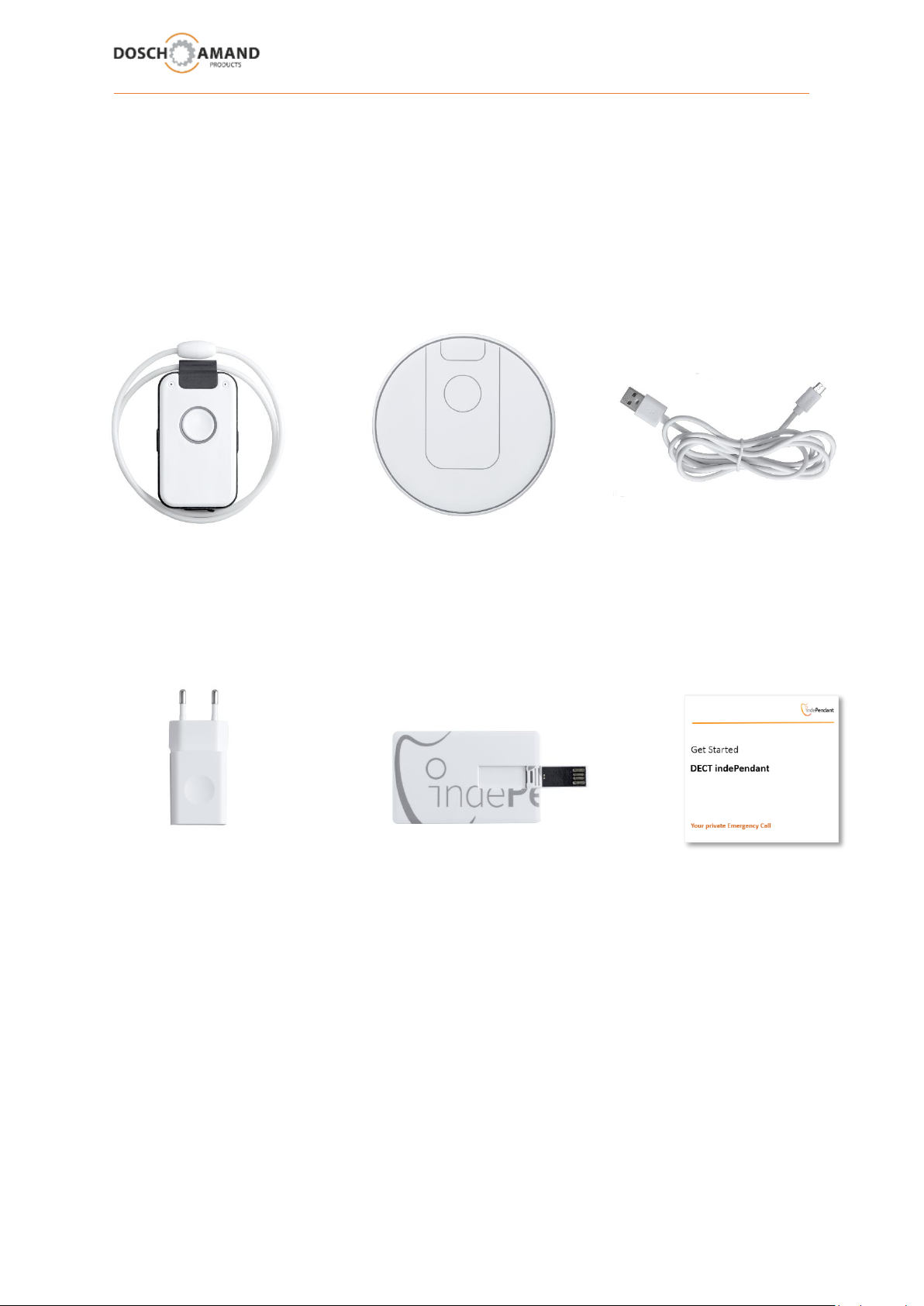
The packaging contains following articles:
DECT Pendant Qi Charge Disk USB Cable
with Necklace
USB Power Adapter USB Stick with Get Started
Configuration Software
User Manual Guide DECT indePENDANT EN 04-2019 5 von 27
Page 6
2 Getting started
2.2 place Charging Disc and charge Device
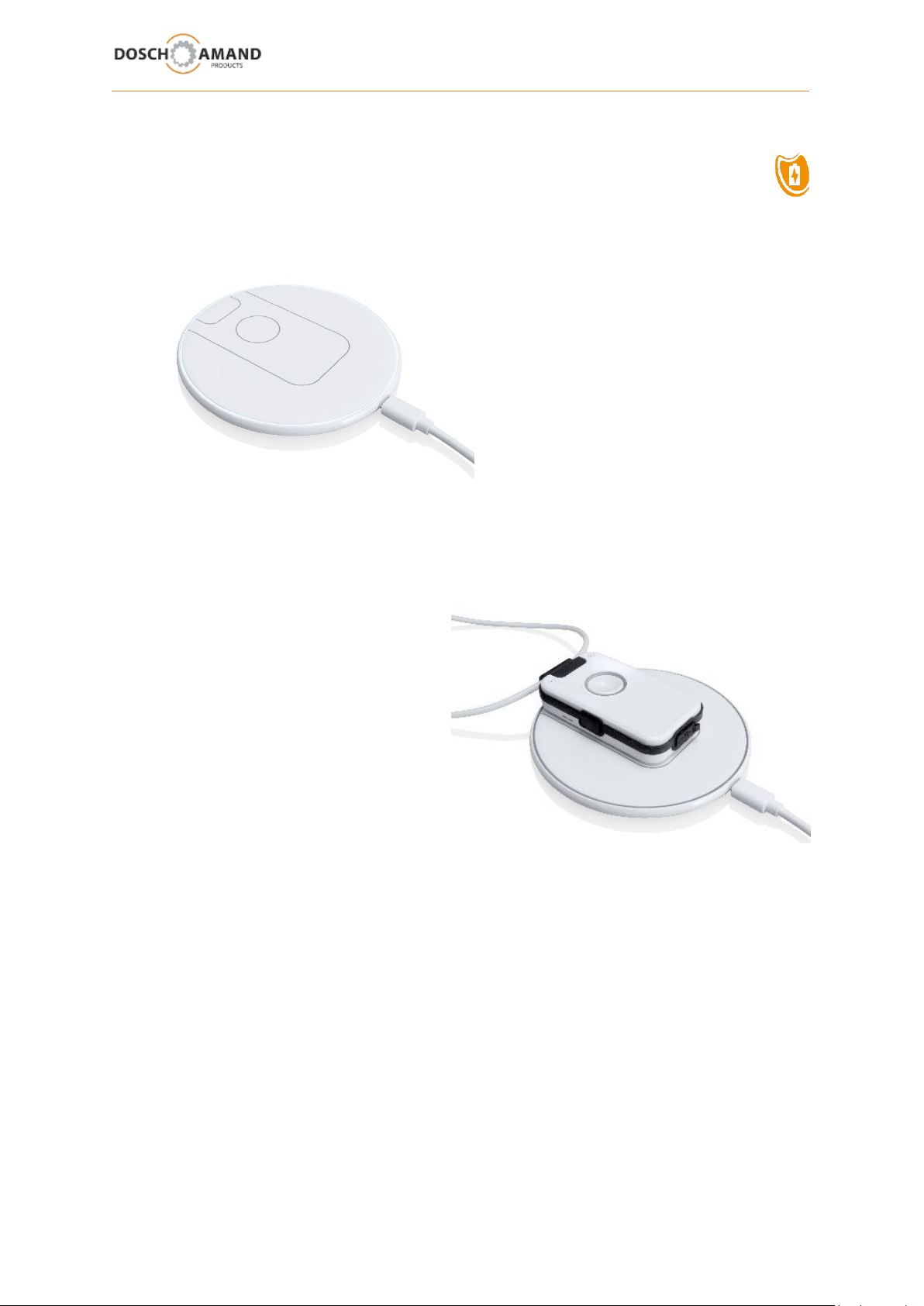
Place the Charging Disc on a flat, non-slip surface and connect it to the mains via the supplied USB
power supply. The Charging Disc works contactless.
In order to charge the Device, simply place it on
the Charging Disc. Once the Device is correctly
placed, the Disc will light up. The Device
switches on after a few seconds and the Voice
Assistant reports to:
"Battery is charging"
During charging the Device warms up. This is no fault but normal.
Leave the Device on the Charging Disc for at least 30 min, better however for 60 min. If it is fully
charge, the Device has a standby time of 3 days. Charge the Device regularly, best overnight.
When the battery is deeply discharged, it may take up to 5 minutes to turn on the device on the
charging disc.
Please notice that only if the Device is on the Charging Disc, the Smoke Alarm detection is activated
(see 3.8 chap and chap 4.2)
You can use multiple Charging Disc; e.g. in living room and bedroom.
(Please contact your dealer).
Page 7
2 Getting started
2.3 subscribe to DECT Base Station
alias: „Subscription“
methode: „easy subscription“ with PIN „0000“
Place the Device near the DECT Base Station e.g. in the same room. Subscription can be accomplished
more safely.
Manufacturer-specific enabling the DECT Subscription mode may be different. Usually press a button
for a few seconds (in case of consult the manual of the Base Station). Make sure that DECT Base
Stations are only 5 minutes in the Subscription mode. The Subscription of the Device must be made
within this time. In case of, re-enable the Subscription mode.
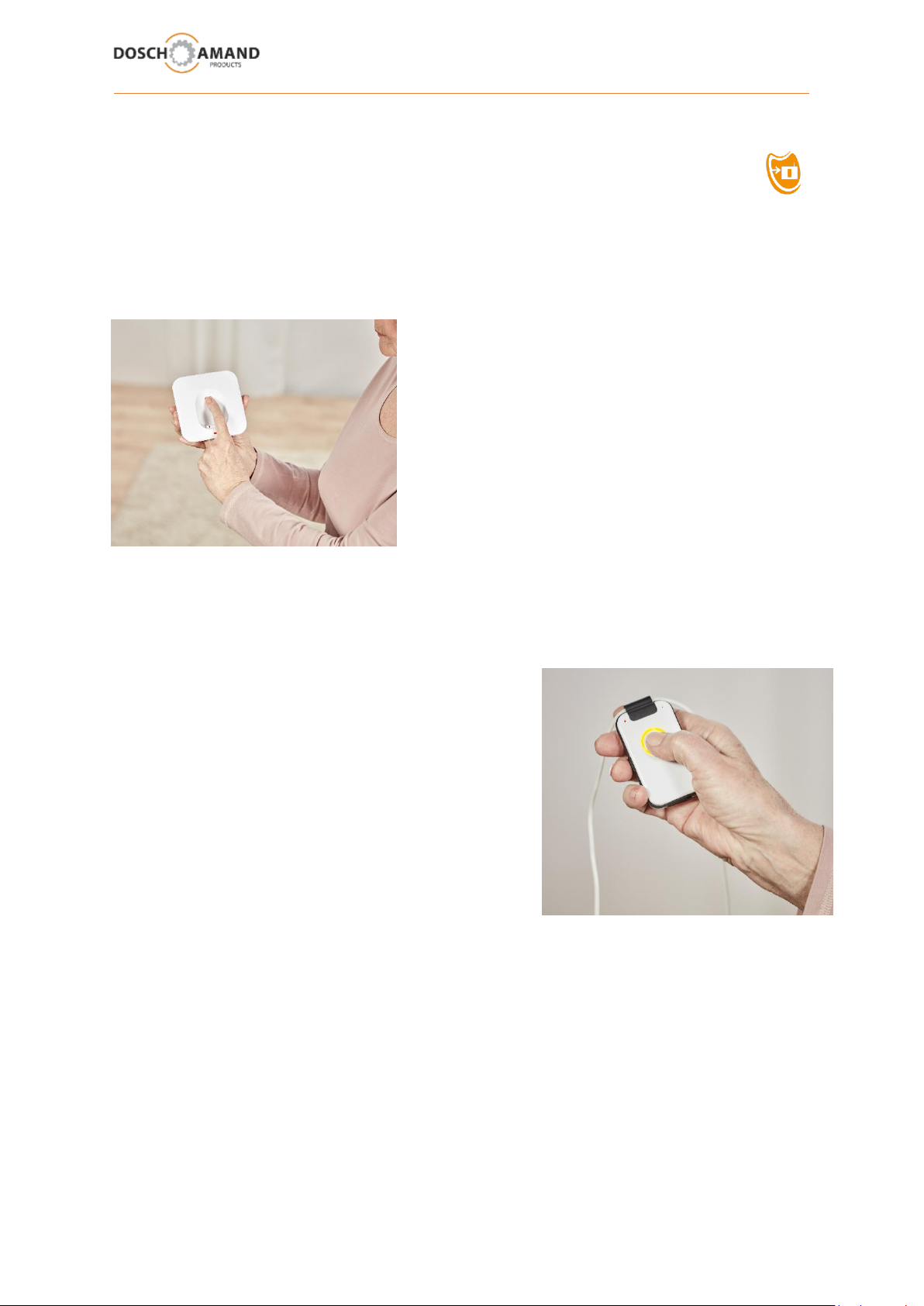
For starting Subscription procedure of the Device, press the
Call Button on the Device. The Ring LED starts flashing and
the Voice Assistant reports:
"Searching for Base Station, please wait"
After typically 10-20 seconds the Subscription is completed. The Ring LED shortly lights up green. The
Voice Assistant reports the successful subscription: "Device is registered"
If Subscription fails, the Voice Assistant gives dedicated information to the possible root cause
(see notes for trouble-shooting in Chapter 5).
Modern DECT Base Stations use the Subscription method according "easy subscription" standard with
system PIN "0000". Should System PIN of Base Station be different from “0000”, then use Subscription
of Device via PC APP (see Chapter 3.4)
Note: If the Device is on the Charging Disc, it cannot perform Subscription.
The device switches automatically off after 10 minutes if it has not been registered.
Find and press "DECT Subscription" or similar notified
button on the Base Station.
User Manual Guide DECT indePENDANT EN 04-2019 7 von 27
Page 8
2 Getting started
2.4 check Telephone Line
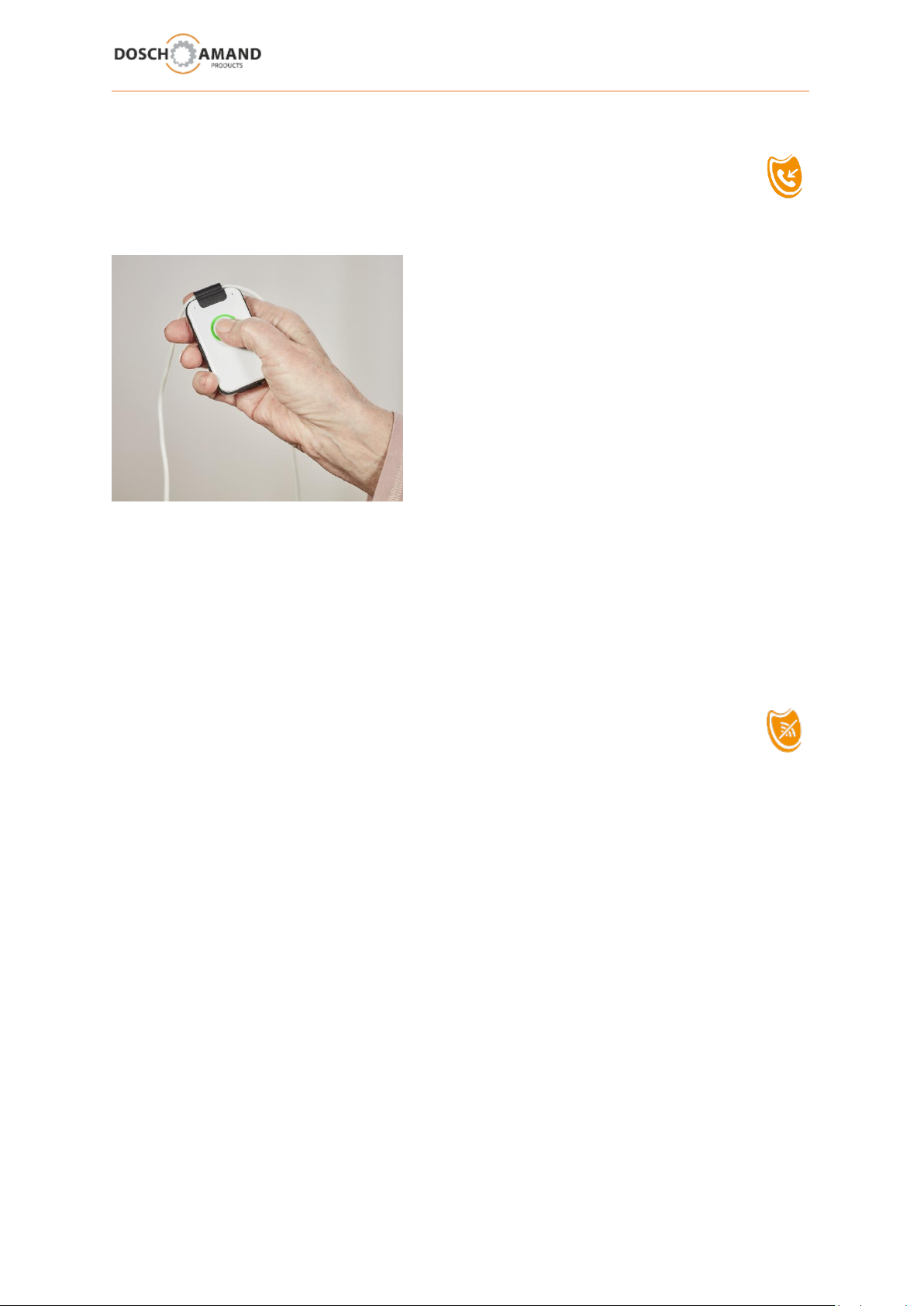
Now, check the connection of the Device with your phone line.
1. Call Device with your mobile phone
2. When Device rings, answer the call
The calling number is stored at the same time as the tenth Family&Friends-Number as well as the
Emergency Number for Help, Fall Detection and Smoke Alarm Calls.
Change or supplement this number with the PC APP.
Your Device is now ready for use!
2.5 hints regarding DECT Range
alias radio range
Inside of buildings the radio range (distance from Device to the Base Station) can be 50 meters and
more. In the garden, the range may increase to 300 meters. Should the Device cover also the garden
area, then it is advisable to place the DECT Base Station to this wall, which is next to the garden.
Should the Device get out of the reach, then that is recognizable by red status LED (1/1 sec). If the
Device is more than 5 minutes outside the radio coverage the Voice Assistant will make announce an
appropriate message.
At any time you can request the Device to find the base and to logon by pressing the Call Button.
If the Device is longer than 2 hours outside of wireless coverage, the Device switches off to save the
battery. Then the Device can be switched on again by placing on the Charging Disc. All functions
automatically resume your preset operation.
Page 9
3 Configuration via PC APP
3.1 install and use PC APP
The driver of the PC APP can run only on computers with operating systems WIN7 or WIN10.
You will find the driver installer and the PC App on the enclosed USB stick.
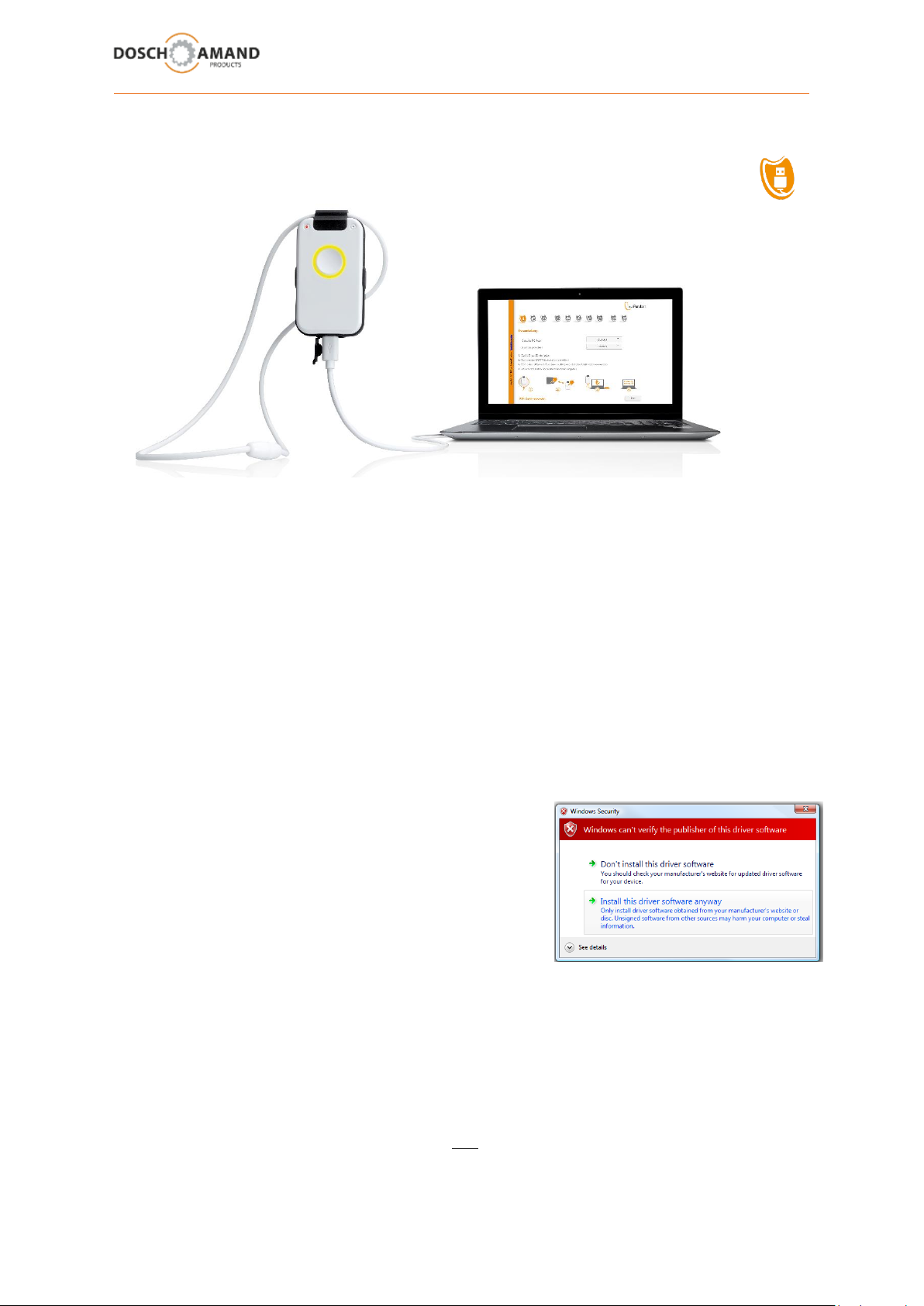
1. Connect the enclosed USB-stick with the PC
2. Select drive "INDEPENDANT" using Windows Explorer
3. Start "PC_APP" program
4. Choose setup language and click “OK”
5. Read the License Agreement page. If you accept the terms of the license agreement, choose "I
accept the agreement" and click "Next"
6. Click "Install" to continue with the installation
7. If appears the Windows warning, choose "Install this driver software anyway". The device
driver will be installed
8. Click "Finish" to complete the installation
9. Connect Device via the USB cable with PC
10. Start again "PC_APP" program on the USB stick and
follow the instructions of the PC APP, which are very
simple
In the following chapters, you will find detailed explanations about each step.
Please note that all settings are transferred to the Device only when you finally press the Apply button.
The PC APP automatically detects the USB connection. The USB link will be displayed at the bottom
of the PC APP. If the logical USB detection does not work, disconnect the USB cable and plug it back
to the PC after a few seconds.
Note: The PC APP can only be opened if Device and USB stick is connected to PC.
Please keep USB stick on safe place. It is the Data Backup of your Device.
User Manual Guide DECT indePENDANT EN 04-2019 9 von 27
Page 10
3 Configuration via PC APP
3.2 language selection
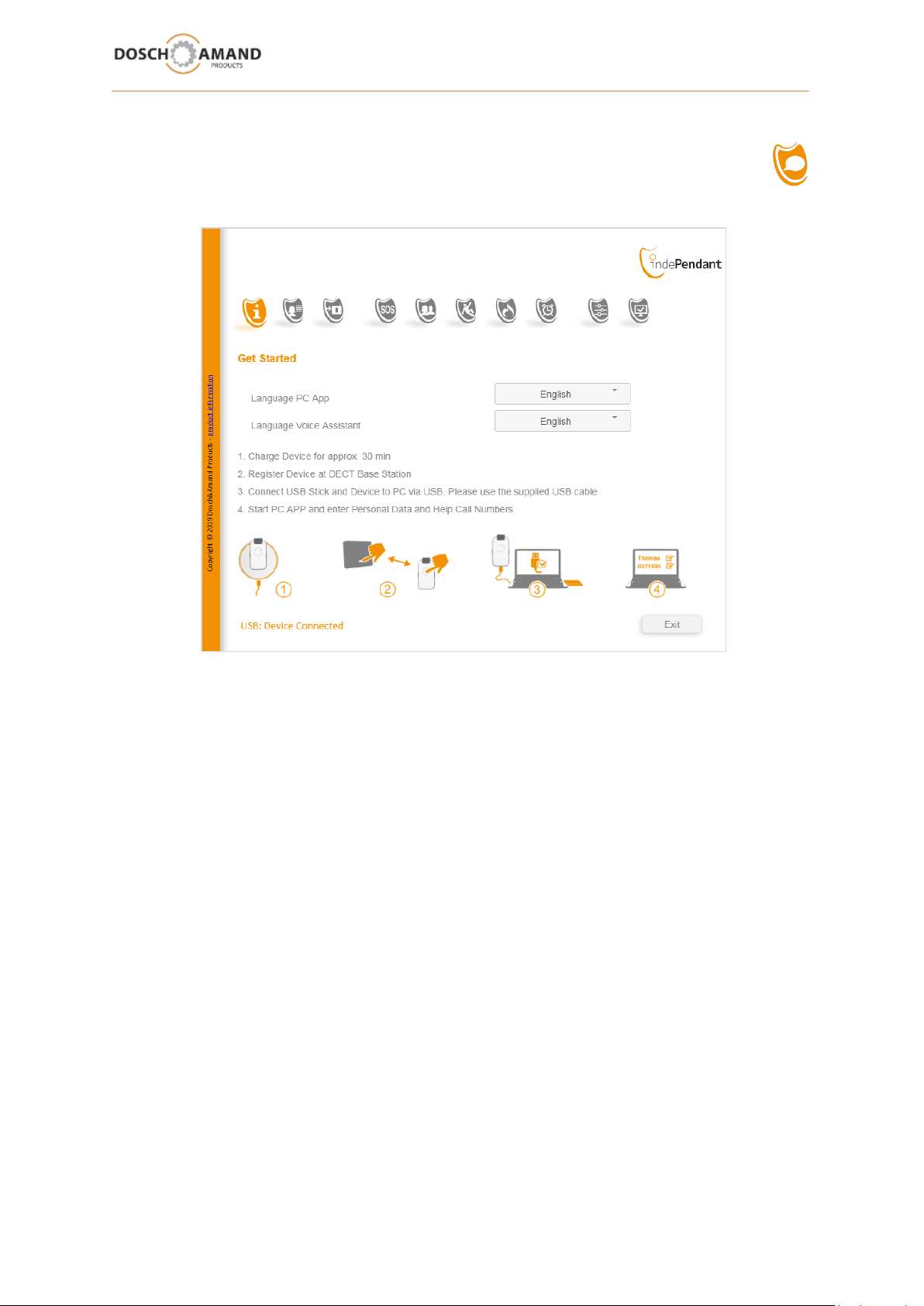
You can choose both the language of the Voice Assistant and the PC App language using the PC APP
under Get Started.
The language of the PC App is automatically selected according to the language of your PC system.
If your language is not listed, please contact your distributor.
Page 11
3 Configuration via PC APP
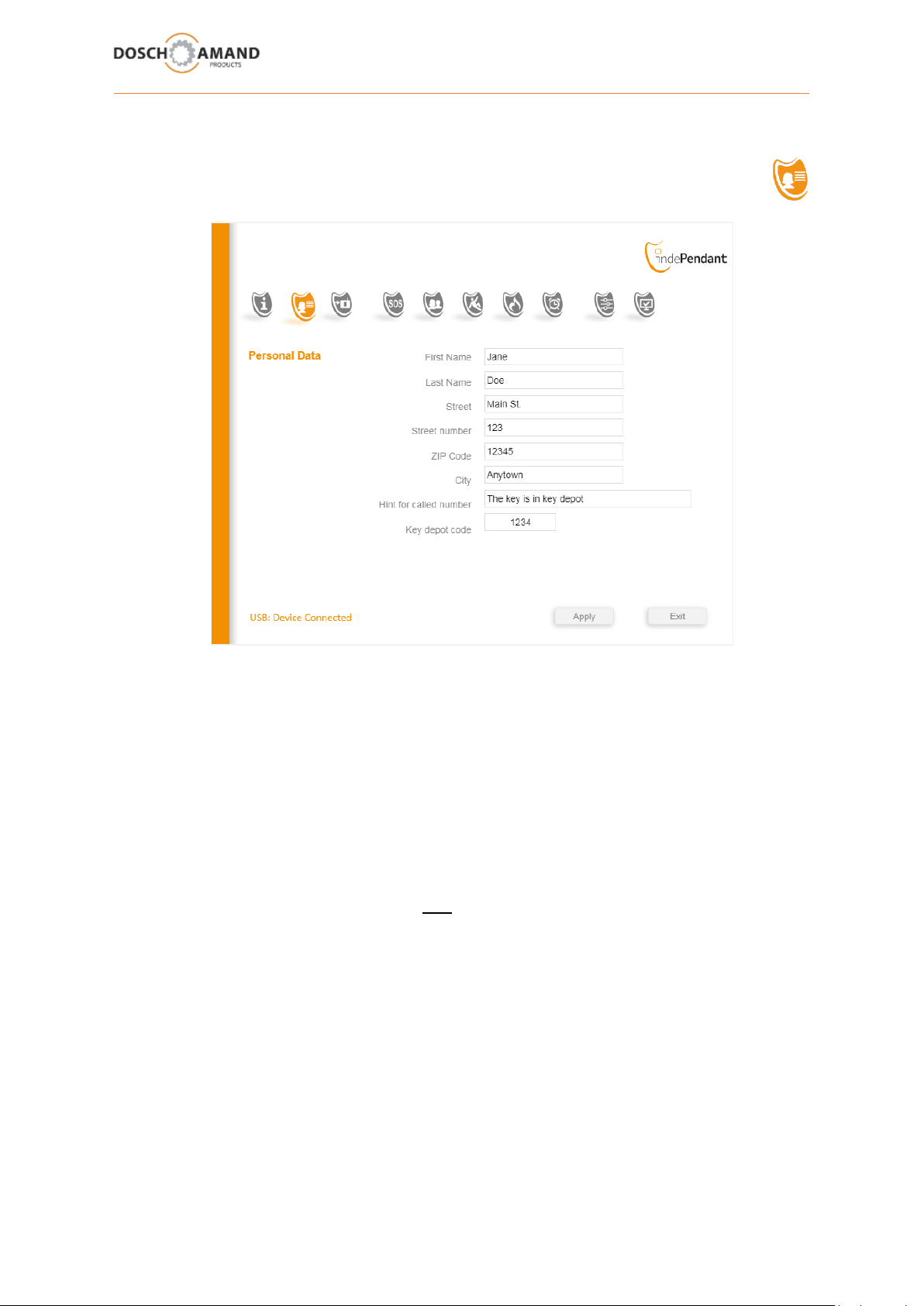
3.3 Enter Personal Data
The personal and location data contains name and place of residence, and optional notes, e.g. as an
access to the apartment is possible in case of emergency.
In addition, a 4-digit number code can be set. To do this, you can mount the keys in a safe key safe
with combination lock next to the front door. There are numerous manufacturers for such locks.
This location data - like all other data of the PC APP - are stored only locally on the Device and as a
backup on a USB stick and they are therefore protected from access of third parties.
The personal and location data are provided only in case of emergency, i.e. emergency call number.
The Voice Assistant will read your text. You can change the data and texts at any time with the help
of the PC APP.
User Manual Guide DECT indePENDANT EN 04-2019 11 von 27
Page 12
DECT
WLAN
3 Configuration via PC APP
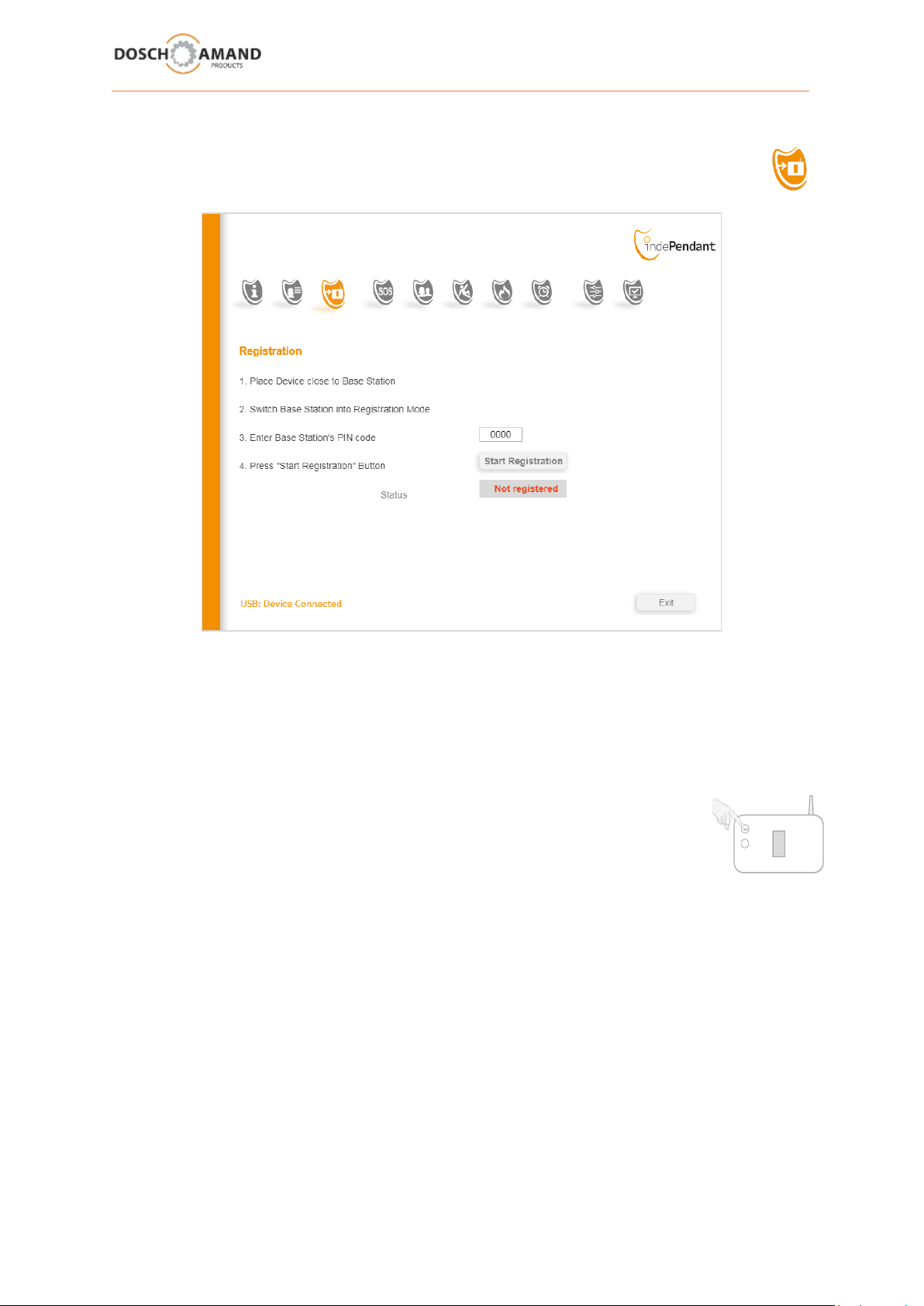
3.4 registration to DECT Base Station
The Registration with the help of the PC APP is only necessary if the DECT Base Station does not have
the system PIN "0000" (see Chapter 2.3) (standardized Subscription according to the principle "easy subscription)
This the Base Station system PIN was either provided by you or is factory pre-set. More information,
see the operations guide of the DECT Base Station under chapter which is similar to "DECT handset
Registration".
1. Enter the system PIN of the Base Station. This is a four-digit number.
2. Enable the logon mode of the Base Station (see Chapter 2.3)
Please notice that DECT Base Stations are only 5 minutes in the Subscription mode.
The application of the Device must be made within this time. In case of, please activate
Registration mode of the Base Station once more.
3. Now click the button Start Registration (PC APP). The registration process may take typically
10-20 sec. Please wait.
If the Subscription fails, see Chap 5.1 Troubleshooting Guide
Page 13
3 Configuration via PC APP
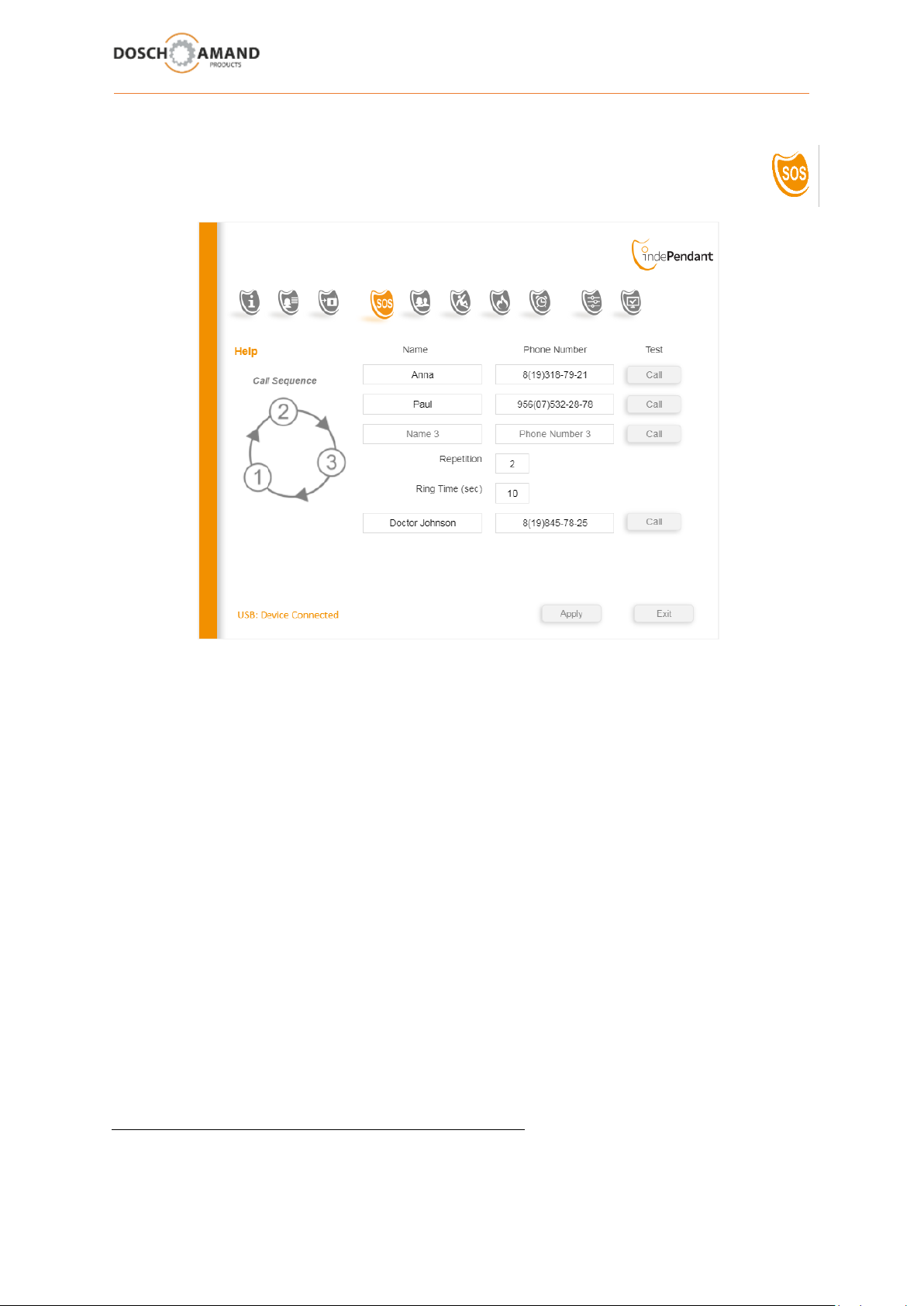
3.5 Help Call
The user can at any time request Help in case of problems or contact is requested for any reason. To
do this, press the Call Button for two seconds. The help sequence is performed and accompanied by
Voice Assistant. The call for help can be cancelled at any time by pressing the Call Button.
Up to 3 help telephone numbers and 1 emergency number can be set. Here, too, you should give
names for the numbers because they are read when the contact is selected for call setup. As a result,
the user will be informed, which number is actually been called.
Enter "Repetition"
The Help Numbers can be repeated up to 100 times. In practice, however 2-times repetition is
recommended. To do this, enter the number 2.
Enter "Ring Time"
Here is set, how long the Ringing duration should be before - in case of non-acceptance - the next
number in the sequence will be selected. The Ring time should be chosen at least as long as it is
assured that called person can take the call. However the Ring Time should not be as short as possible
because this time will cause delays in finding a contact or a network-side answering machine can be
activated. Better shorten the Ringing Time and apply for more Repetitions.
Telephone numbers should not support answering machine.
User Manual Guide DECT indePENDANT EN 04-2019 13 von 27
Page 14
3 Configuration via PC APP
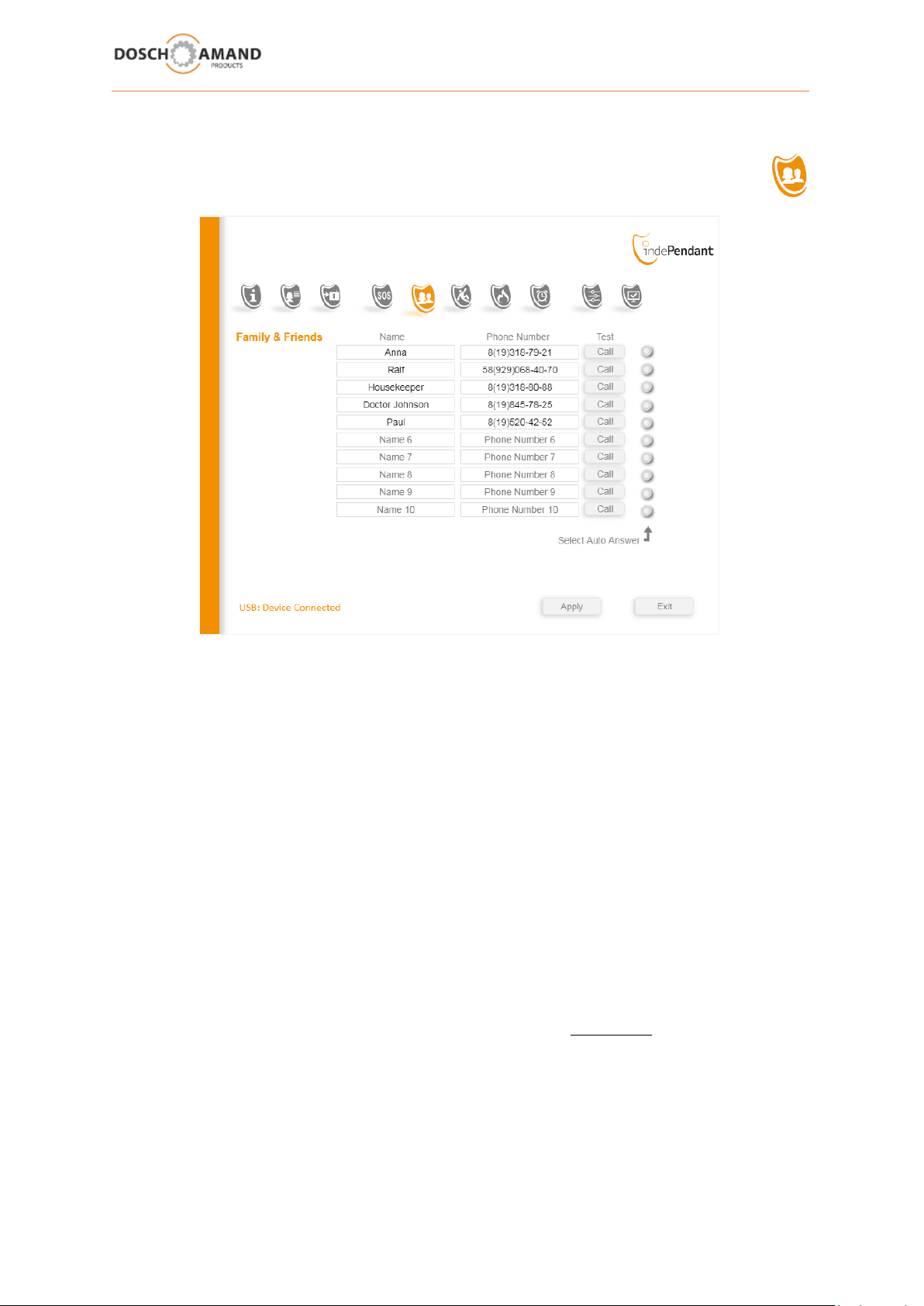
3.6 Family & Friends Contacts
The Phone numbers for "Family & Friends" shall facilitate the contact with family and friends. To do
this, you can enter up to 10 contacts with name and phone number. The order should be based on the
frequency of calls to these contacts.
Still, in addition to name and number, you can set whether the automatic answering ('Select Auto
Answer') is enabled for this number. In this case the user of the Device must no longer press the Call
Button to take the call; the call will be hooked-off automatically.
1. Enter the Family & Friends names and their phone numbers.
2. Save the names and numbers with the Apply button.
By pressing a Side Key the respective name will be announced in the order of entered list. Then press
the Call Button to initiate the call.
e.g. in order to call the third contact, you must press a Side Key three times and after the prompt,
press the Call Button. The connection will be established with respective announcement of the
assistant.
Page 15
3 Configuration via PC APP
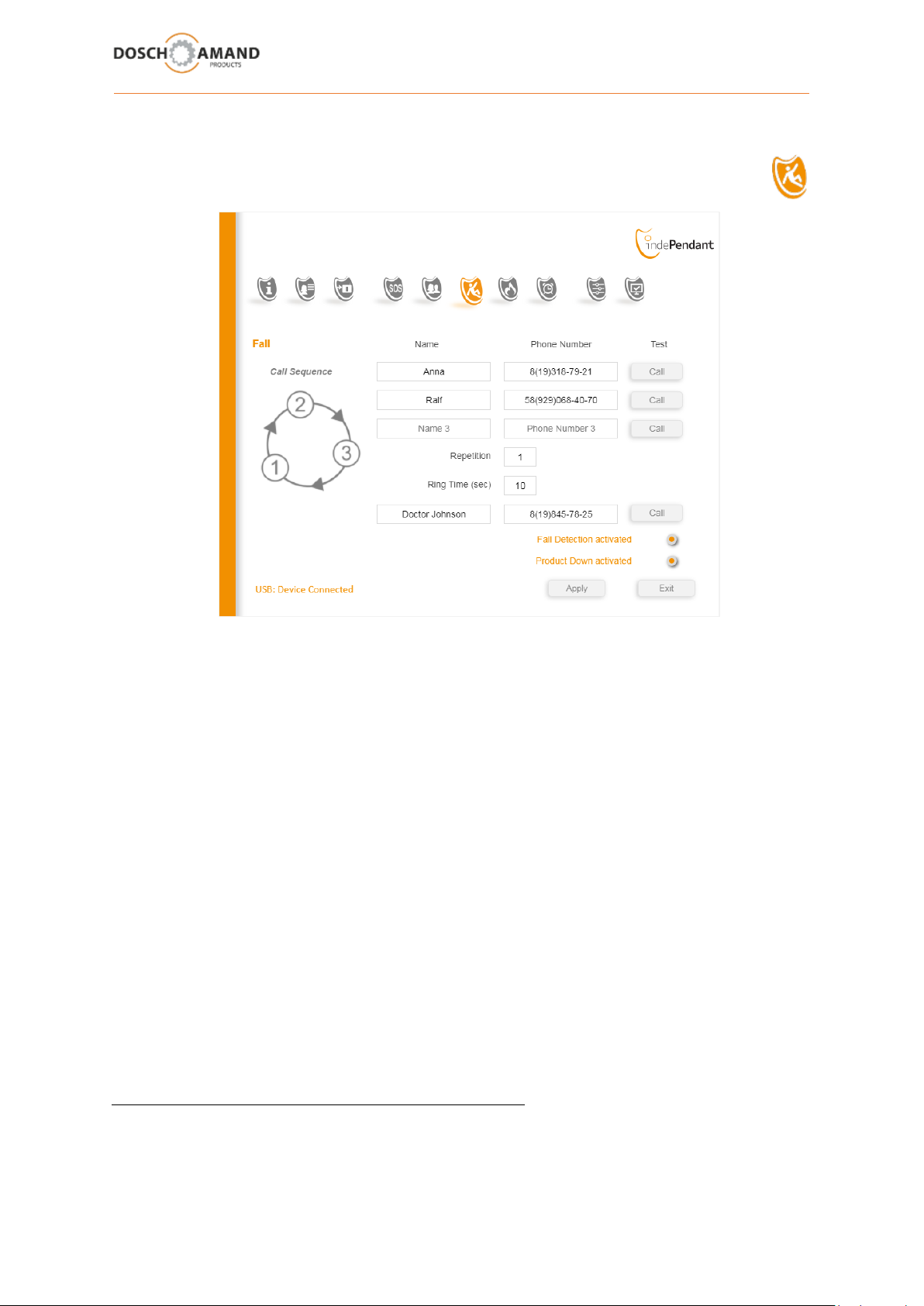
3.7 Fall Detection automatic Help Call
The Device has a new Fall Detection algorithm (DPDM). Man-down will automatically start the help
sequence for Fall Detection and accompanied by Voice Assistant.
Up to 3 help telephone numbers and 1 emergency number can be set. Here, too, you should give
names for the numbers because they are read when you select of the numbers. As a result, the user
is informed, when the Device is trying to contact.
Enter "Repetition"
A max 1 Repetition for Help Numbers is advisable for Fall Detection .Then the emergency number is
called immediately with announcement of personnel data and Info how to access the apartment
Enter "Ring Time"
Here is set, how long the Ringing duration should be before - in case of non-acceptance - the next
number in the sequence will be selected. The Ring time should be chosen at least as long as it is
assured that called person can take the call. However the Ring Time should not be as short as possible
because this time will cause delays in finding a contact or a network-side answering machine can be
activated. Better shorten the Ring Time and apply for more Repetitions.
Telephone numbers should not support answering machine.
User Manual Guide DECT indePENDANT EN 04-2019 15 von 27
Page 16
3 Configuration via PC APP
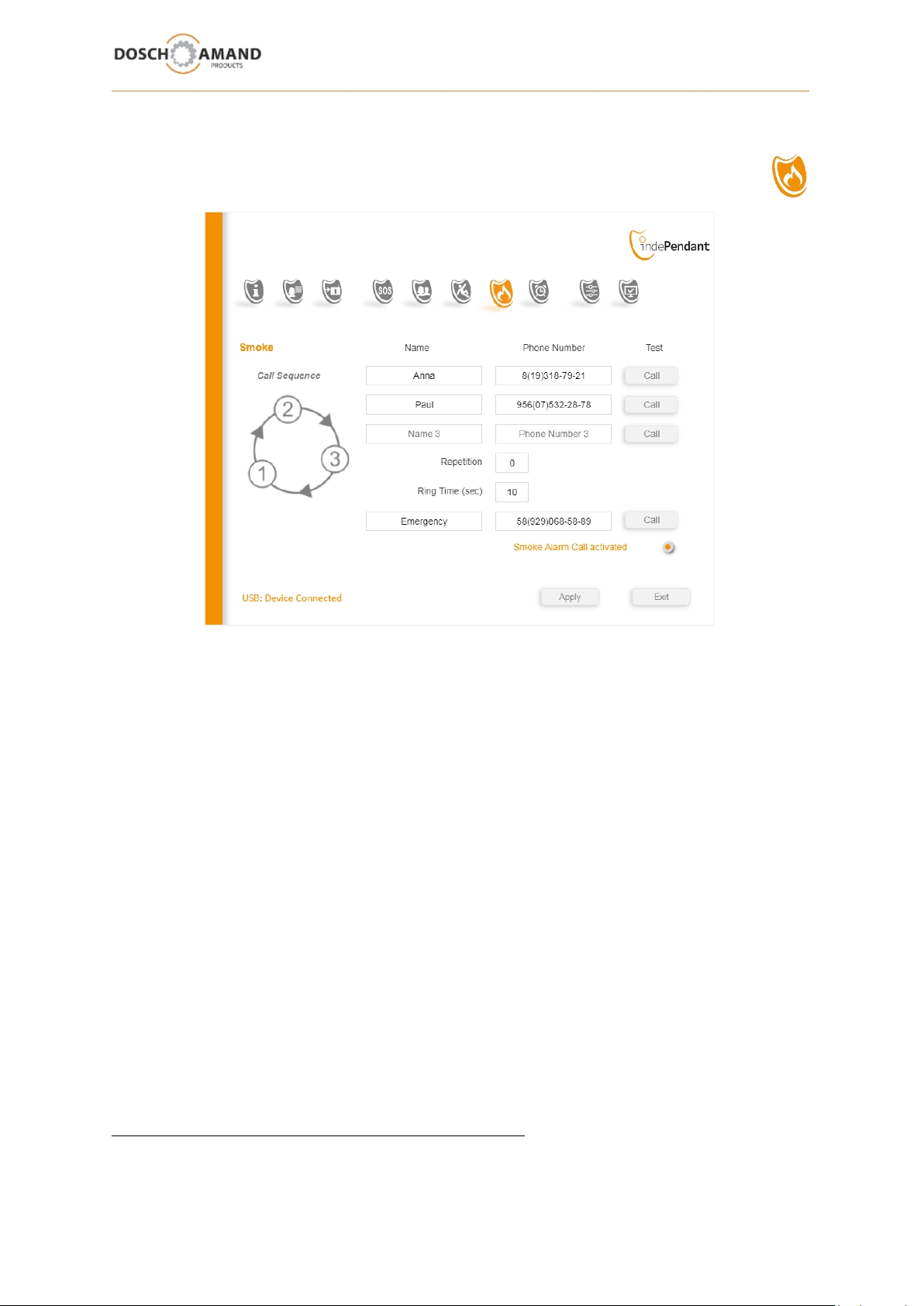
3.8 Smoke Alarm Detection automatic Help Call
The Device features a new Smoke Alarm detection. To activate this function place the Device on the
Charging Disc . Smoke Alarm will automatically run the help sequence accompanied by the Voice
Assistant.
Up to 3 help telephone numbers and 1 emergency number can be set.
The call sequence is repeated until a contact has been established. The Voice Assistant informs the
called party of the Smoke Alarm and is the special instructions (chap 3.4) as personal and location
data. Then, the call sequence is suspended for 30 minutes. If the Smoke Alarm has not been
switched off, the Smoke Alarm call sequence will be repeated.
Enter "Ring Time"
Here is set, how long the Ringing duration should be before - in case of non-acceptance- the next
number in the sequence will be selected. The Ring time should be chosen at least as long as it is
assured that called person can take the call. However the Ring Time should not be as short as possible
because this time will cause delays in finding a contact or a network-side answering machine can be
activated. Better shorten the Ring Time and apply for more Repetitions.
Telephone numbers should not support answering machine.
Page 17
3 Configuration via PC APP
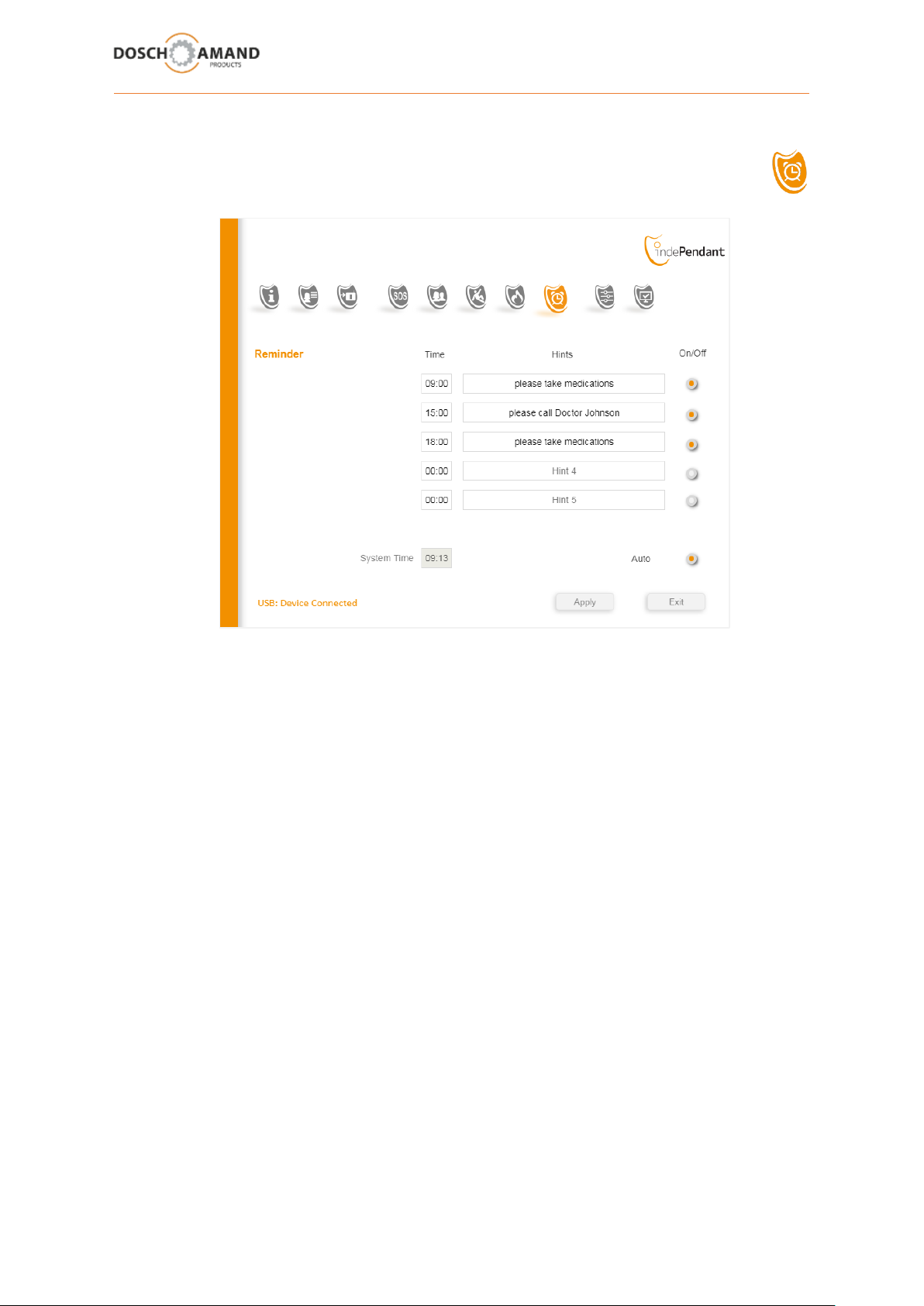
3.9 time-dependent instruction set (Reminder)
The Reminder function shall help older people to remind to take for example medication at specific
times. You can enter up to 5 times, where announcements are made. Enter the prompts in the sidestanding box.
The device Voice Assistant detects if there is no valid time in the device. In this case, it announces
"no time available".
The current time can be entered in several ways:
manual input via the PC APP
by external call and entering the time via the telephone keypad
Format #TIME#hhmm#
TIME corresponds to key sequence 8463
hh = current hour mm = current minute
Example: current time is 9:45 am => input #8463#0945#
The time-dependent statements will be announced also if the Device is on Charging Disc.
Therefore also a daily alarm message e.g. a daily wake-up can be entered.
User Manual Guide DECT indePENDANT EN 04-2019 17 von 27
Page 18
3 Configuration via PC APP
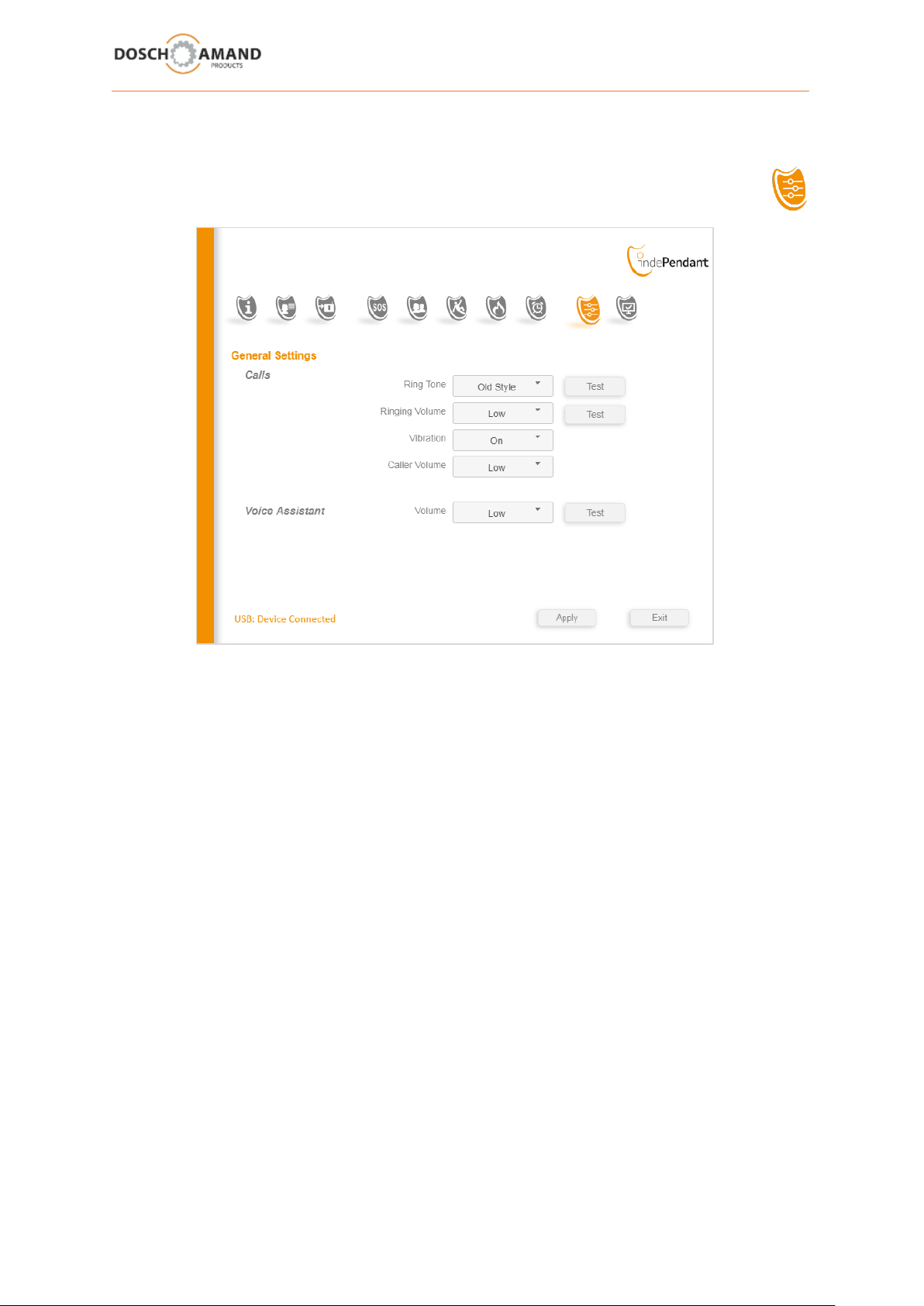
3.10 General Settings
Here you can select one of three melodies as ringtone, adjust the ringing volume as well as caller
and voice assistant volume. Before you apply the changes, you can check them with the Test Button.
Since the device is usually charged at night, no acoustic signals should disturb the sleep. The display
behavior during the incoming call on the loading disk in the APP can be configured.
Page 19
3 Configuration via PC APP
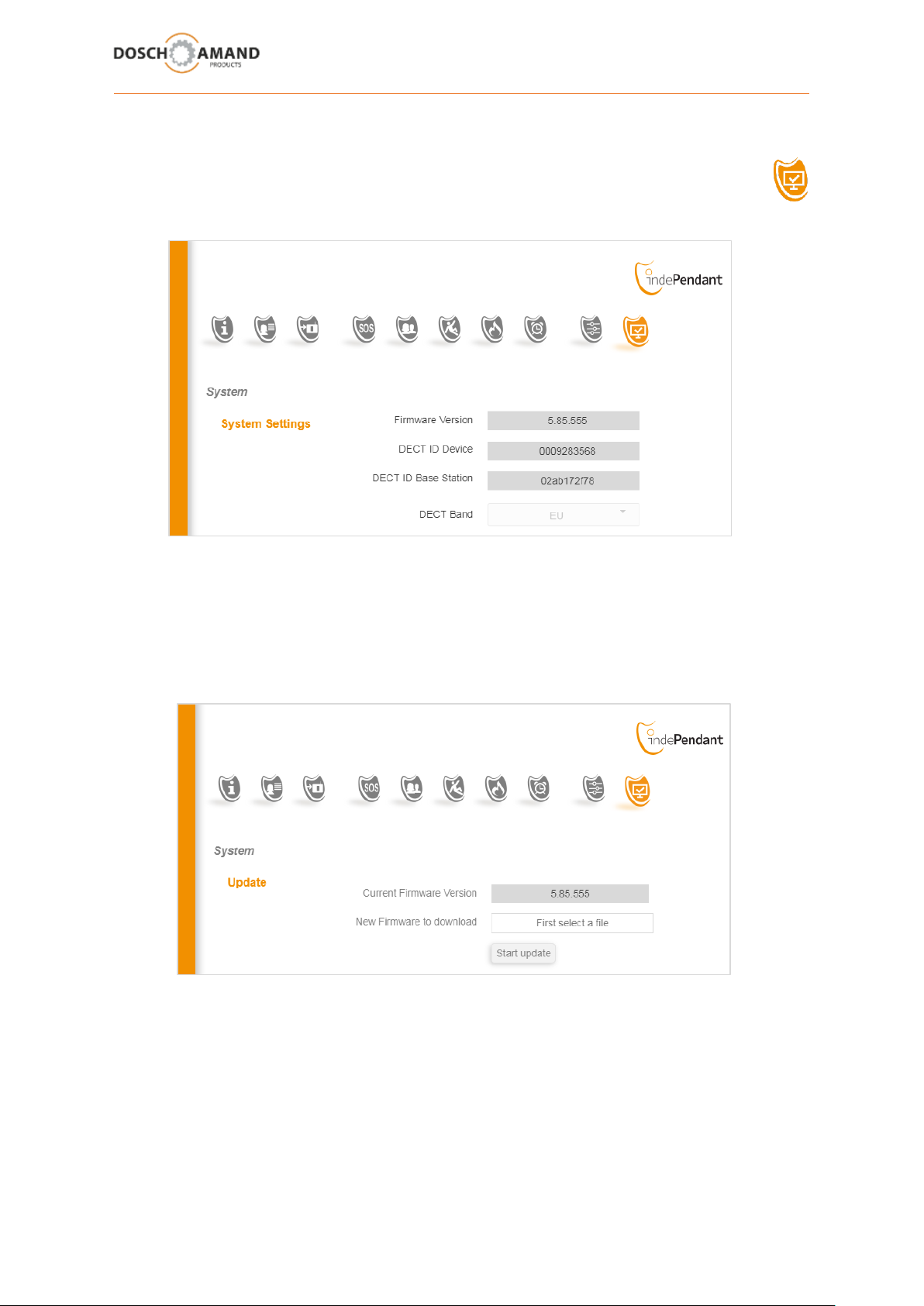
3.11 System-Setups
3.11.1 System Info
You can retrieve the system data of the Device and the connected DECT base. This information are
relevant only for professionals
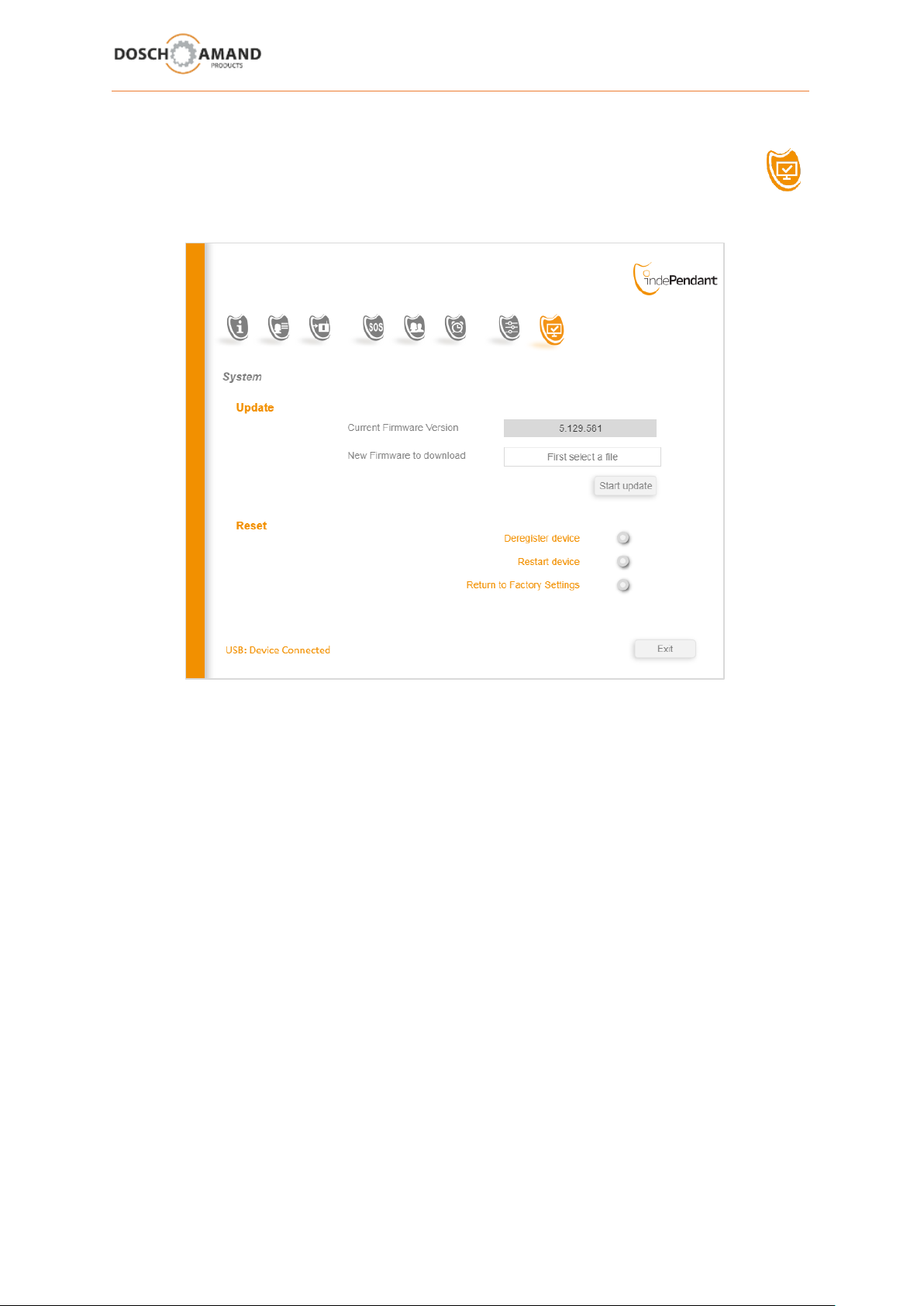
3.11.2 Update
A new operating software for the Device may be available for Update.
Ask your dealer for more information.
User Manual Guide DECT indePENDANT EN 04-2019 19 von 27
Page 20
3 Configuration via PC APP
3.11 System Settings
3.11.3 RESET Reset of set parameters to ex-works status
Settings can be reset to ex-works status with "Reset". Here, you can choose various levels.
Deregister device – to delete current registration
Restart device - rebooting of the device when it is already switched on.
Return to Factory Settings - to delete all data as well as current registration
Application example
You need to replace your DECT Base Station. Then, you must log on the Device on the new DECT Base
Station (see Chapter 2.3). Previously, you must delete the old Registration (subscription).
You can do this using the Reset function Deregister device. Afterwards the Device is no longer logged
in, but also no longer ready for operation => you must perform a login on the new DECT Base Station.
Go back to Chapter 2.3 and perform a Subscription on the new DECT Base Station. All existing settings
will be retained. After Subscription, you can use the Device as usual.
Page 21
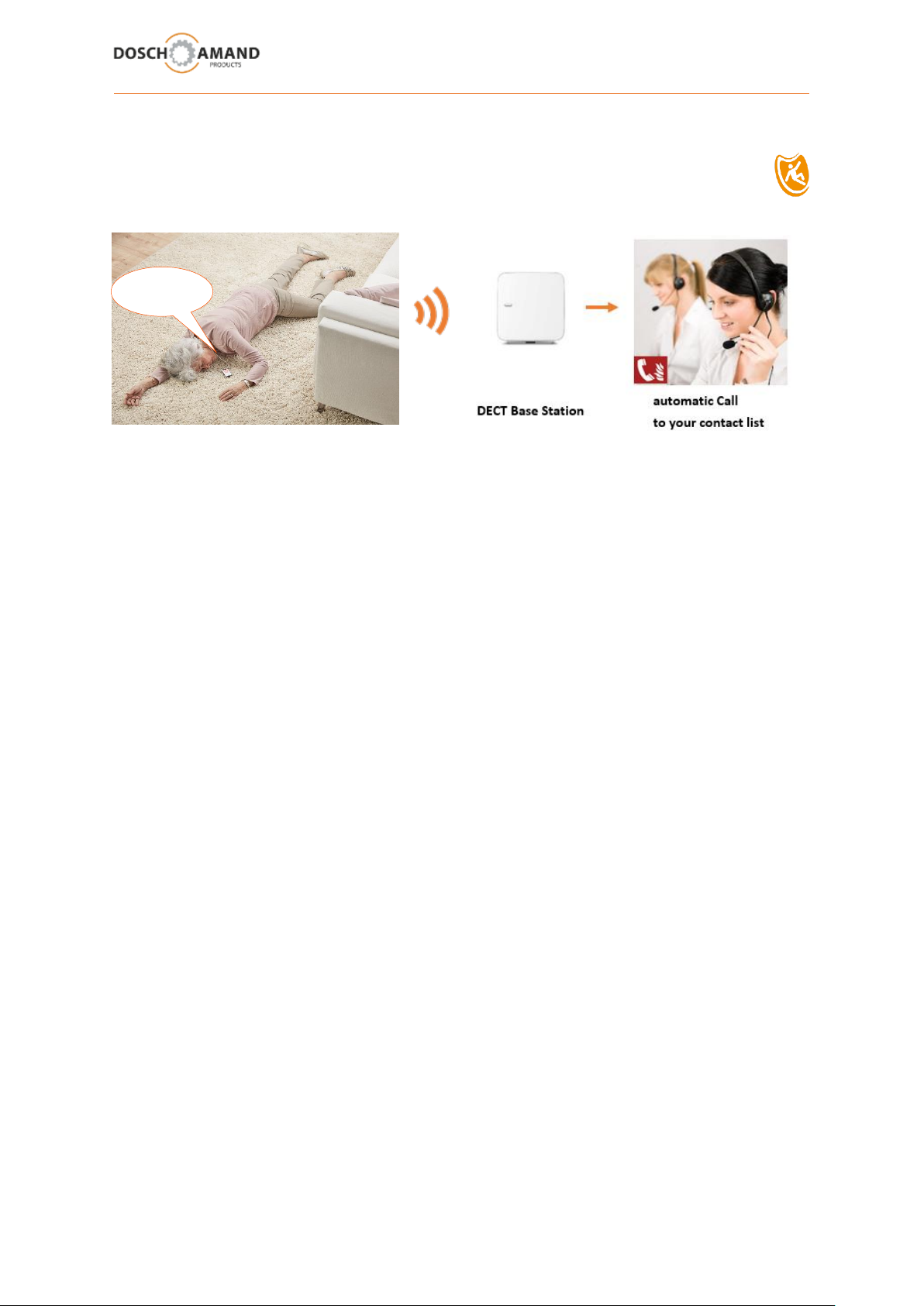
„ Fall detected !
Help Call will be triggered “
4 Special Instructions
4.1 Fall Detection and automatic Help for Call
The Fall Detection is preset and is automatically activated when the Device is removed from the
Charging Disc. The Fall Detection is interrupted when the Device is in active Call.
With the help of the PC APP, set the help sequence for Fall Detection (see section 3.7).
Since quick assistance is necessary, it is advisable to reduce the number of help telephone numbers
and to reduce the number of repetitions. After that, the Device calls the Emergency number. This
should always be set and be a medically experienced contact e.g. family’s doctor or ambulance.
If no numbers are set, the numbers of the Help Call sequence (see Chapter 3.5) will be used.
When the Emergency number is called the Voice Assistant informs " This is a fall detection call " and
in addition reads the personal and location data and the special instructions e.g. how to access the
apartment. This information will be repeated 5 times.
The hands-free connection will enabled to get in contact with deposed person and retrieve
information to the severity of the crash. If no discussion is possible, help is often vital. For this purpose,
the special instructions (see Chapter 3.4) should give information regarding the access to the
apartment.
Fall Detection cannot interprete all incidents as man-down events. However thanks to the new DPDM
algorithm the reliability for Fall Detection is very high. The rate of false alarms is nearly 0%. This rate
is reached, because it requests a "negative confirmation" before releasing the Help Call sequence.
Should the Device fall to the ground and is no longer picked up by user, a Help Call sequence is
triggered after several hints of the Voice Assistant. This function is factory pre-configured and can be
turned off in the settings (Cape 3.8) via PC APP. It is a very practice-oriented function it is
recommended to be left activated.
User Manual Guide DECT indePENDANT EN 04-2019 21 von 27
Page 22
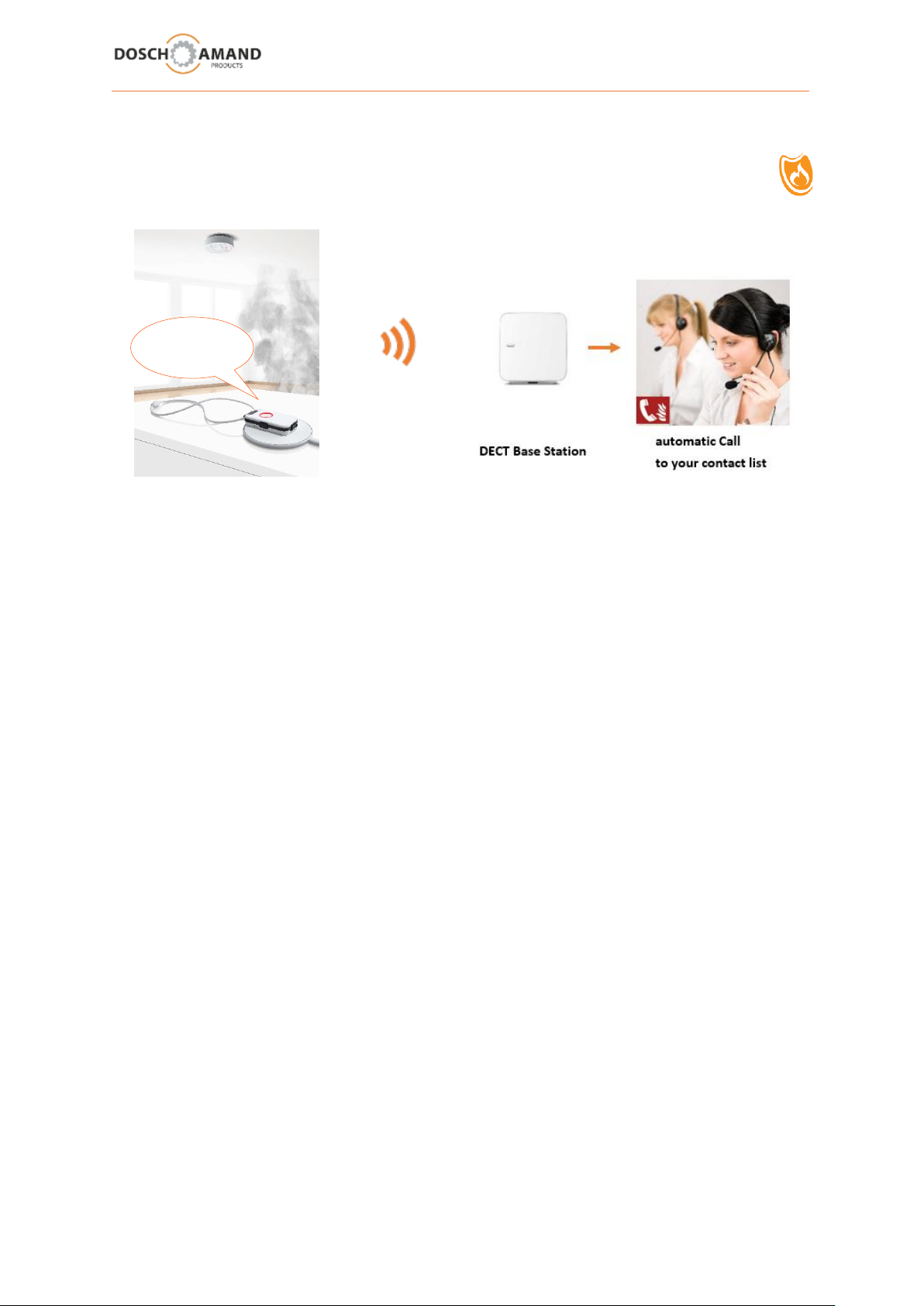
„ Smoke Alarm detected !
Emergency Call will be triggered “
4 Special Instructions
4.2 Smoke Alarm Detection and automatic Help Call
With the help of the PC APP set the phone numbers which should be called in case of a Smoke Alarm
(see section 3.8).
If no Telephone numbers are registered, the Help Call contacts will be used as Smoke Alarm Sequence
(see Chapter 3.5)
The Smoke Alarm detection works for all marketable Smoke Detectors, Heat Detectors and Carbon
Monoxide Detectors.
If the Device detects a Smoke Alarm, it automatically calls the Smoke Alarm Help Sequence. The Voice
Assistant informs the contacted number with an announcement "Smoke Alarm detected, please take
action" as well as the personal data and location data and the special instructions (see Chapter 3.4).
The announcements are repeated until the called site has hooked on the link. At the same time, the
microphone of the Device is enabled to be able to hear into the room.
After successful contact, the Device is waiting for 30 minutes and checks to see whether the Smoke
Alarm has been turned off. If the Smoke Alarm is still enabled, the Device starts the call sequence
again.
The Smoke Alarm-call sequence is terminated, if
the Smoke Alarm has been turned off
the Device has been taken from the Charging Disc
Test the Smoke Alarm detection by pressing the test alarm of your smoke detector
after 2 seconds the Voice Assistant must announce
"Smoke Alarm detected"
Page 23

5 Important Notes
5.1 Troubleshooting Guide
5.1.1 Status LED flashing red
Either the battery is too weak (shutdown threatens!) or the Device has no connection to the Base
Station. You can find this out by, placing the Device briefly on the Charging Disc (2-5 sec) and
remove it from the Charging Disc After 7 seconds, the Voice Assistant will analyze the root cause of
red LED and announce
either
a) battery is not sufficiently charged
Remedy: Place the Device on the Charging Disc and charge the Device for ca 1- 2h
or
(b) Device is not connected to the Base Station
Remedy: Check whether the Base Station is switched off
It sometimes helps to switched off/on the Base Station
5.1.2 Device cannot be registered (subscribed) to the Base Station
Possible sources of error:
(a) distance to the Base Station is too large during the Subscription
Remedy: Place Device near the Base Station and repeat the Subscription
(b) DECT Base Station has no "free space" for another terminal
Remedy: Open the configuration menu of the Base Station (via the browser in the PC or via
connected DECT handset) and delete a terminal from the list. Usually up to 6 DECT terminals
are taken up by the Base Station
(c) Base Station system PIN is not set to "0000"
Remedy: * change the PIN of the Base Station to "0000" and repeat the application
use the PC APP and enter the current System PIN of the Base Station (chap 3.3)
d) Base Station is not in Subscription mode
Solution: Find the button on the Base Station relevant for Subscription. This can be a specific
button with indicator "DECT" or "Registration" or a central button which you must press down
for several seconds.
Keep in mind that DECT Base Station maintain the Subscription mode enabled only for about 5
minutes. Therefore Subscription of the Device must be performed within this time. Otherwise, the
Subscription button on the Base Station must be pressed again.
User Manual Guide DECT indePENDANT EN 04-2019 23 von 27
Page 24

5 Important Notes
5.1.3 Voice Assistant: "Device is not ready for operation”
possible sources of error:
(a) Device is not registered to the DECT Base Station
Remedy: perform Subscription (chap 2.3)
(b) Device is not connected to the DECT Base Station
Remedy: check distance from Device to the Base Station
check Base Station e.g. turned off ?
It sometimes helps to switched off/on the Base Station
(c) Device is not sufficiently charged
Remedy: charge Device for approx. 1-2h
(d) no Help Numbers are available
Remedy: call device, the calling number will stored as the emergency number for Help, Fall
Detection and Smoke Alarm Calls.
enter the Help Call number via PC APP.
5.1.4 Device is not charging
a) Make sure that Charging Disc is connected to the mains
(if connected to mains the Ring LED of the Charging Disc lights up briefly)
b) Place the Device precisely according to the marking on the Charging Disc
Page 25
5 Important notes
5.2 Device charging
Use only the supplied USB cable, charging Device and plug-in power supply Device. The power supply
may be used only leads to the Device specification. Place the Charging Disc on a flat, non-slip surface.
The Device heats up during charging. This is normal and not a fault. You can use multiple Charging
Discs (E.g. living room and bedroom). If interested, ask your dealer.
5.3 hands-free speaker
The Device has a speakerphone with considerable volume. Never hold the Device close to the ear, to
prevent hearing damage.
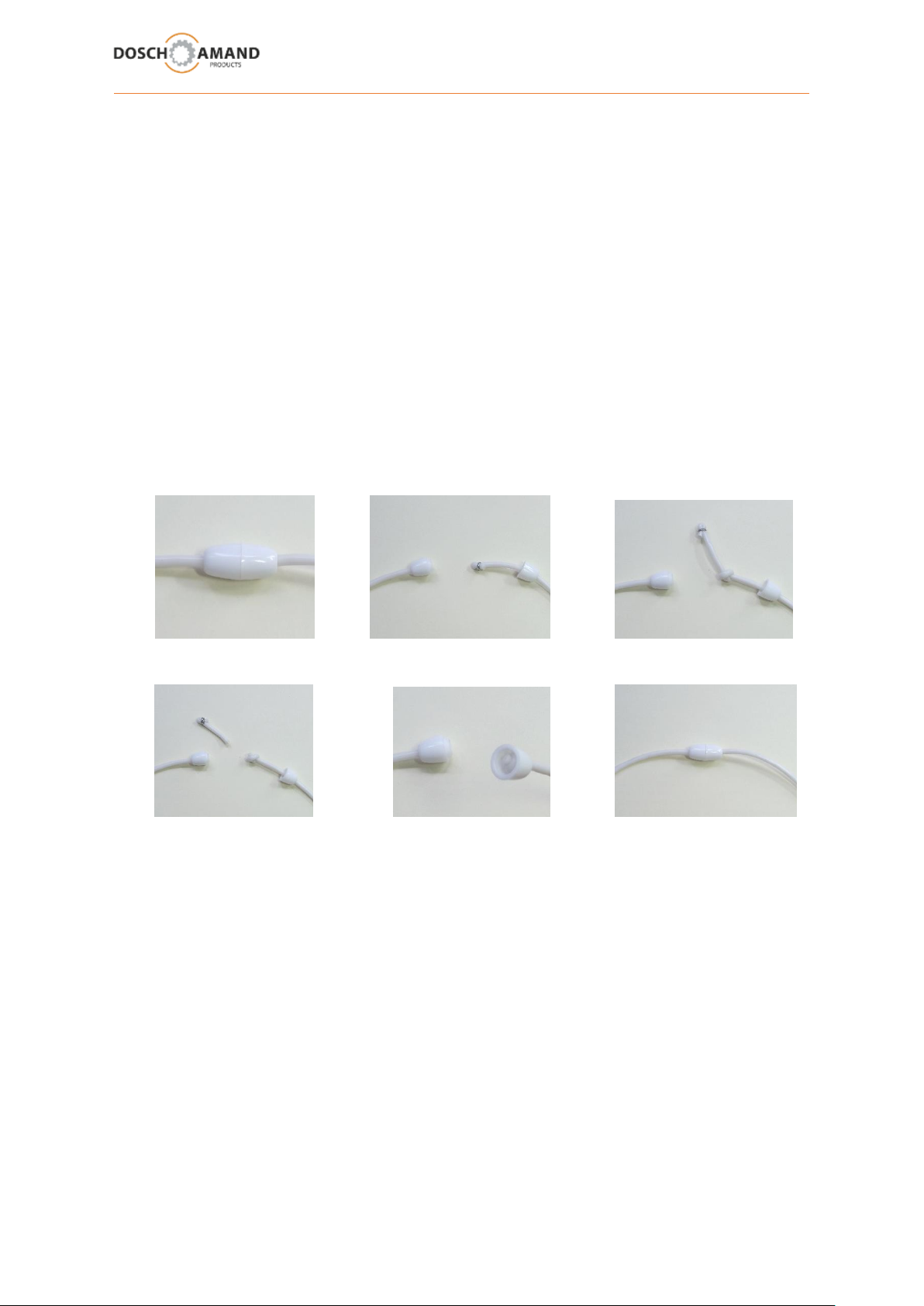
5.4 adjusting necklace length
The necklace length can be individually adjust.
1. 2. 3.
4. 5. 6.
1. Open the necklace clasp
2. Pull out the tape of the lock without edge
3. Make a simple knot in the band, depending on the desired length
4. Tie the knot and cut off the excess tape over the knot
5. Close the necklace clasp
5.5 protection against environmental influences
Protect the Device from direct sunlight, moisture, dust and vapor. Expose the Device not extreme
temperatures and no strong electro-magnetic fields. The Device is protected against dust and
moisture according to IP64. As a result, light splash is no problem, showering and bathing, however,
can destroy the Device.
User Manual Guide DECT indePENDANT EN 04-2019 25 von 27
Page 26
5 Important notes
5.6 cleaning
Use a slightly damp cloth to clean. Do not apply any liquid cleaning s directly to the Device. The Device
is splash-proof. Turn the Device on contact with liquid. Hold the Device vertically and shake it gently.
Blot the Device dry and leave it for at least 24 hours. Then place the Device for 2h on the Charging Disc
to achieve a residual drying heat.
5.7 repair
Never try to repair the Device by yourself. Do not open the casing under any circumstances. This could
lead to destruction and damage the Li-ion battery. Damage to the Li-ion battery can lead to strong
heat exposure. You will lose your warranty claims.
5.8 disposal
If your Device is end of use, take the Device to a collection point provided by your local public
waste authorities (recycling center).
According to the electrical and electronic equipment act, owners of old Devices are obliged to dispose
old electrical and electronic equipment in a separate waste container. Please help and contribute to
environmental protection and never dispose the Device to general household waste.
5.9 warranty
Your dealers provides a warranty of 2 years from the date of purchasing date the Device. The buyer
has the right of subsequent performance. The supplementary performance includes either
rectification or the delivery of a replacement product. Exchanged Devices or parts become the
property of the dealer. Fails to meet the buyer can either demand reduction of the purchase price or
withdraw from the contract and, where it is responsible for the lack of the dealer claims for damages
or compensation. The buyer has to communicate deficiencies immediately to the dealer. The proof of
the warranty claim must be evident by a proper confirmation of purchase (proof of purchase). Damage
caused by improper handling, use, storage or by force majeure or other external influences are not
covered by the warranty.
5.10 CE Declaration of conformity
This Device complies with the requirements of the EU directives: DIRECTIVE 2014/53/EU OF THE
EUROPEAN PARLIAMENT AND OF THE COUNCIL of 16 April 2014 on the harmonisation of the laws
of the Member States relating to the making available on the market of radio equipment and
repealing Directive 1999/5/EC. Conformity with the o. a. directives is confirmed by the CE mark. The
EC declaration of conformity can be viewed at the following address:
DOSCH&AMAND Products GmbH, Neumarkterstr. 18, 81673 Munich, Germany
5.11 Technical service
You will receive additional consulting services under the service number of your dealer.
Page 27

Standard
DECT GAP acc. ETSI Standard 300 444
DECT EU, US
Frequency range
EU: 1880 MHz to 1900 MHz
US: 1920MHz to 1930 MHz
Duplex process
FDMA/TDMA-TDD
Modulation
GFSK
Transmission power
10 mW - thermal power per channel
NTP 250 mW
Radio range
up to 300 m outdoors, up to 50 m indoor
Power supply Device
100-230V AC, 50/60 Hz, mains plug: Euro type, USB
Battery
Li Polymer 450mAh with standby time 3 days
Operating temperature
0 C to + 45 C
Protection class
IP64
Dimensions
70 * 42 * 14 mm
Weight
41g
Description
DECT indePENDANT
Your private Emergency Call
Type
DECT Pendant
Ident Number
1432.1000.xx xx = 01 black
xx= 02 blue
xx = 03 green
xx = 04 orange
Supplier
German Engineering
Manufactured in China
6 Technical data
7 Ordering information
User Manual Guide DECT indePENDANT EN 04-2019 27 von 27
 Loading...