

Page 1

Doosl® Wireless Presenter User’s Manual
(DSIT007)
Be sure to carefully read this user’s manual before using the wireless
presenter and keep it for future reference.
WARNING
Laser beam can cause permanent damage to eyes. Do not look into the laser
beam or shine the laser beam into your eyes, other peoples’ eyes, or pet’s
eyes.
Keep this device away from Children. This is a working tool, not a toy. It should
only be used by adults.
This device contains a built-in rechargeable lithium battery and cannot be
placed in fire or exposed to water or other liquids. Overheat or short-circuit
could make the battery explode.
Declaration
Information in this document is subject to change without notice. No part of this
document may be reproduced or transmitted in any form or by any means,
electronic or mechanical, for any purpose, without prior permission of the
seller.
The seller provides this document without warranty, or condition of any kind.
The seller may make improvements or changes in the product described in this
document at any time.
Introduction
z Product description
It is a great tool for PowerPoint presentations! With it, you can interact with
your audiences and still maintain control of your laptop or PC. You don't need
to stand beside your computer or blackboard. With it you have complete
control!
You can effortlessly deliver your best PowerPoint presentations with the Doosl
wireless presenter, highlight important details with the laser pointer and
manage the presentation within a 100 meters range.
z Product features
1. Enables user to realize page change by the four direction keys and Page
Down/Up on the keyboard; Fully supports PowerPoint, Keynote and Prezi.
Page 2

2. 2.4G RF frequency, which is an ISM free frequency and can be used
world-wide; 100-meter wireless range with 360-degree control; Supports
automatic frequency hop and effectively avoids the interference to
other RF signal.
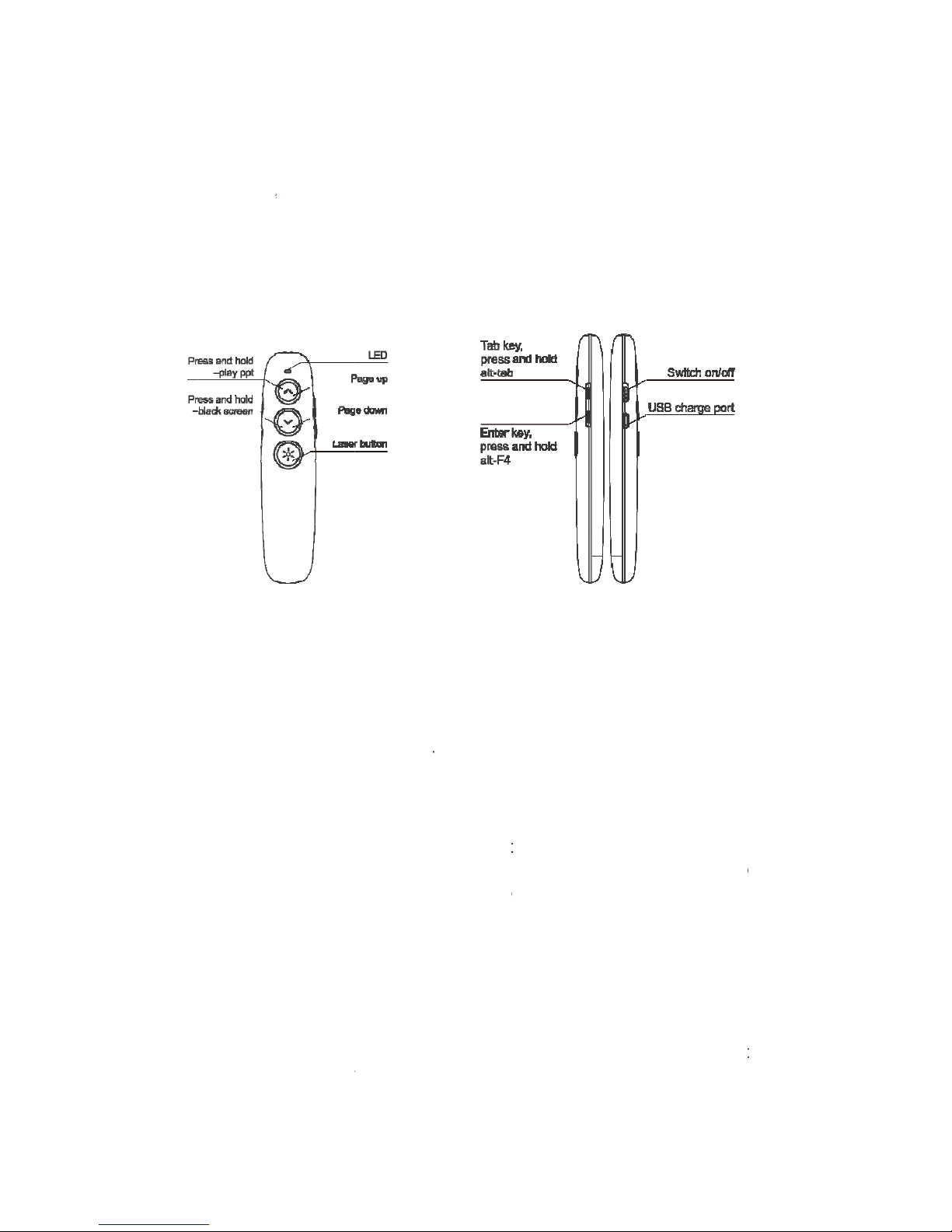
3. Supports page up, page down, full screen and blank screen, with the
details as follows: Click the Page Up button to turn to the previous page;
Press and hold the Page Up button for full screen or exit; Click the Page
Down button to turn to the next page; Press and hold the Page Down
button for blank screen or exit.
4. In addition to the laser pointer, page up, page down, play slides, blank
screen that frequently used in PowerPoint presentation, it also supports
hyperlinks with the details as follows: Click the Tab key for switch among
hyperlinks; Click the Enter key to open an hyperlink; Press and hold the Tab
key, or press the Tab key and the Alt key at the same time, for switch
among the open windows; Press and hold the Enter key, or press the Alt
key and the F4 key at the same time, to close the current window.
5. This presenter uses nickel-plated metal dome and silicone keypad to offer
user comfortable key experience.
6. This presenter can automatically enter into standby mode when not in use.
It has its individual power switch for user convenience.
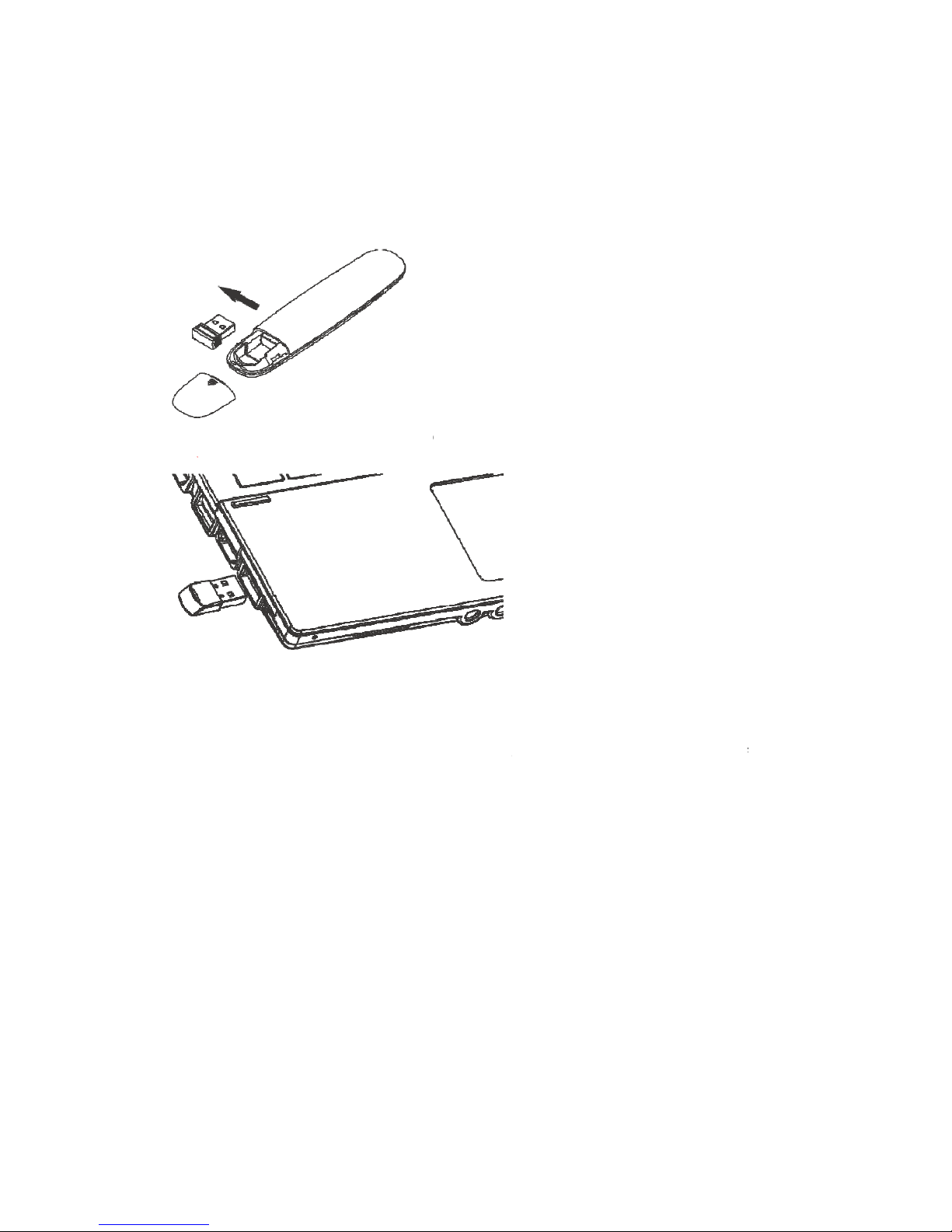
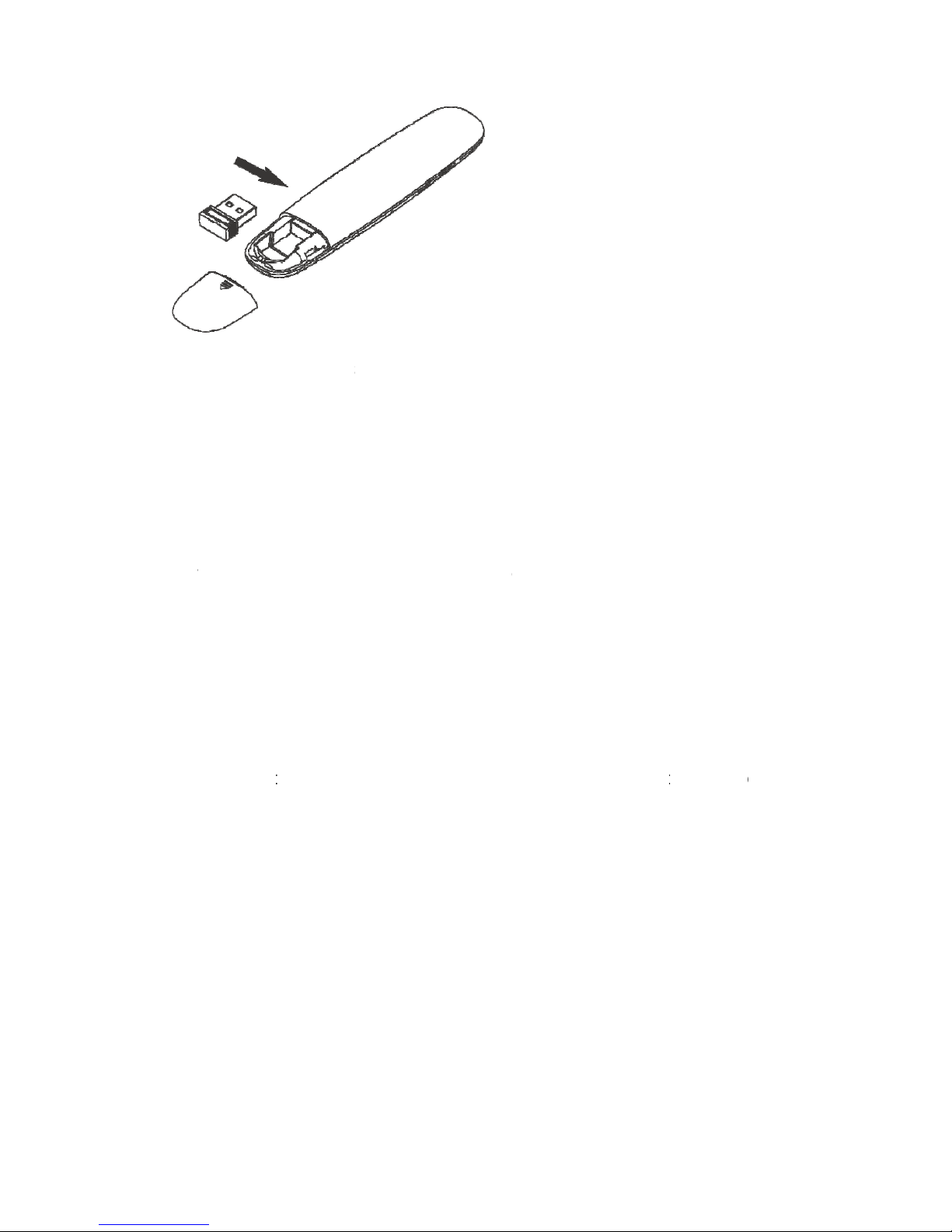
7. It supports plug-and-play and easy carrying. The supplied mini USB
receiver can be easily placed into the presenter.
8. It comes with a rechargeable 300mAh polymer lithium battery. If necessary,
you can charge it with a mobile phone charger.
9. Compatible with USB 3.0 and supports plug-and-play.
z Who should have this device
All the people who present with PowerPoint and a projector, such as teachers,
trainers, businessmen, will need this device.
System Requirements
This presenter works on all Windows operating systems (Windows 7 / 8 /
10 and later) and Mac OS / Linux / Android system. However, maybe only laser
pointer and page turning is available when works on Android, Linux and Mac
OS. In addition, your computer should have at least one USB port, which is
Page 3

compatible with USB 1.1/2.0/3.0.
z Operation system
Windows 2003, XP, Windows Vista, Windows 7, Windows 8, Mac OS,
Linux, Android
z Package contents
Wireless presenter (USB receiver included)*1
User Manual*1
USB Cable*1
z Specifications
1. Transmitter
Technology: Radio Frequency
Frequency: 2.4GHz
Control Distance: >100m
Laser Class: 3R
Max Output: <5mW
Laser Distance: >200m
Wave length: 650nm
Battery: 300mAh Polymer Lithium
Battery Working Voltage: 3.6V-4.2V
Sleep Current: <10uA
Dimension: 125*30*15mm
Weight: 32g
2. USB Receiver
Operation System: Windows 7/8/10, Mac OS, Linux, Android
USB Version: USB1.1/2.0/3.0
Working Voltage: 4.5-5.5V DC
Dimension: 18.5*14.5*6.0mm
Weight: 2.0g
Page 4
G
e
z
(
请
Pr
ePrePagPagLasTabEnt
US
Sw
i
z
1.
2.
3.
4.
5.
In
s
tting St
a
Function
更换按
键
ss and ho
ss and ho
e up
e down
er button
key, pres
s
er key, pr
e
B charge
p
tch on/off
Function
Laser poi
n
focus
Start the
M
Press an
d
page in fu
l
screen di
s
to enter Bl
Blank Scr
e
Page Up/
D
page or t
h
Hyperlink
s
key to op
e
and the
A
Press an
d
same tim
e
tallatio
n
rted
map
功能
示
ld –play p
p
ld –black
s
and hold
ss and h
o
ort
Descript
i
ter: Pres
s
icrosoft
P
hold the
l screen, t
play. In fu
l
ank Scre
e
en mode
.
own: Cli
c
e next pa
g
: Click th
e
n an hyp
e
lt key at
t
hold the
, to close
t
意线条
图
t
creen
, alt-tab
ld, alt-F4
on
the Lase
r
owerPoin
t
PageUp
hen press
l screen
m
n mode, a
k the Pag
e
Tab key
f
rlink; Pre
s
he same
Enter key
,
he curren
)
key to e
m
and ope
n
button for
and hold
t
ode, you
c
nd then pr
e
eUp or P
a
or switch
s and hol
d
time, for
s
or press
t window
it the lase
a Power
P
2 second
he PageU
an press
ss and h
o
geDown
k
among h
y
the Tab
k
witch am
the Alt ke
r beam an
oint file.
s to displ
a
p button a
g
and hold t
ld the Pa
g
ey to go t
o
perlinks;
C
ey, or pre
s
ong the
o
y and the
d highligh
t
y the cu
r
ain to exi
t
he PageD
o
eDown to
the prev
lick the
E
s the Tab
pen wind
o
F4 key a
t
the
rent
full
wn
exit
ious
nter
key
ws;
the
Page 5
1.
(
请
a.
R
(
请
b.
P
2.
Ple
aut
o
US
3.
fla
s
rec
e
4.
Afte
off
t
附
图
Take out
power swi
power is
o
means th
e
附图:
给出“取
下
emove th
给出
“
lug the re
Operate t
h
ase plug
matically
B device
a
Operate t
h
When a
h. When
t
iver will fl
Turn off t
h
r use, ple
a
he power
:(请给
出
the mini
U
tch to on
p
n or not.
wireless
p
后盖,
拿
e rear cov
将接收
ceiver int
o
e USB re
c
the rece
detect th
e
nd compl
e
e wireles
s
button is
he USB
r
ash too.
e wireles
s
se put th
e
switch on
“收纳接
收
SB rece
osition; y
o
If the LE
D
resenter
出接收器
”
er and tak
e
器插入
the USB
p
eiver
iver into
device.
F
te the set
u
presente
pressed,
t
eceiver r
e
presente
r
USB rec
e
the left.
器、关
闭
iver from
u can pre
s
is flashi
is turned
o
的示意线
条
out the r
电脑 U
S
ort
the lapto
ollow th
e
p.
he blue L
ceives co
ive back i
电源开关
”
the wirel
e
s any but
t
ng when
t
n.
图)
eceiver.
B 接口
p’s USB
steps to
ED on th
e
ntrol sign
a
nto the wi
r
的示意线
条
ss prese
n
on to che
c
he button
” 的示
意
port. Th
e
search th
e
wireless
l, the LE
D
eless pre
s
图)
ter. Push
k whethe
r
is presse
线条
图
system
driver of
presenter
on the
U
enter and
the
the
d, it
)
will
the
will
SB
turn
Page 6
z
mo
red
If t
h
z
no
r
foll
ocomadd
us
e
ke
yyou
co
d
Recharg
i
Connect
bile phon
e
to show t
h
e red LE
D
Normally
How to c
This pre
s
mal situati
w:
the lase
r
puter, bu
t
In this c
a
ress cod
e
r must co
d
In order
t
and turn
o
r USB re
c
ing is suc
c
ng the wi
the wirele
s
charger
v
e wireles
s
turns off,
the recha
ode
enter ha
s
on, user d
pointer
w
the trans
m
se, it is
p
and can
n
e the pre
s
o code, pl
e
n the po
w
eiver int
o
essful.
reless pr
e
s presen
t
ia USB c
a
presente
it means
t
rging time
been co
d
oes not n
e
orks nor
m
itter doe
s
ossible t
h
ot receiv
e
enter ag
a
ase oper
a
er switch,
the PC.
senter
er to a U
S
ble, the r
e
r is being
r
he rechar
g
is about t
w
ed succ
e
ed to cod
e
ally and
r
not work
at the re
c
the sign
a
in.
te as foll
o
now the
L
Wait until
B port of
d LED wi
l
echarged
.
e is com
p
o hours.
ssfully wh
it. In ad
d
eceiver c
a
and cann
o
eiver doe
s
l from th
e
ws: Press
ED indica
t
the LED
lap top or
l stop flas
h
leted.
en leave
t
ition to th
e
n also b
e
t control
y
not corr
e
transmit
t
and hold
t
or keeps
o
indicator
g
a USB po
ing and
k
he factor
y
situation
s
identifie
d
our PC.
ctly save
er. There
f
he PageD
o
n. Then,
p
oes off,
rt of
eep
. In
as
by
the
ore,
wn
lug
now
Page 7

Frequently Asked Questions
1) How to know the battery is out of power?
If the blue LED on the wireless presenter starts to flash slowly, it means
the power is low and the battery needs to be recharged.
If there is no laser beam emitted when you click the Laser key; or, the LED
indicator does not work when you click other keys; it means your battery runs
out, please charge it immediately. Excessive discharge will severely shorten
the useful life of lithium battery.
2) How do I know if the charging is completed?
When you charge your wireless presenter by a computer, please make
sure the computer is switched on.
Red LED on means it being charged; Red LED off means the charging
completed.
3) The laser pointer does not work, why?
Firstly you need to turn on the power. Secondly you can check whether
the wireless presenter is in low power or out of power. If the LED flash slowly, it
means the power is low and the battery needs to be replaced. If all the other
buttons can work, only the laser pointer cannot work, the laser diode may need
replacement.
4) When the mini USB receiver plugs into the PC USB, the laptop does not
detect the device, why?
Please try another USB port or another PC.
5) Laser beam becomes darker and darker, what should I do?
Dark laser beam is usually caused by the low battery . Please recharge your
battery. After charging, if the laser beam is still just a dark red spot, it means
the laser module is aging. You can contact us for post-sale service.
6) Shortcut keys do not work or work incorrectly, what should I do?
This case may be caused by the change of shortcut keys in operating
system or applications (e.g. PowerPoint). Please check your shortcut keys
setting in your system or applications, or make your data backup and then
reinstall the operating system or applications.
Page 8

FCC Statement
Changes or modifications not expressly approved by the party responsible for
compliance could void the user's authority to operate the equipment.
This equipment has been tested and found to comply with the limits for a Class
B digital device, pursuant to Part 15 of the FCC Rules. These limits are
designed to provide reasonable protection against harmful interference in a
residential installation. This equipment generates uses and can radiate radio
frequency energy and, if not installed and used in accordance with the
instructions, may cause harmful interference to radio communications.
However, there is no guarantee that interference will not occur in a particular
installation. If this equipment does cause harmful interference to radio or
television reception, which can be determined by turning the equipment off and
on, the user is encouraged to try to correct the interference by one or more of
the following measures:
-- Reorient or relocate the receiving antenna.
-- Increase the separation between the equipment and receiver.
-- Connect the equipment into an outlet on a circuit different from that to which
the receiver is connected.
-- Consult the dealer or an experienced radio/TV technician for help
This device complies with part 15 of the FCC rules. Operation is subject to the
following two conditions (1)this device may not cause harmful interference,
and (2) this device must accept any interference received, including
interference that may cause undesired operation
 Loading...