

Page 1
DUAL MODE WIRELESS OPTICAL
MOUSE
User Manual
To provide quality customer service and technical support, it is suggested that you keep the
following information as well as your store receipt and this user manual.
Date of Purchase: ________________________________
Product Rev. Number (located below the UPC on the package): ____________________
PID # 111680/1/2/3-109289
Rev. 150728
Page 2

FCC RADIATION NORM
FCC
This device complies with Part 15 of the FCC Rules. Operation is subject to the following two conditions :
(1) this device may not cause harmful interference, and (2) this device must accept any interference
received, including interference that may cause undesired operation.
Warning: Changes or modifications to this unit not expressly approved by the
party responsible for compliance could void the user’s authority to operate the
equipment.
FCC Compliance Statement
NOTE: This equipment has been tested and found to comply with the limits for
pursuant to Part 15 of th
These limits are designed to provide reasonable protection against frequency interference in residential
e FCC Rules.
a Class B digital device,
installation. This equipment generates, uses, and can radiate radio frequency energy, and if not installed or
used in accordance with the instructions, may cause harmful interference to radio communication.
However, there is no guarantee that interference will not occur in television reception, which can be
determined by turning the equipment off and on. The user is encouraged to try and correct the
interference by one or more of the following measures:
Reorient or relocate the receiving antenna.
Increase the separation between the equipment and the receiver.
Connect the equipment into an outlet on a circuit different from that to which the receiver is
connected.
Consult the dealer or an experienced radio/TV technician for help.
CAUTION!
The Federal Communications Commission warns the user that changes or modifications to the unit not
expressly approved by the party responsible for compliance could void the user’s authority to operate the
equipment.
2
Page 3

PACKAGE CONTENTS
Dimensions
4.2” x 2.47” x 1.58”
Connectivity
2.4GHz/Bluetooth wireless technology
Range
Up to 30 ft.
Battery
1 AA battery
DPI
1000/1600
Inside of the package you will find:
- Dual Mode Wireless Optical Mouse
- USB nano receiver
- 1 AA battery
- User Manual
- Warranty Information
SYSTEM REQUIREMENTS
Please be sure that your devices meet all of the system requirements below to avoid difficulties during
installation:
Compatible with PCs, Mac® computers, and Chromebook
Work with:
TM
notebook computers
- Windows® XP(2.4GHz only), Windows® Vista, Windows® 7 and Windows® 8 operating systems
- Mac OS X® 10.3 and above(2.4GHz only)
- Mac OS X® 10.10 and above(Bluetooth Smart technology only)
- Bluetooth Smart wireless technology enabled device with build in Bluetooth 4.0 or Bluetooth 4.0
Receiver
SPECIFICATIONS
3
Page 4
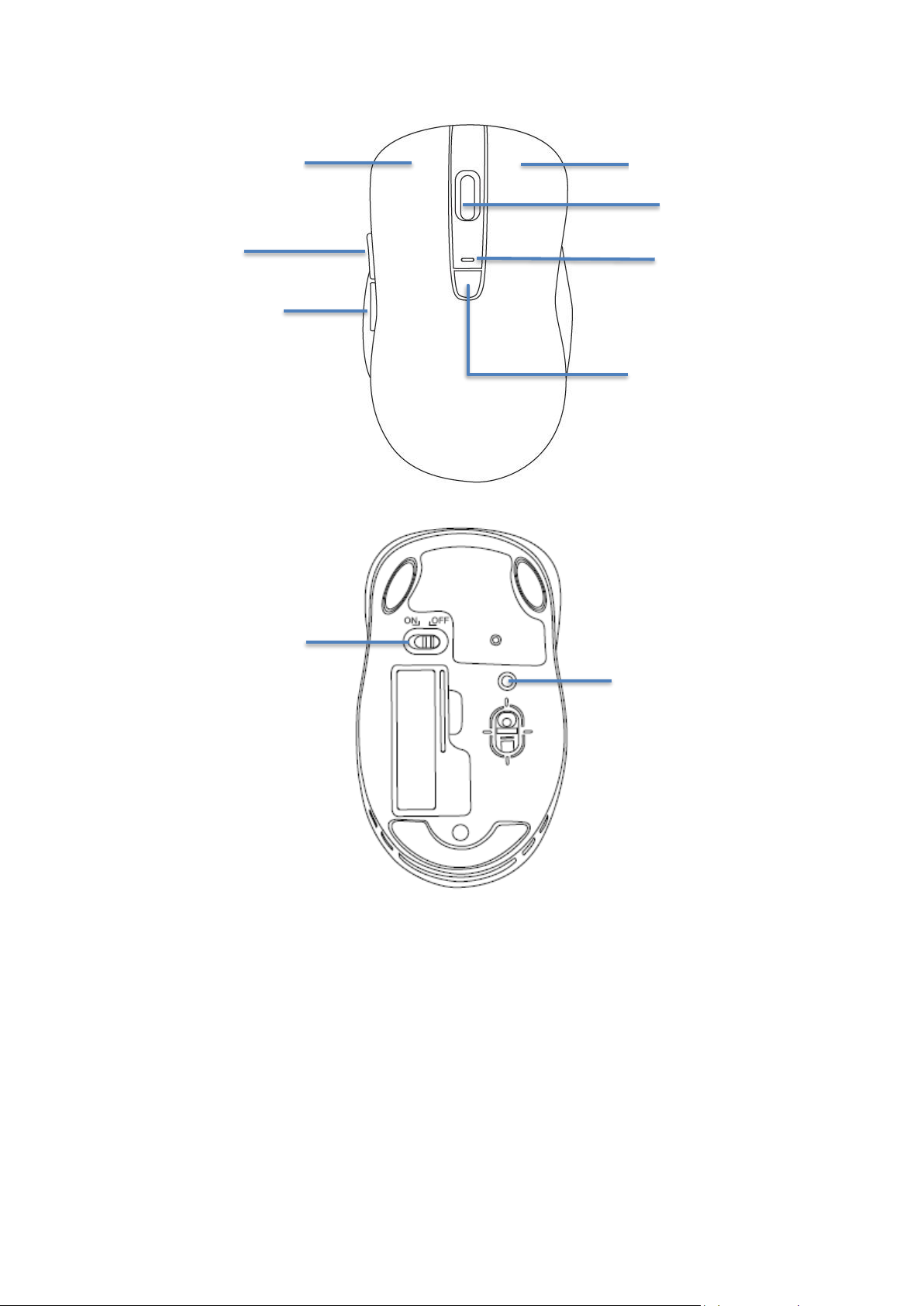
Forward/Next
Page Button
Backward/Previous
Page Button
Power Switch
Bluetooth Connection
Button
BUTTON ASSIGNMENT
Right Button
Left Button
Scroll Wheel
LED Indicator
DPI Switch
/Connection Mode
Switch
4
Page 5
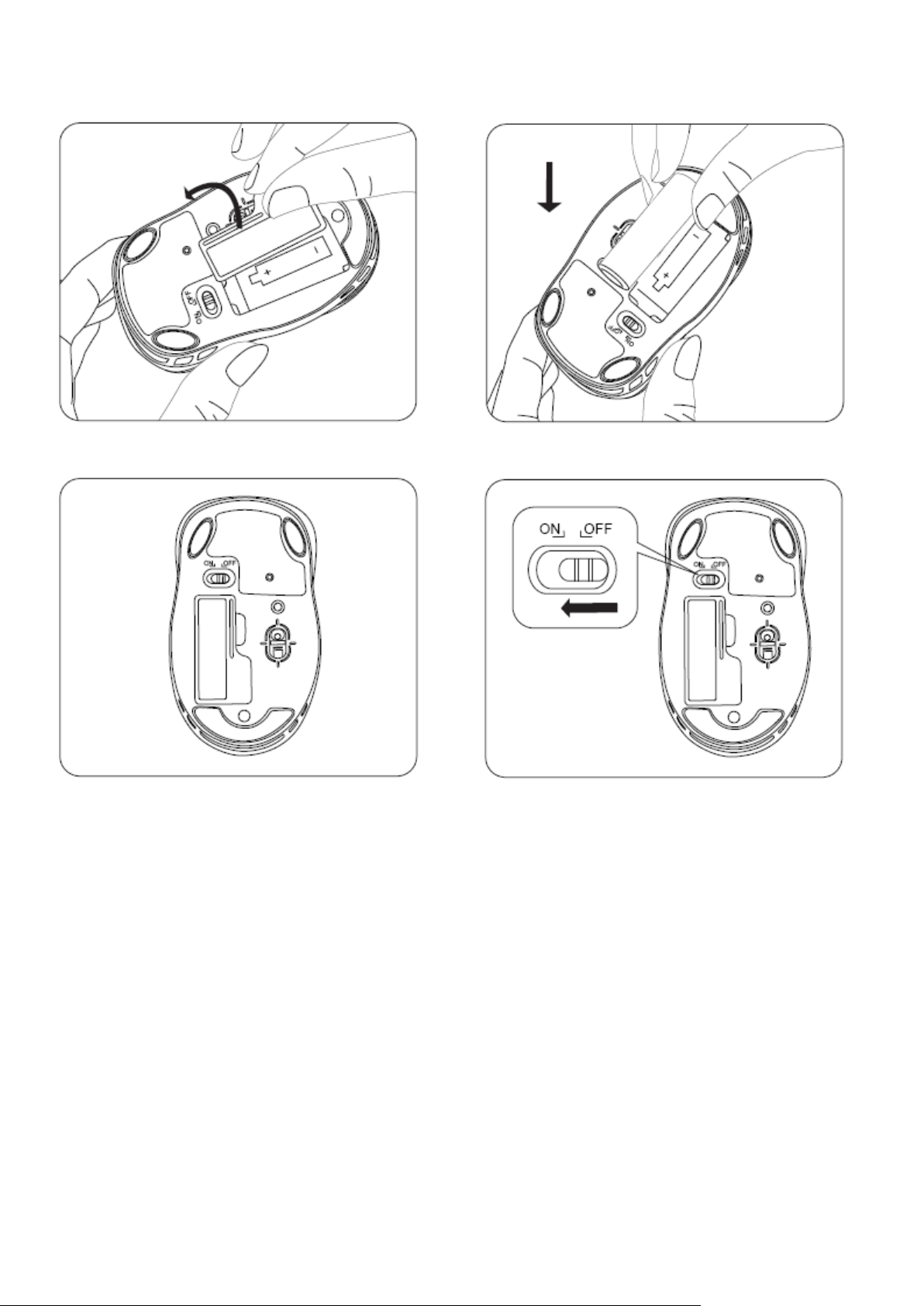
INSTALLATION BATTERY
1. 2.
3. 4.
NOTE: Press the DPI button to select sensitivity 1000 (less sensitive) or 1600 (more sensitive).
If DPI 1000 is selected, the LED indicator will slow flash 3 times.
If DPI 1600 is selected, the LED indicator will quick flash 5 times.
5
Page 6
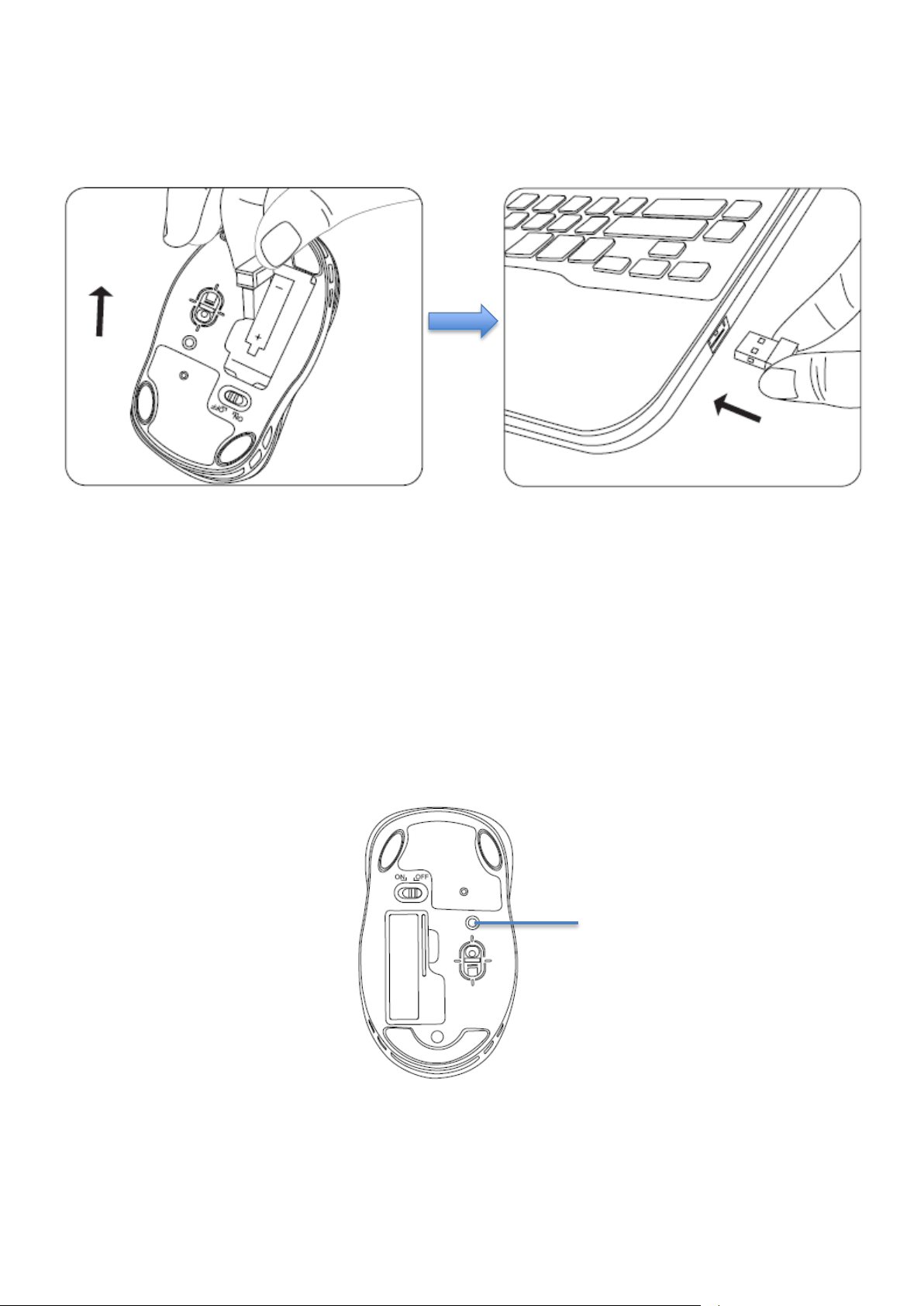
Bluetooth Connection
Button
ESTABLISHING A CONNECTION – 2.4GHz Mode
1. Make sure your mouse is in 2.4GHz Mode (press the DPI button for 3 sec to switch modes. When 2.4GHz
Wireless mode is selected, LED indicator will light up for 2 sec).
2. Turn on your computer, plug the enclosed Nano Receiver into an available USB port on your computer.
3. Your wireless optical mouse is now ready to be used.
ESTABLISHING A CONNECTION – Bluetooth Mode
For Windows® Vista, Windows® 7, Windows® 8 operating systems Users
1. Make sure your mouse is in Bluetooth Mode (press the DPI button for 3 sec to switch modes. When
Bluetooth mode is selected, LED indicator will light up for 4 sec).
2. Open the Bluetooth settings on your computer and set it to search for Bluetooth wireless technology
enabled devices.
3. Press the Connect Button for 3 seconds on the bottom of your mouse to make your mouse searchable,
then place your mouse within 30 feet of the device that you are using to pair with your mouse.
4. Search for your mouse (device name: MBT9950) on your computer using the Bluetooth software. Follow
the on-screen instructions to complete the pairing process (NOTE: For more information, please refer to
your Bluetooth wireless technology enabled radio user manual for more instructions on how to pair). Your
mouse is now ready to be used.
6
Page 7

Bluetooth Connection
Button
For Mac OS X® 10.10 and above Users
NOTE: The procedures listed below are for demonstration only and are based on Mac OS X® 10.10.4 with
default settings. The procedures and screenshots may look slightly different than yours but with similar
options.
1. Make sure your mouse is in Bluetooth Mode (press the DPI button for 3 sec to switch modes. When
Bluetooth mode is selected, LED indicator will light up for 4 sec).
2. At your desktop, click the System Preferences on the bottom of the screen, click the Bluetooth icon on
the pop-up window, then select Turn Bluetooth On to enable the Bluetooth feature. Press the Connect
Button on the bottom of your mouse for 3 seconds to make your mouse searchable, then place your
mouse within 30 feet of the device that you are using to pair with your mouse.
3. Click Pair on the right side of the window.
4. Your mouse is now ready to be used.
7
Page 8

WARRANTY INFORMATION
Limited Lifetime Warranty
Gear Head, LLC warrants that this product shall be free from defects in materials and workmanship for the
reasonable lifetime of the product. If the product is defective, Gear Head, LLC’s sole obligation under this
warranty shall be at its election, subject to the terms of this warranty, to repair or replace any parts
deemed defective. This warranty is for the exclusive benefit of the original purchaser and is not assignable
or transferable. THIS WARRANTY IS MADE IN LIEU OF ALL OTHER WARRANTIES, EXPRESS OR IMPLIED, AND
ANY IMPLIED WARRANTIES, INCLUDING THE IMPLIED WARRANTIES OF MERCHANTABILITY AND FITNESS
FOR A PARTICULAR PURPOSE, ARE LIMITED TO THE TERMS OF THIS WARRANTY, UNLESS OTHERWISE
PROHIBITED BY LAW.
Exclusions
To the fullest extent permitted by law, Gear Head, LLC expressly disclaims and excludes from this warranty
any liability for damages, including but not limited to general, special, indirect, incidental, consequential,
aggravated, punitive or exemplary damages, and economic loss (even if Gear Head is informed of their
possibility), third party claims against you, including for any loss or damages, and claims or damages
related to loss of, or, damage to, your records or data. This warranty does not apply to any product the
exterior of which has been damaged or defaced. This warranty will be voided by misuse, improper physical
environment, improper repair, acts of God, war or terror, commercial use, and improper service, operation
or handling.
Technical Support
Please access Technical Support on the web at www.pcgearhead.com or contact our technicians at
[email protected] for help.
Gear Head provides phone support, 866-890-7115, Monday-Friday from 9:00am-5:30pm Eastern Time.
Before calling, please make sure you have the Model # (located on the front page of your User Manual)
and information regarding your computer’s operating system.
Return Merchandise for Service
Any claim under this warranty must be made in writing to Gear Head, LLC, within 30 days after the owner
discovers the circumstances giving rise to any such claim, and must include a copy of this warranty
document, a receipt or copy of your invoice marked with the date of purchase, and the original packaging.
You may contact us on the web at www.pcgearhead.com or by emailing us at [email protected] to
receive service or request a return service authorization.
8
 Loading...