

Page 1

USER MANUAL
Page 2

GATEWARE®USER MANUAL
DoallTech
Contents
1.
Important
Safety Instructions
-----------------------------------------
3
2.
Device Contents
-----------------------------------------
5
3.
Installation
Method
-----------------------------------------
6
4.
Device
Part Name & Function
-----------------------------------------
7
5.
Screen User Interface
-----------------------------------------
8
6.
Menu
Settings
-----------------------------------------
9
7.
FAQ
----------------------------------------
14
8.
Product Specifications
----------------------------------------
16
2
Page 3
GATEWARE®USER MANUAL
DoallTech
3
Warning Symbol Explanation
- Please refer to the safety symbols throughout the manual and read all instructions carefully for correct usage
of device to protect against risks or damages to property.
Violating the instructions or improper use may lead to possibility of death or serious injury.
Proceed with caution when handling as improper use may lead injury or damage to device.
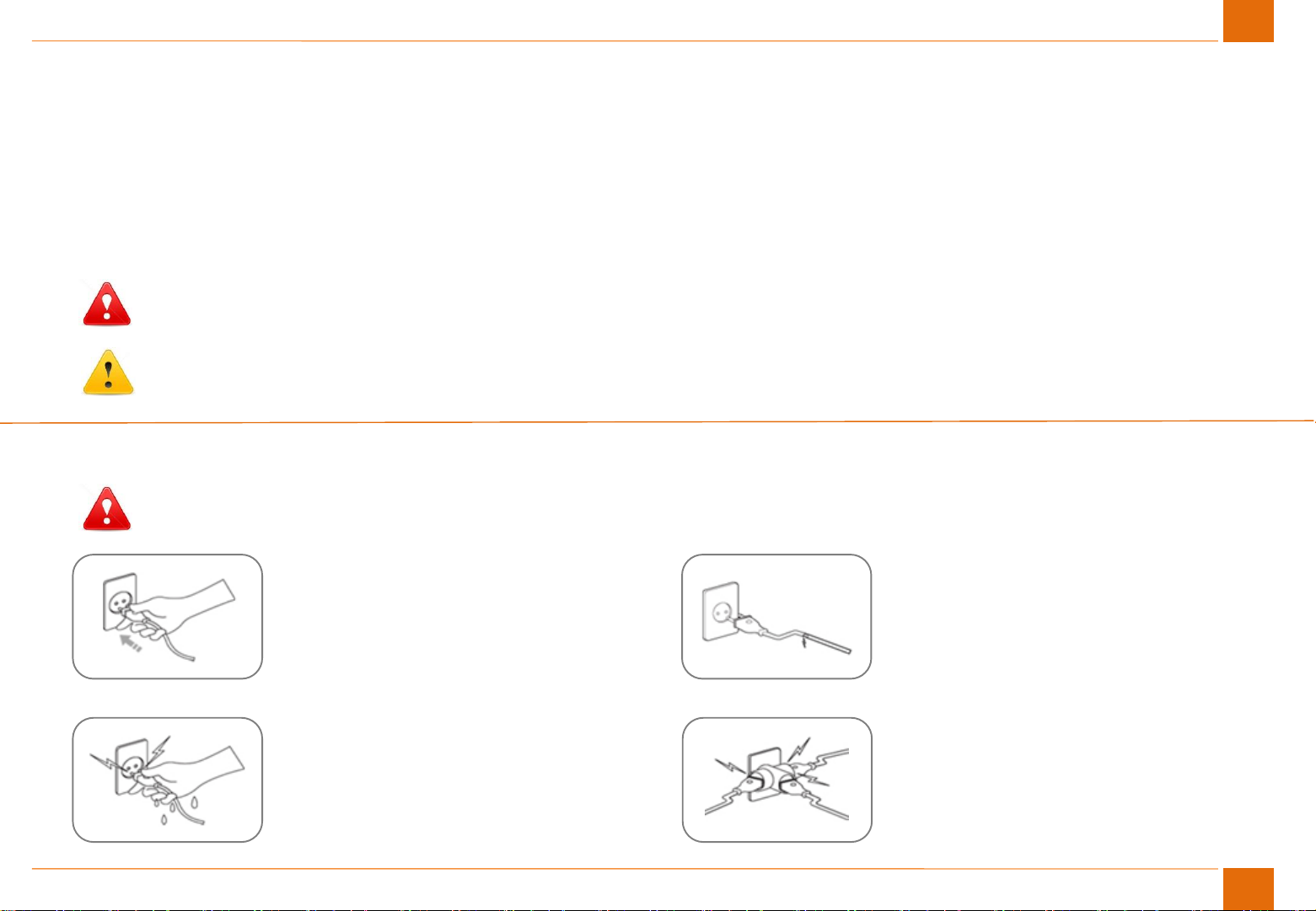
Power Supply
Properly plug into an electric outlet.
Unstable connection may cause fire or electric
shock.
Do not handle the power supply with
wet hands.
This many cause fire or electric shock.
Do not use a damaged plug or a loose outlet.
Unstable connection may cause fire or electric
shock.
Do not use multiple plugs in one outlet.
This many cause overheating of the outlet and a
potential fire hazard.
Caution
Warning
Warning
1. Important Safety Instructions
Page 4
GATEWARE®USER MANUAL
DoallTech
4
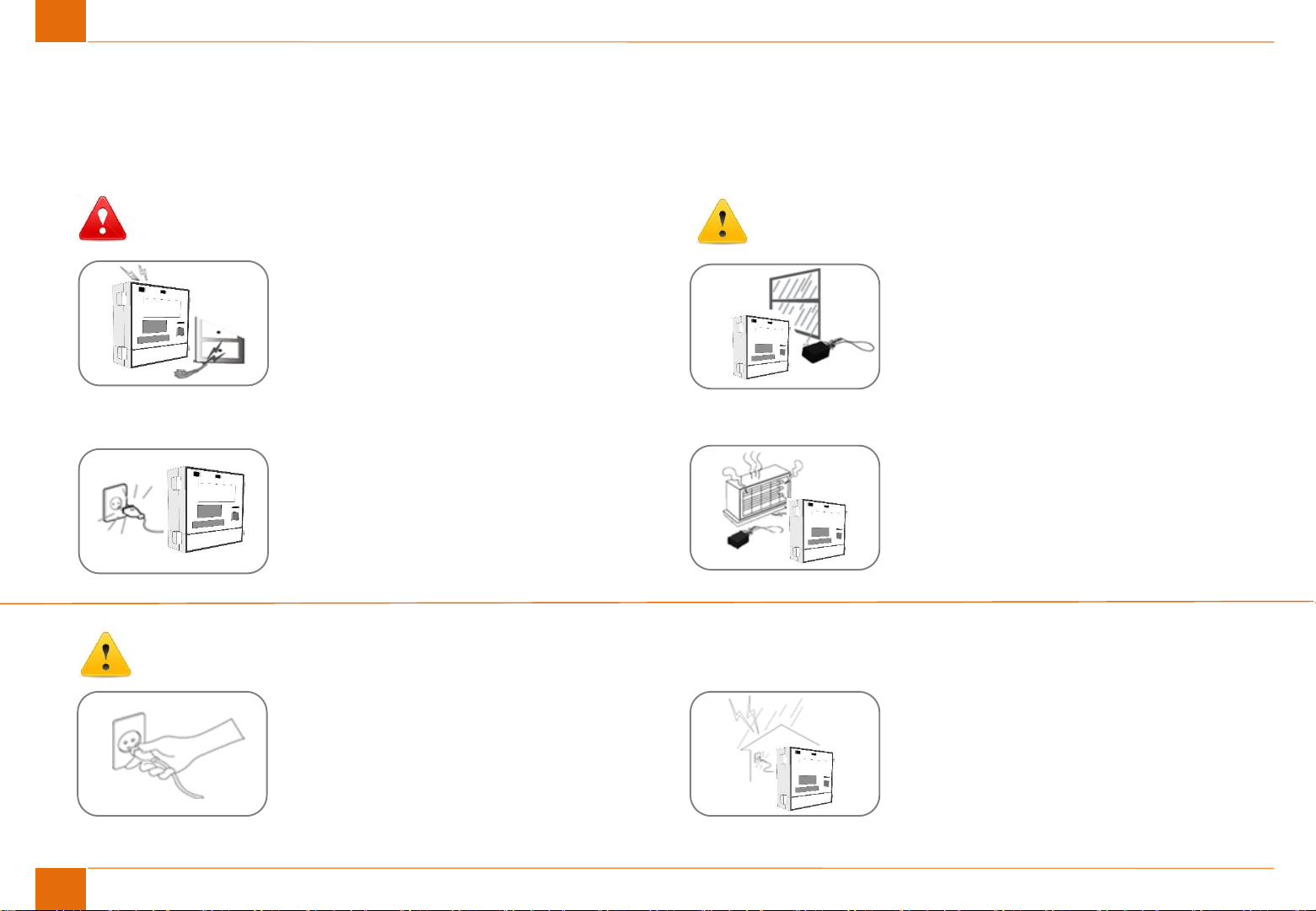
Power Supply
Do not press on the power line with heavy
objects or forcibly bend or pull.
This many cause fire or electric shock.
When moving the device, make sure the
power switch is turned off and unplug the
device before moving.
This many cause fire or electric shock.
Do not let the DC power supply (adapter)
get wet and keep away from water.
This many cause fire or electric shock.
Keep power supply device or power supply
cord away from heated surfaces.
This many cause fire.
Do not unplug the power supply by pulling
on the cord. To unplug, grasp the plug, not the
cord as this may damage the cord.
This many cause fire or electric shock.
During a thunderstorm or lightening,
unplug the power supply from the outlet.
This many cause fire or pose electric hazard
Warning
Caution
Caution
1. Important Safety Instructions
Page 5
GATEWARE®USER MANUAL
DoallTech
5
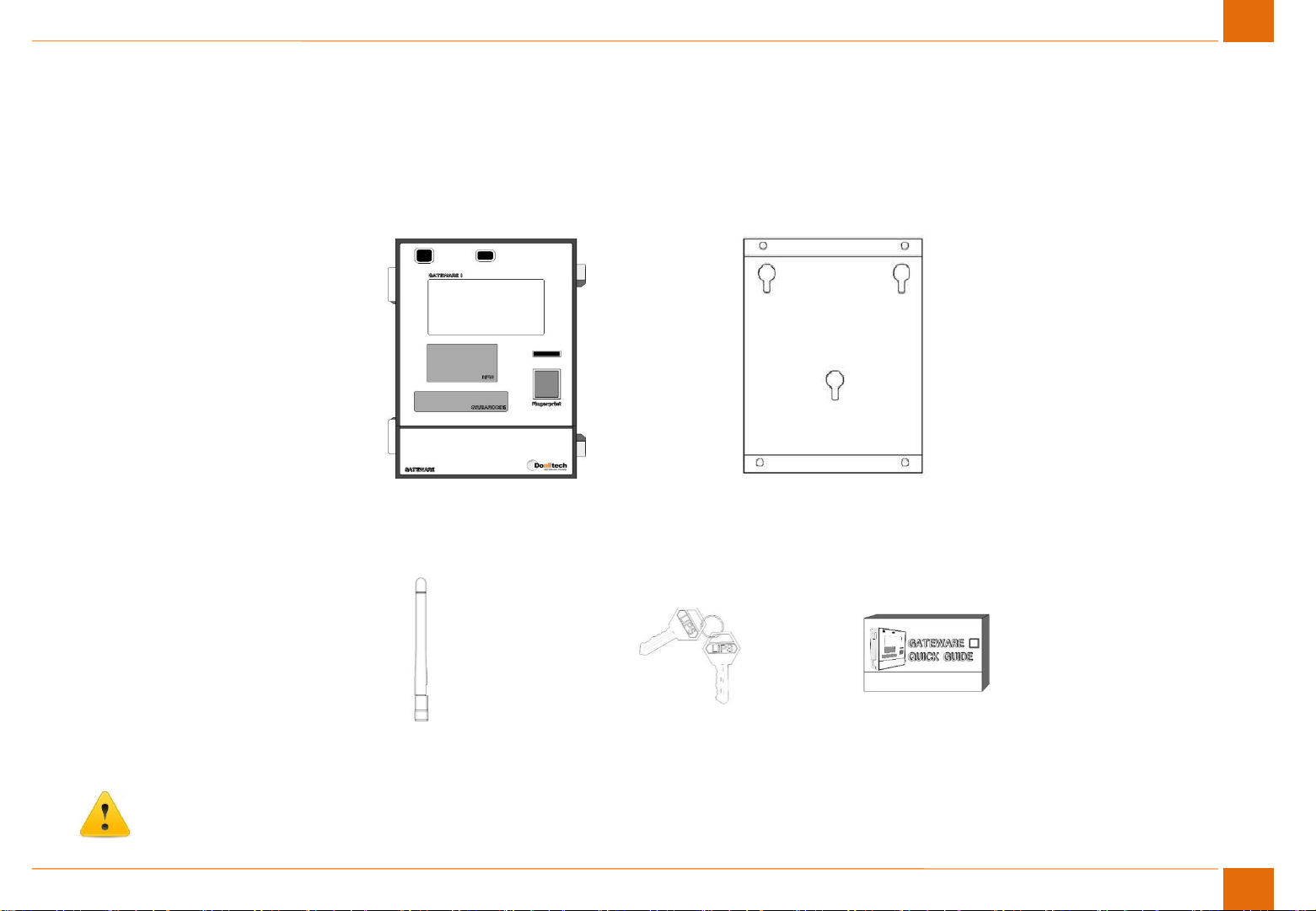
Main body key
User GuideWiFi Antenna
Gateware_EM Main body Main body Holder
2. Device Contents
The components may be changed without prior notice to improve the performance or quality of the equipment.
Caution
The body key must be kept by the administrator or carried
Page 6
GATEWARE®USER MANUAL
DoallTech
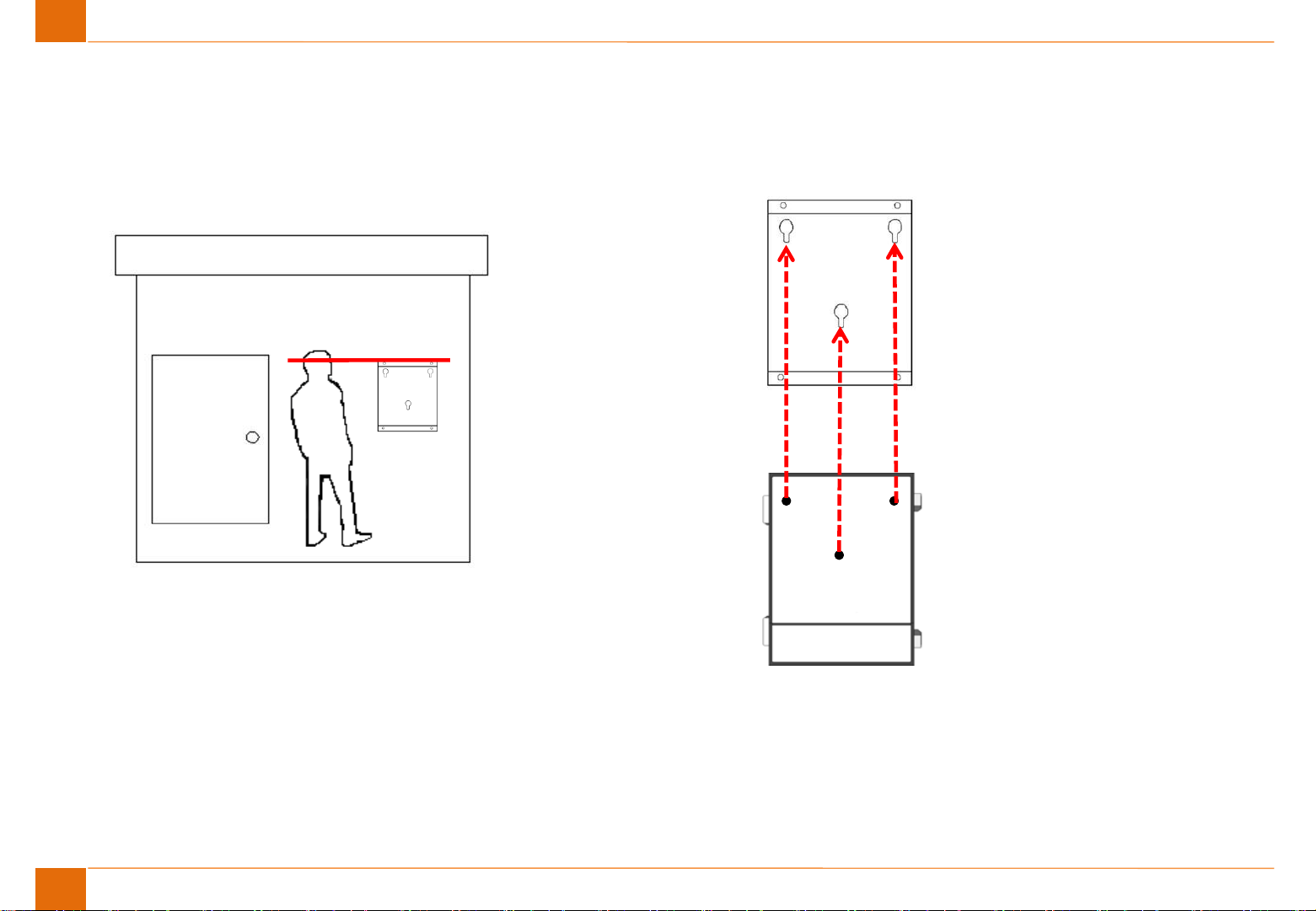
3. Installation Method
③
②
Holder
Holder
Back of the
GATEWARE device
①
Installation Example
[Installation Guide]
Ex) In case of installing at gate guard post
① Confirm the installation position after matching each end of the Holder at eye level of the worker.
② Install the Holder to installation position by using steel plate screws.
③ Hang it by hanging the back bolt of the device on the fixing hole of the Holder.
6
Page 7
GATEWARE®USER MANUAL
DoallTech
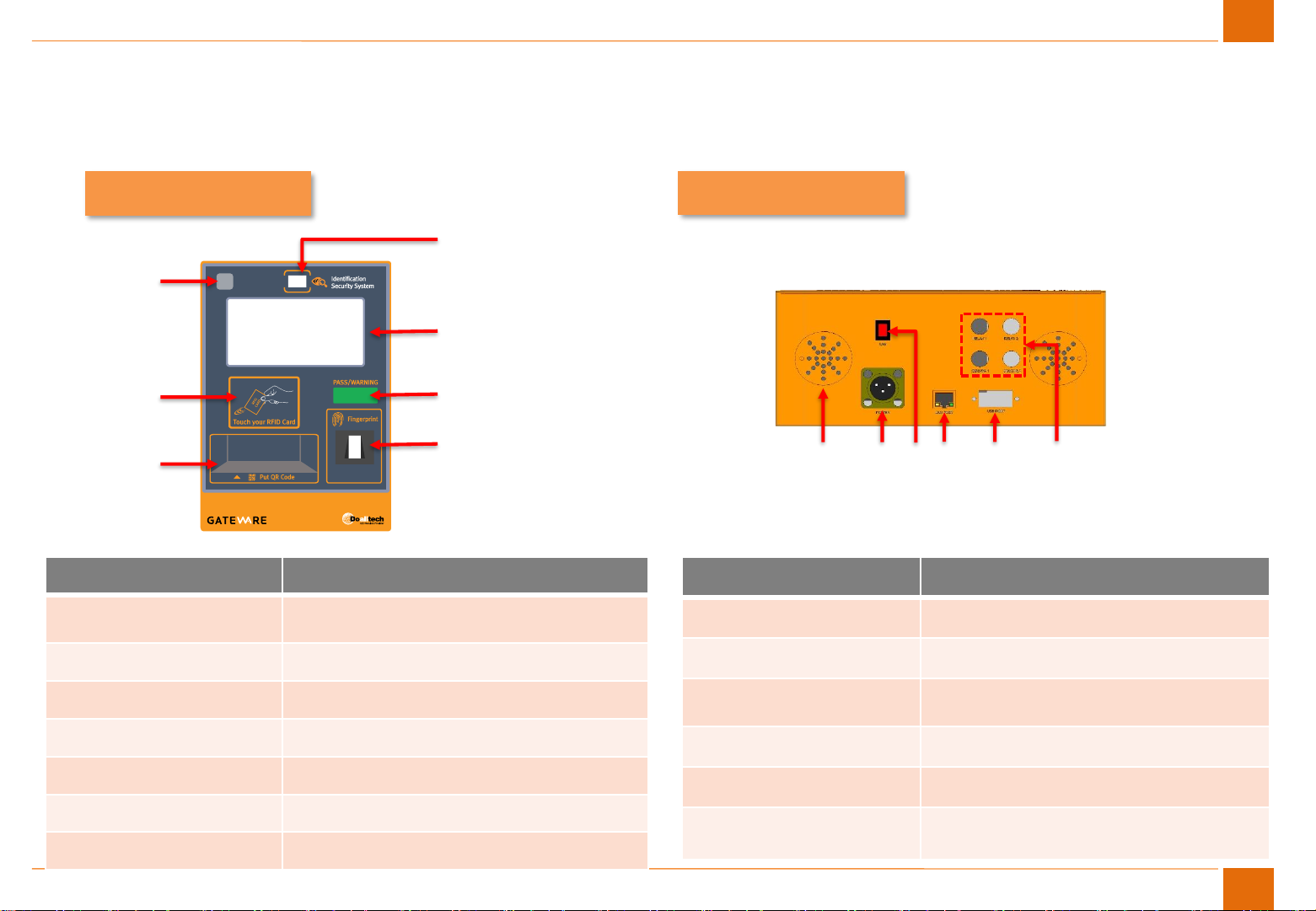
4. Device Part Name & Function (Front / Bottom)
FRONT
Part Name
Function
1. Iris Camera / Web CAM
Camera for iris scanning/ picture taken at
authentication
2. LCD Camera view & product status
3. Status LED Device status indicator (Green, Red)
4. Fingerprint Scanner For fingerprint authentication
5. Iris IR Censor Infrared for iris scanning in the dark
6. RFID Register For RFID card authentication
7. QR / Barcode Register For QR code / barcode authentication
BOTTOM
Part Name
Function
1. Speaker Sound output
2. PWR Power supply adapter connection terminal
3. S/W Product on/off button
4. LAN Port Internet connection port
5. USB Port USB connection port
6. Signal in/out put terminal Installation port for Relay, Sensor
7
1
2
3
4
5
6
7
1
2
3
4
5
6
Page 8
GATEWARE®USER MANUAL
DoallTech
5. Screen User Interface
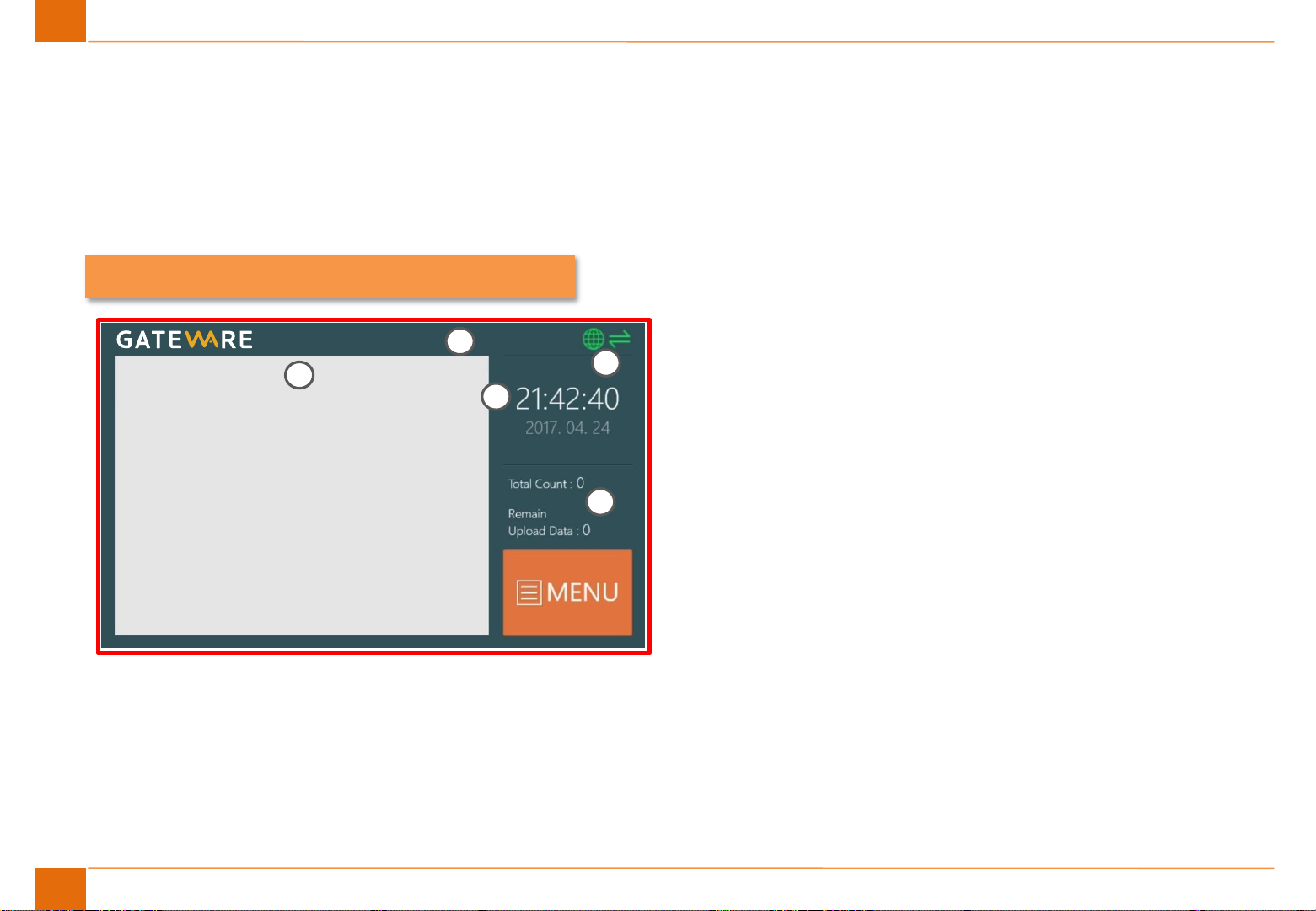
② Worker Information
After card authentication, the card number, name, company name,
work type, and occupation information are displayed.
① Status Information
Messages related to the operation of the device is displayed.
- Worker data download, update, saved data, etc.
③ Date & Time
Current year, month, day, and the current time are displayed.
④ Card Data Status
The total number of workers and the number of uploaded data are
displayed
⑤ Device Status
The internet connection status and server synchronization status
are displayed.
Main Screen
8
7420611124
Selena Gomez
DoallTech
Mechanical - Formwork
RFID Number
Name
Company
Discipline – Type of Work
Worker Information
Download
1
2
3
4
5
Page 9
GATEWARE®USER MANUAL
DoallTech
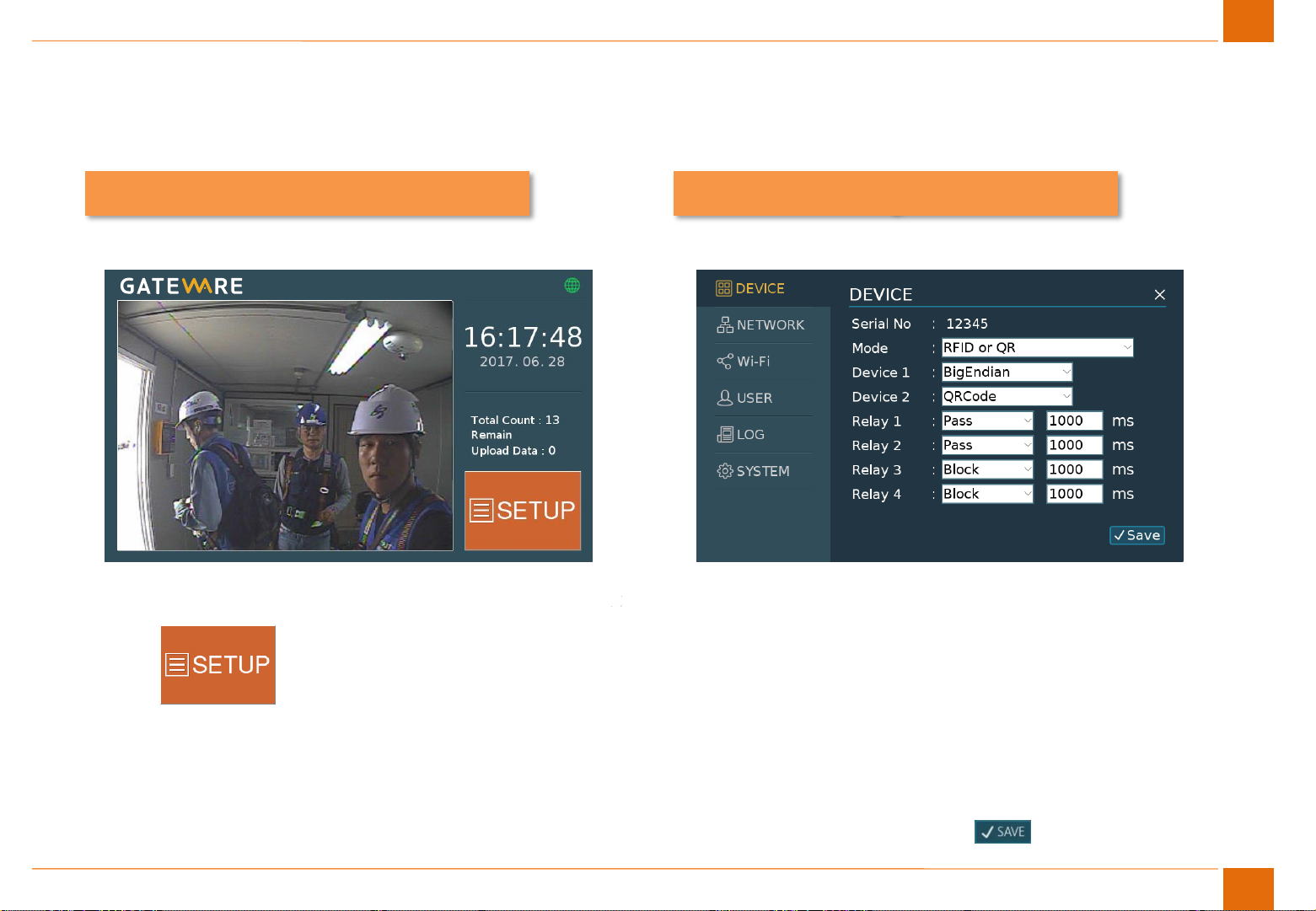
Main Screen
① Camera image is displayed on the main screen.
② Touch the screen to enter the setup menu.
① The DEVICE menu is the default device settings menu.
② Serial No is the unique device identification number.
③ Mode selects the authentication mode of the device.
(RFID, QR, Iris, Fingerprint)
④ Assign the authentication methods in Device 1, 2.
⑤ Assign Relay when connecting with external devices.
⑥ After configuration touch the button to save.
6. Menu Settings
9
DEVICE Settings
PROJECT
Page 10
GATEWARE®USER MANUAL
DoallTech
6. Menu Settings
10
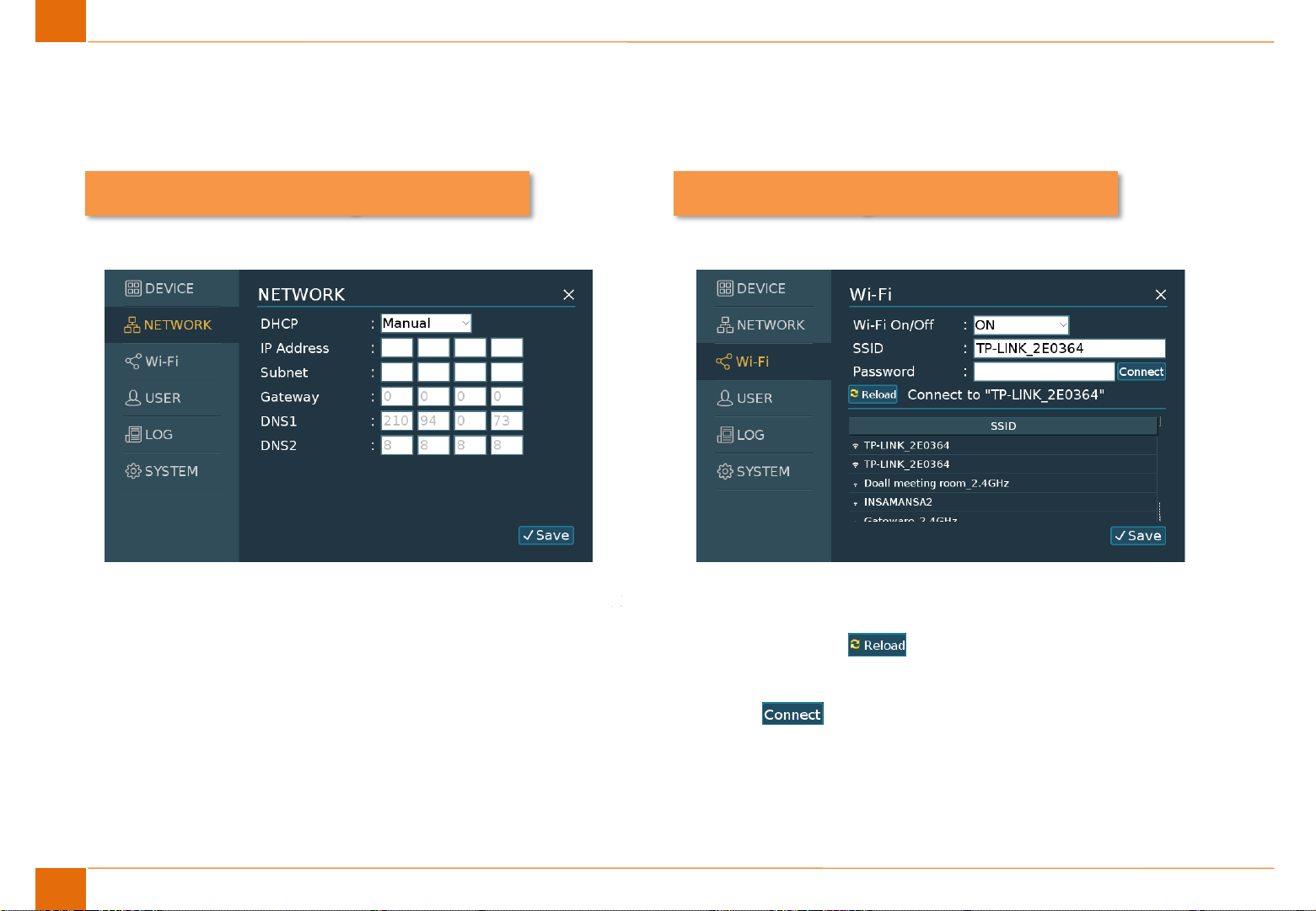
NETWORK Settings Wi-Fi Settings
① Assign the device IP Address in the NETWORK menu.
② Choose whether to use DHCP or STATIC.
③ To apply STATIC, touch the IP Address field to input the IP
address.
④ Press the Save button to save the changed IP address.
① The Wi-Fi menu is for setting the wireless internet signal.
② Touch the button to search for available wireless SSID.
③ Select the SSID to connect, enter the password and touch the
button.
① Press the Save button to save the Wi-Fi settings.
Page 11
GATEWARE®USER MANUAL
DoallTech
6. Menu Settings
11
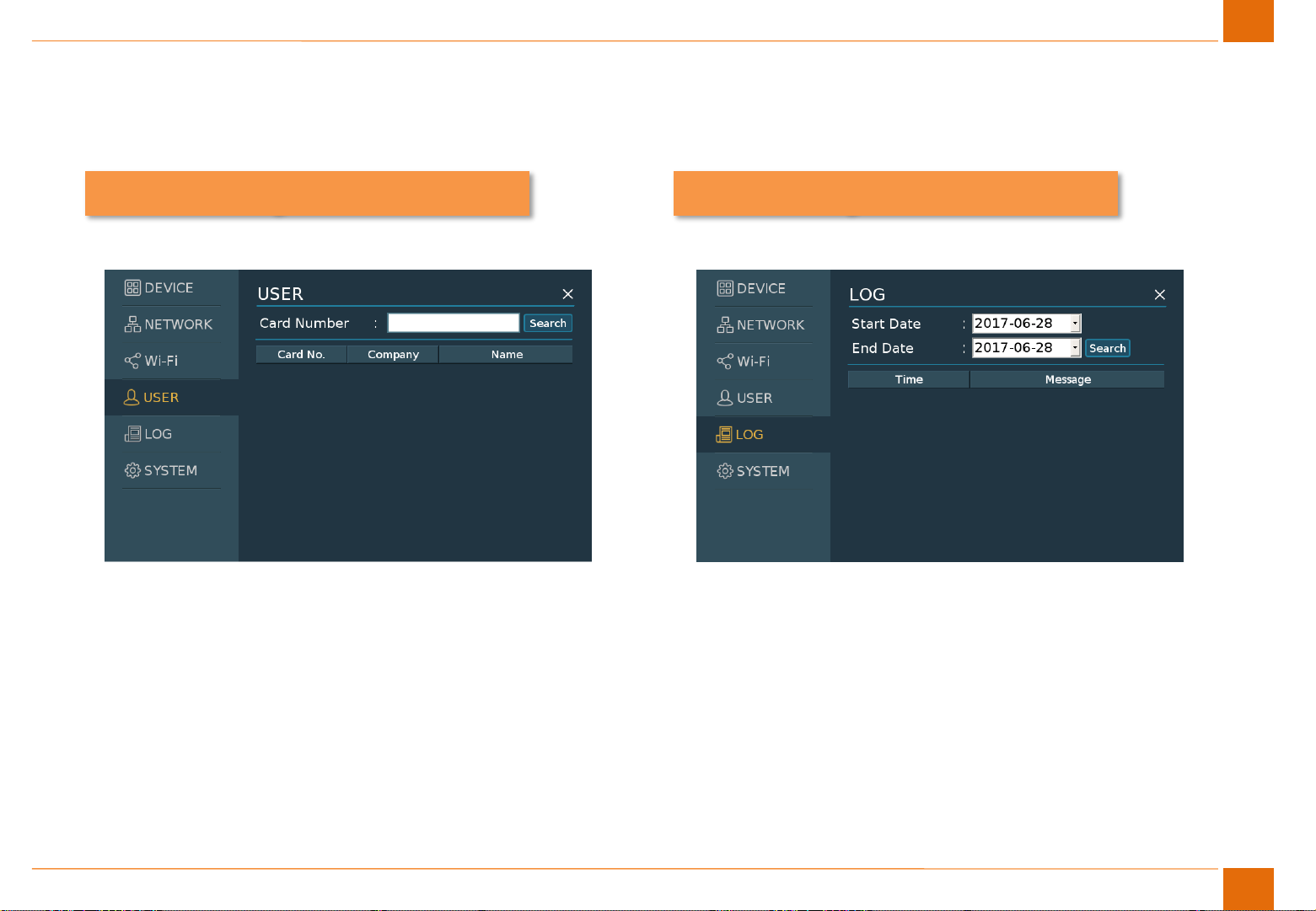
USER Settings LOG Settings
① The USER menu is used to search for registered workers in
the device.
② If a registered worker is not recognized, search for the worker
and confirm that it is registered normally.
① The LOG menu searches for events that occur on the device.
② Search the LOG by selecting the event.
Page 12
GATEWARE®USER MANUAL
DoallTech
6. Menu Settings
12
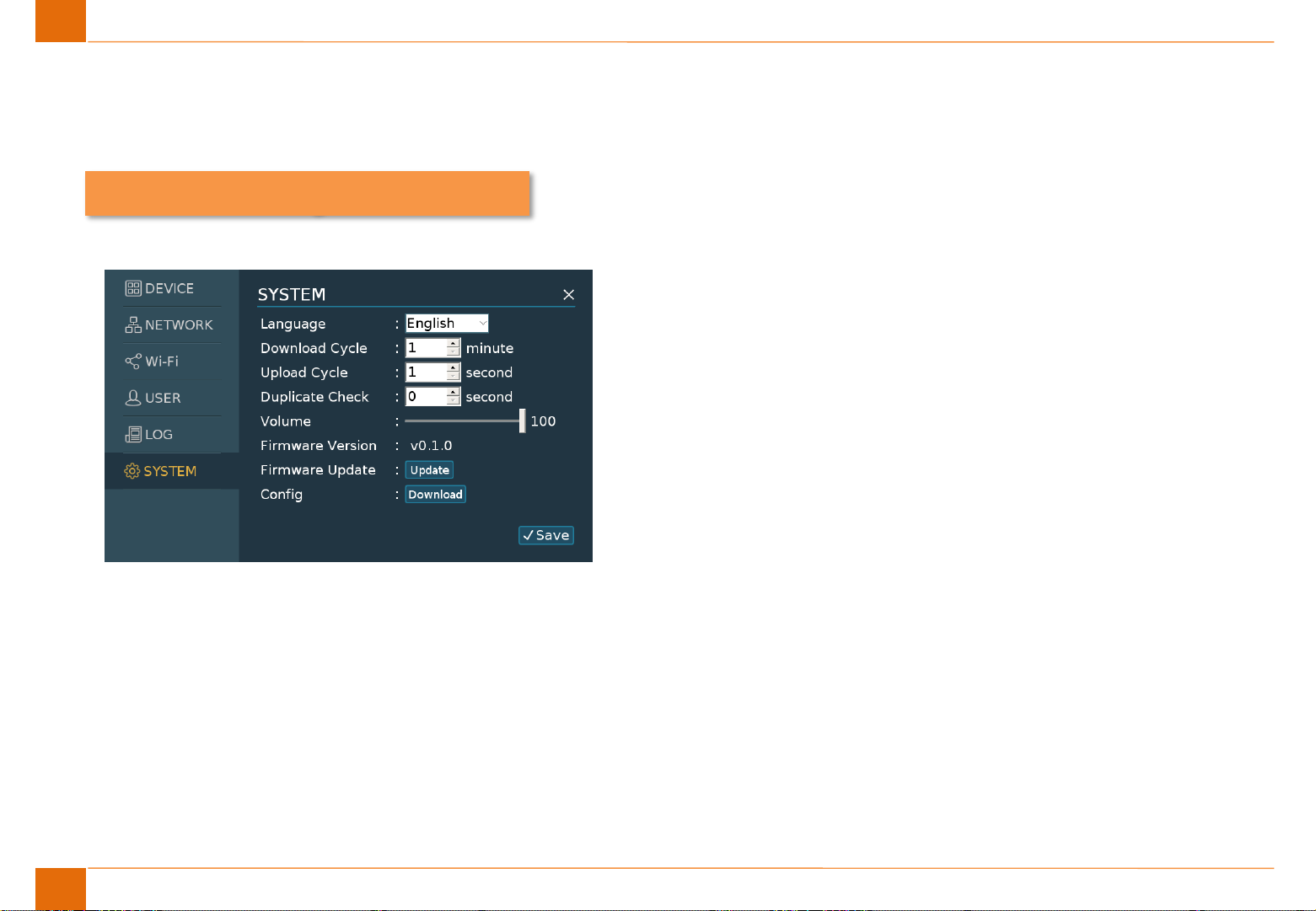
SYSTEM Settings
① The SYSTEM menu allows to perform general device settings
such as device language, redundancy check, and firmware
update.
② Select a system language.
③ Set worker data upload/download times.
④ Update the latest firmware for your device.
Page 13

GATEWARE®USER MANUAL
DoallTech
No. 1
Q : System is not working.
A : Please check the Power supply connection.
Please check the Battery charge status.
No. 2
Q : Data download and upload is not working.
A : Please check the internet connection.
Please check the Wi-Fi & 3G router.
No. 3
Q : Camera is not displayed.
A : Please check the camera connection.
Please check the Menu Settings.
No. 5
Q : There is an error message window on the screen.
A : If the keypad does not work, restart by pushing the RESET
button or Power switch.
If the same error occurs after restart, contact DoallTech
for technical support.
No. 6
Q : System is nonresponsive. (Ex : time stop)
A : Push the RESET button to restart.
7. FAQ
No. 4
Q : LCD Screen is monotonous in the state of ash or black color.
A : Push the RESET or Power switch to restart.
If the same error occurs after restart, contact DoallTech
for technical support.
14
Page 14

GATEWARE®USER MANUAL
DoallTech
No. 7
Q : There is no sound.
A : Please check the volume button using the key pad.
If the same error occurs after restart, contact DoallTech
for technical support.
No. 9
Q : The battery is not being charged.
A : Please check the power supply cable, adapter, and internal
battery terminal connection.
Change to a new battery.
No. 8
Q : RFID card reader does not work.
A : Please check the RFID reader connection.
Please check the Menu Settings.
15
7. FAQ
No. 10
Q : QR code reader does not work.
A : Please check the QR code reader connection.
Please check the Menu Settings.
No. 11
Q : Iris recognition does not work.
A : Make sure you recognize it at about 13 ~ 15cm
away from the iris recognition window.
Recognize according to the camera position indicator.
No. 12
Q : Fingerprint recognition does not work.
A : Position the center point of the fingerprint at the center
of the sensor.
If you have water or sweat on your fingers, wipe off the
water and enter.
Page 15

GATEWARE®USER MANUAL
DoallTech
Size
Hardware
CPU Quad Cortex A53 @ 1.2GHz
RAM 1GB SDRAM
SoC BCM2837
Instruction set ARMv8-A
GPU 400MHz VideoCore IV
Storage Micro-SD
Ethernet 10/100
Wireless 802.11n / Bluetooth 4.0
Video Output HDMI / Composite
Audio Output HDMI / Headphone
GPIO 40
USB Ports Quad USB 2.0 Port
Camera
15pin MIPI Camera Serial interface (CSI-2)
Display Connector HDMI / DSI
Relay Signal Out Relay x 2
AC Power AC100-240V~0.62A, 50/60Hz
LED Color LED x 3
Software
O/S Linux_Raspbian
Application Doalltech Gateware, Gateware CS
8. Product Specifications
16
Operating
temperature
-10~+50°C
Page 16

FCC compliance information
THIS DEVICE COMPLIES WITH PART 15 OF THE FCC RULES.
Operation is subject to the following two conditions:
(1) This device may not cause harmful interference, and
(2) This device must accept any interference received, including interference that may cause undesired operation.
Note: This equipment has been tested and found to comply with the limits for a Class B digital device, pursuant to part
15 of the FCC Rules.
These limits are designed to provide reasonable protection against harmful interference in a residential installation. This
equipment
generates, uses, and can radiate radio frequency energy and, if not installed and used in accordance with the instructions,
may cause
harmful interference to radio communications. However, there is no guarantee that interference will not occur in a
particular installation. If
this equipment does cause harmful interference to radio or television reception, which can be determined by turning the
equipment off
and on, the user is encouraged to try to correct the interference by one or more of the following measures:
• Reorient or relocate the receiving antenna.
• Increase the separation between the equipment and receiver.
• Connect the equipment to an outlet on a circuit different from that to which the receiver is connected.
• Consult the dealer or an experienced radio/TV technician for help.
Modifications not expressly approved by the manufacturer may void the user's authority to operate the equipment under
FCC rules.
This appliance and its antenna must not be located or operated in conjunction with any other antenna or transmitter.
A minimum separation distance of 20cm must be maintained between the antenna and individuals for this appliance to
satisfy the RF
exposure requirements.
Transmit power : -0.23 dBm
Bluetooth Frequency:2402 MHz ~ 2480 MHz
WLAN Frequency: 2412 MHz ~ 2462 MHz
RFID Frequency: 13.56 MHz
For more information, contact us at the following contact information.
DOALLTE CH CO. ,LTD.
Website : https://www.DOALLTECH COM.
Address: E-601, 602, 603, 604, 605 SK V1 Center, 11, Dangsan-ro 41-gil, Yeongdeungpo-gu, Seoul, Korea 150-886,
Tel:+82-02-6121-5414
Fax:+82-02-555-5886
Page 17

GATEWARE®USER MANUAL
DoallTech
http://www.doalltech.com
Doalltech Ltd. E-601 Dangsan SK V1 center, 11 Dangsan-ro 41-gil Yeongdeungpo-gu Seoul Republic of Korea 150-806
 Loading...