

Page 1
ProFusion X
ProFusion® DS
USER GUIDE
Page 2

Page 3
CAUTION
RISK OF ELECTRIC SHOCK
DO NOT OPEN
NO USER-SERVICEABLE PARTS INSIDE
This symbol is intended to inform users that internal
parts may cause electrical shock and injury.
This symbol is intended to inform users of important
operational instructions and clarications.
WARNING!
To reduce the risk of re, electric shock, or injury:
Do not use ProFusion® DS if it has been exposed to water.
Do not use ProFusion DS if it has been dropped and or damaged.
Do not use ProFusion DS with a damaged power cord.
Do not unplug by pulling on the cord.
Do not restrict case airow by blocking or inserting objects into
case ventilation openings.
Do not use in environments with excessive heat, humidity, mag-
netic elds, or dust.
Place ProFusion DS only on a stable surface of sucient size and
strength where it will not be exposed to excessive vibration.
Do not overload power outlets.
Route all cables safely. Do not place any items on or against the
cables.
Do not allow children to operate without supervision.
Use only attachments that are approved by DMX, Inc.
Page 4
Safety Agency Listings
This product was tested and found to be fully compliant with
FCC Part 15 Subpart B/Class A
CE Class A
C-Tick/Class A
cTUVus TUV CB Scheme
RoHS Compliant
WEEE marked
N 11152
© DMX, Inc. 2008. All rights reserved.
DMX and PROFUSION are registered trademarks of DMX, Inc.
All other trademarks are the property of their respective owners.
iv
ProFusion D user GuiDe
Page 5

Contents
Features .........................................................................................................................................................................................1
Getting Started
Checking the Package Contents ....................................................................................................................................1
Installation and Setup........................................................................................................................................................2
Placement Guidelines ..................................................................................................................................................2
Rack Placement ..............................................................................................................................................................2
Connecting ProFusion DS ...........................................................................................................................................2
Controls and Functions
Front Panel .............................................................................................................................................................................4
Rear Panel...............................................................................................................................................................................5
Operation
Powering On and O ProFusion DS ..............................................................................................................................6
Loading ProFusion DS Discs ............................................................................................................................................6
Changing ProFusion DS Discs .........................................................................................................................................6
Cleaning ProFusion DS Discs ...........................................................................................................................................7
Appendix A: Troubleshooting ...............................................................................................................................................8
Appendix B: ProFusion DS Beep Codes .............................................................................................................................9
Appendix C: Specications ................................................................................................................................................. 10
Appendix D: Contact DMX Customer Service .............................................................................................................. 11
v
Page 6

vi
ProFusion D user GuiDe
Page 7

Features
What is ProFusion DS?
ProFusion® DS is an audio playback device that is located on-site at your business and looks like traditional
commercial sound equipment. ProFusion DS is the most convenient way to bring expertly programmed,
commercial-free music into your business. ProFusion DS is engineered to integrate with most commercial
sound systems. The ease-of-use and simple set-up allows you to connect your ProFusion DS to your amplication system and begin enjoy continuous music.
ProFusion DS Overview
Included with your ProFusion DS is an Opening Disc Library (ODL). The ODL will include one disc per each
style of music you have selected. Once ProFusion DS has been powered on, simply insert a disc and playback
will begin within 45 seconds.
As a ProFusion DS customer you will receive new music on a 30, 60 or 90-day disc rotation. One disc will be
provided at each rotation based on your selected music styles.
ProFusion DS Features
Up to 30 hours of music per disc•
Single zone playback capability•
Marketing MOH (Message On Hold) functionality•
Simple User Interface•
Getting Started
Checking the Package Contents
(1) ProFusion DS playback device•
(1) ProFusion DS User Guide•
(1) 6’ (183cm) 18AWG power cord•
(1) 6’ (183cm) Mono RCA male-to-male audio cable (second cable will be included with ProFusion DS •
congured with MOH zone)
(1) Open Disc Library (ODL) (not included with service replacement ProFusion DS devices)•
Any additional or dierent cables required to complete the installation will need to be obtained
separately.
Please keep all packaging material for later use if your ProFusion DS must be re-shipped.
1
Page 8

Installation and Setup
Placement Guidelines
ProFusion DS is designed to be placed horizontally and right-side up. Other positions may cause •
problems with air ow within the case and may signicantly shorten the lifespan of the components.
ProFusion DS should be placed in a clean, well-ventilated area. Do not stack items on or against •
your ProFusion DS as this can create excessive heat and/or static electricity charge problems.
ProFusion DS should only be placed on a surface of adequate strength and stability and free of •
excessive vibration.
Ensure all cabling is routed properly and safely. This will avoid tripping hazards that could pull your •
ProFusion DS o the surface you have placed it on.
Ensure your ProFusion DS is plugged into a properly grounded, always-on AC electrical outlet.•
Note: Do not plug your ProFusion DS into a switched outlet, such as power strips or other outlets that
may be inadvertently turned o. This can lead to improper shutdowns which will likely shorten the life
of the equipment.
Rack Placement
If your ProFusion DS is going to be installed in a rack, at least 6½” (16.5 cm) (4RU) vertical rack space •
will be required.
Do not improvise a rack mount solution; instead, install a rack shelf suitable for approximately 20 lbs •
(9.1 kg) of weight, and place your ProFusion DS on the shelf.
Note: ProFusion DS has been designed to be rack mounted. Please contact DMX Customer Service
if you would like to order a rackmount kit. See “Appendix C: Contact DMX” (p. 11).
Connecting ProFusion DS
Turn o your amplication equipment and the volume completely down before installing your ProFusion DS.
ProFusion DS should not be plugged into the AC outlet found of the rear of some audio amplication •
equipment due to potential grounding issues. Only plug ProFusion DS into properly grounded electrical outlets.
ProFusion DS should always be plugged into unswitched AC outlets so that it is not inadvertently •
powered o.
Always power o ProFusion DS by pressing the POWER button.•
2
ProFusion D user GuiDe
Page 9

Follow the steps below to connect your ProFusion DS to your amplication equipment:
STEP 1 Connect one end of the RCA audio cable with into the white RCA jack labeled ZONE 1 on the rear panel
of your ProFusion DS. Connect the other end of the RCA cable into the corresponding input of your
amplication equipment.
Note: If your ProFusion DS is congured for only one zone, the audio for that zone will output from
both the Zone 1 and Zone 2 RCA jacks. Connect one end of the RCA audio cable into the red RCA
jack labeled “ZONE 2” on the rear panel of your ProFusion DS. Connect the other end of the RCA
cable into the corresponding input of your amplication equipment.
STEP 2 (Optional) If your service includes the Messaging On Hold (MOH) feature, connect one end of the RCA
audio cable into the red RCA jack labeled ZONE 2 on the rear panel of your ProFusion DS. Connect the
other end of the RCA cable into the corresponding input of your MOH amplication equipment.
STEP 3 Connect the supplied power cord to the power cord input on the rear of your ProFusion DS and plug
the other end to a properly grounded electrical outlet.
3
Page 10
Controls and Functions
Front Panel
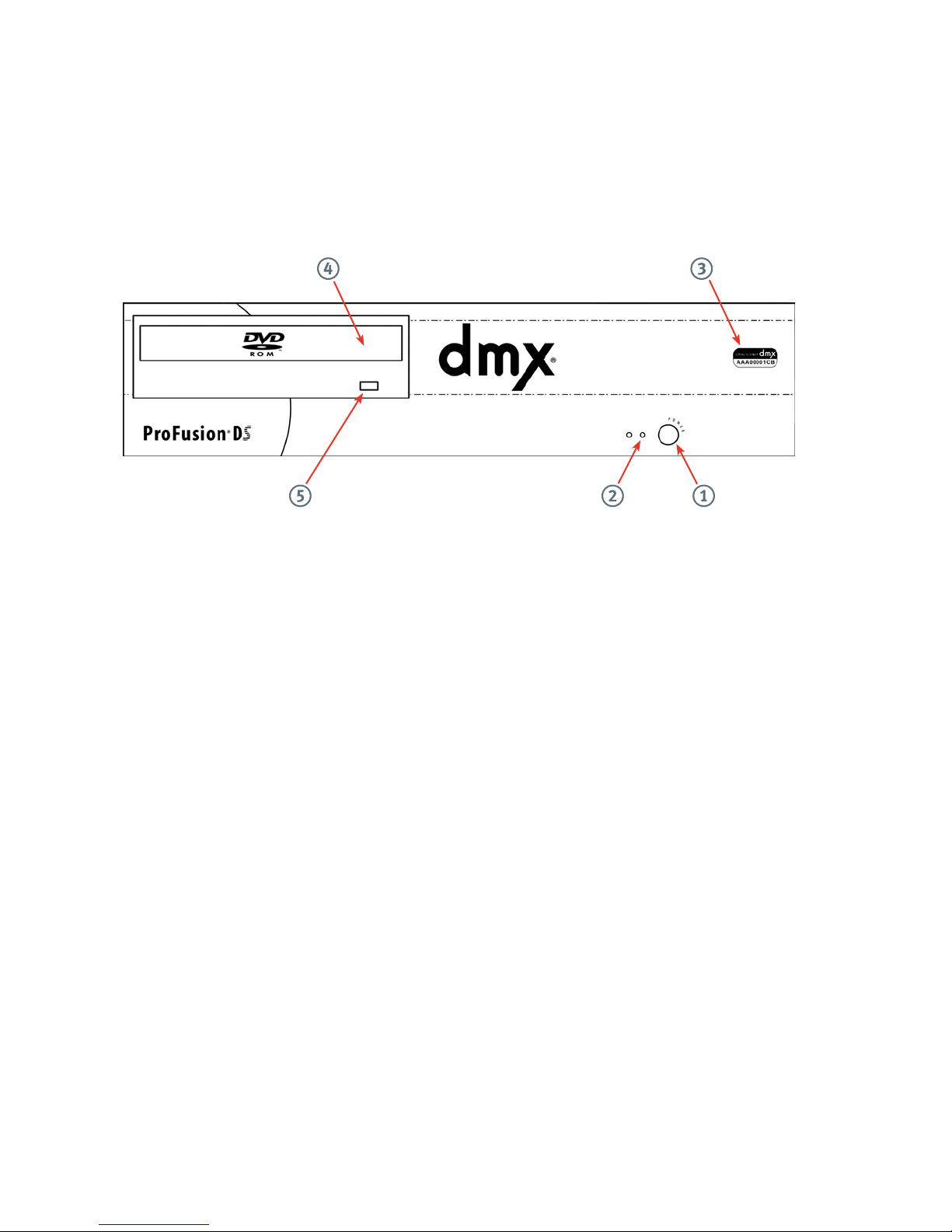
The front panel is used to change discs and power ProFusion DS on and o.
POWER Button1.
The POWER button is used to power ProFusion DS on and o.
Note: Do not hold in the POWER button when powering ProFusion DS on or o.
Power LED2.
This green LED will remain solid while ProFusion DS is powered on.
Serial Number3.
This unique number is used to identify your ProFusion DS.
Note: Please have the serial number of your ProFusion DS when contacting DMX Customer Service.
DVD-ROM drive4.
The DVD-ROM drive is used to play ProFusion DS discs. A valid ProFusion DS disc must be in the DVD-ROM
drive for playback.
DVD-ROM Eject Button5.
This button is used to open and close the DVD-ROM drive when changing discs.
4
ProFusion D user GuiDe
Page 11
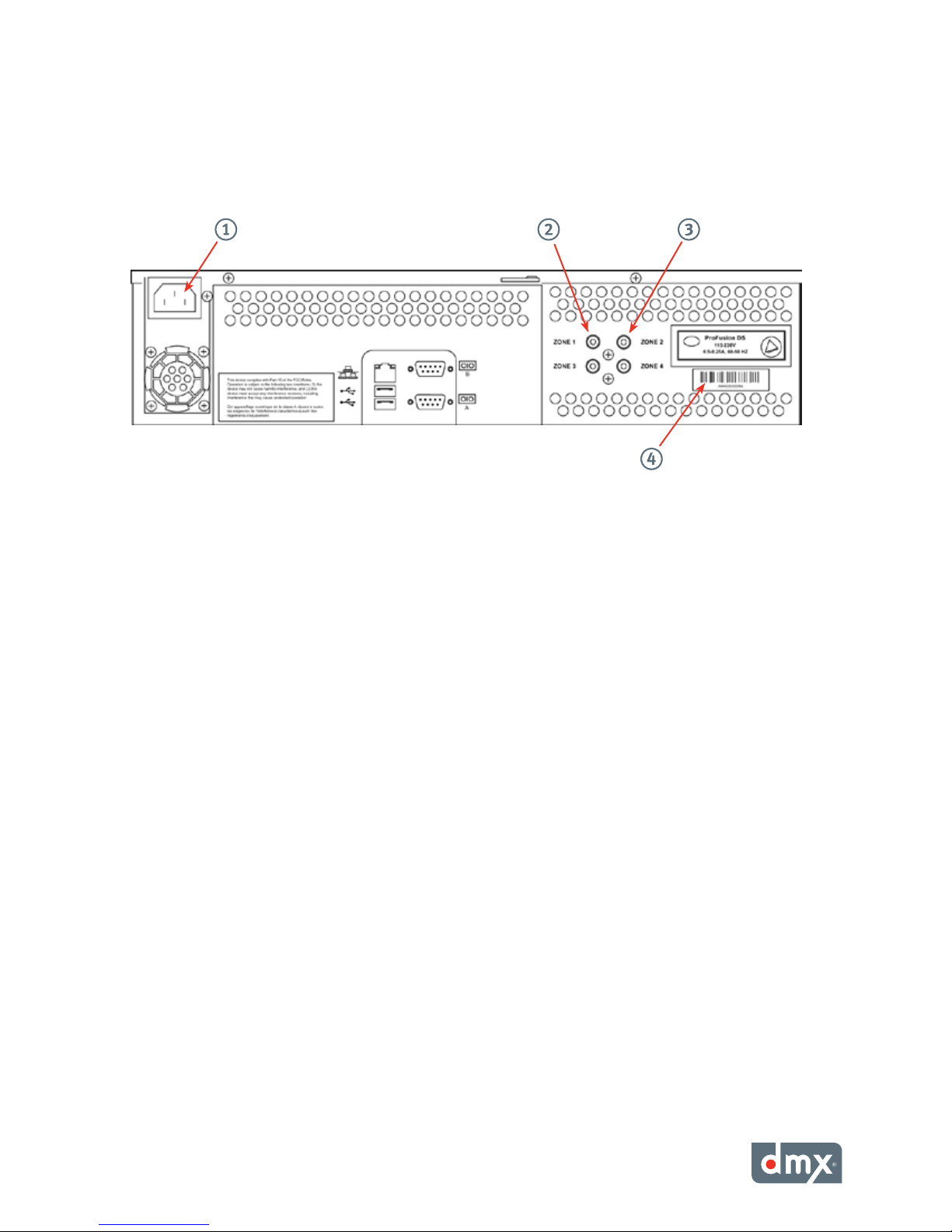
Rear Panel
The rear panel is used to connect your ProFusion DS to your amplication equipment and an AC electrical
outlet.
Power Cord Input1.
ProFusion DS operates on AC power. Connect one end of the supplied power cord to the power cord
input and plug the other end into an electrical outlet that will always remain on.
Note: Never attempt to operate ProFusion DS on DC power.
Music Zone Audio Connector (white jack)2.
This connection is a standard RCA jack used to connect your ProFusion DS to your amplication equipment.
MOH Zone Audio Connector (red jack)3.
This connection is a standard RCA jack used to connect your ProFusion DS to your MOH amplication
equipment.
Note: The RCA jacks labeled “ZONE 3” and “ZONE 4” are not enabled.
Serial Number4.
This unique number is used to identify your ProFusion DS.
Note: Please have the serial number of your ProFusion DS when contacting DMX Customer Service.
5
Page 12

Operation
Powering On and O ProFusion DS
Powering On ProFusion DS
STEP 1 Press the POWER button once.
STEP 2 The green LED power indicator, below the POWER button, will illuminate and ProFusion DS will
produce an “all’s well” beep.
Note: If your ProFusion DS produces a series of four beeps when powered on, see “Appendix B:
ProFusion DS Beep Codes” (see p. 9).
Powering O ProFusion DS
STEP 1 Press the POWER button once.
STEP 2 ProFusion DS will beep once and the music will fade out immediately.
Loading ProFusion DS Discs
STEP 1 Anytime after your ProFusion DS has produced the “all’s well” beep, press the DVD-ROM eject button.
STEP 2 Place a valid ProFusion D/DS disc (label side up) into the tray.
Note: Only DMX ProFusion D/DS discs will play in this device. Consumer audio CDs and DVDs will
not function with ProFusion DS. Inserting a disc other than a valid ProFusion D/DS disc will cause
the DVD-ROM drive to eject its tray.
STEP 3 Press the DVD-ROM eject button to close the tray.
Note: Always use the DVD-ROM eject button to open and close the DVD-ROM tray.
STEP 4 Once the tray has close, you will hear the DVD-ROM drive begin to spin and the green LED on the front
of the DVD-ROM drive will begin to ash. Playback will begin approximately 35 seconds after
the tray has closed.
Changing ProFusion DS Discs
STEP 1 To change ProFusion DS discs, press the DVD-ROM eject button to open the DVD-ROM tray.
Note: Do not open the DVD-ROM tray if the activity light on the front of the DVD-ROM drive is ash-
ing.
STEP 2 Remove the disc currently in the tray and replace it with your desired disc.
STEP 3 Press the DVD-ROM eject button to close the tray. The new disc will begin to play within 35 seconds of
the tray closing.
Note: If your disc contains messaging for your MOH zone, the message will continue to play until a
disc is inserted that contains a dierent message.
6
ProFusion D user GuiDe
Page 13

Cleaning ProFusion DS Discs
Always verify the ProFusion D/DS disc is clean and free of scratches, smudges and ngerprints. To clean a disc
use lint-free cotton cloths and wipe against the tracks, starting in the middle of the disc and wiping towards
the outside of the disc. Do not wipe in a circular motion as this can create scratches. If any of your ProFusion
D/DS discs have substantial scratches that produce issues with your ProFusion DS, contact DMX Customer
Service for a replacement disc. See Appendix D: Contact DMX (p. 11).
7
Page 14

Appendix A: Troubleshooting
This section provides a basic troubleshooting guide for the most common issues. If this list does not help you resolve your issue, or if you have an issue that is not listed below, please contact
assistance.
ISSUES POSSIBLE SOLUTION PAGE
Verify the power cord properly connected to your ProFusion DS? 5
No Power
Verify the power cord connected to a known working electrical
outlet?
Appendix D: Contact DMX (p. 11) for
—
No Audio
The DVD-ROM drive
ejects before playback
starts
The DVD-ROM drive
ejects during playback
Volume level too high
or too low
Verify the audio cable is properly connected to your ProFusion DS
and your amplication equipment.
Verify the volume level for your amplication equipment is suciently turned up.
Verify the disc inserted is labeled ProFusion D/DS. 6
Verify the disc is free of scratches, smudges, or ngerprints. 7
Verify the disc inserted is labeled ProFusion D/DS. 6
Verify the disc is free of scratches, smudges, or ngerprints. 7
Verify the disc is free of scratches, smudges, or ngerprints. 7
If a beep code has been produced, see Appendix B: ProFusion DS Beep
Codes.
The volume level for ProFusion DS is xed. Any increase or decrease
in volume will need to be produced from your amplication equipment.
3, 5
—
9
—
8
ProFusion D user GuiDe
Page 15
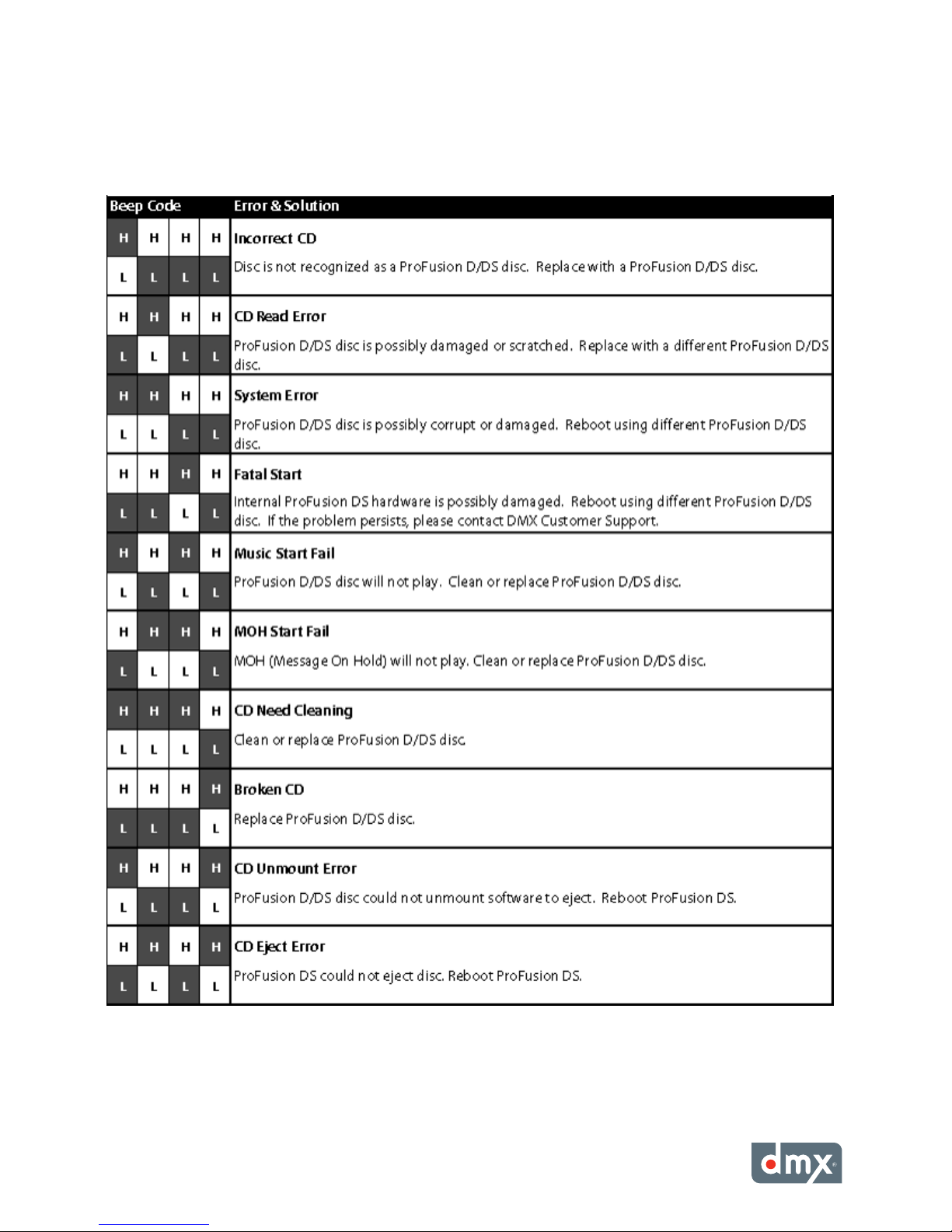
Appendix B: ProFusion DS Beep Codes
9
Page 16

Appendix C: Specications
Connections
Audio: (2) RCA female jacks
Power Specifications
Voltage: 115/230 VAC
Range: 105/125 Vrms
Watts: 220 W
Current: 4.0 Arms @ 115V / 2.0 Arms @ 230V
Freq: 47 ~ 63 Hz
Thermal Output: 751 BTUs
Dimensions
Length: 15 ¼” (38.74 cm)
Depth: 9 ½” (24.13 cm)
Height: 3 ½” (8.89 cm)
Weight: 9.5 lbs (4.31 kg)
10
ProFusion D user GuiDe
Page 17

Appendix D: Contact DMX Customer Service
Before contacting DMX Customer Service, please have the following information ready:
The serial number for your ProFusion DS (located on the front and rear panels)•
Your DMX Account Number•
Africa: + 27 11 780 3000
Brazil: + 55 11 3457 0654
Canada: + 1 800 350 0369
United States: + 1 800 345 5000
11
Page 18

Notes:
12
ProFusion D user GuiDe
Page 19

Page 20

uPDateD 10.08.08
800.345.5000 m dmx.com
IN CANADA CALL 800.350.0369
 Loading...