

Page 1

Mobile Phone
DMD Mobile M3, M5, M8
User Manual
Page 2

Safety Information
IT IS IMPORTANT THAT YOU READ THIS MANUAL PRIOR T O USING YOUR
M3 ANDROID NFC PHONE.
It contains essential safety information related to your Android NFC phone.
Personal Information and Data Security
The use of some functions or third-party applications on your device could result in
your personal information and data being lost or becoming accessible to others.
Several measures are recommended to help you protect personal and confidential
information.
• Place your device in a safe area to prevent it from unauthorized use.
• Set your device screen to lock and create a password or unlock pattern to open
it.
• Periodically backup personal information kept on your SIM/UIM card, memory
card, or stored in your device memory. If you change to a different device be sure
to move or delete any personal information on your other device.
• If you are worried about viruses when you receive messages or emails from a
stranger, you can delete them without opening them.
• If you use your device to browse the Internet, avoid websites that might pose a
security risk to avoid theft of your personal information.
• If you use services such as Wi-Fi tether or Bluetooth, set pass words for thes e
services to prevent unauthorized access. W hen thes e services are not in use,
turn them off.
• Install or upgrade device security software and regularly scan for viruses.
• Be sure to obtain third-party applications from a legitimate source. Downloaded
third-party applications should be scanned for viruses.
• Install security software or patches released by DMD Mobile or third-party
application providers.
• Some applications require and transmit location information. As a result, a thirdparty may be able to share your location information.
Page 3
• Your device may provide detection and diagnostic information to third-party
application providers. Third-party vendors use this information to improve their
products and services.
• If you have concerns about the security of your personal information and data,
please contact us at http://www.dmdmobile.net/contact.html
What is in Your Box
- Mobile Phone - Headset
- Charger - Quick Start Guide
- USB Cable - Battery
More Information
For more information about how to use your phone, please go to
http://www.dmdmobile.net/contact.html
Know your new M3
All pictures and images shown in this guide are for your reference only. The
actually appearance and display features depend on the mobile phone you purchase.
Page 4
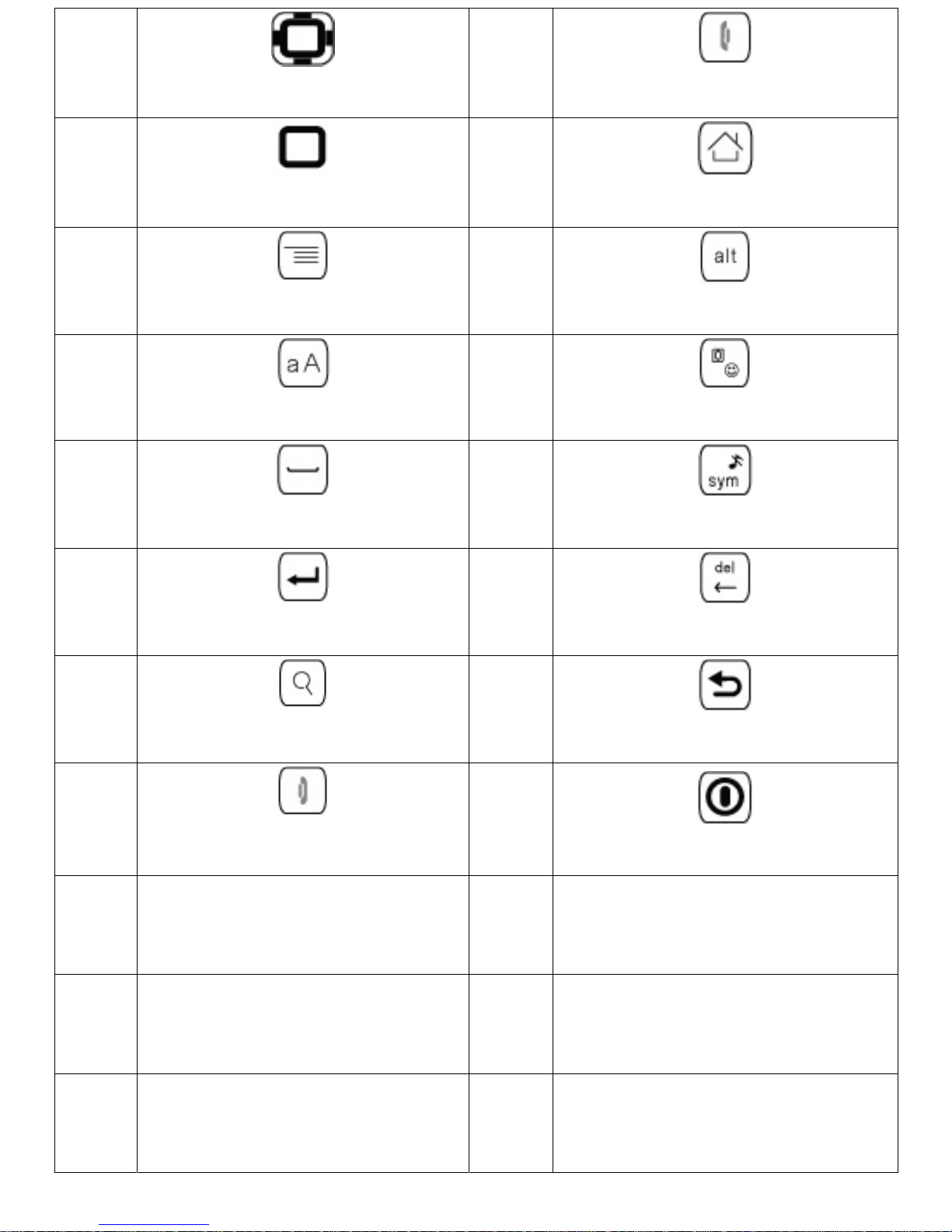
1
Navigate Key
2
Send Key
3
OK Key
4
Home Key
5
Menu Key
6
Alt Key
7
Cap Key
8
Smiley Key
9
Space Key
10
Symbol Key
11
Enter Key
12
Delete Key
13
Search Key
14
Return Key
15
End Key
16
Power Key
17
Volume Key
18
NFC Key
19
Headset Jack
20
Speaker
21
Camera
22
Charge/Data port
Page 5
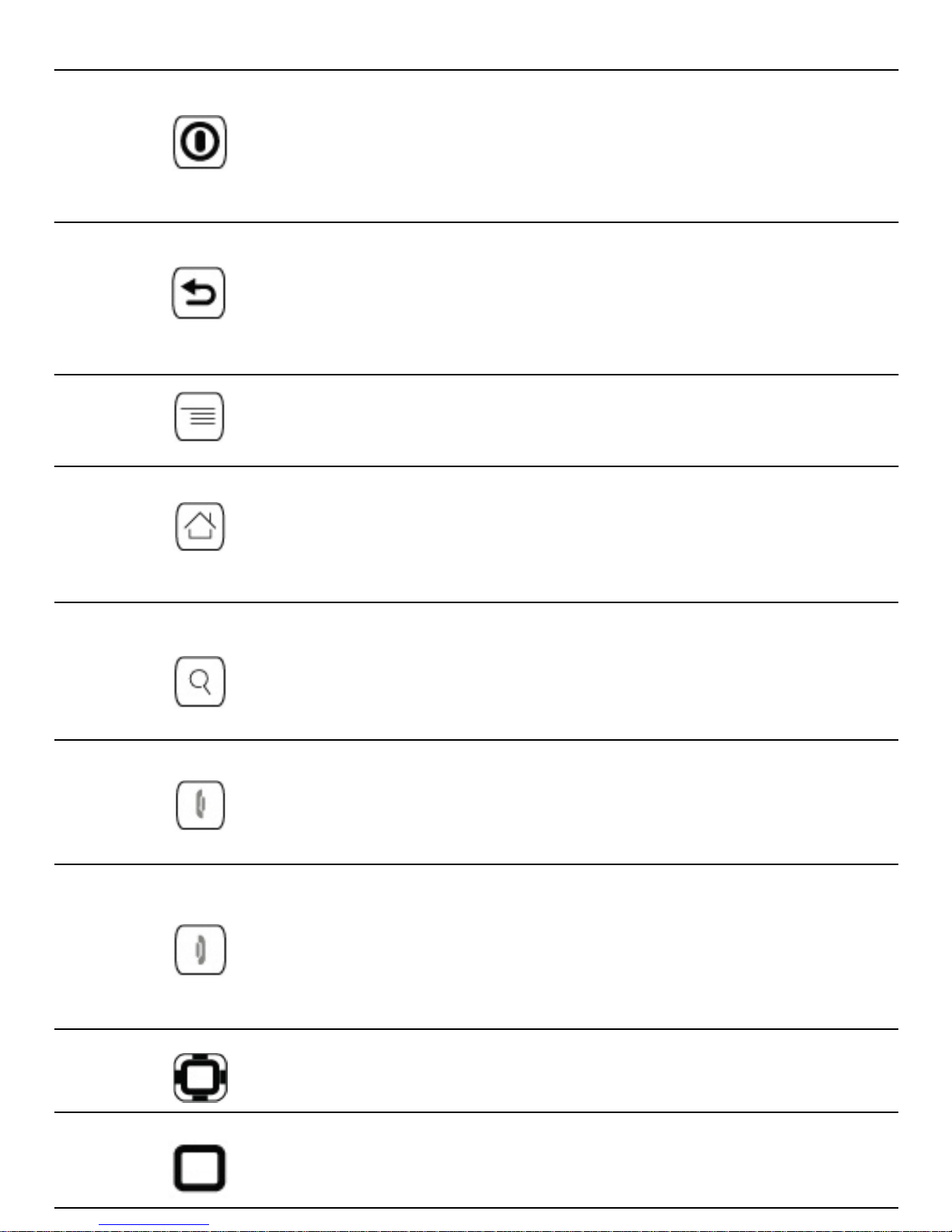
Important functions at Your Fingertip
• Press to activate your phone.
• Press and Hold to open Option Menu.
• Press to lock screen while phone is active.
• Touch to return to previous screen.
• Touch to leave from active application.
• Touch to hide keyboard.
• Touch to open option menu on current screen.
• Touch to return to Home screen.
• Touch and hold to view last used application.
• Touch to open Google search to browse your phone and
websites.
• Press to call or answer call.
• Press to go to Call Log.
• Press to activate your screen lock
• Press to end call.
• Press to go to Home Screen
.
• Touch to move and select item on screen.
• Press to enter the selected item.
Page 6
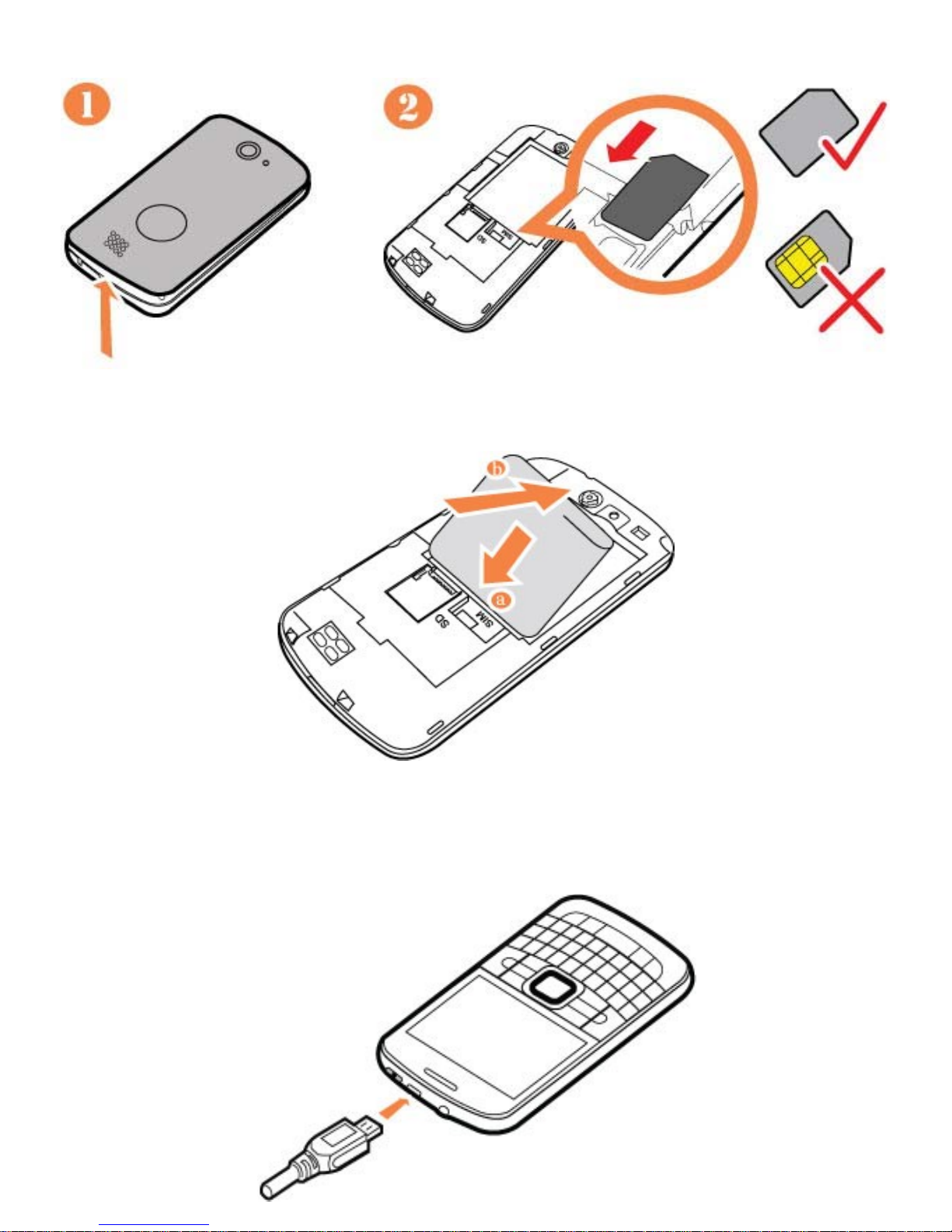
Installing your SIM Card
Installing the Battery
Charging Phone Battery
Page 7
If your mobile phone is charged when it is powered on, the battery icon on the
notification bar shows the charging status. When the battery icon changes to , it
indicates that your mobile phone is fully charged.
Power On or Off Your Mobile Phone
Powering On Your Mobile Phone
Press The first time you power on your phone, you will be asked to sign in to your
account and set up your mobile phone.
Powering Off Your Mobile Phone
1. Press and hold to open the Phone options menu.
2. Touch Power off.
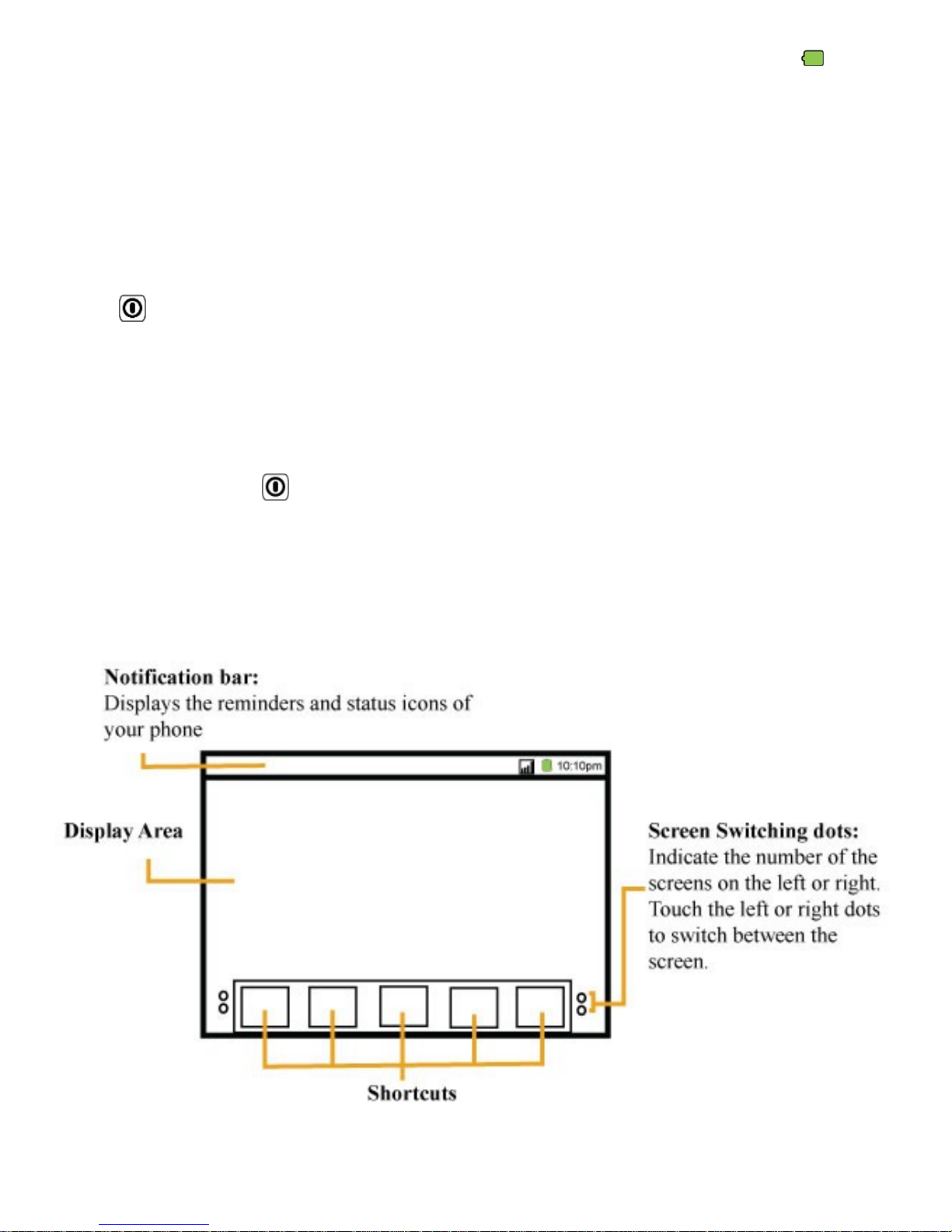
Home Screen
Page 8
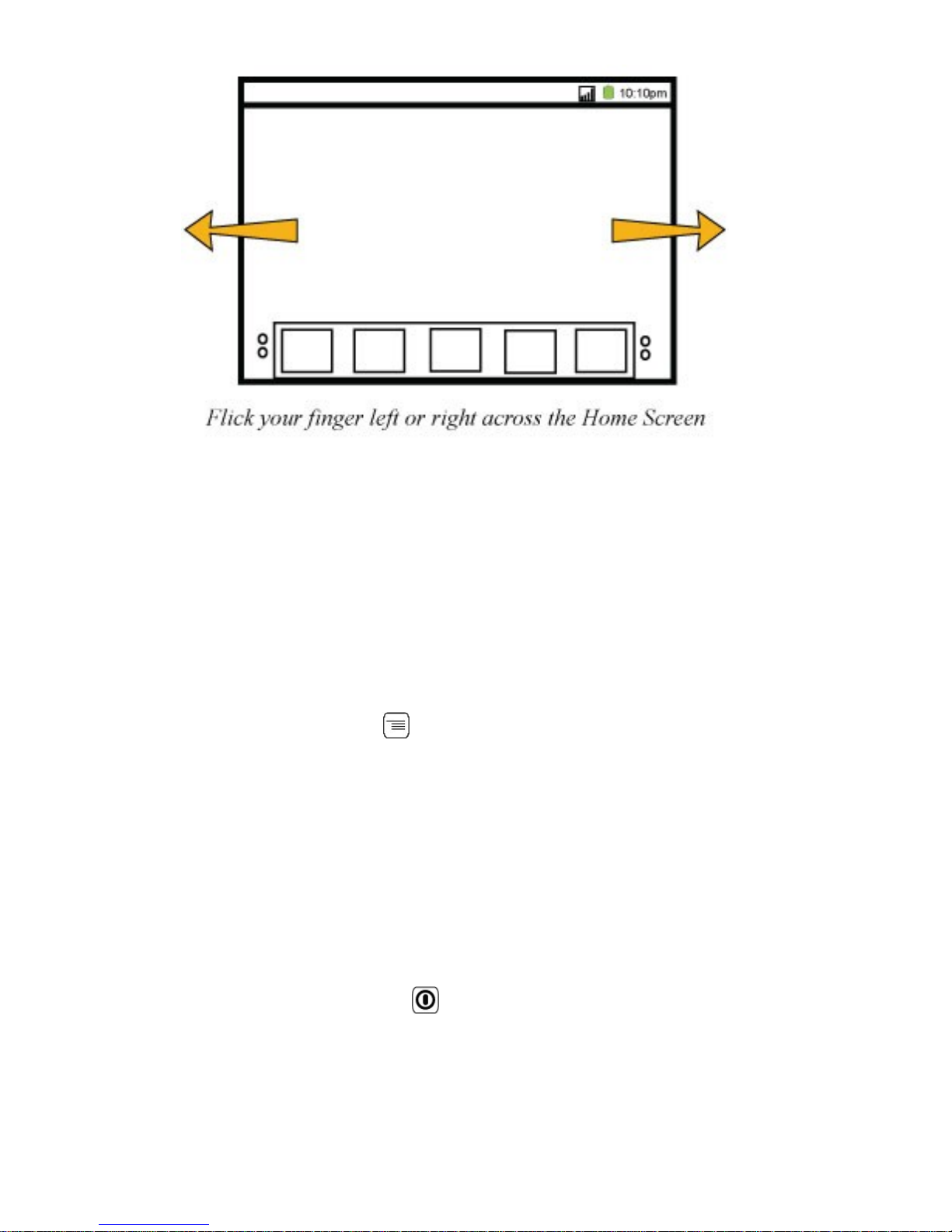
Viewing Other Parts of the Home Screen
Adding a New Screen Item
1. Touch and hold a blank area on the Home screen until the Add to Home screen
menu is displayed.
2. Select an item to add it to the Home screen.
Changing the W allpaper
1. On the Home screen, press > Wallpaper.
2. Touch the following menu items to select a picture and set it as the wallpaper.
• Gallery
• Live wallpapers
• Wallpapers
Locking the Screen
• When your phone is on, press to lock the screen. When the screen is
locked, you can still receive messages and calls.
• If your phone is idle for a while, the screen will lock automatically.
Page 9
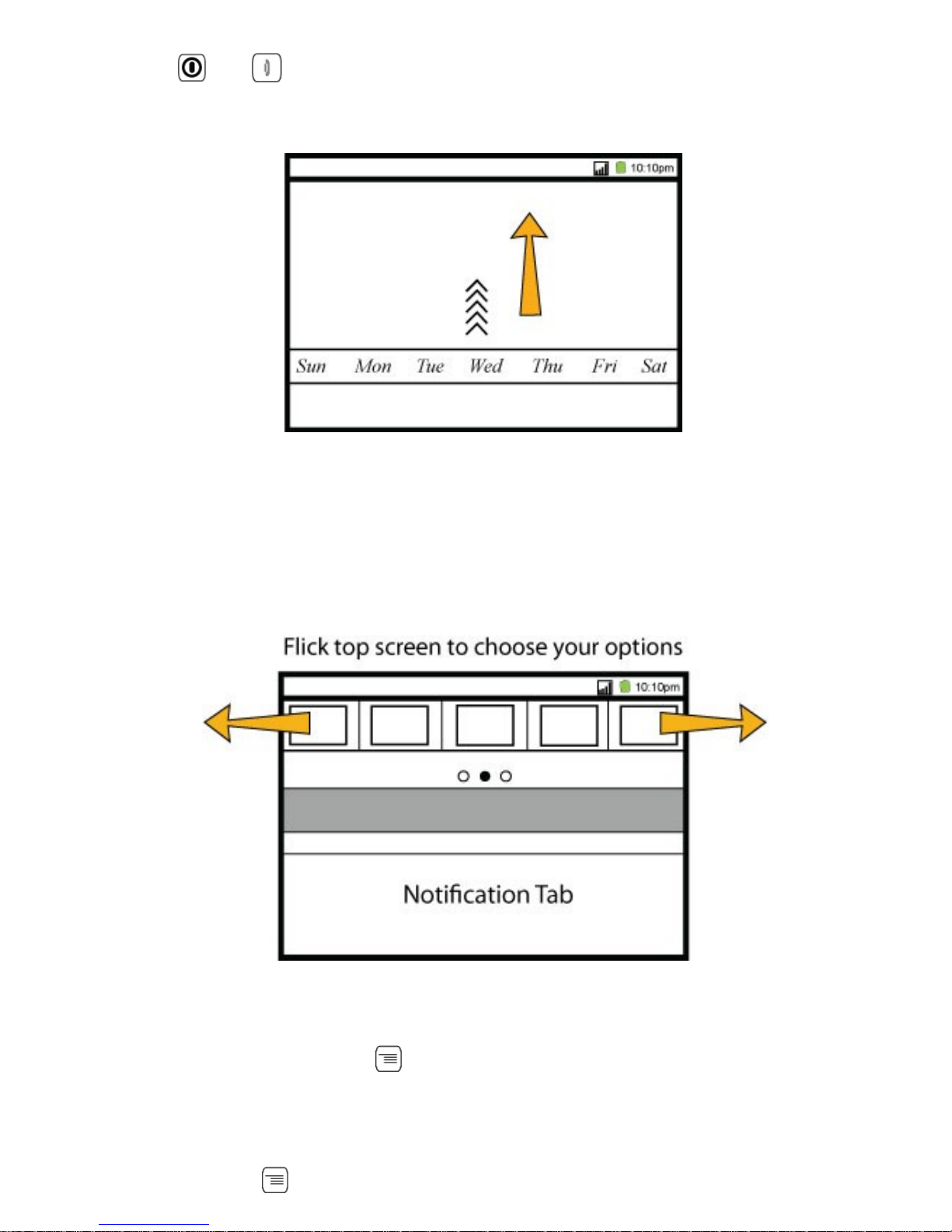
Unlocking the Screen
1. Press or to wake up the screen.
2. Drag the lock icon from the bottom to top to unlock the screen.
Quick Action Tab
1. Drag down the notification tab on the Home Screen
2. Flick finger left or right to select the desired action.
Importing Contacts from a SIM Card
1. In the Contact List, press > More > Import/Export.
2. Touch Import from SIM card.
3. Wait for the SIM card contents to be loaded. Select the contacts you want to
import or touch > Import all to import all contacts.
Page 10
4. If you have more than one account on your phone, touch the account into which
you want to import the contacts.
Making a Call
To make a call, you can select a number from Contacts or Call log.
When you are on a call, you can press to use other functions. To return to the
calling screen, flick the notification bar down and touch Current call.
Do not block the microphone at the bottom of your phone if you want your voi ce
heard.
Answering an Incoming Call - Press to answer the call.
Rejecting an Incoming Call - Press to reject the call.
Choosing an Input Method
1. Touch and hold the space where you enter your text until the Edit text menu is
displayed.
2. Touch Input method.
3. Se lect the input method.
The keyboard panel will be displayed automatically.
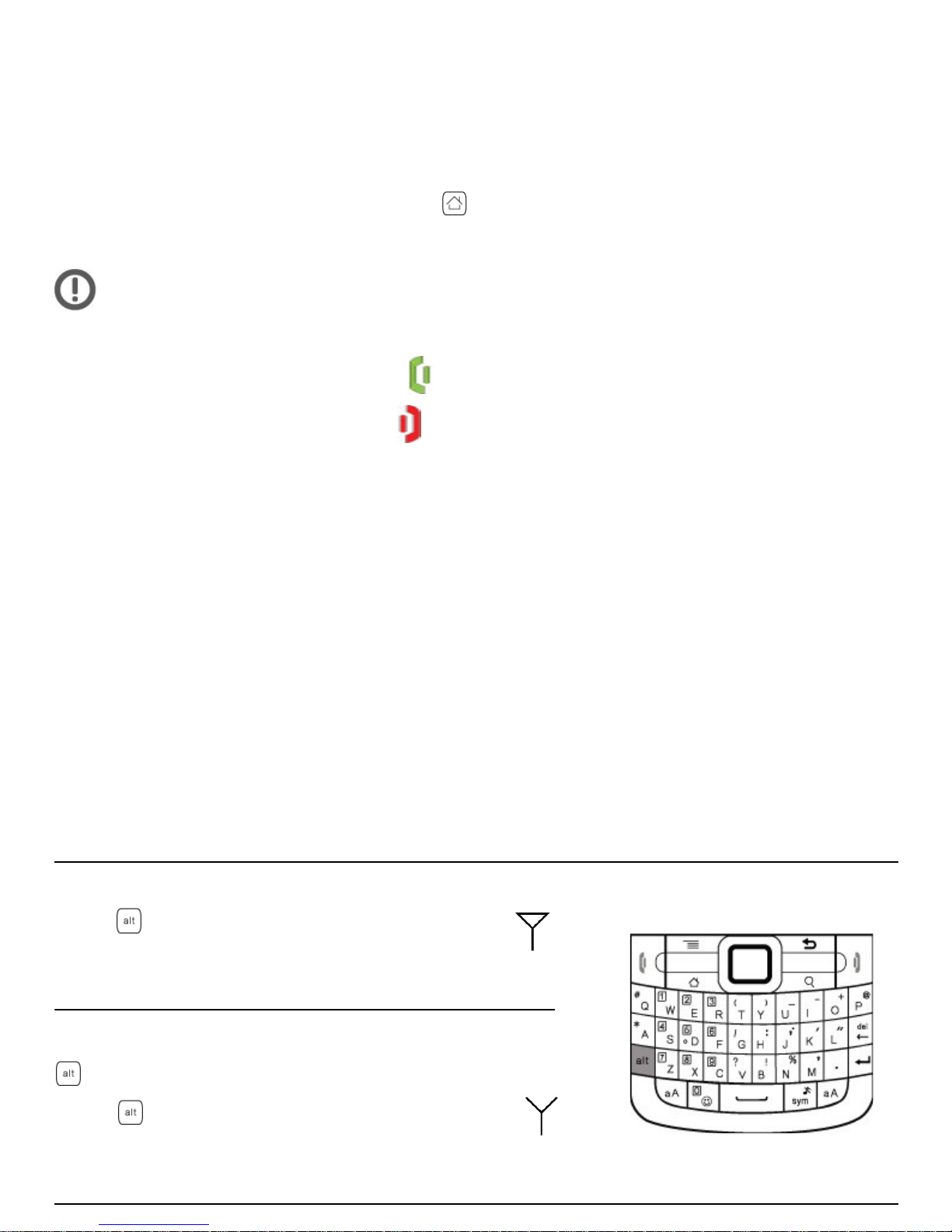
Using the phone Keypad
To enter an upper character of one key, CURSOR
press first and then the
desired key.
To enter only upper characters, press
twice before typing. CURSOR
Press again to switch
back to lower-case letters.
Page 11
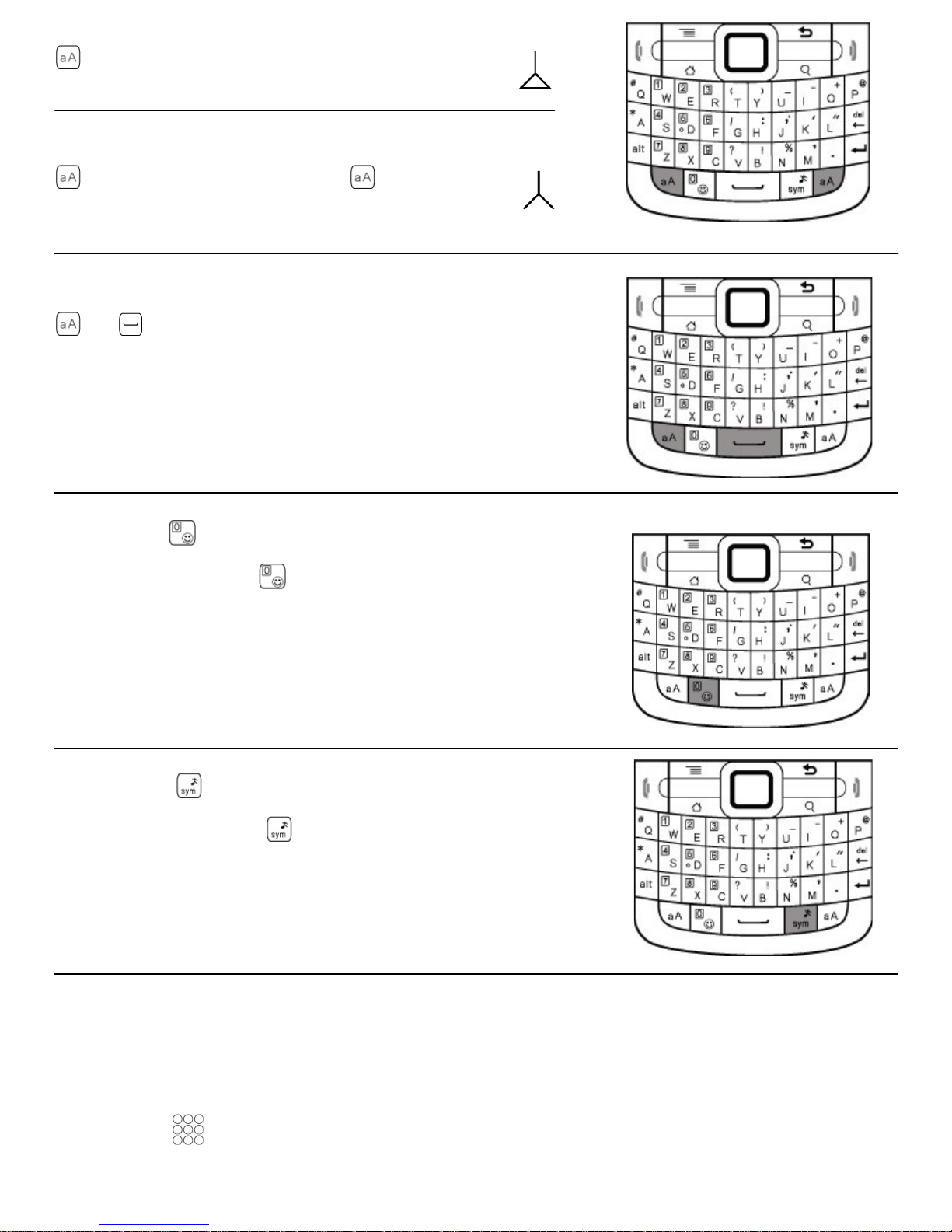
To enter one upper-case letter, press CURSOR
first then a key.
To enter only upper-case letters, press CURSOR
twice before typing. Press again
to input back lower-case letters
To switch input language, press
+ . The selected language will be
displayed on the notification bar.
• Press to input a smiley face.
• Press and hold to display all
expressions.
• Press to display all symbols.
• Press and hold
to mute the
phone.
Creating and Sending a Multimedia Message
1. Touch > Messaging > New message.
2. Enter a phone number in the To field.
3. Touch the composition text box to start entering your message.
Page 12

4. Press to display the option panel.
• Touch Add subject to add the message subject. Your mobile phone is now in
multimedia message mode.
• Touch Attach to add a picture, music or video file.
5. When the message is ready to be sent, touch Send.
Getting Connected
Turning on the Data Service
1. Touch > Settings.
2. Touch Wireless & networks > Mobile Networks.
3. Select the Data enabled check box to turn on the data connection.
If you do not need a wireless network, you can unchecked the Data
enabled check box to save data traffic costs.
Turning On Wi-Fi
1. Touch > Settings.
2. Touch Wireless & networks, and then select the Wi-Fi check box to turn on Wi-
Fi.
3. Alternatively, you can drag down the notification bar and select the Wi-Fi icon to
activate it.
Connecting to a Wireless Network
1. After turning on Wi-Fi, touch > Settings.
2. Touch Wireless & networks > Wi-Fi settings. You will see a list of detected Wi-
Fi networks in the Wi-Fi networks section.
3. Touch a Wi-Fi network to connect to it.
Sharing your Phone's Data Connection as a Portable Wi-Fi Hotspot
1. Touch > Settings.
Page 13
2. Touch Wireless & networks > Tethering & portable hotspot.
3. Select the Portable Wi-Fi hotspot check box to share your data connection.
Staying close to your friends
Touch > Streams, you can stay close to your friends through social networks.
The first time you do this, you will be asked to sign in to your account.
Opening the Browser
Touch > Browser to open the home page.
When the known or open Wi-Fi networks and the mobile networks are present at
the same time, your phone will preferably select a Wi-Fi network for internet access.
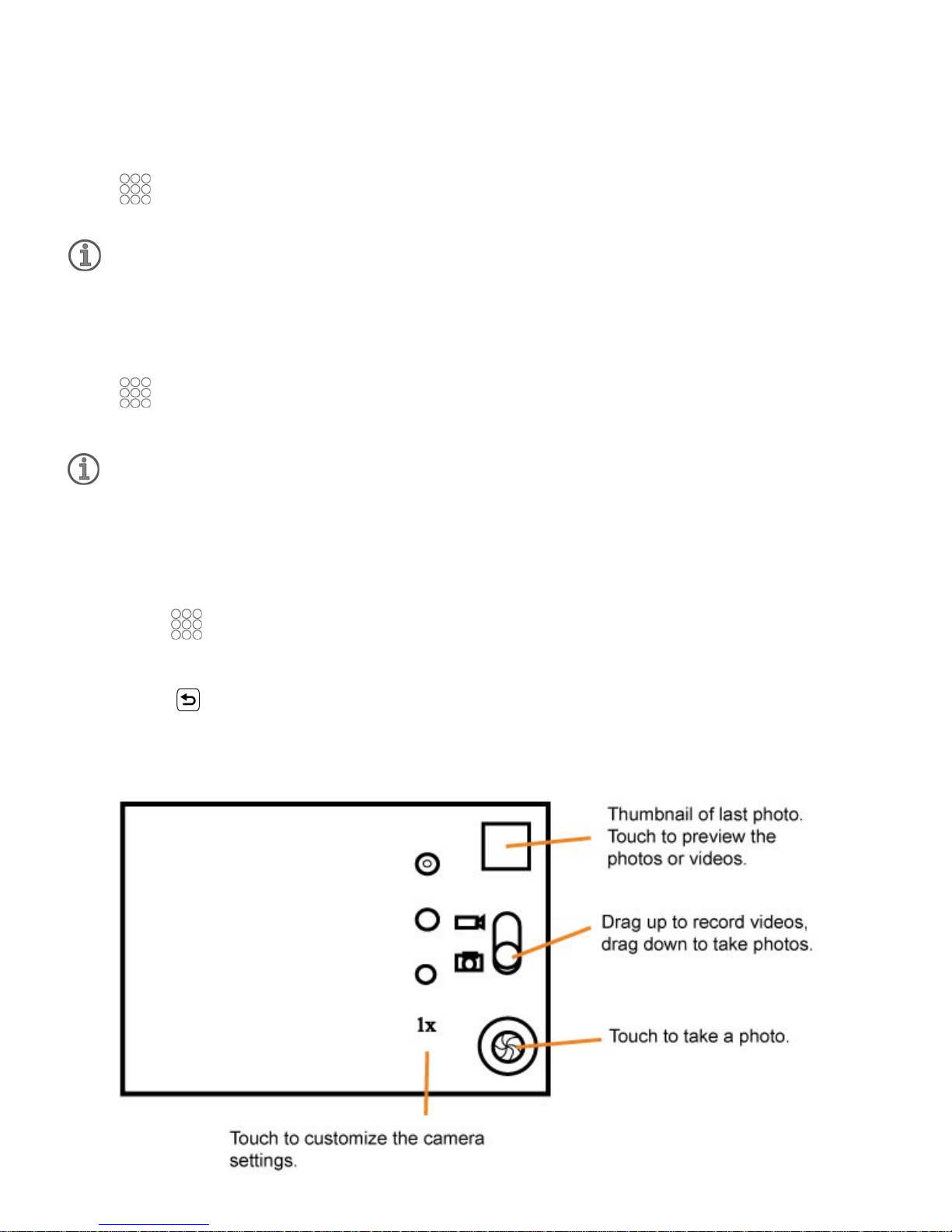
Opening Your Camera
• Touch >Camera to open the camera. The camera opens in landscape mode,
ready to take a picture or record a video.
• Press to close the camera.
Capture Screen
Page 14

Enjoying Music
Before using your music player, you must copy music files from you computer to the
microSD card.
Once you have done this, the player will search for music on the microSD card. After
the search is complete, you will be able to view all available music files in the music
library.
Opening the Media Library
Touch >Music to display the media library.
Playing Music
1. Touch a category on the music library screen.
2. Touch the song you want to play.
Using the microSD Card as USB Mass Storage
1. Connect your mobile phone to your PC with the USB cable. Your PC will detect
the microSD card as a removable disk.
2. Open the notification bar, and then touch USB connected.
3. Touch Turn on USB storage in the dialog box that opens to confirm that you
want to transfer files.
You can now transfer files from your PC to your mobile phone's microSD card.
FAQ
Q: How do I set a song as phone ringtone?
A : In the media library, touch and hold the song to be set as ring tone, and then touch
USE as phone ringtone.
Q: How do I prevent automatic switching of orientation when rotating phone?
A: Touch > Settings > Display > Auto-rotate screen to disable the function.
Q: How do I set the unlock pattern?
A: Touch > Settings > Location & security > Set up screen lock > Pattern.
Page 15

Q: How can I change the input method?
A: Touch and hold the area where you write text and then select the input method you
prefer.
Q: How do I stop the song playing in the background?
A: Touch the notification bar, flick downwards to open the notifications panel, and then
touch the music playing notification to go to the music playing screen.
Q: How do I return to the calling screen?
A: While on a call, if you're on another screen, you can touch the notification bar, and
drag downwards to open the notifications panel. Then touch the current call notification
to return to the calling screen.
Q: How do I create an application shortcut on the Home screen?
A: Touch and hold an application icon on the main menu screen until the Home screen
is displayed. Then drag the icon where you want it to go and release your finger.
Warnings and Precautions
This section contains important information pertaining to the operating instructions of
your device. It also contains information about how to use the device safely. Read this
information carefully before using your device.
Electronic Device
Power off your device if using the device is prohibited. Do not use the device when
using the device causes danger or interference with electronic devices.
Medical Device
• Follow rules and regulations set forth by hospitals and health care facilities. Do
not use your device when using the device is prohibited.
• Pacemaker manufacturers recommend that a minimum distance of 15cm be
maintained between a device and a pacemaker to prevent potential interference
with the pacemaker. If you are using a pacemaker, use the device on the
opposite side of the pacemaker and do not carry the device in your front pocket.
Page 16

Potentially Explosive Atmosphere
Power off your device in any area with a pote ntiall y expl osive atmos phere, an d compl y
with all signs and instructions. Areas that may hav e potential l y explosiv e atmosp heres
include the areas where you woul d normall y be advised to turn off your vehicle engine.
Triggering of sparks in such areas could cause an explosion or a fire, resulting in
bodily injuries or even deaths. Do not power on your device at refueling points such as
service stations. Comply with restrictions on the use of radio equipment in fuel depots,
storage, and distribution areas, and chemical plants. In addition, adhere to restrictions
in areas where blasting operations are in progress. Before using the device, watch out
for areas that have potentially explosive atmosphere that are often, but not always,
clearly marked. Such locations include areas below the deck on boats, chemical
transfer or storage facilities, and areas where the air contains chemicals or particles
such as grain, dust, or metal powders. Ask the manufacturers of vehicles using
liquefied petroleum gas (such as propane or butane) whether this device can be safely
used in their vicinity.
Traffic Security
Observe local laws and regulations while using the device. In addition, if using the
device while driving a vehicle, comply with the following guidelines:
• Concentrate on driving. Your first responsibility is to drive safely.
• Do not talk on the device while driving. Use hands-free accessories.
• When you have to make or answer a call, park the vehicle at the road side before
using your device.
• RF signals may affect electronic systems of motor vehicles. For more information,
consult the vehicle manufacturer.
• In a motor vehicle, do not place the device over the air bag or in the air bag
deployment area. Other wise, the device may hurt you owing to the strong force
when the air bag inflates.
• Do not use your device while flying in an aircraft. Power off your device before
boarding an aircraft. Using wireless devices in an aircraft may cause danger to
Page 17

the operations of the aircraft and disrupt the wireless telephone network. It may
also be considered illegal.
Operating Environment
• Do not use or charge the device in dusty, damp, and dirty places or places with
magnetic fields. Otherwise, it may result in a malfunction of the circuit.
• The device complies with the RF specifications when the device is used near
your ear or at a distance of 1.0cm from your body. Ensure that the device
accessories such as a device case and a device holster are not composed of
metal components. Keep your device 1.0cm away from your body to meet the
requirement earlier mentioned.
• On a stormy day with thunder, do not use your device when it is being charged,
to prevent any danger caused by lightning.
• When you are on a call, do not touch the antenna. Touching the antenna affects
the call quality and results in increase in power consumption. As a result, the talk
time and the standby time and reduced.
• While using the device, observe the local laws and regulation, and respect others'
privacy and legal rights.
• Keep the ambient temperature between -10°C and 45°C while the device is being
charged. Keep the ambient temperature between -10°C to 55°C for using the
device powered by a battery.
Prevention of Hearing Damage
Using a headset at high volume can damage your hearing. To reduce the risk of
damage to hearing, lower the headset volume to a safe and comfortable level.
Safety of Children
Comply with all precautions with regard to childcare’s safety. Letting the child play with
your device or its accessories, which may include parts that can be detached from the
device, may be dangerous, as it may present a choking hazard. Ensure that small
children are kept away from the device and accessories.
Page 18

Accessories
Choose only batteries, chargers, and accessories approved for use with this model by
the device manufacturer. The use of any other type of battery, charger or accessory
may invalidate any warranty for the device, may be in violation of local rules or laws,
and may be dangerous. Please contact your dealer for information about the
availability of approve batteries, ch arger, and accessories in your area.
Battery and Charger
• Unplug the charger from the electrical plug and the device when not in use.
• The battery can be charged and discharge hundreds of times before it eventually
wears out. When the standby time and the talk time are shorter than the normal
time, replace the battery.
• Use the AC power supply defined in the specification of the charger. An improper
power voltage may cause a fire or a malfunction of the charger.
• Do not connect two poles of the battery with conductors, such as metal materials,
keys, or jewelries. Otherwise, the battery may be short-circuited and may cause
injuries and burns on your body.
• If battery electrolyte leaks out, ensure the the electrolyte does not touch your skin
and eyes. When the electrolyte touches your skin or splashes into your eyes,
wash your eyes with clean water immediately and consult a doctor.
• If there is a case of batter deformation, color change, or abnormal heating while
you charge or store the battery, remove the battery immediately and stop using it.
Otherwise, it may lead to battery leakage, overheating explosion, or fire.
• If the power cable is damaged ( for example, the cord is exposed or broken), or
the plug loosens, stop using the cable at once. Otherwise, it may lead to an
electric shock a short circuit of the charger, or a fire.
• Do not dispose of batteries in fire as they may explode. Batteries may also
explode if damaged.
• Do not modify or re-manufacture, attempt to insert foreign objects into the battery,
immerse or expose to water or other liquids expose to fire, explosion or other
hazard.
Page 19

• Avoid dropping the device or battery. If the device or battery is dropped,
especially on a hard surface, and the user suspects damage, take it t a qualified
service center for inspection.
• Improper battery use may result in a fire, explosion or other hazard.
• Promptly dispose of used batteries in accordance with local regulation.
• The device should only be connected to products that bear the USB-IF logo or
have completed the USB-IF compliance program.
Cleaning and Maintenance
• The device, battery and charger are not water resistant. Keep them dry. Protect
the device, battery and charger from water or vapor. DO not touch the device or
the charger with a wet hand. Otherwise, it may lead to a short circuit, a
malfunction of the device, and an electric shock to the user.
• Do not place your device, battery, and charger in places where they can get
damaged because of collision. Otherwise, it may lead to battery leakage, device
malfunction, overheating, fire, or e xp losion.
• Do not place magnetic storage media such as magnetic cards and floppy disks
near the device. Radiation from the device may erase the information stored on
them.
• Do not leave your device, battery, and charger in a place with an extreme high or
low temperature. Otherwise, they may not function properly and may lead to a
fire or an explosion. When the temperature is lower than 0°C, performance of the
battery is affected.
• Do not place sharp metal objects such as pins near the earpiece. The earpiece
may attract these objects and hurt you when you are using the device.
• Before you clean or maintain the device, power off the device and disconnect it
from the charger.
• Do not use any chemical detergent, powder, or other chemical agents ( such as
alcohol and benzene) to clean the device and the charger. Otherwise, parts of the
device may be damaged or a fire can be caused. You can clean the device and
the charger with a piece of damp and soft antistatic cloth.
Page 20

• Do not dismantle the device or accessories. Otherwise, the warranty on the
device and accessories is invalid and the manufacturer is not liable to pay for the
damage.
• If the device screen is broken by colliding with har d objects, d o not touch or try to
remove the broken part. In this case, st op us ing the devic e immediat el y, and then
contact an authorized service center in time.
Emergency Call
You can use your device for em erge ncy cal ls in the s ervice are a. The connection,
however, cannot be guaranteed in all conditions. You should not rely solel y on t he
device for essential communications.
Certification Information (SAR)
This device meets guidelines for exposure to radio waves.
Your device is a low-power radio transmitter and receiver. As recommended by
international guidelines, the device is designed not to exceed the limits for exposure to
radio waves. These guidelines were developed by the independent scientific
organization International Commission on non-Ionizing Radiation Protection (ICNIRP)
and include safety me asures designed to ensure safety for all users, regardless of age
and health.
The Specific Absorption Rate (SAR) is the unit of measurement for the amount of radio
frequency energy absorbed by the body when using a device. The SAR value is
determined at the highest certified power level in laboratory conditions, but the actual
SAR level of the device when being operated can be well below the value. This is
because the device is designed to use the minimum power required to reach the
network.
The SAR limit also adopted by Europe is 2.0 W/kg av eraged over 10 gr ams of tissue.
The highest SAR value for this device type when tested at the ear is 0.248 W/kg, and
when properly worn on the body is 0.424 W/kg.
Page 21

Disposal and Recycling Information
This symbol on the device (and any included batteries) indicates that they should not
be disposed of as of as normal household garbage. Do not dispose of your device or
batteries as unsorted municipal waste. The device (and any batteries) should be
handed over to a certified collection point for recycling or proper disposal at the end of
their life.
For more information about the recycling of the device or batteries, contact your local
city office, the household waste disposal service, or the retail store where you
purchased this device.
The disposal of this device is subject to the Waste from Electrical and Electronic
Equipment (WEEE) directive of the European Union. The reason for separating WEEE
and batteries from other waste is to minimize the potential environmental impacts on
human health of any hazardous substances that may be present.
Trademarks and Permissions
are trademark or registered trademark of DMD Mobile Sdn. Bhd.
Android is a trademarks of Google Inc.
Other trademarks, product, service and company names mentioned are the property of
their respective owners.
Notice
Some features of the product and its accessories described herein rely on the software
installed, capacities and settings of loc a l network, and therefore may not be activated
or may be limited by local network operators or network service providers. Thus the
descriptions herein may not match exactly as the product or its accessories you
purchased.
DMD Mobile Sdn. Bhd. reserves the right to change or modify any information or
specifications contained in this manual without prior notice and without any liability.
Page 22

Third-Party Software Statement
DMD Mobile Sdn. Bhd. does not own the intellectual property of the third-party
software and applications that are delivered with this product. Therefore, DMD Mobile
Sdn. Bhd. will not provide any warranty of any kind for these third-party software and
applications. Neither will DMD Mobile Sdn. Bhd. provide support to customers who use
these third-party software and applications.
Third-party software and applications services may be interrupted or terminated at any
time. DMD Mobile Sdn. Bhd. does not g uarantee that any content or service would be
maintained for any period during its availability. Third-party service providers provide
content and services through network or transmission tools outside of the control of
DMD Mobile Sdn. Bhd. To the greatest extent permitted by applicable law, it is explicitly
stated that DMD Mobile Sdn. Bhd shall not compensate or be liable for services
provided by third-party service provider, or the interruption or termination of third-party
contents or services.
DMD Mobile Sdn. Bhd. shall not be responsible for the legality, quality, or any other
aspects of any software installed on this product, or for any uploaded or downloaded
third-party works, such as texts, images, videos, or software. Customers shall bear the
risk for any and all effects including incompatibility between the software and this
product, which result from installing software or uploading or downloading the thirdparty works.
This product uses the open-sources Android™ platform. DMD Mobile Sdn. Bhd. has
made necessary changes to the platform. Therefore, this product may not support all
the functions that are supported by the standard Android platform or may be
incompatible with third-party software. DMD Mobile Sdn. Bhd. shall not be liable for
any of such situation.
Page 23

DISCLAIMER OF WARRANTIES
THE CONTENTES OF THIS MANUAL ARE PROVIDED “AS IS”. EXCEPT AS
REQUIRED BY APPLICABLE LAWS, NO WARRANTIES OF ANY KIND, EITHER
EXPRESS OR IMPLIED, INCLUDING BUT NOT LIMITED TO, THE IMPLIED
WARRANTIES OF MERCHANTABILITY AND FITNESS FOR A PARTICULAR
PURPOSE, ARE MADE IN RELATION TO THE ACCURACY, RELIABILITY OR
CONTENTS OF THIS MANUAL.
LIMITATIONS OF LIABILITY
TO THE MAXIMUM EXTENT PERMITED BY APPLICABLE LAW, IN NO EVENT
SHALL DMD MOBIL E SDN. BHD BE LIABLE FOR ANY SPECIAL, INCIDENTAL,
INDIRECT, OR CONSEQUENTIAL DAMAGES, OR LOST PROFITS, BUSINESS,
REVENUE, DATA, GOODWILL OR ANTICIP A TED SAVINGS.
THE MAXIMUM LIABILITY (THIS LIMITATION SHALL NOT APPLY TO LIABILITY
FOR PERSONAL INJURY TO THE EXTENT APPLICABLE LAW PROHIBITS SUCH A
LIMITATION) OF DMD MOBILE SDN. BHD. ARISING FROM THE USE OF THE
PRODUCT DESCRIBED IN THIS DOCUMENT SHALL BE LI MITED TO THE
AMOUNT PAID BY CUSTOMERS FOR THE PURCHASE OF THIS PRODUC T.
Import and Export Regulations
Customers shall comply with all applicable export or import laws and regulations and
be responsible to obtain all necessary governmental permits and licenses in order to
export, re-export or import the product mentio ned in this manual including the software
and technical data therein.
Page 24

THIS DOCUMENT IS FOR INFORMATION PURPOSE ONLY, AND DOES NOT
CONSTITUTE ANY KIND OF WARRANTIES.
All the pictures in this guide are for your reference only. The actual appearance and
display features depend on the mobile phone you purchase.
This device was tested for typical body-worn operations. To comply with RF
exposure requirements, a minimum separation distance of 1.0 cm must be
maintained between the user’s body and the handset, including the antenna. Thirdparty belt-clips, holsters, and similar accessories used by this device should not
contain any metallic components. Body-worn accessories that do not meet these
requirements may not comply with RF exposure requirements and should be
avoided. Use only the supplied or an approved antenna.
Federal Communication Commission Interference Statement
This equipment has been tested and found to comply with the limits for a Class B
digital device, pursuant to Part 15 of the FCC Rules. These limits are designed to
provide reasonable protection against harmful interference in a residential
installation. This equipment generates, uses and can radiate radio frequency energy
and, if not installed and used in accordance with the instructions, may cause harmful
interference to radio communications. However, there is no guarantee that
interference will not occur in a particular installation. If this equipment does cause
harmful interference to radio or television reception, which can be determined by
turning the equipment off and on, the user is encouraged to try to correct the
interference by one of the following measures:
Reorient or relocate the receiving antenna.
Increase the separation between the equipment and receiver.
Connect the equipment into an outlet on a circuit different from that to which
the receiver is connected.
Consult the dealer or an experienced radio/TV technician for help.
FCC Caution: Any changes or modifications not expressly approved by the party
responsible for compliance could void the user's authority to operate this equipment.
This device complies with Part 15 of the FCC Rules. Operation is subject to the
following two conditions: (1) This device may not cause harmful interference, and (2)
Page 25

this device must accept any interference received, including interference that may
cause undesired operation.
IMPORTANT NOTE:
Federal Communication Commission (FCC) Radiation Exposure Statement
This EUT is compliance with SAR for general population/uncontrolled exposure limits
in ANSI/IEEE C95.1-1999 and had been tested in accordance with the measurement
methods and procedures specified in OET Bulletin 65 Supplement C. This
equipment should be installed and operated with minimum distance 1.0cm between
the radiator & your body.
 Loading...