

Page 1
1
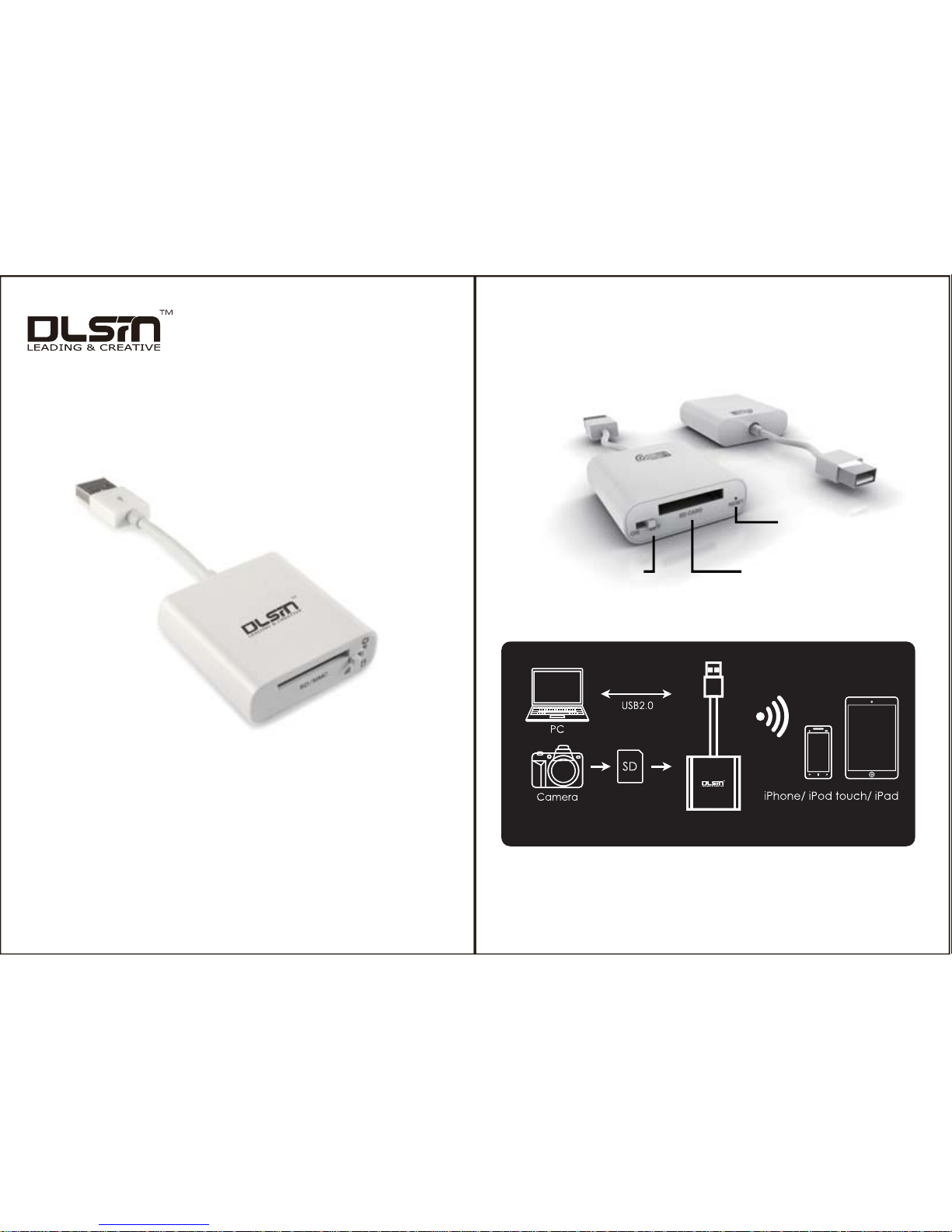
1. Appearance
Reset
Wireless/USB mode
Switch
SD card reader
WD101C
Wi-Fi SD-Card Dongle
User Quick Guide
Page 2
3
2
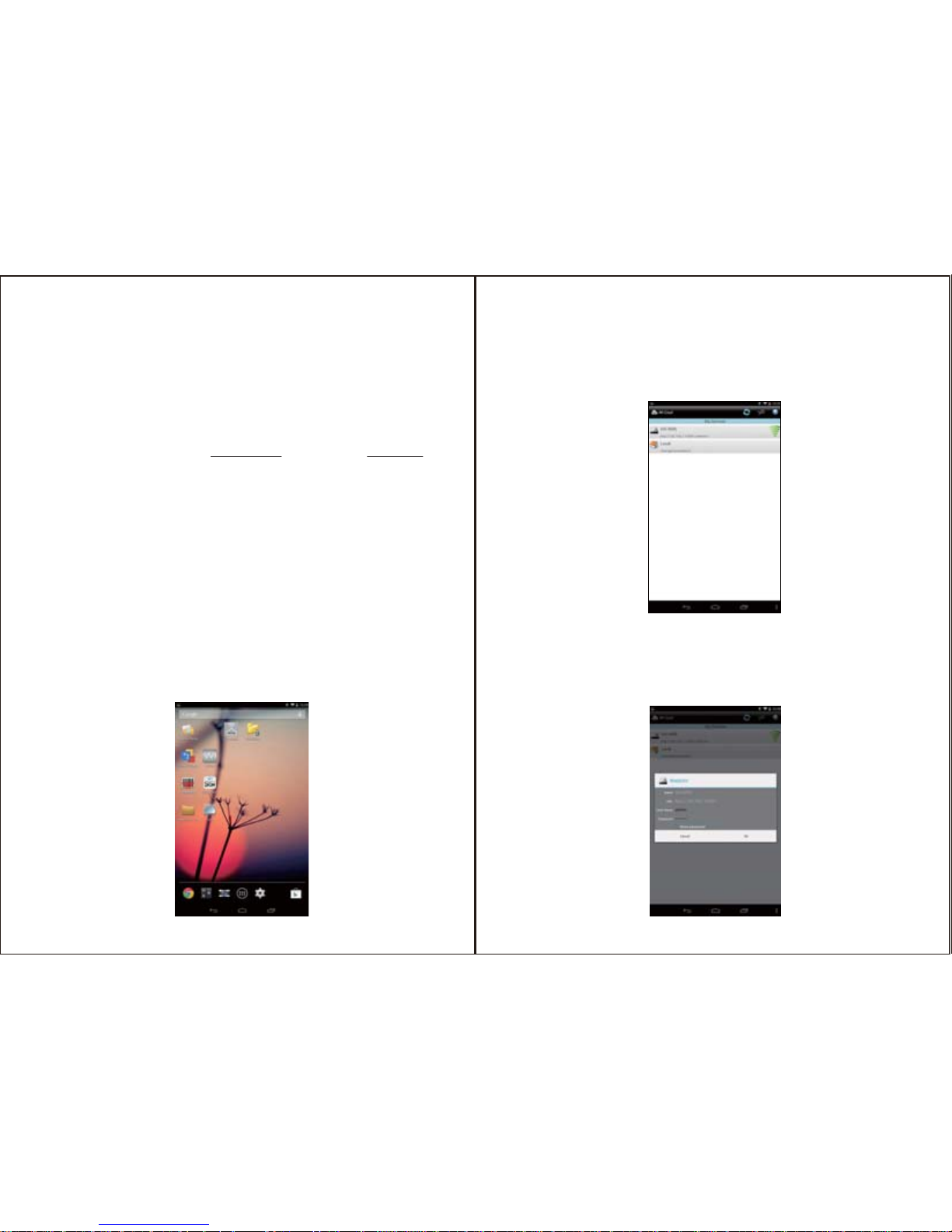
B. At this time you will see the following screen, WD101C is
appearing on the screen, the name is: wi-cool-XXXX, and there
is the right green wireless symbol)
C. Long pressing the wi-cool-XXXX, then the window will be
popped up as follows, please enter the administrator user
name and password. Username: admin password: admin.
(Then press OK to enter the APP page.)
2.1.3 The advice of Android
When you use wireless, you can connect WD101C through
WIFI directly, our SSID: wi-cool-xxx, password: 12345678
It’s able to open the browser, key in 192.168.99.1, then, you
will see the main screen, after key in user ID and pass word,
you are able to enter it (Default User ID: admin / Password:
admin
If you are using Android tablet or cell phone, you can find our
APP [Wi-Cool] through Google Play store. It’s free to download, after download to your tablet or cell phone, you can
connect with WD101C dongle through WIFI. The original
SSID is: wi-cool-XXXX. Password: 12345678.
Then, you are able to enter setting up page as follows:
You can connect and set up through your PC, Android
devices, Apple iPhone, and iPAD
2.1.2 Wireless connection through PC
A. Click and open the installed Wi-cool APP
2.1 First time to connections and setting
2. Instruction
Page 3
4
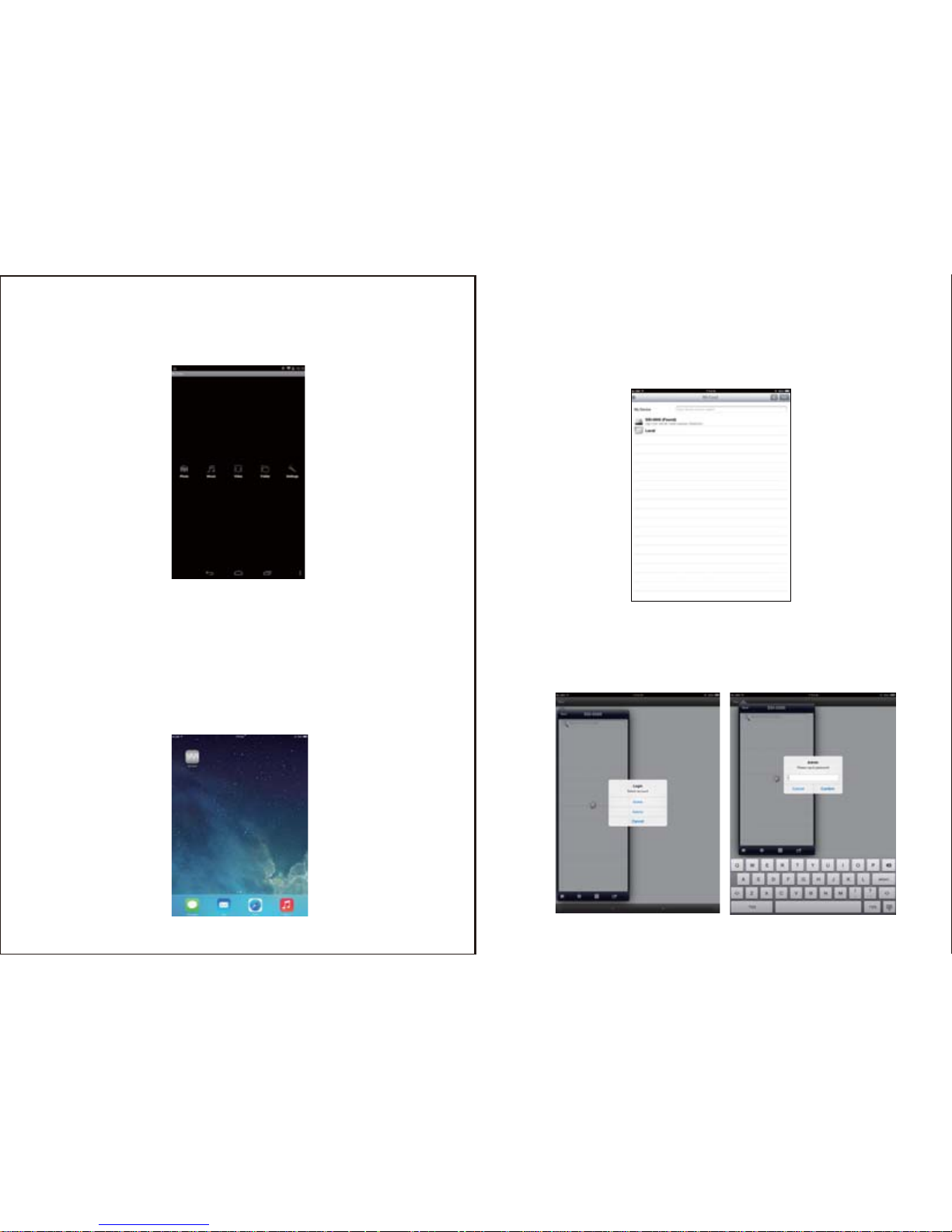
B. At this time you will see the following screen, WD101C is
appearing on the screen, the name is: wi-cool-XXXX.)
C. Click WD101C device, key in the default user name: admin,
password: admin
D. Click the "Settings (Settings)" to enter setup options page
2.1.4 Device of Apple iPhone, iPAD
When you use the Apple tablet or phone, you must search for
[wi-cool] APP through Apple APP Store, firstly. Our APP is
downloadable for free and install, and you are able to contact
WD101C through WIFI. The default SSID is: wi-cool-XXXX.
Password: 12345678, you are able to enter the setting Program
as follows)
A. Click and open the installed Wi-cool APP
Page 4
76
D. Click [Setting], you are able to enter the setup options page,
you have to key in (User Name: admin, Password: admin)
2.2 Setting Options Description
The working example under PC environment, description and
setting as follows (Android and Apple device and configuration
option are similar, but there is a little streamlined.
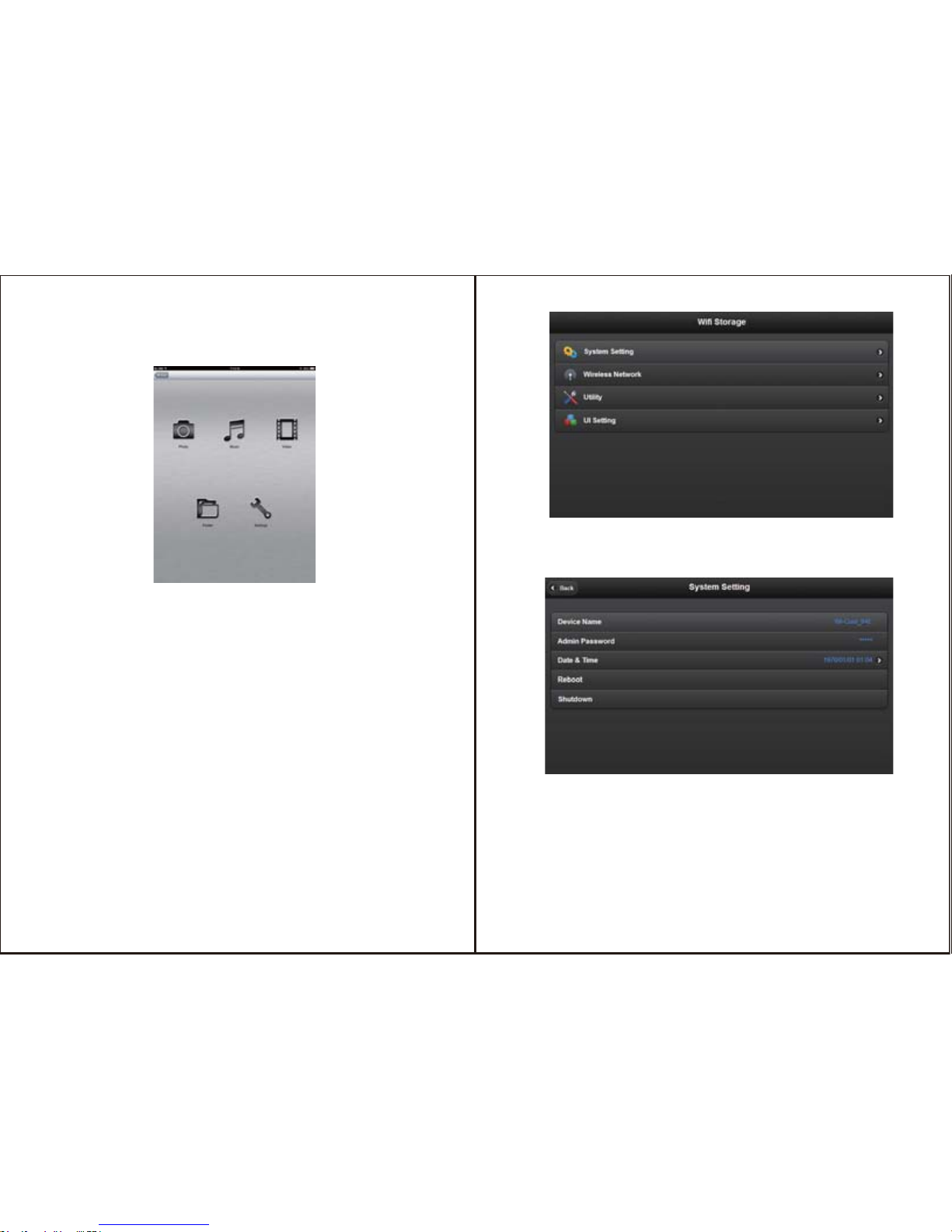
2.2.1 Setup Menu
When you enter the settings screen, you will see bellowed four
options, there are: System Setting, Wireless Network, Utility,
UI setting
2.2.2 System Setting
Click System setting option, you will see content page as follows
A. Device Name: Set your device name, this name will be
displayed on the network. We recommend that you change
your personal name and reset in order to facilitate
identification. This name is also the wireless SSID)
B. Admin Password: Setting the administrator’s password)
C. Date & Time: setting time)
D. Reboot: restart your device)
E. Shutdown: turn off the device power)
Page 5
9
8
For potential loss of data, especially due to inappropriate
handling, the company assumes no liability.
All named products and descriptions are trademarks and/or
registered rademarks of the respective manufacturers and are
accepted as protected. As a continuing policy of product
improvement at the company, the design and specifications are
subject to change without prior notice. National product
specifications may vary.
Legal Disclaimer
This Quick Guide covers all interfaces and combinations for the
WD101C. Images and descriptions might therefore slightly vary
between this manual and actual product you have.
About this Quick Guide
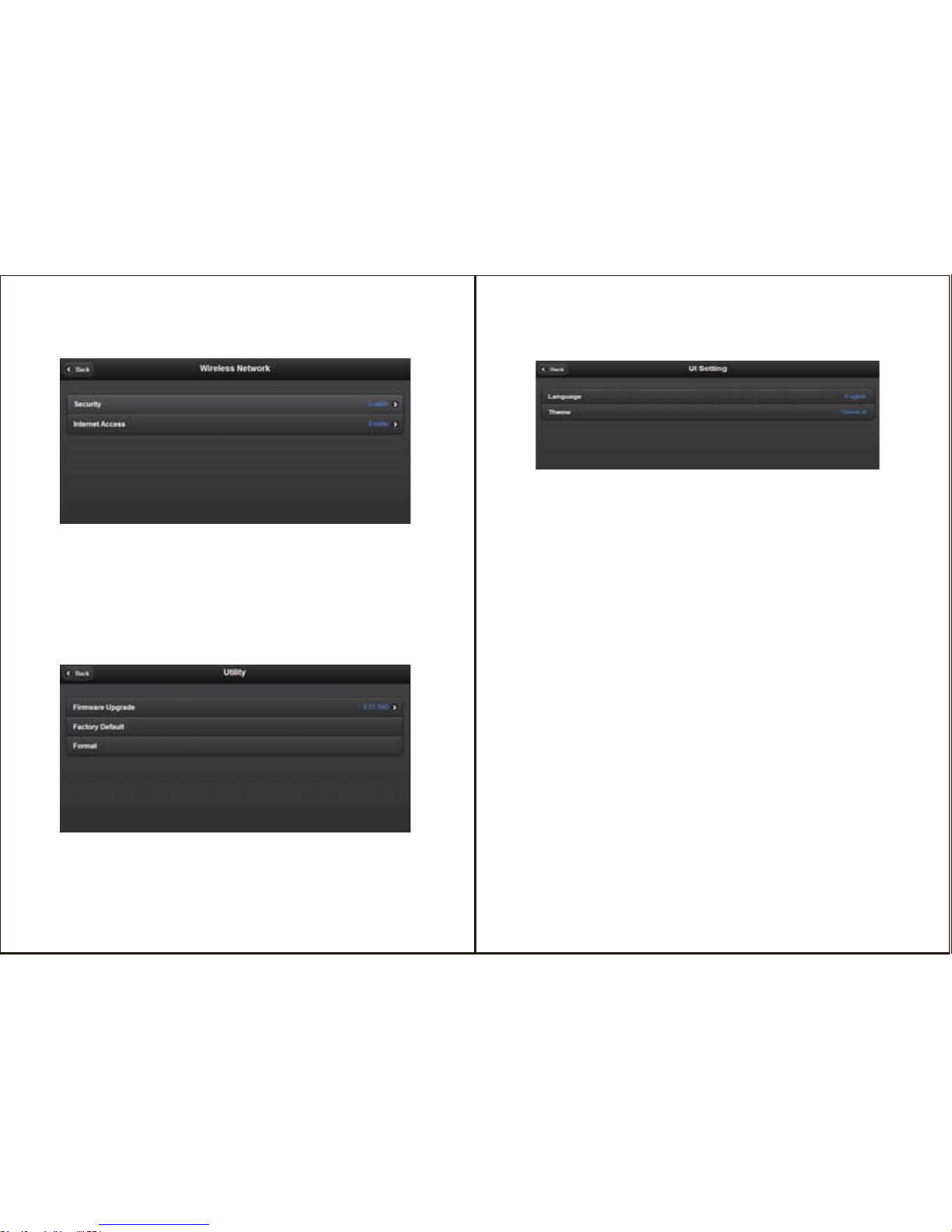
2.2.6 UI Setting
Click UI Setting, you will see page as follows
A. Language: Setting the user’s language
B. Theme: Setting the UI style
A.Security:Setting the password of wireless network, and it
supports WPA2 encryption)
B.Internet Access: connect the WD101C to another existed
router)
Click Utility, you will see page as follows
A. Firmware Upgrade: Upgrade the WD101C device firmware
B. Factory Default : Revert the WD101C’s firmware to factory
setting.
C. Format:Format the SD Card
2.2.4 Wireless Network
Click Wireless Network, you will see page content as follows
2.2.5 Utility
 Loading...