

Page 1
Page 2
Preface
D-Link reserves the right to revise this publication and to make changes in the content hereof without obligation to
notify any person or organization of such revisions or changes.
Manual Revisions
Revision Date Description
1.0 March 18, 2009 DWM-156 Revision A1 with rmware version 1.00
1.1 January 4, 2010 Added regulatory statements
Trademarks
D-Link and the D-Link logo are trademarks or registered trademarks of D-Link Corporation or its subsidiaries in the
United States or other countries. All other company or product names mentioned herein are trademarks or registered
trademarks of their respective companies.
Copyright © 2009 by D-Link Systems, Inc.
All rights reserved. This publication may not be reproduced, in whole or in part, without prior expressed written permission
from D-Link Systems, Inc.
2D-Link DWM-156 User Manual
Page 3

Table of Contents
Preface..........................................................................2
Manual Revisions .................................................... 2
Trademarks .............................................................2
Introduction ..............................................................5
Features ..................................................................5
Product Overview ........................................................ 6
Package Contents ................................................... 6
System Requirements ............................................. 6
Hardware Overview .................................................7
LED Indicator Information ........................................ 8
Installation ....................................................................9
SIM Card Installation ............................................... 9
MicroSD Card Installation ...................................... 10
Software Installation .............................................. 11
Connection Management ..........................................16
Current Connection ...............................................16
Connection History ................................................ 17
Usage Management ...................................................18
Usage .................................................................... 18
Usage Statistics ..................................................... 19
Text Messaging (SMS) ..............................................20
New/Reply/Forward Text Message .......................21
Deleting a Message ............................................... 21
Saving a Sender to Contacts ................................. 21
SMS Settings ......................................................... 22
Contact Management ................................................23
Adding Contacts .................................................... 23
Editing Contacts ....................................................23
Basic Functions .........................................................12
Software Overview ................................................12
New Prole ............................................................ 13
Use Default Prole (Preset) ................................... 13
User-Dened Prole .............................................. 14
Establishing a Connection .....................................14
Ending a Connection ............................................. 14
Prole Management ..................................................15
Deleting Contacts .................................................. 23
Importing vCards to Contacts ................................24
Exporting Contacts to vCards ................................ 24
SIM Management .......................................................25
SIM Information ..................................................... 25
Enabling or Disabling a PIN Code .........................26
Changing a PIN Code ............................................ 27
Unlocking a PIN Code ........................................... 27
3D-Link DWM-156 User Manual
Page 4

Prole Settings ..........................................................28
Band Settings ........................................................ 28
Network Selection .................................................. 29
Call Settings ..........................................................30
Missed Calls .......................................................... 30
Startup Options .........................................................31
Version Information ................................................... 31
Troubleshooting ........................................................32
FCC Regulations ........................................................ 33
RF Exposure Information (SAR) ............................... 34
Glossary .....................................................................35
Technical Specications........................................... 38
4D-Link DWM-156 User Manual
Page 5

Section 1 - Product Overview
Introduction
The 3.75G HSUPA USB Adapter allows users with a computer to connect to mobile broadband networks (HSUPA/
HSDPA/UMTS/GPRS/GSM). While connected, users can transfer data, stream media, and send SMS messages. The
adapter uses a standard USB interface for fast and simple installation.
Features
Compact and sleek mobile adapter easily ts in your pocket•
Provides HSUPA/HSDPA/UMTS/GPRS/GSM/EDGE network support•
GSM circuit-switched (CSD) data transfer for multimedia•
Plug-and-Play: No CD-ROM required•
Connection software launches quickly and automatically•
Convenient USB connector requires no additional cables•
MicroSD card reader slot for optional removable storage•
Send group SMS messages to up to 25 contacts simultaneously•
Store up to 1000 outgoing SMS (depending on SIM card capacity)•
Control incoming calls with forwarding, busy tone, or continuous ringing•
5D-Link DWM-156 User Manual
Page 6
Section 1 - Product Overview
Product Overview
Package Contents
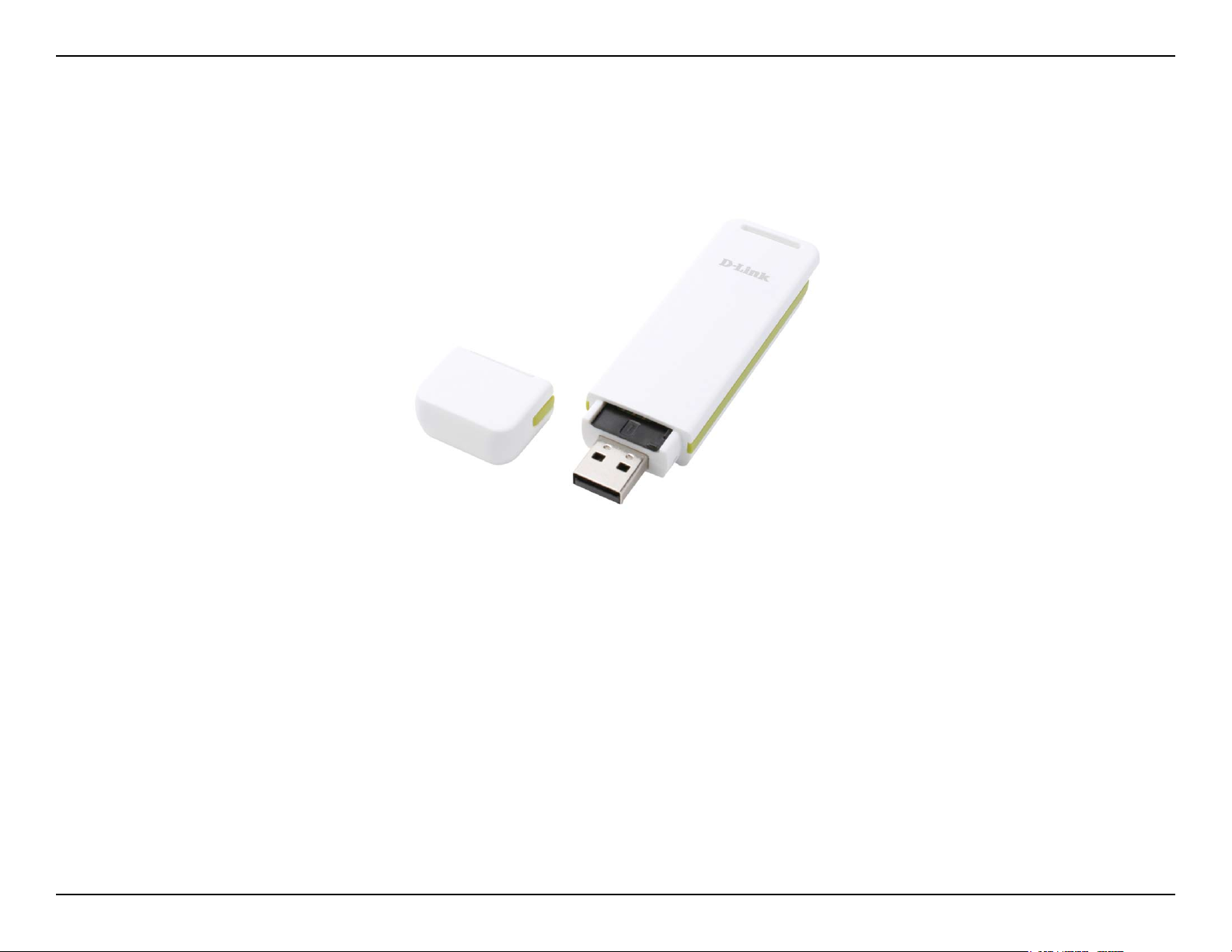
D-Link DWM-156 - 3.75G HSUPA USB Adapter
System Requirements
Windows 2000/XP/VISTA or Mac OS X 10.4.0•
Pentium III or greater•
128MB RAM or greater•
50MB available disk space•
Internet Explorer v6.0•
A computer with an available USB 2.0 port•
+
/ Firefox v1.5+
+
6D-Link DWM-156 User Manual
Page 7
Section 1 - Product Overview
Hardware Overview
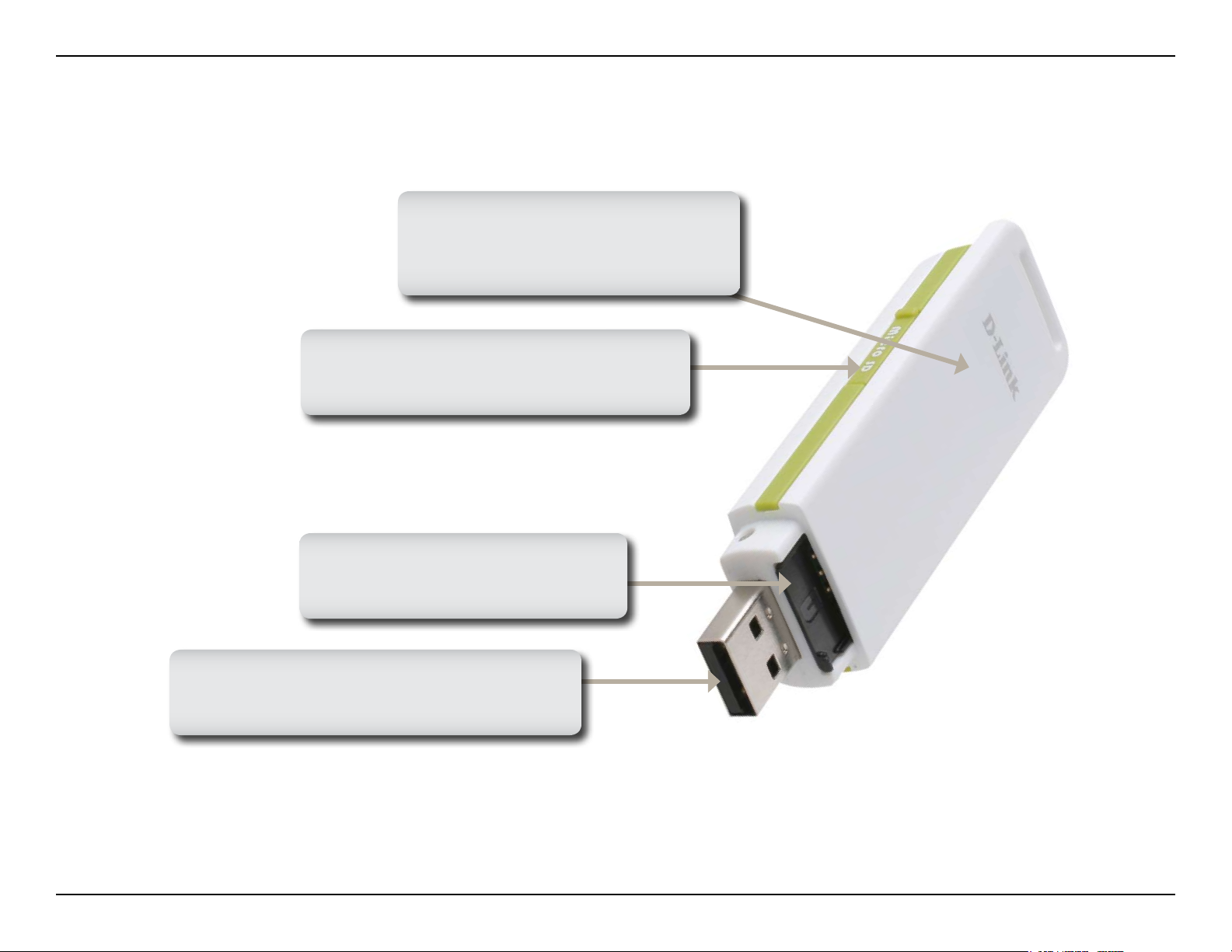
Status Indicator
A multi-colored LED indicates
connection status information.
MicroSD Card Slot
Accepts a MicroSD card (up to 8GB).
SIM Card Slot
Accepts a standard SIM Card.
USB Port
Connects the DWM-156 to a computer.
7D-Link DWM-156 User Manual
Page 8
Section 1 - Product Overview
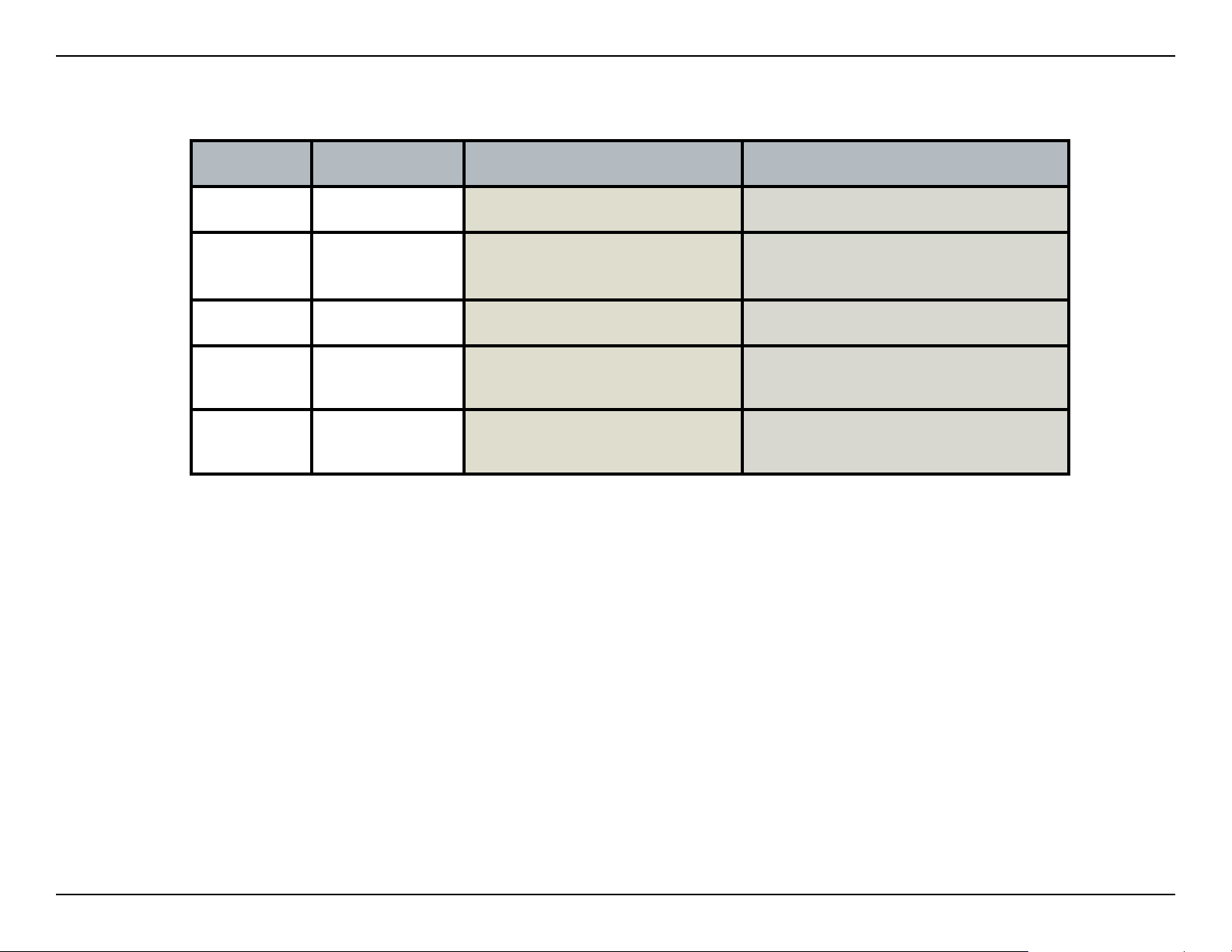
Color Service Blinking Solid
LED Indicator Information
Yellow System
Red
Green WCDMA Registered Connected
Blue
Purple
SIM Card
Service
HSDPA/
HSUPA
GPRS/
EDGE
Registered Connected
–
Searching
–
Device Initializing / No Signal
Error
(No SIM / Invalid SIM)
Connected
8D-Link DWM-156 User Manual
Page 9
Section 2 - Installation
Installation
SIM Card Installation
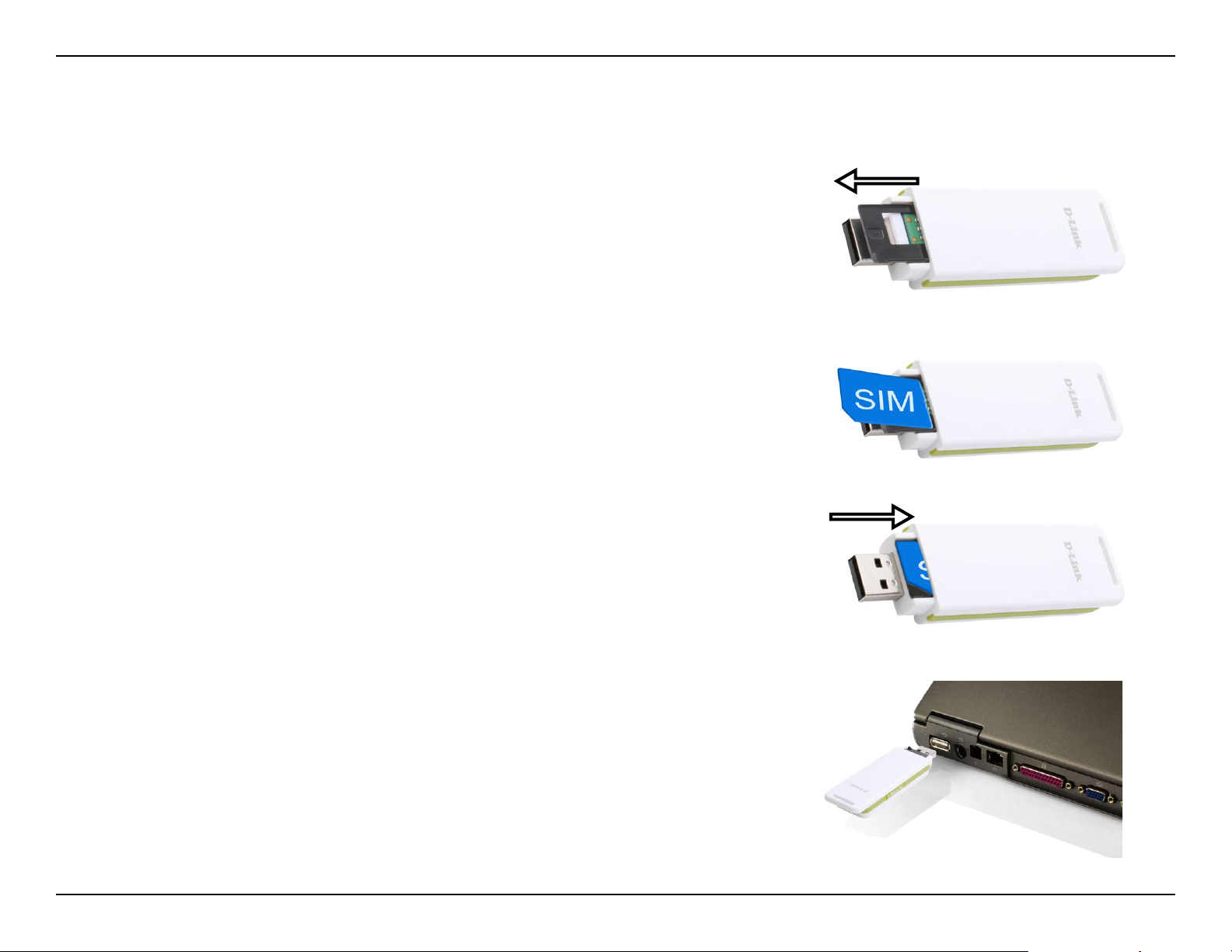
Follow the steps below to install a SIM card:
Remove the cover from the end of the adapter.1.
Pull out the SIM card tray. (Figure 1)2.
Insert the SIM card with the gold contacts facing down. (Figure 2)3.
Push the SIM card tray back into the adapter. (Figure 3)4.
Connect the adapter to a USB port on your computer. (Figure 4)5.
Figure 1
Figure 2
Figure 3
Note: To remove an installed SIM card, pull out the SIM card tray
and gently lift the card.
Figure 4
9D-Link DWM-156 User Manual
Page 10
Section 2 - Installation
MicroSD Card Installation
The DWM-156 has a slot which can read MicroSD cards with capacities of up to 8GB.
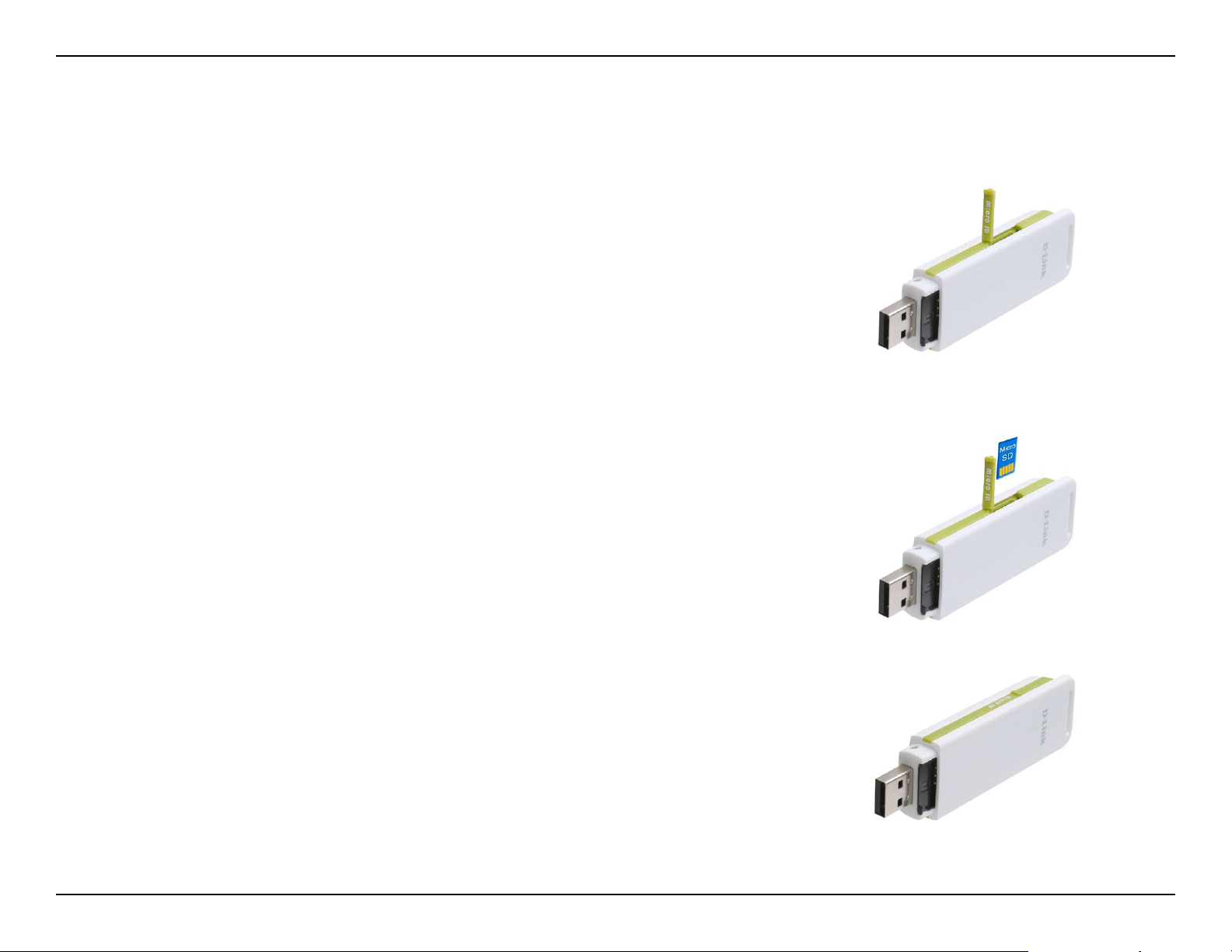
Follow the steps below to install a MicroSD card:
Unplug the DWM-156 USB adapter from the computer.1.
Gently lift the upper left corner of the MicroSD card slot 2.
cover. (Figure A)
Insert the MicroSD card with the gold contacts facing 3.
towards the top of the adapter. (Figure B)
Close the MicroSD card slot cover. (Figure C)4.
Plug the DWM-156 into a USB port on your computer.5.
The computer may take a moment to recognize the 6.
device.
A new removable disk will appear in your computer’s list 7.
of storage drives.
Note: To remove a MicroSD card, unplug the device from the
computer. Open the card slot cover and gently push
the card in to eject it.
Figure A
Figure B
Figure C
10D-Link DWM-156 User Manual
Page 11
Section 2 - Installation
Software Installation
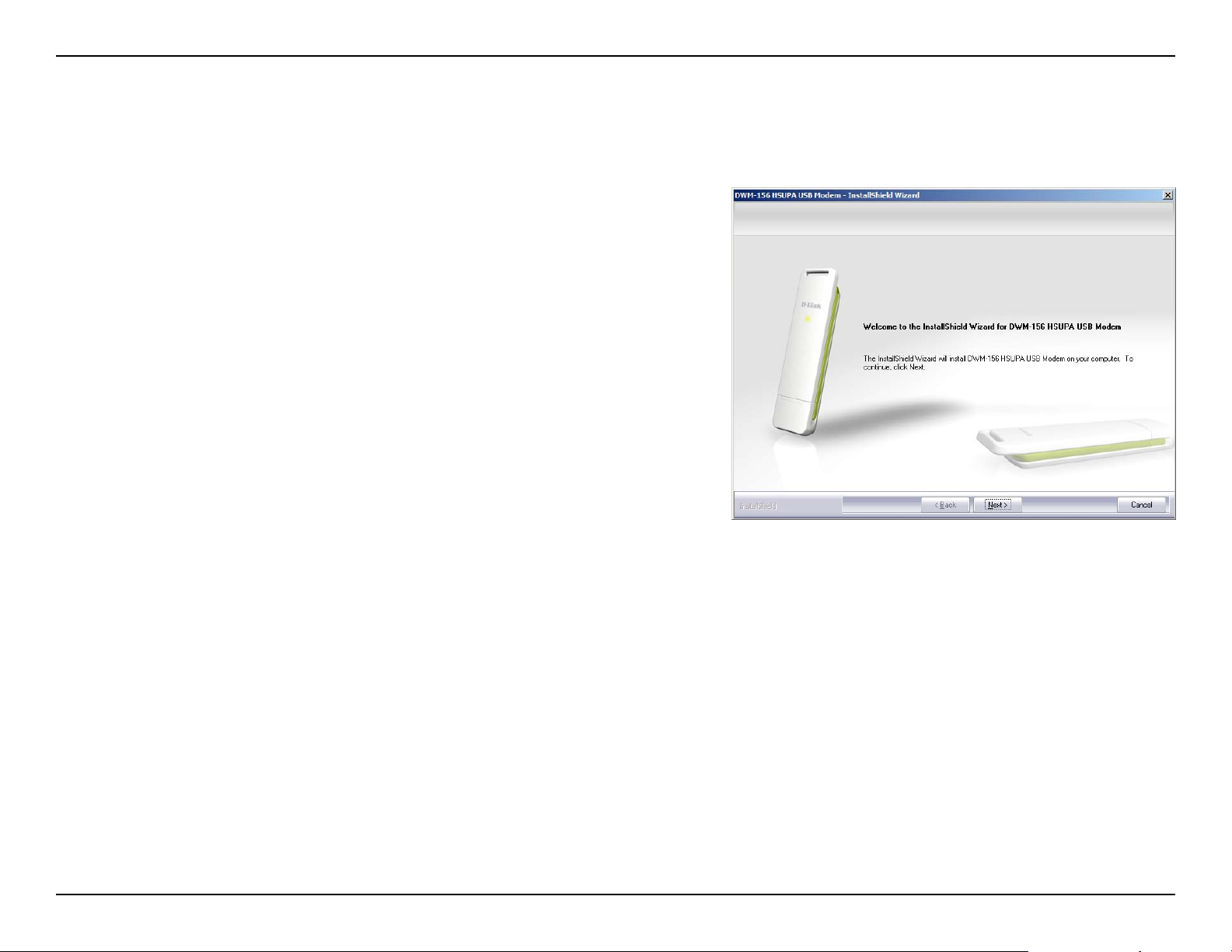
Before you install the software, you must rst install a SIM card into the USB adapter and connect the adapter to a
USB port on your computer.
Open 1. My Computer.
Double click on the removable drive labeled 2. ConnMgr.
Double click the file labeled 3. setup.exe to start the
installation.
Follow the step-by-step instructions on the Installation 4.
Wizard.
The D-Link Mobile Connect ion Mana ger will laun ch 5.
automatically.
11D-Link DWM-156 User Manual
Page 12
Section 3 - Basic Functions
Basic Functions
Software Overview
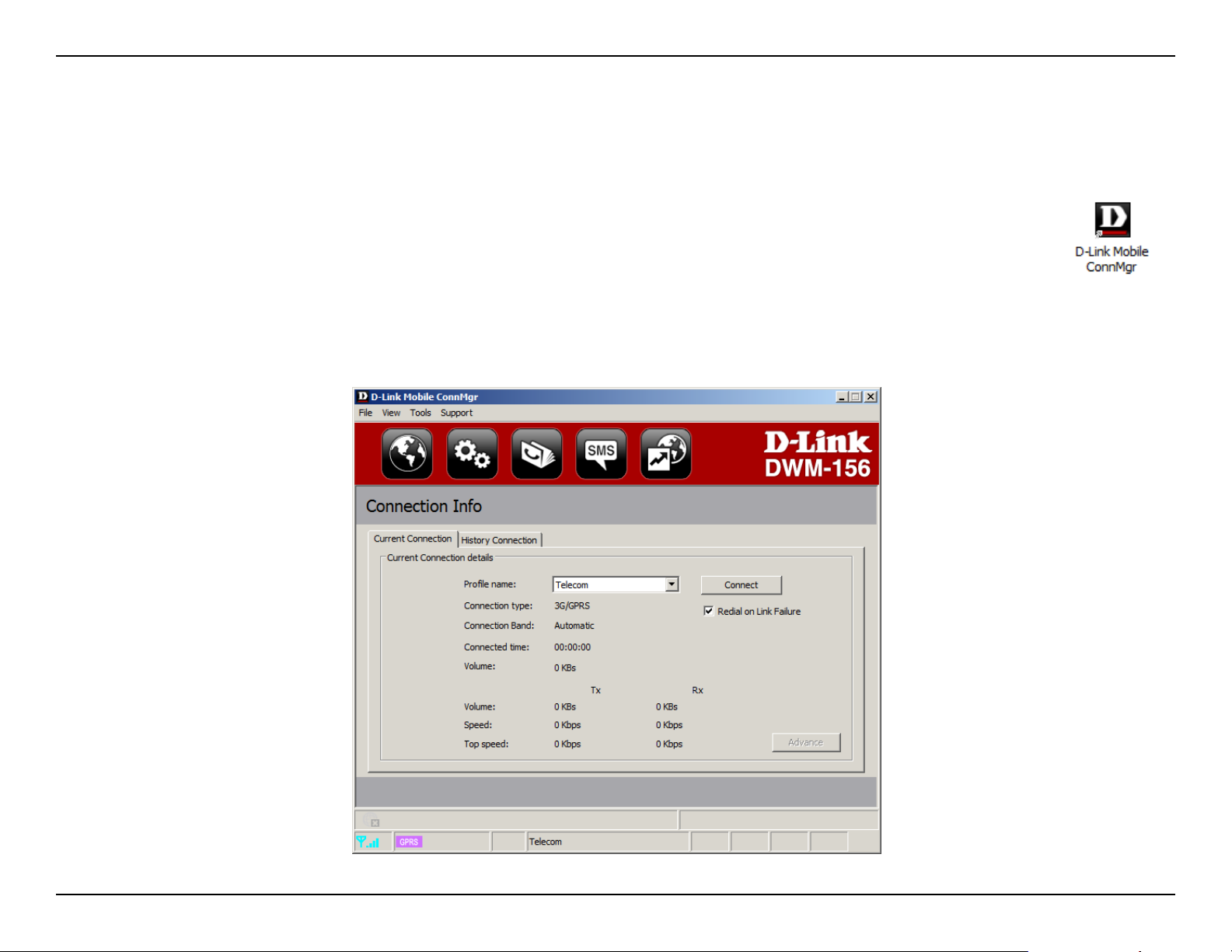
Once the program has been installed, you may launch the DWM-156 USB Modem application by double
clicking on its desktop icon, or via Start > Programs > D-Link > D-Link USB Modem.
Once launched, the D-Link Mobile Connection Manager icon will be displayed in the windows notication area. The
D-Link Mobile Connection Manager provides all of the functions needed to manage your connection to a mobile
service network.
12D-Link DWM-156 User Manual
Page 13
Section 3 - Basic Functions
New Prole
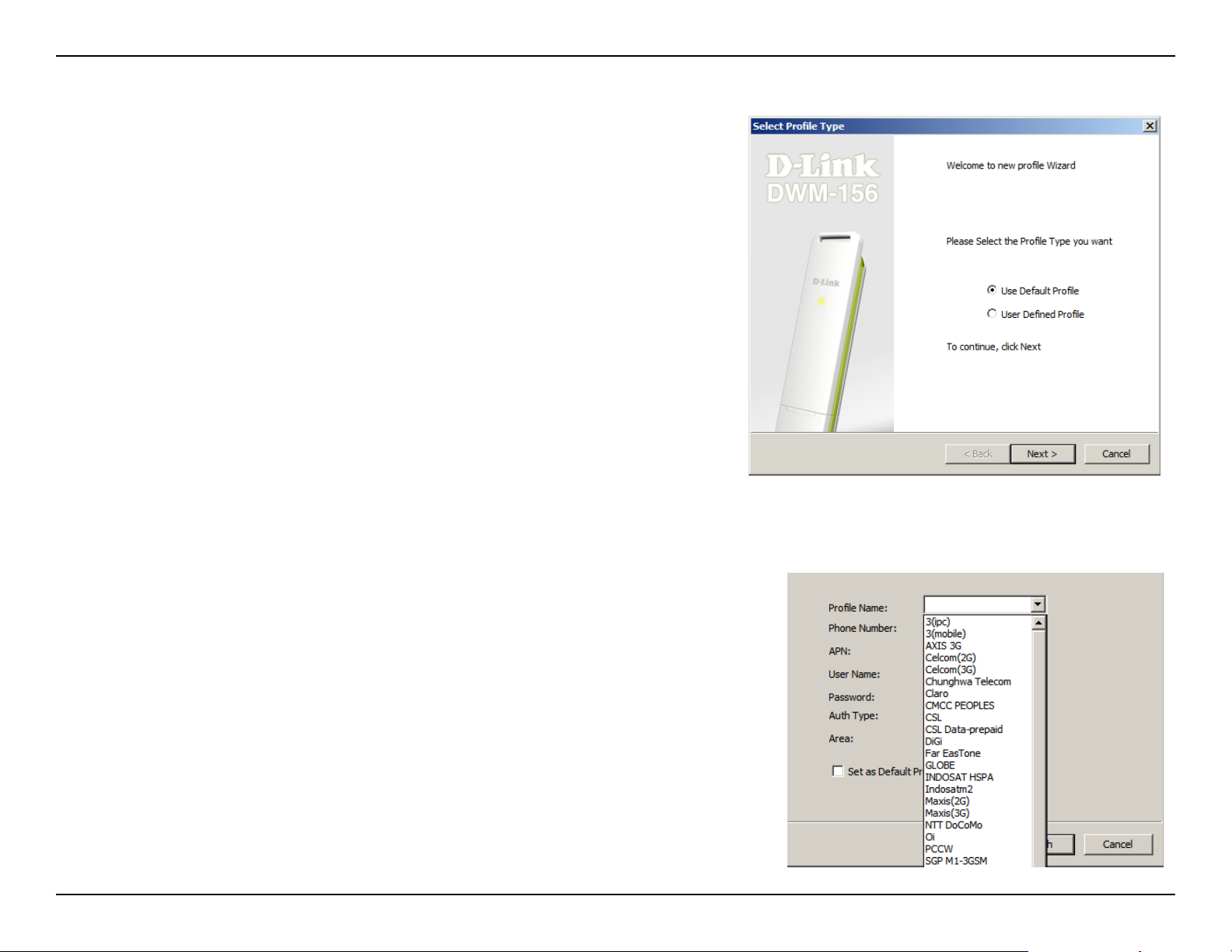
Before starting, if the mobile service provider associated with your
SIM card is listed in the preset prole list, you can directly connect
to the desired network using its pre-dened prole.
You also can create your own prole by following the steps
below:
Click the 1. Prole button.
Click the 2. New button to activate the wizard which will help you
create a new prole.
Select the prole type, 3. Use Default Prole or User-Dened
Prole. Click Next to continue.
Use Default Prole (Preset)
Select a Prole Name from the drop-down menu. Most of 1.
the required information will be populated into the fields
automatically.
If needed, ll in the Phone Number, APN (Access Point Network), 2.
User Name, and Password.
If desired, click the check box to set this as the default prole.3.
Click 4. Next to continue.
13D-Link DWM-156 User Manual
Page 14
Section 3 - Basic Functions
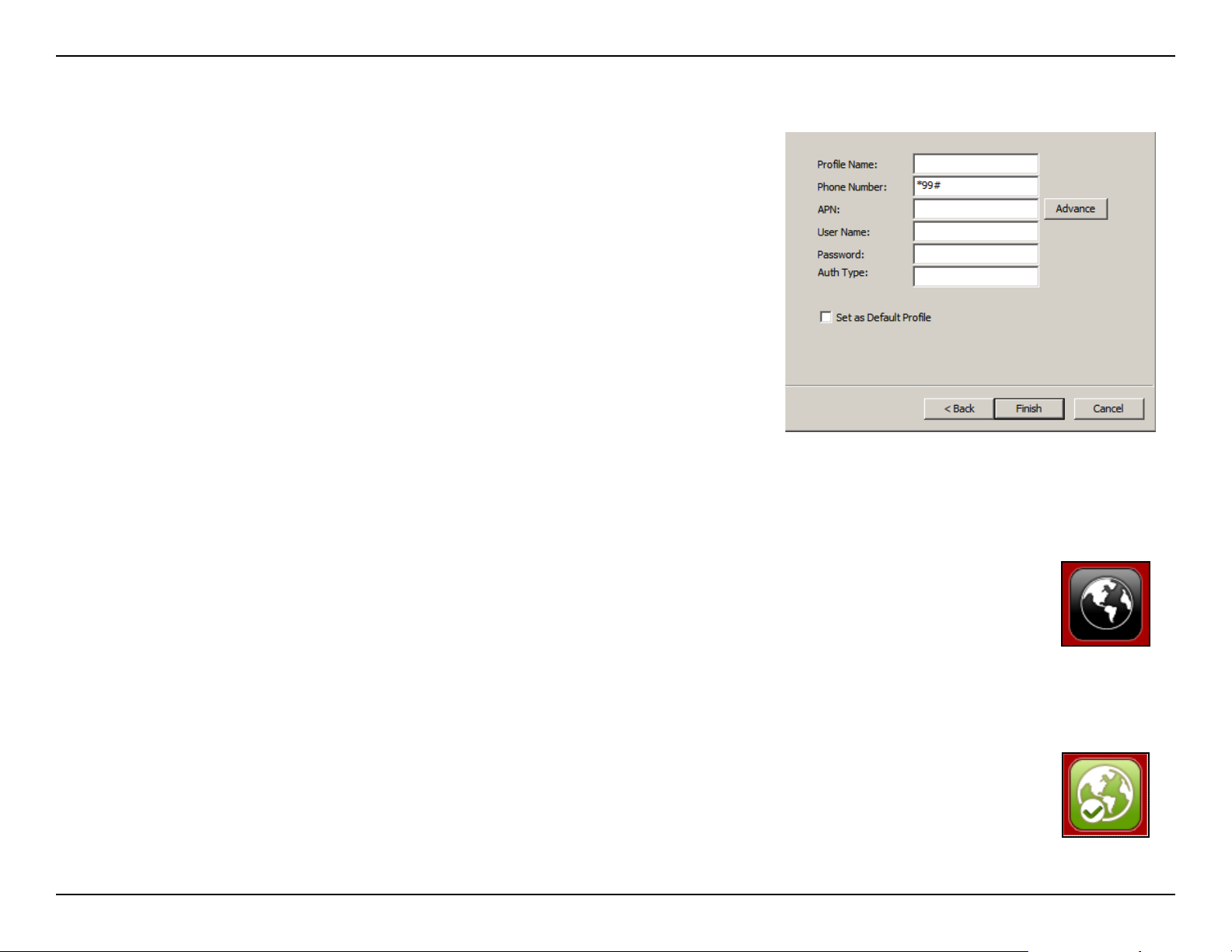
User-Dened Prole
Fill in the Prole Name, Phone Number, APN, User Name, 1.
Password, and Authorization Type.
Click 2. Finish to complete.
Click the 3. Advanced button to display APN details.
Highlight an APN and click 4. OK.
Click 5. Next to continue.
Establishing a Connection
The Connect/Disconnect button will be black when you are ofine. You can click the Connect button
to connect to the network via the default prole. After you are connected, the button will turn green
with a checkmark. Once connected, you can use the mobile service network to browse the Internet,
send e-mail, send text messages, and perform other tasks online.
Ending a Connection
If you wish to disconnect, click the button again, and the button will turn black to indicate you have
successfully disconnected and are ofine.
Connect
Disconnect
14D-Link DWM-156 User Manual
Page 15
Section 4 - Prole Management
Prole Management
Under the Proles icon, users can create, edit and delete proles as well as preset proles.
Editing
Click the 1. Prole button.
Select a prole and click the 2. Edit button.
Click the appropriate tab and enter the information in the elds.3.
Click the 4. Advanced button to display a list of operators and their
areas in the window below.
Click 5. OK to close the APN window.
Click 6. OK to close the Edit Prole window.
Note: Proles may only be edited when you are disconnected.
Deleting a Prole
Click the 1. Prole button.
Select a user-dened prole and click the 2. Delete button.
Click 3. Yes to conrm the deletion.
Prole
Deleting All Proles
Click the 1. Prole button.
Click the 2. Delete All button.
Setting the Default Prole
Click the 1. Prole button.
Highlight the prole to use when the DWM-156 is started.2.
Click 3. Set as Default prole.
Reset to Factory Default
Click the 1. Prole button.
Click 2. Set as Factory Default to return the DWM-156 to the factory
settings.
15D-Link DWM-156 User Manual
Page 16
Section 5 - Connection Management
Connection Management
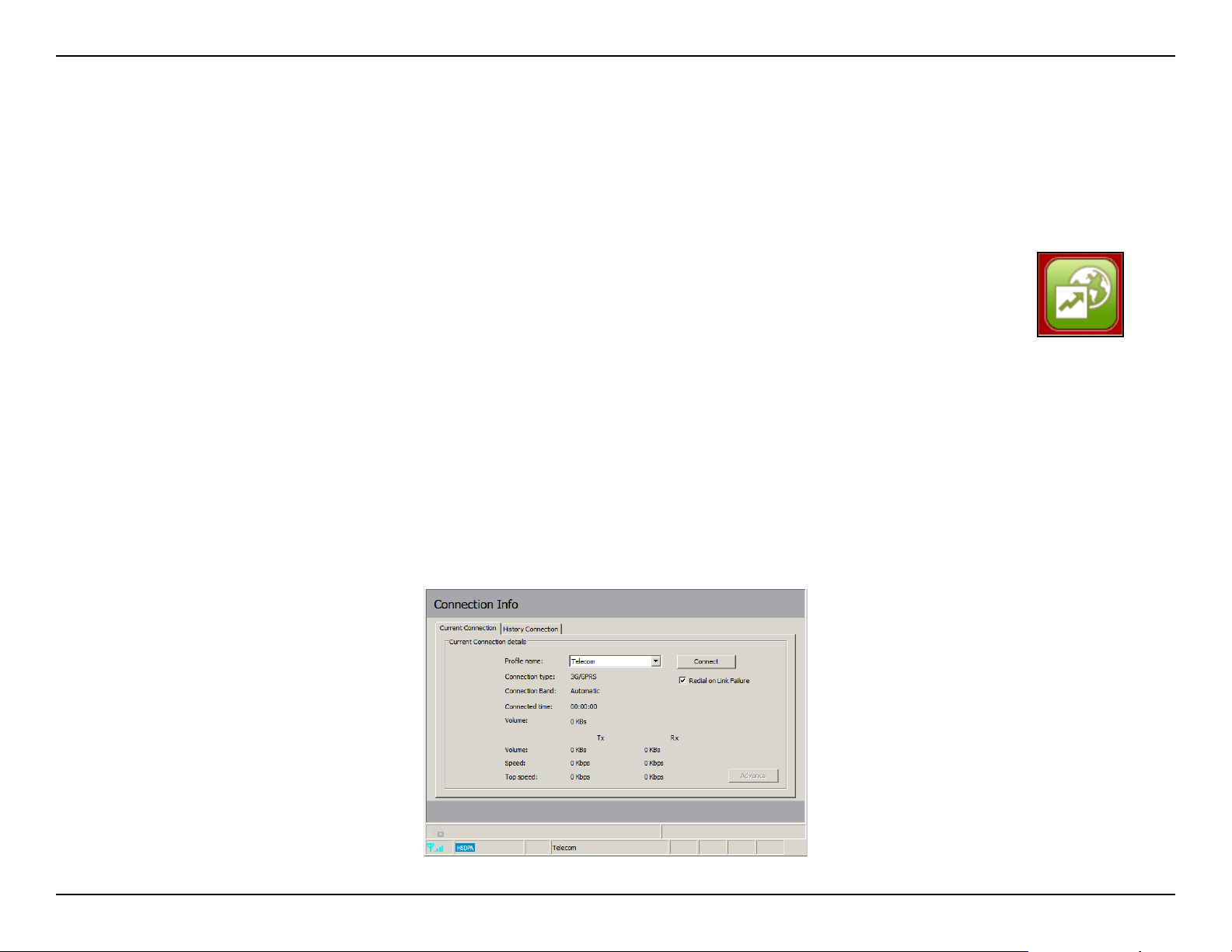
The Connection Information window allows users to manage not only the current connection (if connected), but also
their connection history. Click the Connection Info button to open the Connection Information window.
Current Connection
The Current Connection tab displays the following information:
Prole Name - Displays the current prole. Select other proles from the drop down menu.
Connection Type: Displays the mobile service technology that the service network uses.
Connection Band - Displays the band of the current connection.
Connected Time - Displays how long the current session has been active for.
Volume - Displays the total amount of data received (Rx) and transmitted (Tx).
Speed - Displays the speeds for both transmitted and received data.
Top Speed - Displays the maximum transmitted and received speeds attained.
Redial on Link Failure - Redial if the connection is somehow disconnected.
Note: Windows Vista requires your conrmation to redial on link failure.
Connection
Information
16D-Link DWM-156 User Manual
Page 17
Section 5 - Connection Management
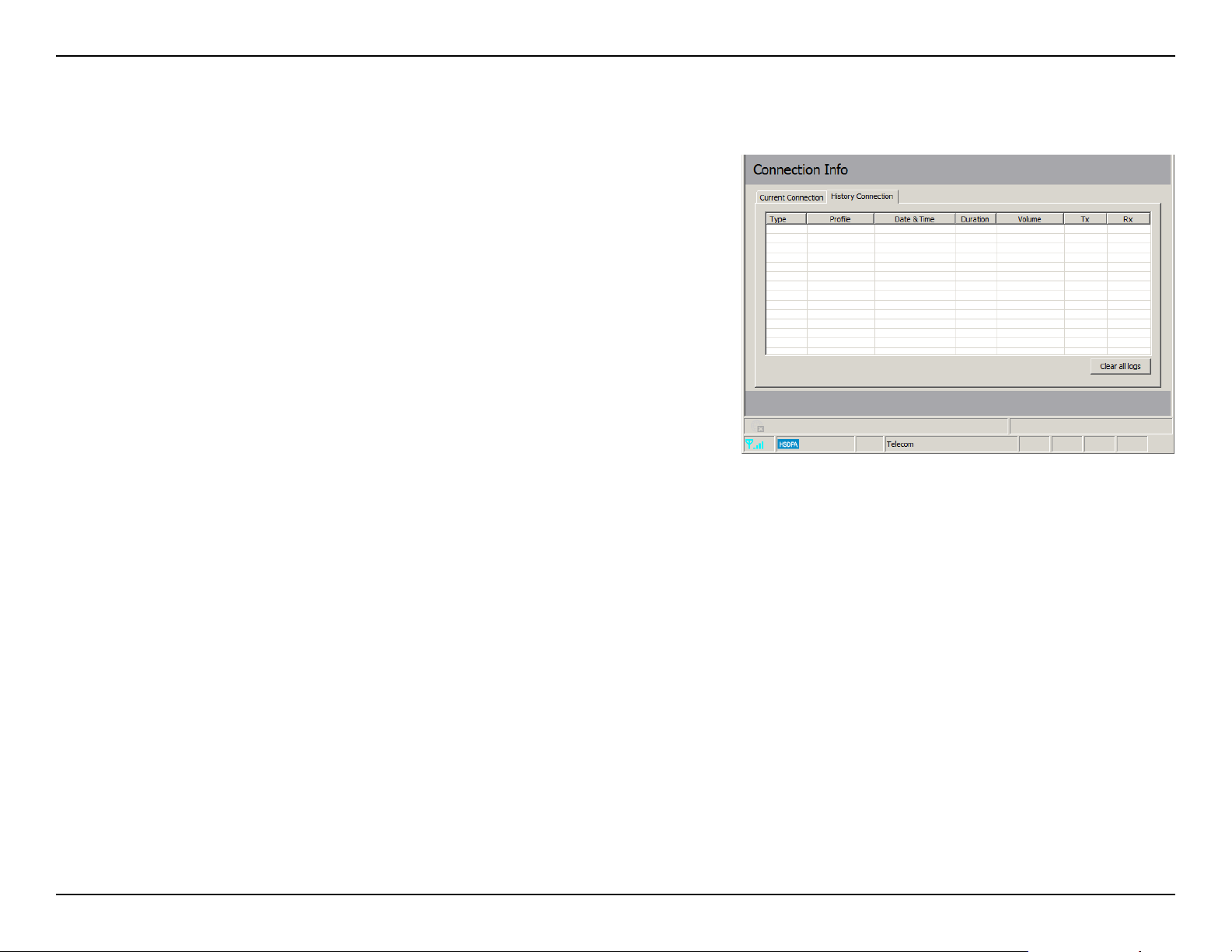
Connection History
The History Connection tab displays the following information:
Type - The type of connections made.
Prole - The names of the proles used.
Date & Time - The date and time of the connection.
Duration - The duration of the connection in hours, minutes,
and seconds.
Volume - The total amount of data transmitted and received.
Tx - The total number of bytes transmitted.
Rx - The total number of bytes received.
Follow the steps below to clear the Connection History:
Click 1. Clear All Logs to clear the logs.
Click 2. Yes to conrm.
17D-Link DWM-156 User Manual
Page 18
Section 6 - Usage Management
Usage Management
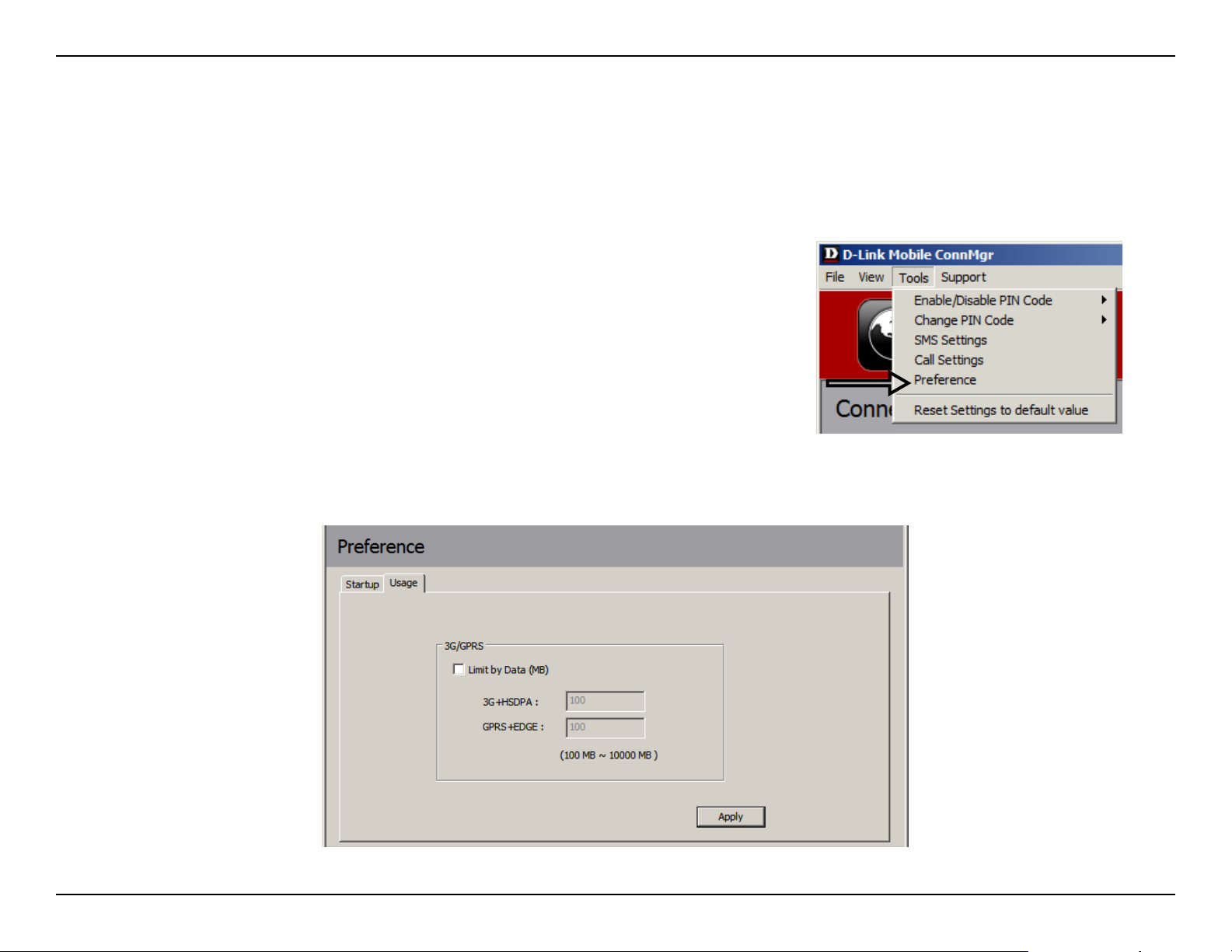
Limits can be set on how long a connection will last. These limits can either be set by usage (3G/GPRS connections)
or by time (Dialup connections).
Usage
Select 1. Tools > Preference.
Select the 2. Usage tab.
Check the 3. Limit by Data checkbox.
Enter the desired value between 100MB and 10,000MB.4.
Click 5. Apply to save the settings.
18D-Link DWM-156 User Manual
Page 19
Section 6 - Usage Management
Usage Statistics
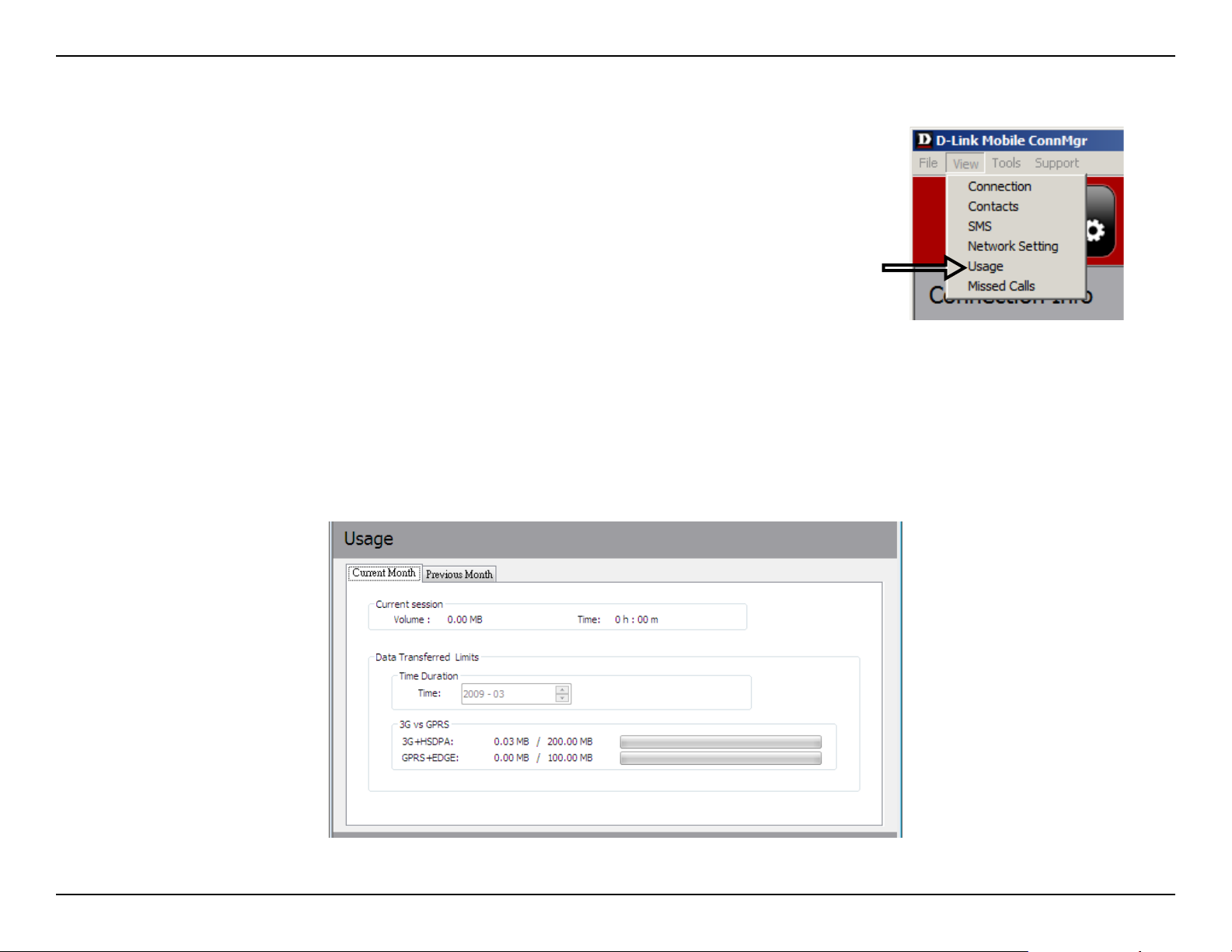
Statistics for both usage and time can be viewed from the usage menu.
Select 1. View > Usage.
Select either the 2. Current Month or Previous Month tab.
Follow the steps below to clear the Previous month’s logs:
Select 1. View > Usage.
Select 2. Previous Month tab.
Click 3. Clear all logs.
Click 4. Yes to conrm.
19D-Link DWM-156 User Manual
Page 20
Section 7 - Text Messaging (SMS)
Text Messaging (SMS)
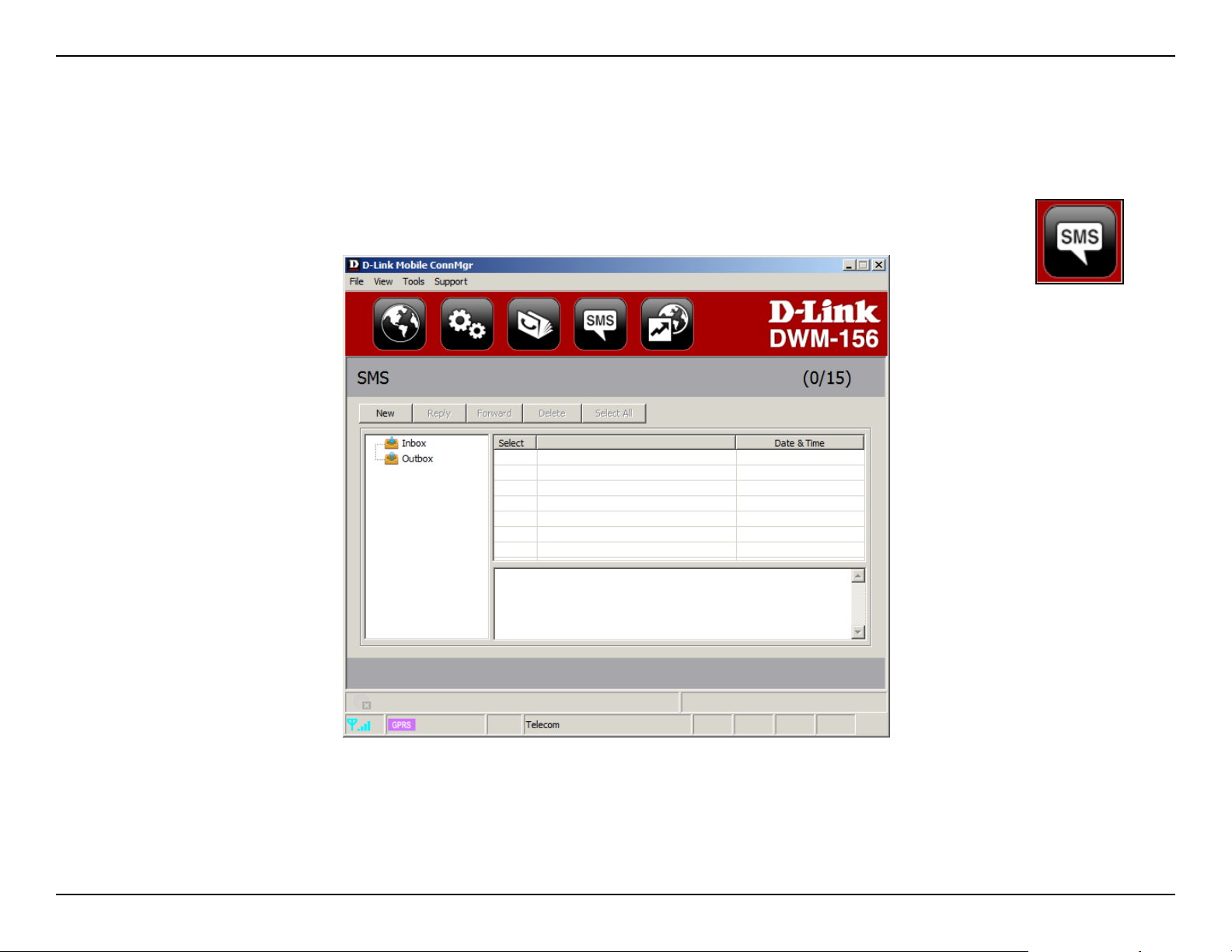
The DWM-156 can be used to perform all the text messaging functions that can be done on a mobile phone such
as sending, receiving, replying, forwarding and deleting.
SMS
20D-Link DWM-156 User Manual
Page 21
Section 7 - Text Messaging (SMS)
New/Reply/Forward Text Message
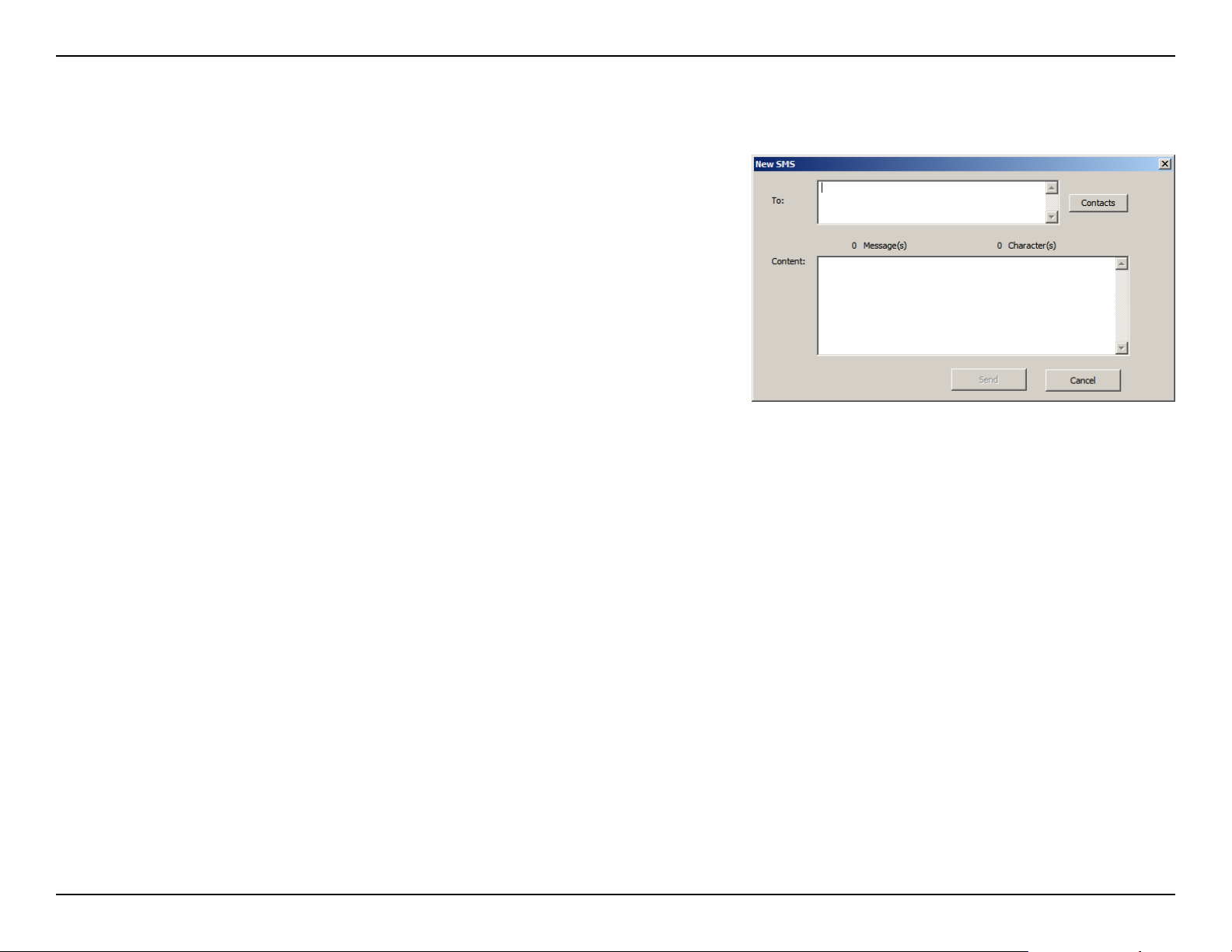
Click the 1. SMS button.
Click 2. New, Reply, or Forward.
Enter the recipient’s phone number or click 3. Contacts to see the
contacts stored to the SIM card. In the contacts window, click
the box next to the recipients name and click Add to return to
the New SMS window.
Enter a message to send.4.
Click 5. Send to send the message.
Deleting a Message
Click the 1. SMS button.
Select the messages you want to delete. If you would like to delete all messages, click 2. Select All.
Click 3. Delete to delete the selected messages.
Click 4. Yes to conrm.
Saving a Sender to Contacts
Click the 1. SMS button.
Select a message.2.
Right click on the selected message and click 3. Save to Contacts.
In the 4. Add Contact window enter the contact name.
Click 5. OK to save the contact.
Once the contact has been saved, a conrmation window will be 6.
displayed. Click OK to close it.
21D-Link DWM-156 User Manual
Page 22
Section 7 - Text Messaging (SMS)
SMS Settings
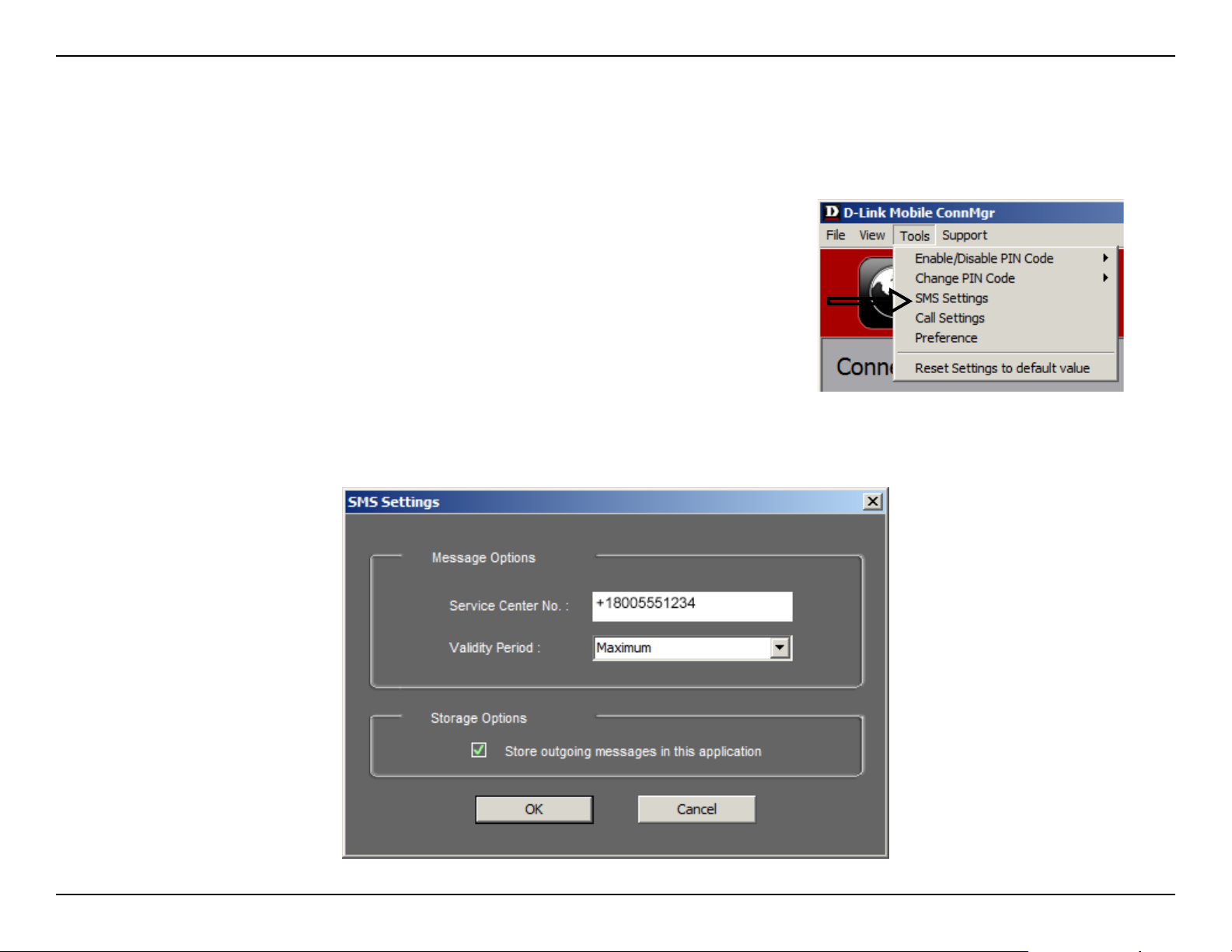
This menu allows you to change the service center number, its validity period, and whether to store outgoing
messages within the DWM-156 Mobile Connection Manager.
Click 1. Tools > SMS Settings.
If needed, enter the new Service Center number. Choose the Validity 2.
Period from the drop-down list.
Check the box to store outgoing messages in the application.3.
Click 4. OK to save the details.
22D-Link DWM-156 User Manual
Page 23

Section 8 - Contact Management
Contact Management
The DWM-156 contacts manager displays all the contacts on the SIM Card. Contacts can be added, edited, deleted
and imported.
Adding Contacts
Click the 1. Contacts button.
Click the 2. Add button.
In the Add Contact window, enter the contact name and telephone number.3.
Click 4. OK to add the contact.
Editing Contacts
Click the 1. Contacts button.
Select the contact to edit.2.
Click the 3. Edit button.
Modify the contacts details.4.
Click 5. OK to save the changes.
Contacts
Deleting Contacts
Click the 1. Contacts button.
Select the contact to delete. If you would like to delete all contacts, click 2. Select All.
Click the 3. Delete button.
Click 4. Yes to conrm the deletion.
23D-Link DWM-156 User Manual
Page 24

Section 8 - Contact Management
Importing vCards to Contacts
Click the 1. Contacts button.
Click the 2. Import button.
Select the source of the vCard(s).3.
Click 4. Open to import the card(s).
After the import, a message will display the import information. Click 5. OK to close.
Exporting Contacts to vCards
Click the 1. Contacts button.
Click the 2. Export button.
Select the destination to save the vCard(s).3.
Click 4. OK to export the card(s).
After the export, a message will be displayed. Click 5. OK to close.
24D-Link DWM-156 User Manual
Page 25
Section 9 - SIM Management
SIM Management
SIM Management includes functions such as enabling/disabling a PIN, changing the PIN1/PIN2 codes, checking
SIM information, adjusting the phone number, viewing contacts usage, and viewing SMS usage.
SIM Information
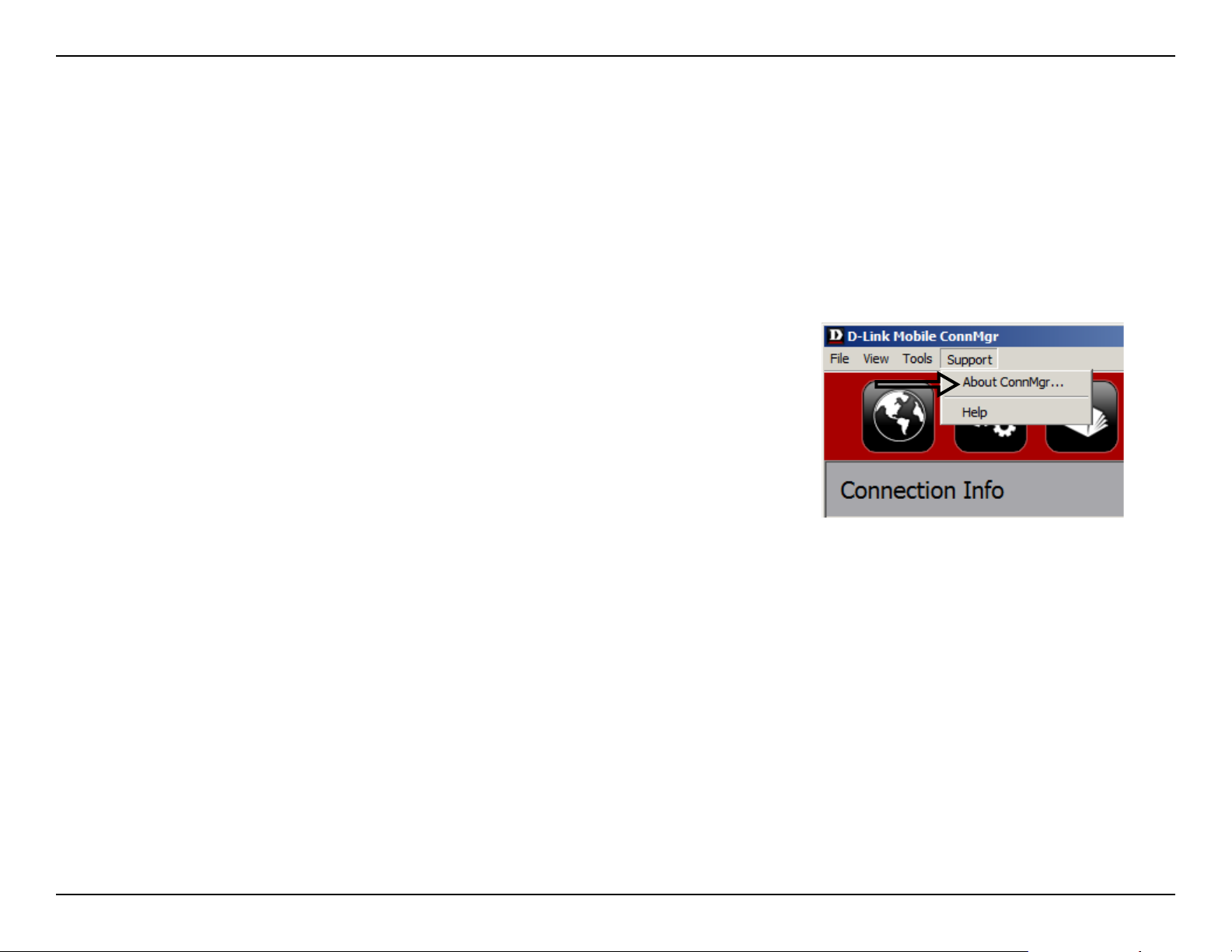
SIM details regarding the IMEI, Phone Number, Contact Usage, and SMS Usage cab be found by clicking
Support > About D-Link Mobile Connection Manager.
25D-Link DWM-156 User Manual
Page 26
Section 9 - SIM Management
Enabling or Disabling a PIN Code
Enable PIN Code
To prevent unauthorized use of the SIM card a PIN code can be enabled.
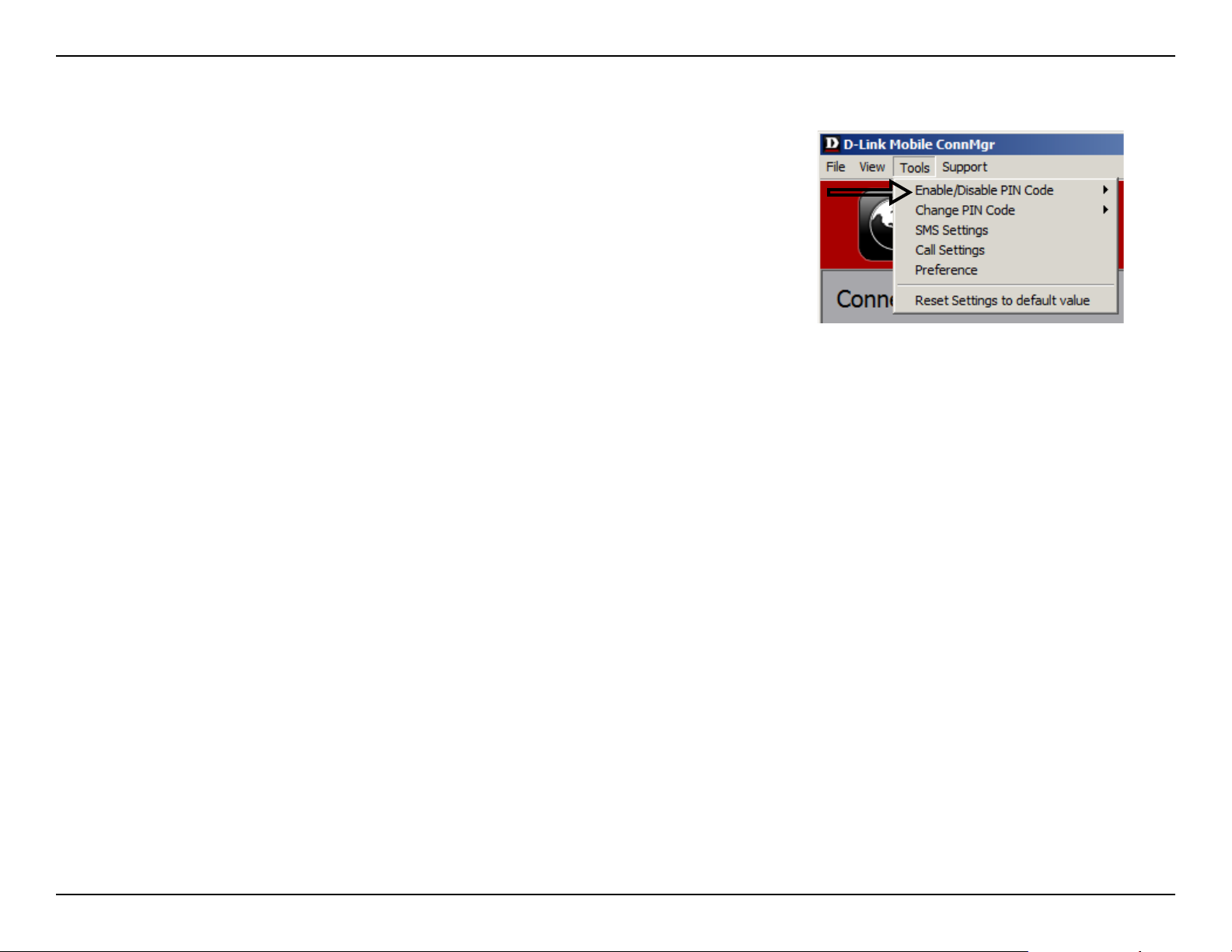
Select 1. Tools > Enable/Disable PIN code > Enabled.
Enter the correct PIN code to enable.2.
Click 3. OK to enable PIN code protection.
If a PIN number has been enabled, you will always be asked to enter it before
accessing the D-Link Mobile Connection Manager software.
Disable
If a PIN code is no longer required, you may disable it via the following
steps.
Click 1. Tools > Enable/Disable PIN code > Disabled.
Enter the correct PIN code.2.
Click 3. OK to disable the PIN.
Note: The PIN is provided by your network service provider.
Warning: The PIN code must be entered correctly within three tries. Failure
to do so will cause the SIM card to become locked.
26D-Link DWM-156 User Manual
Page 27
Section 9 - SIM Management
Changing a PIN Code
SIM cards often contain two PIN codes that can be changed.
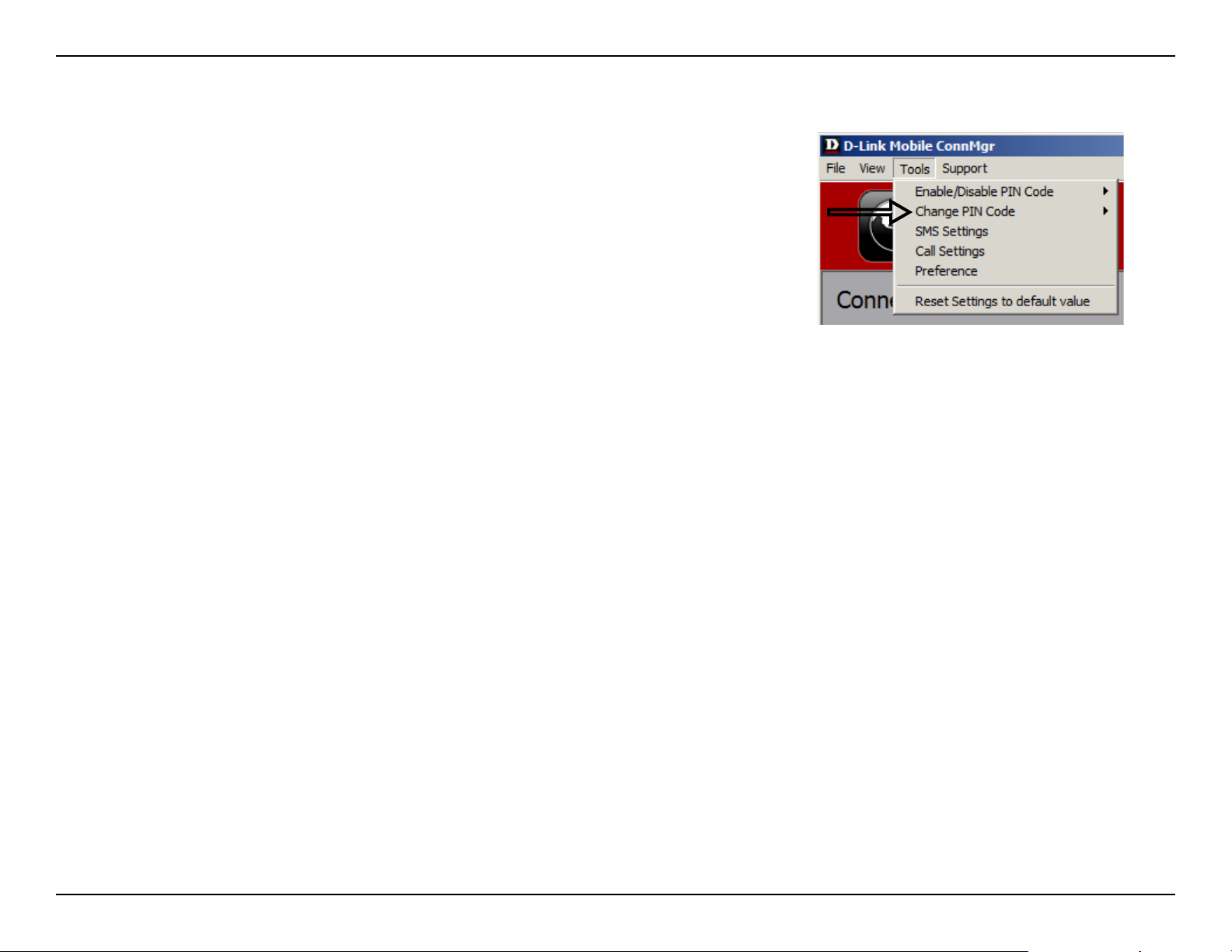
Click 1. Tools > Change PIN Code > PIN1 or PIN2.
Enter the details in the following elds: Current PIN Code, Enter New PIN 2.
Code and Conrm New PIN Code.
Click 3. OK to change.
Once complete, a conrmation window will be displayed. Click 4. OK to
close the window.
Warning: The PIN code must be entered correctly within three tries. Failure
to do so will cause the SIM card to become locked.
Note: The PIN codes cannot be changed while the DWM-156 is connected
to a mobile network.
Unlocking a PIN Code
If the PIN code has been entered incorrectly three times and the SIM card has been locked, follow the steps below
to unlock it:
If a PIN is blocked, the unblock window will be displayed.1.
Enter the PUK code. Enter the new PIN Code, and conrm the new code.2.
Click 3. OK to conrm the new PIN code.
Note: The PUK number is provided by your mobile service provider.
27D-Link DWM-156 User Manual
Page 28
Section 10 - Prole Settings
Prole Settings
The Prole Settings page allows you to manually change your Band and Network setting in case your DWM-156
can not automatically connect to your network provider.
Band Settings
The DWM-156 supports two band selection options:
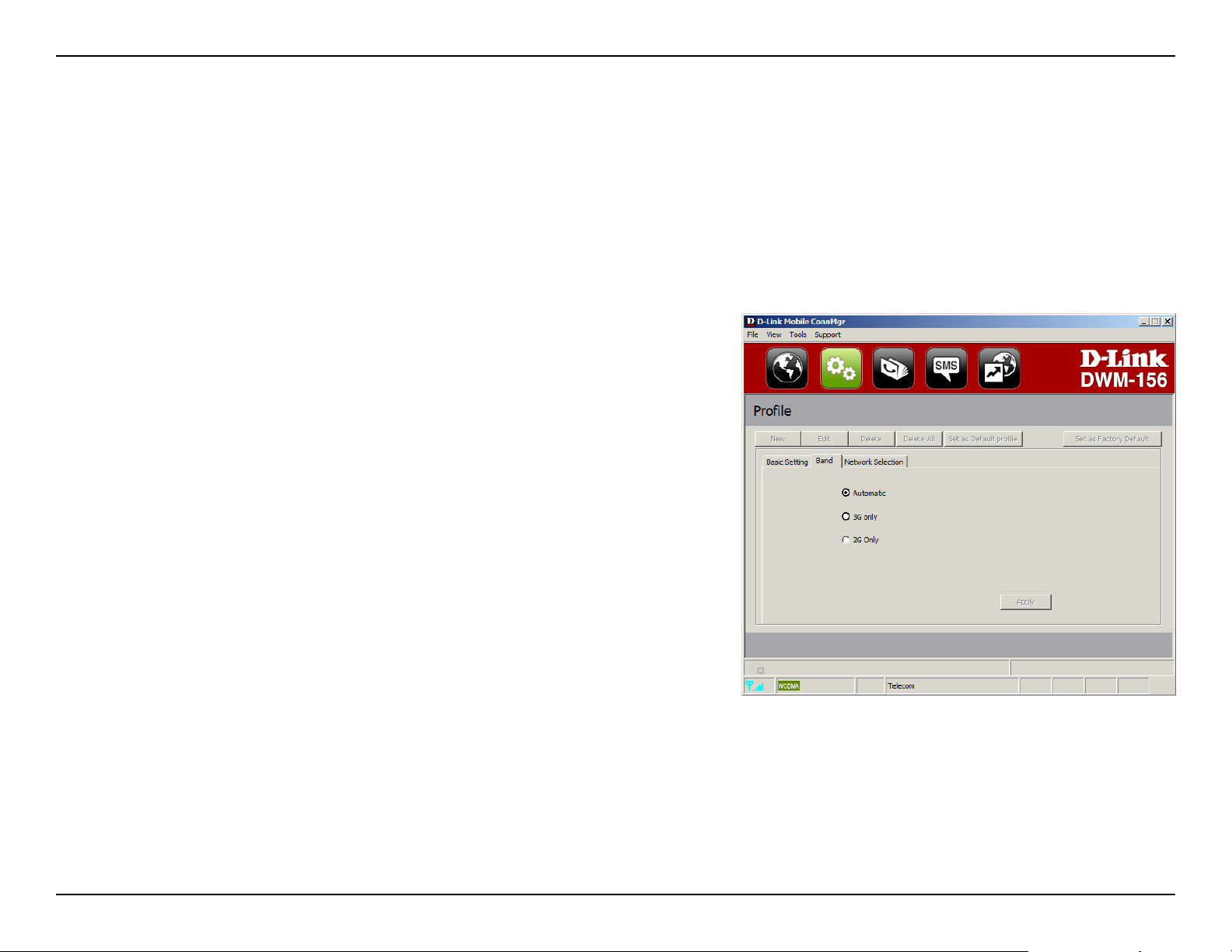
Automatic - The DWM-156 automatically selects the band
based on the networks available in current area and those
supported by the DWM-156.
3G Only - Restricts the DWM-156 to using 3G service on
WCDMA 850/1900/2100 bands.
2G Only - Restricts the DWM-156 to using 2G service on
GPRS 850/900/1800/1900 bands.
Note: If you accidentally congure the wrong settings, go to
Tools > Reset Settings to Default Value.
To adjust the band settings follow the instructions below:
Click the 1. Prole button.
Select 2. Band tab.
Select Automatic, 3G only, or 2G only.3.
Click 4. Apply and OK.
28D-Link DWM-156 User Manual
Page 29
Section 10 - Prole Settings
Network Selection
The current location of the DWM-156 may be covered by more
than one network. The DWM-156 supports two network selection
options:
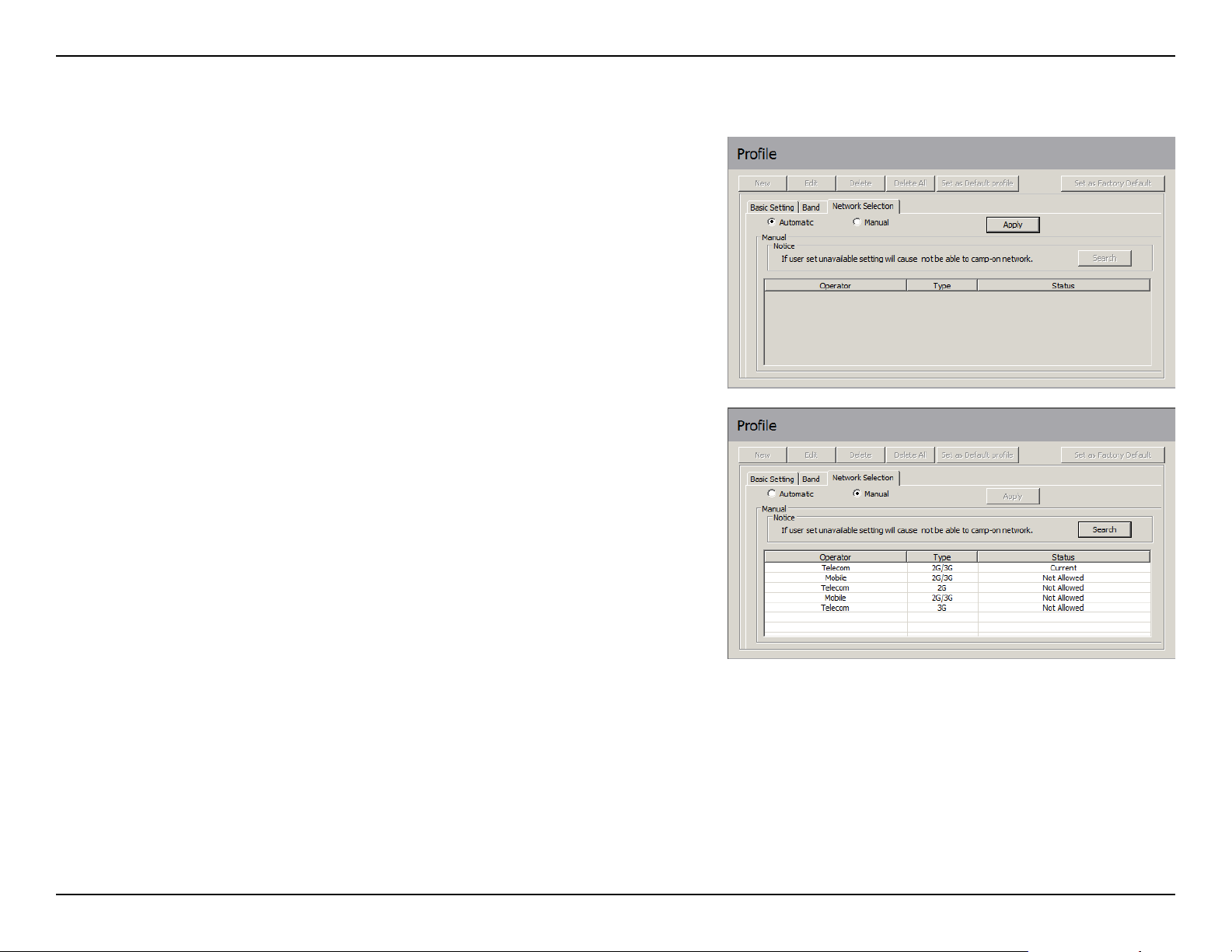
Automatic - By default the DWM-156 will automatically
select the network based on the user’s account and network
availability.
Manual - Users can also use DWM-156 to get the network list,
and select an available network to use.
To manually set the network, follow the steps below:
Click the 1. Prole button.
Select the 2. Network Selection tab.
Select 3. Manual.
Click 4. Search to see all available networks.
Select a network operator and click 5. Apply.
Click 6. OK to nish.
Note: When the band is set to 3G Only, manual selection will only
list 3G networks.
29D-Link DWM-156 User Manual
Page 30
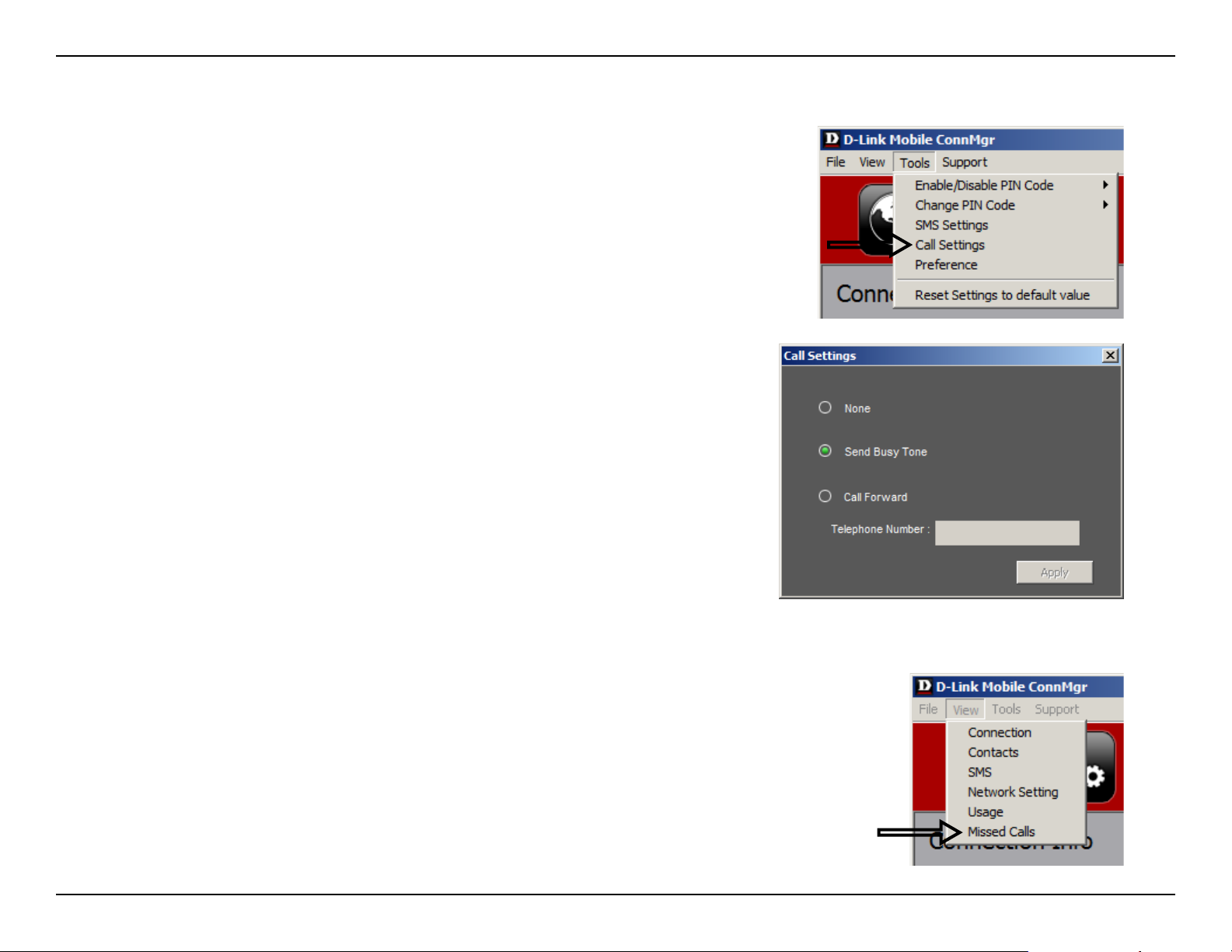
Section 10 - Prole Settings
Select 1. Tools > Call Setting.
You may select from one of the following options:2.
None - No answer.
Call Settings
Send Busy Tone - The caller will hear a busy tone, or will be
transferred to voice mail.
Call Forward - The incoming call will be forwarded to the phone
number you enter into the Telephone Number text box.
Note: The call settings query may fail if the network is busy; in this
case please try again later.
Missed Calls
Select 1. View > Missed Calls.
If the call setting is None or Send Busy Tone, D-Link Mobile Connection 2.
Manager AP will register the incoming call in the missed calls list.
30D-Link DWM-156 User Manual
Page 31
Section 11 - Software Preferences
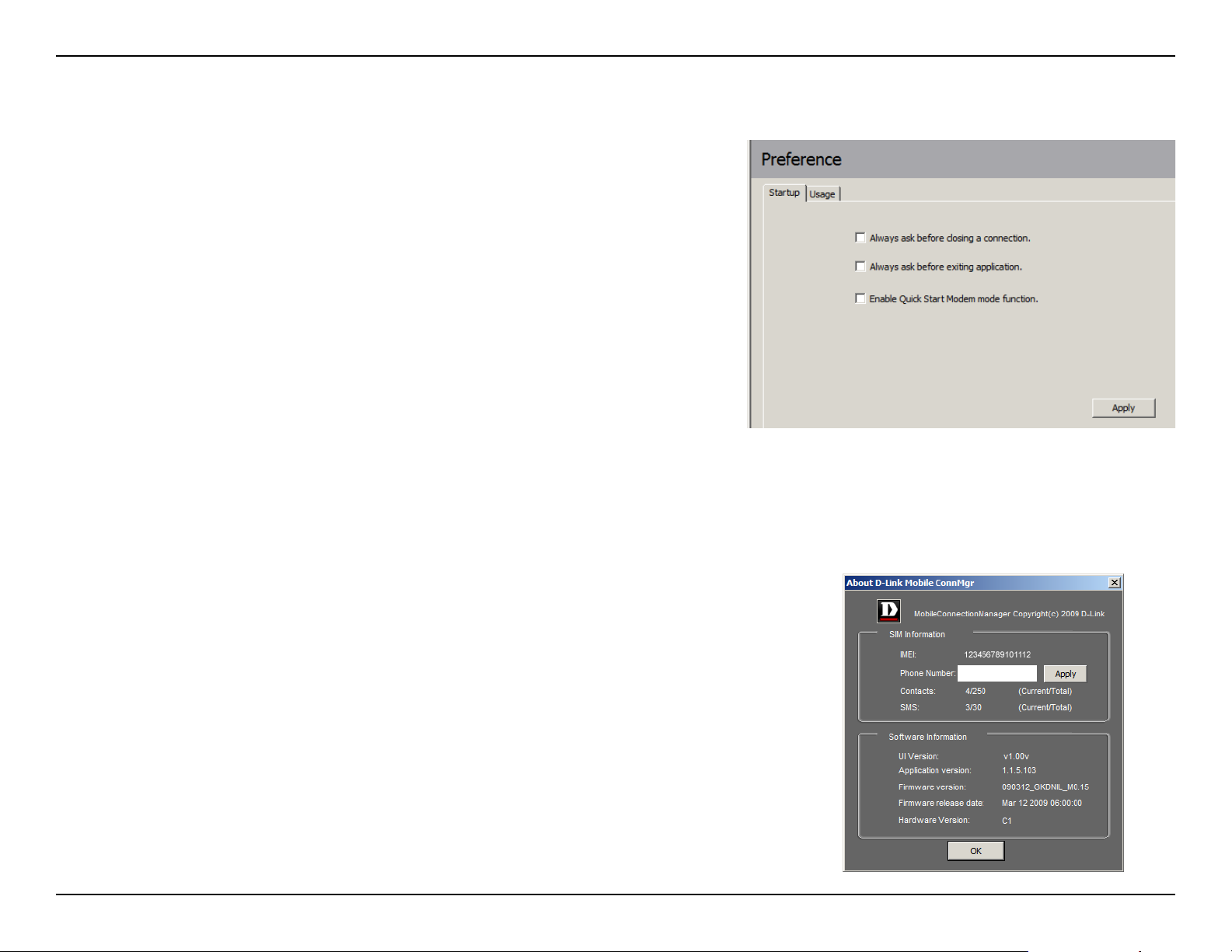
Startup Options
Users can specify how the application should start up.
1. Click Tools > Preferences > Startup.
2. Check the box next to the desired options.
Always ask before closing a connection.•
Always ask before exiting application.•
Enable Quick Start. (This mode runs a program in the background •
to help the D-Link Mobile Connection Manager launch quickly.)
3. Click Apply to save the settings and nish.
Note: Please reset these settings when you want to install on
another PC or remove the driver.
Version Information
The application version, rmware version and rmware release date can
be found by selecting Support > About D-Link Mobile Connection
Manager.
31D-Link DWM-156 User Manual
Page 32

Section 12 - Troubleshooting
Troubleshooting
1. Why am I unable to connect to a mobile service network?
The DWM-156 requires a SIM card registered with a compatible service network. For information about the services
that your SIM card provides access to, please contact your mobile service provider. The adapter will not connect to a
service network unless all relevant settings have been specied correctly. Please make sure that all connection prole
settings are accurate.
2. Why is the software asking for a PIN number?
For security, some SIM cards have a PIN number enabled. If the SIM was used in a previous device, the PIN will be
the same as it was before. If you did not set a PIN, please contact your mobile service provider.
3. Why are the connection speed and data transfer rates slow?
Please check the network signal strength. A low signal will result in poor performance.
4. Why am I unable to receive SMS messages?
This may happen with the SIM card memory is full. You may need to delete some messages to free up space.
5. Why is only part of the name saved when adding a new contact?
The SIM card can hold a maximum of 12 letters/characters for a contact name.
6. Why does the Windows connection icon display a speed of 115.2 Kbps?
115.2 Kbps is the data rate of the USB device, not the connection speed. Please refer to the connection statistics
shown within the Mobile Connection Manager for the actual connection speed.
Version 1.00 2010/01/04
32D-Link DWM-156 User Manual
Page 33

Appendix A - Regulatory Statements
FCC Regulations
This mobile device complies with part 15 of the FCC Rules. Operation is subject to the following two conditions: (1) This device may •
not cause harmful interference, and (2) this device must accept any interference received, including interference that may cause
undesired operation.
This mobile device has been tested and found to comply with the limits for a Class B digital device, pursuant to Part 15 of the FCC Rules. •
These limits are designed to provide reasonable protection against harmful interference in a residential installation. This equipment
generates, uses and can radiated radio frequency energy and, if not installed and used in accordance with the instructions, may cause
harmful interference to radio communications. However, there is no guarantee that interference will not occur in a particular installation
If this equipment does cause harmful interference to radio or television reception, which can be determined by turning the equipment
off and on, the user is encouraged to try to correct the interference by one or more of the following measures:
- Reorient or relocate the receiving antenna.-Increase the separation between the equipment and receiver.
- Increase the separation between the equipment and receiver.
- Connect the equipment into an outlet on a circuit different from that to which the receiver is connected.
- Consult the dealer or an experienced radio/TV technician for help.
Changes or modications not expressly approved by the party responsible for compliance could void the user‘s authority to operate
the equipment.
The antenna(s) used for this transmitter must not be co-located or operating in conjunction with any other antenna or transmitter.•
33D-Link DWM-156 User Manual
Page 34

Appendix A - Regulatory Statements
RF Exposure Information (SAR)
This device meets the government’s requirements for exposure to radio waves.
This device is designed and manufactured not to exceed the emission limits for exposure to radio frequency (RF) energy set by the Federal
Communications Commission of the U.S. Government.
The exposure standard for wireless mobile devices employs a unit of measurement known as the Specic Absorption Rate, or SAR.
The SAR limit set by the FCC is 1.6W/kg. *Tests for SAR are conducted using standard operating positions accepted by the FCC with
the device transmitting at its highest certied power level in all tested frequency bands. Although the SAR is determined at the highest
certied power level, the actual SAR level of the device while operating can be well below the maximum value. This is because the device
is designed to operate at multiple power levels so as to use only the poser required to reach the network. In general, the closer you are
to a wireless base station antenna, the lower the power output.
The highest SAR value for the device as reported to the FCC when tested for use when worn on the body, as described in this user guide,
is 1.43 W/kg. (Body-worn measurements differ among device models, depending upon available accessories and FCC requirements.)
While there may be differences between the SAR levels of various devices and at various positions, they all meet the government
requirement.
The FCC has granted an Equipment Authorization for this device with all reported SAR levels evaluated as in compliance with the FCC RF
exposure guidelines. SAR information on this device is on le with the FCC and can be found under the Display Grant section of www.
fcc.gov/oet/ea/fccid/ after searching on FCC ID: KA2-WM1561.
For body worn operation, this device has been tested and meets the FCC RF exposure guidelines for use with an accessory that contains
no metal and the positions the handset a minimum of 0.5 cm from the body. Use of other accessories may not ensure compliance with
FCC RF exposure guidelines.
This USB dongle transmitter is approved for use in typical laptop computers. To comply with FCC RF exposure requirements, this USB
dongle should not be used in other devices or certain laptop and tablet computer congurations where the USB connectors on the host
computer are unable to provide or ensure the necessary operating congurations intended for the device and its users or bystanders to
satisfy RF exposure compliance requirements. This transmitter must not be collocated or operating in conjunction with any other antenna
or transmitter.
34D-Link DWM-156 User Manual
Page 35

Appendix B - Glossary
Glossary
2G - Second-generation mobile networking technology. Represents a switchover from analog to digital; most 2G
networks use GSM.
3G - Third-generation mobile networking technology that enables simultaneous transfer of voice and non-voice data;
most 3G networks use WCDMA.
3.5G - A more recent standard of mobile networking technology; generally uses HSDPA.
3.75G - A more recent standard of mobile networking technology; generally uses HSUPA.
APN (Access Point Name/Network) - Provides GPRS routing information. Consists of: Network ID: Identies the
external service requested by a GPRS user. Mobile network operator ID: Species routing information.
ARFCN (Absolute Radio Frequency Channel Number) - The specic ID numbers for all radio channels used in
cellular mobile communications.
Bps (bits per second) - How data ow is measured.
DNS (Domain Name System) - Helps route network trafc by making the addressing process more user-friendly.
DHCP (Dynamic Host Conguration Protocol) - How devices obtain IP addresses from a server.
DUN (Dial-Up Network) - Windows component that enables online access via a modem.
EDGE (Enhanced Data GSM Environment/Enhanced Data for Global Evolution) - Advanced GPRS that delivers
multimedia and other data needing greater bandwidth at up to 237 kbps.
GPRS (General Packet Radio Service) - Delivers data in packets at up to 86 kbps.
GSM (Global System for Mobile Communications) - The most popular cellular network, mostly operates in 850-
900 or 1800-1900 MHz; the primary 2G system.
35D-Link DWM-156 User Manual
Page 36

Appendix B - Glossary
IMEI (International Mobile Equipment Identity) - A number unique to each GSM/UMTS device that can be used
block network access by a stolen mobile device.
IP (Internet Protocol) - Routes packets over a network.
HSDPA (High Speed Downlink Packet Access) - Advanced WCDMA that delivers bandwidth intensive data at
up to 7.2Mbps; typically associated with 3.5G.
HSUPA (High Speed Uplink Packet Access) - Advanced WCDMA that delivers bandwidth intensive data at up to
5.76Mbps; typically associated with 3.75G.
Kbps (Kilobits per second) - A data ow measure; 1024 bits/second.
LAN (Local Area Network) - A data network with limited range but good bandwidth.
Mbps (Megabits per second) - A data ow measure; 1,048,576 bits/second.
PPP (Point-to-Point Protocol) - An internet connection method.
PIN (Personal Identity Number) - A four to eight digit security code on the SIM which permits access to a user’s
mobile carrier network.
PUK (Personal Unblocking Key) - A code used to unlock a blocked PIN number. Usually, if the wrong PUK is entered
ten times in a row, the SIM will become permanently blocked and unrecoverable, requiring a new SIM card.
Rx - Shorthand for Reception.
SIM (Subscriber Identity Module) - A small card that contains key mobile device identication, subscription and
contact information.
SMS (Short Messaging Service) - Allows text messages of up to 160 characters.
Tx - Shorthand for Transmission.
36D-Link DWM-156 User Manual
Page 37

Appendix B - Glossary
WCDMA (Wideband Code Division Multiple Access) - Wideband Code Division Multiple-Access (WCDMA) is
one of the main technologies in the implementation of third-generation (3G) cellular systems. This product supports
WCDMA up to 384kbps.
37D-Link DWM-156 User Manual
Page 38

Appendix C - Technical Specications
Technical Specications
Minimum System Requirements
Windows 2000/XP/Vista or Mac OS X 10.4.0 or •
higher
Pentium 500MHz or greater•
128MB RAM or greater•
50MB available disk space•
Internet Explorer v6.0 or higher / Firefox v1.5 or •
higher
GSM Band (GSM/GPRS/EDGE)
850, 900, 1800, 1900 MHz•
Power Class 4 (900 / 1850 MHz)•
Power Class 1 (1800 / 1900 MHz)•
UMTS/HSDPA Band *
850/1900/2100 MHz•
Power Class 3 (+24 dBm•
Data Rates **
DL: 7.2 Mbps (HSDPA)•
UL: 5.76 Mbps (HSUPA)•
Antenna
Internal monopole antenna•
Interface Support
USB 2.0•
SMS
Circuit-switched (GSM)•
Packet-switched (GPRS)•
SMS Manager
Create, edit, forward, and send messages•
Inbox, outbox, draft, and sent folders•
Phonebook
Import, export, add, modify, and delete records•
USIM Slot
Standard 6-Pin SIM card interface•
Plug and Play
Automatic software/driver installation•
Connection Status
Network name, signal strength, send/receive rate•
LED Indicator
Five-color LED provides status information•
MicroSD Card Reader
Supports MicroSD Cards up to 8GB•
Certication
CE•
NCC•
Dimensions (L x W x H)
86.75 x 28 x 11.4 mm•
Operating Temperature
-10˚ to 55˚C (14˚ to 131˚F)•
* Supported frequency band is dependant upon regional hardware version.
** Data rates are theoretical. Data transfer rate depends on network capacity and signal strength.
38D-Link DWM-156 User Manual
 Loading...