

Page 1
WIRELESS ROUTER
DIR-600 DIR-300 DIR-607
QUICK
INSTALLATION
GUIDE
Page 2
CONTENTS OF
PACKAGING
ENGLISH
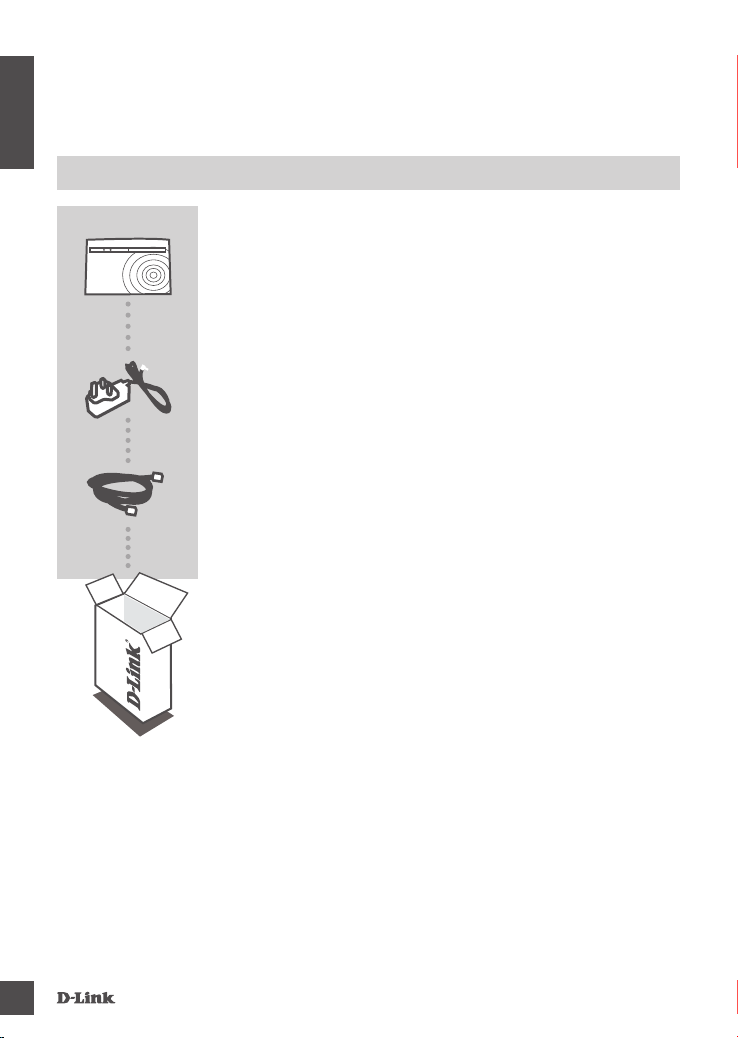
CONTENTS
DIR-600
Wir eless Route r
DIR-600 DIR-300 DIR-607
POW ER ADAPTER
12V 0.5A
ETH ERNET CABLE (CAT5 UTP)
CONNECT THE ROUTER TO YOUR PC DURING SET-UP
If any of these items are missing from your packaging, contact
your reseller.
2
DIR -60 0 D IR- 300 DI R-607
Page 3
PRODUCT SET-UP
EASY SETUP WIZARD
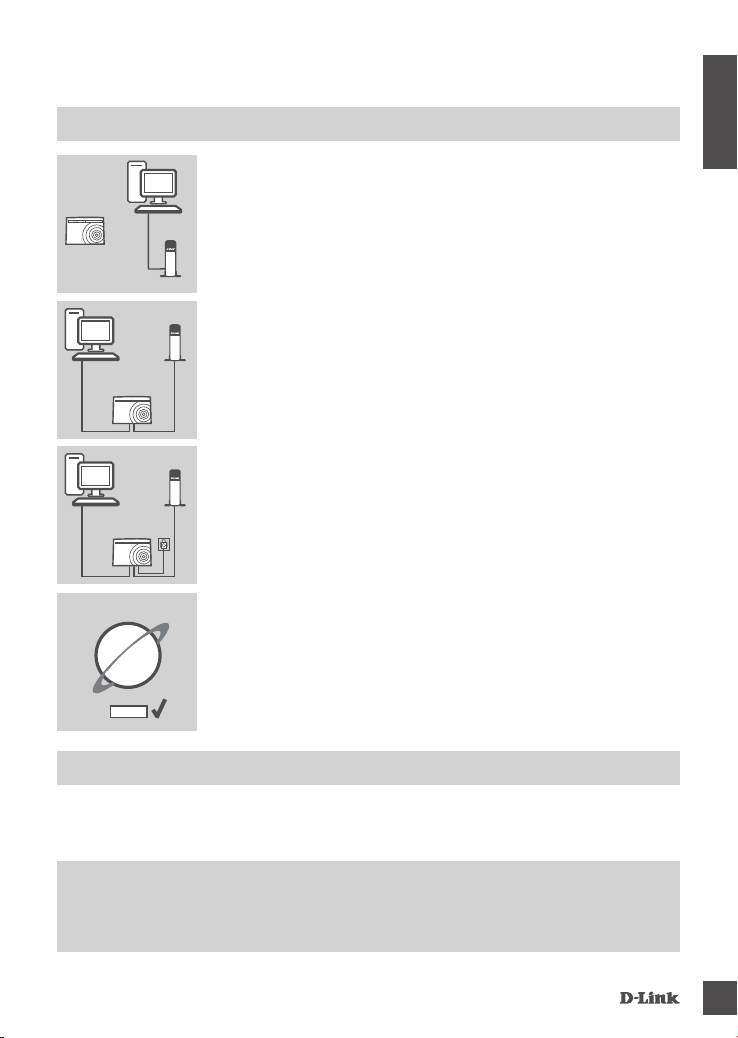
Step 1
Position your router close to your modem and the computer that is
already online. Place this router in an open area of your intended
work area for better wireless coverage.
Step 2
Unplug the Ethernet cable from your modem that is connected to
your computer. Plug it into the black port labled 1 on the back of
your router. The router is now connected to your computer.
Plug one end of the included Ethernet cable that came with your
router into the yellow port labeled INTERNET on the back of the
router. Plug the other end of this cable into the Ethernet port on your
modem.
Step 3
Connect the supplied power adapter into the power port on the back
of the router and then plug into a power outlet or surge protector.
Verify the power light is lit.
Router
PC
Modem
PC
PC
Modem
Router
Modem
Router
ENGLISH
Internet
Step 4
From the computer you connected to the router, open a web browser
and enter "http://192.168.0.1". Then, press Enter and you will be
directed to the D-Link Setup. Wizard page and follow the on-screen
instructions to congure your D-Link router.
Save
ADVANCED SET-UP (ACCESS VIA IP ADDRESS)
To congure DIR-600 manually connect your computer to the DIR-600 using the ethernet cable
provided. Then connect the power cable on the DIR-600. The power light will display as solid green.
Then simply open a browser window and enter the IP address in the browser address eld:
IP ADDRESS: http://192.168.0.1
USERNAME: Admin
PASSWORD: [blank]
DIR -60 0 D IR- 300 DI R-607
3
Page 4

TROUBLESHOOTING
SET-UP AND CONFIGURATION PROBLEMS
ENGLISH
1. HOW DO I CONFIGURE MY DIR-600 ROUTER FOR A PERSONALIZED
WIRELESS NETWORK NAME (SSID) AND WIRELESS ENCRYPTION KEY?
- Connect your PC to the router using an Ethernet cable.
- Open a web browser and enter the address http://192.168.0.1
- The default username is ‘Admin’. The default password is to leave the eld blank.
- If you have changed the password and can not remember it, you will need to reset the router to
set the password back to a blank eld.
2. HOW DO I RESET MY DIR-600 ROUTER TO FACTORY DEFAULT SETTINGS?
- Ensure the router is powered on.
- Press and hold the reset button on the rear of the device for 10 seconds.
Note: Resetting the router to factory default will erase the current conguration settings. To re-
congure your settings, log into the router as outlined in question 1, then run the Setup Wizard.
3. HOW DO I ADD A NEW WIRELESS CLIENT OR PC IF I HAVE FORGOTTEN MY
WIRELESS NETWORK NAME (SSID) OR WIRELESS ENCRYPTION KEY?
- Every PC that needs to connect to the router wirelessly, you will need to ensure you use the
correct Wireless Network Name (SSID) and encryption key.
- Use the web based user interface (as described in question 1 above) to check or choose your
wireless settings.
- Make sure you write down these settings so that you can enter them into each wirelessly
connected PC. You will nd a dedicated area on the back of this document, this important
information for future use.
4. WHY CAN I NOT GET AN INTERNET CONNECTION?
- For ADSL users please contact your ISP to make sure the service has been enabled/connected
by your ISP and that your ISP username and password is correct.
For full product manual, please refer to the website www.dlink.com
To download the latest rmware, please refer to the website www.dlink.com
4
DIR -60 0 D IR- 300 DI R-607
Page 5

TECHNICAL SUPPORT
You can nd software updates and user documentation on the D-Link website.
Tech Support for customers in
Australia:
Tel: 1300-766-868
24/7 Technical Support
Web: http://www.dlink.com.au
E-mail: [email protected]
India:
Tel: +91-22-27626600
Toll Free 1800-22-8998
Web: www.dlink.co.in
E-Mail: [email protected]
Singapore, Thailand, Indonesia,
Malaysia, Philippines, Vietnam:
Singapore - www.dlink.com.sg
Thailand - www.dlink.co.th
Indonesia - www.dlink.co.id
Malaysia - www.dlink.com.my
Philippines - www.dlink.com.ph
Vietnam - www.dlink.com.vn
Korea:
Tel : +82-2-2028-1810
Monday to Friday 9:00am to 6:00pm
Web : http://d-link.co.kr
E-mail : [email protected]
New Zealand:
Tel: 0800-900-900
24/7 Technical Support
Web: http://www.dlink.co.nz
E-mail: [email protected]
South Africa and Sub Sahara
Region:
Tel: +27 12 661 2025
08600 DLINK (for South Africa only)
Monday to Friday 8:30am to 9:00pm South
Africa Time
Web: http://www.d-link.co.za
E-mail: [email protected]
Saudi Arabia (KSA):
Tel: +966 01 217 0008
Fax: +966 01 217 0009
Saturday to Wednesday 9.30AM to 6.30PM
Thursdays 9.30AM to 2.00 PM
E-mail: [email protected]
DIR -60 0 D IR- 300 DI R-607
D-Link Middle East - Dubai, U.A.E.
Plot No. S31102,
Jebel Ali Free Zone South,
P.O.Box 18224, Dubai, U.A.E.
Tel: +971-4-8809022
Fax: +971-4-8809066 / 8809069
Technical Support: +971-4-8809033
General Inquiries: [email protected]
Tech Support: [email protected]
Egypt
1, Makram Ebeid Street - City Lights Building
Nasrcity - Cairo, Egypt
Floor 6, ofce C2
Tel.: +2 02 26718375 - +2 02 26717280
Technical Support: +2 02 26738470
General Inquiries: [email protected]
Tech Support: [email protected]
Kingdom of Saudi Arabia
Ofce # 84 ,
Al Khaleej Building ( Mujamathu Al-Khaleej)
Opp. King Fahd Road, Olaya
Riyadh - Saudi Arabia
Tel: +966 1 217 0008
Technical Support:
+966 1 2170009 / +966 2 6522951
General Inquiries: [email protected]
Tech Support: [email protected]
Pakistan
Islamabad Ofce:
61-A, Jinnah Avenue, Blue Area,
Suite # 11, EBC, Saudi Pak Tower,
Islamabad - Pakistan
Tel.: +92-51-2800397, 2800398
Fax: +92-51-2800399
Karachi Ofce:
D-147/1, KDA Scheme # 1,
Opposite Mudassir Park, Karsaz Road,
Karachi – Pakistan
Phone: +92-21-34548158, 34326649
Fax: +92-21-4375727
Technical Support: +92-21-34548310, 34305069
General Inquiries: [email protected]
Tech Support: [email protected]
5
Page 6

TECHNICAL SUPPORT
Iran
Unit 5, 5th Floor, No. 20, 17th Alley , Bokharest
St. , Argentine Sq. ,
Tehran IRAN
Postal Code : 1513833817
Tel: +98-21-88880918,19
+98-21-88706653,54
General Inquiries: [email protected]
Tech Support: [email protected]
Morocco
M.I.T.C
Route de Nouaceur angle RS et CT 1029
Bureau N° 312 ET 337
Casablanca , Maroc
Phone : +212 663 72 73 24
Email: [email protected]
Lebanon RMA center
Dbayeh/Lebanon
PO Box:901589
Tel: +961 4 54 49 71 Ext:14
Fax: +961 4 54 49 71 Ext:12
Email: [email protected]
Bahrain
Technical Support: +973 1 3332904
Kuwait:
Technical Support: + 965 22453939 / +965
22453949
073-796-2797
Türkiye Merkez İrtibat Ofisi
Ayazağa Maslak yolu
Erdebil Cevahir İş Merkezi No: 5/A Ayazağa /
Maslak İstanbul
Tel: +90 212 2895659
Ücretsiz Müşteri Destek Hattı: 0 800 211 00 65
Web:www.dlink.com.tr
Teknik Destek: [email protected]
6
DIR -60 0 D IR- 300 DI R-607
Page 7

Page 8

 Loading...