

Page 1
1
©2003 D-Link Systems, Inc. All rights reserved. Trademarks or registered trademarks are the property of their respective holders. Software and
specifications subject to change without notice. DHP-100.02182003
Before You Begin
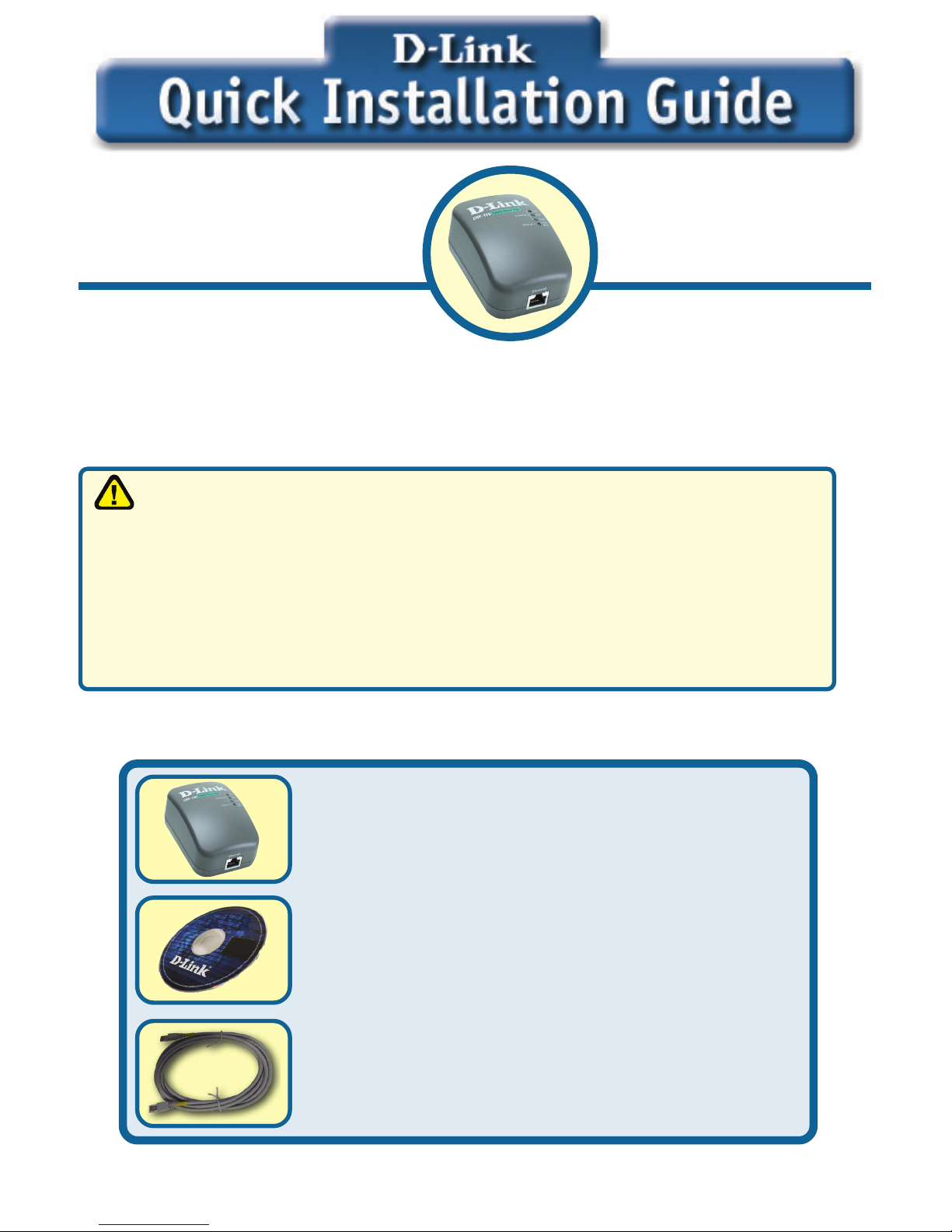
DHP-100 PowerLine
CD-ROM (containing Manual and Warranty)
Ethernet (CAT5 UTP/Straight Through) Cable
If any of the above items are missing, please contact your reseller.
You must have at least the following:
DHP-100
Express PowerNetwork™
Powerline Bridge
These are the items included with your DHP-100 purchase:
An Ethernet-enabled device, such as a laptop or desktop computer that will
connect to the DHP-100.
Note: You will need at least two DHP-100 devices in order to create a
powerline network.
Safety Instructions
1. Do Not operate this product near water
2. Do Not locate this product where people may walk on the Ethernet cable.
3. The AC coupler should be plugged directly into a 110 VAC wall outlet.
Do Not use an extention cord between the adaptor and AC power source.
4. Disconnect this product from wall outlet during a lightning or thunder storm.
5. Unplug from the wall outlet before cleaning. Use a damp cloth for cleaning.
Do Not use liquid cleaners or aerosol cleaners.
Check Your Package Contents
Page 2

2
Connecting The DHP-100 Powerline
Bridge To Your Network
The DHP-100 is an excellent solution that can be used to extend your
wireless network. In the home or small office building, use a pair of
DHP-100 Powerline adapters to link two wireless remote location
without the need to run Ethernet cables. Combined with a broadband
Cable/DSL connection, every room with electrical outlets will have
easy access to the high-speed Internet connection.
This LED will light solid when the DHP-100 is
connected properly to an Ethernet enabled device
and will blink when there is Ethernet traffic.
Product LED description
Powerline Col This LED will blink when there are Powerline
traffic collisions.
Powerline Act This LED will blink when there is Powerline traffic.
Ethernet Link/Act
Powerline Link
This LED will light solid when the DHP-100 is
plugged into a power outlet.
Page 3
3
Connecting The DHP-100 To Your
Network (continued)
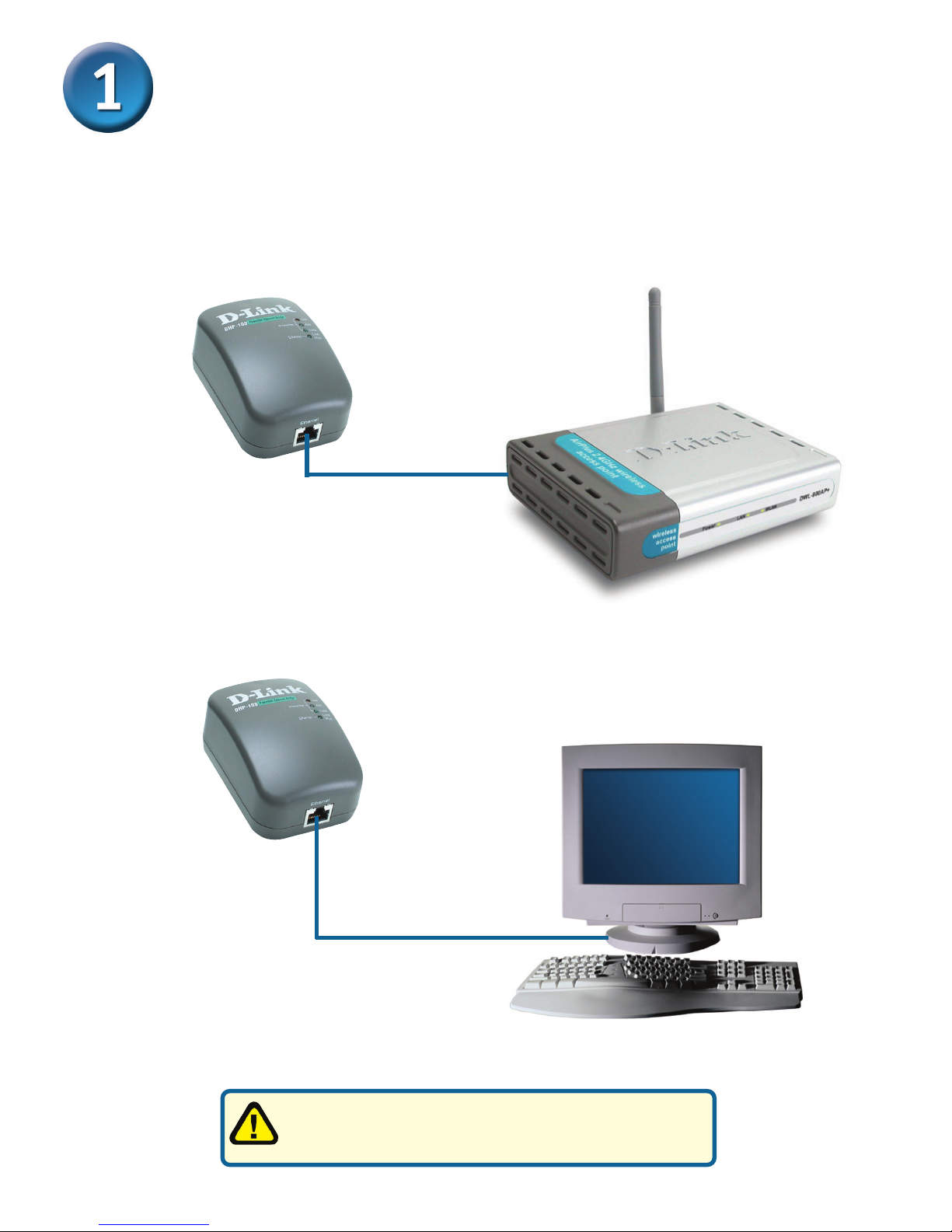
You can connect the DHP-100 directly to PC’s network adapter, switch, or any
other Ethernet enabled device. (Note: The Ethernet Port on the DHP-100 is
Auto-MDI/MDIX. Meaning you can use a straight-through or a crossover
Ethernet (CAT 5) cable when connecting to another Ethernet enabled device.)
For the Encryption Software configuration,
connect the DHP-100 directly to a PC.
OR
(Access Point)
(PC)
Page 4
4
Installing DHP-100 Encryption
Software
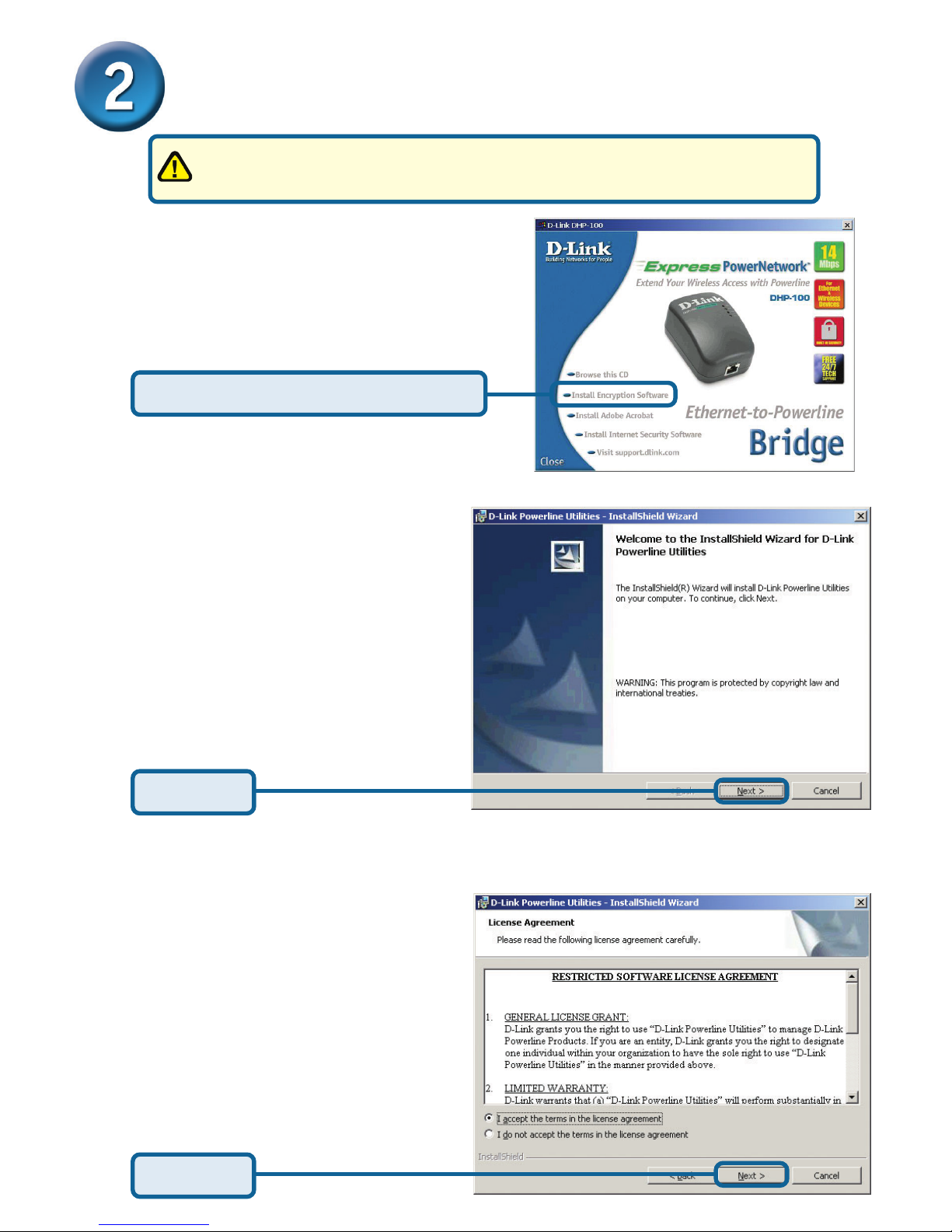
Insert the Master CD into your
CD-ROM drive and the Auto-run
program will appear.
The InstallShield Wizard will
begin the DHP-100 software
installation.
Select “I accept the terms in
the license agreement”
Click Next
Click Next
To use the encyption software you will need a laptop or desktop
computer running Microssoft Windows Operating System.
Click Install Encryption Software
Page 5
5
Installing DHP-100 Encryption
Software (continued)
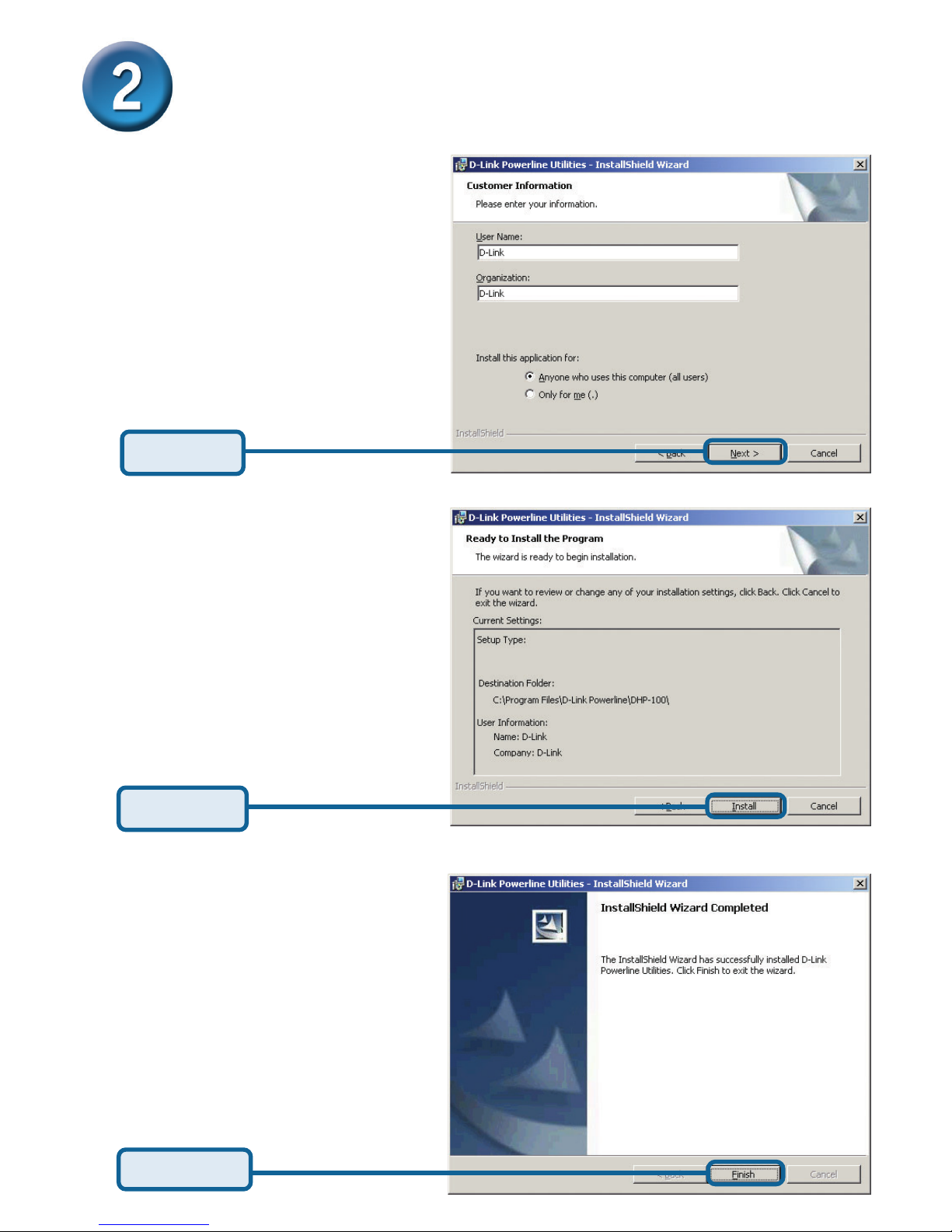
Insert a User Name and
Organization name.
The encryption software
installation is now complete.
Click Next
Click Install
Click Finish
Page 6
6
Installing DHP-100 Encryption
Software (continued)
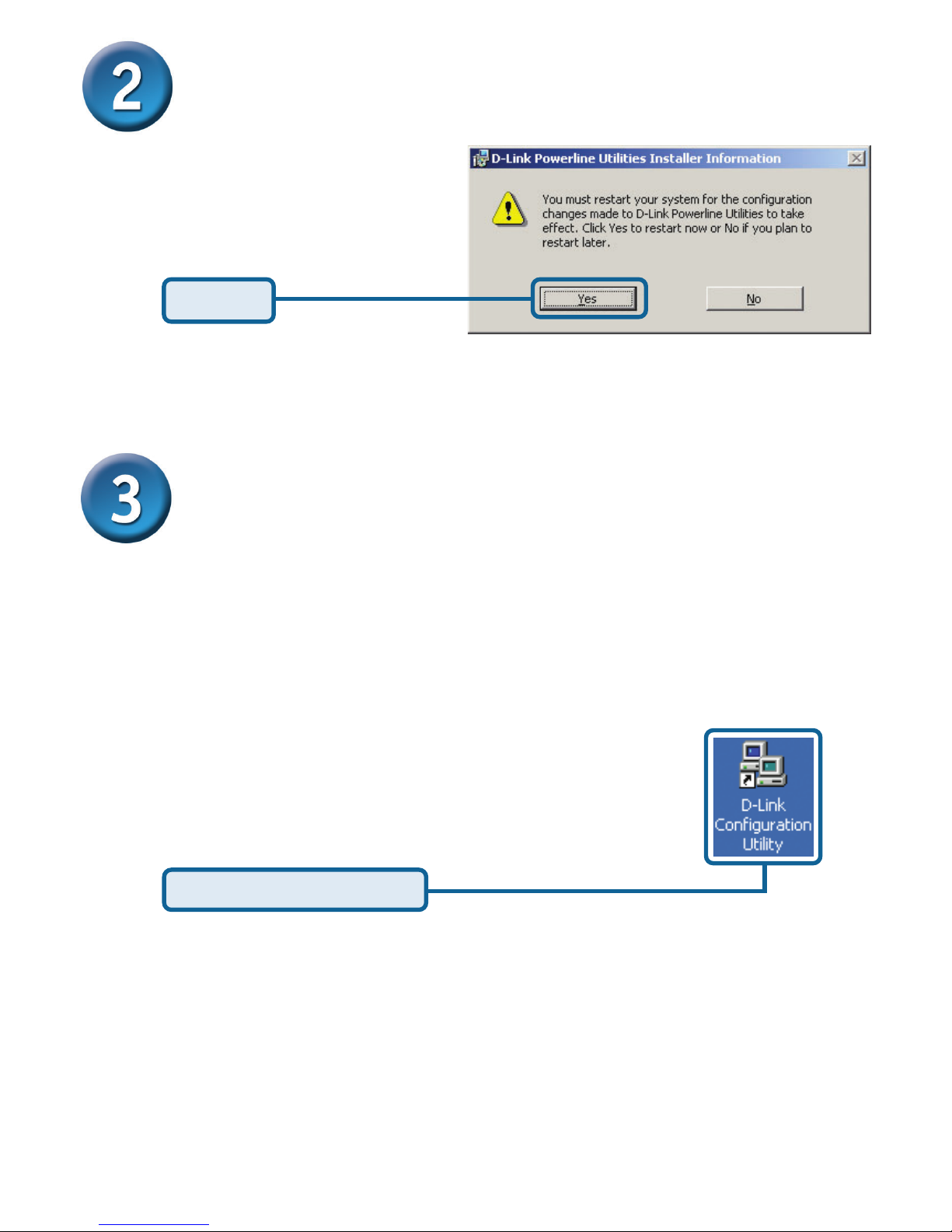
Restart your computer.
Using DHP-100 Encryption Software
After the computer has restarted, you can now setup encryption for
your DHP-100. By default, the DHP-100 uses 56-bit DES encryption
with a password of “HomePlug”. This means that out of the box, the
DHP-100 will automatically work with other DHP-100s. For security
purposes, it is recommended that you change the password. Follow
the steps below to do so.
There should be a D-Link DHP-100 icon on your
desktop
(Alternatively, you can go to Start->Program->D-Link PLC->D-Link
Configuration Utility)
Click Yes
Double-Click on the Icon
Page 7
7
Using DHP-100 Encryption Software
(continued)
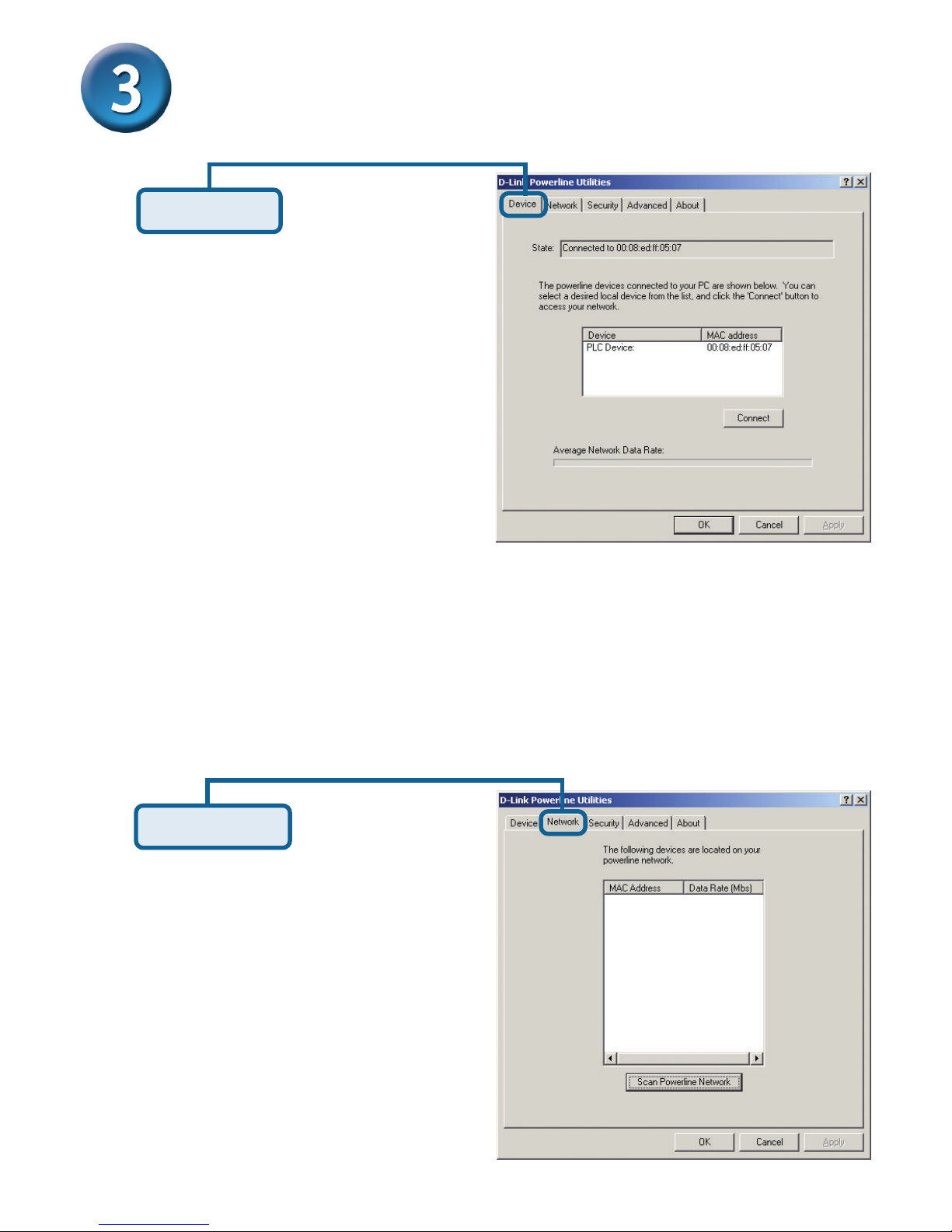
Click Device
In most cases, one device only is listed.
In case you have more, click on one of them
and hit Connect. Make sure that the State
box indicates that your PC is connected to
the same device. Now you are ready to
manage the powerline network connected to
this device, ensure its privacy and measure
its data rate performance.
The Network dialog screen provides
detailed information about your powerline
network. The text list box shows all
PowerLine devices found on your
powerline network identified by their MAC
addresses. In most cases, one device
only is listed. A second column indicates
their data rate measurements in Mbps.
Press Scan Powerline Network button to
refresh the listed information.
The Device dialog screen provides a list of
your D-Link PowerLine devices connected
to the computer where the utility is running
and average data rate performance of your
powerline network.
The progress bar will change into a status bar indicating the network average data rate.
The color of the bar reflects the average performance of the powerline network :
Green : Good performance
Yellow : Average performance
Red : Poor performance
Click Network
Page 8
8
Using DHP-100 Encryption Software
(continued)
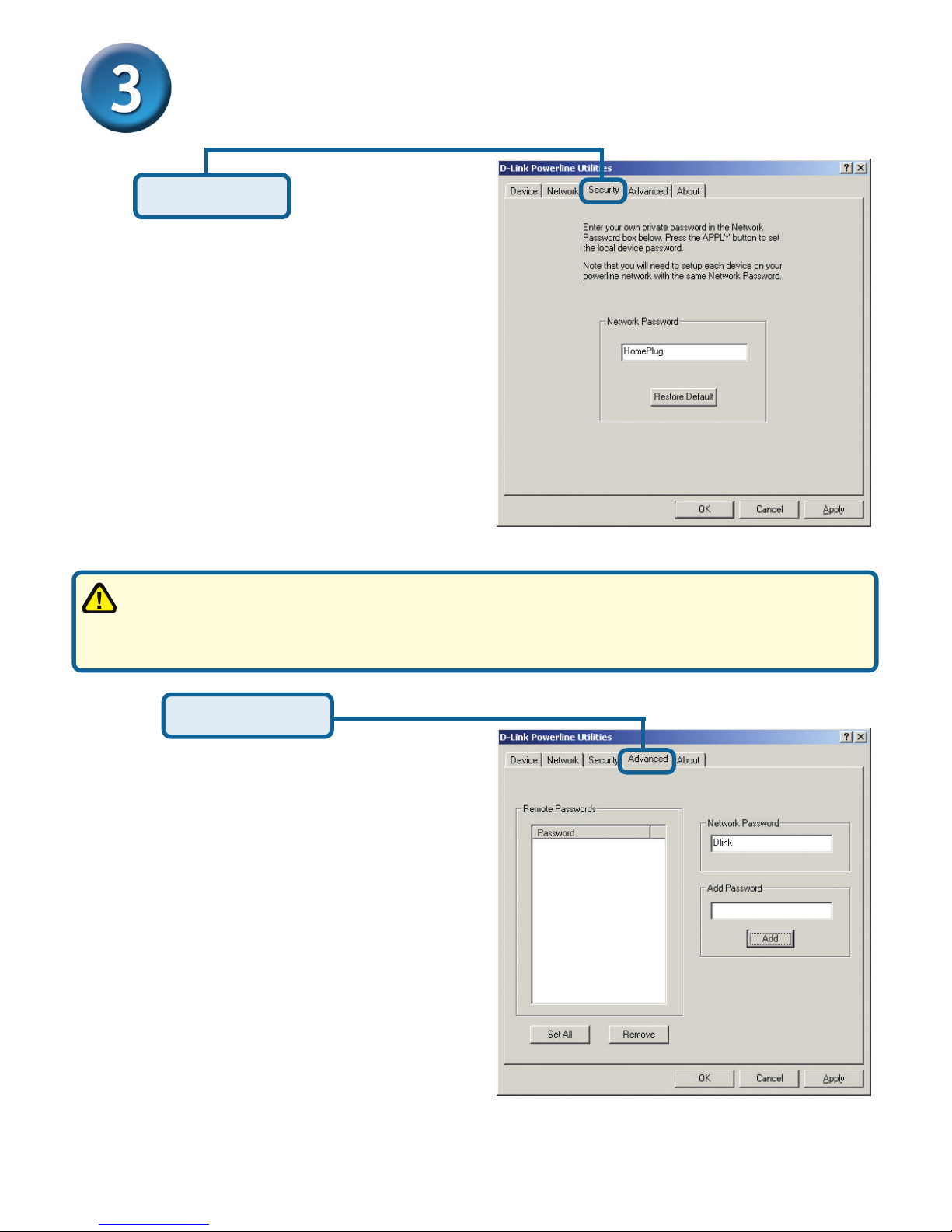
All PowerLine devices are shipped using
“HomePlug” as a network password. The
Security dialog screen allows you to change
this network password and set your own private
password and apply it to the PowerLine device
connected to the computer where the utility is
running. Hit Restore Default button to restore
the original network password “HomePlug”. Hit
Apply or OK buttons to set the password into
your local device.
Your private network password must have between 4 and 24 characters. The password
is case sensitive. The password can include any letters of the alphabet, numbers or
punctuation marks. Remember this password as it will be needed when adding other
powerline devices to the network later.
The Advanced dialog screen allows you to set
up a network password remotely on other
PowerLine devices through the powerline. Type
your private network password into the Network
Password text box. The other devices on the
network with PowerLine capabilities will have a
different password printed on either the box
itself or in the documentation. Find the
passwords for all devices you want to manage
and type them one by one into the Add
Password text box and hit Add. This will add
the passwords to Remote Passwords text list
box. Hit Set All to apply your private network
password to all devices that are listed in the
Remote Passwords text list box and to your
local device connected to the computer where
the utility is running as well. Select a password
and hit Remove to remove it from the list.
Click Security
Click Advanced
Page 9
9
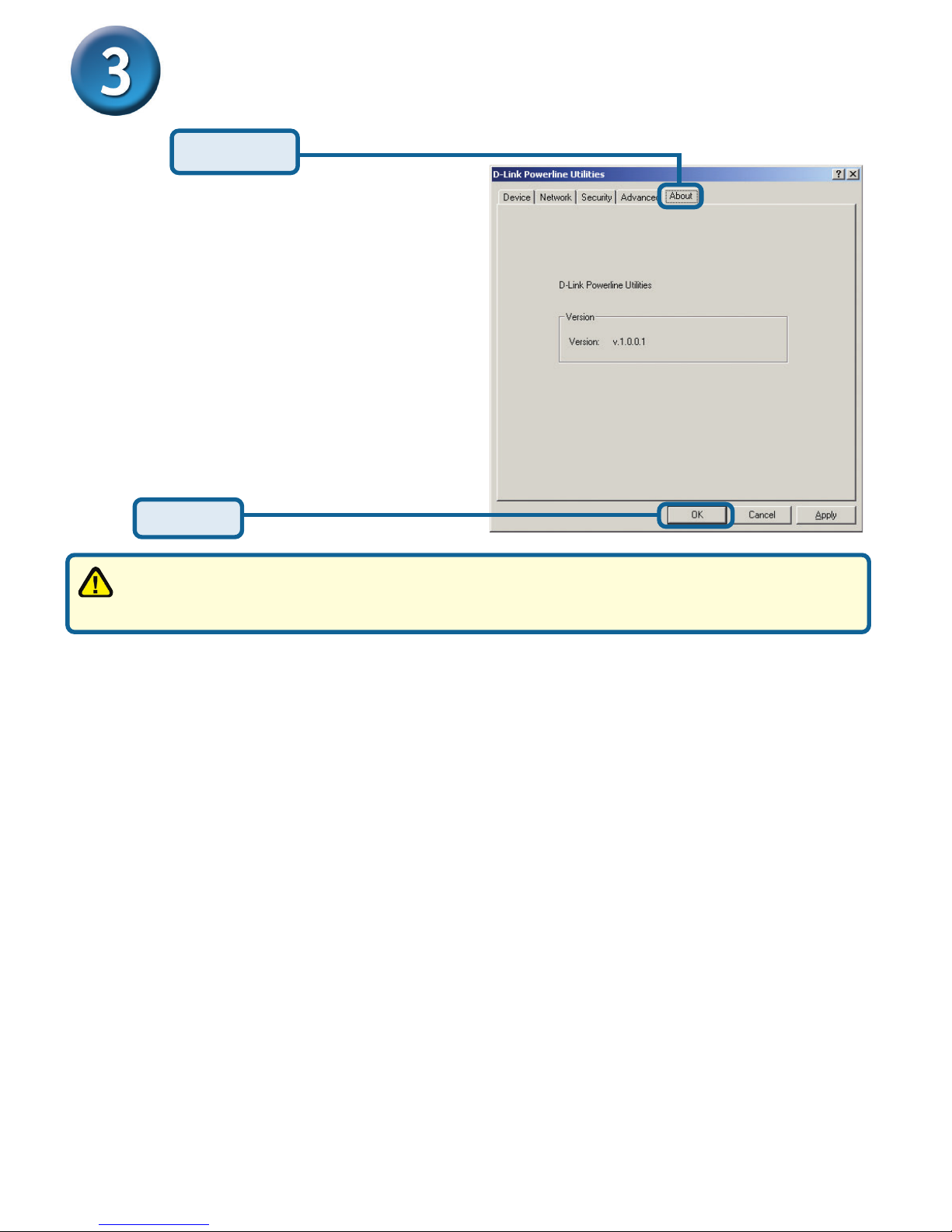
The About dialog screen shows the software
version.
Using DHP-100 Encryption Software
(continued)
Specifications
Connectors
.
Data Port: RJ-45 (MDI/MDIX)
.
Power Prongs
Diagnostic LEDs
.
Ethernet Link/Act Indication+
.
Powerline Collision Indication
.
Powerline Activity Indication
.
Powerline Link Indication
Data Rate
.
Up to 14Mbps
Access Methods
.
CSMA/CA
Operating Frequency
.
100MHz
Dimensions
.
95 x 60 x 40mm
You have now completed the installation for you DHP-100. Please be sure to configure
all other PowerLine devices on your network to use the same password, in order for
them to communicate with each other.
Click Ok
Click About
Weight
.
7.6 oz
Modulation Scheme
.
OFDM (Orthogonal Frequency
Division Multiplexing) with
automatic Channel adaptation
and FEC (Forward Error
Correction)
Encryption
.
56-bit Data Encryption with
Key Management
.
Software works on Windows
OS Platform Only
Standards
.
IEEE 802.3
.
IEEE 802.3U
.
HomePlug 1.0
Frequency Band
.
4.3 to 20.9 MHz
Certifications
.
FCC Class B
.
UL Listed
.
CE
.
HomePlug 1.0
Operating Tempera-
ture
.
32°F to 158°F ( 0°C to
70°C)
Power Source
.
110 or 220 VAC,
60Hz/50Hz
Page 10

10
Subject to the terms and conditions set forth herein, D-Link Systems, Inc. (“D-Link”) provides this Limited
warranty for its product only to the person or entity that originally purchased the product from:
• D-Link or its authorized reseller or distributor and
• Products purchased and delivered within the fifty states of the United States, the District of
Columbia, U.S. Possessions or Protectorates, U.S. Military Installations, addresses with an APO
or FPO.
Limited Warranty: D-Link warrants that the hardware portion of the D-Link products described below
will be free from material defects in workmanship and materials from the date of original retail purchase of
the product, for the period set forth below applicable to the product type (“Warranty Period”), except as
otherwise stated herein.
1-Year Limited Warranty for the Product(s) is defined as follows:
• Hardware (excluding power supplies and fans) One (1) Year
• Power Supplies and Fans One (1) Year
• Spare parts and spare kits Ninety (90) days
D-Link’s sole obligation shall be to repair or replace the defective Hardware during the Warranty Period at
no charge to the original owner or to refund at D-Link’s sole discretion. Such repair or replacement will be
rendered by D-Link at an Authorized D-Link Service Office. The replacement Hardware need not be new
or have an identical make, model or part. D-Link may in its sole discretion replace the defective Hardware
(or any part thereof) with any reconditioned product that D-Link reasonably determines is substantially
equivalent (or superior) in all material respects to the defective Hardware. Repaired or replacement
Hardware will be warranted for the remainder of the original Warranty Period from the date of original retail
purchase. If a material defect is incapable of correction, or if D-Link determines in its sole discretion that
it is not practical to repair or replace the defective Hardware, the price paid by the original purchaser for
the defective Hardware will be refunded by D-Link upon return to D-Link of the defective Hardware. All
Hardware (or part thereof) that is replaced by D-Link, or for which the purchase price is refunded, shall
become the property of D-Link upon replacement or refund.
Limited Software Warranty: D-Link warrants that the software portion of the product (“Software”) will
substantially conform to D-Link’s then current functional specifications for the Software, as set forth in the
applicable documentation, from the date of original retail purchase of the Software for a period of ninety
(90) days (“Warranty Period”), provided that the Software is properly installed on approved hardware and
operated as contemplated in its documentation. D-Link further warrants that, during the Warranty Period,
the magnetic media on which D-Link delivers the Software will be free of physical defects. D-Link’s sole
obligation shall be to replace the non-conforming Software (or defective media) with software that
substantially conforms to D-Link’s functional specifications for the Software or to refund at D-Link’s sole
discretion. Except as otherwise agreed by D-Link in writing, the replacement Software is provided only to
the original licensee, and is subject to the terms and conditions of the license granted by D-Link for the
Software. Software will be warranted for the remainder of the original Warranty Period from the date or
original retail purchase. If a material non-conformance is incapable of correction, or if D-Link determines
in its sole discretion that it is not practical to replace the non-conforming Software, the price paid by the
original licensee for the non-conforming Software will be refunded by D-Link; provided that the nonconforming Software (and all copies thereof) is first returned to D-Link. The license granted respecting
any Software for which a refund is given automatically terminates.
Non-Applicability of Warranty: The Limited Warranty provided hereunder for hardware and software
of D-Link’s products will not be applied to and does not cover any refurbished product and any product
purchased through the inventory clearance or liquidation sale or other sales in which D-Link, the sellers,
or the liquidators expressly disclaim their warranty obligation pertaining to the product and in that case, the
product is being sold “As-Is” without any warranty whatsoever including, without limitation, the Limited
Warranty as described herein, notwithstanding anything stated herein to the contrary.
Submitting A Claim: The customer shall return the product to the original purchase point based on its
return policy. In case the return policy period has expired and the product is within warranty, the customer
shall submit a claim to D-Link as outlined below:
• The customer must submit with the product as part of the claim a written description of the
Hardware defect or Software nonconformance in sufficient detail to allow D-Link to confirm the
same.
Limited Warranty
Page 11

11
• The original product owner must obtain a Return Material Authorization (“RMA”) number from the
Authorized D-Link Service Office and, if requested, provide written proof of purchase of the
product (such as a copy of the dated purchase invoice for the product) before the warranty
service is provided.
• After an RMA number is issued, the defective product must be packaged securely in the original
or other suitable shipping package to ensure that it will not be damaged in transit, and the RMA
number must be prominently marked on the outside of the package. Do not include any manuals
or accessories in the shipping package. D-Link will only replace the defective portion of the
Product and will not ship back any accessories.
• The customer is responsible for all in-bound shipping charges to D-Link. No Cash on Delivery
(“COD”) is allowed. Products sent COD will either be rejected by D-Link or become the property
of D-Link. Products shall be fully insured by the customer and shipped to D-Link Systems,
Inc., 53 Discovery Drive, Irvine, CA 92618. D-Link will not be held responsible for any
packages that are lost in transit to D-Link. The repaired or replaced packages will be shipped to
the customer via UPS Ground or any common carrier selected by D-Link, with shipping charges
prepaid. Expedited shipping is available if shipping charges are prepaid by the customer and
upon request.
D-Link may reject or return any product that is not packaged and shipped in strict compliance with the
foregoing requirements, or for which an RMA number is not visible from the outside of the package. The
product owner agrees to pay D-Link’s reasonable handling and return shipping charges for any product
that is not packaged and shipped in accordance with the foregoing requirements, or that is determined by
D-Link not to be defective or non-conforming.
What Is Not Covered: This limited warranty provided by D-Link does not cover: Products, if in D-Link’s
judgment, have been subjected to abuse, accident, alteration, modification, tampering, negligence, misuse,
faulty installation, lack of reasonable care, repair or service in any way that is not contemplated in the
documentation for the product, or if the model or serial number has been altered, tampered with, defaced
or removed; Initial installation, installation and removal of the product for repair, and shipping costs;
Operational adjustments covered in the operating manual for the product, and normal maintenance; Damage
that occurs in shipment, due to act of God, failures due to power surge, and cosmetic damage; Any
hardware, software, firmware or other products or services provided by anyone other than D-Link;
Products that have been purchased from inventory clearance or liquidation sales or other sales in which
D-Link, the sellers, or the liquidators expressly disclaim their warranty obligation pertaining to the product.
Repair by anyone other than D-Link or an Authorized D-Link Service Office will void this Warranty.
Disclaimer of Other Warranties: EXCEPT FOR THE LIMITED WARRANTY SPECIFIED HEREIN, THE
PRODUCT IS PROVIDED “AS-IS” WITHOUT ANY WARRANTY OF ANY KIND WHATSOEVER INCLUDING,
WITHOUT LIMITATION, ANY WARRANTY OF MERCHANTABILITY, FITNESS FOR A PARTICULAR PURPOSE
AND NON-INFRINGEMENT. IF ANY IMPLIED WARRANTY CANNOT BE DISCLAIMED IN ANY TERRITORY
WHERE A PRODUCT IS SOLD, THE DURATION OF SUCH IMPLIED WARRANTY SHALL BE LIMITED TO
NINETY (90) DAYS. EXCEPT AS EXPRESSLY COVERED UNDER THE LIMITED WARRANTY PROVIDED
HEREIN, THE ENTIRE RISK AS TO THE QUALITY, SELECTION AND PERFORMANCE OF THE PRODUCT IS
WITH THE PURCHASER OF THE PRODUCT.
Limitation of Liability: TO THE MAXIMUM EXTENT PERMITTED BY LAW, D-LINK IS NOT LIABLE UNDER
ANY CONTRACT, NEGLIGENCE, STRICT LIABILITY OR OTHER LEGAL OR EQUITABLE THEORY FOR ANY
LOSS OF USE OF THE PRODUCT, INCONVENIENCE OR DAMAGES OF ANY CHARACTER, WHETHER DIRECT,
SPECIAL, INCIDENTAL OR CONSEQUENTIAL (INCLUDING, BUT NOT LIMITED TO, DAMAGES FOR LOSS OF
GOODWILL, LOSS OF REVENUE OR PROFIT, WORK STOPPAGE, COMPUTER FAILURE OR MALFUNCTION,
FAILURE OF OTHER EQUIPMENT OR COMPUTER PROGRAMS TO WHICH D-LINK’S PRODUCT IS CONNECTED
WITH, LOSS OF INFORMATION OR DATA CONTAINED IN, STORED ON, OR INTEGRATED WITH ANY PRODUCT
RETURNED TO D-LINK FOR WARRANTY SERVICE) RESULTING FROM THE USE OF THE PRODUCT, RELATING
TO WARRANTY SERVICE, OR ARISING OUT OF ANY BREACH OF THIS LIMITED WARRANTY, EVEN IF DLINK HAS BEEN ADVISED OF THE POSSIBILITY OF SUCH DAMAGES. THE SOLE REMEDY FOR A BREACH
OF THE FOREGOING LIMITED WARRANTY IS REPAIR, REPLACEMENT OR REFUND OF THE DEFECTIVE OR
NON-CONFORMING PRODUCT. THE MAXIMUM LIABILITY OF D-LINK UNDER THIS WARRANTY IS LIMITED
TO THE PURCHASE PRICE OF THE PRODUCT COVERED BY THE WARRANTY. THE FOREGOING EXPRESS
WRITTEN WARRANTIES AND REMEDIES ARE EXCLUSIVE AND ARE IN LIEU OF ANY OTHER WARRANTIES
OR REMEDIES, EXPRESS, IMPLIED OR STATUTORY
Governing Law: This Limited Warranty shall be governed by the laws of the State of California. Some
states do not allow exclusion or limitation of incidental or consequential damages, or limitations on how
long an implied warranty lasts, so the foregoing limitations and exclusions may not apply. This limited
warranty provides specific legal rights and the product owner may also have other rights which vary from
state to state.
Trademarks: D-Link is a registered trademark of D-Link Systems, Inc. Other trademarks or registered
trademarks are the property of their respective manufacturers or owners.
Page 12
12
Technical Support
You can find the most recent software and user documentation on the D-Link
website.
D-Link provides free technical support for customers within the United States
for the duration of the warranty period on this product.
U.S. customers can contact D-Link technical support through our web site or
by phone.
D-Link Technical Support over the Telephone:
(877) 453-5465
24 hours a day, seven days a week
D-Link Technical Support over the Internet:
http://support.dlink.com
Copyright Statement: No part of this publication or documentation accompanying this Product may be
reproduced in any form or by any means or used to make any derivative such as translation, transformation,
or adaptation without permission from D-Link Corporation/D-Link Systems, Inc., as stipulated by the United
States Copyright Act of 1976. Contents are subject to change without prior notice. Copyright© 2002 by DLink Corporation/D-Link Systems, Inc. All rights reserved.
CE Mark Warning: This is a Class B product. In a domestic environment, this product may cause radio
interference, in which case the user may be required to take adequate measures.
FCC Statement: This equipment has been tested and found to comply with the limits for a Class B digital
device, pursuant to part 15 of the FCC Rules. These limits are designed to provide reasonable protection
against harmful interference in a residential installation. This equipment generates, uses, and can radiate
radio frequency energy and, if not installed and used in accordance with the instructions, may cause
harmful interference to radio communication. However, there is no guarantee that interference will not
occur in a particular installation. If this equipment does cause harmful interference to radio or television
reception, which can be determined by turning the equipment off and on, the user is encouraged to try to
correct the interference by one or more of the following measures:
• Reorient or relocate the receiving antenna.
• Increase the separation between the equipment and receiver.
• Connect the equipment into an outlet on a circuit different from that to which the receiver is connected.
• Consult the dealer or an experienced radio/TV technician for help.
Register online your D-Link product at http://support.dlink.com/register/
 Loading...