

Page 1
This product can be used with the
following operating systems:
Windows XP, Me, 2000, 98SE,
Mac OS 10.1 and above
DFB-H7DFB-H7
DFB-H7
DFB-H7DFB-H7
7-Port USB 2.0/7-Port USB 2.0/
7-Port USB 2.0/
7-Port USB 2.0/7-Port USB 2.0/
Firewire Combo HubFirewire Combo Hub
Firewire Combo Hub
Firewire Combo HubFirewire Combo Hub
Before You Begin
You must have at least the following:
• Pentium 233 MHz or faster with 64MB RAM
• Available USB 2.0 Port
• Available Firewire Port
• Windows XP, 2000, Me, 98SE, or Mac OS 10.1 and above for both
USB 2.0 and Firewire Operation
Check Your Package Contents
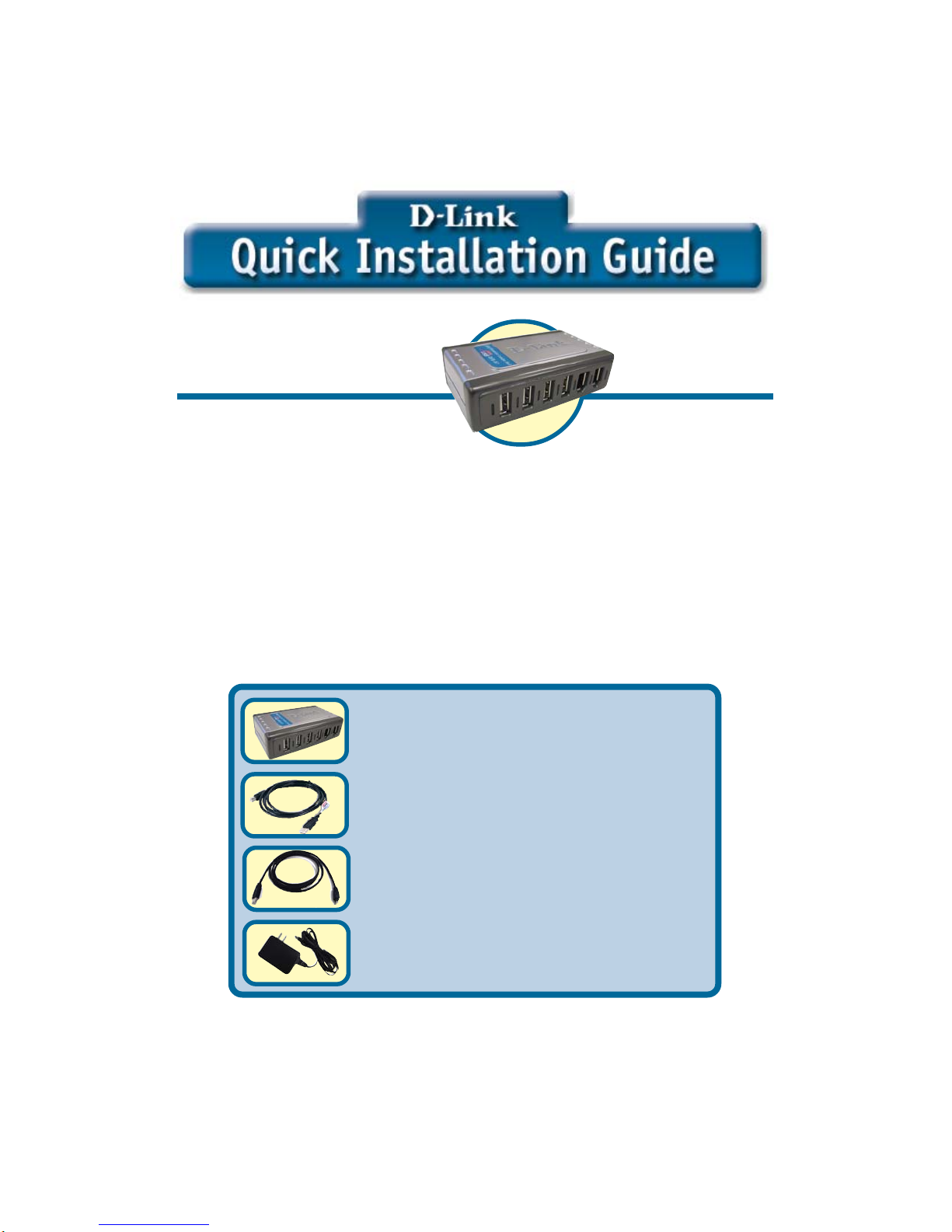
These are the items included with your purchase:
If any of the below items are missing, please contact your reseller.
• DFB-H7 7-Port USB 2.0/Firewire
Combo Hub
©2003 D-Link Systems, Inc. All rights reserved. Trademarks or registered trademarks are the property of
their respective holders. Software and specifications subject to change without notice. DFB-H7.08192003
• USB 2.0 Cable
• 1394 Firewire Cable (6-pin to 6-pin)
• Power Adapter
(5V 2.5A)
Page 2
Installing the DFB-H7
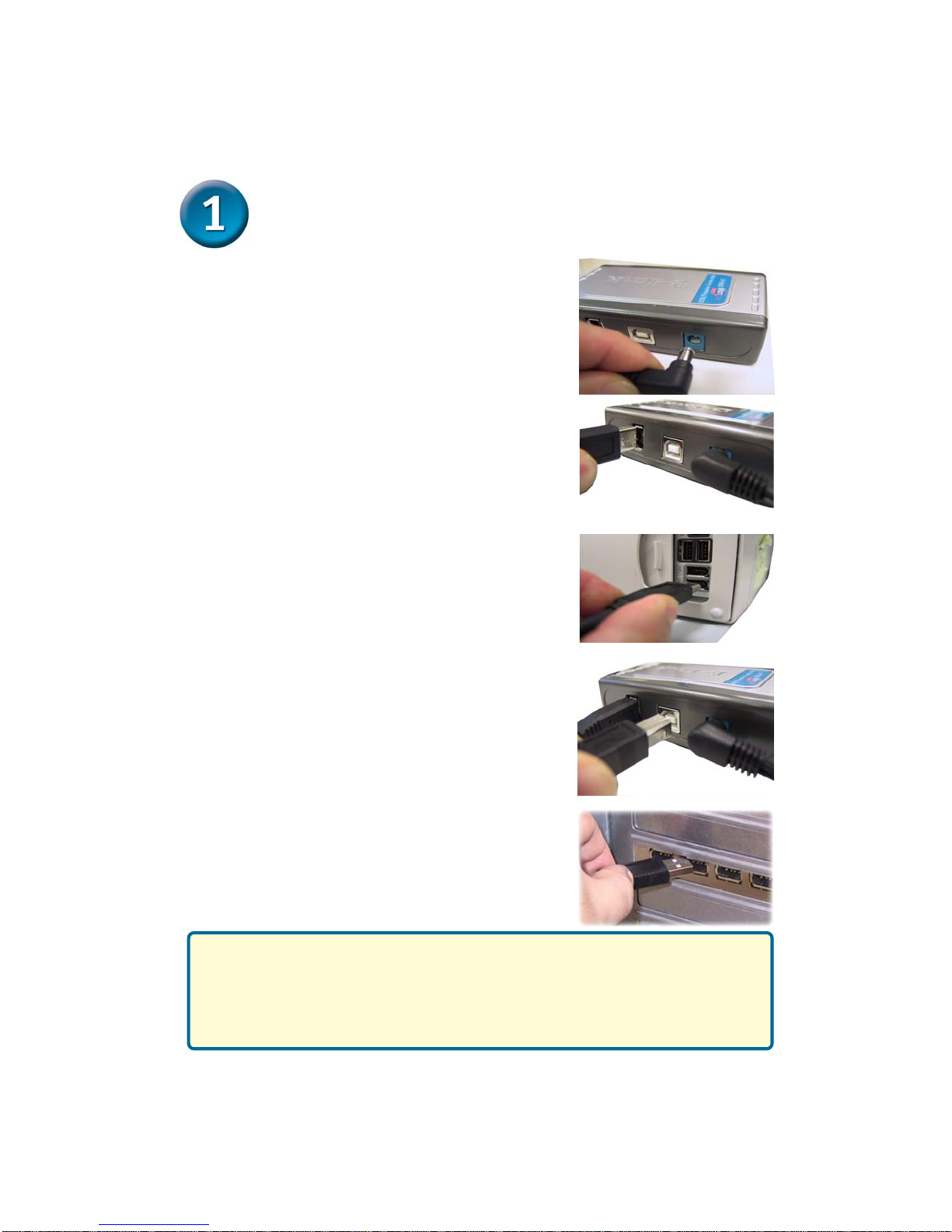
Plug the AC adapter into the receptor
located on the back panel of the DFB-
H7, then plug the other end into a power
strip or wall outlet.
Plug one end of the included 6-pin to
6-pin Firewire cable into the Firewire
port located on the back panel of the
DFB-H7.
Plug the other end of the Firewire cable
to an available Firewire port on your
computer case.
Plug the USB Type B connector (the
smaller end of the cable) into the USB
port located on the back panel of the
DFB-H7.
Plug the USB Type A connector (the
flatter, narrow end of the cable) into an
available USB 2.0 port on your
computer.
Your computer will automatically detect and install the DFB-H7.
Type A
Type B
Your installation is now complete! You may now connect USB
2.0 or USB 1.1 devices and/or Firewire devices to an available
USB port or Firewire port on the front of the DFB-H7.
2
Page 3
LED Indicator Description
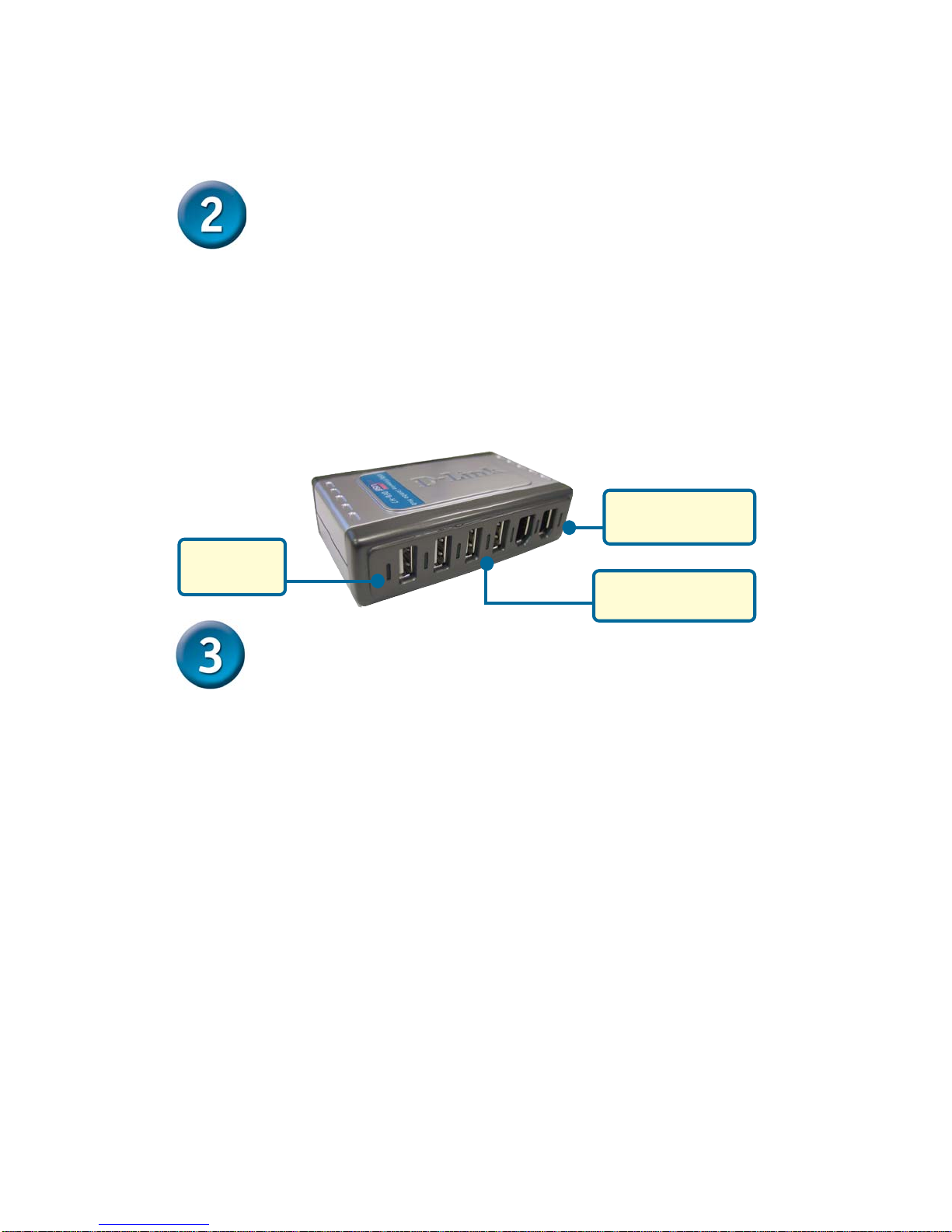
The DFB-H7 features seven LED indicators.
• The Power LED indicator is green and lights up when the DFB-H7 is powered on using
the power adapter.
• Each USB and Firewire port located on the front of the DFB-H7 has a status LED
indicator. The Firewire LEDs light up when the DFB-H7 is powered on and is connected
to a host Firewire port or hub using the included Firewire cable. The USB LEDs light up
when the DFB-H7 is powered on and connected to a host USB port or hub using the
included USB cable.
Ports 5-6 Firewire
LED Indicators
Power LED
Indicator
Ports 1-4 USB
LED Indicators
Tips
• Make sure that all Firewire and USB cables are connected securely to the DFB-H7 to
ensure proper operation.
• Remember that when connecting USB 1.1 devices to a USB 2.0 hub or host adapter, the
USB 1.1 device will operate at USB 1.1 speed.
• Connecting USB 1.1 devices to the DFB-H7 may cause all USB devices connected to
the hub to work at USB 1.1 speed. For USB 2.0 operation of up to 480Mbps, connect
only USB 2.0 devices to the DFB-H7.
• While using a USB device that includes an AC power adapter, use the included power
adapter to ensure proper power and current supply to that device.
• If you wish to use only the USB ports on the DFB-H7, the Firewire port located on the
back of the DFB-H7 does not need to be connected to your host computer or hub.
• If you wish to use only the Firewire ports on the DFB-H7, the USB port located on the
back of the DFB-H7 does not need to be connected to your host computer or hub.
3
Page 4
Technical Support
You can find software updates and user documentation on the D-Link website.
D-Link provides free technical support for customers within the United States and
within Canada for the duration of the warranty period on this product.
U.S. and Canadian customers can contact D-Link Technical Support through our
website, or by phone.
Tech Support for customers within the United States:
D-Link Technical Support over the Telephone:
(877) 453-5465
24 hours a day, seven days a week.
D-Link Technical Support over the Internet:
http://support.dlink.com
email:[email protected]
Tech Support for customers within Canada:
D-Link Technical Support over the Telephone:
(800) 361-5265
Monday to Friday 8:30am to 9:00pm EST
D-Link Technical Support over the Internet:
http://support.dlink.ca
email:[email protected]
 Loading...