

Page 1
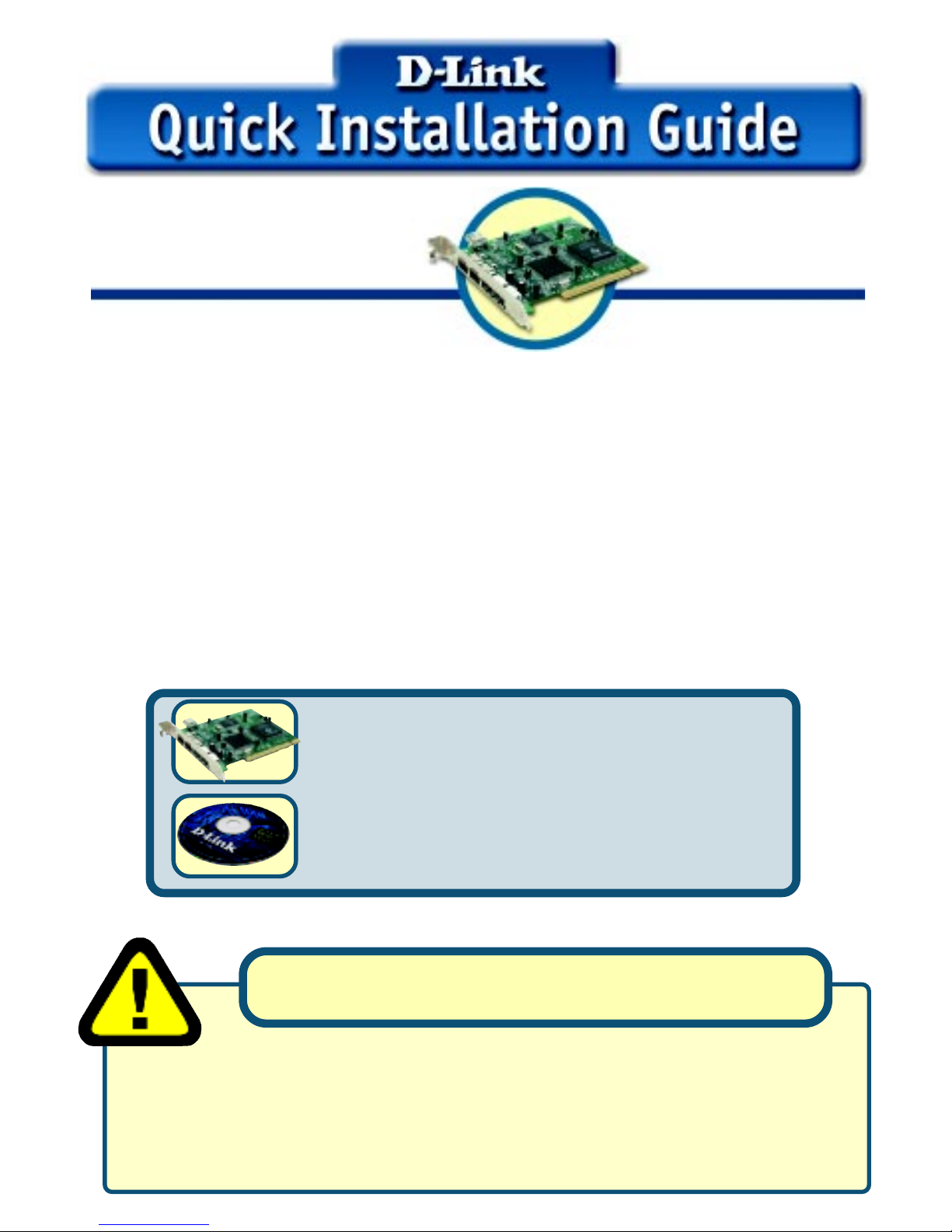
USB 2.0 & Firewire
Combo PCI Adapter
DFB-A5DFB-A5
DFB-A5DFB-A5
DFB-A5
This product can be used with theThis product can be used with the
This product can be used with theThis product can be used with the
This product can be used with the
following operating systems:following operating systems:
following operating systems:following operating systems:
following operating systems:
Windows XP, Me, 2000, 98SEWindows XP, Me, 2000, 98SE
Windows XP, Me, 2000, 98SEWindows XP, Me, 2000, 98SE
Windows XP, Me, 2000, 98SE
Macintosh OS v10.1Macintosh OS v10.1
Macintosh OS v10.1Macintosh OS v10.1
Macintosh OS v10.1
Check Your Package Contents
These are the items included with your purcha se:
If any of the below ite ms are missing, plea se conta ct your re seller .
Before You Begin
Y ou must have at lea st the following:
• Windows XP/Me/2000/98SE or Ma cintosh OS v10.1
• Pentium Cla ss CPU or Higher
• One Available PCI Slot
• CD-ROM Drive
• DFB-A5 USB 2.0 & Firewire Combo
PCI Ada pter
• CD-ROM (containing Drivers,
Installation Guide and Warranty)
Run the Driver CD before you install the DFB-A5.
The Driver CD contain s an installation program that
significa ntly simplifie s the installation proce ss.
Windows Users
Page 2
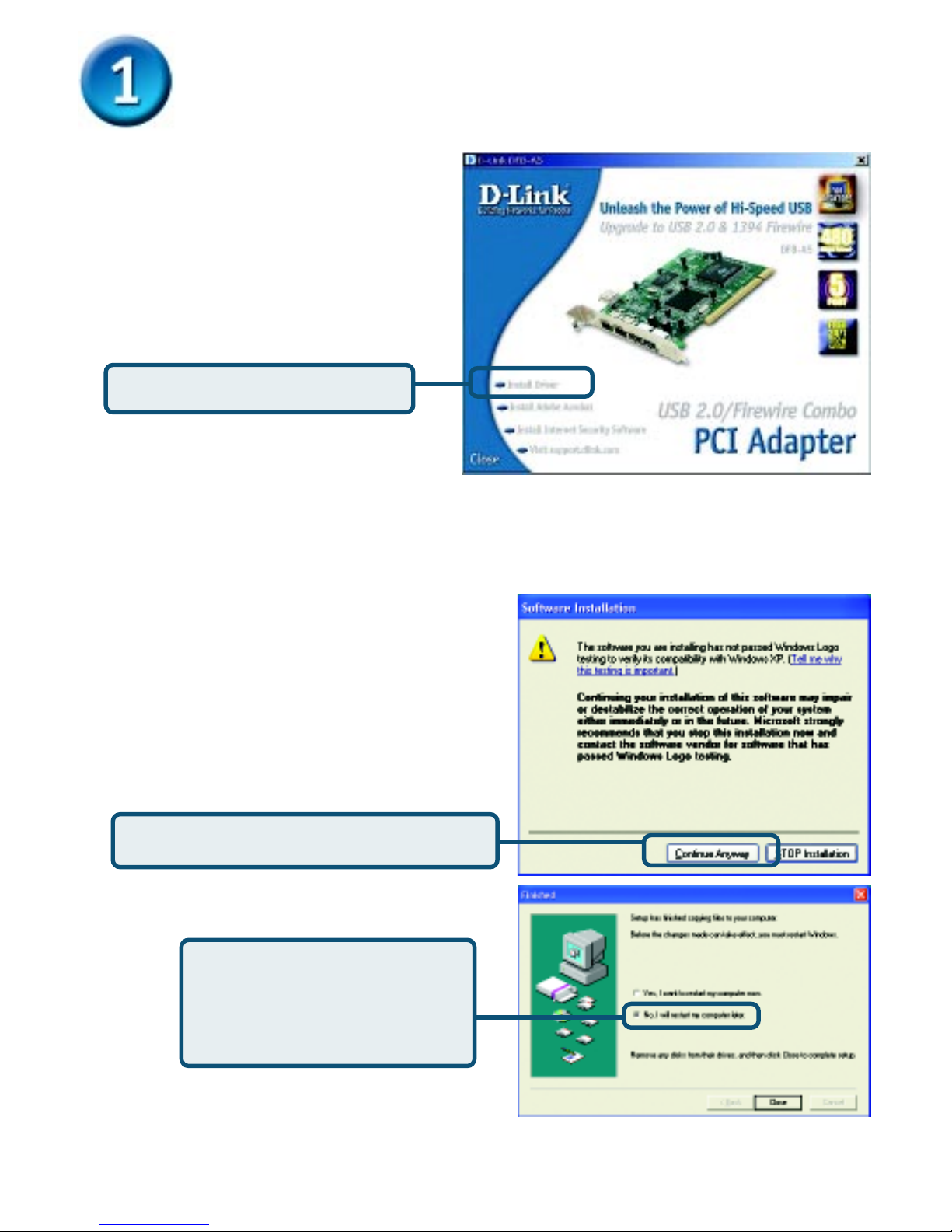
Click Install Drivers
If the Autorun screen does not automatically start, click on Start > Run, enter
“D:\Autorun.exe” and click OK. “ D” represents the letter of your CD-ROM drive.
Repla ce it if your CD-ROM drive is a different letter.
Only Windows XP users will
see this screen.
Click Continue Anyway
Insert the D-Link CD-ROM
Into Your Computer
Ma c users please proceed to
the next page.
T urn on your computer and
insert the D-Link DFB-A5 Driver
CD in the CD-ROM drive.
Select No and
Shut Down
your computer.
Page 3
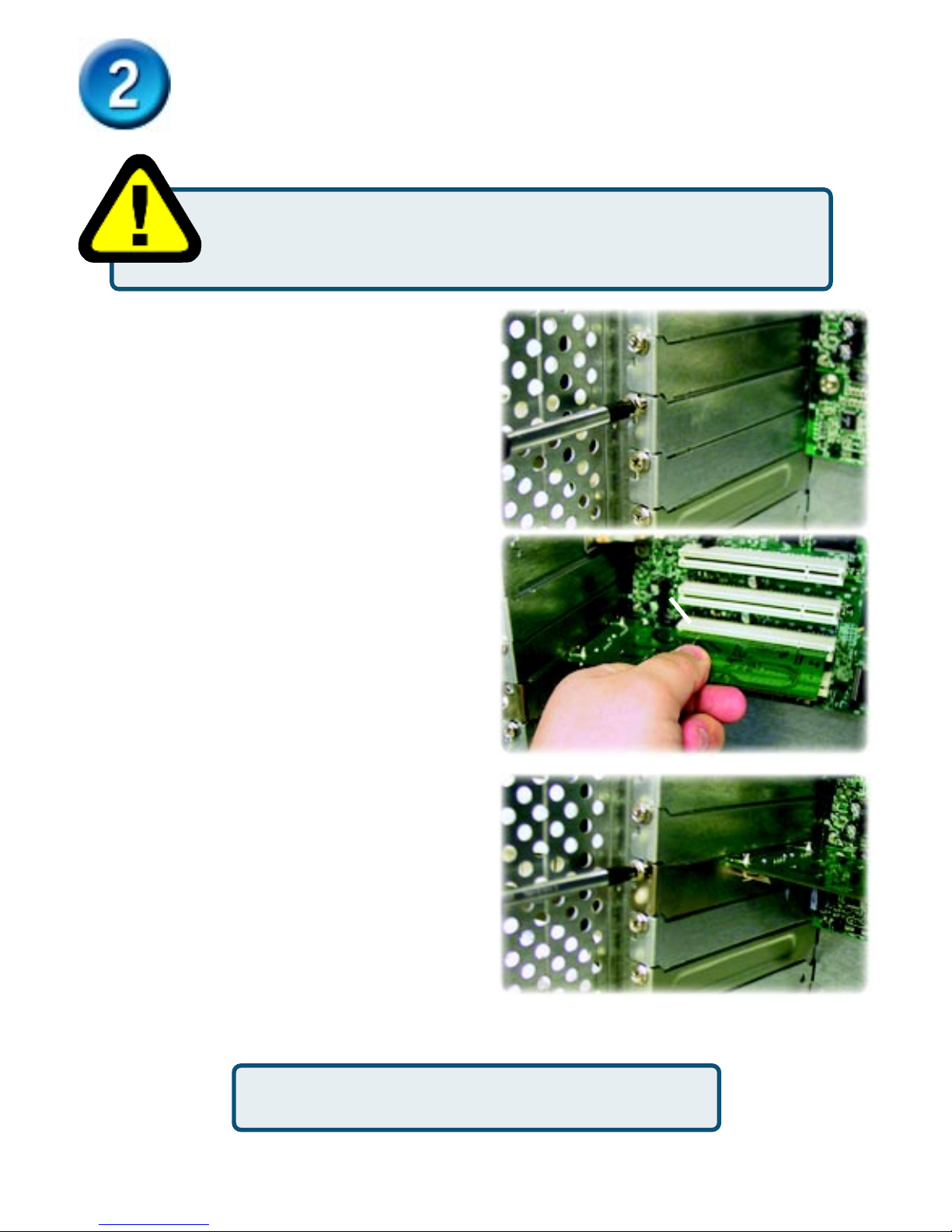
Installing The DFB-A5 Combo PCI
Adapter Into Your Computer
Remove the outer cover of your computer.
Refer to your computer manual a s needed.
Remove the backplate. (The small piece
of metal that covers the opening for the
PCI card).
Make sure that your computer is turned OFFMake sure that your computer is turned OFF
Make sure that your computer is turned OFFMake sure that your computer is turned OFF
Make sure that your computer is turned OFF
before you install the DFB-A5.before you install the DFB-A5.
before you install the DFB-A5.before you install the DFB-A5.
before you install the DFB-A5.
Locate an available PCI slot a nd
insert the DFB-A5 carefully into the
PCI slot.
Secure the DFB-A5 with the screw from
the ba ckplate. Re pla ce your computer's
cover and plug in the power cord.
Turn OnTurn On
Turn OnTurn On
Turn On your computer.
PCI Slot
Page 4
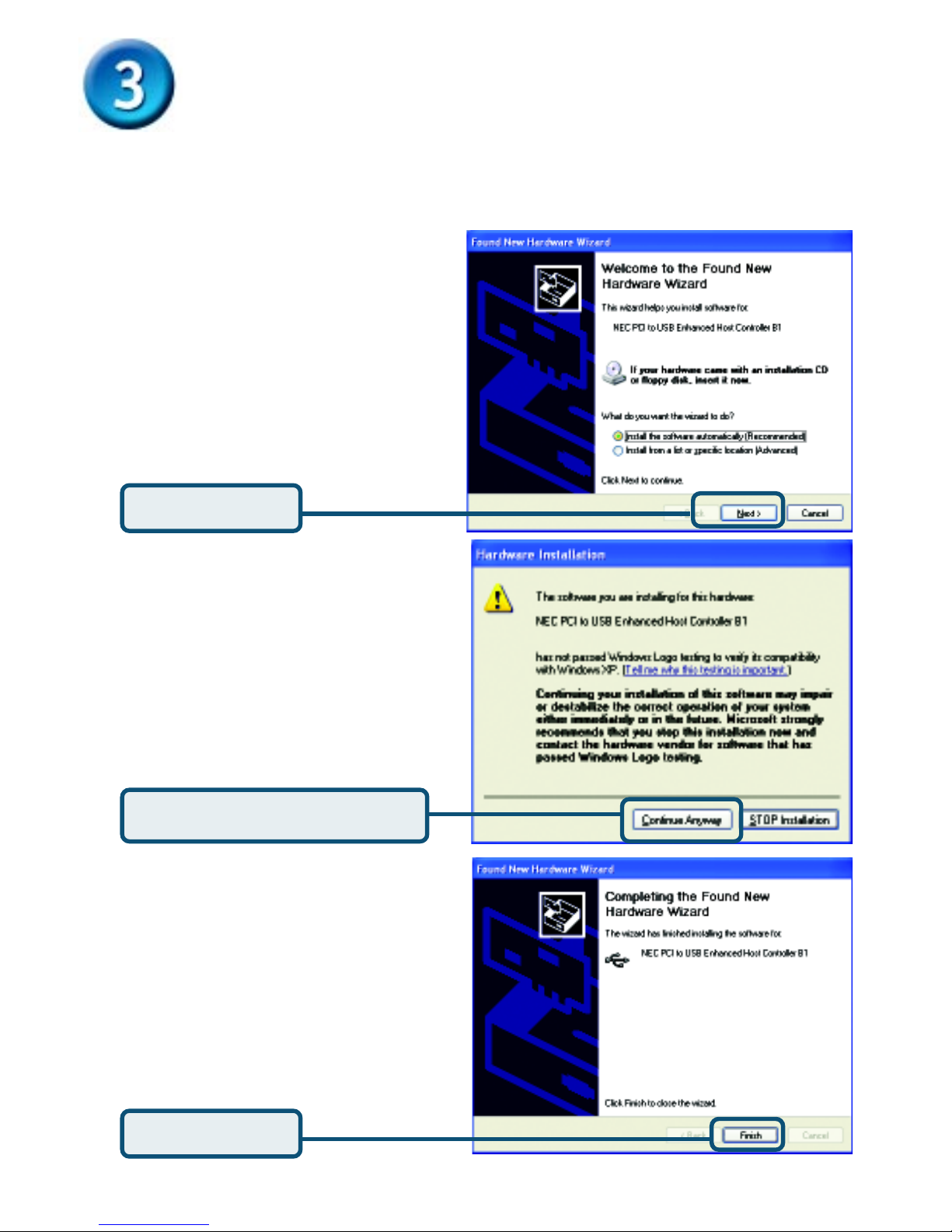
Windows XP Users
Completing The Driver Installation
Follow these steps to complete installation under Windows XP f or e ach device that
Windows prompts you to install.
Click Next
Click Continue Anyway
Click Finish
Page 5
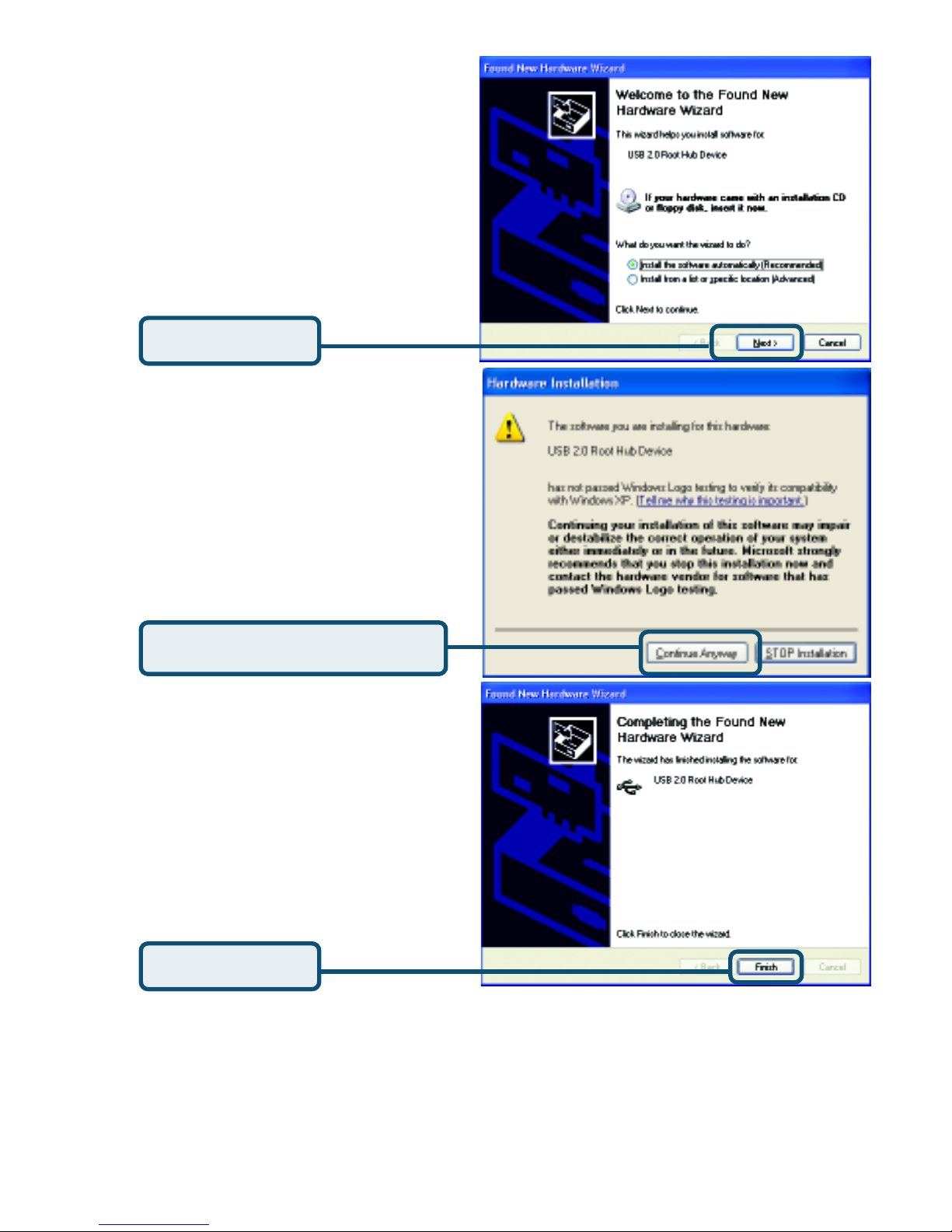
Windows 2000 & Me Users
The DFB-A5 driver installation will proceed automatically f or Windows
2000 & Me users while Windows is starting.
Click Next
Click Continue Anyway
Click Finish
Page 6
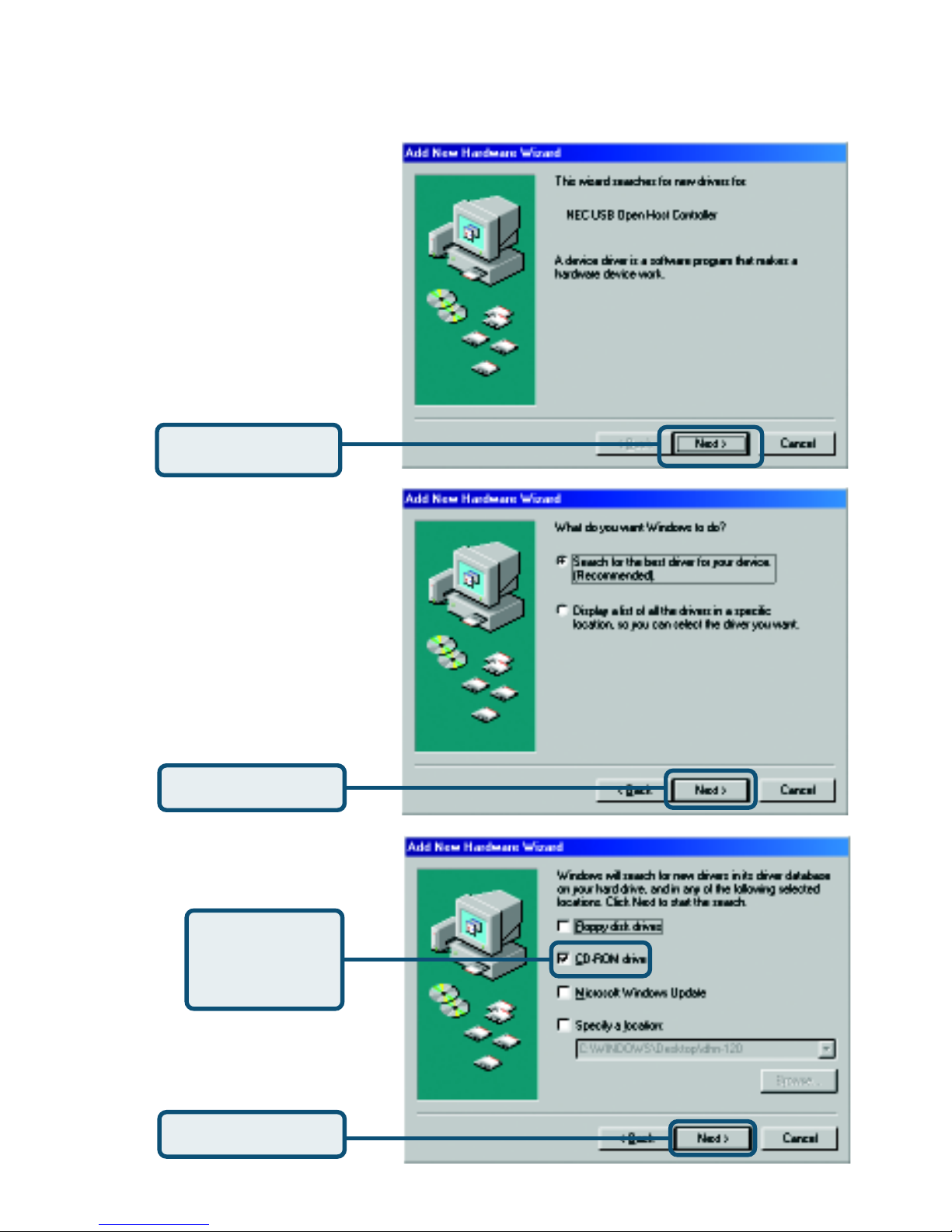
Windows 98SE Users
Click Next
Click Next
Click Next
Select only
CD-ROM
drive
Page 7
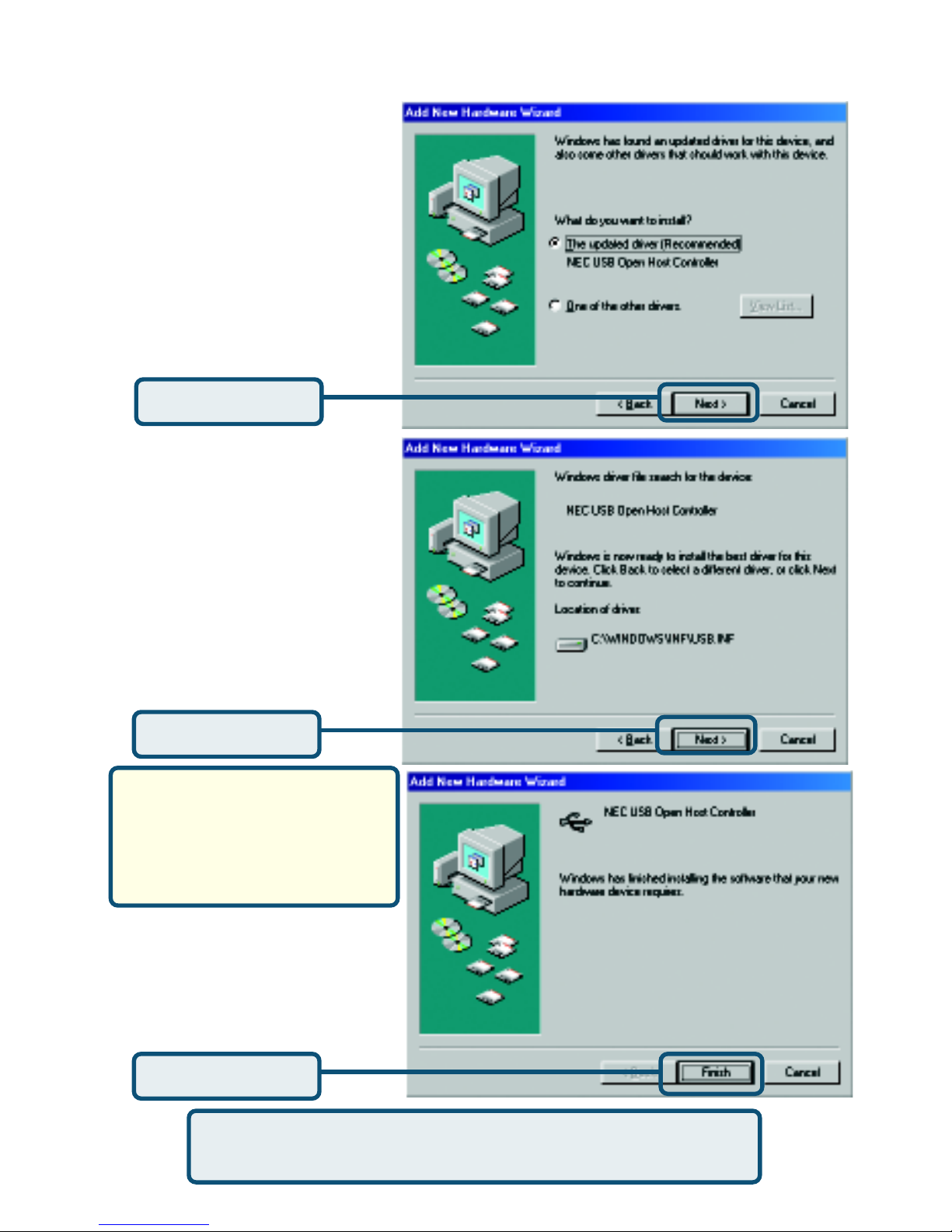
Windows 98SE Users
Click Finish
When prompted, Restart Your
Computer to complete the installation.
Windows 98SE may prompt
you for the Windows 98SE
Setup disk. If prompted,
insert the Windows 98SE
Setup disk and select OK.
Click Next
Click Next
Page 8
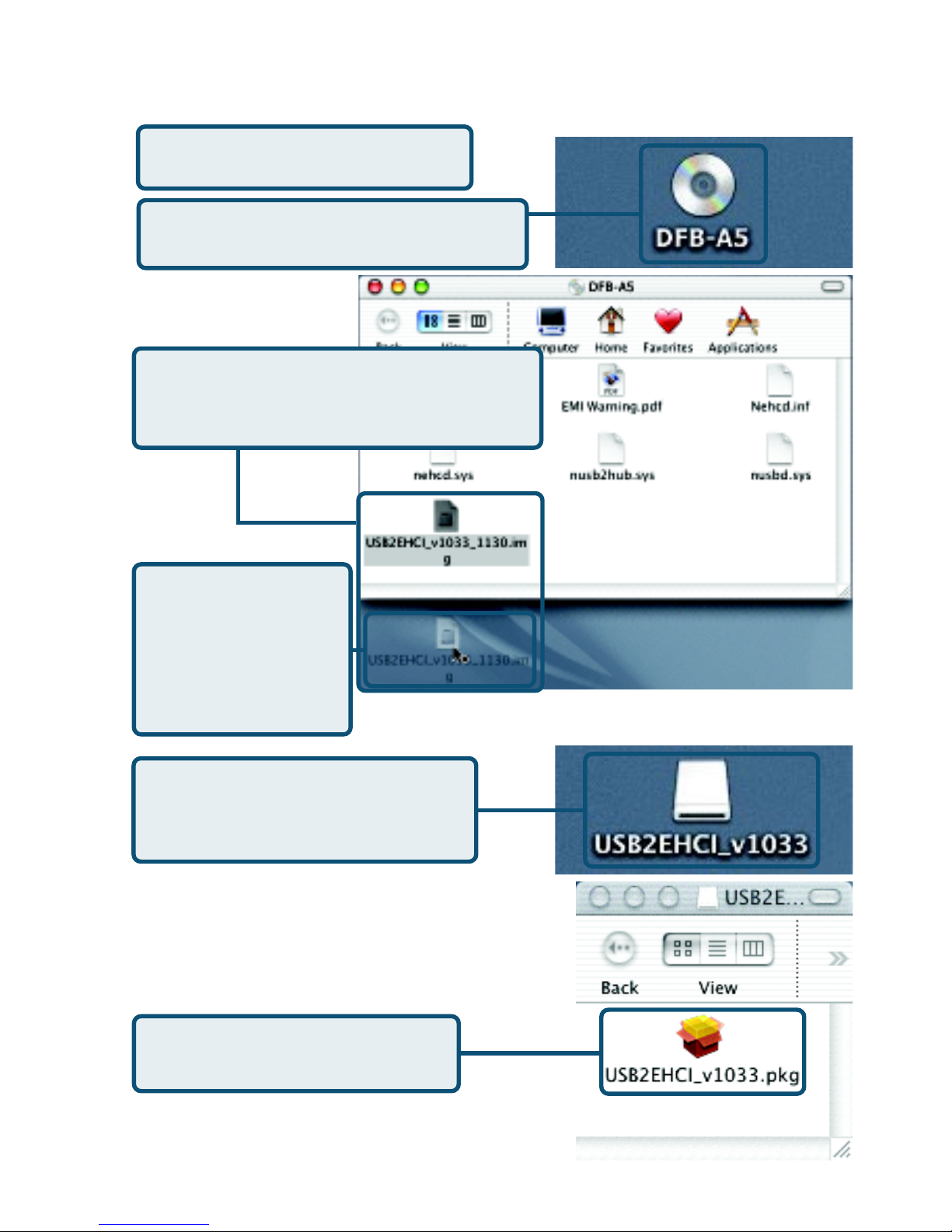
M acintosh OS X 10.1 Users
Double-click DFB-A5 when it
appears on the desktop
Double-click
USB2EHCI_V1033 when
it appears on the desktop
Insert the DFB-A5 Driver CD
into the CD-ROM drive.
Drag-&-drop
USB2EHCI_V1033_1130.img
to the desktop
Double-click
USB2EHCIV1033_1130.
IMG from the
desktop
Double-click
USB2EHCI_V1033.pkg
Page 9
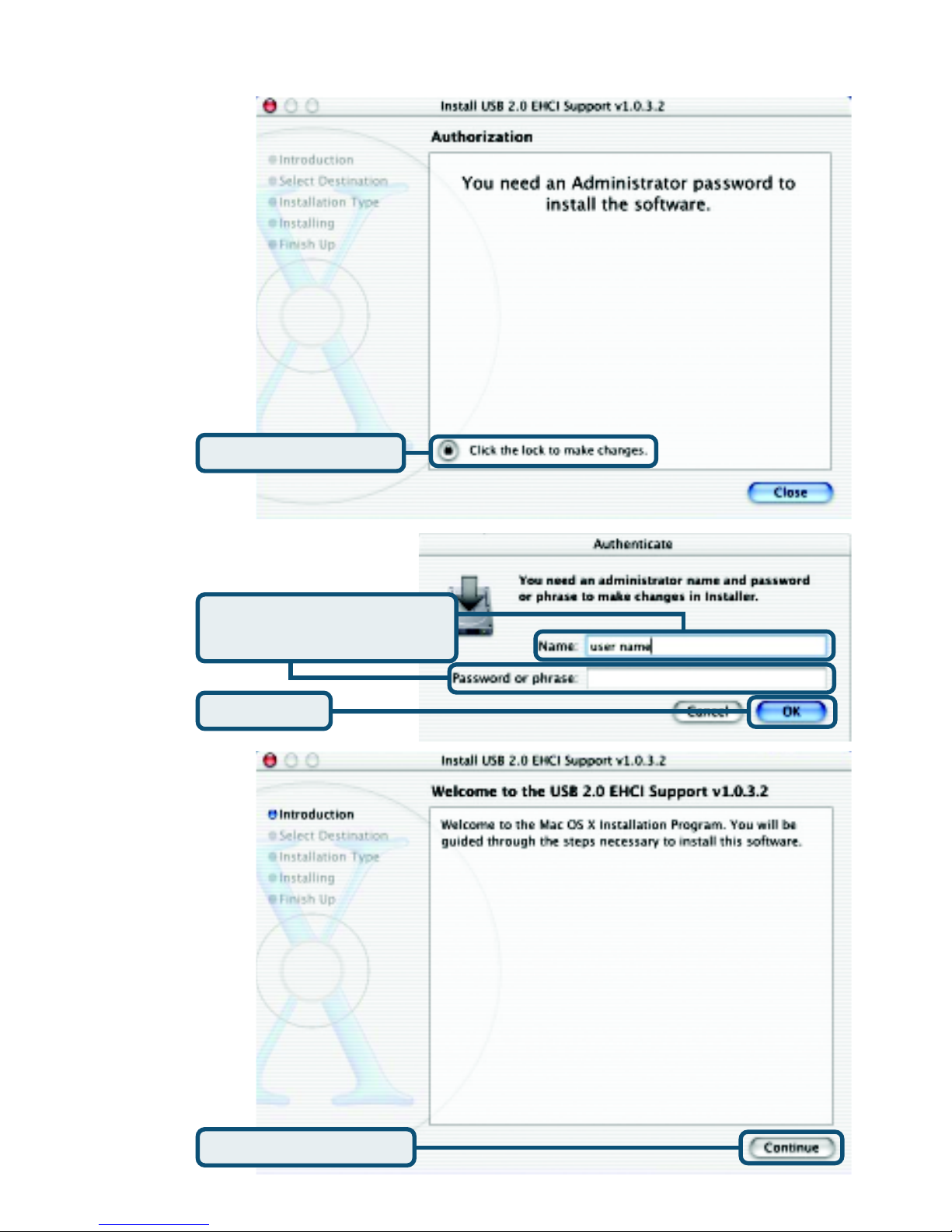
Macintosh OS X 10.1 Users
Enter your Name
& Password
Click the Lock
Click Continue
Click OK
Page 10
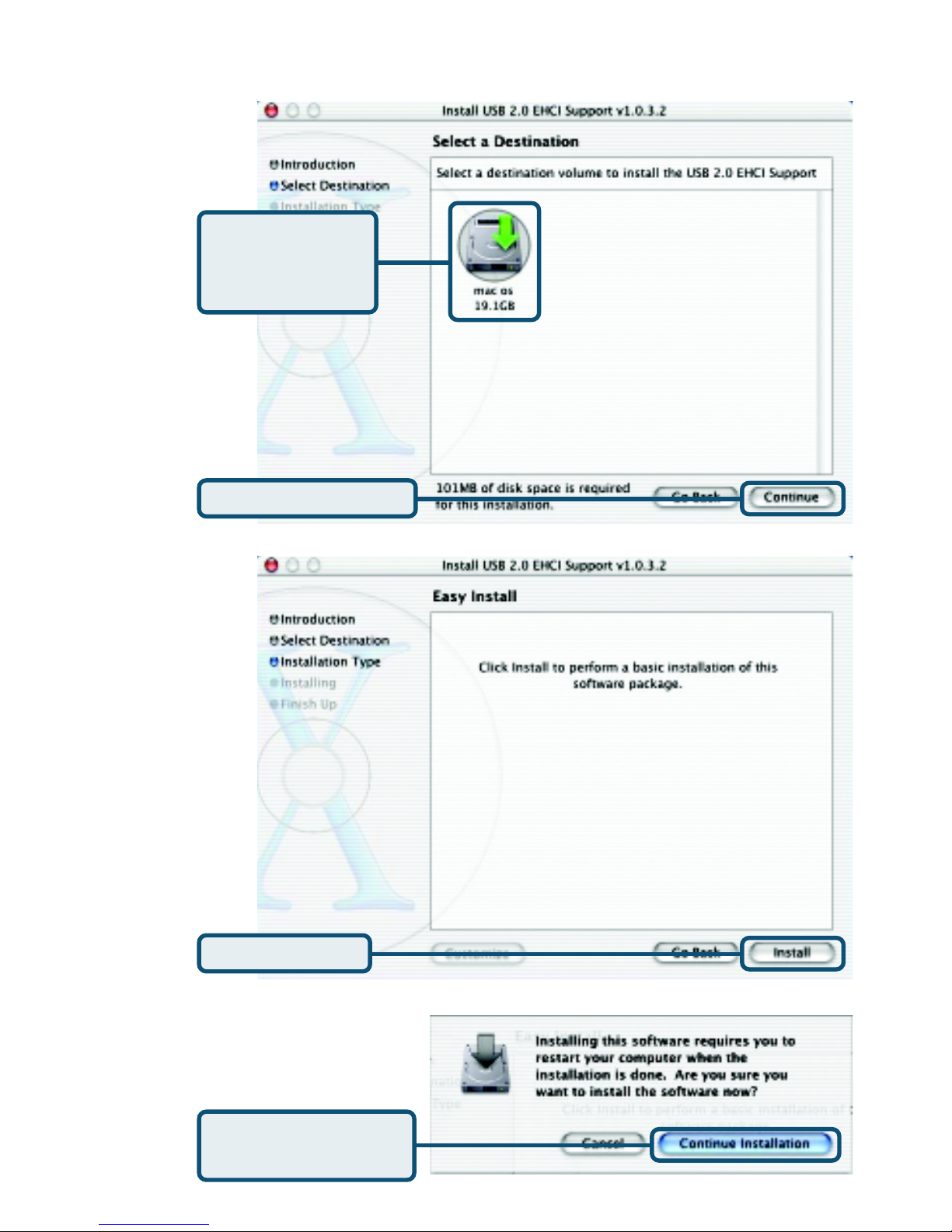
M acintosh OS X 10.1 Users
Click Continue
Select a
Destination
Volume
Click Install
Click Continue
Installation
Page 11
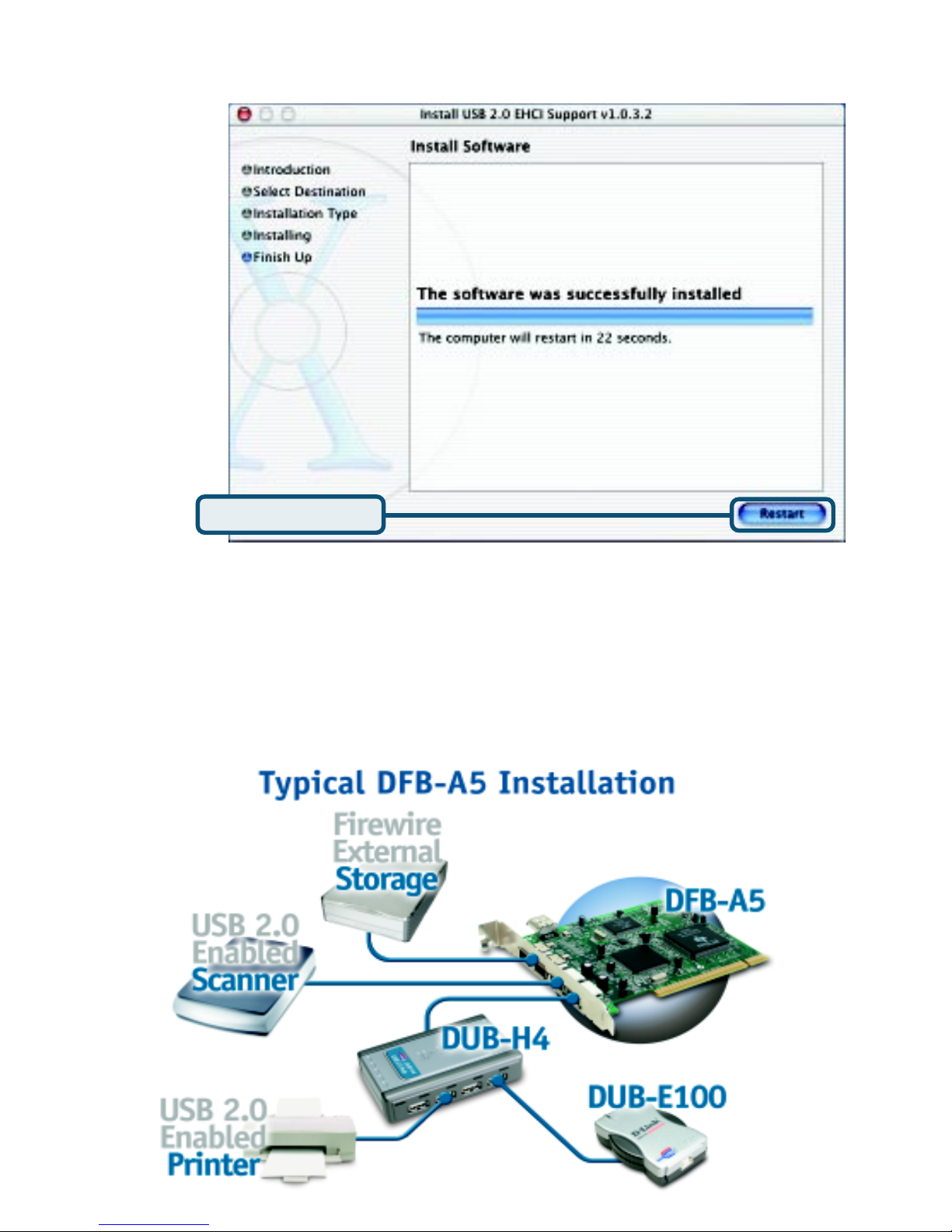
Macintosh OS X 10.1 Users
Click Restart
The DFB-A5 installation is now complete.
Once properly installed, the DFB-A5 USB 2.0 & Firewire 5-Port PCI Adapter can be
used to connect USB 2.0, USB 1.1 and Firewire device s to your computer.
The diagra m below shows a typical installation using the DFB-A5 and other peri pherals.
Typical DFB-A5 Installation
Page 12

Introduction to USB 2.0 and Helpful Tips
USB stands f or U niversal Seri al Bus. It is a sta ndard f or connecting external devices to your computer quickly a nd easily . One of the nice things
about USB is that power ca n be provided to the USB device through the
USB cable. However , some device s such as printers need more power
tha n the USB ports ca n provide, so those devices will have to use a n
external power source. USB also allows the device to be connected a nd
removed from the PC without the need to shut -down the computer.
USB 2.0 is the second generation sta ndard that i mproves on USB 1.1 to
provide fa ster and more reliable data tran s fers. USB 1.1's speed of
12Mbps is extended to 480Mbps in USB 2.0. The improved speed and
ba ndwidth opens up the possibility for newf ound solutions such a s extern al
ba ckup or data storage solutions, as well as digital audio and video
solutions.
One importa nt fe ature of the USB 2.0 sta ndard is that it is ba ckward
complia nt with USB 1.0 a nd USB 1.1. This mea n s that all of your current
USB products will work with USB 2.0 adapters.
Ma ny USB products are widely available on the market a nd more are
being developed f or future release. Because of the high speed of the USB
interfa ce, a USB hub ca n be used to connect more tha n one USB device
to one USB port at one time. The USB sta ndard specif ies that up to 127
devices ca n be connected to your computer.
Introduction
Helpful Tips
• When connecting the USB cable to the computer , ma ke sure that the
USB cable is inserted securely.
• Remember that when connecting USB 1.0 or USB 1.1 products into a
USB 2.0 adapter, the USB 1x product will not work faster.
• To ensure optimal perf orma nce when using USB 2.0 devices, use a
USB 2.0 certified cable such as the DUB-C5AB.
• The DFB-A5 USB ports will work in Macintosh OS 8/9 at USB 1.1
speeds using the built-in drivers for the appropriate operating system.
Page 13
Y ou ca n find the most recent software and user documentation on
the D-Link website.
D-Link provides free technical support for customers within the
U nited States for the duration of the warra nty period on this product.
U.S. customers can conta ct D-Link technical support through our
web site or by phone.
D-Link T echnical Support over the Telephone:
(877) 45D-LINK
(877) 453-5465
24 hours a day, seven days a week
D-Link T e chnical Support over the Internet:
http://support.dlink.com
email: [email protected]
Technical Support
©2002 D-Link Systems, Inc. All rights reserved. Trademarks or registered trademarks are the property of
their respective holders. Software and specifications subject to change without notice. DFB-A5.11252002
 Loading...