

Page 1

Wicket
User Manual
Version 1.1
March 2017
Page 2

Dispel, LLC © 2017 dispel.io
2
Hello.
This guide shows what your Dispel Wicket does, helps you set it up, and gets you up and running.
Your account is configured and ready to go, so you can start using your Wicket right out of the box.
Page 3

Dispel, LLC © 2017 dispel.io
3
Table of Contents
Hello _____________________________________________________________________________ 2!
Table of Contents ___________________________________________________________________ 3!
Your Dispel Wicket ___________________________________________________________________ 4!
Included in your box _________________________________________________________________ 6!
Setting Up Your Wicket _______________________________________________________________ 7!
Operating the Dispel Wicket __________________________________________________________ 14!
Questions?
Page 4
Dispel, LLC © 2017 dispel.io
4
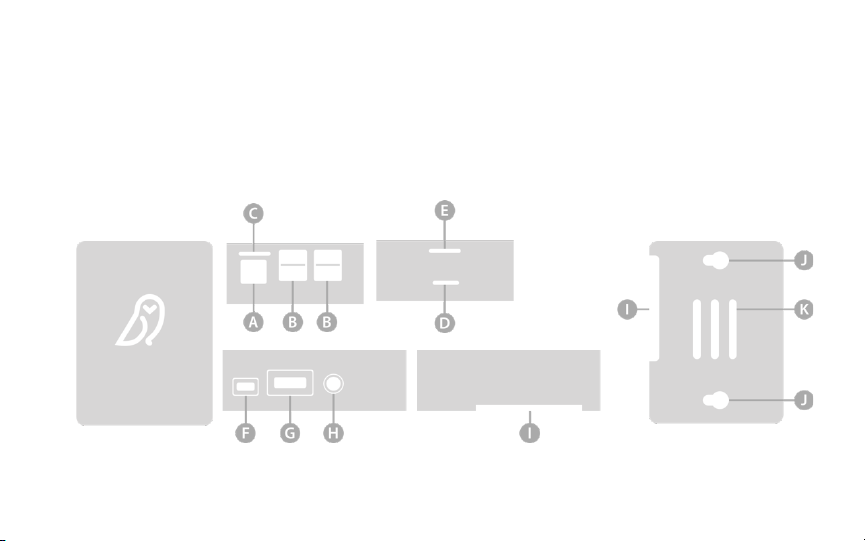
Your Dispel Wicket
This section describes the Dispel Wicket body.
Page 5
Dispel, LLC © 2017 dispel.io
5
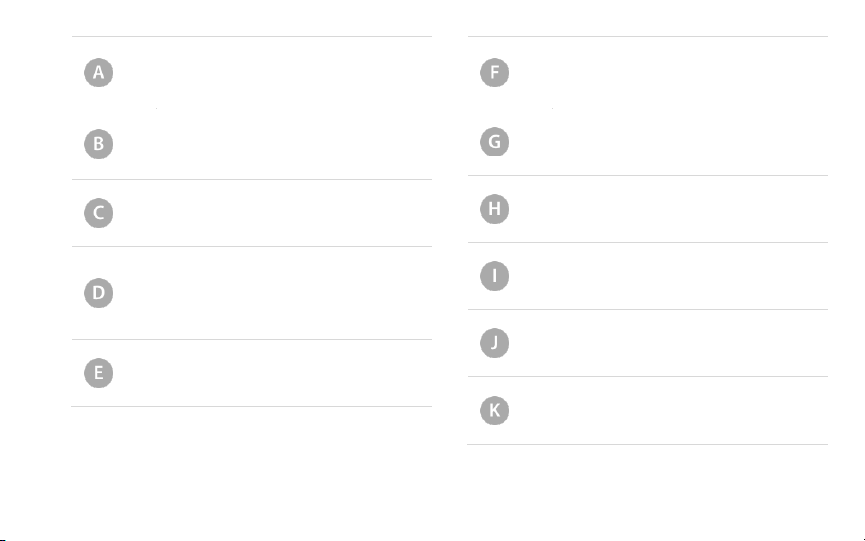
Ethernet port
Secured Internet output.
USB ports
External Internet input.
Air vent
microSD slot
Please do not remove this chip. It
contains the Dispel Wicket system.
Status light
Power
A microUSB port.
HDMI
Audio
Air vent
Wall mount
Air vent
Page 6
Dispel, LLC © 2017 dispel.io
6
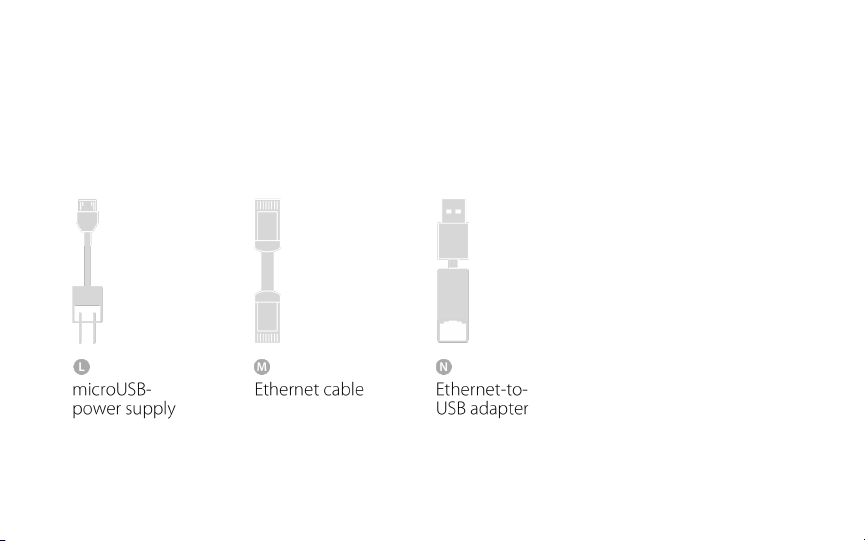
Included in your box
In addition to your Wicket, we have included the following:
Page 7
Dispel, LLC © 2017 dispel.io
7
Setting Up Your Wicket
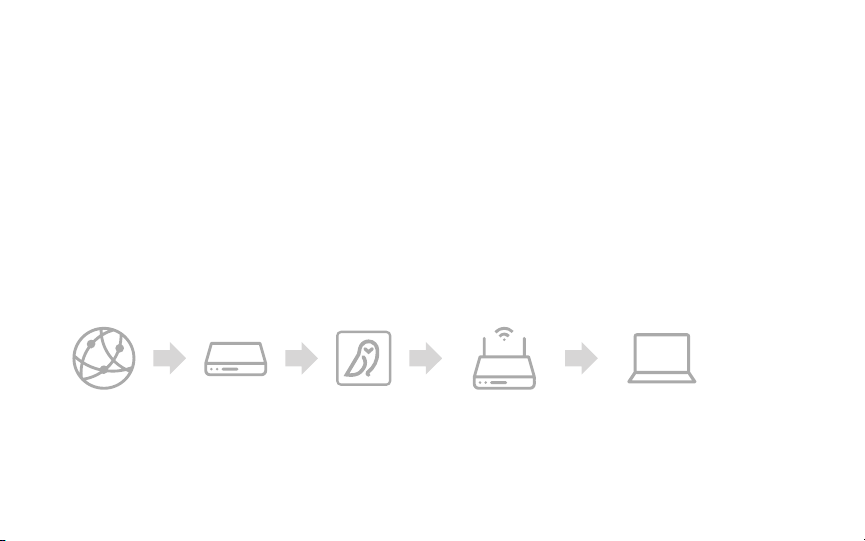
Your Wicket will need, in the following order:
1. A connection from the External Internet;
2. A connection to whatever is being secured (a LAN or WiFi router, or your computer); and
3. Power.
The purpose here is to put the Wicket between the outside world and your devices.
Internet Modem Wicket Wi-Fi Router Your Devices
Page 8
Dispel, LLC © 2017 dispel.io
8
External Internet
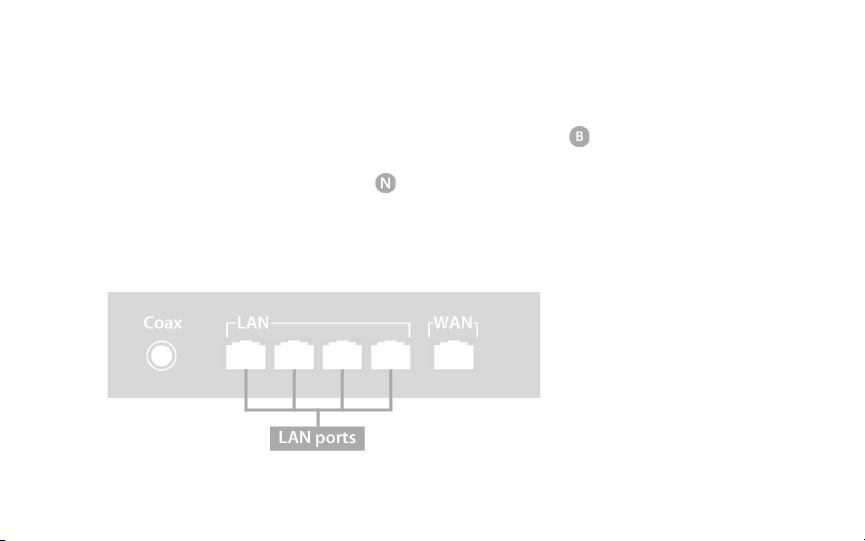
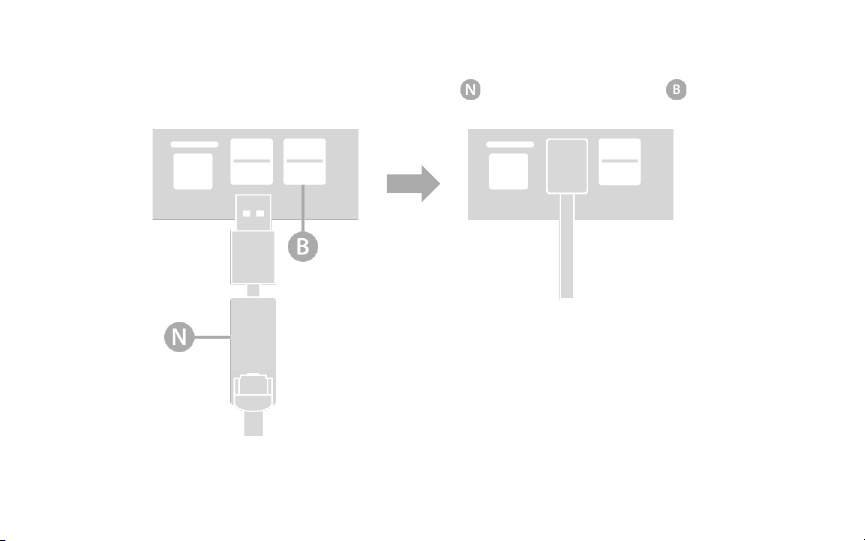
The External Internet connection plugs into any one of the USB ports on the Wicket. Please only plug
one External Internet connection into the Wicket at a time.
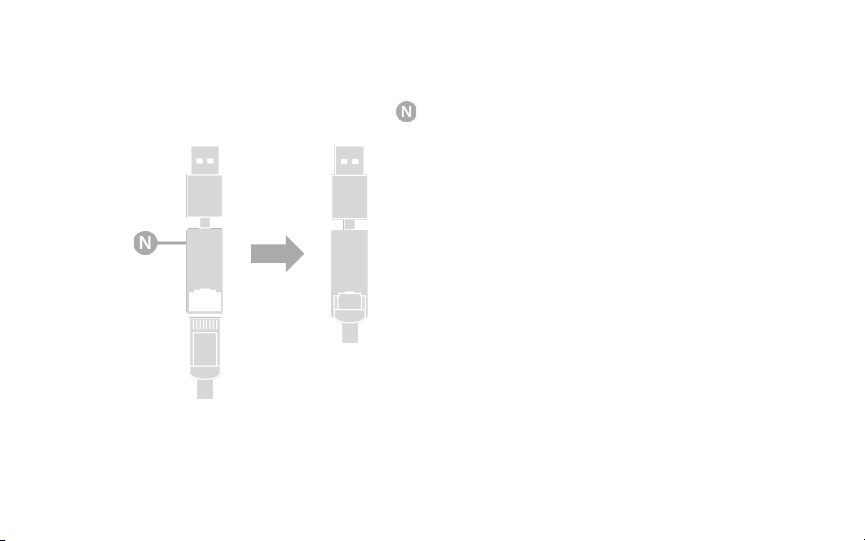
You will need an Ethernet-to-USB adapter for the external Internet connection. We have provided one
in your setup box, but any will do.
STEP 1 of 3 Connect an Ethernet cable to a LAN port on your External Internet (your modem).
Please do not use the WAN port for connecting to the Wicket. It will not work.
Page 9
Dispel, LLC © 2017 dispel.io
9
STEP 2 of 3 Connect the Ethernet cable coming from the External Internet (your modem) into an
Ethernet-to-USB adapter .
Page 10
Dispel, LLC © 2017 dispel.io
10
STEP 3 of 3 Plug the Ethernet-to-USB adapter into any of the USB ports on the Wicket.
Page 11
Dispel, LLC © 2017 dispel.io
11
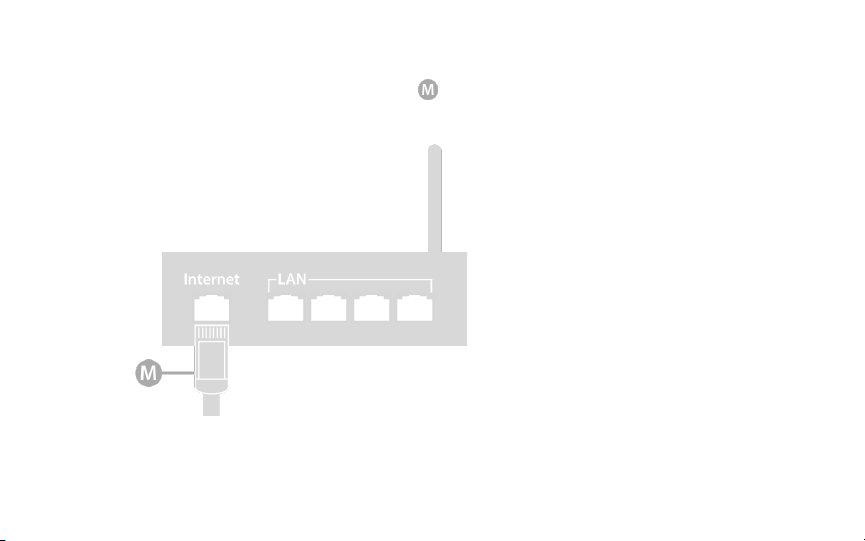
Secured Internet Connection
Any devices connecting to the Ethernet port will be protected by Dispel, and give the devices
connected to that port access to Project resources the Wicket has access to.
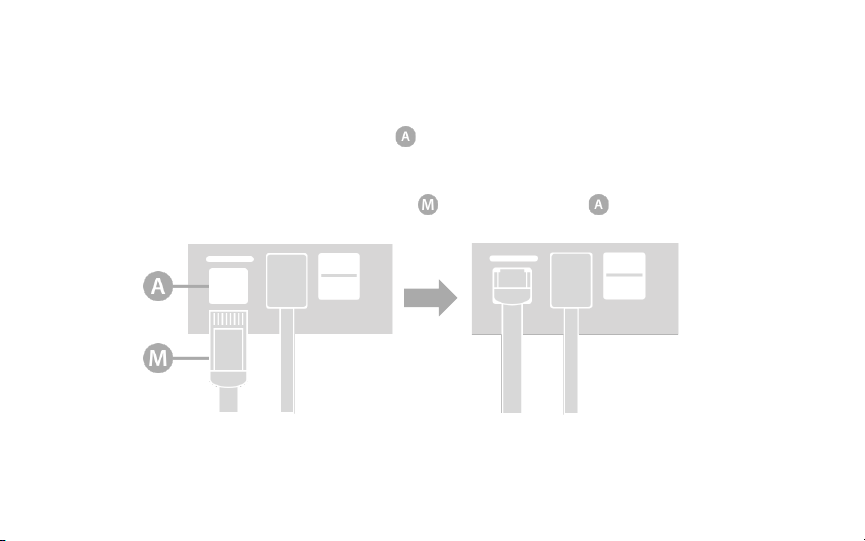
STEP 1 of 2 Connect the Ethernet cable to the Ethernet port on the Wicket.
Page 12
Dispel, LLC © 2017 dispel.io
12
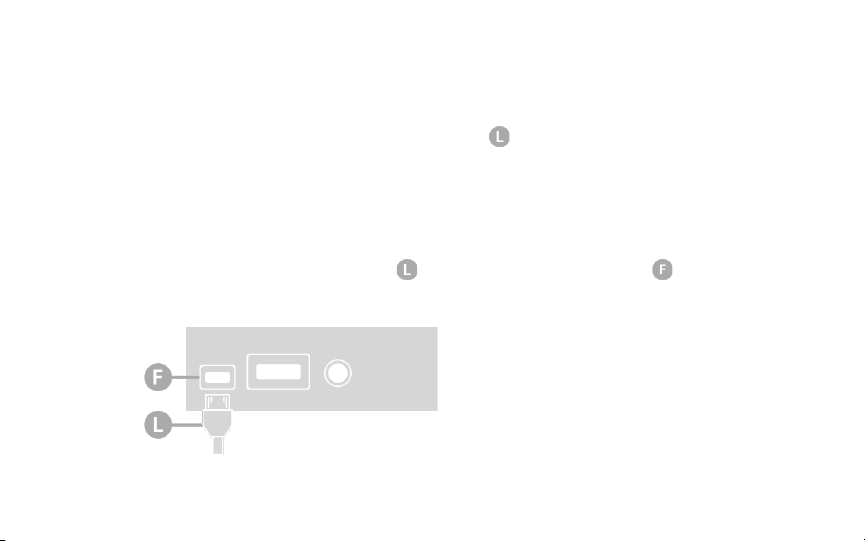
STEP 2 of 2 Connect the Ethernet cable from the Wicket to your router (LAN or Wi-Fi) or
computer.
Page 13
Dispel, LLC © 2017 dispel.io
13
Powering Your Wicket
Your Wicket uses a standard +5.1V, 2.5A, microUSB supply . We have provided one in your setup box,
but any will do.
STEP 1 of 2 Please make sure you have plugged the Wicket into both the External Internet, and
your router or computer.
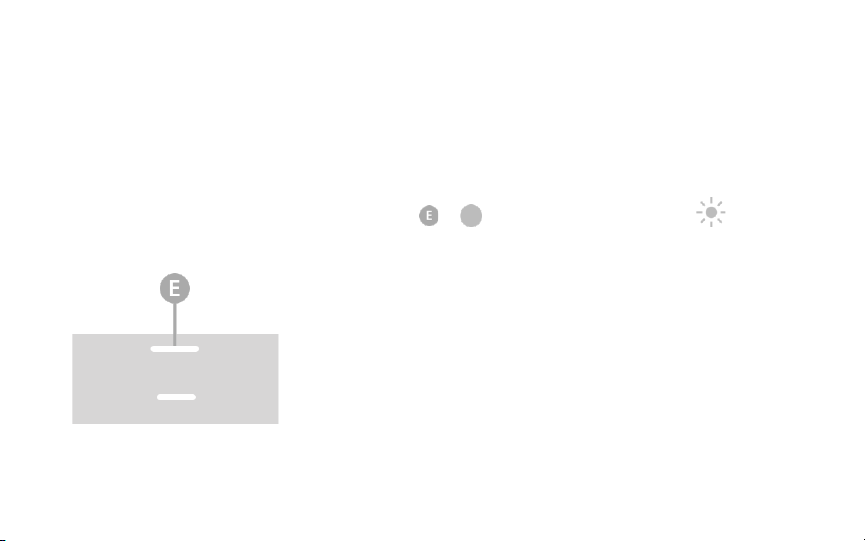
STEP 2 of 2 Plug the microUSB cable into the Wicket’s microUSB port . When power is
supplied to the cable, the Wicket will turn on.
Page 14
Dispel, LLC © 2017 dispel.io
14
Operating the Dispel Wicket
Once power is established, your Wicket will attempt to connect to the Dispel Project to which it is
assigned as part of your license.
The Wicket status is shown by the status light at . A icon means the light is solid. means it is
flashing.
Page 15
Dispel, LLC © 2017 dispel.io
15
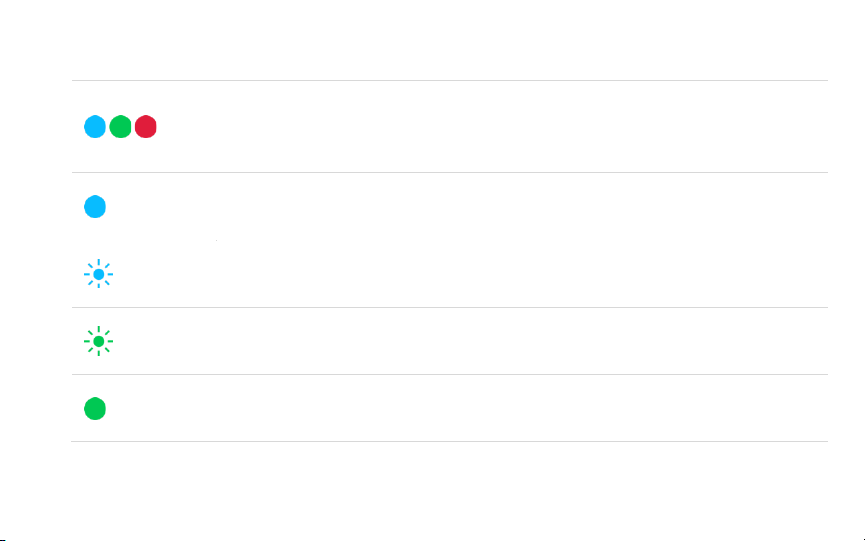
Normal Startup
System startup
While all the lights are turned on, green will appear to be the brightest. Humans
see green better than all other hues.
Looking for Internet connection
Starting connection
Connecting
Connected
Page 16

Dispel, LLC © 2017 dispel.io
16
Troubleshooting Startup
Error connecting
1. Check you have an Internet connection.
2. Confirm your external and internal Ethernet cables are connected to their
proper ports (external to USB, secured to the Ethernet port) prior to powerup. If they were not, just power down the Wicket, plug both Ethernet cables
in, and power back up again.
3. If you have a firewall, please make sure it has been set to permit an outbound
VPN connection.
4. Contact Dispel. Your Wicket may not be assigned to a Project.
Page 17

Written in New York City. Printed in the United States of America.
Thank you.
 Loading...