

Page 1
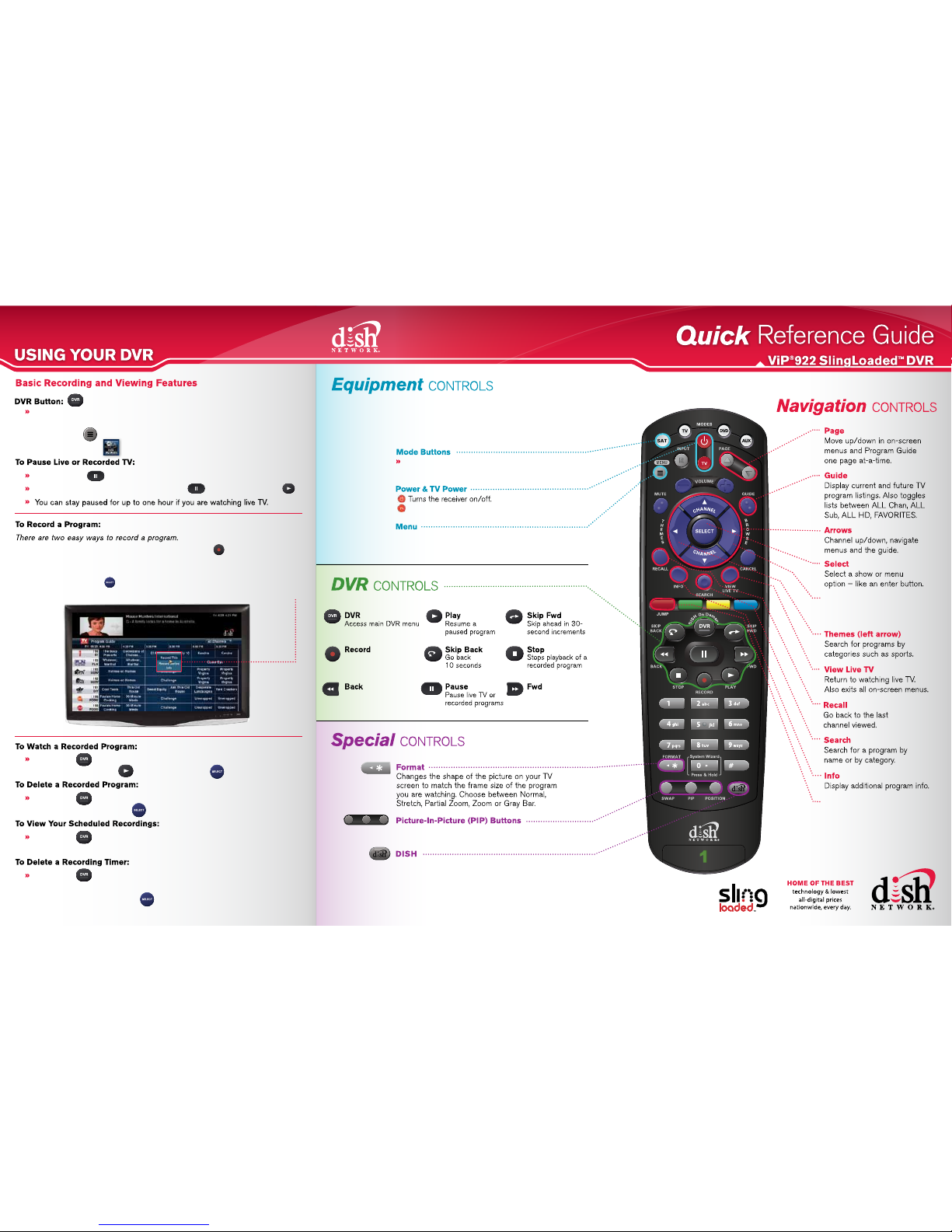
Press DVR once to access
the My Media menu, or
press MENU and
select the DVR tile.
My Recordings: watch and/or delete
your recorded programs.
Daily Schedule: view your scheduled
events.
Timers: view and edit your current timers.
Rentals: locate programs you’ve rented.
My Media menu includes:
Jump
Navigate between drop-down
menus and screen menus.
Browse (right arrow)
Browse other channels while
watching TV.
To resume playing the program, press Pause again or press PLAY.
177712
Record live TV shows
as they happen
Turns the TV on/off.
If you would like to use your DISH Network remote control to operate
additional equipment such as a DVD player or audio receiver, access the
Help tile from the Main Menu for additional information.
SAT: controls the satellite receiver. You will stay in
SAT mode most of the time.
Access features and settings including: Parental
Controls, Customer Support, Guide Settings, and more.
Reverse live TV or
recorded programs
Advance recorded
programs
To record a show you are watching, press RECORD on the remote
control. The event will now appear in the My Recordings Menu.
To record a show from the Guide, highlight a future show you want to record,
then press SELECT . From the on-screen pop-up menu, choose either
Record This to record once, or Record Series Timer to set up a recurring timer.
1.
2.
Press DVR , then choose Daily Schedule from the My Media drop-down
menu, or press DVR twice.
Press DVR , highlight the program from your recordings that you want to
watch, then press PLAY to watch, or SELECT for more options.
Press DVR , highlight the program from your recordings that you want to
delete, then press SELECT and choose Delete from the pop-up menu.
Press DVR , choose Timers from the My Media drop-down menu (or
press DVR three times to access the Timer menu), highlight the timer you wish
to delete, then press SELECT and choose Delete Timer from the
pop-up menu.
Access DISH On Demand content.
Watch two separate programs at once.
Only available in Solo PIP Mode. Refer to the on-screen Help option for more information.
Press PAUSE.
Content in this document is subject to change without notice. Please visit dishnetwork.com
for the latest information.
Your remote control may look
different from what is shown.
Page 2
TM
Receiver image may vary.
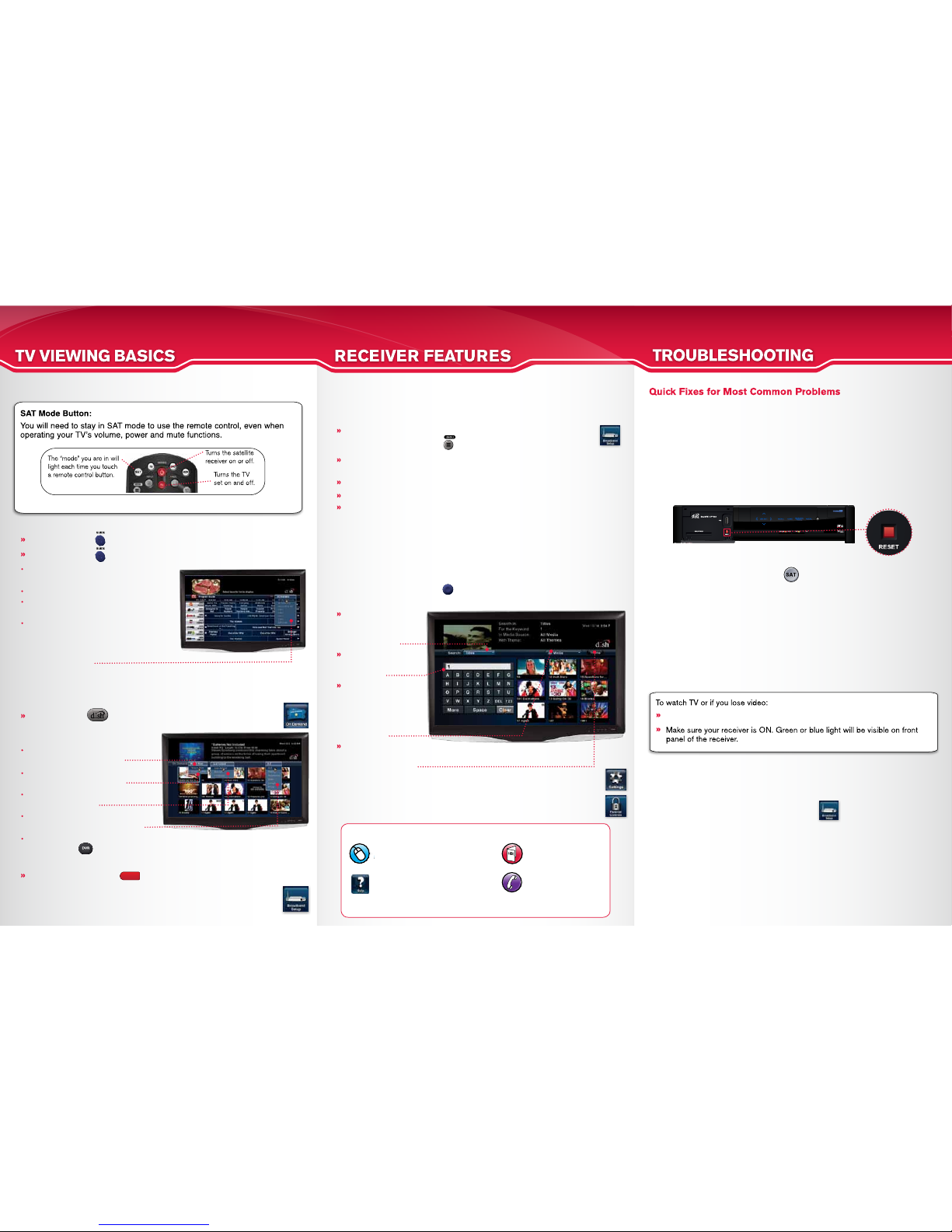
Note: to control a TV, VCR, DVD or other available component,
the remote control must be programmed.
In the event you are experiencing any problems watching or controlling your DISH
Network receiver, please try these quick fixes:
Open the door on the front left side of the receiver and press the red RESET
button. The receiver restarts and returns to programming in just a few minutes.
You can also reset the receiver by unplugging its electrical cord from the AC
power outlet for 15 seconds and then plugging it back in.
Reset the Receiver
Verify that your remote is in satellite mode when you want to control your satellite
receiver. Press and release the SAT button at the top of your remote control.
Press the SAT Mode Button
The remote control antenna must be connected hand tight to the back of
the receiver.
Connect the Remote Antenna
Verify that your receiver has a connection to your home broadband network. Press
MENU then select the B ROADBAND SETUP tile. Select RESET CONNECTION
to refresh the receiver’s network connection.
Reset Your Broadband Connection
Verify cables are hand tight and connected properly on the back of your receiver.
Verify the Cable Connections
Check and replace the remote control’s batteries. Your remote control’s battery
strength indicator can be found on the System Info screen by selecting the option
on the front panel of the receiver.
Replace Your Remote Batteries
Make Sure You Are on the Correct Channel or Input:
Finding Content to Watch Using the Search Feature
Your receiver has a powerful search feature that makes finding content easier
than ever. Press the SEARCH button on the remote control to quickly search
thousands of listings across the Program Guide, DVR, and On Demand offerings.
Choose search
criteria such as title,
program description,
or actor’s name.
Use the on-screen
keypad to enter
information.
Set search
parameters to include
all available media
or specific media
such as On Demand
content only.
Use the Theme filter
to narrow your search
by program category.
Follow the on-screen instructions to download the plug-in to your computer,
then verify you are receiving the live video stream on your screen.
* For a complete list of supported mobile devices, visit:
www.dishnetwork.com/tveverywhere
Watch your home TV on a PC or Mobile Device
Your DISH Network SlingLoaded receiver allows you to watch your home TV and
control your DVR from anywhere with a PC or mobile device*.
Go online to www.dishnetwork.com and log in to your account, or create an
account if you are a first-time user.
Click on the DISH Remote Access link on the left side of the screen.
Select the blue button labeled Watch Live TV.
Confirm that your receiver is connected to your home broadband
network by pressing MENU and selecting the Broadband Setup tile.
Remote Control Features
Make sure the TV is set to ___________ (channel/input).
Parental Controls
You can password-protect TV viewing based on rating or channel. Select the
Settings tile from the Main Menu, then select the Parental Controls tile and
choose your settings. Be sure to set the Parental Controls option to “on”.
On-Screen Program Guide
All My Channels: Display only the channels
you subscribe to.
All Available: Display all channels.
Show HD & SD: Add corresponding SD
channels to the guide display.
Lists: Select Edit Lists to rename one of
the numbered lists and create your own
list of favorite channels. You can create up
to four custom Favorites Lists to display in
the Program Guide.
Press the GUIDE button to view the on-screen programming guide.
Press the GUIDE button twice to choose which guide to display.
DISH On Demand
Select Watch Now to view and select
current On Demand content.
Select DishONLINE to search and
select downloadable content.
Filter the titles to show new listings,
movies, or TV shows.
Choose to sort search results
alphabetically, by date, or by rating.
Your receiver’s On Demand feature gives you instant access to thousands of
titles including hit movies, new releases, and popular TV shows*.
From the On Demand drop-down menus:
* The On Demand feature requires a broadband connection. Select the Broadband Setup tile
from the Main Menu screen to configure the receiver’s broadband settings.
www.welcometodishnetwork.com
Click on AskDISH for answers to
most common questions.
Customer Support:
1-800-333-3474
Select MEN U on your remote
to access the Main Menu, then
select the HE LP tile.
Where do I go for 24/7 help?
1235 5698 1265
See the Help Guide
booklet for FAQs and
troubleshooting.
1235 5698 1265
Press the DISH button on the remote to access the On Demand
feature, or select the On Demand tile from the Main Menu screen.
TIP: Press the red JUM P button on the remote to quickly move between
the content screen and the drop-down menus.
To watch your selections later, select the My Media tile from the Main Menu, or
press the DVR button. Selected free content will be in the My Recordings
section, and purchased content will be in the Rentals section.
Content in this document is subject to change without notice. Please visit dishnetwork.com
for the latest information.
 Loading...